Advanced Design Settings
Open CMS Click OnlineStoreclick designclick tab advanced design settings .
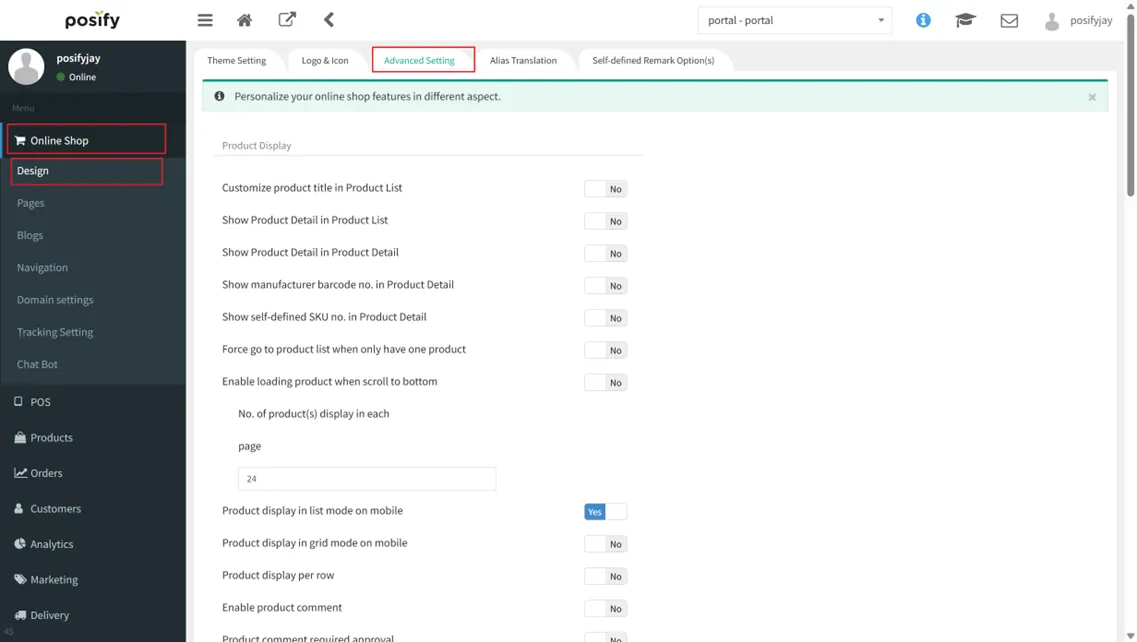
Product Showcase:
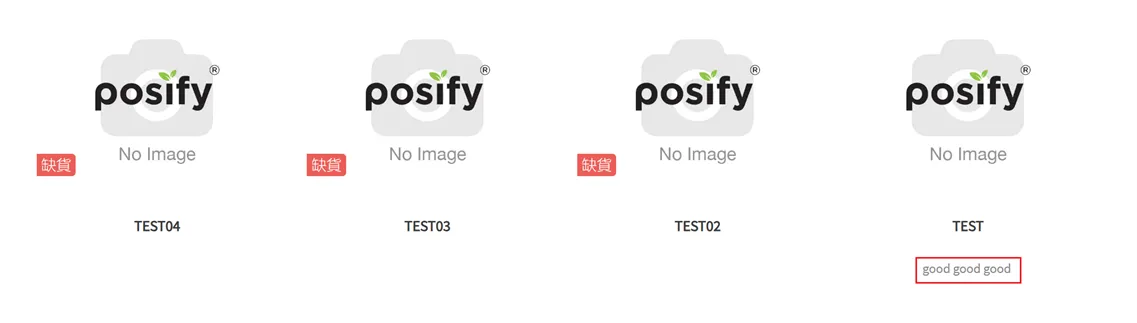
Display product details in the product column: If this function is enabled, the product description of the product information will be displayed under the product list of the online store.

The display effect is shown in the figure.
Forcibly jump to the product list page in the case of one product: After enabling this function, when there is only one product under the product category, the category will still be displayed as a product list, as shown in the figure below.

If this function is not enabled, when entering a category with only one product, it will directly enter the details page of the product by default.
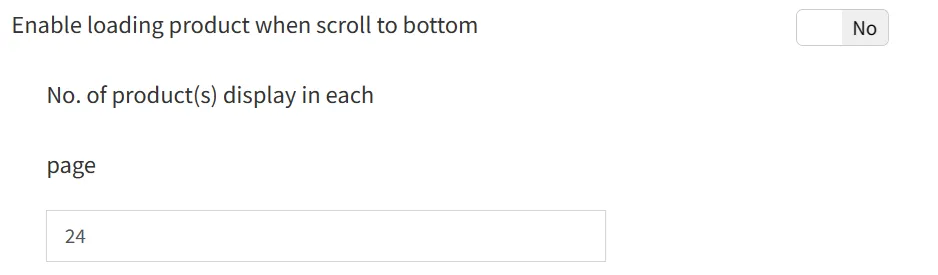
Pull down to display more products: If there are enough products under the category of your online store, after enabling this function, entering the category will not display pagination, and the products will be loaded by pulling down; if this function is not enabled, you can set the products displayed on each page If you set 24 per page, when there are enough products in the category of the online store, only 24 will be displayed on one page, and you can choose the number of pages.
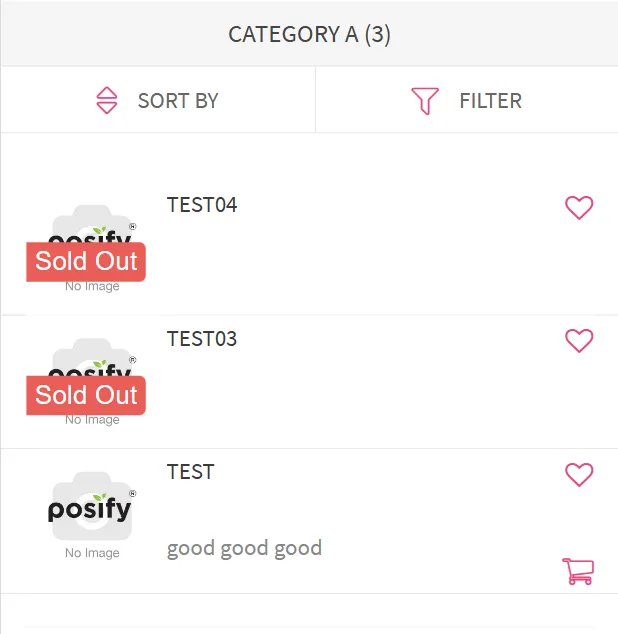
Products are displayed in list mode on mobile phones: After enabling this function, the products in the mobile version of the Online Store will be displayed in list form under the category.
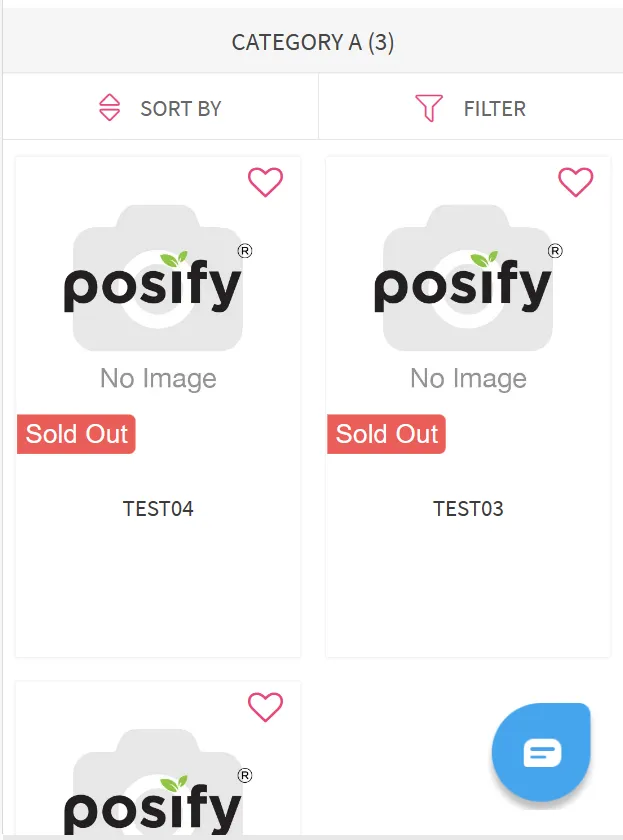
Items are displayed as squares on mobile phones: After enabling this function, the mobile version of the Online Store will display items in the form of squares under the categories.
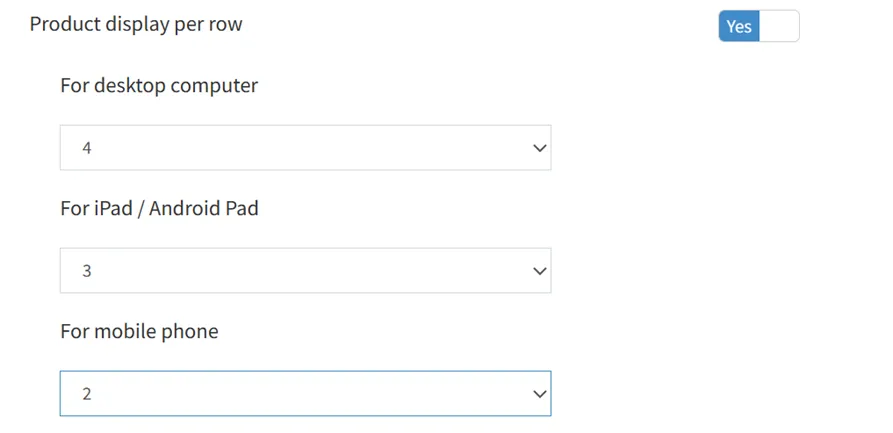
The number of products displayed per line: You can set the number of products displayed on each line on desktop computers, tablet computers, and mobile phones. It is recommended that the number of products displayed on computers: 4, the number of products displayed on each line on tablets: 3, and the number of products displayed on each line on mobile phones: 2 .
Customer Relations:
Visitor: If this function is enabled, the online store allows visitors to purchase goods. If it is not enabled, it is impossible to checkout without logging in.
Allow Registration: Enable this function to allow customers to register as members from the online store. If not enabled, customers cannot register as members from the online store.
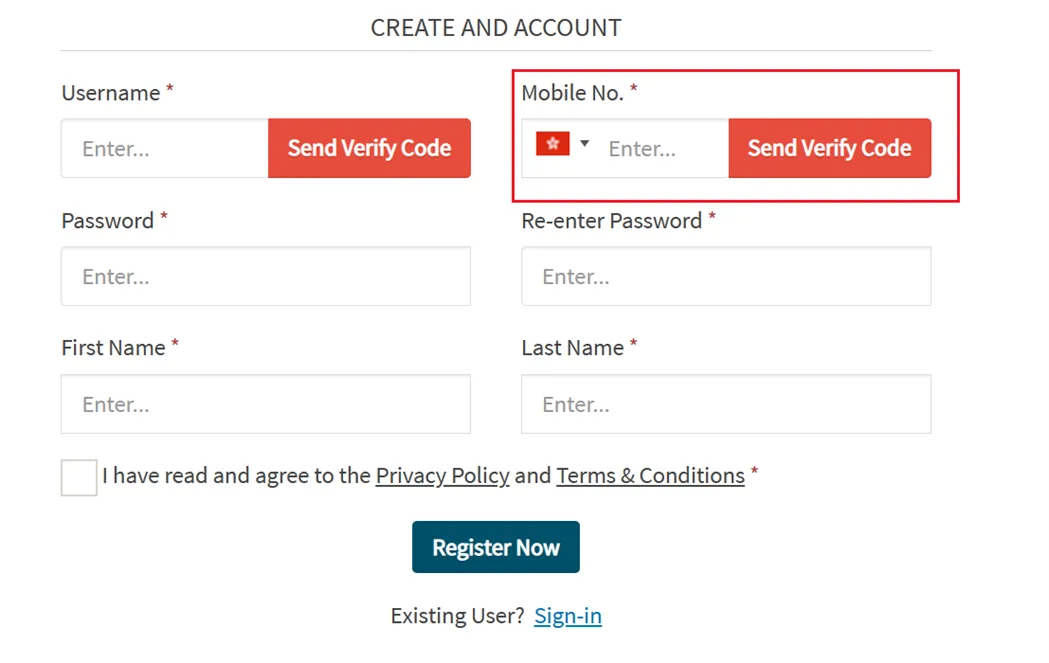
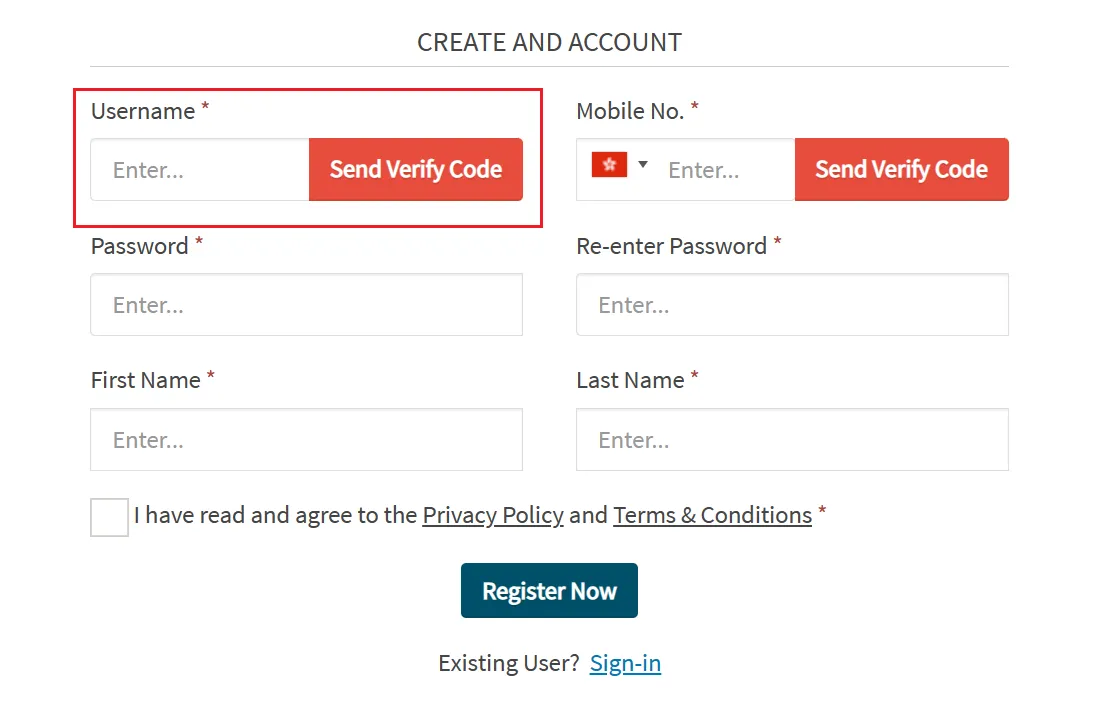
Member registration SMS verification: After enabling this function, the phone number entered by customers when registering as a member in the online store needs to be verified. Click [Get Verification Code], and the phone number filled in by the customer will receive a registration verification code.
Before using this function, please make sure that you have purchased the SMS function, otherwise the verification code cannot be sent to the customer's phone number.
Enter the verification code received by the mobile phone into the pop-up window, and click [Verify].
Member Registration Email Verification: After enabling this function, the customer registers as a member from the online store, and the email address entered needs to be verified. Click [Get Verification Code], and the email address filled in by the customer will receive the registration verification code.
Before enabling this function, please make sure that the system is configured with e-mail, otherwise the e-mail cannot be sent successfully. For how to configure email, please refer to playbook-other settings under the general settings module.
Enter the verification code received by email into the pop-up window, and click [Verify].
Enable Facebook Login: Please click here to learn how to use this feature.
Enable Facebook Messenger: Please click here to learn how to use this feature.
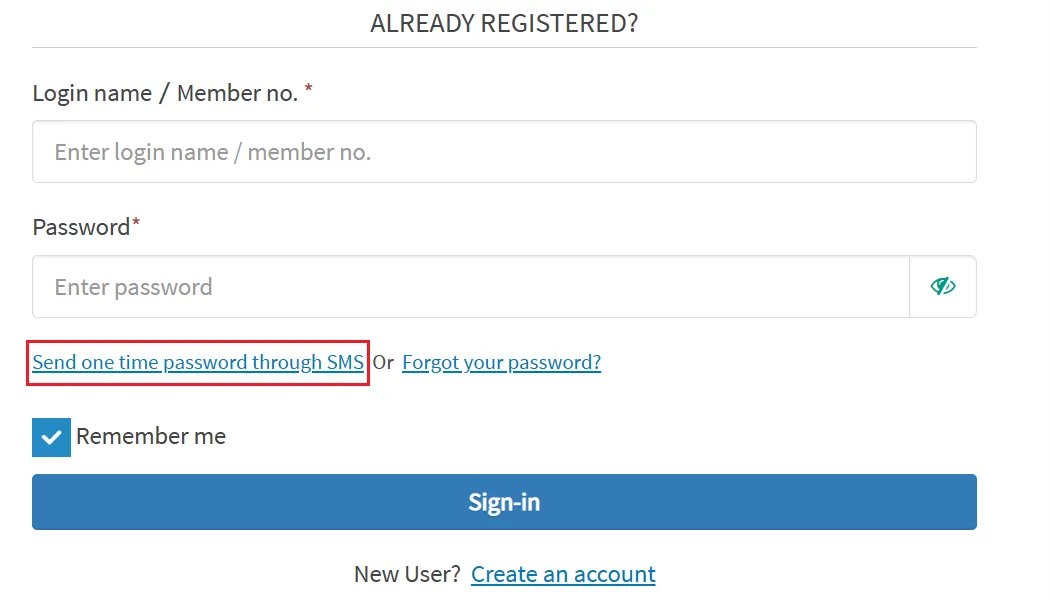
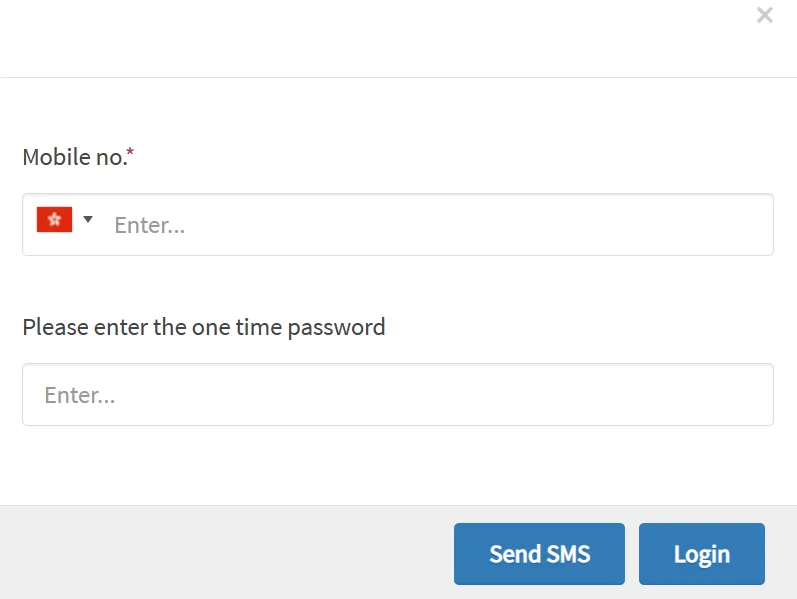
Enable one-time password login: After enabling this function, the online store can use SMS one-time password to log in. The customer enters the phone number when registering as a member, clicks [Send SMS], and will receive an SMS from the merchant, and enter the verification code in it to log in.
Before using this function, please make sure whether you have activated the SMS function, if you do not activate the SMS function, you cannot use this function.
Checkout Process:
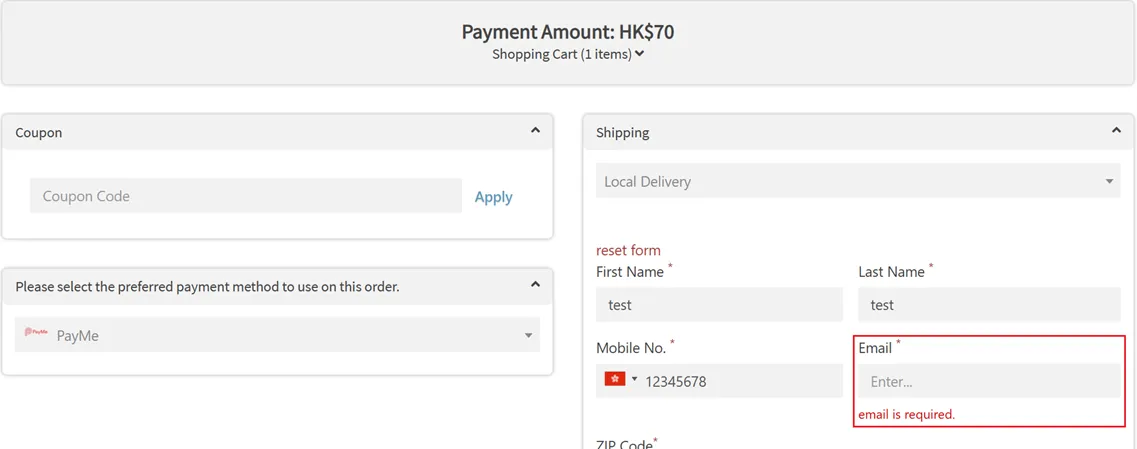
Email is required at checkout: After enabling this function, fill in the delivery information when shopping in the online store, if you click checkout without filling in the email, you will not be able to checkout, and you will be prompted“Email is required”And the email field will be marked with *.
The phone number is required at checkout: After enabling this function, fill in the delivery information when shopping in the online store, if you click checkout without filling in the phone number, you will not be able to checkout, and you will be prompted“Phone number is required”and will be marked with *.
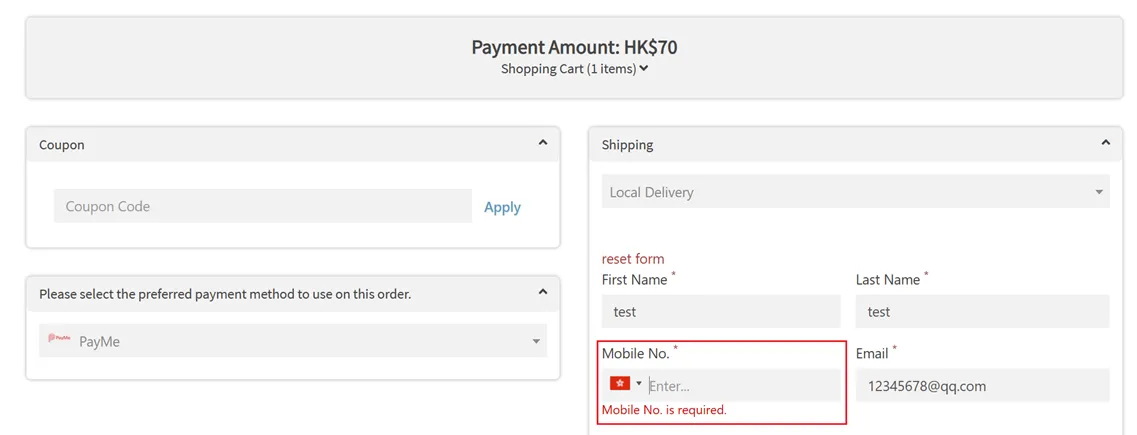
Enable B2B payment process: After enabling this function, B2B members log in to the website, shop and check out, and the checkout process is the same as that of visitors and B2C members. one.
Other settings:
Users need to log in before browsing the webpage: After enabling this function, entering the online store will directly jump to the member login page, and users must log in to browse the website.
Online store images are displayed with best performance (images will be compressed to the optimal size of the web browser): When this feature is enabled, the online store images will be compressed to the optimal size of the browser.
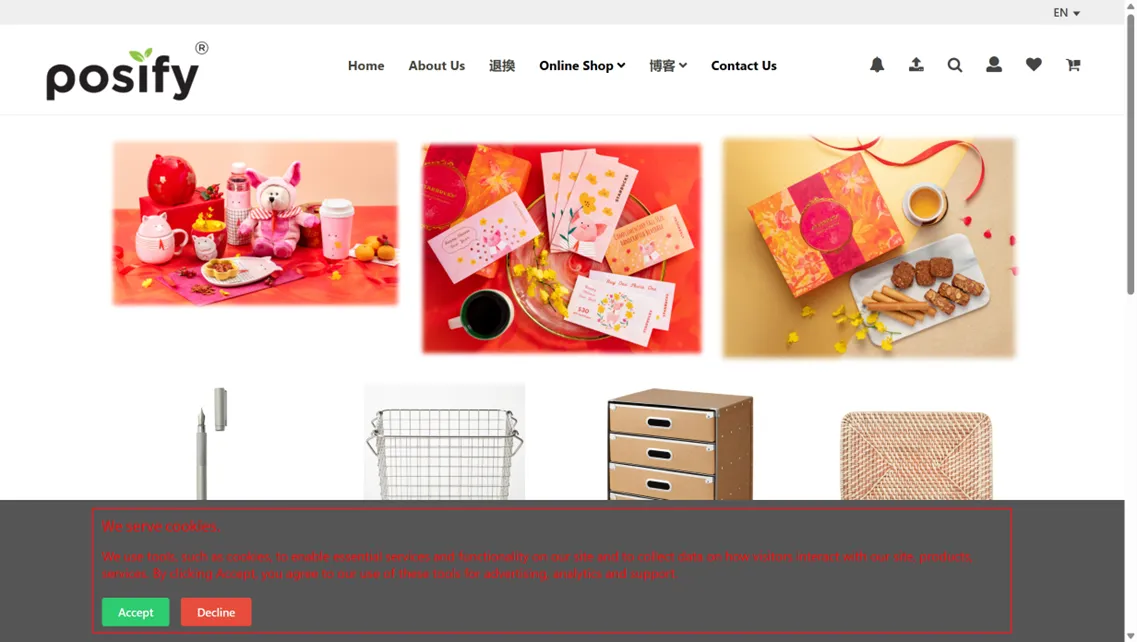
Enable the use of cookie window: After enabling this function, a cookie window will pop up when customers enter the online store.
Alias Translation
Posify supports making changes to some fields of the online store.
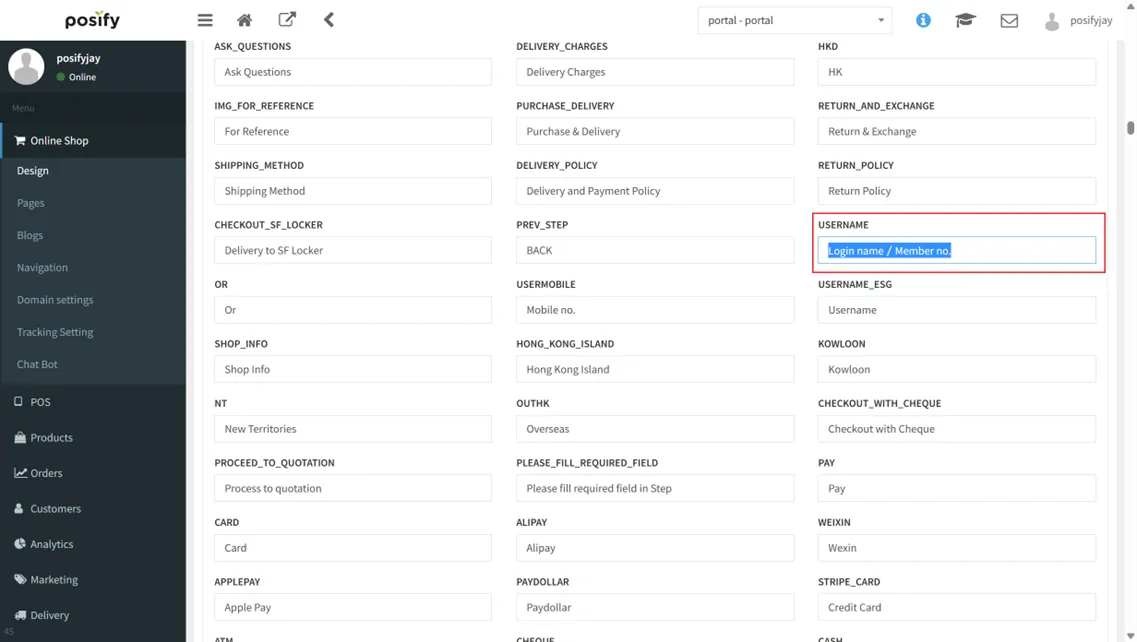
Example: In the login page of an online store, the fields displayed by default“Login Name/Membership Number”It can be modified to other content.
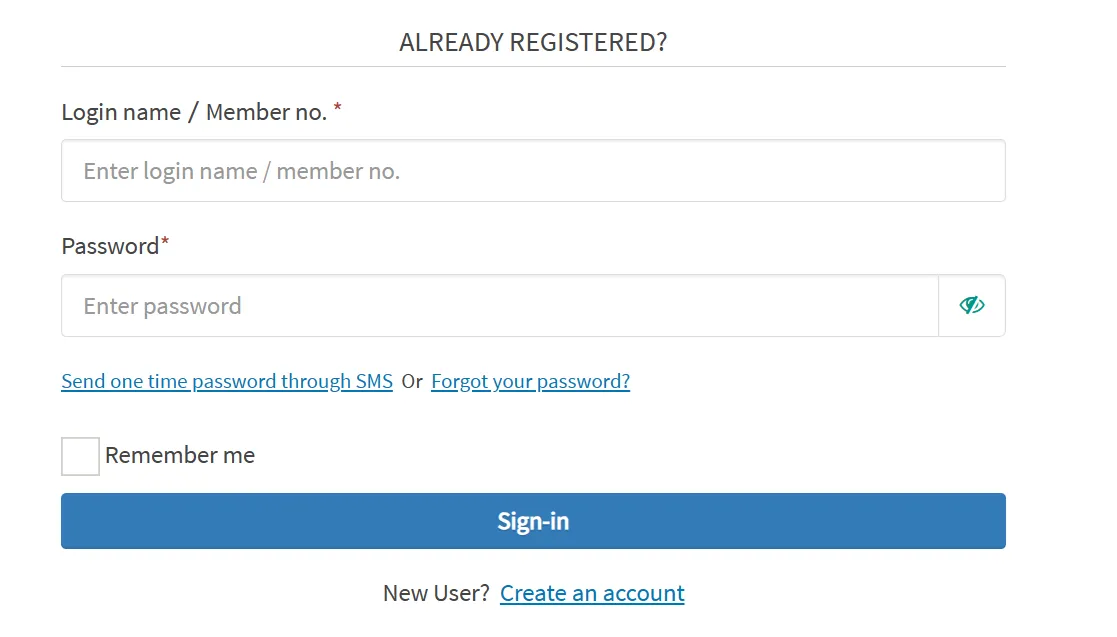
The way to modify the field alias is as follows:
Open CMSClick OnlineStoreclick designclick tab alias translation 。
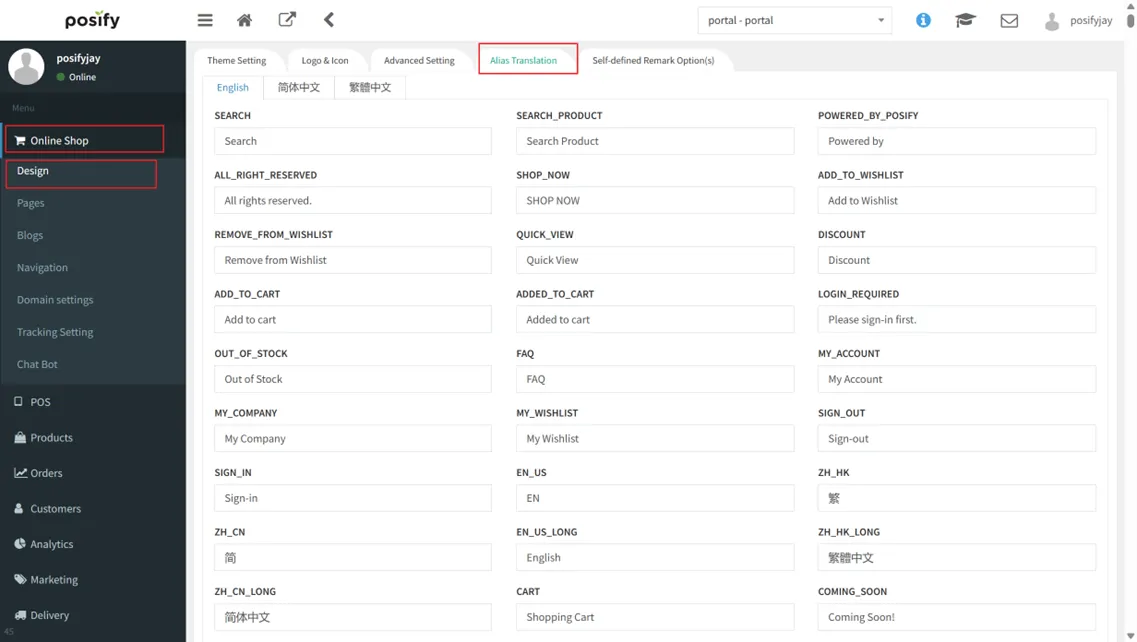
Press Ctrl+F to bring up the search boxSearch for the currently displayed name of the field you want to modify, and the relevant records found will be highlightedChange the name to whatever you want to displayScroll down to the bottom and click [Save].
Note: Only the field names found under alias translation can be changed, otherwise they cannot be modified.
Custom Order Notes Options
Sometimes customers need to make some remarks on the order during checkout, and merchants can also customize some commonly used remarks as order remarks options.
The method of setting is as follows:
Open CMSclick onlinestoreclick designclick tab Custom Order Notes OptionsClick [Add] to add a custom order note option.
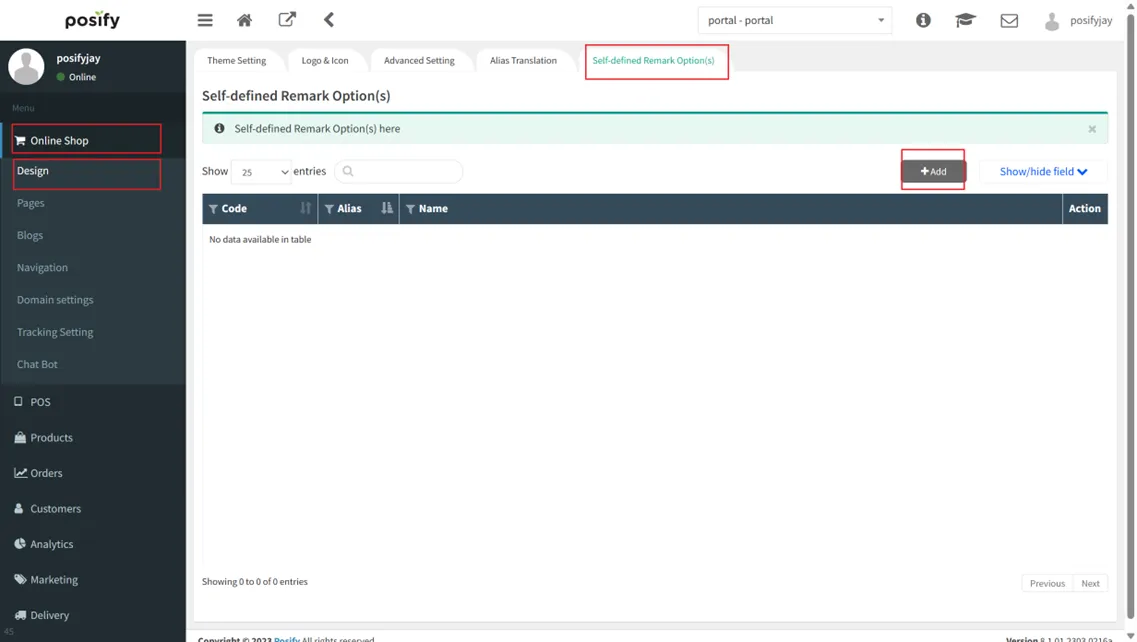
Enter number, alias and nameClick [Save].

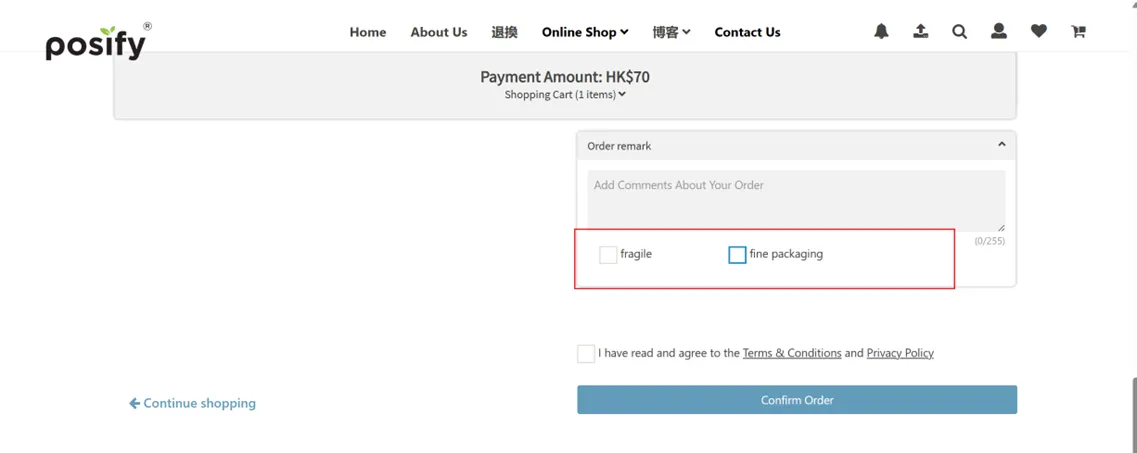
After the setting is complete, the custom order remarks option will be displayed as shown in the figure below during checkout.