create invoice
Invoices can only be created from orders, not individually. An invoice will be automatically created when each order is created, and there is no need to create another invoice.
Here's how to view the invoice for your order.
step:
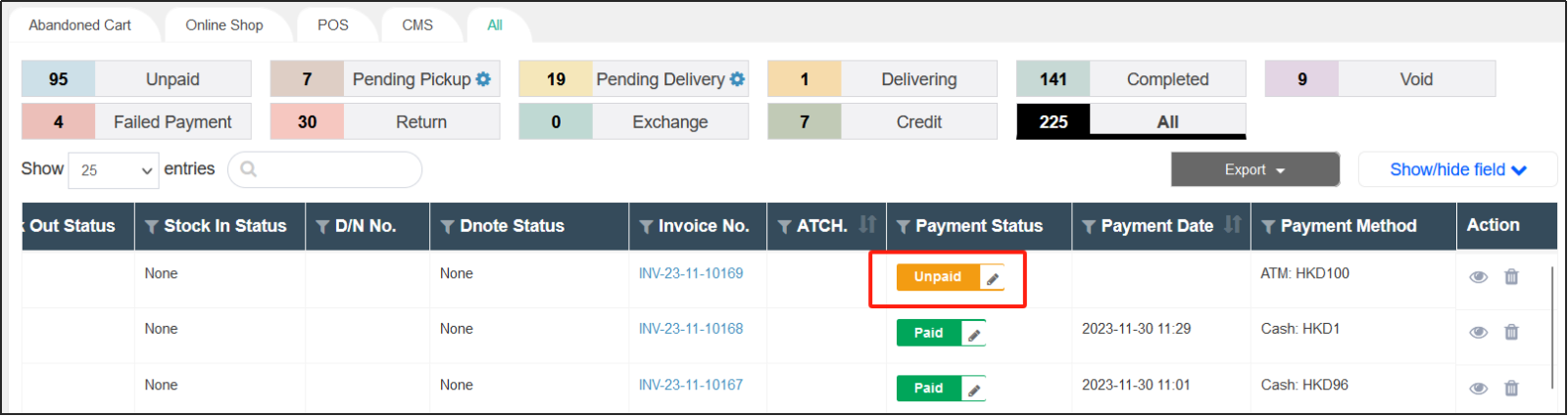
1.Open CMS click orderclick Sales overviewclick allFind the order you want to view the invoice for.
![Tab[All]](https://cdn21.posify.me/docs/posifysgweb/files/images/playbook/severn/changepicture/invoices_receipts/%E5%9B%BE%E7%89%87170.png?imageMogr2/format/webp)
2. Pull the scroll bar below the list to the right, find the payment status column, and click the icon in the status column of the order.
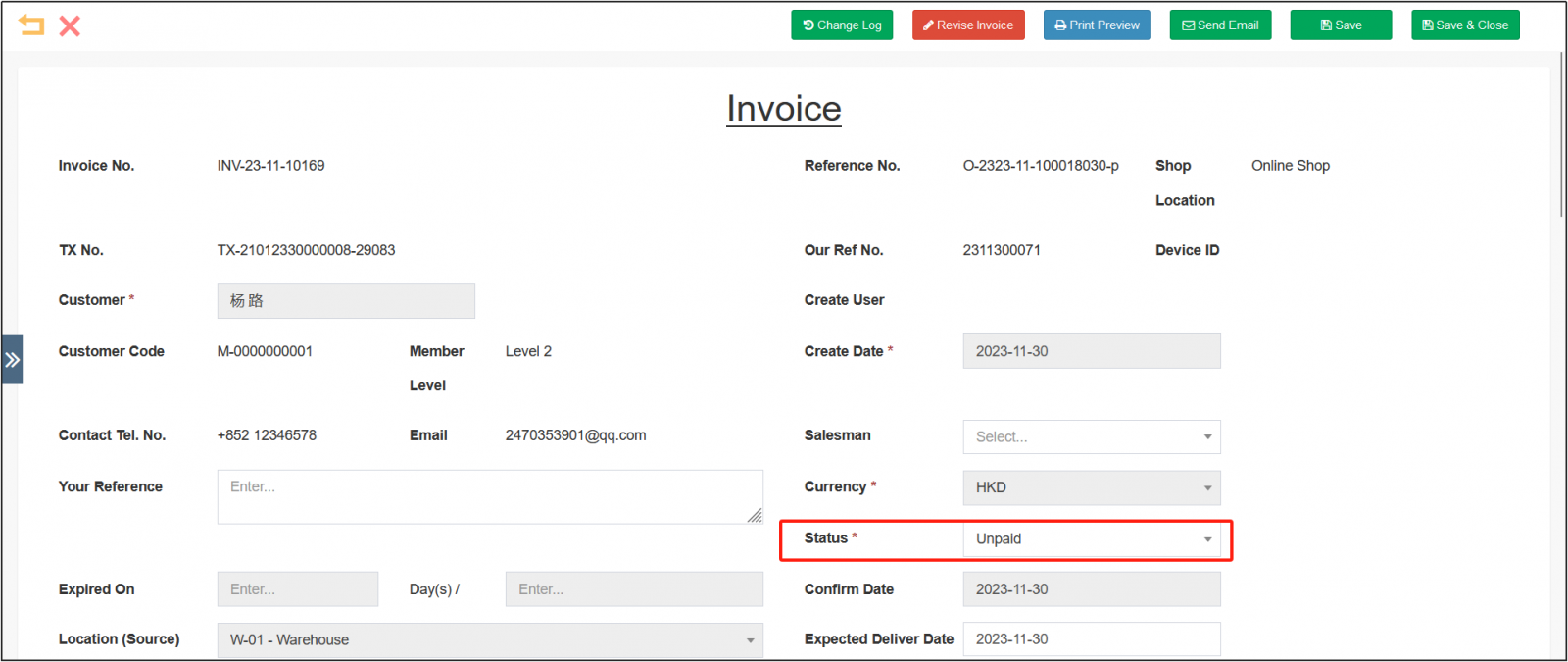
3. Open and view the invoice. Here you can modify the status of the invoice.
cancel invoice
 step:
step:
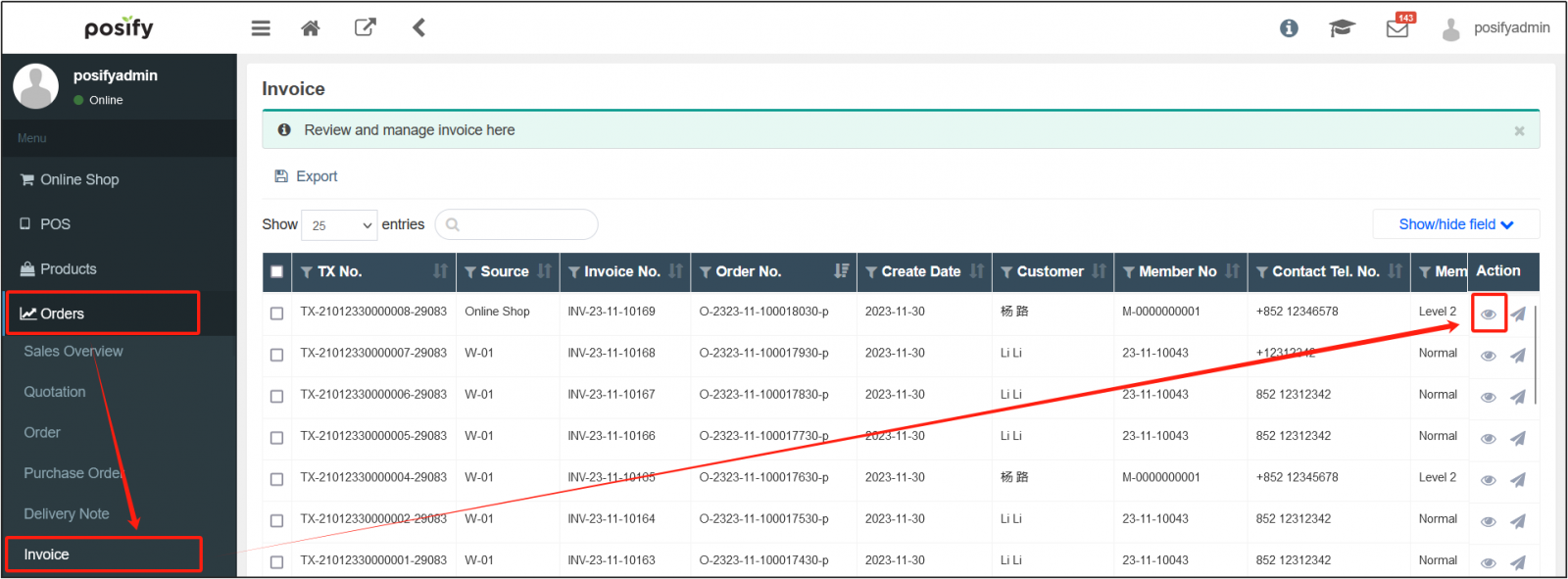
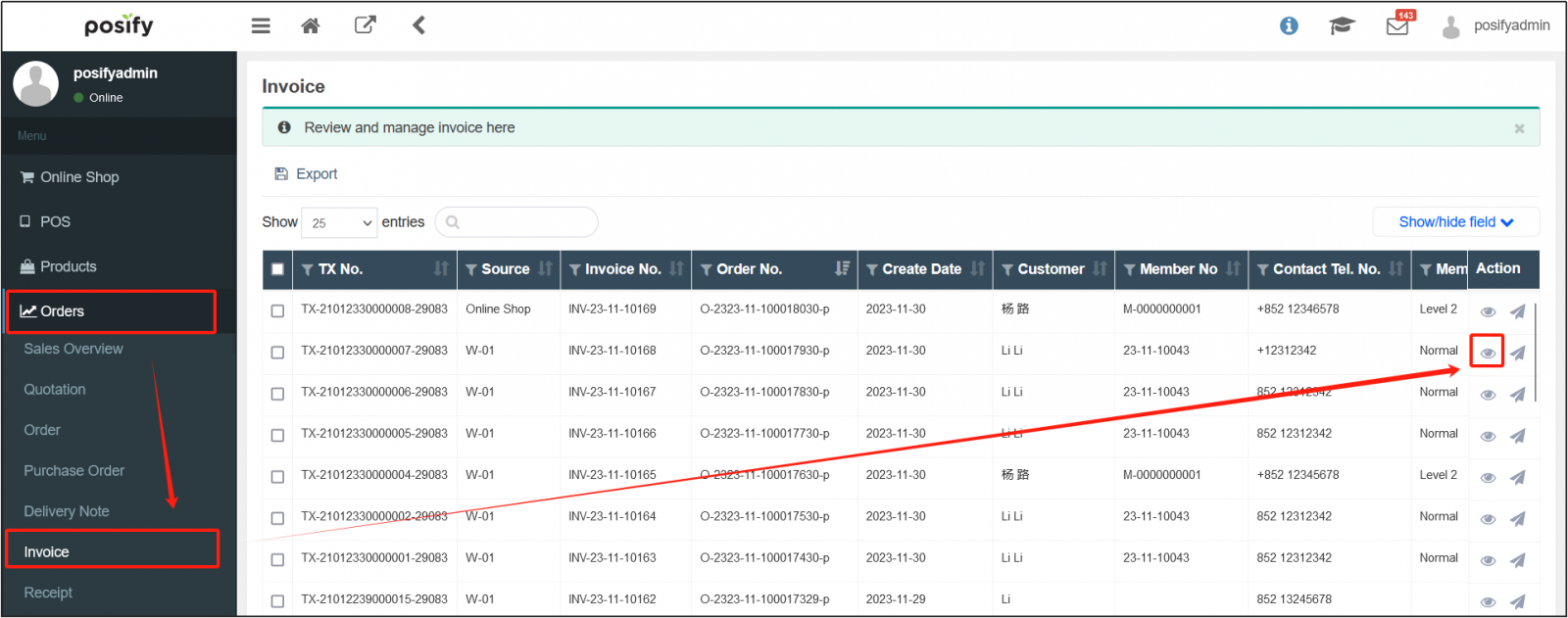
1.Open CMSClick orderclick inoviceFind the invoice you want to cancelClick on the right 。
。
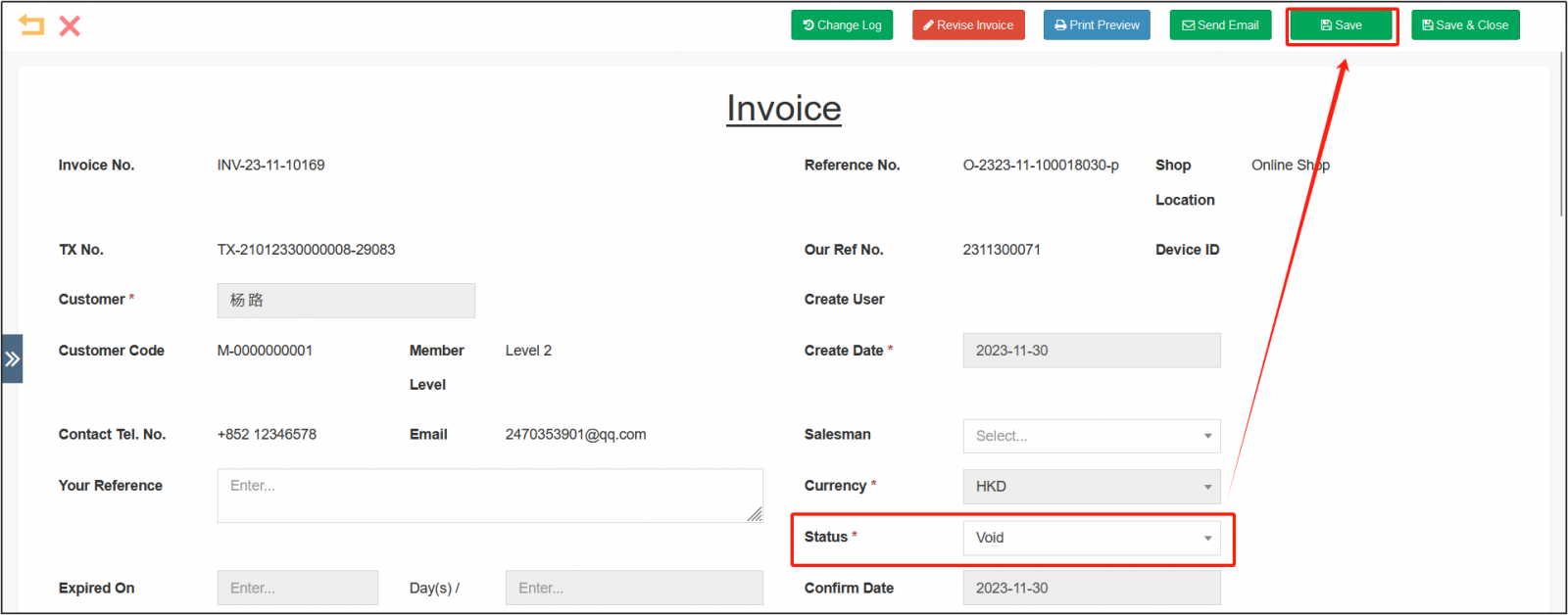
2. Open the invoice details and change the status to Logged outClick [Save] in the upper right corner.
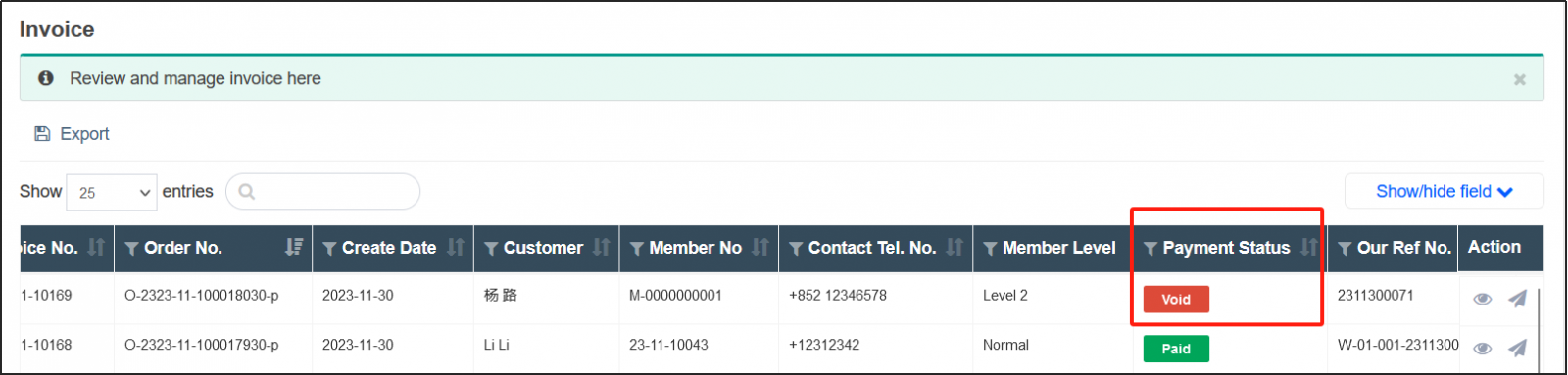
3. You can see that the payment status has changed to Logged out .
print invoice
step:
1.Open CMSclick orderclick invoiceFind the invoice you want to printClick on the right。
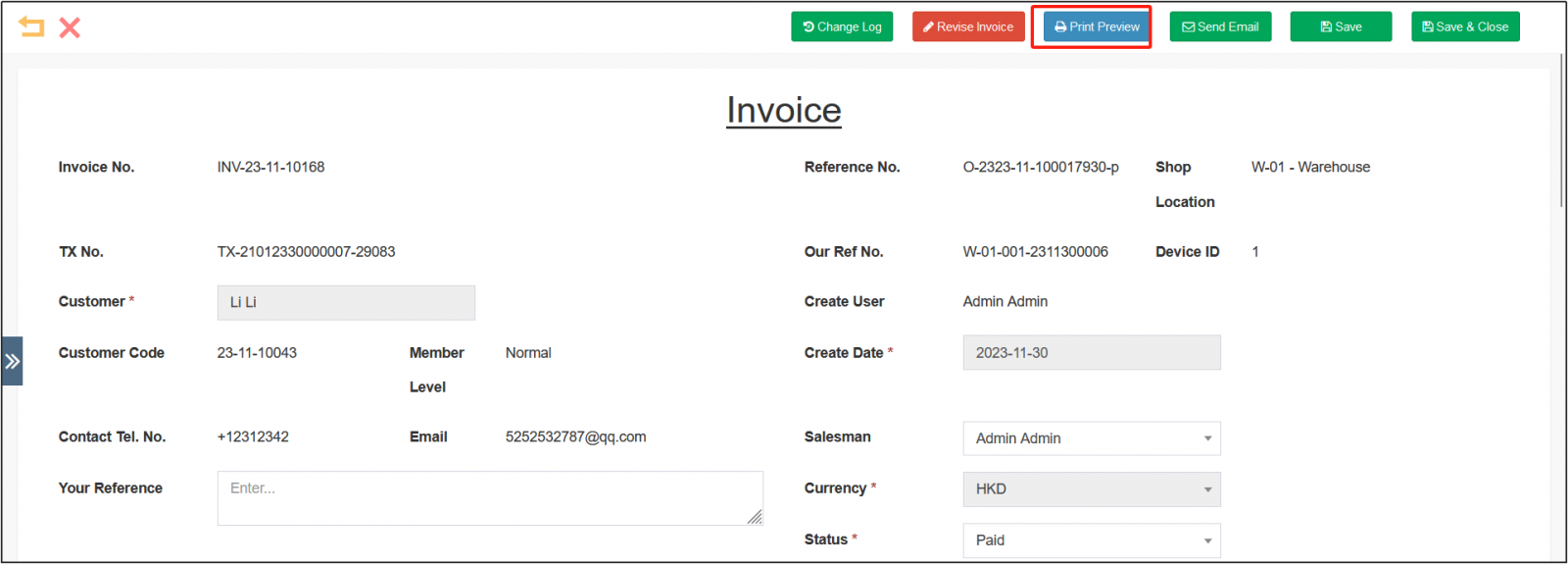
2. Open the invoice editing page, click [Print Preview] on the top.
3. Choose whether to include the default header.
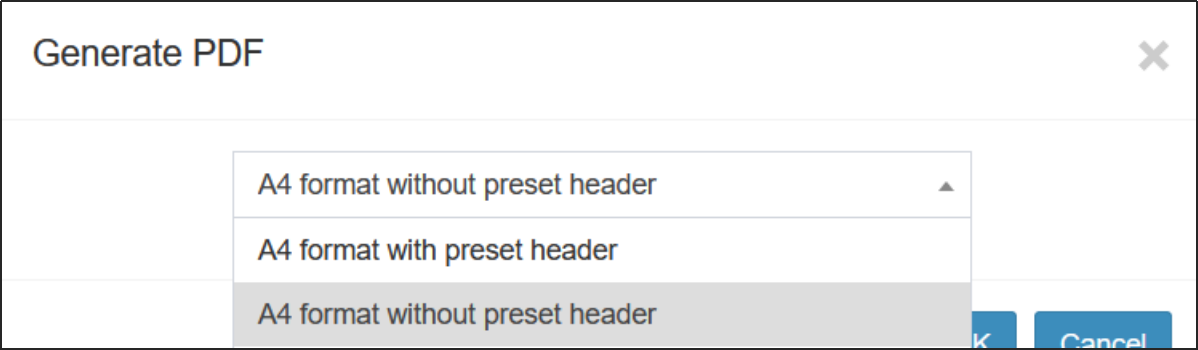
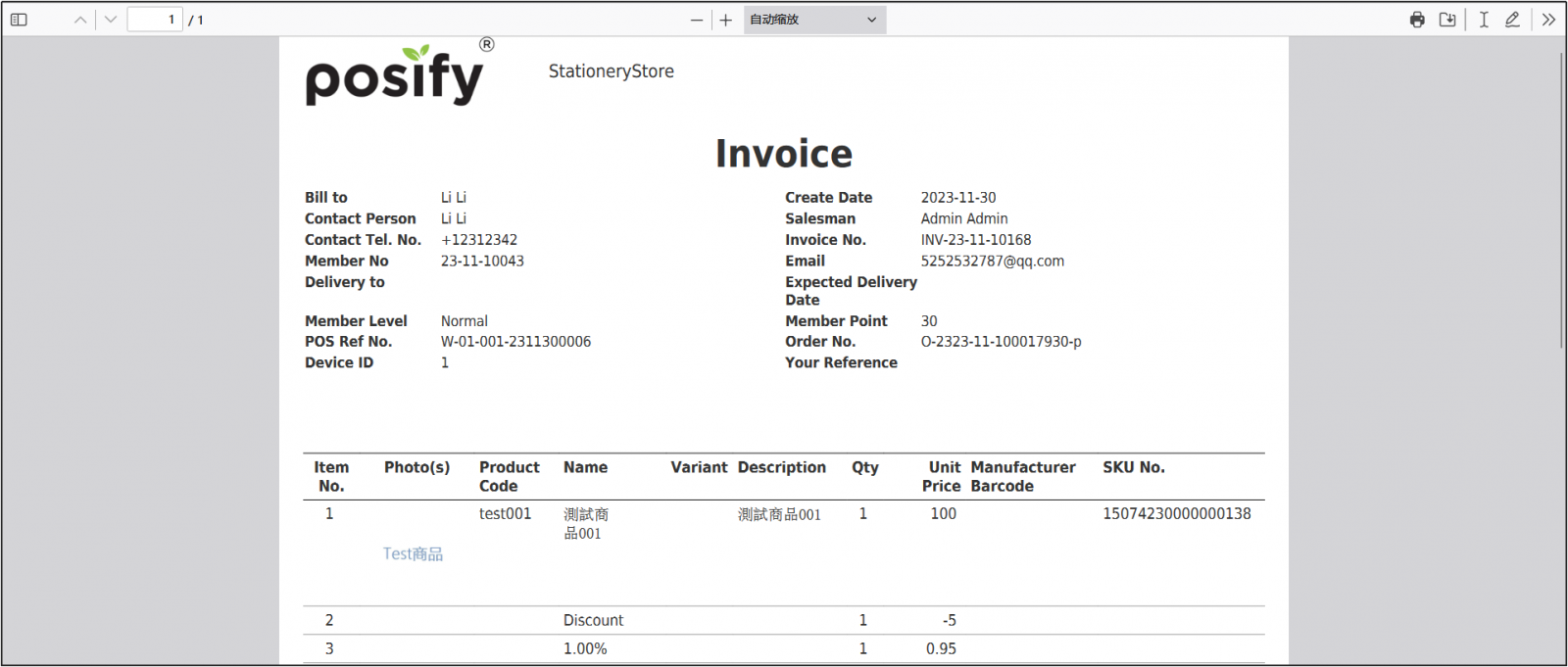
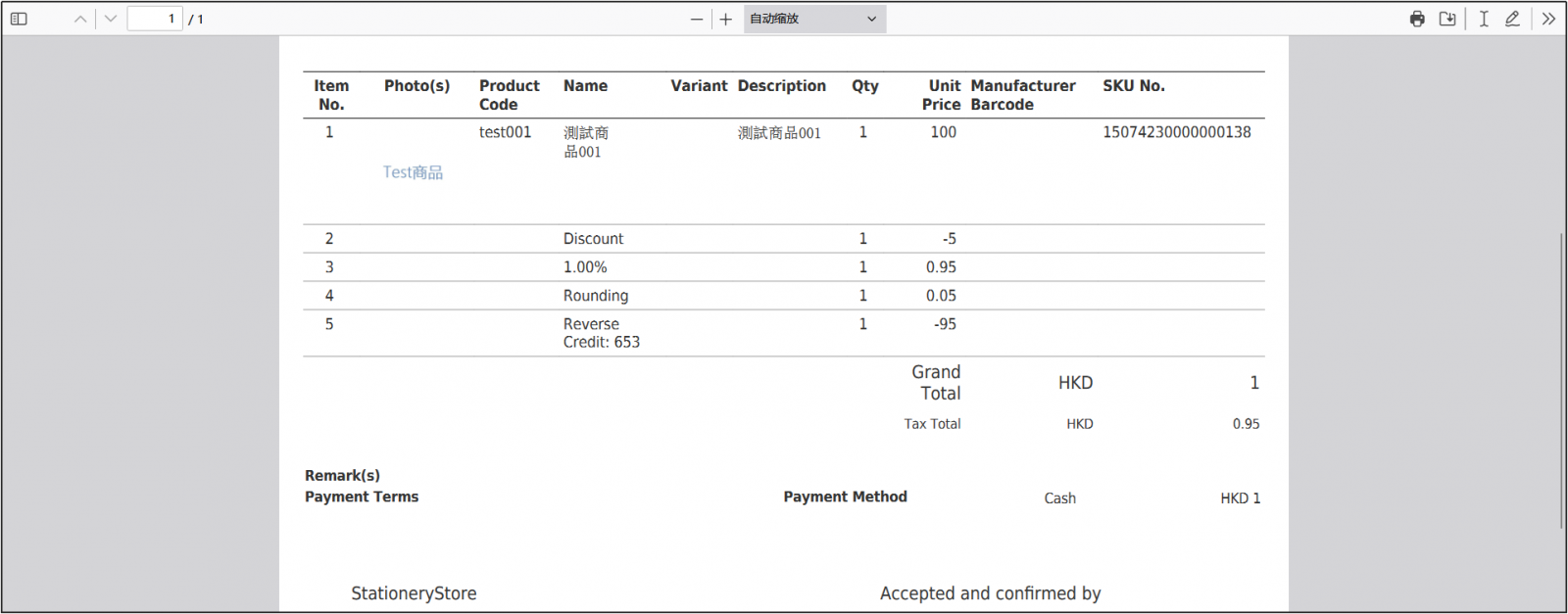
After clicking [OK], the print preview of the invoice will pop up automatically.
The image below shows a preview with a default header.
The image below is a preview without the default header.
4. Click on the upper right The invoice is now printed.

create receipt
Receipts can only be created from invoices, not individually. When the status of the invoice is changed to received, a receipt will be created automatically, and there is no need to actively create a receipt. The receipt number is the same as the corresponding invoice number.
Here's how to view the receipt of your order.
step:
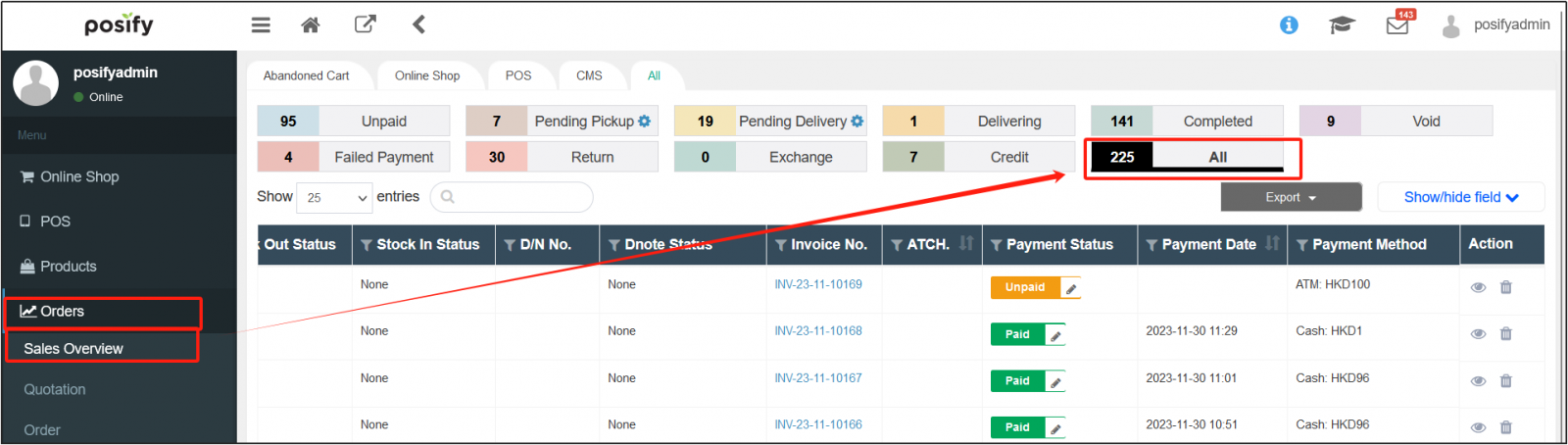
1.Open CMSclick orderclick sales overviewclick allFind the order you want to see a receipt for.
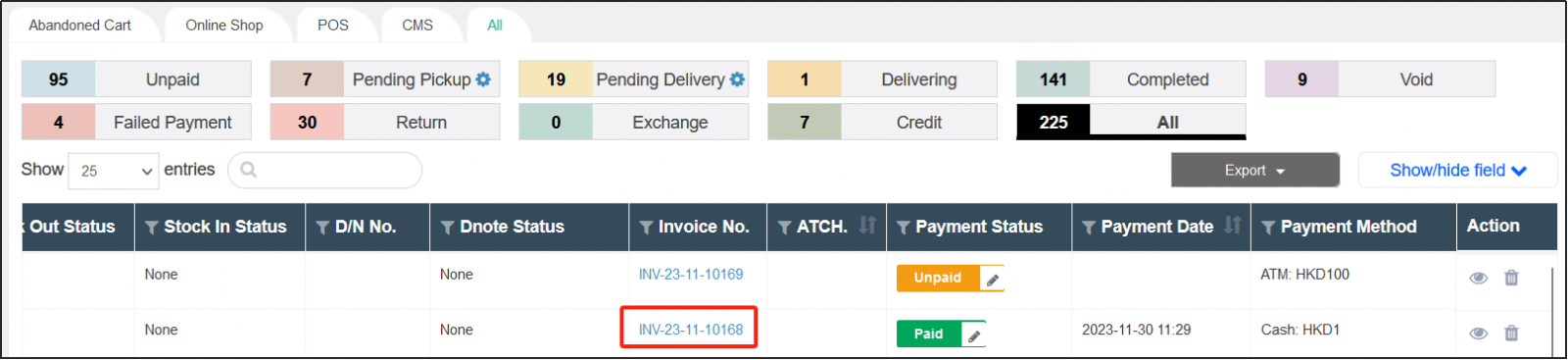
2. Pull the scroll bar below the list to the right, find the invoice number column, and copy the invoice number of the order.
3.click order , click Receipt .
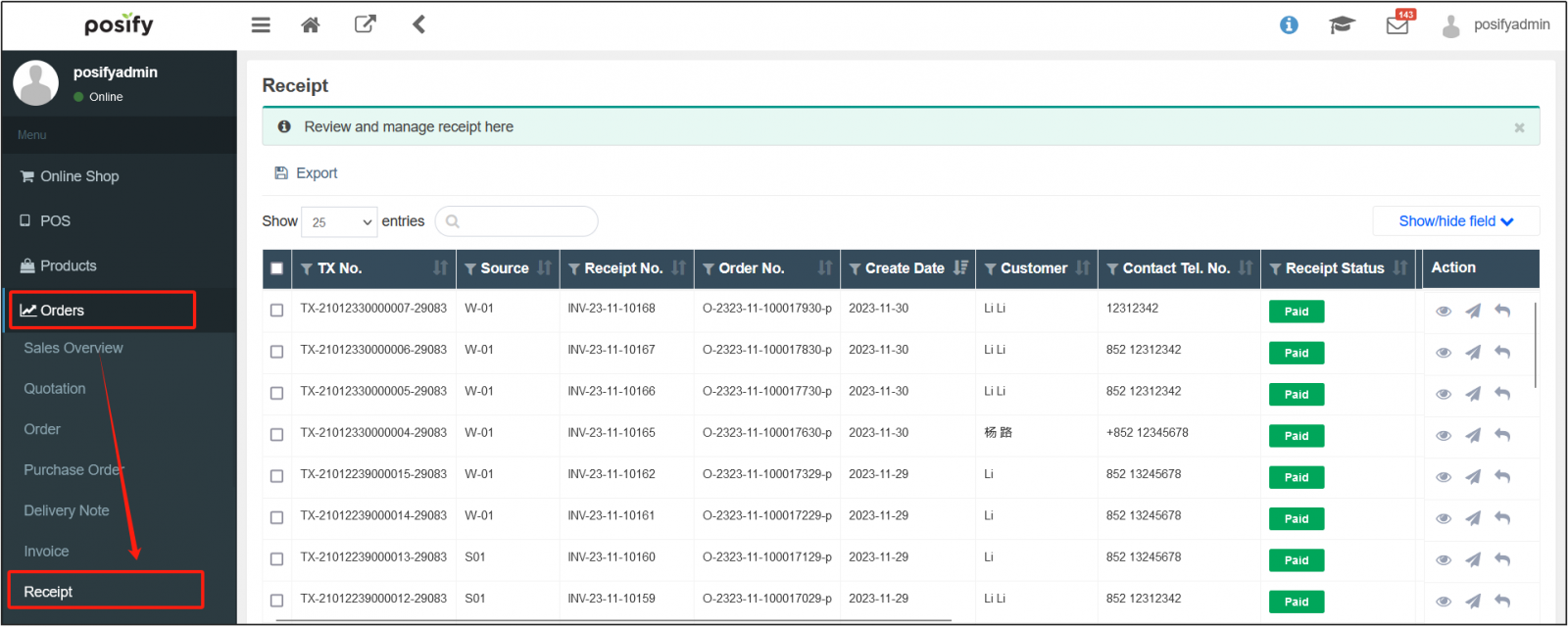
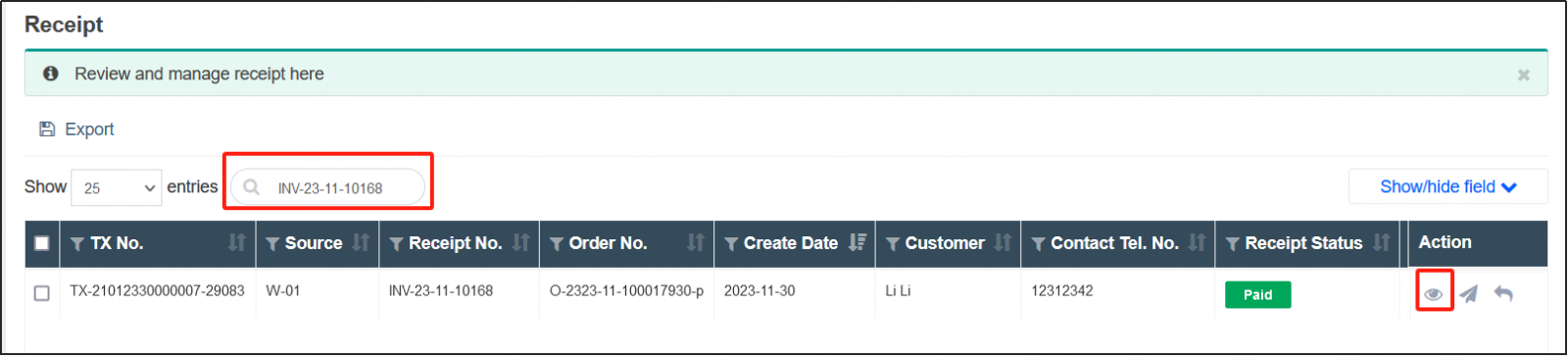
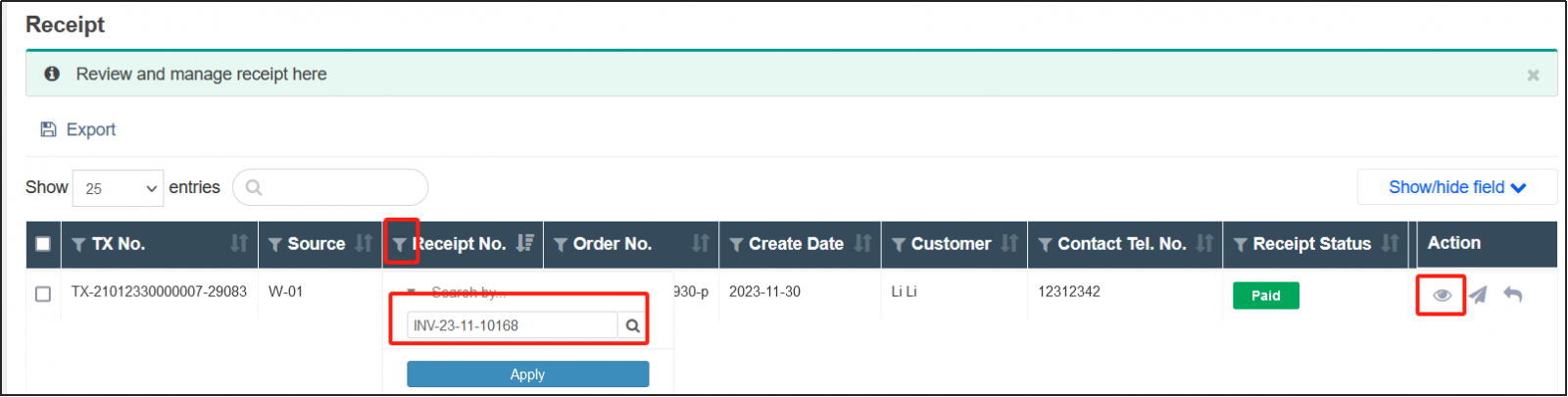
4. Paste the invoice number into the search box or the filter box in the receipt number column, search for the receipt corresponding to the invoice, and click on the right.
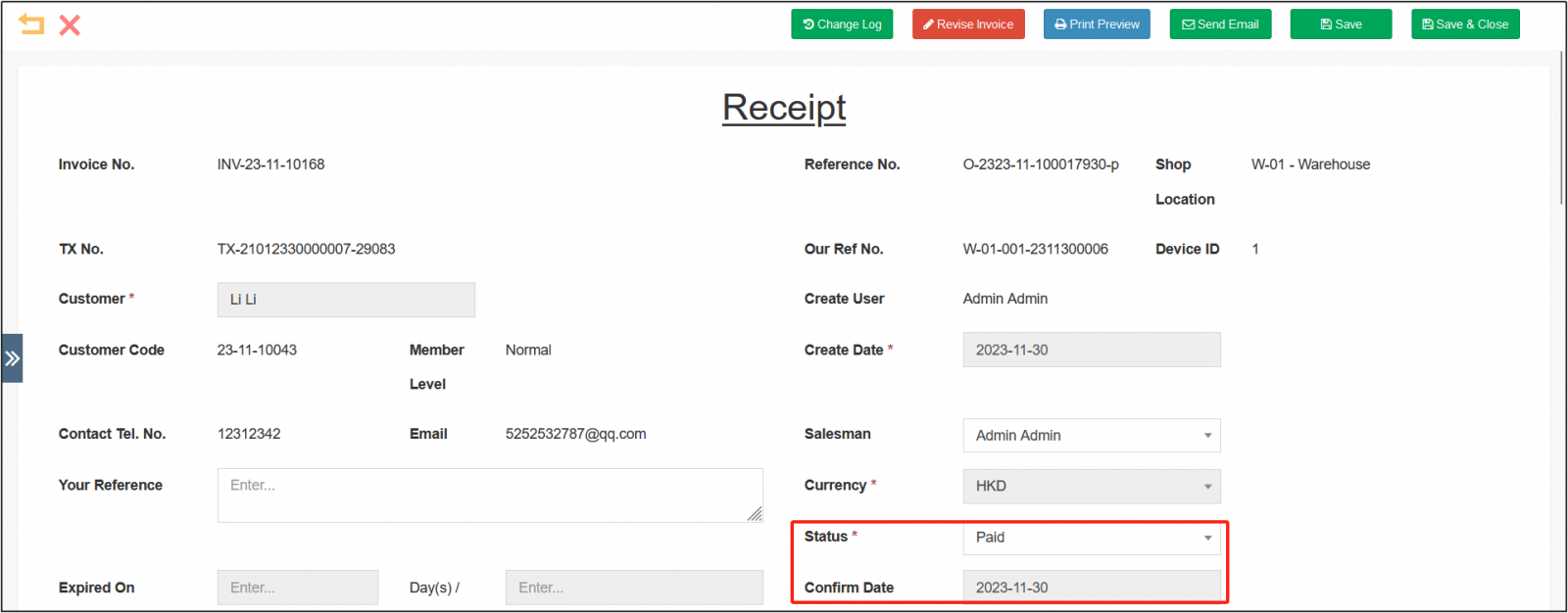
5. View the receipt.
Search Receipt History
Open CMSclick orderclick receipt .
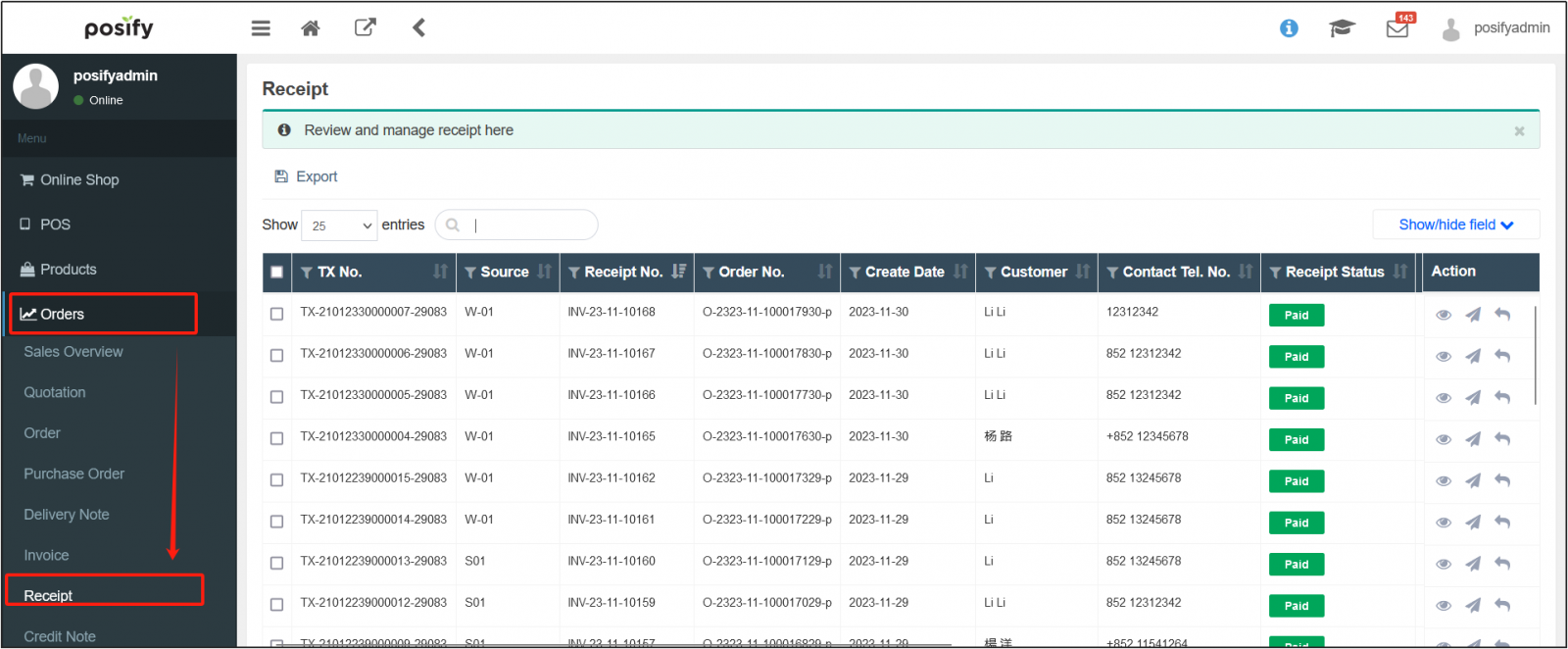
Enter any keyword related to the receipt you want to search for in the search box.
Example: If shown below, enter“213”, the receipt of customer 213 was found.
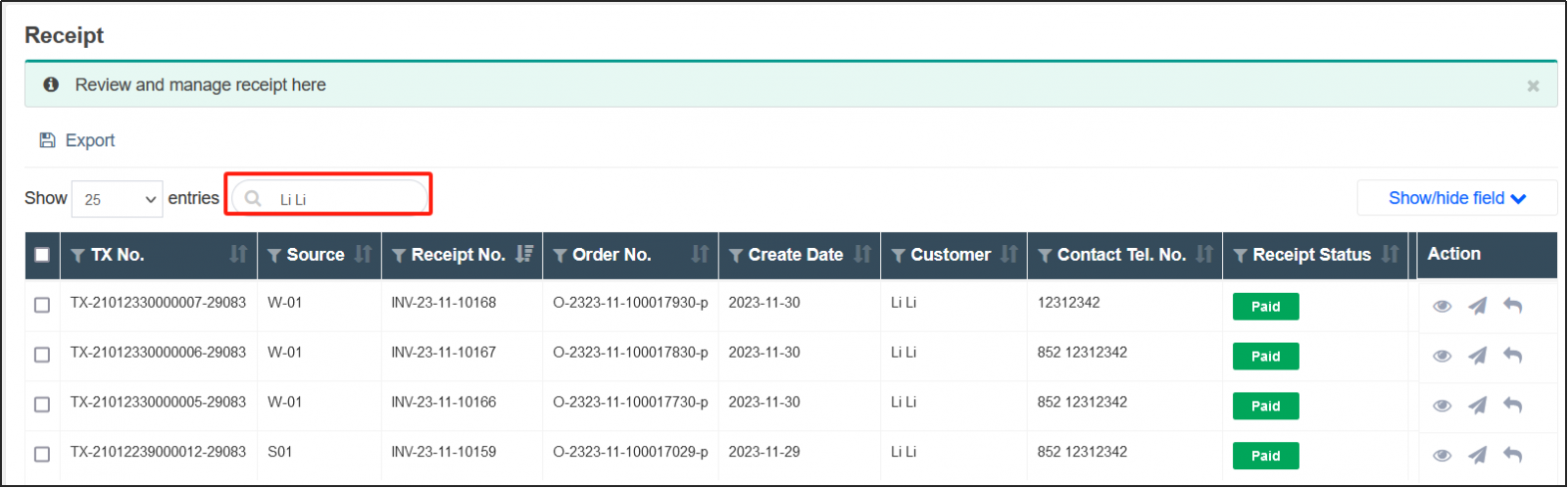
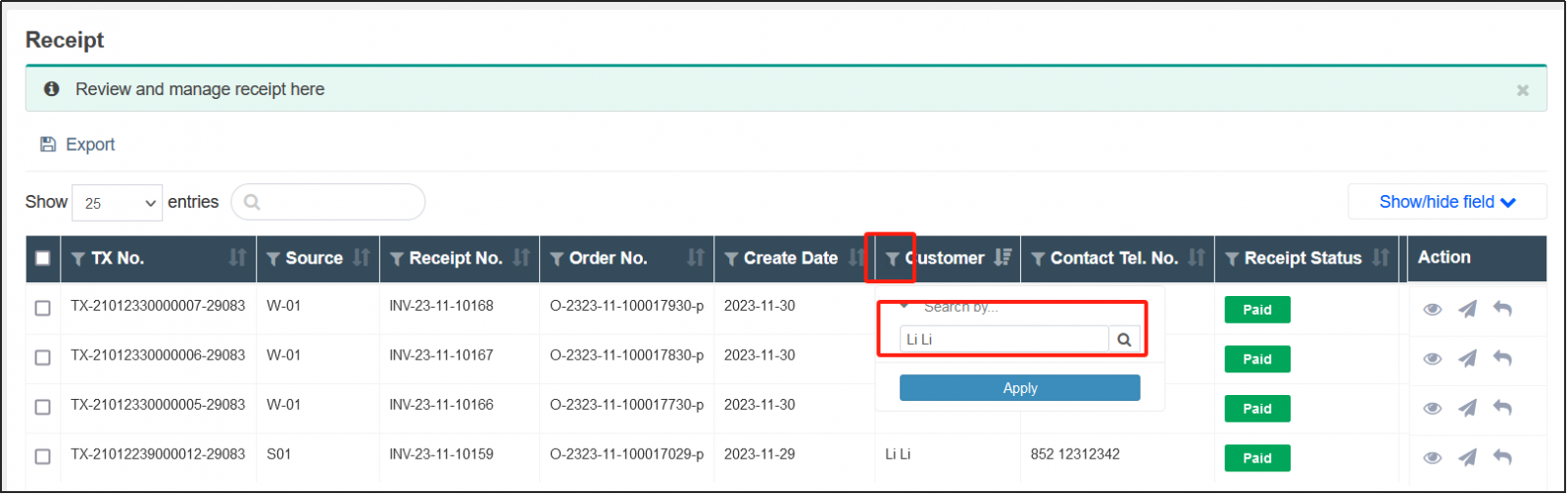
There is a filter icon on the left of the column title, click the filter icon, and enter the keyword of the invoice you want to search in this column to filter.
For example: as shown in the figure below, click the filter icon on the left of the customer column and enter“213”, will filter out the customer column that contains“213”invoices.
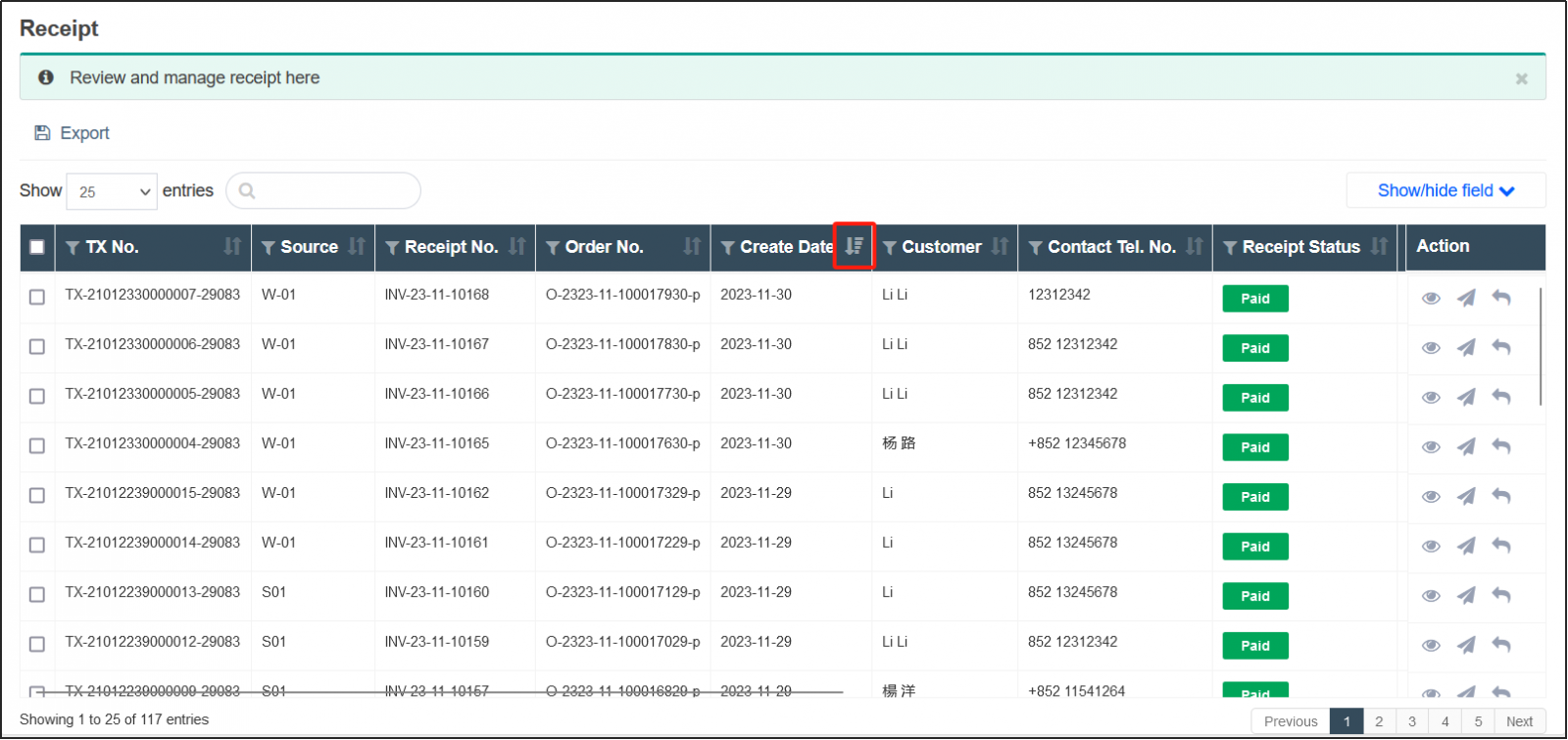
There is a sort icon on the right of the column header, click it to sort the data in this column.
For example: as shown in the figure below, click the sort icon to the right of the date of making, so that all receipts are sorted by the date of making.
When the sorting icon is shown in the figure below, it means that the information in this column is not currently sorted.

When the sorting icon is shown in the figure below, it means that the information in this column is currently sorted from large to small.
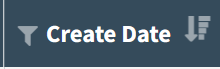
When the sorting icon is shown in the figure below, it means that the information in this column is currently sorted from small to large.

cancel receipt
step:
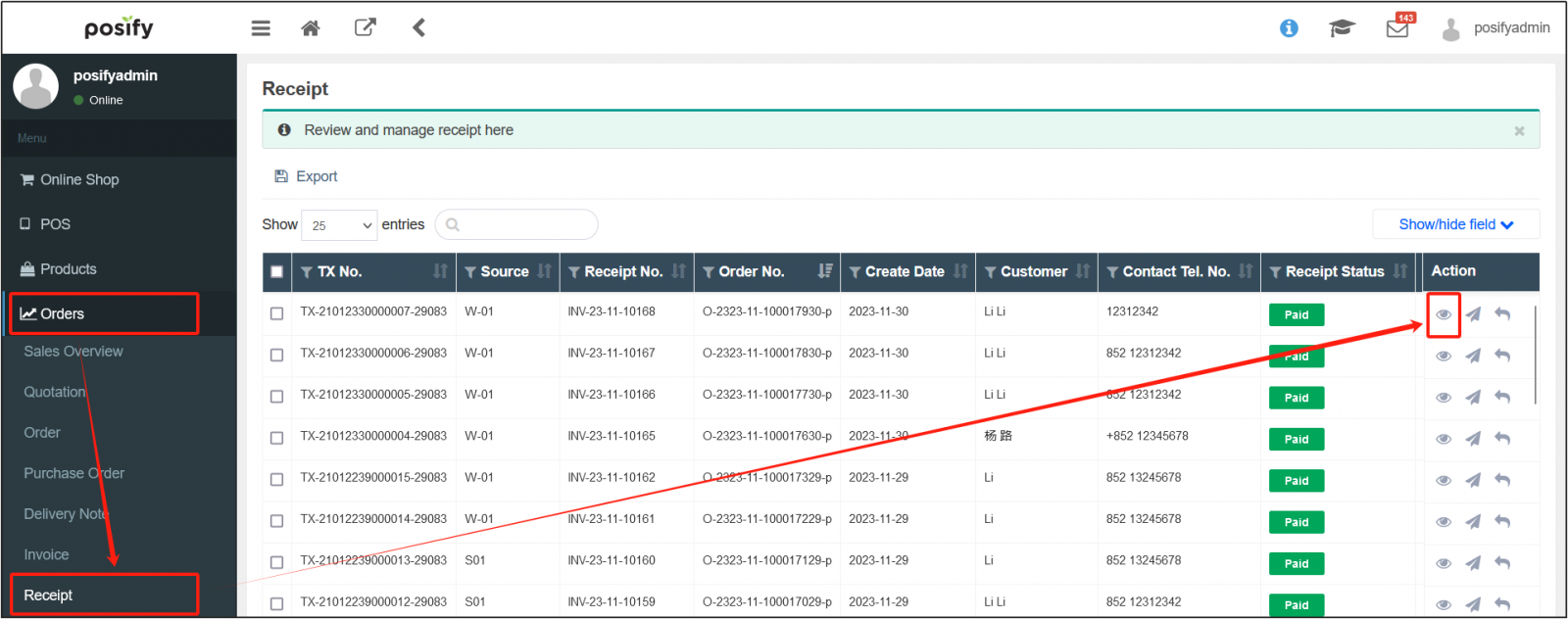
1.Open CMSclick orderclick invoiceFind the receipt you want to cancelClick on the right.
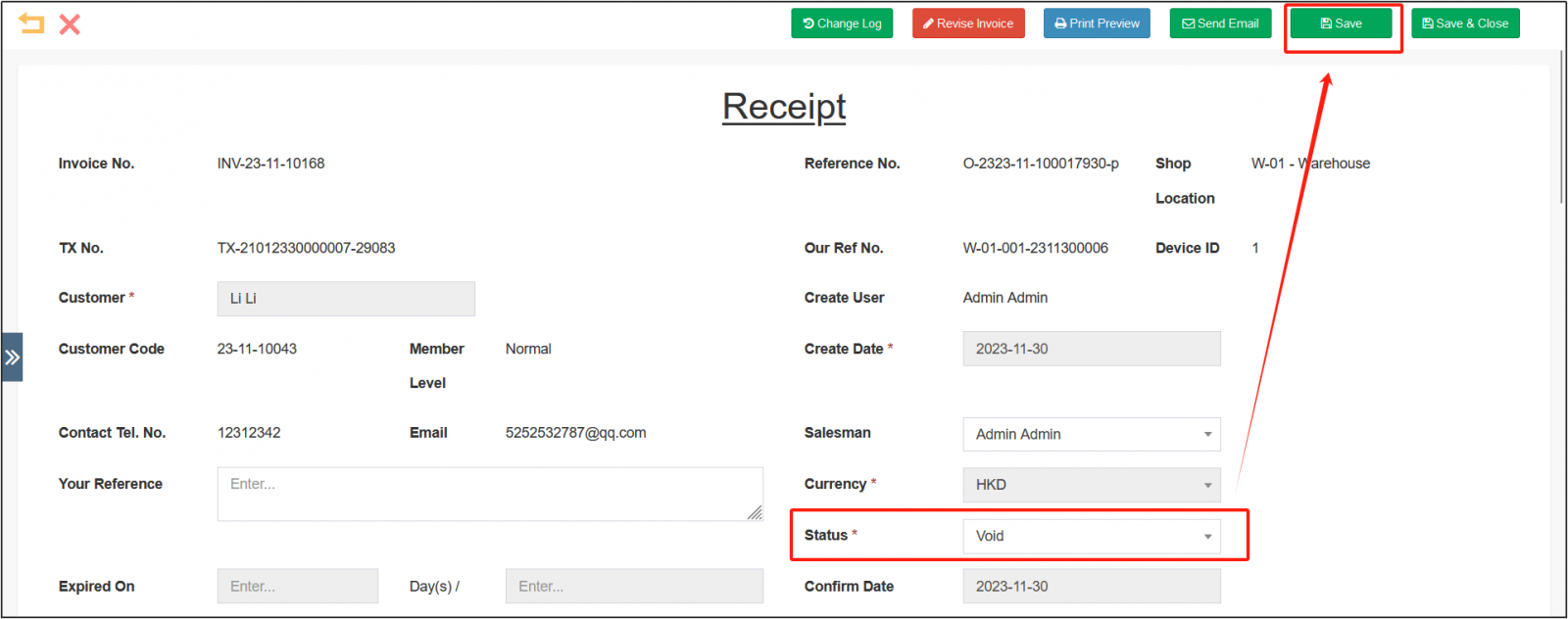
2. Open the receipt details and change the status to Logged outClick [Save] in the upper right corner.
3. After the receipt is canceled, it will disappear in the list.
print receipt
step:
1.Open CMSclick orderclick receiptFind the receipt you want to printClick on the right。
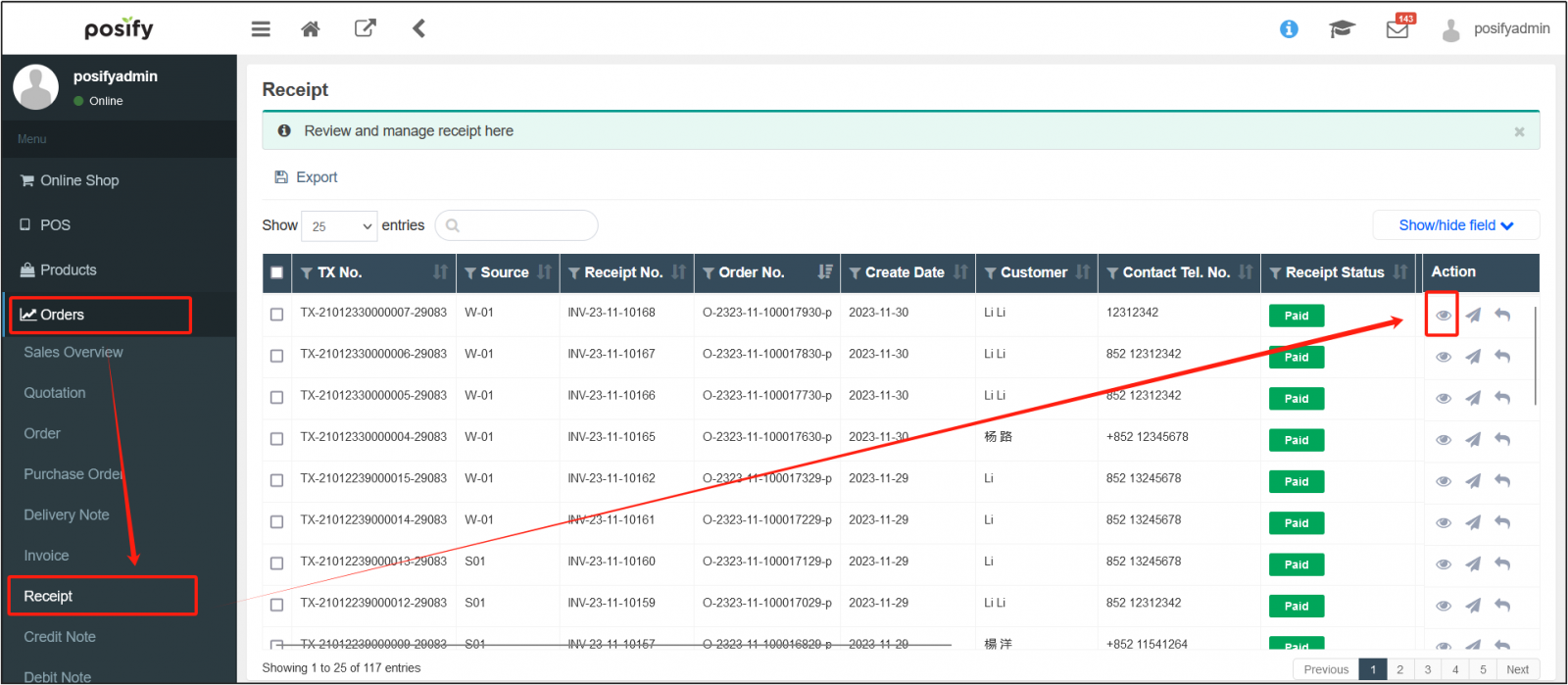
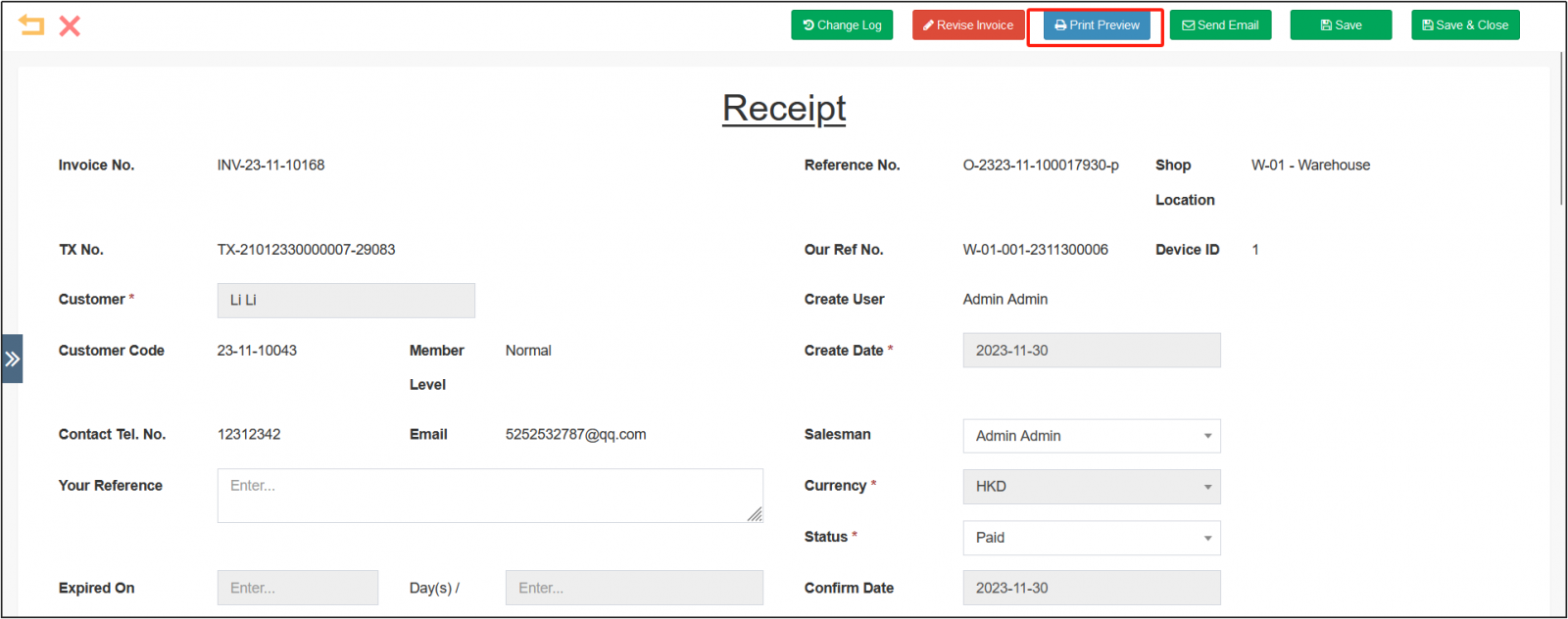
2. Open the receipt editing page, click [Print Preview] on the top.
3. Choose whether to include the default header.
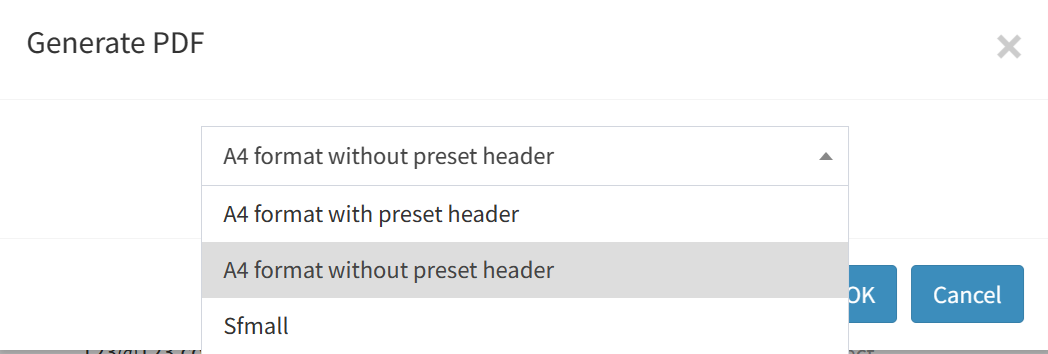
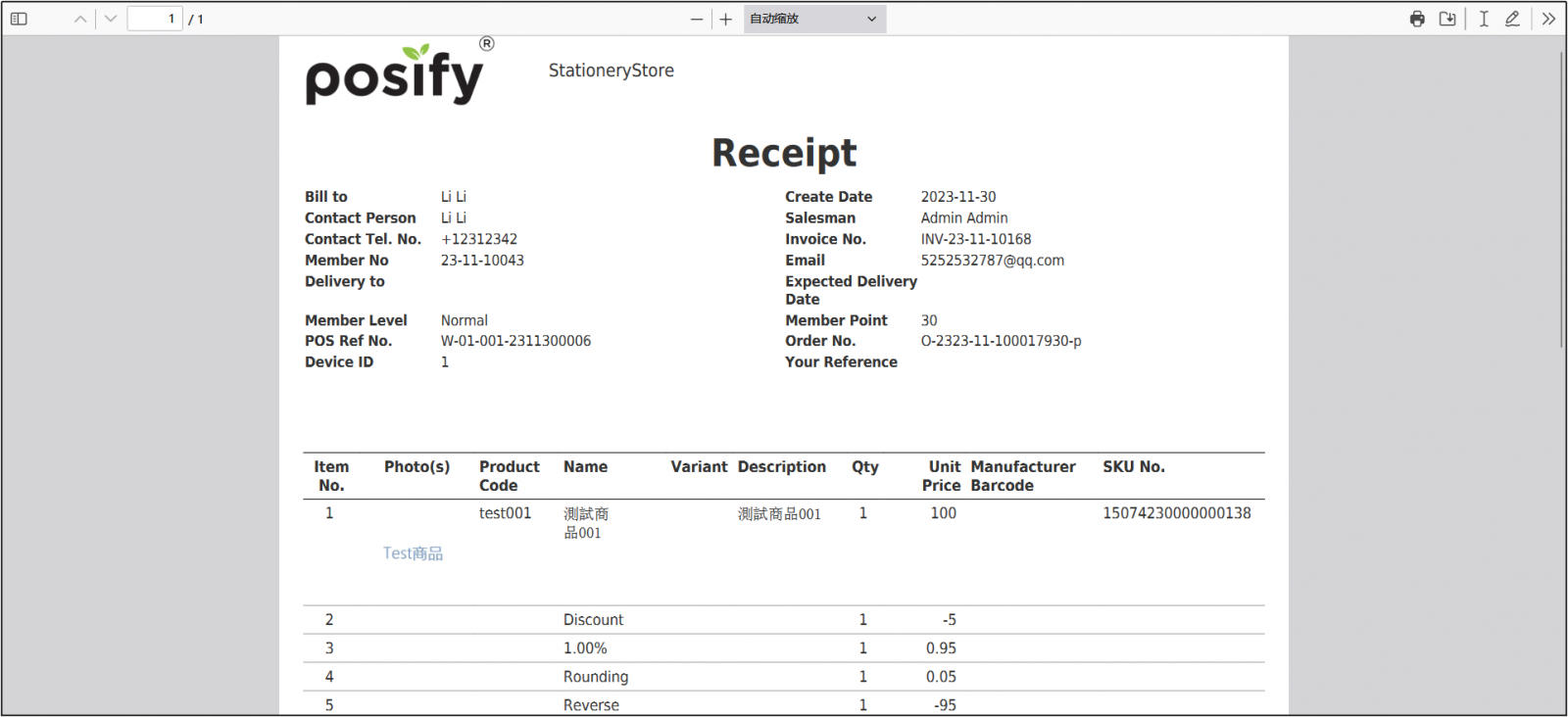
After clicking [OK], the print preview of the receipt will pop up automatically.
The image below shows a preview with a default header.
The image below is a preview without the default header.
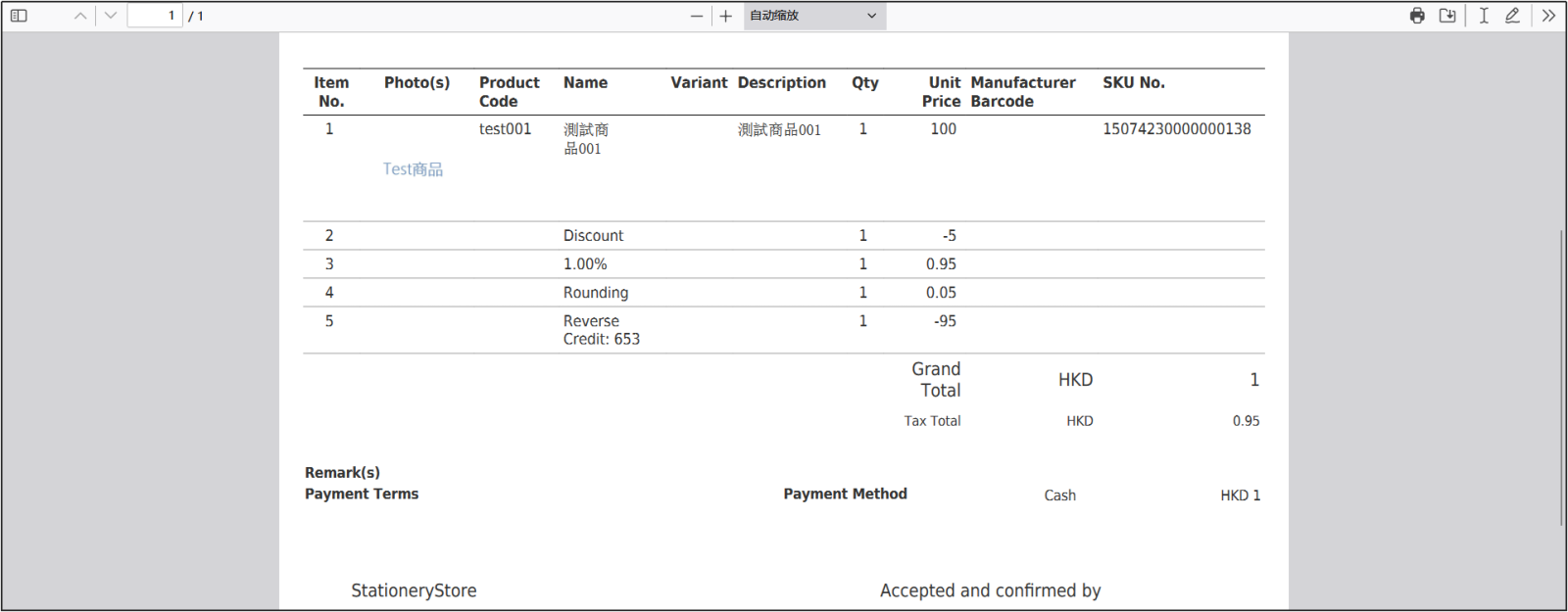
4. Click on the upper rightThe receipt will be printed.