How to add a new country
Open CMS click general settingsclick system settingsclick tab Manage countriesclick [add].
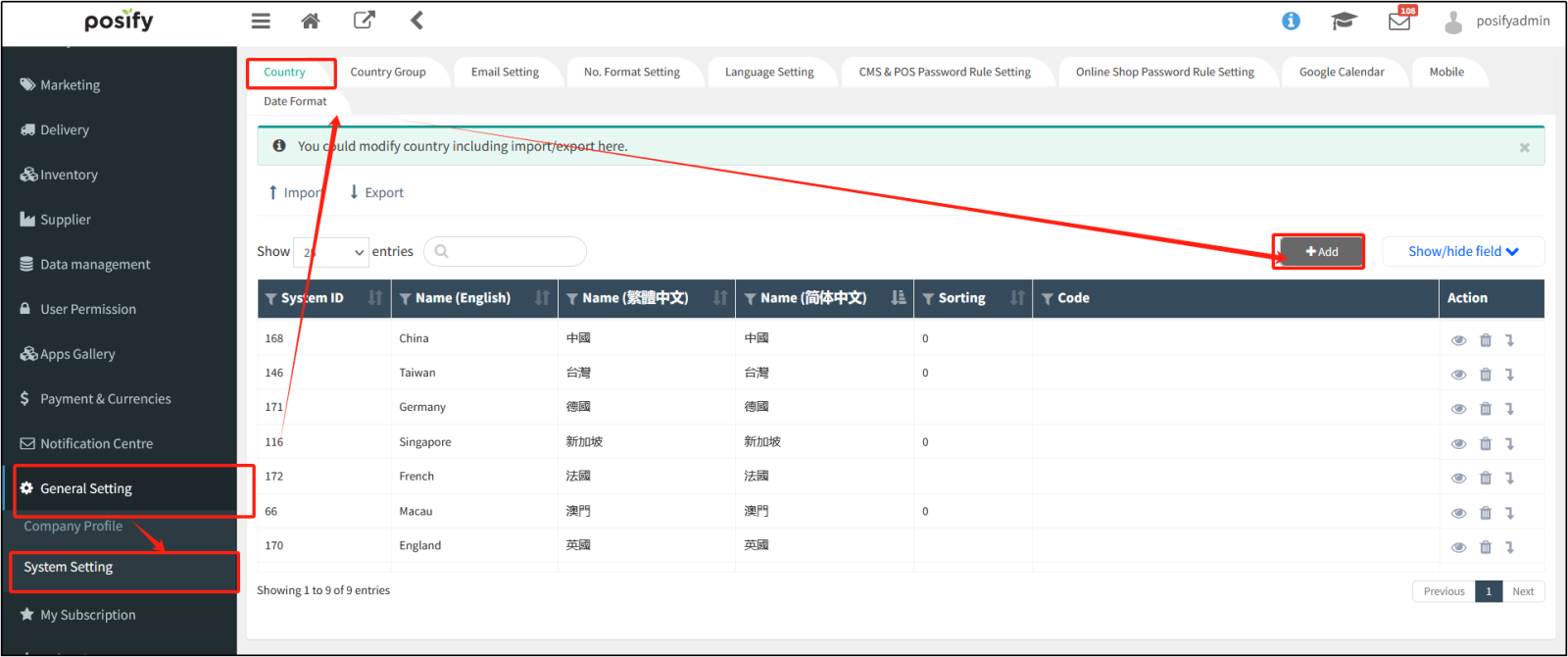
Enter the name of the country.
Sorting determines the order of countries/regions in the list, the larger the number, the higher the position.
A group is a group in a country, which needs to be set up in advance, please see the second half of this playbook for how to set up.
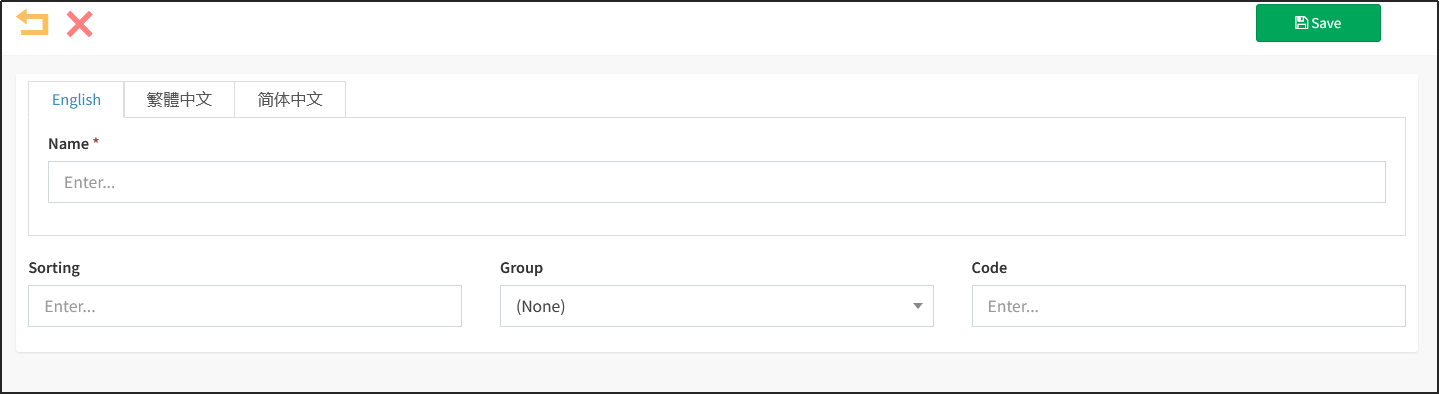
After editing, click [Save] in the upper right corner.
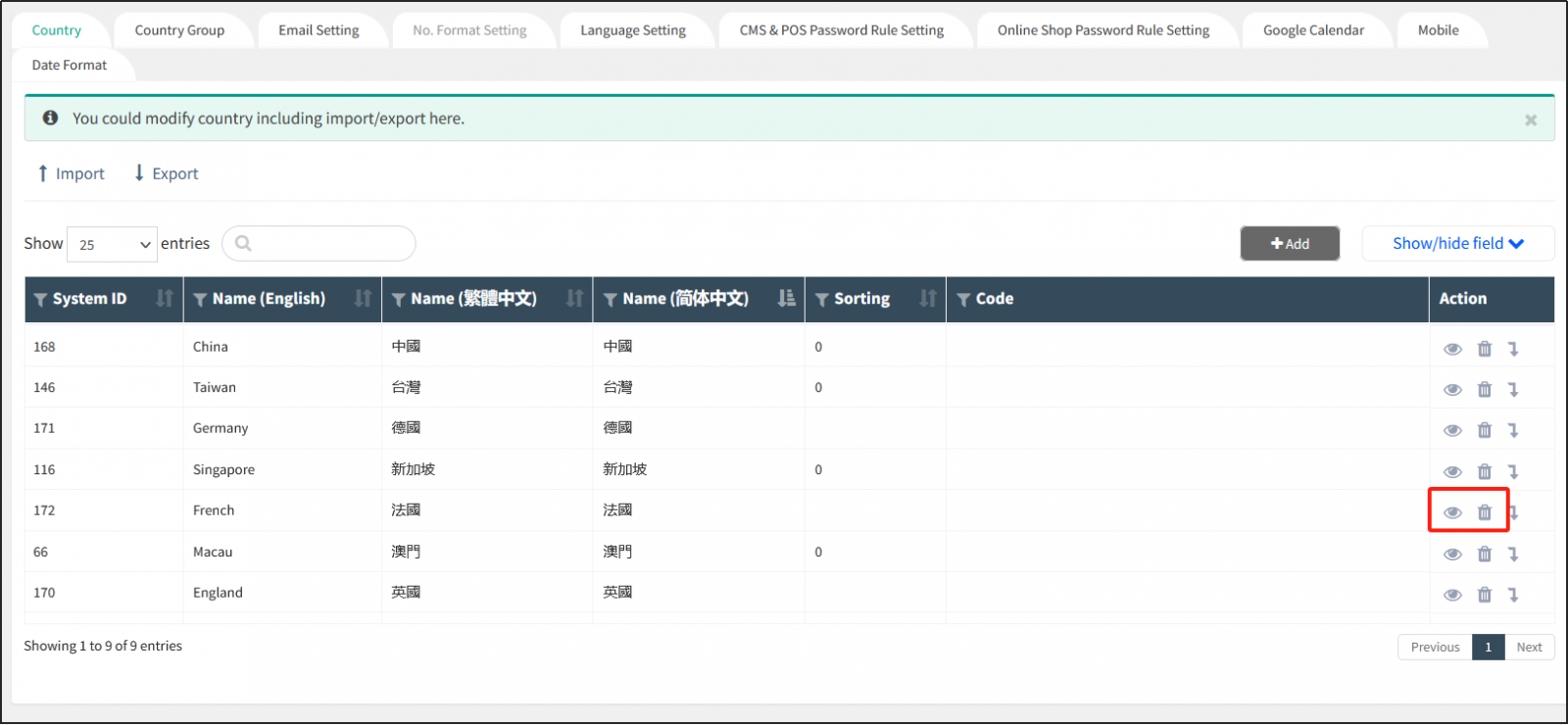
Go back to the Manage Country/Region page,click on the right of a country/region ,to edit the country/region information again;click on the right of a country/region
 ,to delete the country/region.
Customize delivery area
Delivery area can be divided into up to four levels, which are Country, Region, District, Area.
Open the Manage Country/Region pagefind the country/region where you want to set the delivery zoneclick the arrow icon to the right of it.
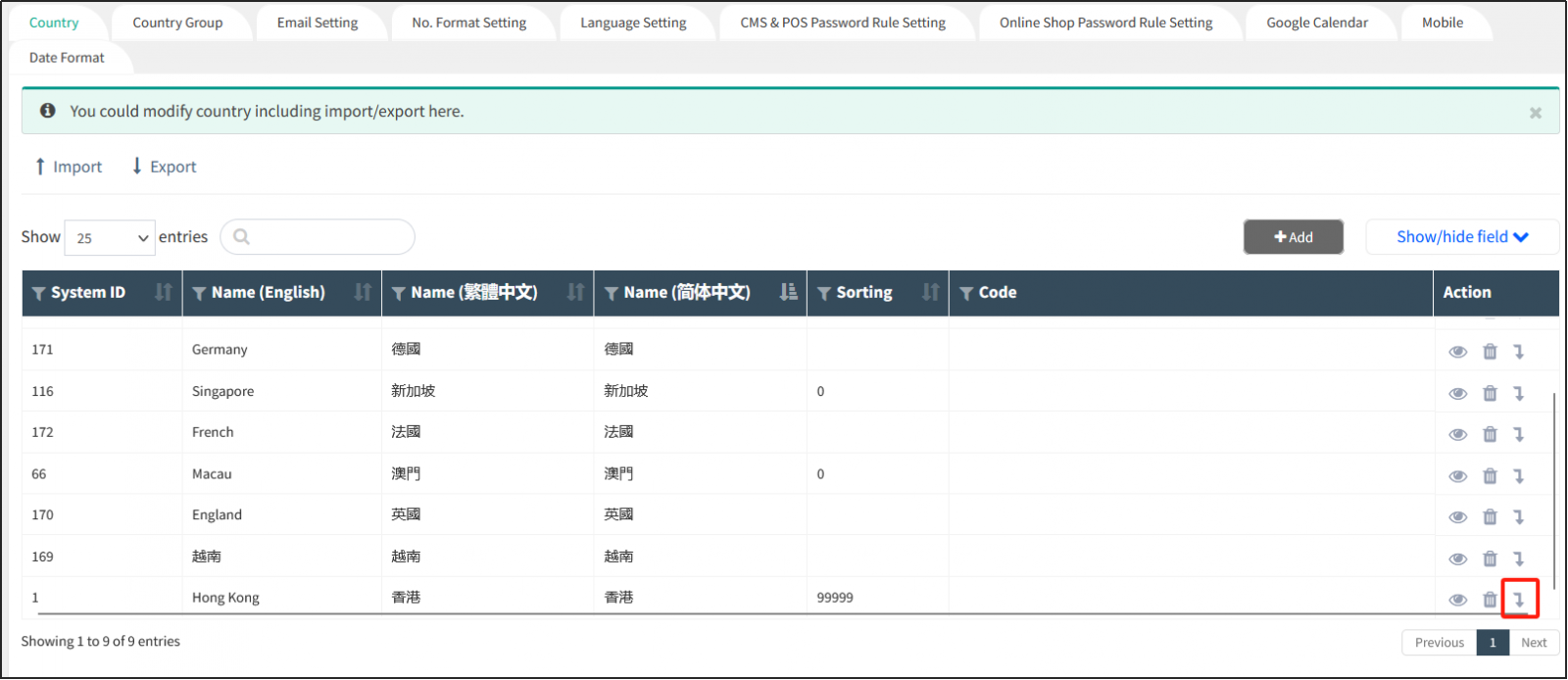
Go to the next level, which is localities ,which are countries, and then drill down.
For example: Hong Kong is subdivided into Hong Kong Island, Kowloon, and New Territories. Therefore, Hong Kong Island, Kowloon, and New Territories can be set at the local level.
For the following subdivisions, including localities, regions, and regions, the methods for adding, editing, and deleting are the same as for countries.
Click the arrow icon on the right of a place to continue setting the next level of delivery partitions for that place.
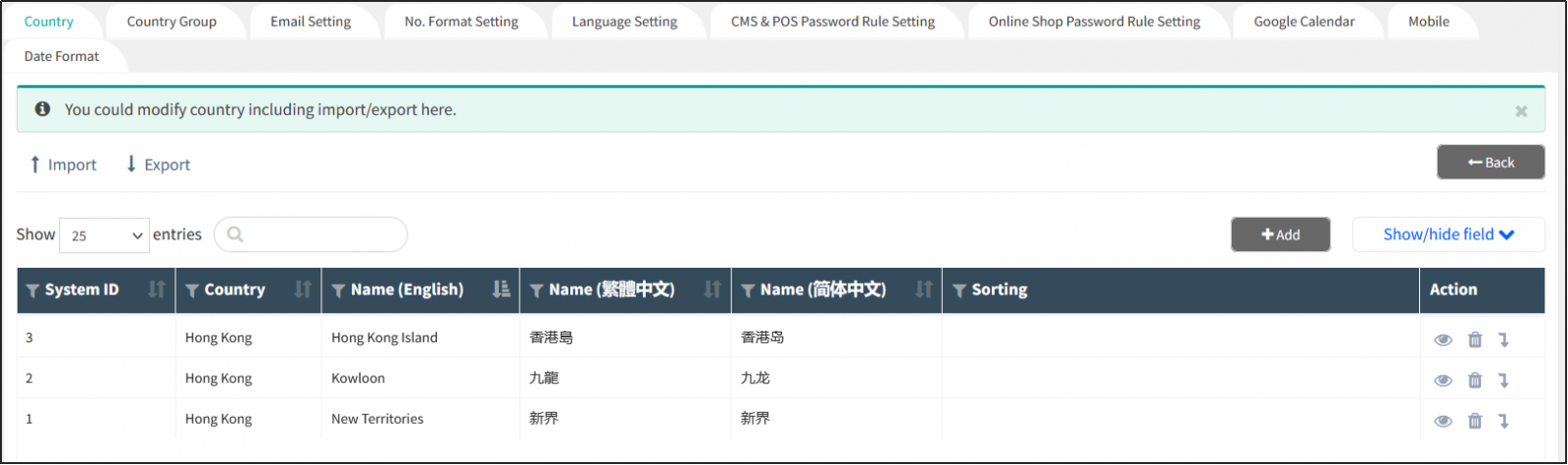
Suppose you click the arrow icon on the right side of Hong Kong Island to enter the next layer of this place, that is, the district, which is to subdivide the place of Hong Kong Island into Aberdeen, Causeway Bay, Central and other districts. Continue to click the arrow icon on the right of a region to continue setting the next layer of delivery partitions in the region.
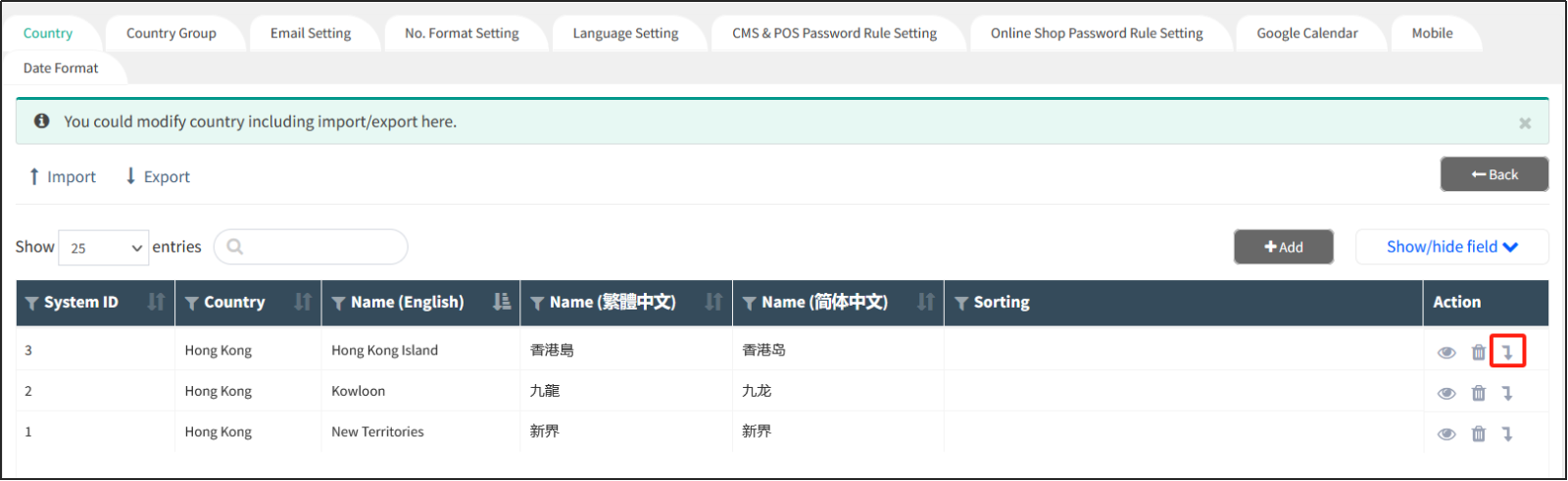
Suppose you click the arrow icon on the right side of Aberdeen to enter the next and last layer of this area, that is, area , and you can continue to subdivide the area of Aberdeen.
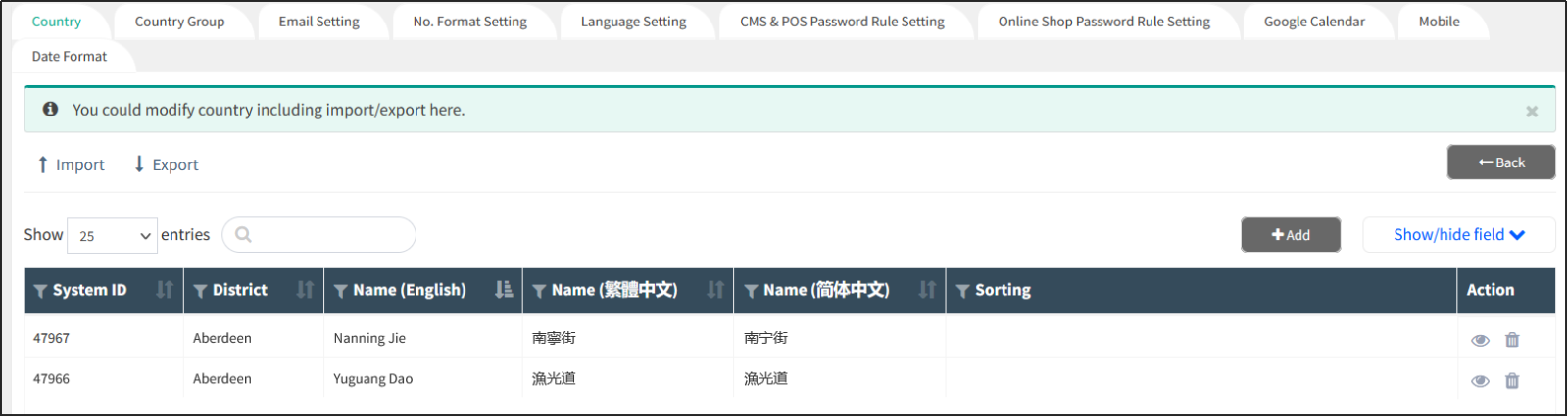
Once the setup is complete, you can select the location where the merchant is located in the Company Profile - Company Profile.
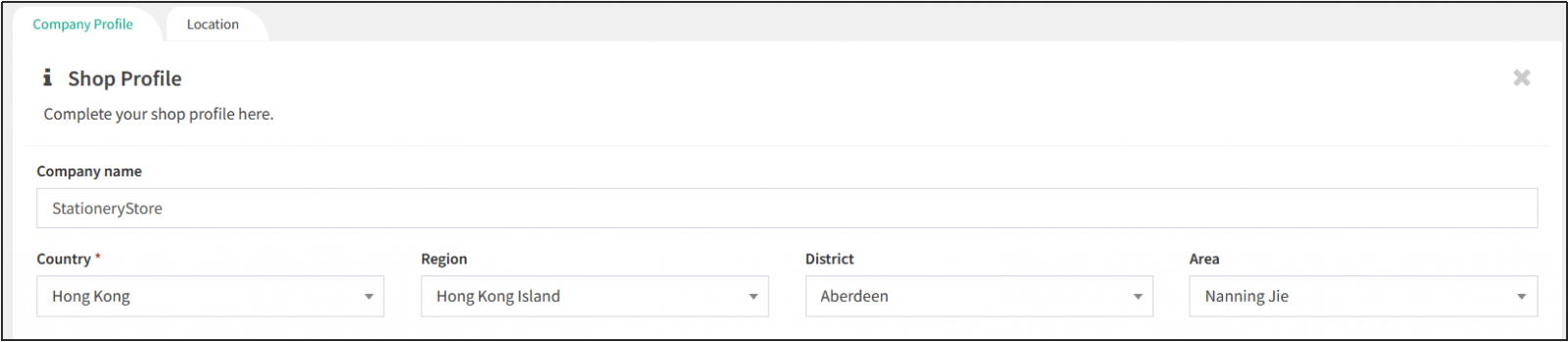
Customers can also choose to go to the set partition when placing an order in the Online Store.
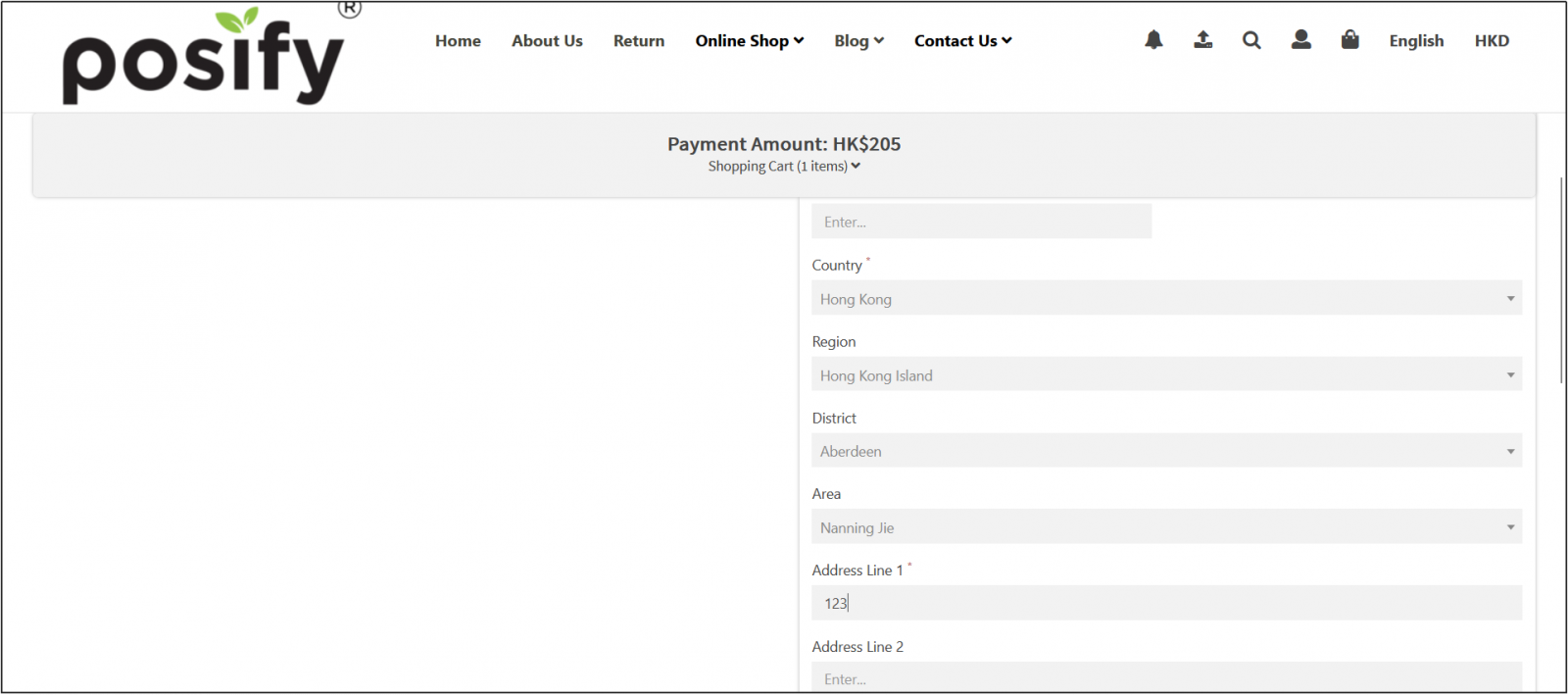
Set up a country group
Open CMSclick general settingsclick system settingsclick tab Manage countriesClick [Add].
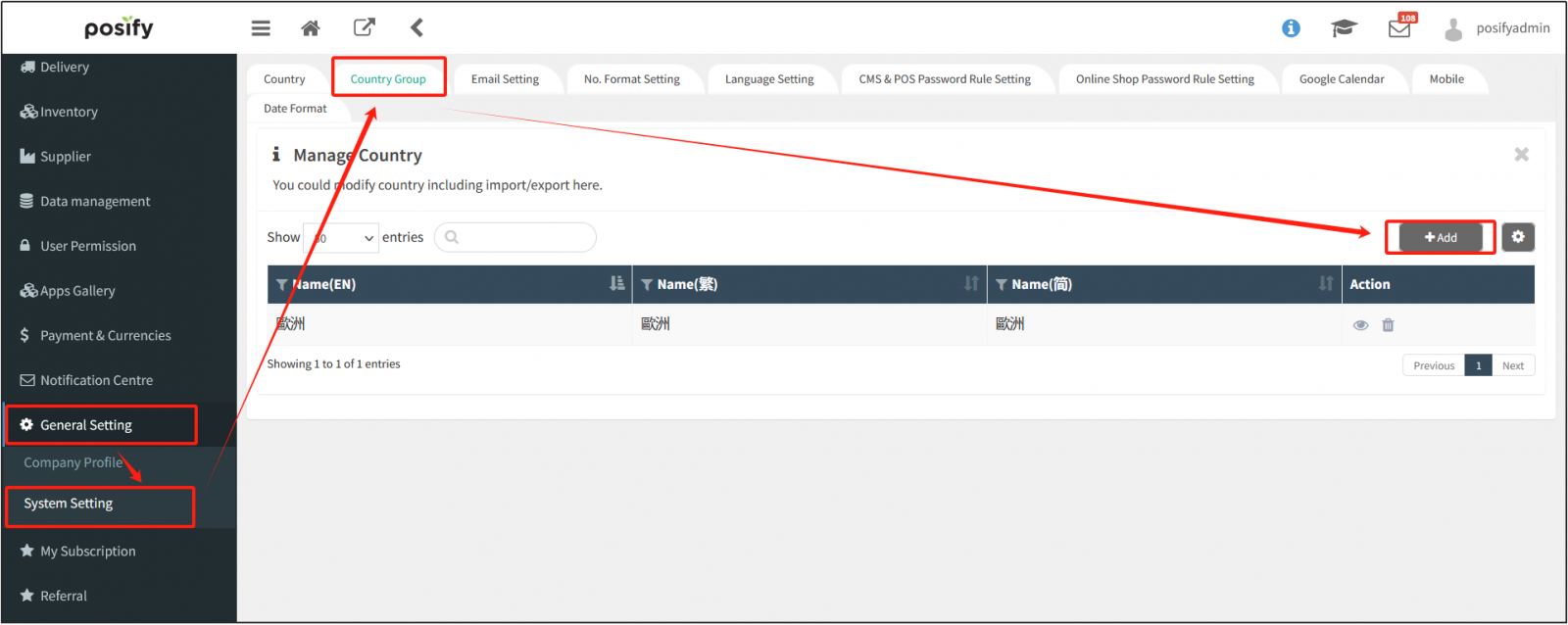
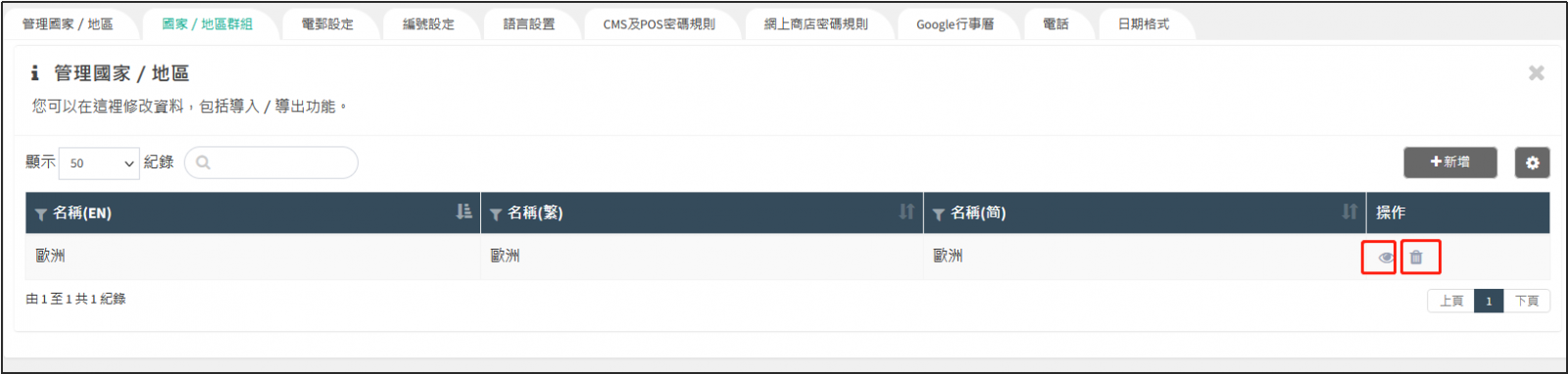
Once you've set up multiple countries as a group, you can set up the countries that the entire group includes to calculate shipping in the same way. For example, as shown in the chart below, the United Kingdom, Germany, and France are all European countries, and these countries can be grouped together assuming that the shipping costs to these countries are calculated in the same way. Then go to Delivery-Delivery Charge-Group Delivery Charge to set the shipping cost, please see the playbook - How to set the shipping method and Delivery charge for details.
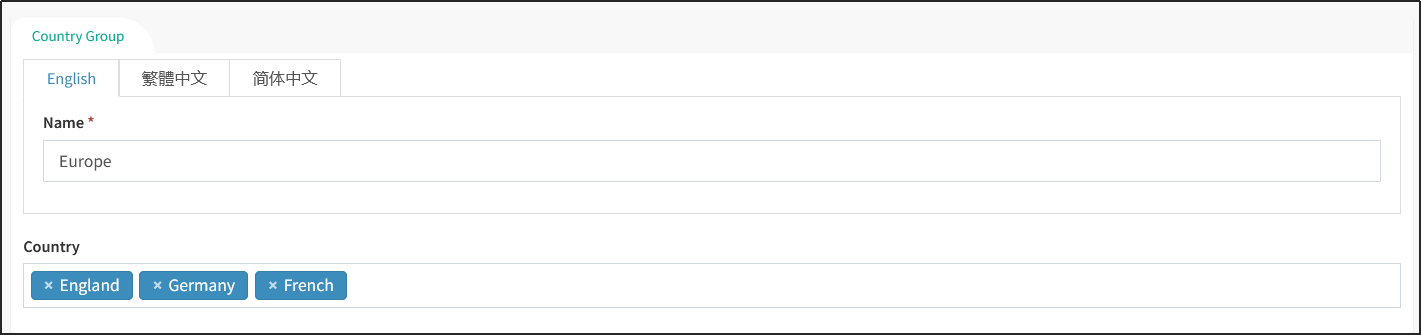
Click next to a country group, the information for the country group can be edited again.
Click next to a country group to delete the country group.