Product sequence and related settings
The order of products determines the order in which they are displayed in the product list.
Set product order
Order Settings in Product Management (Applicable to product lists in search results, brand pages, and other non-category entry points).
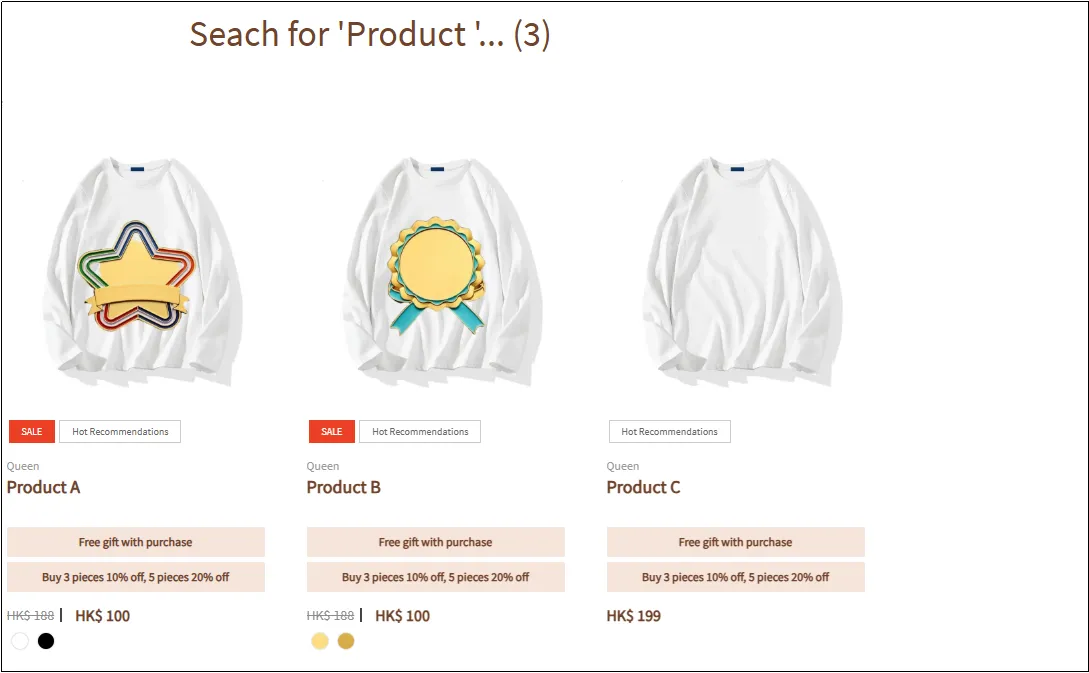
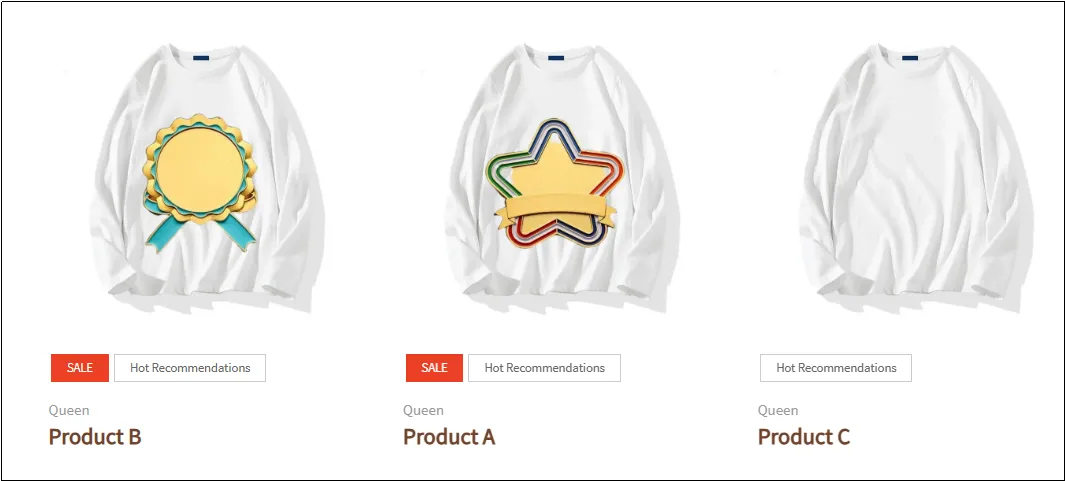
Example: Before setting the product order, the display sequence in search results is as shown in the figure below: Product A > Product B > Product C.
Open CMS

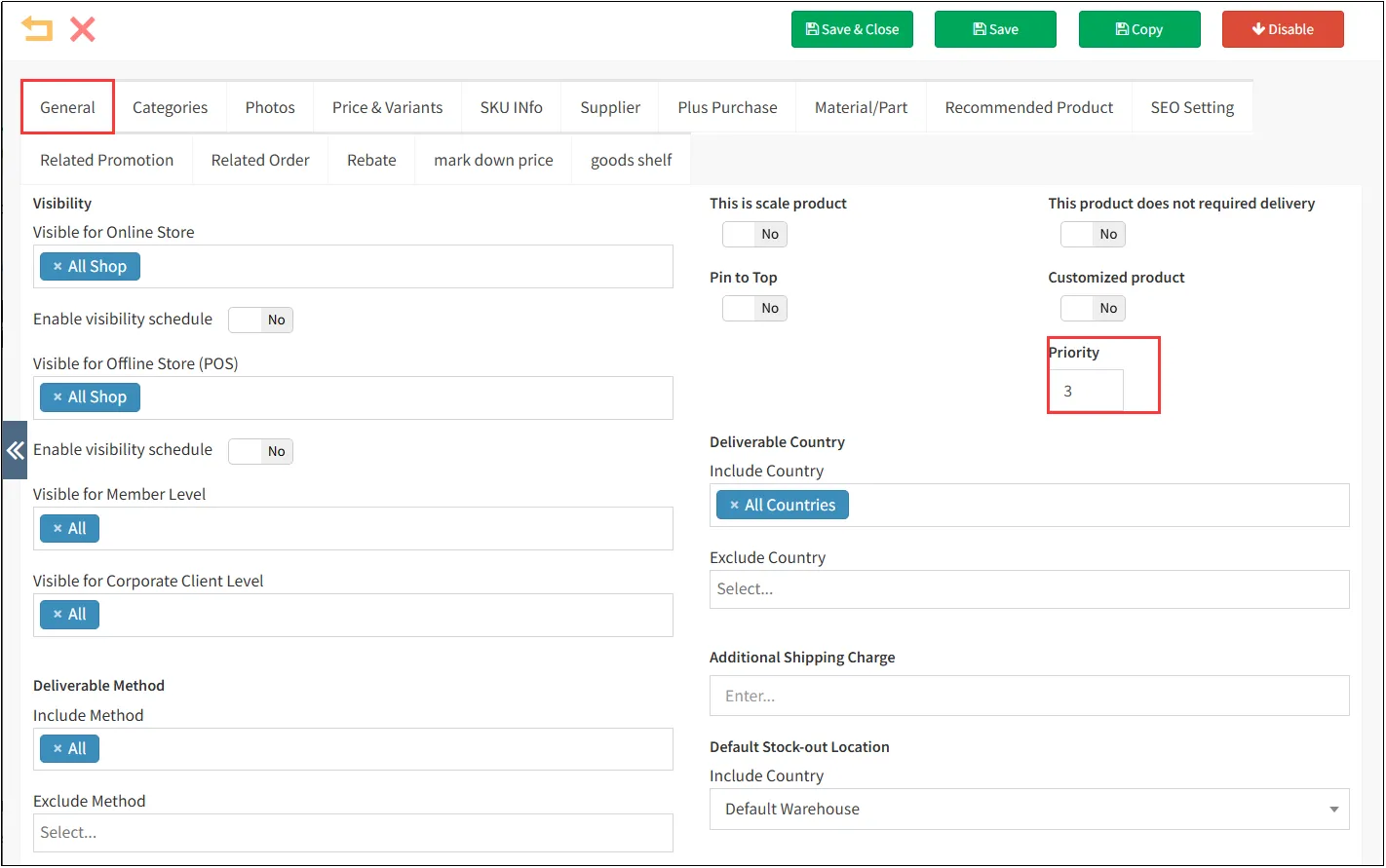
Click the General tab
After saving, search for products again to see Product B appearing at the top of the results.
Remark:
· The larger the number of the product order, the higher the display position of the product.
Set product order using EXCEL
Product sorting order can be configured in bulk by importing an Excel file.
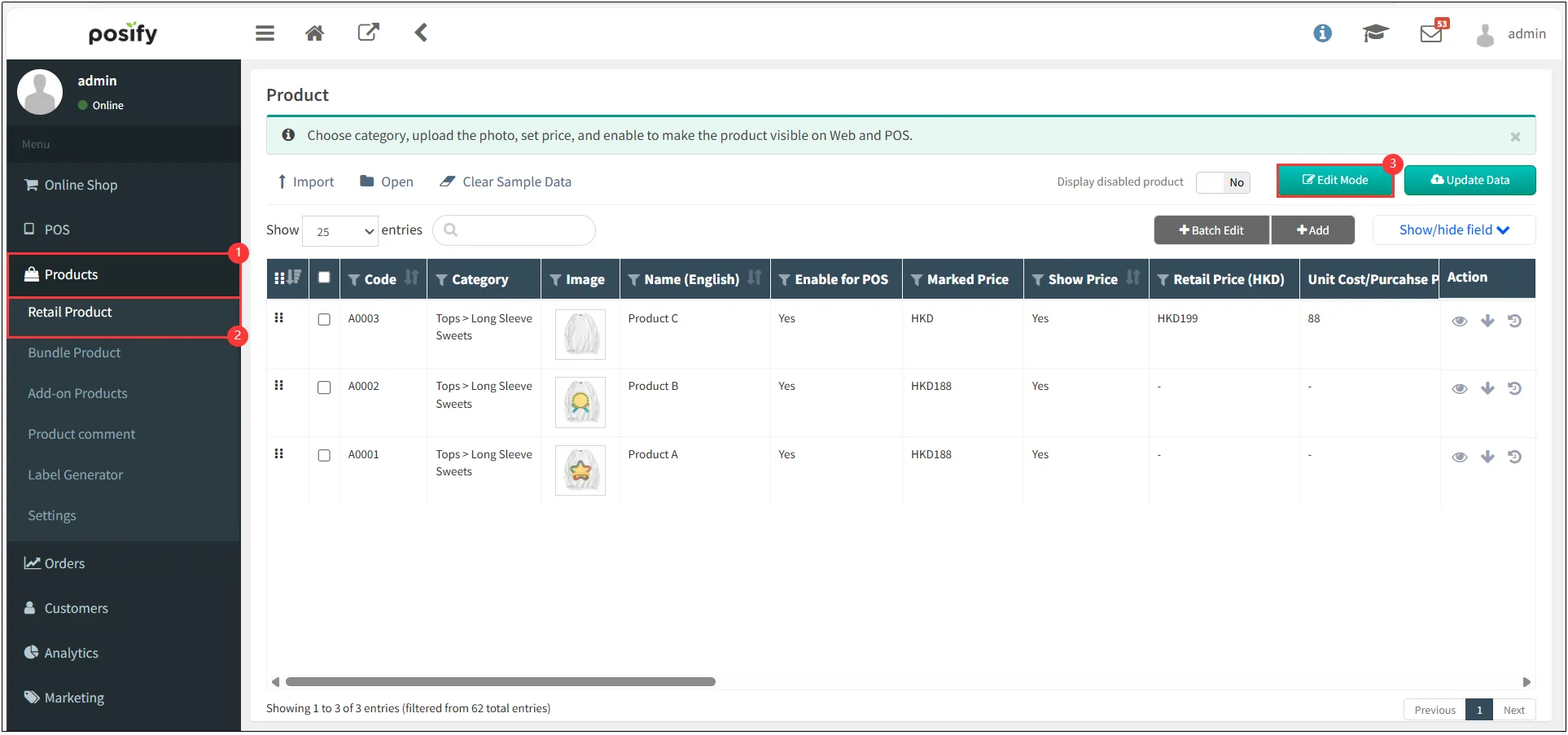
Open CMS Click on the productsClick on Retail ProductClick [Edit Mode].
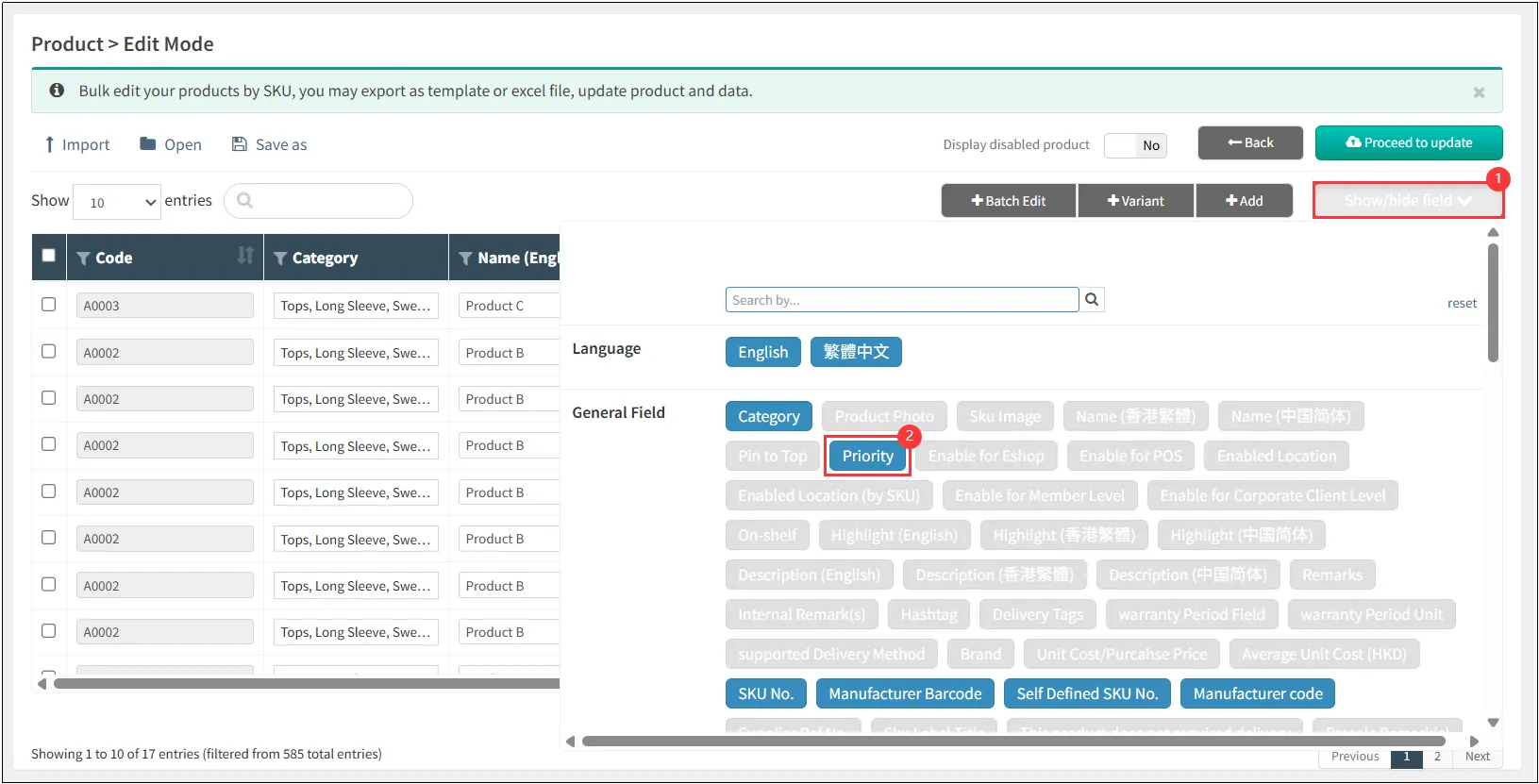
Click [Show/Hide field]Click Priority.
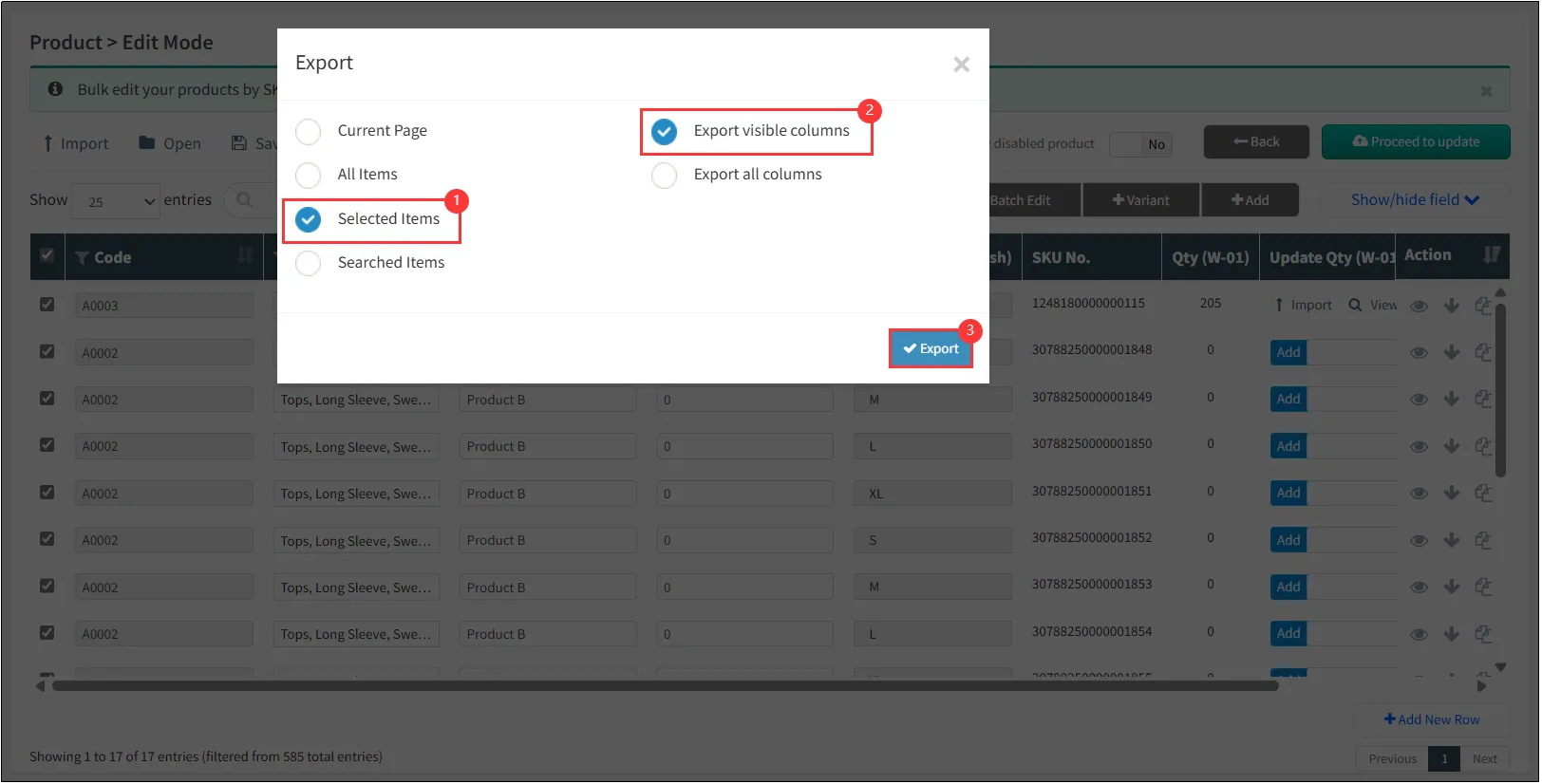
Check the items you want to modify the orderClick [Save as]Click [Excel(.xlsx)].
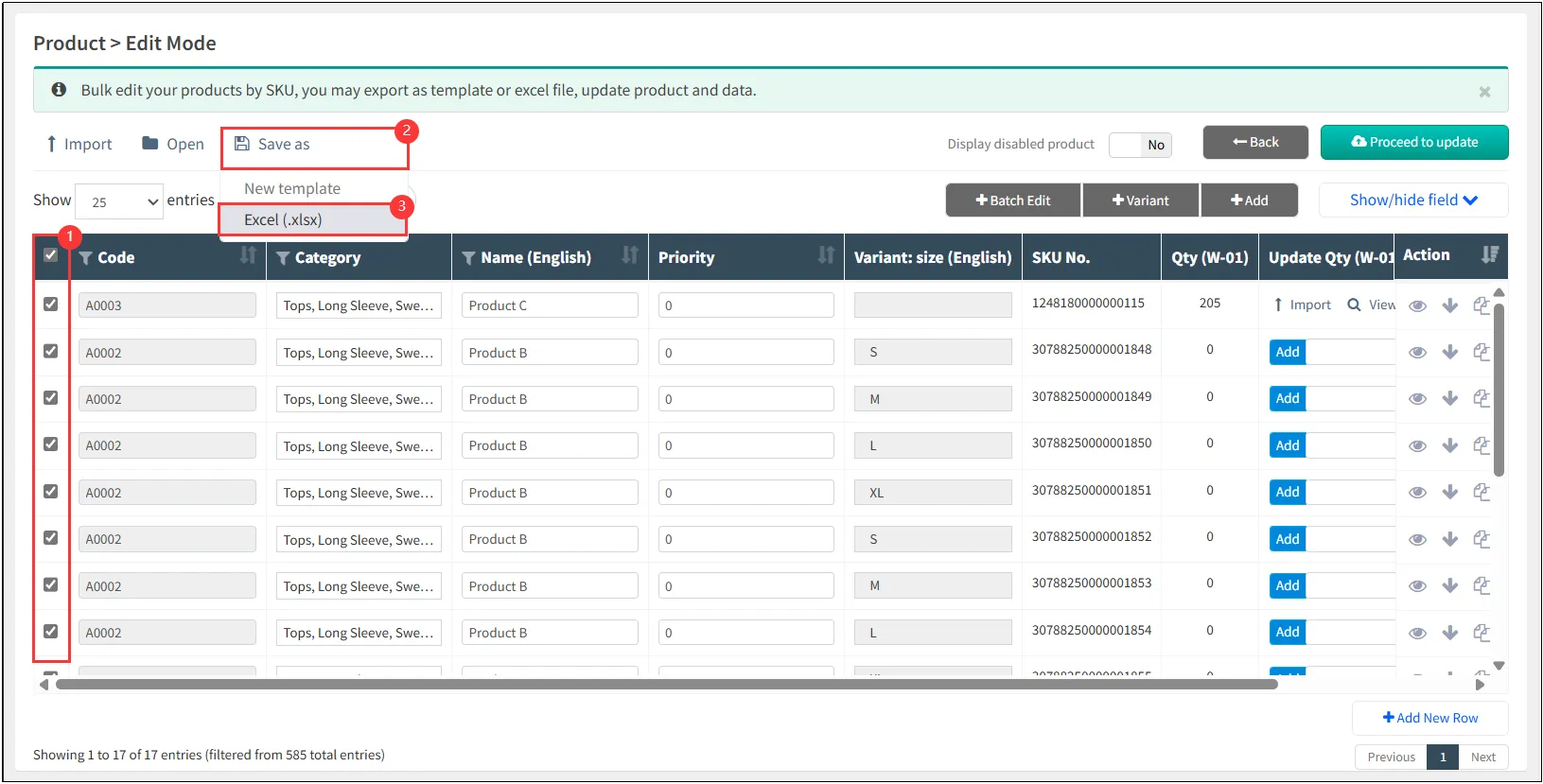
Check the Selected Items and Export visible columns, and export to Excel.
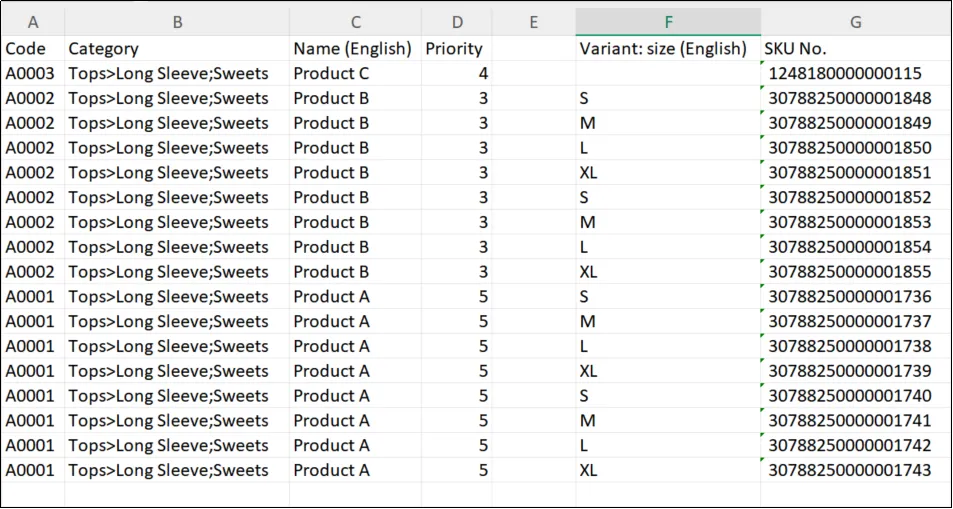
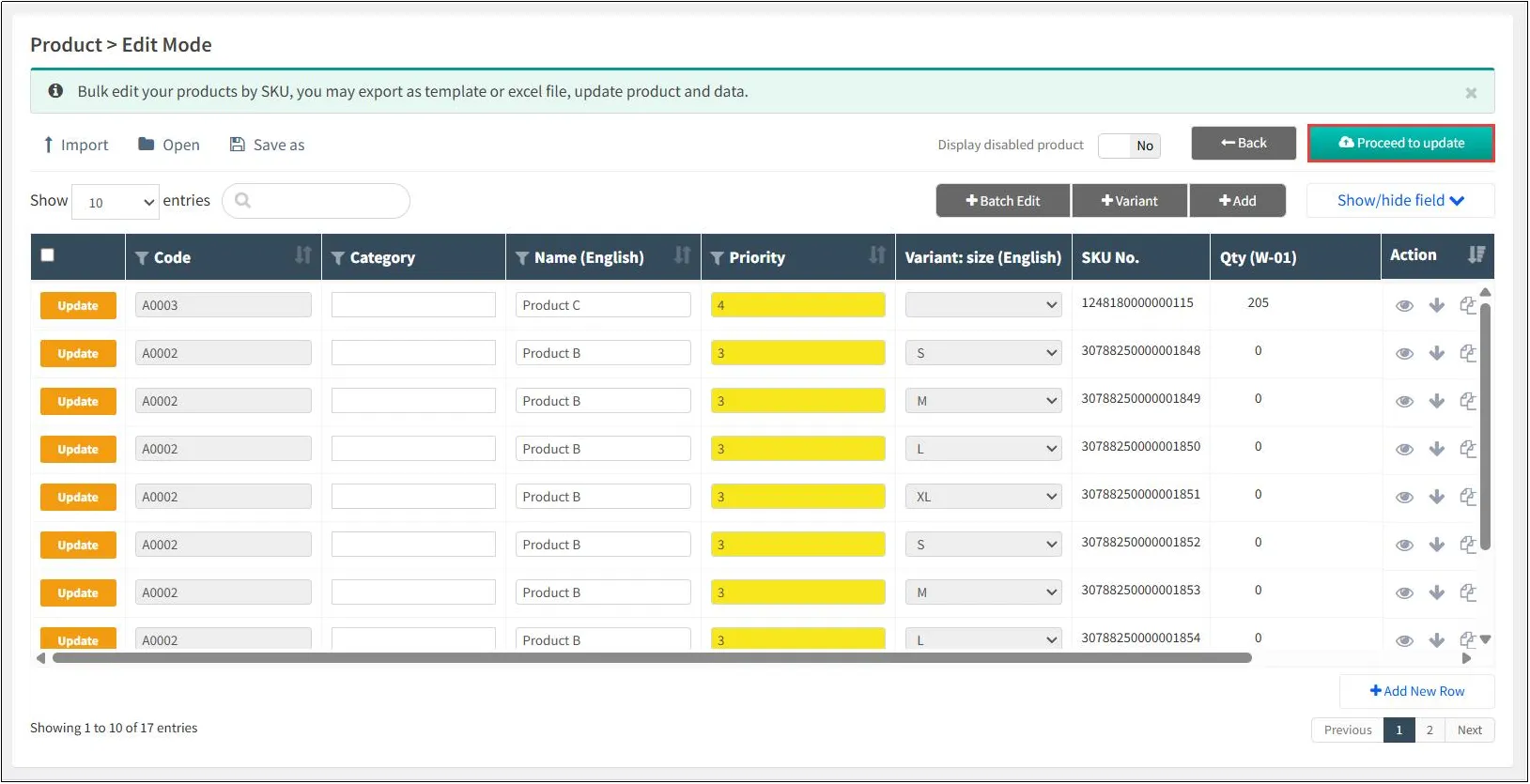
Open the exported Excel fileIn the "Priority" column:Enter 5 for Product A,Enter 3 for Product B,Enter 4 for Product CSave the file.
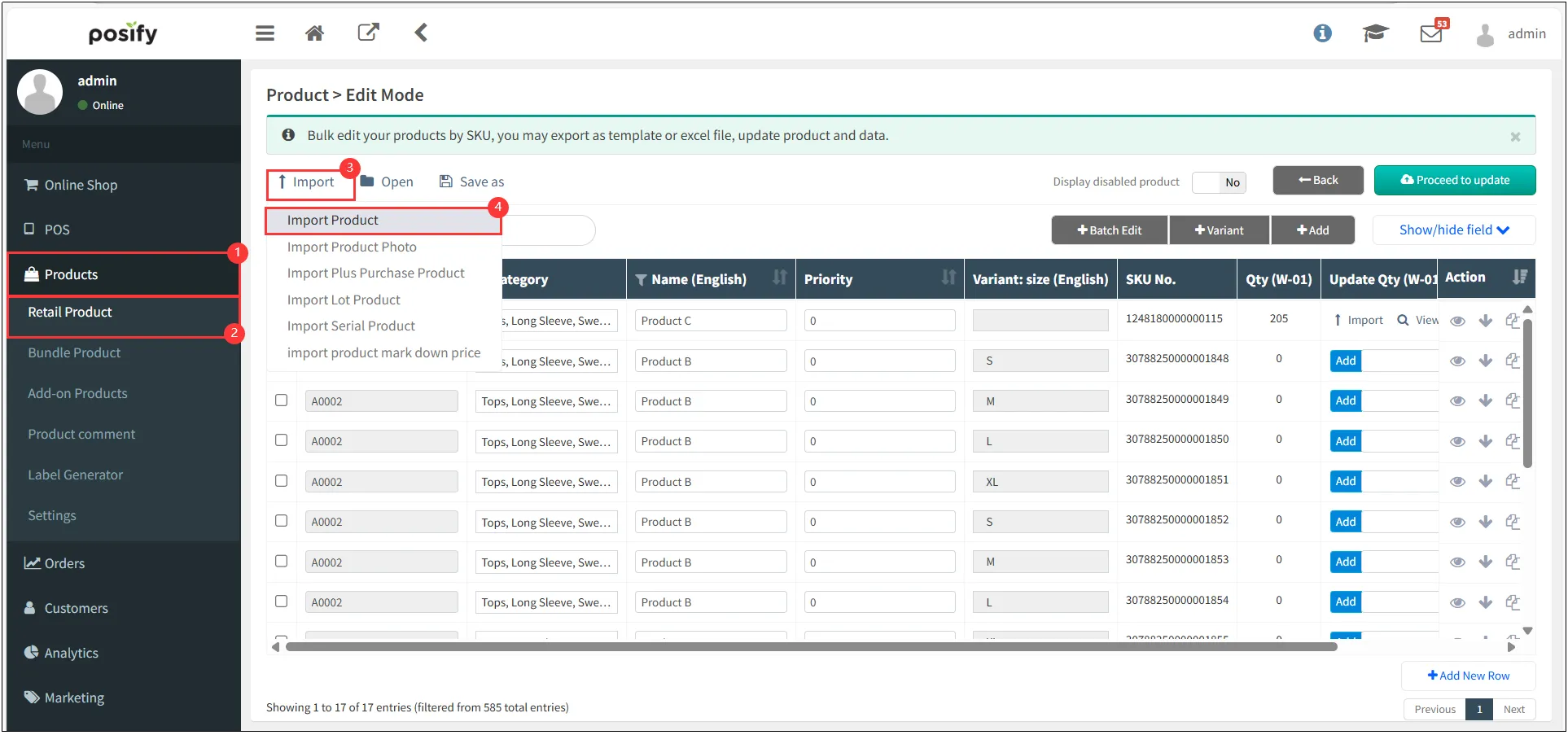
Open CMSClick the productsClick the Retail ProductClick [Import]Click the [Import Products].
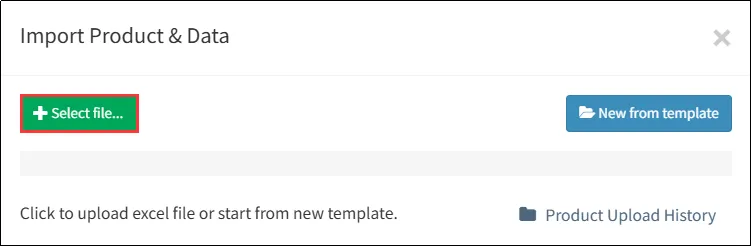
Click [Select File]Choose the edited Excel file we prepared.
The yellow highlight is the updated part, after checking it is correct, click [Proceed to update],The product order setup is now complete.
Set product order in classification
Open CMS 
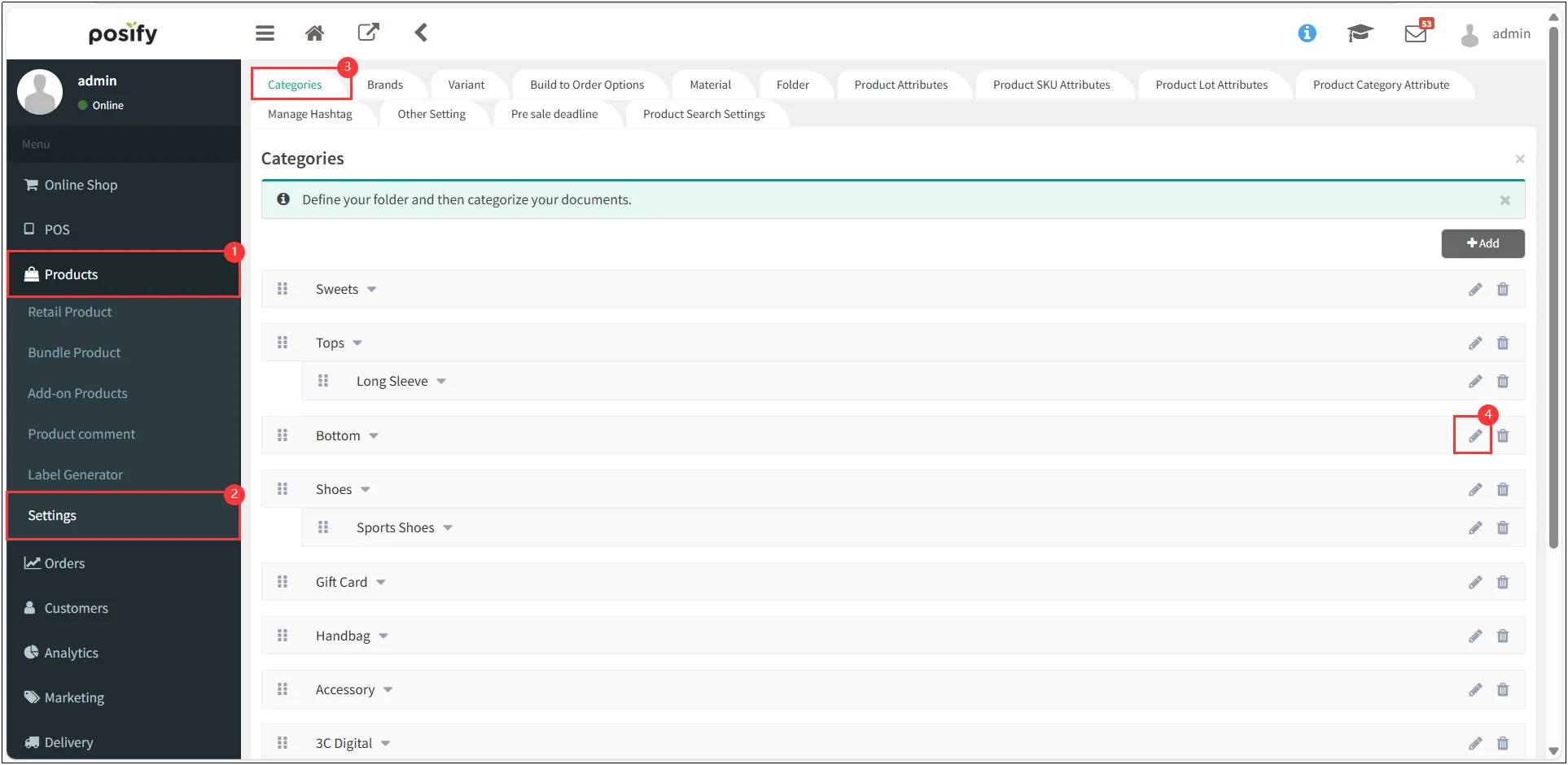
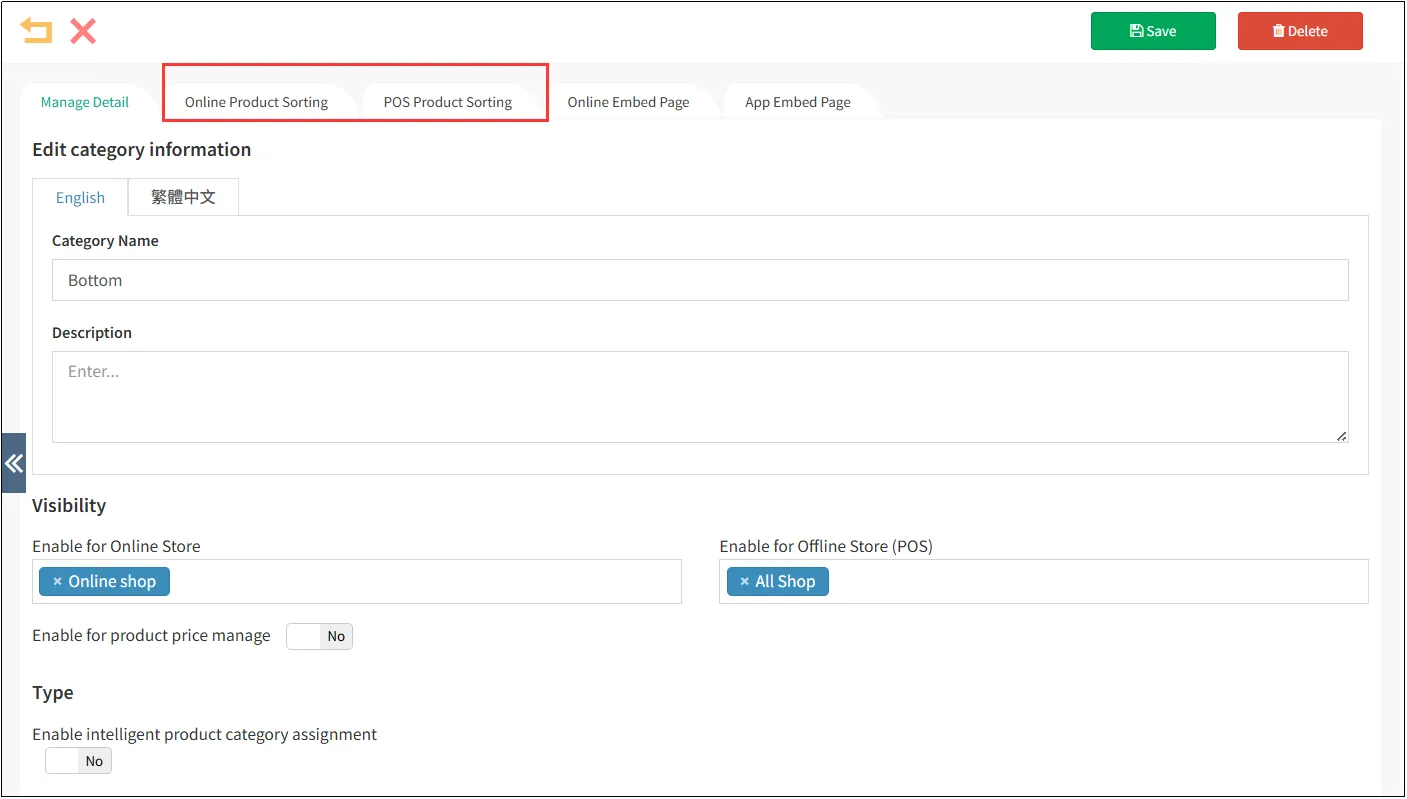
Click the page tab Online Product Sorting or POS Product Sorting to adjust the order of the classified products in the online store and POS respectively.
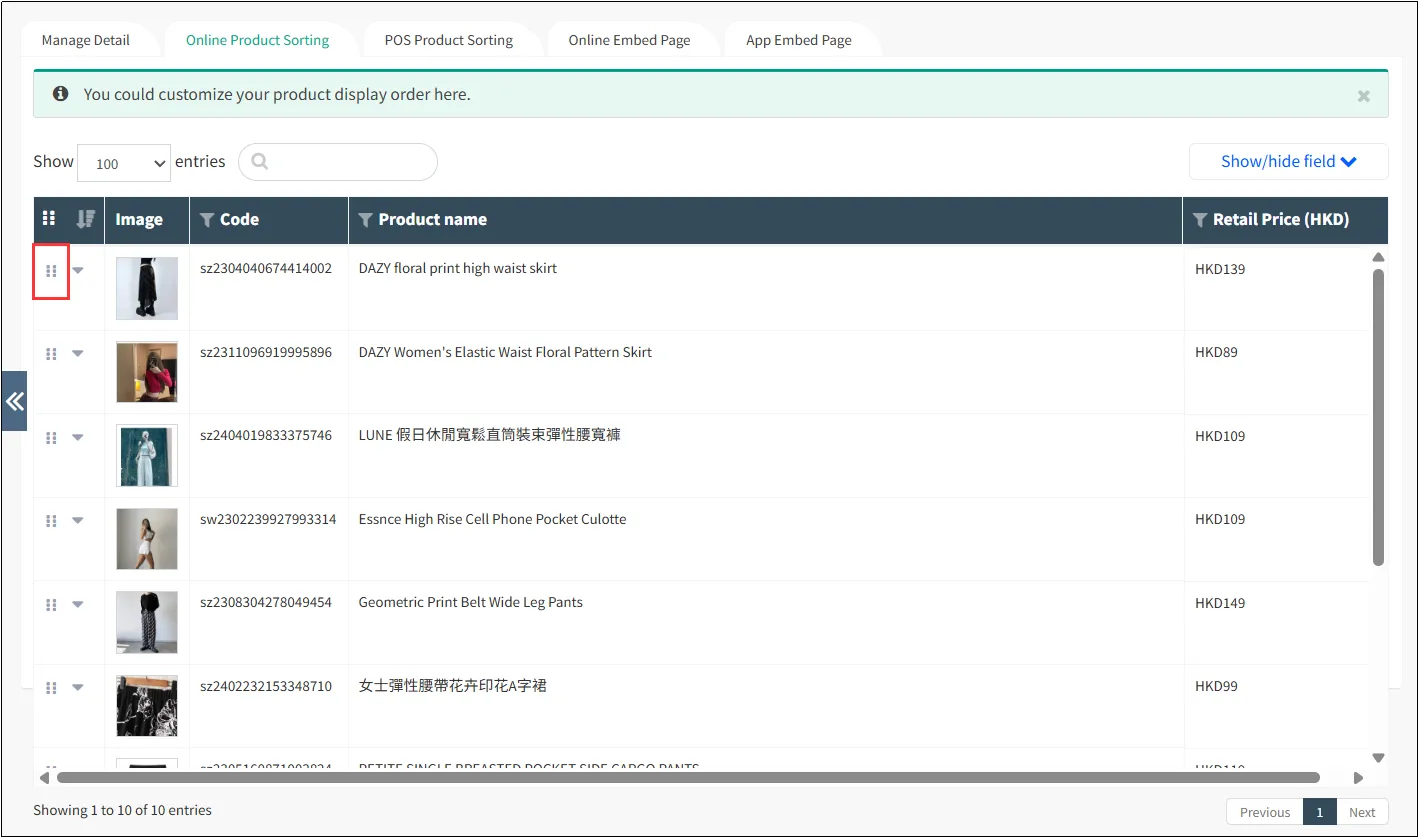
Adjust the order by dragging
Find the product you want to adjust the order, press and hold 
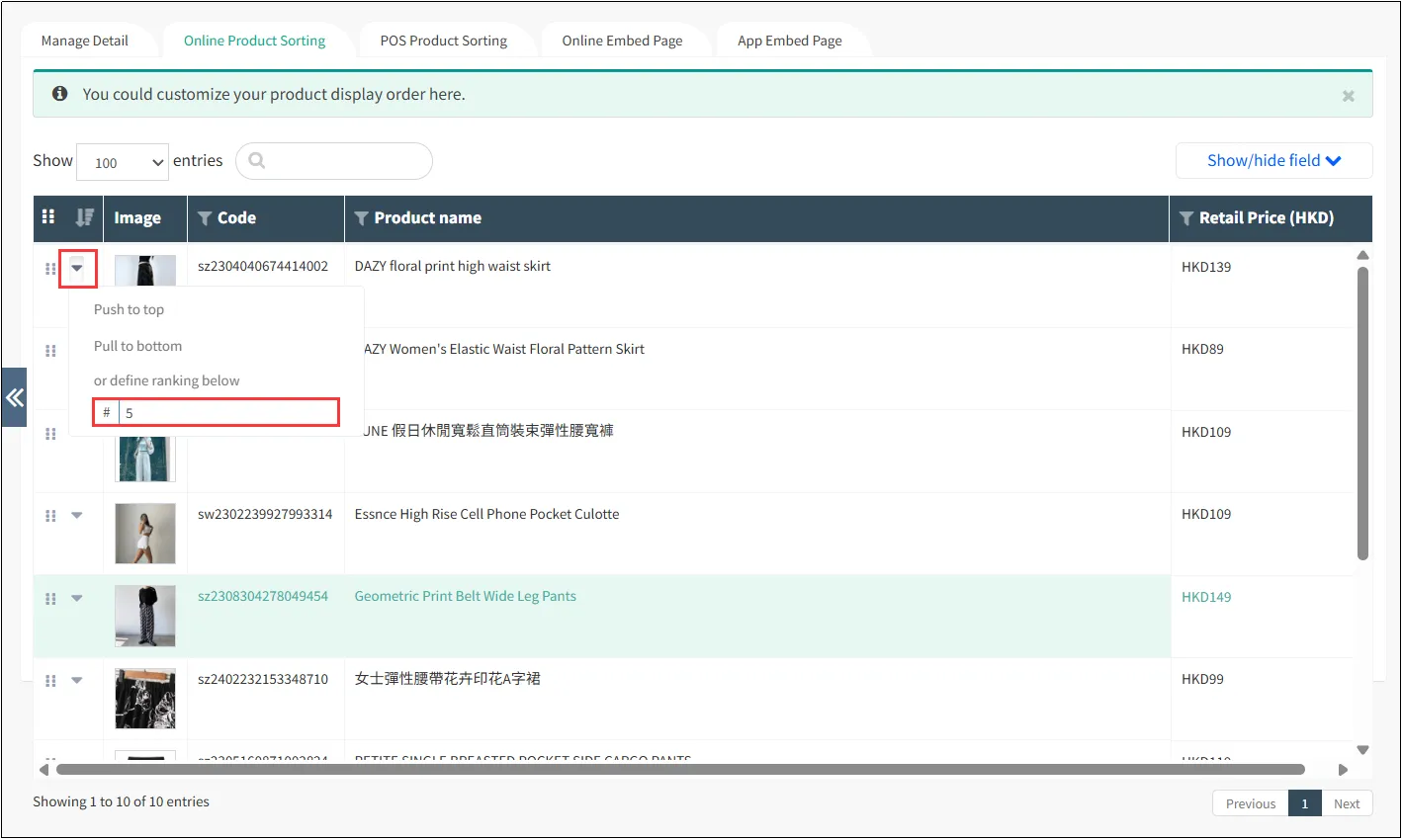
Adjust order by input order
Find the product you want to reorder
Entering a number will adjust the product to the position, for example: input "5" will adjust the product to the fifth position.
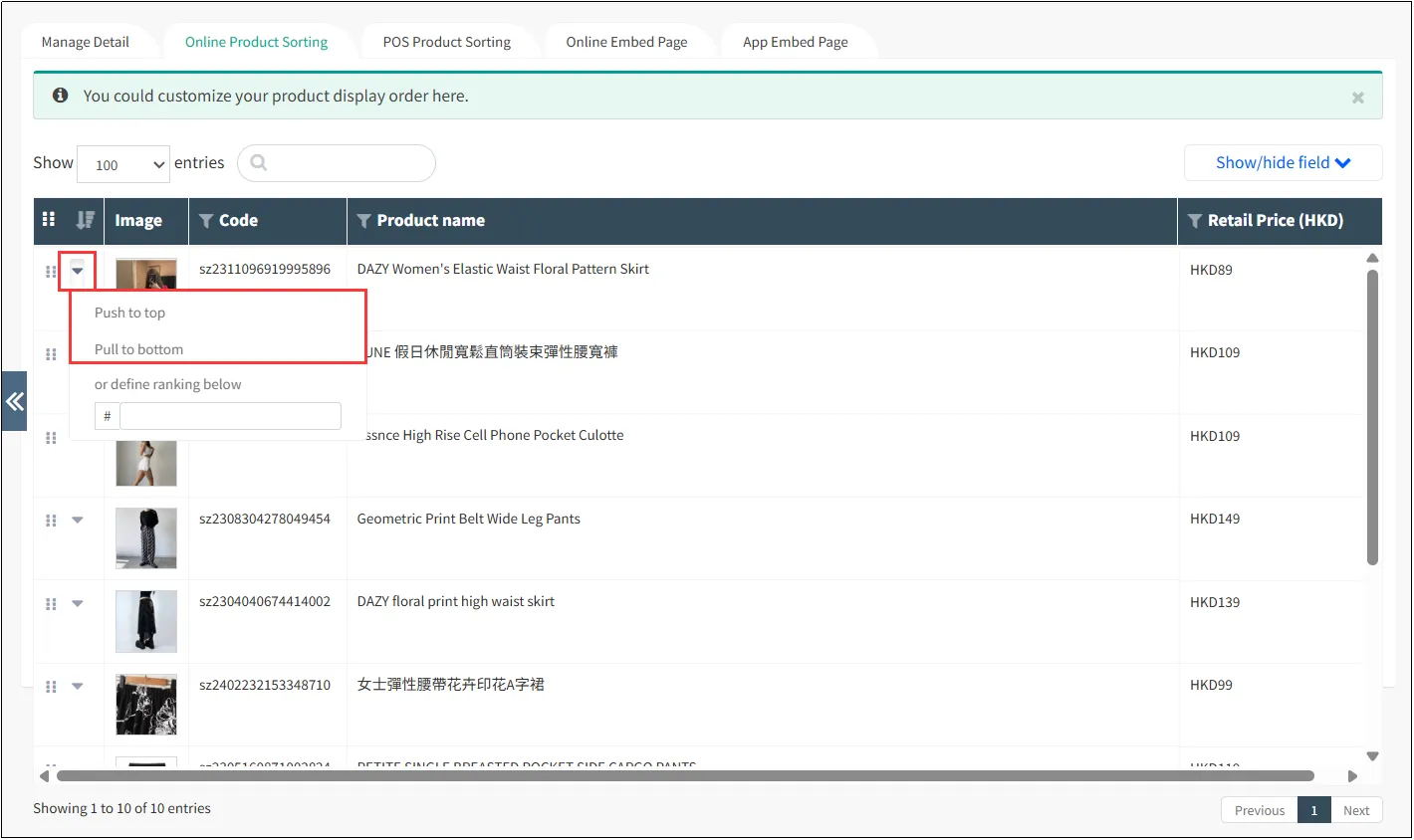
Adjust the order by top to bottom
Find the product you want to reorder
Topping
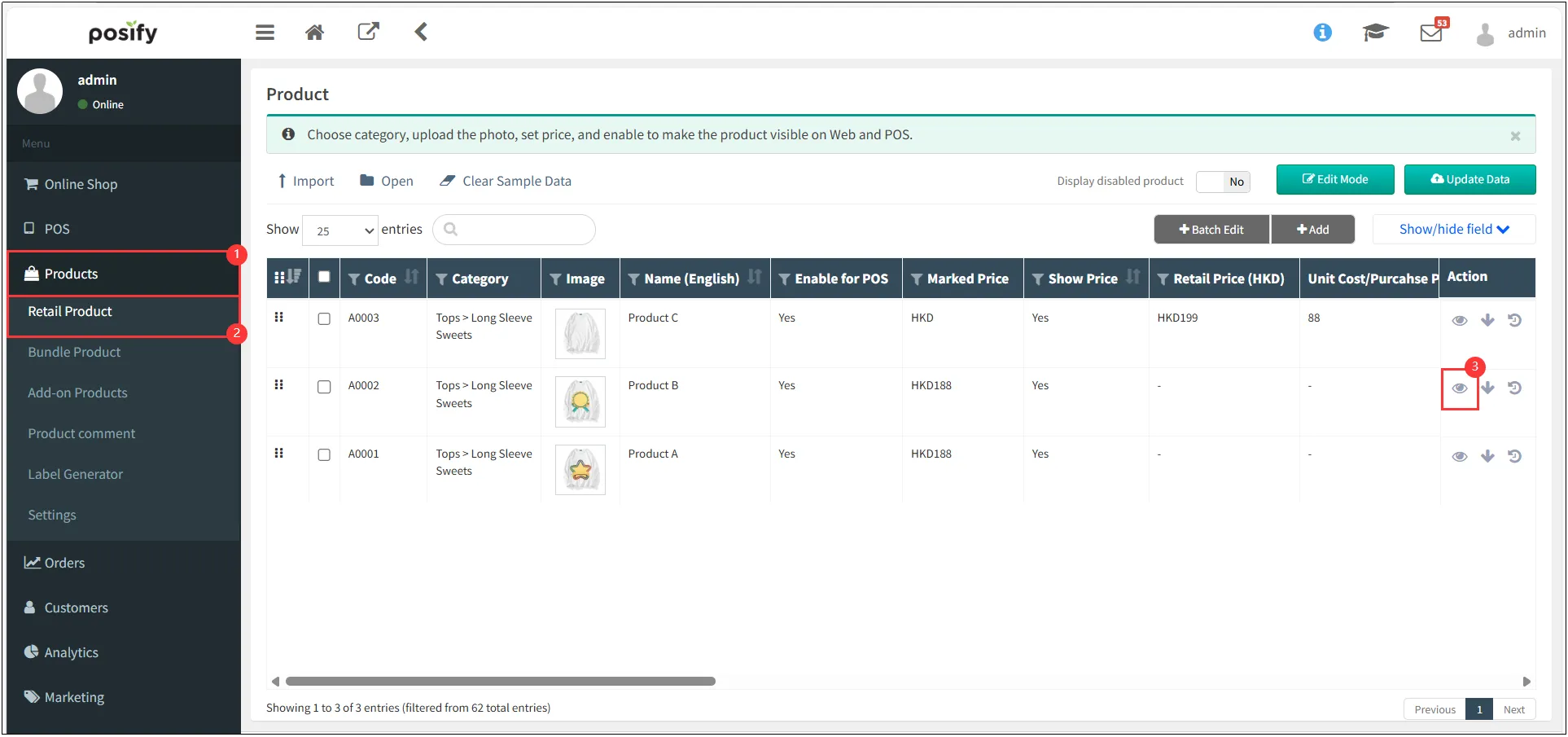
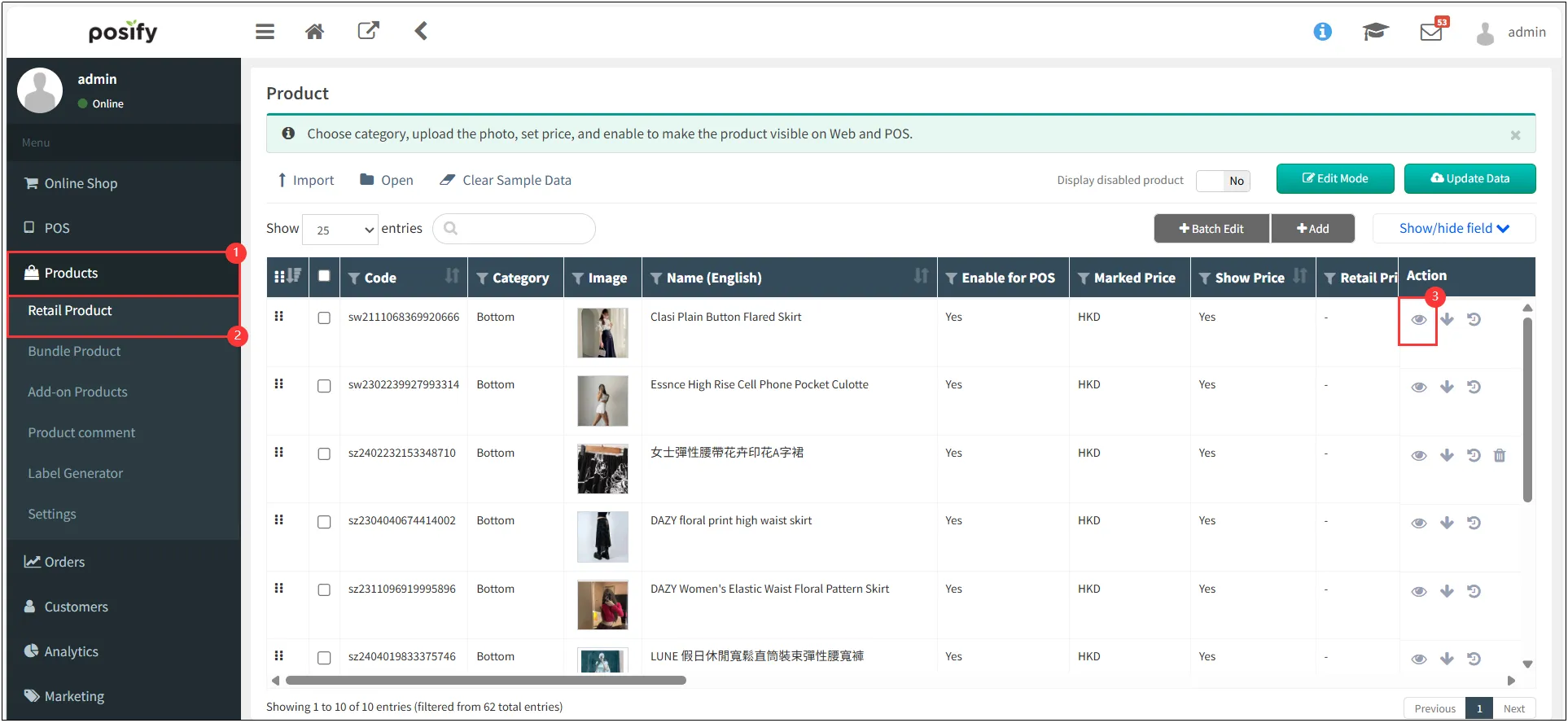
Open CMSClick on the productsClick on Retail ProductFind the product you want to pin to the topClick  on the right , Go to the item editing page.
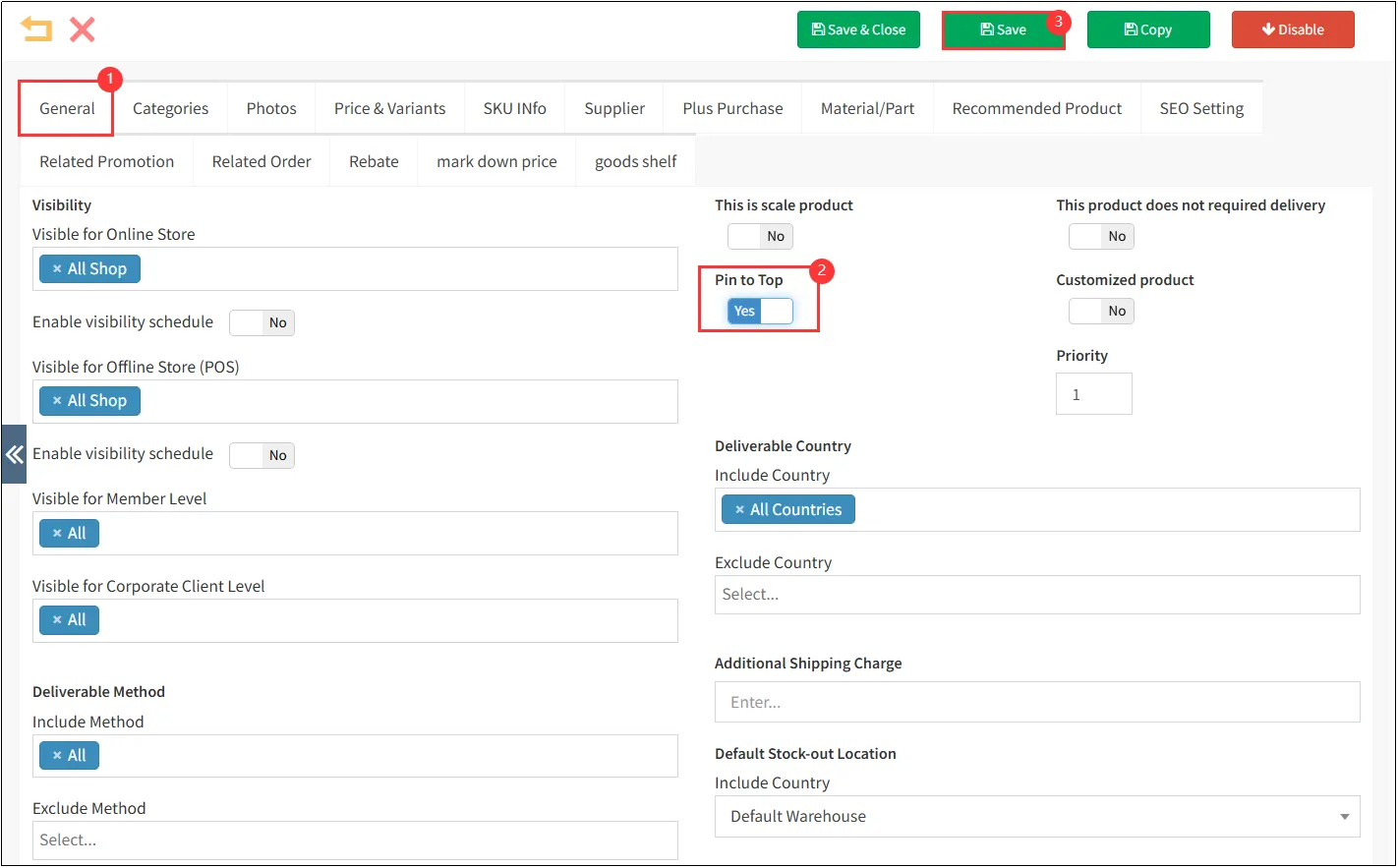
Click GeneralSelect [Pin to Top] as Yes.