How to check your payment
Open the CMS Click Payment & CurrenciesClickthe tab Payment.
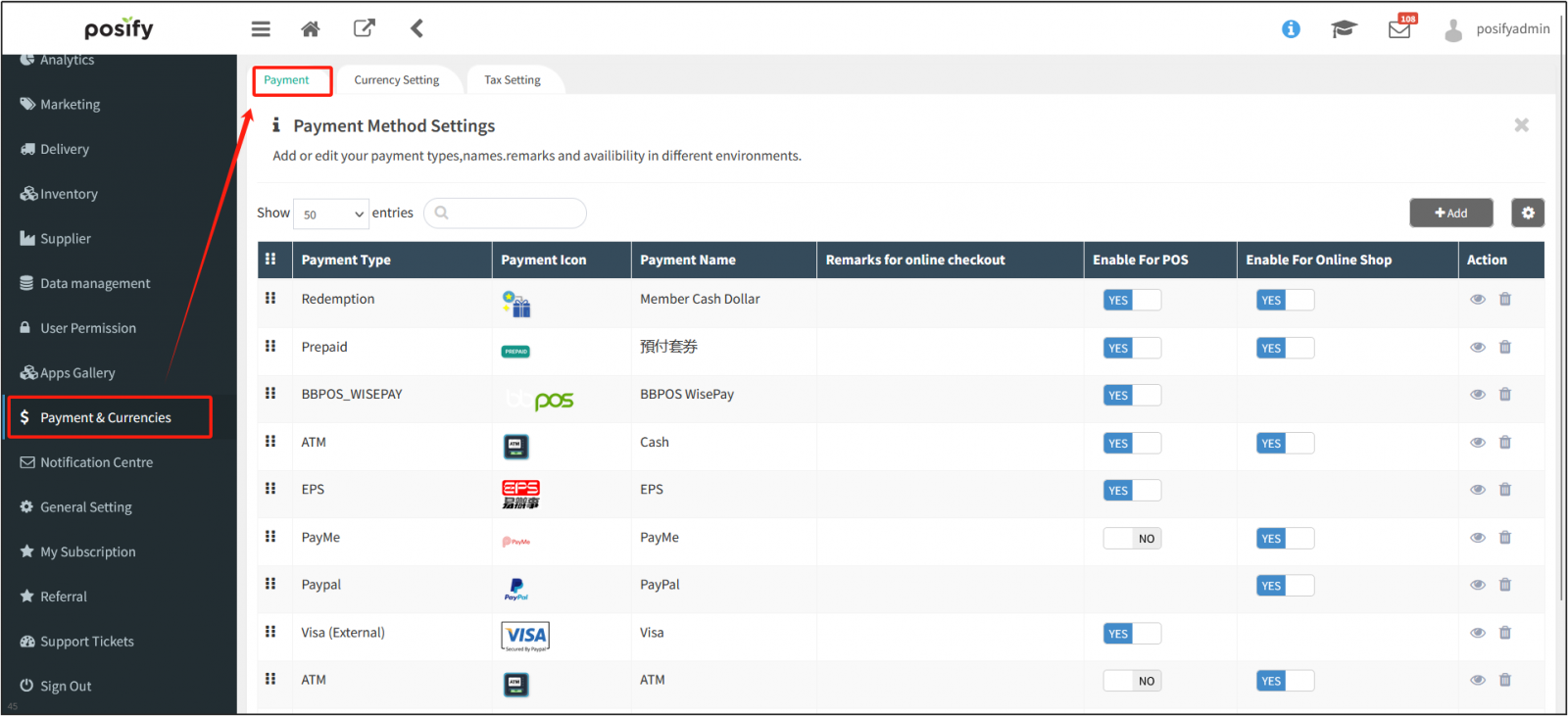
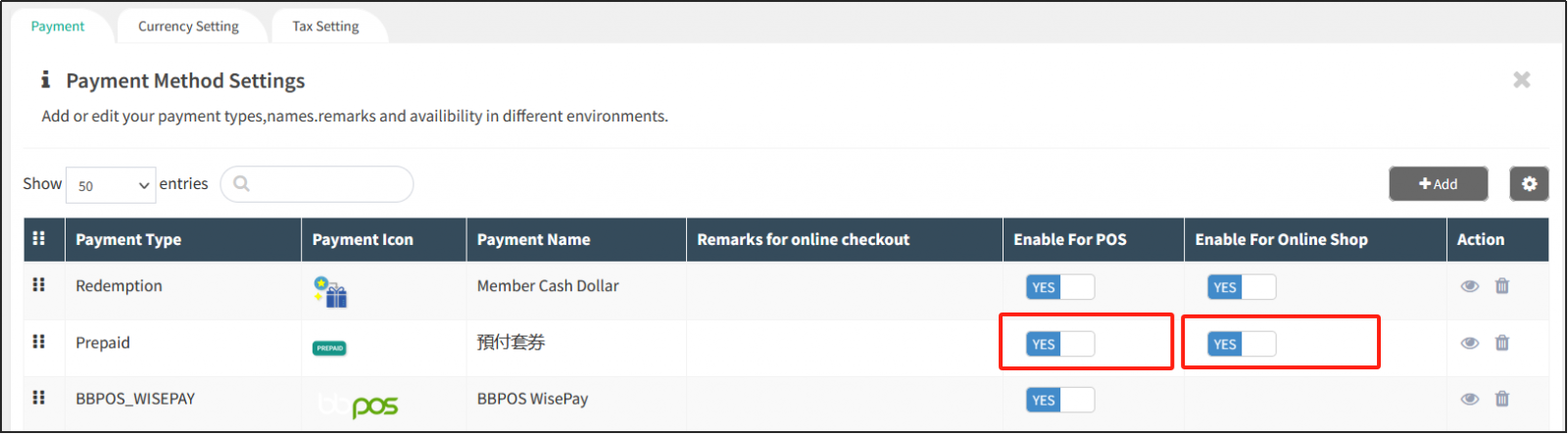
On this page, you can see which payment methods are currently enabled, as well as which payment methods are enabled in the POS and Online shop. Click the button in the [Enable For POS]/[Enable For Online shop] column on the right side of the payment method to enable/disable the payment method on the POS/Online shop.
Add a Payment Method
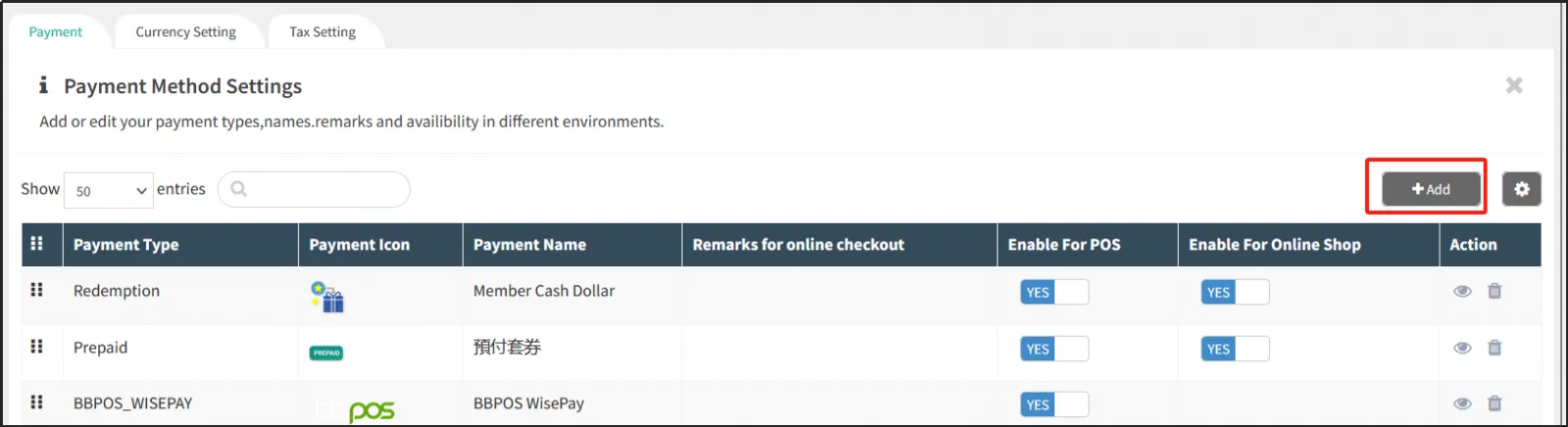
When you find that the payment method you need is not in the list of payment, click [Add].
Select the location where you want to add a new payment methodclick [Online Payment or [Offline Payment] under the payment typeclick to select the payment you want below.
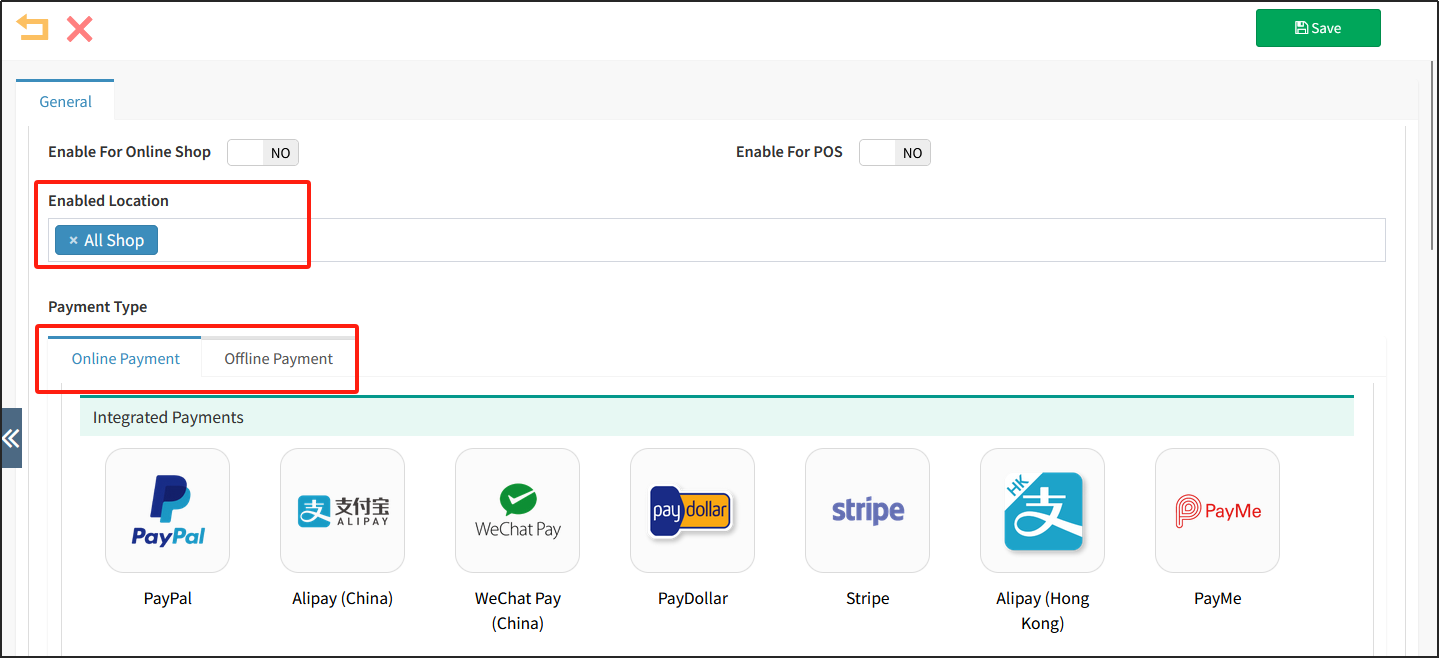
It is important to note the difference between the following types of payment methods:
Integrated Payments: refers to the payment method that has been connected in series with the POSify platform, which needs to be configured before it can be used, and the customer will jump directly from POSify to the payment platform for payment when using the integrated payment payment, and POSify can receive feedback from the payment platform after the payment is completed to know whether the customer has successfully paid. For example: PayMe, Stripe, QFpay.
After selecting the integrated payment method, you can see that a Configuration tab appears.
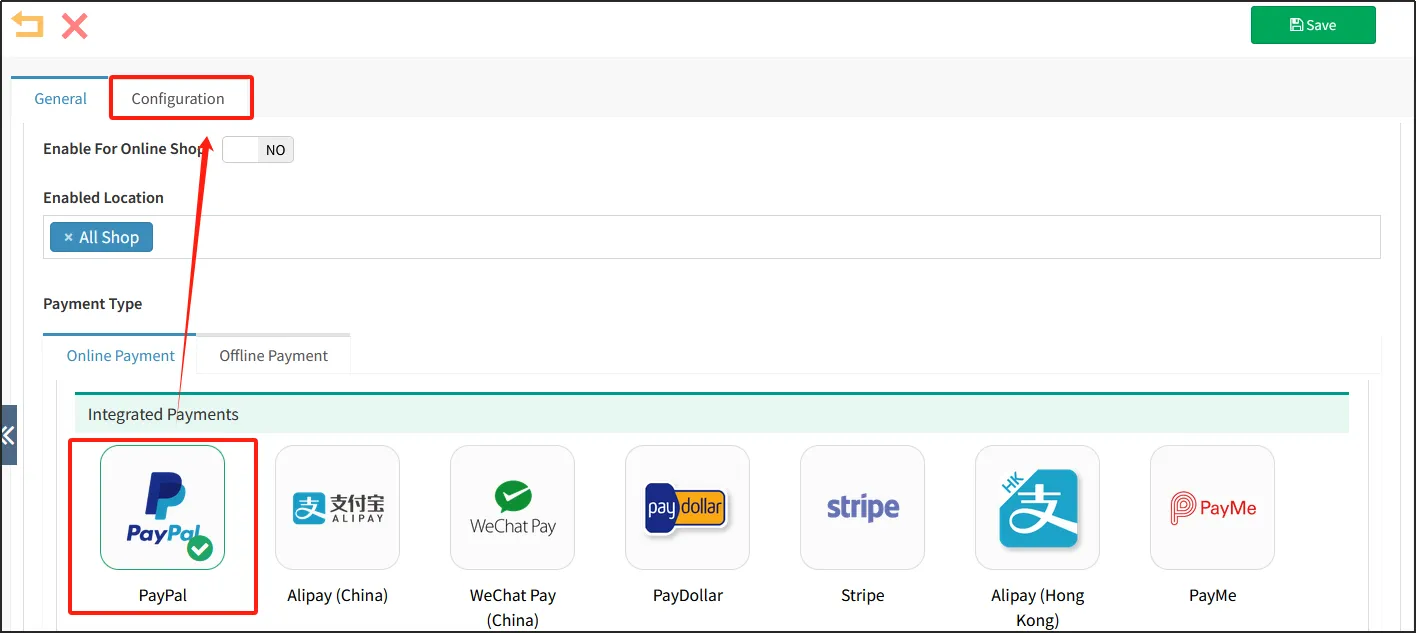
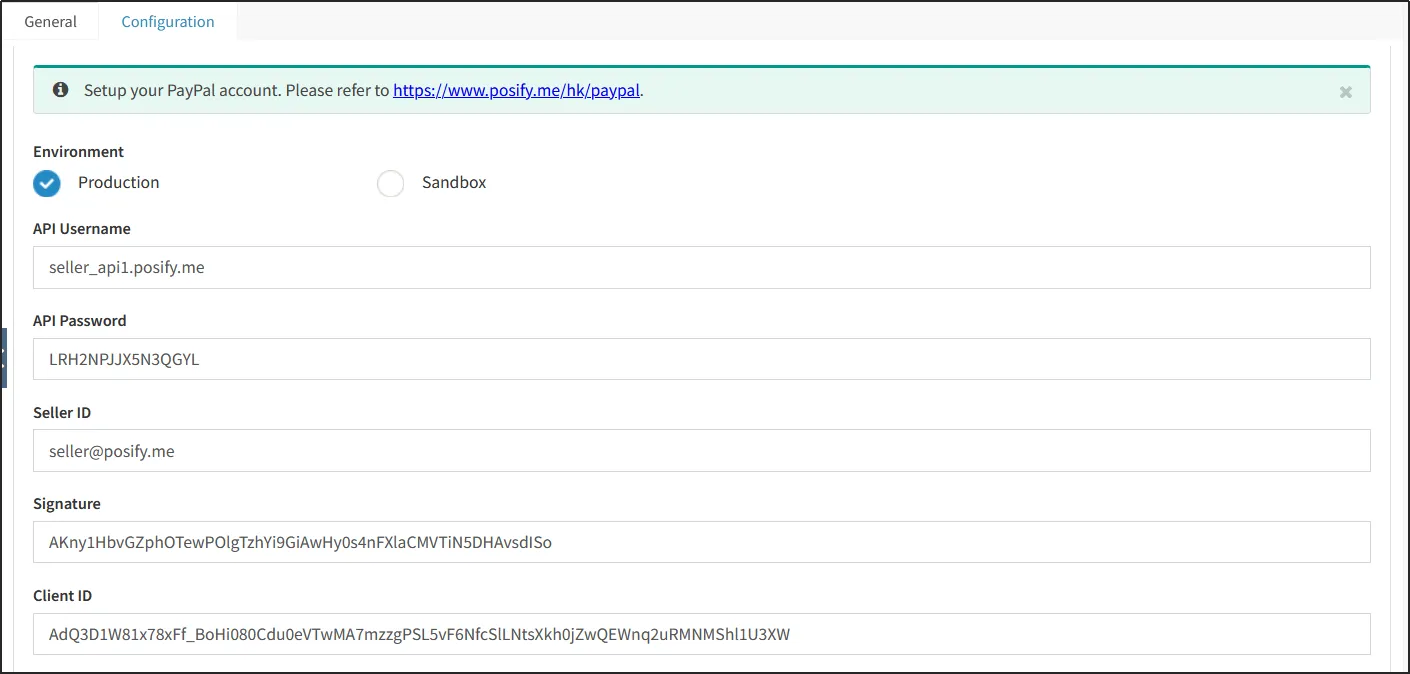
Click the tab Configuration to configure the payment method. For details about how to configure the configuration, see Playbook-Integrated Payment Configuration.
External payments: There is no payment method connected to Posify, the merchant needs the customer to provide proof of successful payment and check whether the payment has been received, and the merchant also needs to refund the money by himself.
Built-in payments: Posify's internal payment method, which does not involve other payment platforms, such as prepaid coupons, membership points, etc.
Select Enable For Online shop/POS.

Enter other payment method settings, including Payment Method Name, Remarks for online checkout, Payment Icon, etc.click [Save] in the upper right corner to add a payment method.
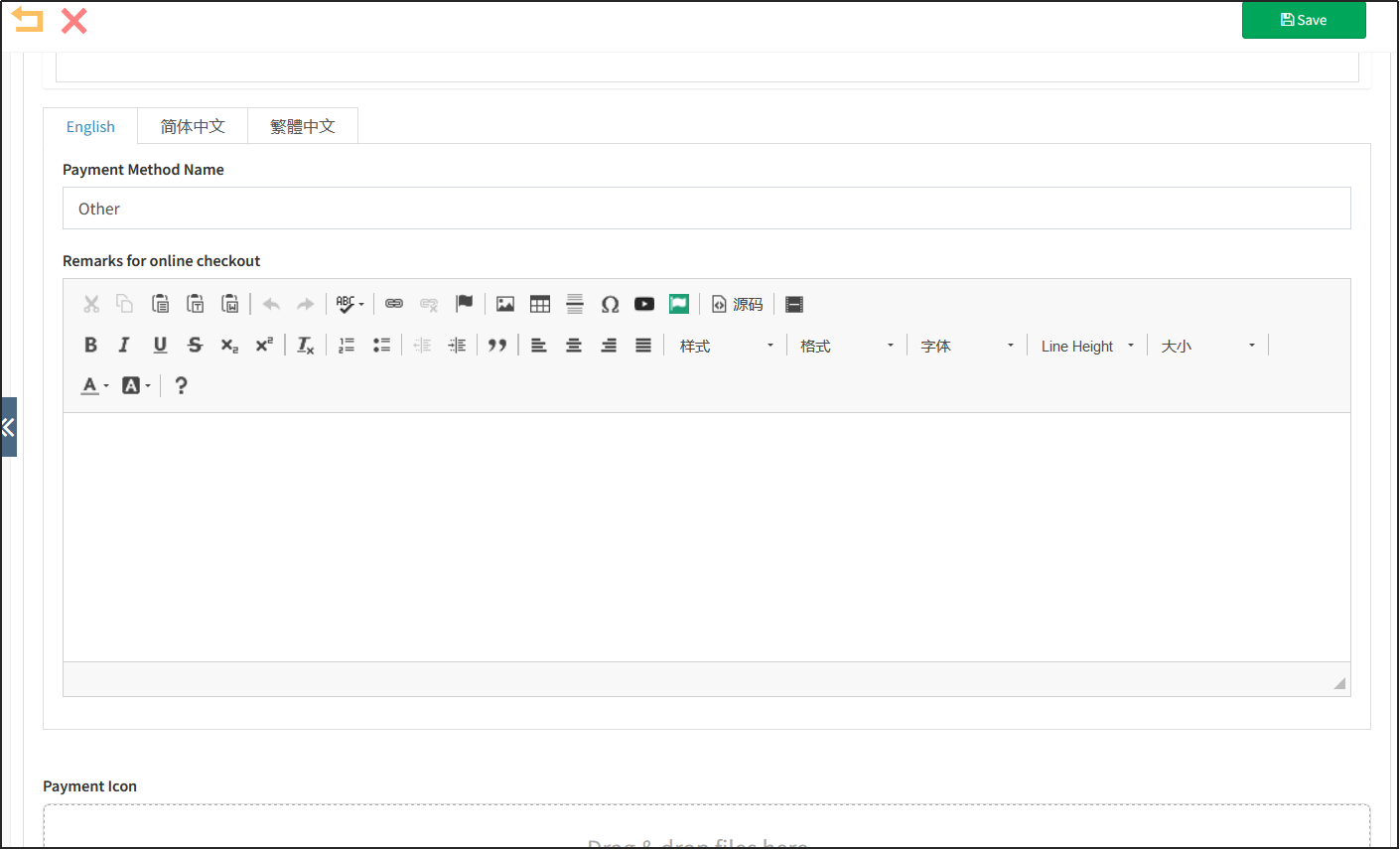
Modify your payment method
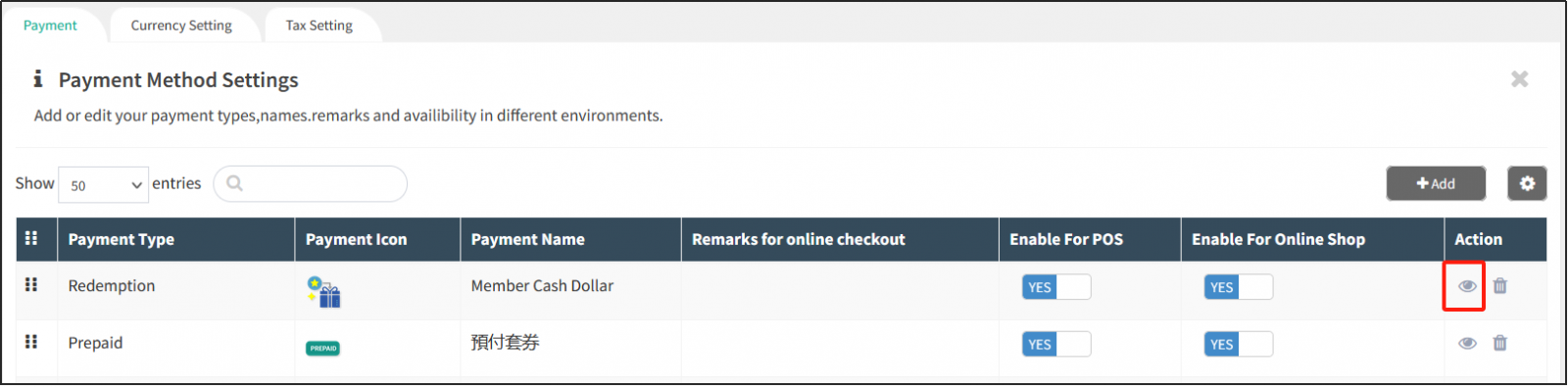
Click the to the right of the payment method to open the payment method edit page, and you can edit the payment method.
Delete the payment method
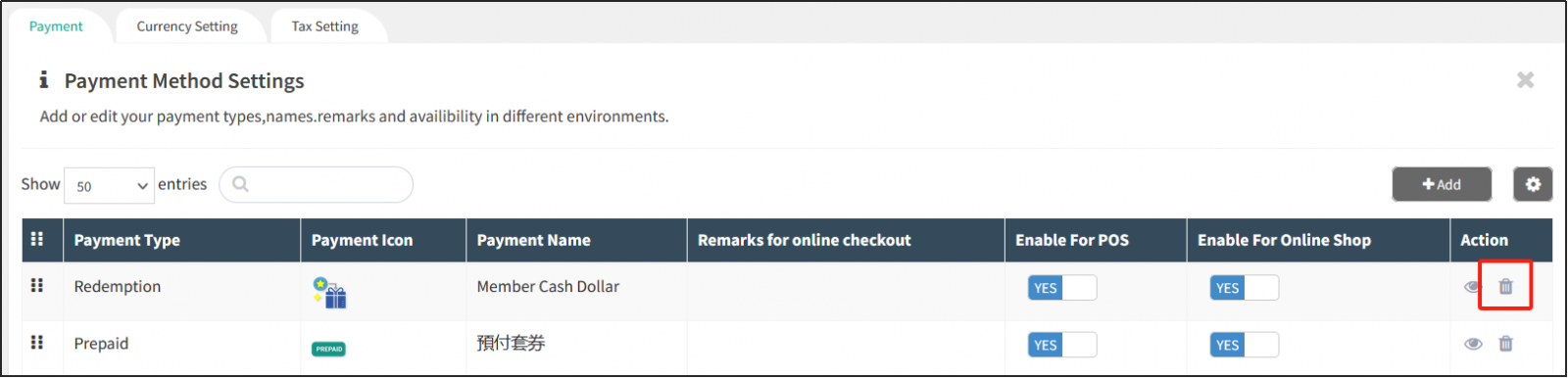
Click the to the right of the payment method to delete the payment method.
Adjust the order in which payment methods appear in your POS and online shop
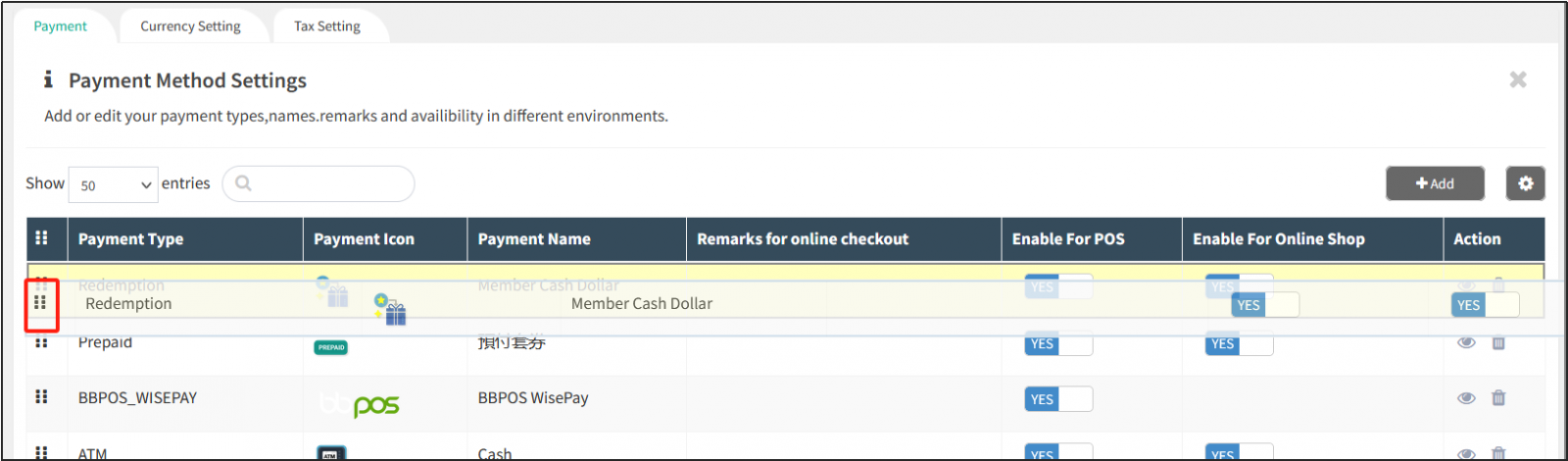
Press and hold the drag-and-drop icon in front of the payment method (shown in the red box below) to move up and down to change the order of the payment methods.