
Set up the contents of the goods to be weighed and the weigh label
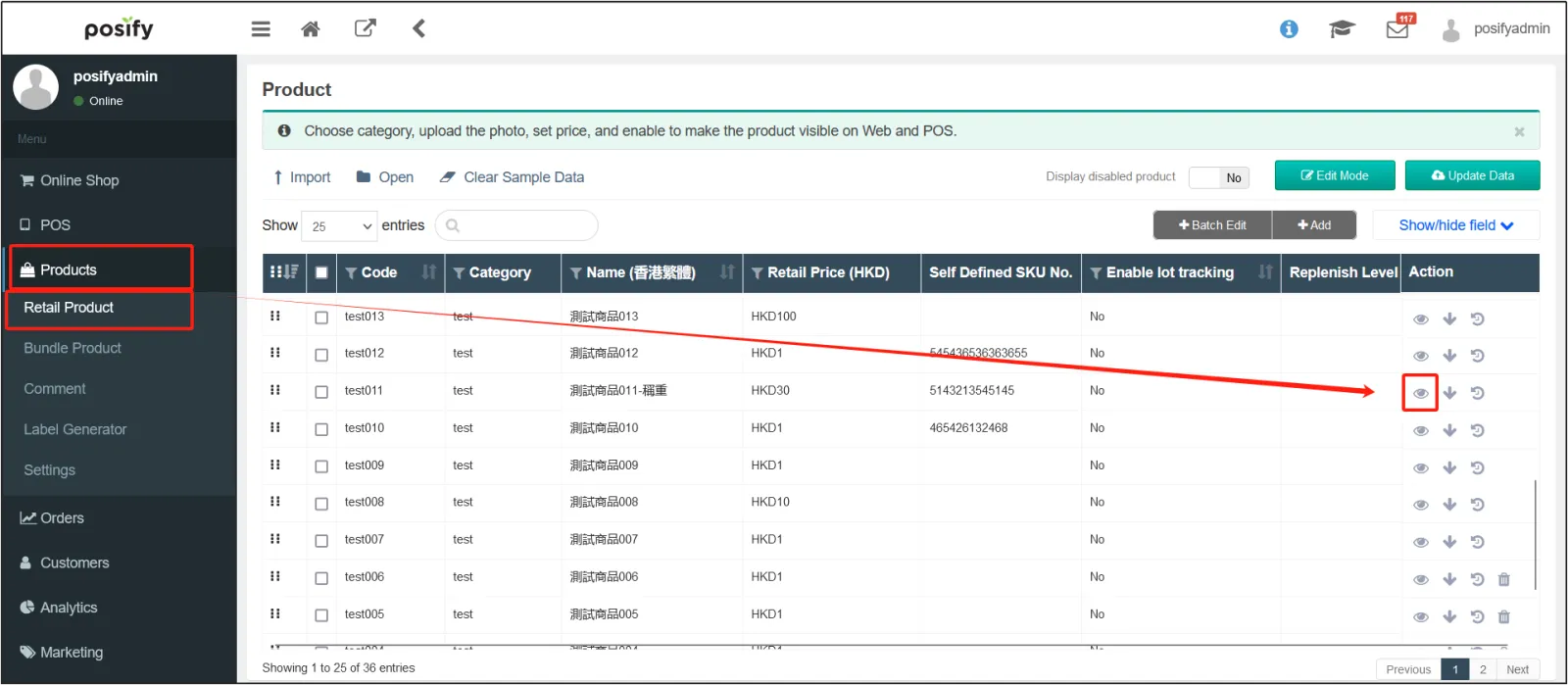
Open the CMS click on the productclick on the retail productfind the product you want to sell using the weighingclick on
  on the right to open its product editing page.
Click on the tabenable [this product can be weighed and sold].
![Activation[This product can be weighed and sold]](https://cdn21.posify.me/docs/posifyhkweb/files/images/playbook/Retail%20POS/POS_weightMode/English/%E5%9B%BE%E7%89%8740.png?imageMogr2/format/webp)
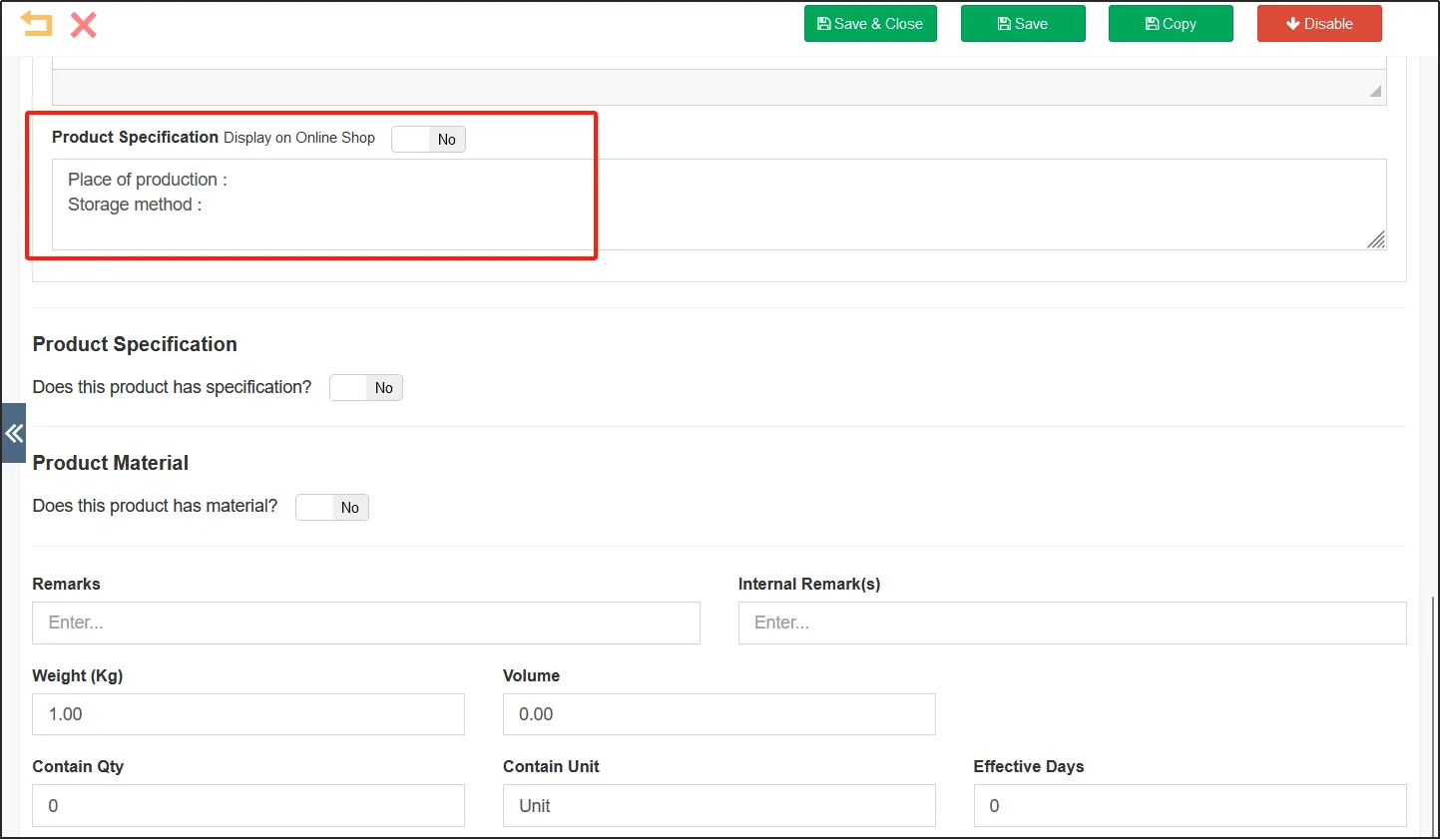
If you want to display the specifications of the product on the product label, such as inquiries about the place of manufacture, you can enter them in the [Product Specifications] field.
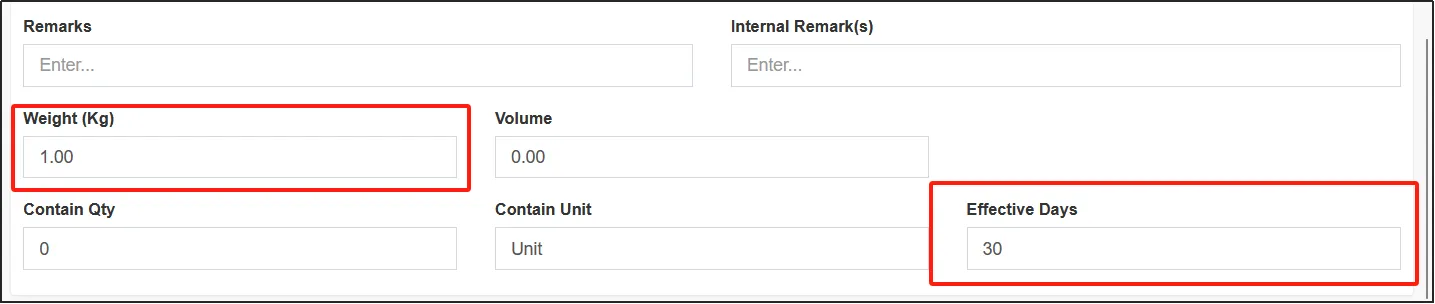
Enter the weight of the product in the [Weight (Kg)] field, and enter the number of Kg for each kg of the product sold, generally 1 kg.
If the weight is 1Kg and the price of the product is $30, then the price of the product is $30/kg.
Enter POS scale mode
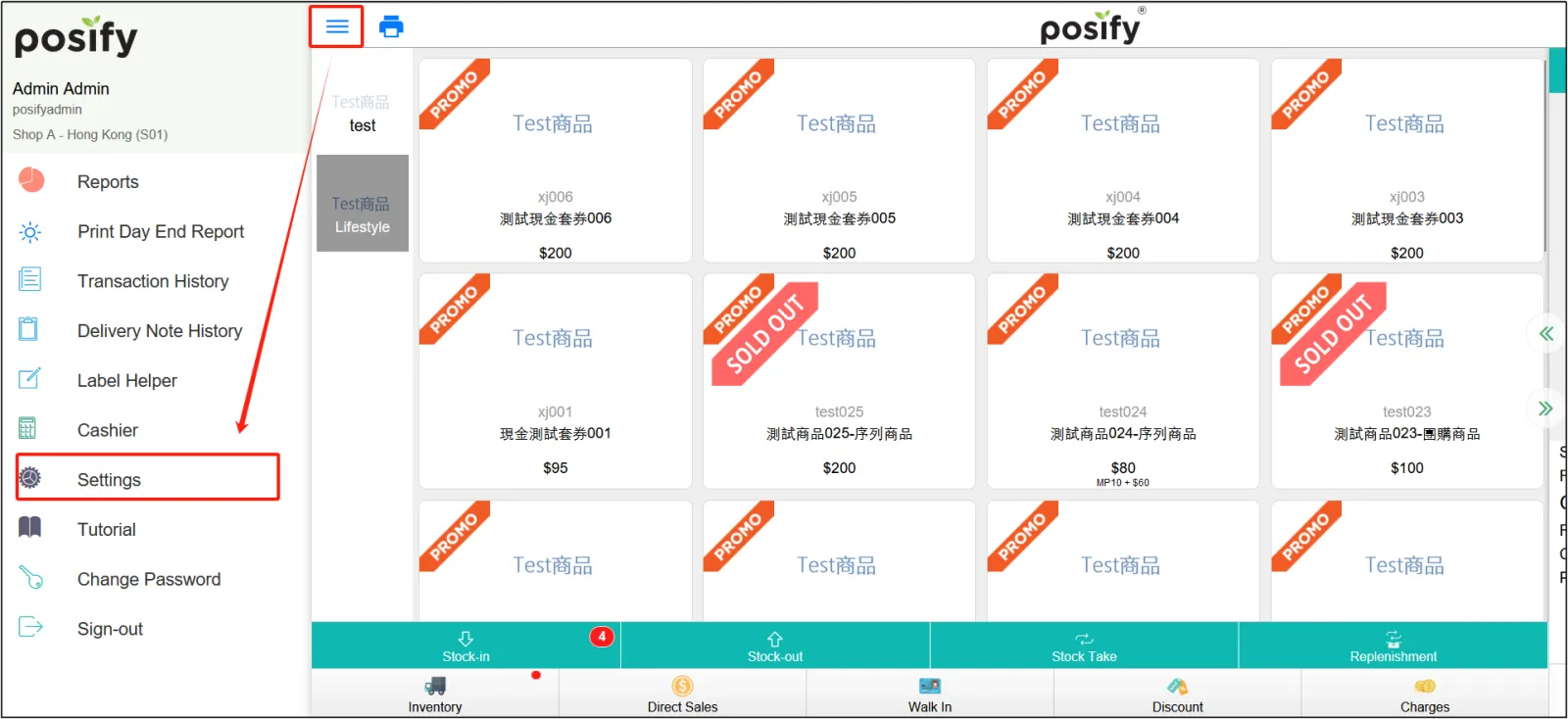
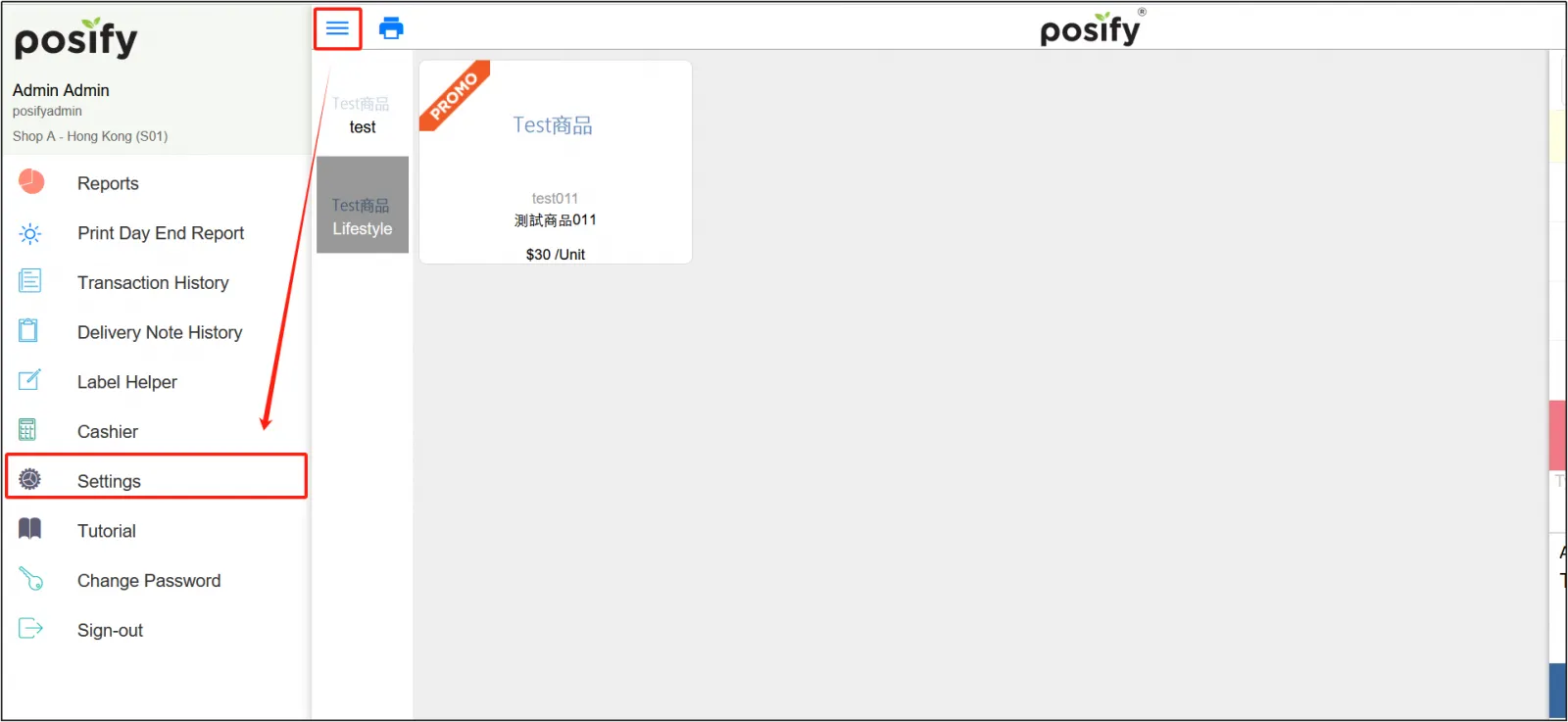
Open the POSclick on the three horizontal lines in the upper left cornerclick Settings.
Click the modeenable [Scale] under [Application Mode].
![Start-up [Electronic Scale]](https://cdn21.posify.me/docs/posifyhkweb/files/images/playbook/Retail%20POS/POS_weightMode/English/%E5%9B%BE%E7%89%8744.png?imageMogr2/format/webp)
Print weighing labels
Click the product for which you want to print a weighing labelenter the weight of the itementer the number of labels to be printedclick [Print label].
The printed label shows:
The title of the product
Label number (the label number is different for each sheet)
Unit price: $30/unit (refer to the setting of this tutorial, indicating 30/kg)
Quantity (unit): 3 (the weight entered when weighing, 3kg is weighed when weighing, so enter 3 when entering the weighing quantity)
Price: Unit Price * Quantity (Unit)
Beijing Time indicates the start time of printing for the current label
Sell weighing goods
Attach the printed weighing label to the packaging of the corresponding item, and at the time of sale, use a scanner or iPad camera to scan the QR code on the weighing label to add the item to the shopping cart.
Open the POStap the three horizontal in the upper left cornerclick Settings.
Click Modetap POS under "Apply Mode".
![Activation[POS]](https://cdn21.posify.me/docs/posifyhkweb/files/images/playbook/Retail%20POS/POS_weightMode/English/%E5%9B%BE%E7%89%8746.png?imageMogr2/format/webp)
Use a scanner or iPad camera to scan the QR code of the weighing tag to add the item to the cart at the same price as the tag shows.