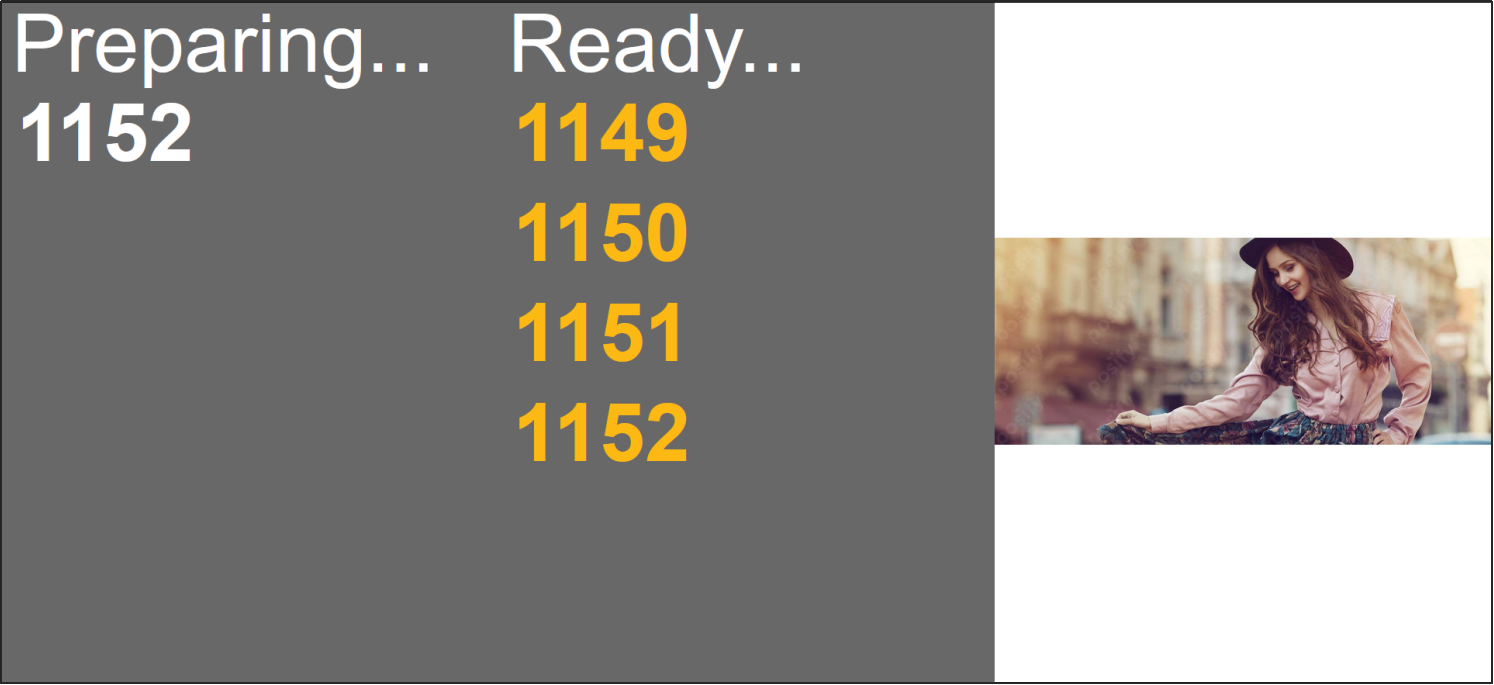
The food and beverage screen displays the tracking number page
Entrance
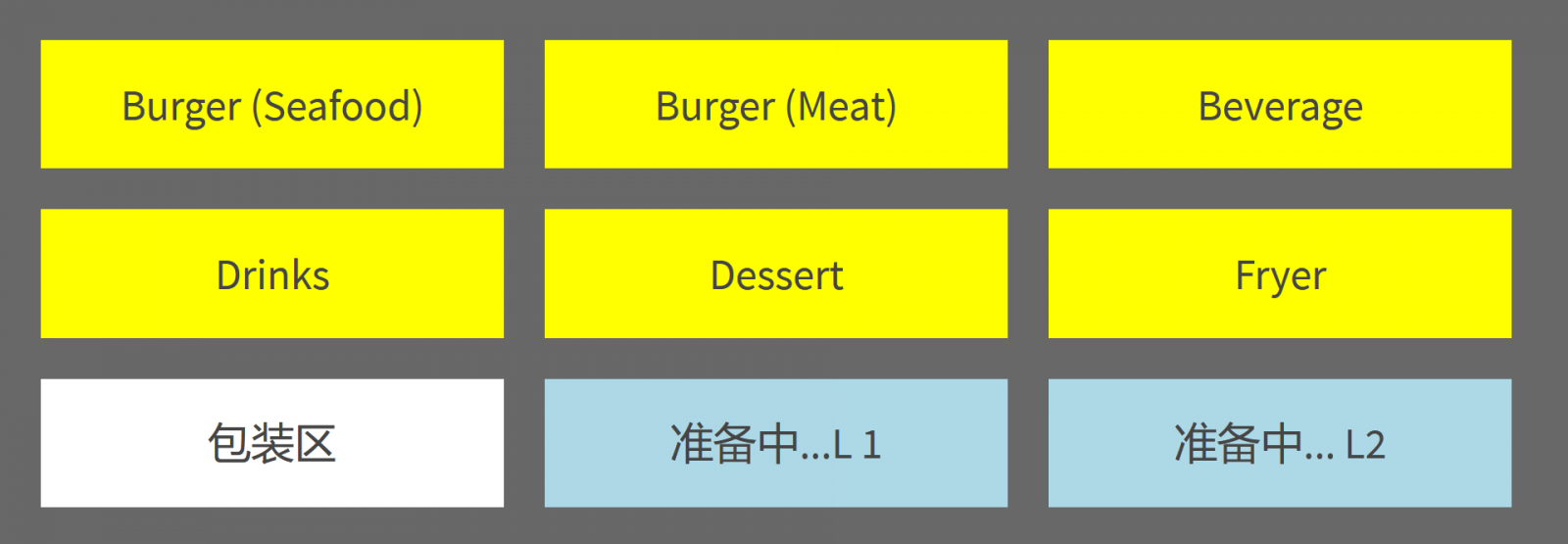
When you open the entry page, you can use the button on the entry page to jump to the page that needs to be displayed on the screen.
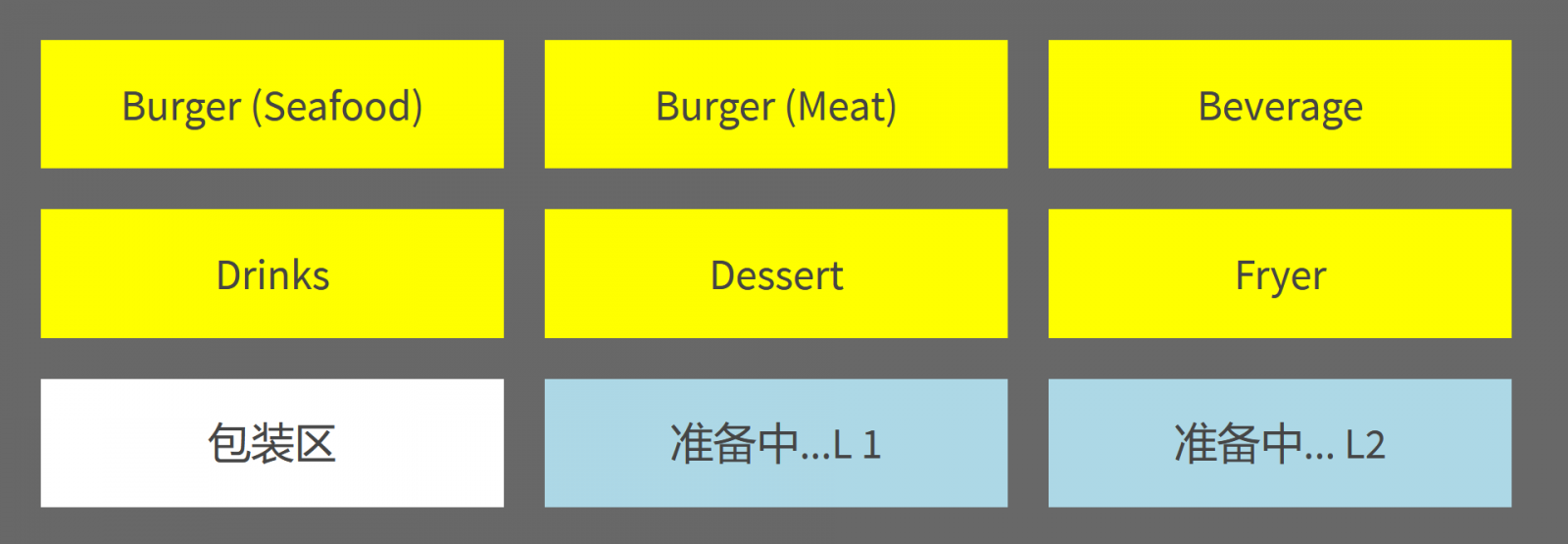
Kitchen
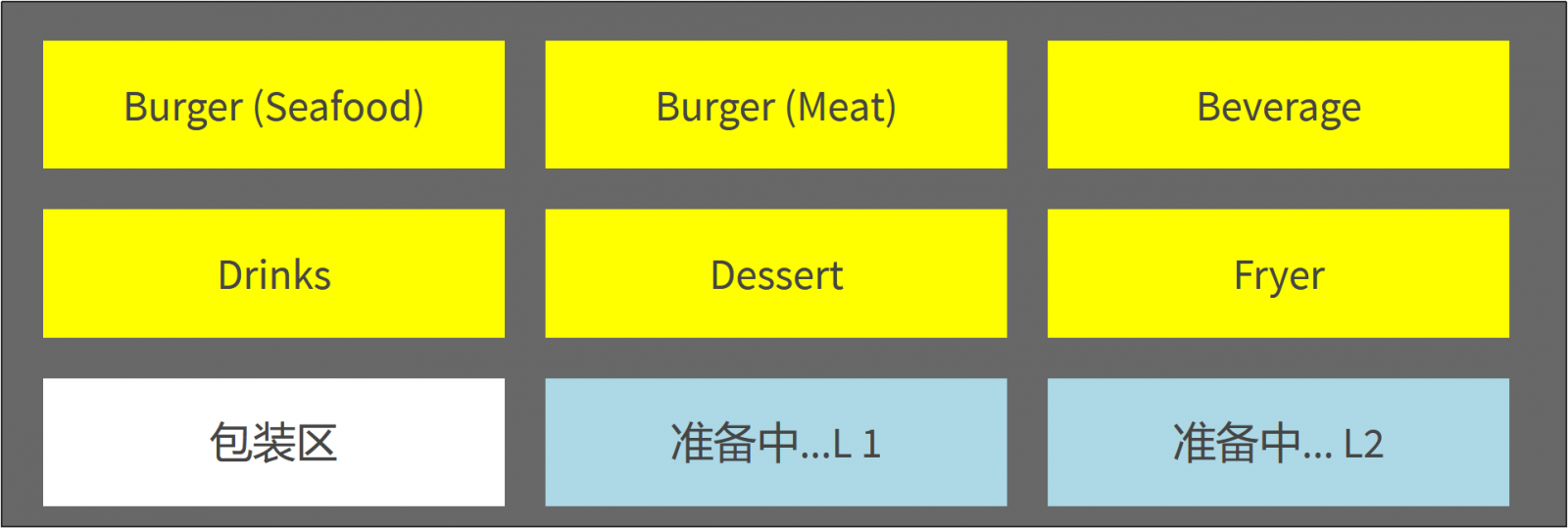
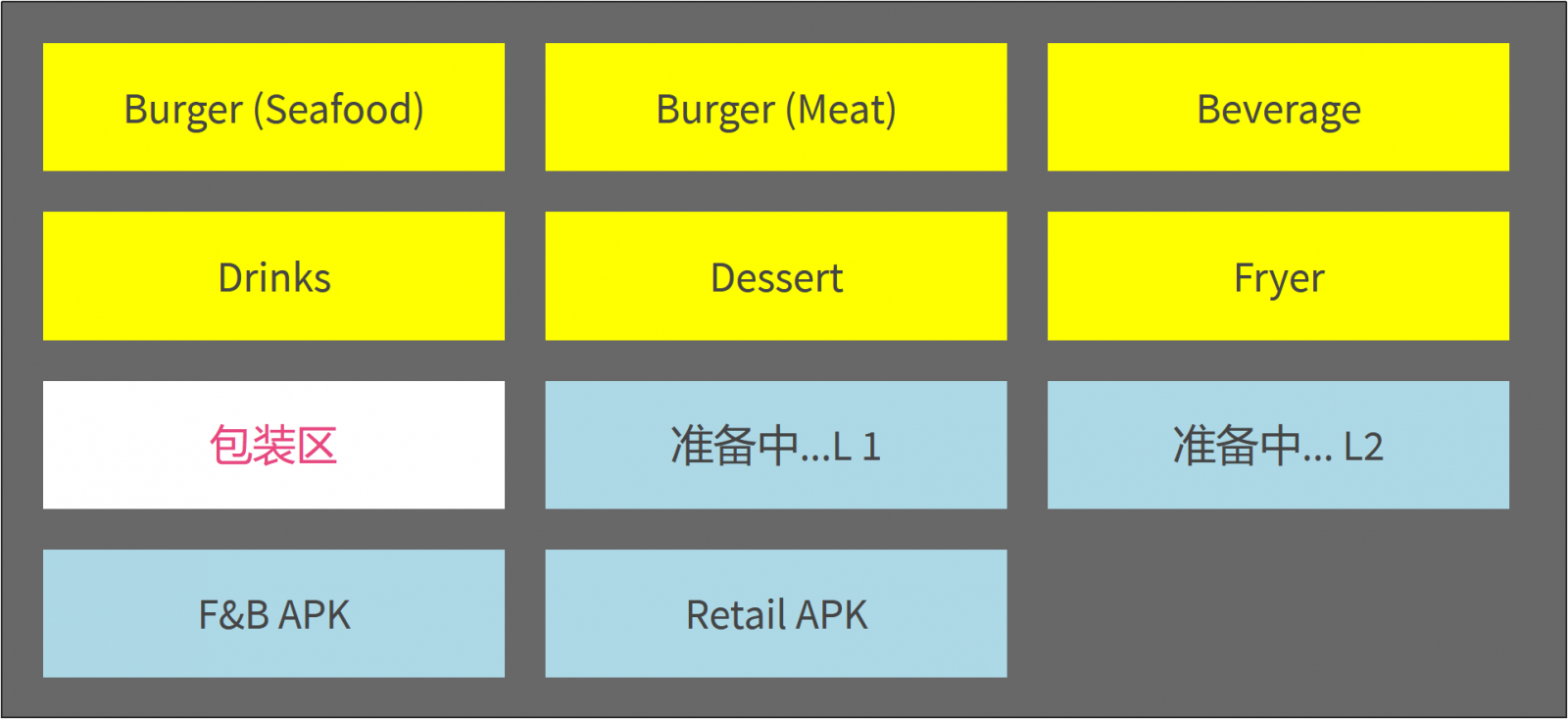
On the entrance page, the yellow button represents the kitchen. The different yellow buttons represent different departments in the kitchen. In the picture above, for example, the kitchen departments are Burger (Seafood), Burger (Meat), Beverage, Drinks, Dessert, and Fryer. Generally speaking, it is because different departments in the kitchen specialize in different types of dishes, so there is a need to divide departments.
Here's how to set up a department:
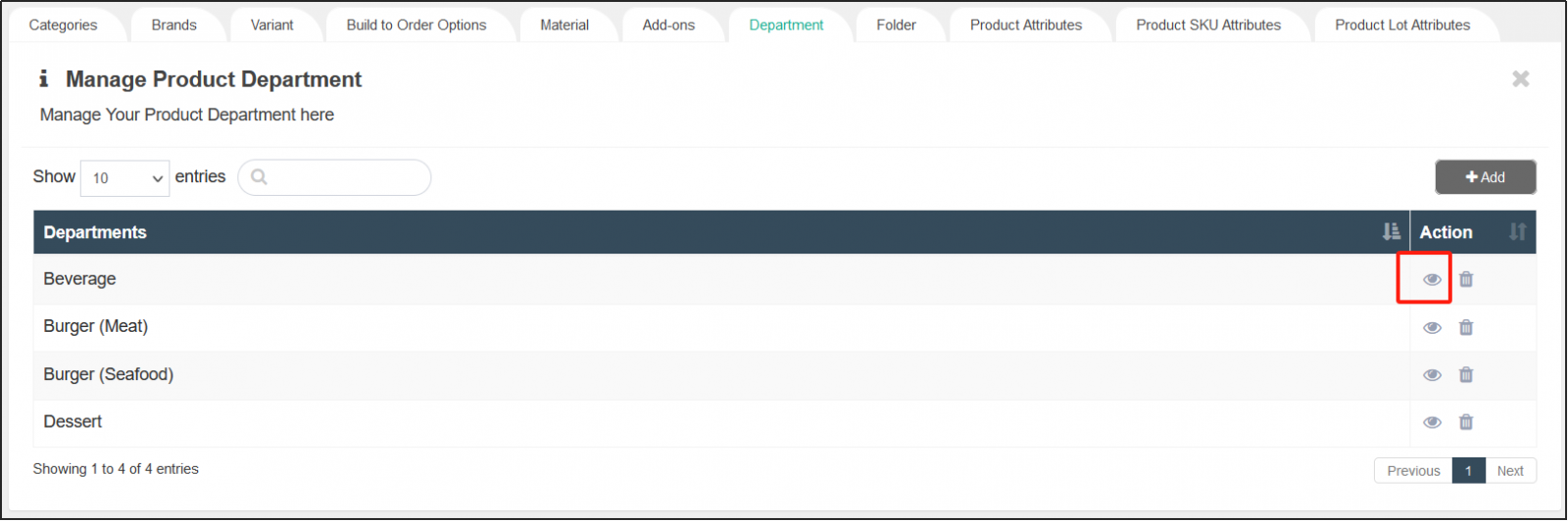
Open the CMS click on the productclick on the product-related settingsclick on the tab department.
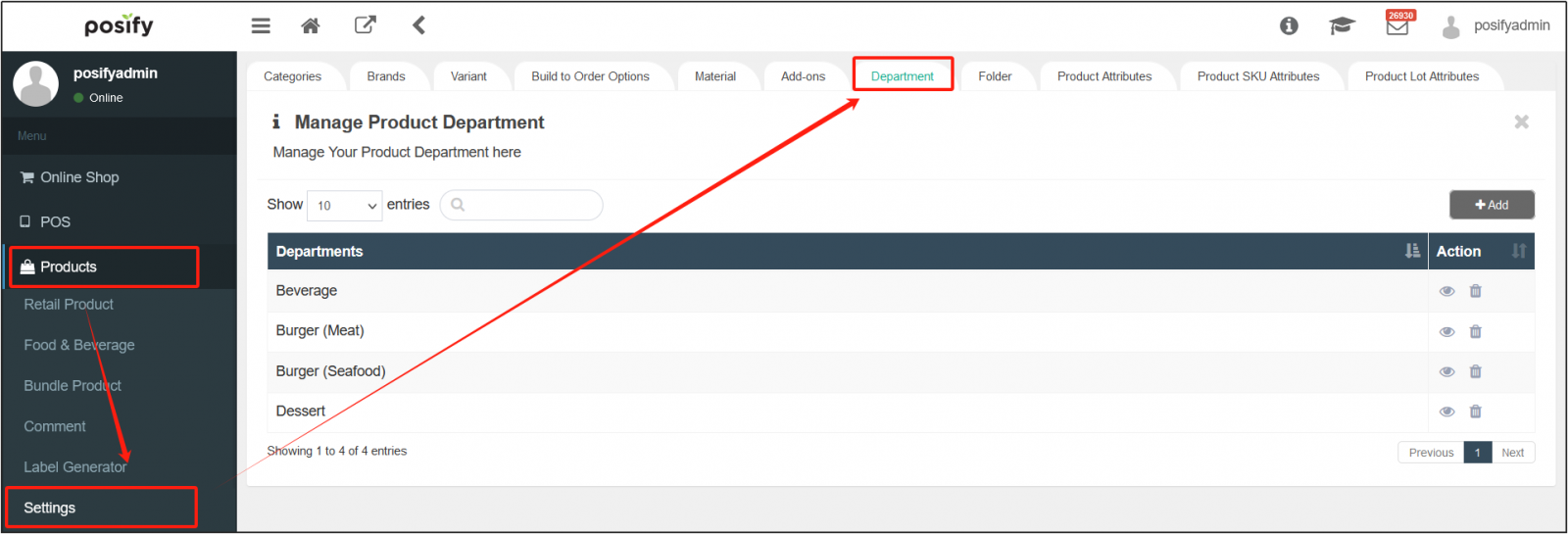
Click [Add] to add a new department.
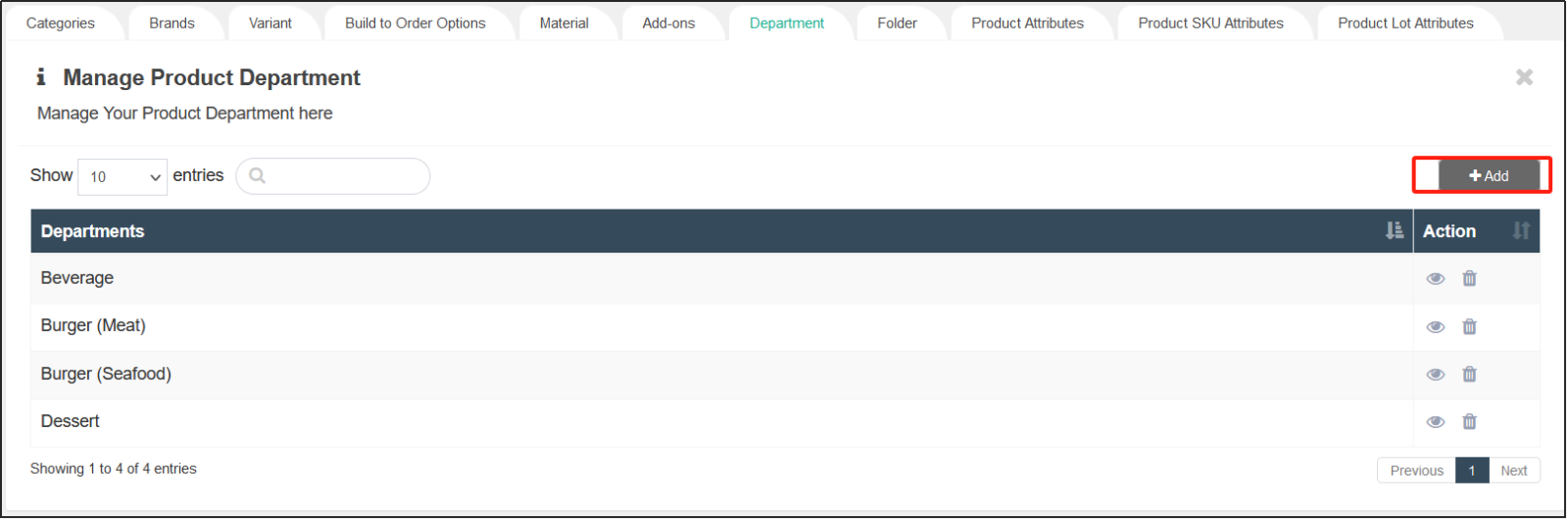
Click  to the right of a department to re-edit the department's information.
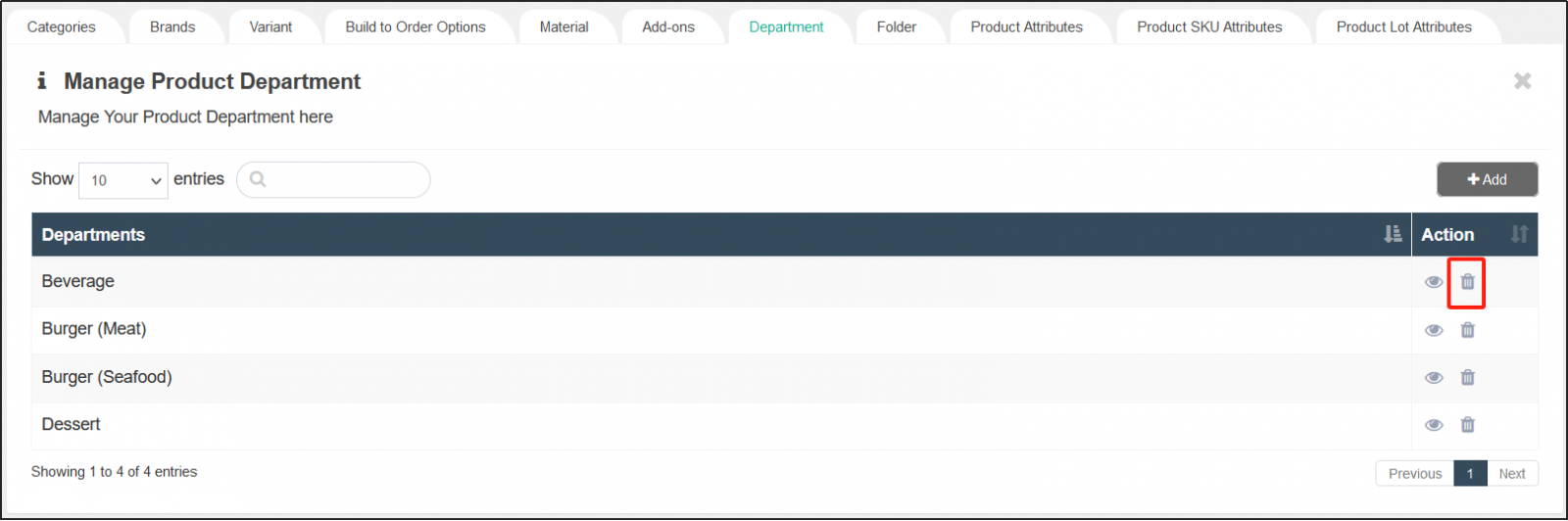
Click the trash can icon to the right of a department to delete it.
Call number
On the entrance page, the blue button represents the call_number (call number). Sometimes a restaurant will have multiple pick-up openings, and different blue buttons will represent different areas of the same location. As an example in the following figure, the area has [Preparation... L1] and [Coming Soon... L2].
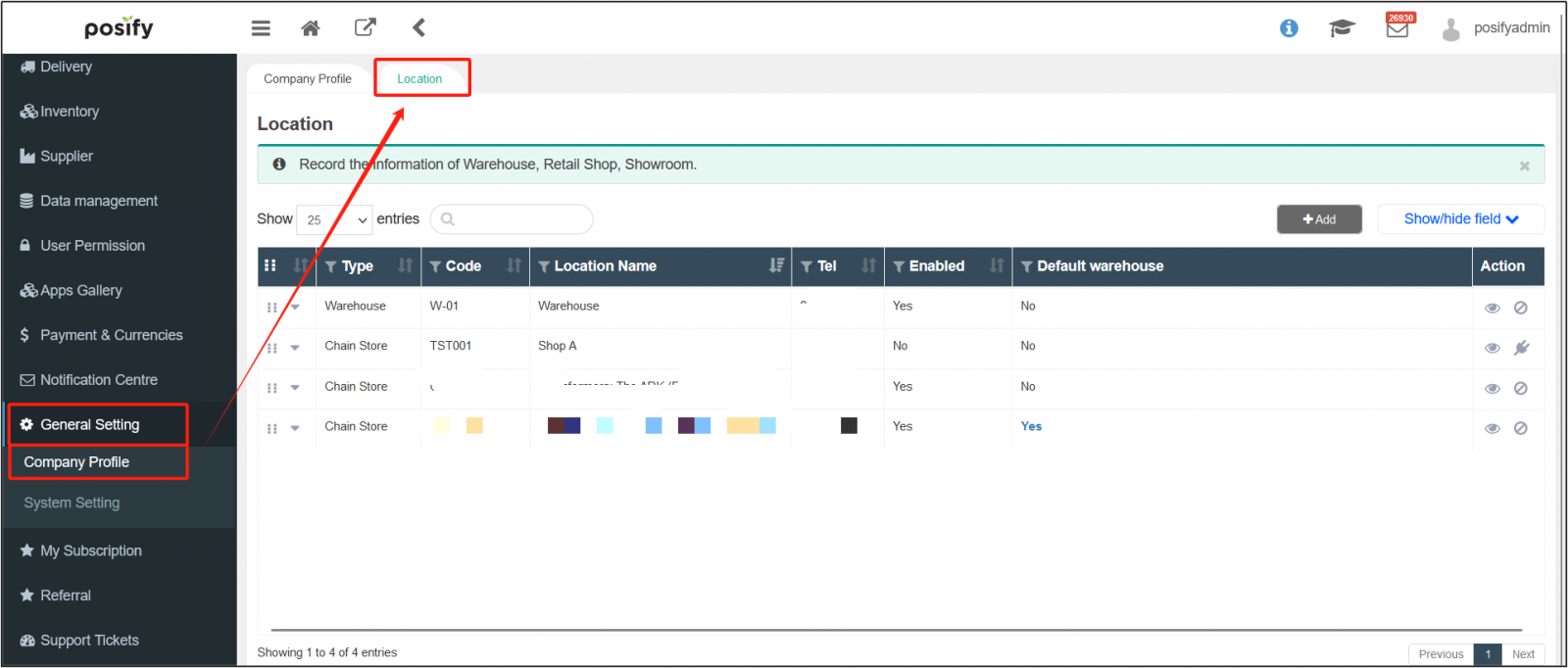
Here's how to set the region:
Open the CMSclick General Settingsclick Business Profileclick Locations tab.
Display page Link explained
The default part of the link is:
http://webpos.posify.me/posify-pos-food/8.1.15.2303.0216a/main.html
Follow-up part:
#/data/:activate_name/:activate_code/:login/:password/:warehouse_id/:type/:type_param/:language
Thereinto:
activate_name:The name of the store
activate_code:Activation code
login:User Accounts
password:password
warehouse_id:The location number needs to be obtained by contacting the developer
type:There are three types, which are kitchen、packing and call_number
type_param:If the type is kitchen, then the type_param is the department_id (department ID), if the type is packing, then the type_param is 1 (no meaning), and if the type is call_number, then the type_param is the zone_id (region ID). Both department_id and zone_id need to ask a technician to get it.
language:There are three languages: ZH_HK (Chinese Traditional), En_US (English) and ZH_CN (Chinese Simplified)
How to use the display screen
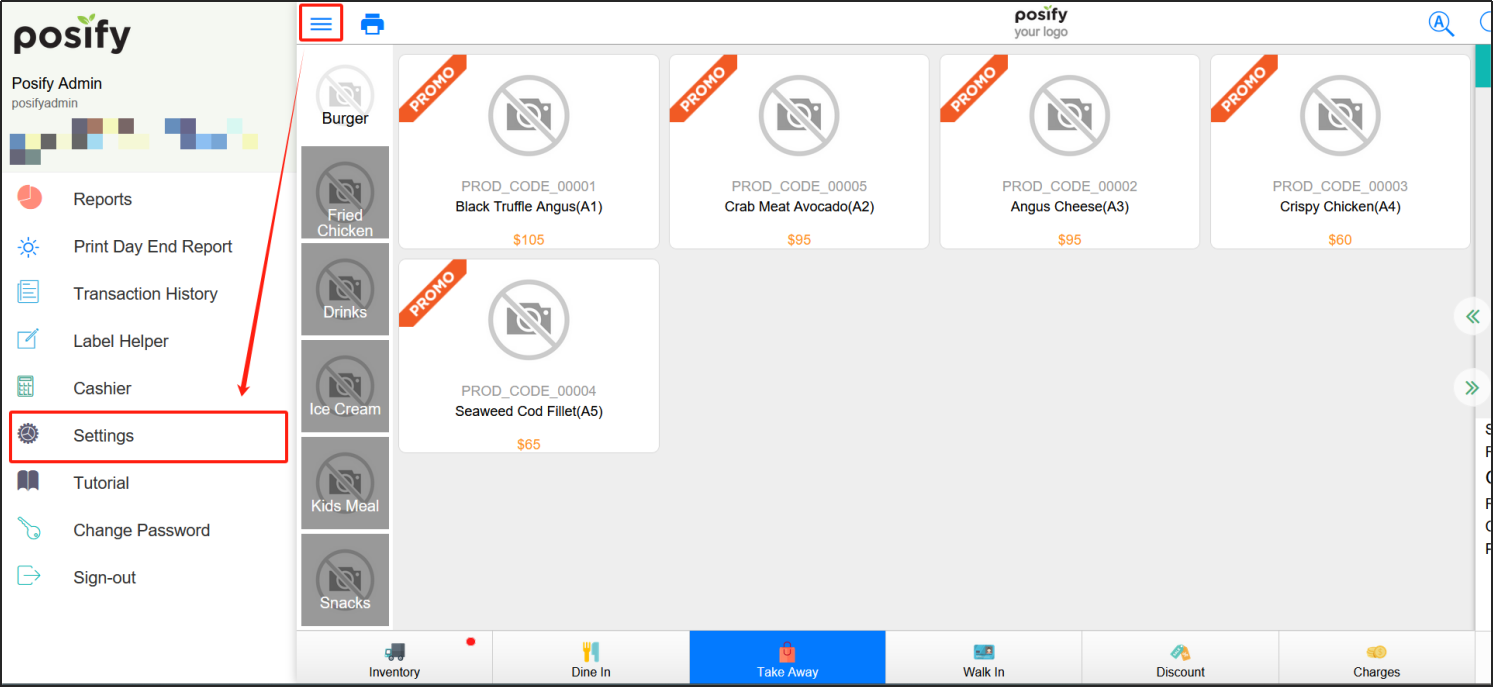
Open the POSclick on the three horizontal lines in the upper left cornerclick Settings.
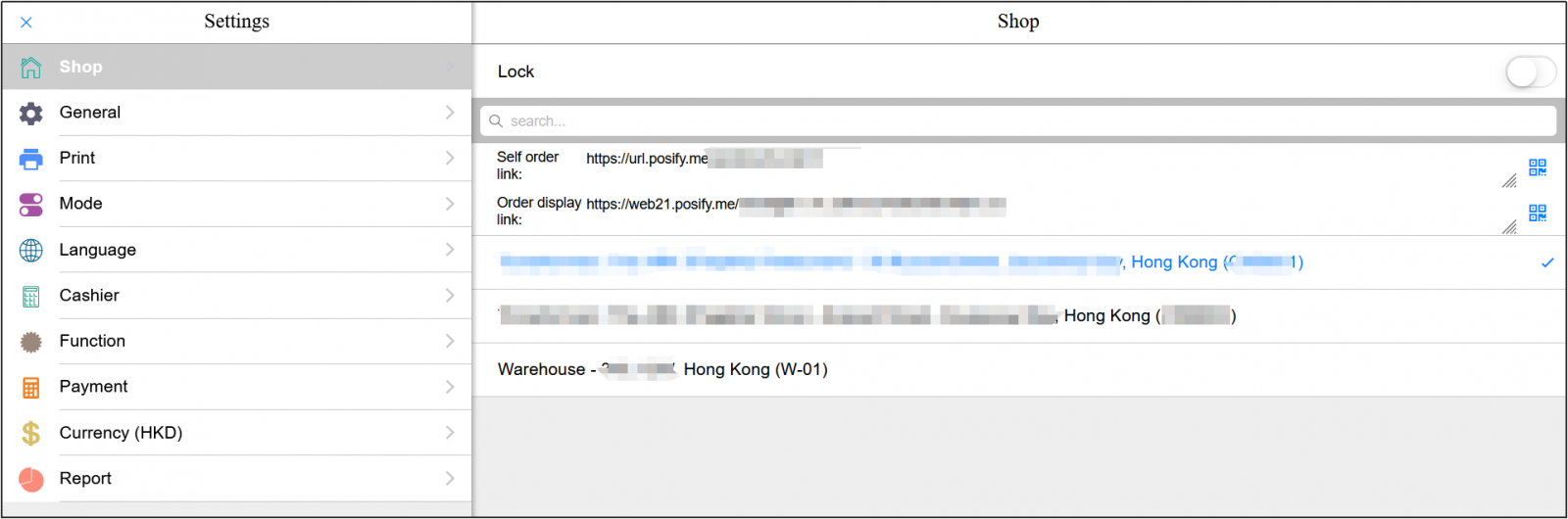
Click on the shop in the menu select the food and beverage shop in the shop.
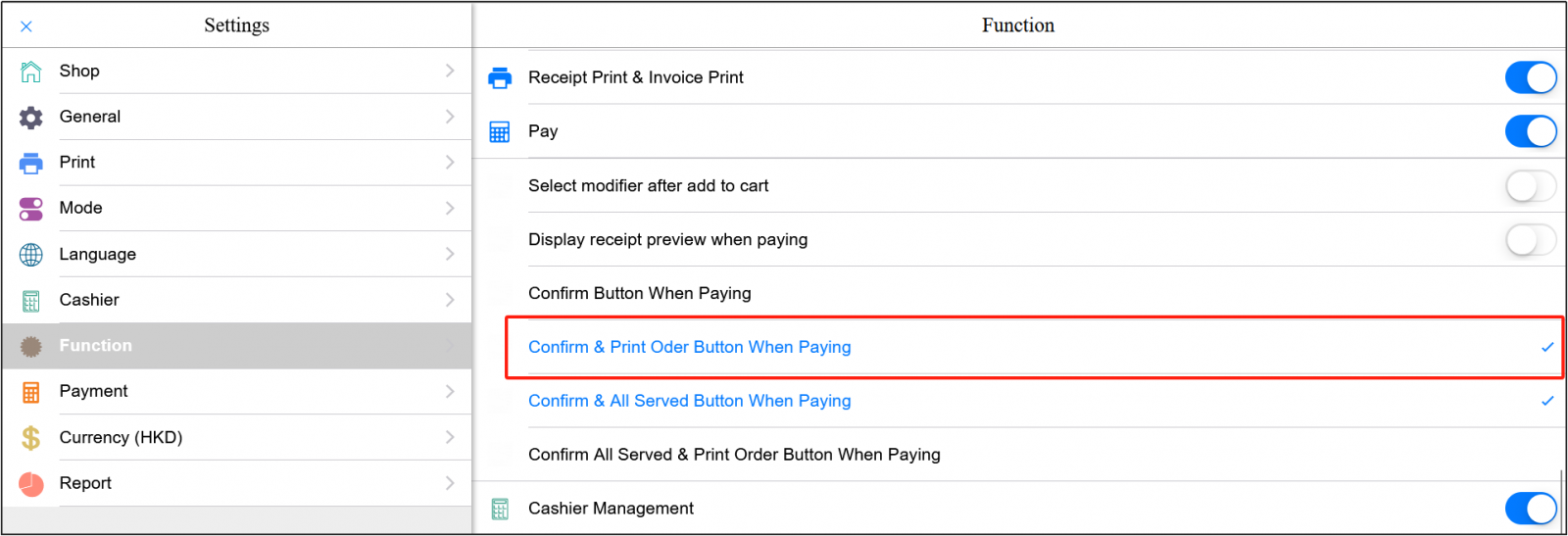
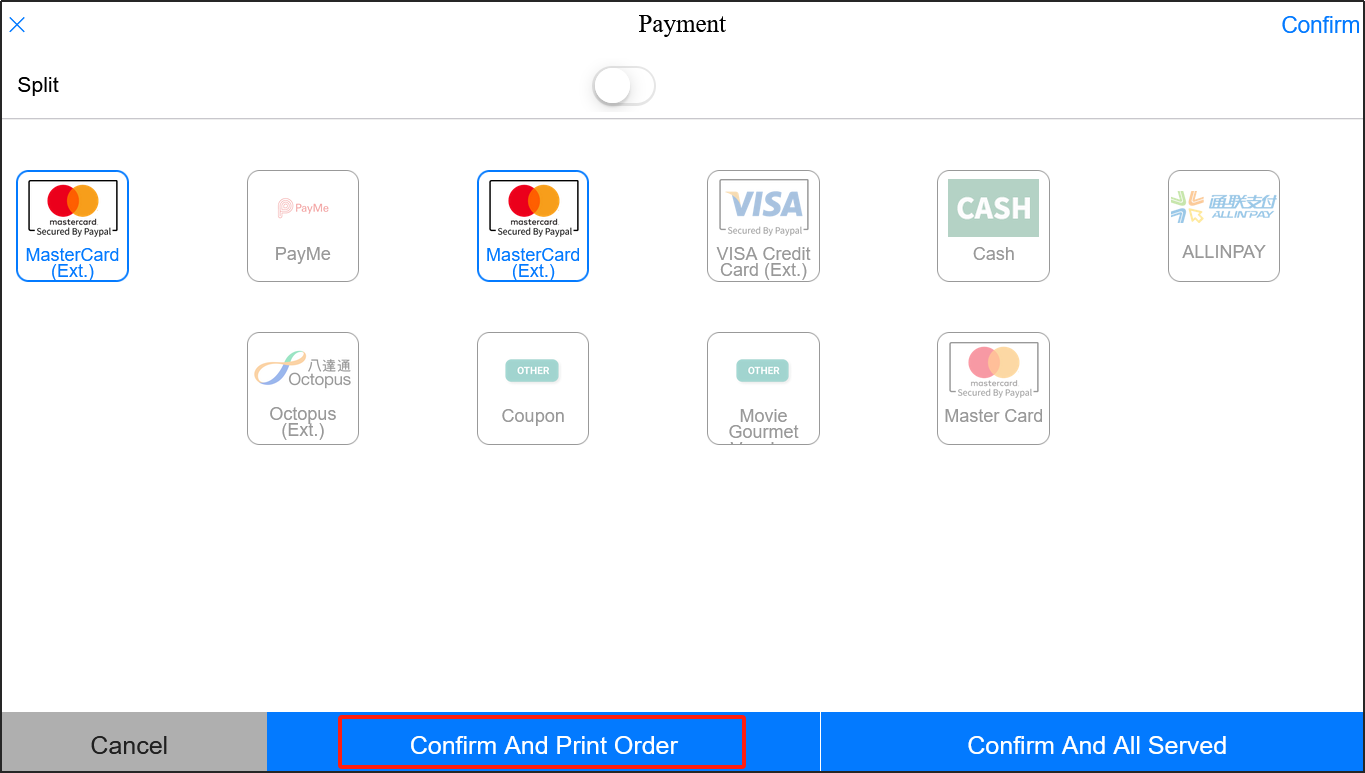
Click the function in the menu and click the [OK & Print Bill button] under Payment.
Restaurant orders and display processes
 Steps:
1.Click on the dishselect the quantityclick "Pay".
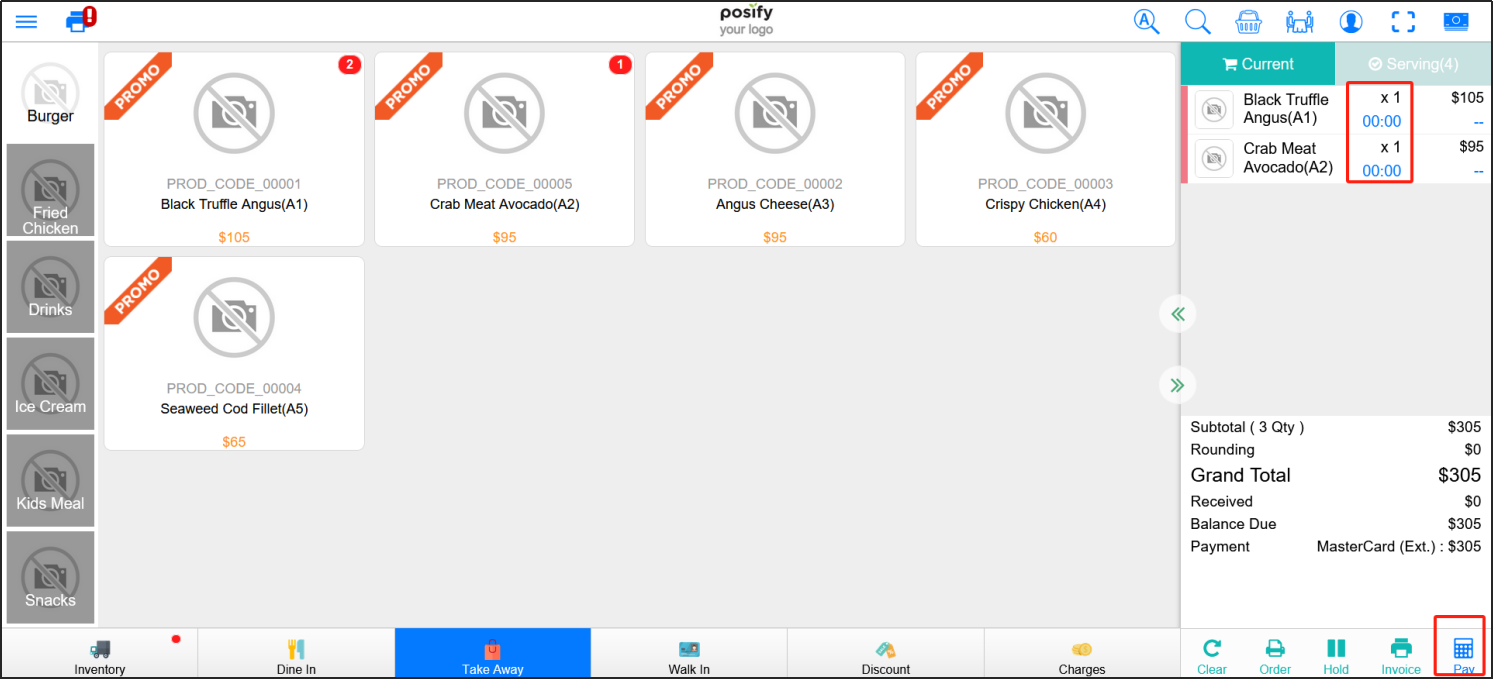
2.After the payment is complete, select [OK & Print Kitchen Order].
3.Click on the three horizontal lines in the upper left cornerclick on the transaction history.
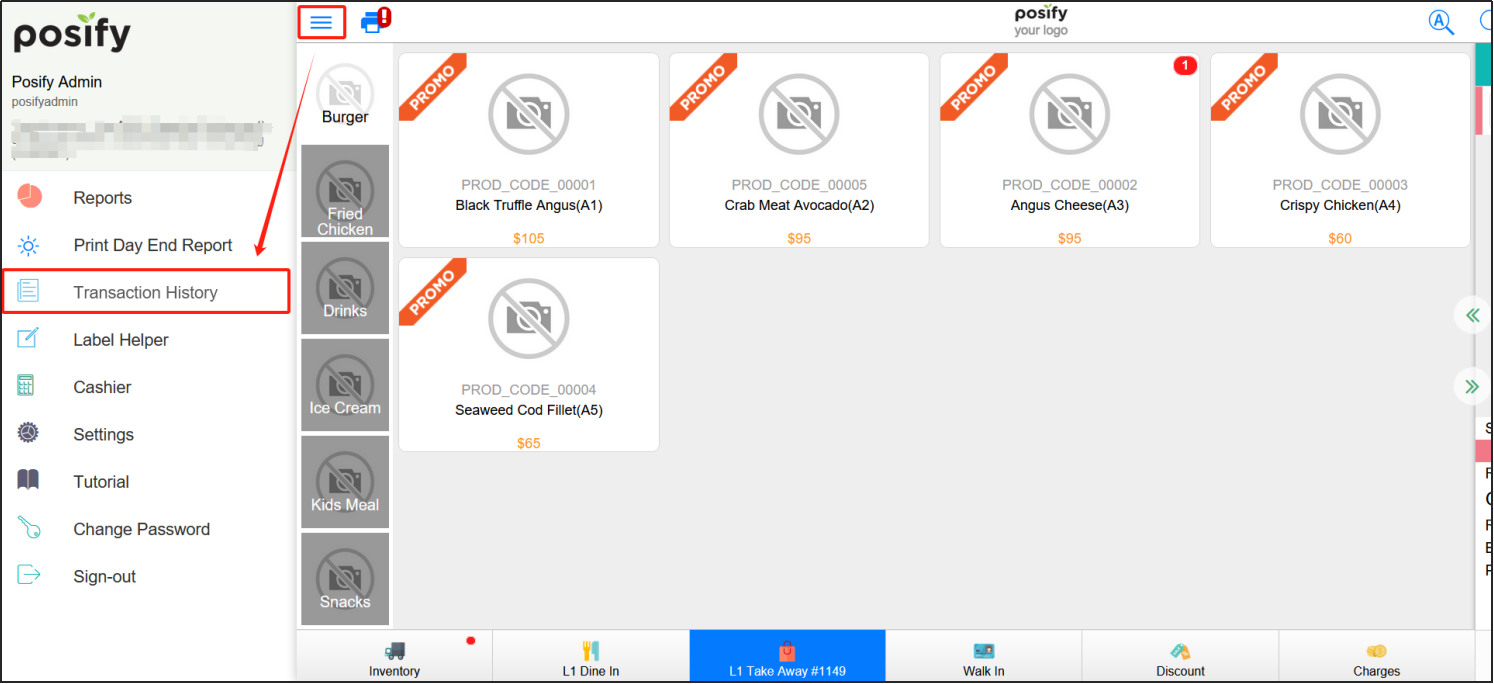
You can see that the order number just now is 1148.

4.Open the entrancebecause the categories of the dishes ordered above are all Burger (Meat), click Burger (Meat).
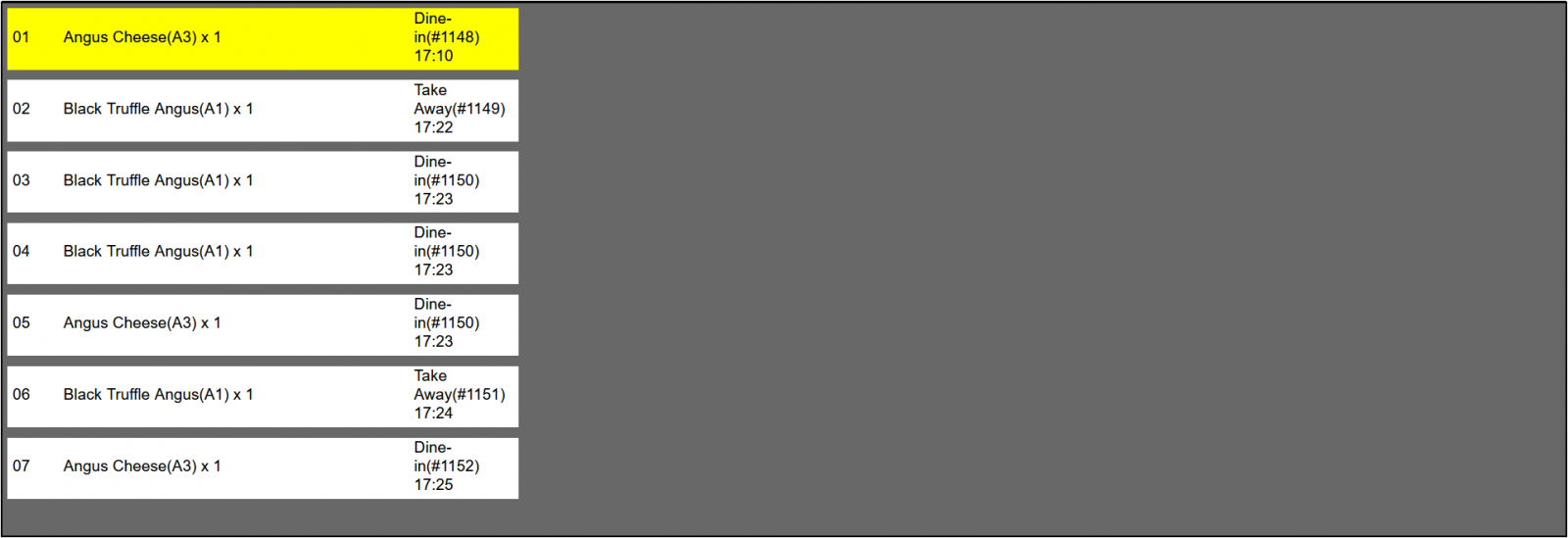
5. After opening, you can see the two dishes of the 0794 order.
The yellow highlight is the current selection, and pressing the up and down arrow keys on the keyboard can change the currently selected dish. An employee of Kitchen's Burger (Meat) department selects a prepared dish and presses enter, and the dish disappears from the current list.
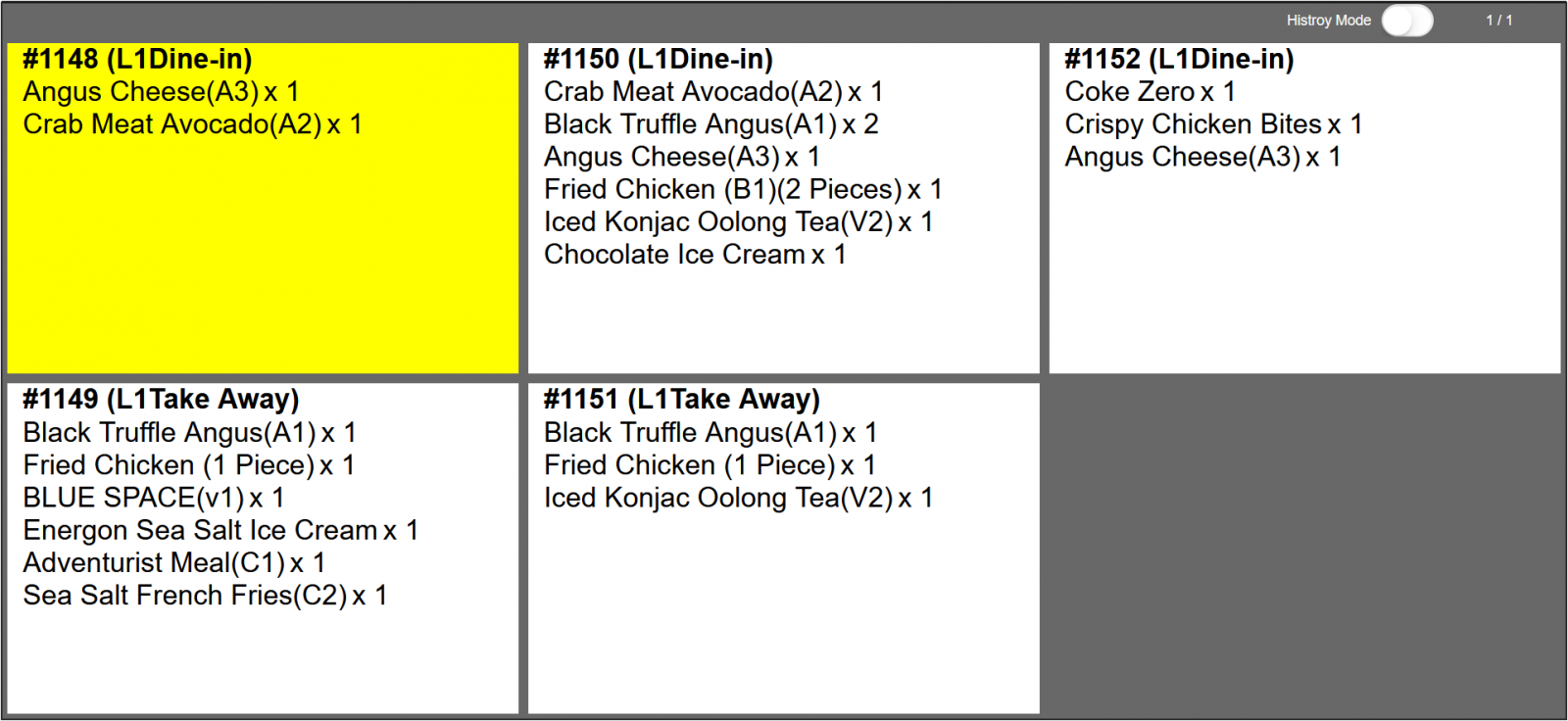
6.Go back to the entrance and click on the packaging area.
7.You can see that the 0794 order is waiting for packing.
Similarly, after packing all the dishes in an order, the staff in the packaging area selects the order that has been packed, presses enter, and the order disappears from the list to be packed.
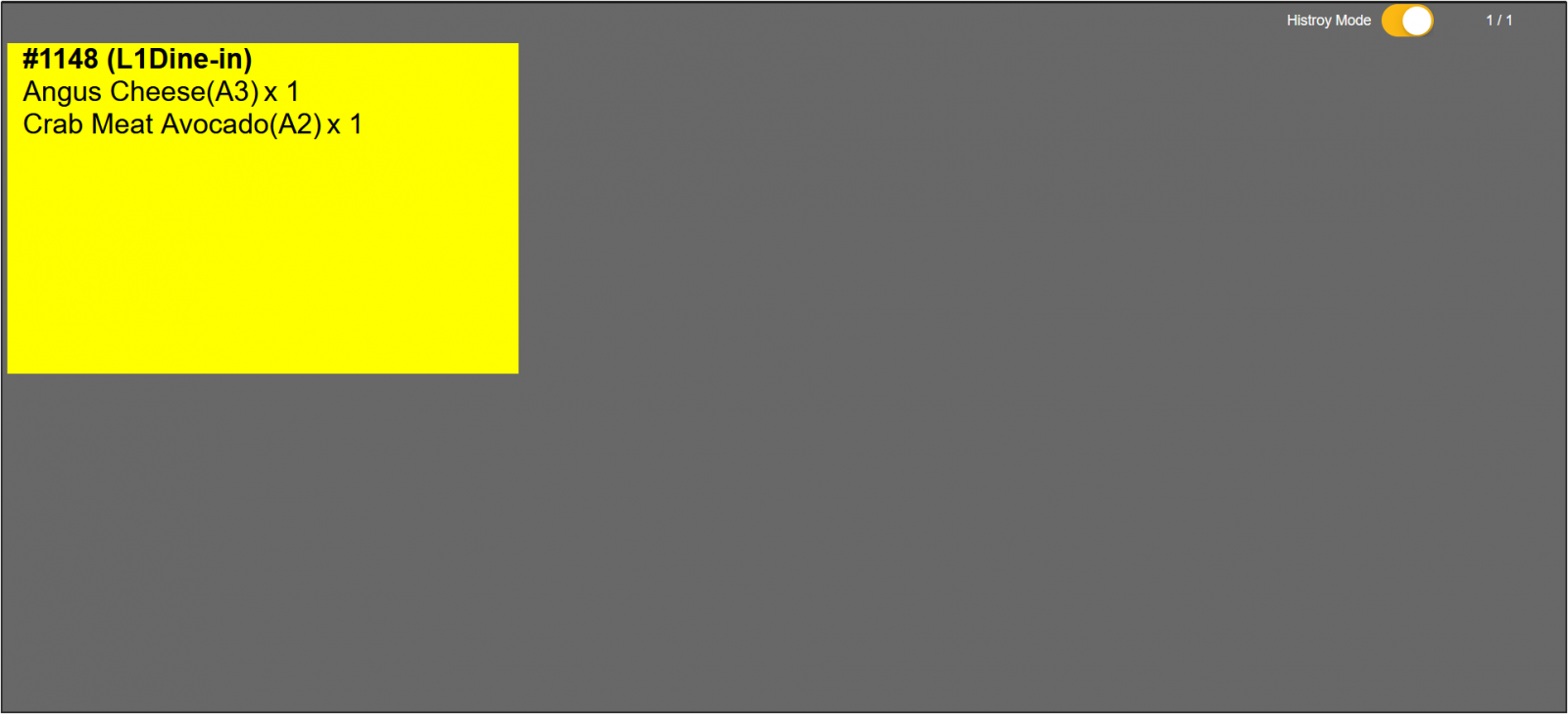
If you find that the operation is wrong after pressing enter, and the order has not been packaged, you can click the history mode in the upper right corner, select the order that needs to be restored in the history mode, press enter, and the order will return to the list to be packed.
8. Different dishes will be served from different regions.
Go back to the entrance click [Preparation... L1]。
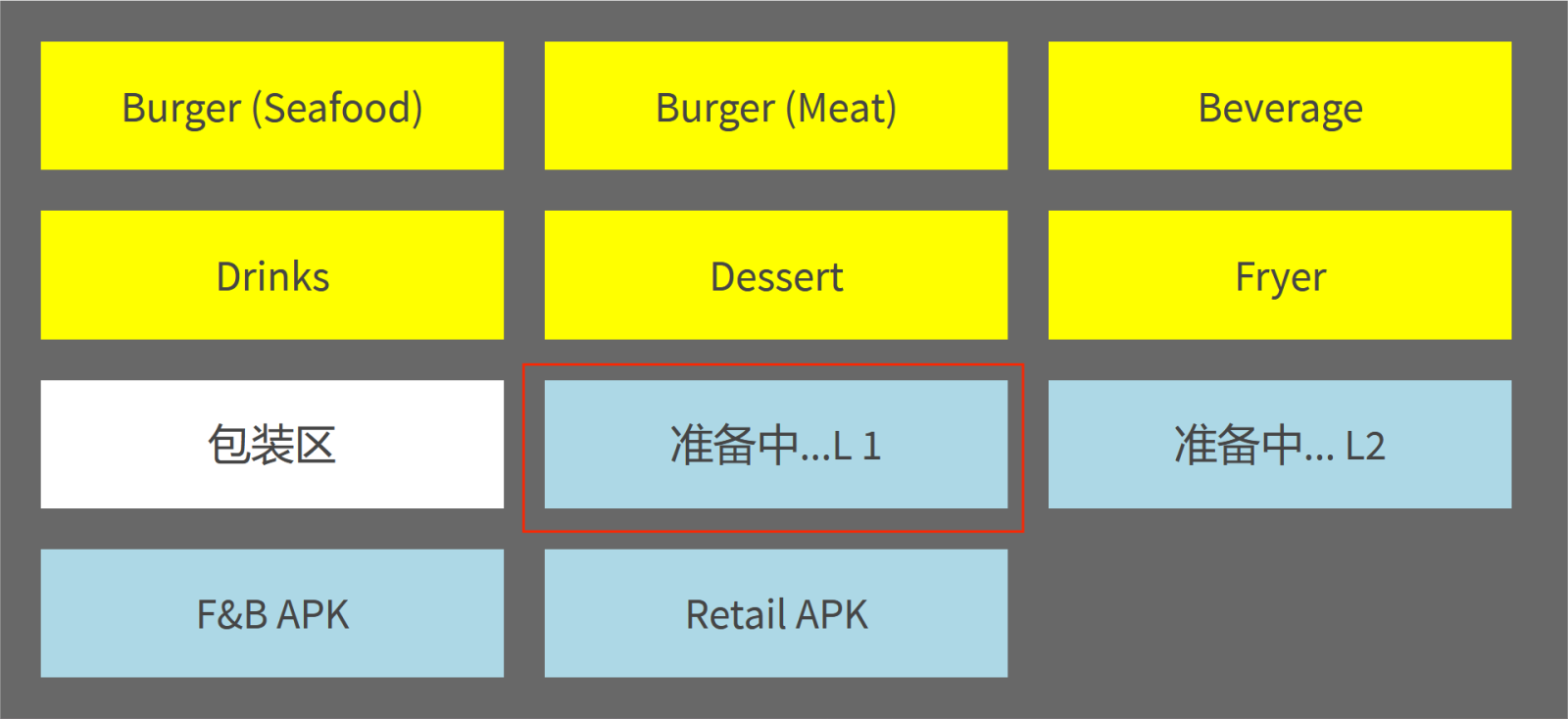
9.9.You can see that the packaged 1148 is displayed in the Pick-up column, while the unprepared order number is displayed in the Production column.
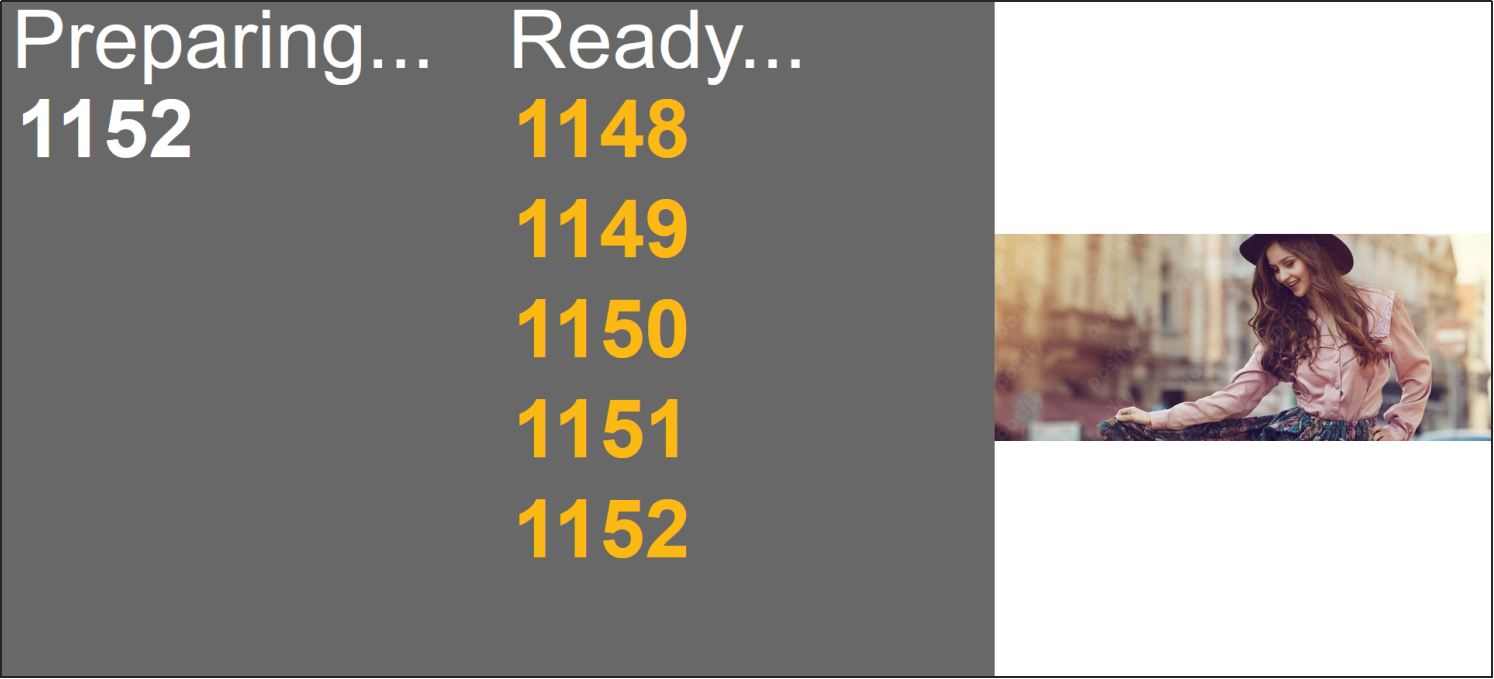
After the customer picks up the order, the employee enters the order number on the keyboard and presses enter, and the order number disappears from the list of requests for pickup.