
In the sales process, merchants often set up types of promotions, and sometimes the scope of these promotions may overlap. It is necessary to set the effective date of these promotions, whether they can be used at the same time, and if they are allowed to be used at the same time, whether the discount is calculated on the basis of the retail price or the discounted actual price.
Open CMS Click on MarketingClick on Promotion OverviewThe full list of promotions is shown under the page signature promotions overview, includes promotions, coupons, cash vouchers and member discounts (excluding prepaid vouchers, which are equivalent to purchasing an item in advance but not yet picking it up).
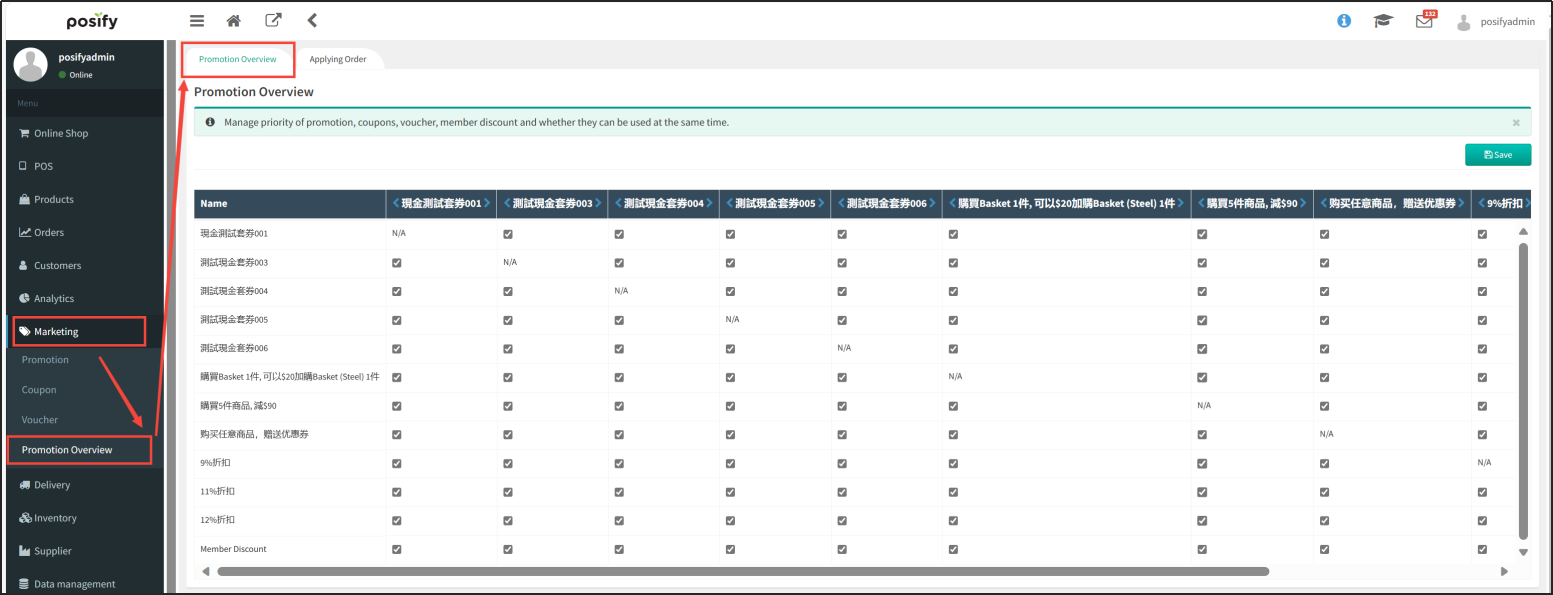
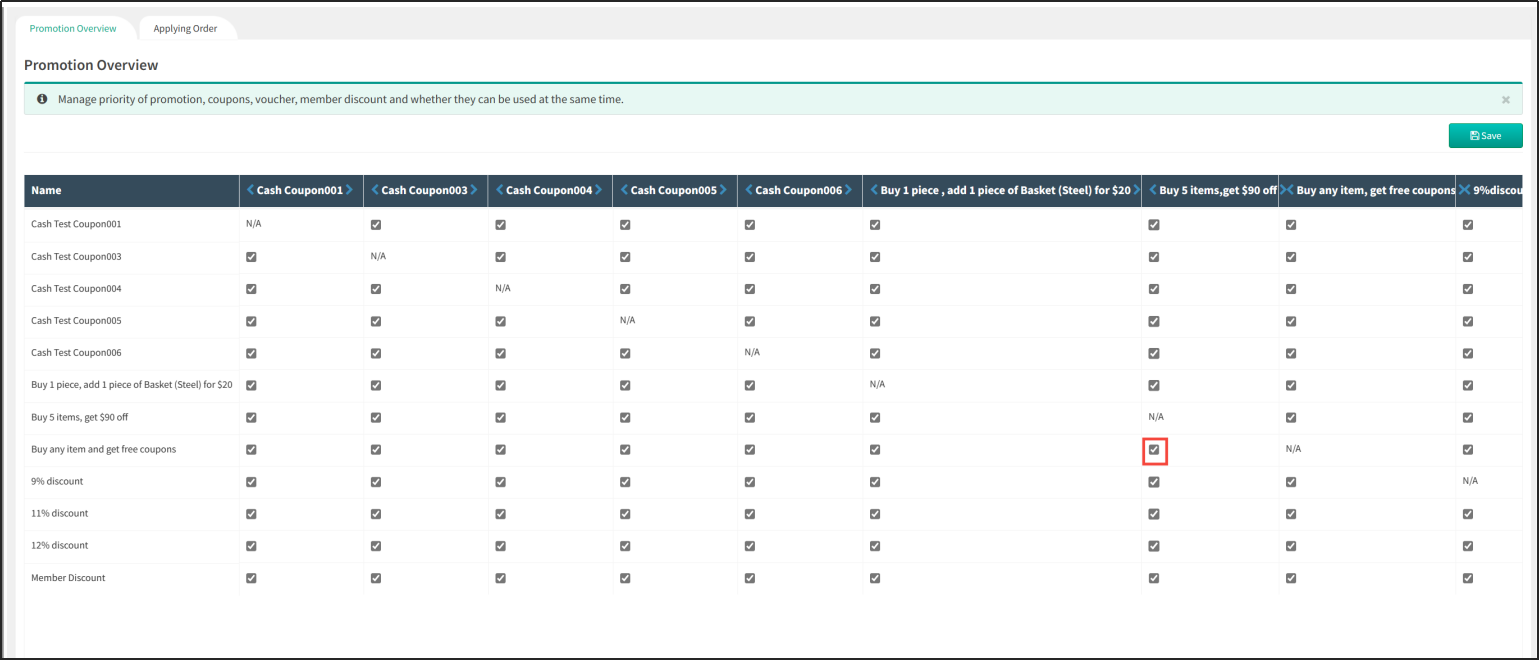
Whether two offers can be used at the same time
You can see that in the list of promotions, the rows and columns correspond to each other, the first row and the first column are the same promotion, the second row and the second column are the same promotion ...... When the checkboxes in the grid where the two offers intersect are checked, it means the two offers are allowed to be used at the same time (provided that there is an overlap of the offers in the settings of the two offers); when the checkboxes in the grid where the two offers intersect are unchecked, it means the two offers are not allowed to be used at the same time. As shown in the picture below, the checkboxes marked in red are checked, which means that "9% off" and "Buy any item and get a free coupon" can be used at the same time.
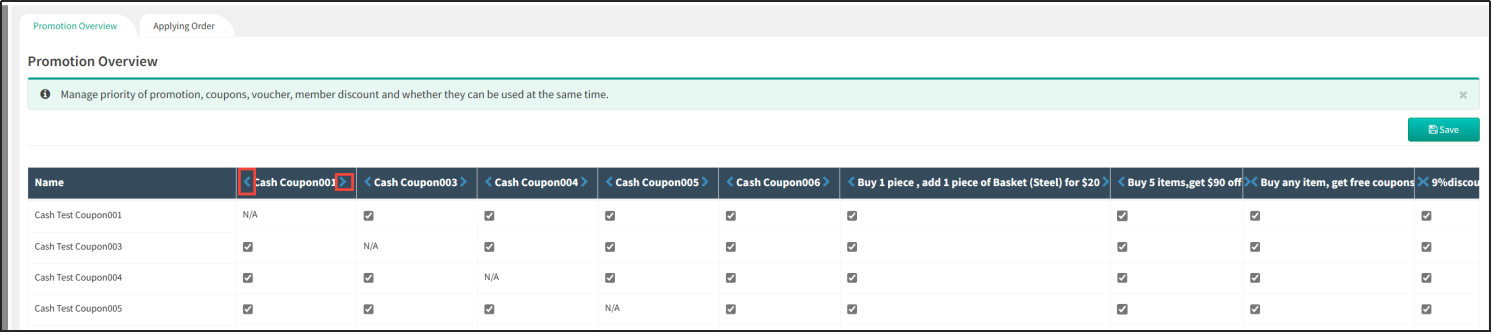
Promotional Activities Effective Sequence
The higher up the list of promotions, the more priority is given to the promotions.
You can see that there is an arrow on both sides of each column name in the list. Clicking on the arrow [<] on the left side can move the column to the left by one column, and at the same time, its corresponding row will go up by one line; clicking on the arrow [>] on the right side can move the column to the right by one column, and at the same time, its corresponding row will also go down by one line.
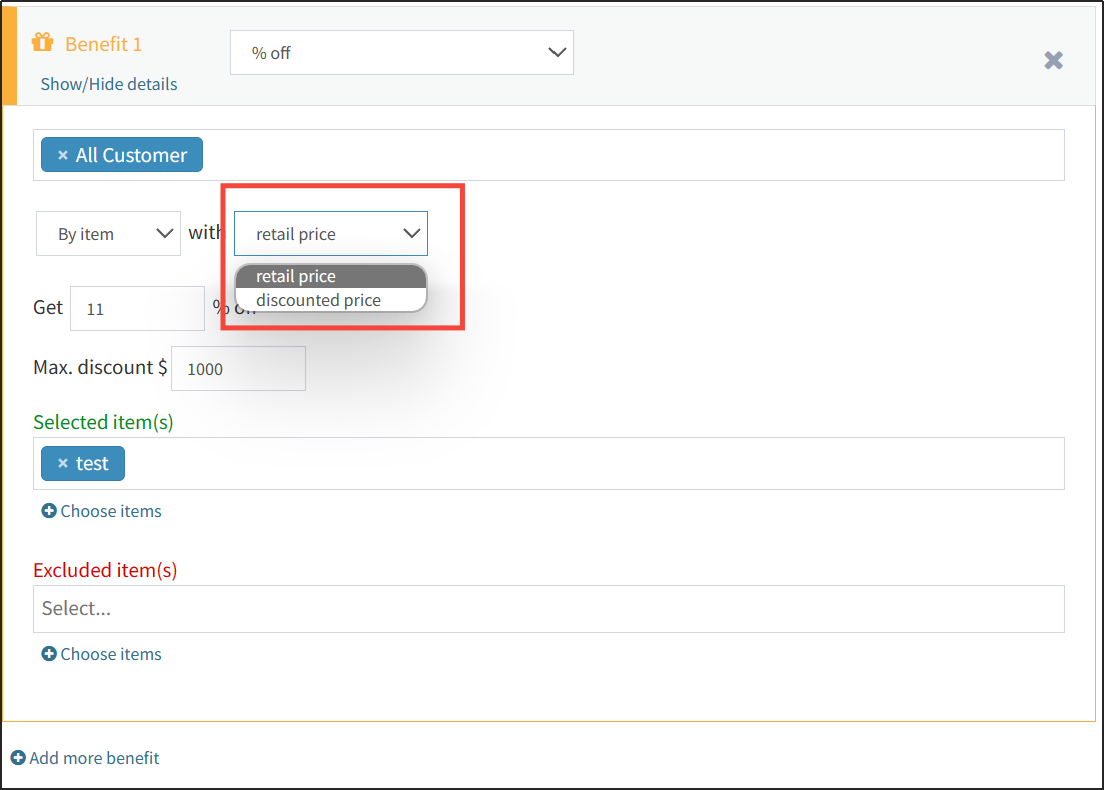
Setup discount is calculated on the basis of retail price/discounted price
When wanting two simultaneous promotions to be calculated at retail/discounted price, you first need to allow both promotions to be used at the same time (see above), and then the promotion that comes later in the order of validity needs to be set in the settings to be calculated at retail/discounted price.
For example, if you want to make "9% off" and "11% off" discounts, you need to make sure that both discounts can be used at the same time.
First of all, make sure that both offers can be used at the same time.
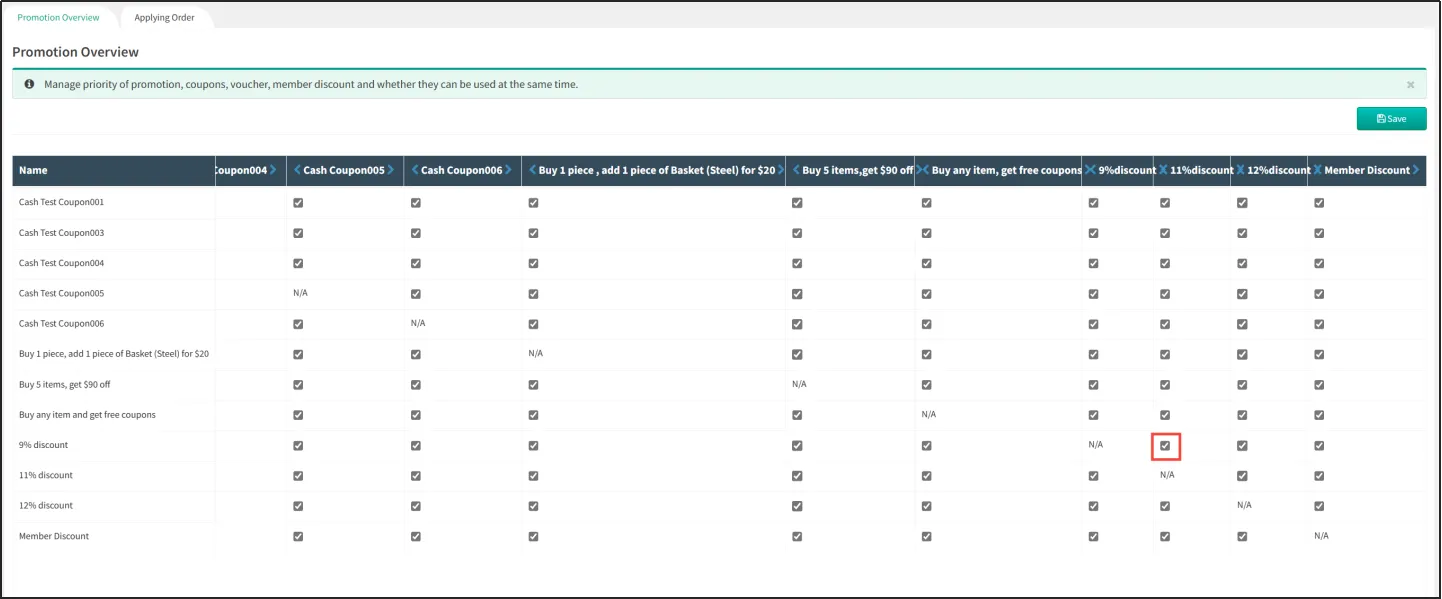
You can see that "9% Discount" is effective before "11% Discount". Therefore, you need to set "9% Discount" to be based on retail price/discounted price in the "Discount" settings.
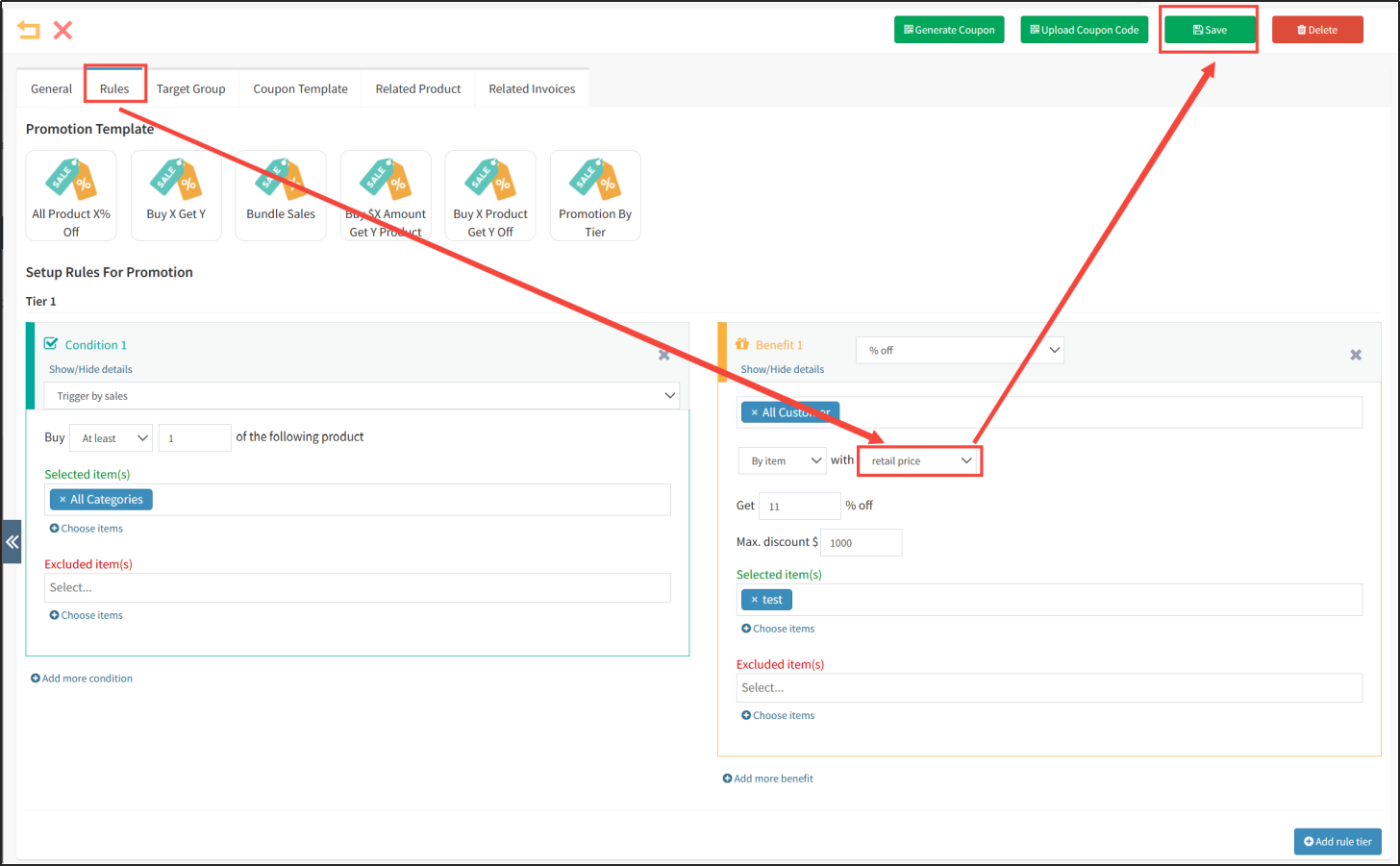
Alternatively, set the "11% Discount" to be calculated on retail/discounted price and click the arrow to adjust the "11% Discount" behind the "9% Discount" in the list of promotion overview.
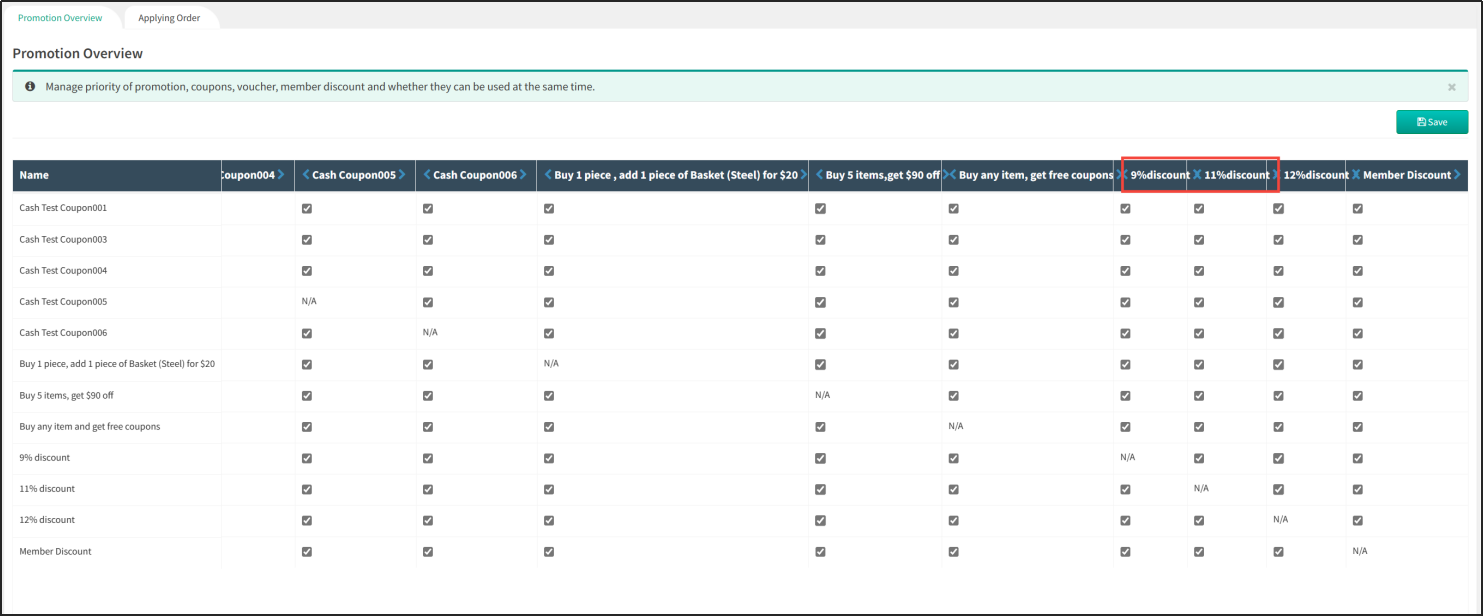
Prioritize promotions, coupons and member discounts
Since the system recognizes that promotions and coupons can be used at the same time, if you have set up that promotions and coupons cannot be used at the same time, then when there are products that meet the conditions for using promotions and coupons at the same time, you will be able to use only those offers that are ranked first in the priority list.
Open CMSClick on MarketingClick on the Promotion overviewClick on the Signature type order.
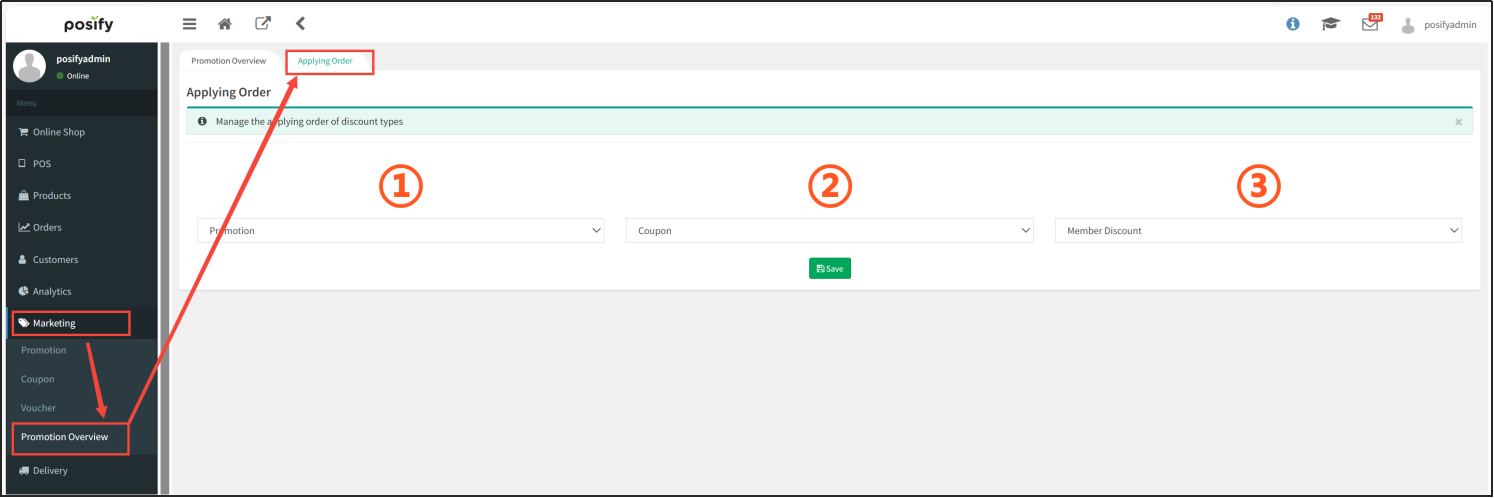
You can see that there are three drop-down boxes (①, ②, ③), which will take effect in order. The options of the three drop-down boxes need to be different, click [Save] at the bottom to confirm after setting.