- Accumulated purchase amount
- The amount of a single purchase
- Cumulative number of purchases
- The cumulative number of items purchased
- Purchase designated items
The system can set up a number of different membership levels, such as: Silver Card Member, Gold Card Member, etc. Different membership levels can set different benefits, so as to better maintain the customer base. Here's how to set up your membership tiers and benefits.
How to add a membership Level
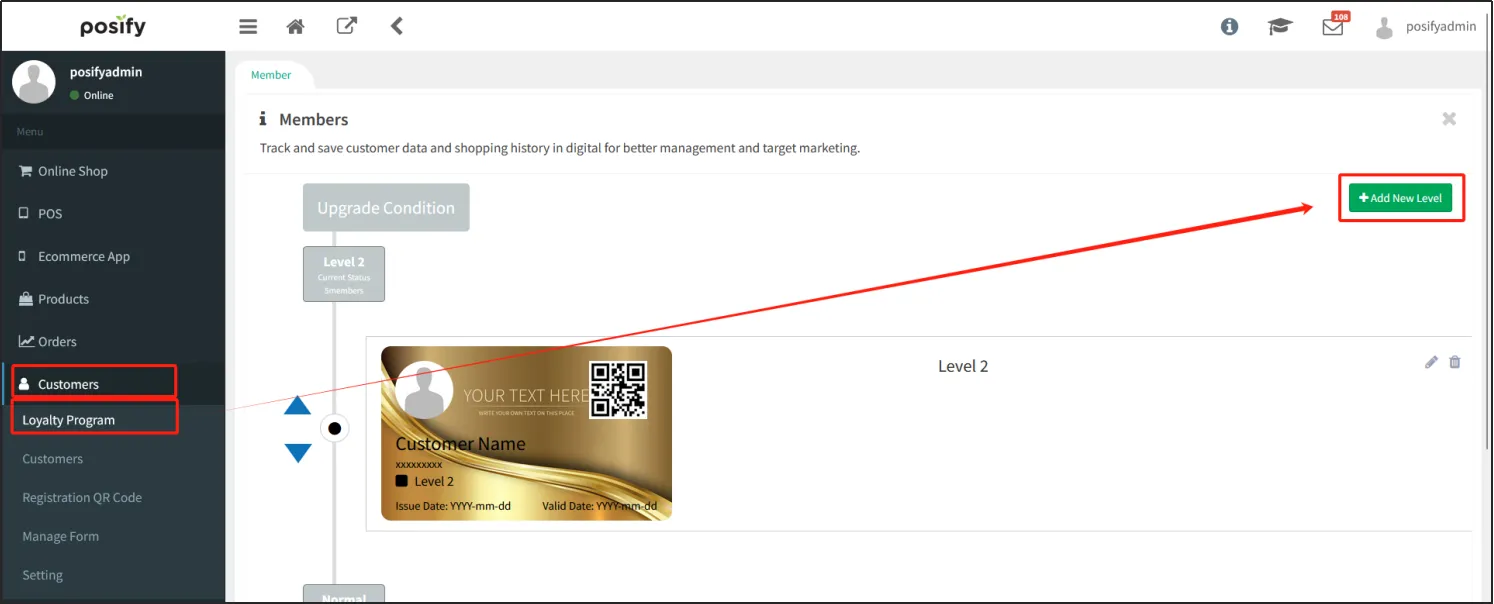
Open the CMS Click CustomersClick Loyalty ProgramClick [Add New Level] at the top right.
On the tab [Basic Settings], enter the name of the membership levelMembership registration and membership upgrade/downgrade settings.
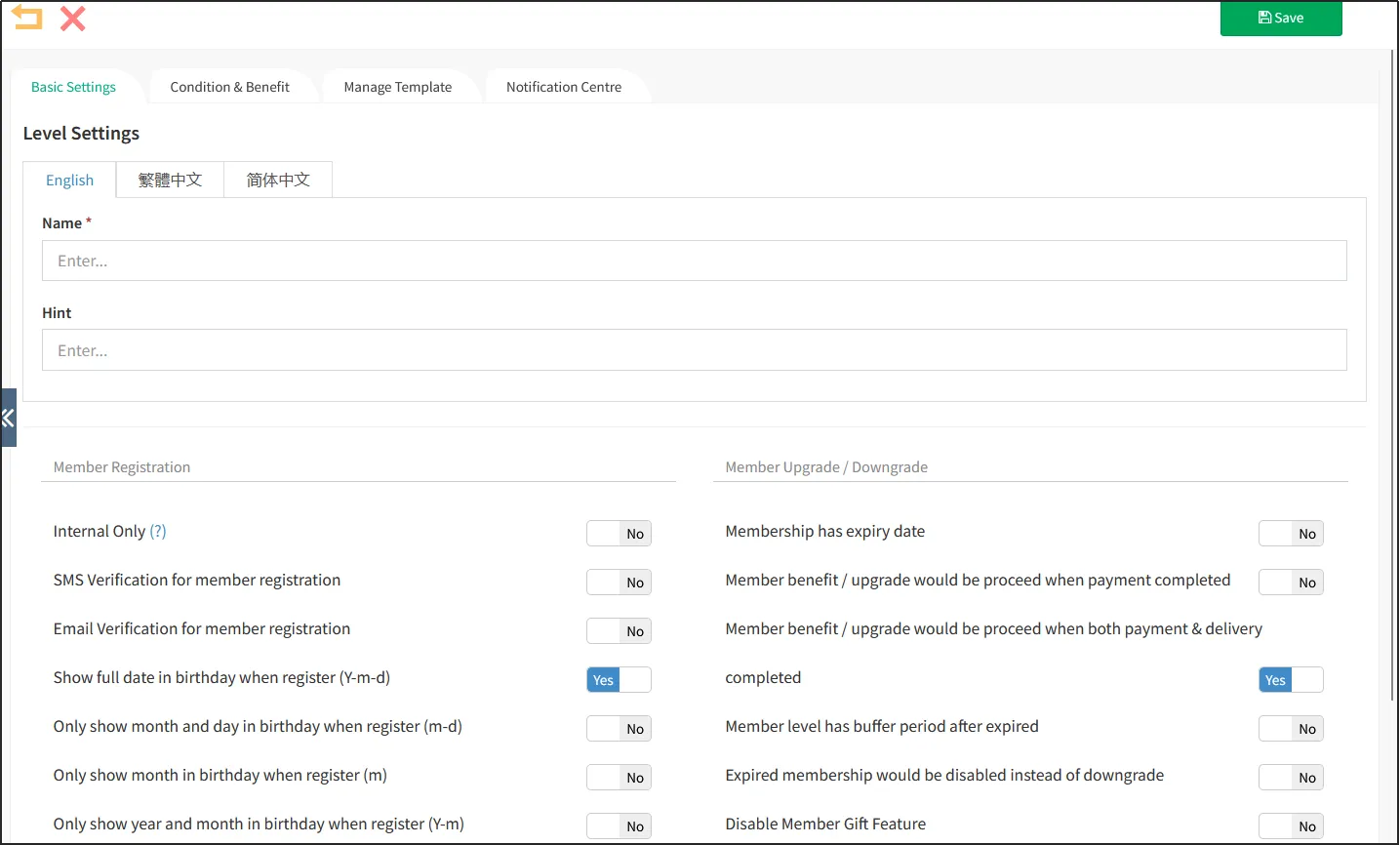
Explanation of terms:
Internal Only: After enabled, only members are allowed to manually set the membership level in the background, and members will not be upgraded/downgraded to this level.
How to display the birthday when the member registers: How the birthday is displayed when the member registers.
Allow member links with referee after register: This means that a member can become a referee of a member after registration.
Disable Member Gift Feature: After activation, members can no longer transfer coupons to other members.
Membership has expiry date: After activation, the membership level is valid for a limited period of time, and can only maintain the length of time set by the merchant (i.e., the membership validity period), after expiration, it will automatically determine whether the member meets the conditions of the current membership level, and if so, it can continue to maintain the current membership level.
Member level has buffer period after expired: After the membership expires, there is a buffer time, and you can set the buffer time to a specific number of days. During the buffer period, members can continue to maintain their current membership level if they can meet the conditions of the current membership level before the end of the buffer period.
Expired membership would be disabled instead of downgrade: After activation, the account will be frozen when the membership expires, and you cannot log in, and you need to unfreeze it in the background by the merchant to continue to use it.
Set membership conditions
You can set upgrade conditions for a membership level, and customers need to meet the upgrade conditions to upgrade to that membership level.
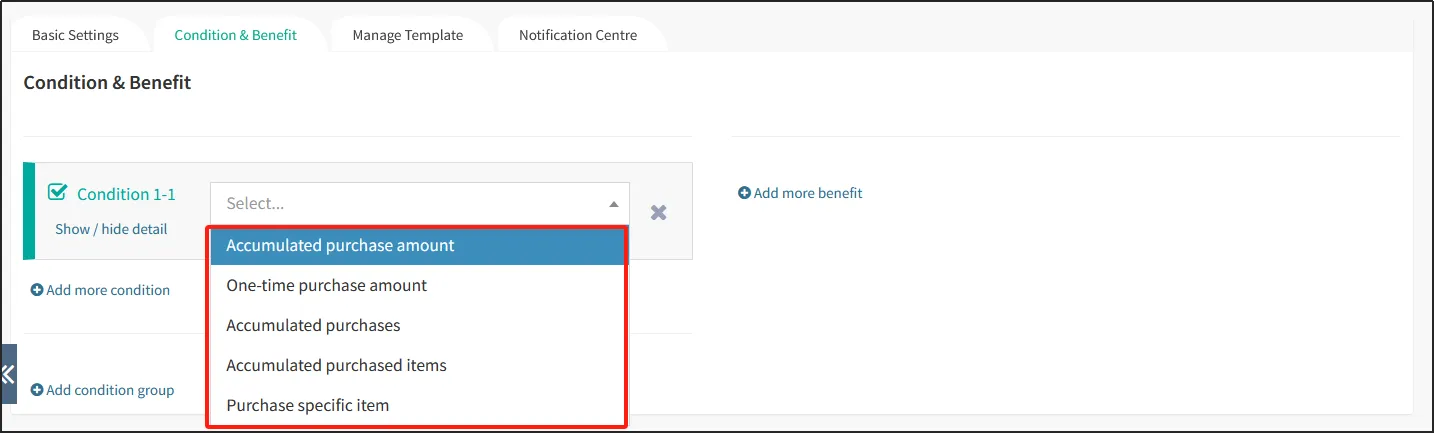
Click on the tab Conditions & BenefitsClick [Add condition group] to add a condition group.

Click the drop-down list of conditions to select the type of condition. There are five types, namely: Accumulated purchase amount, One-time purchase amount, Accumulated purchases, Accumulated purchased items and Purchase specific item.
A condition group can have multiple conditions, and multiple condition groups can also be set, and all the conditions in a condition group need to be met to become a member.
As shown in the figure below, condition group 1 has two conditions: the cumulative number of purchases reaches 3 times and the cumulative purchase amount reaches 1000.
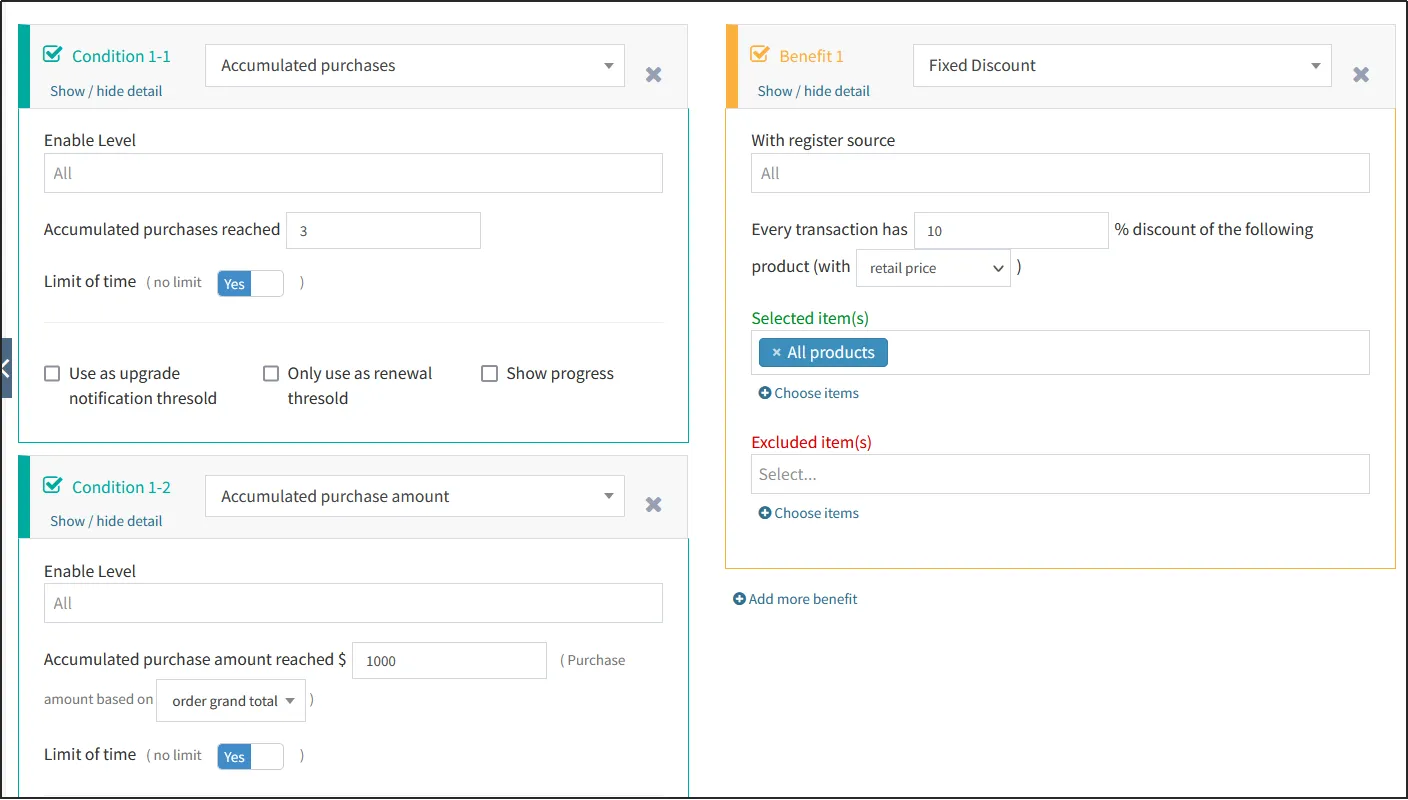
There is one condition for condition group 2: purchase 1 [VIP membership card] item.
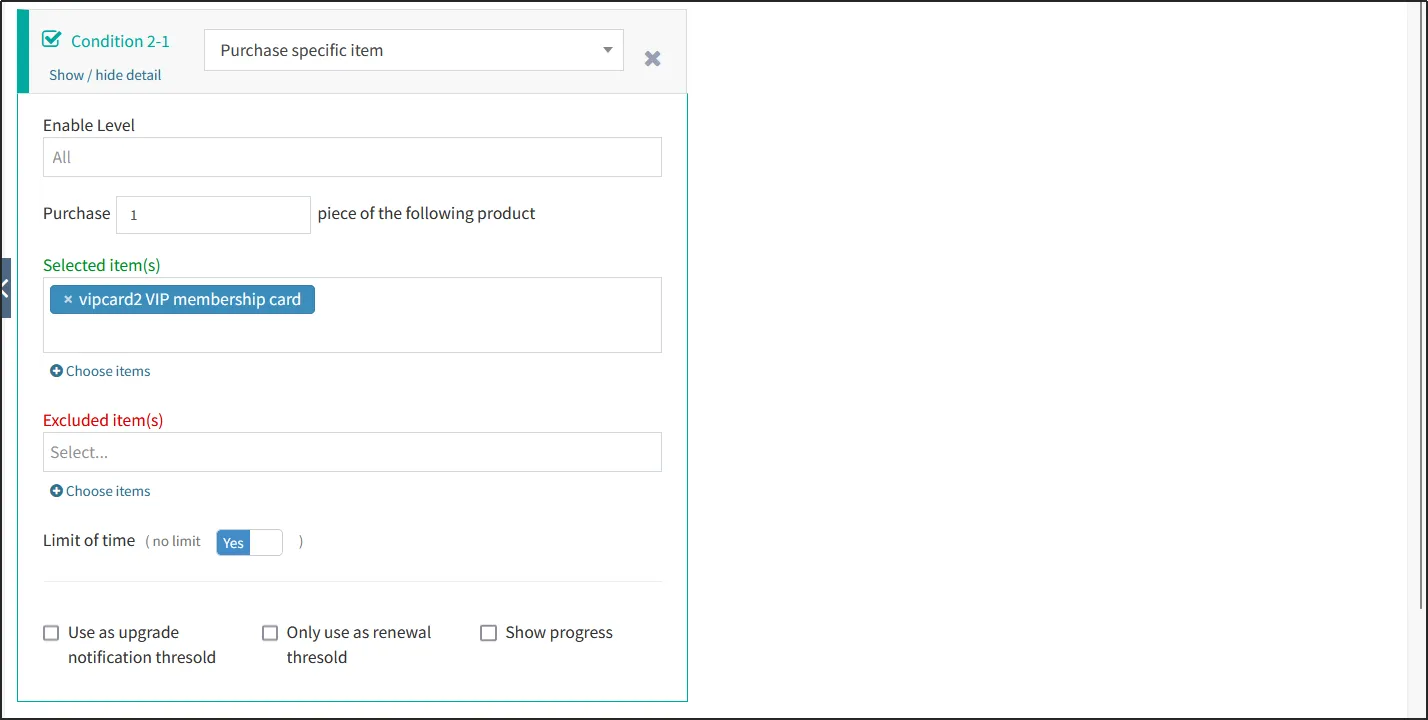
Then it means that you can become a member of this level if you have made 3 purchases and the shopping amount reaches 1000, or if you purchase a [VIP membership card] product.
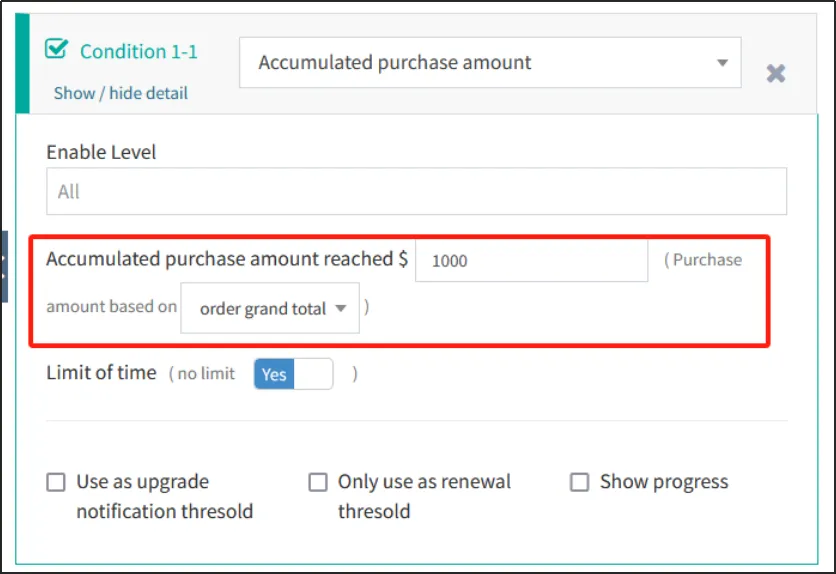
Refers to the amount of money accumulated by the customer, and the total amount can be calculated based on the total amount of the order or the subtotal of certain products.
Select the Enable level for the condition.
When selecting the order grand total, you can directly enter the total amount of the order required by the condition.
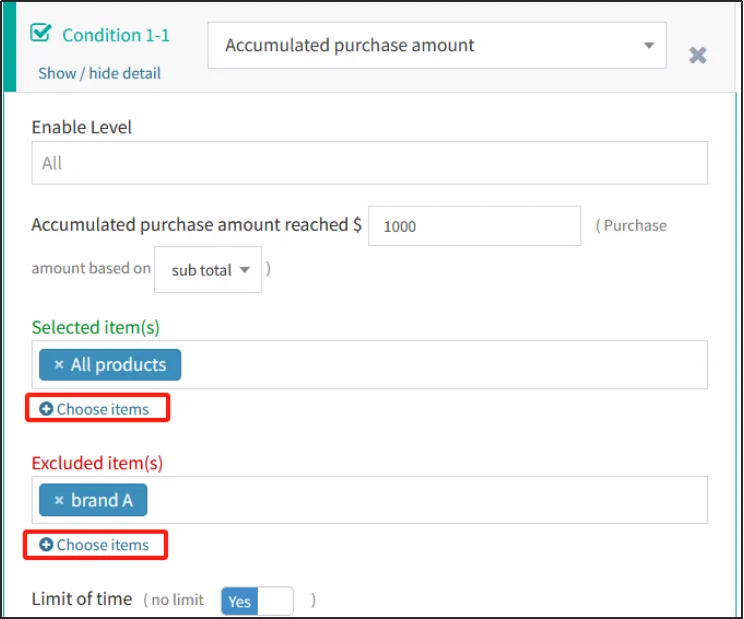
If you select a sub total, you need to select [Select Item(s)] and [Exclude Item(s)] to delineate the scope of the calculated products. When calculating the accumulated amount, only the purchase amount of the products in the scope is calculated.
Click [Choose item(s)] to select the products that are calculated by the subtotal of the product directly under [Select item(s)], or you can select all products under [Select item(s)], and then select the products that are not counted in the product subtotal under [Excluded item(s)]. For example, as shown in the figure below, the range of the subtotal represents all products except brand A.
You can set a time limit for this condition, and if you don't need to set a time limit, you can enable unlimited.

As a condition for upgrade notification: If you select this condition, you can be upgraded to the membership level.
Only as a condition for renewal: If you have set a membership expiration date in [Basic Settings], this condition will be used as a condition for renewing your membership level after the membership expires.

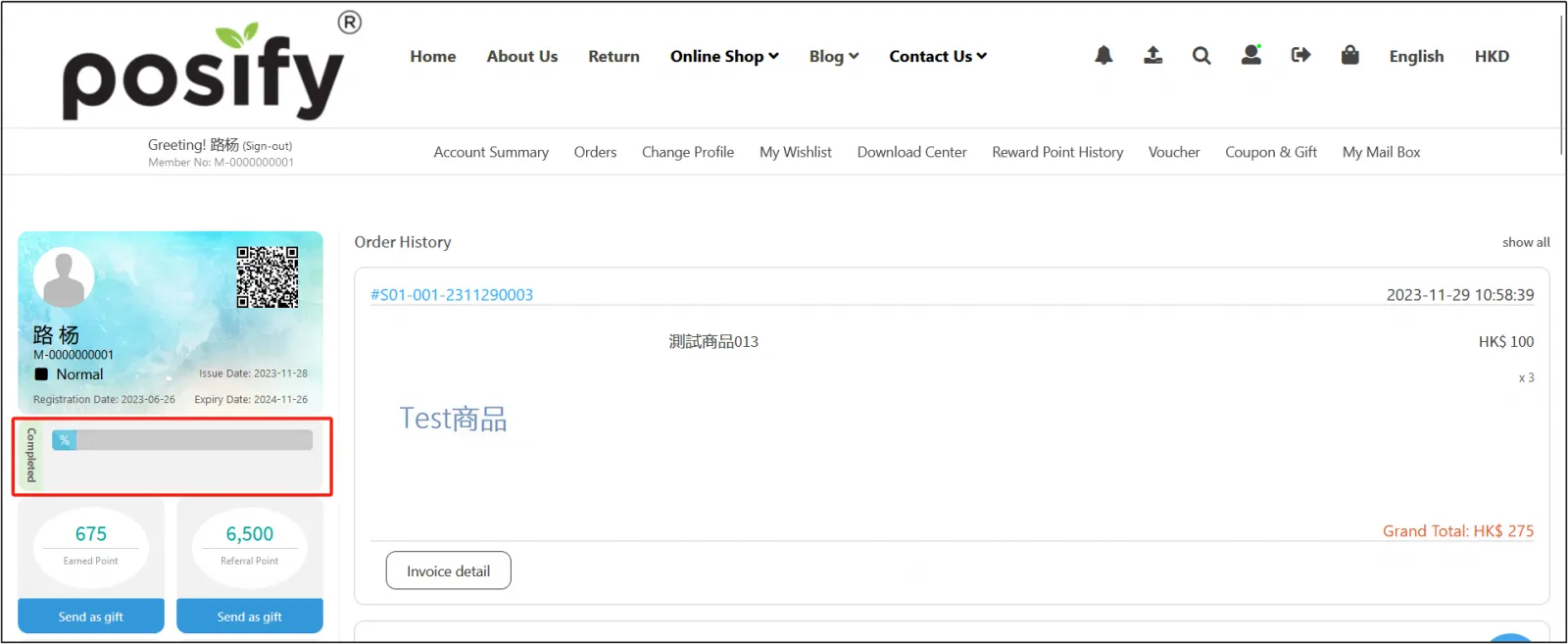
Show Progress: After the merchant sets the upgrade conditions, the progress bar of the member's upgrade to the next membership level can be displayed on the online store membership homepage. After logging in to the account, click on the membership icon to see the membership upgrade progress on the membership homepage.
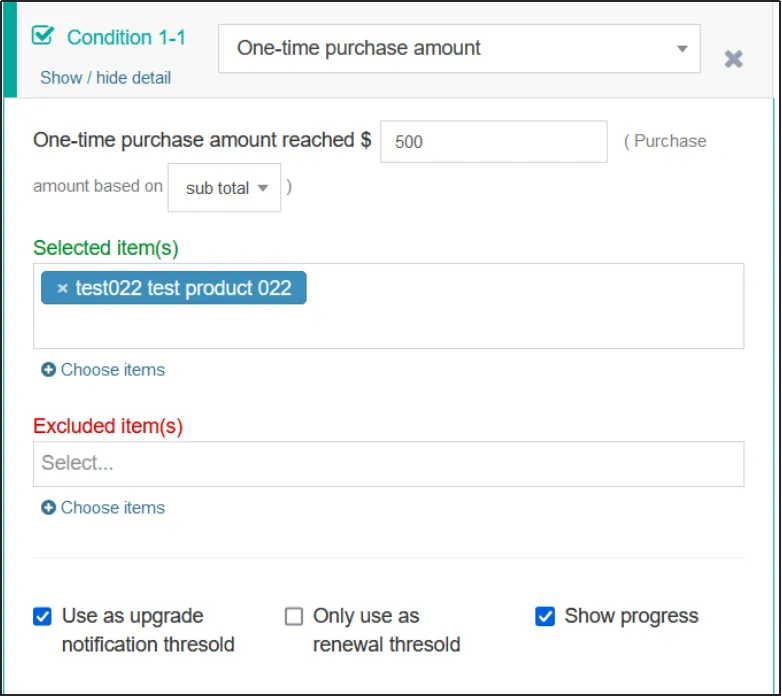
The amount of a single purchase
Refers to the amount of money reached by a customer in a single purchase.
Similarly, you need to set how the purchase amount is calculated and whether it will be used as a condition for upgrading/renewing your membership.
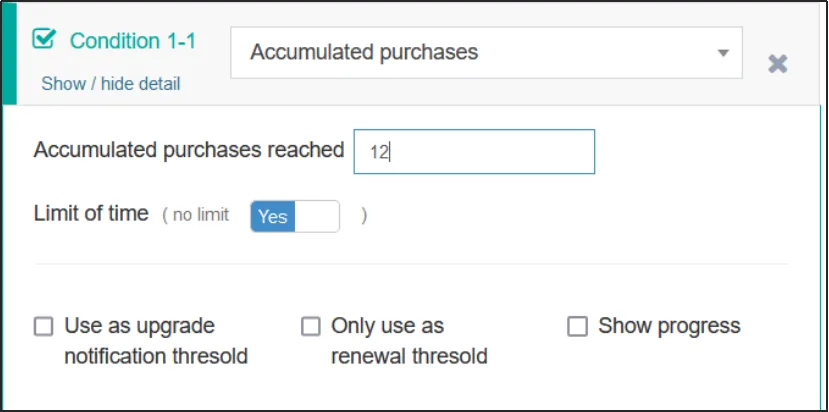
Cumulative number of purchases
Refers to the sum of the number of times a customer makes a purchase.
Enter the number of purchases required by the condition.
Again, you need to set whether there is a deadline for completion, whether it is a condition for promotion/renewal, and whether or not to show progress.
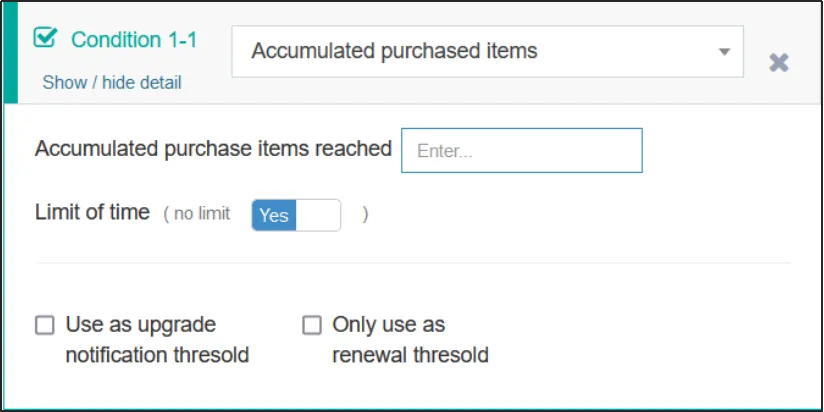
The cumulative number of items purchased
That is, the sum of the cumulative number of products purchased by customers.
Enter the cumulative number of items to be purchased as required by the conditions.
Again, you need to set whether there is a deadline for completion and whether it will be used as a condition for promotion/resumption.
Refers to the customer's need to purchase goods within a specified range.
Enter the number of specified items to be purchased, and similarly, set the specified range by selecting items and excluding items, and set whether there is a deadline for completion, whether or not to use it as a condition for upgrading or renewal, and whether to display progress.
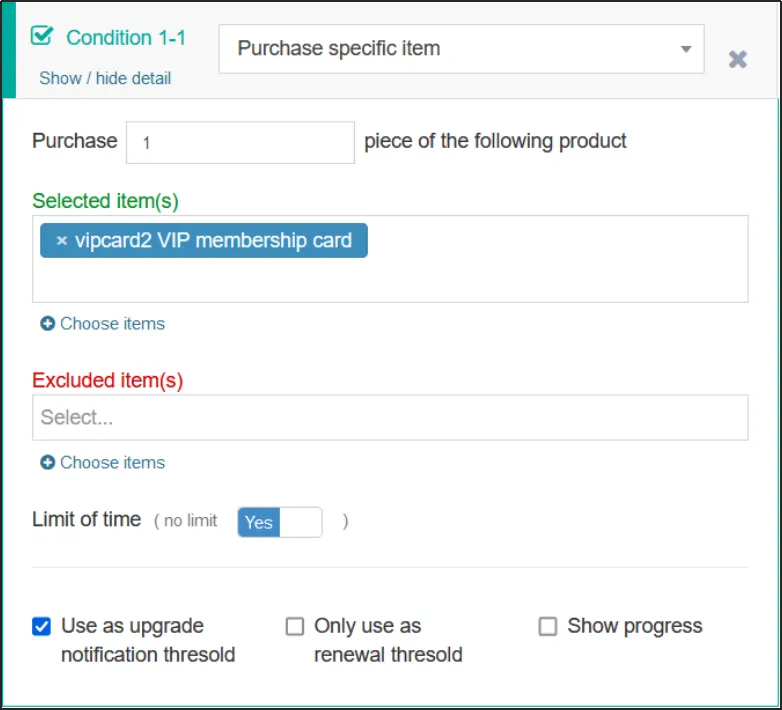
If you can set a non-shipping product for a membership card, and the condition for the membership level is set to purchase a specified product, and the selection item is a membership card, then the customer can become a member of the level by purchasing the product [membership card].
Set up membership benefits
Refers to the benefits that customers can receive after becoming a member of this level.
Click [Add more benefits] to add a new benefit.
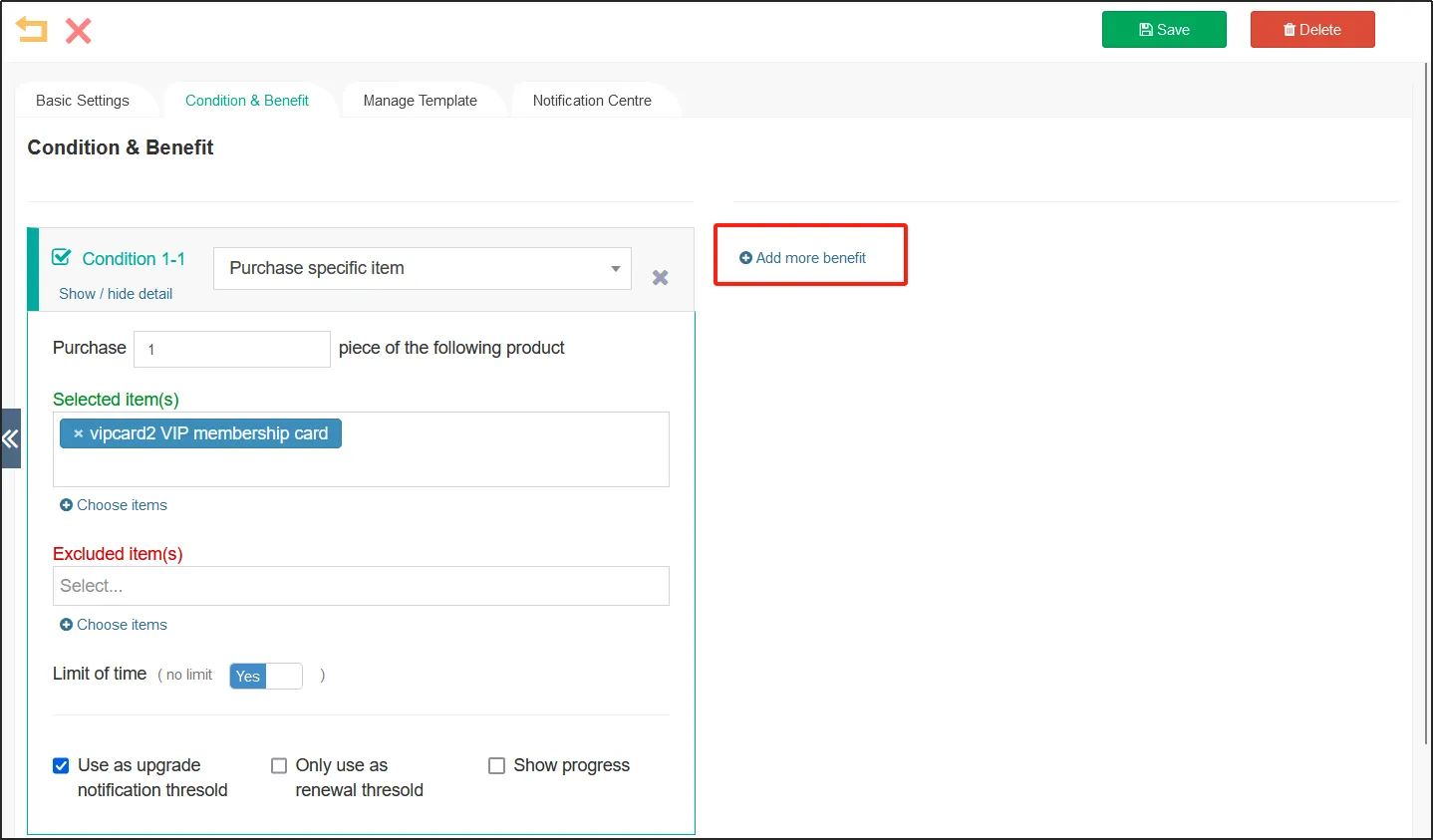
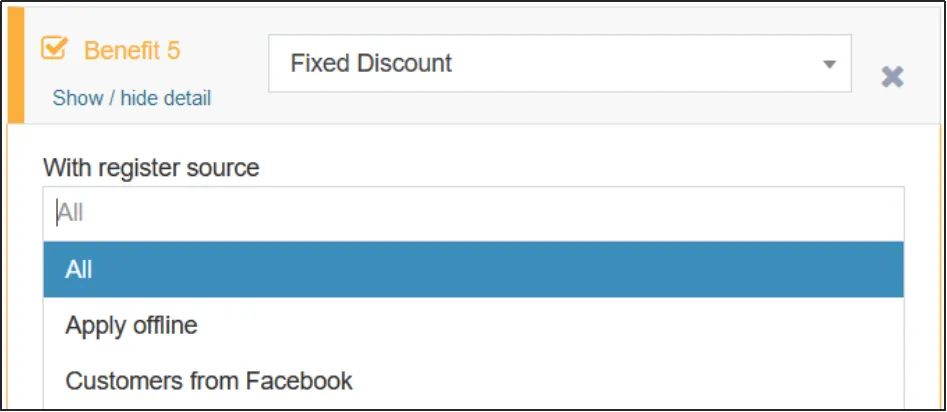
Refers to the discount on purchases made after becoming a member tier.
You can set that only customers with a certain enrollment source can receive the benefit, and the enrollment source here is a custom enrollment source that needs to be preset before it can be used. For the default method, see Playbook - Customer Settings.
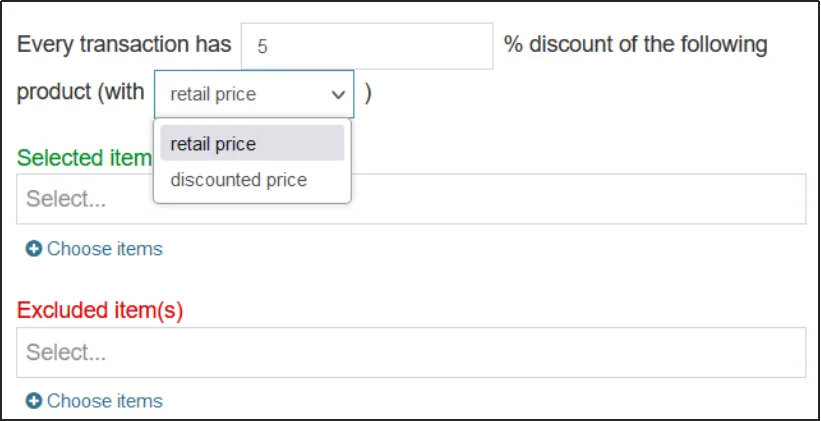
Set the percentage discount that can be enjoyed for each purchase, and choose whether the discount is calculated based on the retail price or the discounted price. The retail price refers to the original list price of the product, while the discounted price refers to the price of the product after other discounts. Similarly, the scope of products for benefit discounts is defined by [Picks] and [Exclusions].
It refers to the benefit of discounting special items again after becoming a member of this level.
Enter the percentage of the additional discount for the sale items, and delineate the range of products that offer the additional discount by [Select items] and [Excluded items].
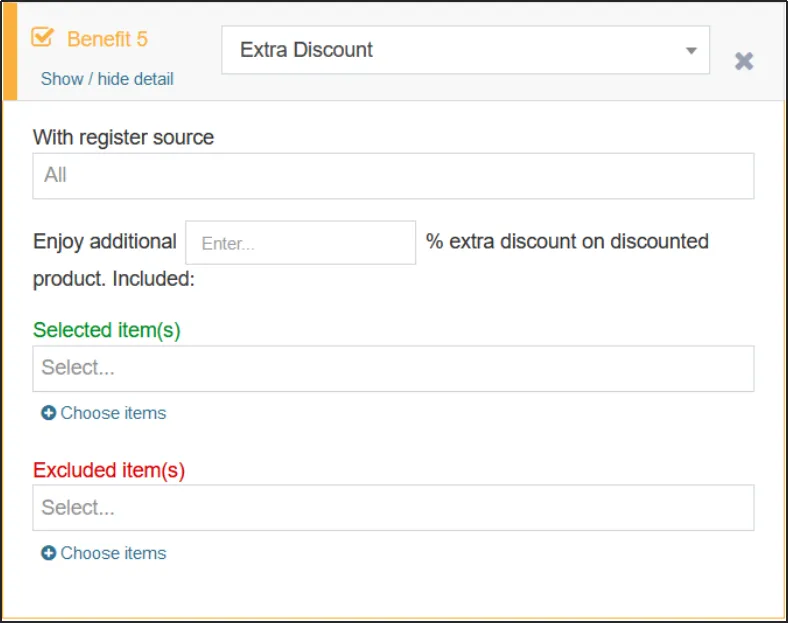
Refers to the earning of bonus points for purchases made by becoming a member of this tier.
You can choose to calculate it in two different ways: the total amount or the number of items.
If you choose to calculate by the total amount, you can choose to calculate by the total amount of the order or the subtotal of the product (the subtotal of the product needs to be delineated by the scope of the product).
Enter the amount of money or the number of items and the number of points that can be earned.
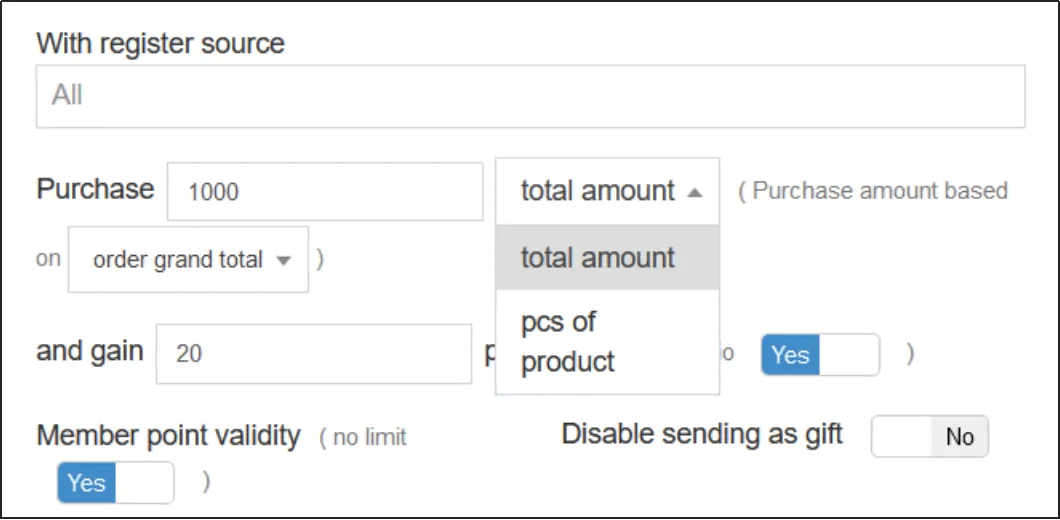
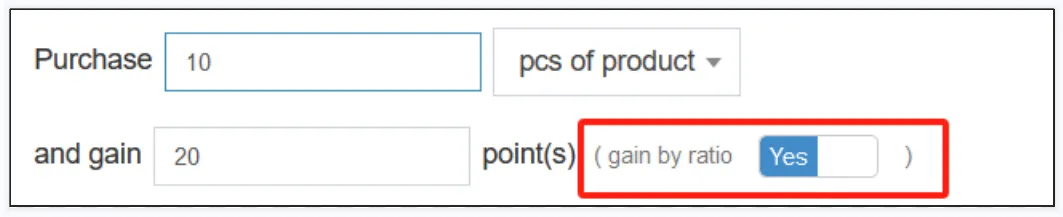
You can choose whether or not to [prorate]. As an example, if you choose Yes, then members can get 2 points for each item purchased, and if you choose No, you need to buy 10 items to get 20 points.
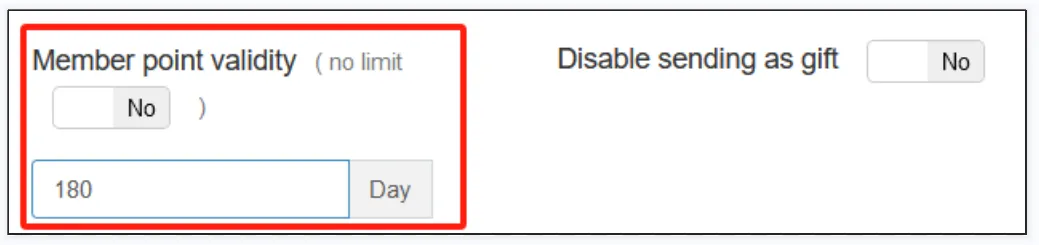
You can choose whether to enable [Point Expiration Date], if so, enter the validity period of the point, and the point will expire at the end of the validity period from the date the point is earned, or if not, there is no time limit. The validity period of the points is not affected by the downgrade of the member, for example, if the member has 100 points, even after the member is downgraded, the 100 points still exist.
You can set the way to deal with decimals when the integral is a decimal number, and there are four optional methods, namely: no processing, unconditional carrying, unconditional rounding or rounding.
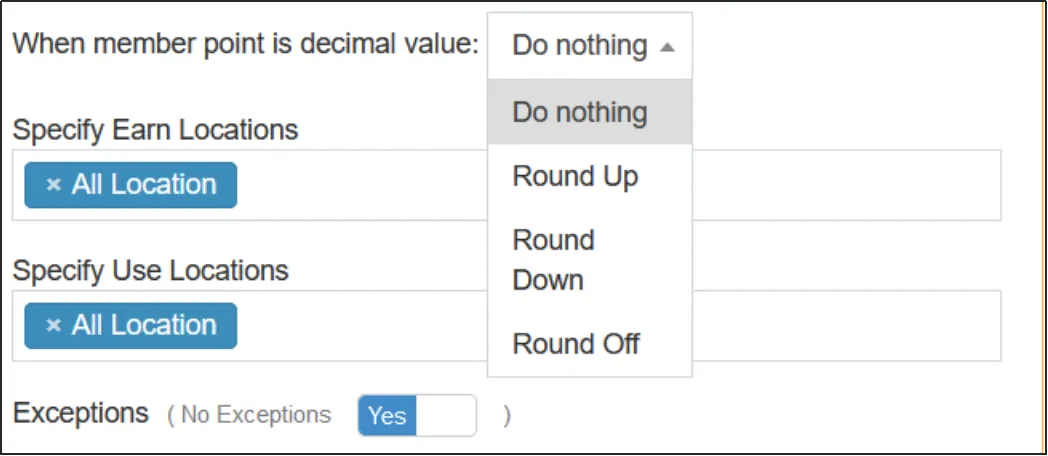
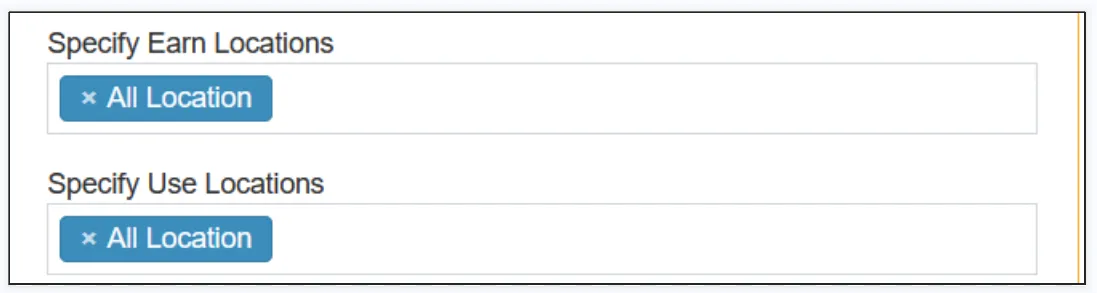
Set up stores where you can earn points and stores where you can use points.
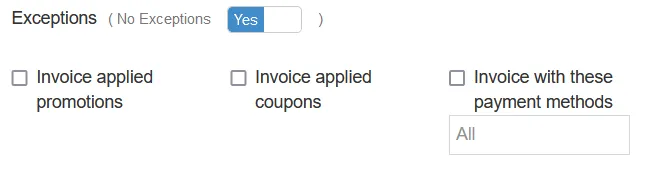
You can check the box to set exceptions to not use this benefit, and the exceptions that can be set are: the order has a promotional offer in effect, the order has a coupon in effect, and the order uses the following payment methods (the payment method can be set).
If there are no exceptions, you can enable No exceptions.
It means that after becoming a member of this level, you can earn bonus shopping dollars for purchases.
Within a range: When enabled, the acquisition condition (purchase amount / number of items) changes from a fixed value to a range, and [prorated] cannot be used.
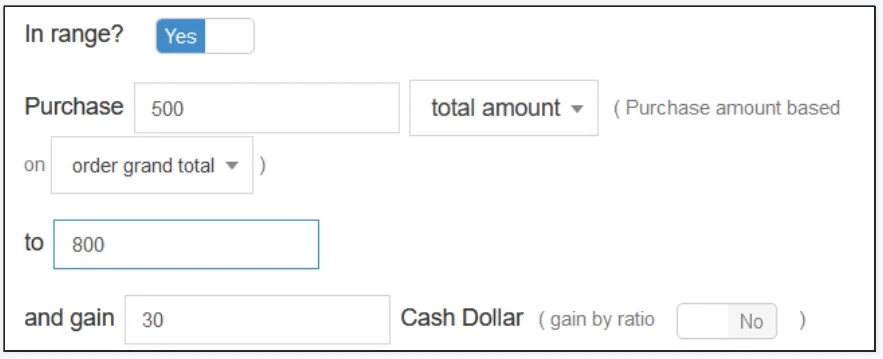
Similarly, if you enter the purchase conditions and the number of credits to be rewarded, you can enable [Credits Expiration Date] or for any time.
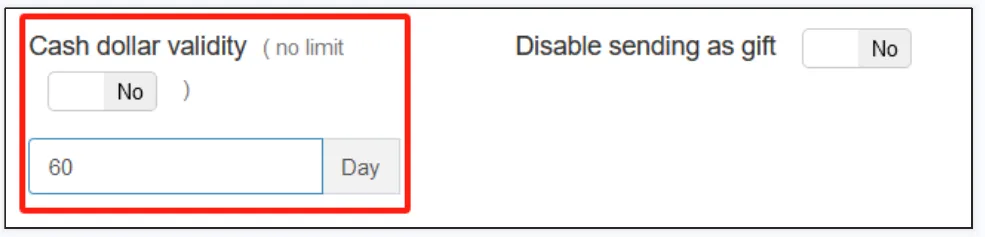
Allow convert Member Point to Cash Dollar
Refers to whether the member is allowed to use points to redeem shopping credits after becoming a member of the level.
Enter how many points you can redeem for credit.
Set whether points can only be exchanged for credits when placing an order, and if so, enable [Points conversion credits can only be operated at the time of ordering]. Specify the stores where points can be used.
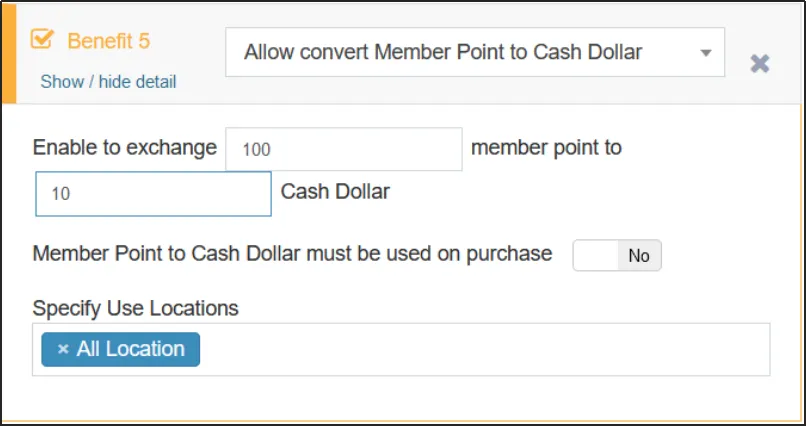
When a customer first becomes a member of this tier, he or she can receive some free welcome benefits, including: welcome gifts, welcome coupons, welcome points, welcome credits, welcome discounts, welcome bonus points and welcome bonus for a limited time.
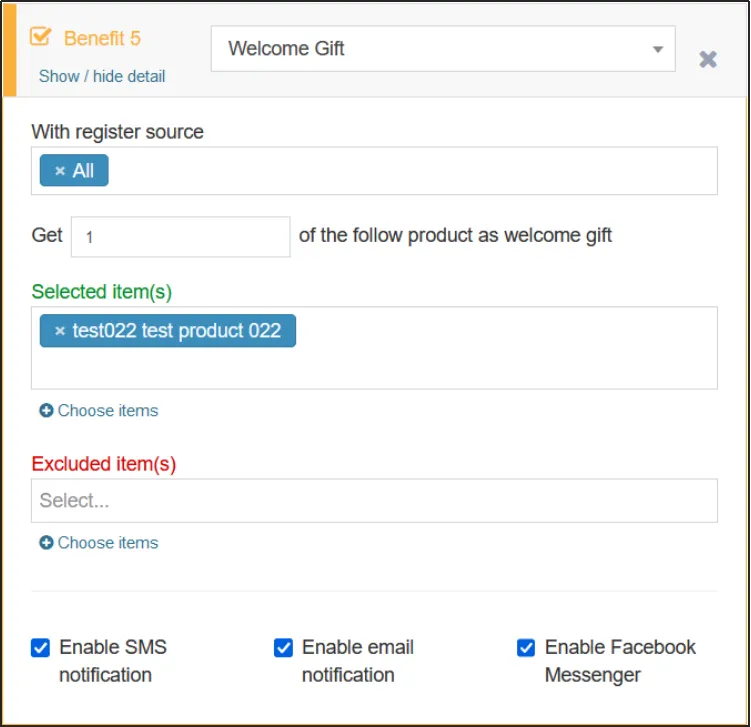
Welcome Gift: When a customer first becomes a member of this tier, they can get a free welcome gift. Select the number of gifts to be given and the number of gifts to give, and check Set notification method.
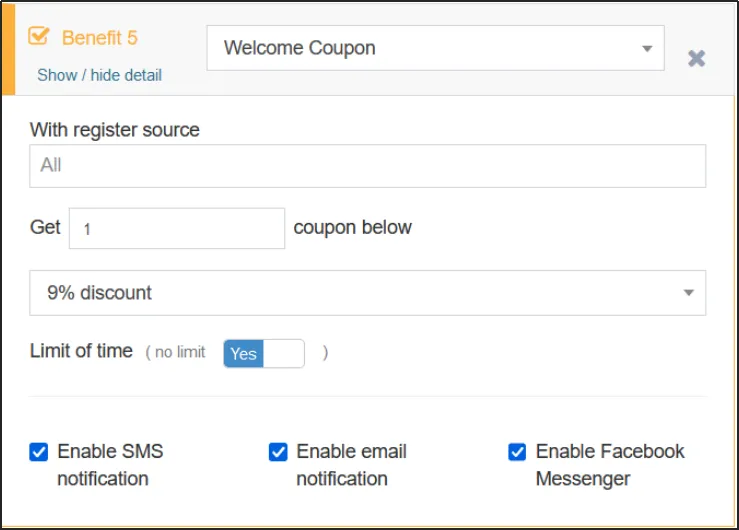
Welcome Coupon: When a customer first becomes a member of this level, they can get a free coupon. Select the coupon to be given and the number of coupons to be given, set the expiration date, and select Set notification method.
Welcome Points/Credits: Customers can get free points/credits when they first become members of this tier. Enter the number of points to be given for free, set the expiration date of points, and select Set notification method.
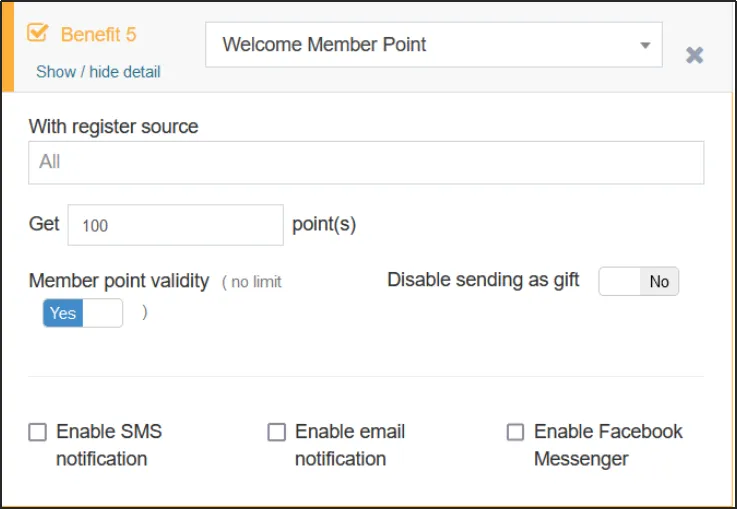
Welcome Discount Offer: The same method as the discount offer, in addition, you need to set the validity period of the offer, the minimum is one day after becoming a member of the level, and the maximum is 90 days.
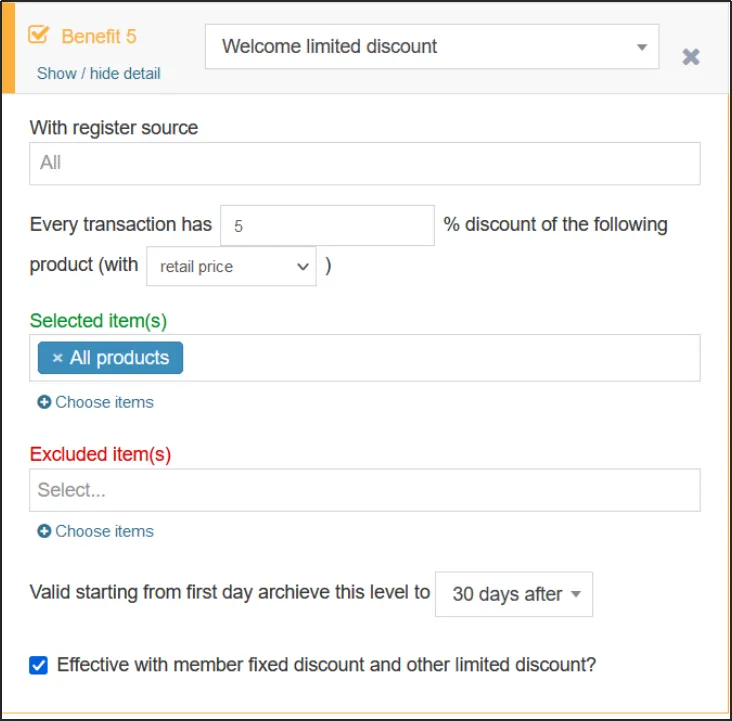
Welcome Time Double Points/Double Credit: Enter the bonus earning multiplier and set the validity period of the offer, the shortest is one day after becoming a member of the tier, and the maximum is 90 days.
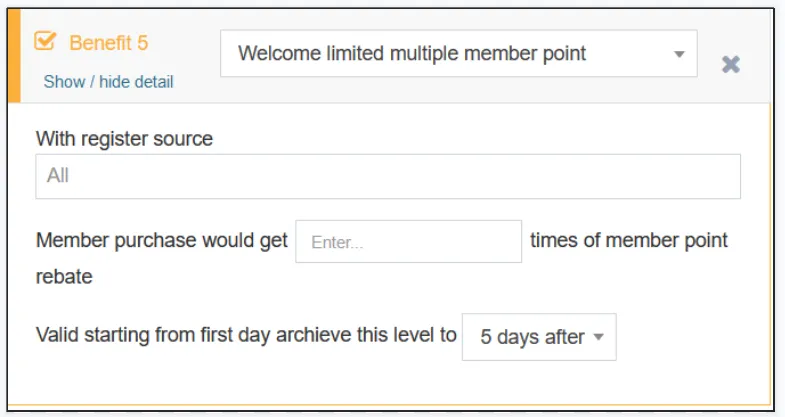
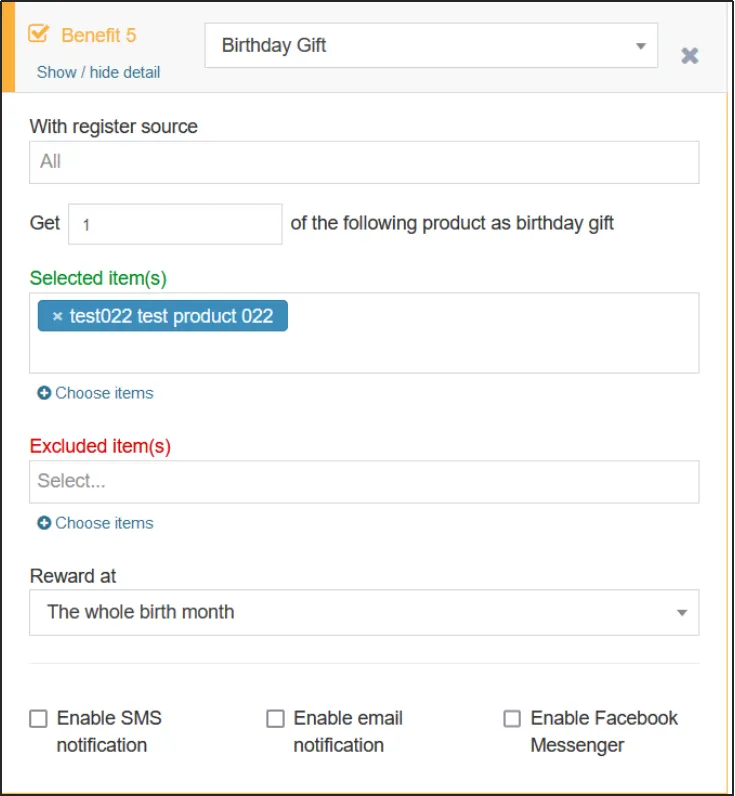
Refers to some of the benefits that can be obtained on a member's birthday. Includes: Birthday Gifts, Birthday Coupons, Birthday Credits, Birthday Credits, Birthday Discount Offers, Birthday Bonus Points and Birthday Bonus Doublers.
These benefits are set up in the same way as the orientation-related benefits above.
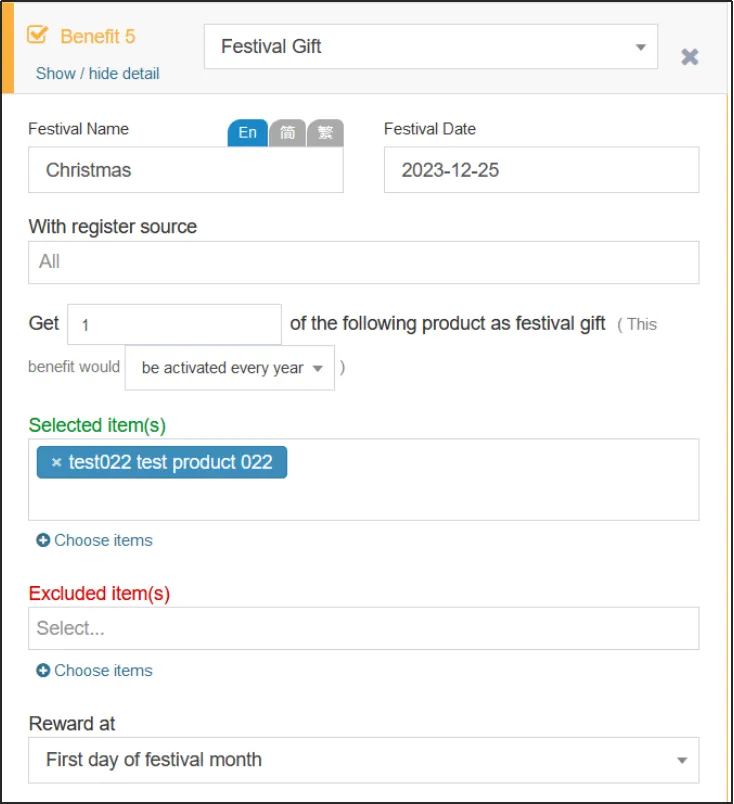
Refers to some benefits that members can obtain during the festival, including: holiday gifts, holiday coupons, holiday points, holiday shopping credits, holiday limited-time discount offers, holiday limited-time double points and holiday limited-time double shopping credits.
If it is an annual festival, you can choose to take effect every year, and the other parts are set up in the same way as the welcome related benefits.
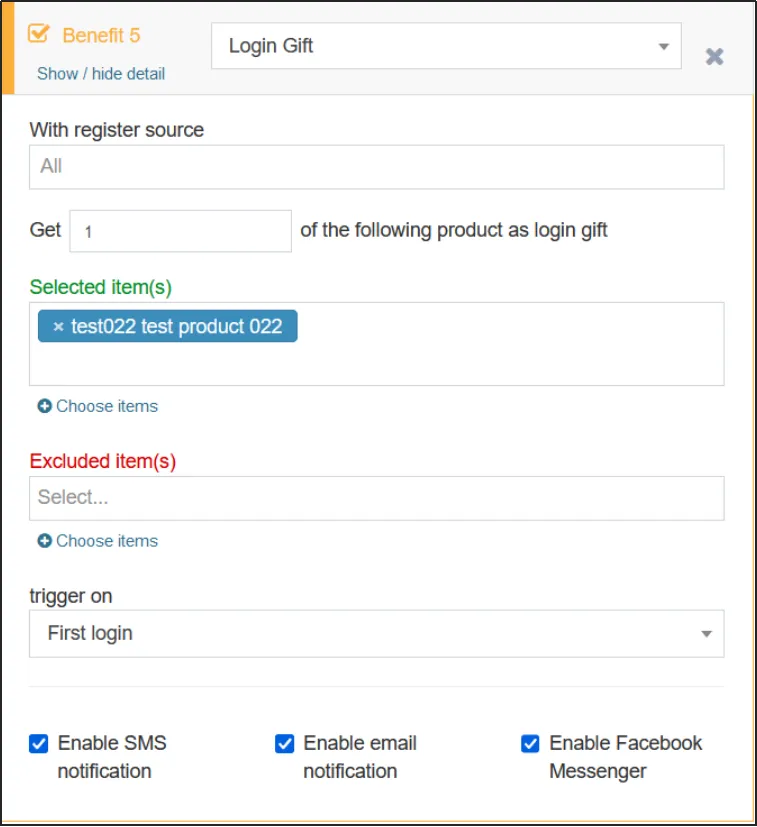
Refers to the benefits that members receive free of charge when they log in, including the following benefits: Login Gifts, Login Coupons, Login Points, Login Credits, Limited Time Discount Offers, Limited Time Bonus Points and Limited Time Bonus Points.
The login benefit needs to be triggered by setting the trigger time, you can choose to trigger the first login, or trigger it every n days (n is 1-30), and the other parts are set up in the same way as the welcome related benefits.
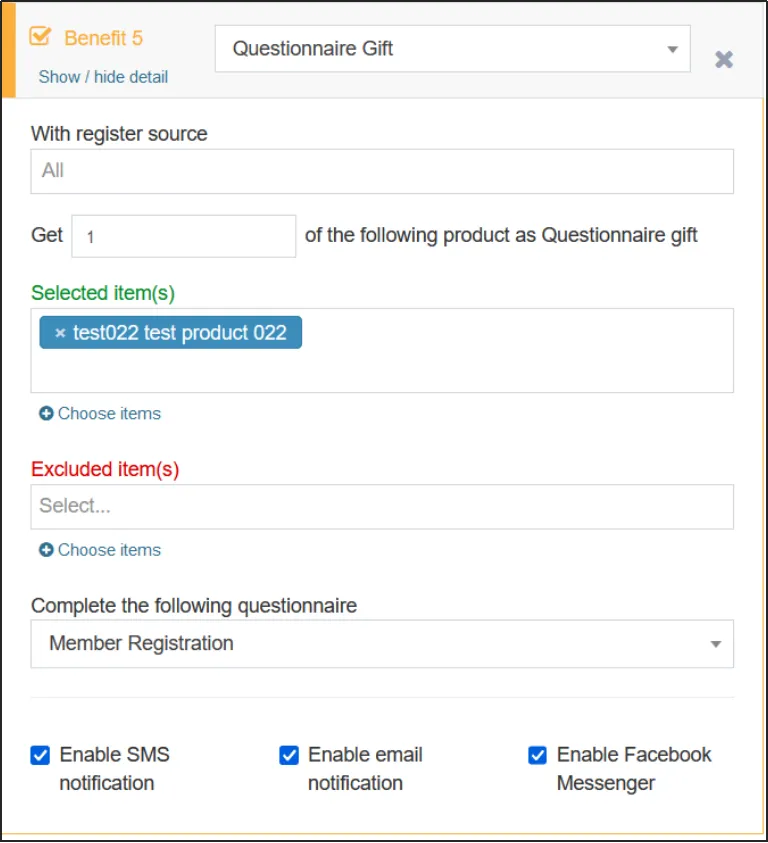
Completion of the questionnaire benefits
Refers to the benefits that a member receives free of charge when completing a survey, including: a gift for completing a survey, a coupon for completing a survey, points for completing a survey, a shopping credit for completing a survey, a discount for completing a questionnaire for a limited time, doubling points for completing a questionnaire for a limited time, and doubling a shopping credit for completing a questionnaire for a limited time.
Questionnaire completion benefits require the setting up of questionnaires that can be rewarded for completion, and the questionnaire here refers to the form set up under CMS-Customer-Form Management.
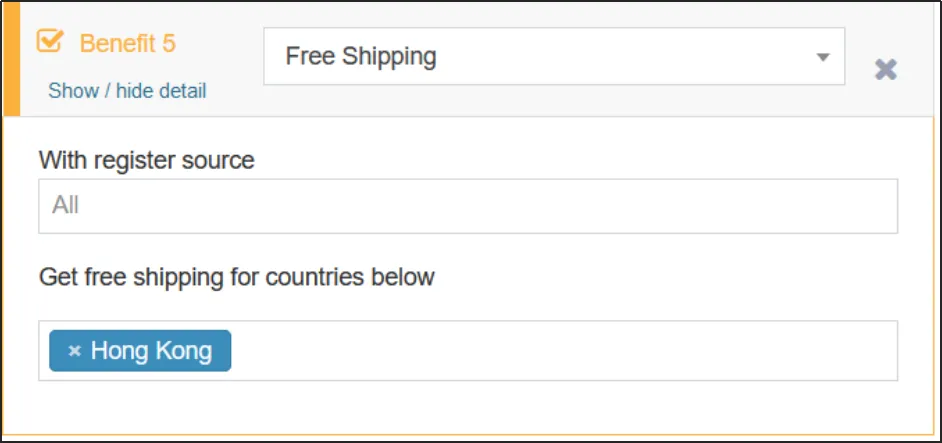
Refers to the benefit that members can be exempted from shipping fees for purchases.
Free shipping requires you to set up a shipping exemption country.
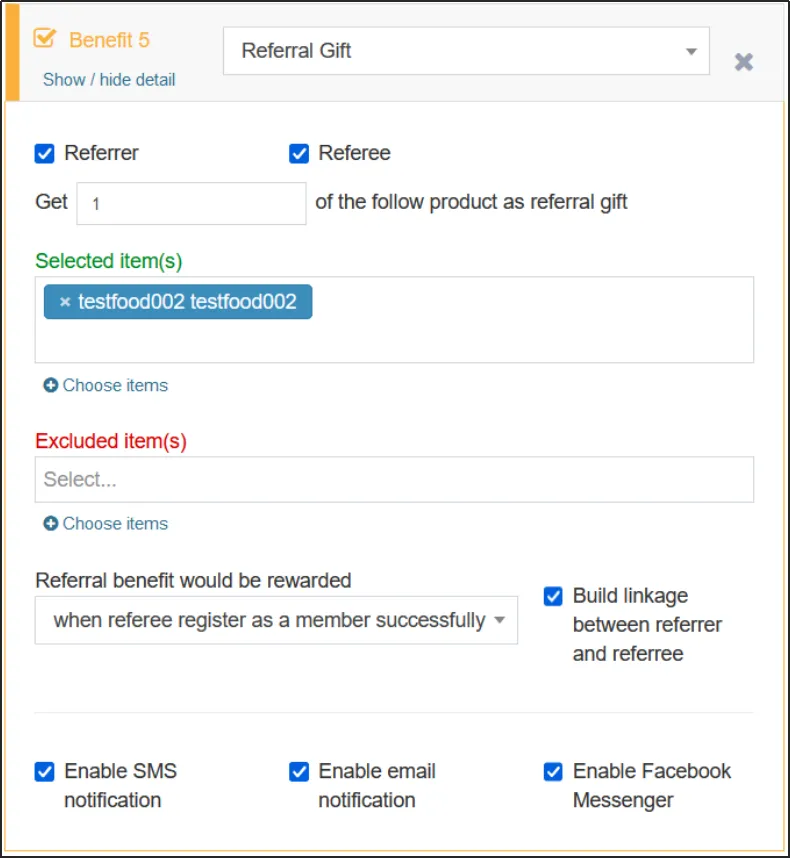
Refers to the benefits that members receive free of charge when they are recommended or referred, including: referral gifts, referral coupons, referral points, referral credits, referral limited-time discount offers, referral time-limited double points, and referral limited-time double shopping credits.
When setting up referral benefits, you can select the referrer and the referee, and only those who check it can get the referral benefits. In addition, you need to set the effective time of the referral offer, and you can choose whether the referee successfully registers as a member, the referee completes the payment order for the first time, or the referee completes the payment order each time. The other sections are set up in the same way as the orientation-related benefits.
Membership card settings
Click the tab to manage the template.
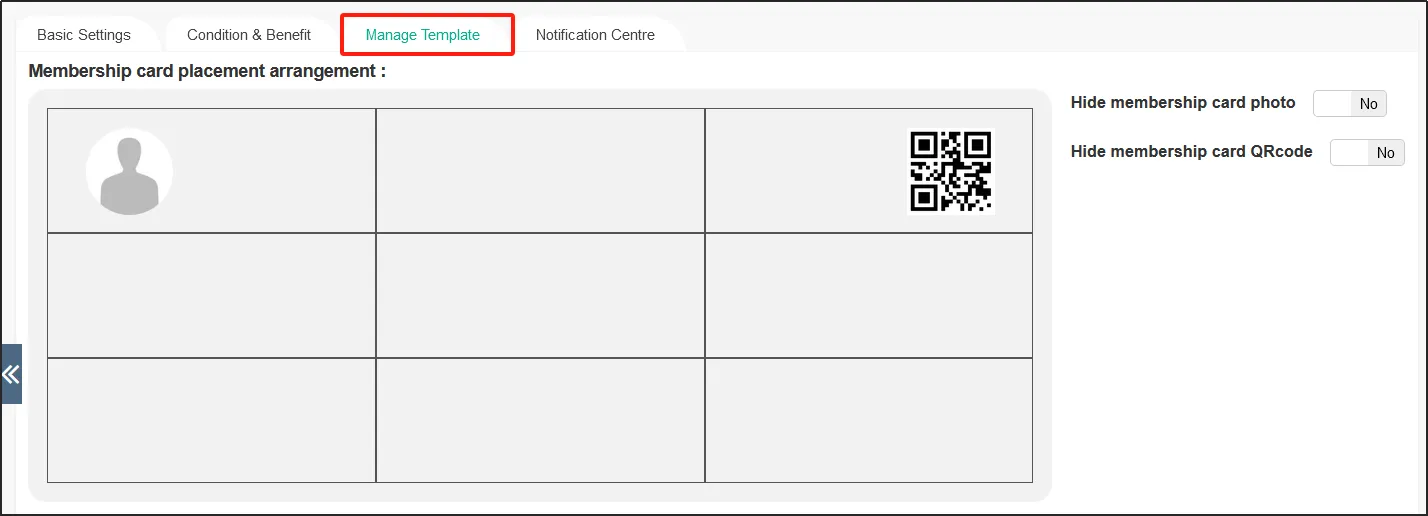
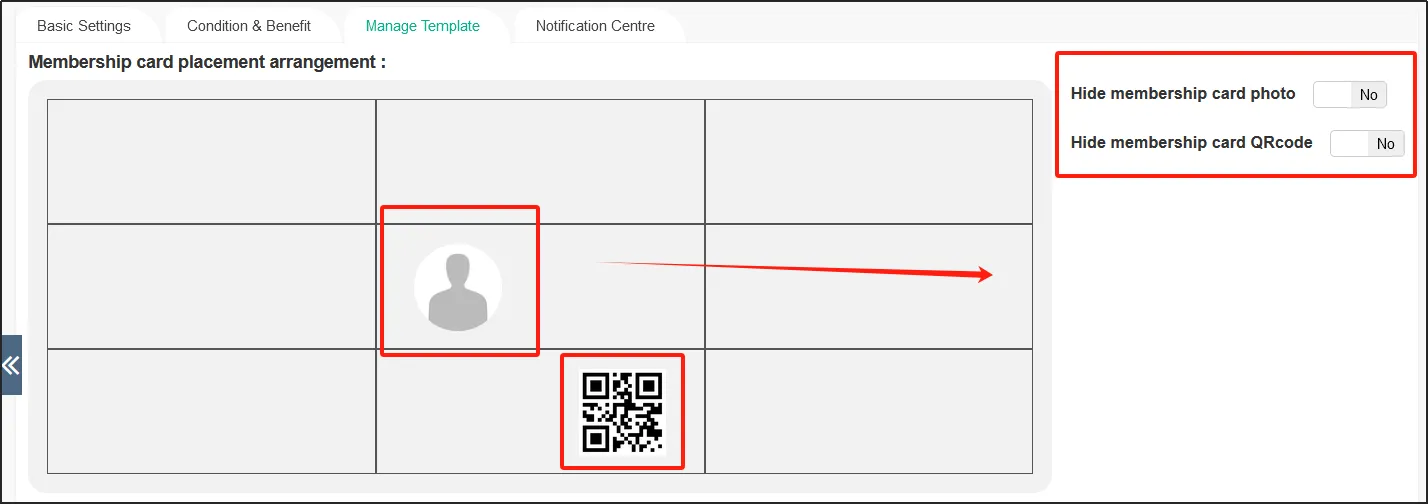
The grey avatar on the left represents the photo on the membership card, while the QR code on the right represents the membership card. Hold down and drag to change the position of the photo and membership card QR code. Enable [Hide Card Photo] and [Hide Card QR Code] on the right to hide the photo or QR code.
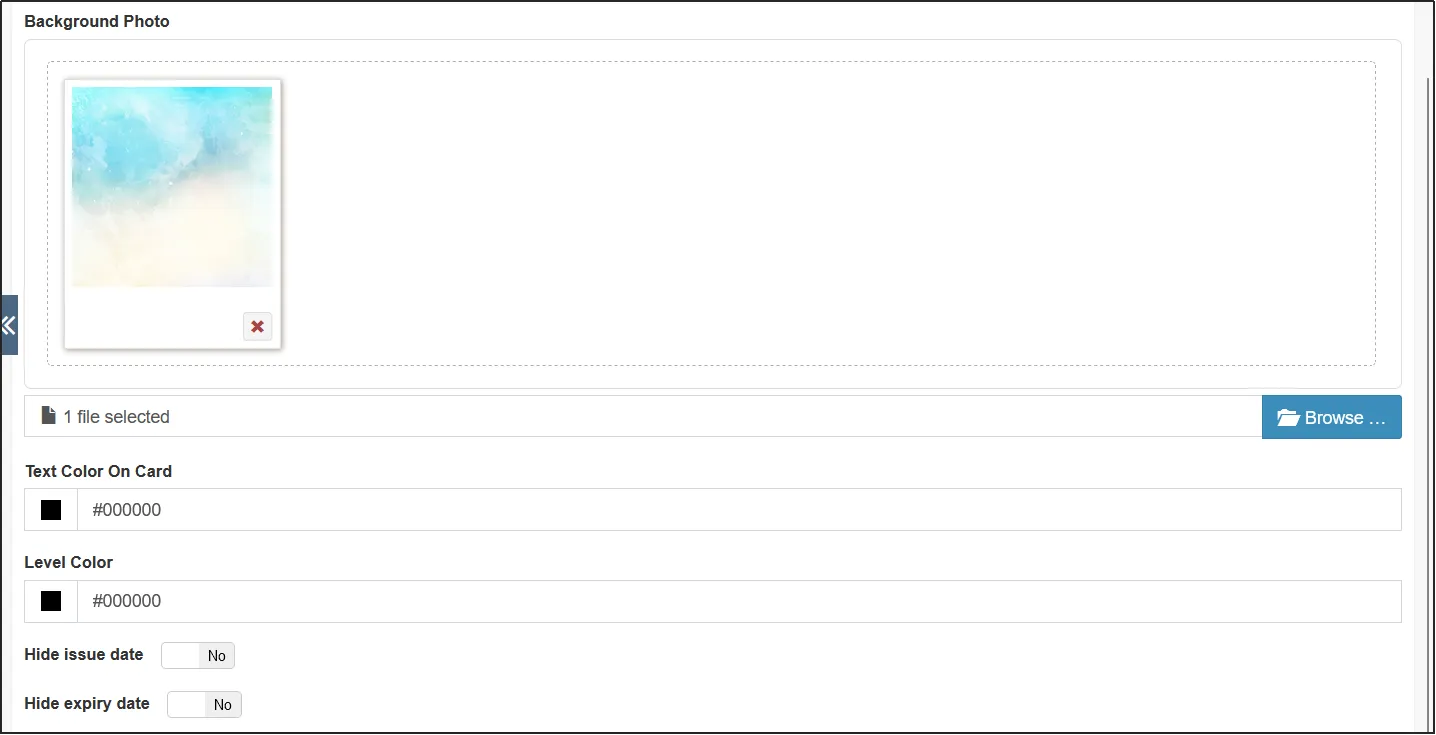
You can upload a background image of your membership card at [Background photo].
At the bottom, you can modify [Text Color] and [Grade Color], and you can also set whether to [Hide Issuance Date] and [Hide Expiration Date].