CRM Settings
Here you can make member-related settings, which will apply to all customers and membership levels, and if there are member-related settings that are subdivided into different membership levels, you can go to the corresponding membership level to set them.
Click Customers Click SettingsClick the CRM Settings tab.
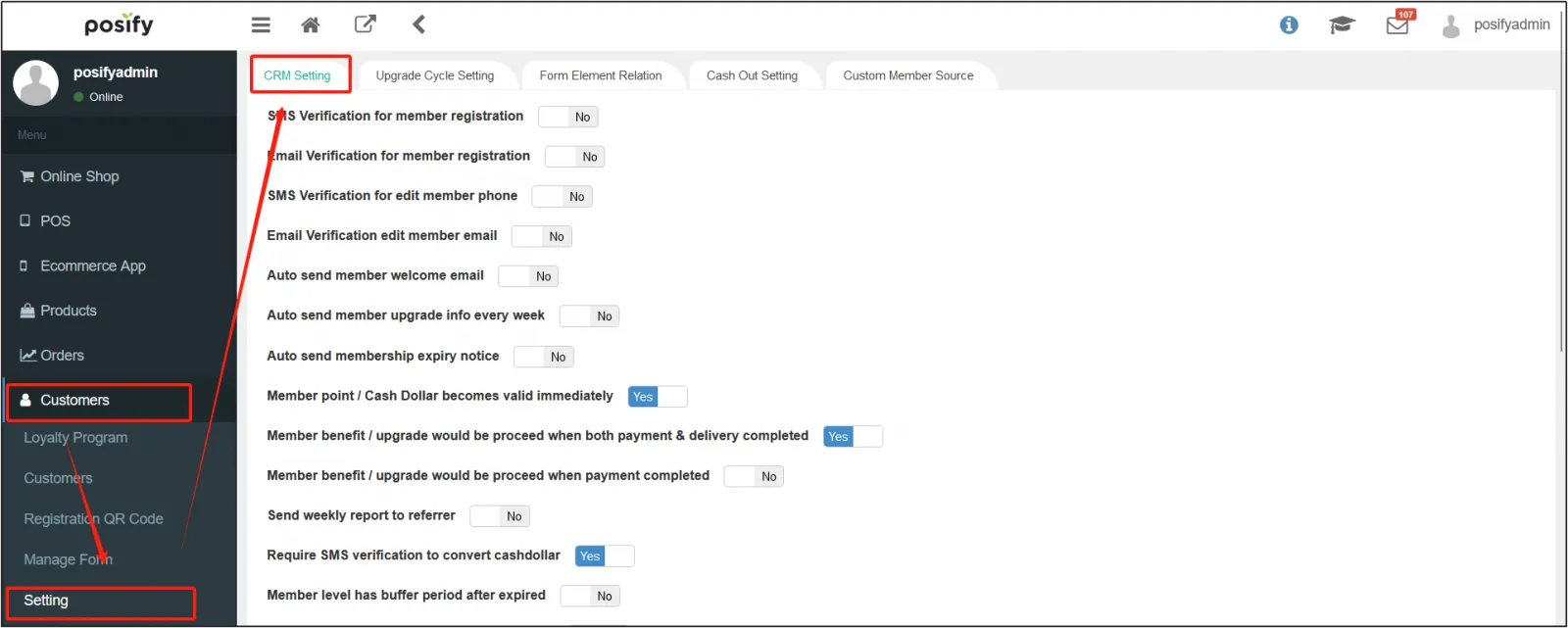
SMS verification for member registration: After the merchant purchases the SMS service, when the guest registers as a member, the mobile phone number entered by the guest will be SMS verified. A text message will be sent via SMS service to the mobile phone number entered by the guest. Guests will need to fill in the SMS verification code they received to complete the registration.
Email Verification for Member Registration: After the merchant configures the email, when the guest registers as a member, the email address entered by the guest will be verified by email. An email will be sent to the email address entered by the customer via the email configured by the merchant. Guests will need to fill in the email verification code they received to complete the registration.
Automatically send membership expiration notifications: If [Membership expiration date] is enabled for the membership tier, then [Automatically send membership expiration notifications] is enabled, and a notification message will be sent to the guest before the expiration date of the membership.
You can set the time of notification, enter in the input box below to notify a few days before the expiration of the membership, and if you need to notify more than once, you can enter multiple numbers, separated by commas ”,“. As shown in the figure below, it means that the notification will be made 5 days, 3 days before, and 1 day before the expiration of the membership.
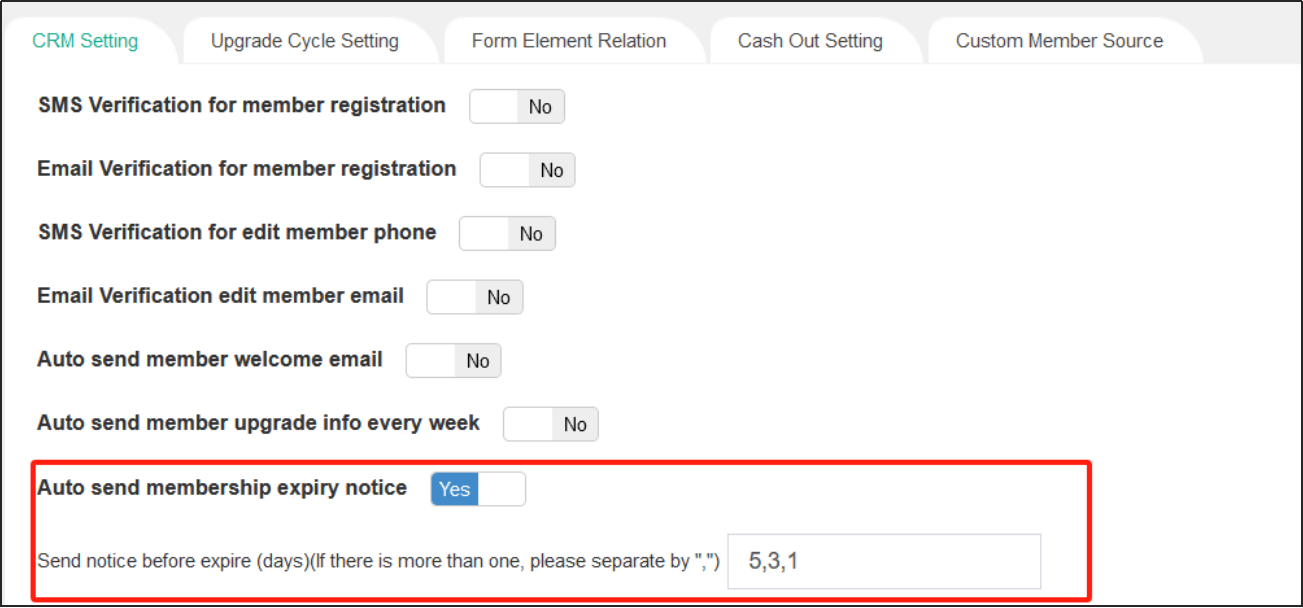
After enabling [Auto send membership expiry notice], you will need to set up specific notification settings, including the notification method and notification template.
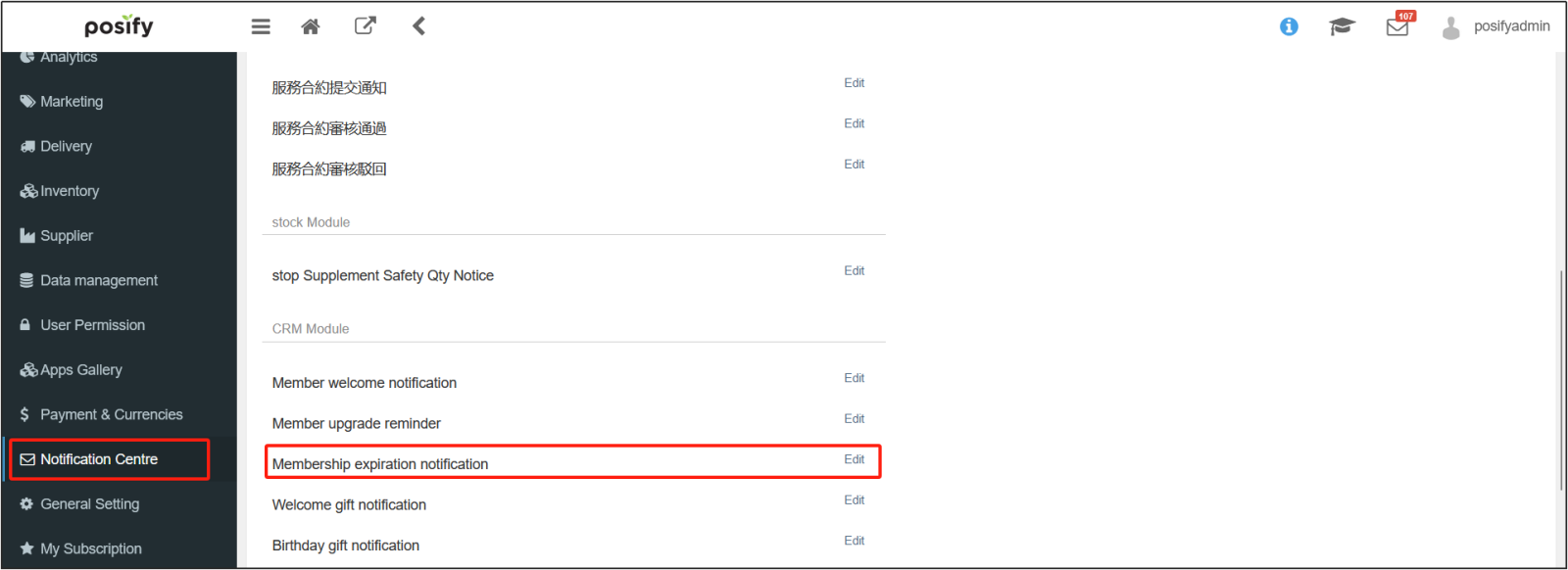
Open the CMSClick Notification CentreUnder [CRM Module], find [Membership expiration notification] and click [Edit] on the right.
Member point / Cash Dollar becomes valid immediately:The Points/Cash Dollars of the Shopping Reward will be effective immediately upon arrival; If you don't enable it, you can enter the number of days that the delay will take effect after it arrives.
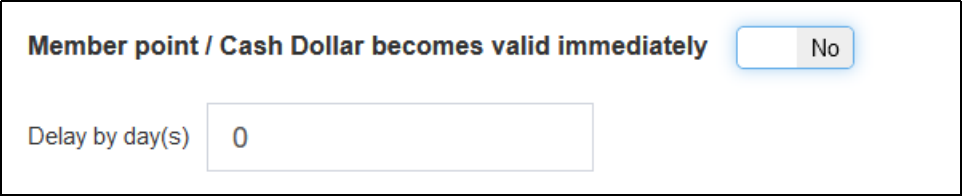
Member benefit / upgrade would be proceed when both payment & delivery completed:Membership Rewards/Upgrades are effective after payment and delivery have been completed.
Member benefit / upgrade would be proceed when payment completed:Membership Rewards/Upgrades are effective upon completion of payment.

Only show month and day in birthday when register (m-d):After activation, only the month and day of the birthday filled in when registering are included.
Only show month in birthday when register (m) :After activation, only the month of birth is included in the date of membership registration.
If neither is enabled, the birthday filled in at the time of membership registration includes the year, month, and day.

Require SMS verification to convert cashdollar:After activation, customers are required to go through SMS verification when redeeming cash dollars with points, and fill in the SMS verification code received before they can redeem cash dollars.
Send weekly report to referrer:Once enabled, referrers will receive a weekly referral report showing which members have been successfully referred.
Allow member links with referee after register:After enabled, if the member did not enter a referrer when registering, he or she can also enter a referrer (become a referee) after registration.
Rewarded Dollar /Welcome Dollar/Birthday Dollar/Referral Dollar/Replenish Dollar is used as discount:When enabled, the loyalty reward is used as a discount, otherwise it is used as a regular shopping credit, and this part will affect the settlement of the amount in the report.
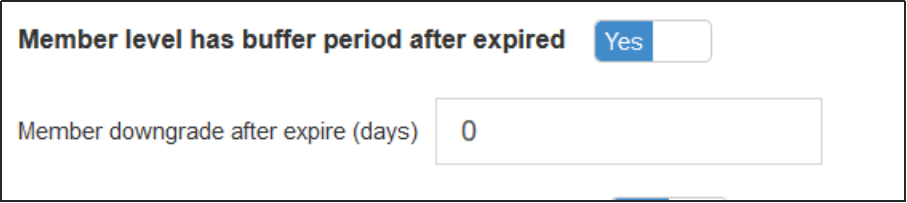
Member level has buffer period after expired:Membership will not be downgraded immediately upon membership expiration, it will still maintain the existing tier for a period of time, and you can enter the buffer number below for a period of time.
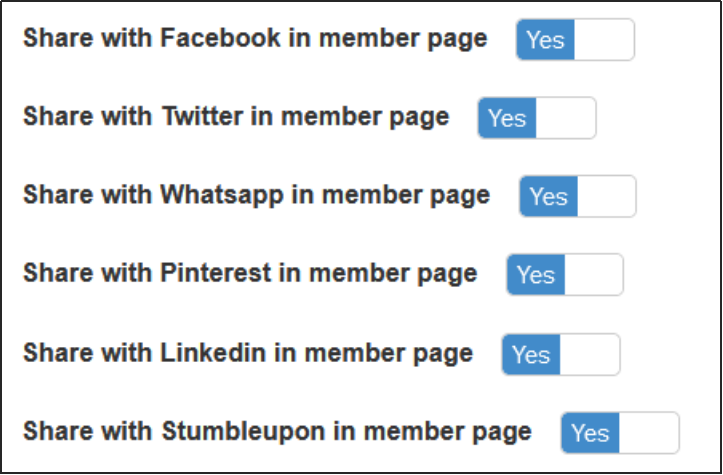
Share with Facebook/Twitter/Whatsapp/Pinterest/Linkedin/ Stumbleupon in member page:When activated, the share button for the corresponding website will be displayed in the Member Center.
Note: After the settings are complete, click [Save] at the bottom for the settings to take effect.
custom member source
How to add a custom member source
Open the CMSClick CustomersClick SettingsClick the tab to Custom Member SourceClick[Add].
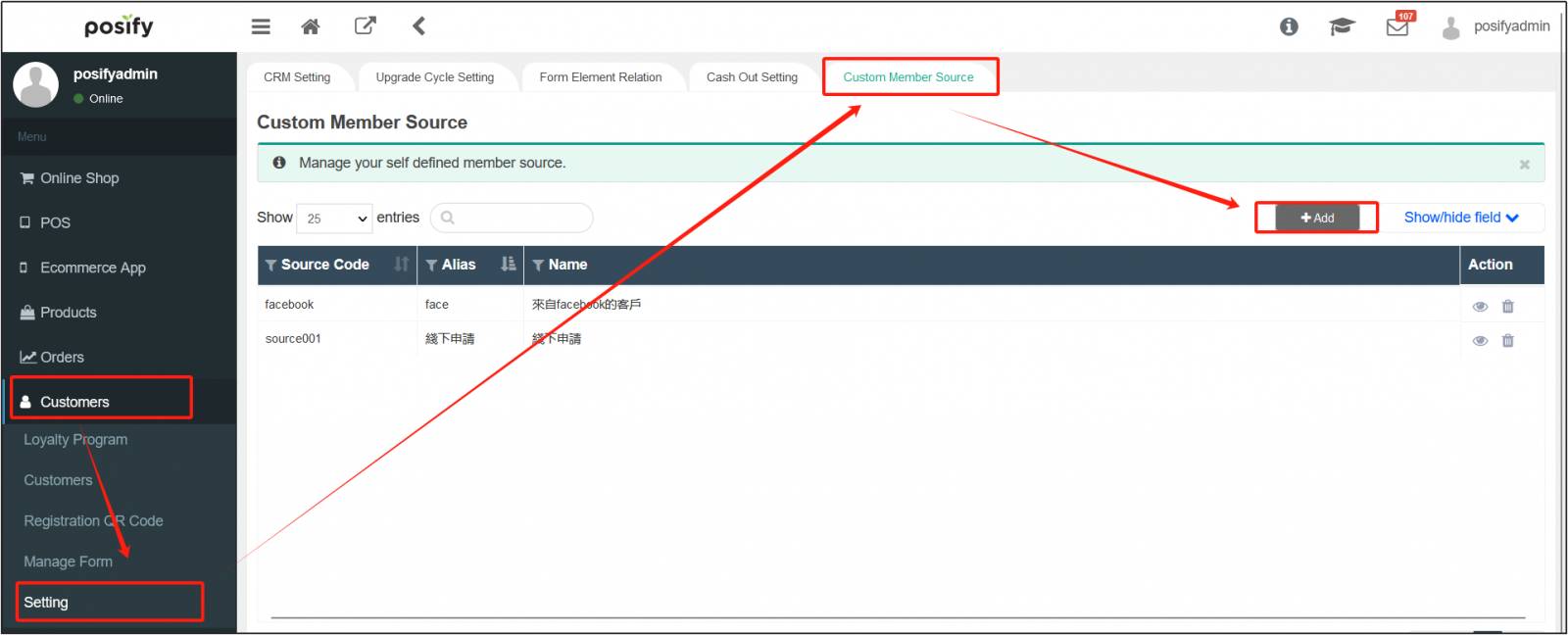
Fill in [Source Code], [Alias], and [Name] for the custom member source.

Let's take the example of adding a custom Facebook source: [source number] can be set to "facebook", [alias] to "face", and [name] to "customers from Facebook".

How to use a custom member source
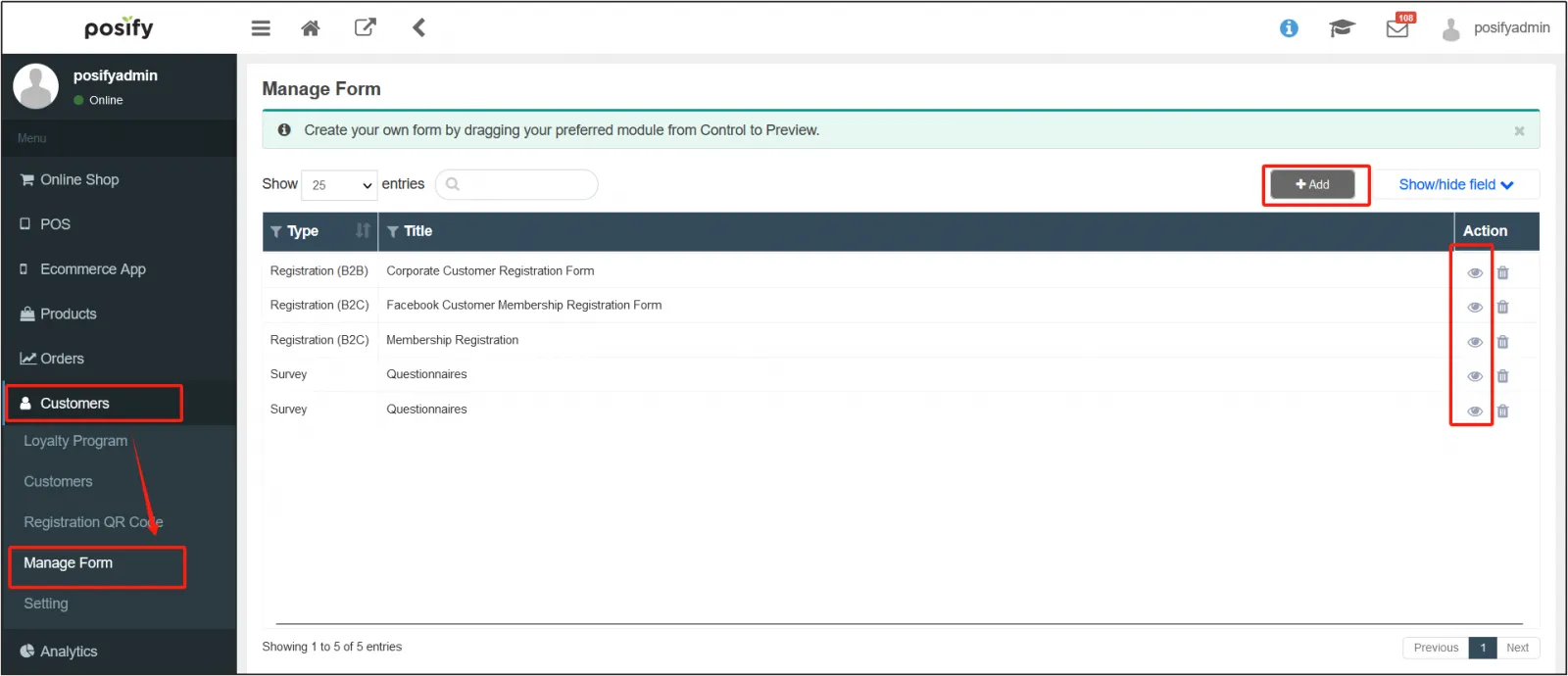
Open the CMSClick CustomersClick Manage FormAdd a new member registration form or edit an existing one.
For more information on how to set up a membership registration form, please refer to Playbook - Manage Form.
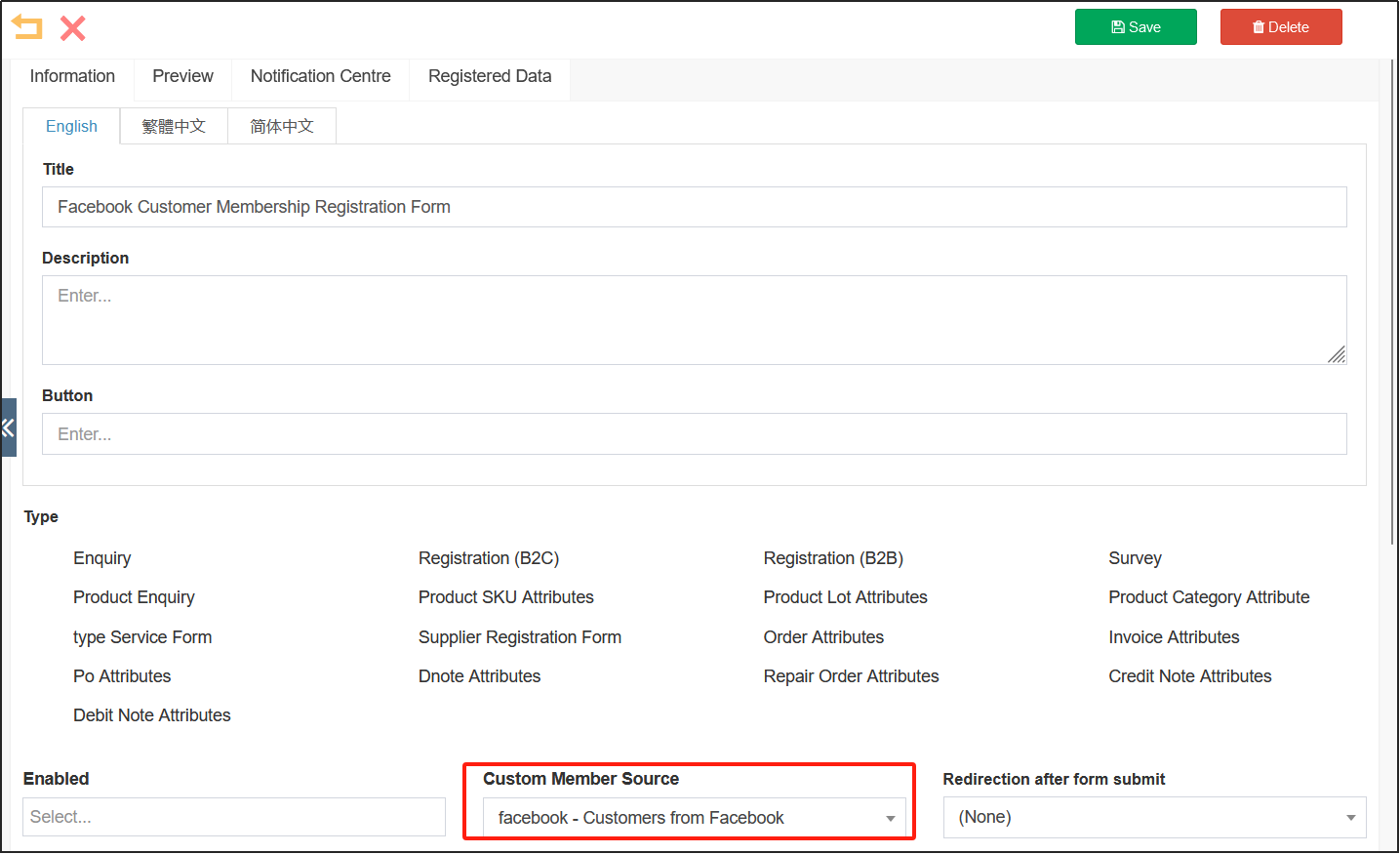
On the edit page of the member registration form, under [Custom Member Source], select the Facebook custom source you just setClick [Save] in the upper right corner.
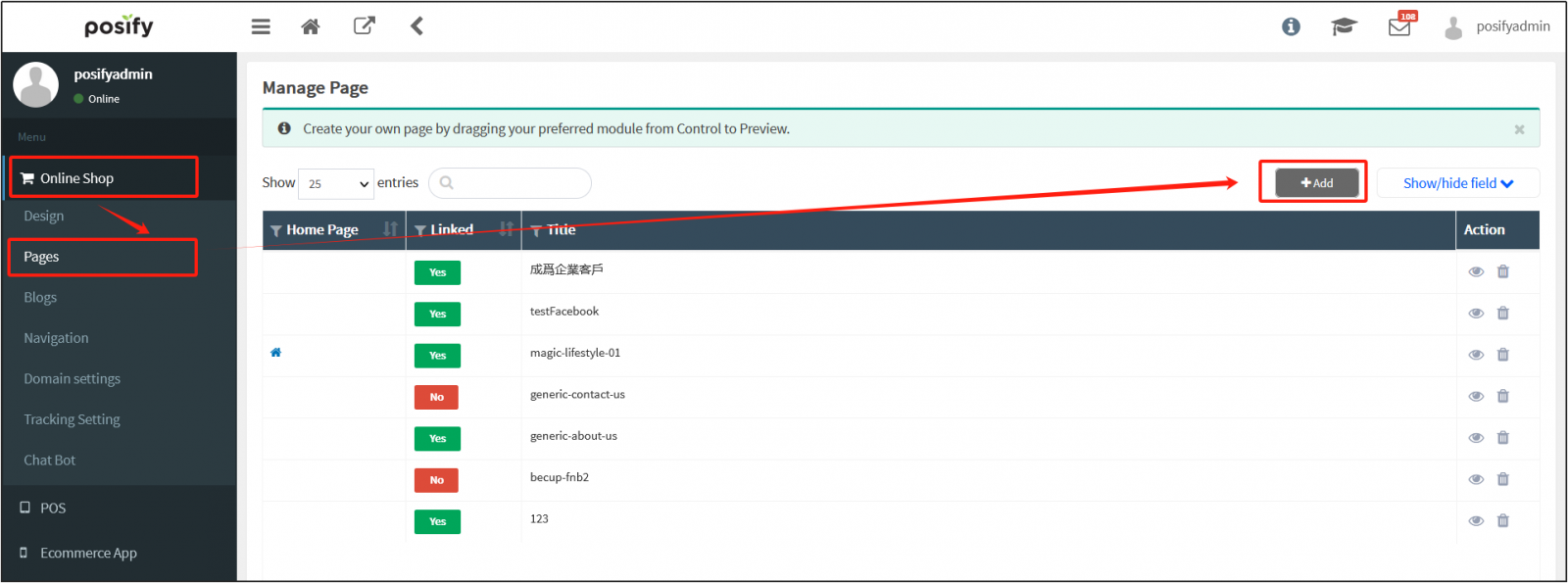
Click Online shop Click Pages Click[Add], Added a blank pagination.
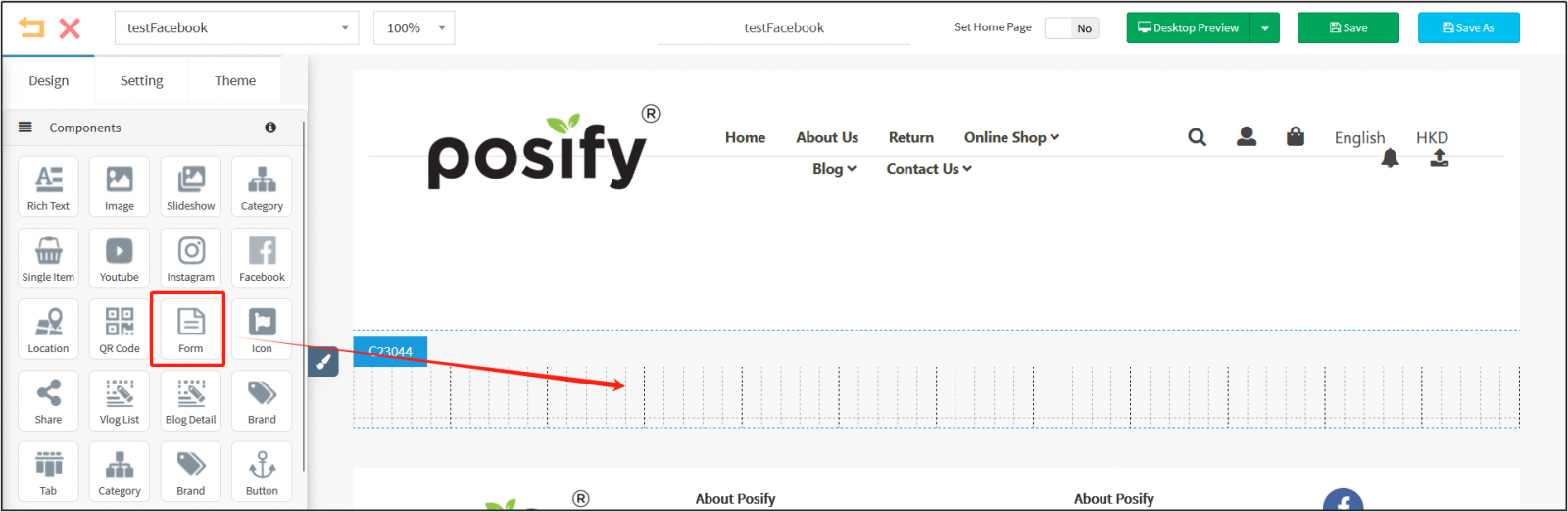
Drag and drop the [Form] component into an empty section.
Select the member registration form that you just set as your custom member source to FacebookEnter a label name above.
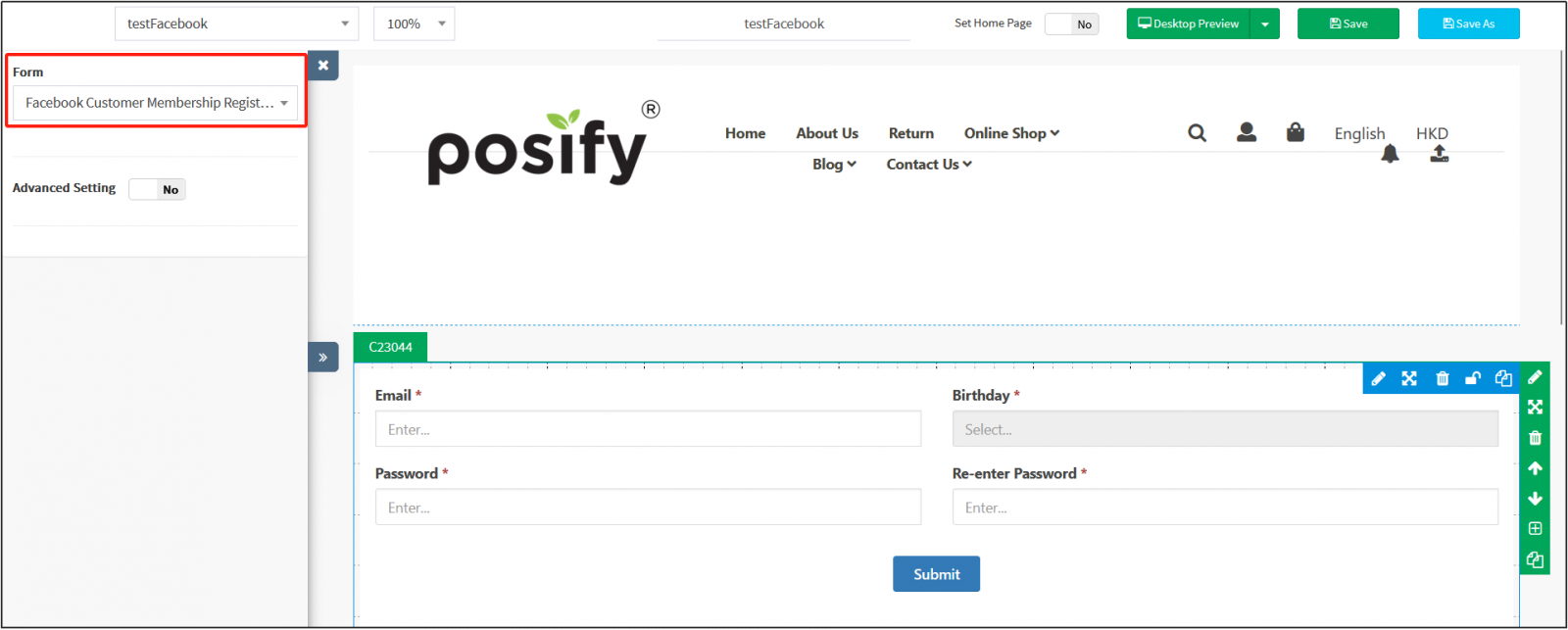
Click SettingsEnter a custom URL, such as "testFacebook".
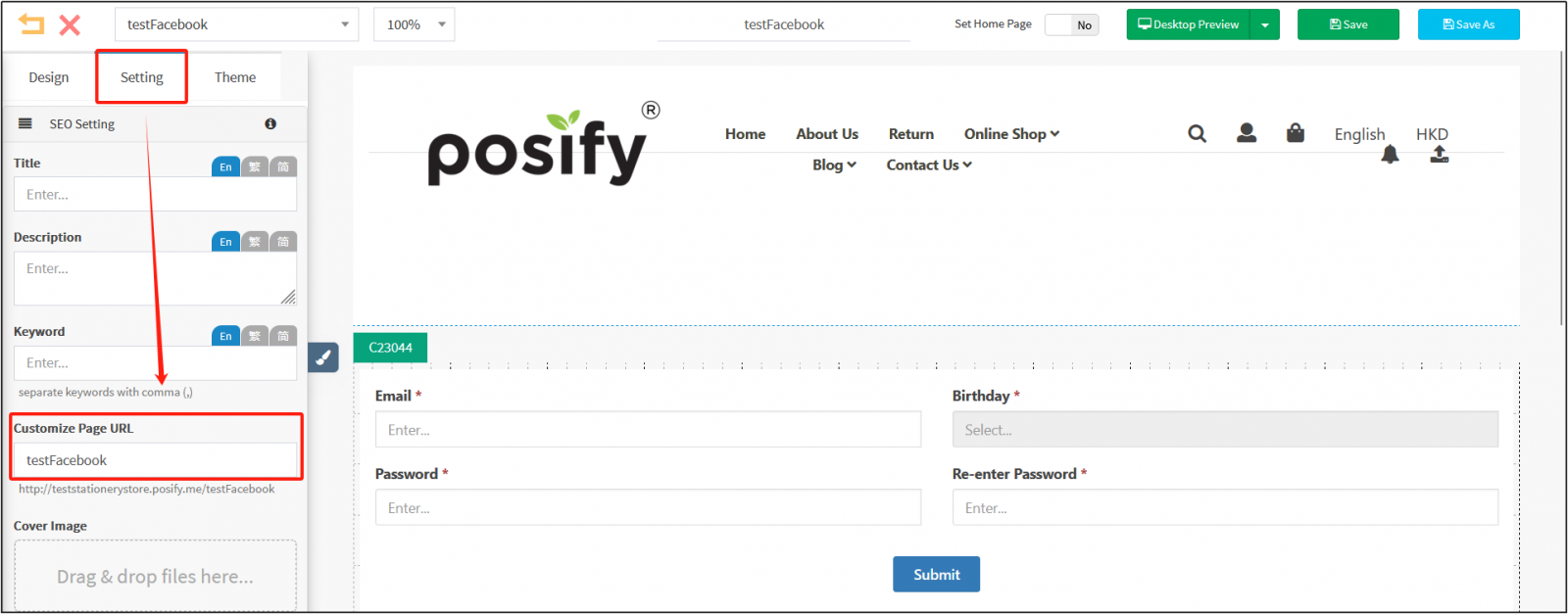
After that, the merchant can make a QR code of the custom link of the pagination and share it to Facebook, and the customer will sign up through the QR code, and the source will be displayed as a custom customer source set by the merchant, that is, Facebook.
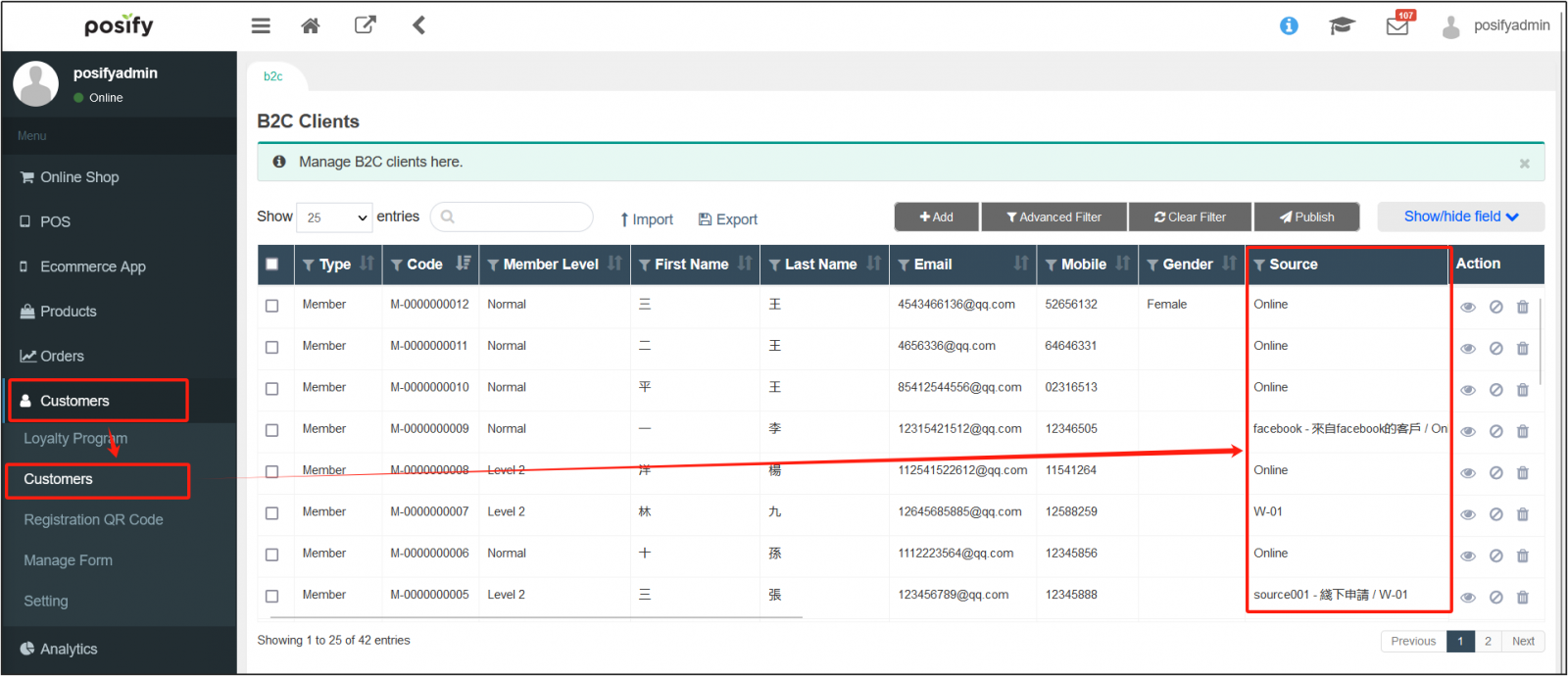
Open the CMSClick CustomersClick Customers,You can see the customer's [source].