Merchant profile
The merchant profile is the basic information of the merchant, such as the merchant's name, address, phone number, logo, etc., which will be reflected in the Online Store and some printed receipts.
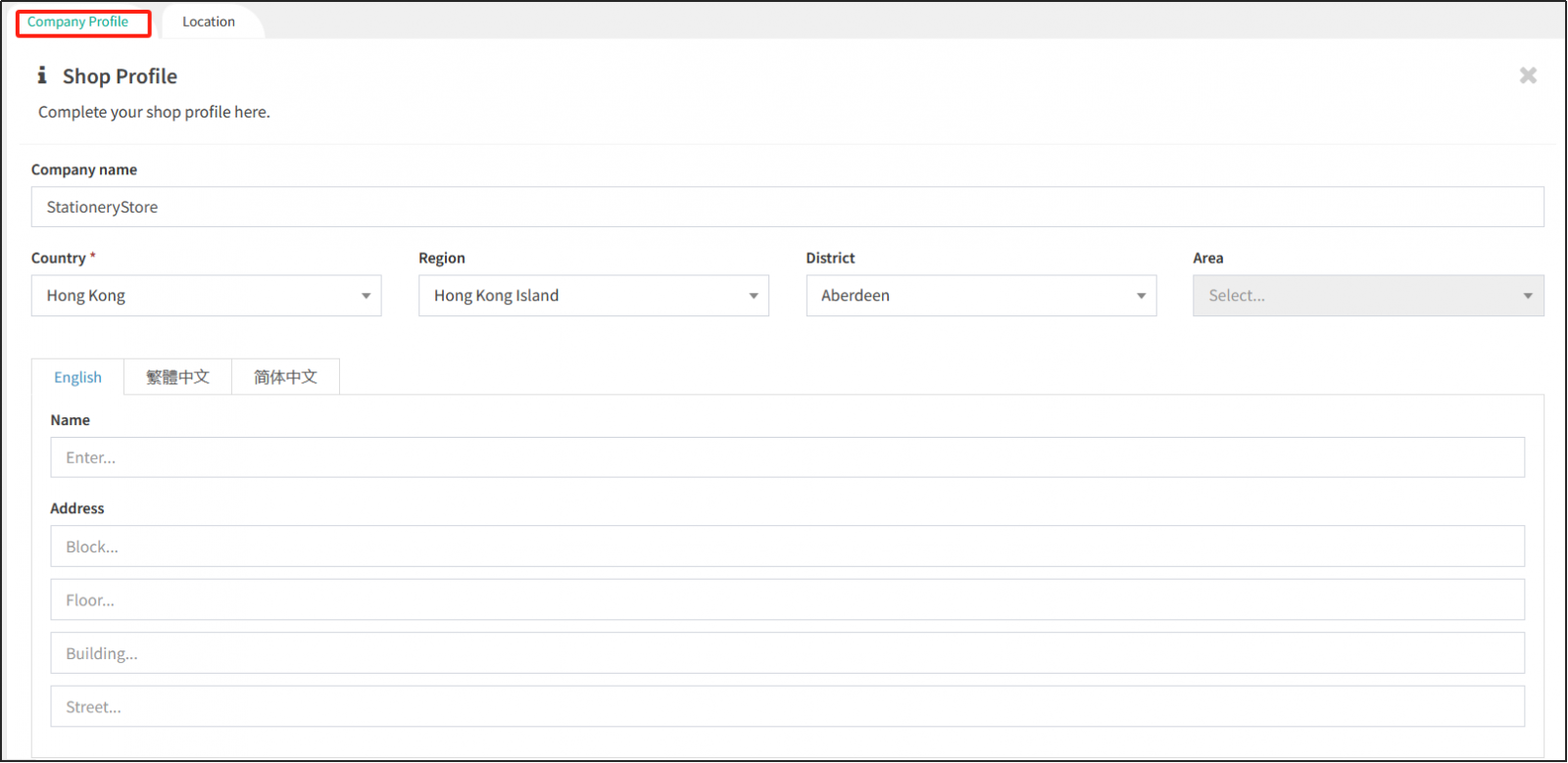
Open CMS click general settingsclick Merchant profileIn the tab Merchant profile you can see the basic information that the merchant needs to edit.
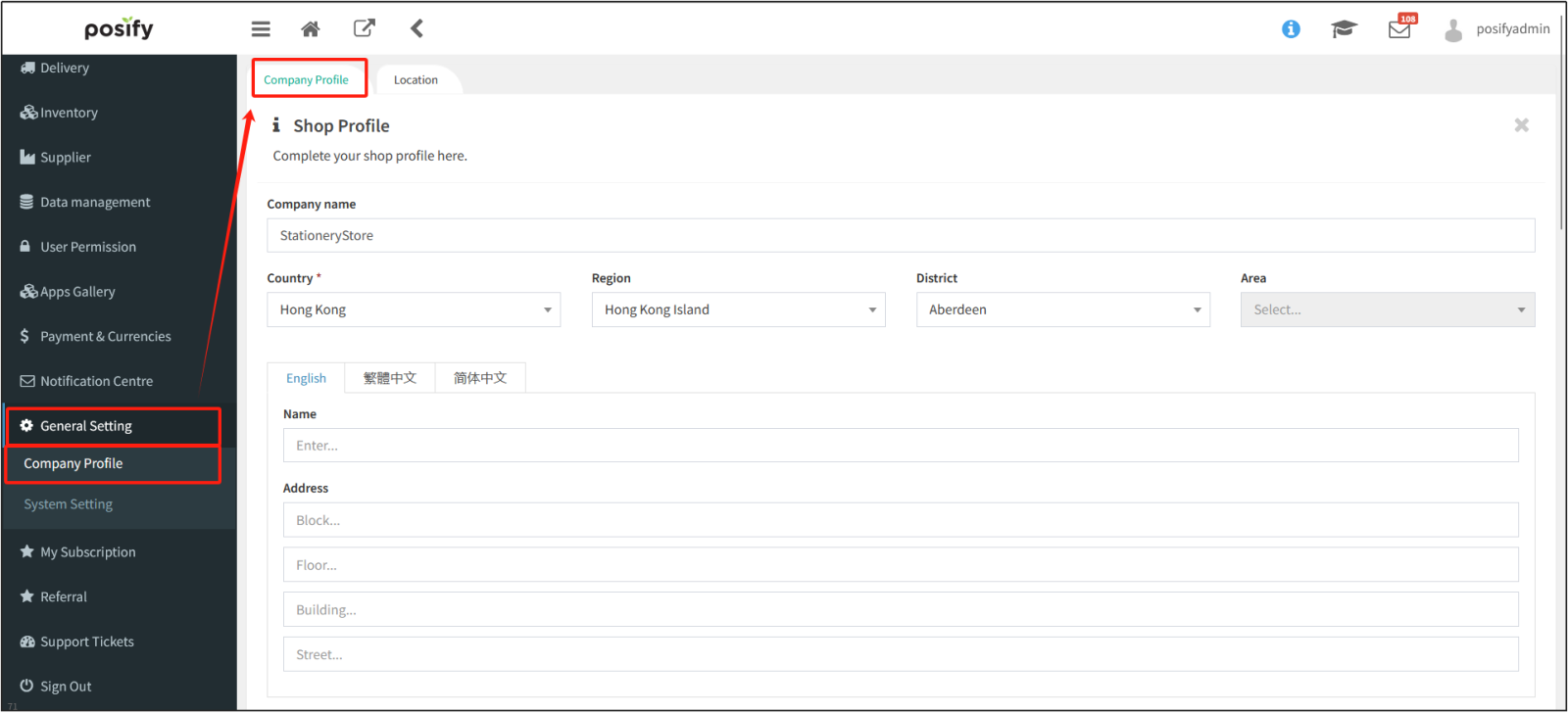
Fill in the company's information, including business name, country/region, address, phone number, email, website, contact person, etc.
The country/region option needs to be preset in System Setting - Country, and the default method is see Playbook - Set Country or Region and Group.
You can upload logo pictures in the company logo (only png, jpg, jpeg formats are supported).
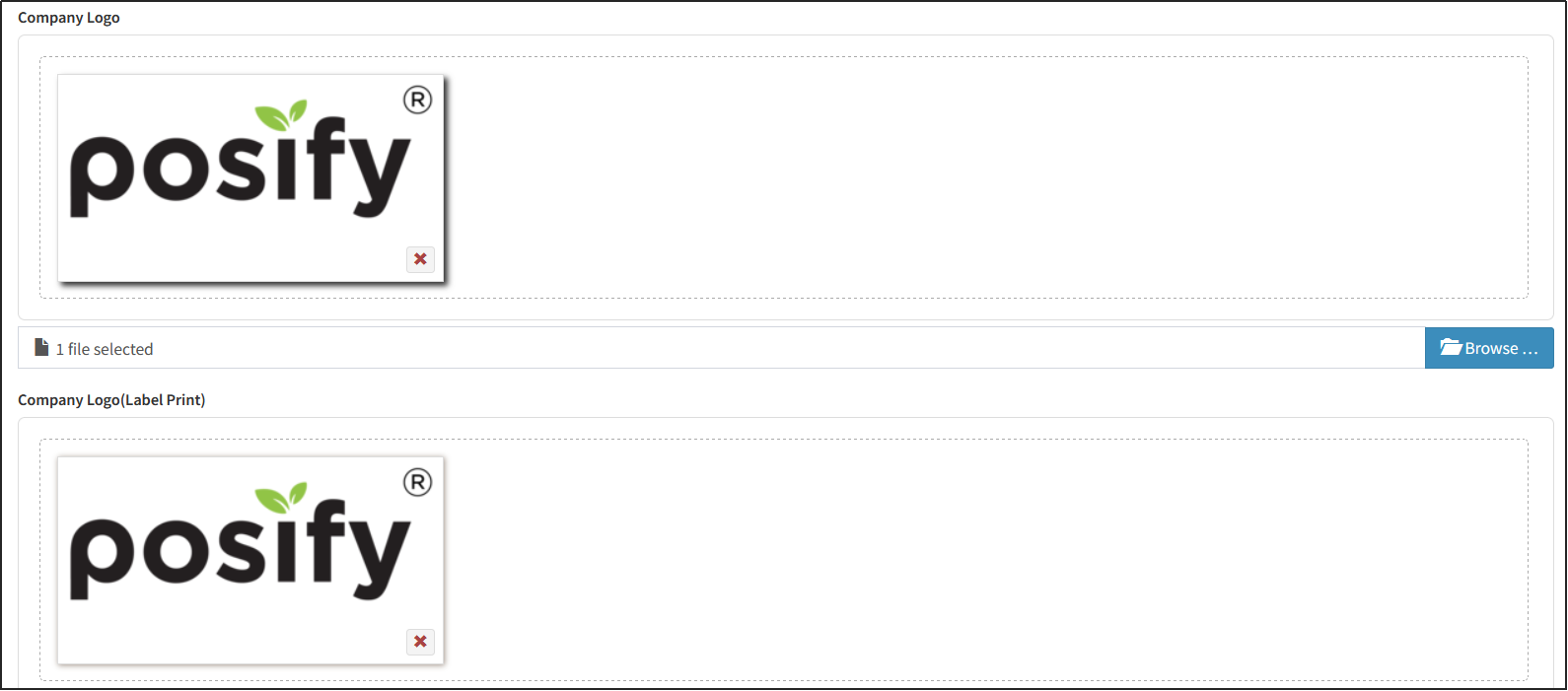
This logo will appear in the upper left corner of the Online Store.
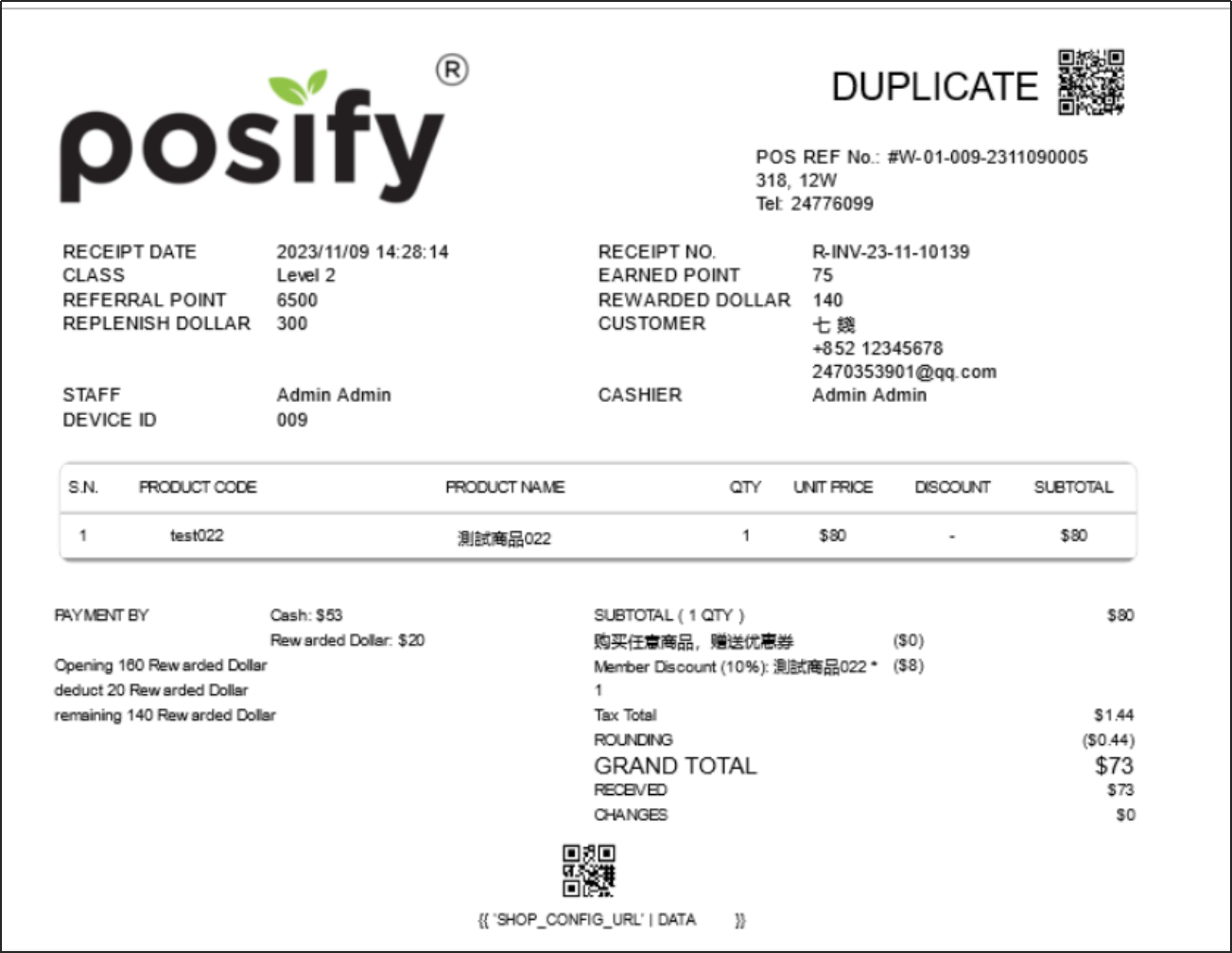
The POS printout receipt has the company logo visible at the top.
Location
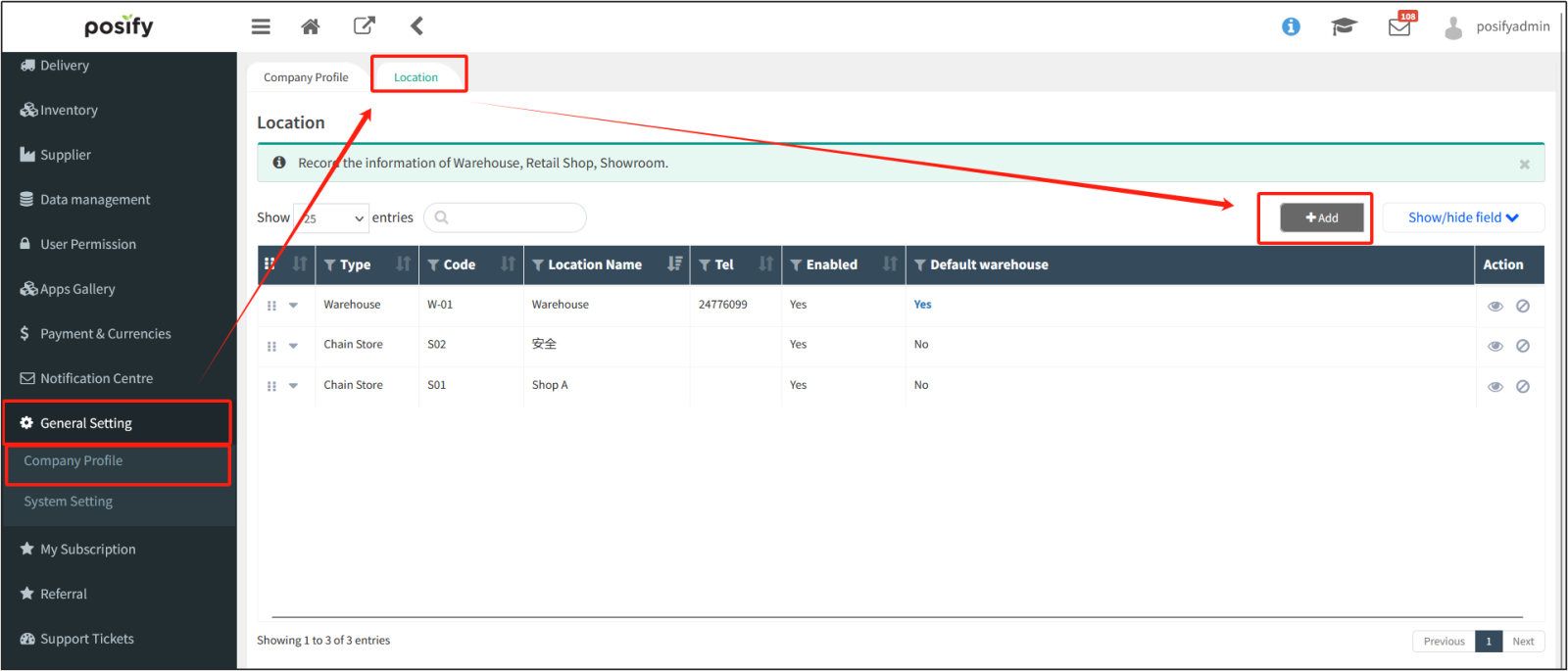
Open CMSclick general settingsclick Merchant profileclick tab LocationClick [Add] to add a new location.
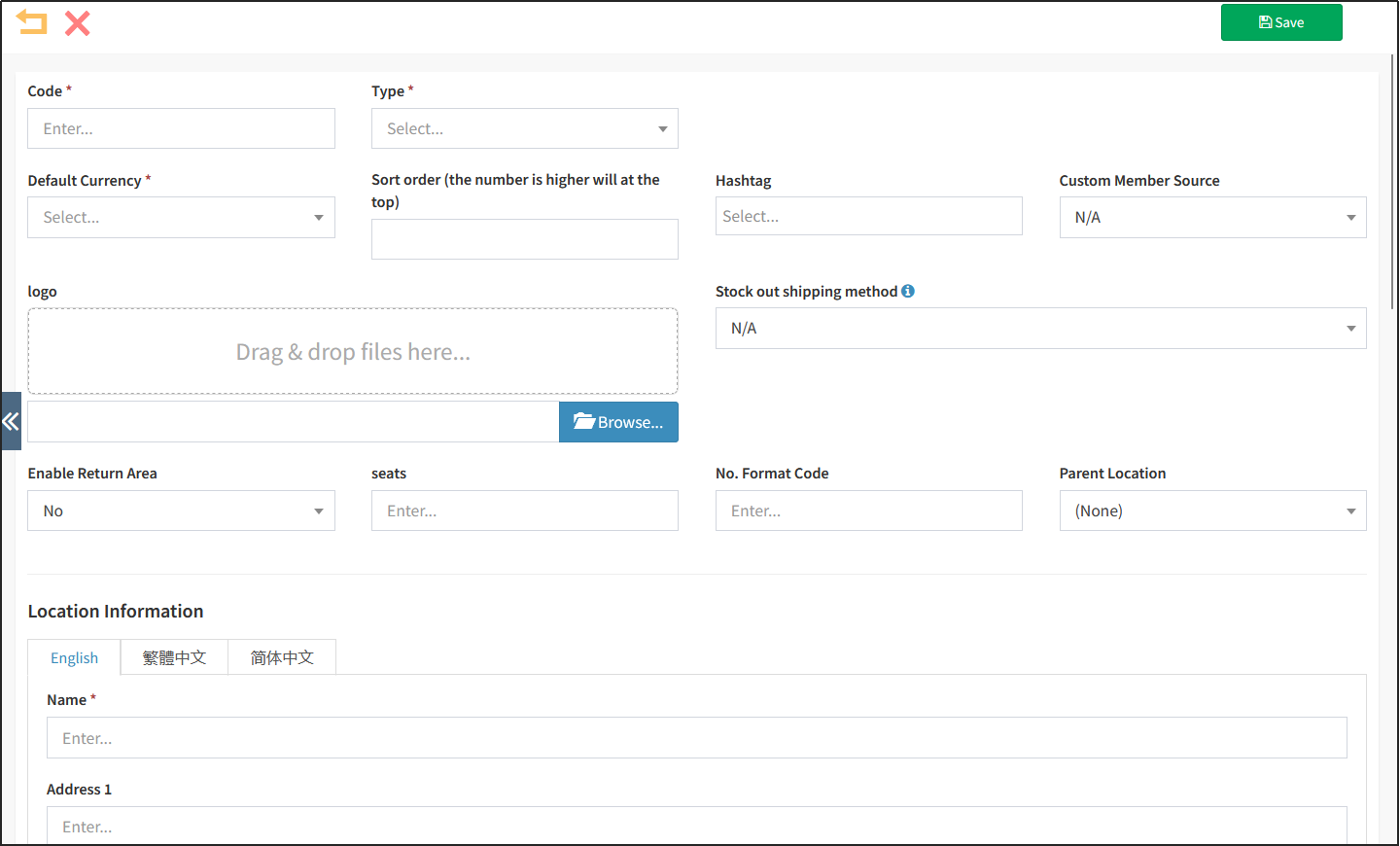
Edit information about a place.
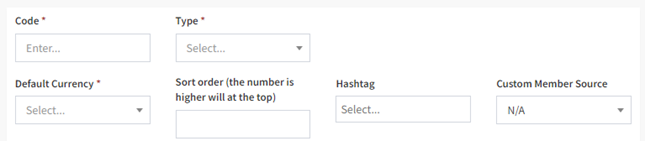
Number: The number of the location, which cannot be repeated.
Default currency: refers to the default currency of the store.
Arrangement order: refers to the order in which the location is arranged in the report, online store, etc., the larger the number, the higher the front.
Hashtags: Hashtags related to this place.
LOGO: If the logo of the location is set on the location, the logo will be displayed in the receipt printed by the POS of the location, and the logo of the location will also appear when printing the invoice and order. If no separate location logo is set, the company logo set in the merchant profile will appear.
Whether to enable the return area: whether the location has a return area, that is, the area where the returned goods are temporarily stored, if yes, if not, select no.
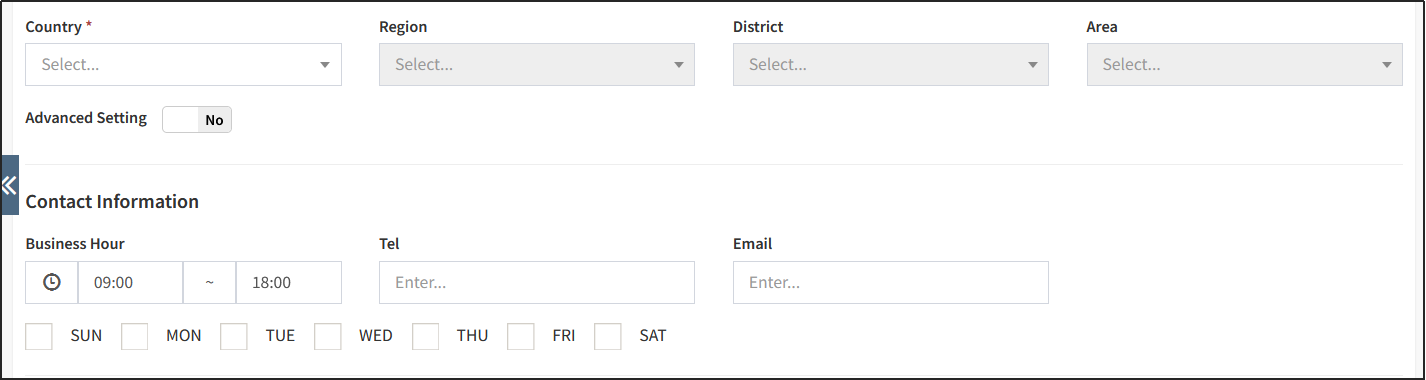
Location information: The location information of this location can be seen when placing the original map in the online store, and the location information can also be reflected when printing invoices and orders.
Country-Local-Region-Region: The extent of the region where the place is located.
Business hours: After setting the business hours, in the operation report, you can view the report according to the business hours. In addition, if the store can be picked up by online store customers, the store's business hours can also be seen on the store selection page.
Commonly used location types are generally online stores, directly-operated stores, and warehouses.
If you have already purchased the function of multiple online store , then add a place of type online store to enable the function of multiple online stores.
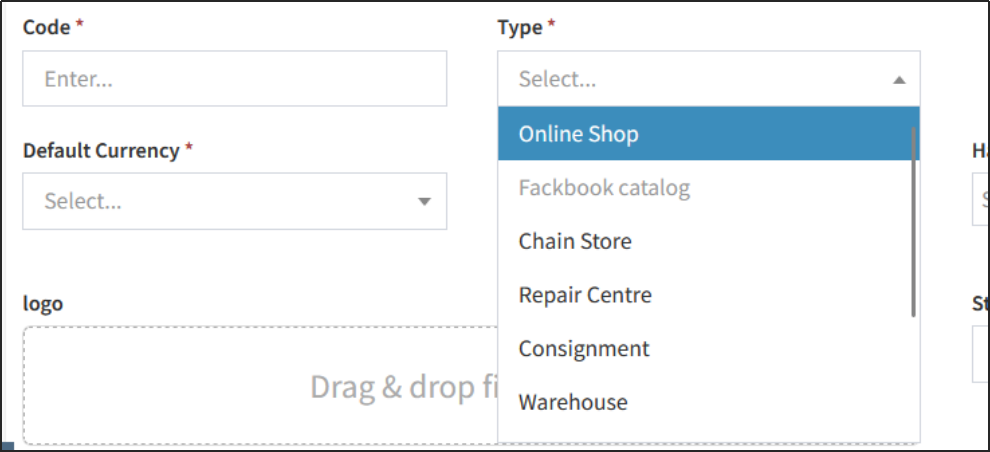
If you select the type as Online Store, you will see two options [Default Location] and [Default Online Store] displayed next to it.
Default location: There is only one location, which is the location where the online store deducts inventory by default.
Default online store: There is only one, which is the online store opened by default when logging in to the CMS. If the online store is not the default online store, you need to manually switch to open the online store.
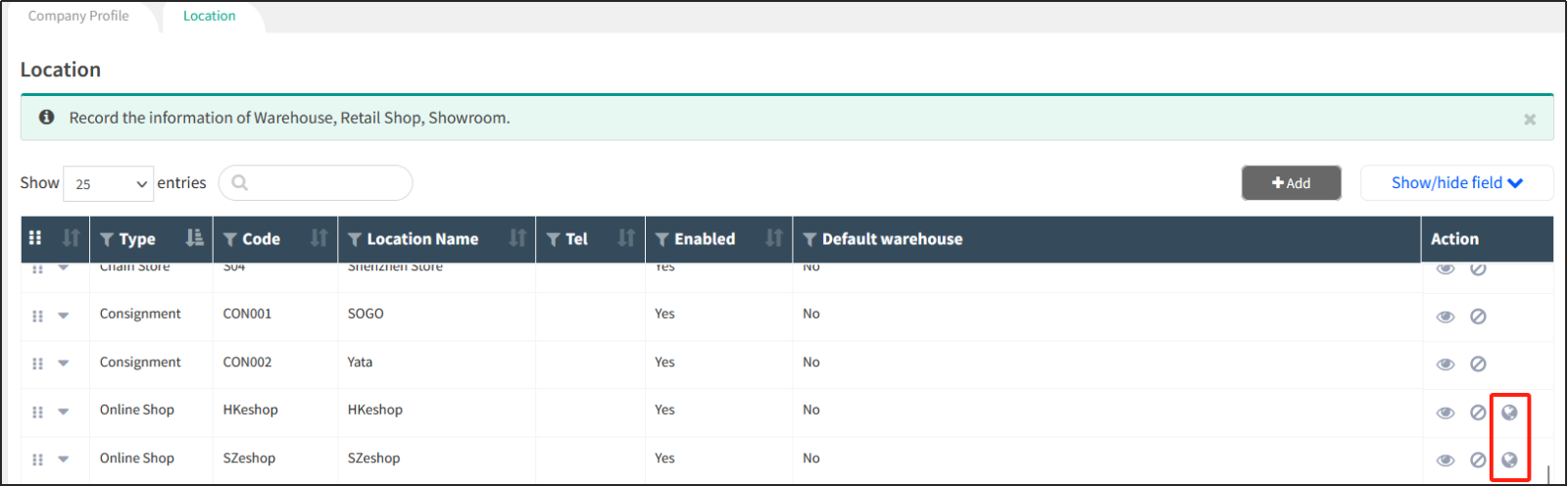
After the addition is complete, you can see the newly added online store location. Click the globe icon on the right to open the Online Store of the online store.
click online stroe, a drop-down selection box will appear above, where you can switch between different Online Stores and edit the content of different Online Stores.
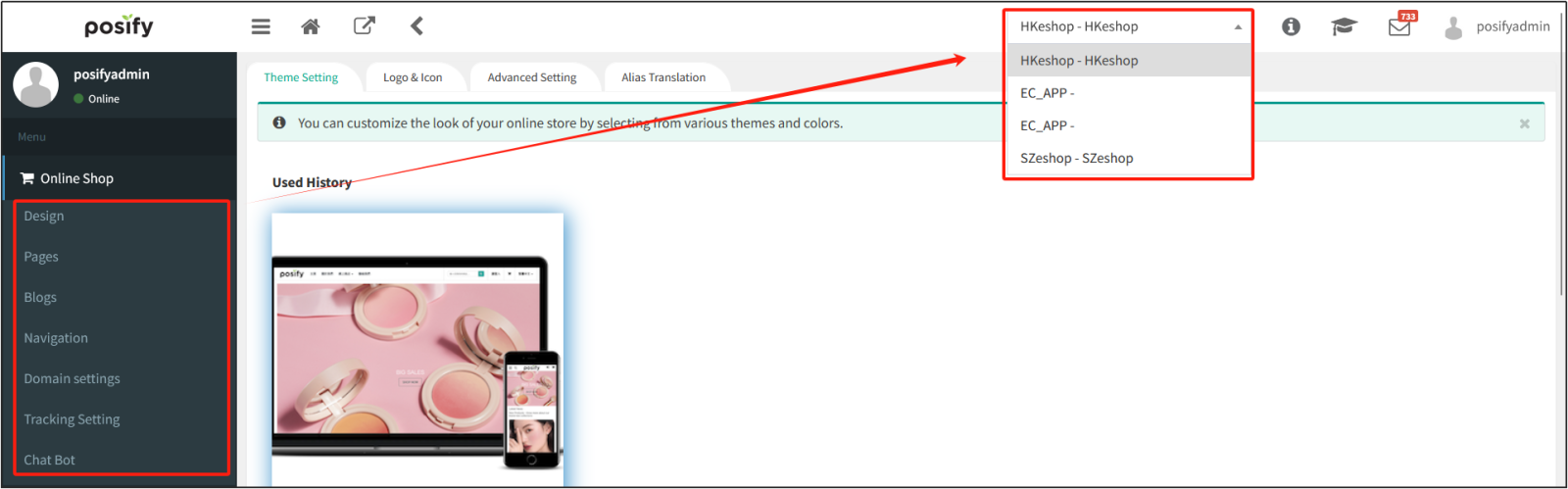
If it is an offline physical store, you can select the type as direct-sale stroe when adding a location. Each offline direct-sale store has a location to distinguish and manage the operation of different physical stores.
Fill in the various information of the location, and choose whether to display the online store and offline store.
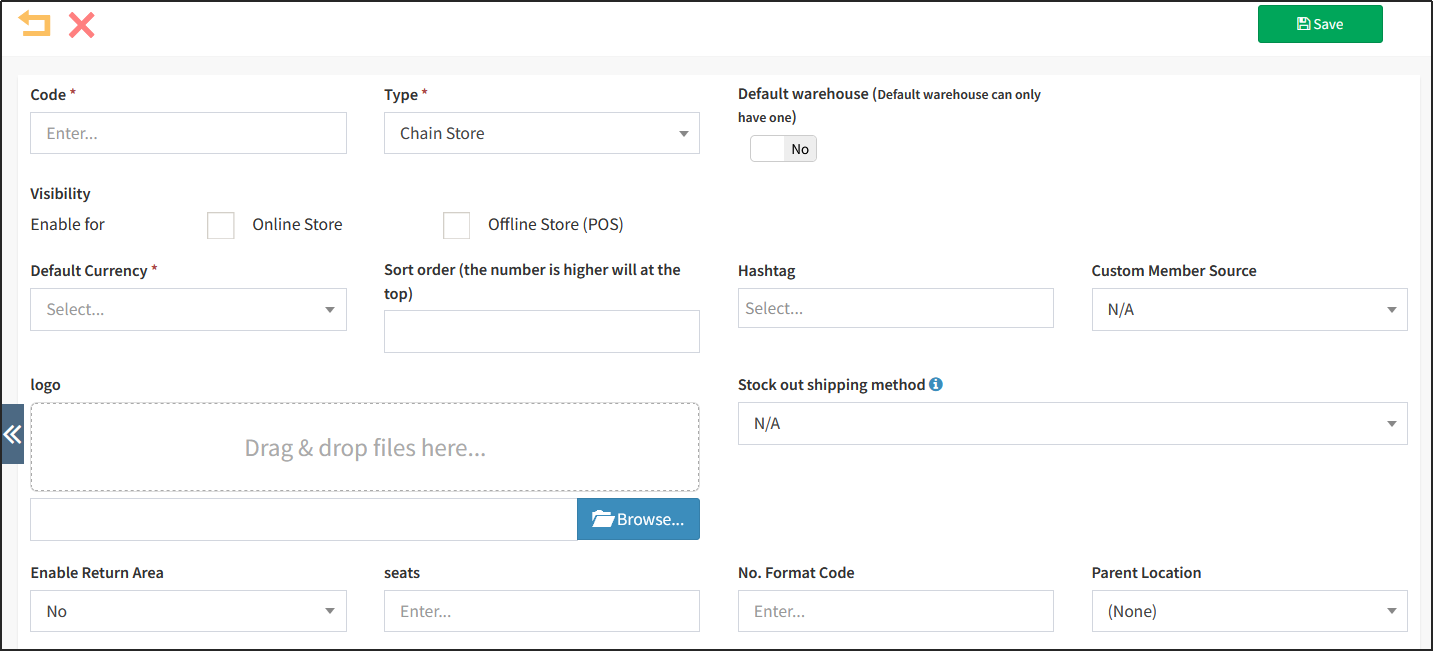
Sometimes it is also called a goods yard. For example, some merchants will uniformly hand over the goods to the warehouse for management. 商品采購時首先進入When the goods are purchased, they first enter the warehouse , and then the warehouse transfers the goods to various offline physical stores, or when the offline stores need replenishment.The warehouse is responsible for the shipment.
Unusual location types include resellers, external sales networks, etc.
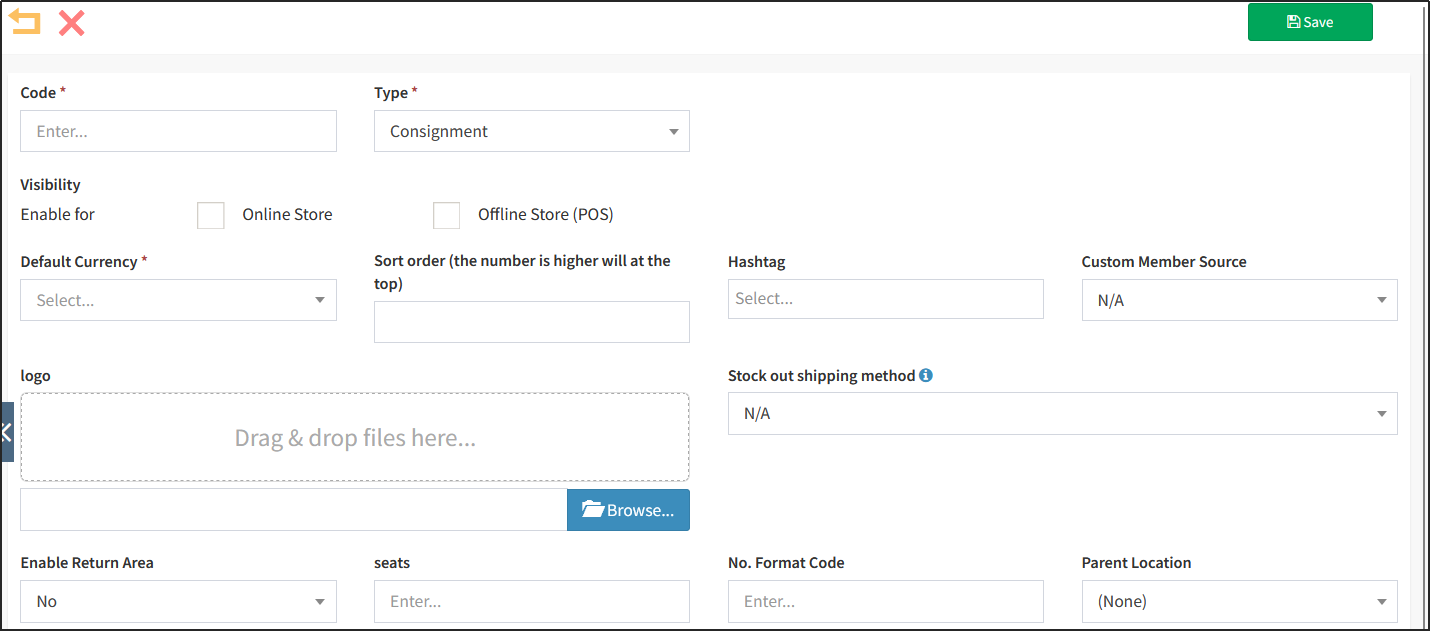
If a business partner puts the goods on consignment in your store, then you can set up a place with the category of consignor to exclusively sell the consignment goods of this business partner.
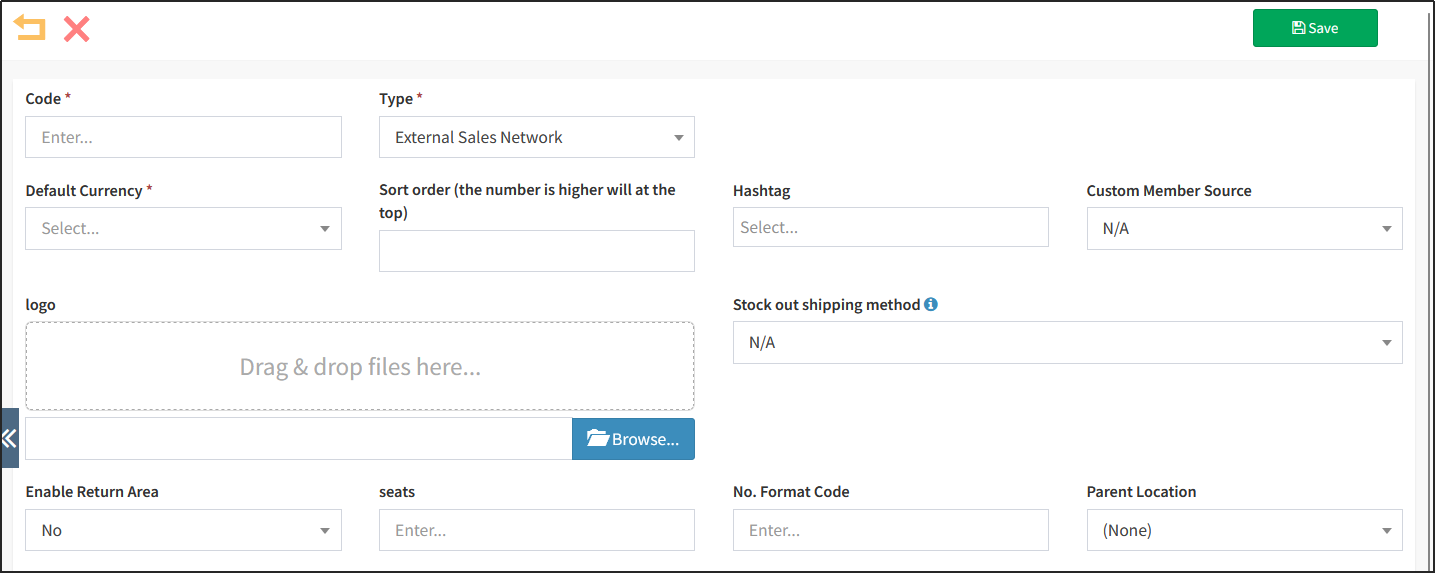
If a location is only visible in the map component of the Online Store and does not involve inventory management, you can select the location type as External Sales Network at this time.
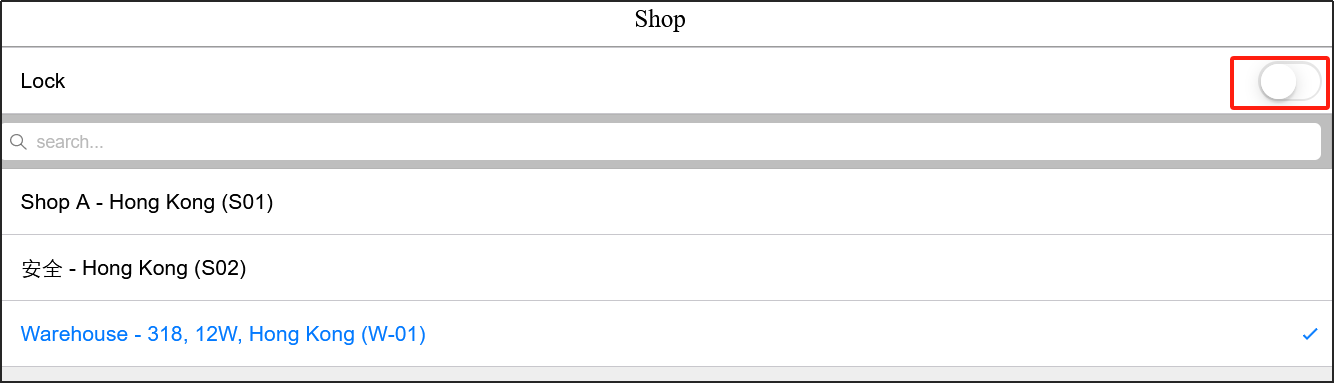
Switch between different locations at the POS
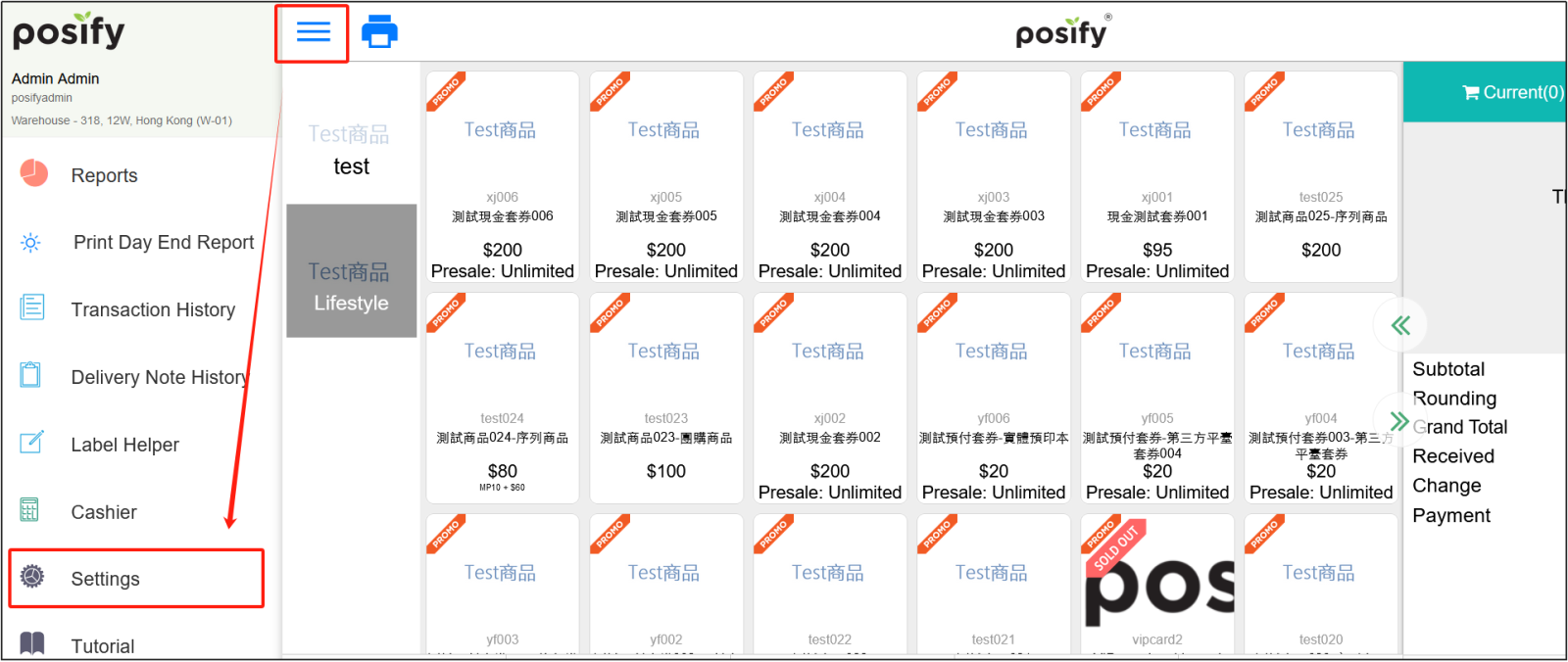
Open POSClick on the three horizontal lines in the upper left cornerclick settings .
click shopSelect a location to switch to.
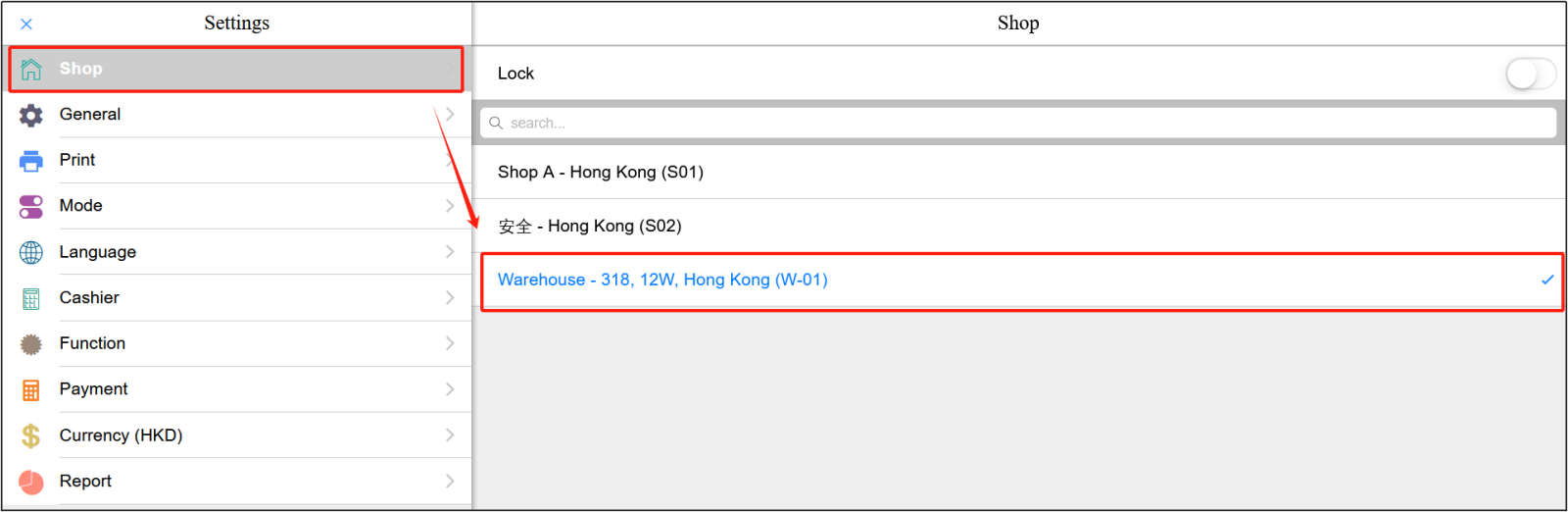
Click the button in the upper right corner to lock the location, and you cannot switch locations after locking. Only administrators can lock and unlock, so other users cannot switch locations while locked.