Promotion activities
In sales activities, setting certain conditions so that customers can receive some discounts after meeting the conditions can to some extent increase their shopping willingness.
New promotional activities added
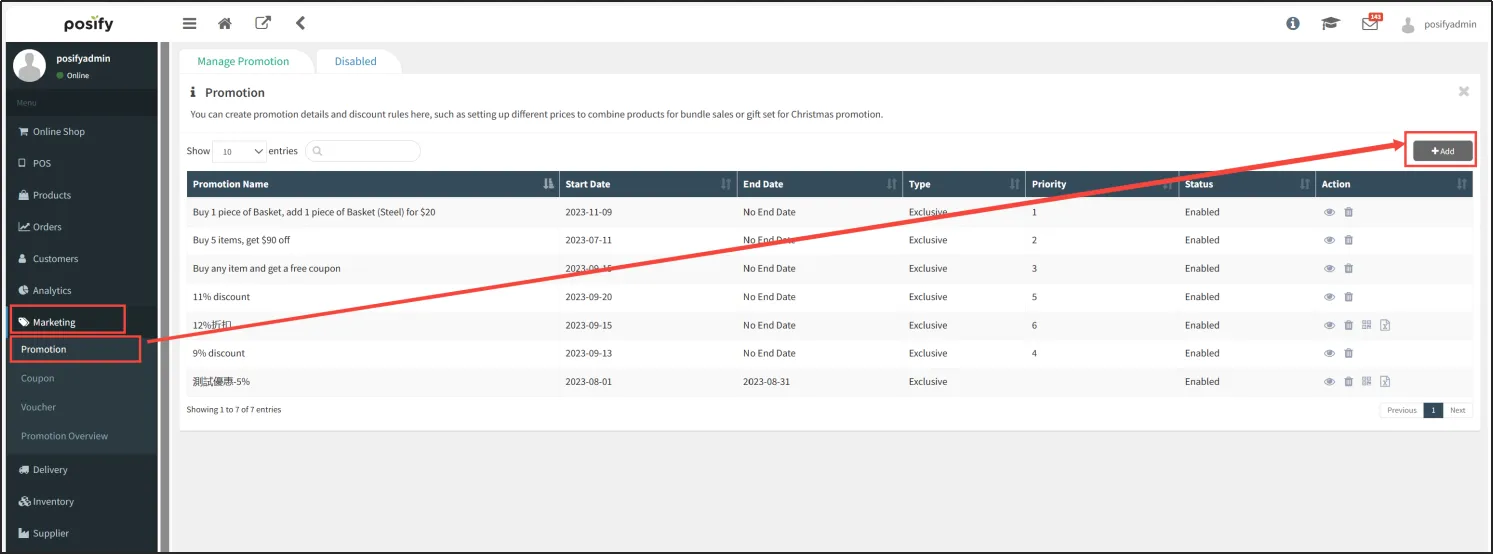
Open CMS Click MarketingClick to promote the activityClick on [Add] in the upper right corner to add a promotional activity.
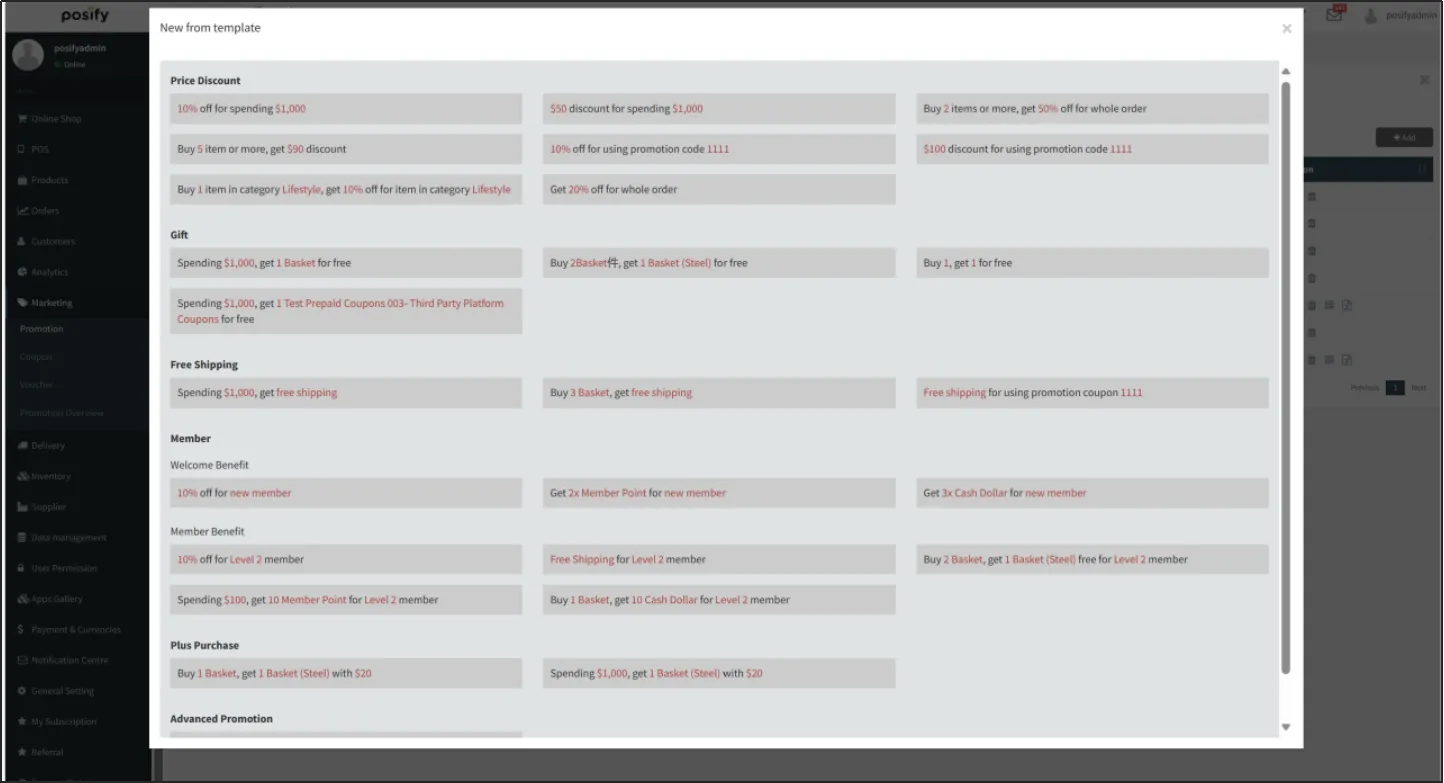
You can choose a template.
Start editing promotional activities and fill in the promotion name.
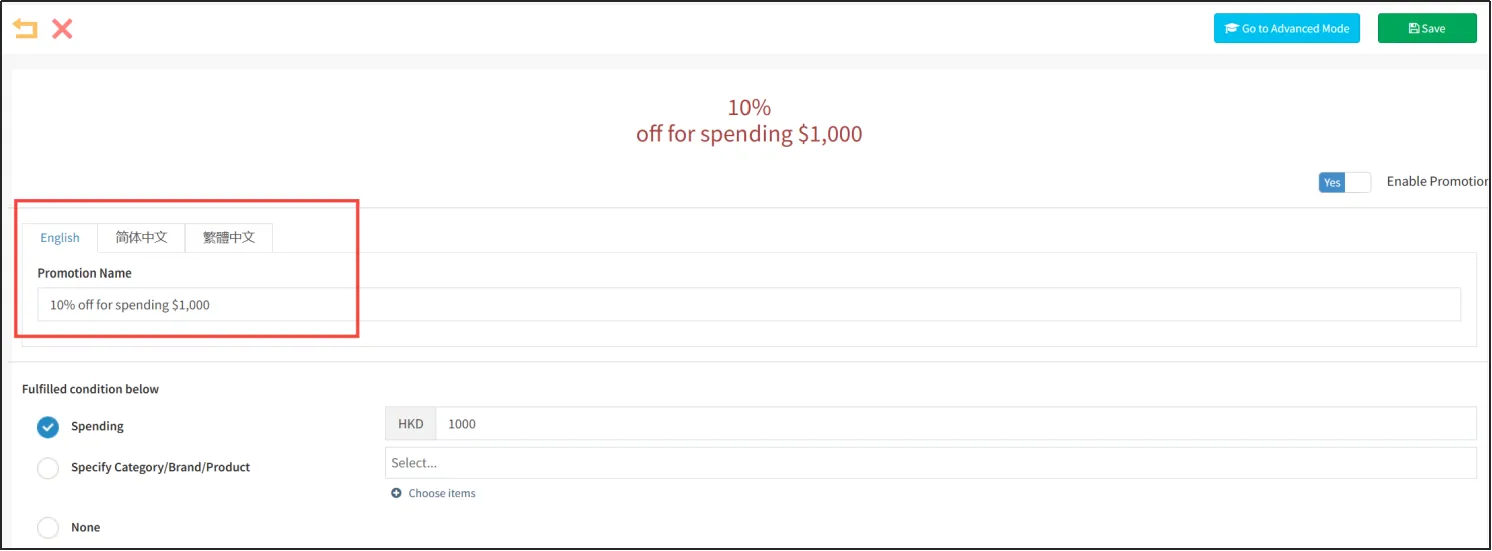
The condition can be that the customer's consumption meets a certain amount, for example, if you want to set a discount for spending over 1000, you can choose to spend fully and fill in "1000" in the input box at the end.
The condition can be to purchase specific categories, brands, or products. For example, if you want to set a discount for purchasing 2 table products, you can choose the specified category/brand/product, select the table in the box below, and enter the quantity as "2".
The condition can also be none, choosing none means that the customer will receive the discount unconditionally.
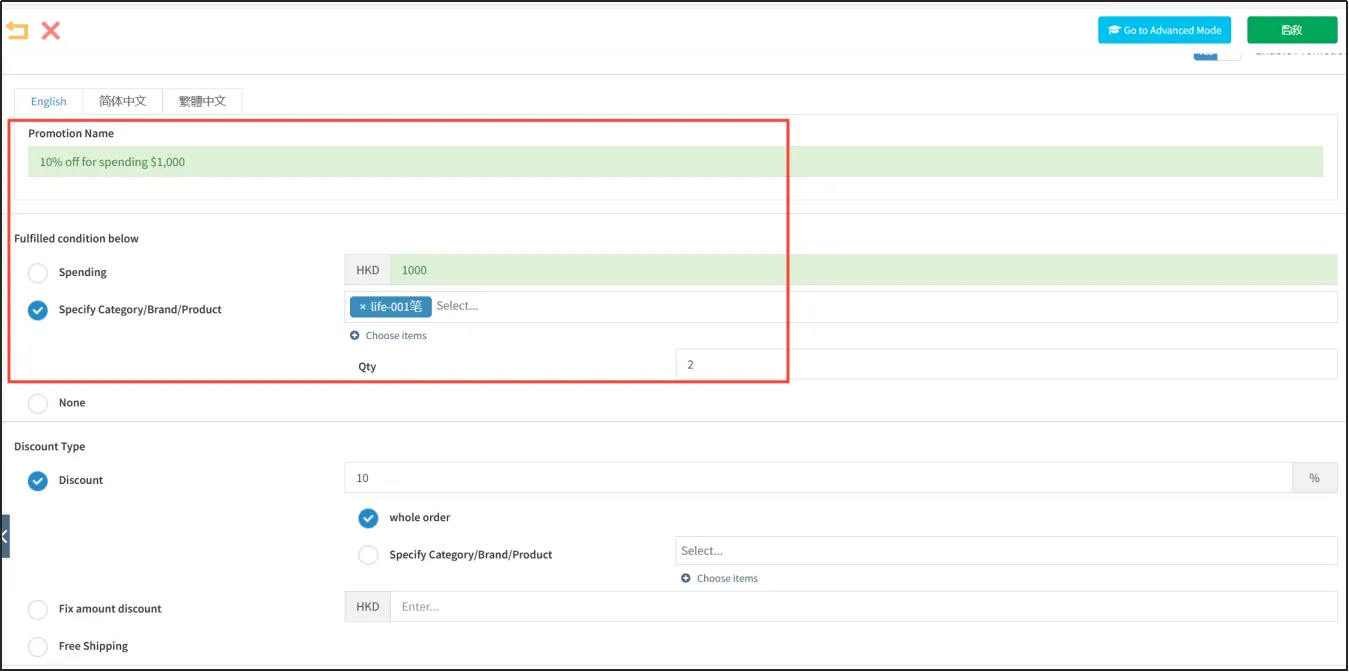
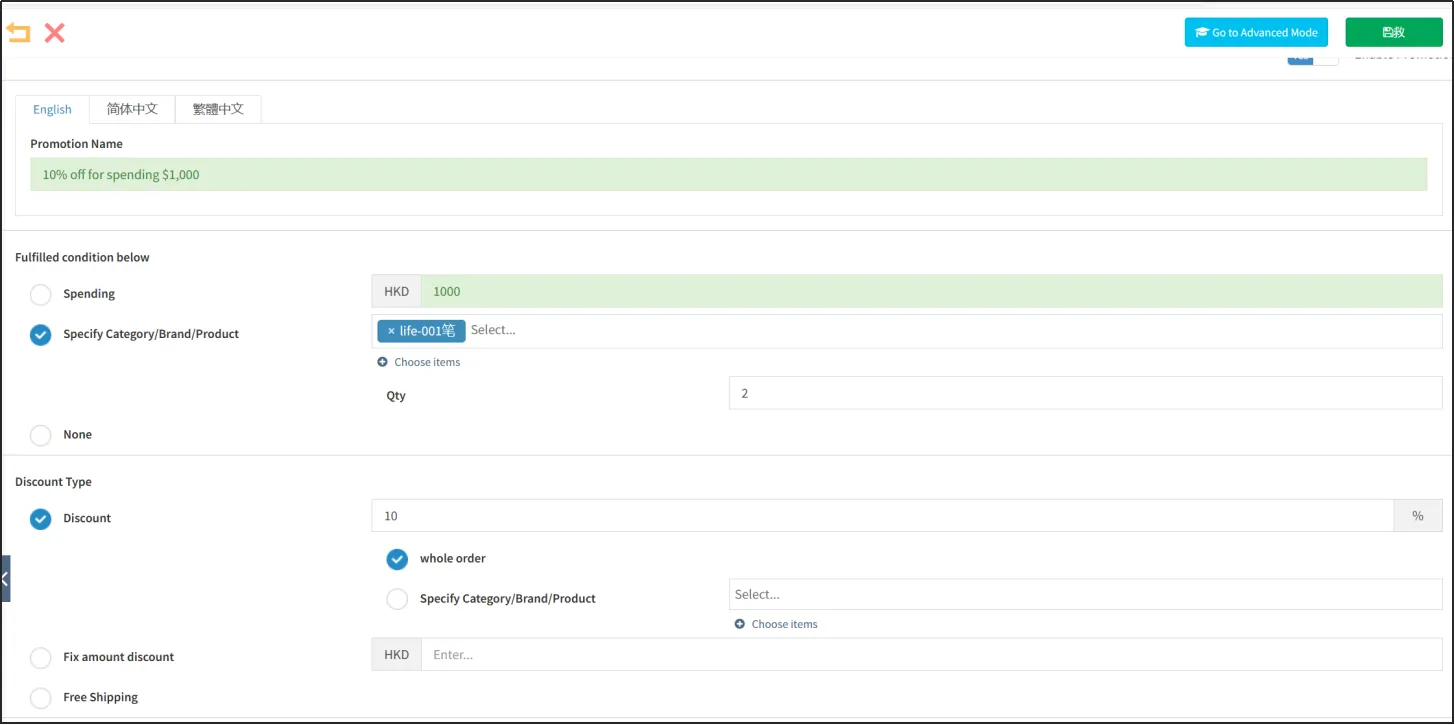
The deduction type can be a percentage discount, for example, if you want to set a 10% discount for the entire order, select the discount, enter "10" in the input box, and select the entire order. You can also choose to only receive a percentage discount for specified categories/brands/products.
The deduction type can be a fixed amount discount. For example, if you want to set a fixed discount of 100 HKD, you can choose a fixed amount discount and enter "100" in the input box at the end.
The deduction type can also be free shipping.
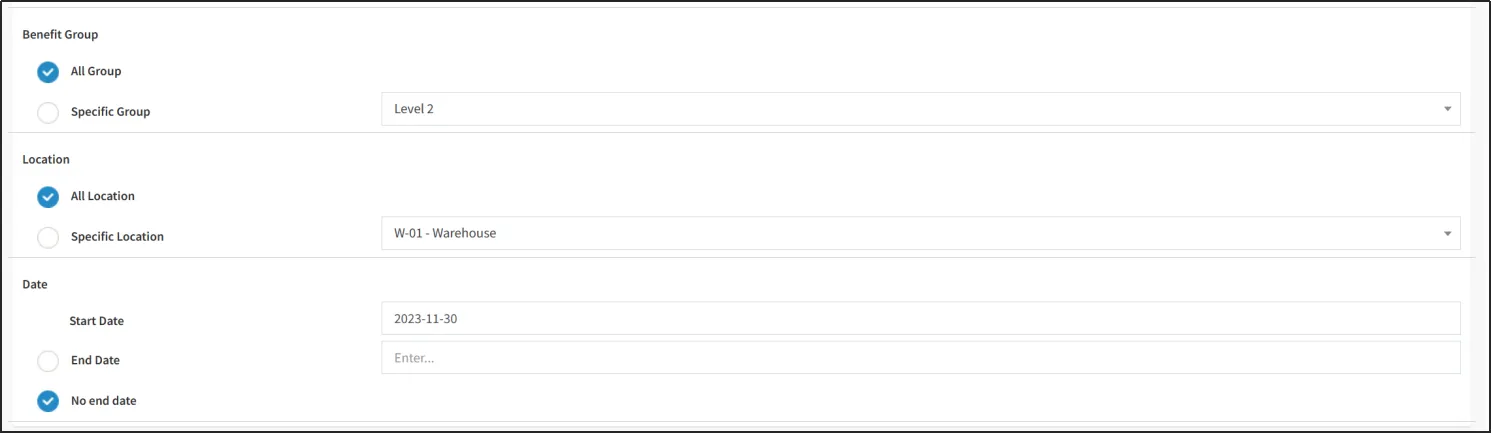
Benefiting groups, locations, and dates
The beneficiary group can choose either everyone or a specific group. Please note that if a specific group is selected, only one level of membership can be selected, and you cannot select both "General Member" and "VIP".
You can choose all locations or specific locations. Note that if a specific location is selected, only one location can be selected.
The start and end dates need to be set for the date. The effective time of the promotional activity is between the start and end dates. You can also choose not to set an end date to keep the promotional activity in effect.
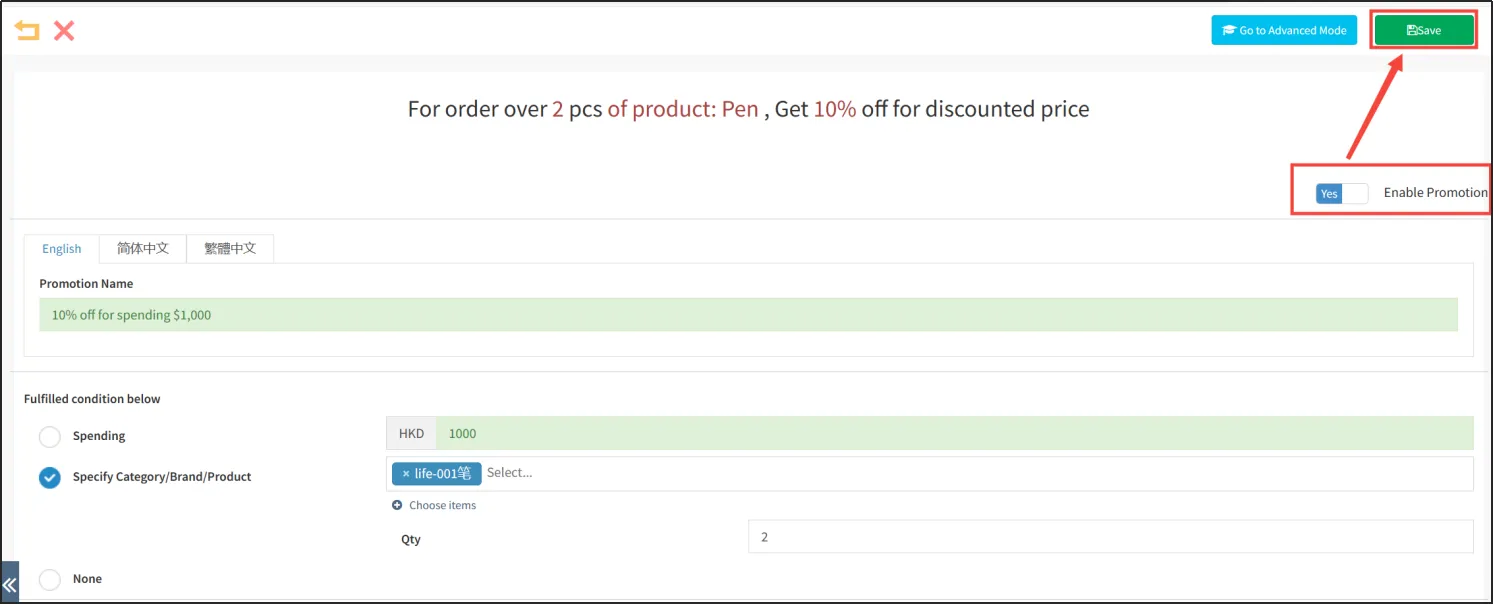
Clicking on the [Save] button in the upper right corner will activate the promotional activity.
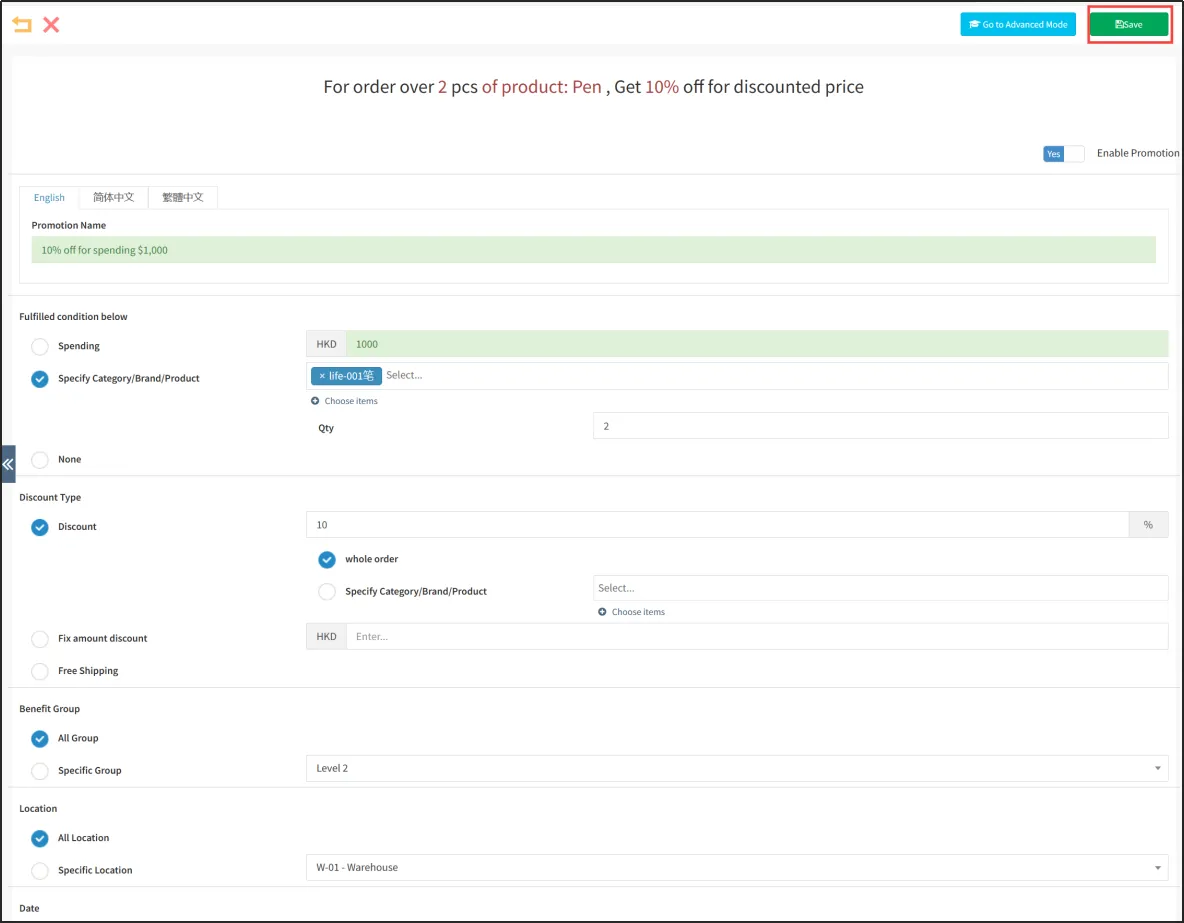
After that, on the editing page of the promotional activity, select [Enable Promotion] as no and click [Save] in the upper right corner to close the promotional activity.
Advance Mode
If you want to set up promotional activities in more detail, you can enter advanced mode.
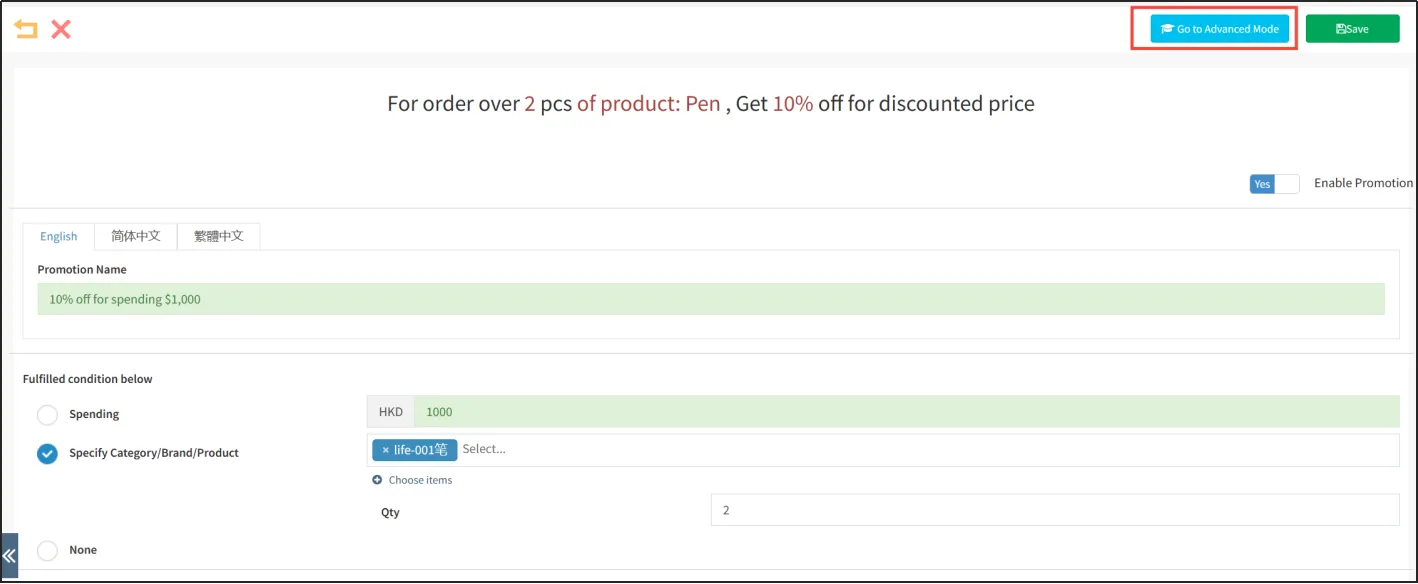
If it is a promotional activity that was previously started using a template, you can open the promotional activity editing pageclick [Enter Advanced Mode] in the upper right corner to enter advanced mode.
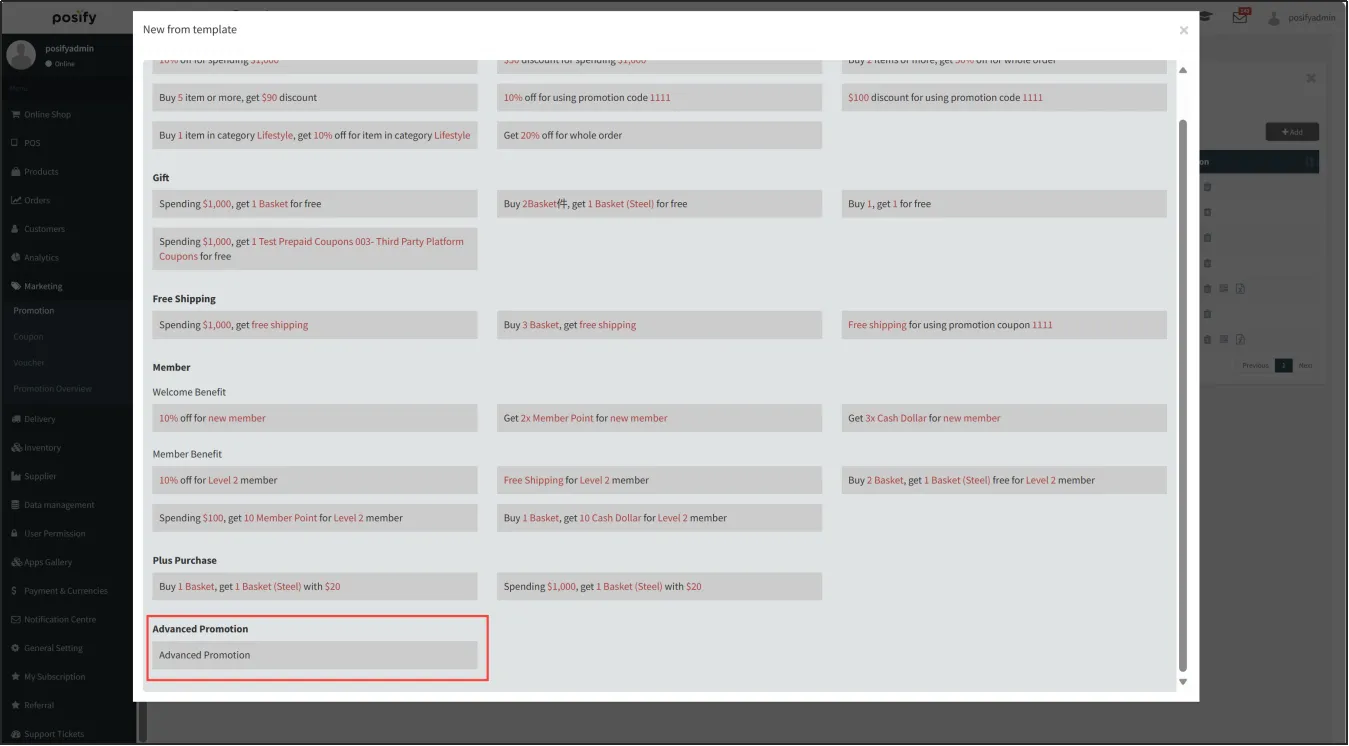
If you want to directly add a new advanced promotion activity, you can click [Add] on the promotion activity page, drag down, and select the advanced promotion activity.
Click on the tab as General.
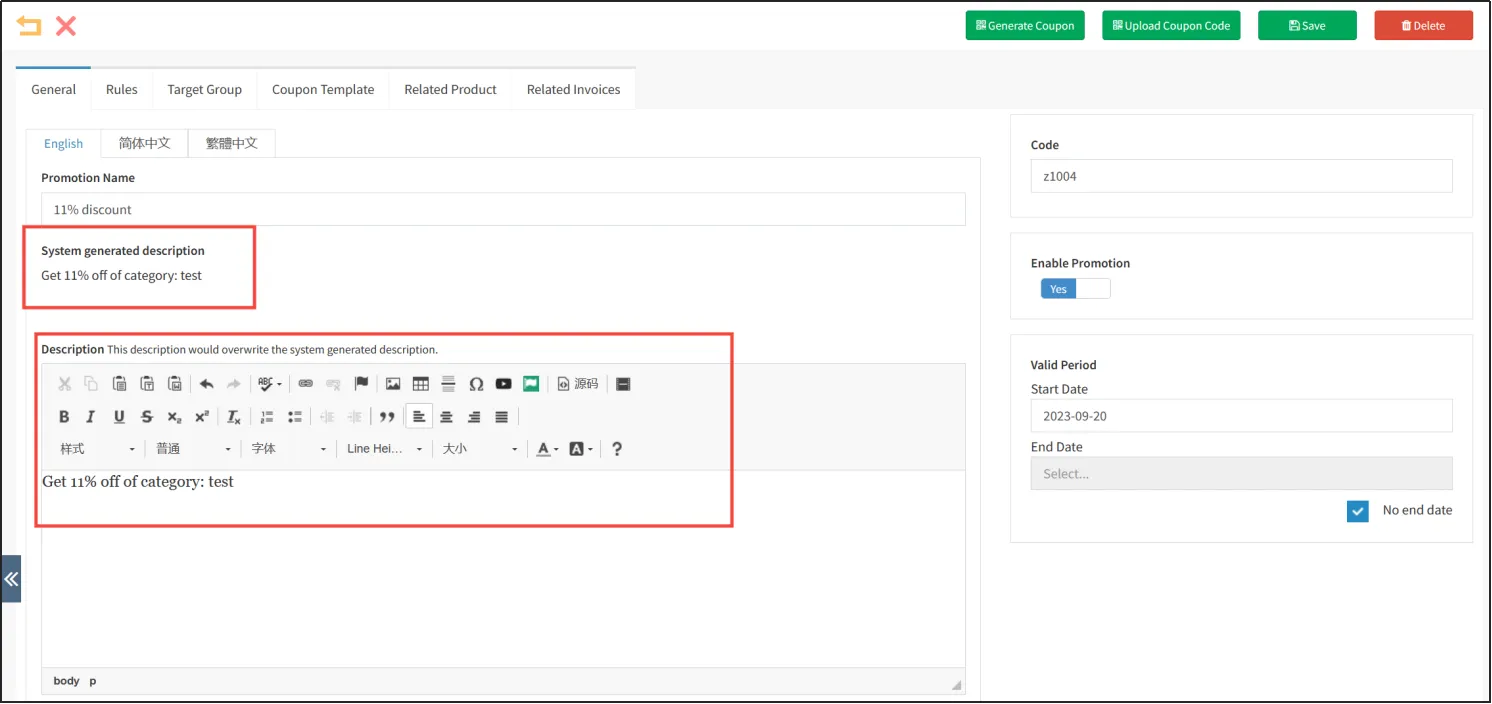
As shown in the following figure, entering content in the rich text box under the content can replace the system generated content above.
In the [Set Store - Online Store] column, you can choose or not to choose an online store. If you choose an online store, the promotion will be enabled on the online store. If you don't choose, it will not be enabled on the online store.

In the [Set Store - Physical Store (POS)] column, you can select the physical stores that you want to enable the promotion activity, choose all stores, or select some stores.
In the [Excluding Stores - Physical Stores (POS)] column, you can select physical stores that do not want to activate the promotional activity.
For physical stores, if all stores need to enable this promotion activity, it can be set as shown in the following figure.

If there are relatively few physical stores that need to activate this promotional activity, they can be listed one by one in [Set Store - Physical Store (POS)], as shown in the following figure.

If all physical stores, except for a few, need to activate this promotional activity, you can select all stores in [Set Store - Physical Store (POS)], and then select those physical stores that do not want to activate this promotional activity in [Excluding Stores - Physical Store (POS)].
After this setting, the actual physical stores that have enabled the promotion activity are: all stores minus the stores listed in [excluding stores physical stores (POS)].

You can choose which payment methods are applicable to this promotional activity, which can be full payment methods or specific payment methods.

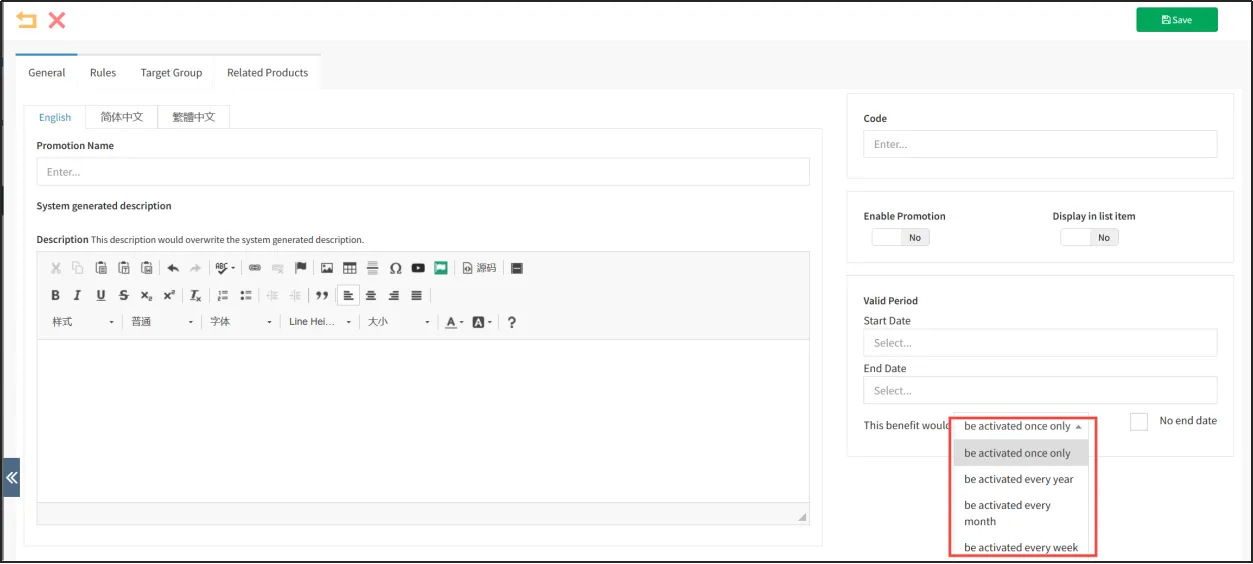
Compared to the general mode, the advanced mode has an additional dropdown box in the effective date position that allows for the selection of repeated effective dates.
You can choose to only take effect once, annually, monthly, or weekly.
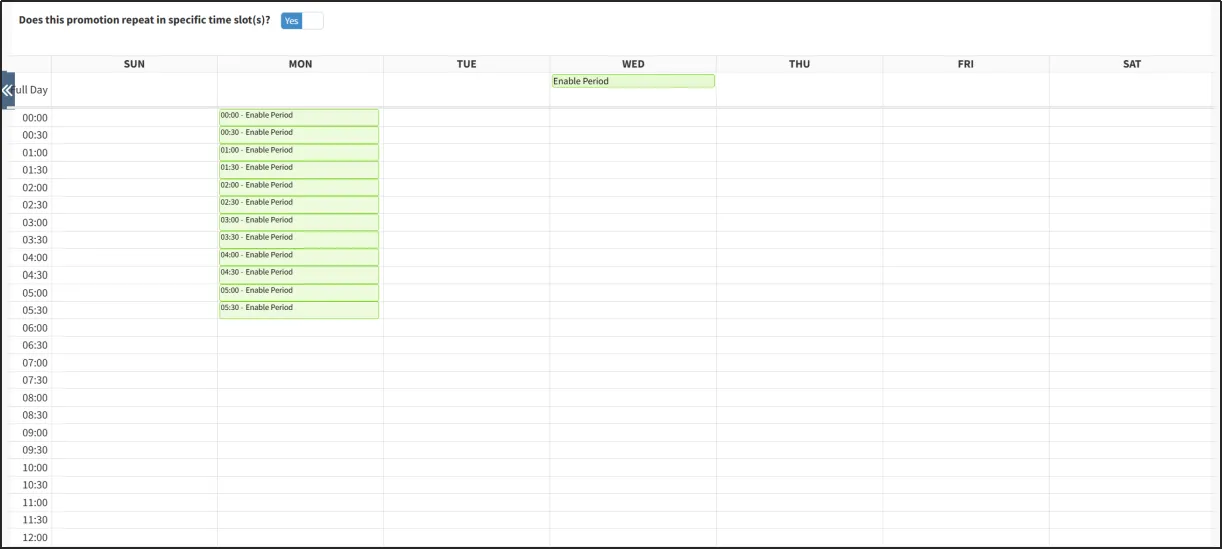
If you want to repeat the promotion to a specific time slot every week, you can choose [Will this promotion repeat at a specific time slot?] If so, select the time slot you want to repeat the promotion activity in the table below.
To select the tab rule, you can first select a shortcut to start in the promotion example.
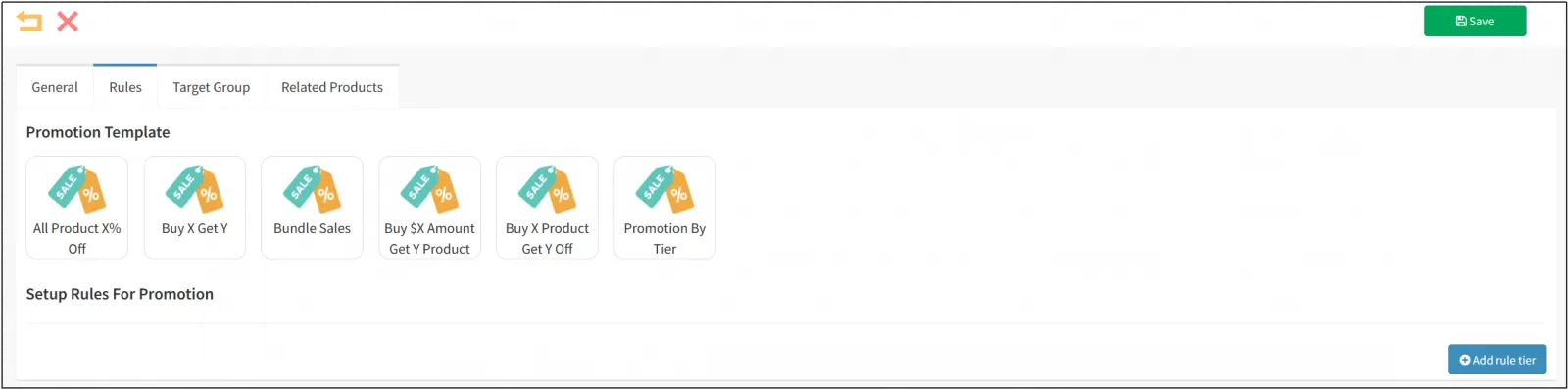
Assuming you choose [X% discount on all products].
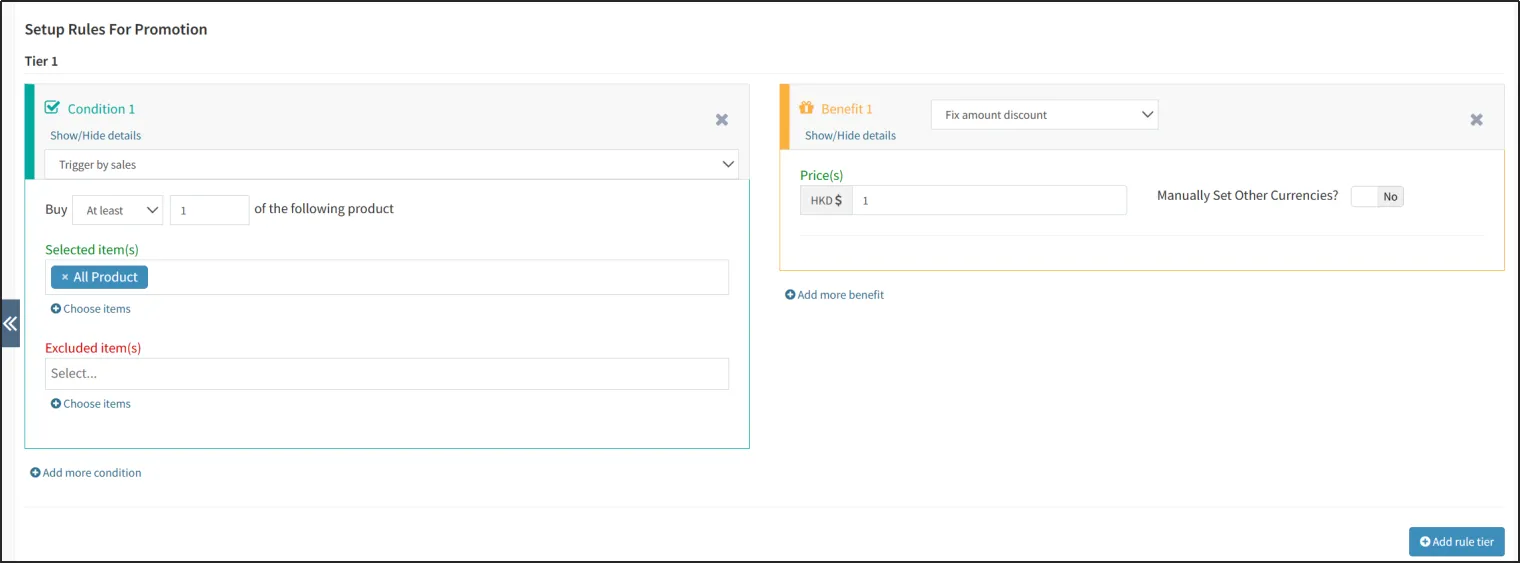
The conditions can be either unconditional or triggered by purchase conditions.
If you choose to trigger a promotional activity based on purchase conditions, you first need to delineate a product range by selecting and excluding items.
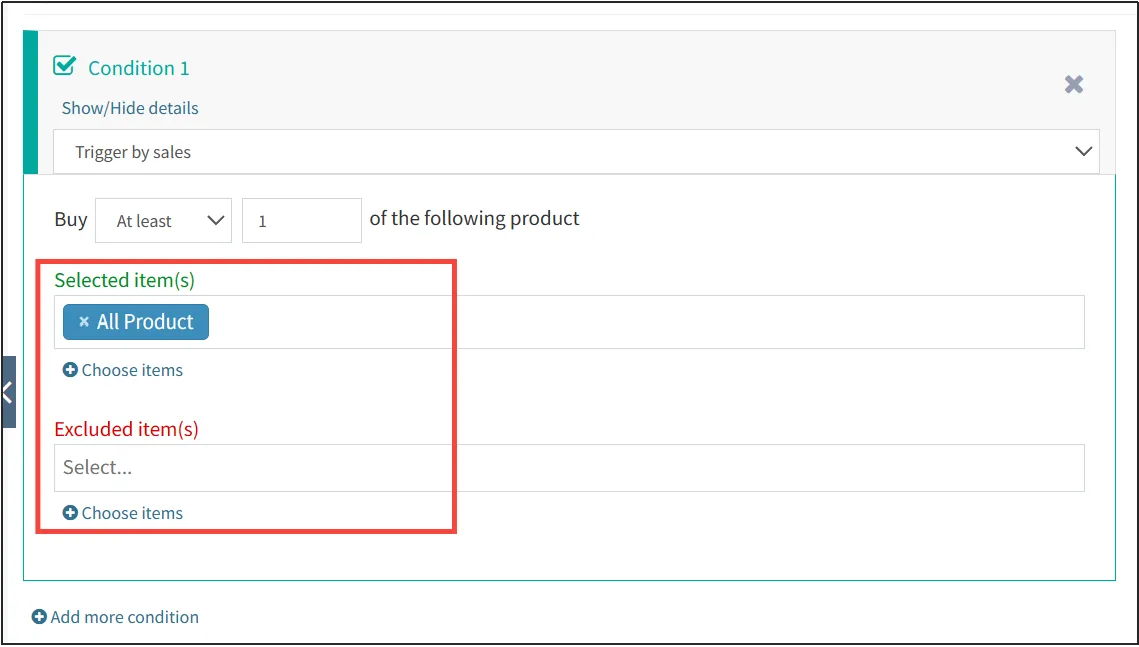
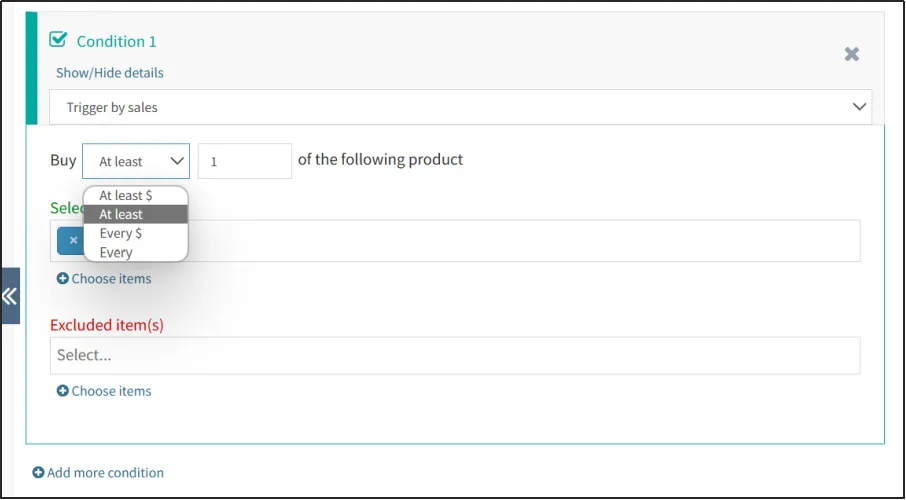
There are four different ways to set purchase conditions.
Within the range of products just selected, buy all products that are not less than the amount X, buy all products that are not less than the quantity X, buy all products that are equal to the amount X, and buy all products that are equal to the quantity X.
Select one of them and enter X in the input box below.
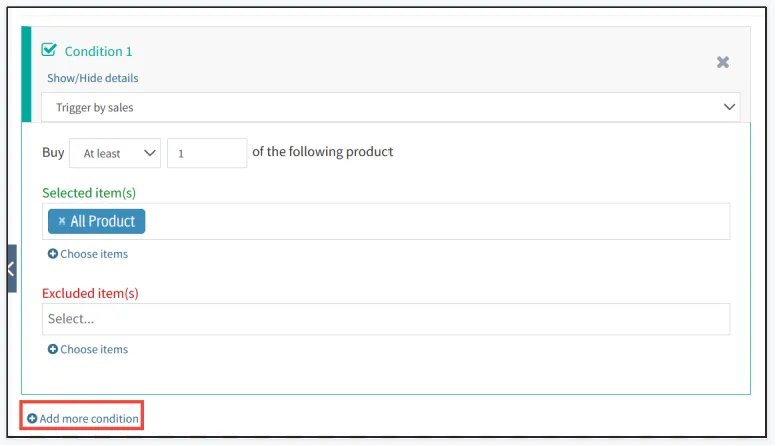
Click [Add More Conditions] to add conditions to this layer. All conditions must be met in order to trigger the discount for this layer.
There are seven types of discounts, including fixed amount discounts, conditional discounts, percentage discounts, specified selling prices, gifts/redemption, extra points/shopping rewards, free coupons, and free shipping.
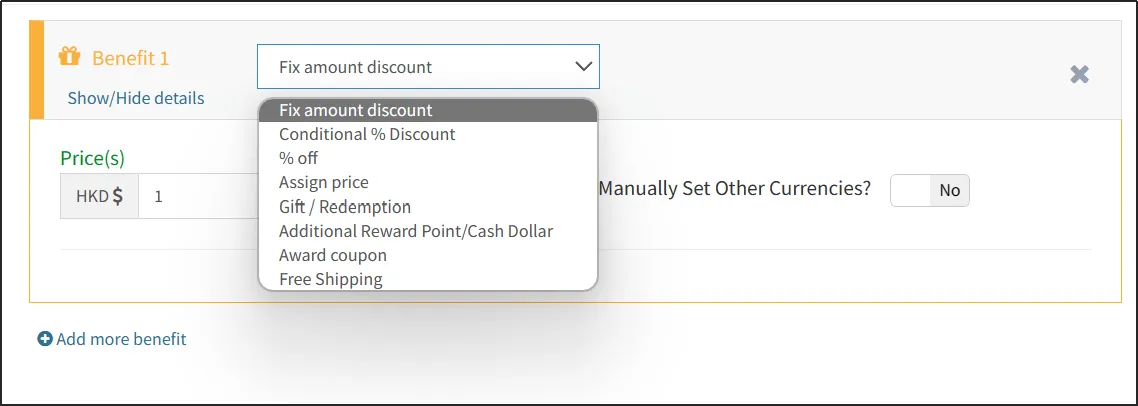
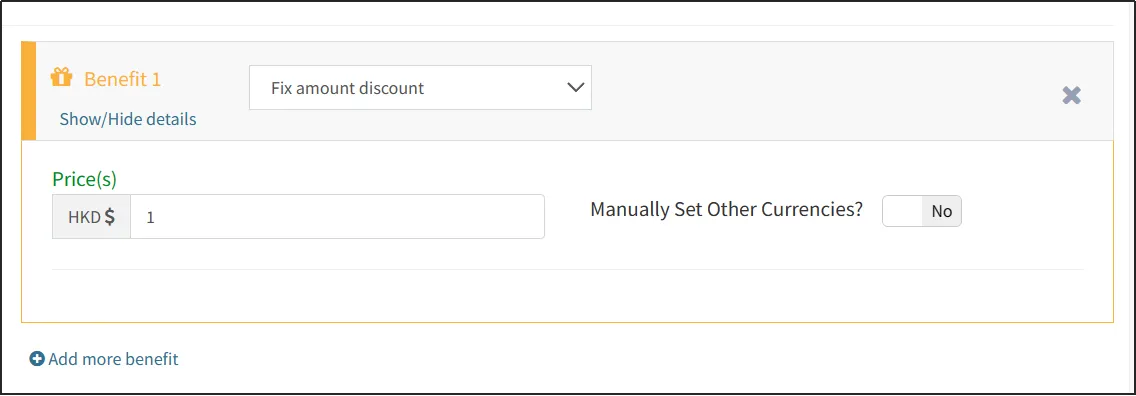
Select a fixed amount discount and enter the amount in the input box.
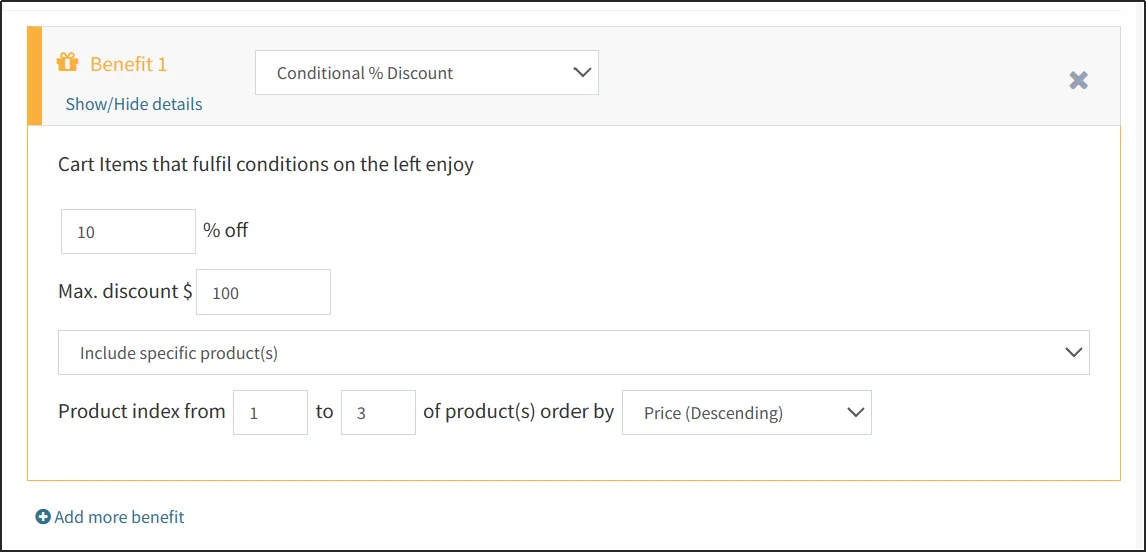
Select the conditional discount, fill in the discount and discount limit. In the shopping cart, products that meet the conditions on the left can enjoy the set discount, but the total discount amount does not exceed the discount limit.
Note that the products that receive discounts in conditional discounts must meet the conditions on the left. If a certain product is not within the scope of the left conditions, no matter how the product is set, it will not receive the discount.
There are four types of discount ranges: all products, excluding specified products, only specified products, and assigning discounts to each item.
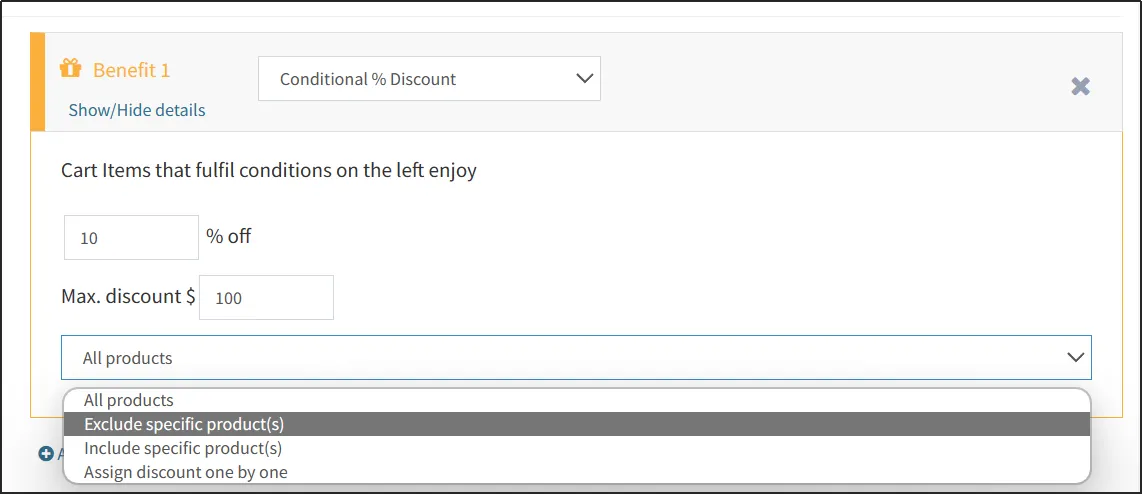
All products refer to all products that meet the conditions on the left and can receive discounts.
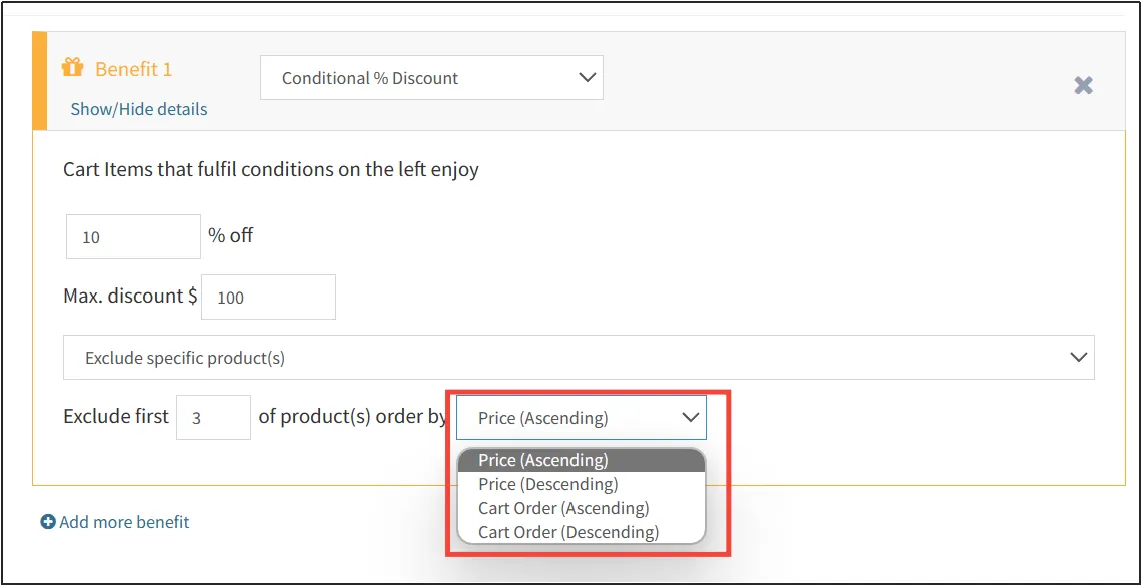
Excluding specified products refers to sorting by price or shopping cart order, excluding the first few products, and the remaining products can receive discounts. As shown in the figure below, it means that among the products that meet the conditions on the left, excluding the three products with the highest prices, the remaining products can receive discounts.
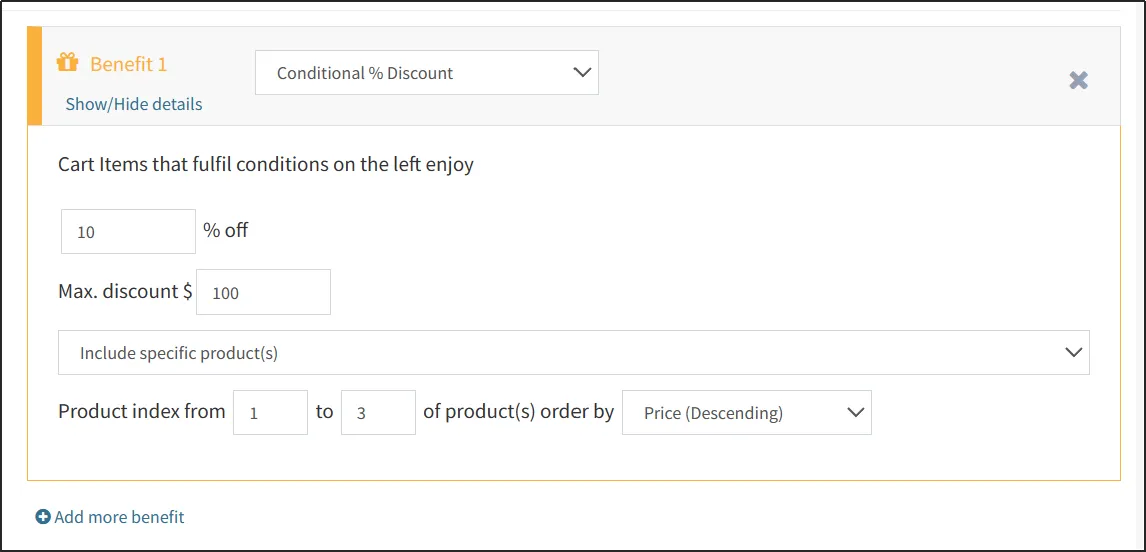
Only including specified products refers to sorting by price or shopping cart order, and only products from x to n can receive discounts. As shown in the figure below, it means that among the products that meet the conditions on the left, the first to third items can receive discounts in descending order of price.
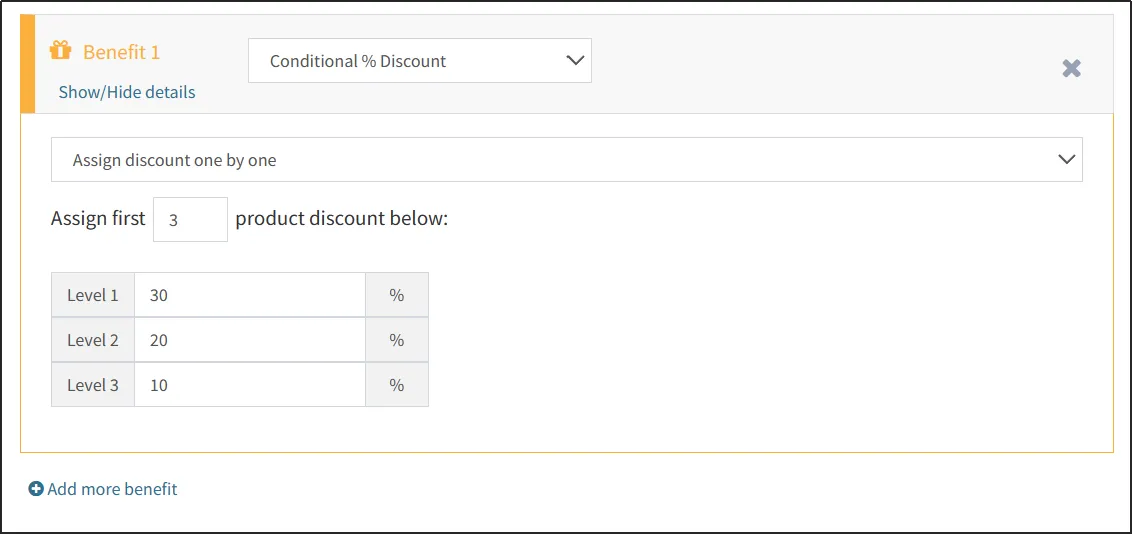
Each item is assigned a discount, which refers to the discount obtained for the first x items specified, and the discount obtained for each item can be set separately.
To choose a percentage discount, you need to select the applicable customer range, discounted product range, discount calculation method, discount, and discount limit.
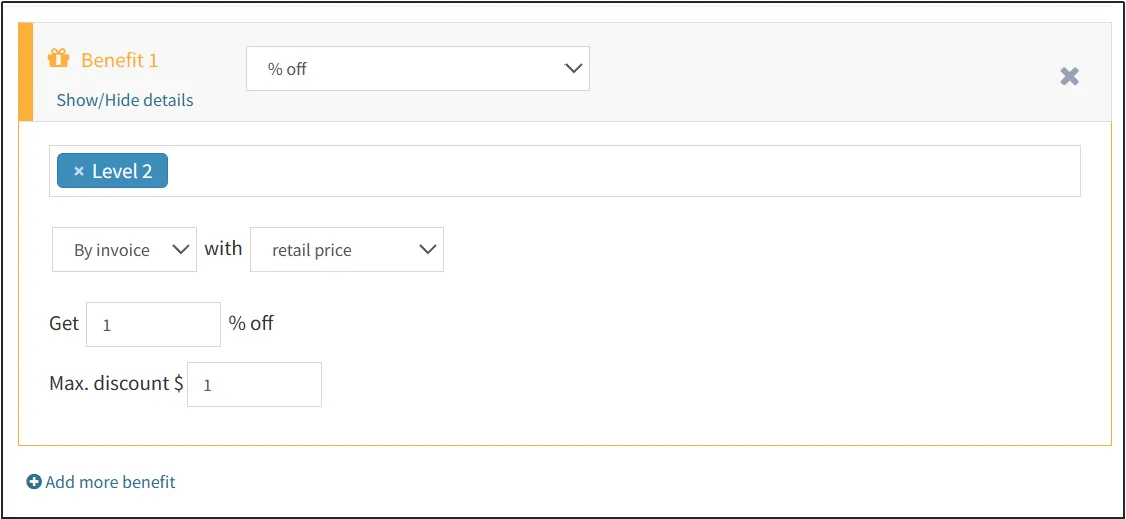
The scope of customer application refers to which customers can receive the discount, such as certain types of members or tourists.
The range of discounted products can be either full order or specified products. If a specified product is selected, the range of discounted products needs to be determined by selecting and excluding items.
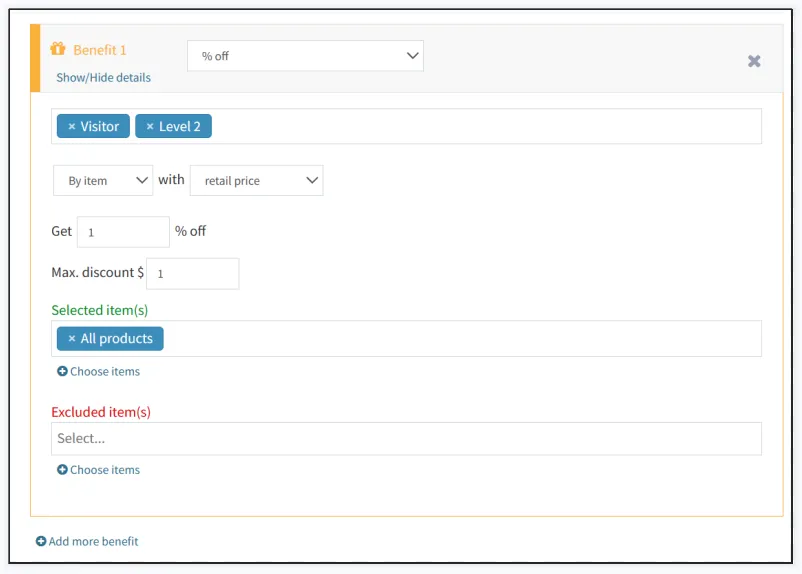
The discount calculation method can be either retail price or discounted price. Retail price refers to the percentage discount calculated using the original price, while discounted price is calculated using the discounted price. If the promotion has the highest priority, even if a discounted price is chosen, the original price will still be used for calculation.
Finally, fill in the percentage discount and the maximum total discount amount.
By selecting the specified selling price, you can set the price or total price of each item in the shopping cart that meets the conditions on the left.
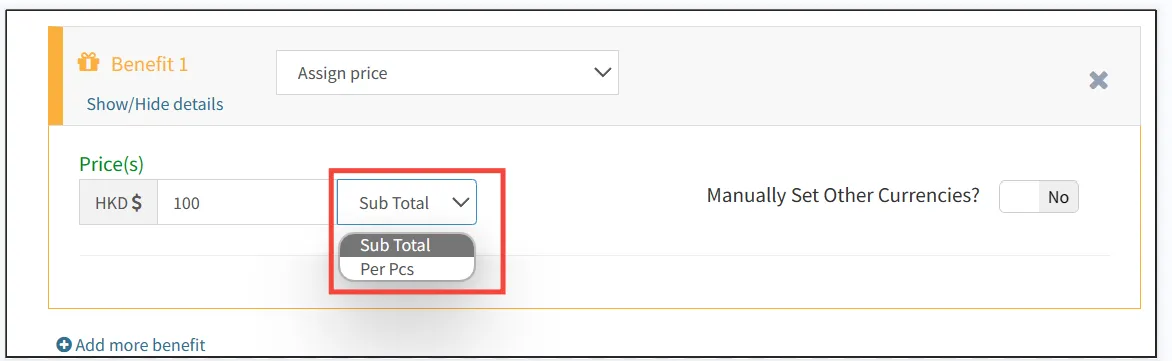
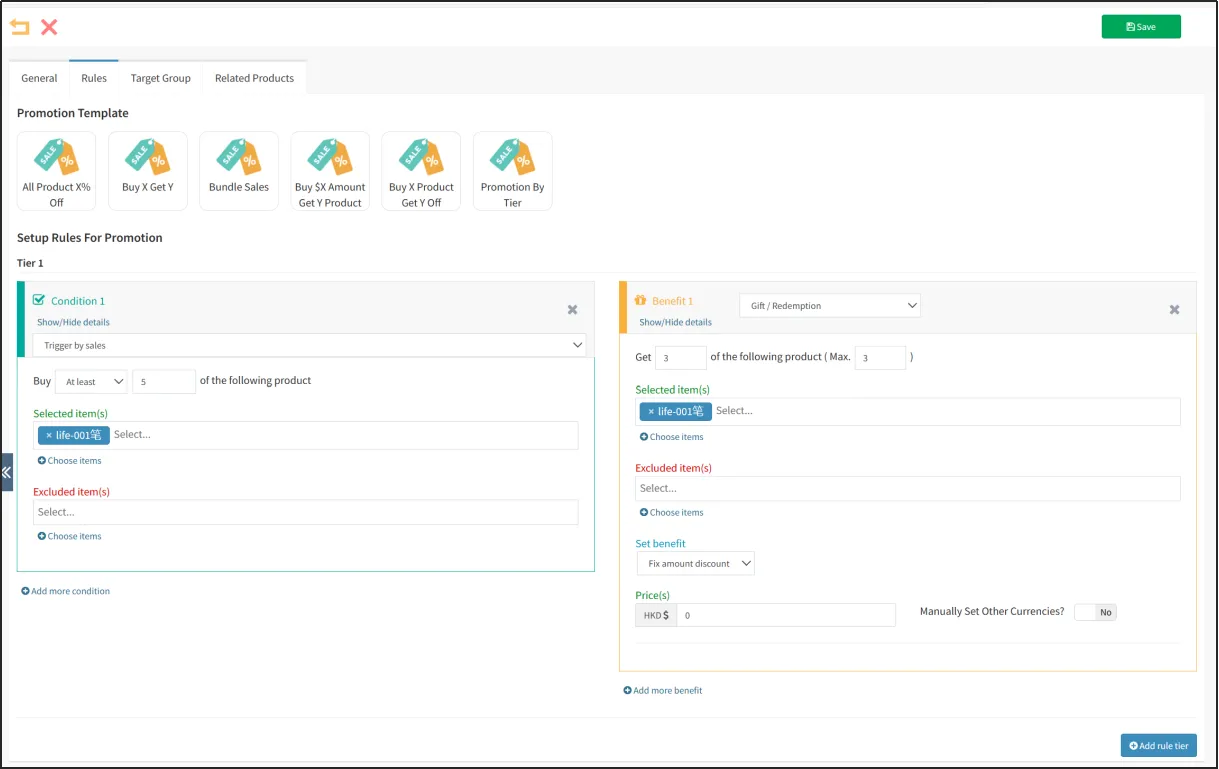
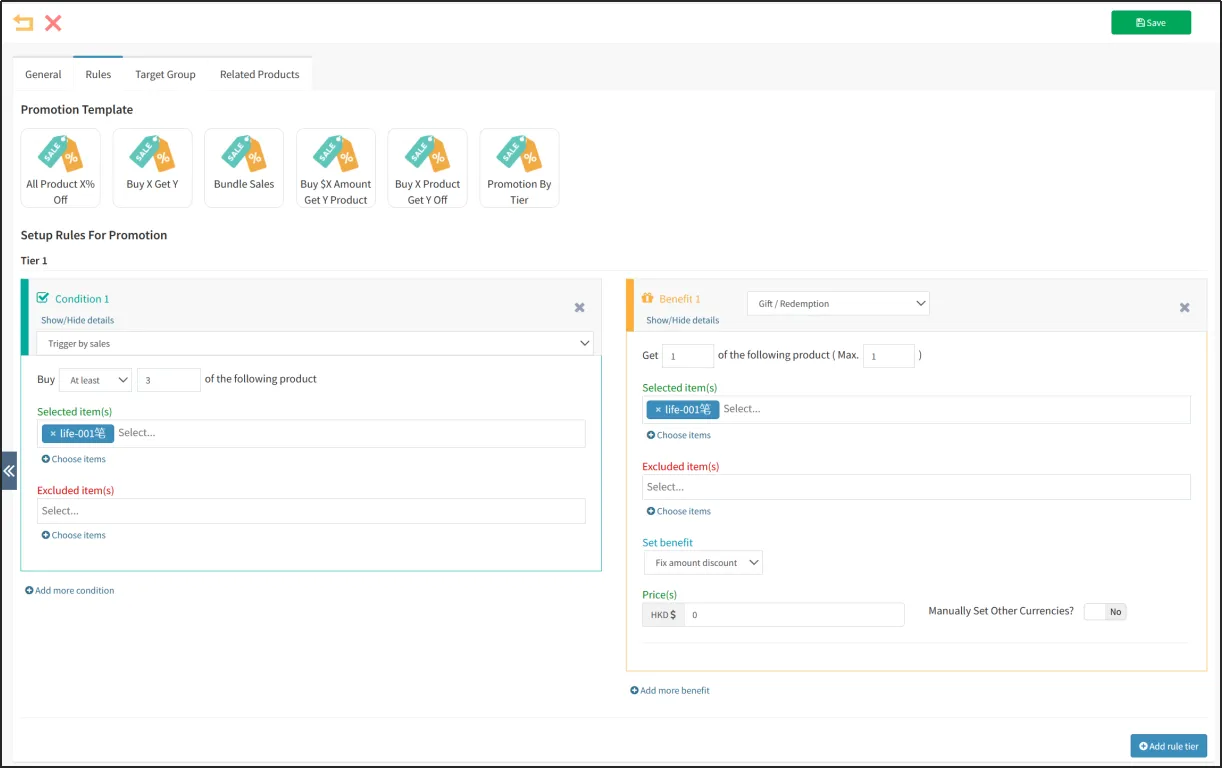
Choosing a gift/exchange means that after meeting the conditions on the left, customers can receive a gift or discount for one or certain products. Gifted or discounted products do not need to be within the scope of the conditions on the left.
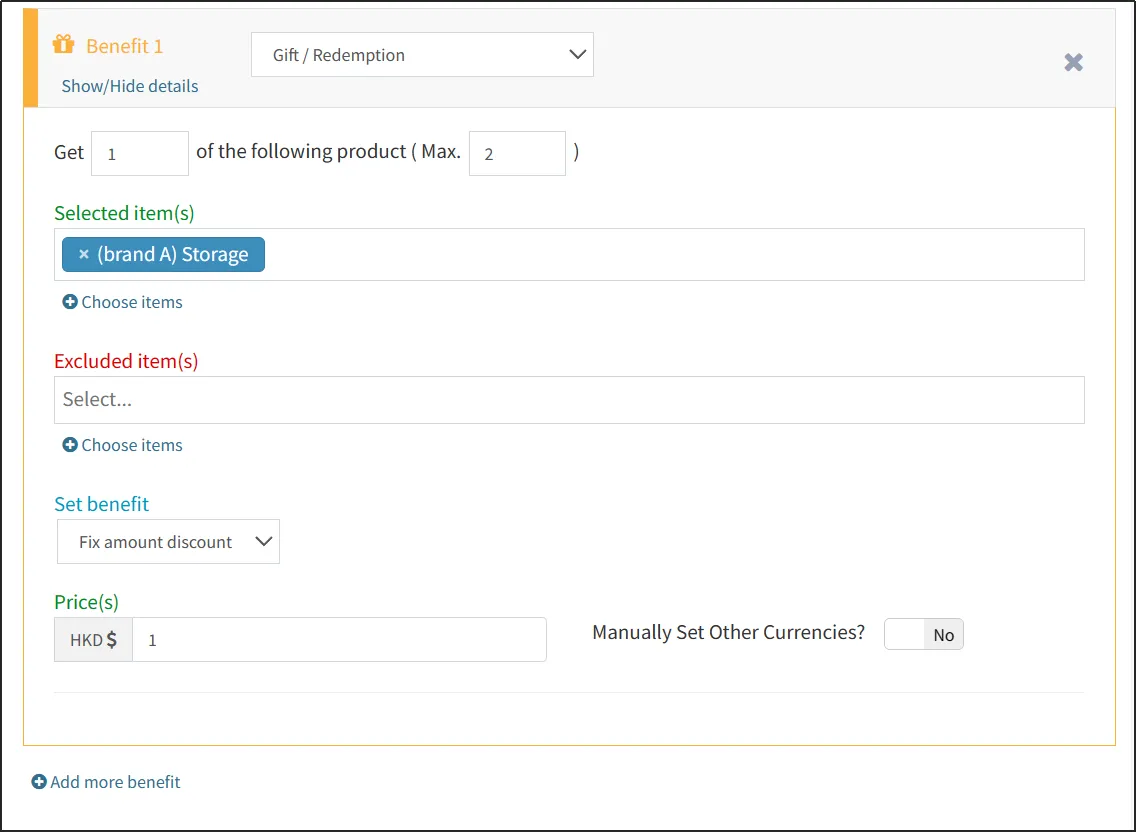
The meaning of "enjoying x or fewer products (maximum limit n)" in the figure is that meeting the conditions on the left can earn x or fewer gifts or discounted products. If the conditions on the left are met multiple times, you can repeatedly receive gifts or discounted products, but a maximum of n can be obtained in one order.
Note: n should be greater than x, where n is the number of gifts or discounted products received, not the number of times they were received.
Divide the scope of gifts or promotional items by selecting and excluding items.
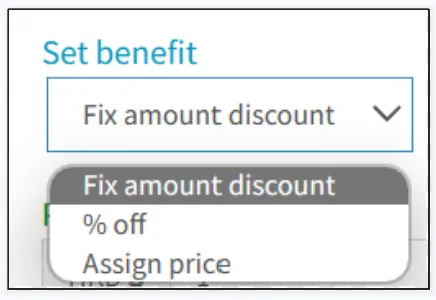
The discount method can be fixed amount discount, percentage discount, or specified selling price. If you choose to specify a selling price of 0, it is a gift.
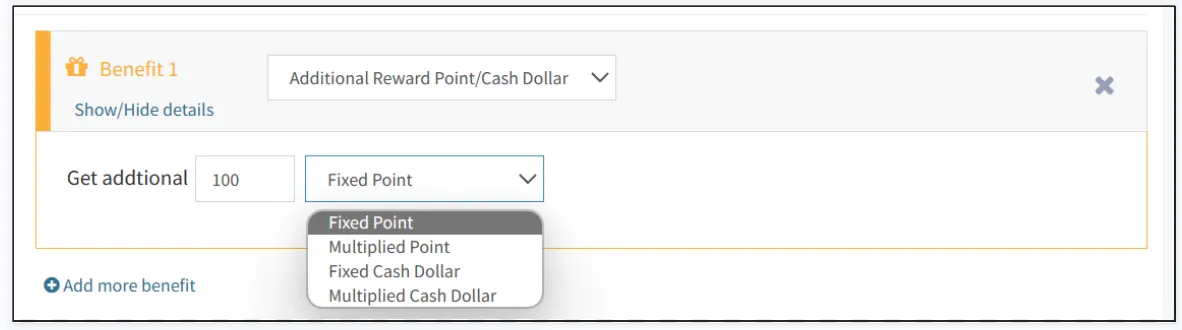
Choose additional points/shopping bonus rewards, which can include giving customers fixed points, multiple points, fixed shopping bonus, or multiple shopping bonus.
Fixed points or fixed shopping fees refer to x points or shopping fees directly given to customers after meeting the conditions on the left.
Multiple integral or multiple shopping bonus refers to multiplying the points or shopping bonus that customers could have obtained by x times after meeting the conditions on the left.
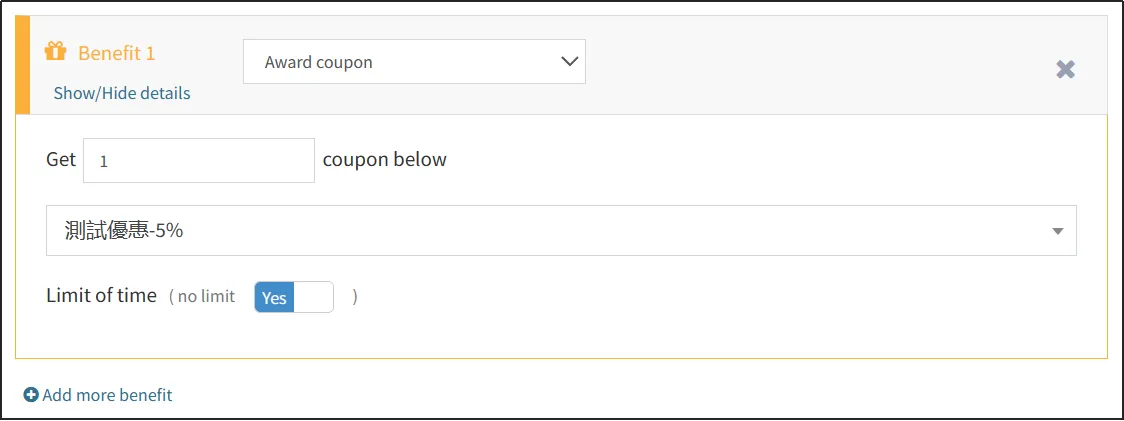
Choose to give away coupons, that is, after meeting the conditions on the left, give away coupons to customers.
Select the quantity and coupon to be gifted. If the coupon does not have an expiration date, you can enable [Unlimited] on the right side of [Coupon Validity]. If you need to set an expiration date, do not enable [Unlimited] and enter the validity period of the coupon (in days).
Note: If the expiration date set by the coupon itself is earlier than the expiration date set in the promotional activity, then the expiration date set by the coupon itself shall prevail.
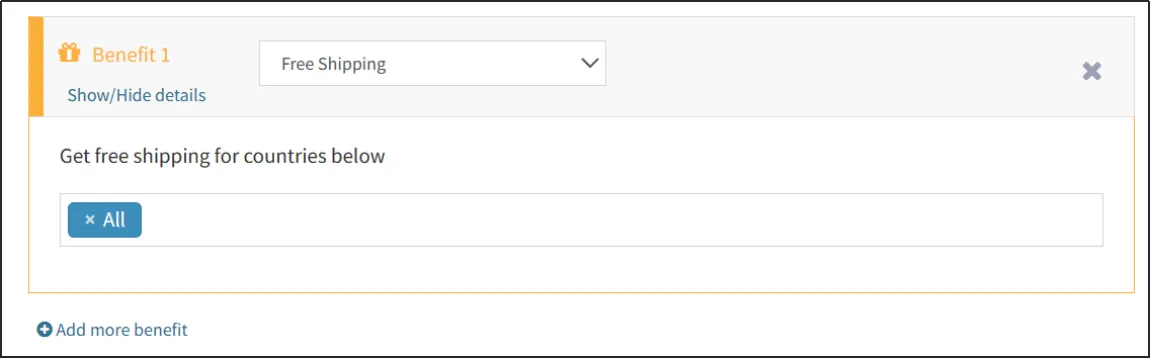
Choose free shipping, which means that after meeting the conditions on the left, the customer's shipping fee is waived. The scope of free shipping can be all or individual regions.
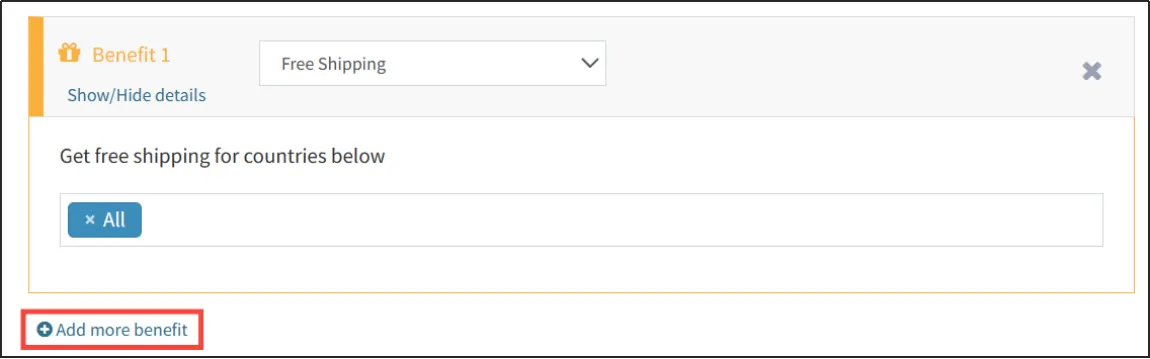
Click [Add More Discounts] to add discounts.
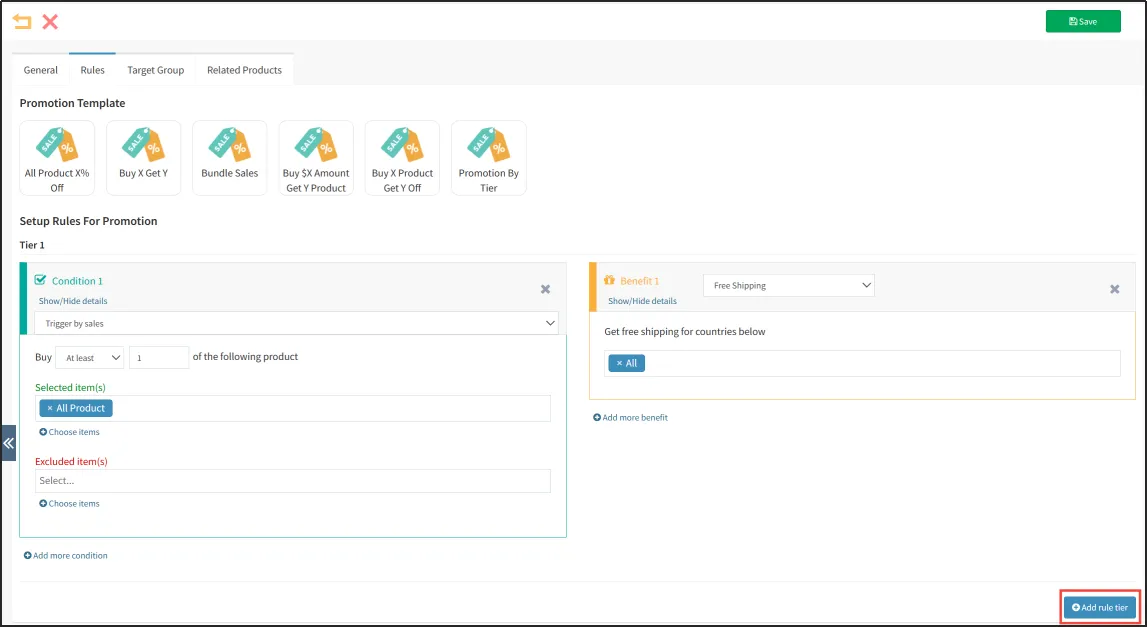
Clicking on the [Add Rule Layer] in the lower right corner can achieve multi-level discounts. Pay attention to the setting of discounts from large to small. Generally speaking, the first layer of conditions is the most difficult to meet, and the discount intensity is also the greatest. When judging, judge from top to bottom. If the conditions of a certain layer are met, the discount of that layer will be obtained, without continuing to judge whether the conditions of subsequent layers can be met.
For example, to set a certain product to buy three get one free, buy five get three free, you can set it as shown in the following figure. First, check if you have bought enough five chairs. If you have, give three chairs as a gift. That's it. If you haven't bought enough five chairs, then continue to judge and see if you have bought enough three chairs, and so on.
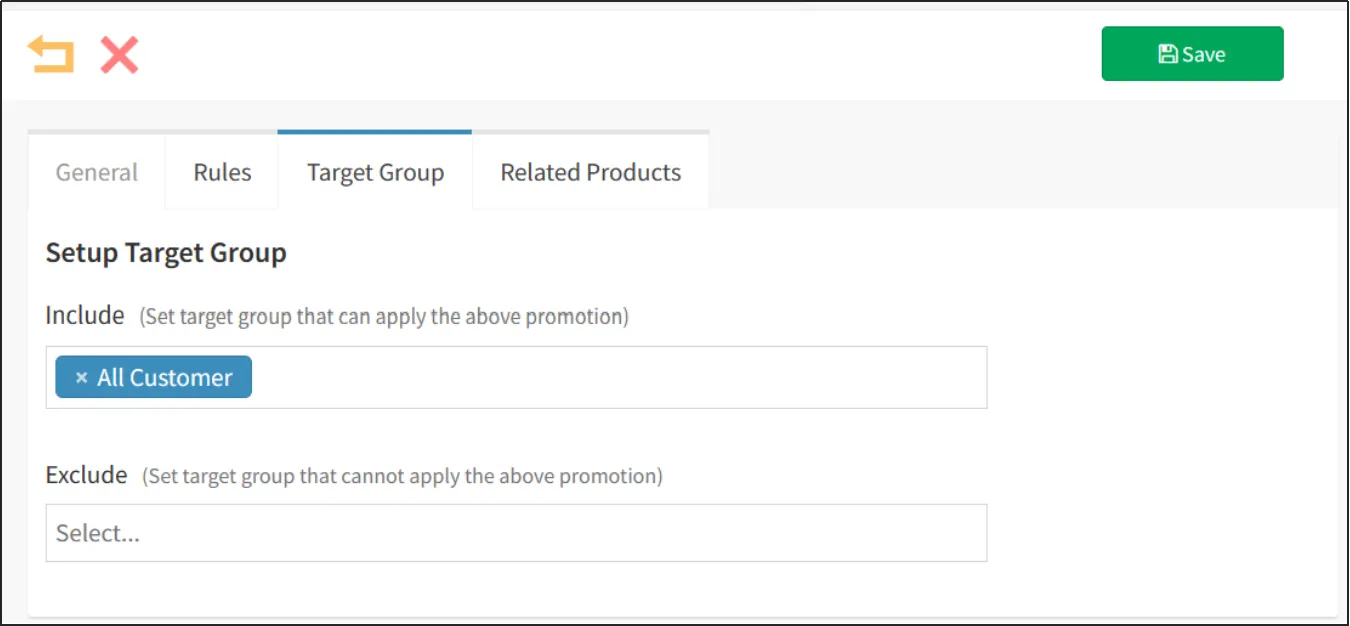
You can set the customer groups for the promotion by clicking the tab Customer Groups.
If the promotion is available to all customers, then simply select All Customers in Include.
If the number of applicable customers is relatively small, then you can select the applicable customer group in the Include.
If there are many applicable customers and few not applicable customers, you can select all customers in the include list and then select the not applicable customers in the exclude list. This way, the actual applicable customer group will be all customers minus the not applicable customers.