Cash Coupon refers to a number of cash coupons sold in the form of coupon packages, which can be converted into cash for use at each purchase.
New General Cash Coupons
Open CMS Click on MarketingClick to manage vouchersClick on the page to sign the cash couponClick [Add] to add a new cash coupon.
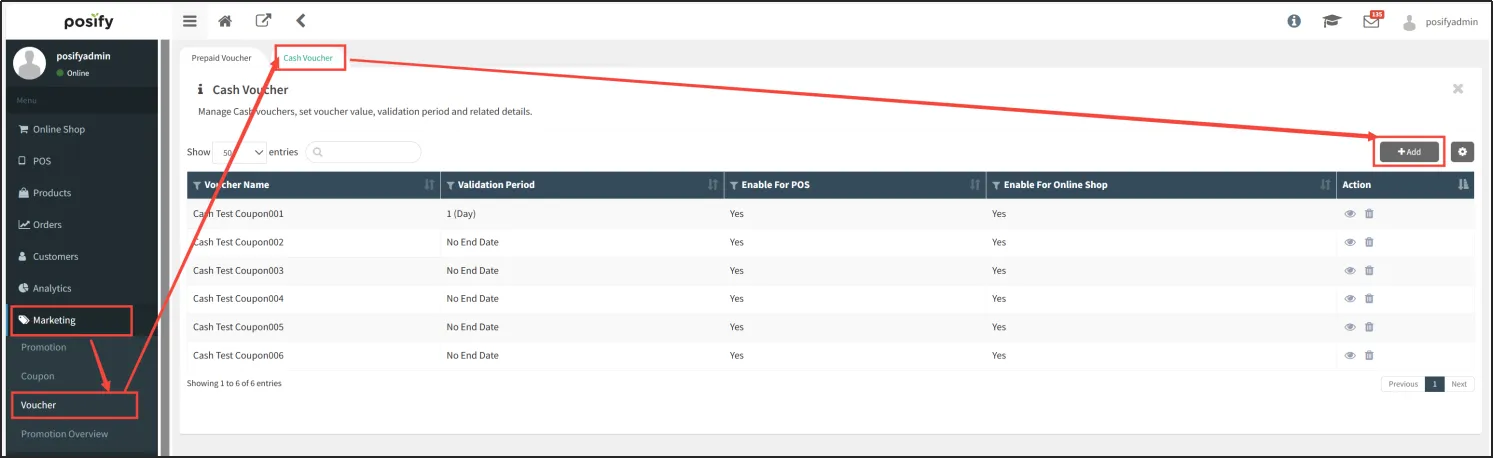
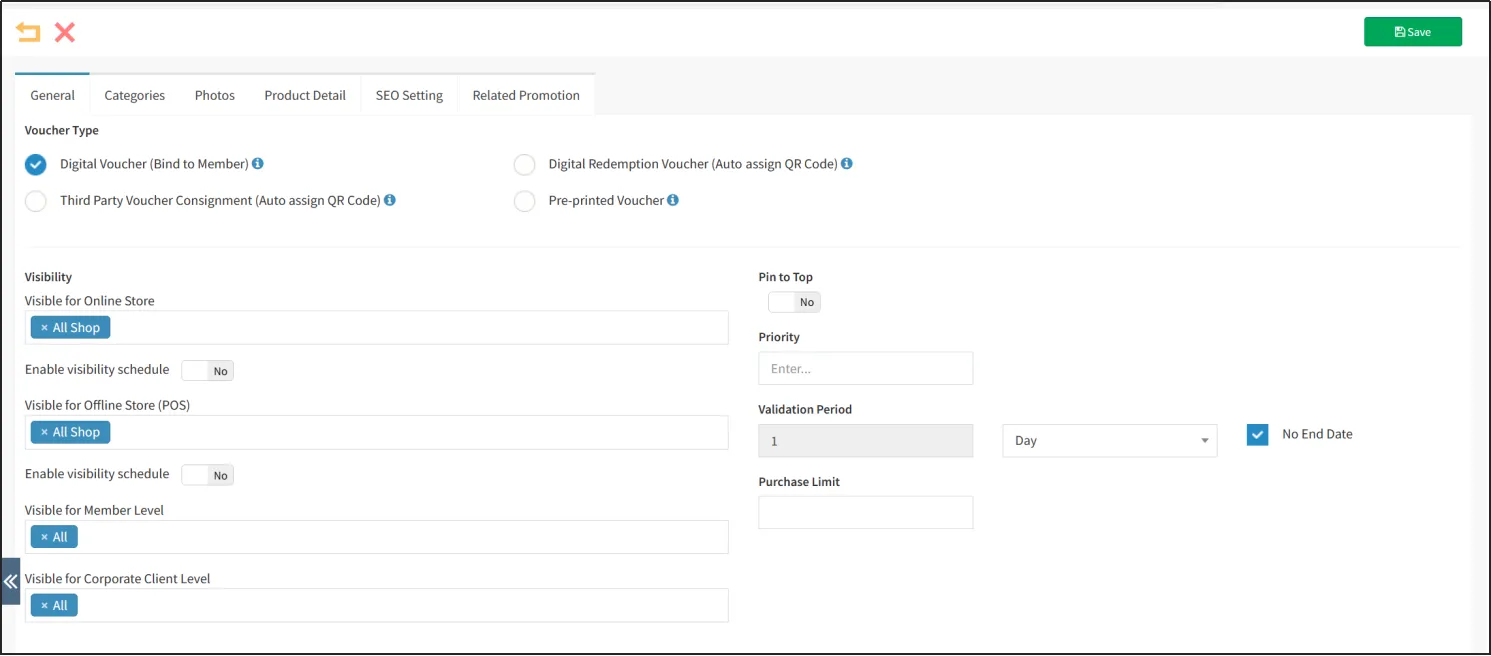
The settings of Cash Coupon and Prepaid Coupon are the same in general, and the page tabs, categories and photos are the same. Please refer to playbook-Prepaid Coupon or more details and how to fill in the form.
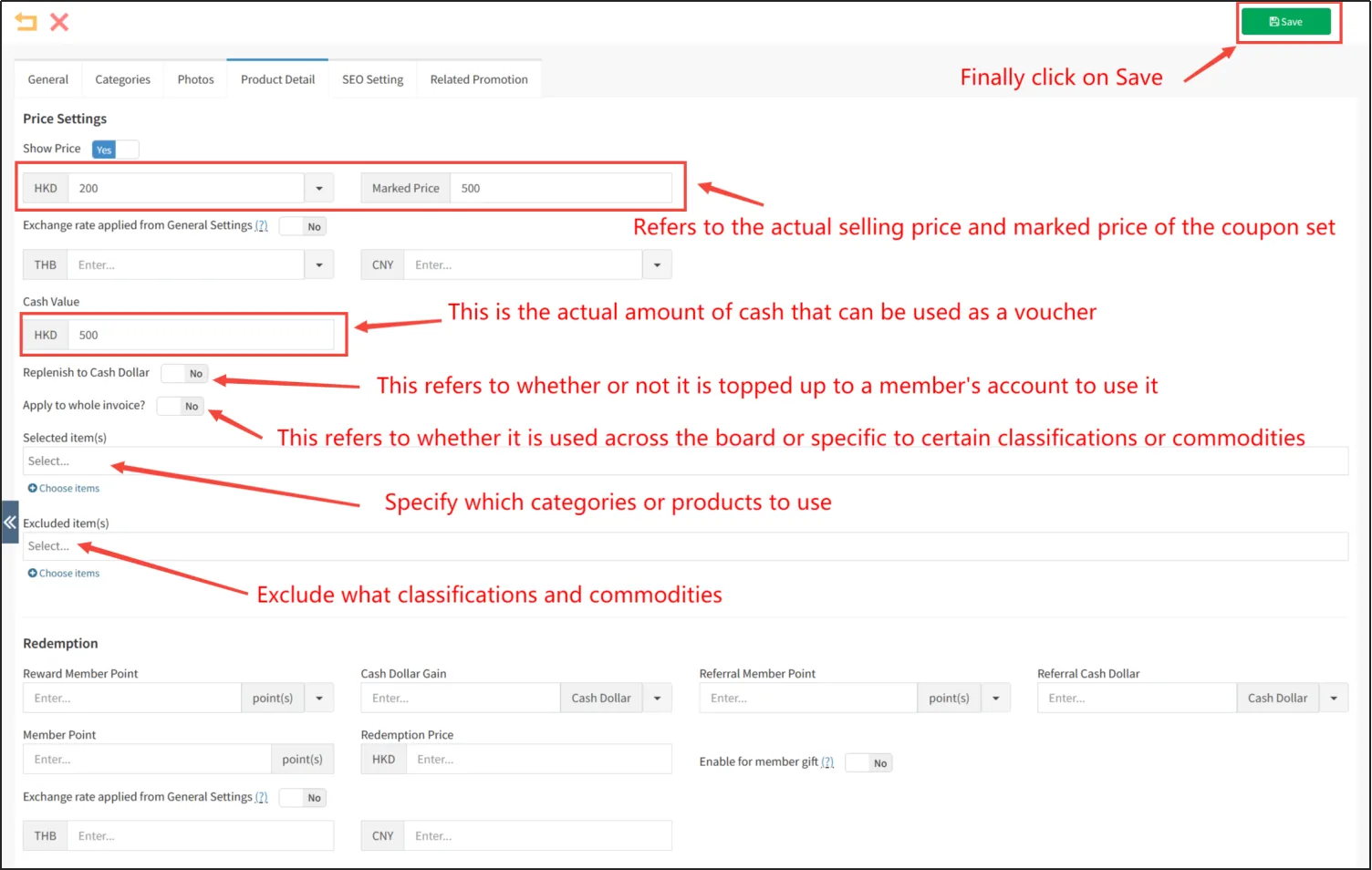
Click on the tab for details.
The [Price] and [Points Redemption] sections are set up in the same way as normal products.
Fill in [Coupon Cash Value], i.e. how much cash the coupon can be used as.
If [Add to Cash Dollar] is enabled, then the purchased Cash Coupon will be added to the customer's Member's Account as Cash Dollar. If you do not enable it, the amount of the Cash Coupon that exceeds the total amount of the purchase will not be balanced when you use the Cash Coupon to check out.
Enable [on all items?]. means the Cash Coupon is not limited to be used, but if you do not enable it, you need to define a range of products for which the Cash Coupon is applicable by [Selected Items] and [Excluded Items].
Click [Save] in the upper right corner when the setting is complete.
Customer receives cash coupon
Purchase Cash Coupon at Online Store
Since cash coupons are bound to your member account, you need to login to your member account before purchasing cash coupons.
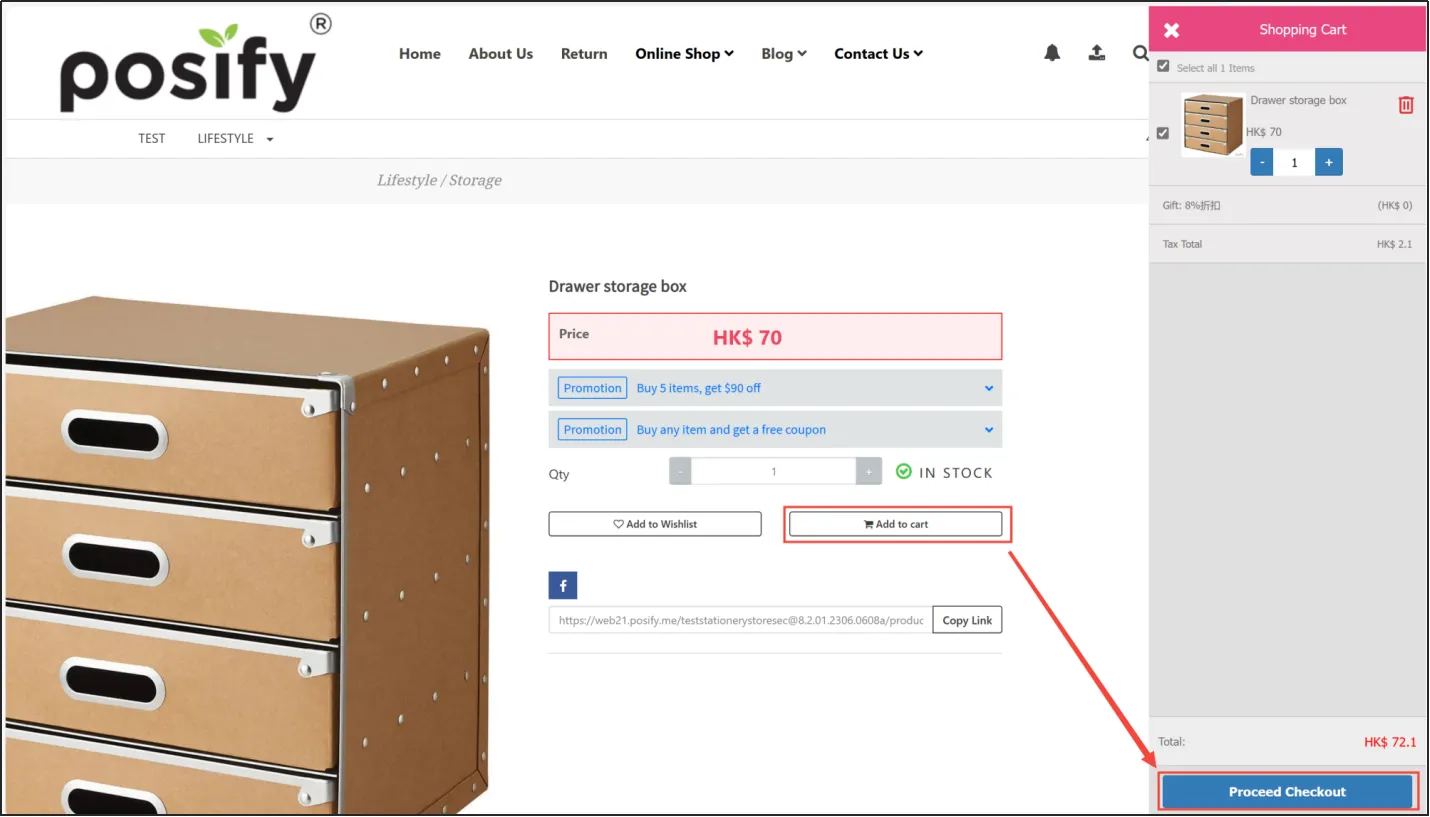
After logging in, add the cash coupons you want to purchase to your shopping cart and click [Go to checkout].
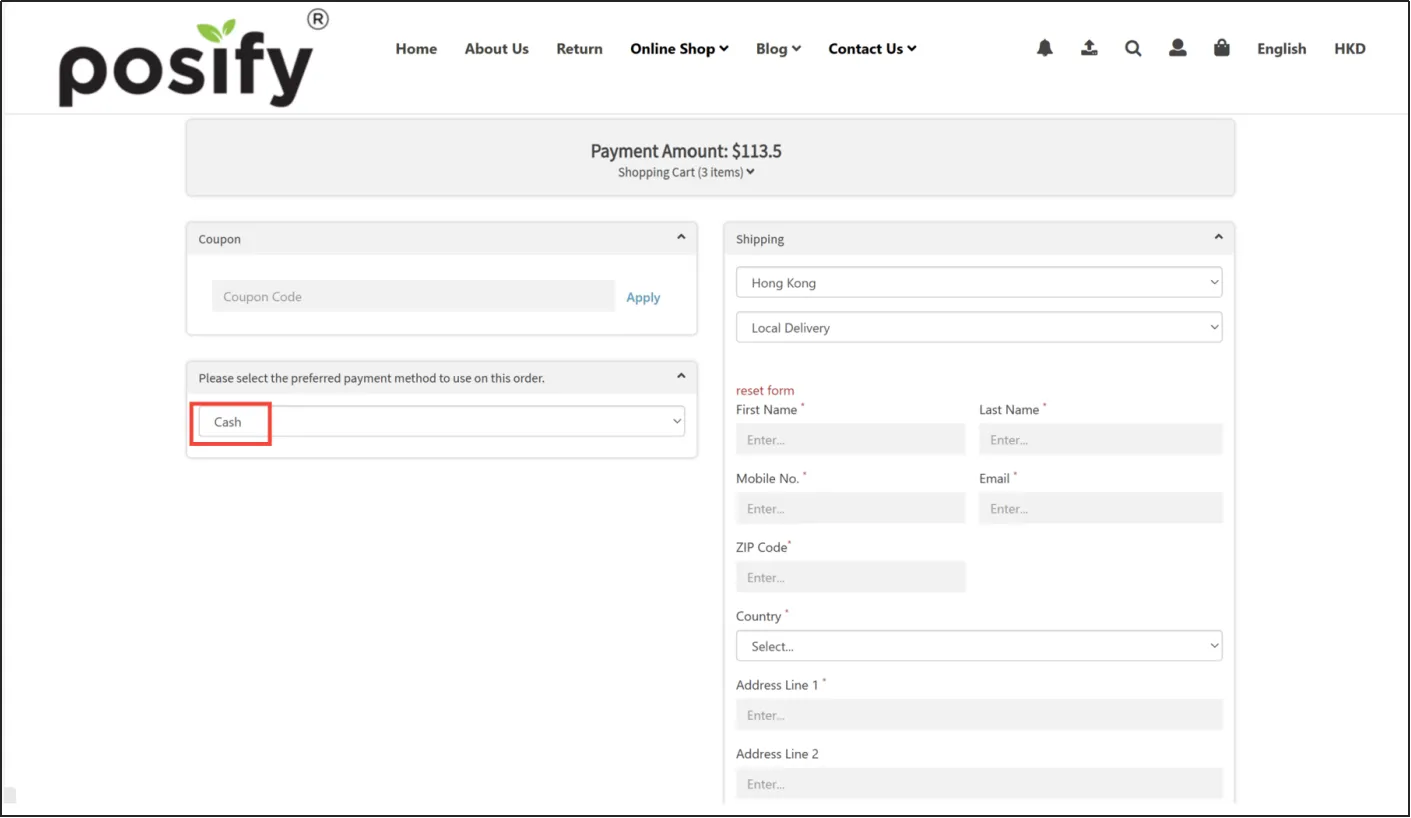
Select a payment method and click [Confirm Order], the cash coupon will be credited to your account after payment.
Purchase of cash coupons at POS
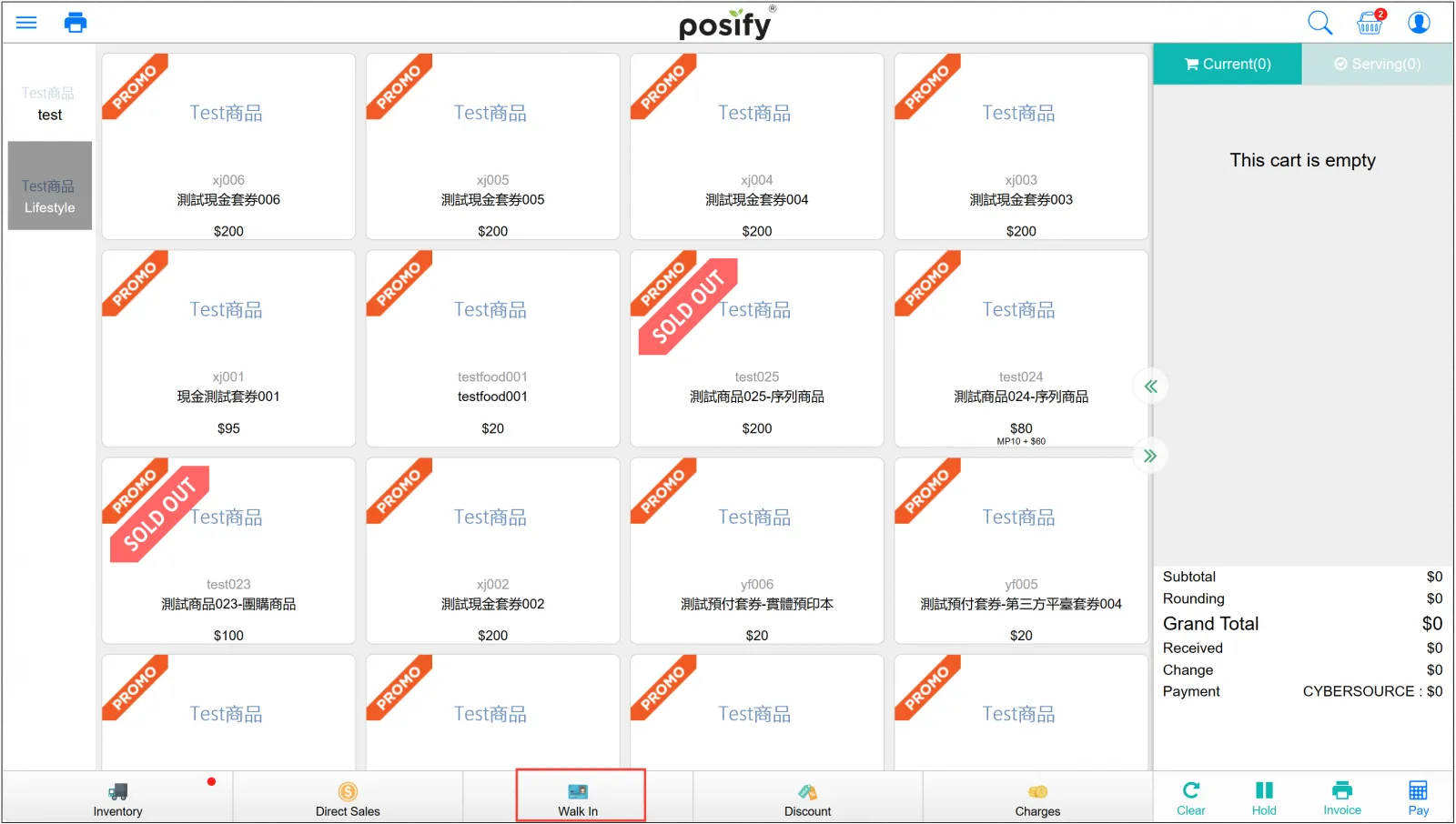
In POS, click [Visitors] at the bottom.
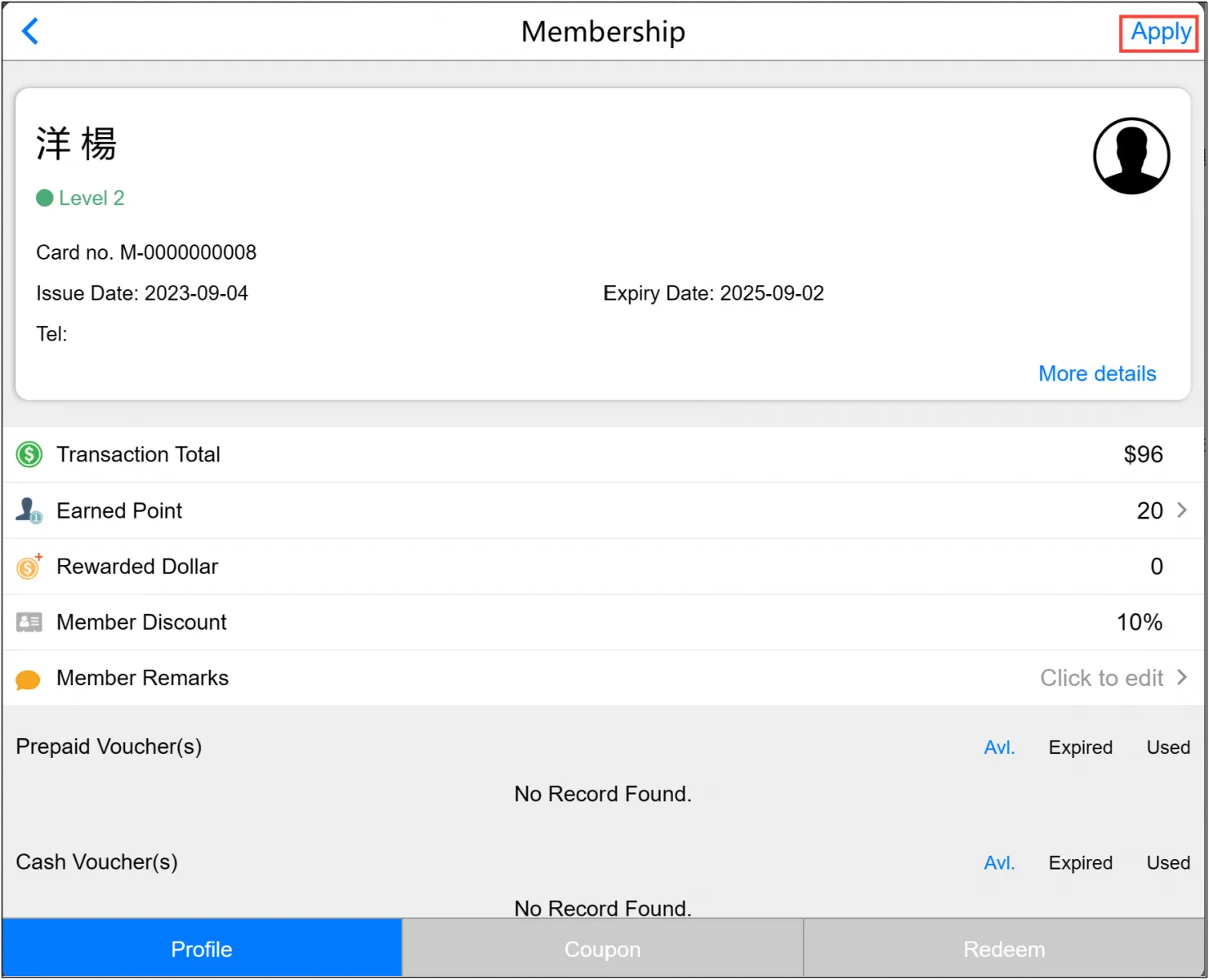
Search and click the customer's membership, then click [Use] in the upper right corner.
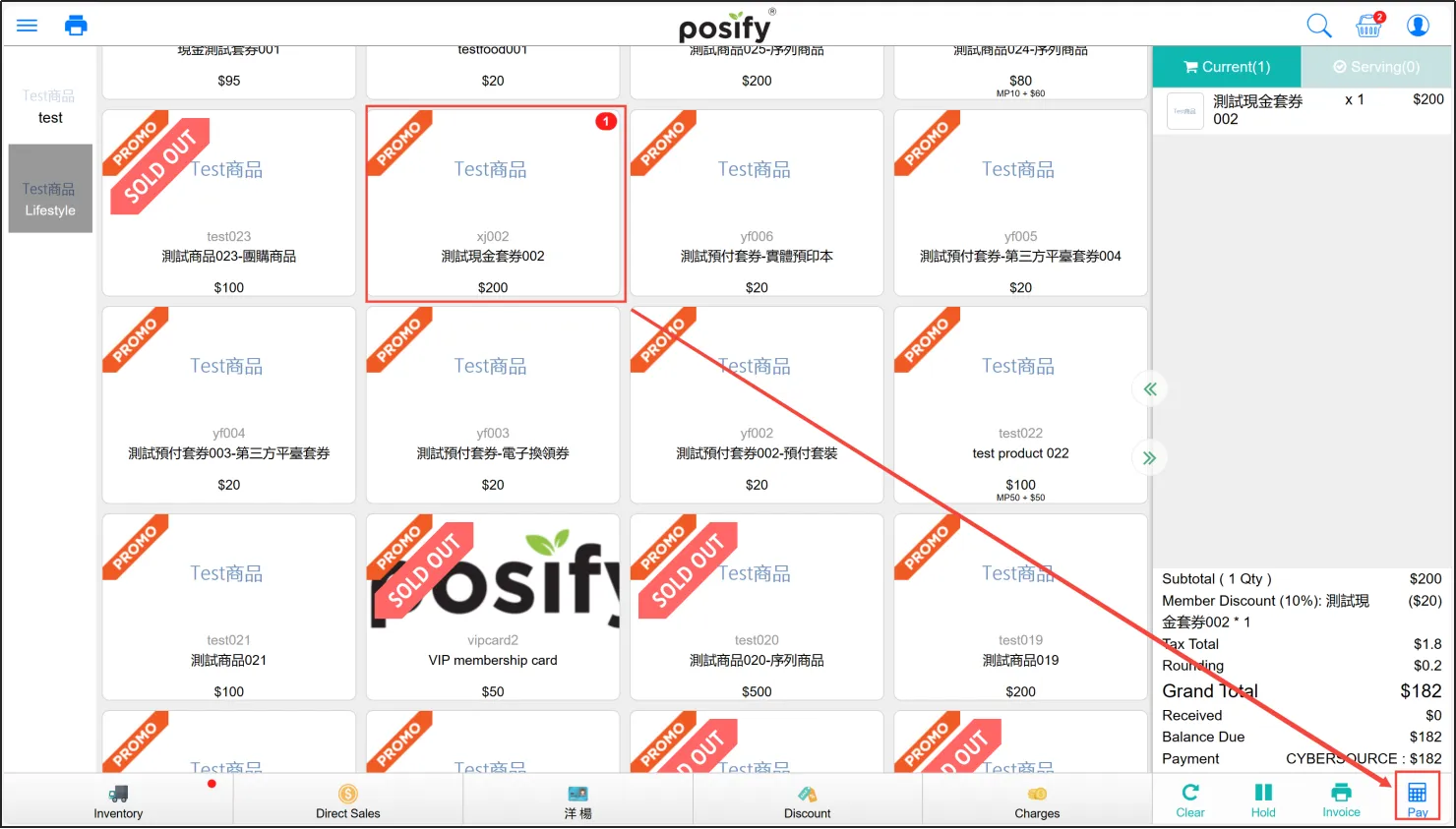
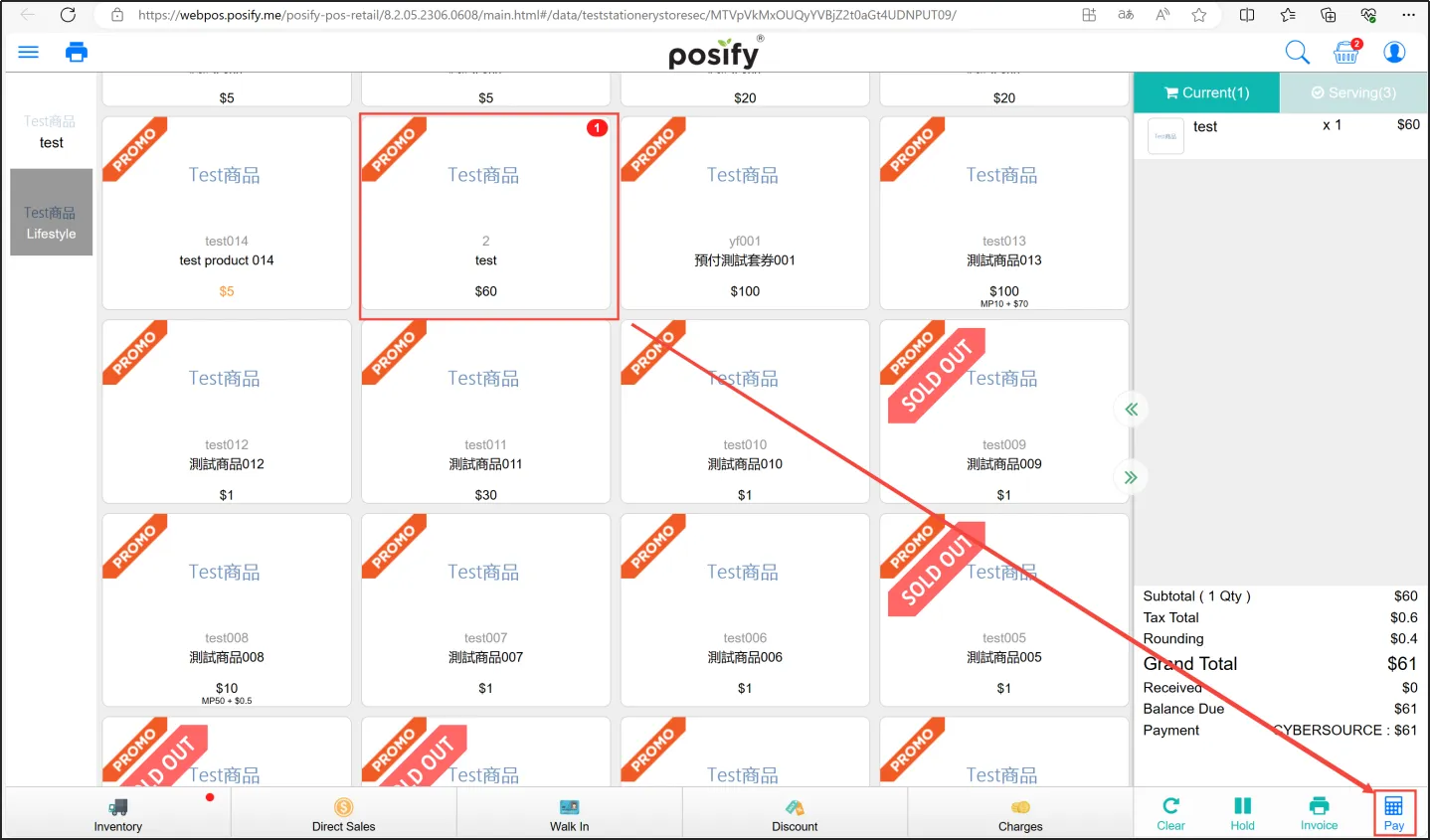
Click on the cash voucher you wish to purchase, add it to your shopping cart, click [Payment] in the lower right corner, choose a payment method and confirm the checkout. The cash voucher will be credited to your account once you have completed the payment.
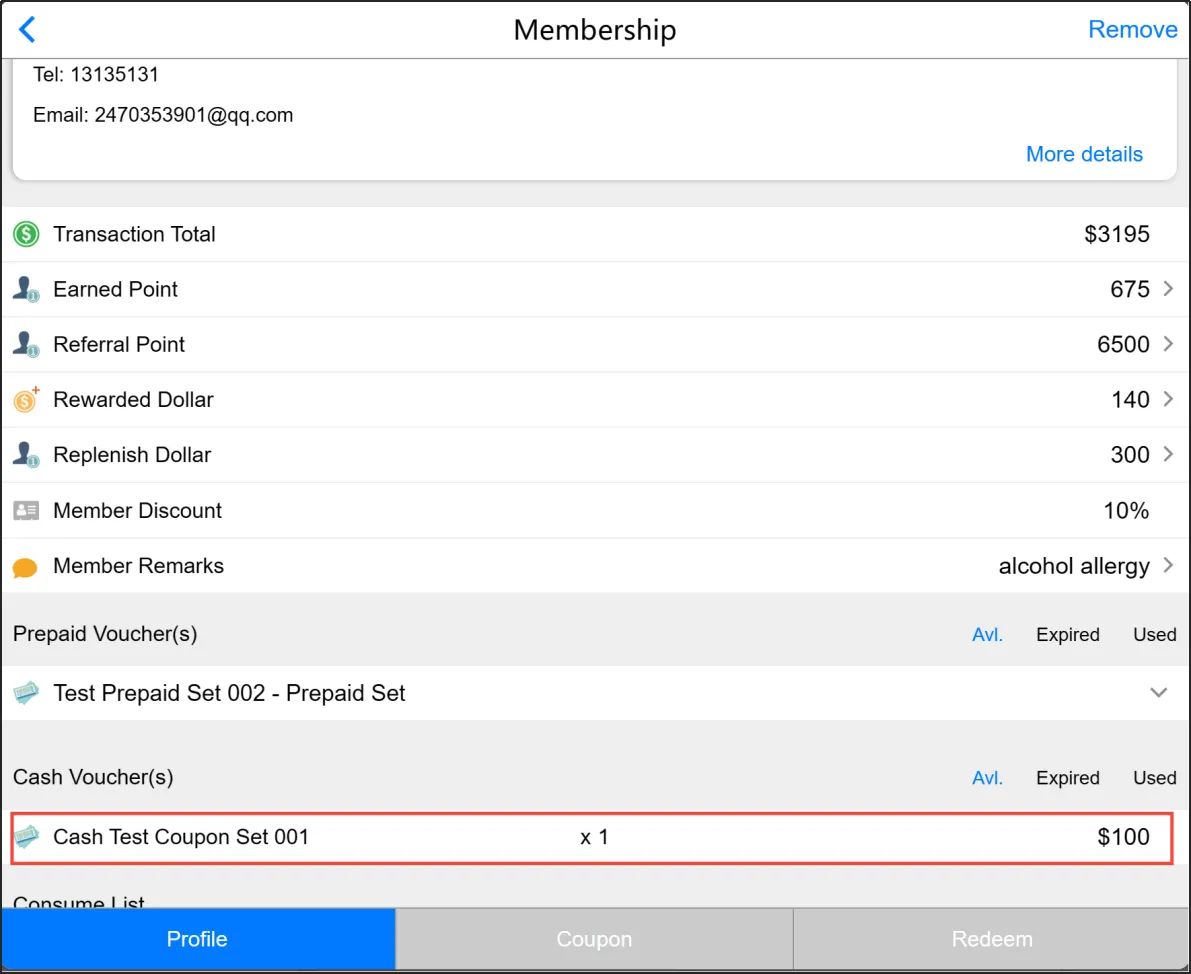
After purchase, you can see the cash coupon you purchased by looking up under your member account.
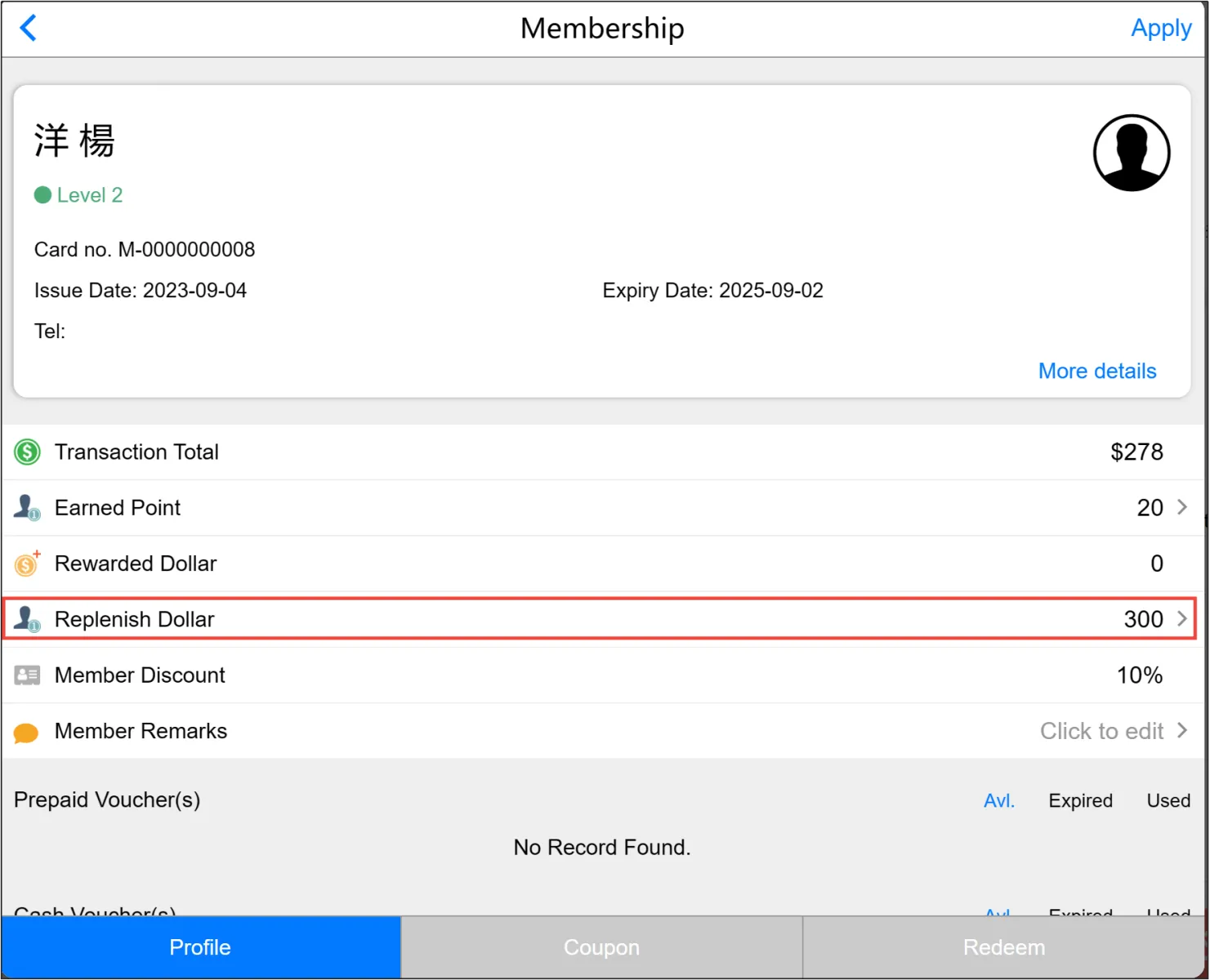
If the Cash Coupon will be reloaded as Cash Dollar, it will be shown as reloaded cash.
If the Cash Coupon is not topped up with Cash Dollar, then it will be shown as a Cash Coupon.
Use of Cash Coupon
If you want to use Cash Coupon, you have to set up the payment method [Prepaid Coupon] in CMS-Payment and Currency-Payment. For details, please refer to playbook-Payment Method Management.
If you have set up Cash Dollar as the payment method for Cash Coupons, you also need to set up the payment method for [Member's Purchase Money].
Use of Cash Coupon at Online Store
Since the cash coupon is bound to your member account, you need to login to your member account first to use the cash coupon.
Log in to your member account in the Online Store, add the items you want to purchase to your shopping cart, and then click [Go to Checkout] under the shopping cart.
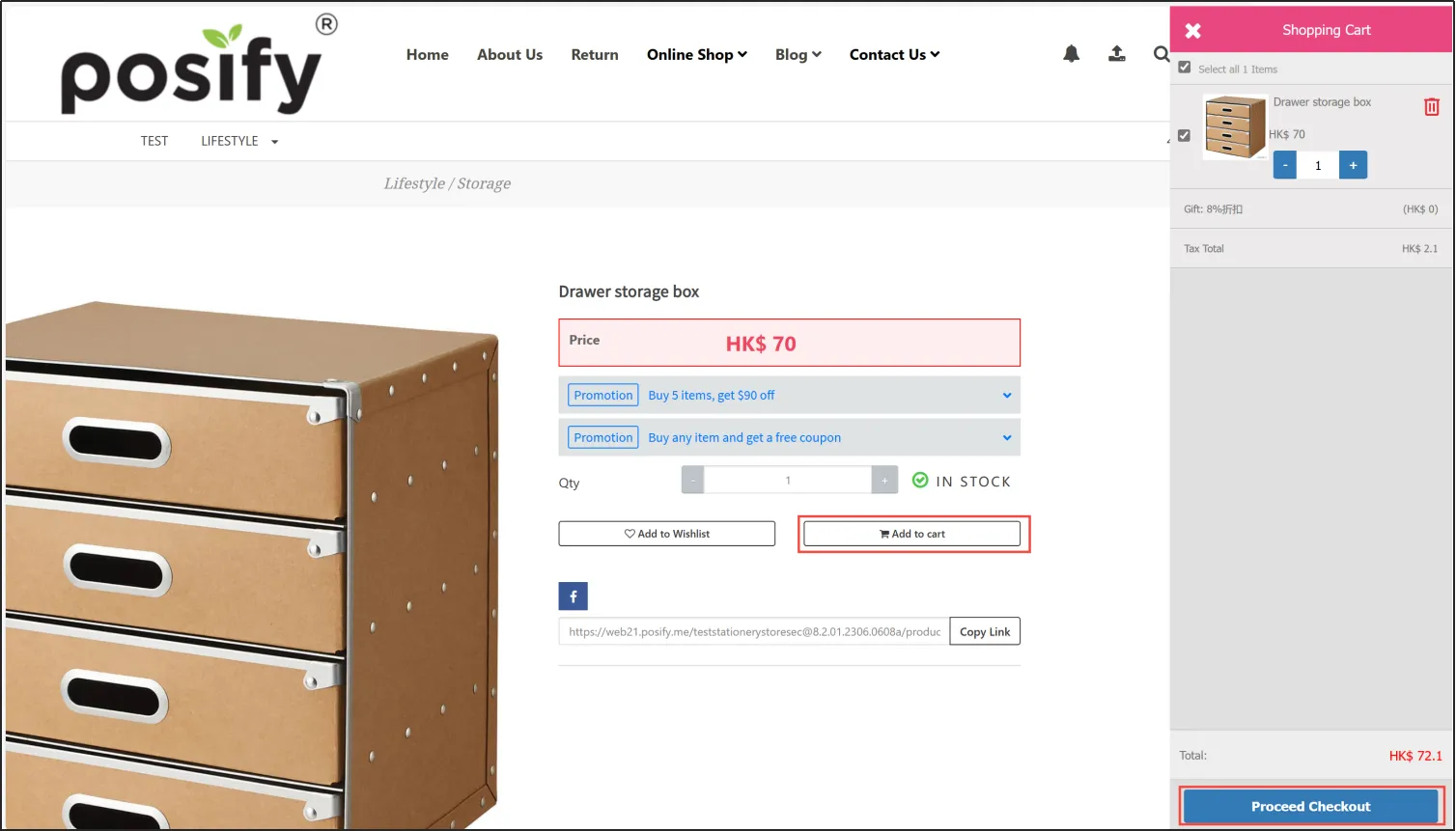
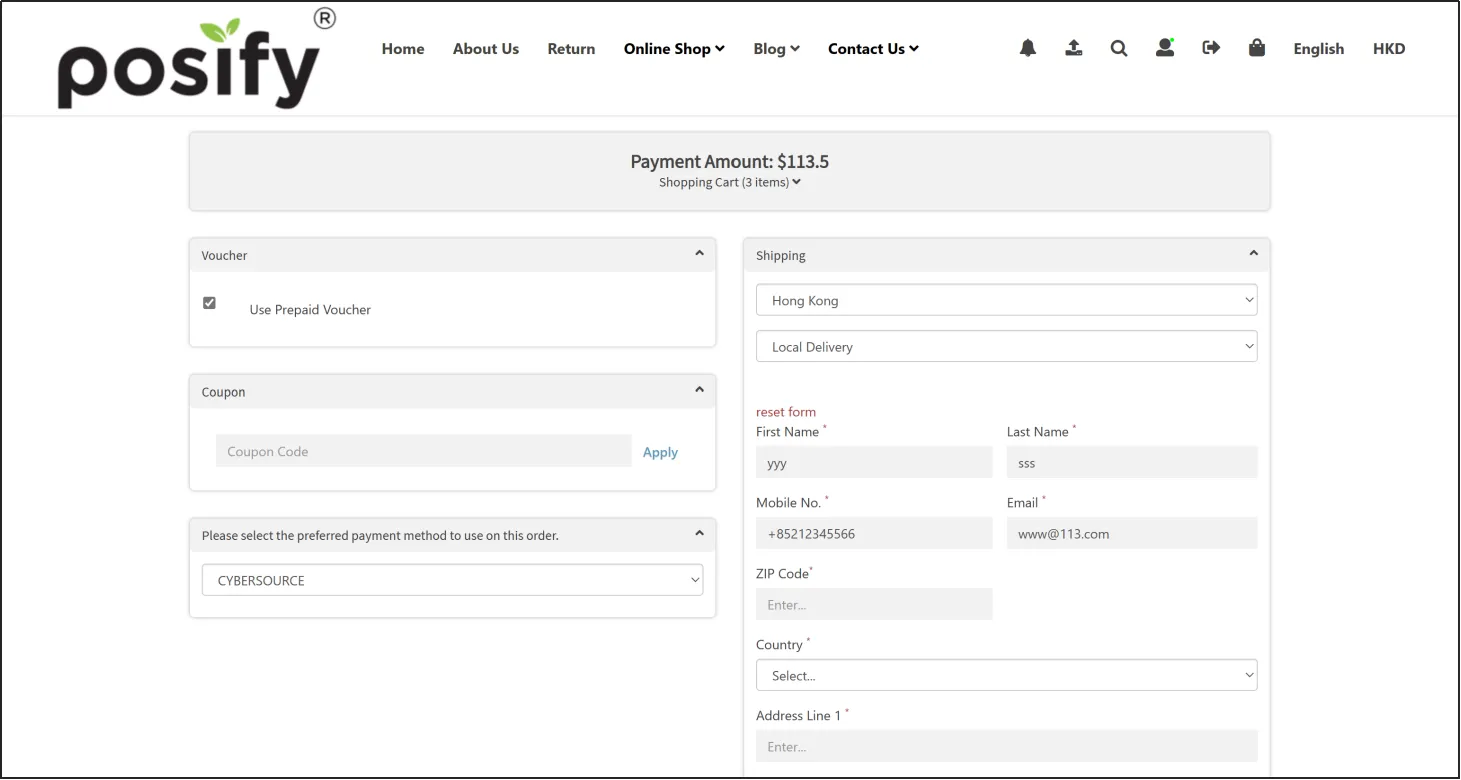
If the Cash Coupon is not to be reloaded as Cash Dollar, check the Cash Coupon you want to use under [Cash Coupon] and enter the number of Cash Coupons to be used.
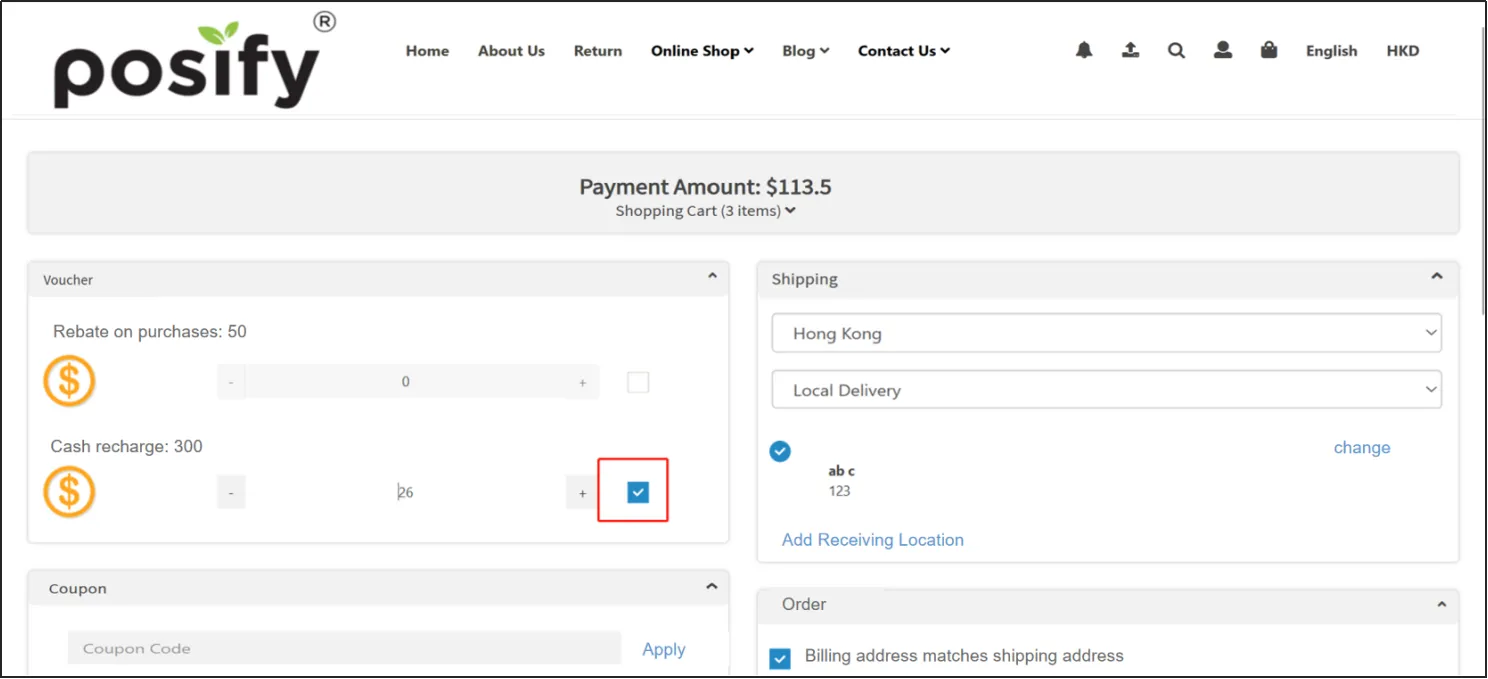
If the Cash Coupon is reloaded as Cash Dollar, then check [Recharge Cash] under [Membership Points] and click [+] or [-] to adjust, or directly input the amount of Cash Dollar that the customer wants to use. If there is still a part of the remaining amount, you can use other payment methods to pay.
When you've made your selection
Since the cash coupon is bound to your member account, you need to login to your member account first to use the cash coupon.
In POS, click [Visitors] at the bottom.
Search and click the customer's membership, then click [Use] in the upper right corner.
Add the items you want to purchase to your shopping cart and click [Payment] in the lower right corner.
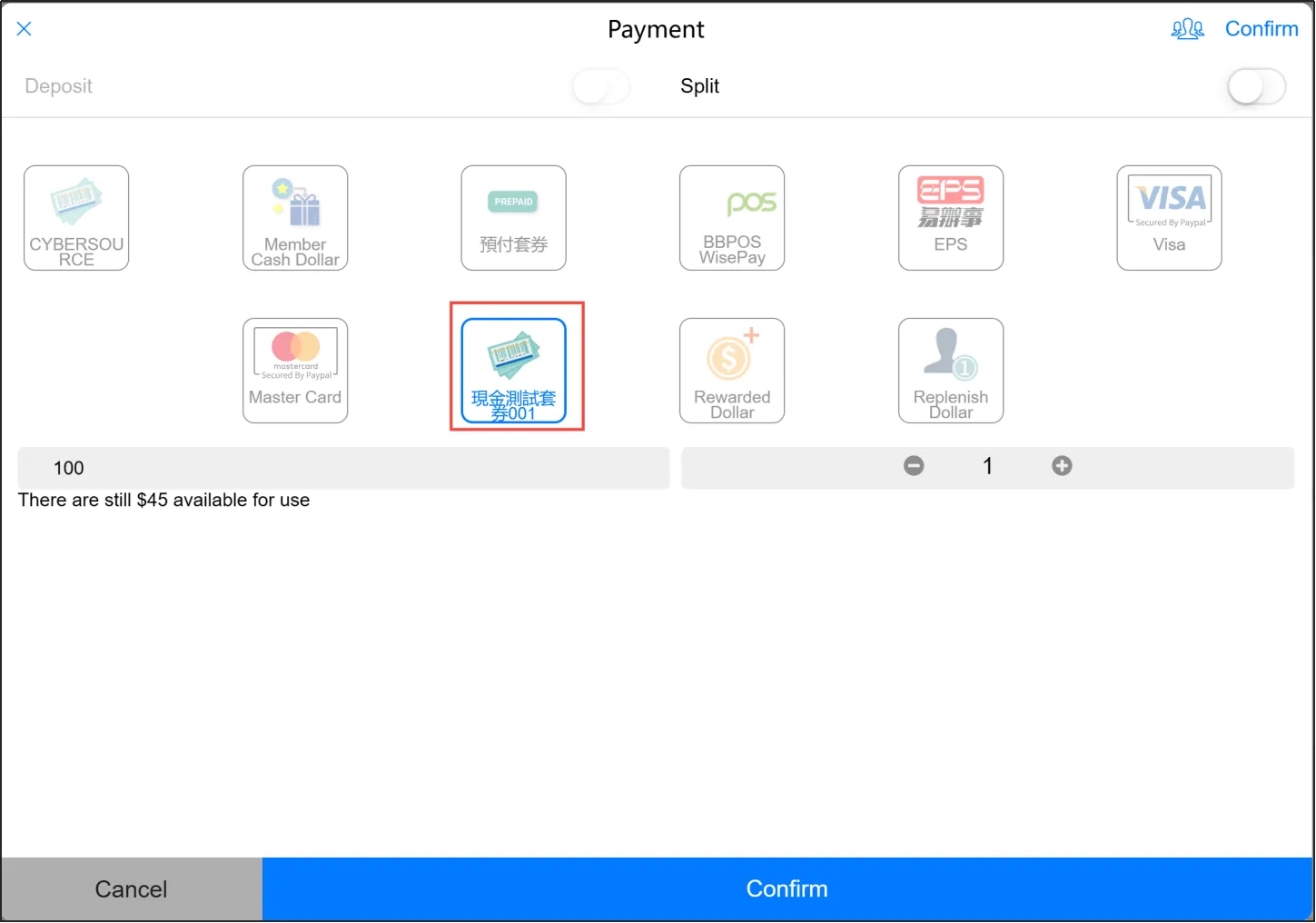
Select the cash coupon you want to use and enter the amount you want to use. If the purchase amount exceeds the amount of the cash coupon, click [Separate] at the top right to pay the remaining amount using other payment methods.