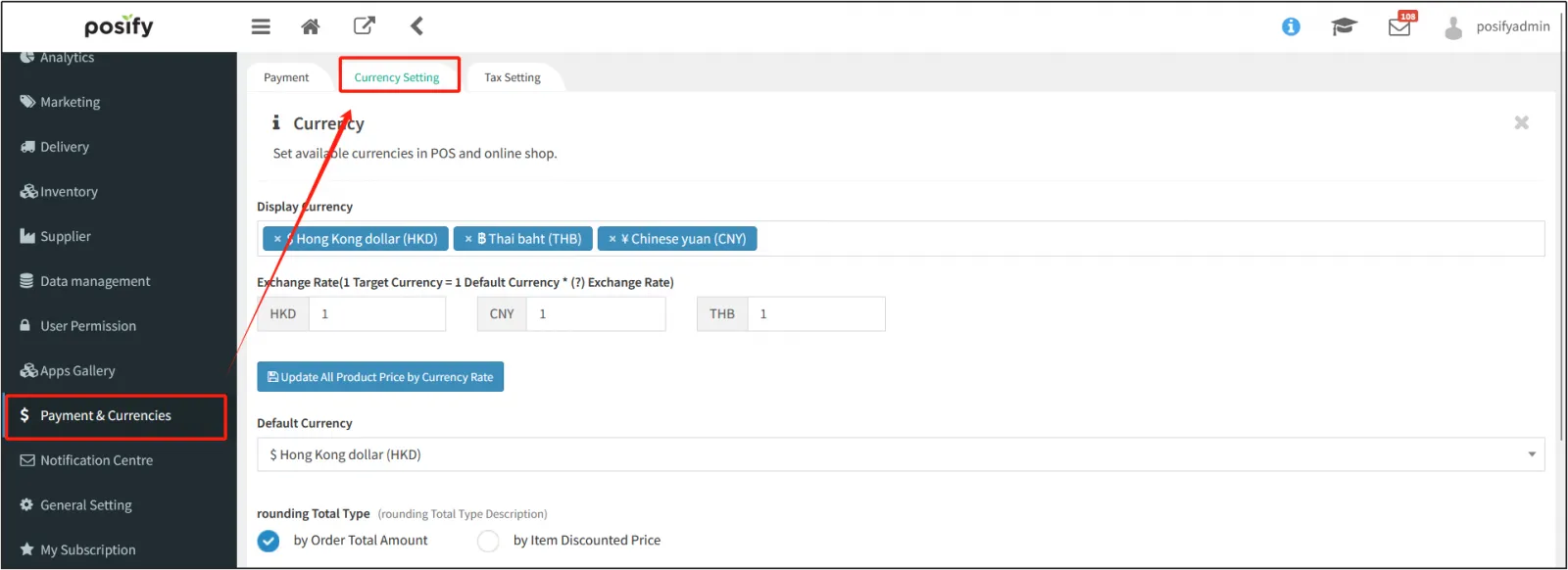
The currency of the online shop payment
Under [Display Currency], select the currency that your store can support enter the corresponding exchange rate in [Exchange Rate]click [Save] below.
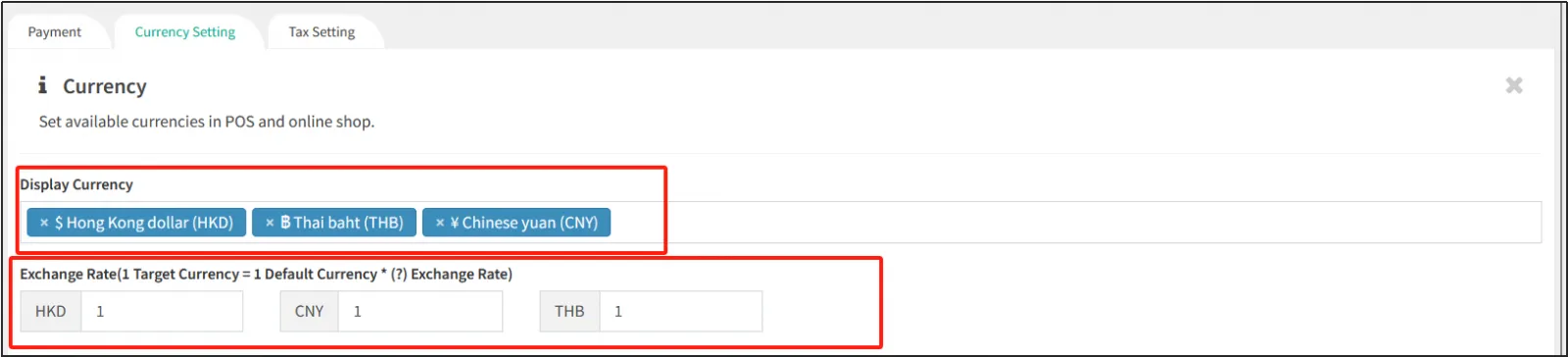
After saving, customers can change the currency of payment by clicking on the currency in the upper right corner when shopping in the Online shop.
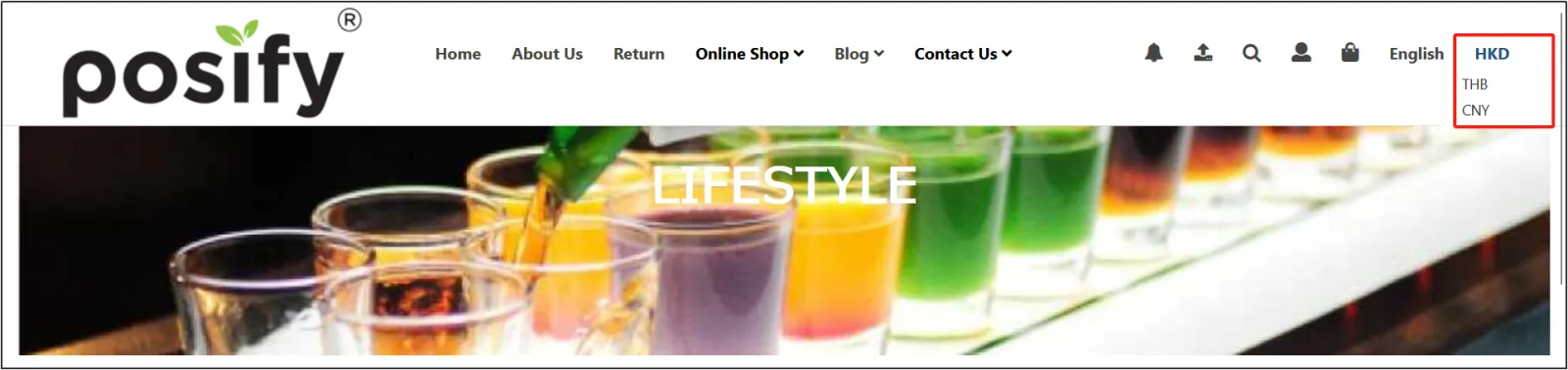
The default currency of the online shop
Select the default currency of the store from the default currencyclick "Save" at the bottom.
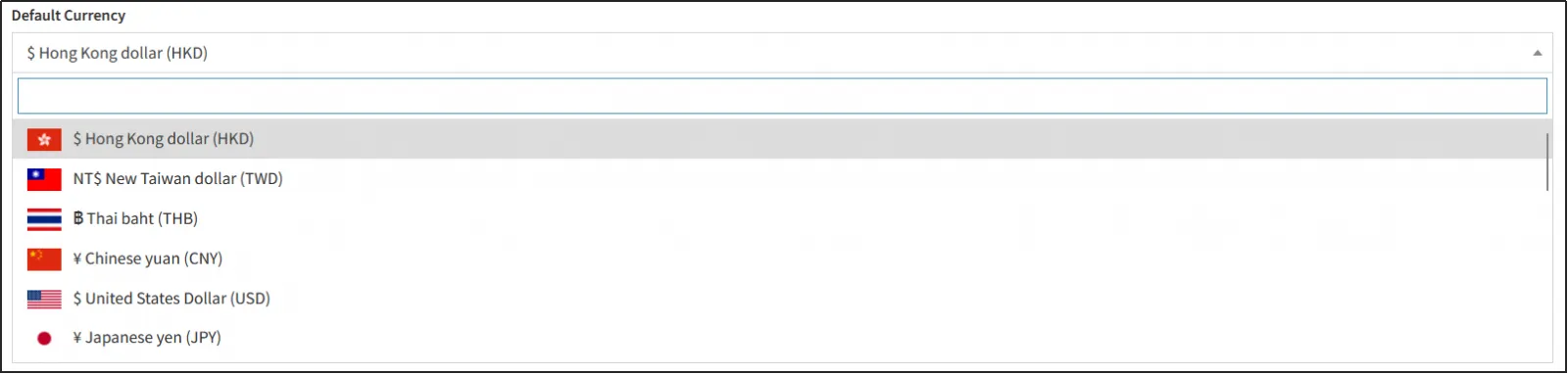
Decimal settings for online shop
Select the rounding Total Type: by Order Total Amount or by Item Discounted price.
by Order Total Amount:Rounding to decimal places based on the total price of the order.
By Item Discounted Price:Rounding to decimal places based on the discounted price of the product.

Enter the decimal number of the price of the commodity in [Decimal Point]select whether the commodity rounding is unconditionally Round Up, Round Down or Round Off.
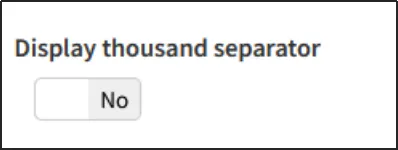
Turn on [Display thousand Separator] to display the thousands separator.
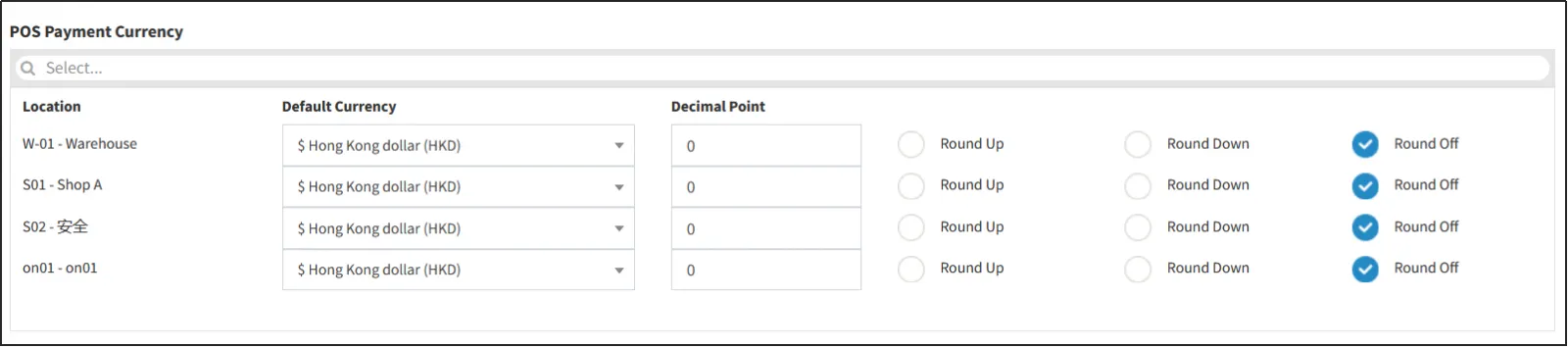
POS payment currency
Under [POS Payment Currency], you can set the [Default Currency], [Decimal Point], and Decimal Rounding Method for different locations.
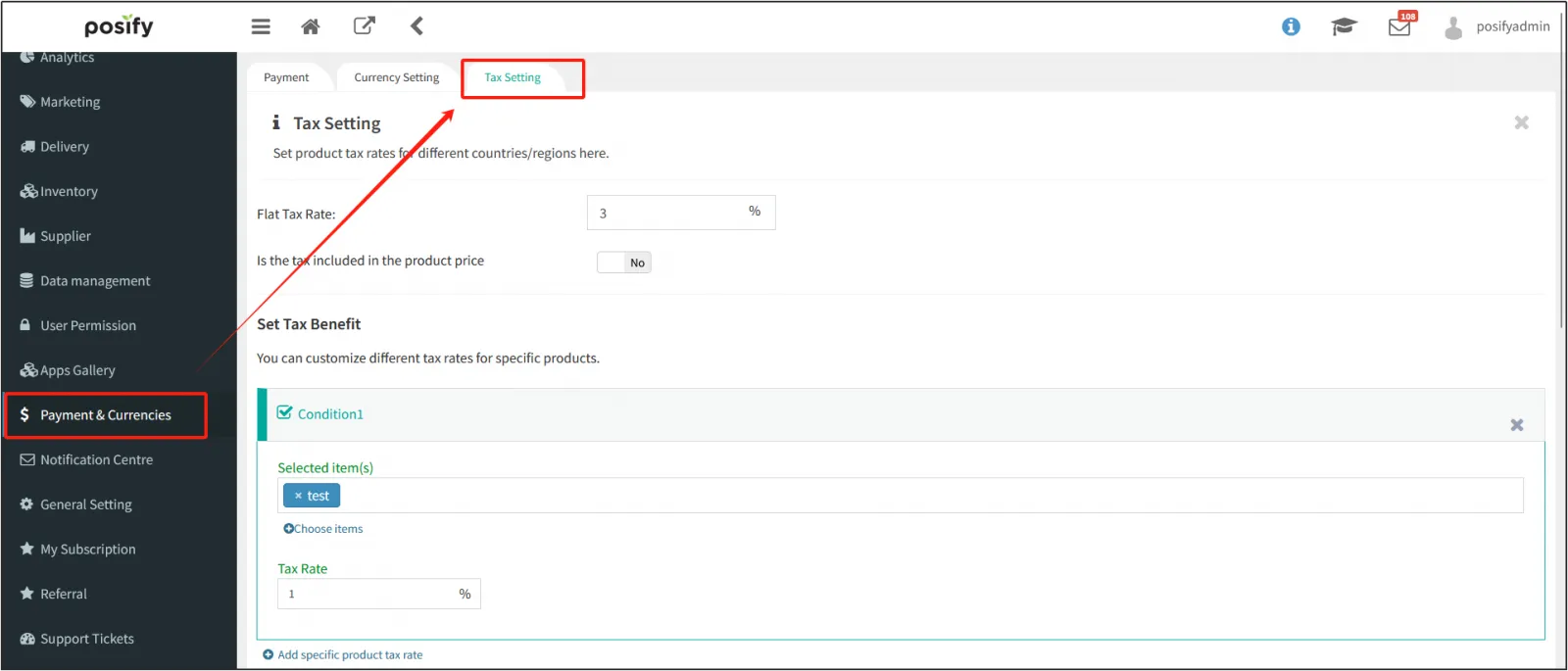
Set a tax rate
Enter a flat tax rate.
If you set a price that includes taxes, you can enable [Is the tax included in the product price].

Set up tax incentives
Merchants can set their own tax incentives for some products.
Click [Add specific product tax rate] to add a new tax benefit.
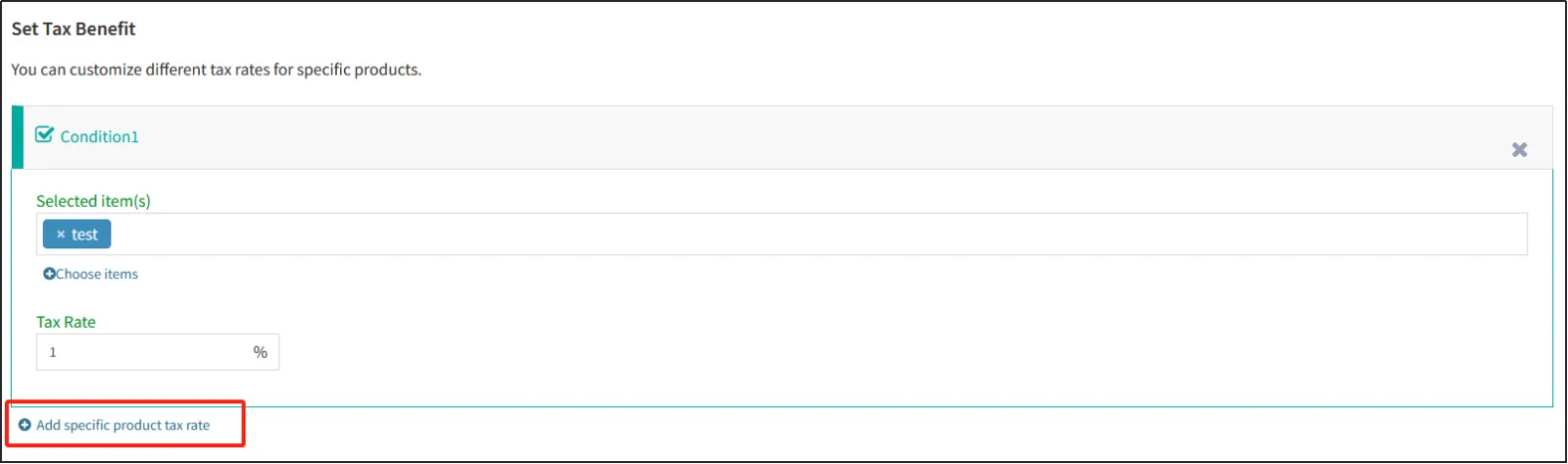
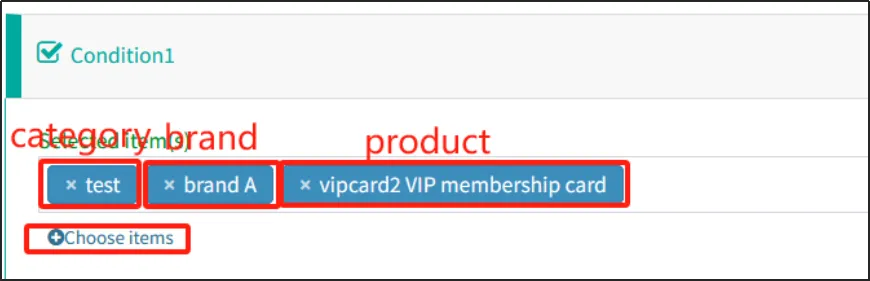
Click [Select item(s)] under [Choose items] to add the products included in the offer, you can select a single product, or select a product of a certain category or brandenter the preferential tax rate for these products.
Set country/region tax rate
Company can also set different taxes and fees for different regions, but since the region where the regional taxes are set is obtained from the shipping settings, merchants need to set the regional shipping fees under Delivery - Delivery Charge before setting regional taxes, see playbook - How to set up shipping method and delivery charge.
Company can set different taxes for different regions and choose whether to enable them.
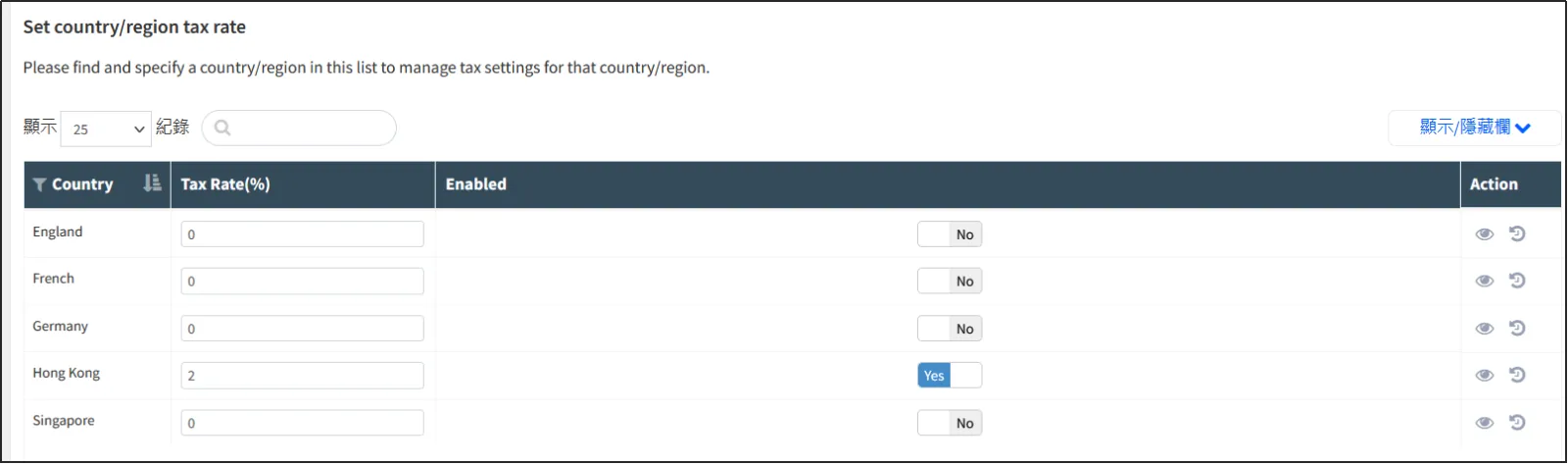
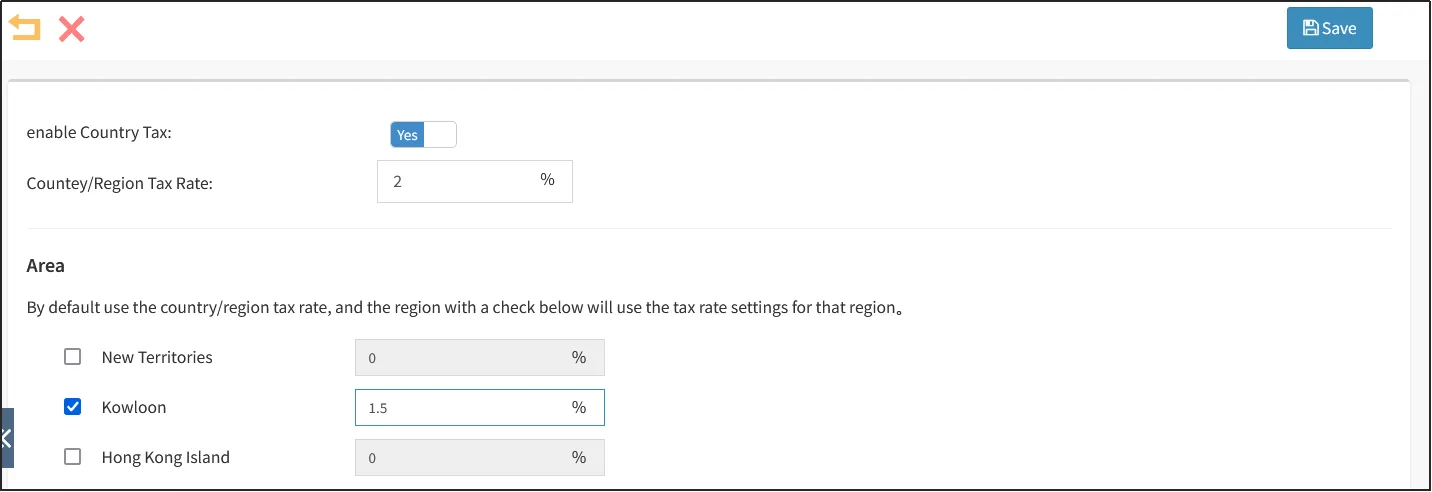
Click the on the right side of the region to open the edit page, and you can set the taxes and fees for that region more specifically.

Under [Area], you can set different tax rates for specific regions within a region.
Select and enter the tax rate of the corresponding region to set the regional tax rate.
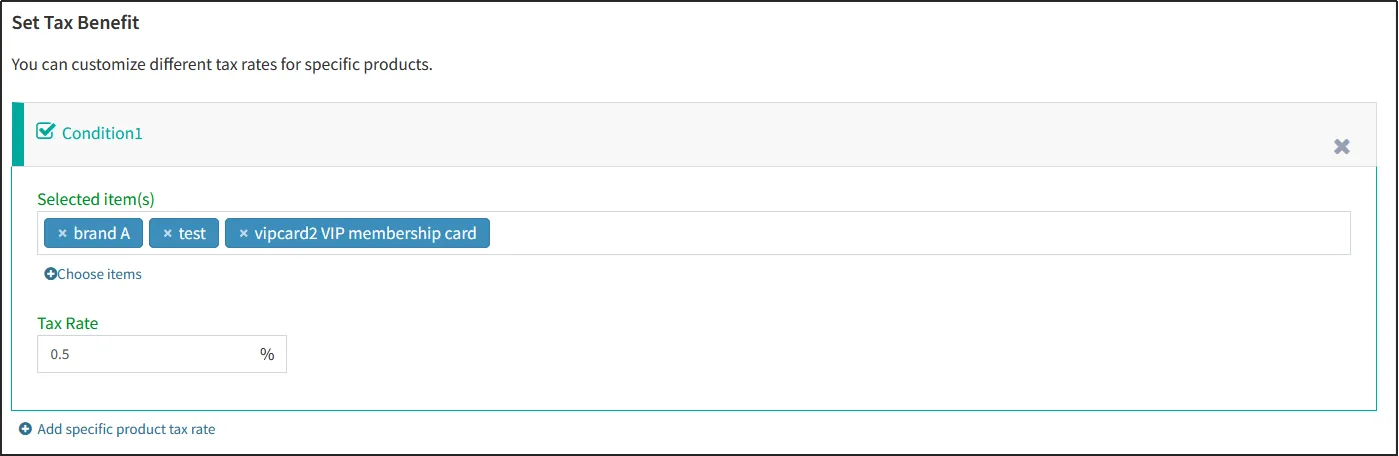
On this editing page, under [Set Tax Benefit], click [Add specific product tax rate] to add a tax benefit for the region.
In the same way as the general tax preference setting method above, click [Choose items] to add the products included in the discount, and you can select a category, a certain brand, or a single productenter the preferential tax rate for the discount.
When you are done editing, click [Save].
Note:
1. The regional tax rate will be calculated only at the time of delivery. Taxes on direct sales and pick-up are calculated at the flat-rate/tax-preferential rate set earlier.
2. If the delivery address is in a region where the regional tax rate is enabled at the time of delivery, the tax rate of the order will be calculated according to the regional tax rate, not according to the agreed tax rate/tax preferential yield set earlier. Only one of the two tax rate calculations will be applied to an order, and taxes will not be charged at the regional tax rate after the tax has been charged at the flat/preferential tax rate.


