Manage the reasons for inventory variances
Inventory is to check whether there is a difference between the
system inventory data and the actual inventory. When there is a
discrepancy, such as a mistake when entering the inventory, you can
correct the inventory by clicking the warehouse. Before proceeding with a point position, you need to set the difference type of the point position.
Open the CMS Click InventoryClick Settingclick the tab to select Manage Discrepancies TypeClick [Add].
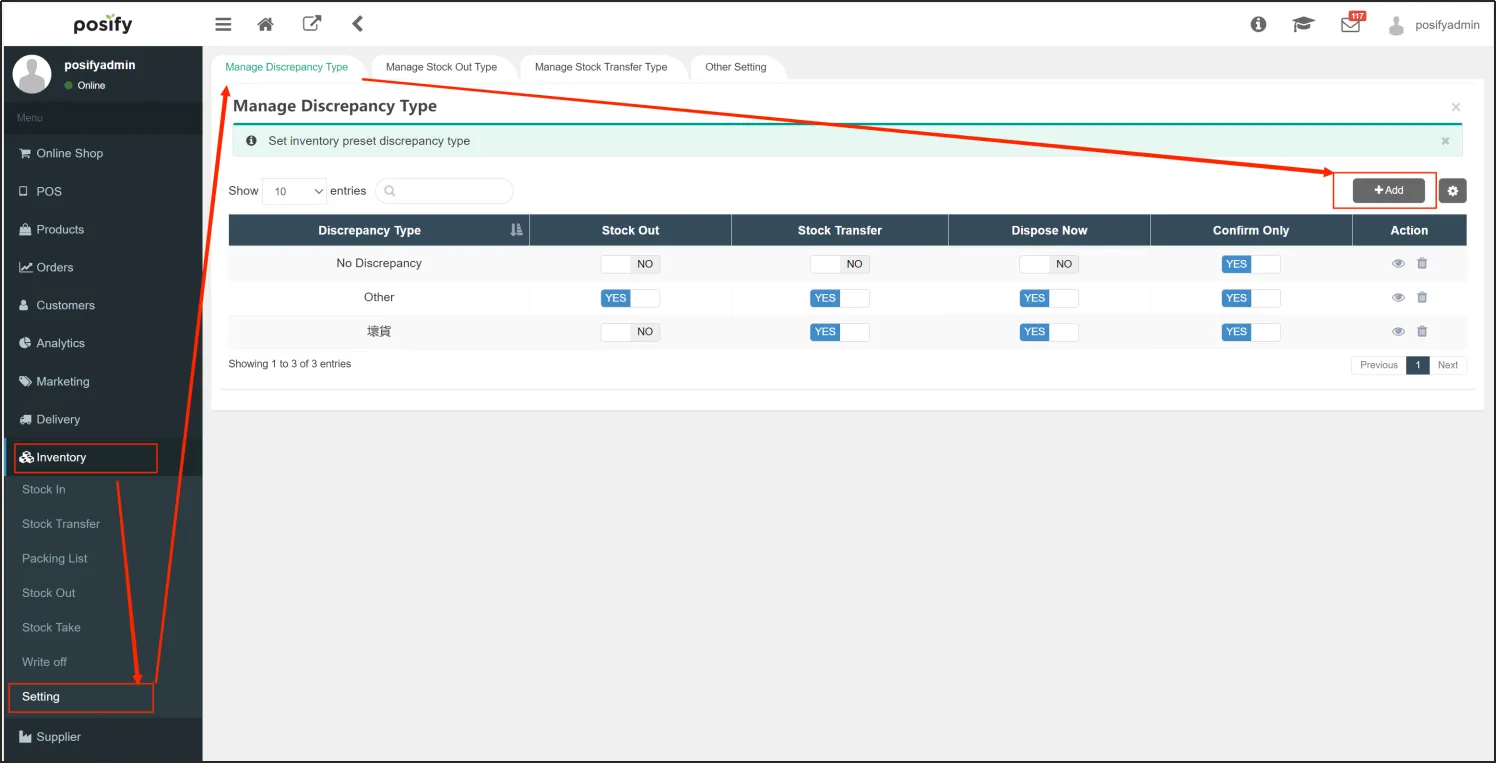
Enter a name for the variance (the reason for the inventory variance)to enable the related action (how such variances are handled).
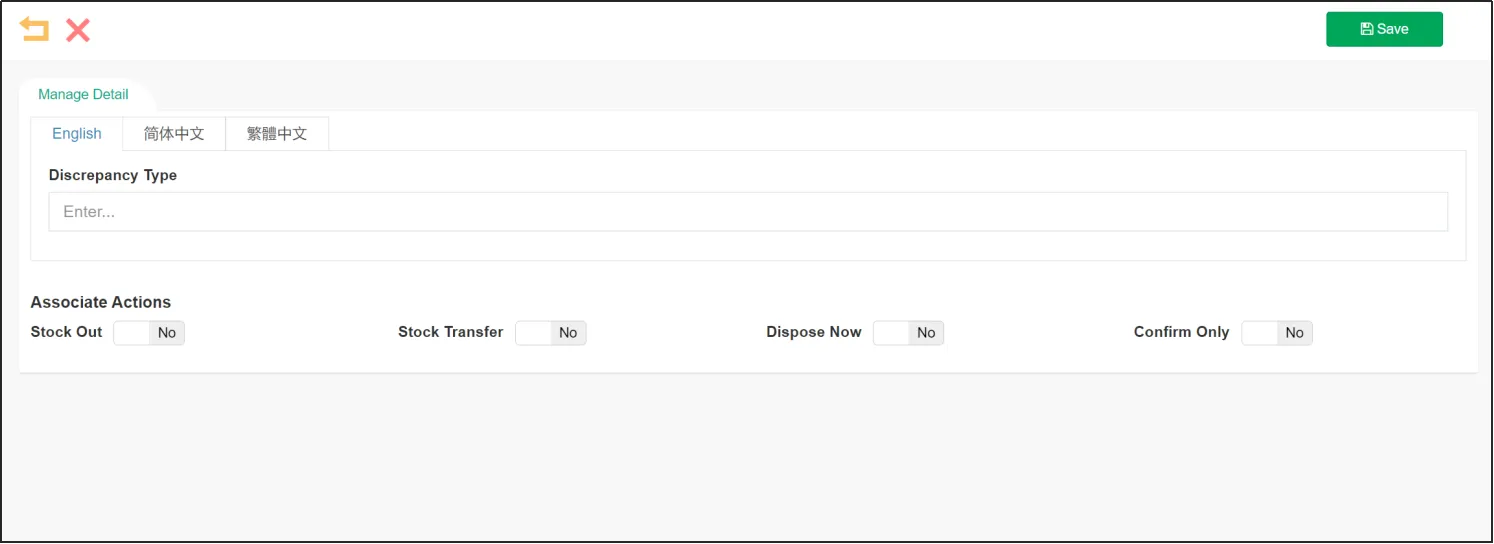
There are four types of operations related to the cause of discrepancies:
Shipping: Shipping to a location outside of your company. For example, if you find expired juices and want to ship them to a recycling plant, enable this action
Transfer: Transfer to a location within your company. For example, if you find that there are some damaged products that you want to transfer to your warehouse, enable this action.
Dispose of it immediately: For example, if you find expired juices and want to throw them away immediately, enable this action.
Confirm only: Only the difference needs to be confirmed, and no follow-up operations are required.
Note: You can enable all related operations, but if you only want to modify the inventory of the product, you only need to use "Confirm Only" when you click the inventor.
Spot positions through CMS
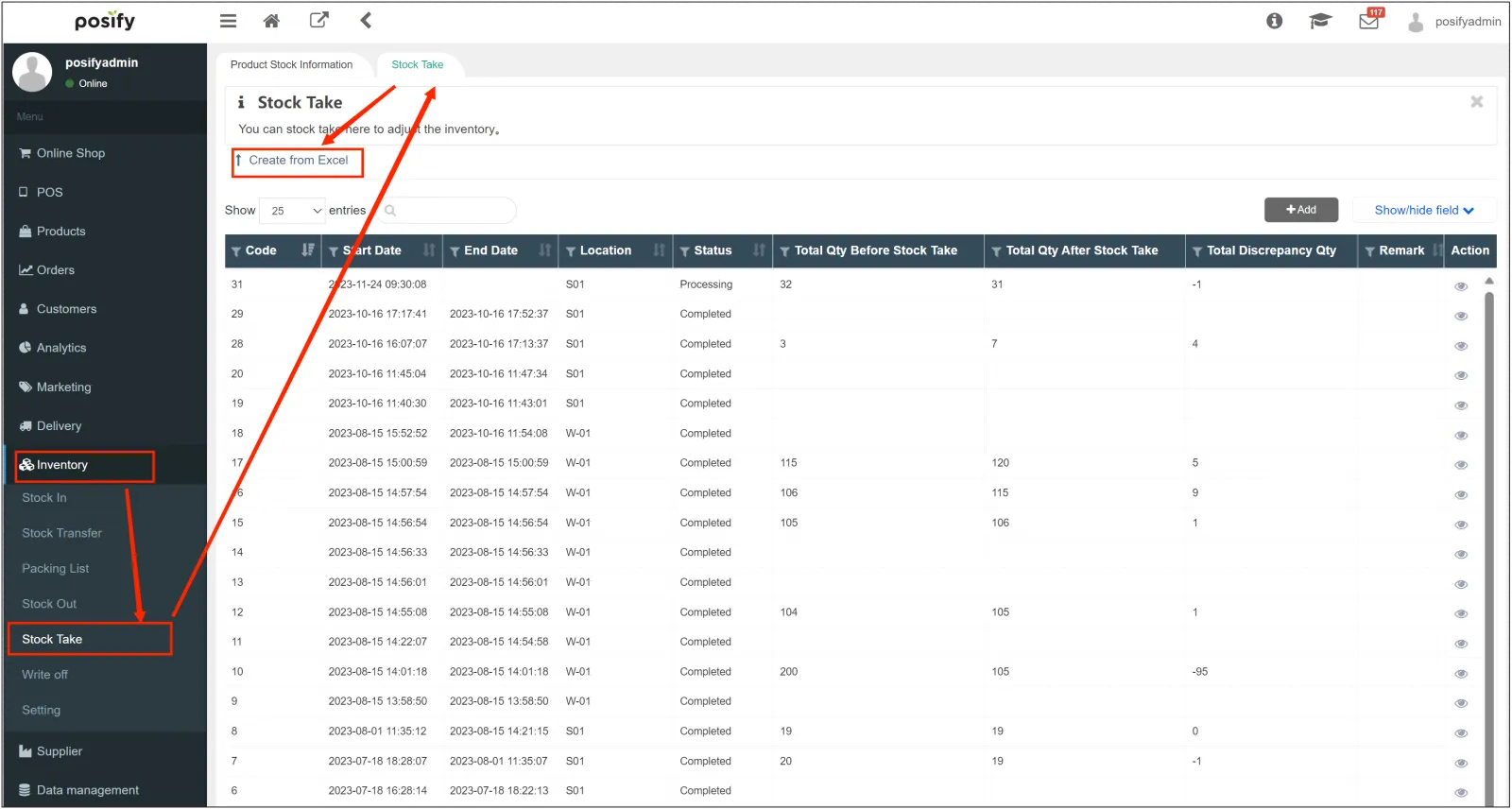
After setting the reason for the discrepancy and related operations, click InventoryClick Stock TakeClick on the tab to select the Stock TakeClick [Create from Excel]
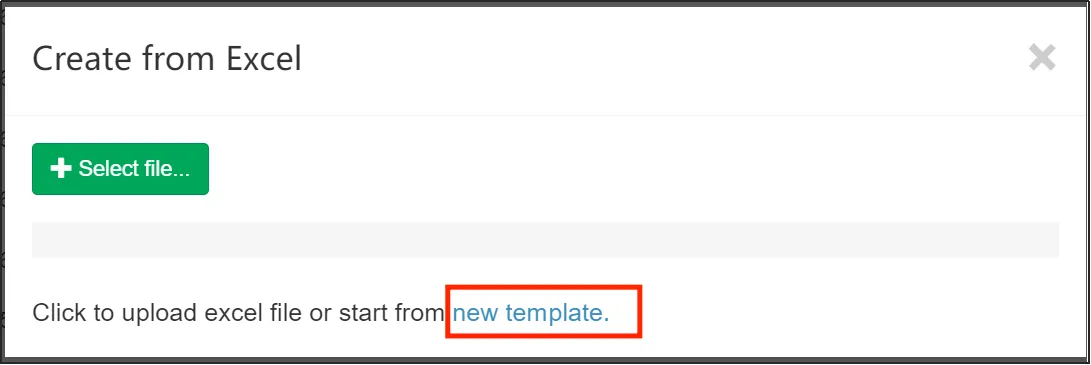
Click [New Template] to export the point warehouse template.
Open the exported template and fill in the inventory information according to the table.
Product ID: Enter the product ID of the product with discrepancies.
System SKU Number/Manufacturer Number/Custom SKU Number:
Enter the system SKU number, manufacturer number, or custom SKU number of the product with differences, and select one of them. (Please see below to find the product system SKU
number/manufacturer number/custom SKU number)
Note: Because the number is very long, you need to click on the box you want to enter the number into, modify the format to text, and then enter the number, otherwise it will be displayed in a format such as "1.50742E+16", and such a number cannot be imported into the system.
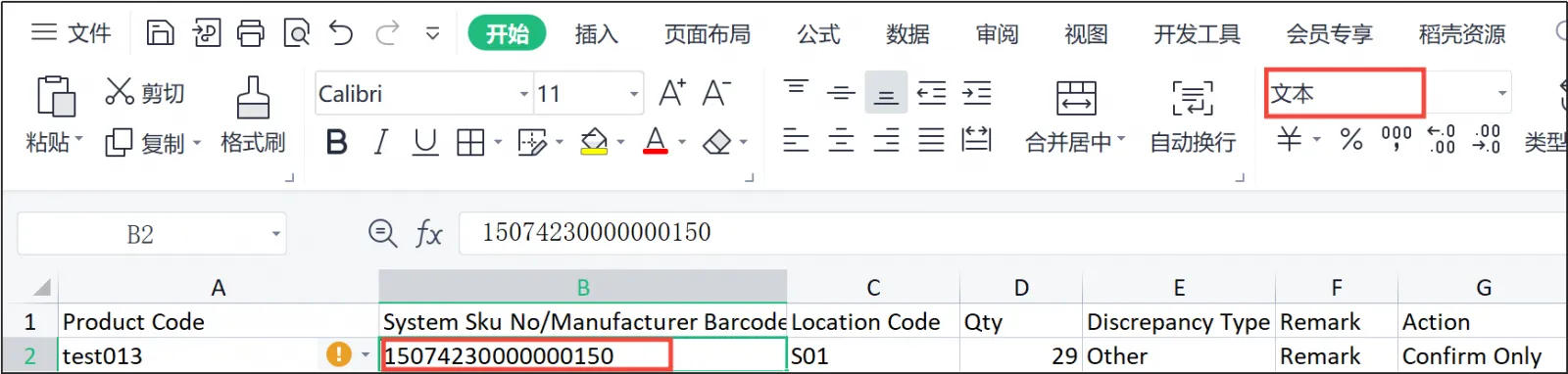
Location: Enter the location ID of the product with the discrepancy.
Transfer location: This field is only required when the operation is a
transfer of goods. Fill in the number of the product transfer location. For example, if product A is transferred from W-01 to S01, then the transfer location is S01.
Quantity: Enter the quantity after the point position. Indicates the current physical inventory of the item with the discrepancy. For example, if there are 50 items on A, and 1 of them is bad, and you only need to fill in 49 if you only confirm the operation point warehouse.
Note: When the relevant operation is confirmed only, the number of points can be larger than the current warehouse data in the system, and when the related operation is not only confirmed, the number of points can only be less than or equal to the current warehouse data in the system. For example, if the system shows that there are 50 commodity A, then when the relevant operation is not only confirmed, the number of points can only be filled in as a positive integer less than or equal to 50.
Inventory Variance: Enter a name for a pre-set inventory variance.
Click InventoryClick Stock TakeClick on the page tab to click on the Stock TakeClick [Create by Excel].
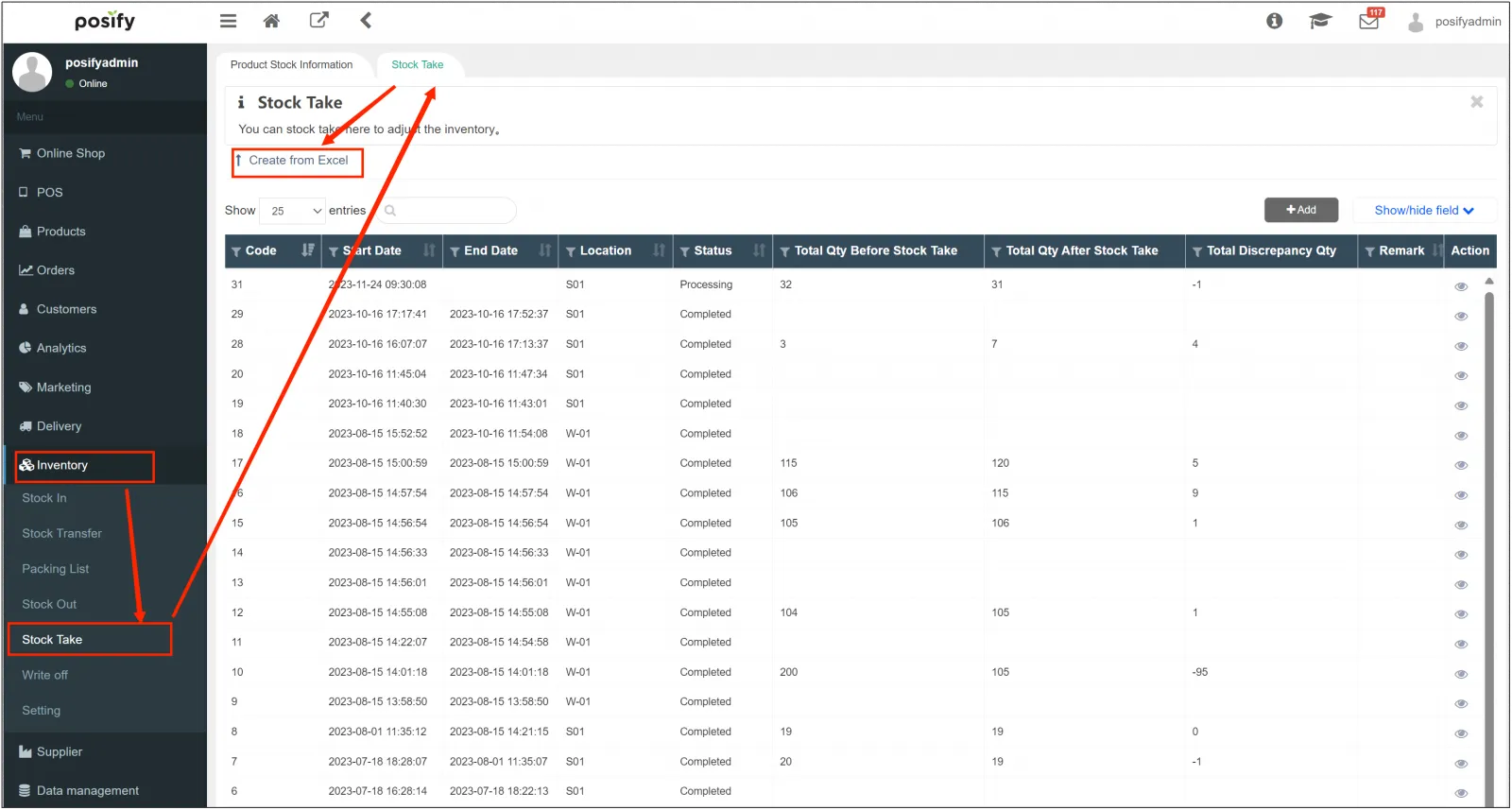
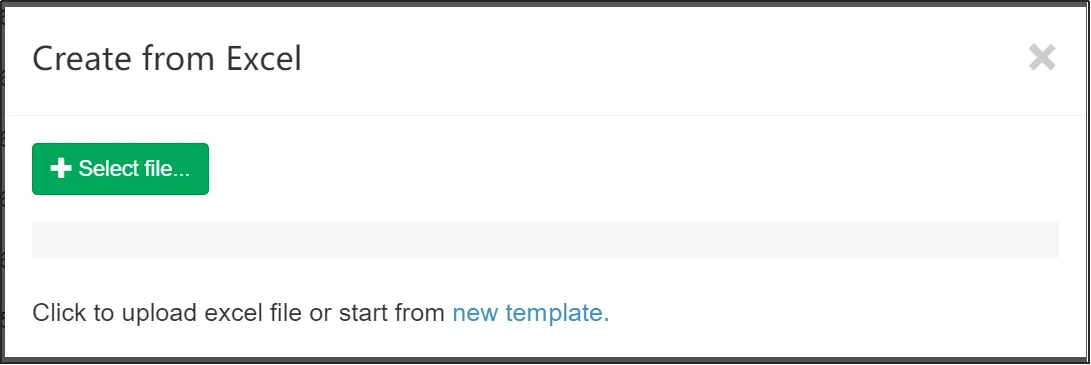
Click [Select File...]Import the Excel you just edited.
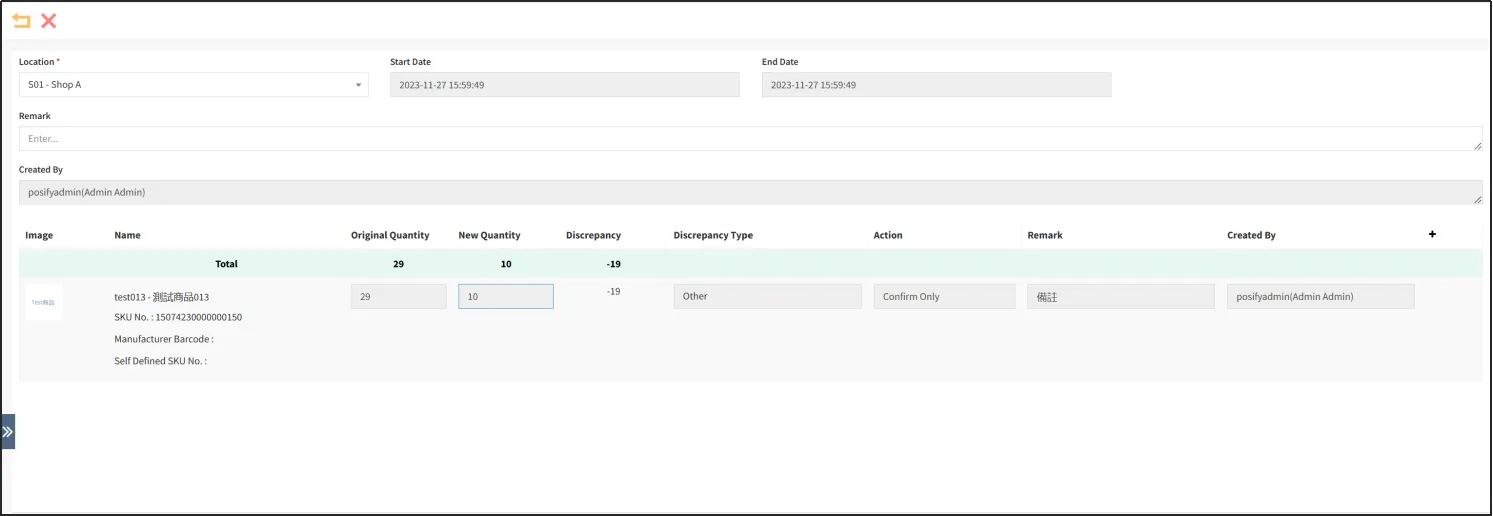
After the import is successful, the stock take record will appear
in the stock take list, and the status is completed, click the eye icon to view the details

Check and confirm that the data of the commodity stock take is correct
Note: Since a warehouse can only execute one point warehouse at a time, if the POS has an incomplete point warehouse receipt from the same warehouse at this time, the upload cannot be successful. After uploading, an error will be displayed, and the POS point warehouse receipt needs to be processed first, because a warehouse cannot have two point warehouse receipts at the same time.
How to find the SKU number of an item
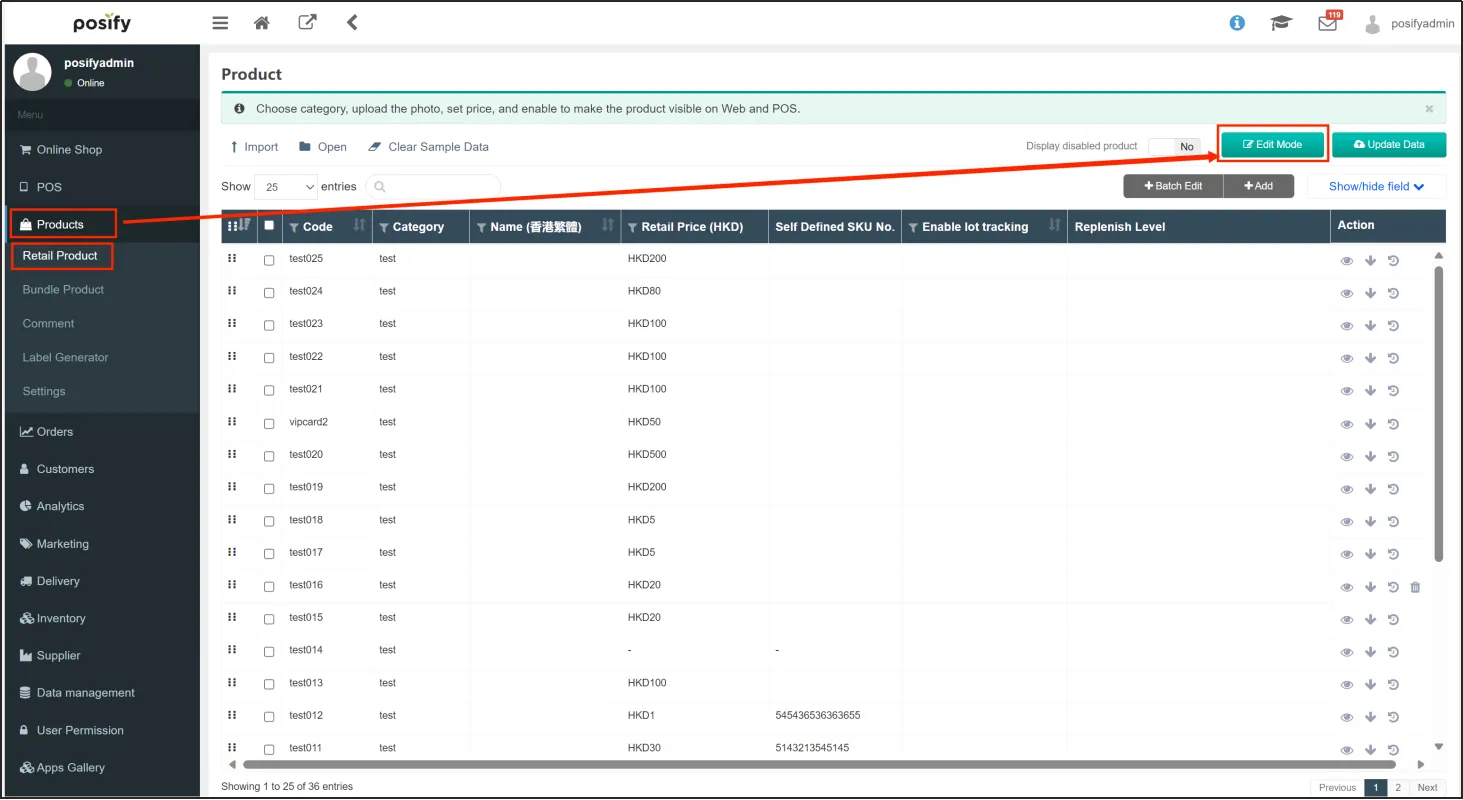
Open the CMSclick on the Productclick on the retail productclick on [Product Edit Mode].
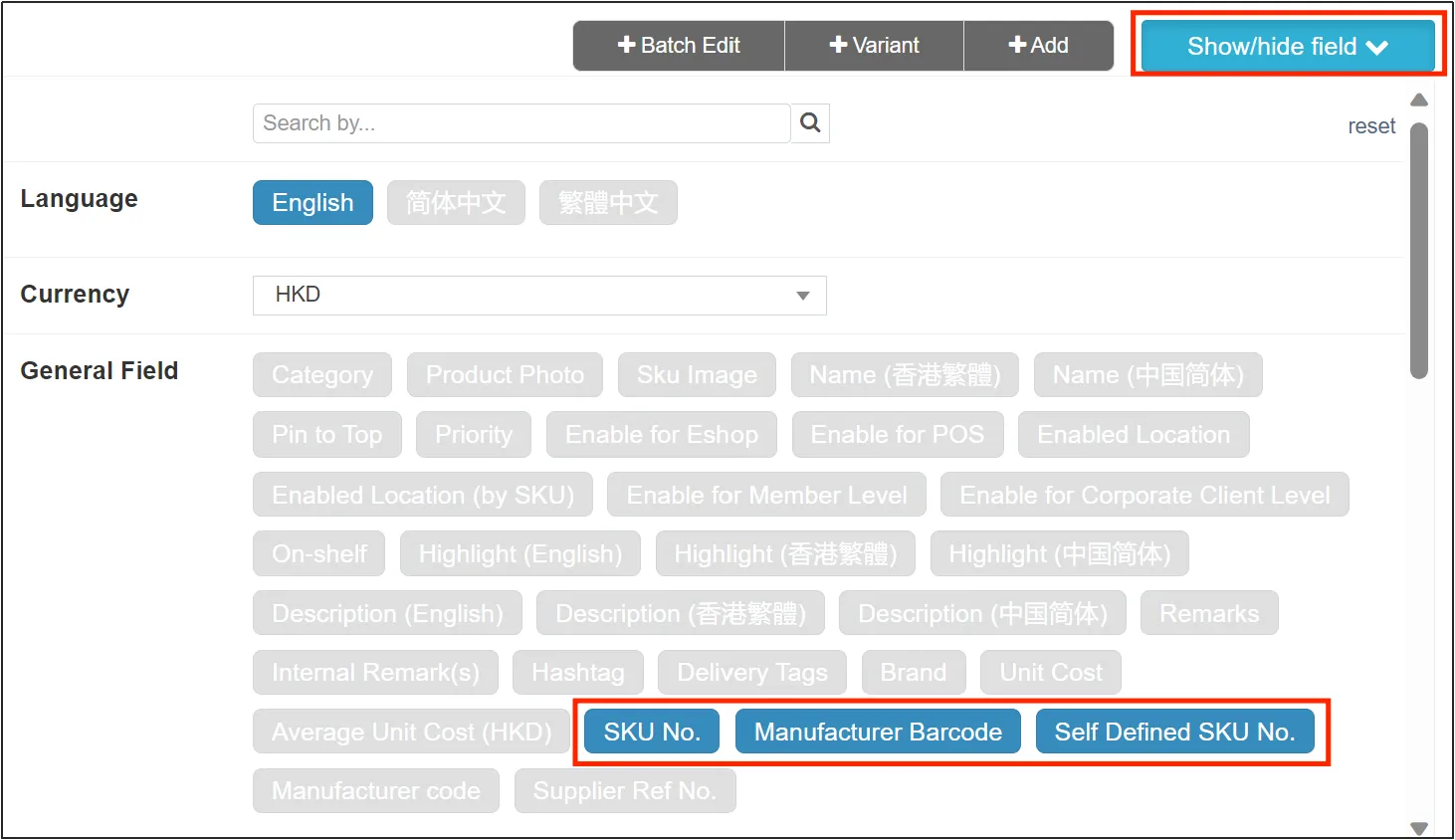
Click [Show/hide field]to light up [SKU No.]/[Manufacturer Barcode]/[Self Defined SKU No. ]
Through the POS Stock Take
For the method of POS Stock Take, please see Retail
POSplaybook - POS inventory management。


