Manage the types of goods to be transferred
When the inventory of goods at the current location is insufficient and cannot be purchased in a timely manner, it is necessary to transfer goods from other locations. When applying for transfer, employees need to choose the type of transfer as the reason for the request.
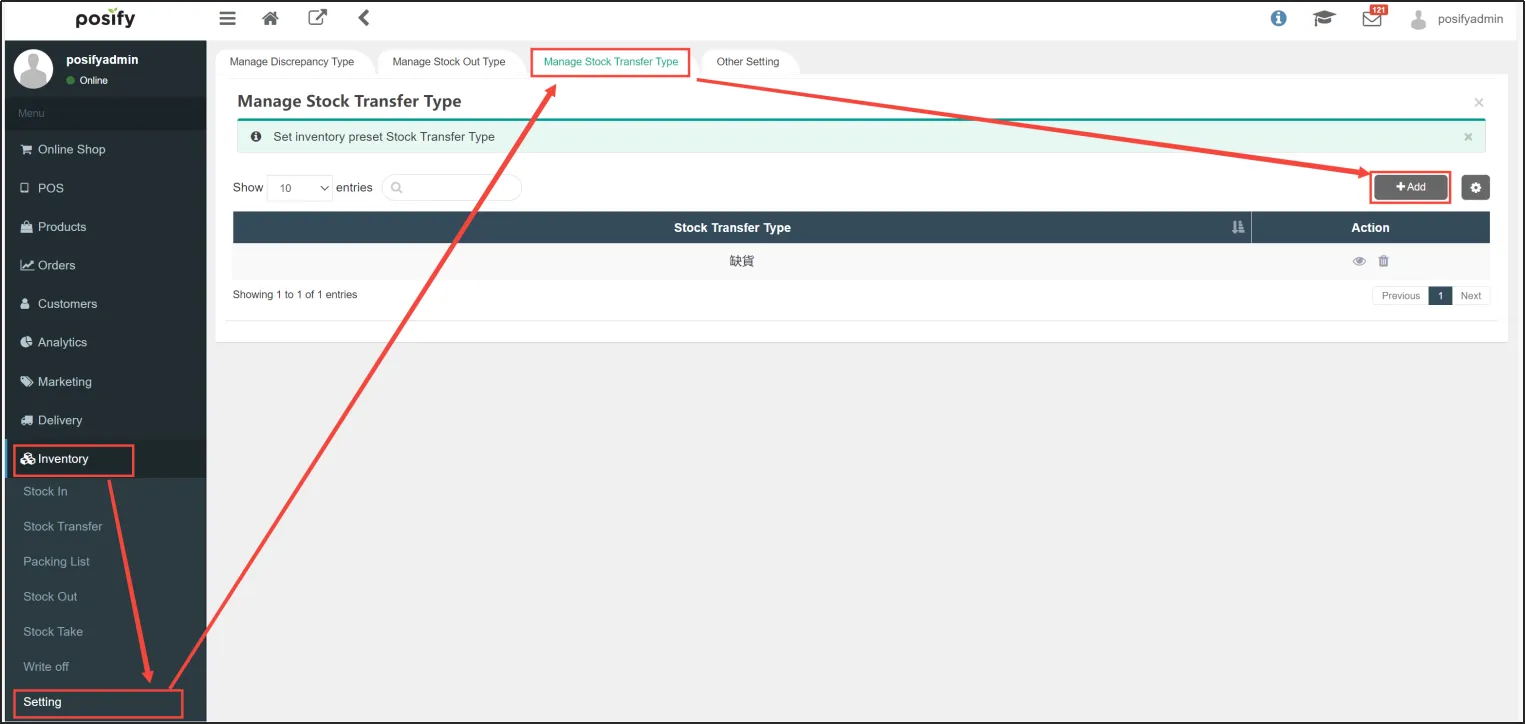
Open CMS Click on inventoryClick on SettingsClick on the tab to select Manage Stock Transfer TypeClick [Add] to add a new type of shipment.
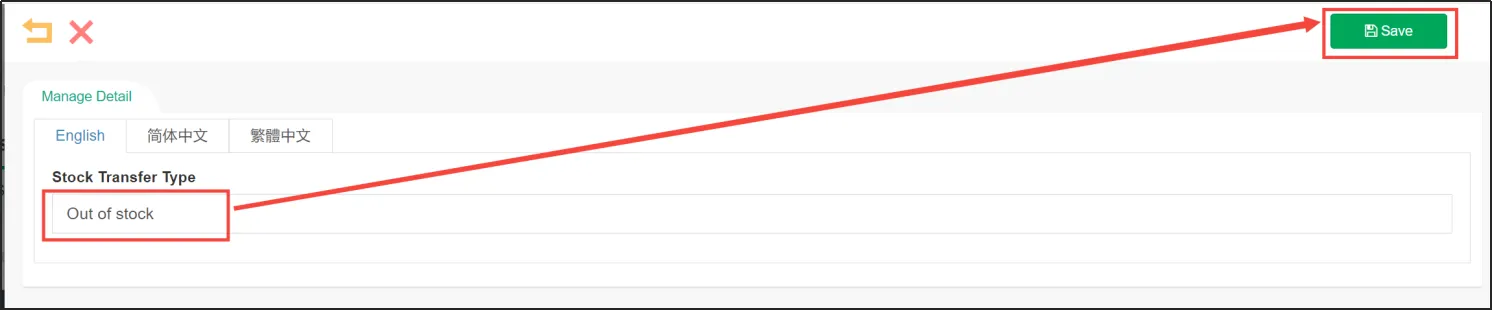
Enter the name of the type of transfer (reason for transfer), such as "out of stock"Click on [Save] in the upper right corner.
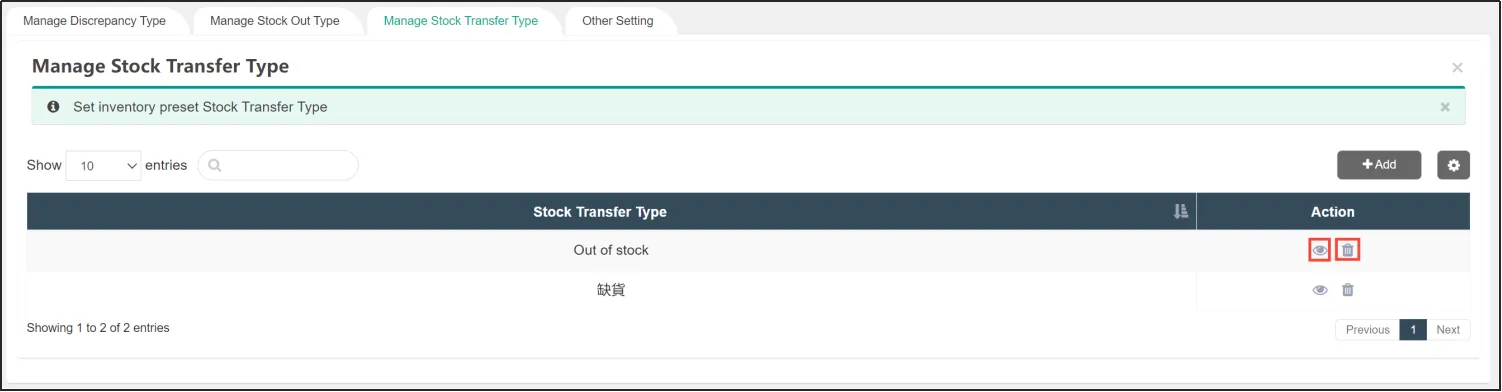
You can click on the right side of the transfer type  To re edit its name,or you can click to
 delete the transfer type.
Once you have edited the transfer category, you will need to log back in to the POS to view the changes.
Manage Stock Take Type
The shipment type is suitable for shipping to locations outside of your company. If you want to ship to another location within the company (store or warehouse), please refer to the above for shipping to another location.
Open CMSClick on InventoryClick on SettingsClick on the tab to Manage Stock Take TypeClick [Add] to add a new shipment type.
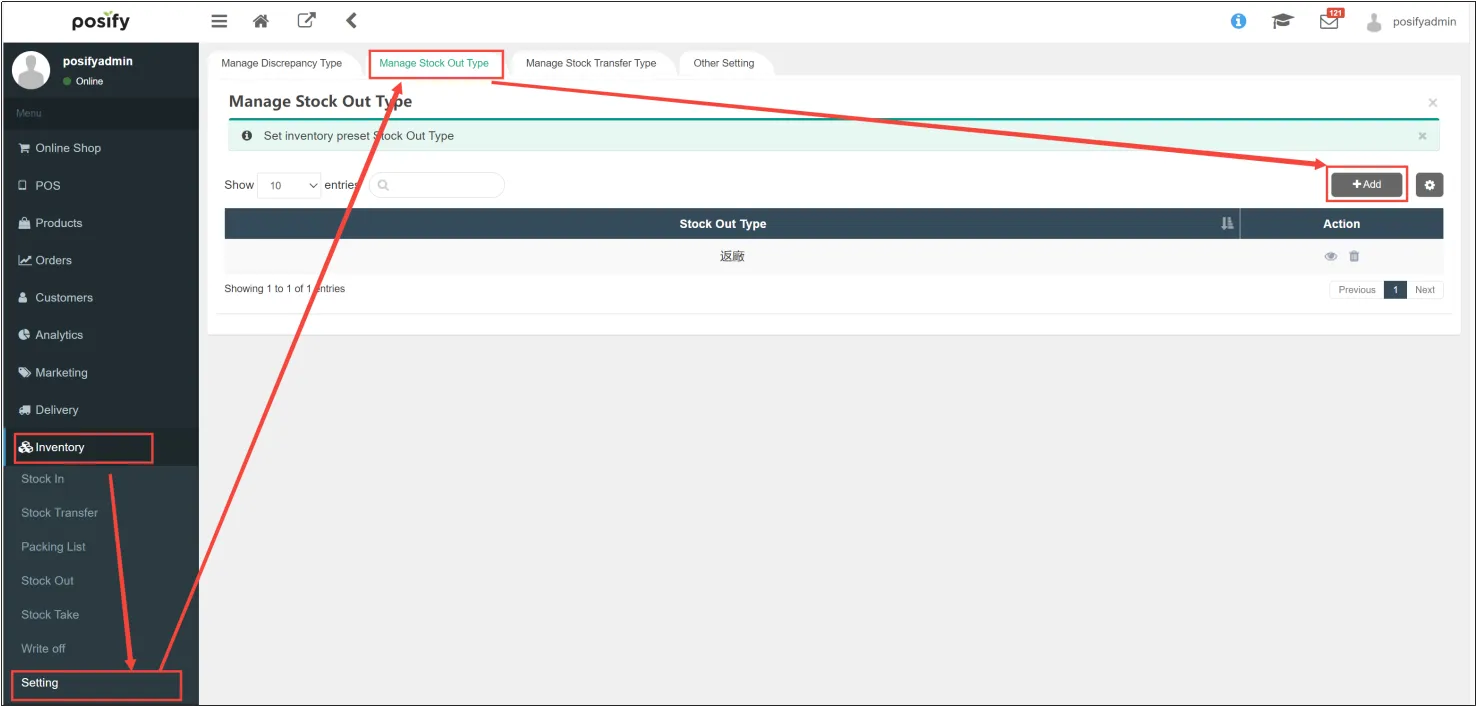
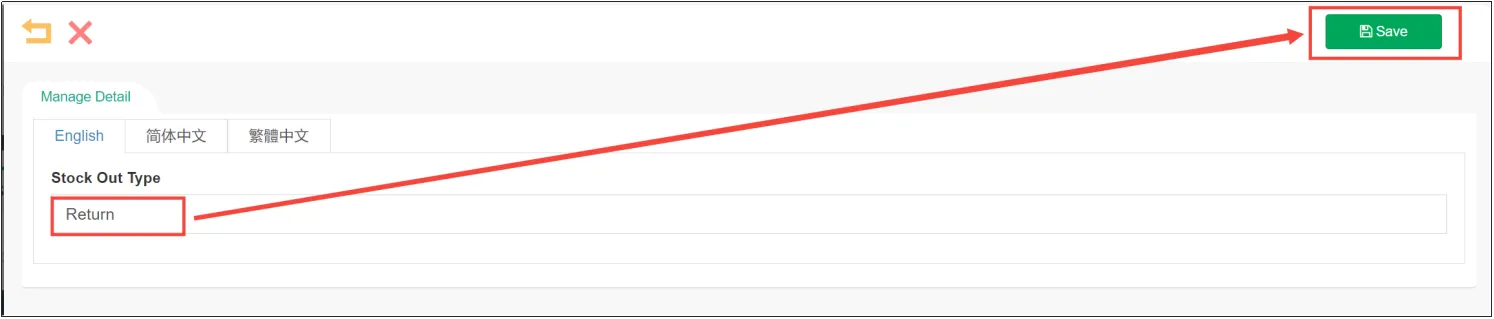
Enter the name of the stock take type (reason for shipment), such as "Return", and click [store].
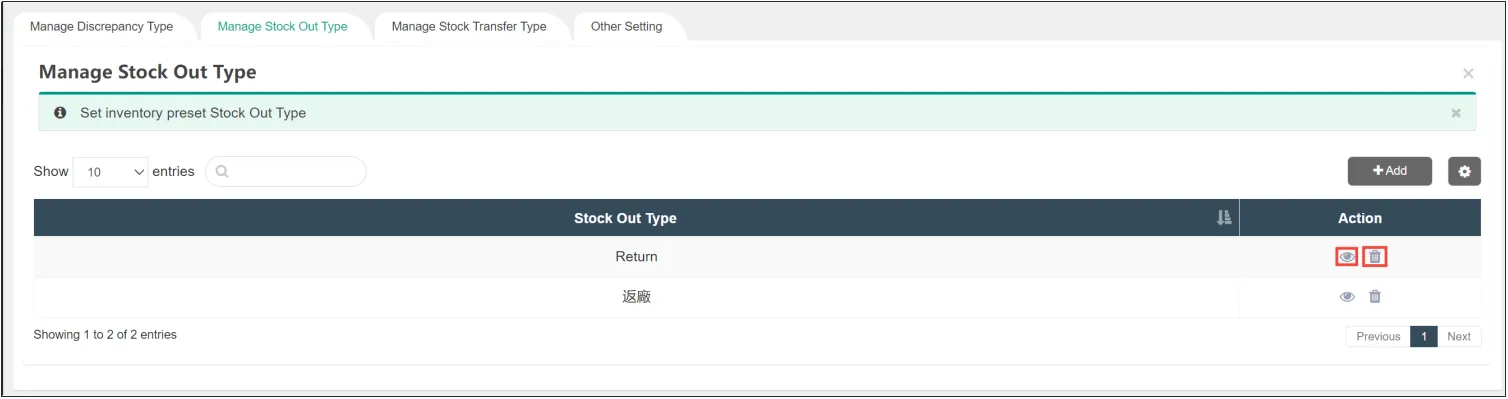
You can click on the right side of the stock take type to re edit its name,you can also click to delete the shipment type.
After editing the shipment type, you need to log in to POS again to view the changes.
Manage Discrepancy Type
If there is a discrepancy between the inventory data of the system and the actual inventory data during the inventory check, the employee needs to select the inventory variance type.
Open CMSClick InventoryClick on SettingClick on the tab to manage discrepancy typeClick [Add] to add an manage discrepancy type.
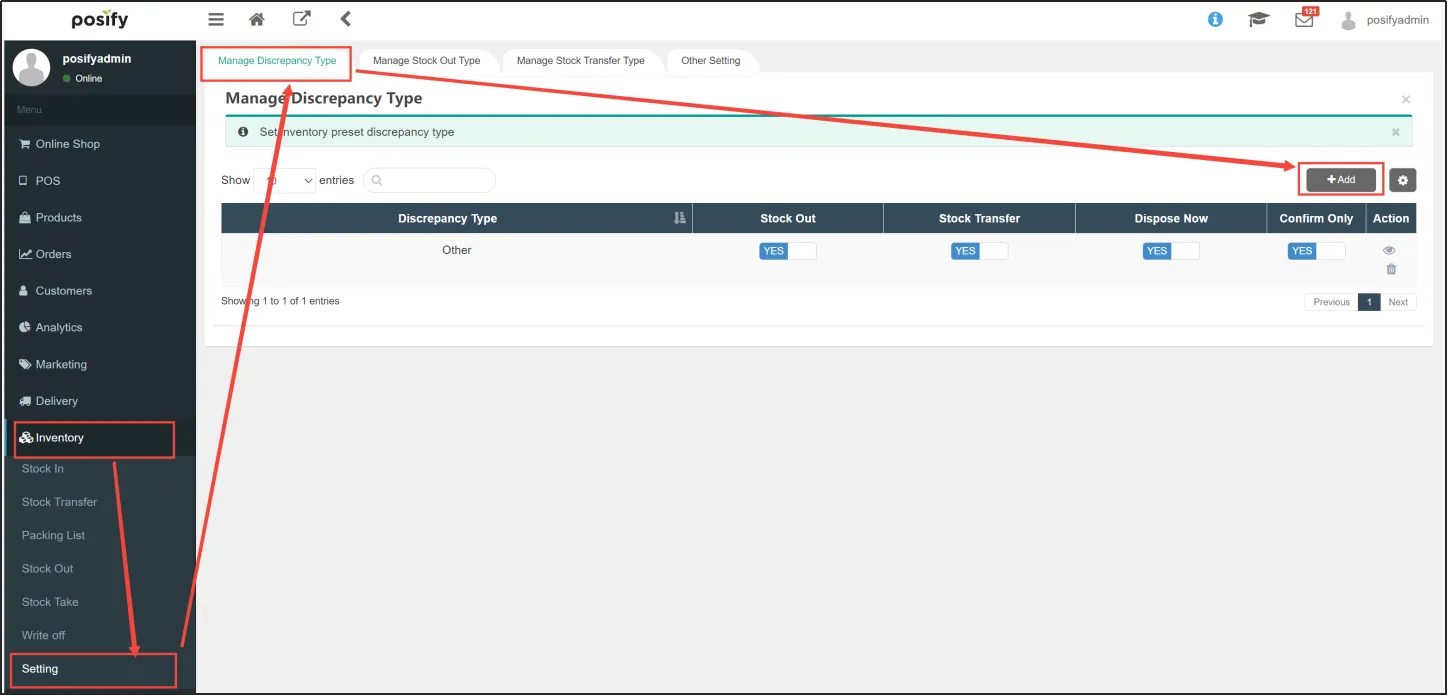
Enter the name of the discrepancy type and enable the related operation (How to handle differences).
Stock Out:Stock out to a location outside of your company. Enable this operation if, for example, you find expired juices and want to ship them to a recycling plant.
Stock Transfer:Transfer goods to a location within your company, e.g. if you find some damaged goods and want to transfer them to your warehouse, enable this operation.
Dispose Now:For example, if you find expired juices and want to throw them away immediately, enable this operation.
Confirm Only:Only the difference needs to be confirmed, and no follow-up operations are required.
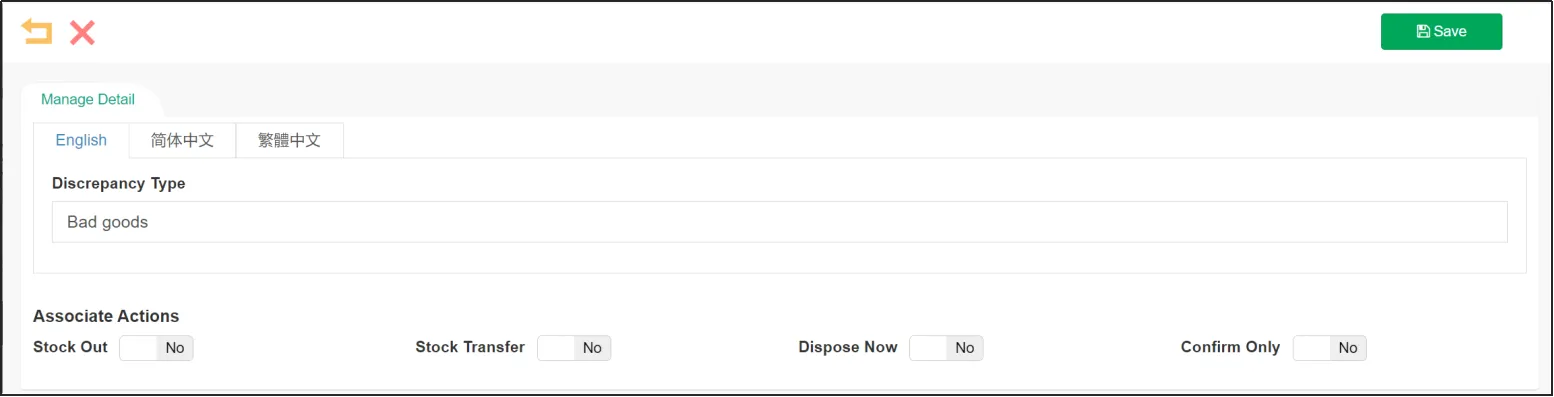
You can click on the Inventory discrepancy category to the right to re-edit its name and related operations,or you can click to delete the inventory discrepancy type .
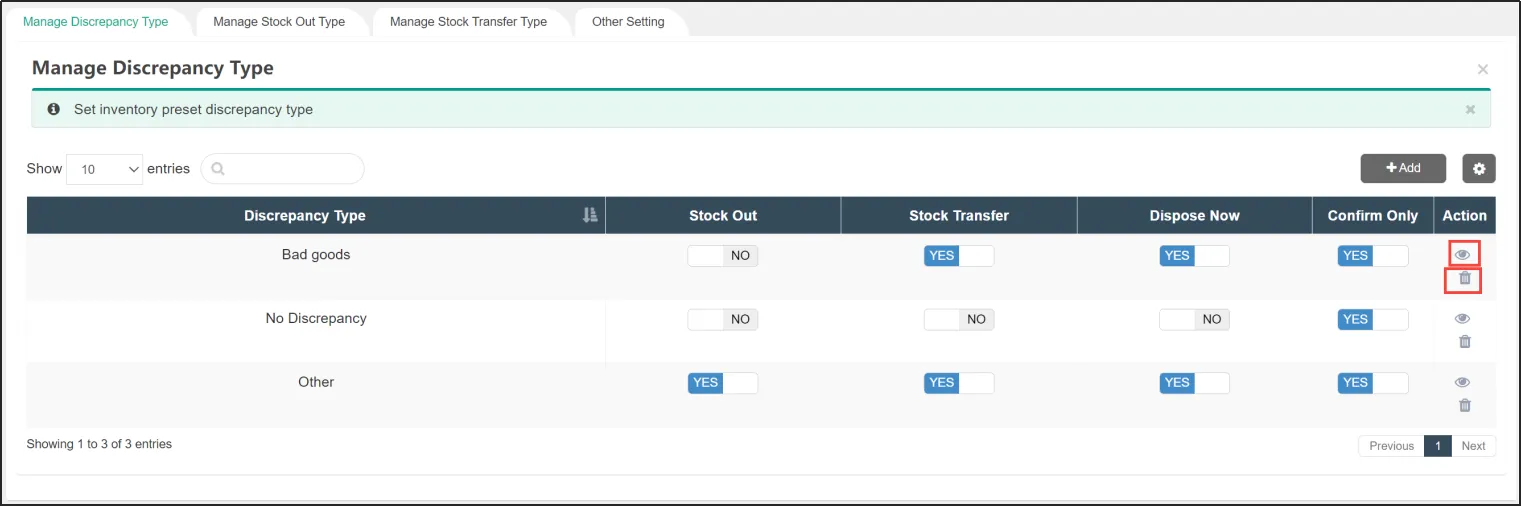
After changing the inventory discrepancy type, you will need to log back into the POS to view the changes.
Average Cost Calculation Method
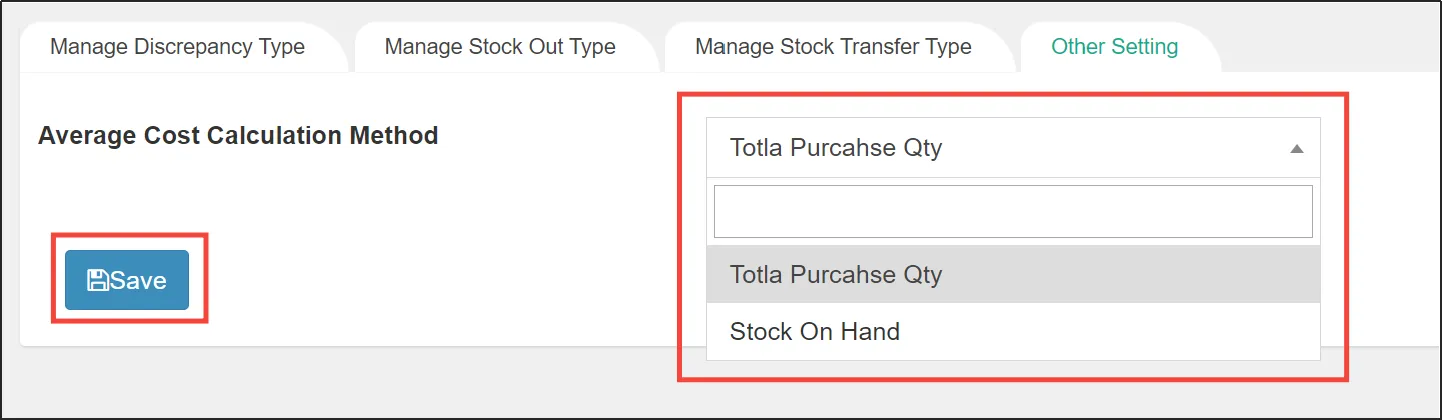
Open CMSClick on InventoryClick on SettingClick the tab Other Settings.
Here you can choose to calculate the average cost, which can be calculated in two ways: Total Purchases Qty or Stock On Hand.
If you choose Total Purchases Qty, the formula for calculating the average cost is as follows:
New Average Cost = (Procurement Cost of First Purchase x Quantity of First Purchase + Procurement Cost of Second Purchase x Quantity of Second Purchase + ...... + Procurement Cost of This Purchase x Quantity of This Purchase) / (Quantity of First Purchase + Quantity of Second Purchase + ...... + Quantity of This Purchase)
Or if you choose Stock On Hand, the formula for calculating the average cost is as follows:
New Average Cost = (Current Average Cost x Current Inventory + Current Purchase Cost x Current Purchase Quantity) / (Current Inventory + Current Purchase Quantity)