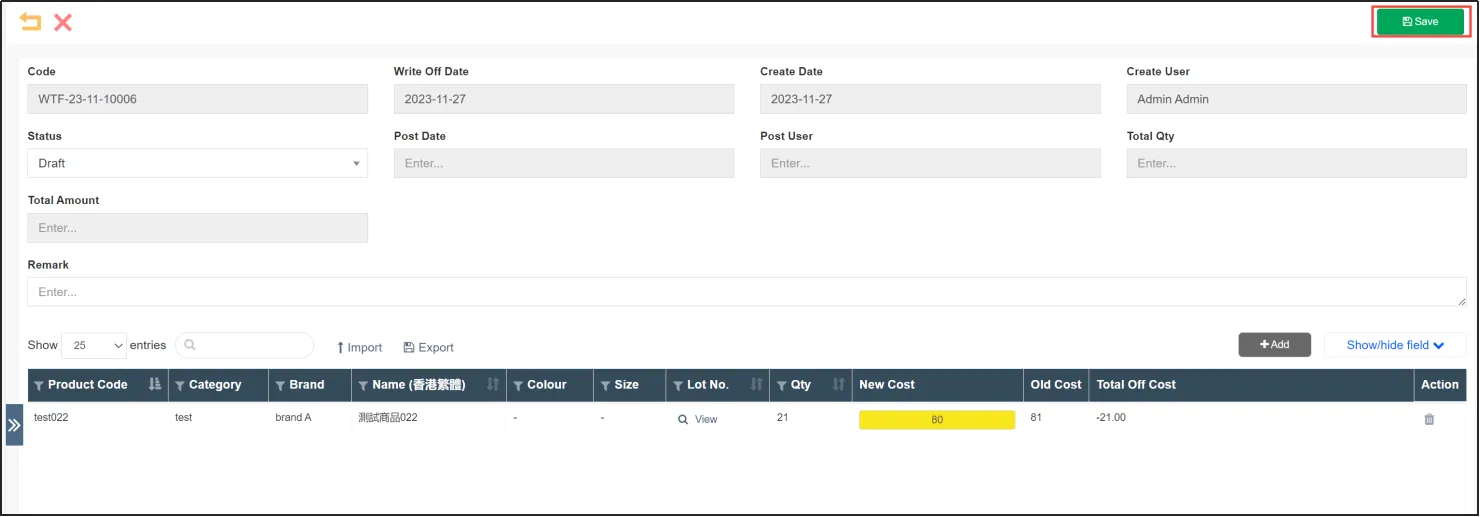
Sometimes some goods need to be depreciated because they have been stored in the warehouse for too long, etc. as follows:
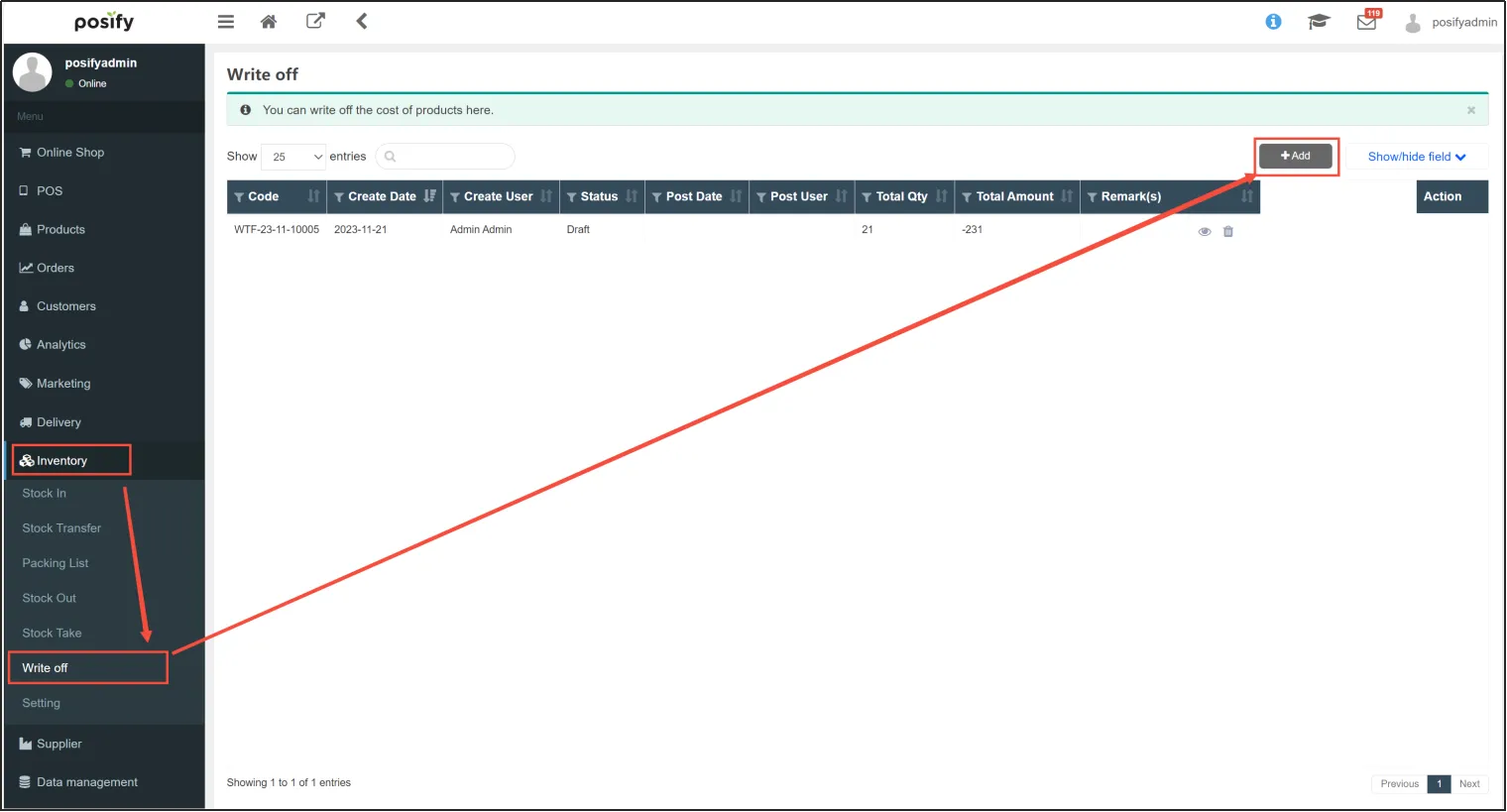
Open the CMS Click InventoryClick Write offClick [Add] to add a new cost depreciation.
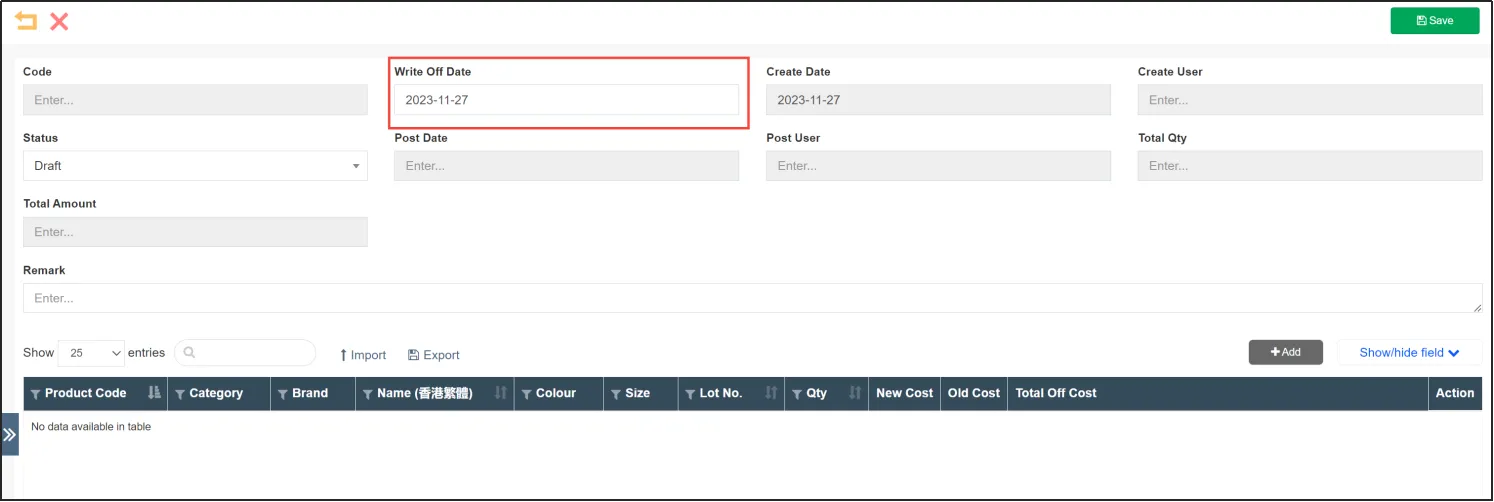
Select [Cost Depreciation Date], goods that are entered before that date will be depreciated, while goods that are entered after that date will not be depreciated.
After selecting [Write Off Date], click [Save].
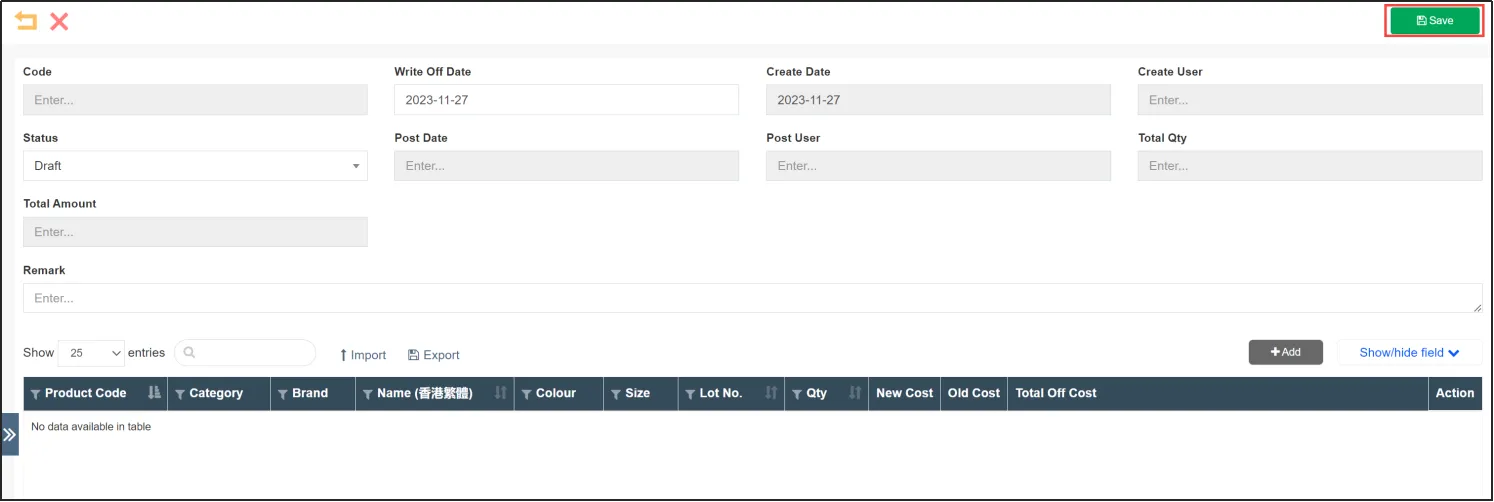
Click [Add] on the product list below to add the products that need to be depreciated.

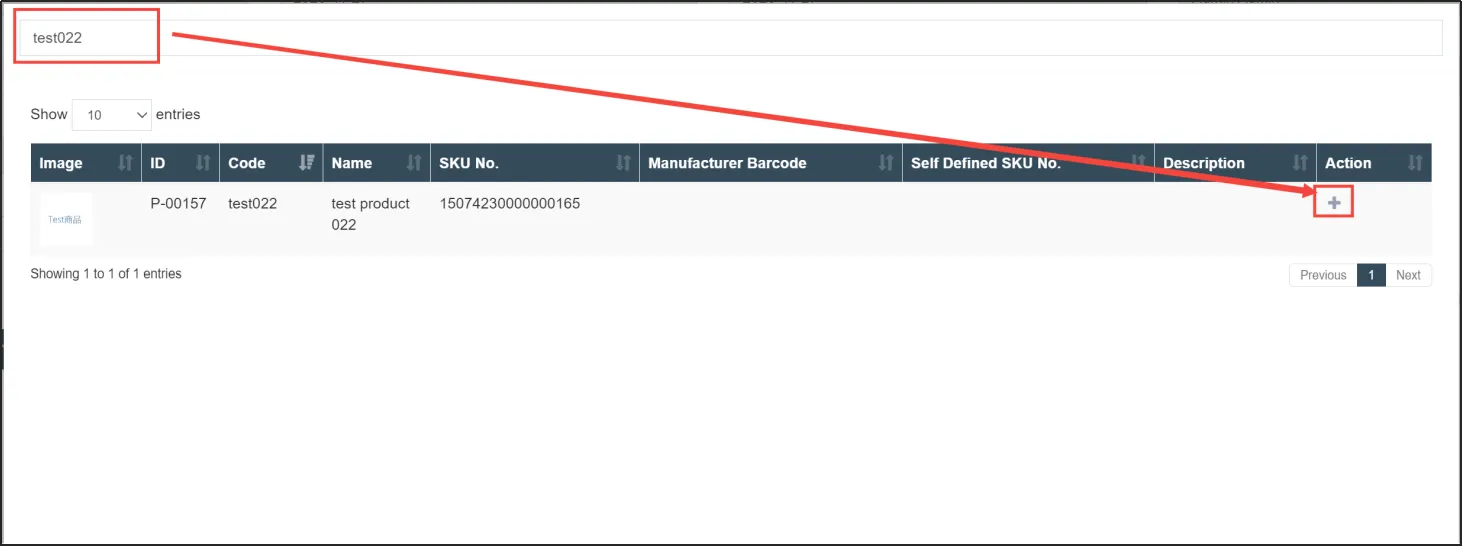
Enter the product number or name in the pop-up search box, click the [+] on the right side of the product to add it to the depreciation list.
After adding the product to the list, you can see the [quantity] and [old cost] that need to be depreciated for the product. As shown in the figure below, the quantity of test item 022 that was entered into the warehouse before the [cost depreciation date] is 21, and the (old) cost is 81.
Enter the [new cost] of the product, and after entering it, you can see the [subtotal depreciation cost], which is the total value of the inventory reduction of the product after depreciation, i.e. (new cost - old cost) x quantity. As shown in the figure below, the subtotal depreciation cost is -21, and the total inventory value of test item 022 decreases by 21 after depreciation.

Click [Save] to complete depreciation.