F&B merchandise management
Open CMS
click commodity
click FOOD
Click [Add] to add a Food and Beverage (FnB) product.
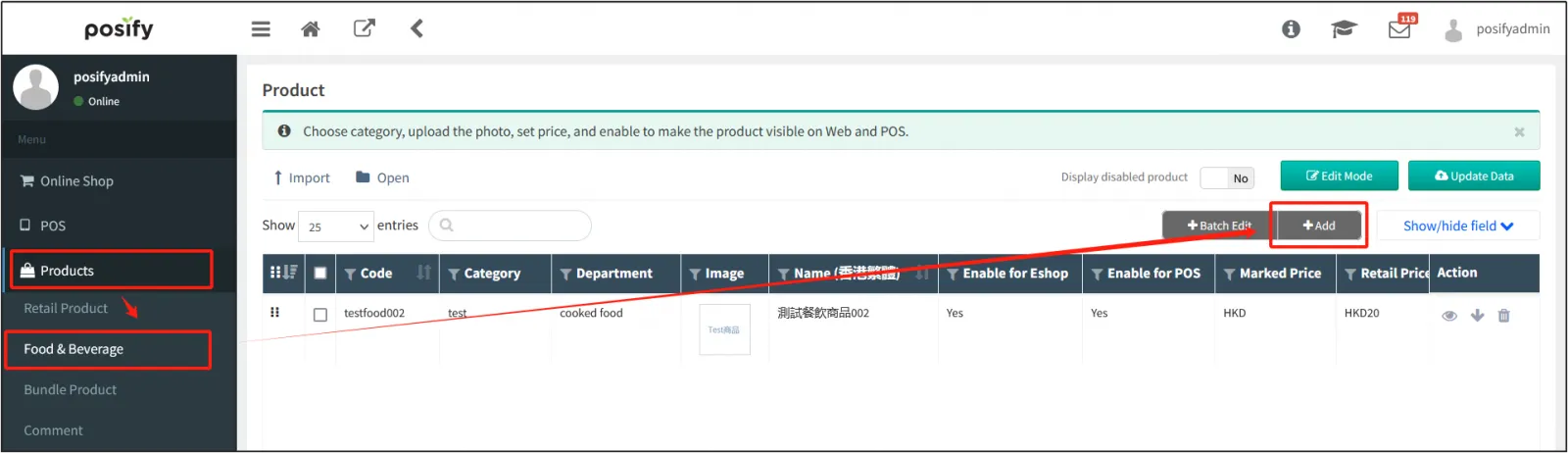
![Tab[Product]](https://cdn21.posify.me/docs/posifyhkweb/files/images/playbook/center-FnB-English/%E5%9B%BE%E7%89%871.png?imageMogr2/format/webp)
Open the product editing page of the catering product and fill in the information of the catering product.
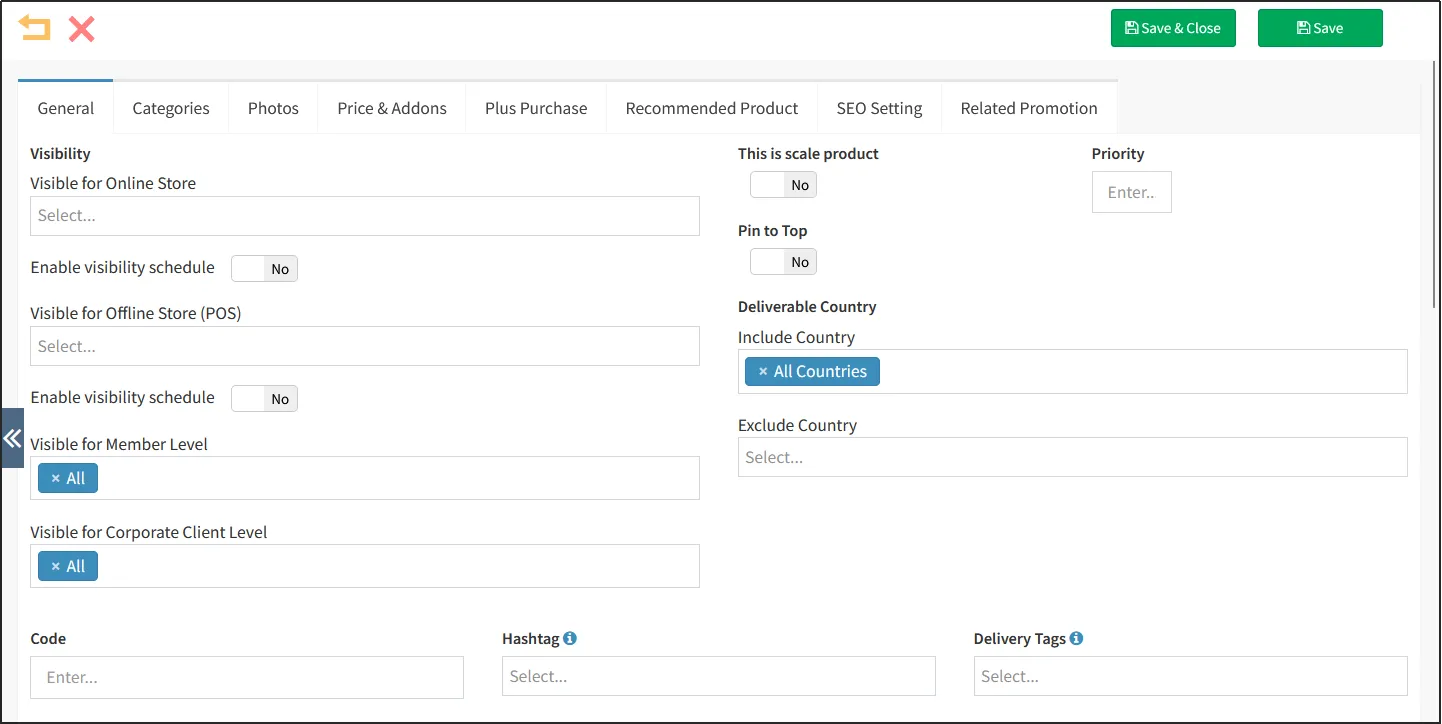
![Tab[General]](https://cdn21.posify.me/docs/posifyhkweb/files/images/playbook/center-FnB-English/%E5%9B%BE%E7%89%872.png?imageMogr2/format/webp)
Since there is not much difference between catering products and retail products in general, this playbook only introduces the differences between catering products and retail products in order not to go into too much detail, and other parts can be understood through other playbooks in the product module.
Department
When food and beverage products are made by different people and need to be printed separately, it is necessary to set up departments, such as kitchens, water bars, etc.
Click the tab category to select the product department, and the product department needs to be preset in advance.
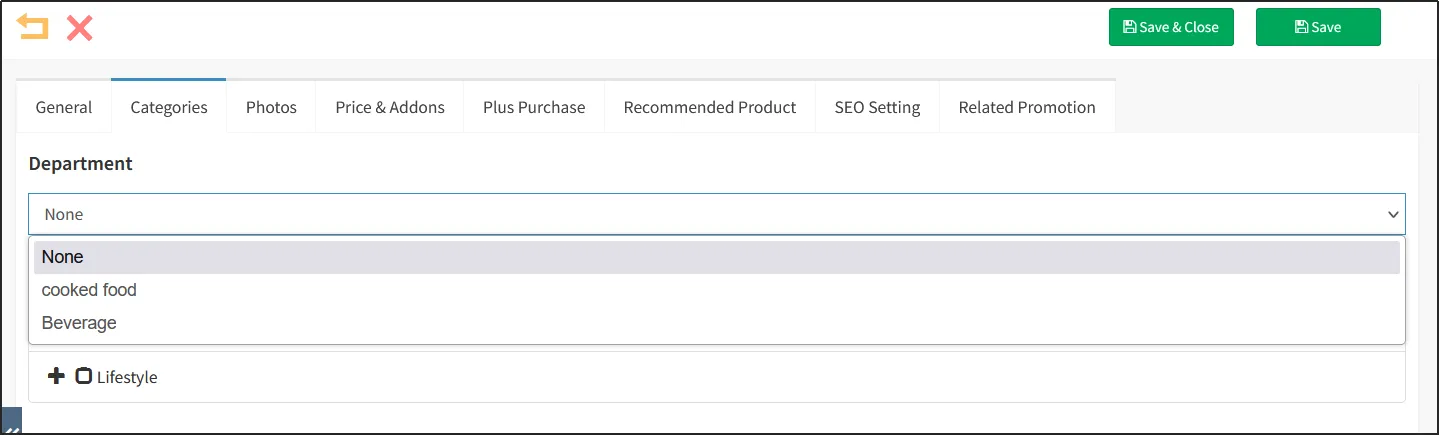
![Tab[Categories]](https://cdn21.posify.me/docs/posifyhkweb/files/images/playbook/center-FnB-English/%E5%9B%BE%E7%89%873.png?imageMogr2/format/webp)
Here's how to default the department:
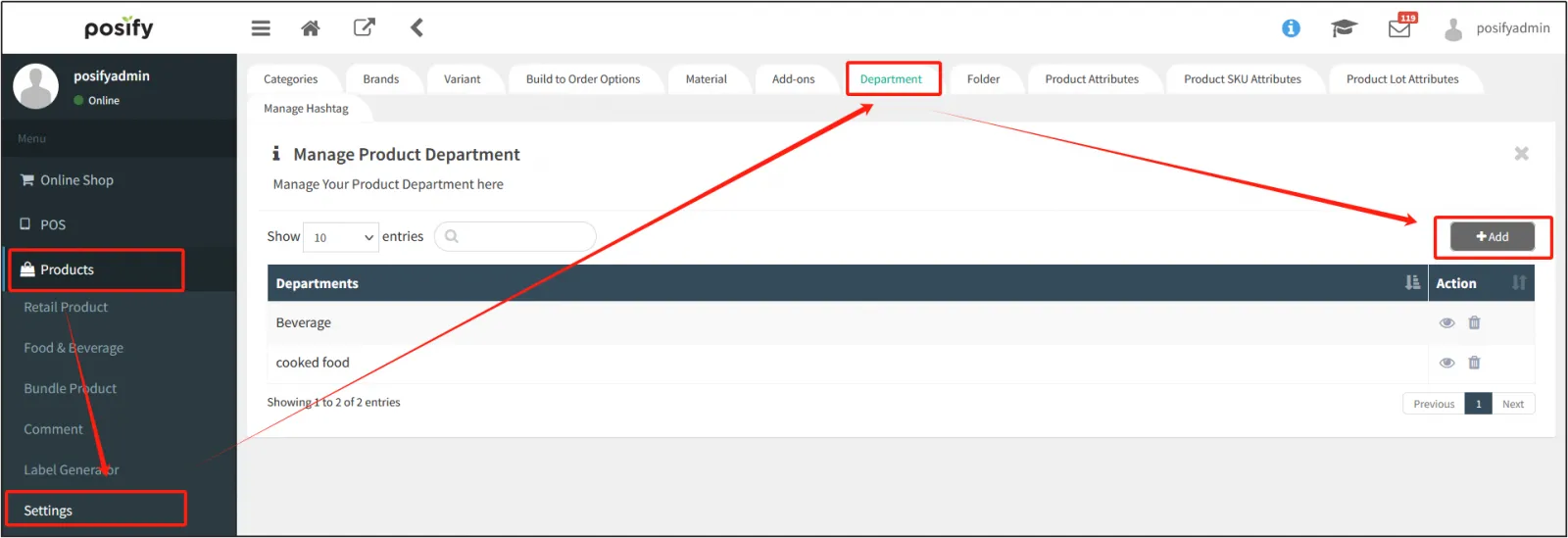
Open the CMSclick the product
click the product-related settings
click the tab department, and click [Add] to add a department.
![Tab[Department]](https://cdn21.posify.me/docs/posifyhkweb/files/images/playbook/center-FnB-English/%E5%9B%BE%E7%89%874.png?imageMogr2/format/webp)
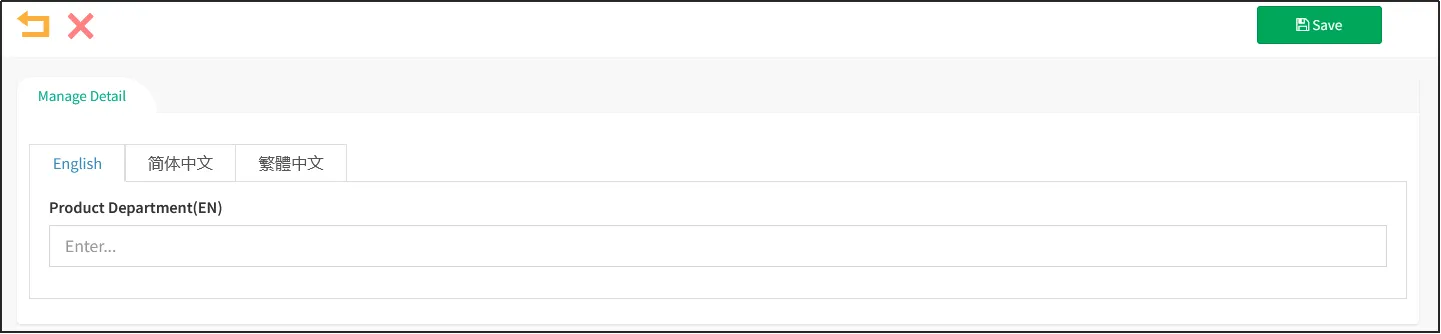
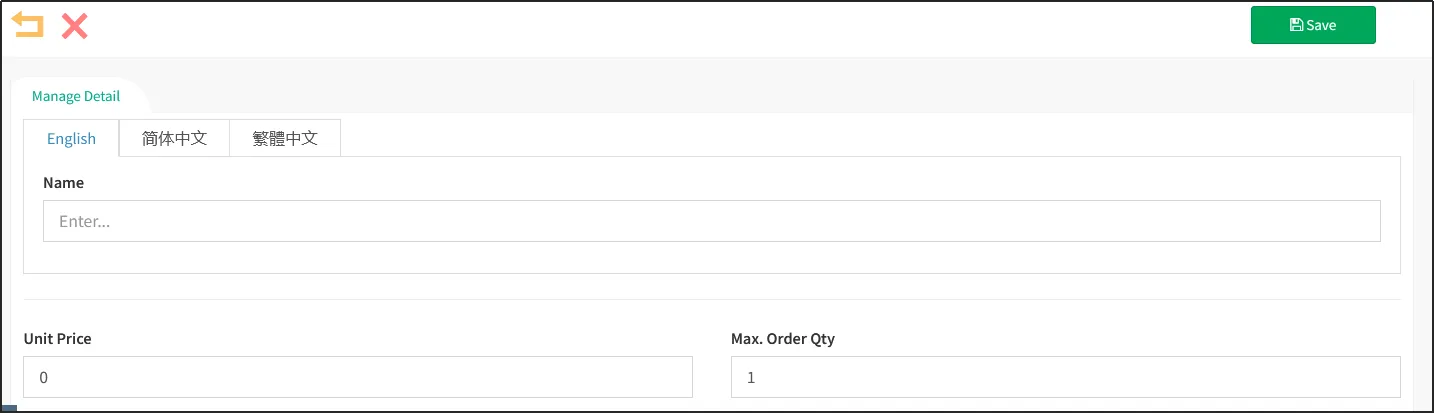
Enter the name of the new departmentclick [Save] in the upper right corner.
![Tab[Manage Detail]](https://cdn21.posify.me/docs/posifyhkweb/files/images/playbook/center-FnB-English/%E5%9B%BE%E7%89%875.png?imageMogr2/format/webp)
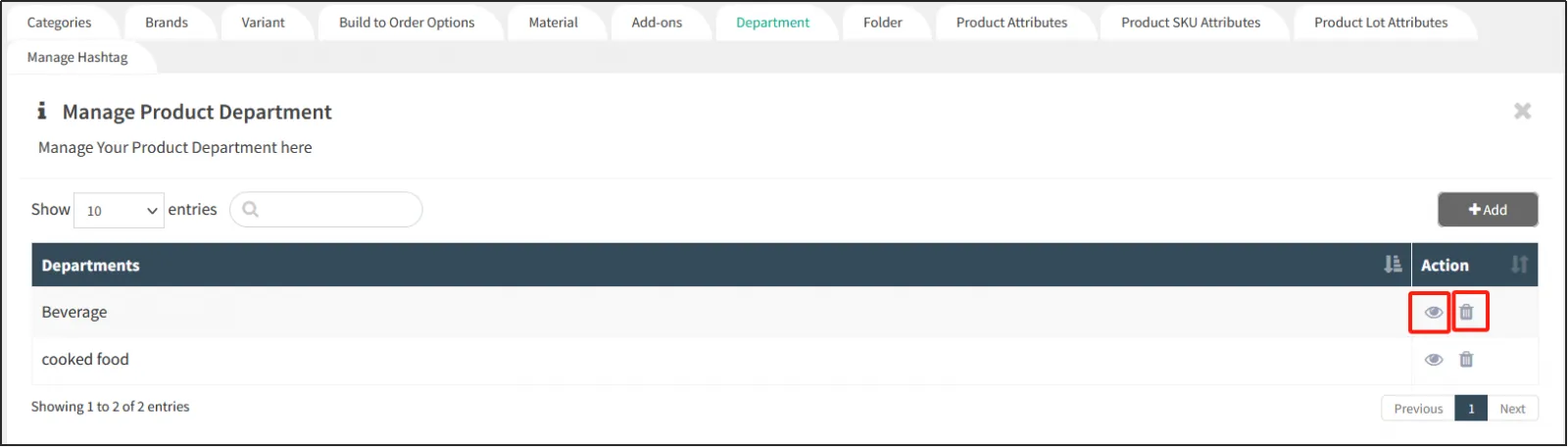
On the Departments tab page, click on the right side of the department to edit the department name again.
Click on the right to delete the corresponding department.
![Tab[Department]](https://cdn21.posify.me/docs/posifyhkweb/files/images/playbook/center-FnB-English/%E5%9B%BE%E7%89%876.png?imageMogr2/format/webp)
Additional types
Catering products sometimes need to add or remove ingredients, such as "add ice", "go sweet", "less milk", etc., at this time, you need to set the type of addition in advance.
Open the product editing pageclick the tab price and add-on, and you can set the add-on type of the product.
Click [Add New Category] to add a new category.
Enter the name of the additional categoryselect the additional type under the additional category
enter the maximum number of additional types that can be selected for this category.
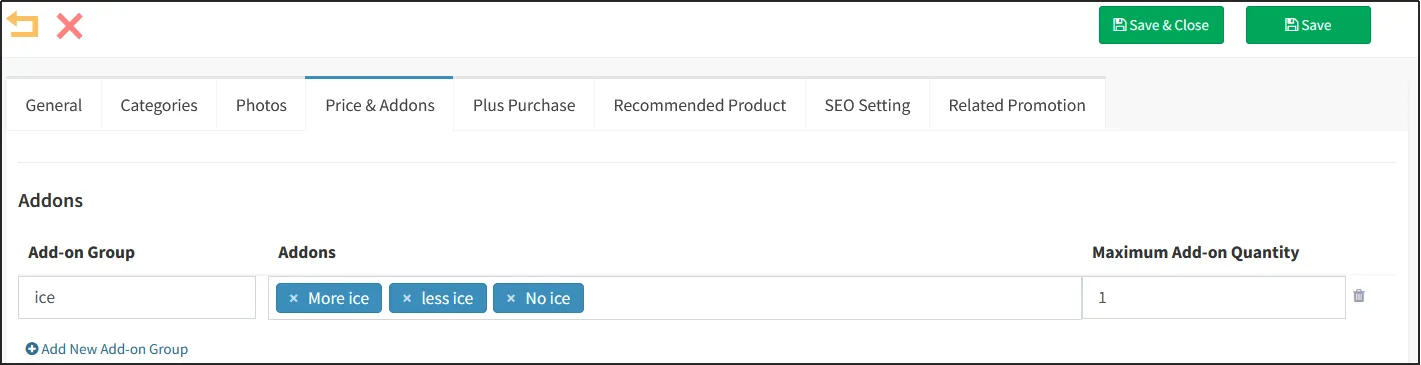
As shown in the figure below, set an additional category as Ice Cube, and the additional types are walking ice, less ice and more ice, and this category can select up to one additional type, that is, you can only choose 1 of 3.
![Tab[Price & Addons]](https://cdn21.posify.me/docs/posifyhkweb/files/images/playbook/center-FnB-English/%E5%9B%BE%E7%89%877.png?imageMogr2/format/webp)
The type of add-on needs to be preset in advance.
Here's how to add the default type:
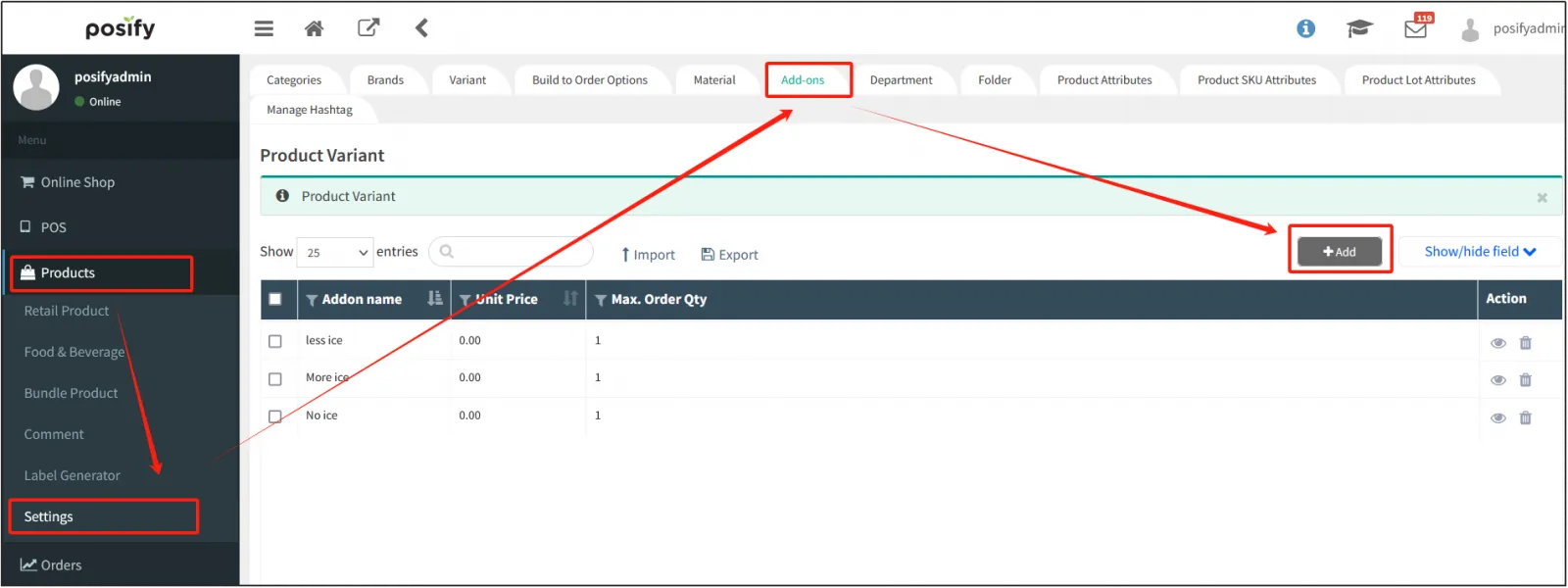
Open the CMSclick the product
click the product-related settings
click the tab to manage the additional category
click [Add] to add a new additional category.
![Tab[Add-ons]](https://cdn21.posify.me/docs/posifyhkweb/files/images/playbook/center-FnB-English/%E5%9B%BE%E7%89%878.png?imageMogr2/format/webp)
Enter the name, unit price, and upper limit of the add-on typeclick [Save] in the upper right corner.
![Tab[Manage Detail]](https://cdn21.posify.me/docs/posifyhkweb/files/images/playbook/center-FnB-English/%E5%9B%BE%E7%89%879.png?imageMogr2/format/webp)
On the tab Manage Configuration Types, click on the right of an additional configuration type to edit the information of the additional configuration type, and click
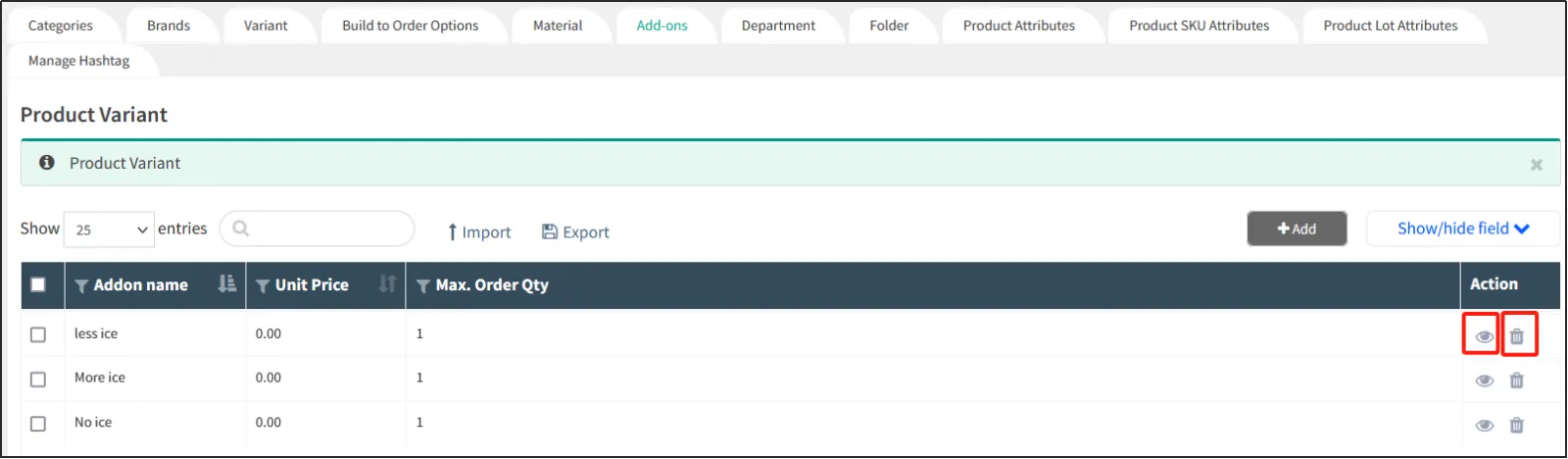
to delete the additional configuration type.
![Tab[Add-ons]](https://cdn21.posify.me/docs/posifyhkweb/files/images/playbook/center-FnB-English/%E5%9B%BE%E7%89%8710.png?imageMogr2/format/webp)