Confirm that the incremental function is enabled
If customers need to transfer bonus points or shopping money, they need to open the transfer function first.
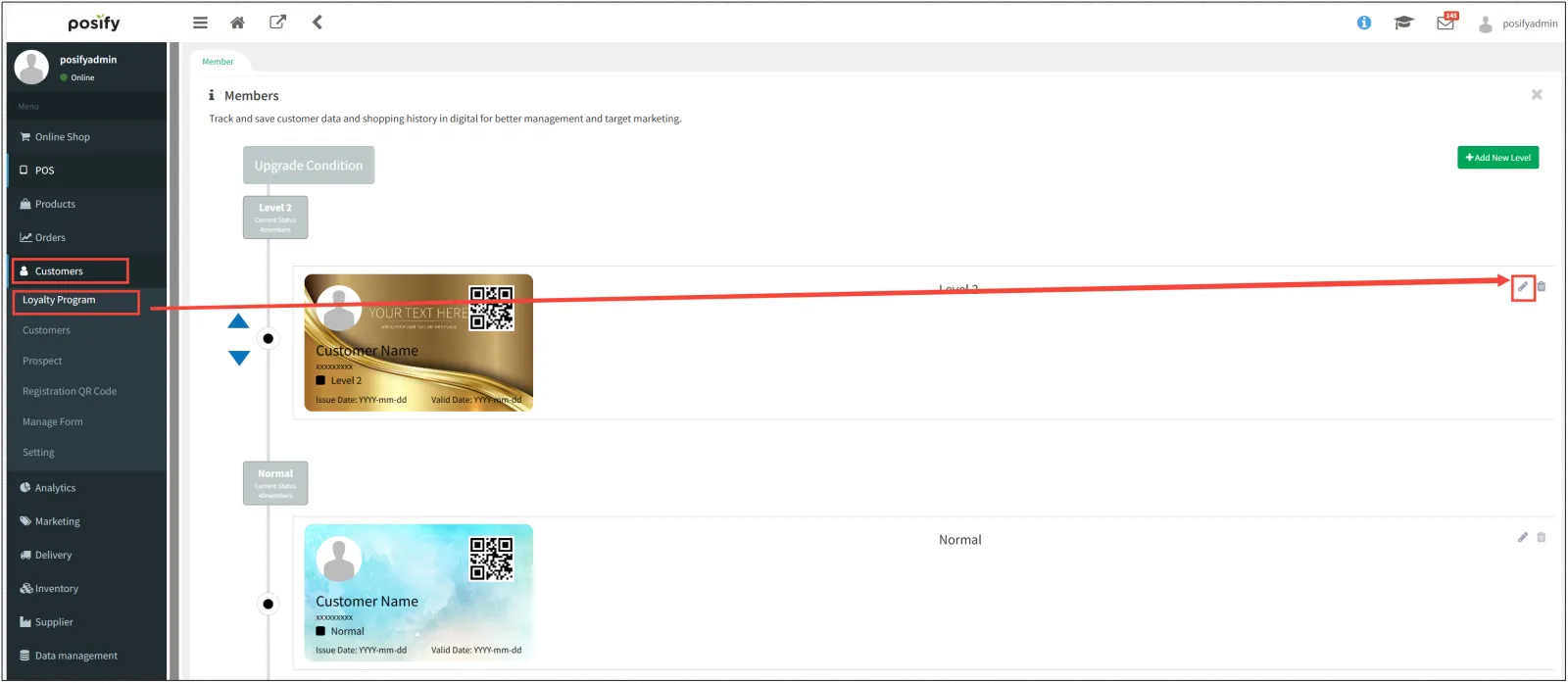
Open CMS Click on CustomerClick on MembershipClick the icon to the right of the member level that allows you to transfer points/purchase money to enter the member level editing page.
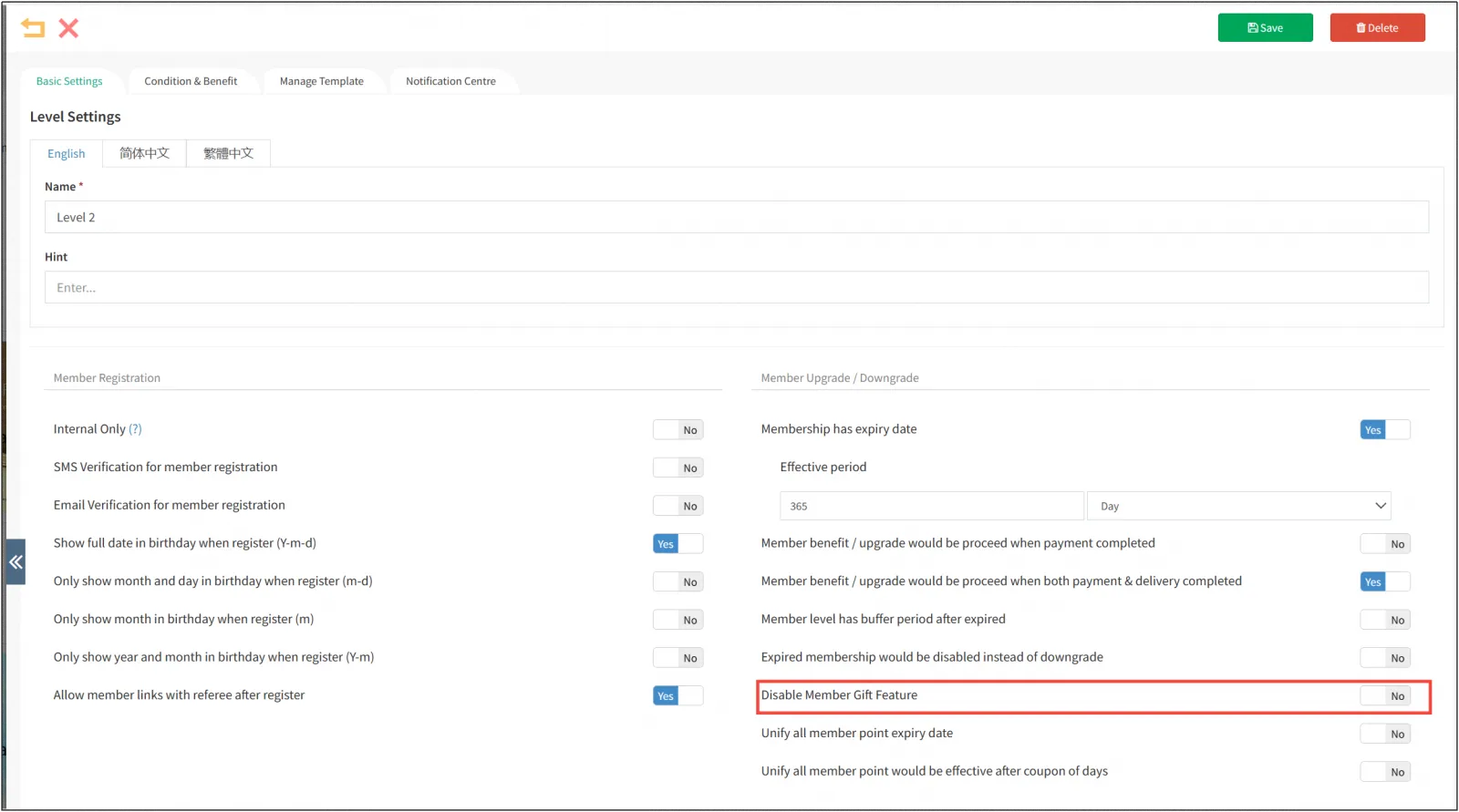
Under the basic settings of the tab, if [Disable Transfer Function] is enabled, the member level cannot transfer points/purchase money to other members, otherwise it can be transferred.
How to transfer bonus points/shopping money
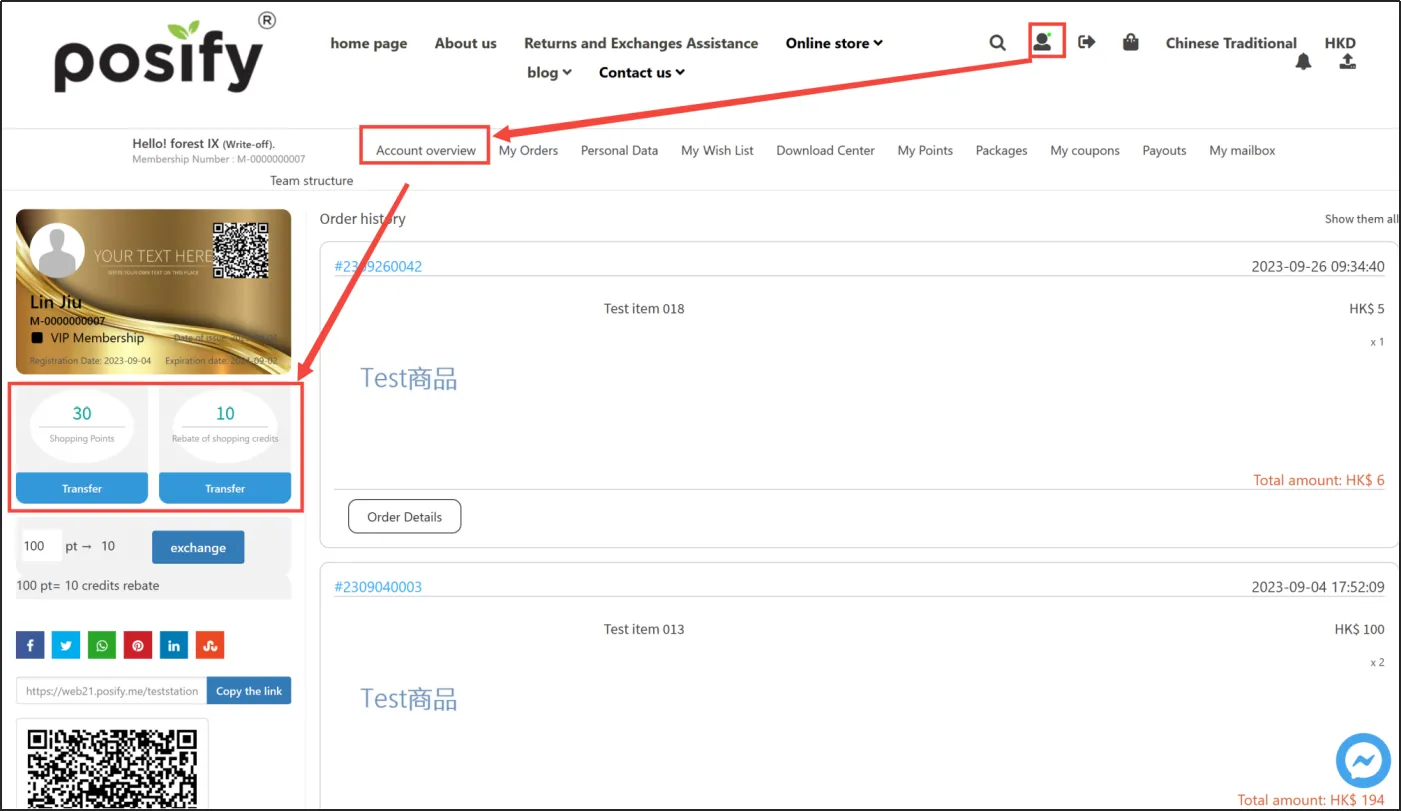
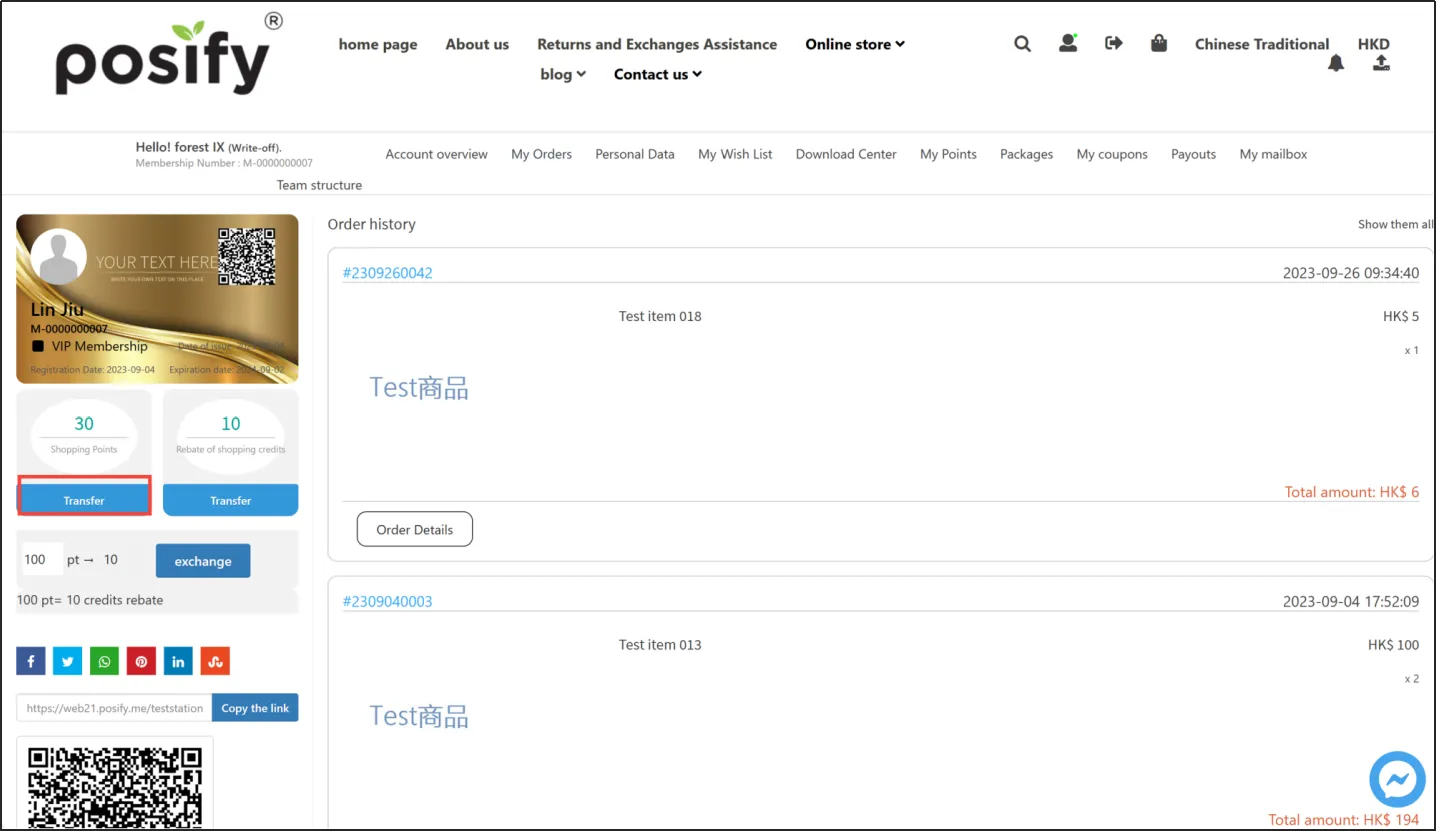
After logging in as a member in Online Store, you can see the location of Transfer Points in the Account Overview of Member Center, under the left side of the tab, and click [Transfer].
For example, the transferor has 235 shopping credits on his/her account and needs to transfer 100 credits to someone else.
First of all, the transferor clicks [Transfer] under Shopping Points.
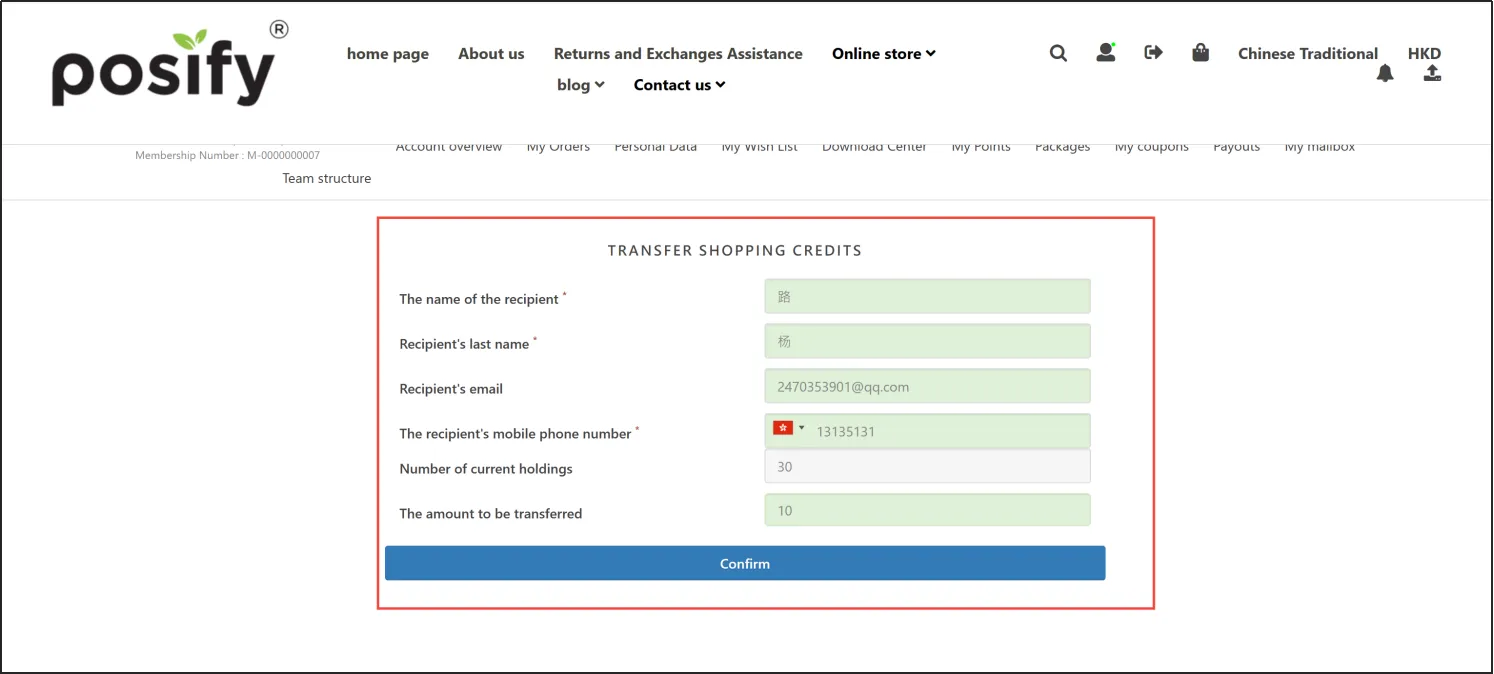
Fill in the transfer information, including the recipient's first name, last name, email, cell phone number, and the number of transfers, and click [Confirm].
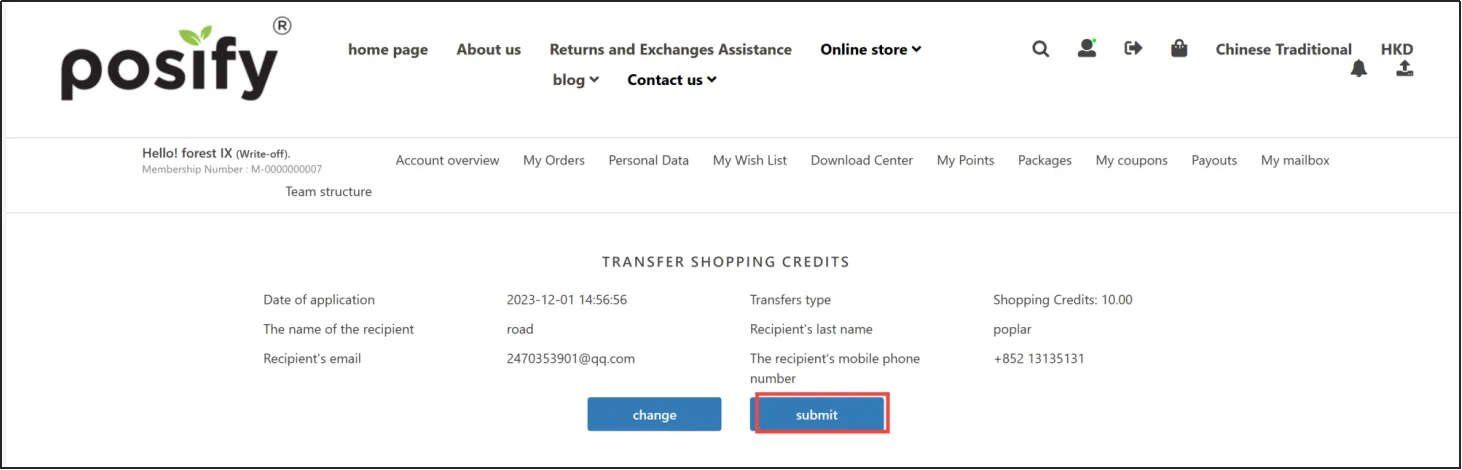
Check if the information is incorrect, if so, click [Change] to modify, if not, click [Submit].
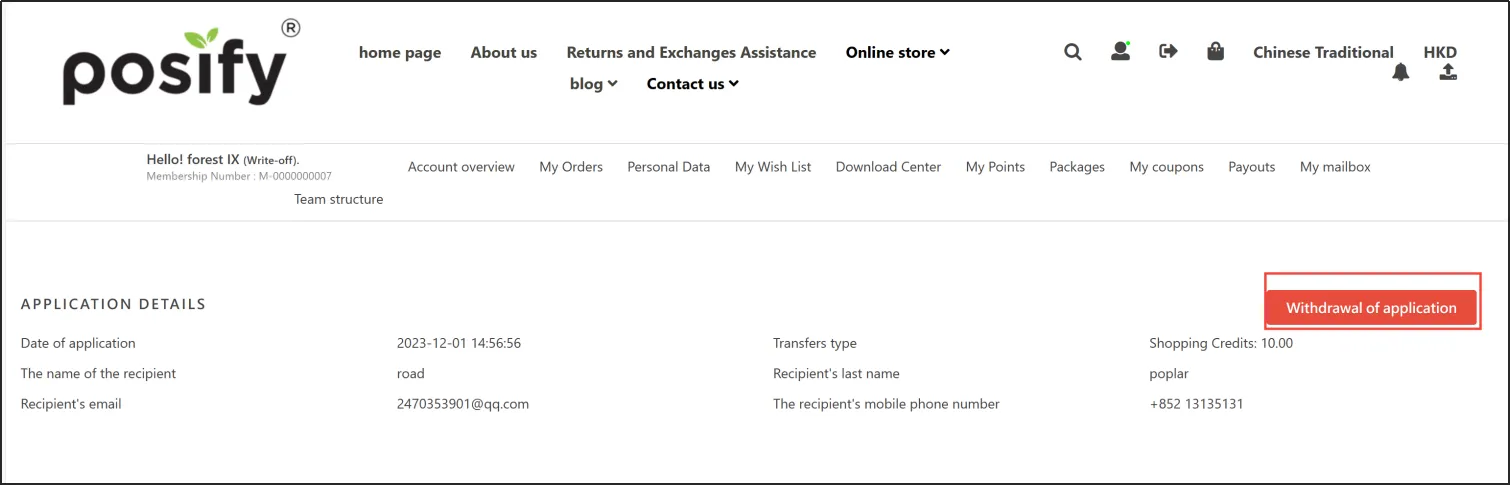
After the transferor submits the transfer application and before it is reviewed and approved, if he/she wants to cancel the transfer, he/she can click on the little man icon, go to the Member Centerclick on the tab My CouponsClick on Transferred GiftsClick [Processing] to the right of the transfer request you want to cancel.
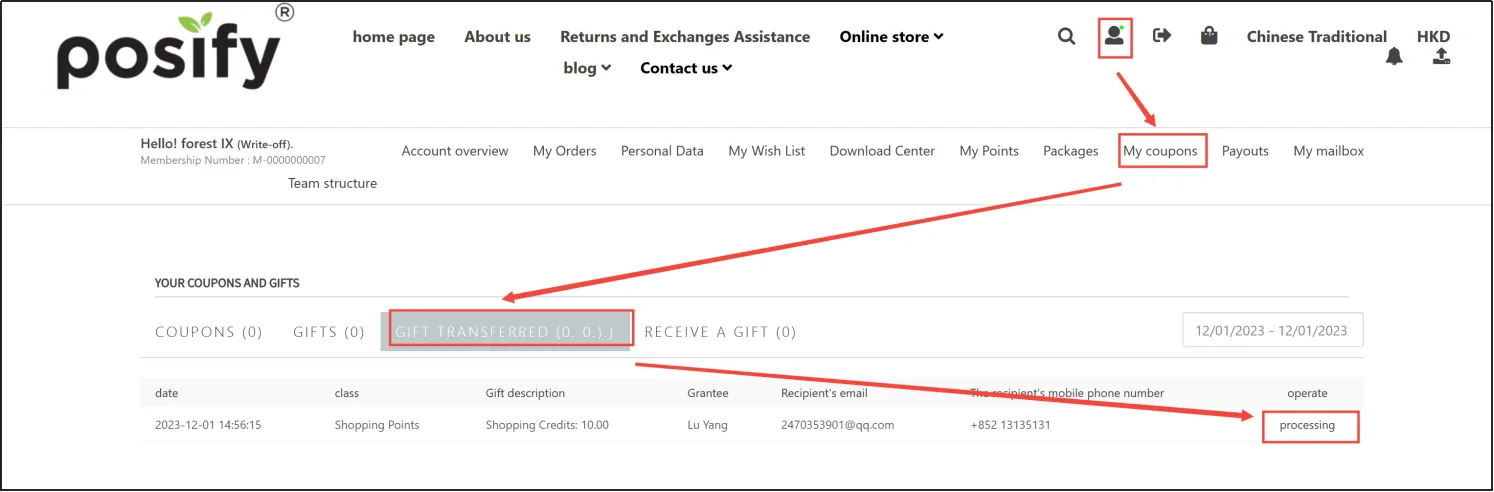
Click [Withdraw Request] to withdraw the transfer request.
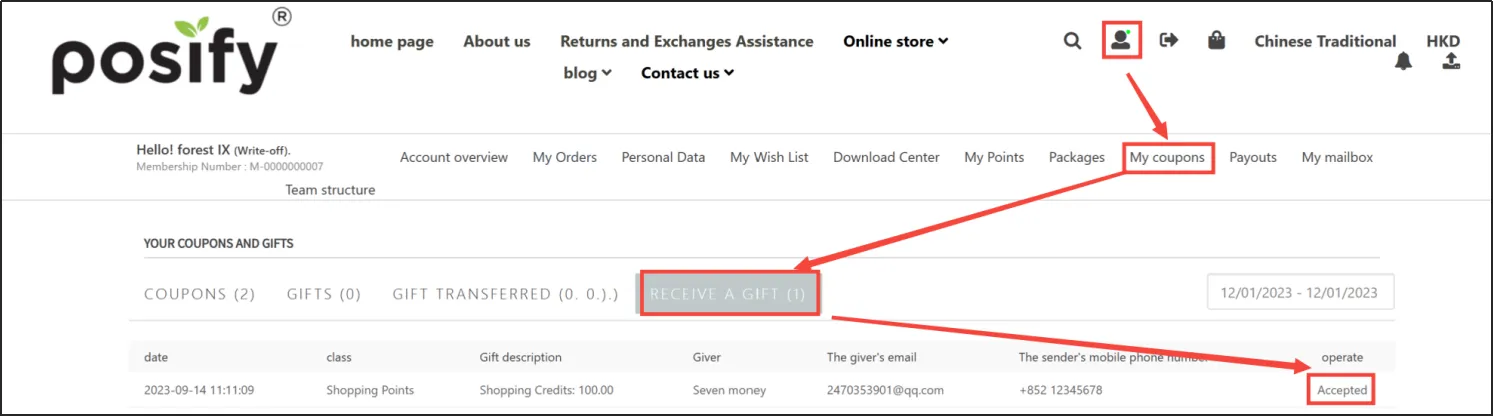
Recipient logs in to the store, clicks on the little man icon to enter the Member Center, clicks on the page signature My CouponsClicks on the gift to be transferredClick to get a transfer giftClick [Accept] to accept the transfer, click [Reject] to reject the transfer.
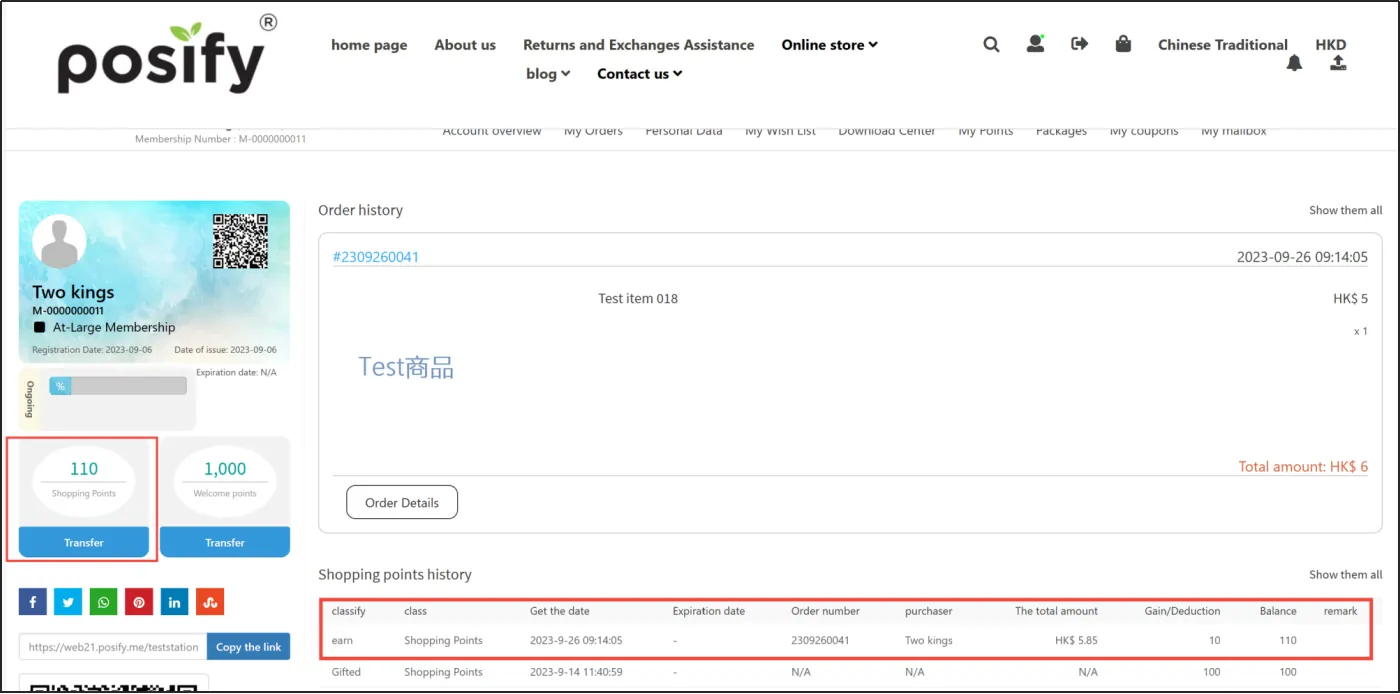
After completing the process, you can see that the recipient's account shows the history of the transferred shopping credits and the shopping credits have been increased by 110.
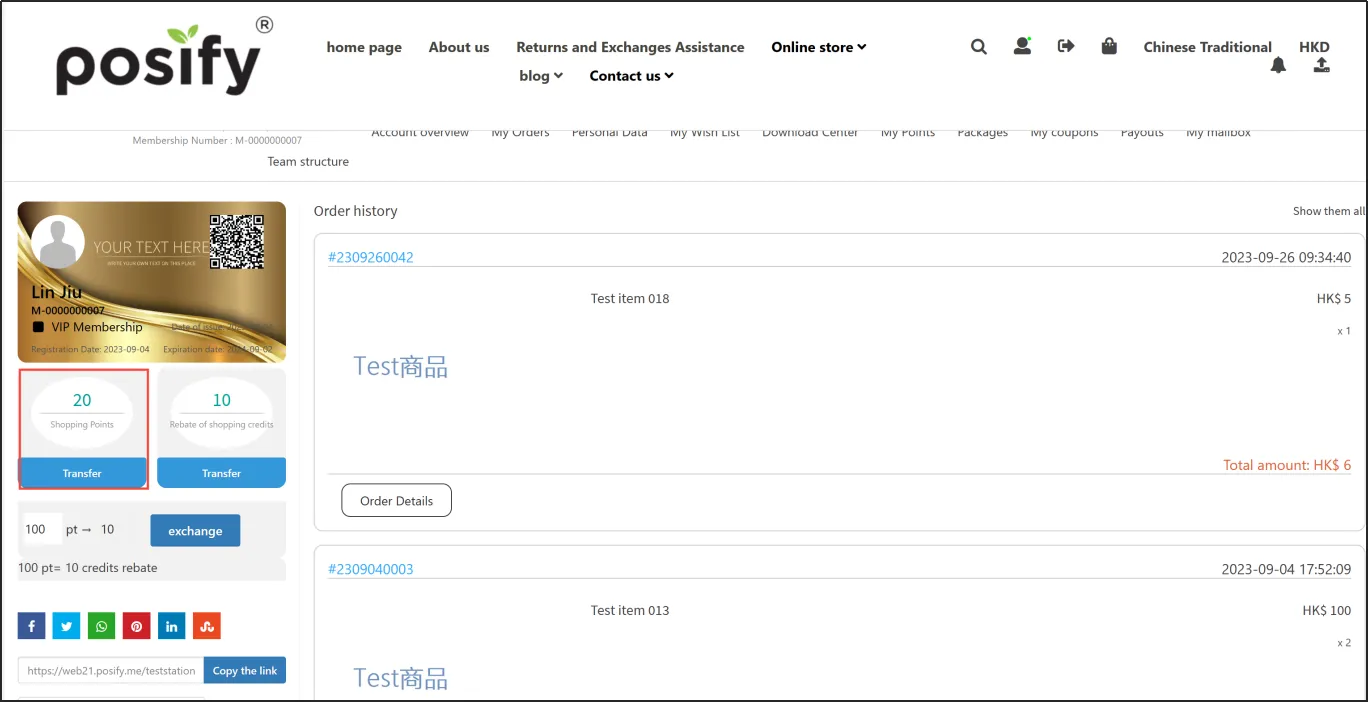
The transferor's points are reduced by 10, from 30 to 20.
Attention:
If the recipient is a member, you can see the bonus points directly on the member's page. If he/she is a non-member, the recipient needs to register as a member before he/she can receive the bonus points.
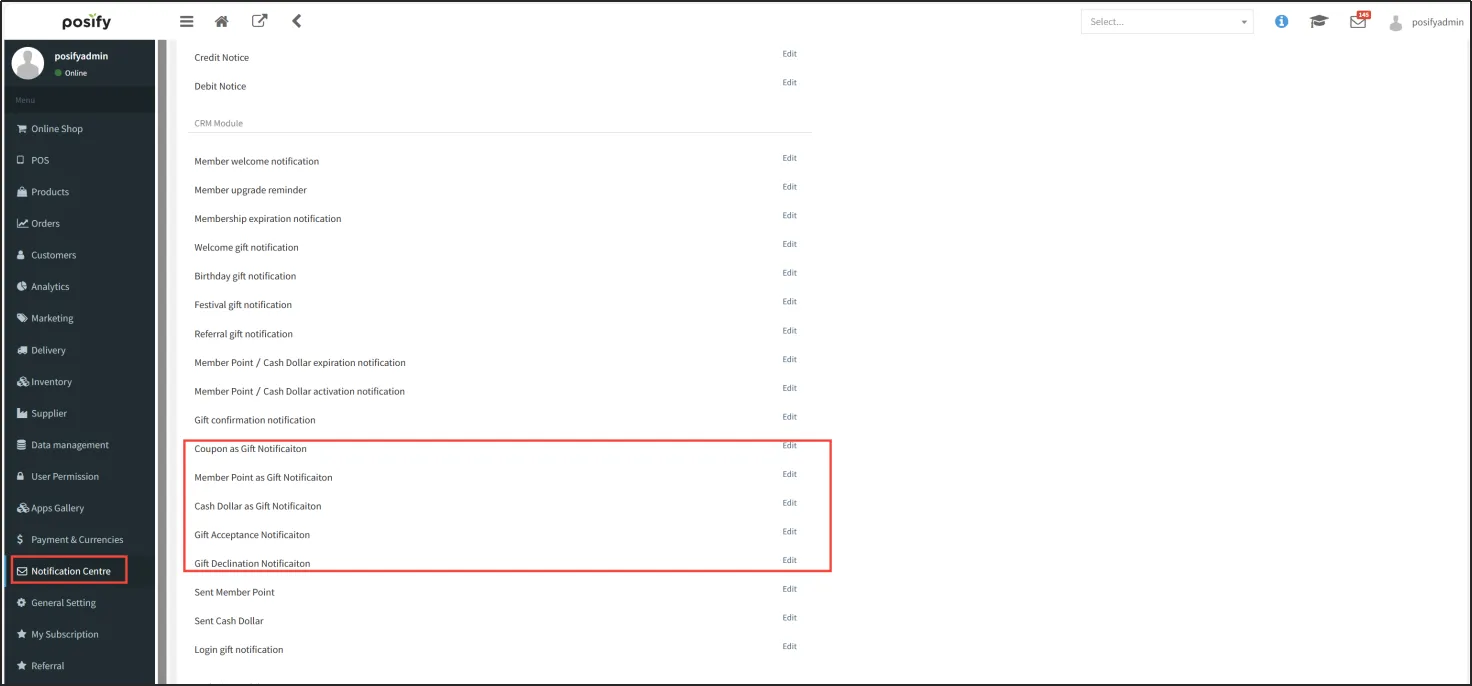
Edit notification email template
Open CMSClick Notification ManagementScroll down the menu to the add notification, and click [Edit] on the right side to edit the add notification.