Set the encoding rules for member IDs
For details on how to set the ID encoding rules for members, please refer to playbook - Other settings.
How to add a member
Register with the online store
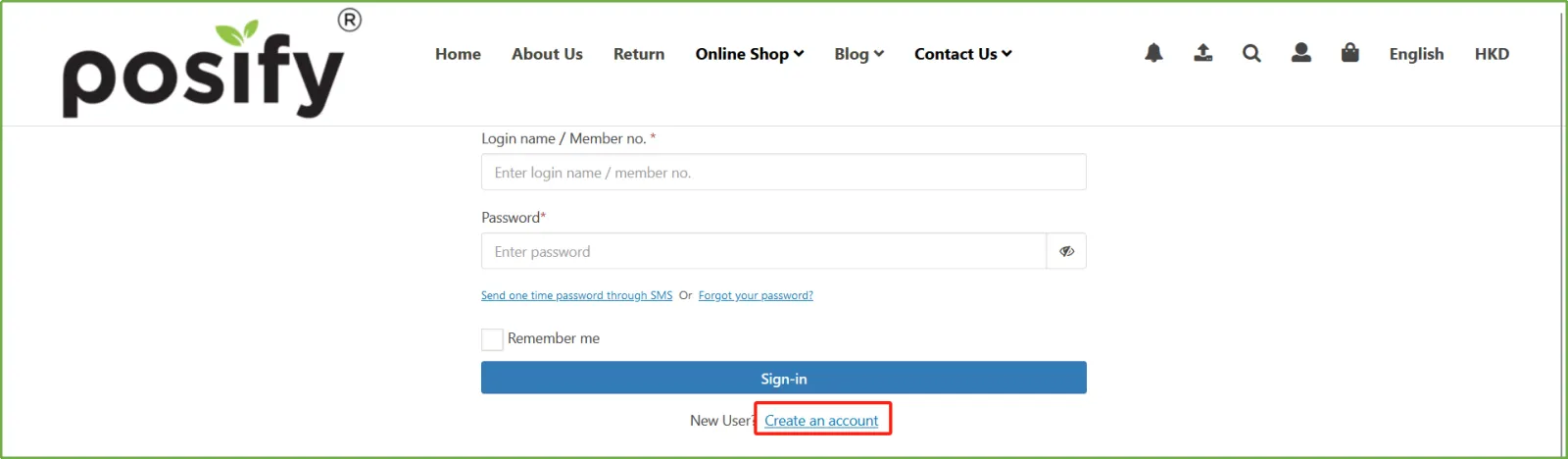
The customer clicks on the villain icon at the top of the online store to open the login page Click [Create an account].
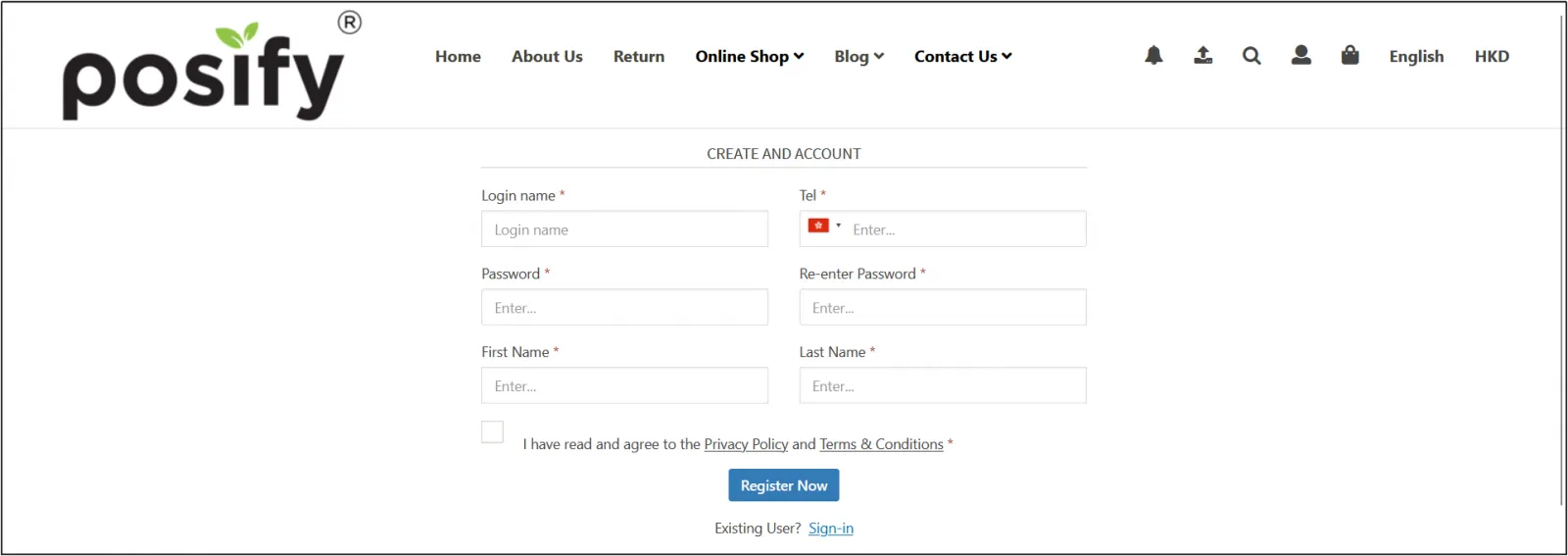
Open the member registration pageEnter the informationClick [Register Now] to complete your membership registration.
When customers go to shop offline, if there are no members who need to register a membership, the store staff can also help customers register on the POS.
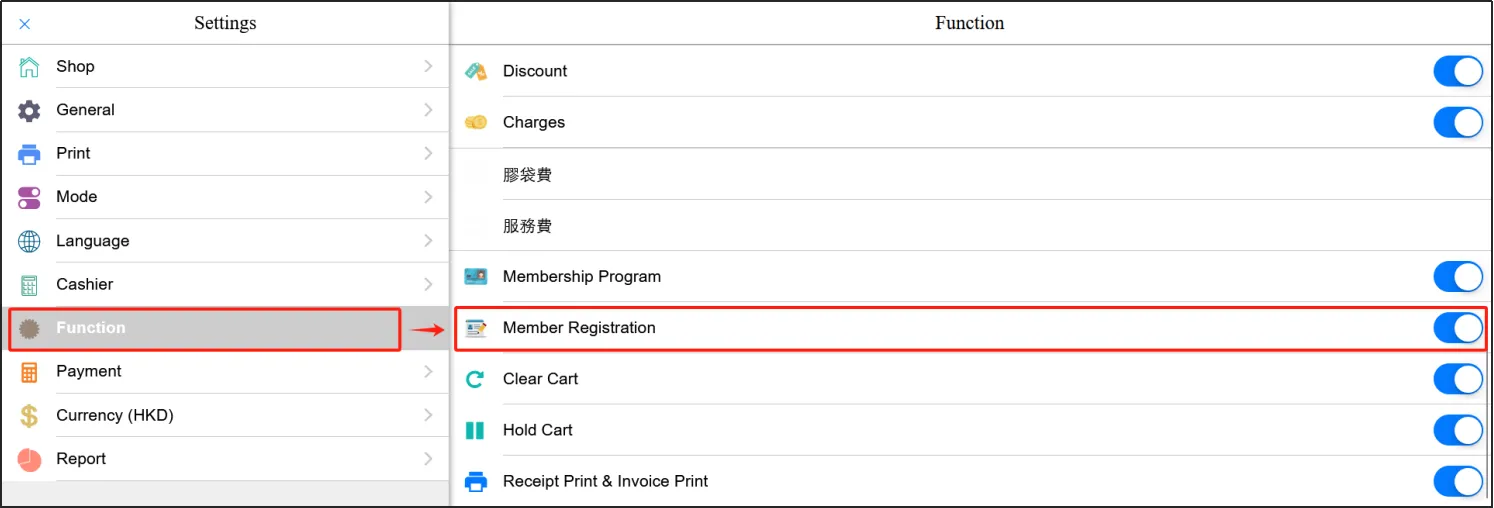
First of all, you need to confirm that the POS has enabled member registration.
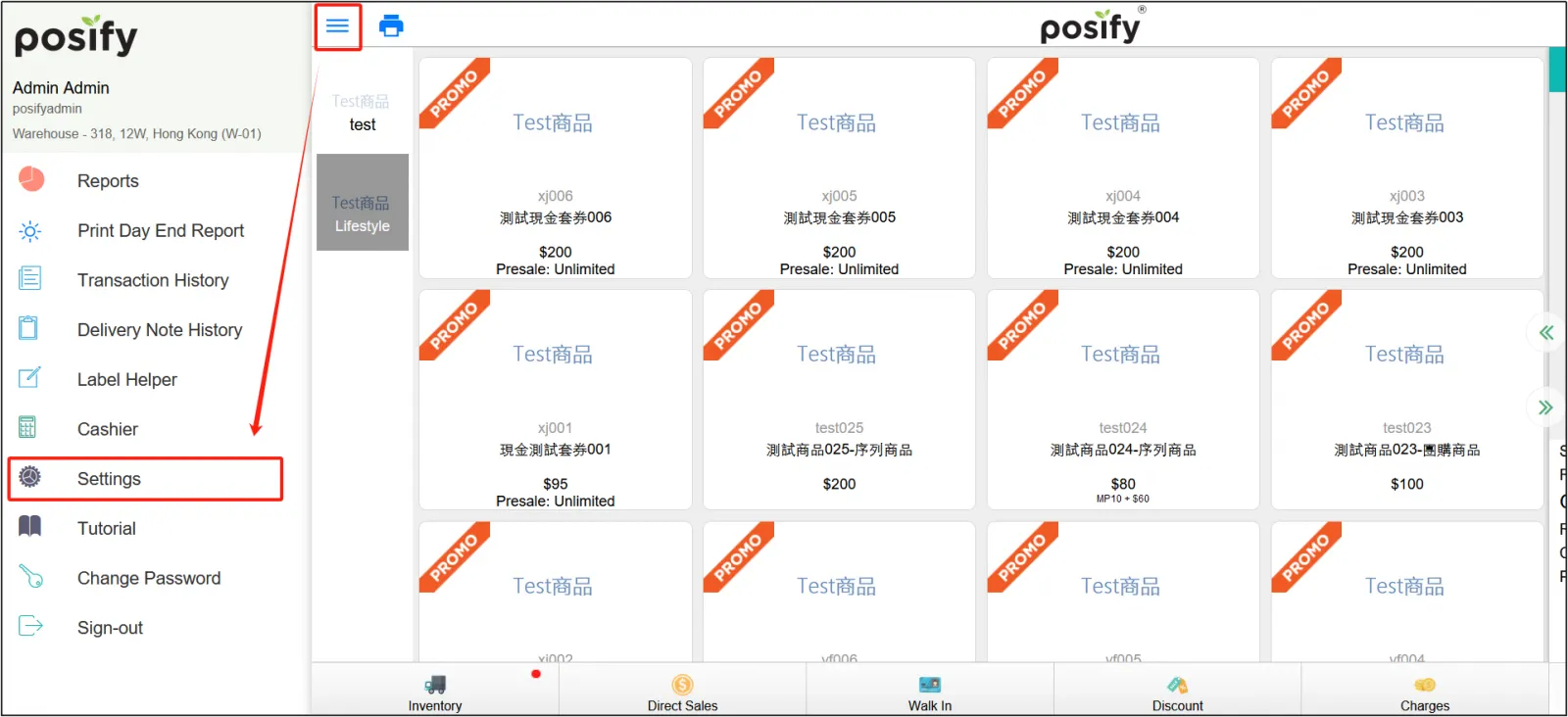
Open the CMSClick on the three horizontal lines in the top left cornerClick Settings.
Click FunctionActivate [Member Registration].
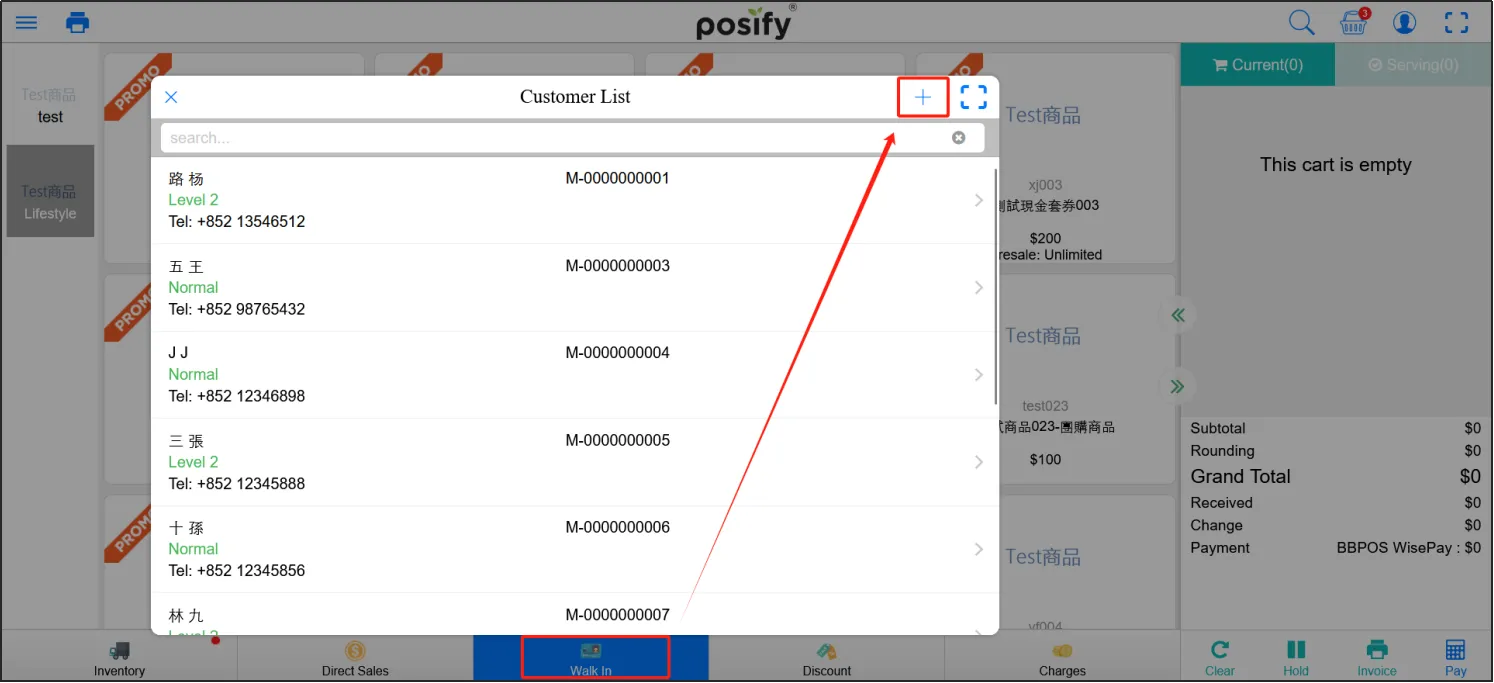
Go back to the POS sales pageClick to open the [Customer List] (Walk In) and click [+] in the upper right corner of the customer list to register a new membership.
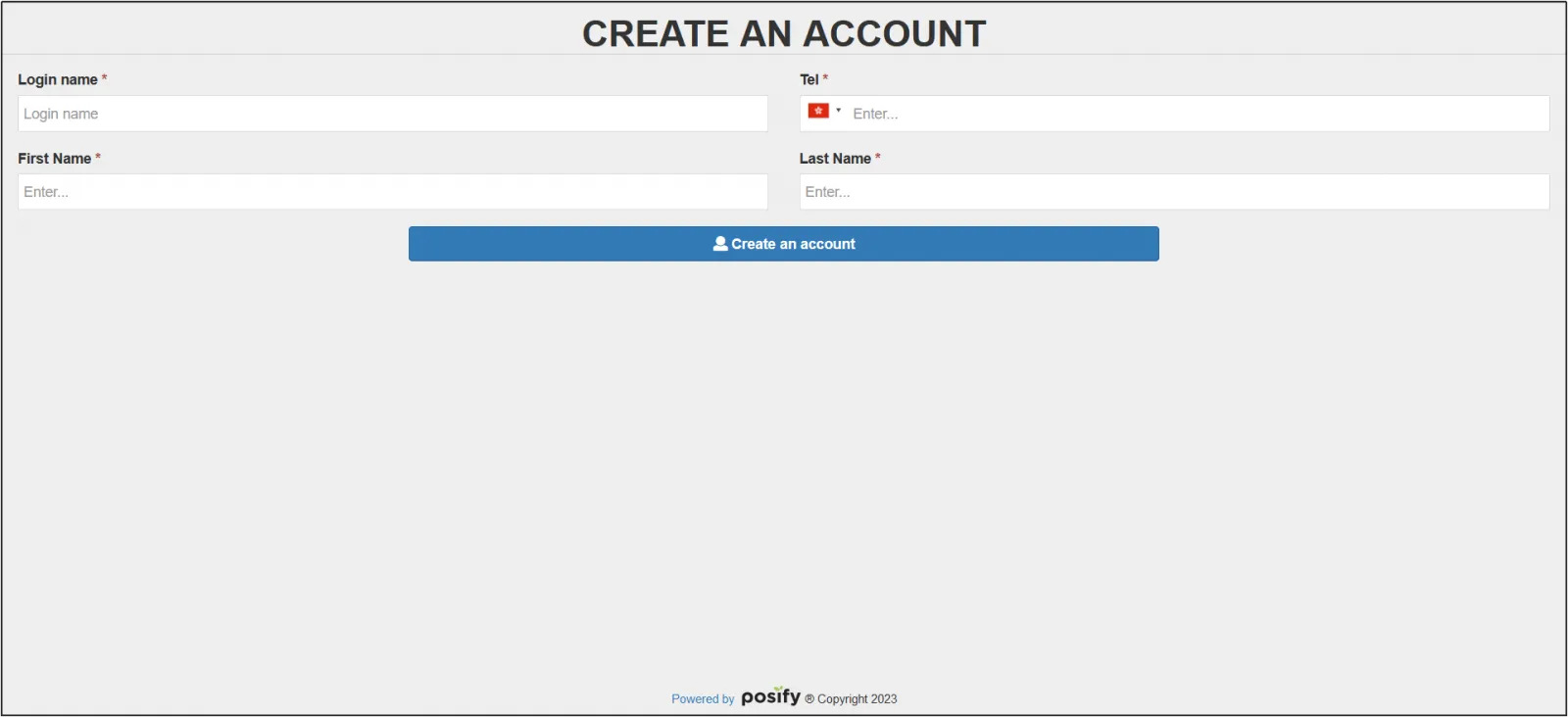
Enter the customer's informationClick[Create an account].
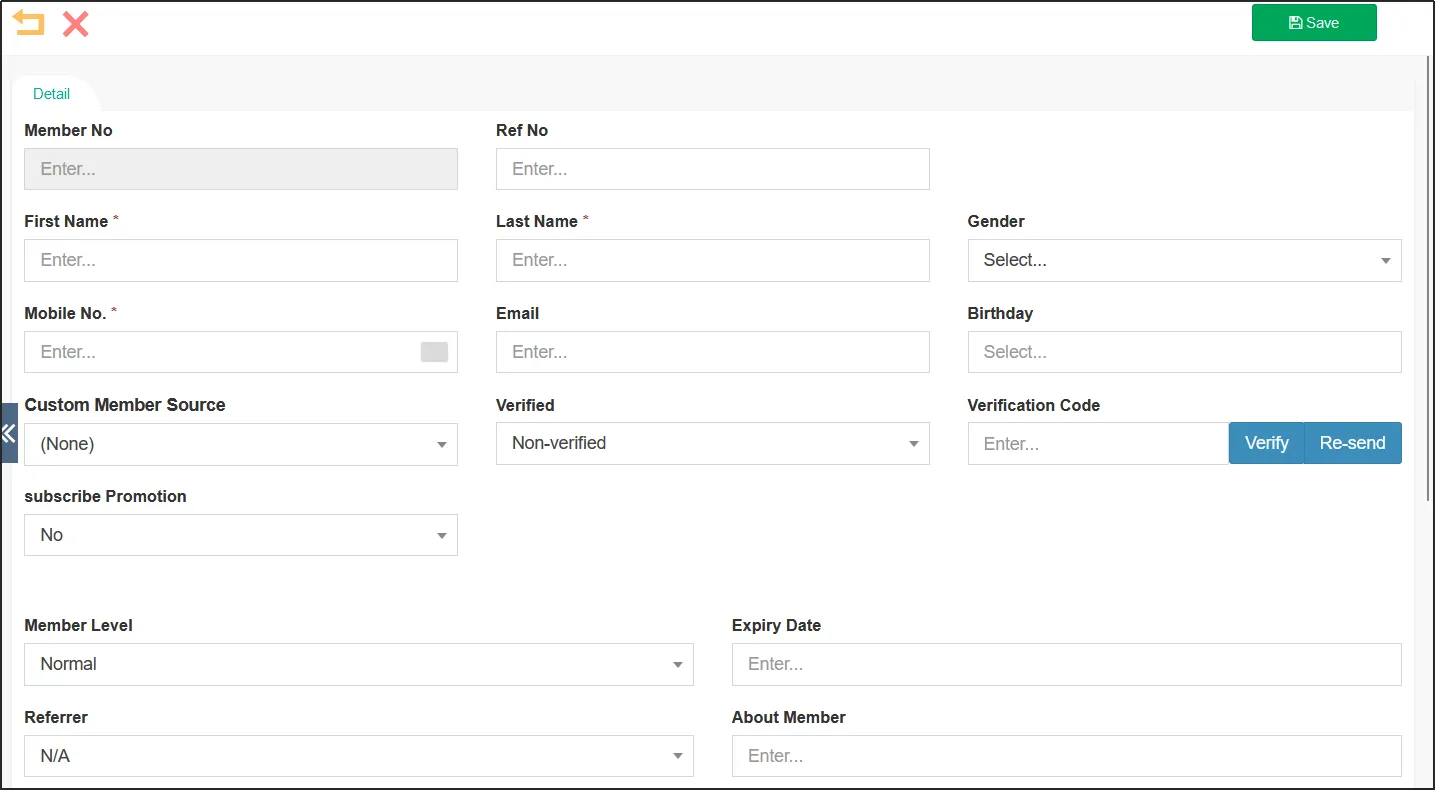
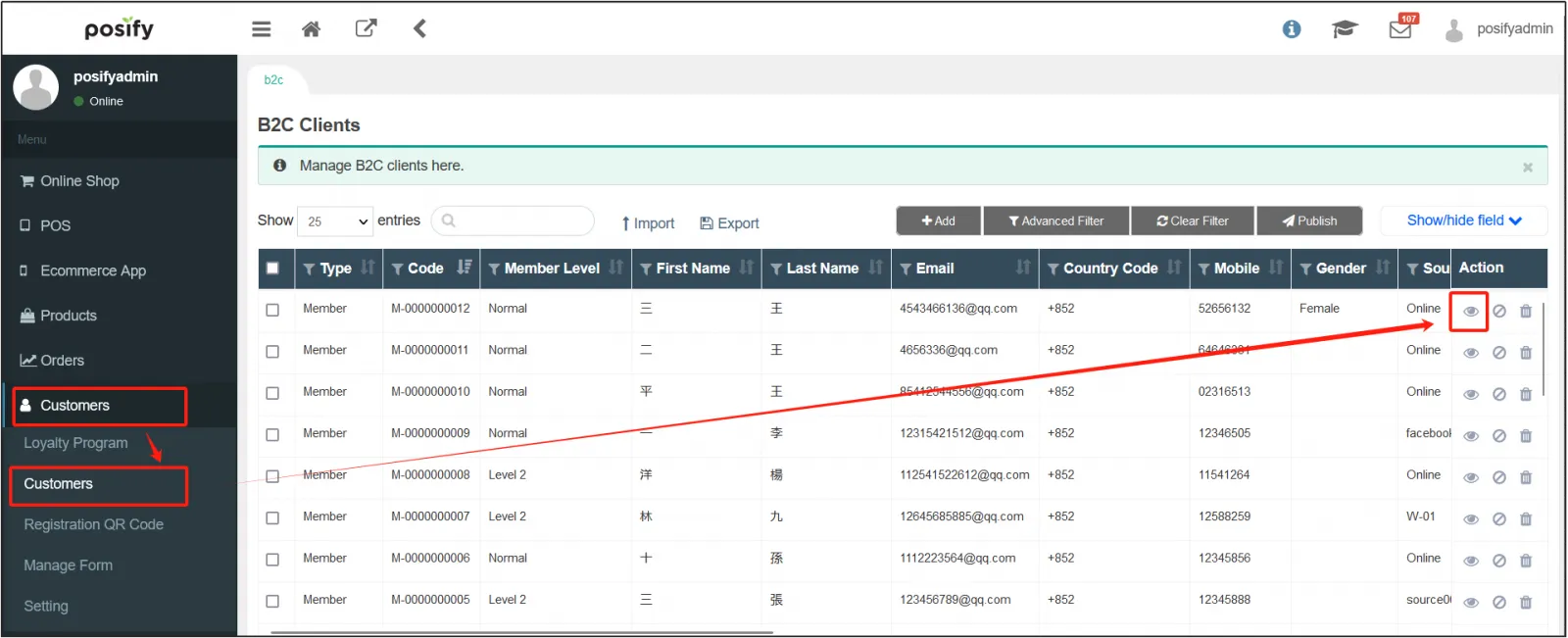
Open the CMSClick CustomersClick CustomersClick[Add].
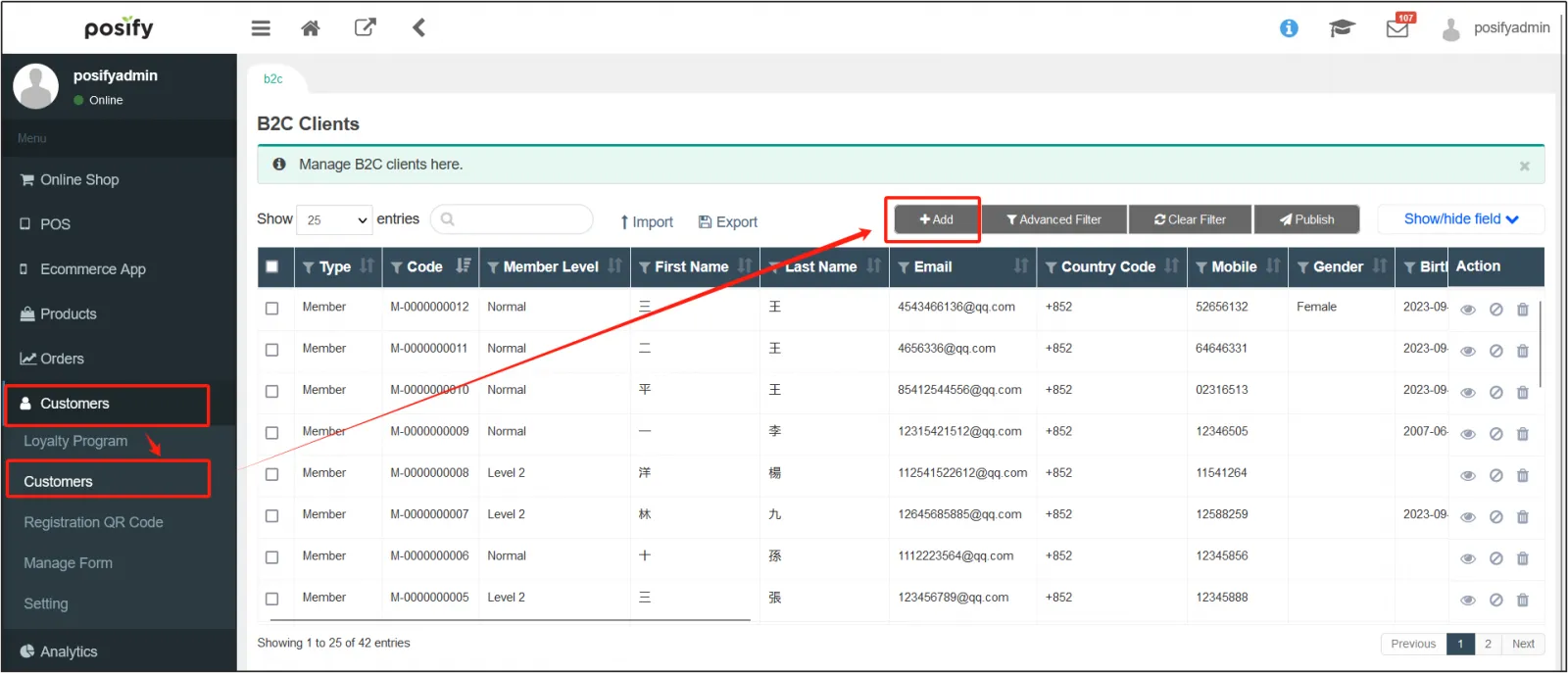
Fill in the customer information, where the fields marked with * are mandatory.
How to view/edit member profile
Open the CMSClick CustomersClick CustomersFind the customer you want to view/edit and click  the on the right to open the customer information page.
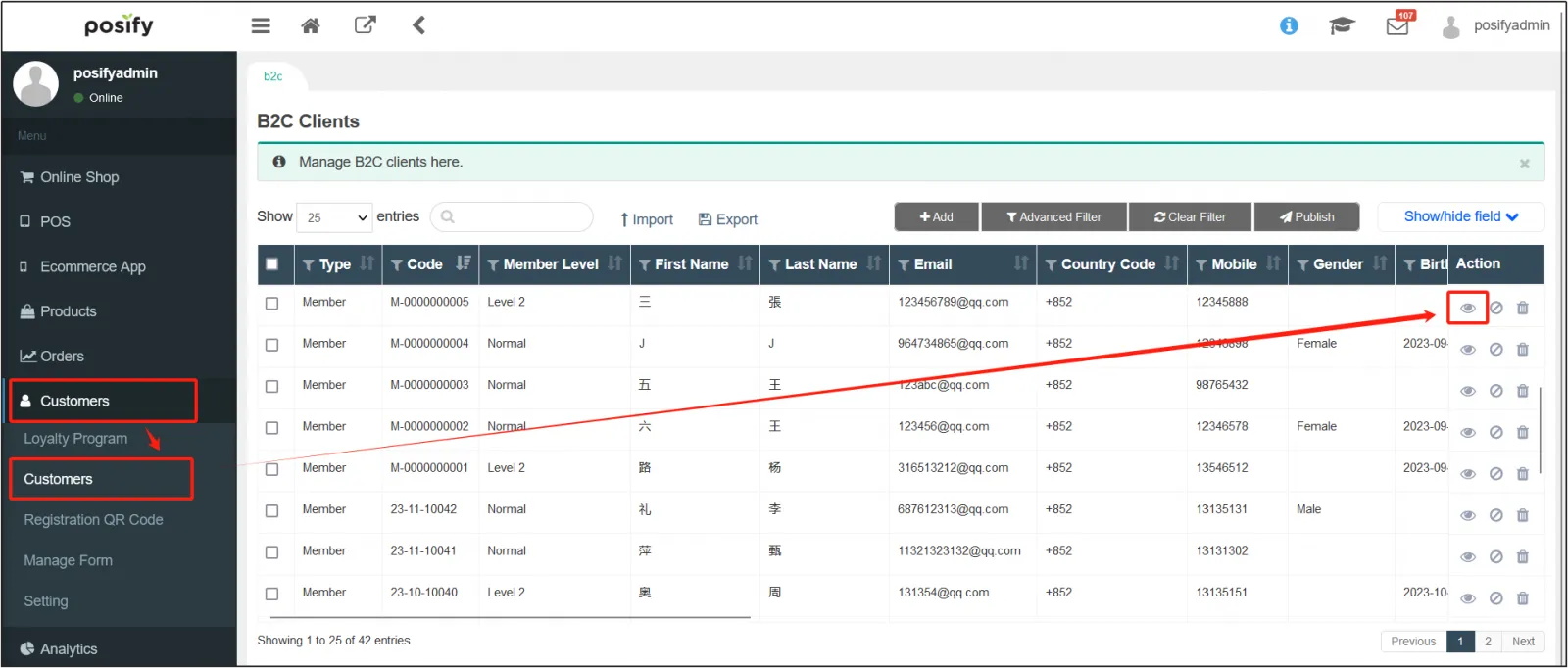
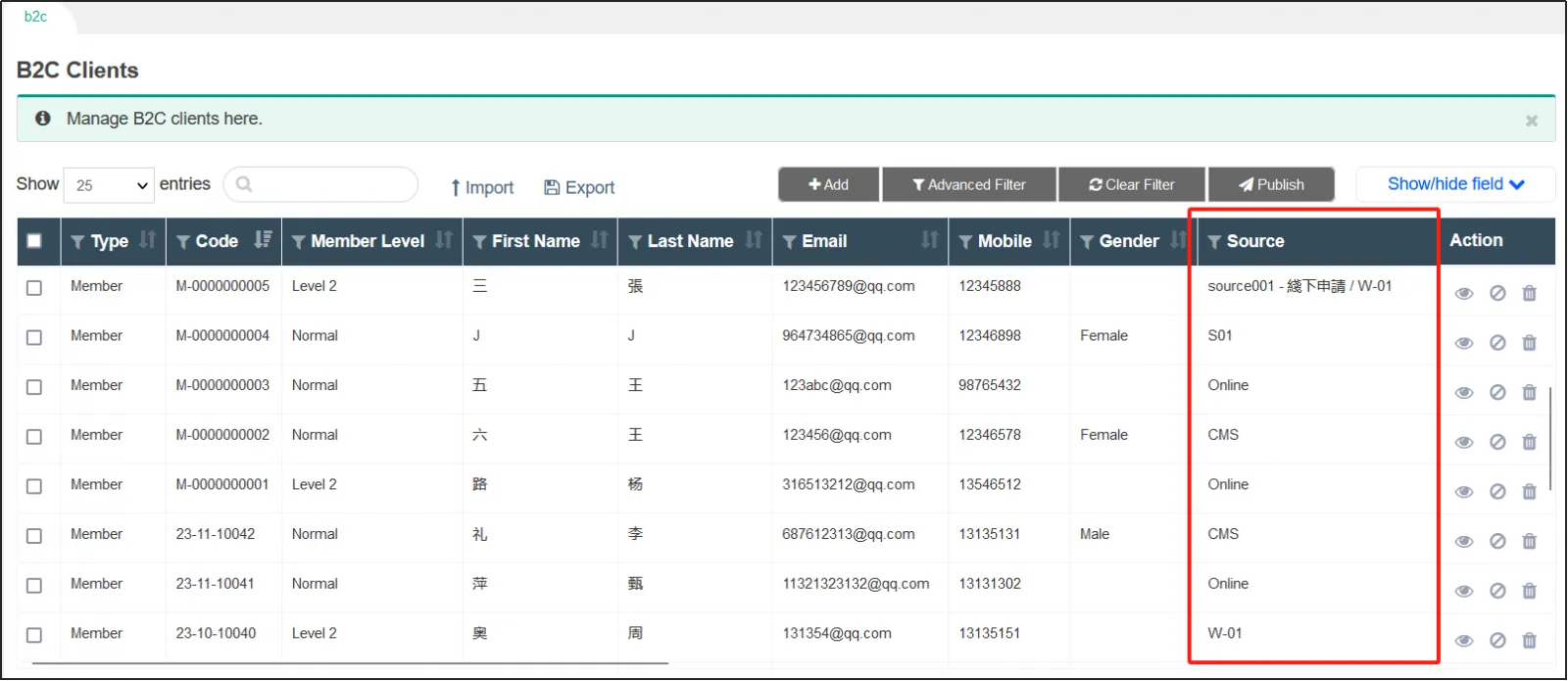
In the [Source] column, you can see how customers register as members (online/POS/CMS directly added).
How to delete a member
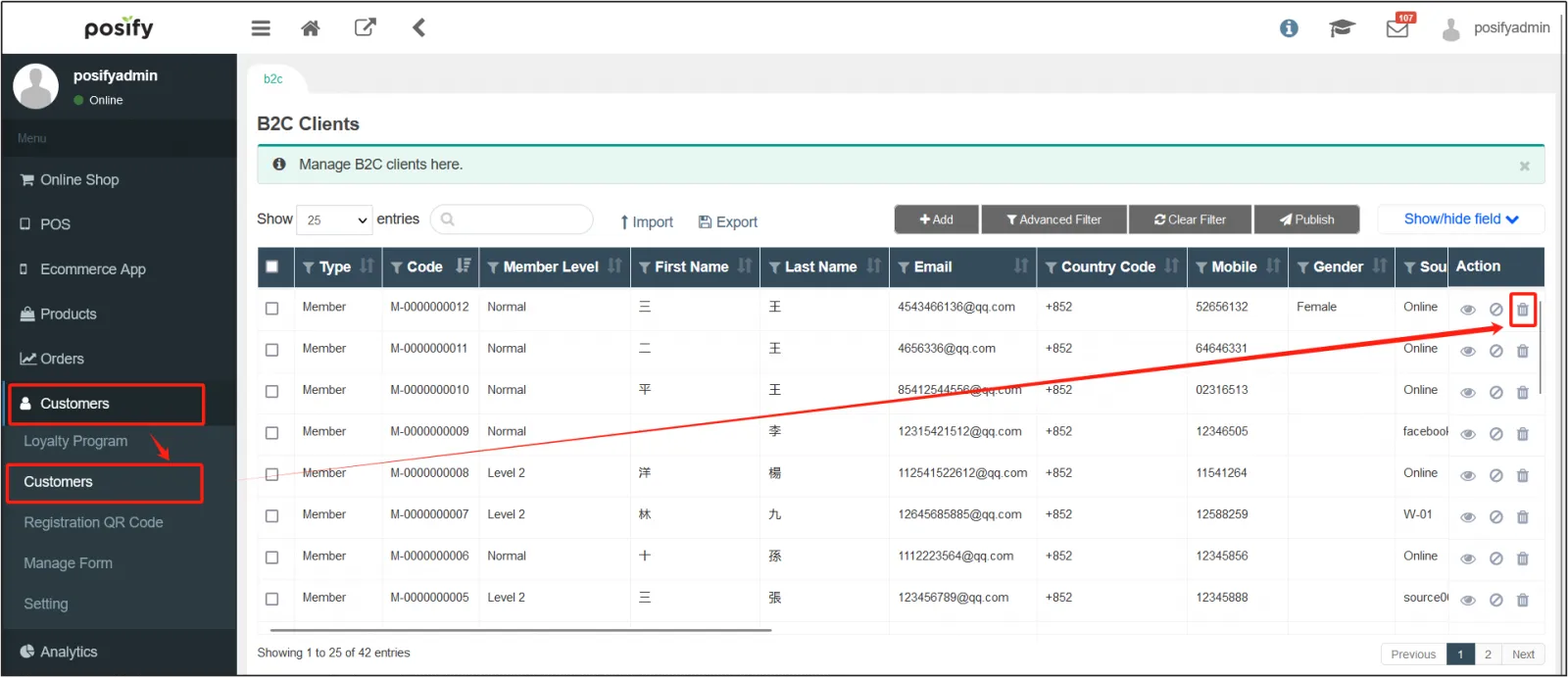
Open the CMSClick CustomersClick CustomersFind the customer you want to delete and click the  on the right.
How to change password
Open the CMSClick CustomersClick CustomersFind the customer who needs to change the password and click the on the right to open the customer information page.
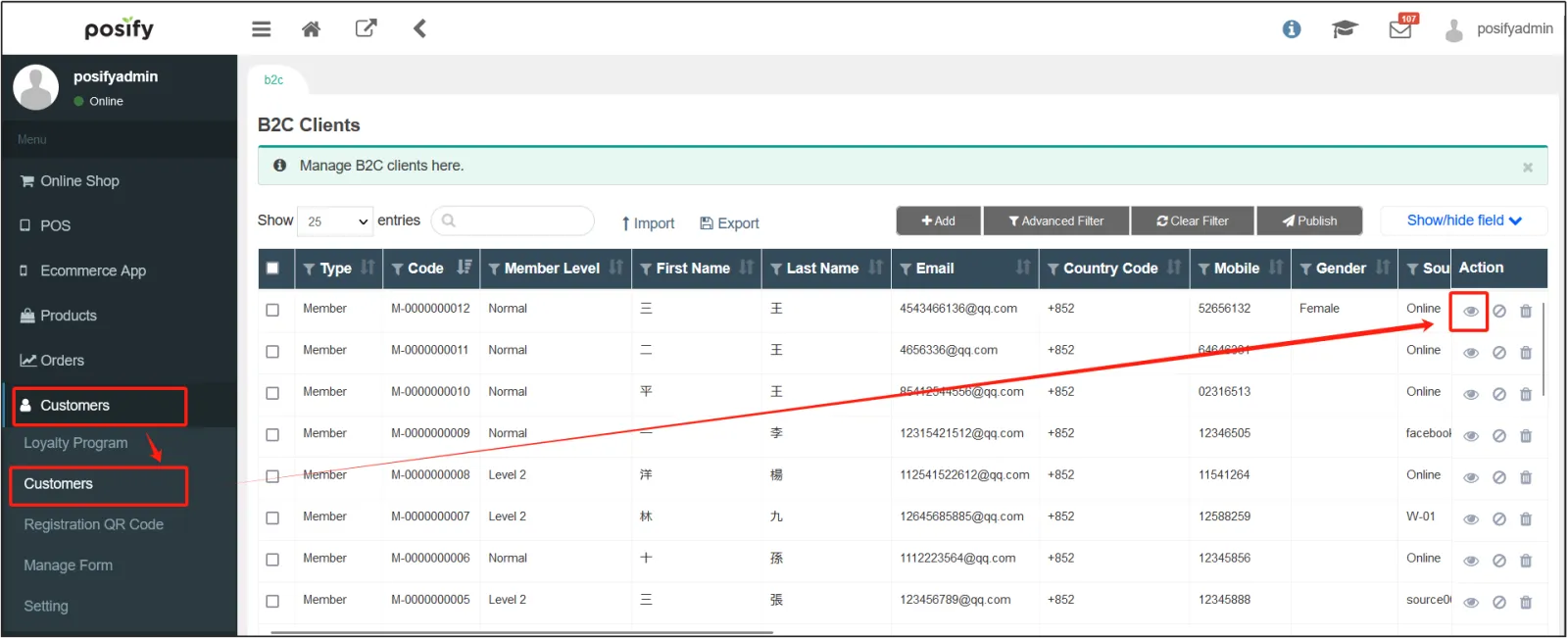
Click the tab Detail.
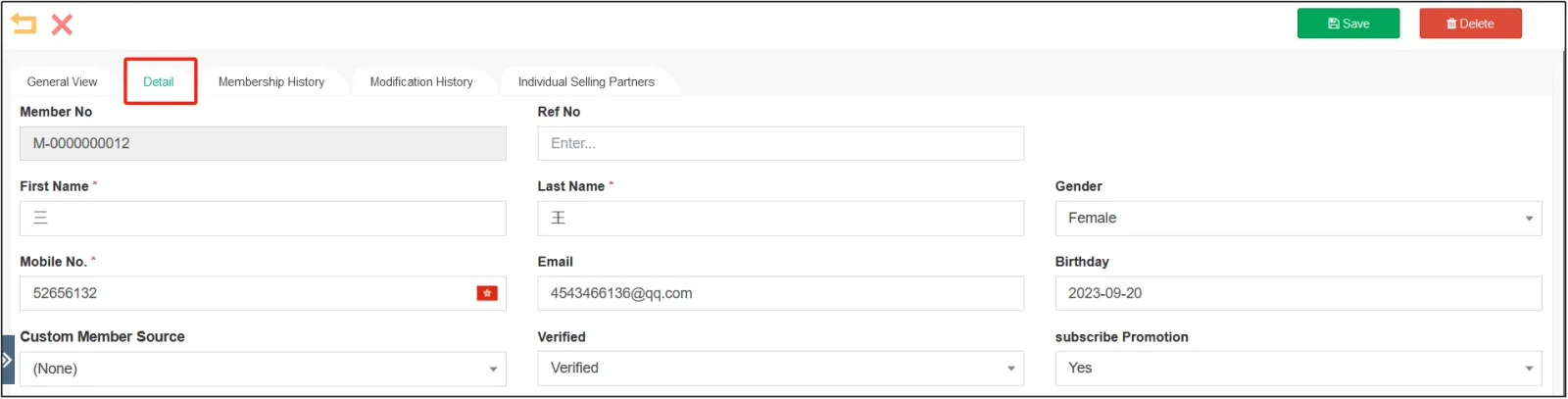
Scroll down to find [Password Management], and fill in the new password you want to change for the customer in [New Password]Click [Save] in the upper right corner.
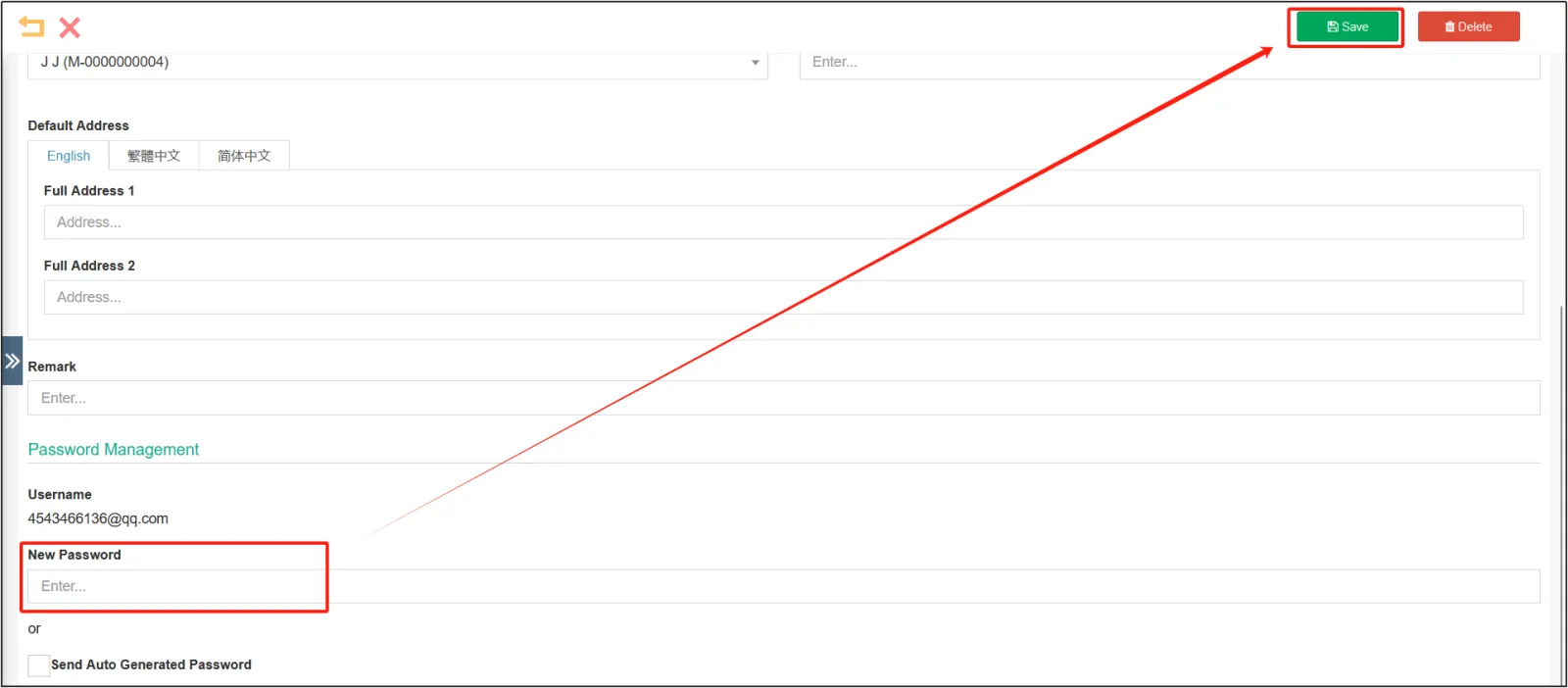
How to modify your member level
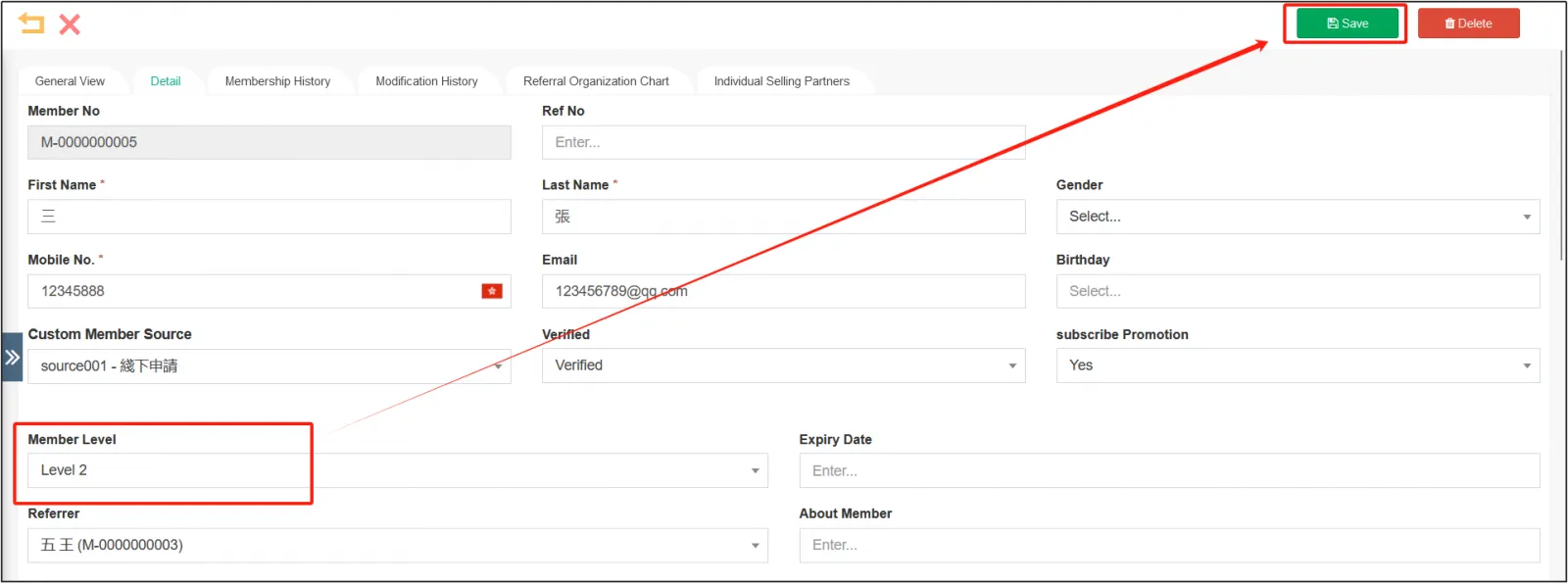
Open the CMSClick CustomersClick CustomersFind the customer who needs to modify the membership level, and click the on the right to open the customer information page.
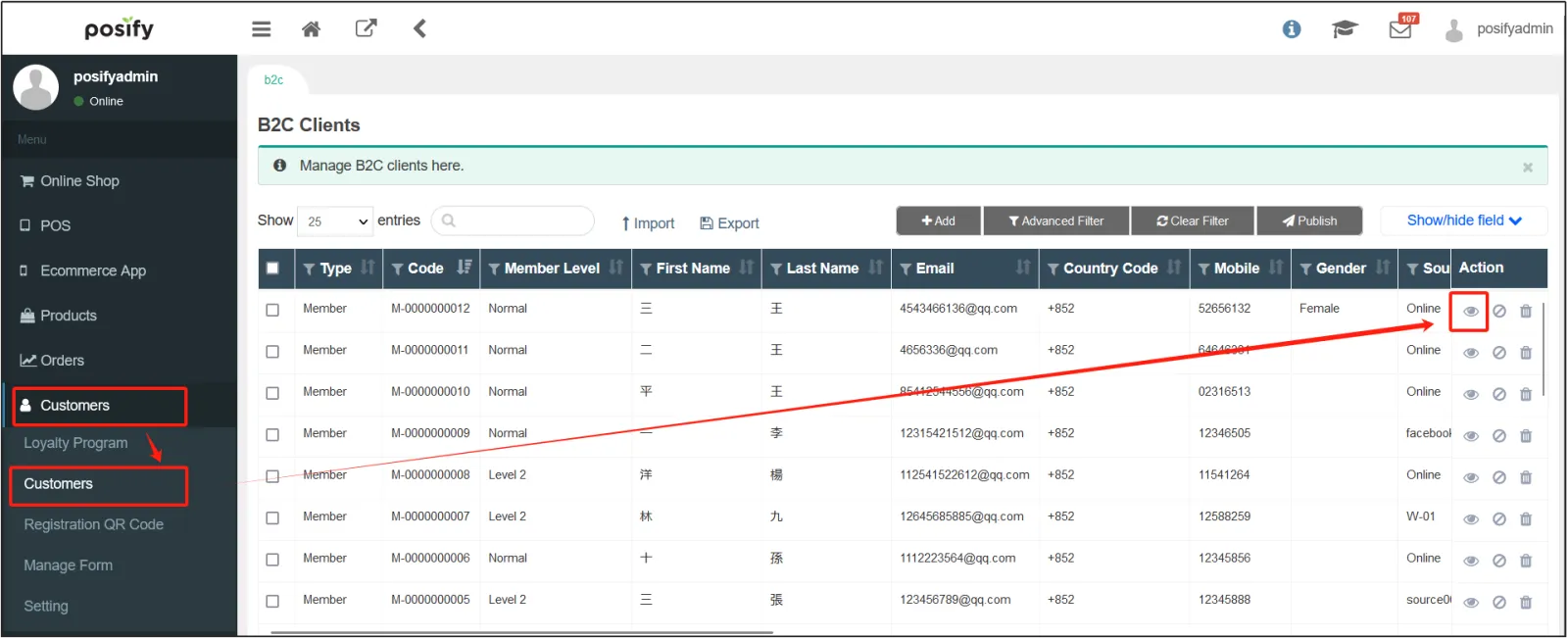
Click the tab DetailClick the drop-down list of [Member Level] to change its member level Click [Save] in the upper right corner.
How to change the expiry date of the member level
Open the CMSClick CustomersClick CustomersFind the customer who needs to modify the validity date of the membership level, and click the on the right to open the customer information page.
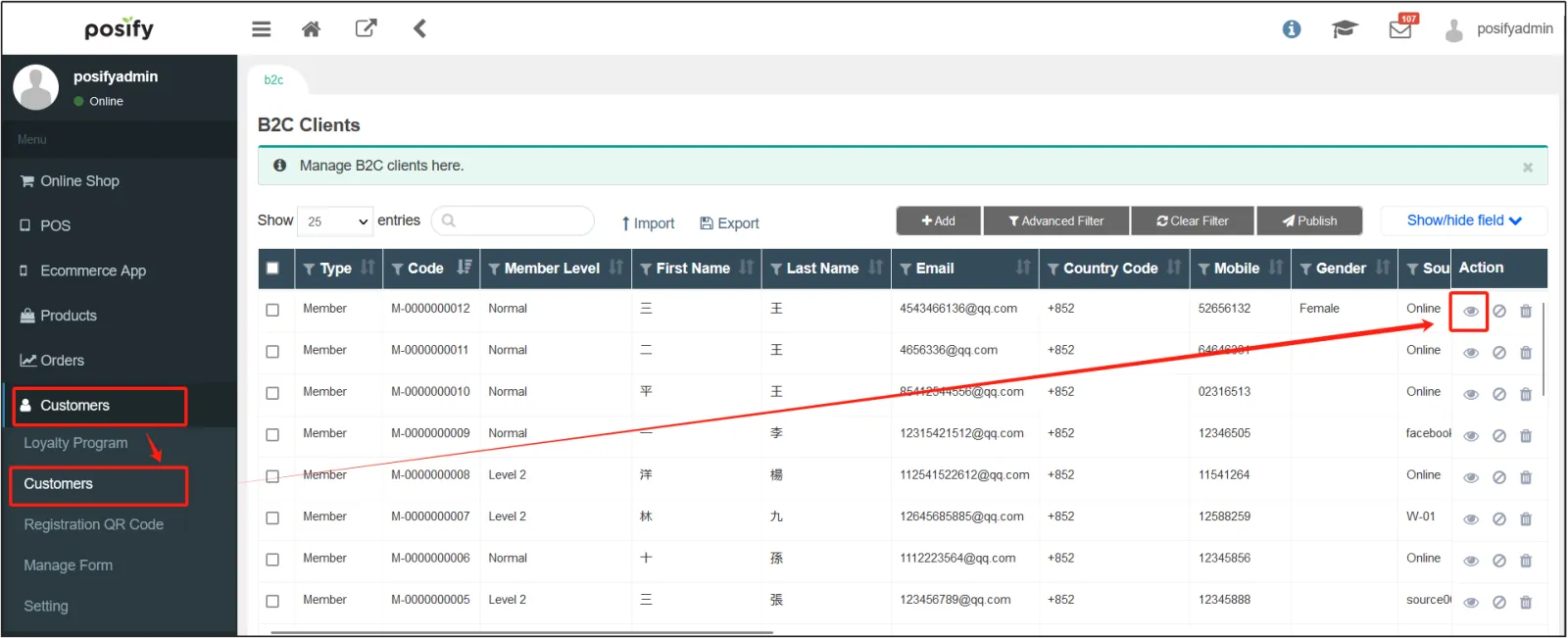
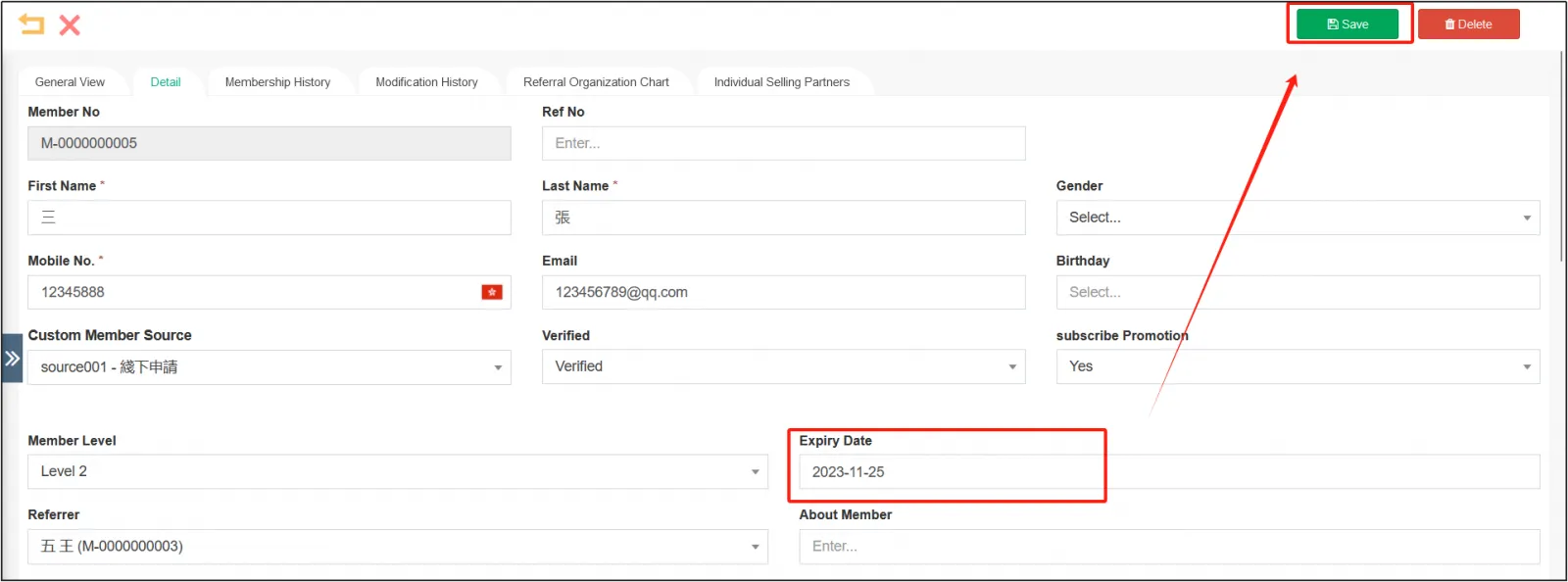
Click the tab DetailEnter the expiration date of the customer's membership level in the [Expiry Date] field to the right of the [Member Level]Click [Save] in the upper right corner.
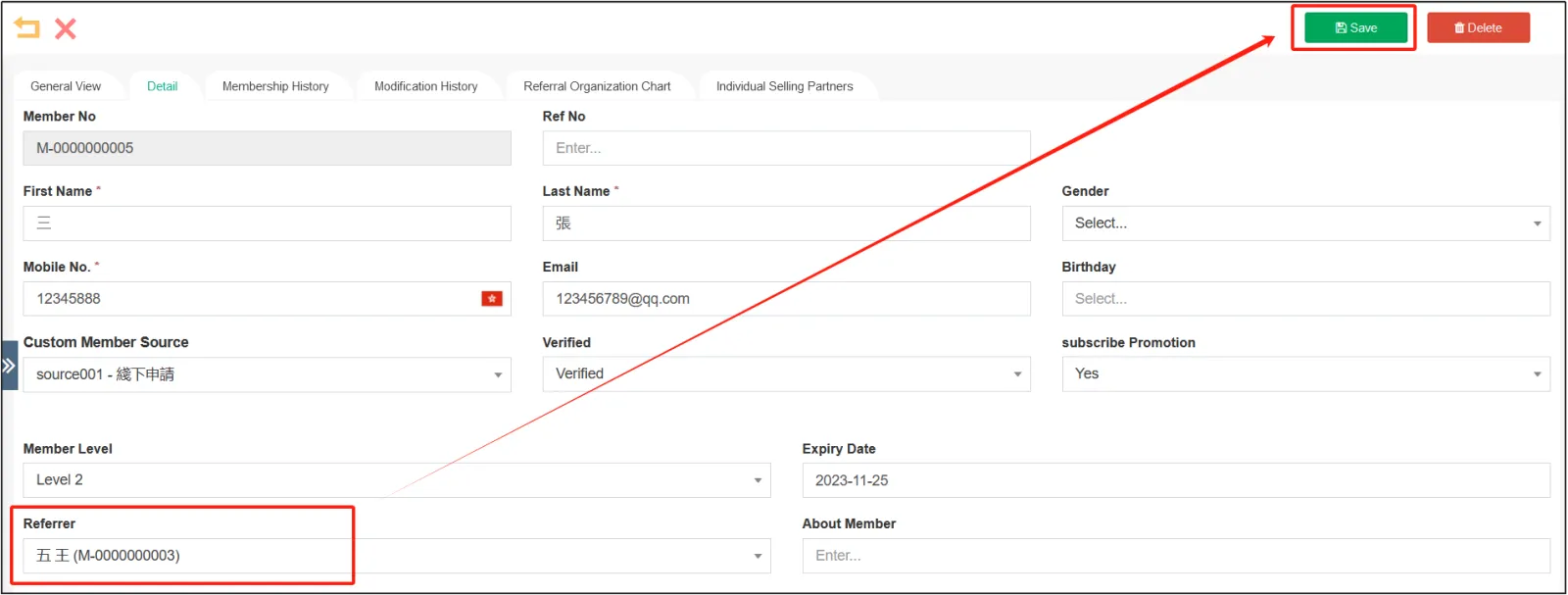
How to modify a member referrer
Open the CMSClick CustomersClick CustomersFind the customer who needs to modify the referrer and click the on the right to open the customer information page.
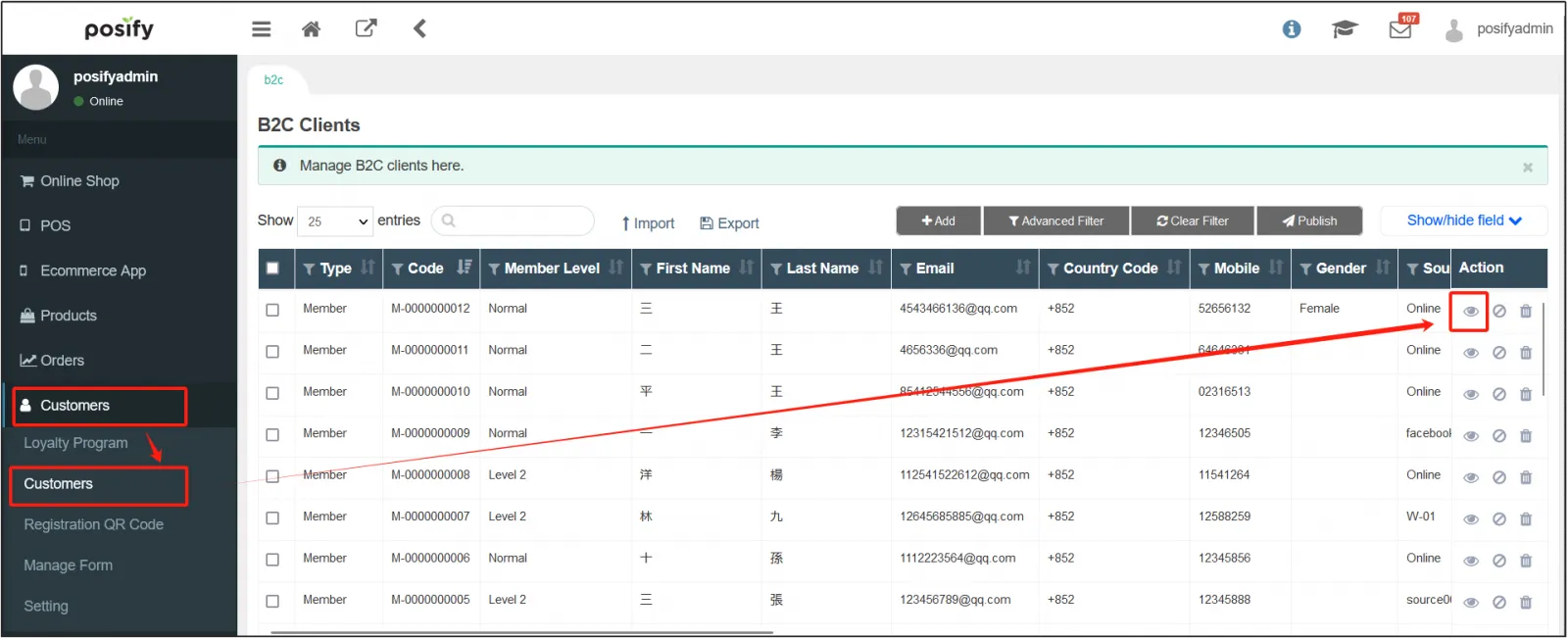
Click the tab DetailEnter the client's referrer (another member) in the [Referrer]Click [Save] in the upper right corner.
View a member's order/Earned points/coupon/Voucher History
Open the CMSClick CustomersClick CustomersFind the customer you want to view the order/shopping points/coupons/package history, and click the on the right to open the customer information page.
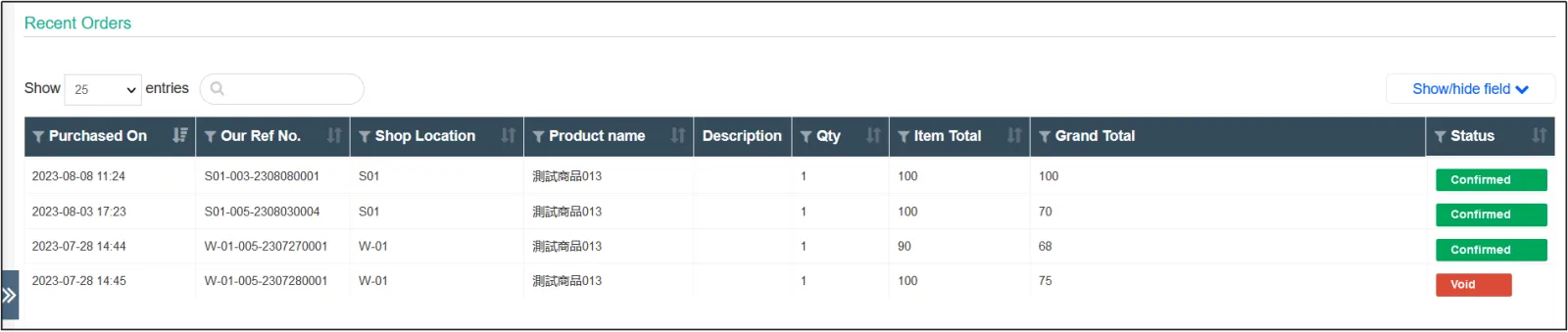
Click on the tab General View and scroll down to see [Recent Orders].
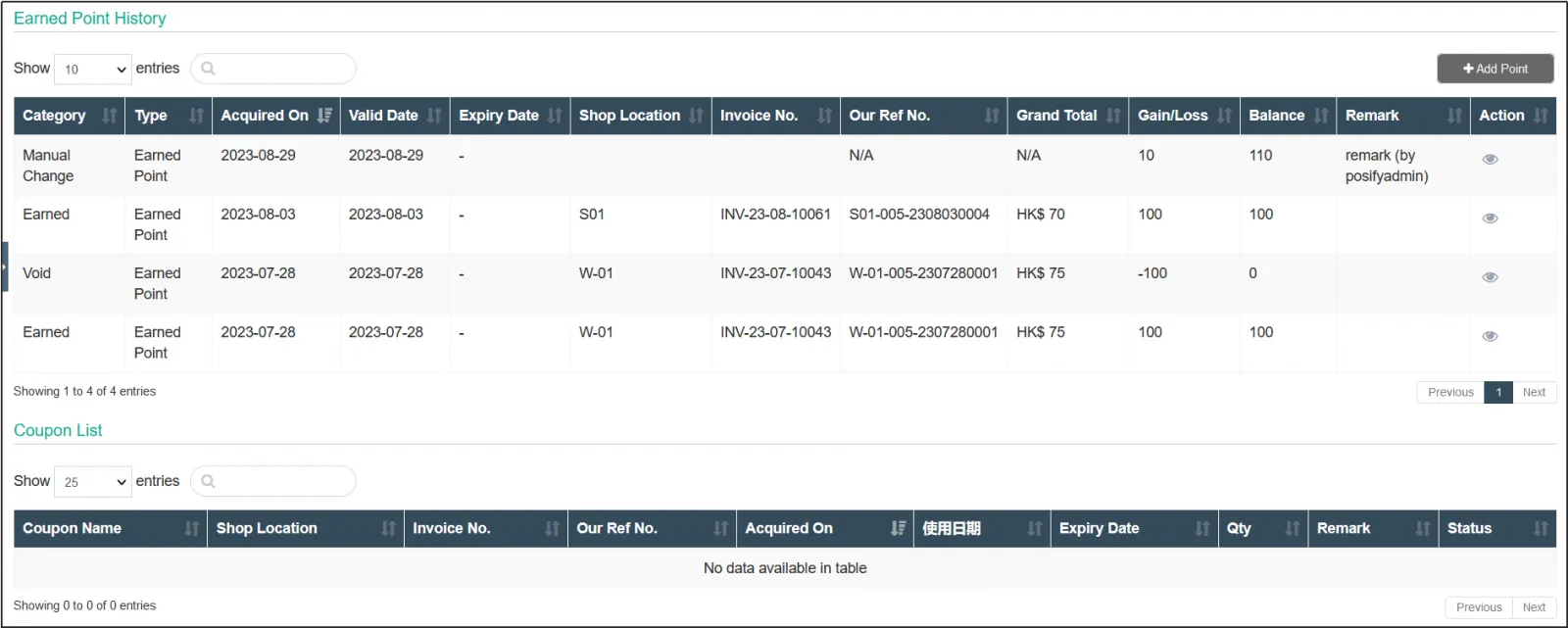
If you continue scrolling down, you can also see [Earned Point History] and [Coupon List].
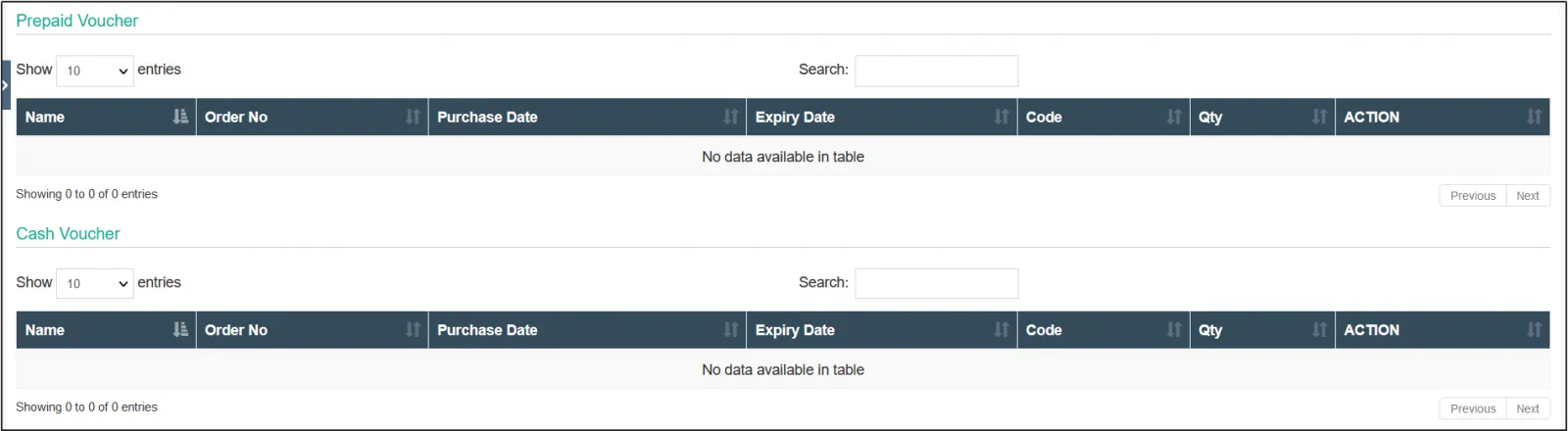
And [Prepaid Voucher] and [Cash Voucher].