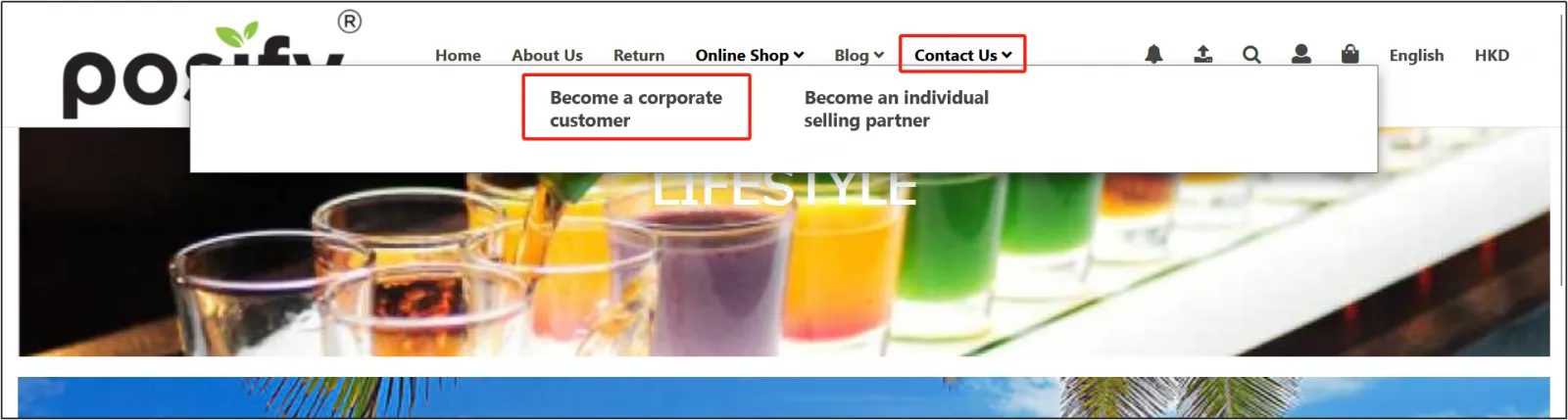
Corporate Customer Membership Levels
Add a corporate customer membership tier
Open CMS click Customersclick Membership Systemclick Pagination Enterprise Customers.
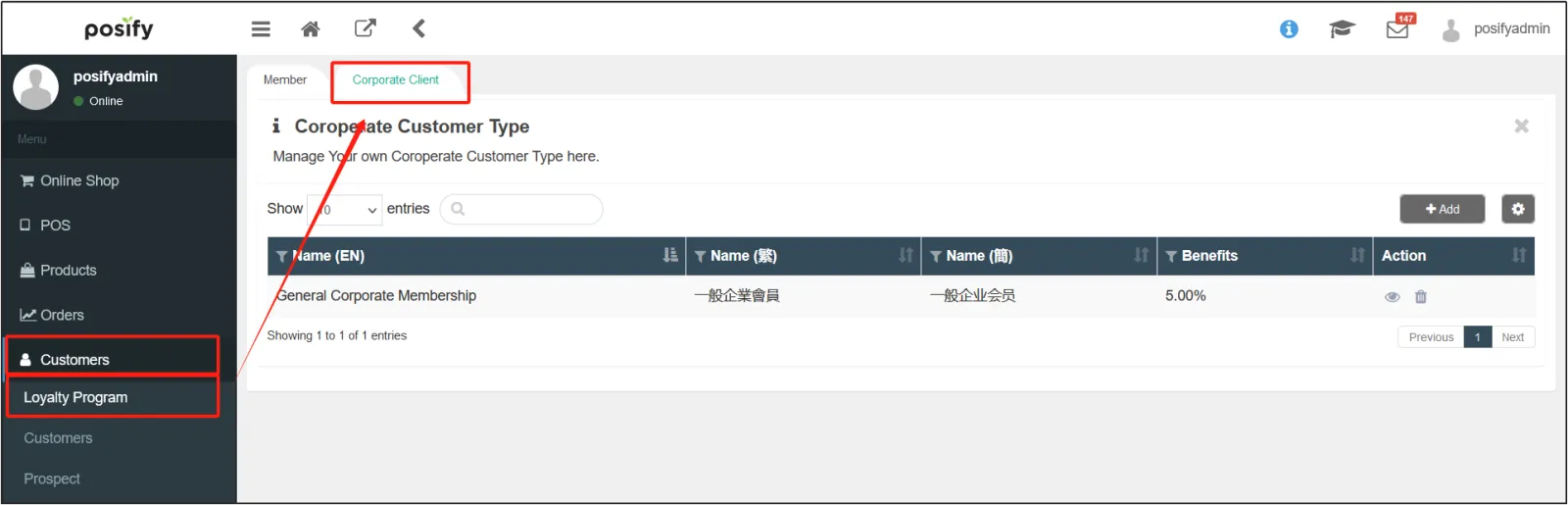
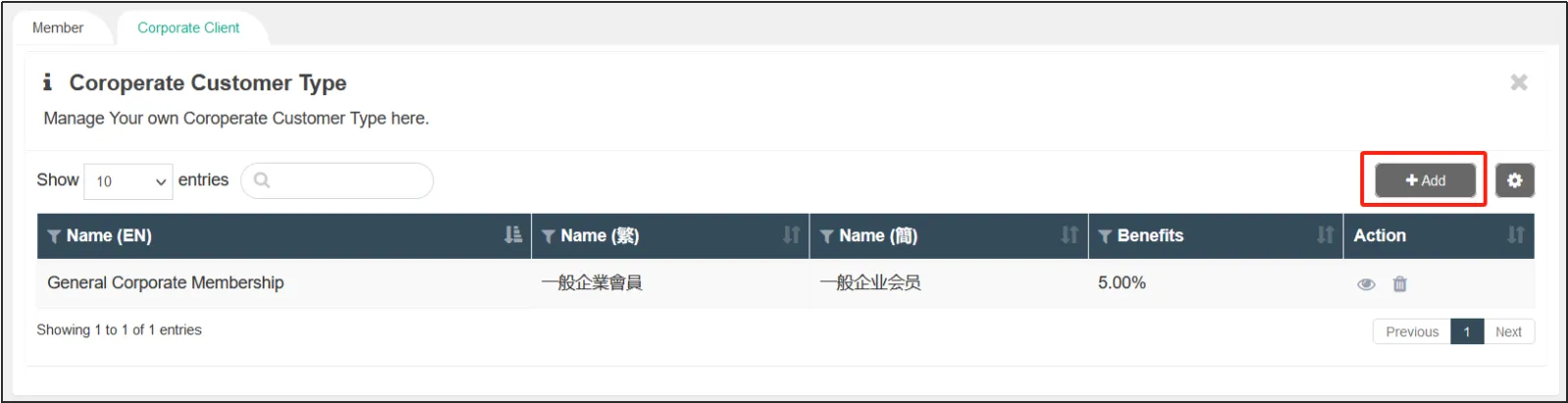
Click [Add] to add a new corporate customer level.
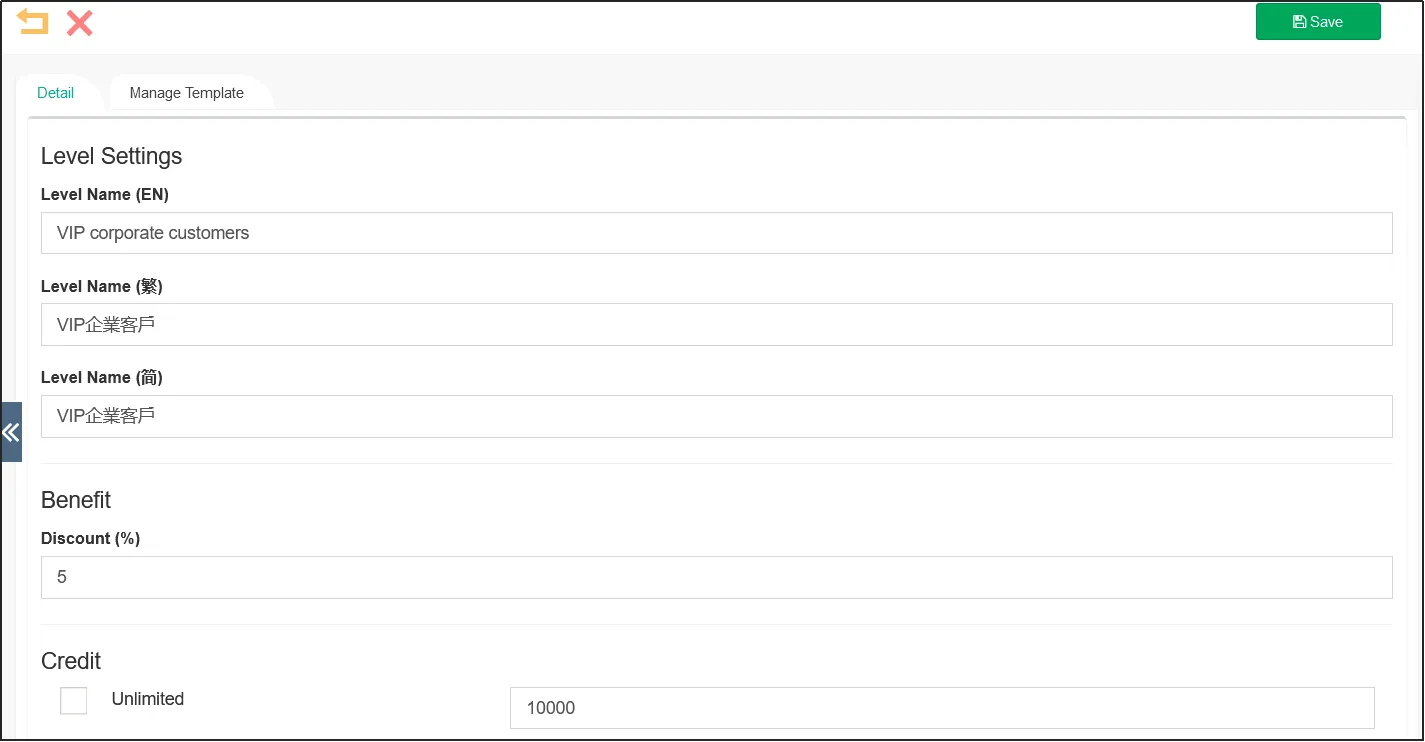
On the tab, enter the Tier Name, Discount, and Credit Limit of the corporate membership tier.
If the credit limit of the corporate membership level is not limited, you can check [Unlimited] under the credit limit.
Under the tab management template, you can upload the [Background Image] of the corporate membership level membership card, as well as the [Text Color] and [Rank Color] on it.
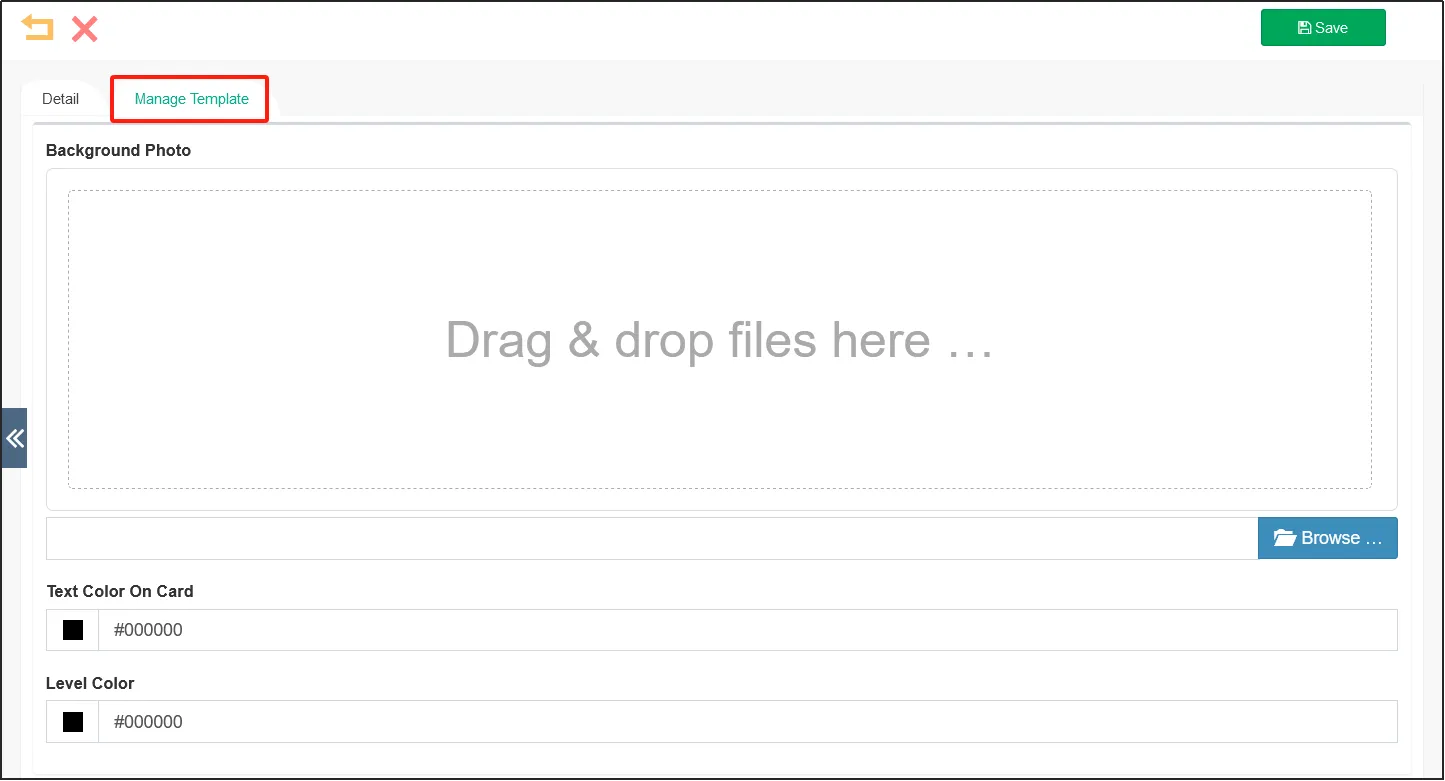
When you're done, click "Save" in the upper right corner.
View/modify corporate customer membership tiers
Open CMSclick Customersclick Membership Systemclick Pagination Enterprise Customers.
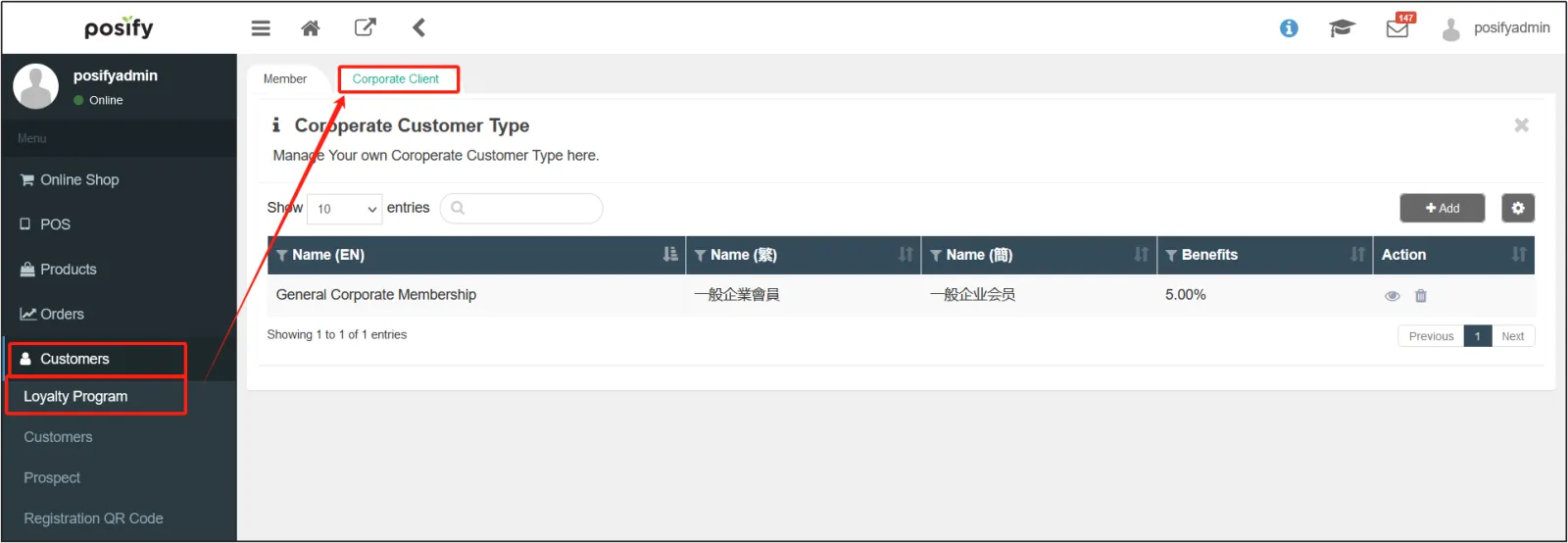
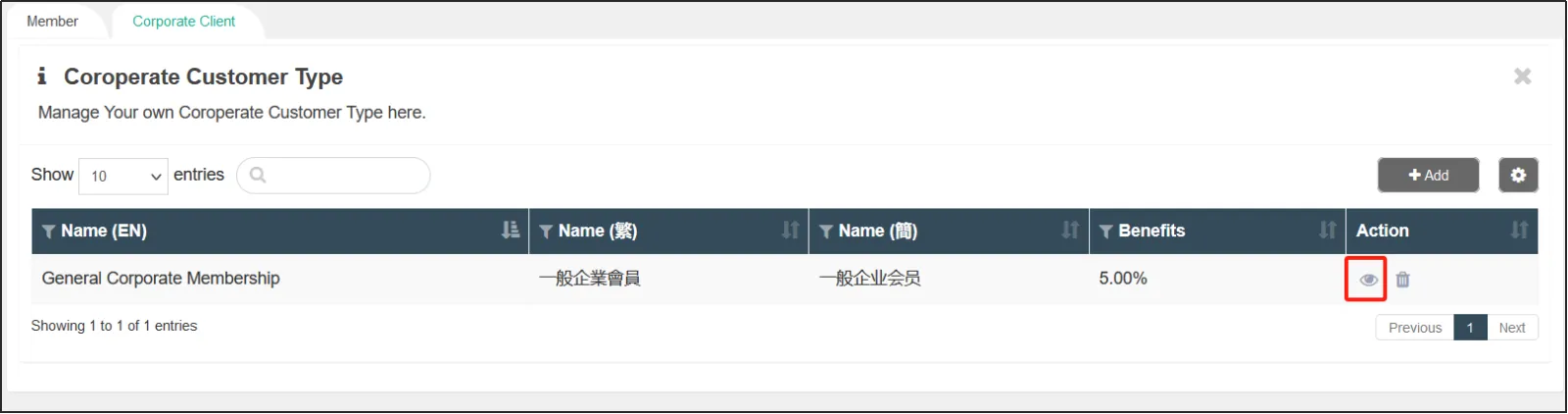
Find the corporate membership level that you want to view/modify, and click  under the action bar on the right side.
Delete the corporate customer membership tier
Open CMSclick Customersclick Membership Systemclick Paginated Enterprise Customers.
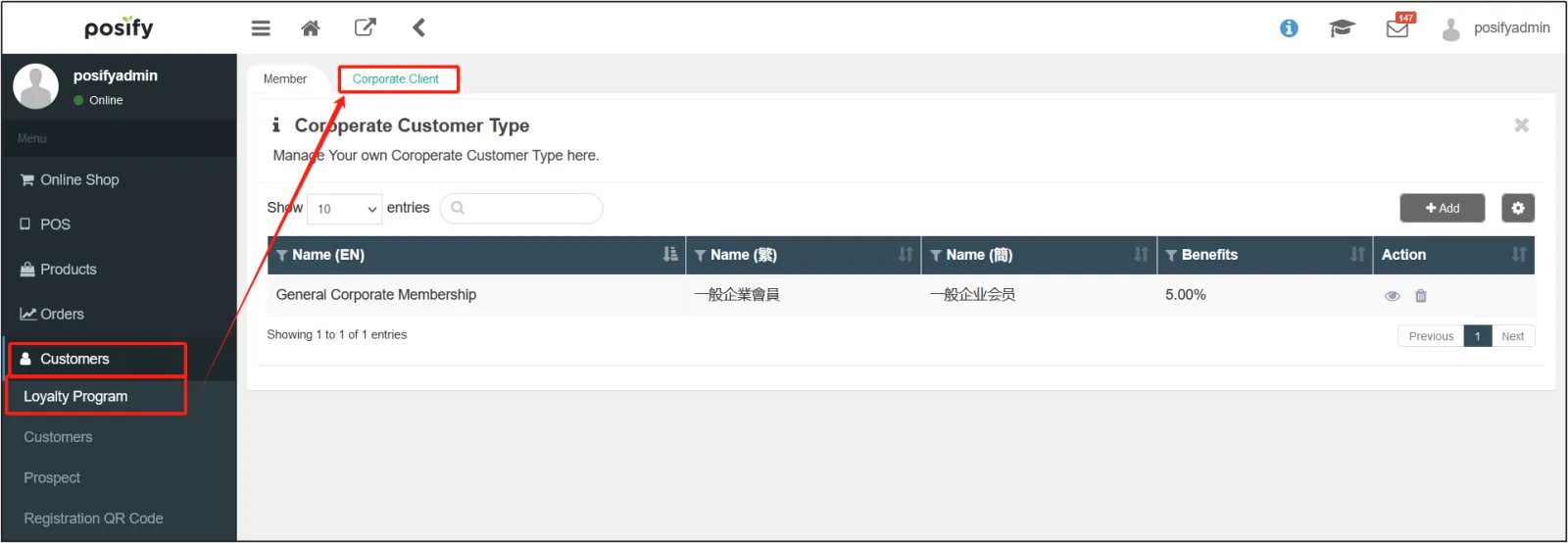
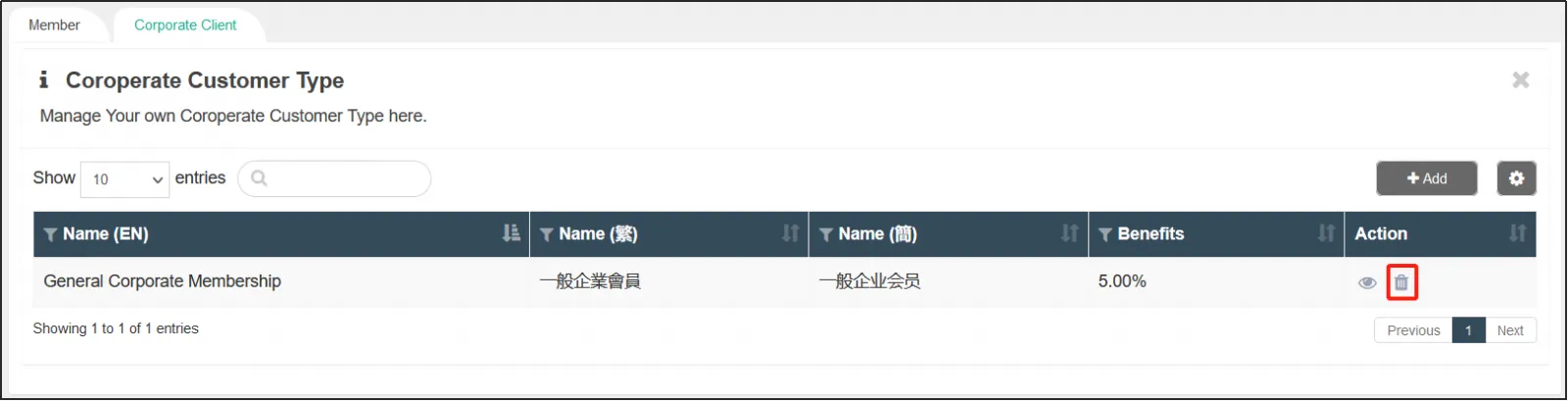
Find the corporate membership level that you want to delete and click  in the action bar on the right.
Corporate customers
Open the CMSclick on Customersclick on Customersclick on the tab b2b.
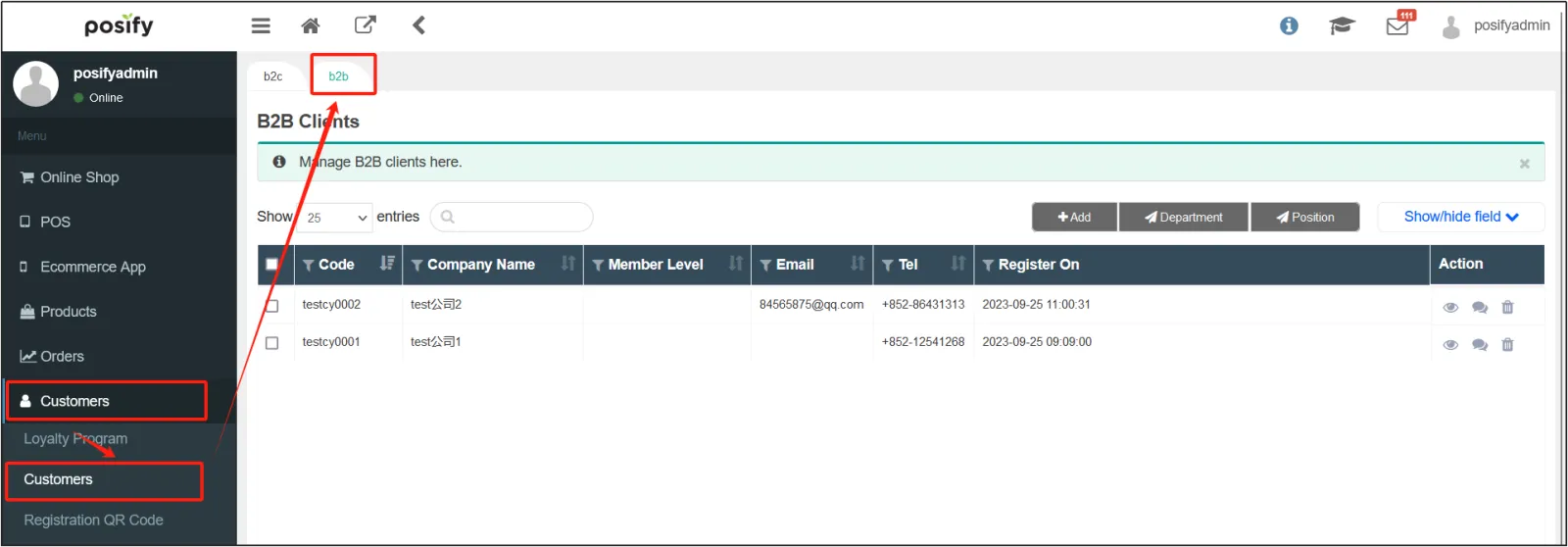
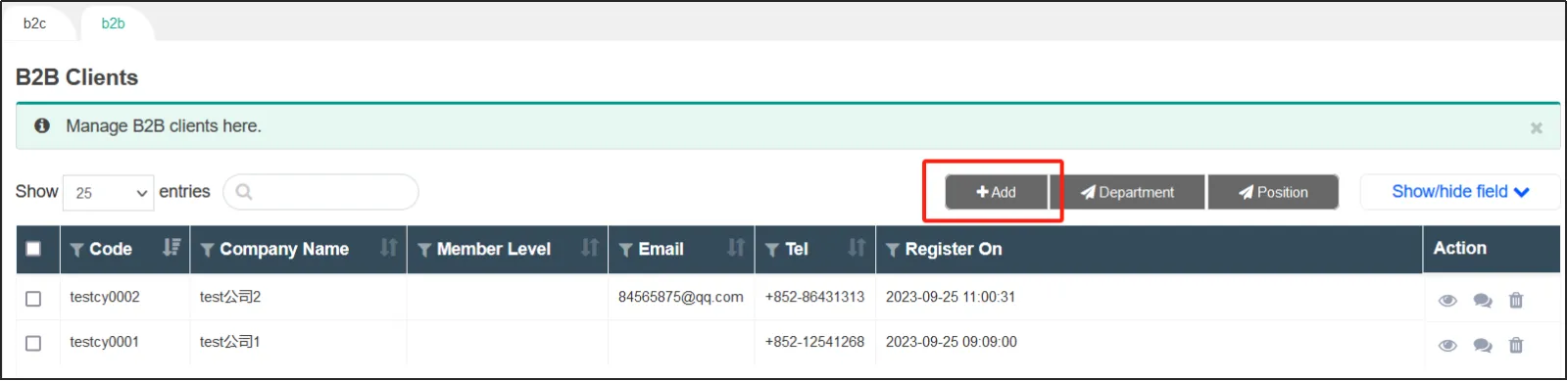
Click [Add] to add a new corporate customer.
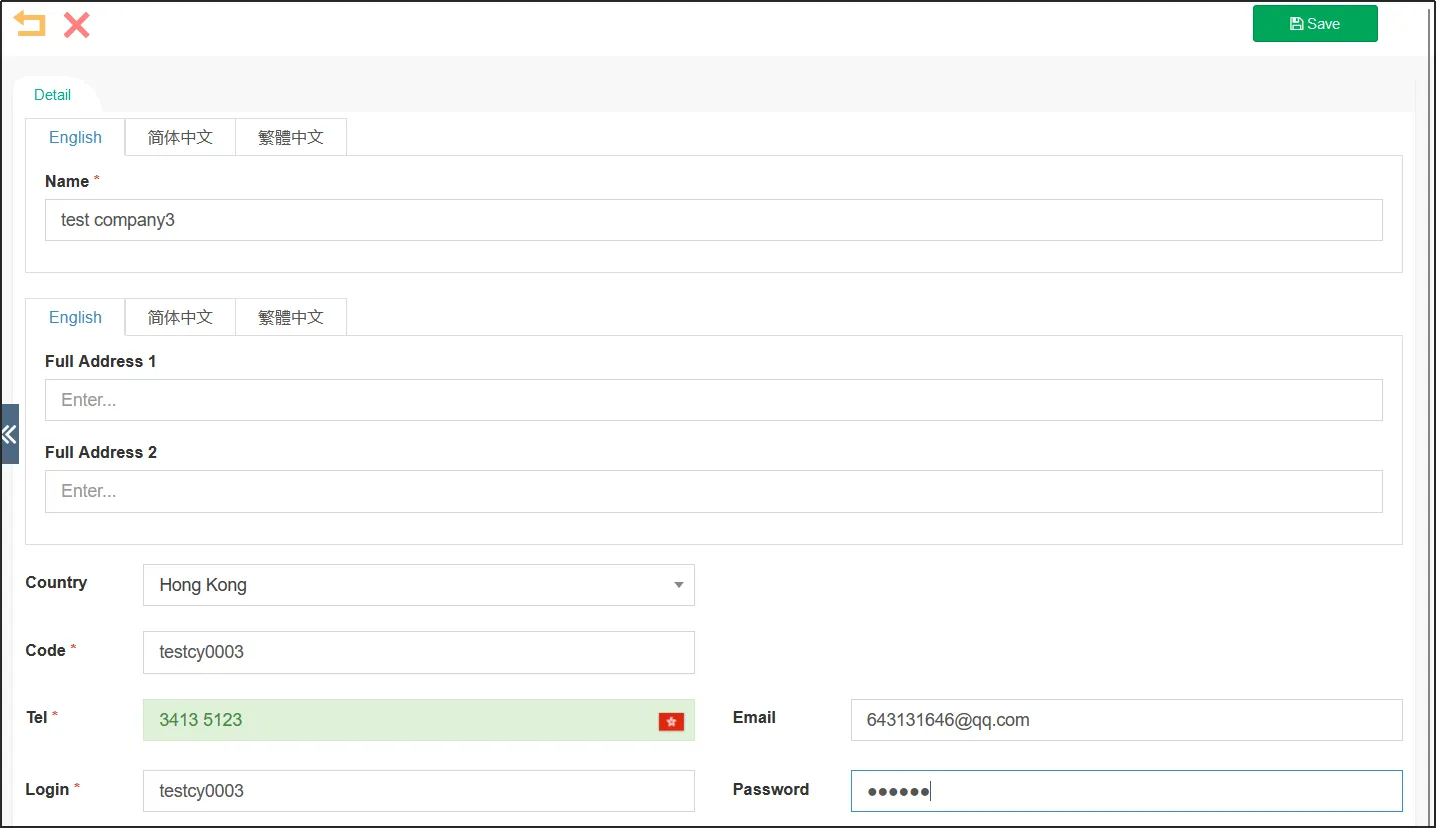
Fill in the information of the enterprise customer, including the enterprise customer's [name], [address], [country/region], [customer number], [phone number] and other information, among which * is required.
In the "Layer" section, you can select the corporate membership level to which the corporate customer belongs, and the corporate membership level is set in the customer-membership system. In the [Type] section, you can select the type to which the enterprise customer belongs, including franchisees, distributors, distributors, agents, and suppliers.
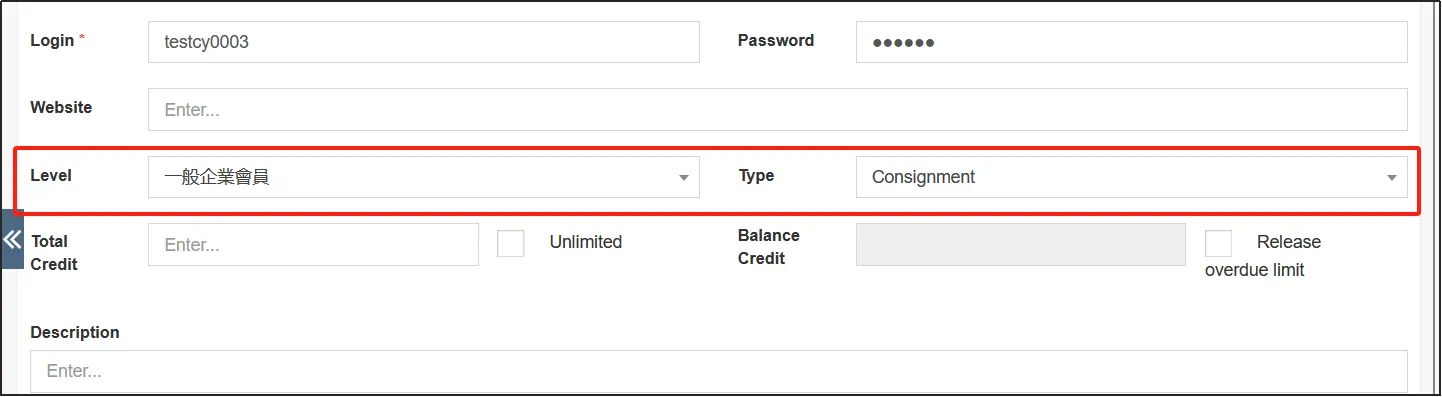
When you're done, click [Save] in the upper right corner.
Click in the operation bar on the right side of the enterprise customer to open the edit page of the enterprise customer again.
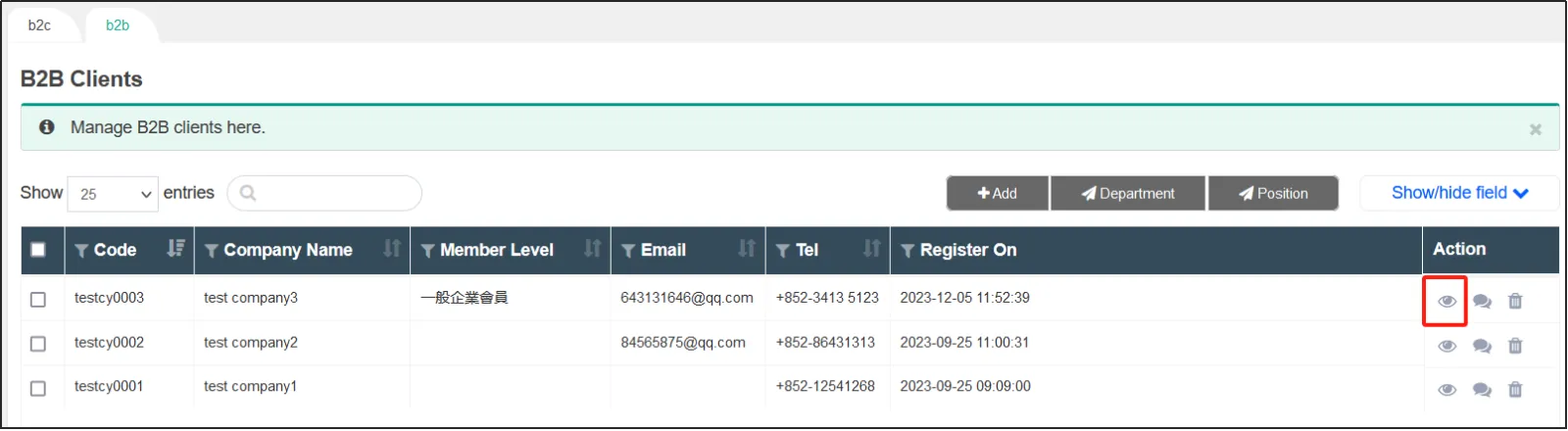
Click the location on the tab pageclick Add to add a location to the enterprise customer, that is, where the enterprise customer's company is located.
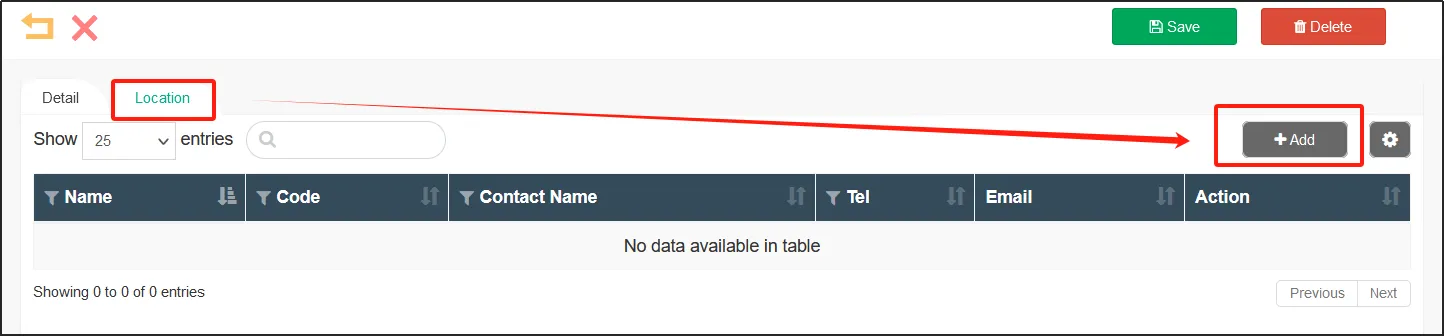
Fill in the information of the enterprise customer location, including [Name], [Customer Number], [Contact Name], [Phone], [Country/Region], [Address], etc.
When you're done, click [Save] at the bottom.
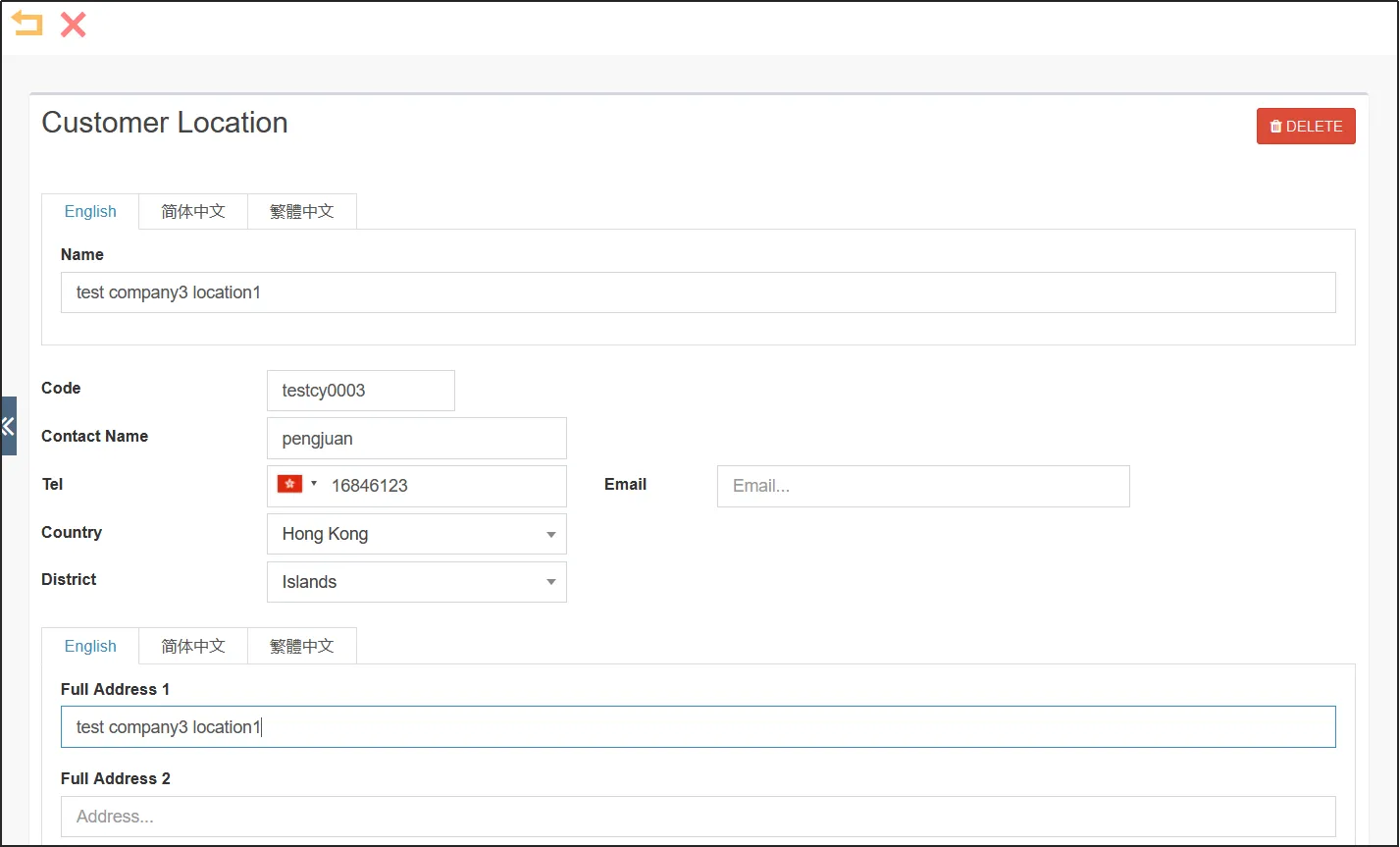
You can see that the new location has been added to the list, and click [Save] in the upper right corner to complete the addition of a company user.
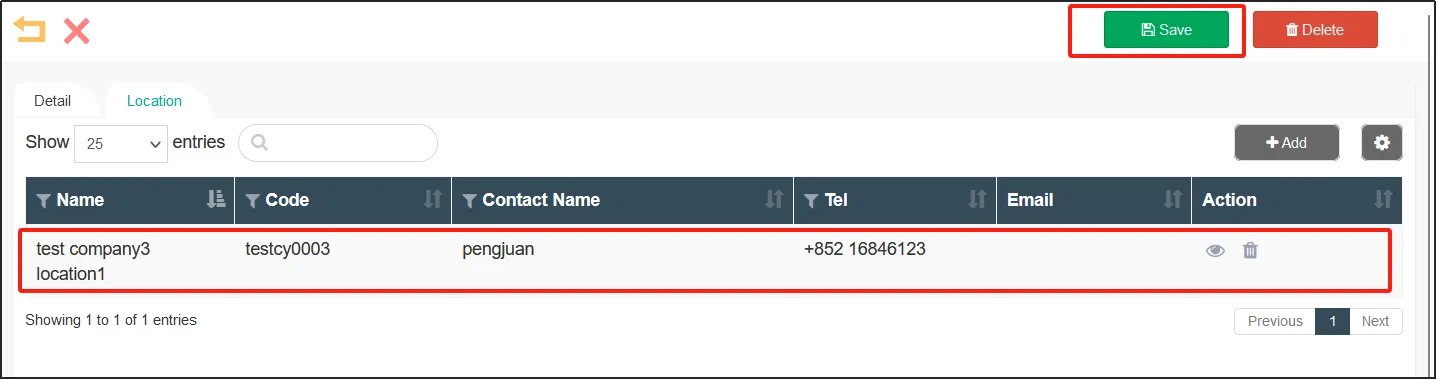
View/edit corporate customer profiles
Open the CMSclick on Customersclick on Customersclick on the tab b2b.
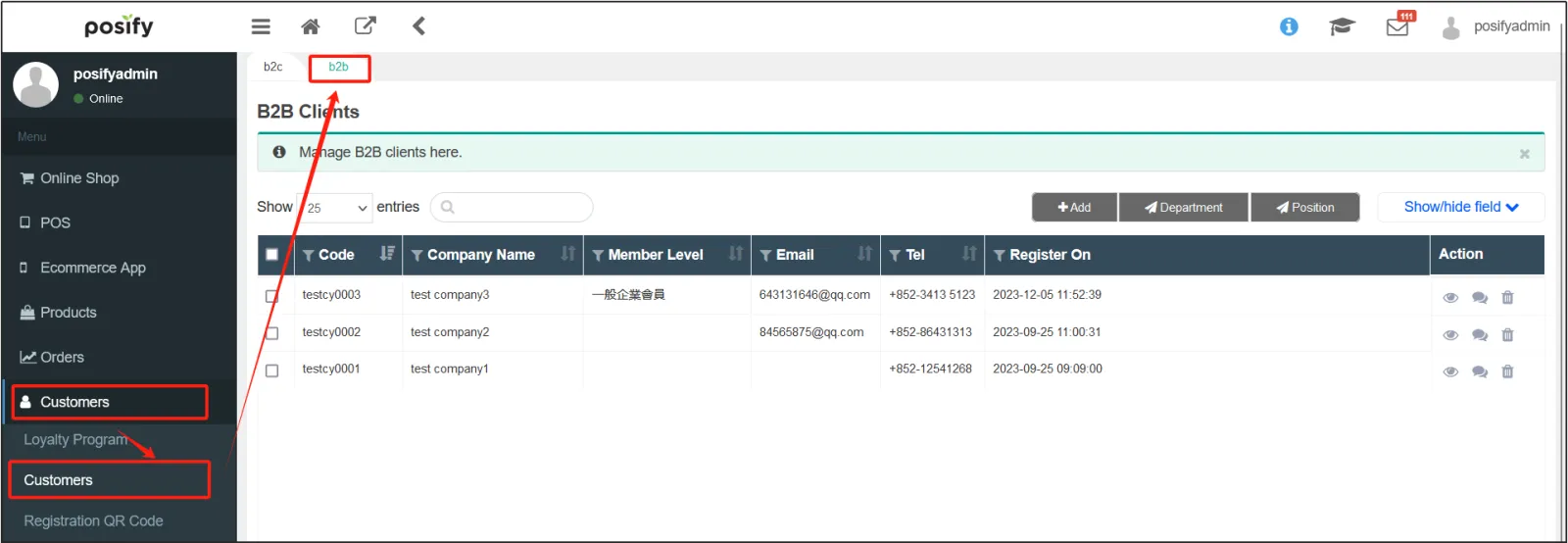
Find the enterprise member that you want to view/modify, and click in the action bar on the right.
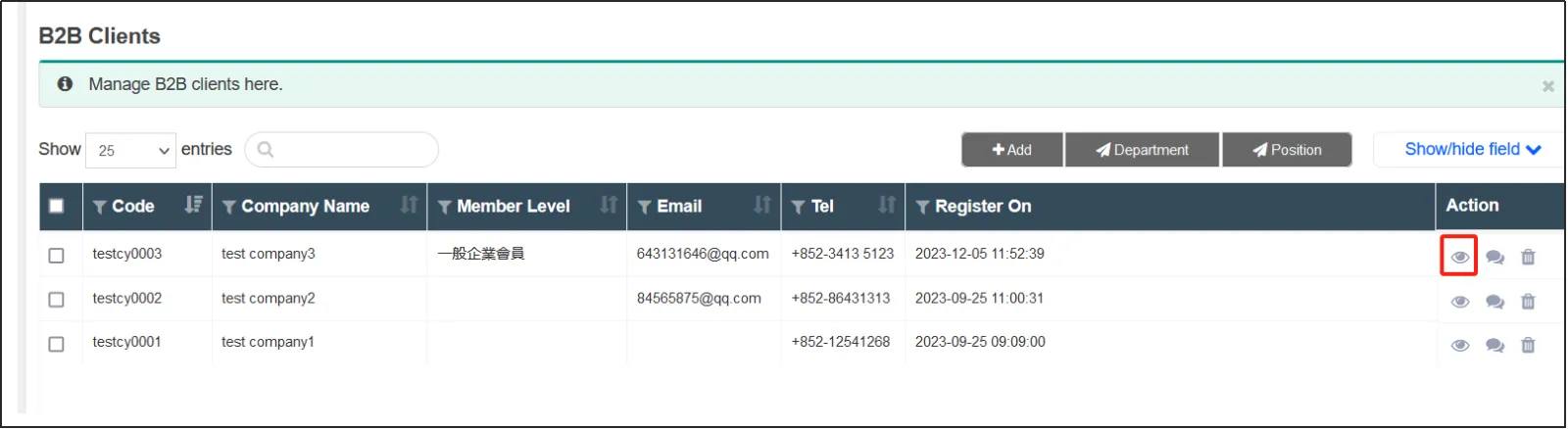
Open the CMSclick on Customersclick on Customersclick on the tab b2b.
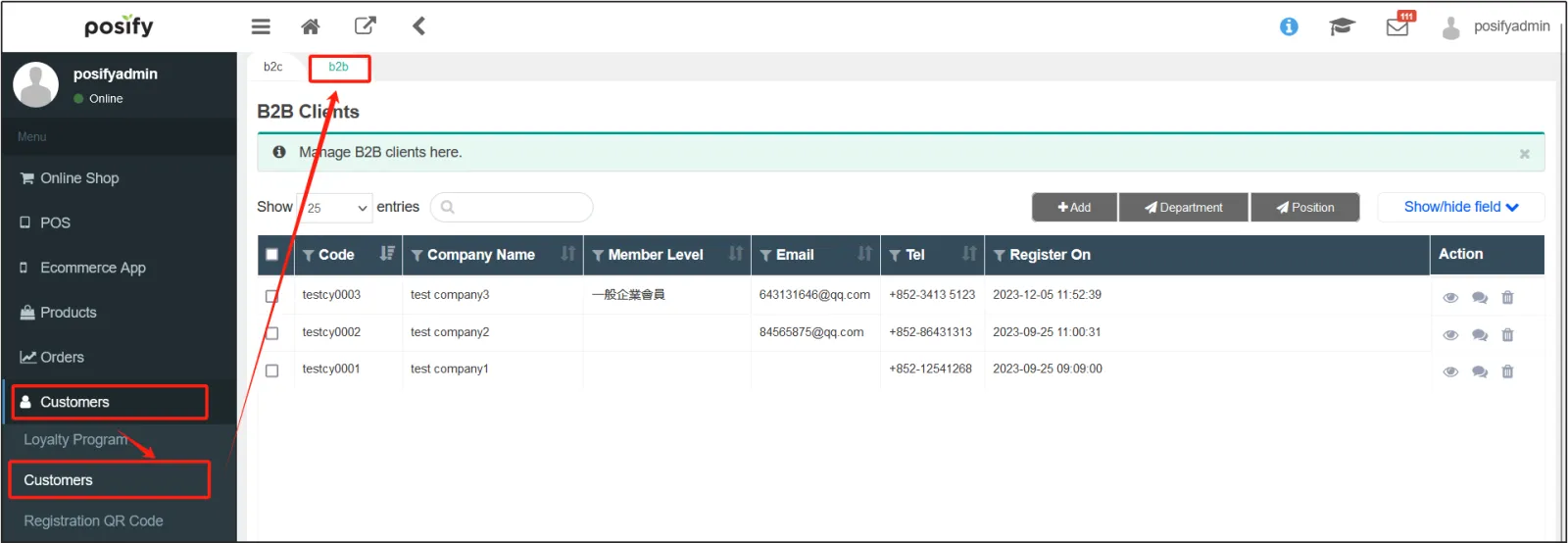
Find the enterprise member and click in the action bar.
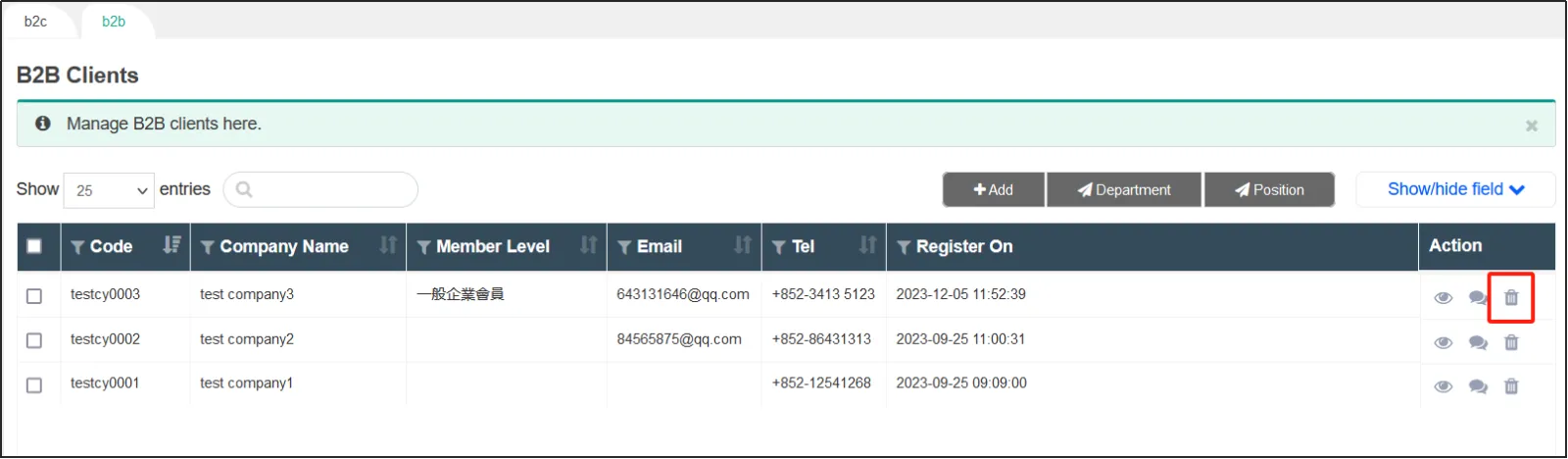
Corporate customers apply for membership in the online store
If you want corporate customers to apply for membership in the online store just like ordinary individual customers, you can set it up as follows.
First, you'll need to set up a B2B membership registration form.
Open the CMSclick Customersclick Manage Formsclick "Add".
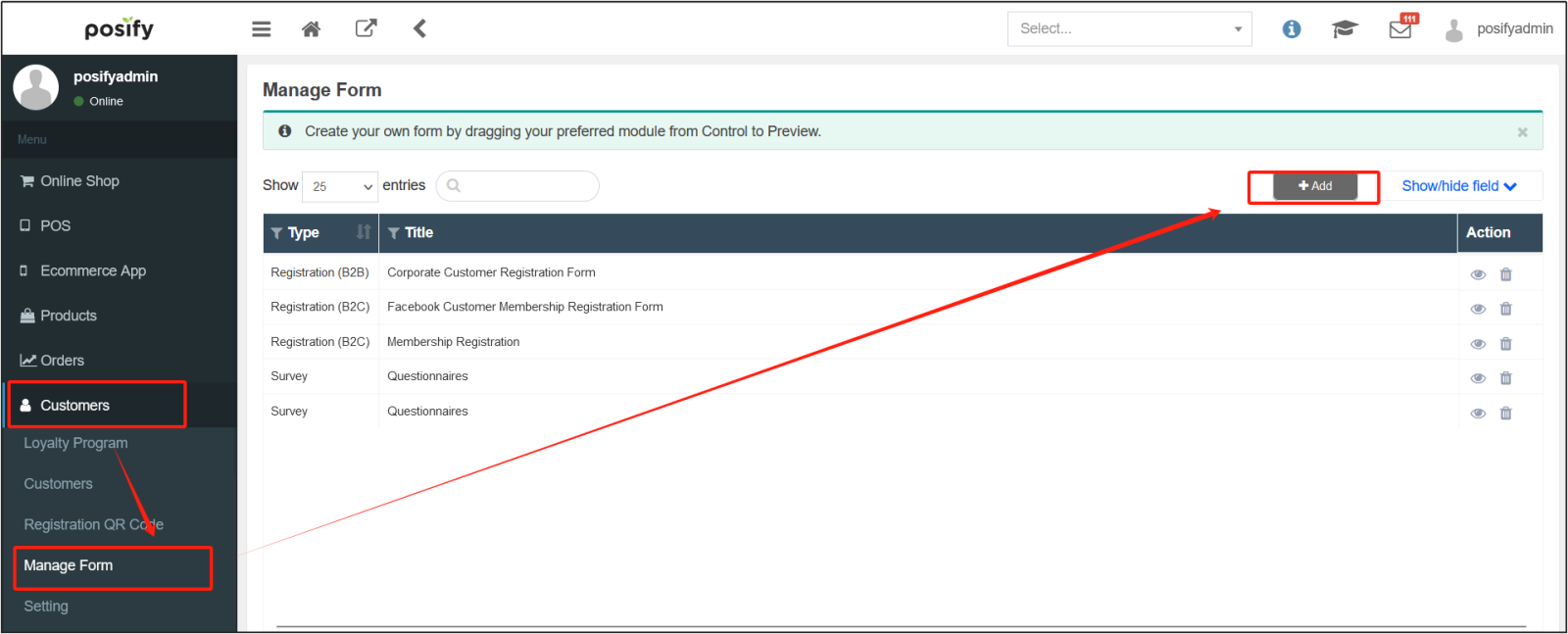
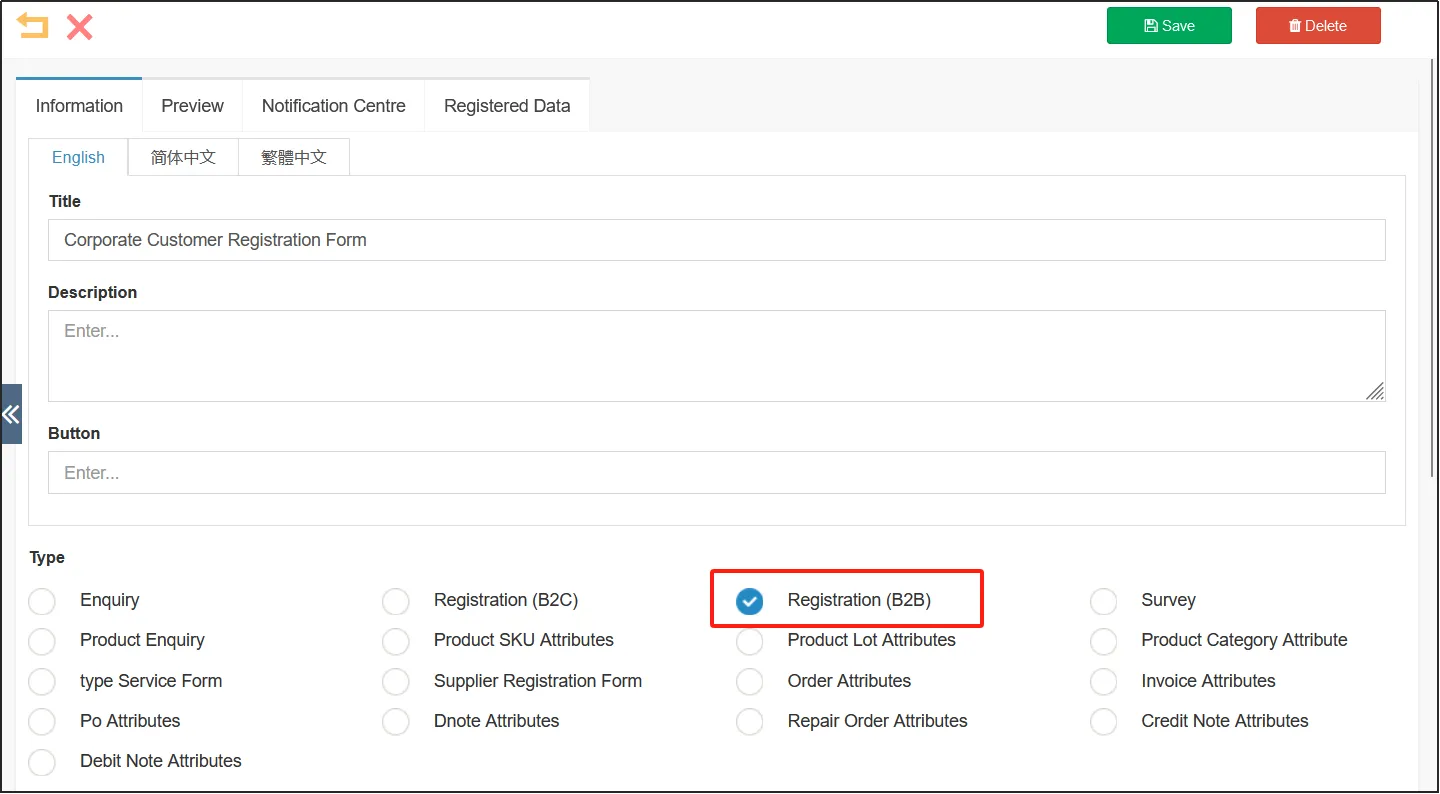
On the Content tab, enter the Title, Content, Genre, and Register Form (B2B) for the form, and Enable for Online Store. If you also need to use the form offline, select the physical store as well.
On the tab preview, set the information items contained in the table, see Playbook - Table Management for details.
Open the CMSclick Online Storeclick All Tabsclick [Add] to add a blank tab.
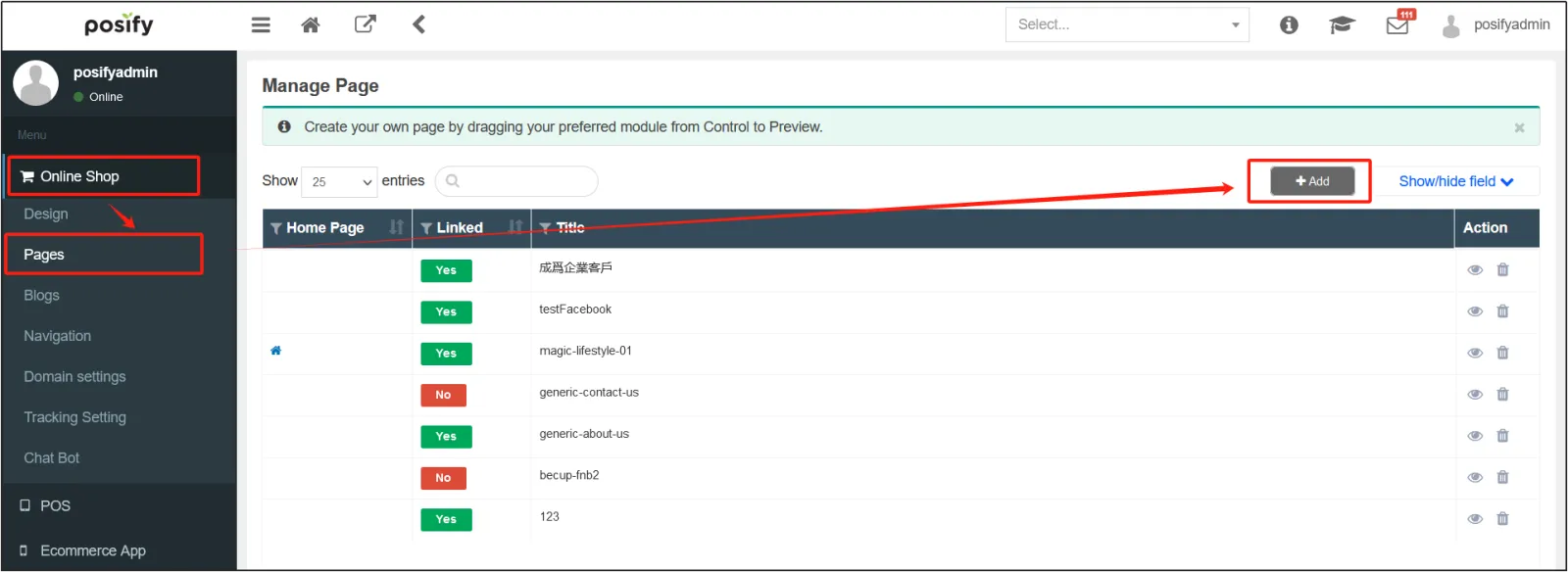
Hold down the [Table] icon and drag and drop it into the section.
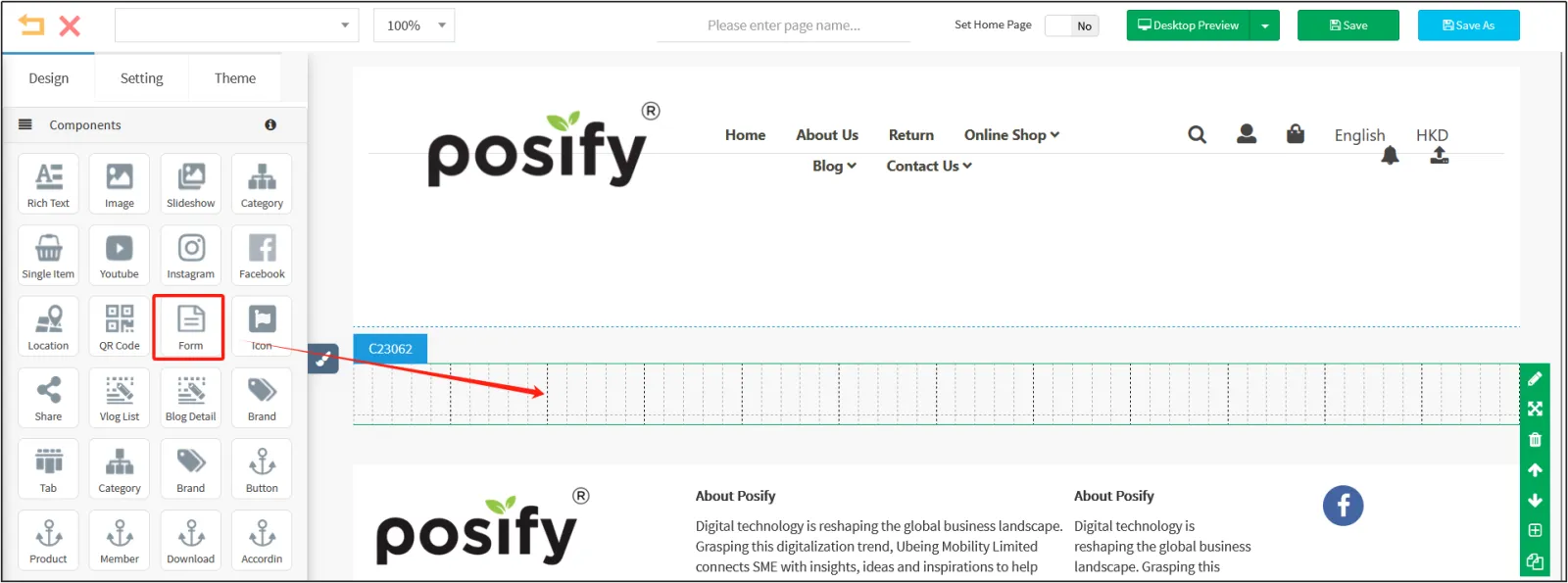
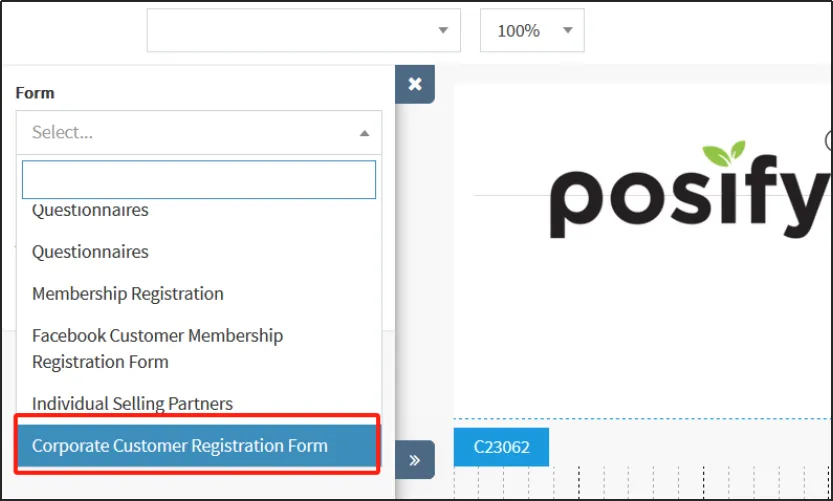
Select the corporate customer registration form that you just set up in the [Forms].
Enter a page name, for example, enter "Become a corporate customer"click [Save]close the page.
There are two ways to make this form appear in your online store for customers to fill out, either by linking to the form on an existing tab, or by setting up a direct navigation to jump to the form.
If you want to link to the Corporate Membership Registration Form on an existing tab, you can do so as follows:
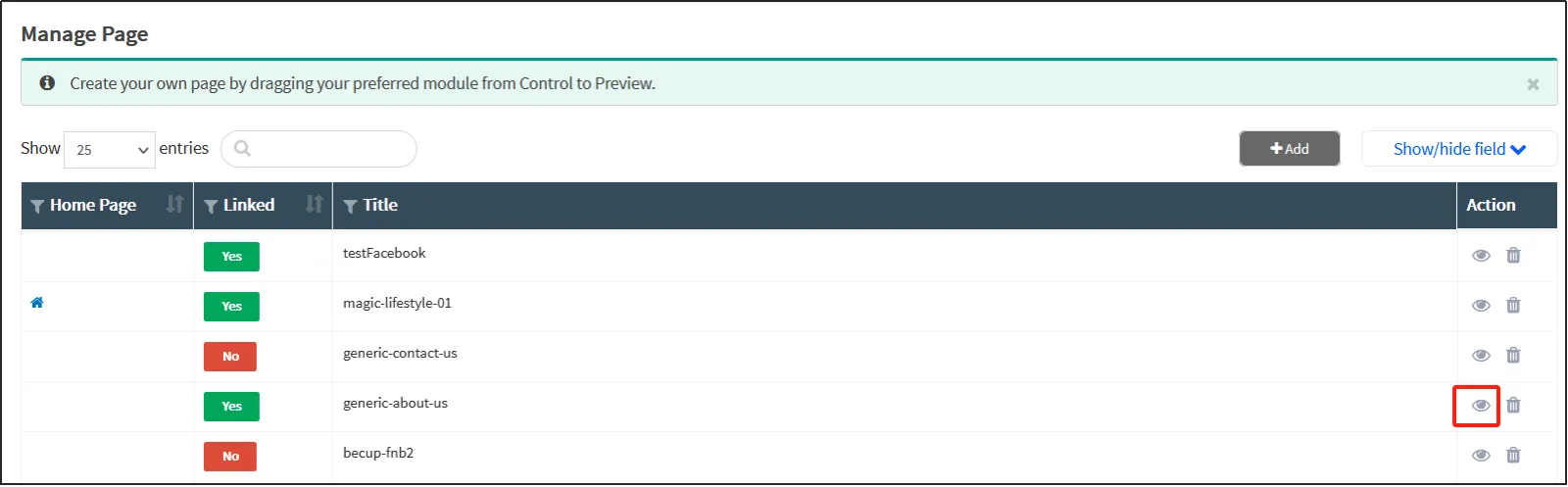
Find the tab that needs to be linked to the enterprise customer registration form in the list on the tag management page, and click on the right to open the tag editing page.
Drag and drop a rich text box to that location.
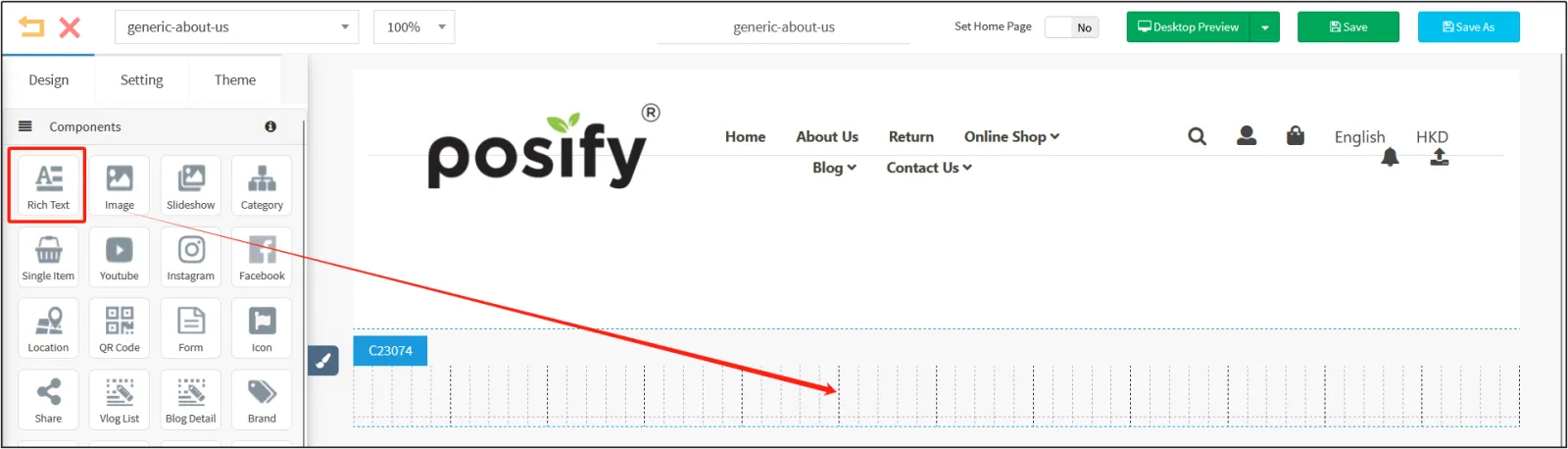
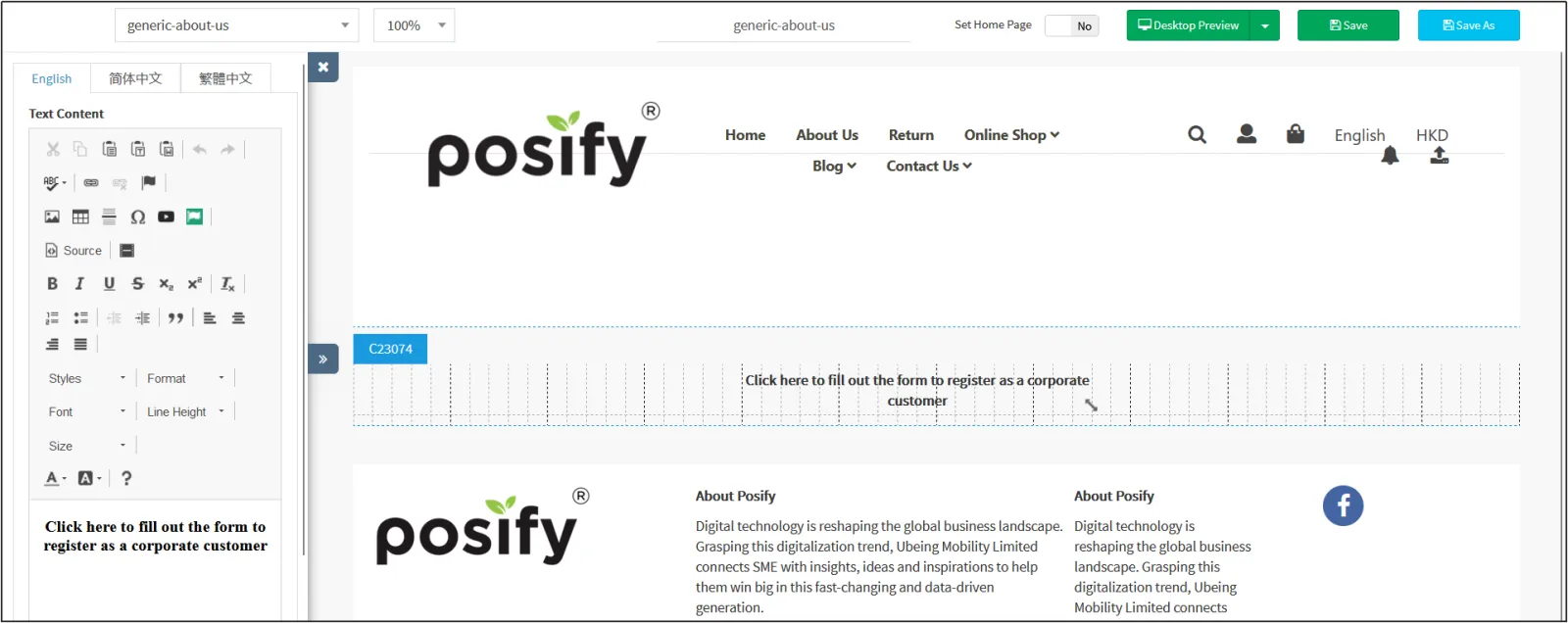
In the rich text box, enter Click here to fill in the form to register as an enterprise customermodify the font size, font size, and other settingsdrag the rich text box component to the middle of the section.
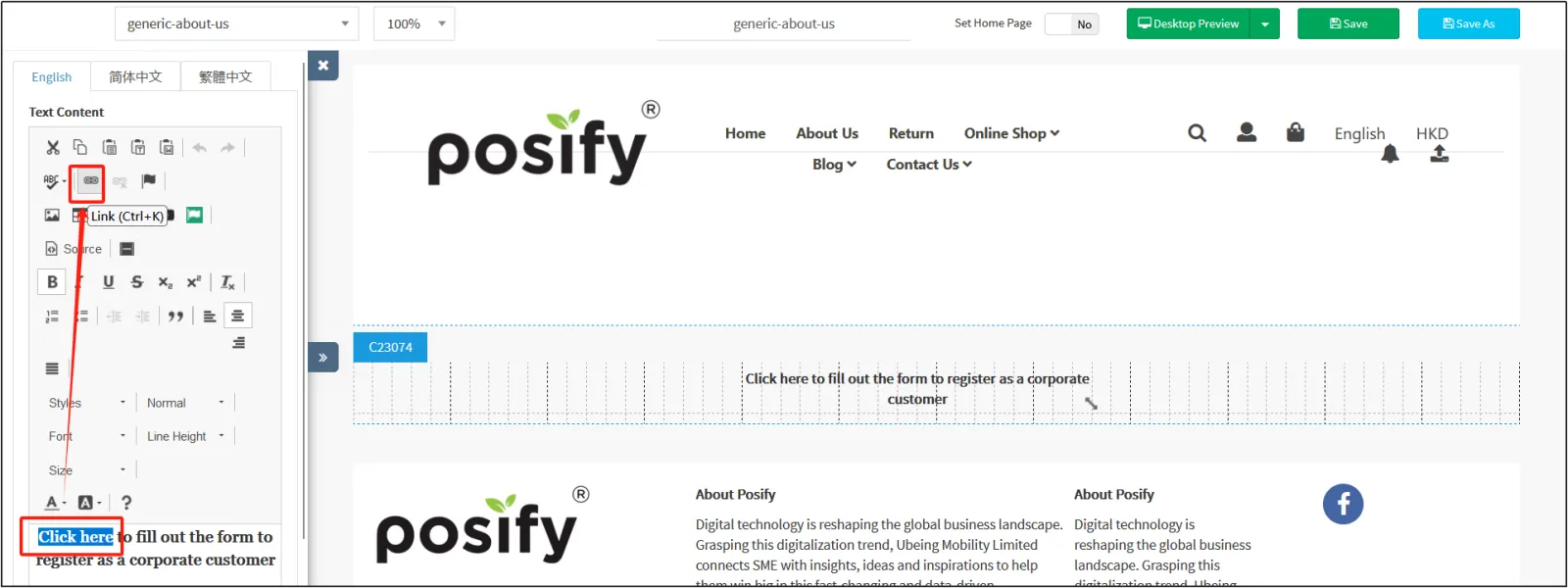
Check the word "click here"click on the link icon.
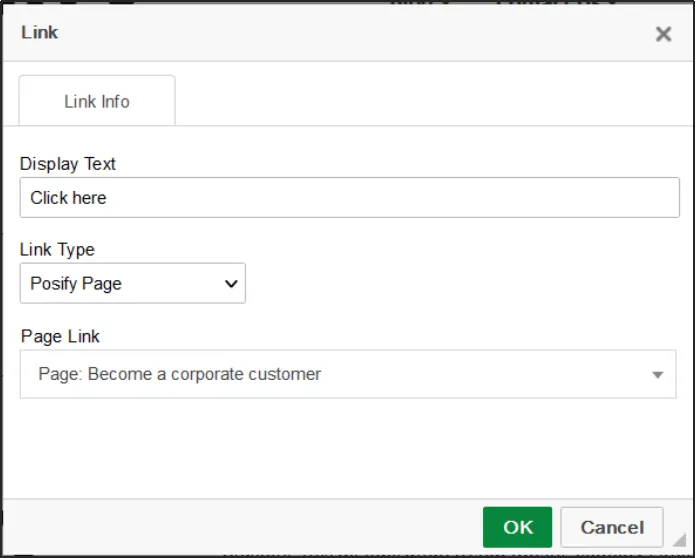
Select the Posify tab for Link Typeselect the "Become a Corporate Customer" screen for Tag Linkclick OK.
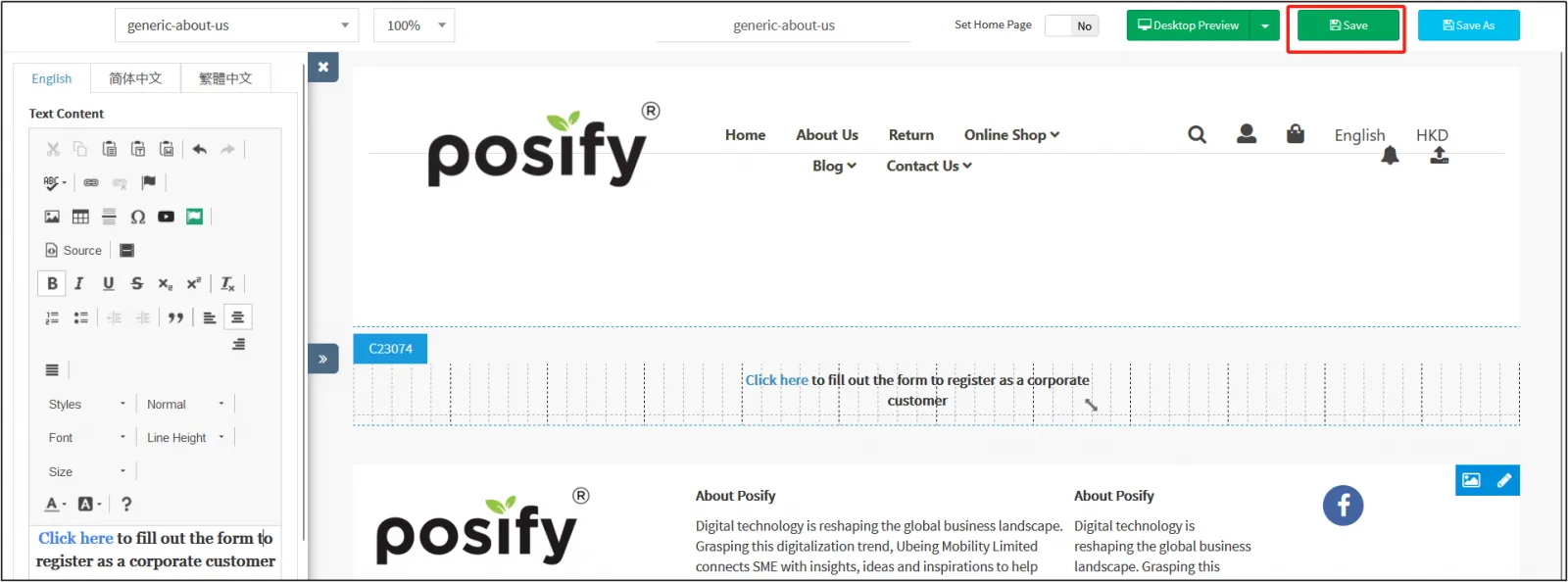
Click [Save] in the upper right corner.
From there, click "Click here" on the online store to go to the corporate customer registration form.

If you want to jump directly from the navigation to the enterprise customer registration form, you can set it up as follows:
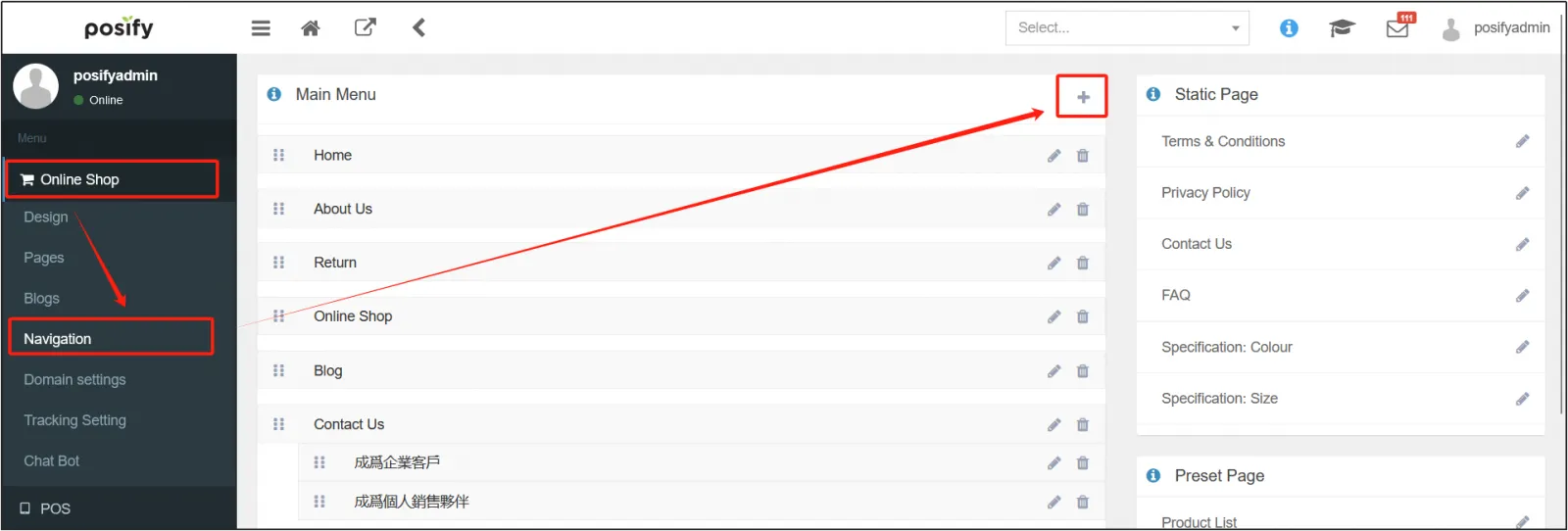
Click on the online storeclick on the site navigationclick [+] to the right of [Main Catalog] to add a new option to the navigation.
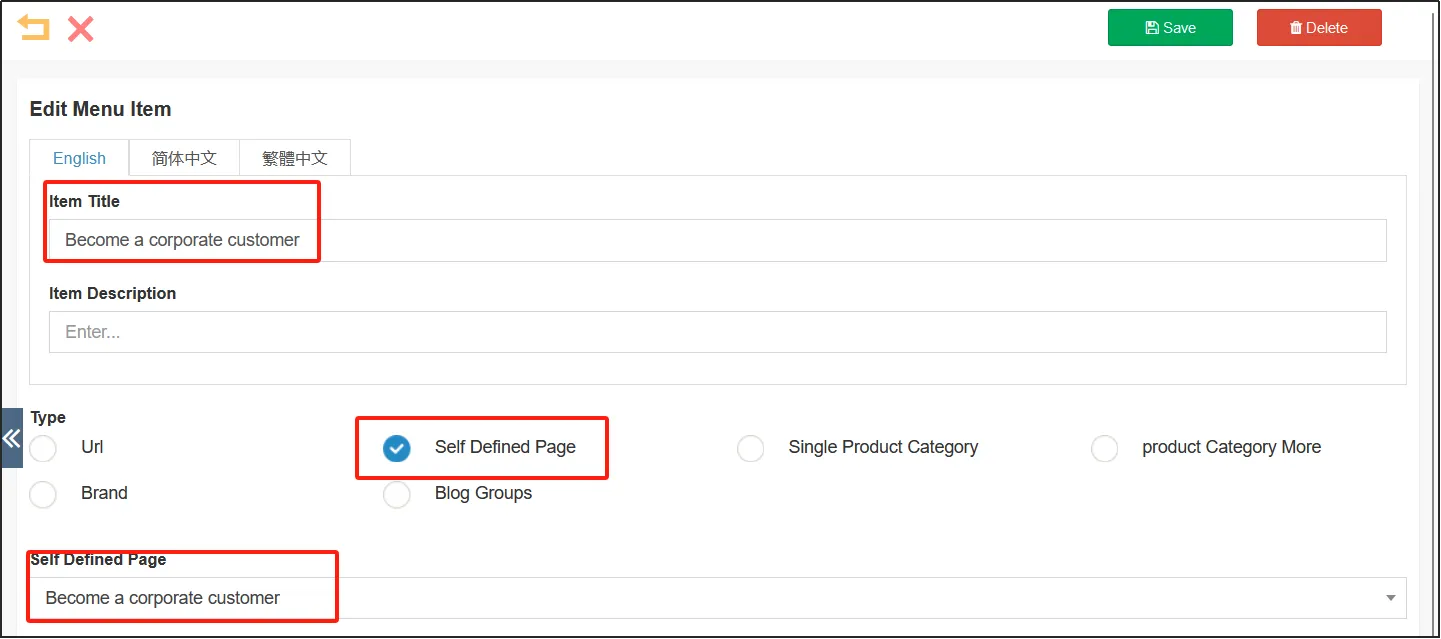
Enter an option title, for example, "Become a corporate customer"select a custom page for [Category]select a pagination for "Become a corporate customer" where the table is located for [Custom page].
Click [Save] in the upper right corner.
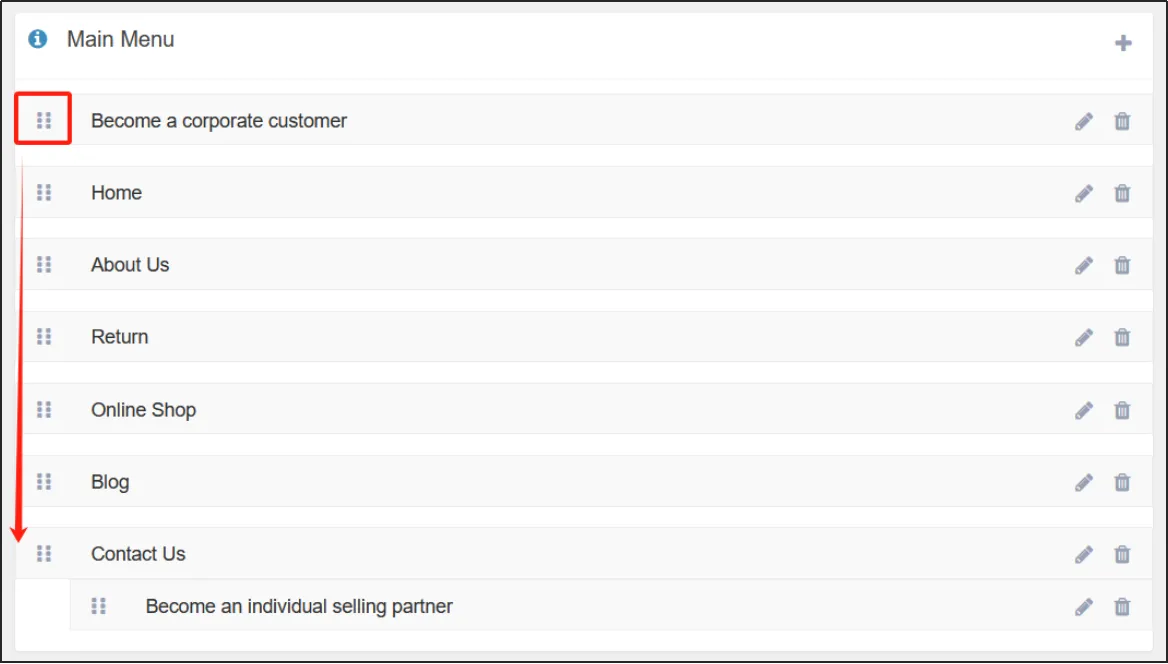
Hold down the drag-and-drop icon to move up and down to adjust the position of the selection in the navigation.
In the same way, holding down the drag-and-drop icon to move, you can also set the Enterprise Customer option to another sub-option of another selection.
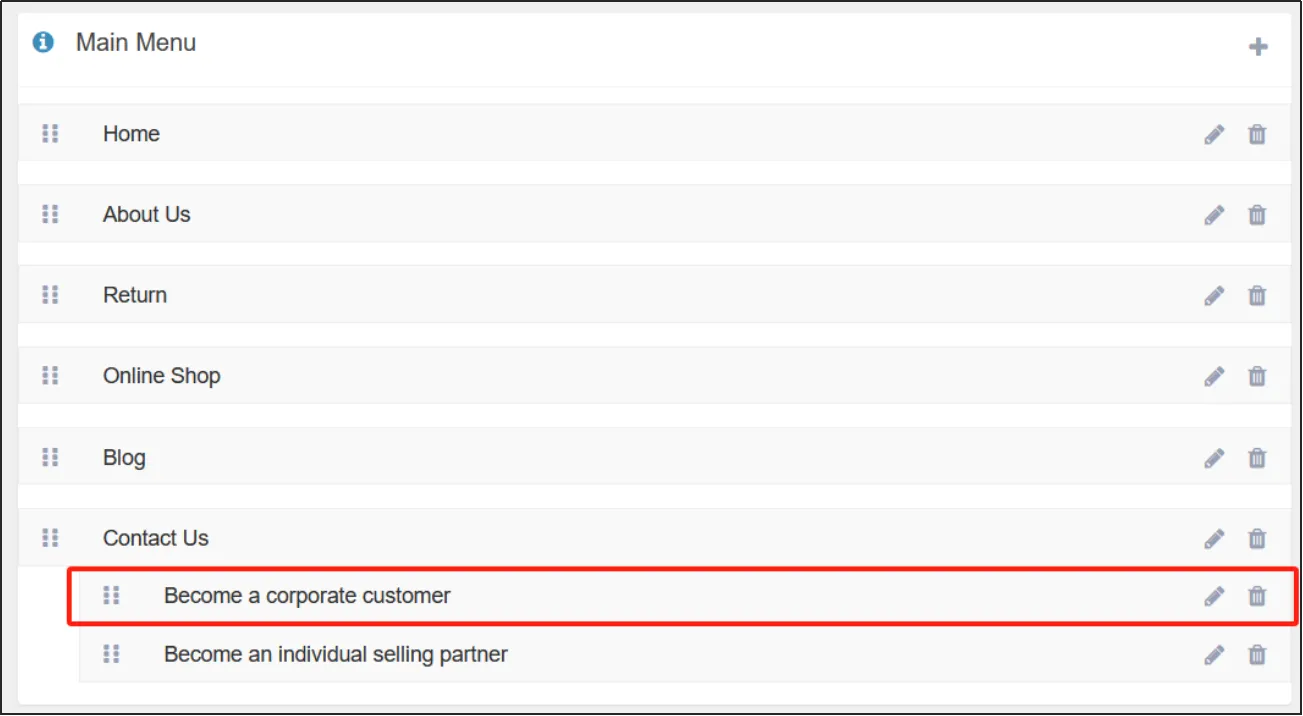
Once you have set it up, click on the Become a Corporate Customer option in the navigation of the online store to jump to the Corporate Customer Registration Form page.