Set up member referral benefits
In order to encourage guests to refer other newcomers to join the membership and shop in the store, members who refer other newcomers to join the membership can be given some rewards, i.e., referral rewards.
Open the CMS click on Customersclick on Membership Systemedit an existing membership level.
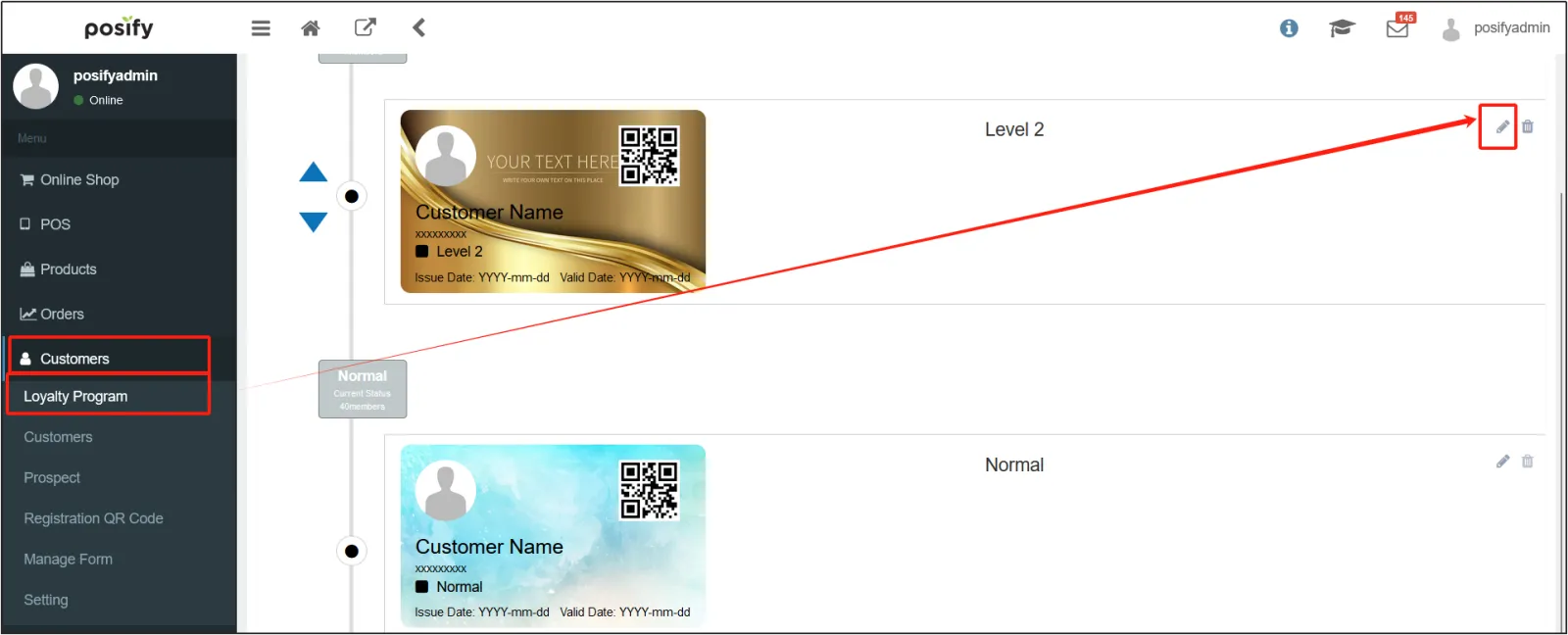
On the edit page of the membership level, under the basic settings of the tab, you can enable [Members can become a referrer after registration], and if you do not enter a referrer when registering after enabled, you can fill in the referrer (become a referrer) in the Member Center - Personal Information after registration.
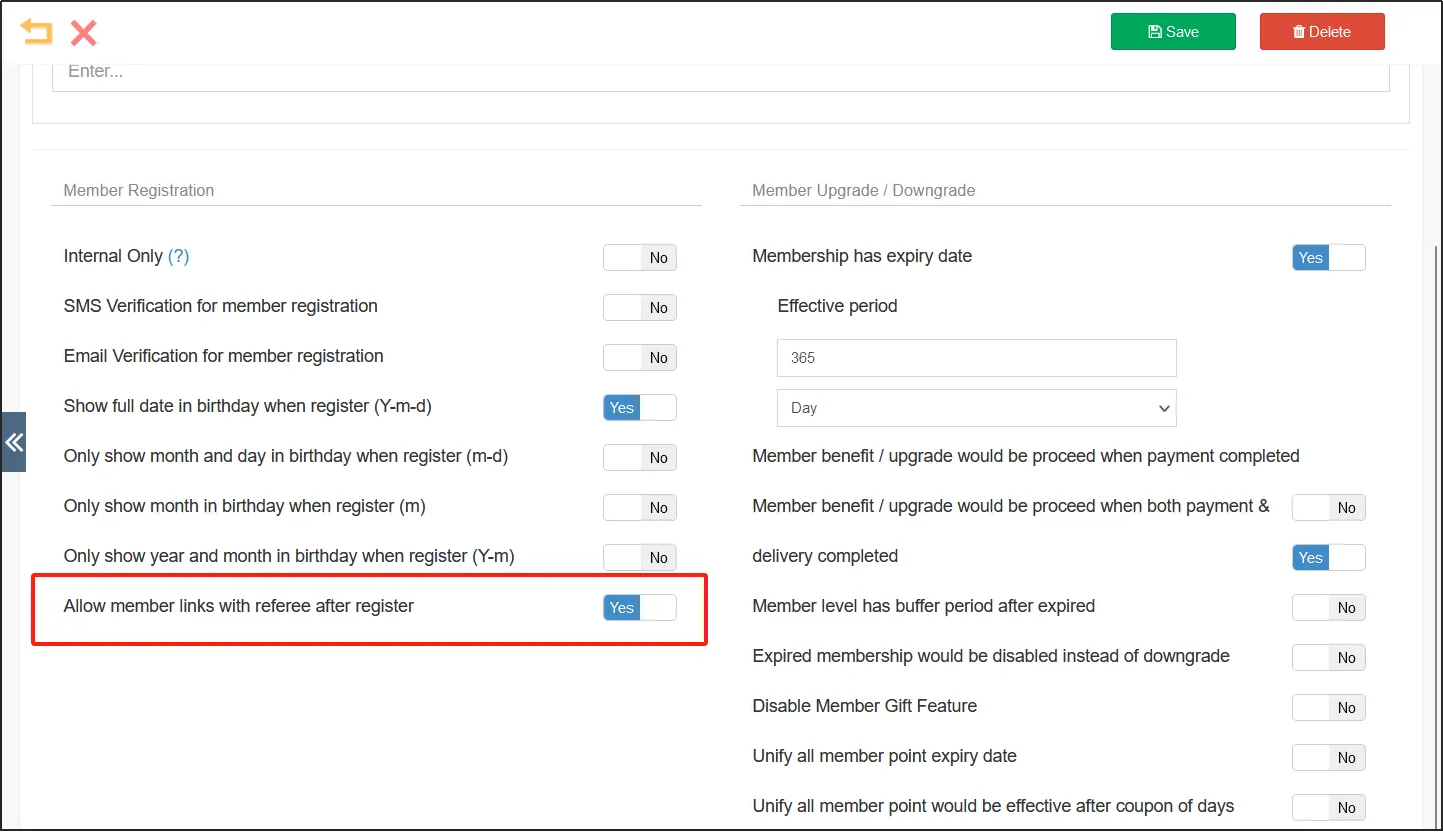
On the tab Conditions, under Benefits, click [Add More Benefits] to add a member benefit.
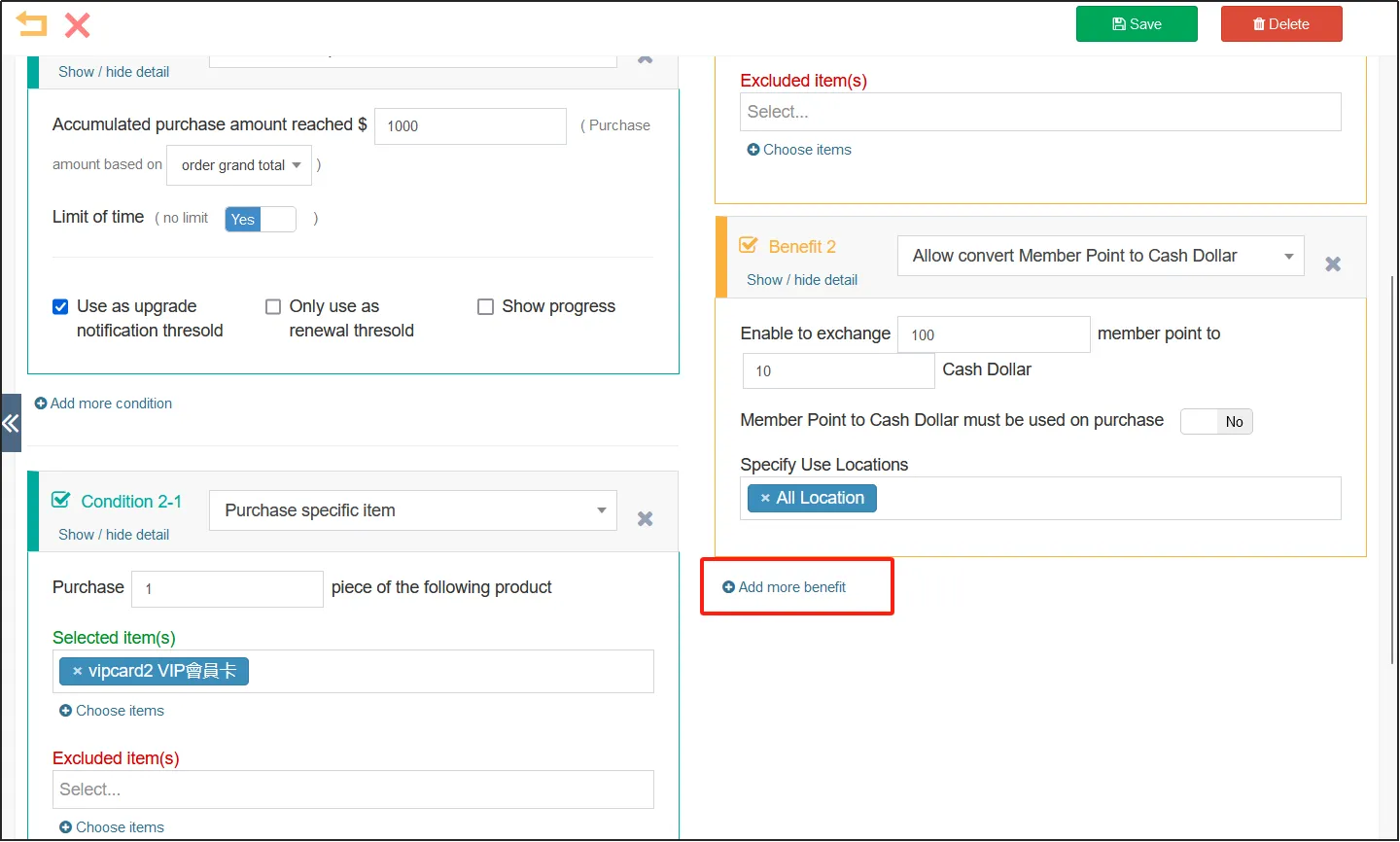
Select the type of benefit, and the types of benefits that can be set after the referral member include: referral gifts, referral coupons, referral points, referral credits, referral discount offers, referral time double points, and referral limited time double shopping credits.
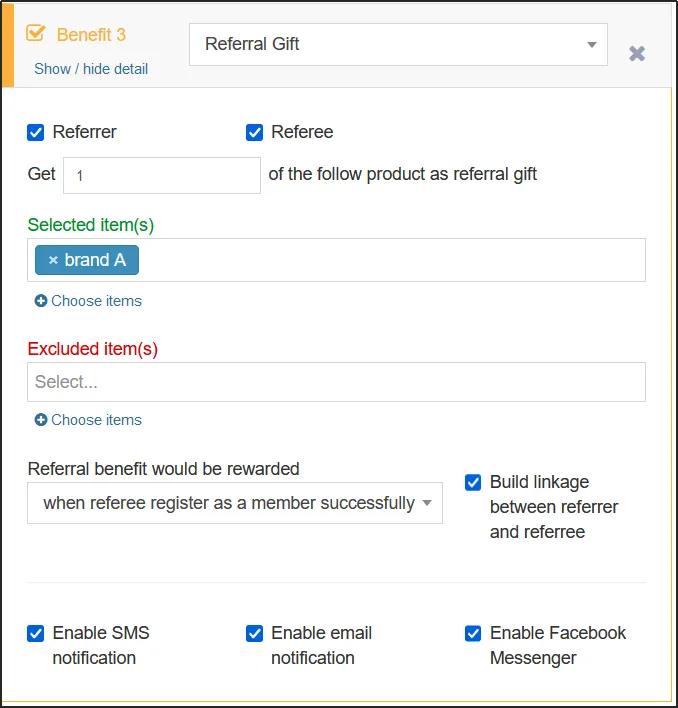
After the referral is successful, the member can get a specific product as a referral gift.
You can check the referrer/referee, and the person who checks the box will get a referral gift after being referred/referred.
Enter the number of recommended gifts that you can get for free, and select the recommended gifts from [Select items] and [Exclude items]. You can select the range of recommended gifts directly in [Select items], or select all in [Select items] and exclude items that are not in scope in [Excluded items].
There are three options for the Referral Offer, which are the Referee's successful registration as a member, the Referee's first completion of the payment order, and the Referee's completion of the payment order each time.
If [Bind Referral Relationship] is checked, the referrer and the referee will be bound and cannot be changed once the referral relationship is established.
At the bottom, there are three notification methods to choose from: Enable SMS Notifications, Enable Email Notifications, and Enable Messenger Notifications.
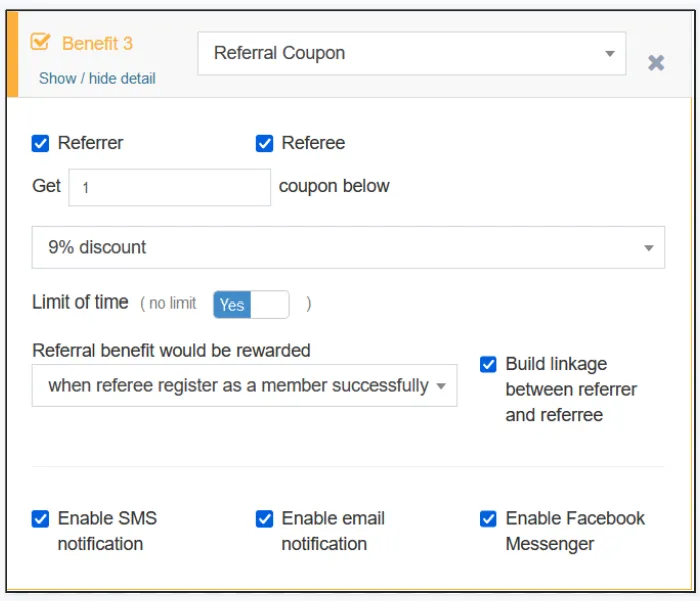
After the referral is successful, the member can get a free coupon.
Before you can set up the referral coupon benefit, you need to set up the coupon that will be given away in the Marketing - Coupons section of the CMS.
You can check the referrer/referee, and the person who checks the box will get a referral coupon after being referred/referred.
Enter the number of coupons to be given after the recommendation, and then select the coupon to be given.
If Coupon Expiration Date is set to Unlimited, the coupon will not expire, otherwise you can set the number of days the coupon will be valid.
There are three options for the Referral Offer, which are the Referee's successful registration as a member, the Referee's first completion of the payment order, and the Referee's completion of the payment order each time.
If [Bind Referral Relationship] is checked, the referrer and the referee will be bound and cannot be changed once the referral relationship is established.
At the bottom, there are three notification methods to choose from: Enable SMS Notifications, Enable Email Notifications, and Enable Messenger Notifications.
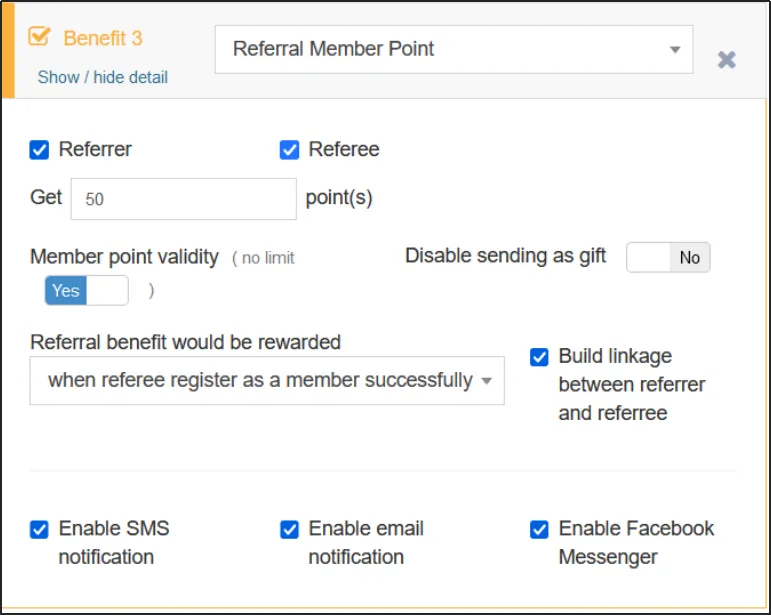
After the referral is successful, the member can get the free referral points.
You can check the referrer/referee, and the person who checks the box will get referral points after being referred/referred.
Enter the number of points to be awarded after the referral.
If [Point Expiration Date] is enabled to Unlimited, the bonus points will not expire, otherwise you can set the number of days the bonus points are valid.
If [No Transfer] is enabled, the bonus points cannot be transferred to other members.
There are three options for the Referral Offer, which are the Referee's successful registration as a member, the Referee's first completion of the payment order, and the Referee's completion of the payment order each time.
If [Bind Referral Relationship] is checked, the referrer and the referee will be bound and cannot be changed once the referral relationship is established.
At the bottom, there are three notification methods to choose from: Enable SMS Notifications, Enable Email Notifications, and Enable Messenger Notifications.
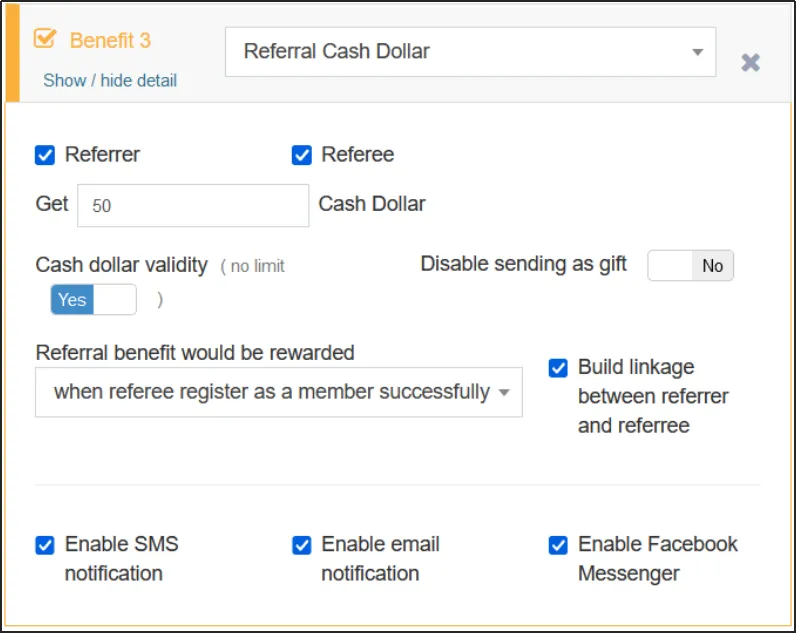
After the referral is successful, the member will get the free referral credit.
You can check the referrer/referee, and the person who checks the box will receive the referral credit after the referral/referral.
Enter the amount of credit you will receive after the recommendation.
If [Credits Expiration Date] is set to Unlimited, the gift will not expire, otherwise you can set the number of days the gift will be valid.
If [Prohibition of Transfer] is enabled, the gift cannot be transferred to other members.
There are three options for the Referral Offer, which are the Referee's successful registration as a member, the Referee's first completion of the payment order, and the Referee's completion of the payment order each time.
If [Bind Referral Relationship] is checked, the referrer and the referee will be bound and cannot be changed once the referral relationship is established.
At the bottom, there are three notification methods to choose from: Enable SMS Notifications, Enable Email Notifications, and Enable Messenger Notifications.
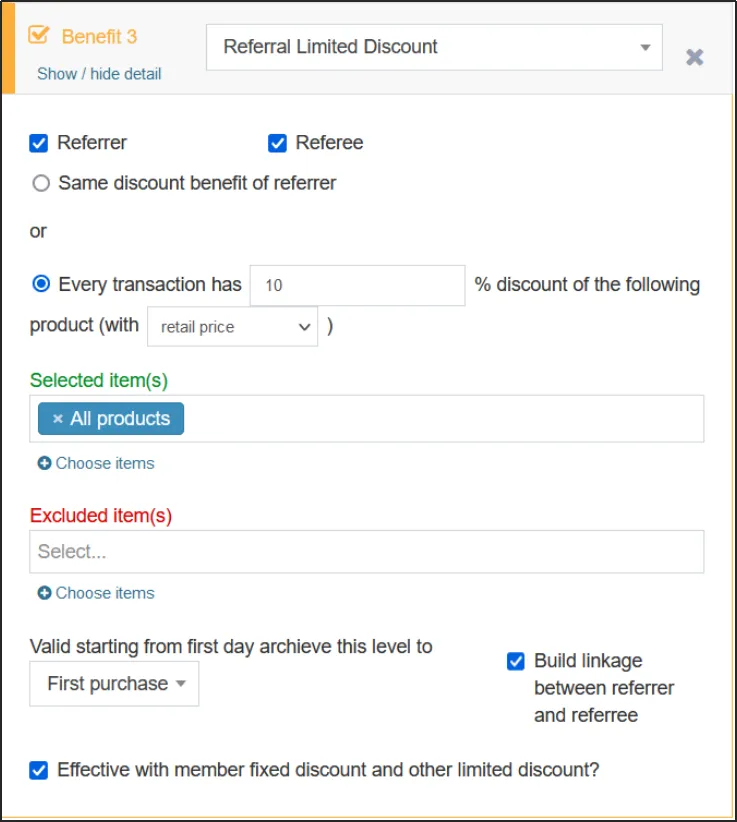
Recommended limited-time discount offer
After the referral is successful, the member will get a limited-time discount offer.
You can check the referrer/referee, and the person who checks the box will get a limited-time discount after the referral/referral.
If you select [Enjoy Referral Equivalent Discount], the referee will receive a membership discount equal to the referrer's membership level. Alternatively, select [Percentage discount per purchase], enter a percentage, and select a discount based on the discounted price (discounted price) or based on the retail price (original price), as well as the range of products available through the [Select] and [Excludes] limited-time discount offers.
If you select the expiration date of the limited-time discount, you can set the validity period until the first purchase made by the member of this tier, or until a few days after the membership of the tier so far, up to 90 days later.
If [Bind Referral Relationship] is checked, the referrer and the referee will be bound and cannot be changed once the referral relationship is established.
If [Valid with membership discounts and other limited-time discounts?] is checked, the limited-time bonus discount can be used in conjunction with membership discounts and other discounts.
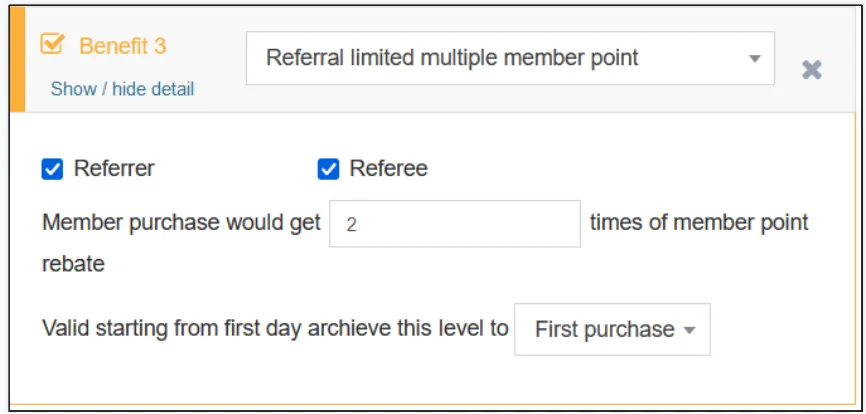
It is recommended to double the points for a limited time
After the referral is successful, the member will get double points for a limited time.
You can check the referrer/referee, and the person who checks the box will get double points for the referral for a limited time after the referral/referral.
Enter the number of points that the member can earn.
If you select the expiration date for doubling the points, you can set the expiration date until the first purchase made by the member of this tier, or a few days after the membership of the current tier, up to 90 days later.
It is recommended to double the purchase credit for a limited time
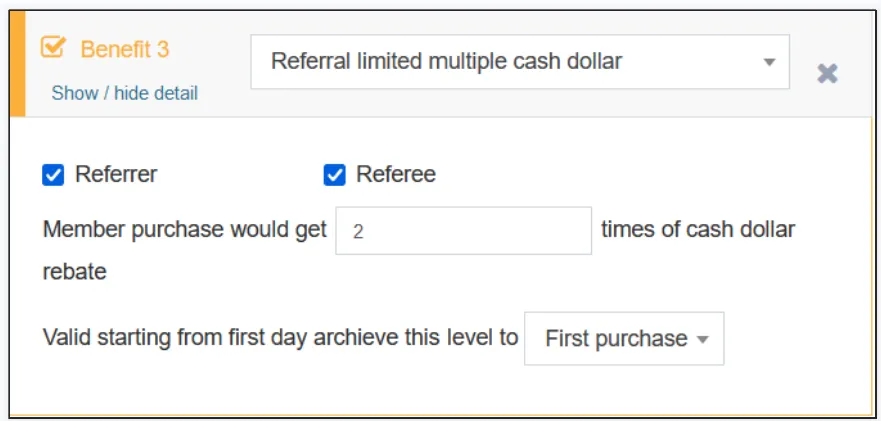
After the referral is successful, the member will get a limited-time double shopping credit.
You can check the referrer/referee, and the person who checks the box will get the referral double credit for a limited time after the referral/referral.
Enter the multiplier that members can earn
If you select the expiration date of the double, you can set the validity period until the first purchase after the membership of this tier, or until a few days after the membership of this tier so far, up to 90 days later.
How to make a referral
If you want to get the referral benefits, you need the referrer to send a link to the referee, complete the referral action, and trigger the corresponding referral conditions to get the referral benefits.
First of all, the referrer logs in to the online storeclicks on the villain icon in the upper right corner to enter the member center.
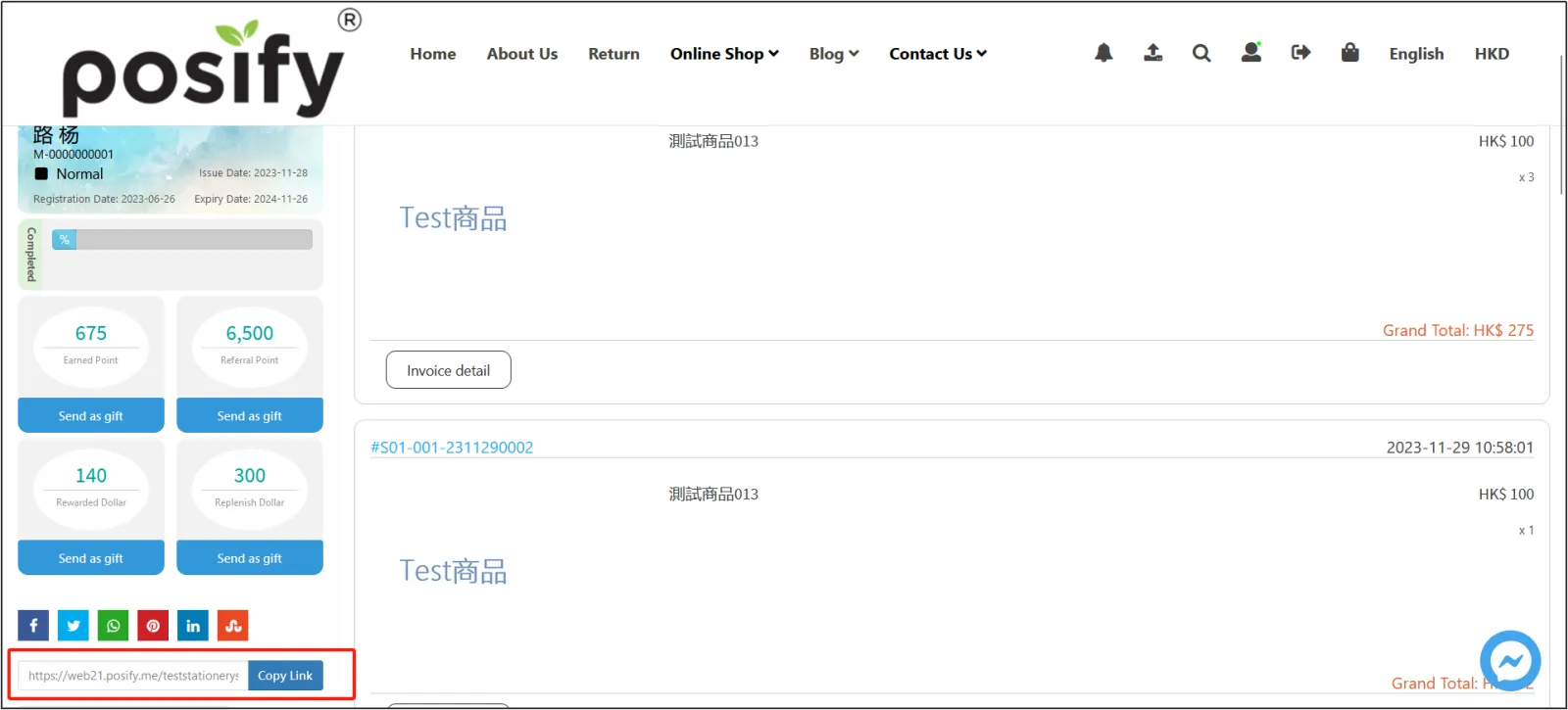
In the Account Overview section of the Member Center, copy the affiliate referral link and send it to the referee.
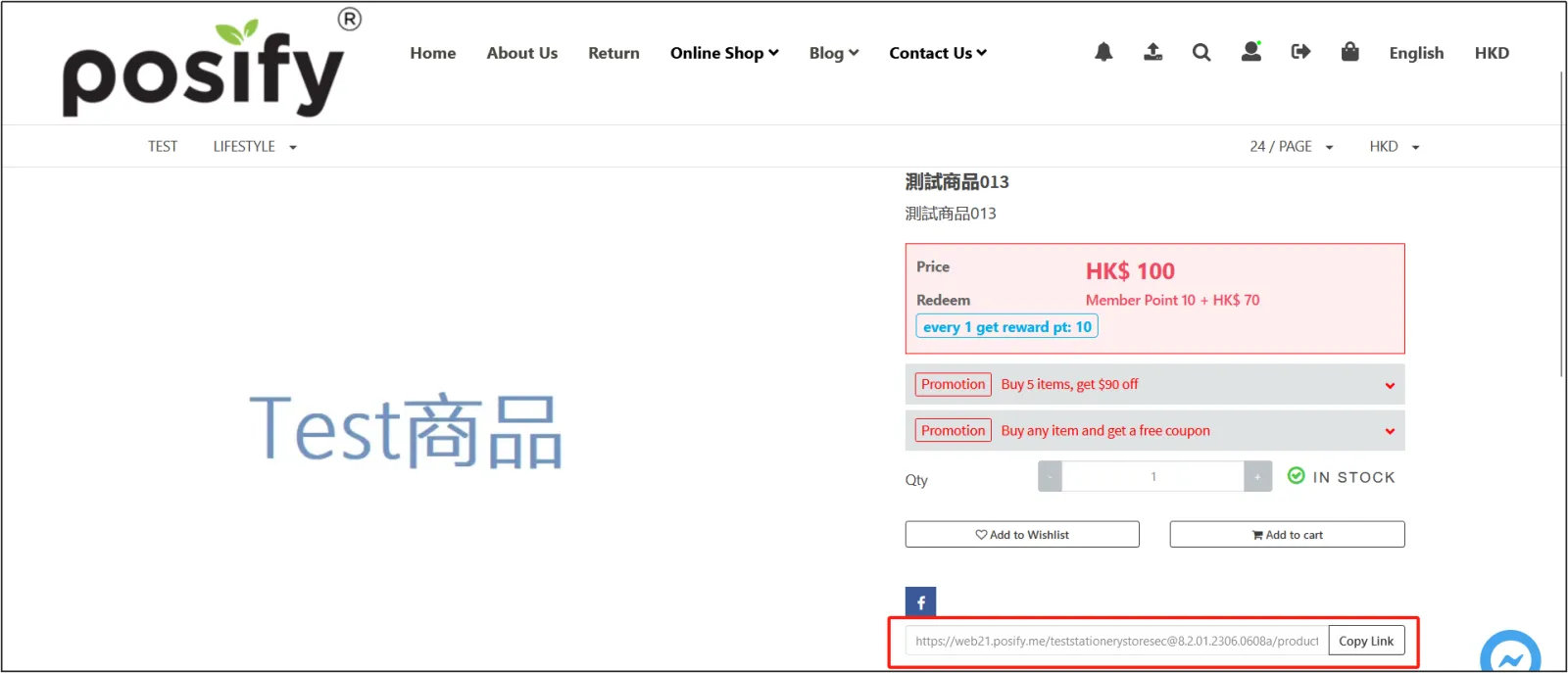
Or send a link from the product listing.
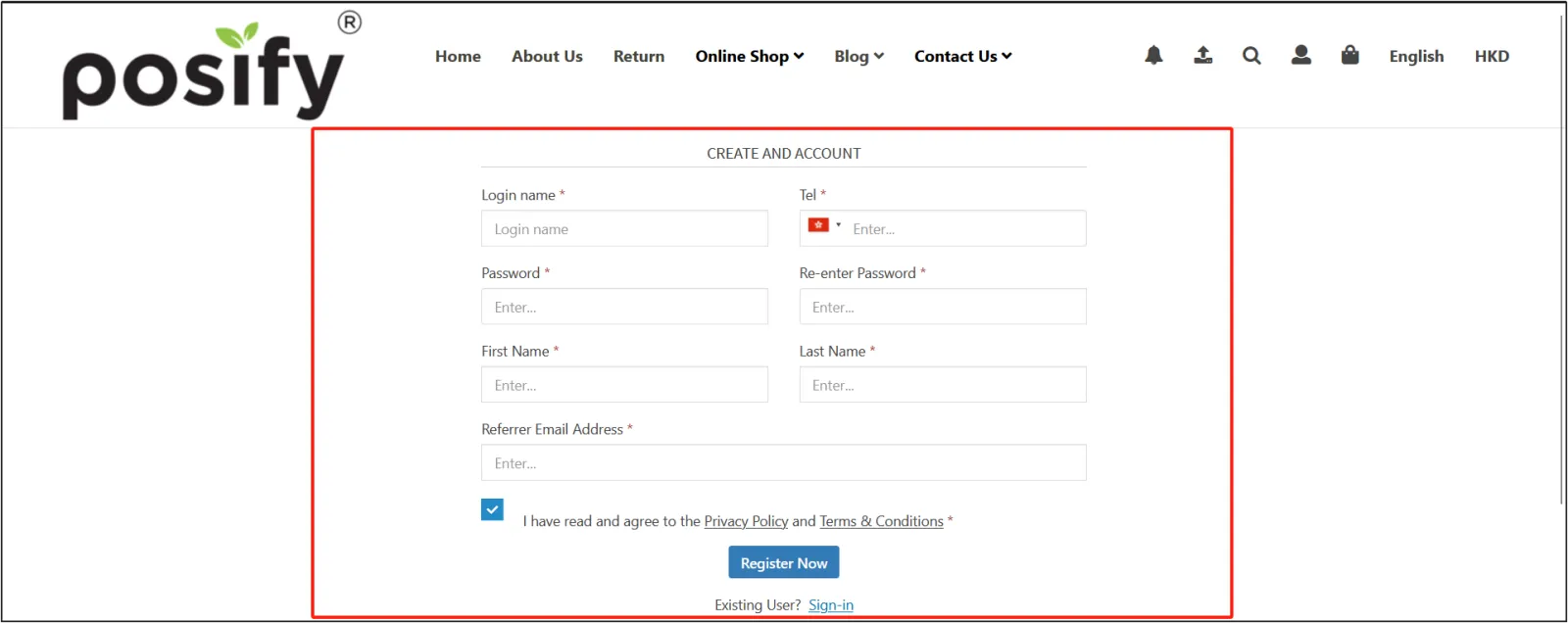
The referee receives an affiliate link from the referrer and enters the online store through the link. On the member registration page that opens, you can see that the information of the referee is in the referrer column (email address in the picture), enter the information of the referee, and click [Join Now] to register.
Note: You need to add a field related to the referrer (which can be the referrer's email, name, mobile phone number or number) in the member registration form to use the referral function. For more information on how to set up a member registration form, please see Playbook - Form Management.
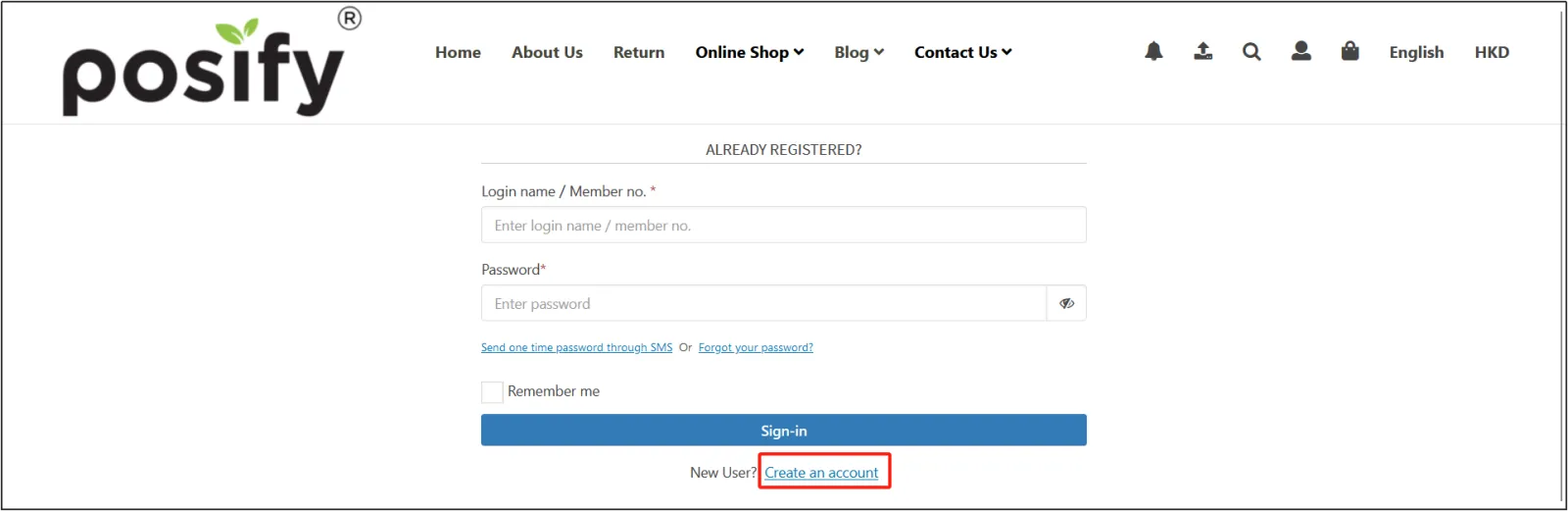
If the referee receives a product sharing link, you need to click the villain icon in the upper right corner to enter the login pageclick [Member Registration] on the login pagelog in to the account after registering as a member like the affiliate link above.
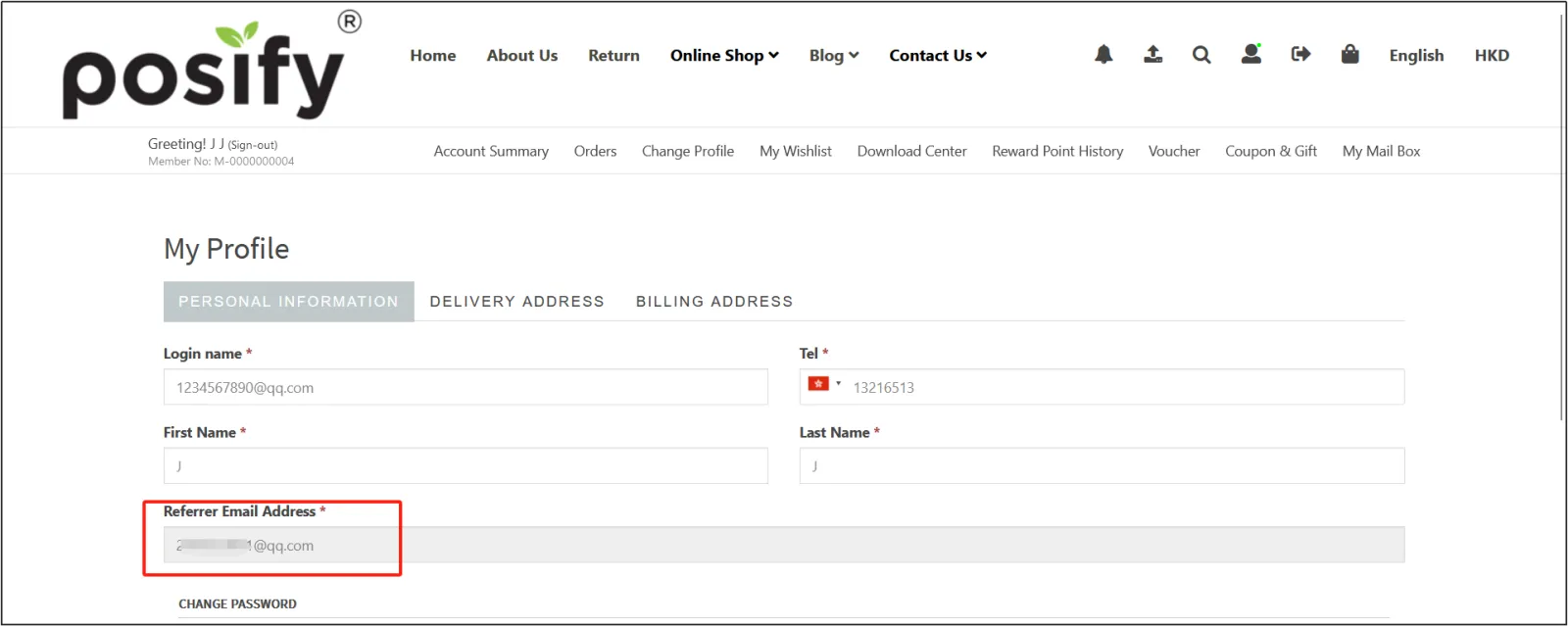
At this time, click on the tab profile in the member center (after registration, you will automatically log in and open the member center), and you can view the information in the referrer column in the data belongs to the referrer.
If the referral benefits set up in the referrer's membership level only require the referee to successfully register as a member, then the requirements have been met, and the referrer/referee can view the referral benefits presented by the system in the member center.
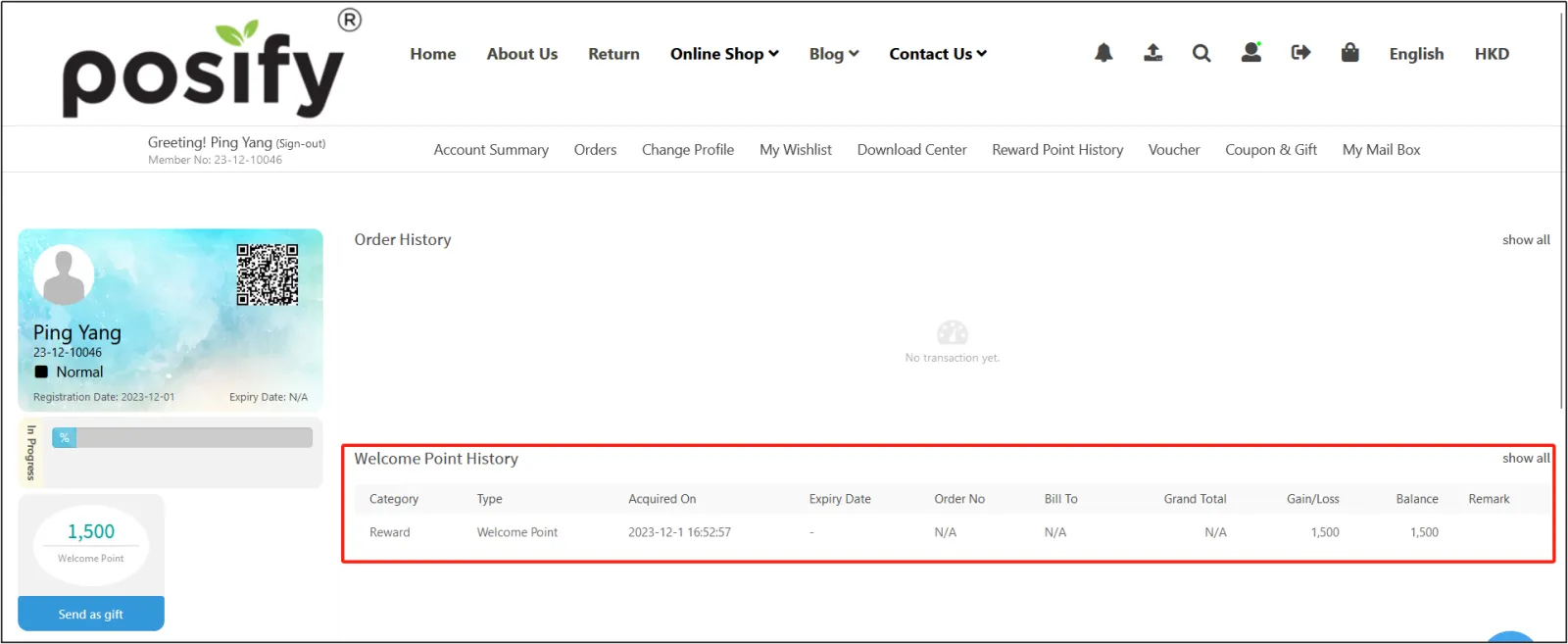
If the referrer's membership level requires the referrer to complete the order before the referral can obtain it, the referrer/referee can only obtain the recommended goods after the referrer purchases the goods within the required range and completes the entire order process.


