Definition of the lead stage
Leads - new leads who are new to the board, and the probability of signing is less than 30%.
Prospect - potential customers who have communicated with each other are interested in seeing the product demo, and the probability of signing the order is 30%~60%.
Potential customers in the negotiation stage mainly negotiate on price, contract terms, etc., and the probability of signing an order is more than 70%.
Successful negotiation - potential customers who have successfully signed a contract.
Negotiation Failure - Potential customers who have failed to sign a deal.
Note: After the lead module is activated, you cannot directly add customers in the customer-customer, you need to add a new lead first, and then convert the lead into a customer.
Add a new lead
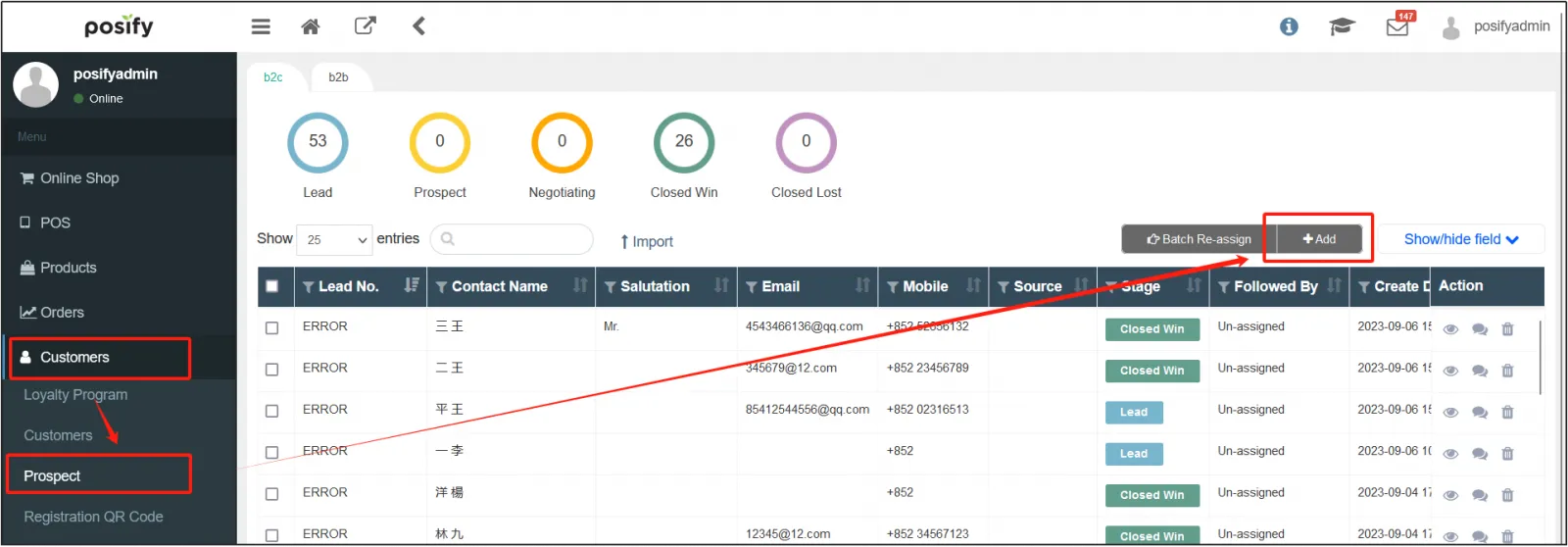
Open the CMS click Customerclick Leadclick [Add] to add a lead.
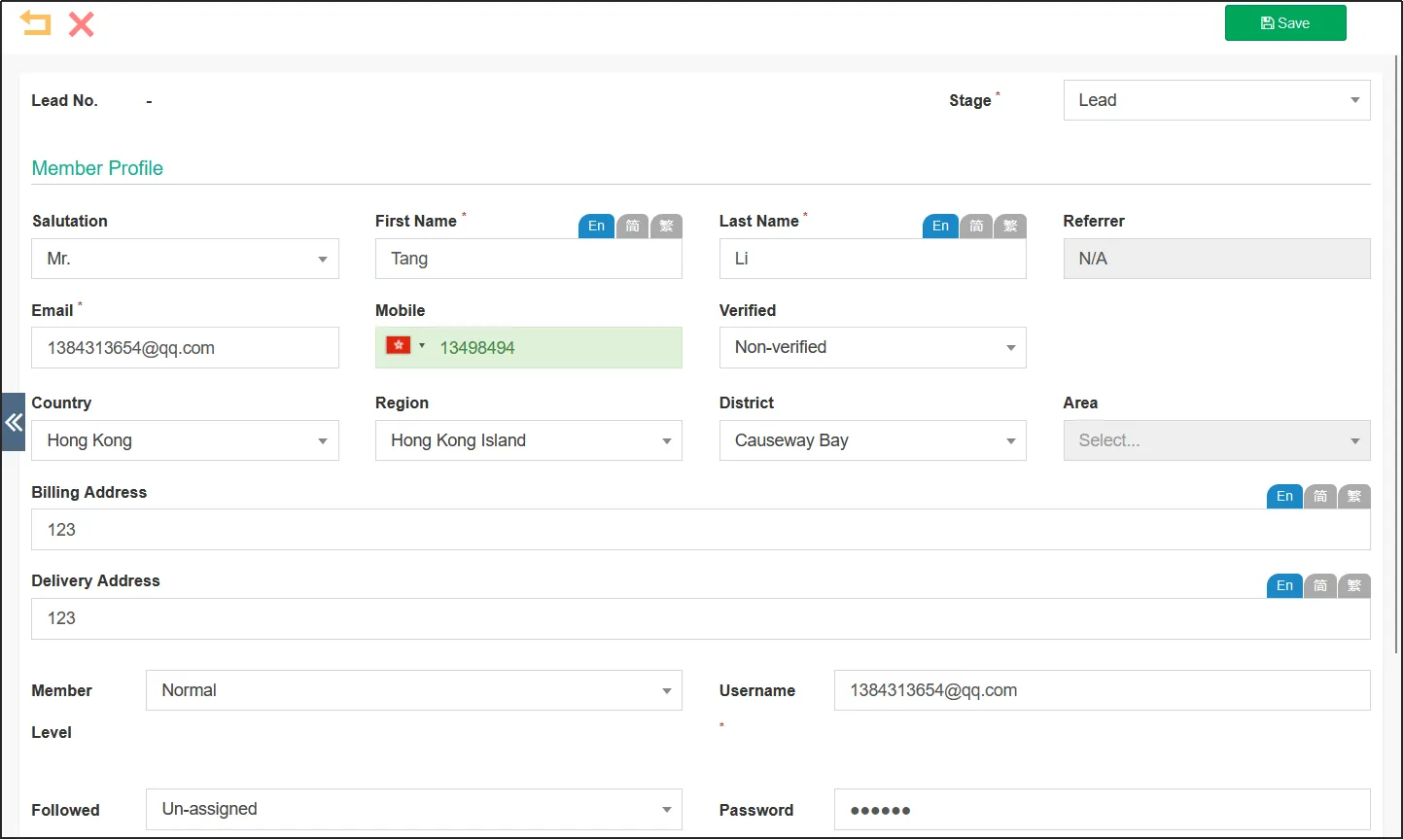
Enter the prospect's information, including [Last Name], [First Name], [Mobile Phone], [Billing Address], [Shipping Address], etc. [E-mail] is also commonly referred to as [Username], which is the account number used by the customer to log in to the Online Store.
In the upper right corner, you can modify the current stage of the prospect (see the previous section for the definition of stage).
When you're done, click Save in the upper right corner to save your current lead information.
View/modify a lead
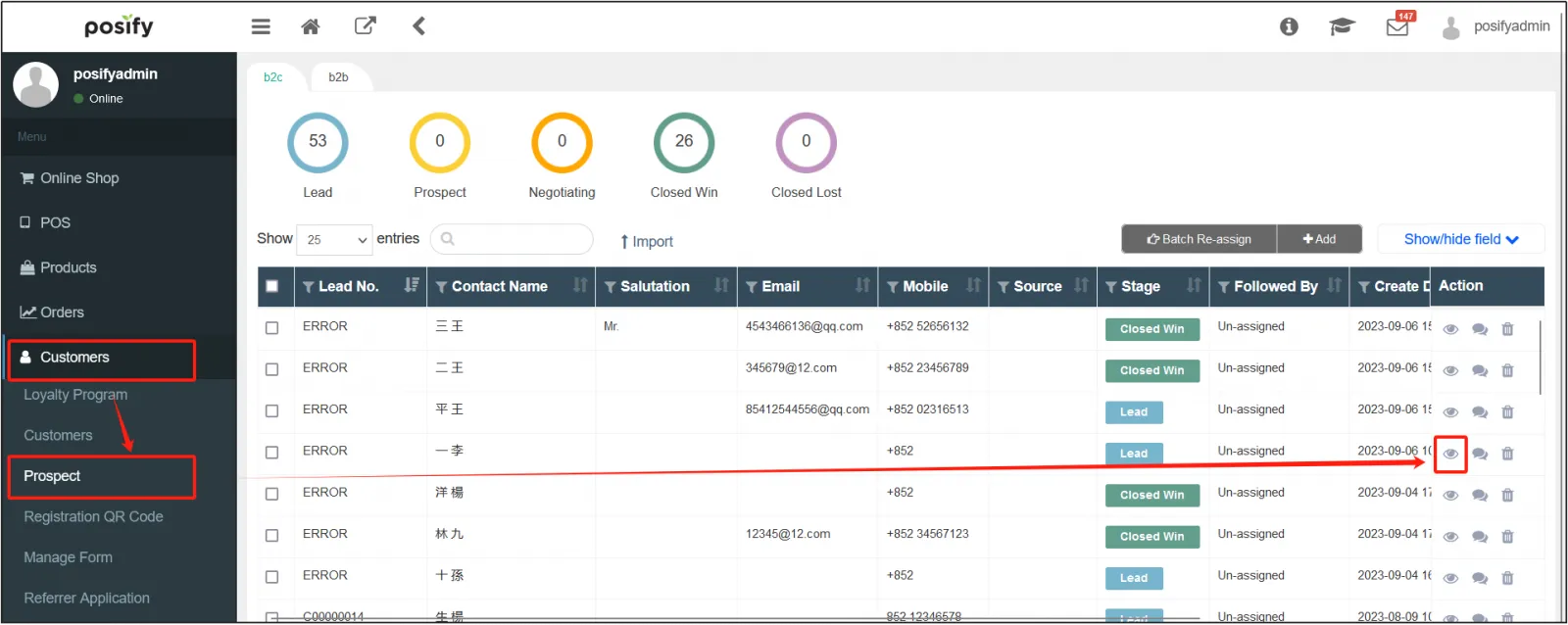
Open the CMSclick on Customersclick on Leadsfind the lead you need to view/modify, and click on  on the right.
Add a transcript of a conversation with a prospect
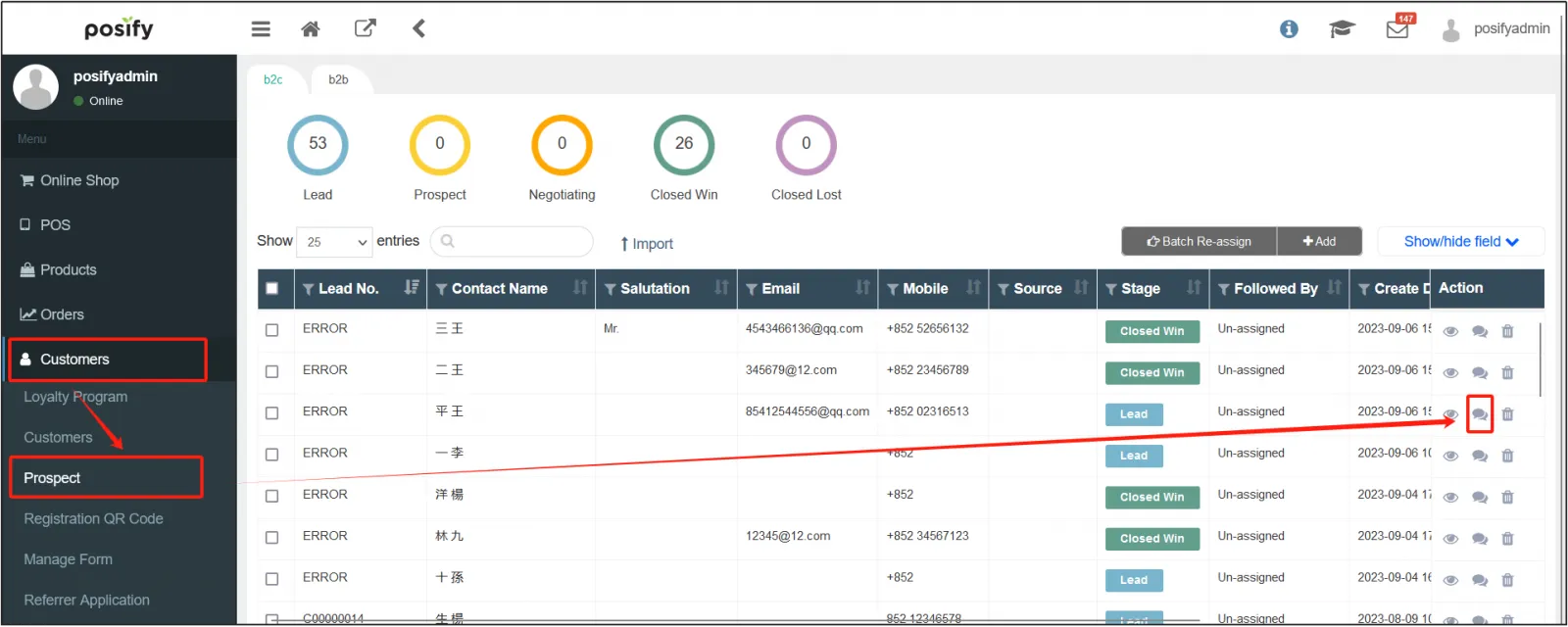
Open the CMSclick on Customersclick on Leadsfind the lead you want to add a conversation history to, and click on the chat bubble icon on the right.
Delete a lead
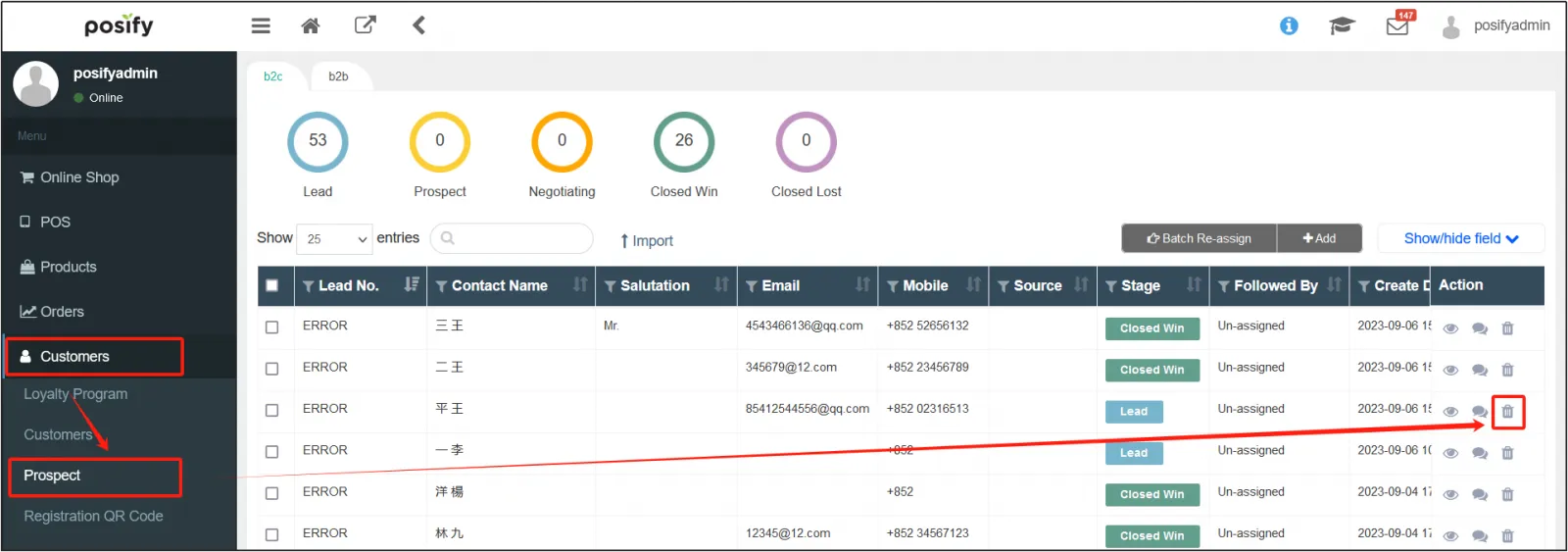
Open the CMSclick on Customer click on Leadsfind the lead you want to delete, and click on  to the right of it to delete it.
How to turn leads into customers (B2C)
For B2C prospects, even if the stage has reached the "negotiation success", the prospect must make a purchase to become a customer.
How to turn leads into customers (B2B)
For B2B potential customers, as long as they reach the stage of "negotiation success", they will become customers.
Assign follow-up users in bulk
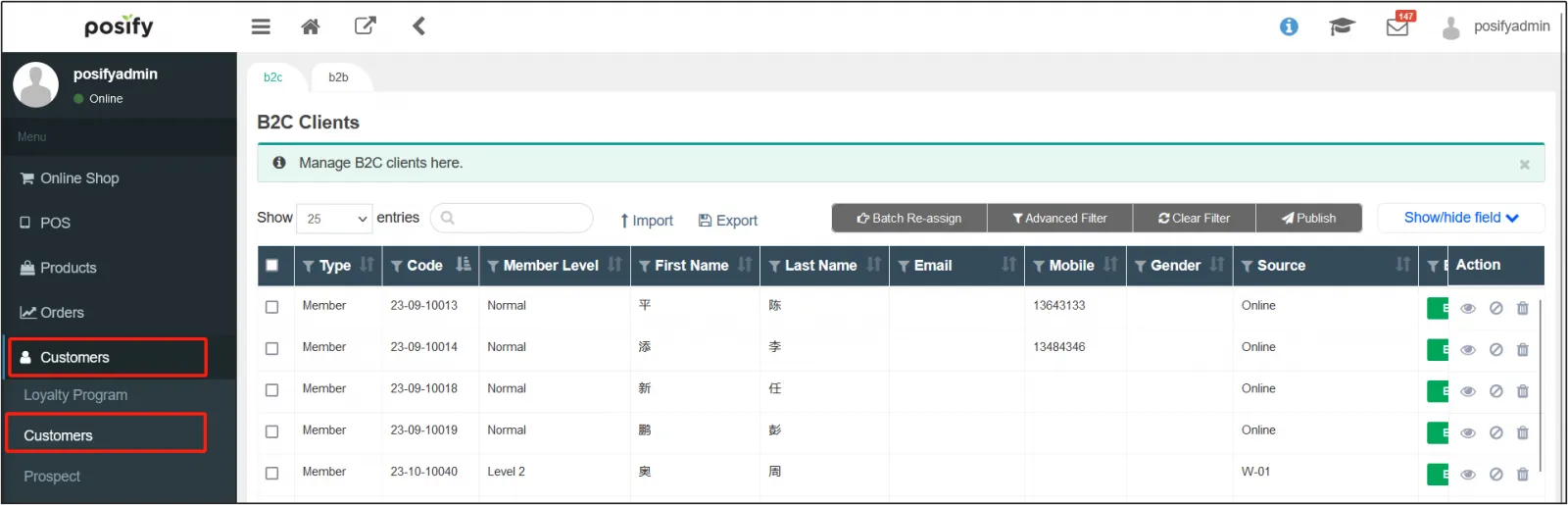
Open the CMSclick on Customersclick on Customers.
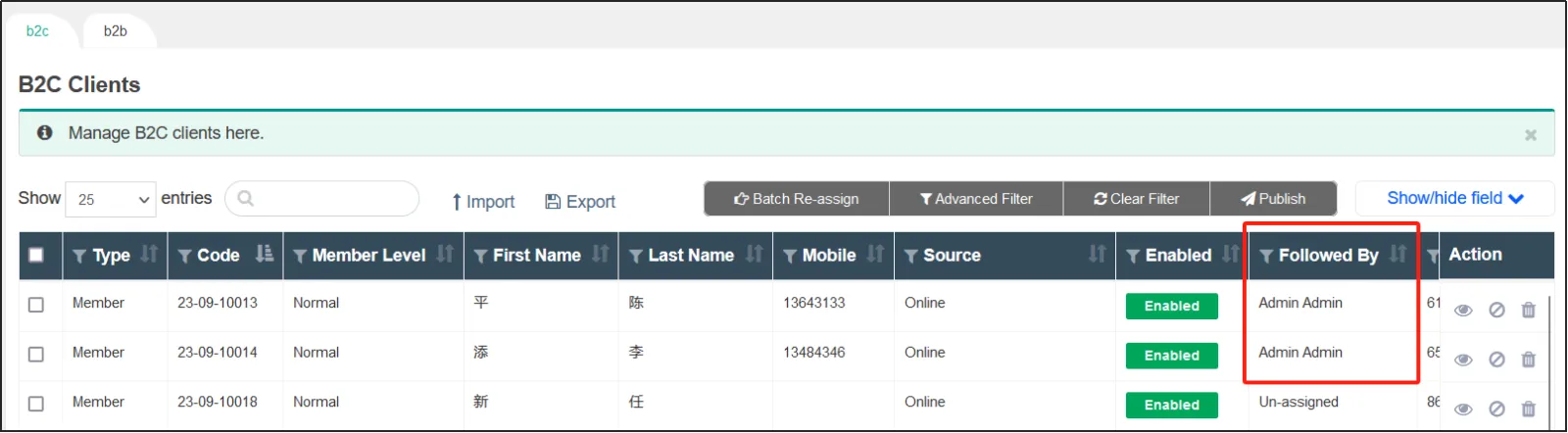
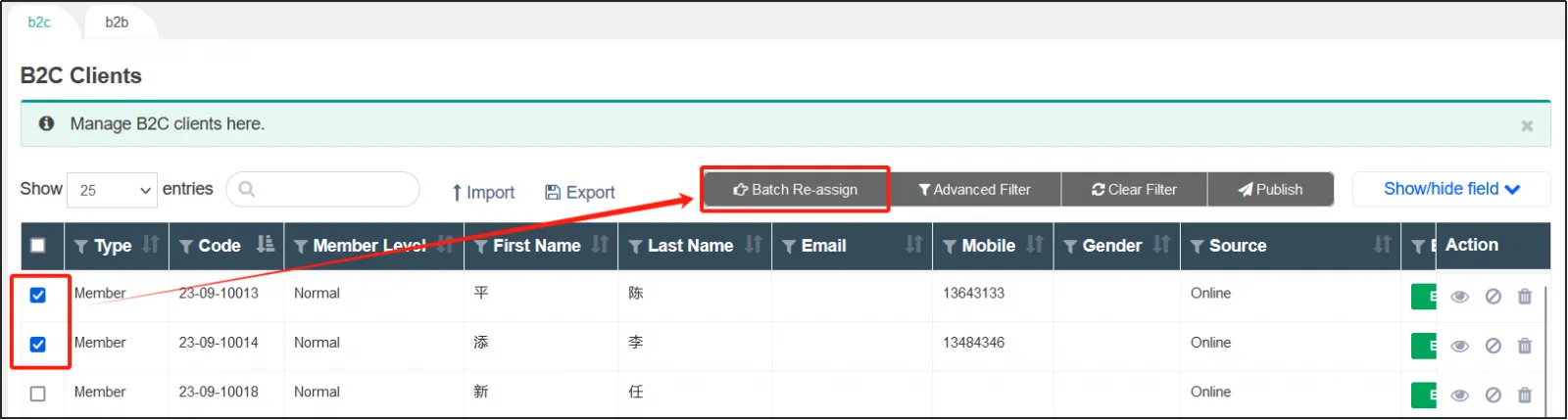
Select the customers you want to assign followers in batchesclick [Assign in bulk].
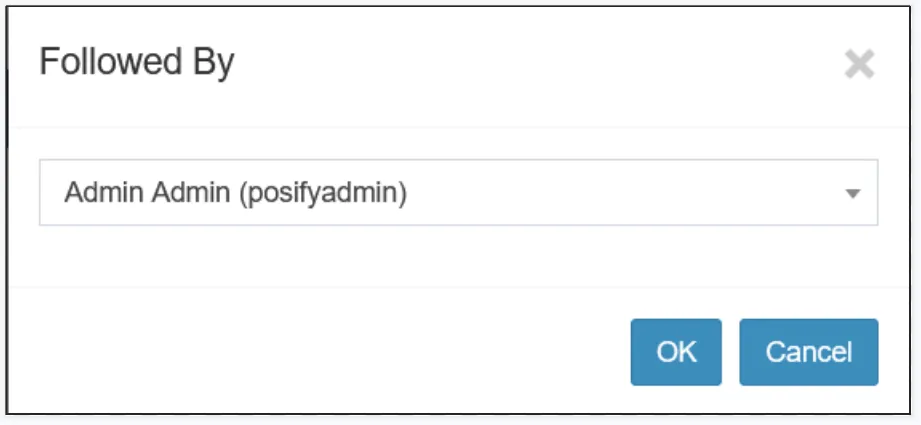
Select a followerclick OK.
You can see that the checked customers are assigned to the selected follow-up person.