Push messages
In sales activities, merchants often need to notify customers after launching new products or setting up new promotions, and message push is a good way to do so.
 Steps:
1.Open the CMS click on Customersclick on Customers.
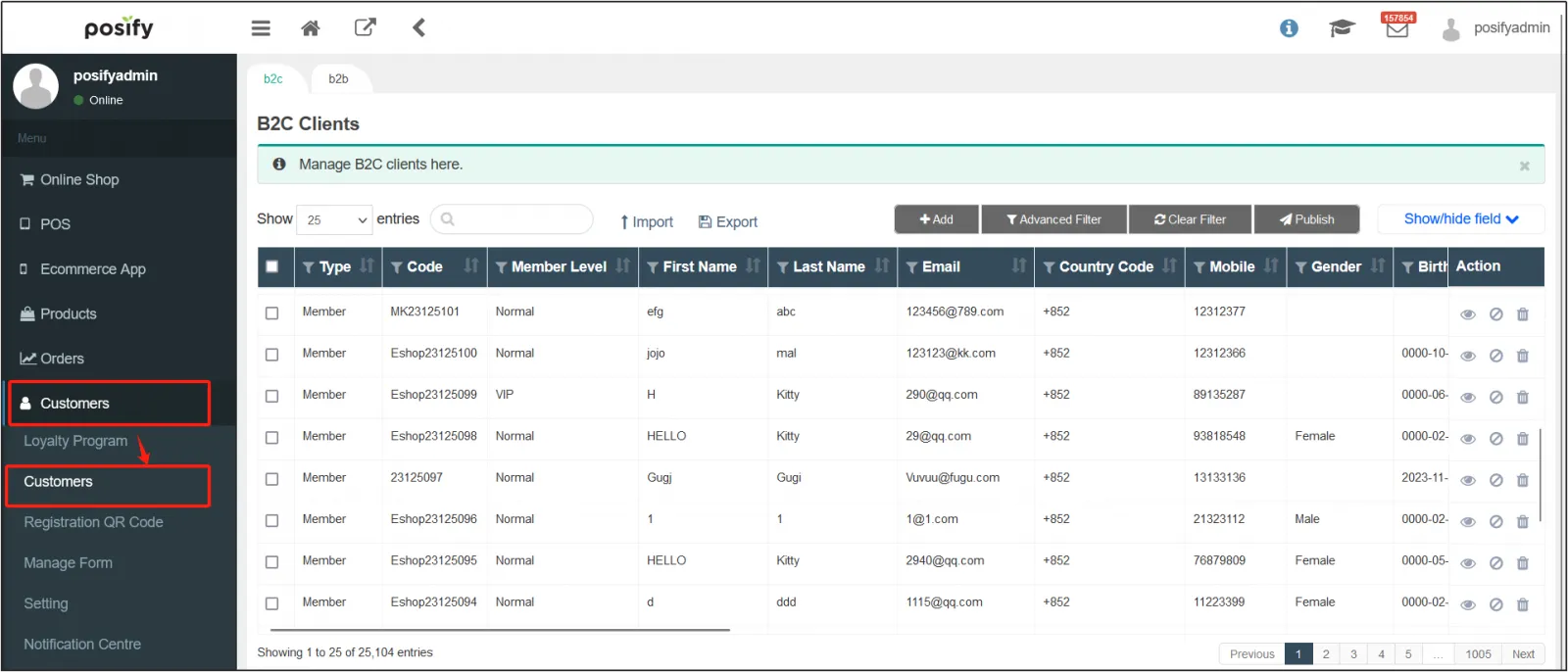
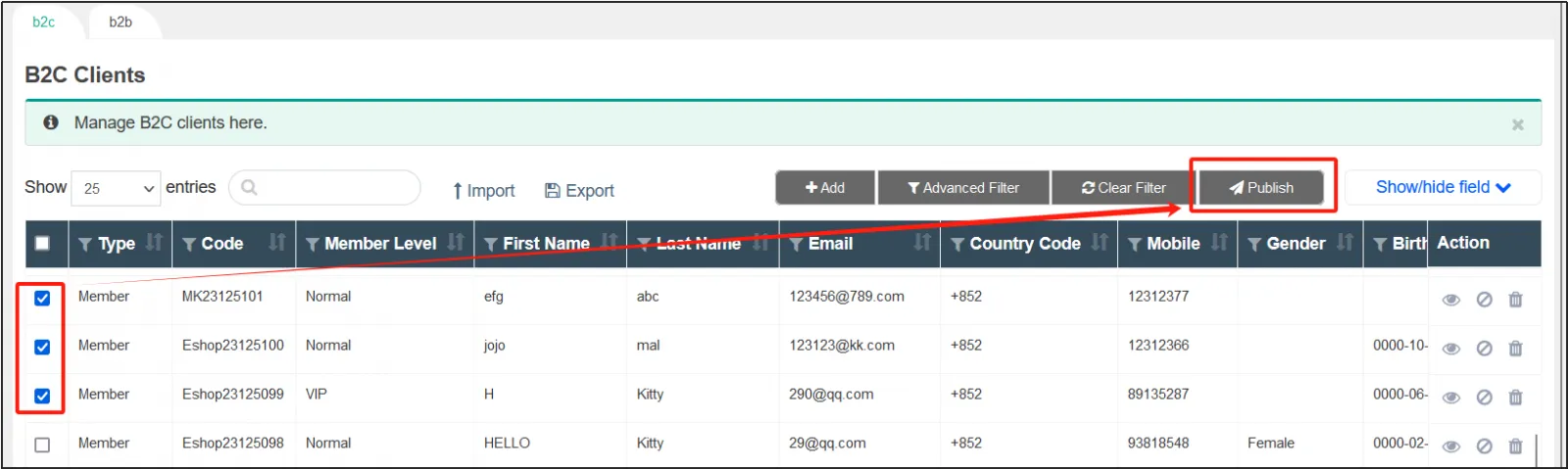
2.Select the customers you want to push messages toclick [Publish] in the upper right corner to enter the edit page of the message push.
3. Select the message type, you can choose to customize the message, promotion, gift coupon, points, shopping credit, prepaid package or cash package.
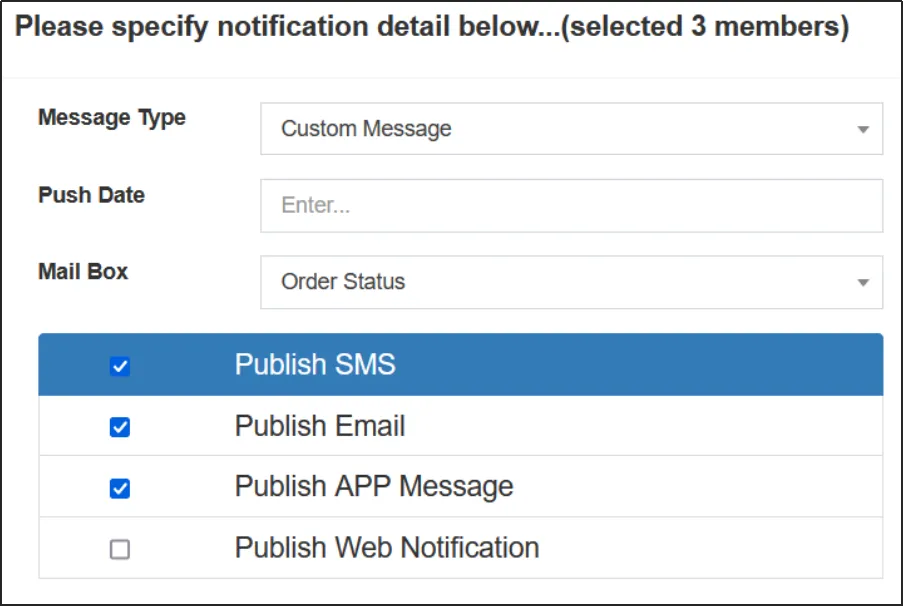
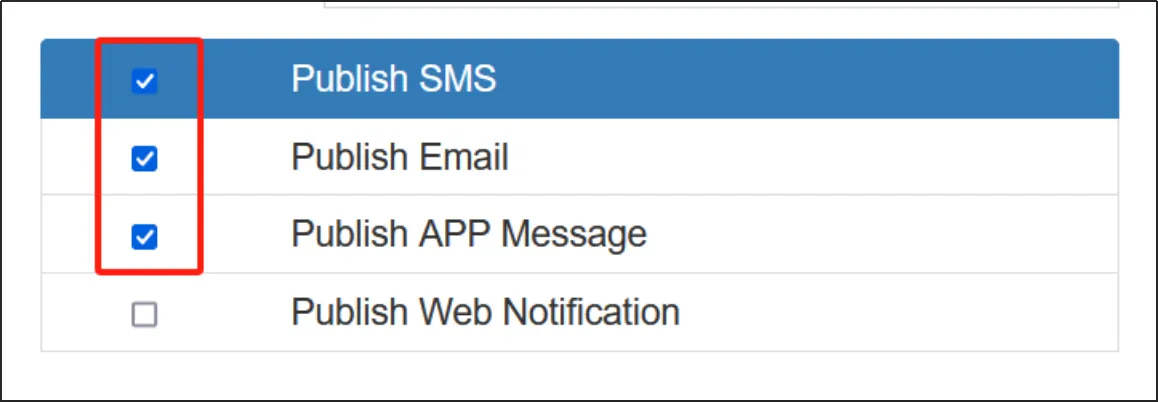
4.Check the push method you want to use, you can choose to push SMS, push email and push APP information, and you can check more than one.
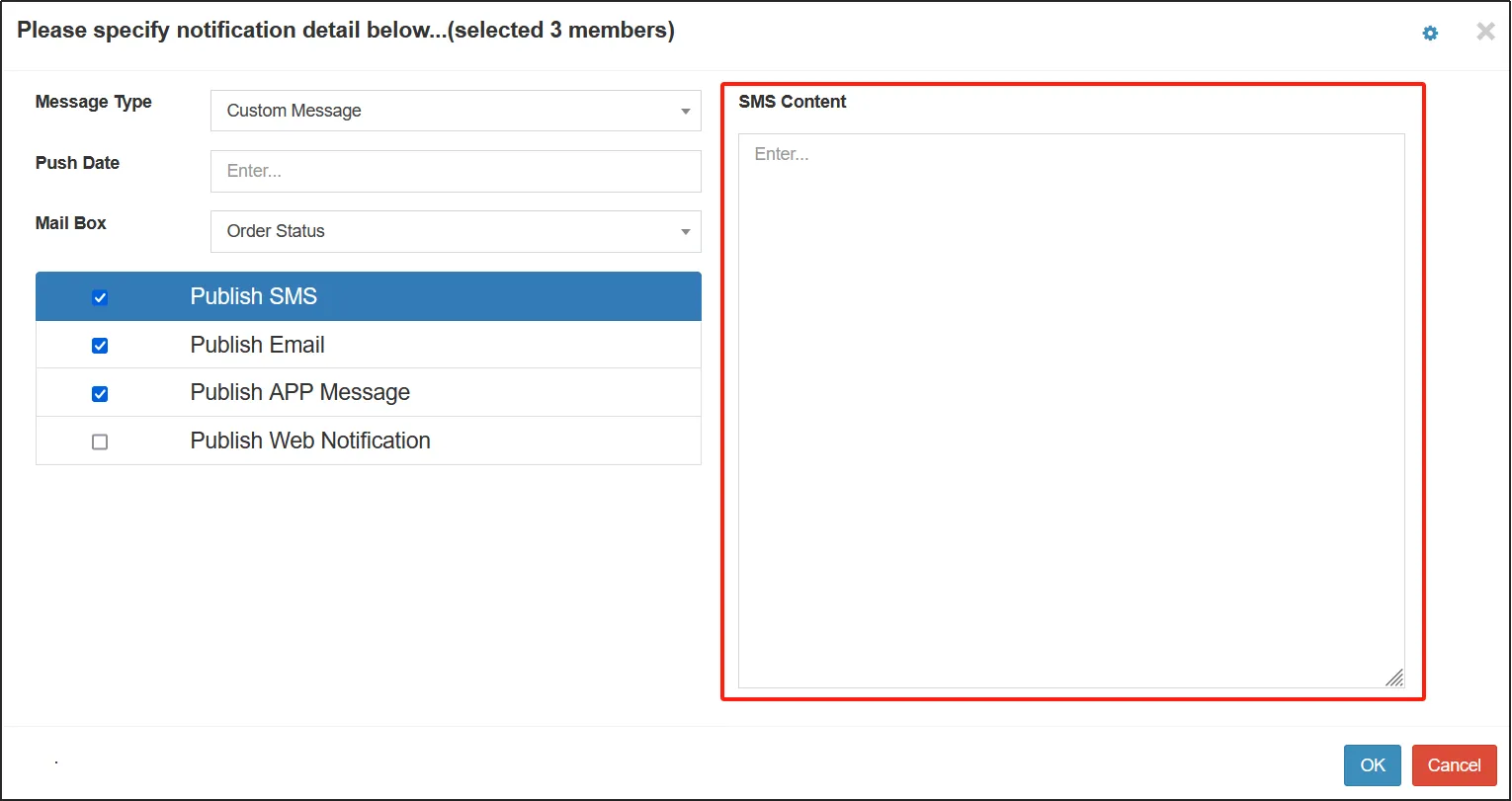
5.If you select Custom Message, you need to edit the information for each selected push method, and then skip to step 8.
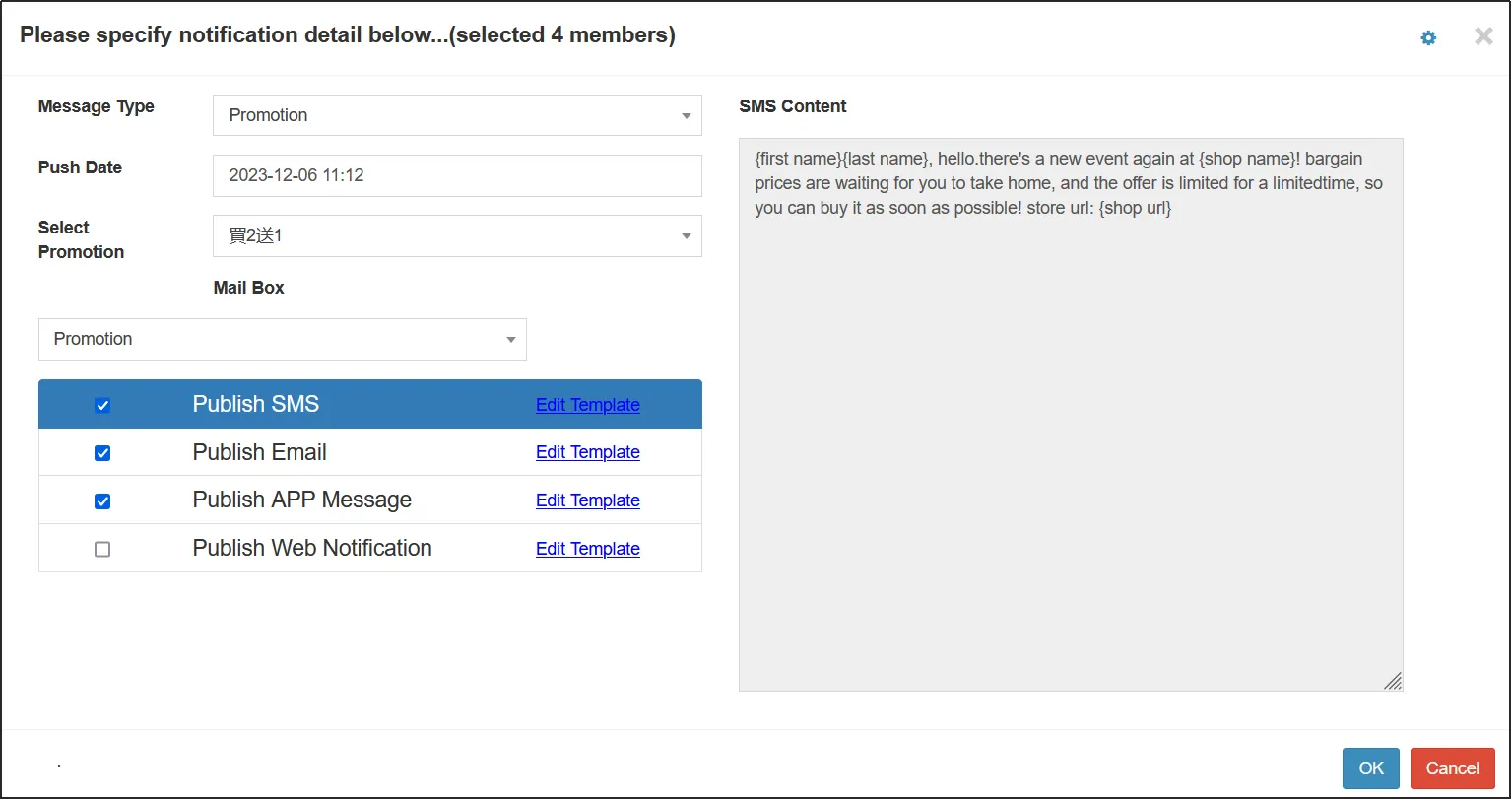
6.If you select a non-custom message, you need to edit the template, and the template for each push method under each message type is different.
After editing the template, you can see a preview on the right side.
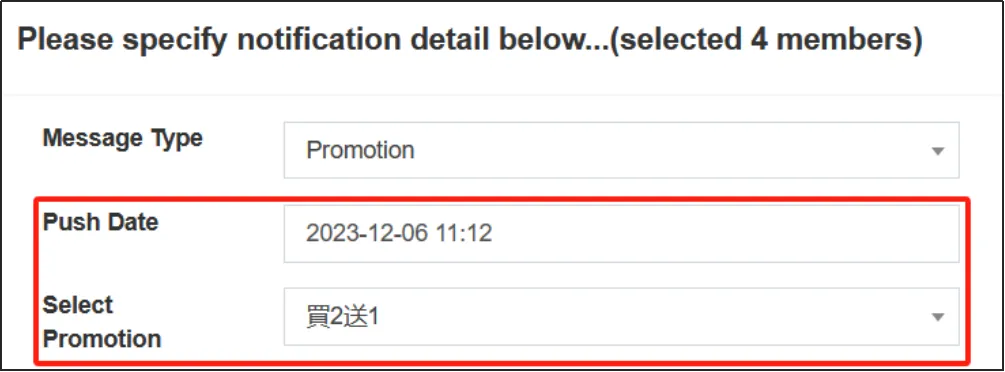
7.Fill in and select other information and options under the message type. For example, the selection of promotions, the selection of promotions, the selection of coupons and the expiration date of coupons.
8.Click OK to complete the message push.
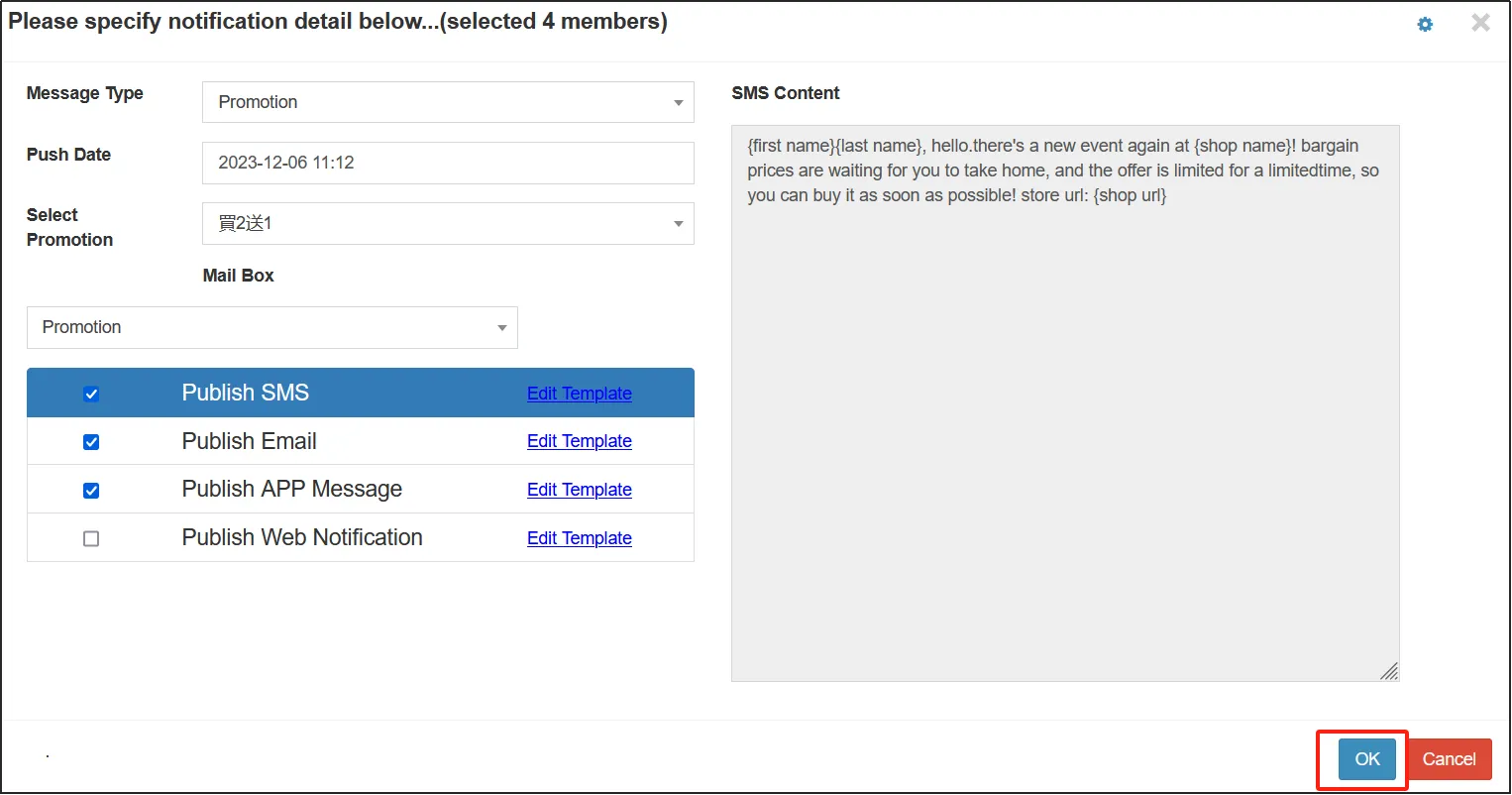
Push method
Push SMS is to push messages to customers through SMS.
Due to the characteristics of SMS, it is recommended that the push message should not be too long when using this push method, and it is recommended that the number of words should be less than 70 words.
If the selected message type is a custom message, select Push SMSenter the SMS message to be pushed in the input box on the rightclick OK.

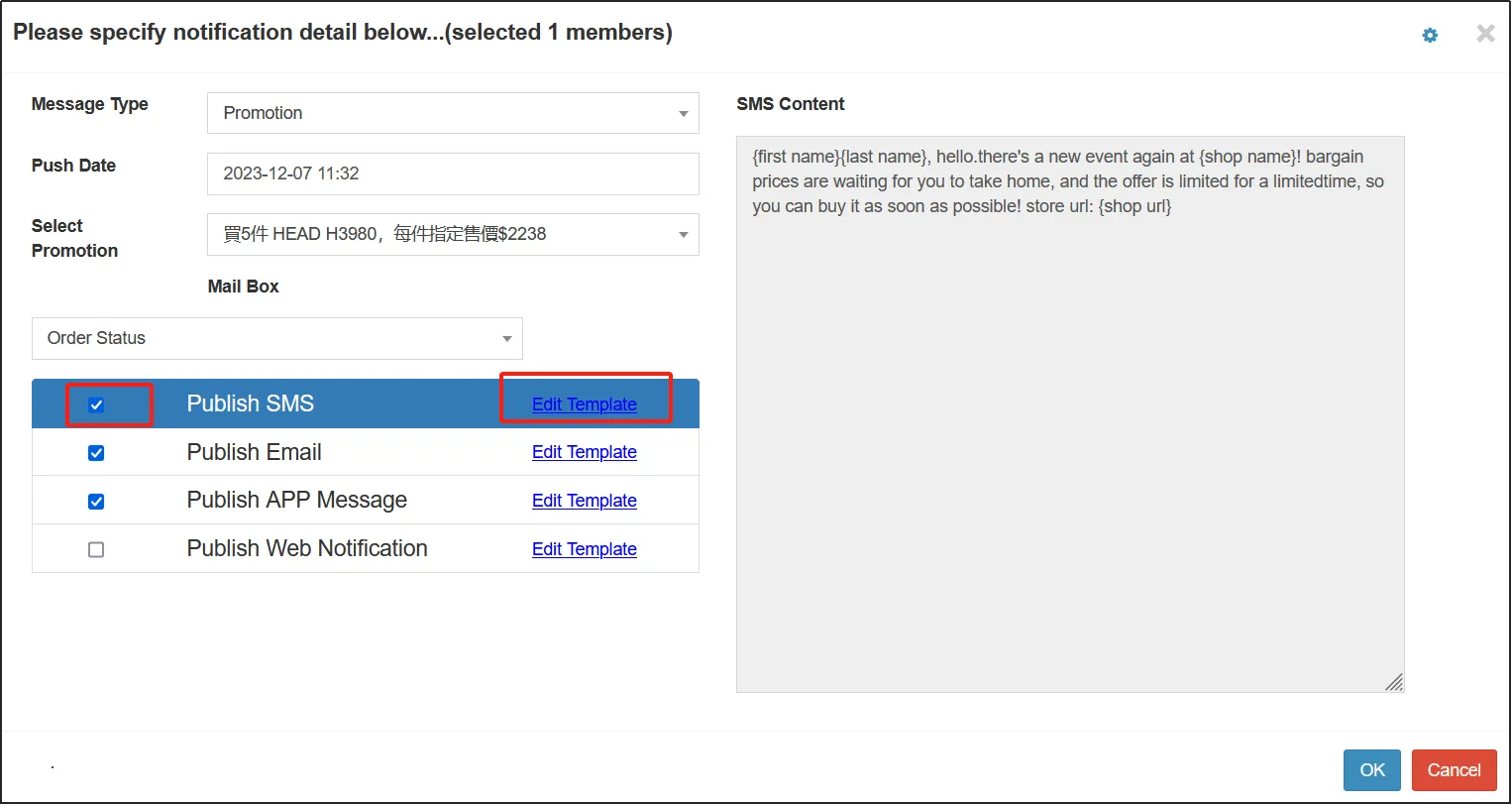
If the selected message type is non-customized, you need to edit the template.
Select Push SMS click "Edit Template" to edit the template.
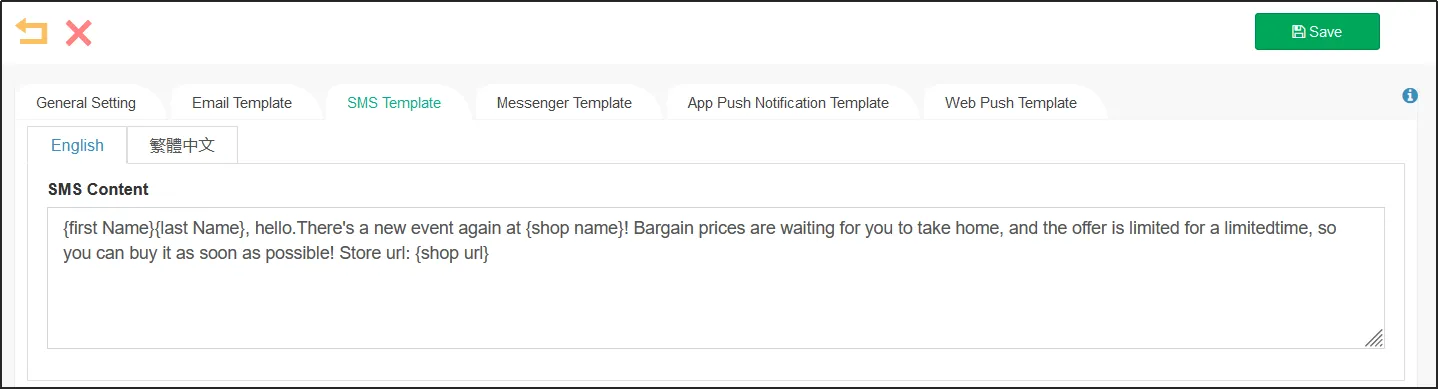
Enter the template content in the input box click [Save] in the upper right corner.
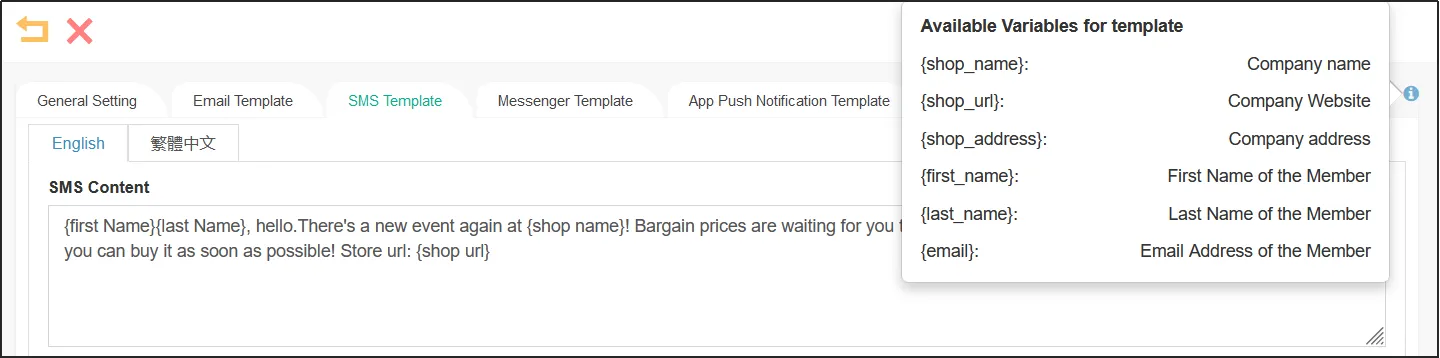
When editing a template, you can use the variables available in the template, click the "i" in the upper right corner to get the hint. How to use it is as follows.
Remark:
Push email and push APP message are the other two push methods, and the template is different when selecting different message types.
Before sending SMS, please make sure that the correct mobile phone number is recorded in the customer's information.
Push email is the way to push messages to customers via email.
If the selected message type is a custom message, select Push emailenter the corresponding information in each input box on the right click OK.
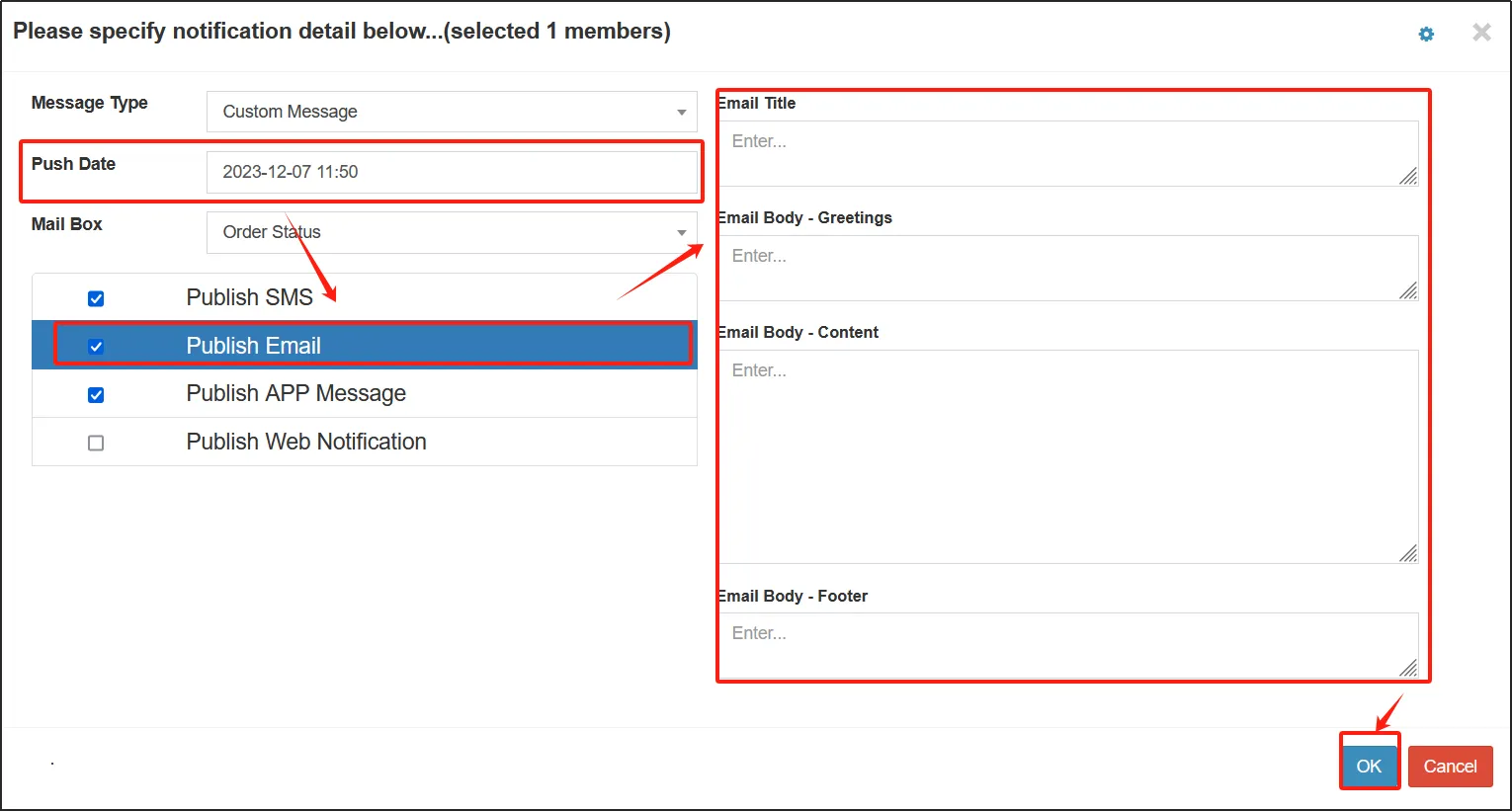
If the selected message type is non-customized, you need to edit the template.
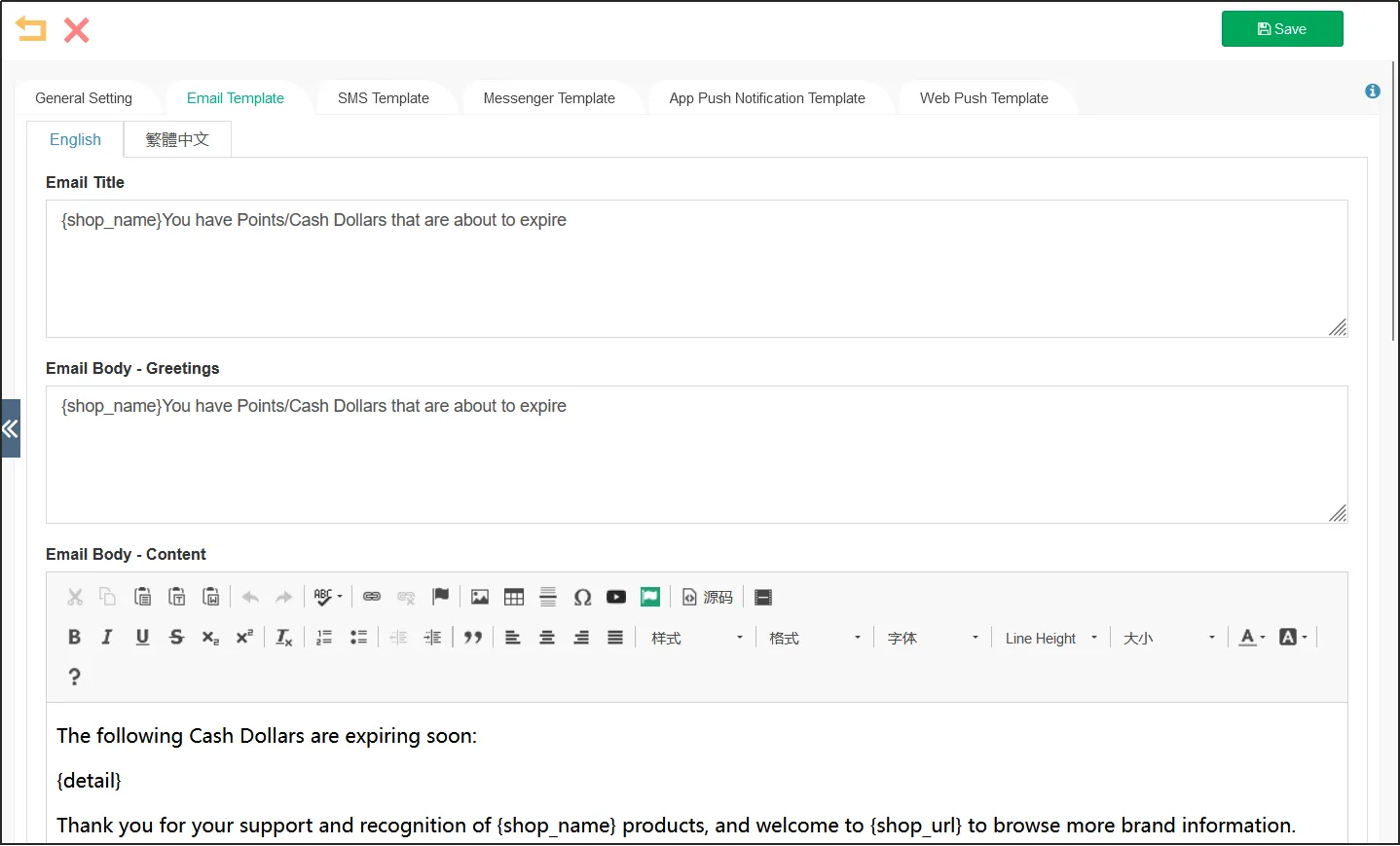
Select Push Email click "Edit Template" to edit the template.
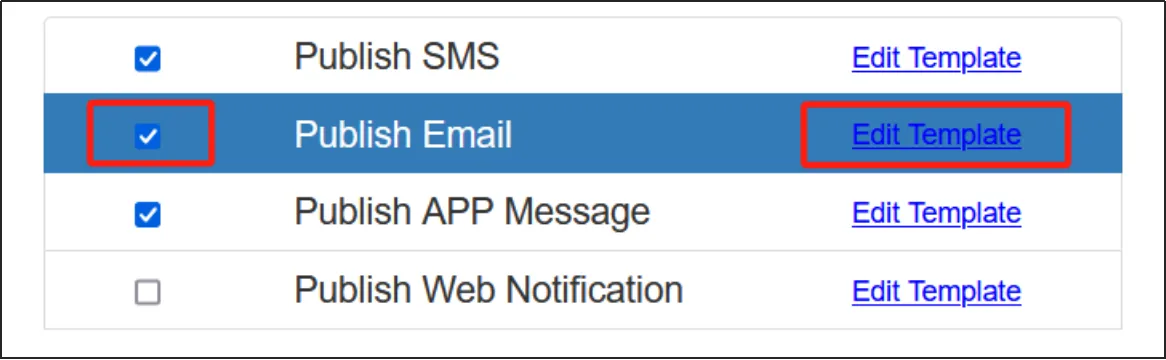
Enter the template content in the input box click [Save] in the upper right corner.
Before sending an e-mail, please make sure that the correct e-mail address is recorded in the customer's information.
Push APP message is to push the message to customers through the merchant APP.
If the selected message type is a custom message, check Push APP messageenter the corresponding information in each input box on the right click [OK].
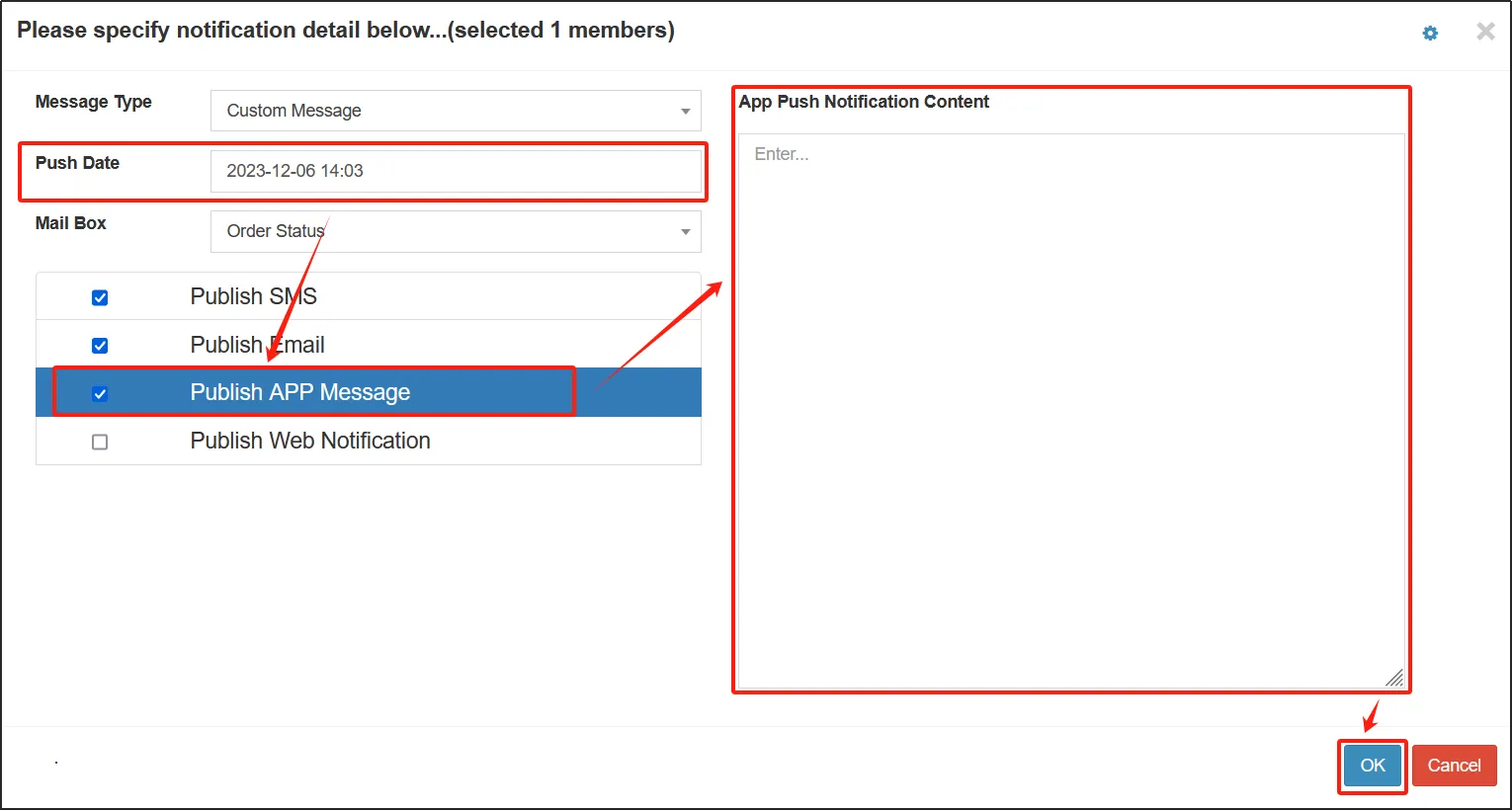
If the selected message type is non-customized, you need to edit the template.
Select Push APP Messages click [Edit Template] to edit the template.
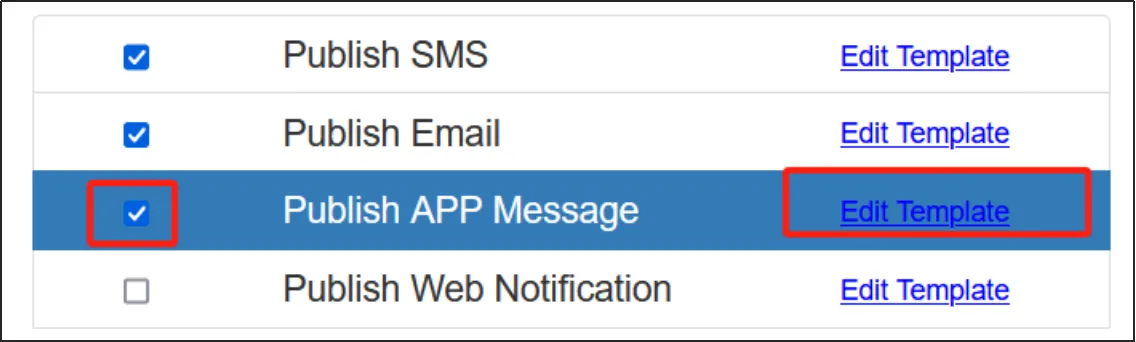
The mobile app push template here is the mobile app template.
Enter the template content in the input box click [Save] in the upper right corner.
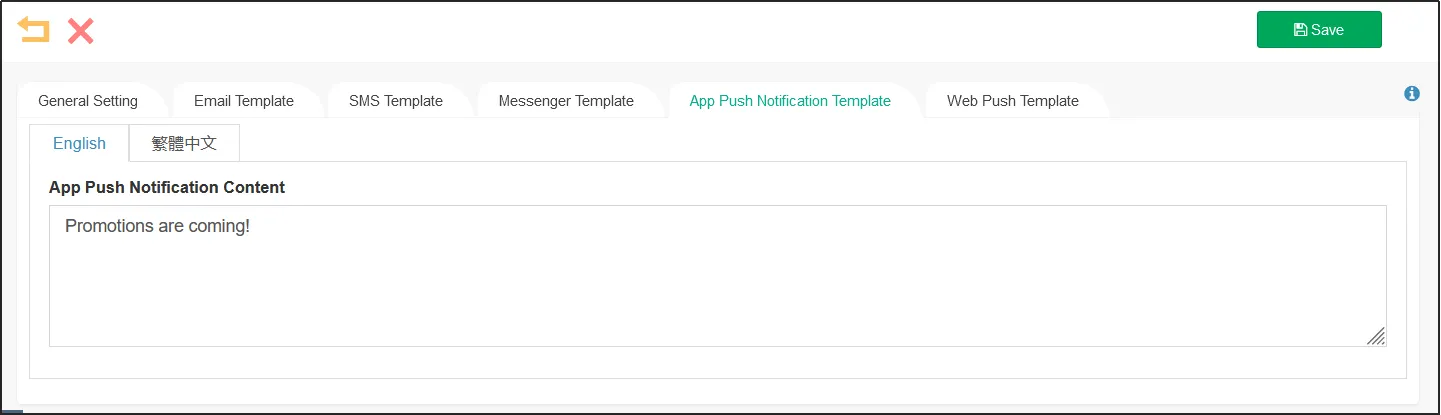
To push APP messages, customers need to download the merchant's app first.
The type of message
You can only select one message type to publish a message push, but you can select multiple push methods, check all the message push methods you want to use, and then click OK.
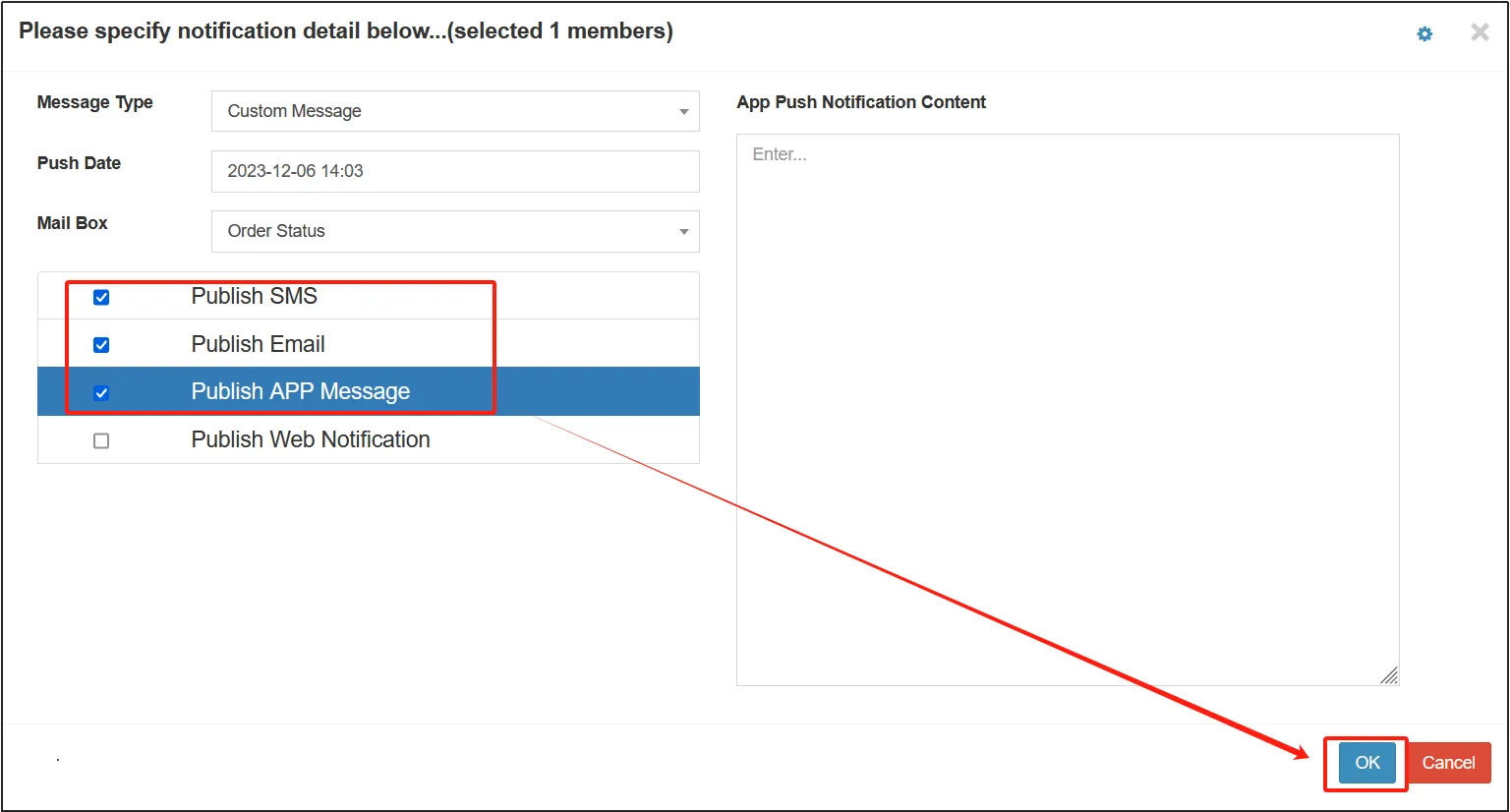
Custom messages do not use templates and edit the message content from a blank space.
If you don't want to use an existing template, you can use a custom message.
If multiple push methods are selected, you need to edit the message content for each push mode.
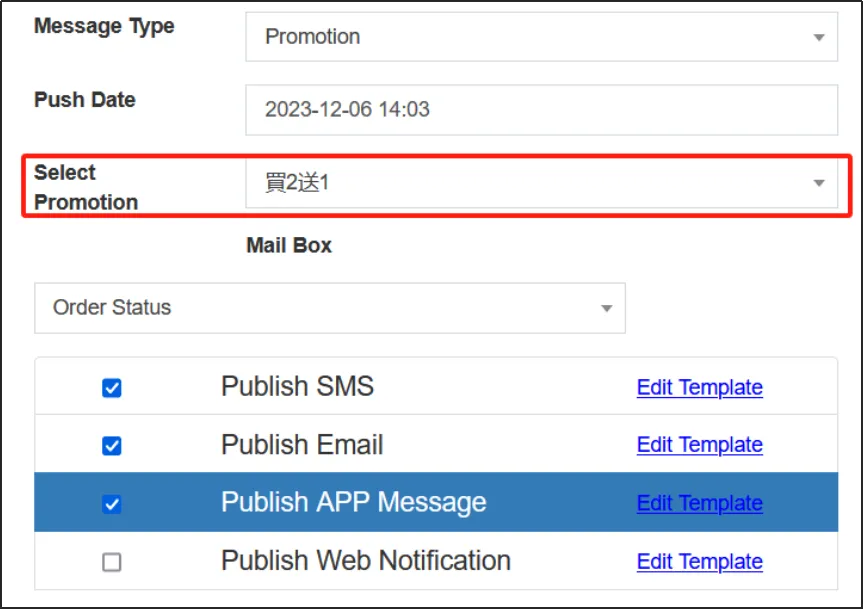
Promotions, which can be selected when you need to push a message for a promotion. You can select the promotions you want to push.
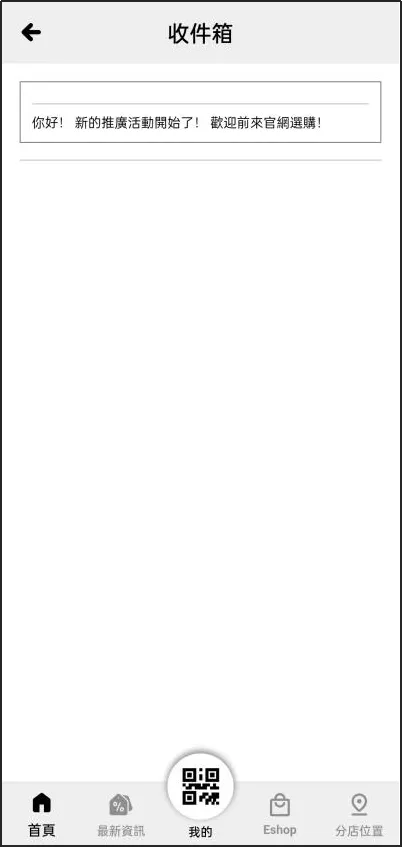
The effect of the message push received by the APP is shown in the following figure.
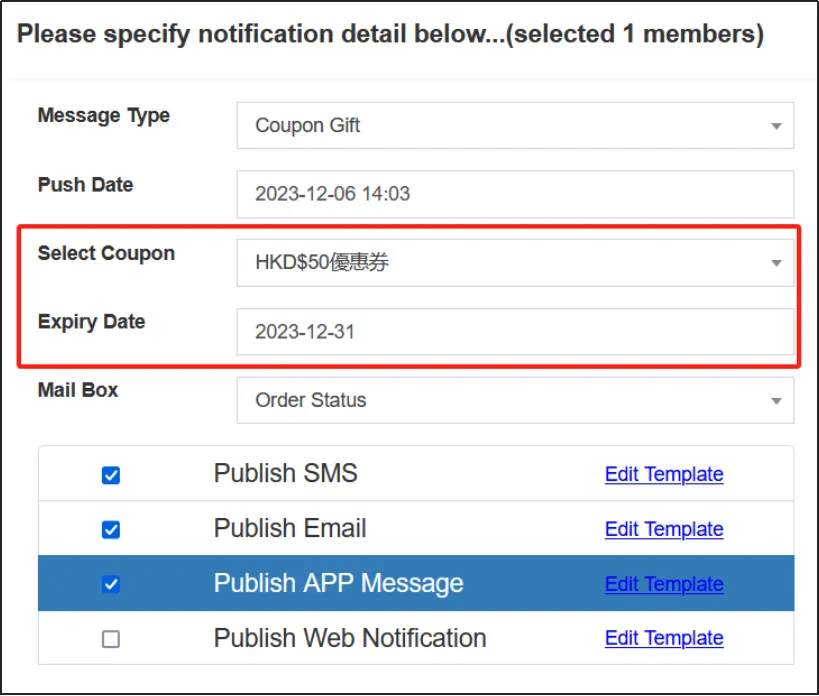
When you need to give a coupon to certain customers, you can select this message type.
Select the coupon you want to give away and select an expiration date. After the message is sent to the customer, the coupon for the selected period will also be issued to the customer's name.
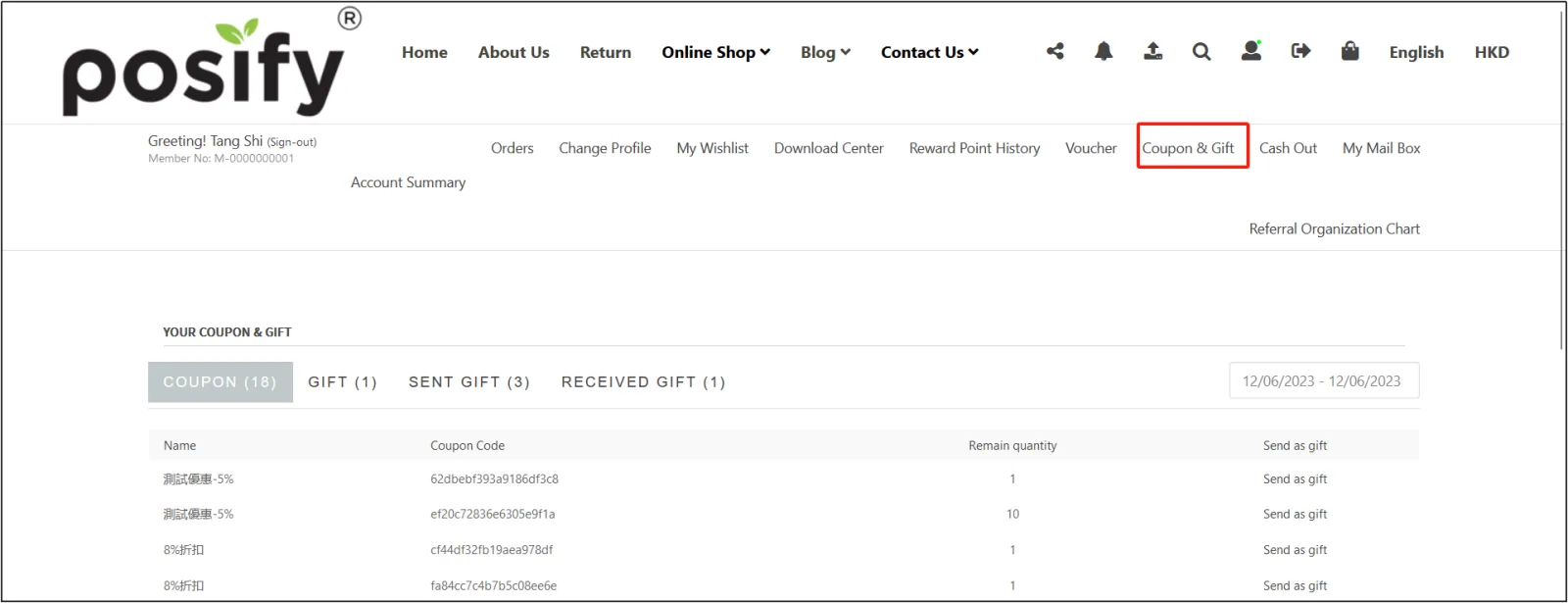
On the web, customers can click on the villain icon in the upper right corner to open their personal center click on coupons and gifts to view the coupons they have received.
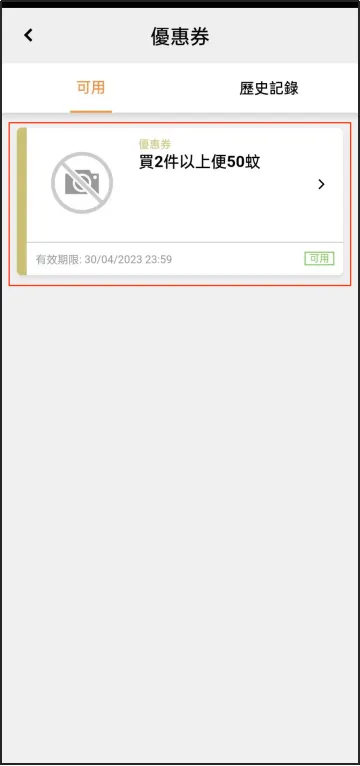
Alternatively, on the app, click [My] at the bottom, and click [Coupon] to view the coupons you received.
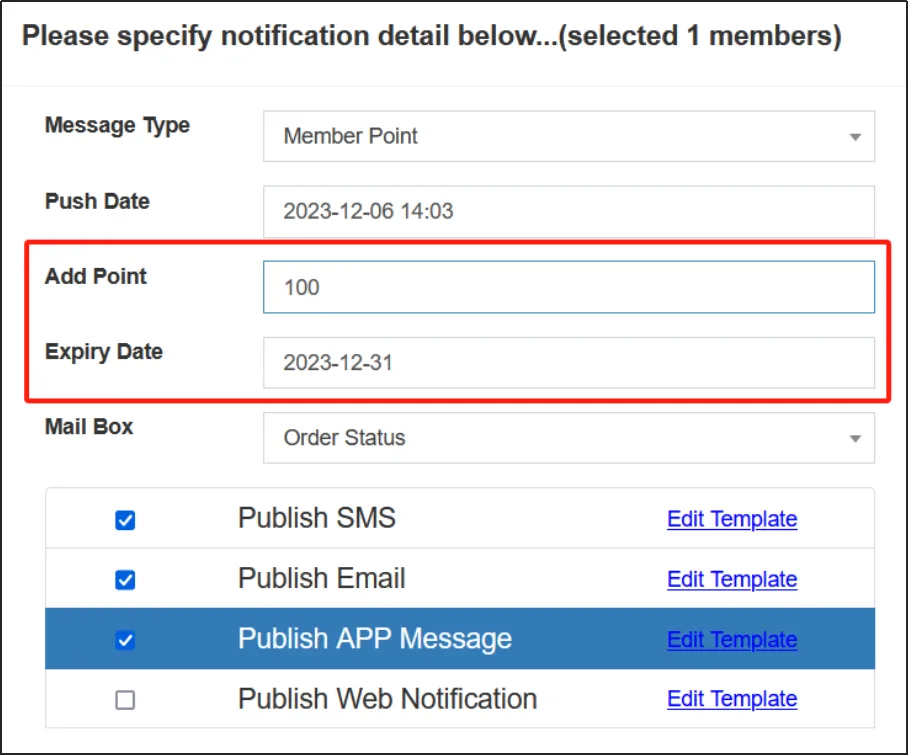
When you need to give points to certain customers, you can choose this message type.
Enter the number of points to be awarded and select a valid date. After the message is sent to the customer, the points for the selected period will also be distributed to the customer's name.
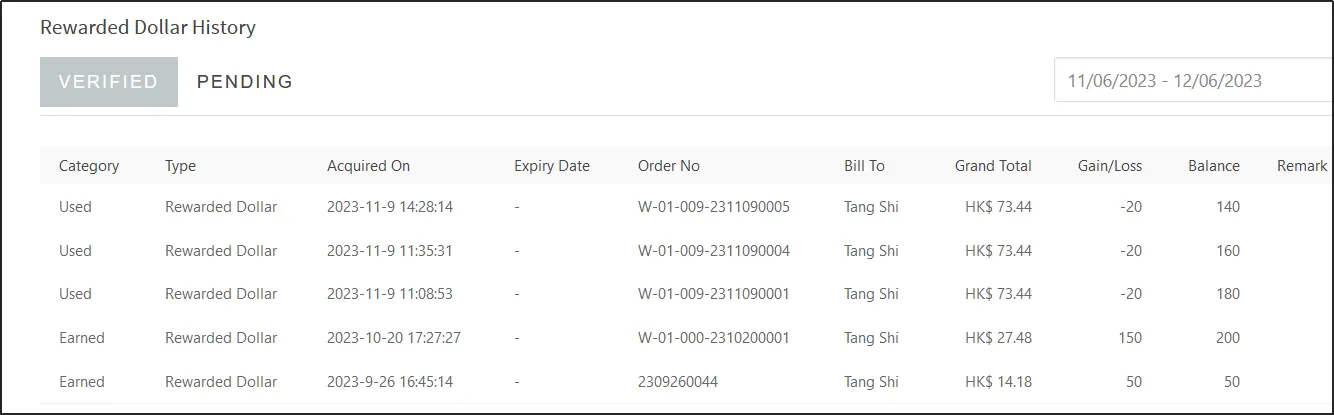
On the web, customers can click on the villain icon in the upper right corner to open the personal center, click on the points historythe points can be viewed in the shopping points history column.
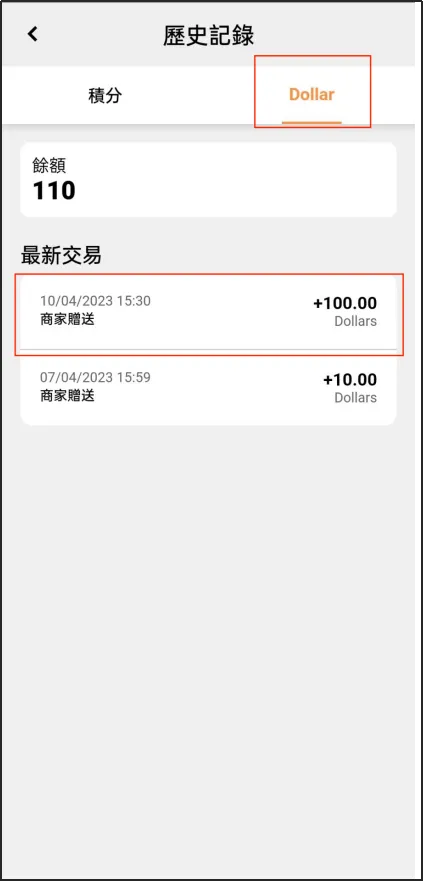
Or on the APP, click [My] below, click [Points History], and you can also view the points you received in the tab points.
When you need to give a gift to certain customers, you can select this message type.
Enter the amount of gift credit (i.e., quantity) and select an expiration date. After the message is sent to the customer, the purchase credit for the selected period will also be distributed to the customer's name at the same time.
On the web, the customer can click on the villain icon in the upper right corner to open the personal centerclick on the point history, and view the purchased credit in the rebate shopping credit history column.
Olenteap, Crick [Mai] Bello, Crick [Poinz Histori], Ender have a meal with Arsovietpur Chas de Credi Inte Tubdora.
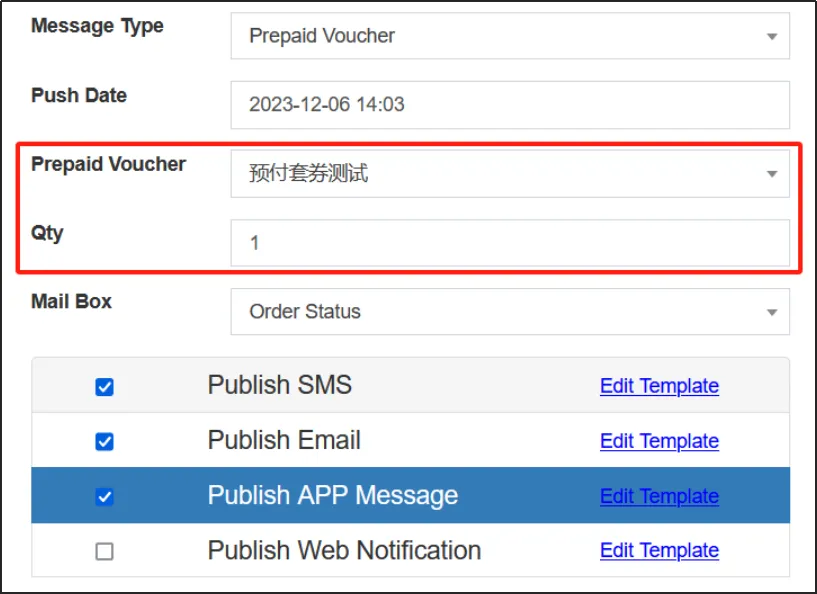
This message type can be selected when you need to give a prepaid coupon to certain customers.
Select the prepaid package you'd like to gift and enter the quantity. After the message is sent to the customer, the prepaid package will also be issued to the customer's name at the same time.
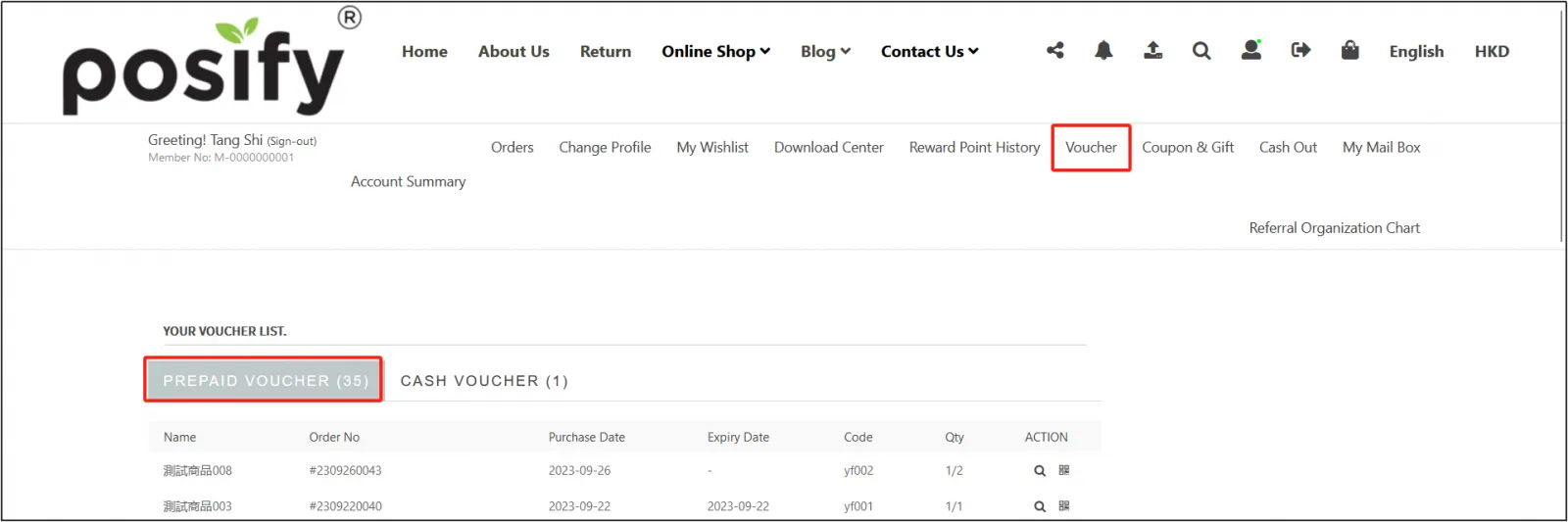
On the web, customers can click on the villain icon in the upper right corner to open the personal centerclick on the package, and you can view the prepaid package in the tab Prepaid Package.
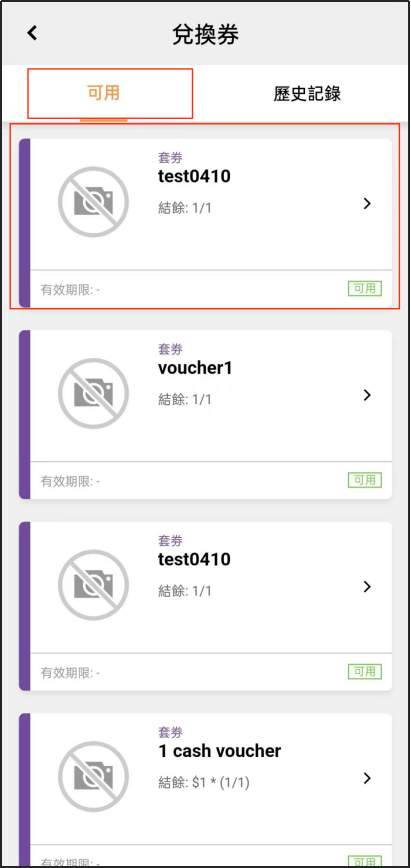
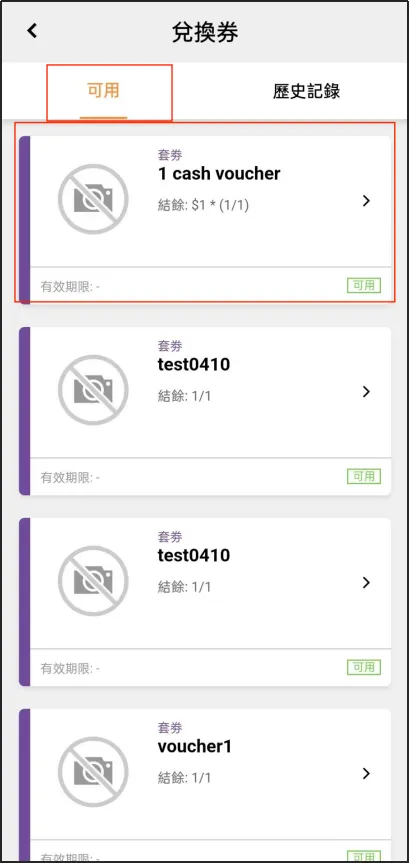
Or on the app, click [My] at the bottomclick [Redemption Coupon], and you can also view the prepaid package coupon on the tab available.
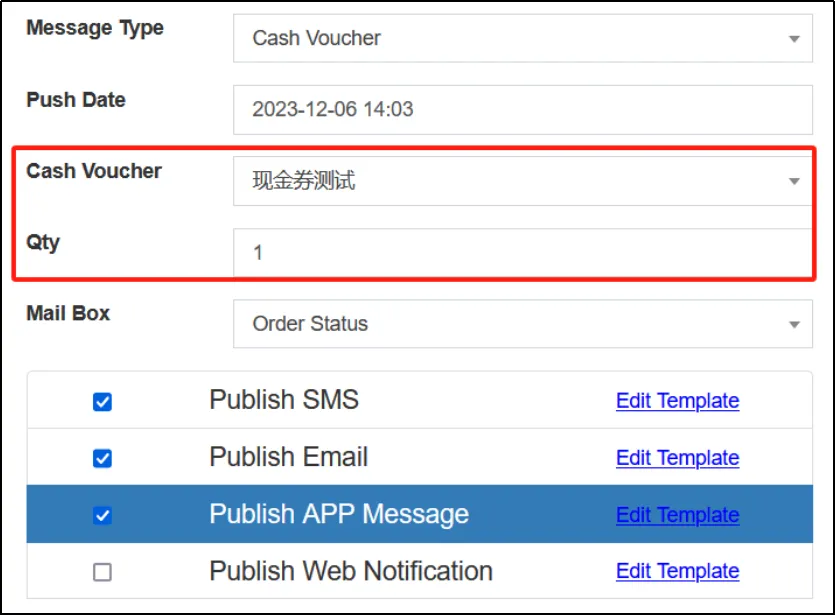
When you need to give a cash coupon to certain customers, you can select this message type.
Select the cash package you want to gift and enter the amount. After the message is sent to the customer, the cash package will also be issued to the customer's name.
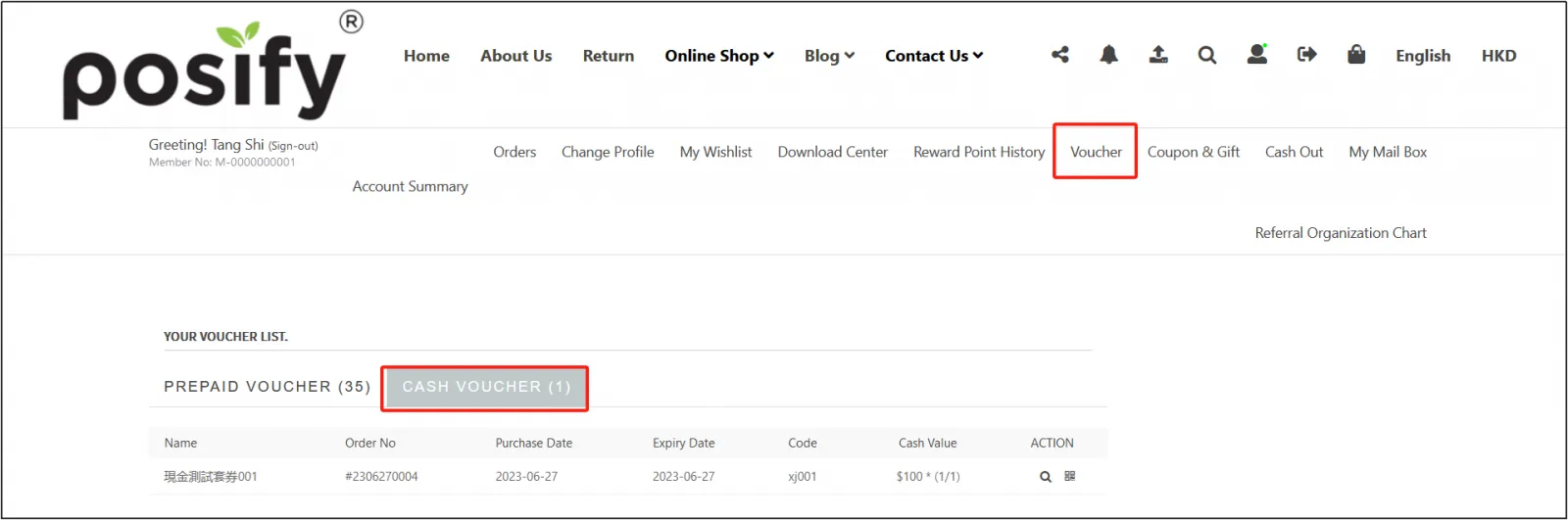
On the Web, the customer can click on the villain icon in the upper right corner to open the personal centerclick on the package, and you can view the cash package in the cash package column on the page.
Or on the APP, click [My] at the bottom, click [Voucher], and you can also view the cash package on the tab available.
View the message push records
Open the CMSclick Customersclick Message Center to view the message push records.
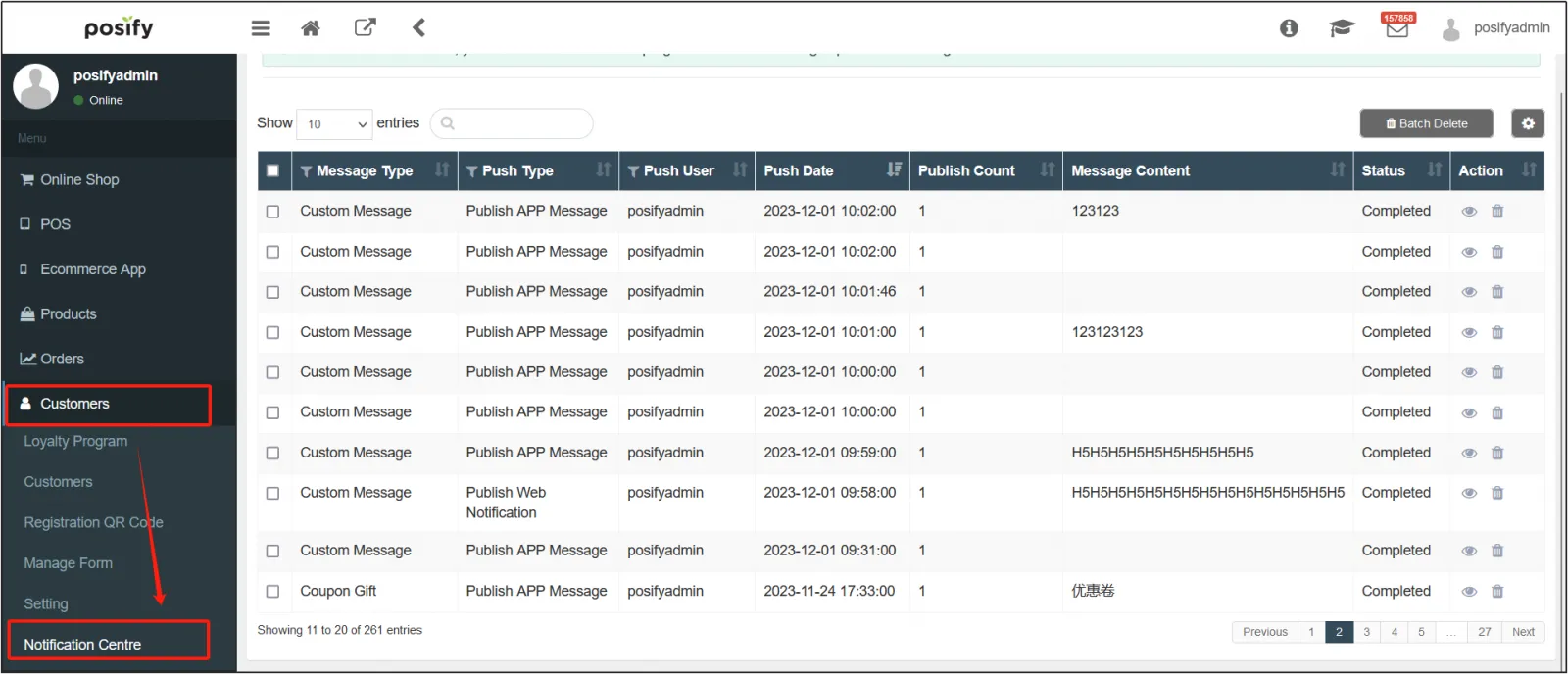
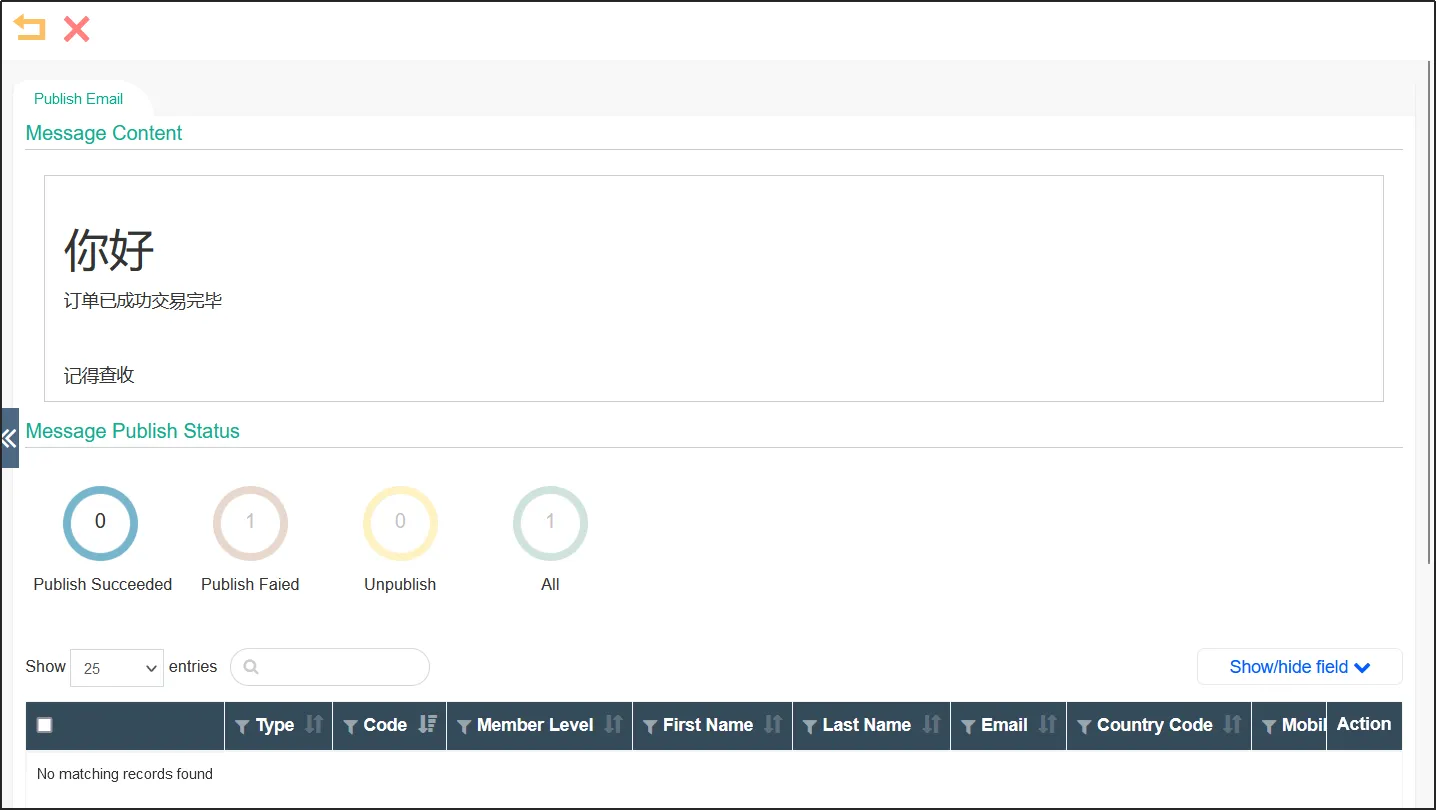
Click  on the right side of the message push record to view the details of the message push. It lists which customers' messages were successfully pushed, and which failed or were not.