Custom product links
Setting a custom product link to the set product can avoid redundant codes with the original default URL of the product when sharing the product link through WhatsApp and other communication tools.
Set it on the product edit page
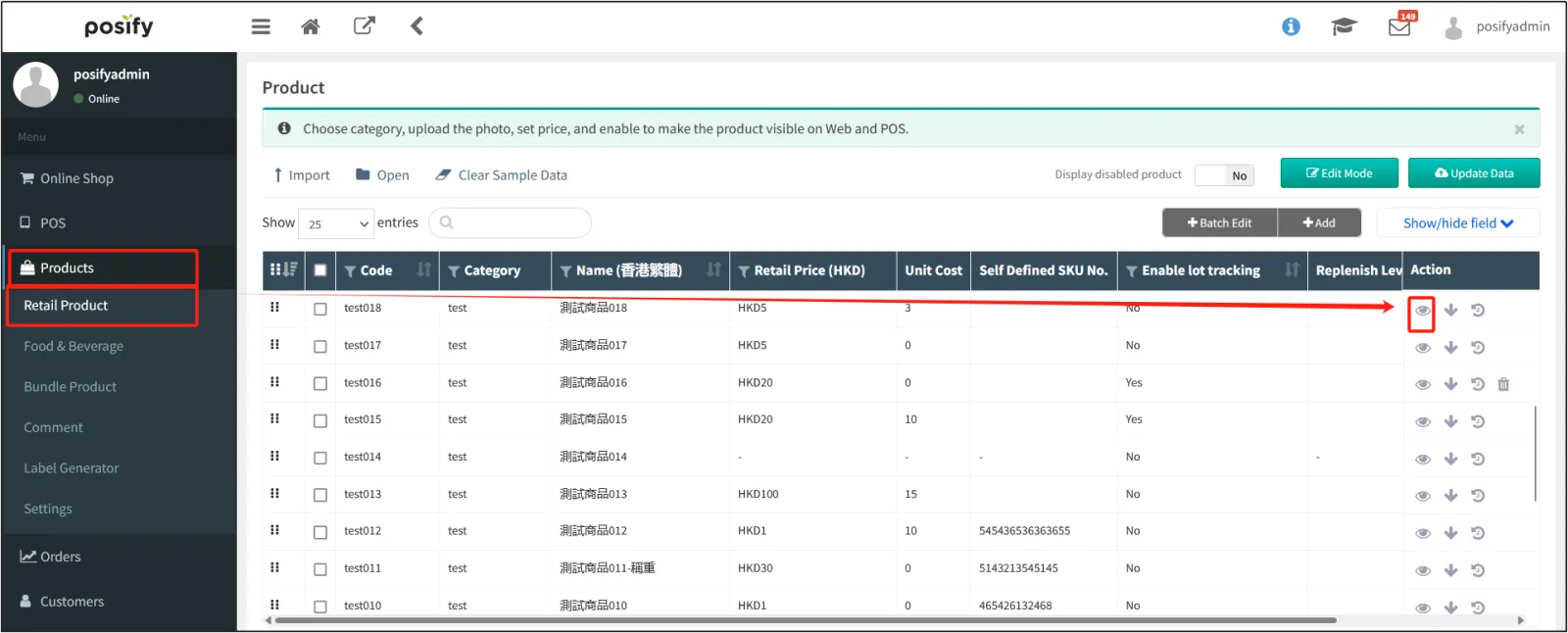
Open the CMS click on the productclick on the retail productfind the product you want to set a custom link, and click
 on the right.
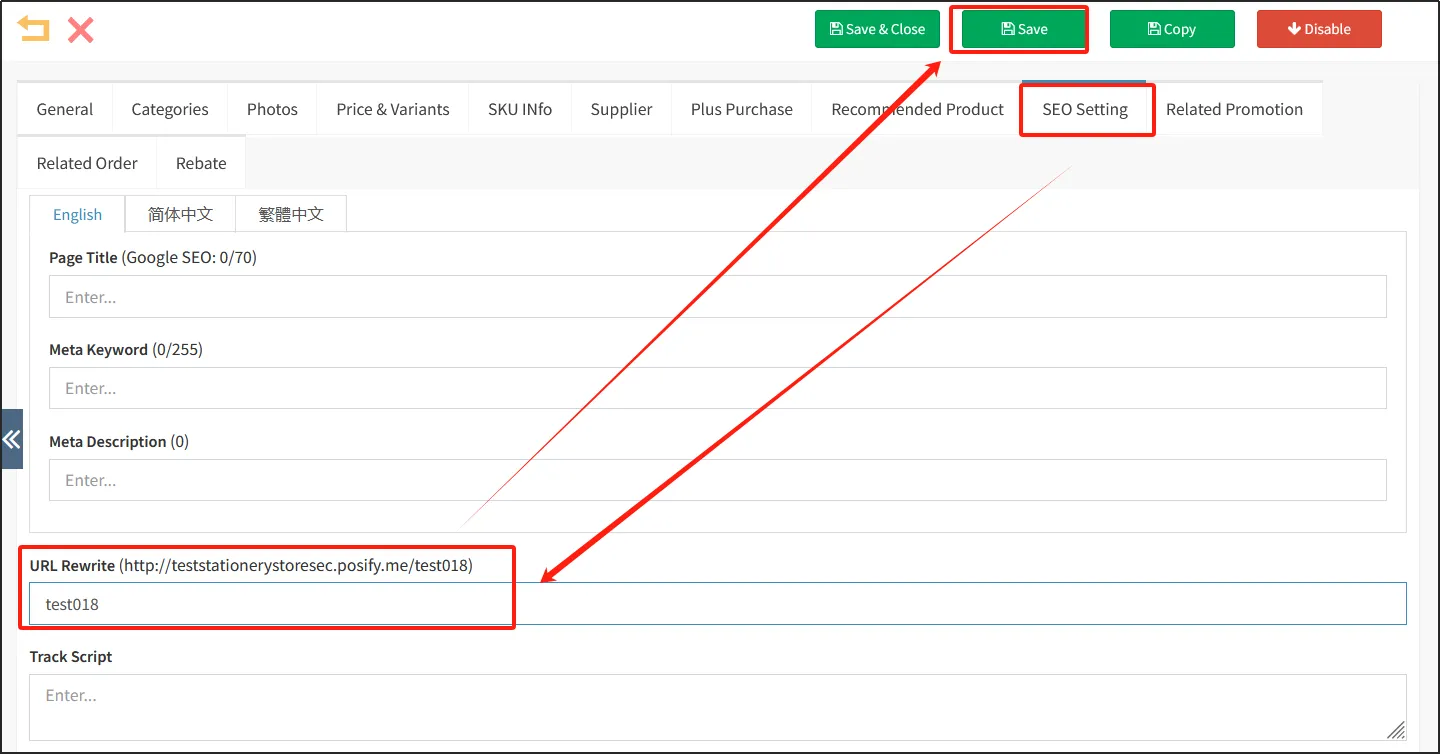
Click the tab SEO settings, enter the custom product link in [URL Rewriting], for example: test013click [Save].
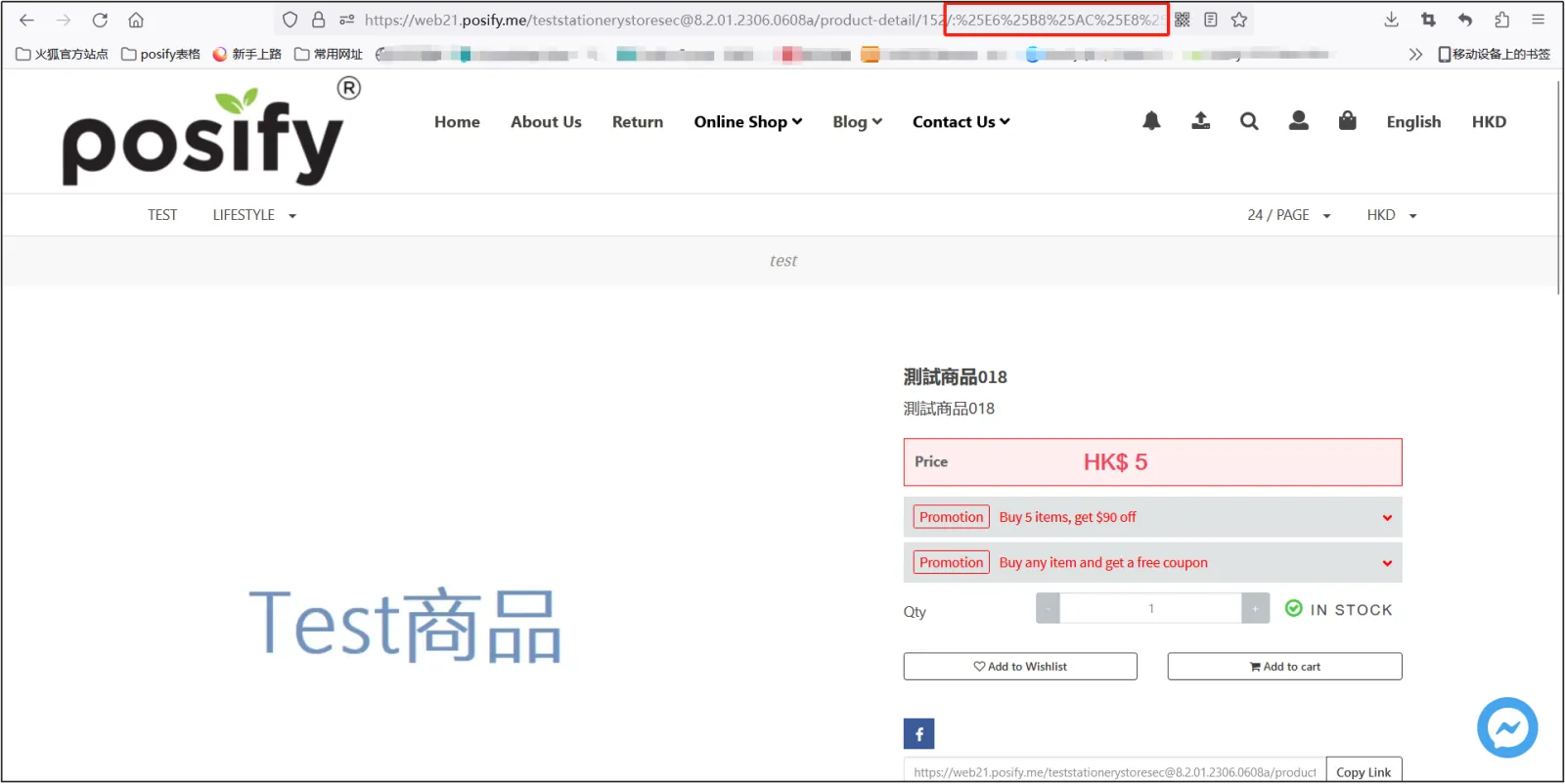
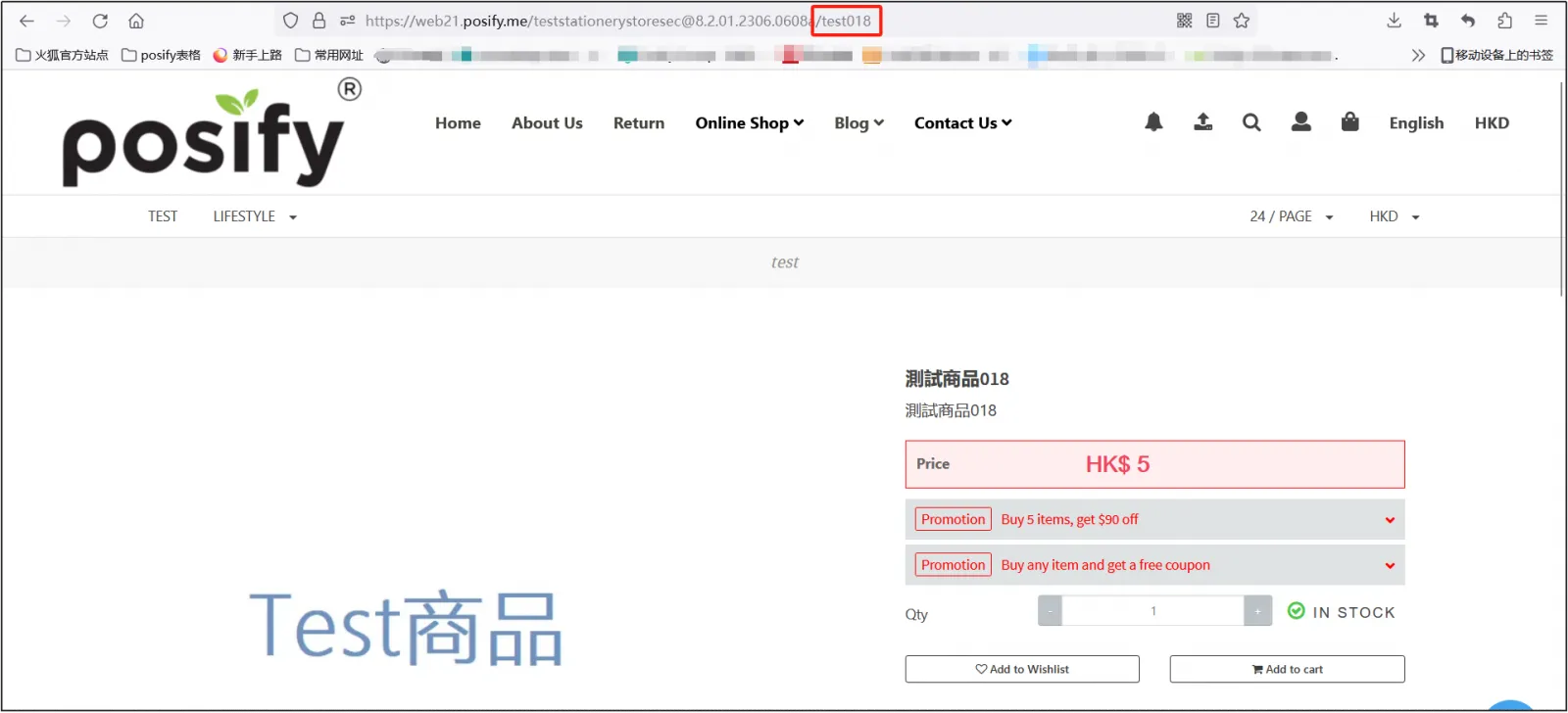
If the URL of the product is not rewritten, the effect displayed on the online store is as shown below, and it will end with a long code.
The image below shows how the URL of the product is rewritten in the online store, ending with the rewritten "test013".
Set it on the Product Management page
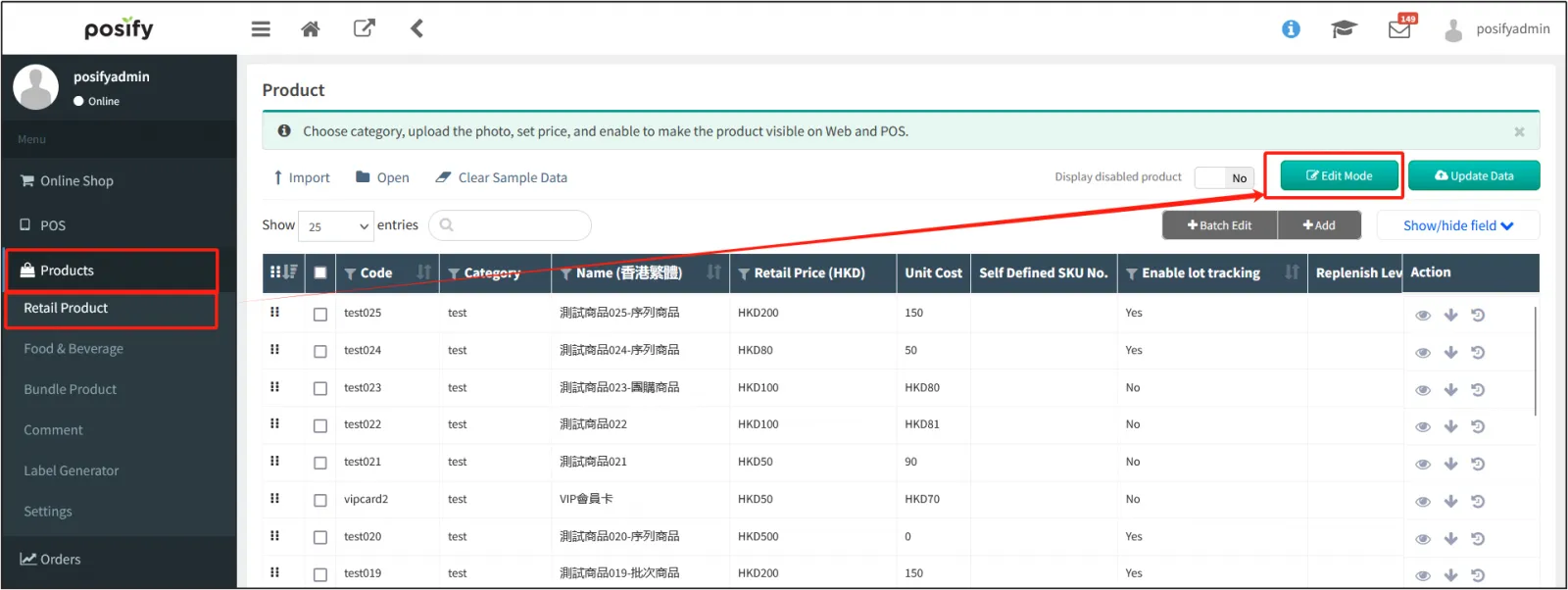
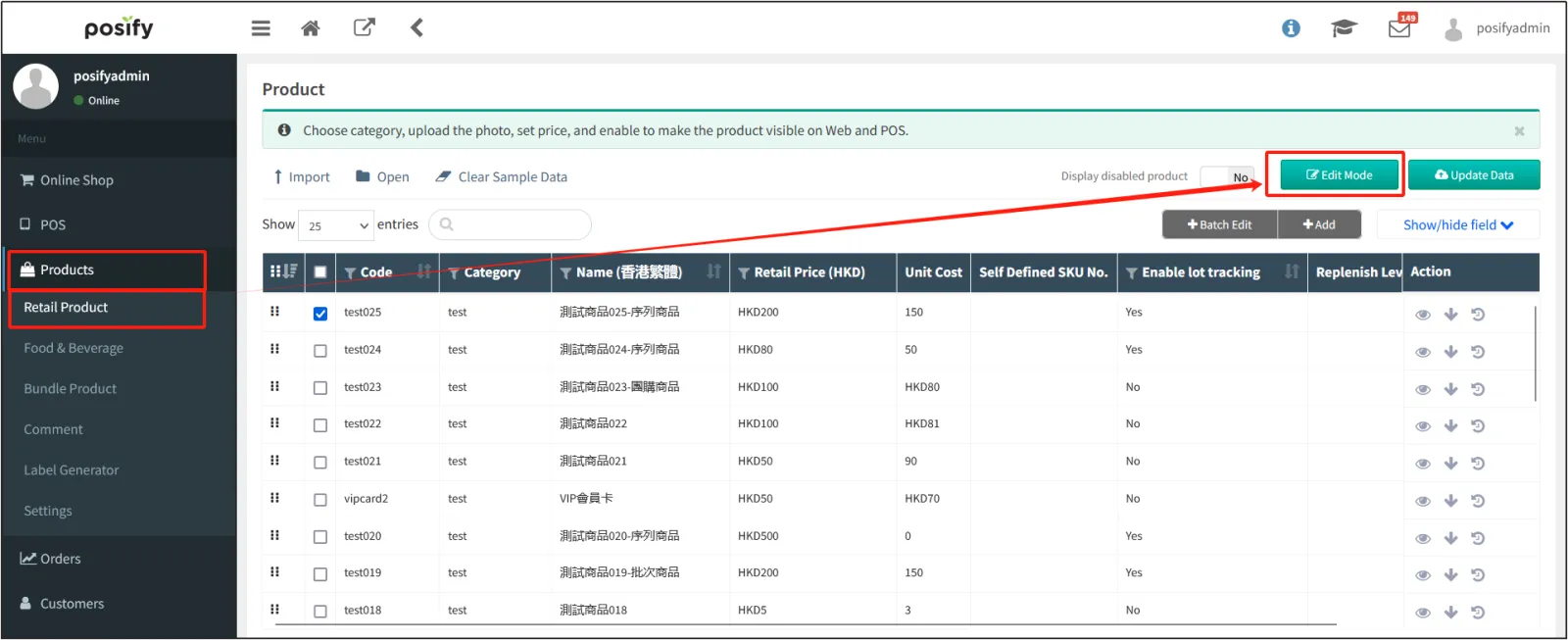
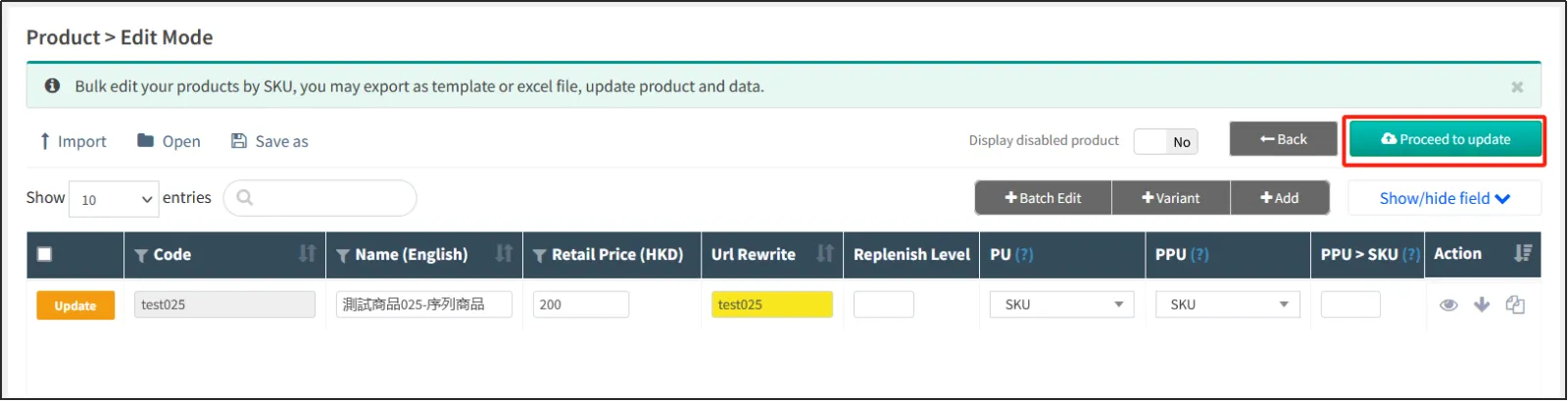
Open the CMSclick on the productclick on the retail productclick on [Edit mode].
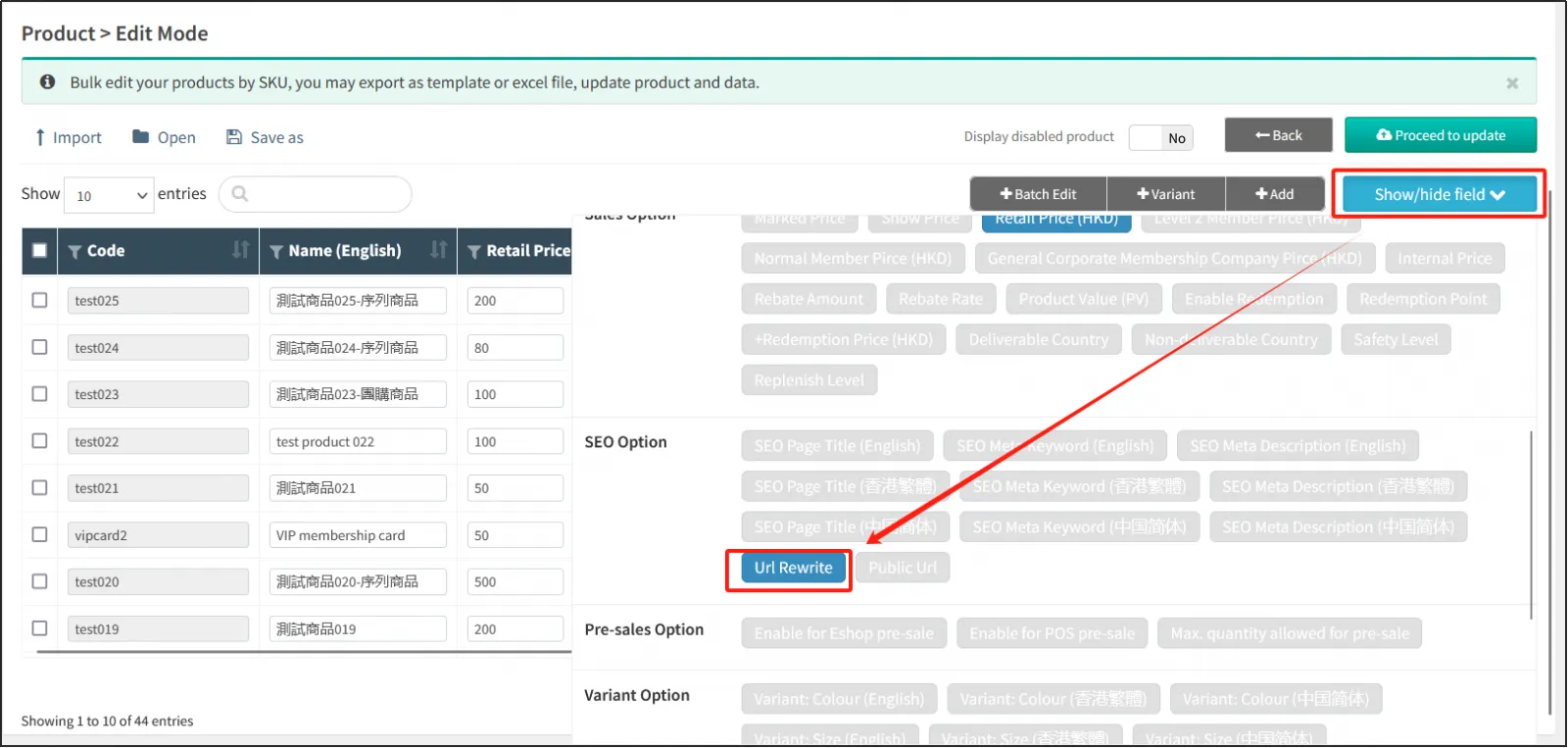
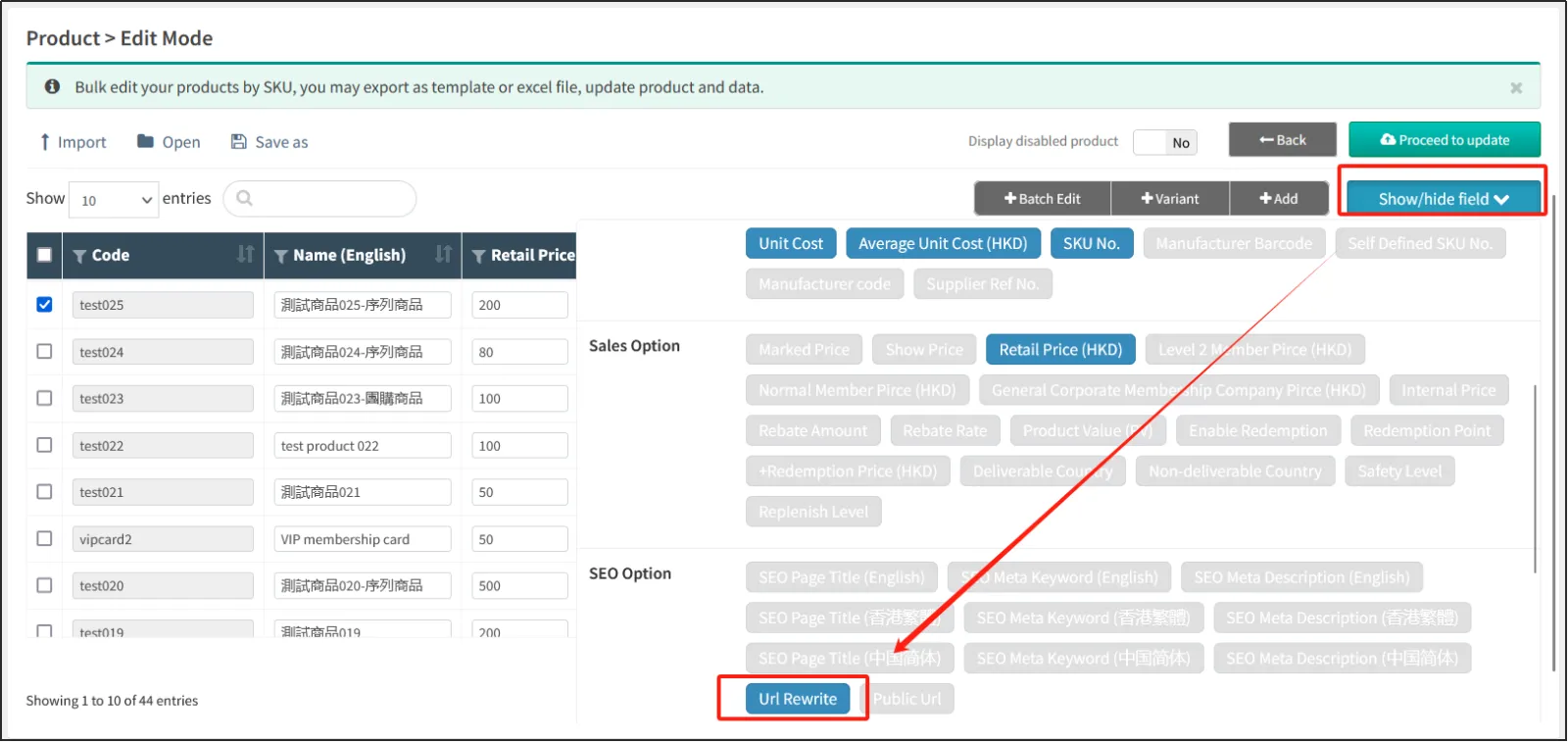
Click [Show/Hide Column]light up the URL rewrite under [SEO Options].
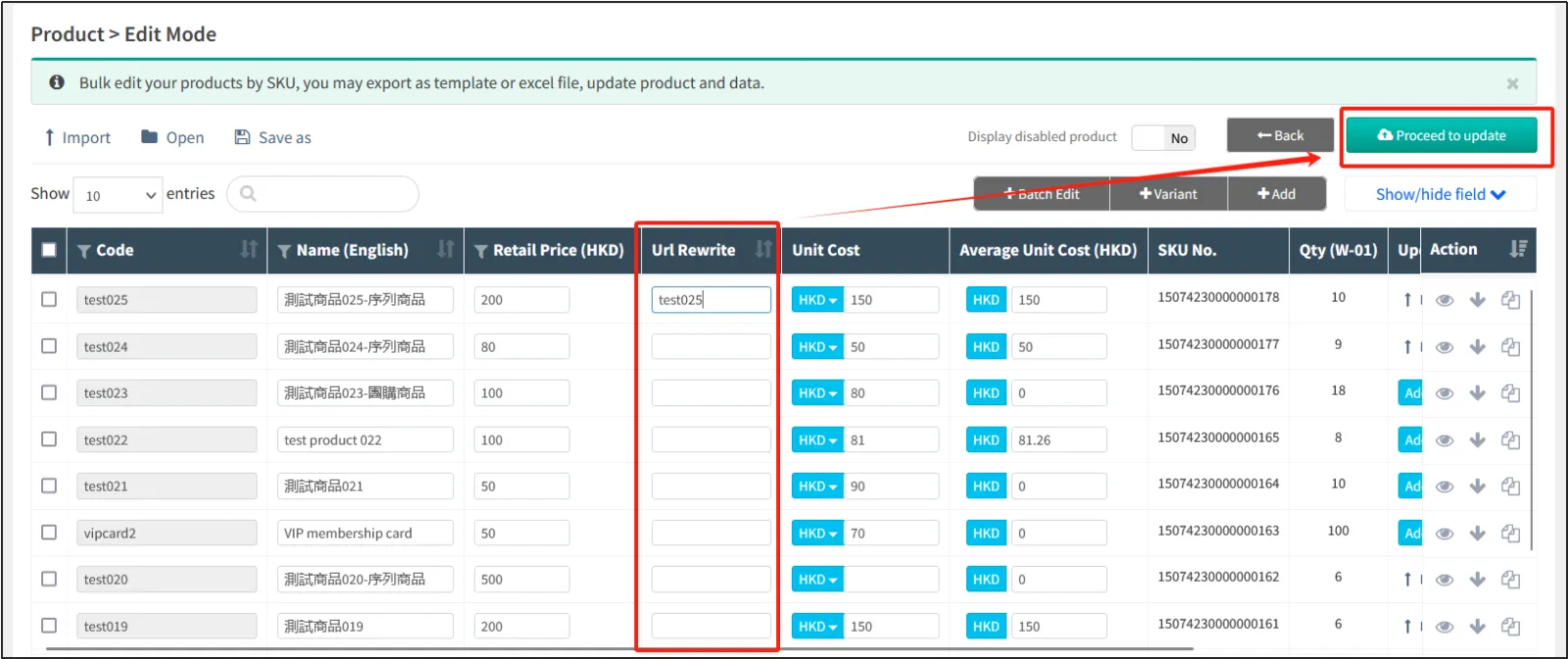
Find the product you want to rewrite the URL for in the product listenter the custom link in the URL rewrite columnclick "Update Now".
Set up custom product links in bulk
Open the CMS click on the productclick on the retail productclick on [Edit mode].
Click [Show/Hide Column]light up the URL rewrite under [SEO Options].
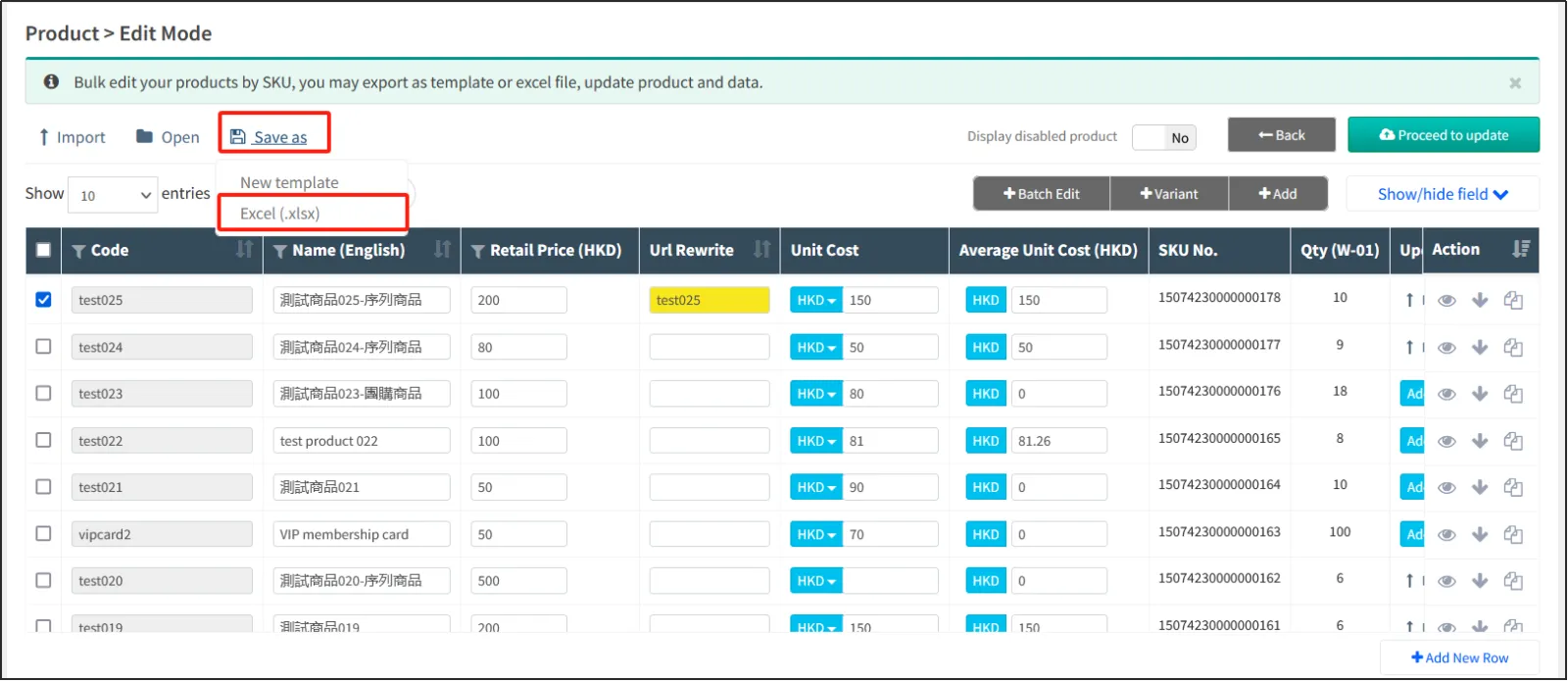
Click [Save]select [Exel].
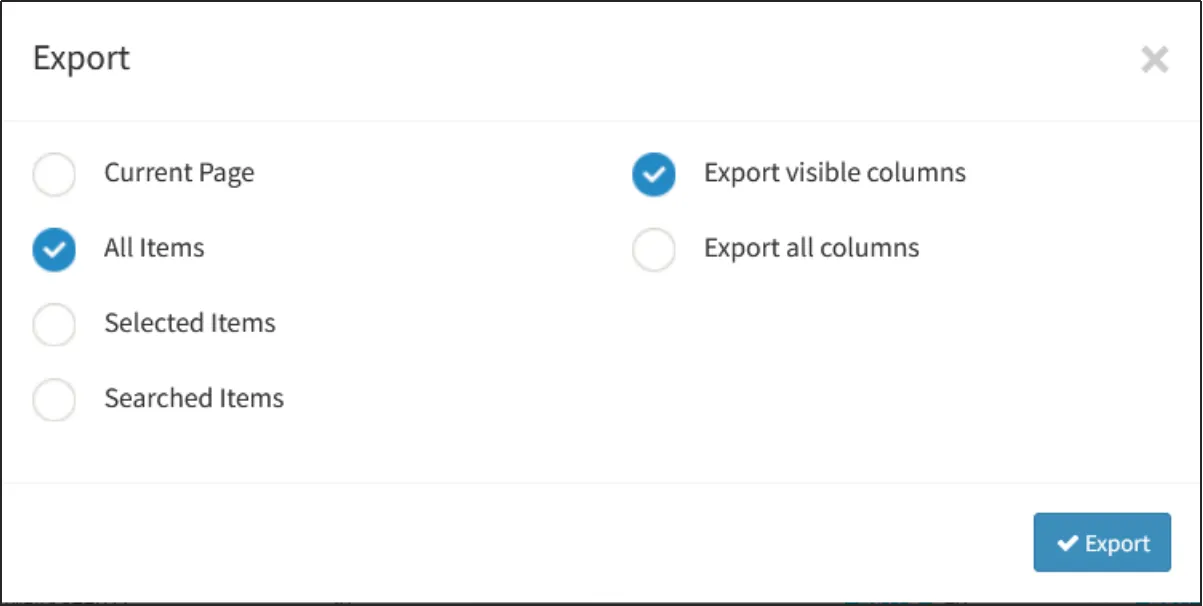
Select All Records and Export Display Columns Only.
Open the exported Excel documententer custom links for each product in the [URL Rewrite] field.

Go back to CMS - Products - Retail Productsclick "Import"select "Import Products".
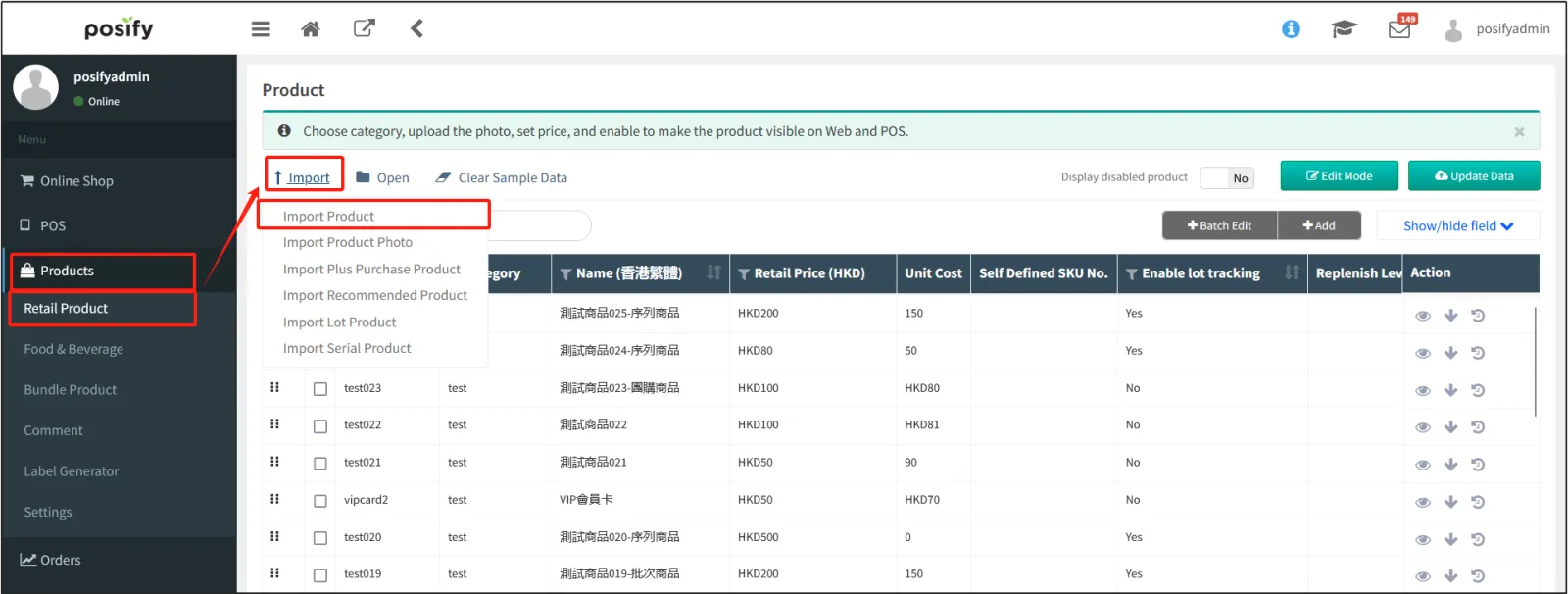
Click [Select File...]select the Excel document you just modified. The modified part is highlighted in yellow, and after checking that it is correct, click [Update Now] to complete the batch setting of custom product links.
Custom taxonomy/branding links
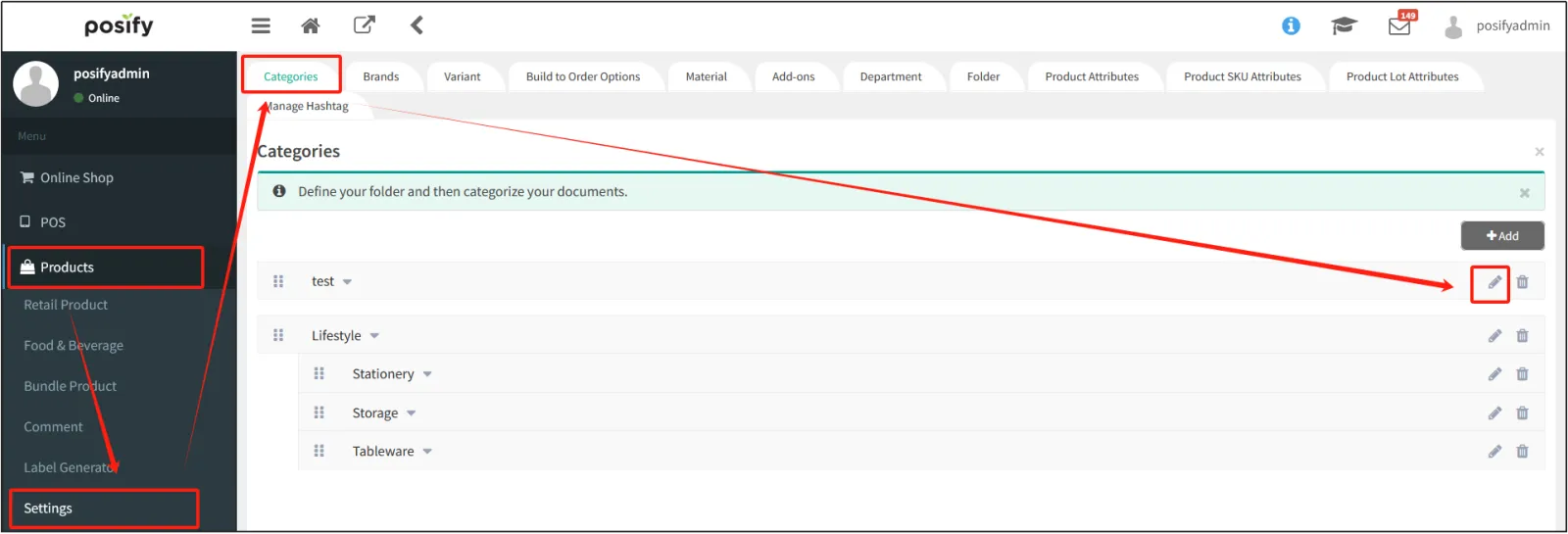
Open the CMSclick on the productclick on the product-related settingsclick on the tab Category Settings/Manage Brandsfind the category/brand you want to set a custom linkclick the small pen icon on the right.
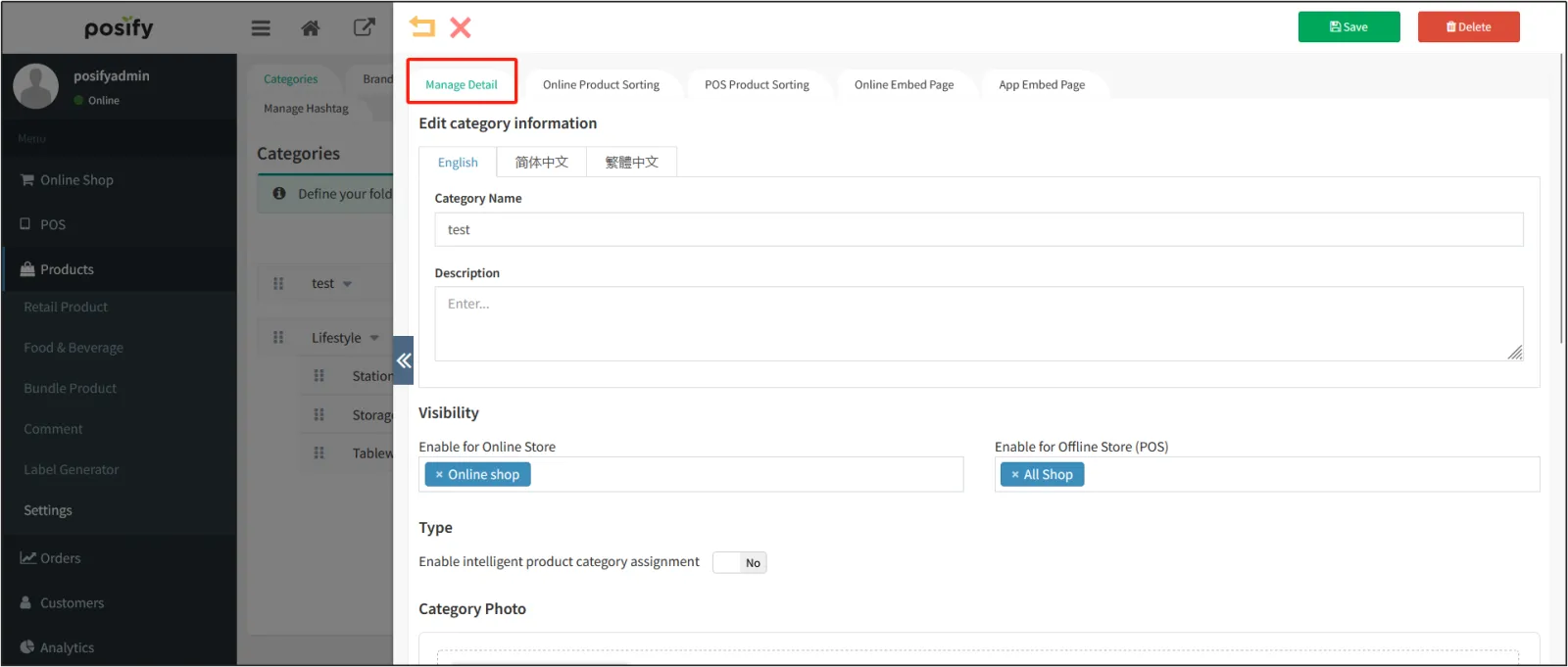
Open the edit page click the tab to edit the content.
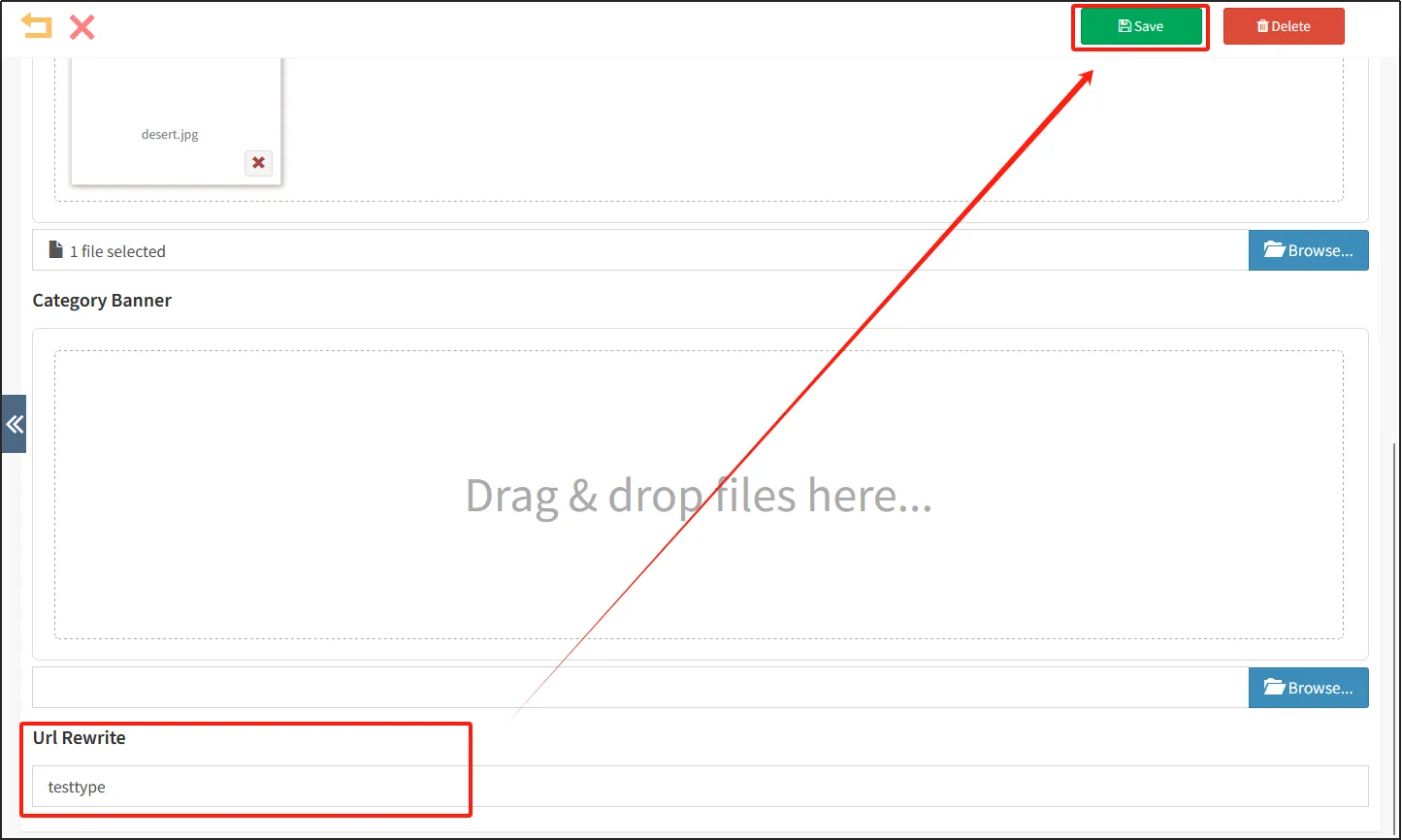
Scroll down, enter a custom category link in URL Rewrite click Save.
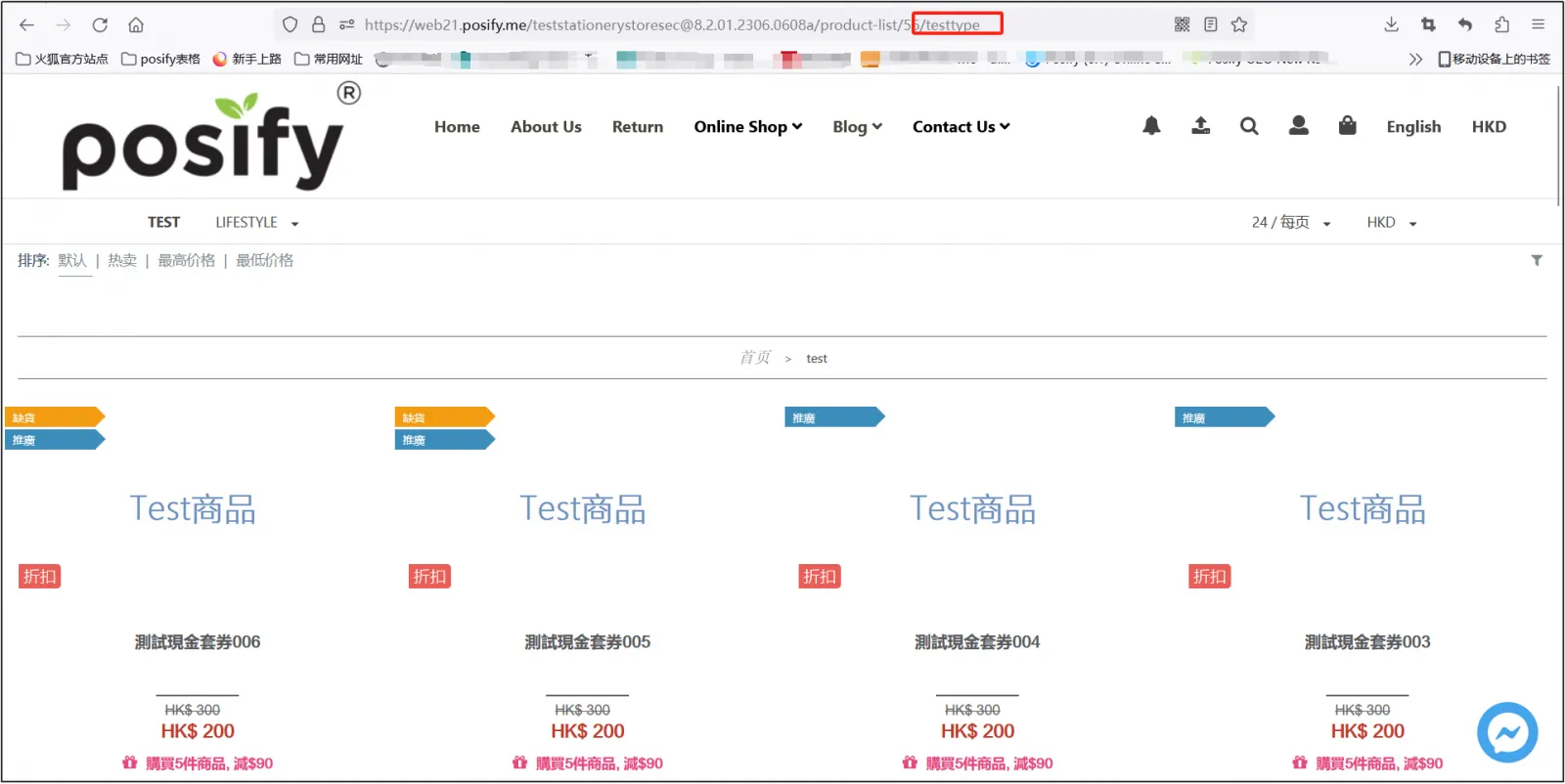
The image below shows how it will be displayed on the online store after setting it, and the URL displayed after entering the category/brand ends with the URL that has been rewritten.
Custom label link
Open the CMSclick on Online Storeclick on All Tabsfind the tab you want to set a custom link onclick on on the right.
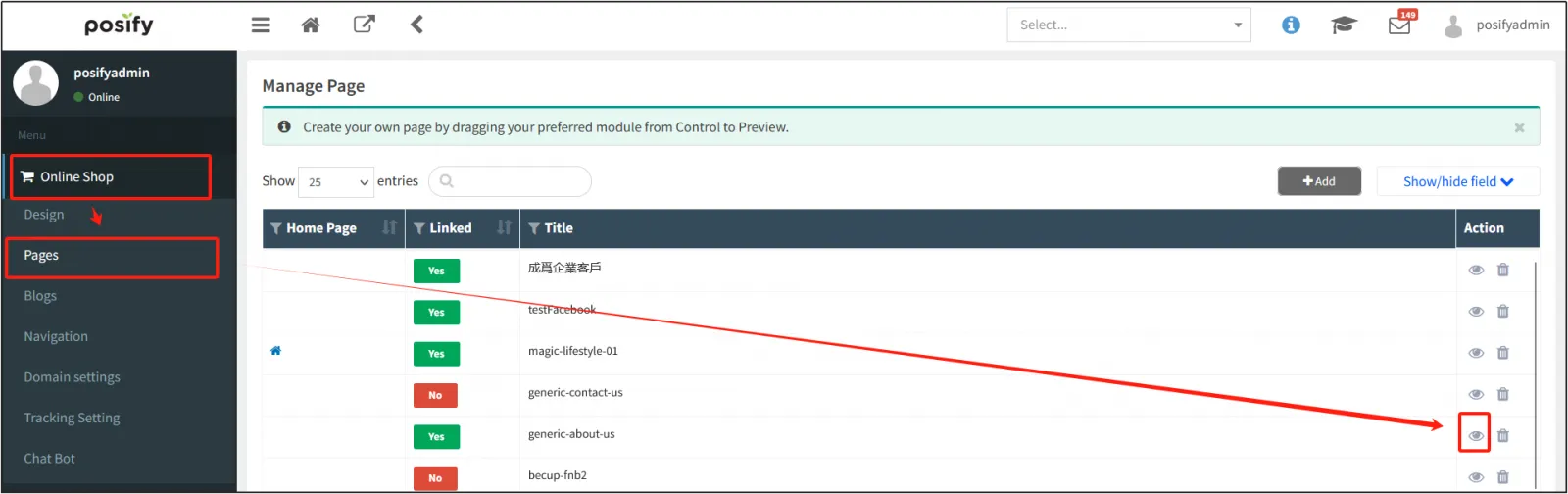
For example, click on the right side of generic-about-us to open the edit pageclick the tab settings on the left toolbarenter the custom pagination link in [Custom URL]click [Save].
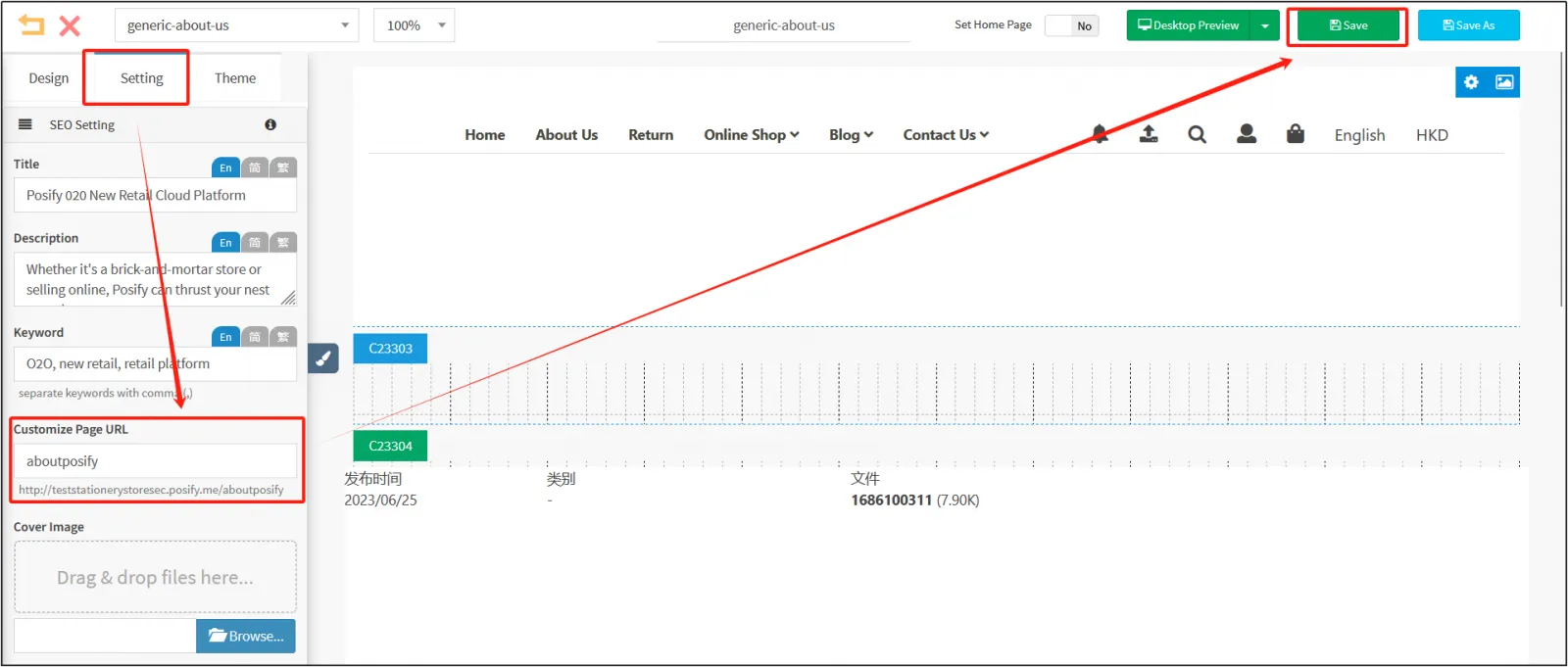
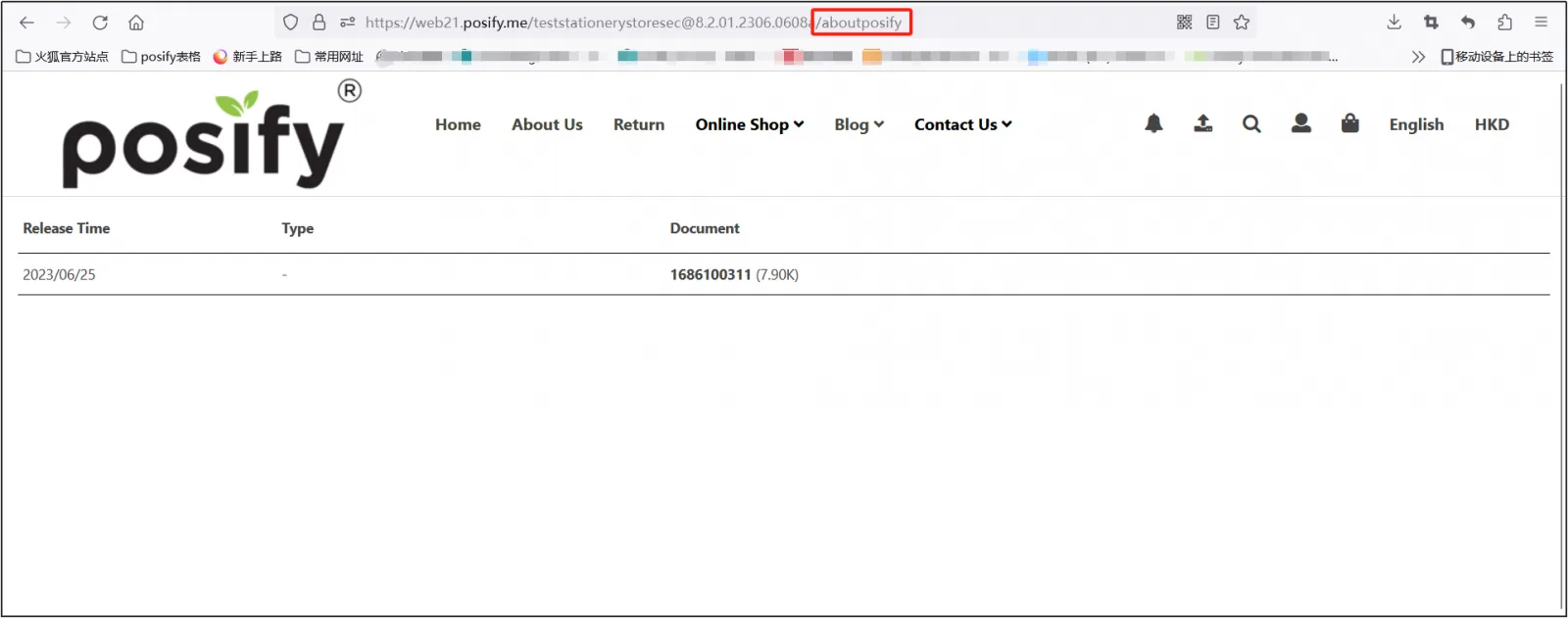
The online store re-enters the page and can see that the URL ends with the custom URL aboutposify for that page.