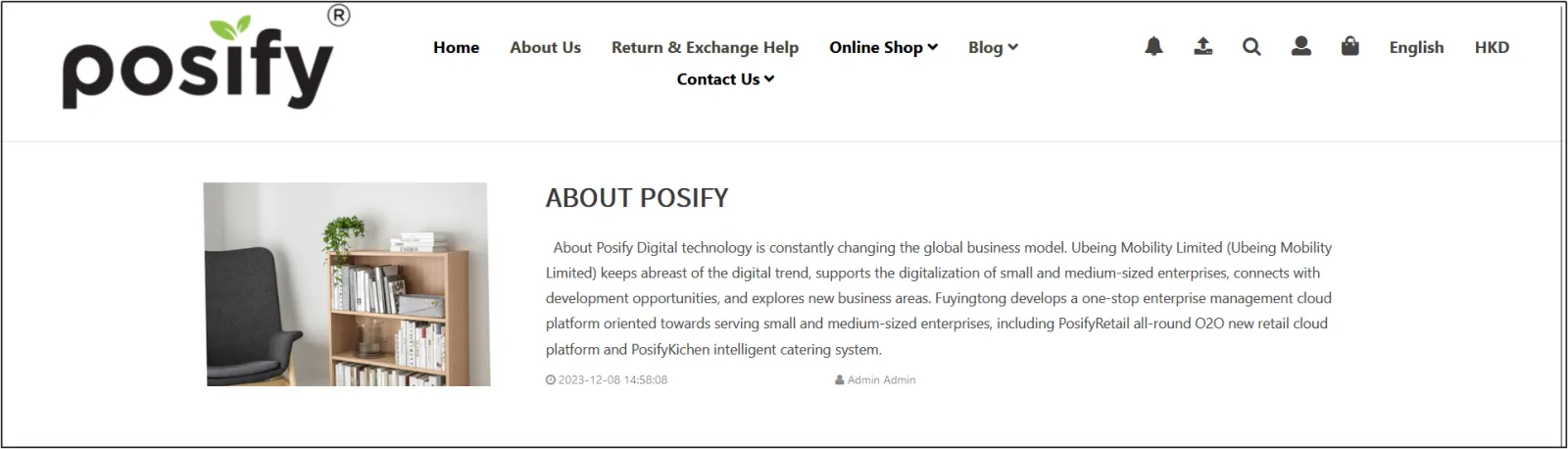
Blog groups
A blog group, which is a grouping of blogs that publish an online store.
Open the CMS click on the online store click on blog posts click on the tab blog category.
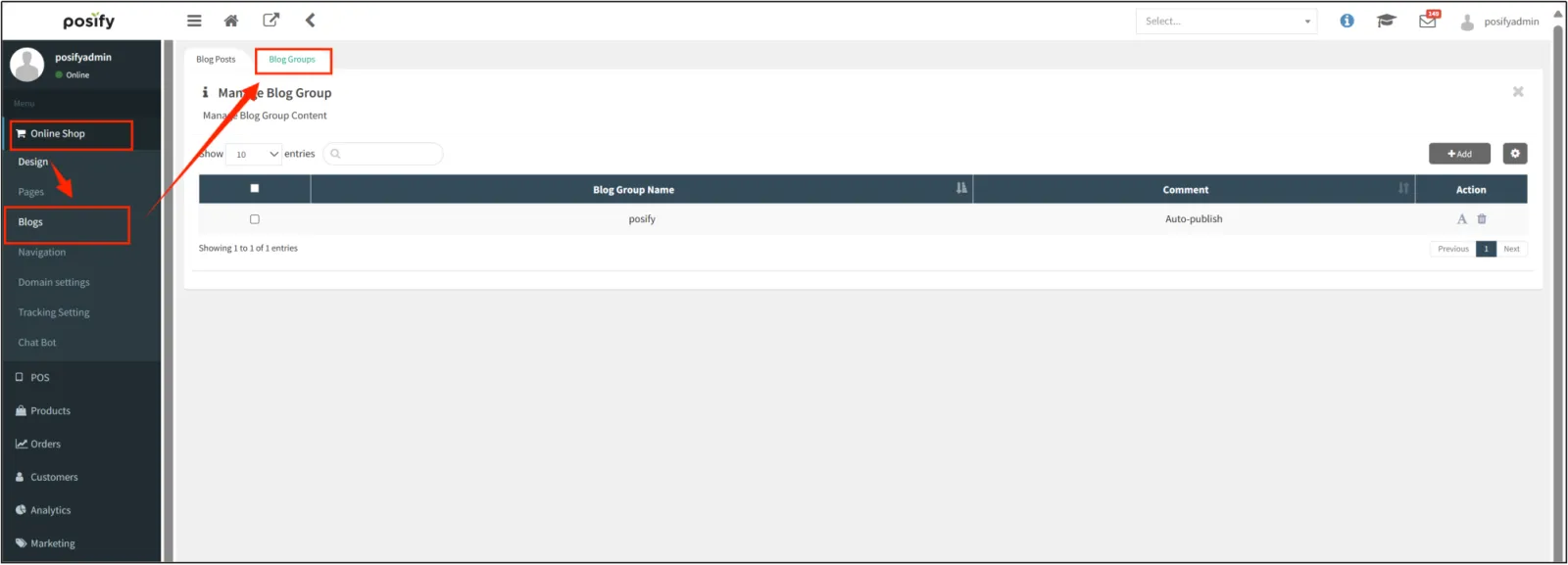
A new blog group has been added
Click "Add" to add a blog group.

Enter the name of the new blog group, select "Enable Membership Tier", "Enable Corporate Customer Tier" click "Save".
Note: Only members who belong to the tiers under [Enable Membership Tier] and [Enable Enterprise Customer Tier] will be able to see the blog group.
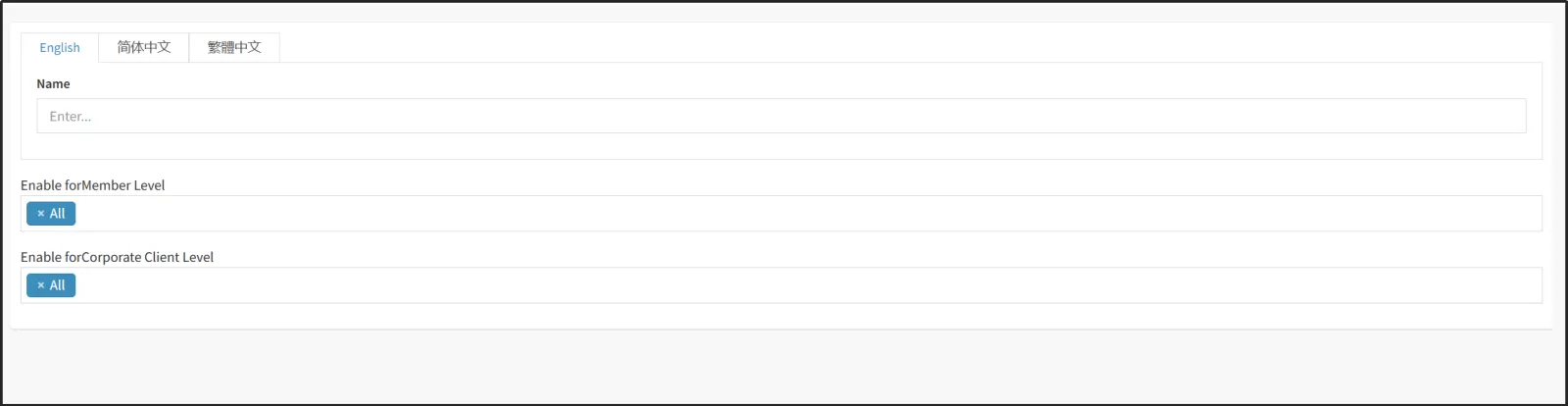
Click [A] on the right to re-edit the blog group.

Manage your blog
Blogs, that is, businesses publish pictures and texts on their online store.
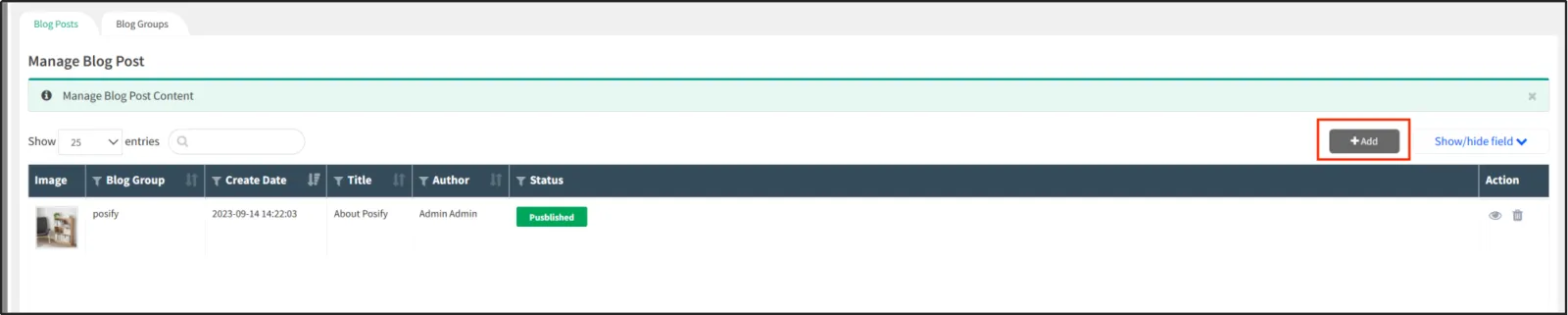
Open the CMS click on the online store click on the blog post click on the tab blog, publish.
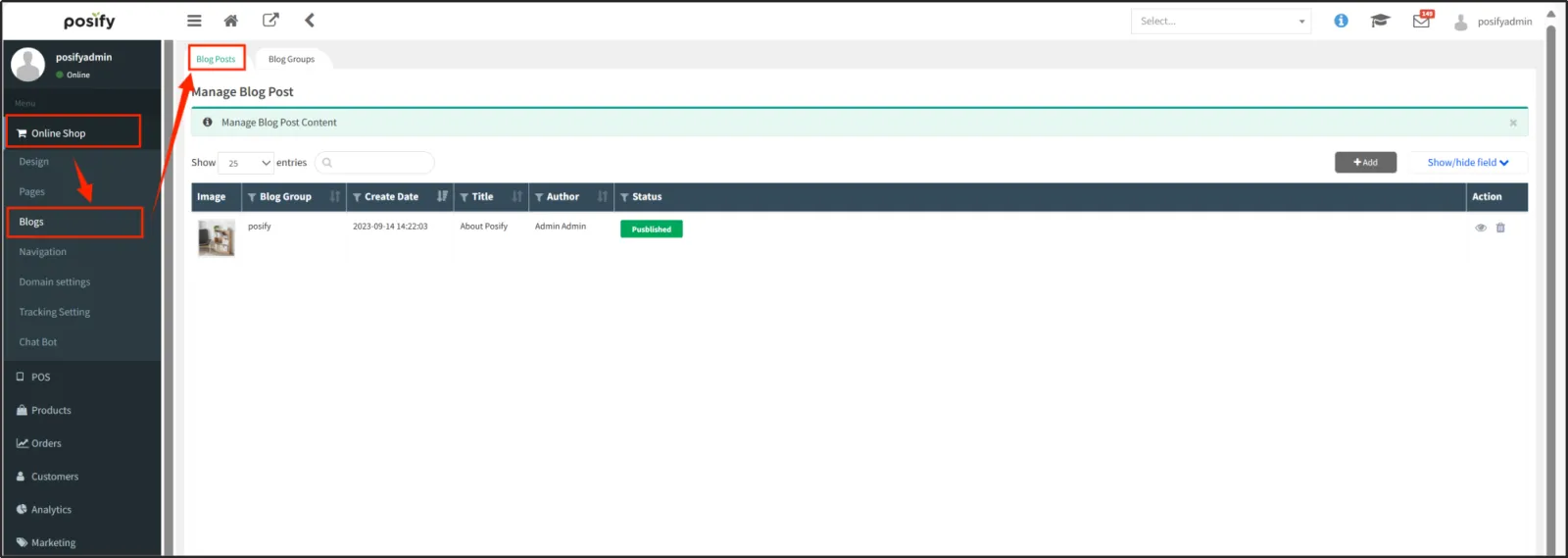
Click "Add" to add a new blog.
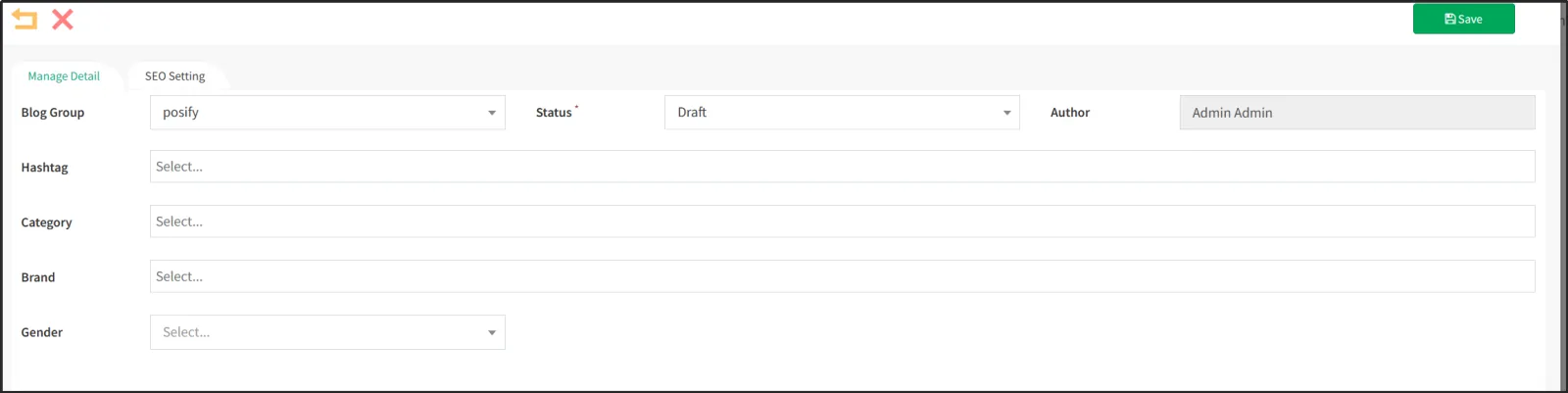
Select the blog group to which the blog belongs with a status of Draft or Pending Approval.
Select the relevant [hashtag], [category], and [brand] of the blog.
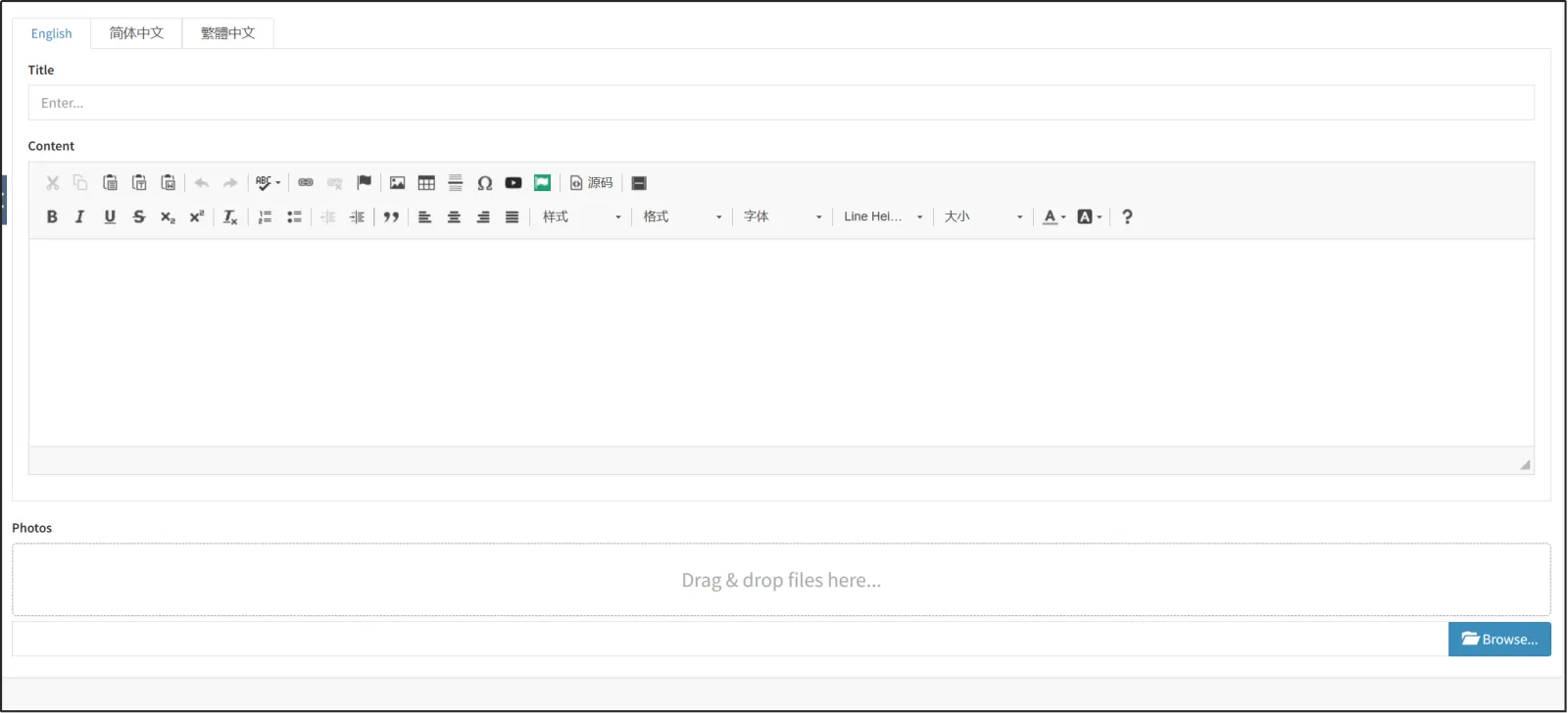
To write the title and content of your blog click on the [Choose File...] photo below. Upload photos related to your blog.
When you are done editing, click "Save".
You can see that the status of the blog is Draft/Pending Approval at this time, and the blog is not yet visible to the online store. You need to click on the  on the right side of the blog to reopen the blog's edit page.

Click "Save".
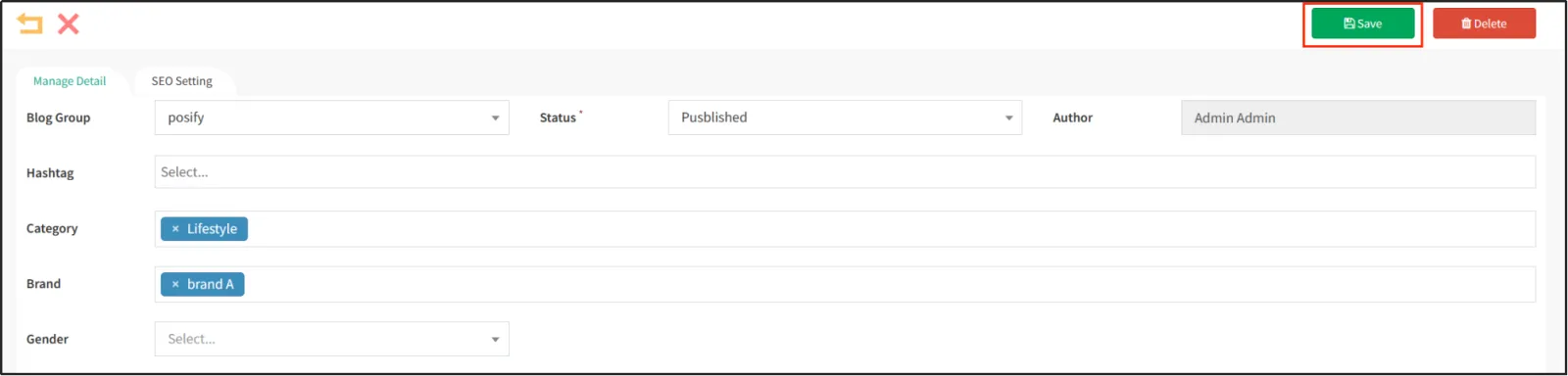
The status of the blog changes to Published, and the blog is visible in the online store.

If you find something that needs to be modified after the blog is published, you can click on the to reopen the blog editing page.

Change the status from Published to Pending Approval, and then click Save.
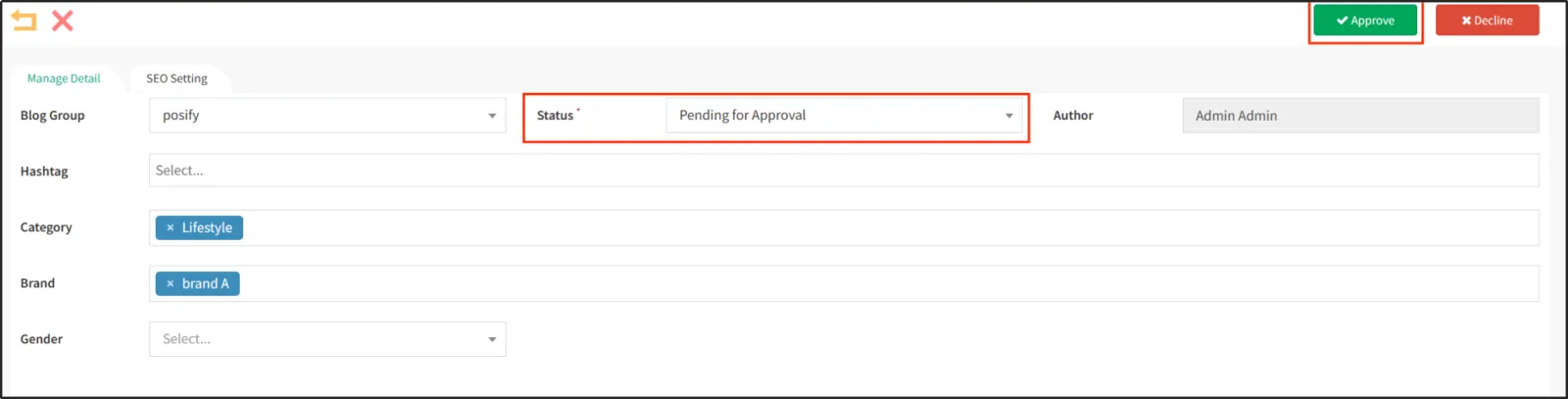
The status of the blog will be changed to Pending Approval, and the online store will not be visible until the blog is re-approved and the status is published.
Showcase your blog to your online store
Once you've set up your blog group and published your blog content, it's time to showcase your blog to your online store.
If you want to view your published blog on your online store, you need to navigate to a blog.
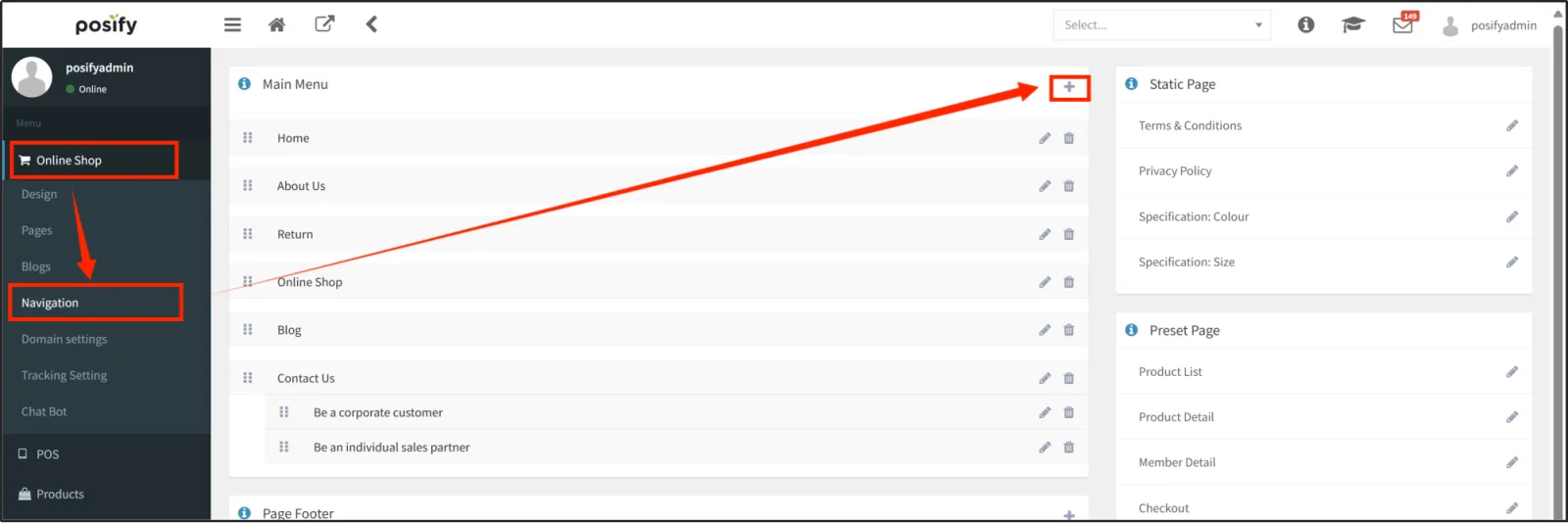
Open the CMS click on the online store click on the website navigation and click on the [+] next to the main directory to add a new navigation option.
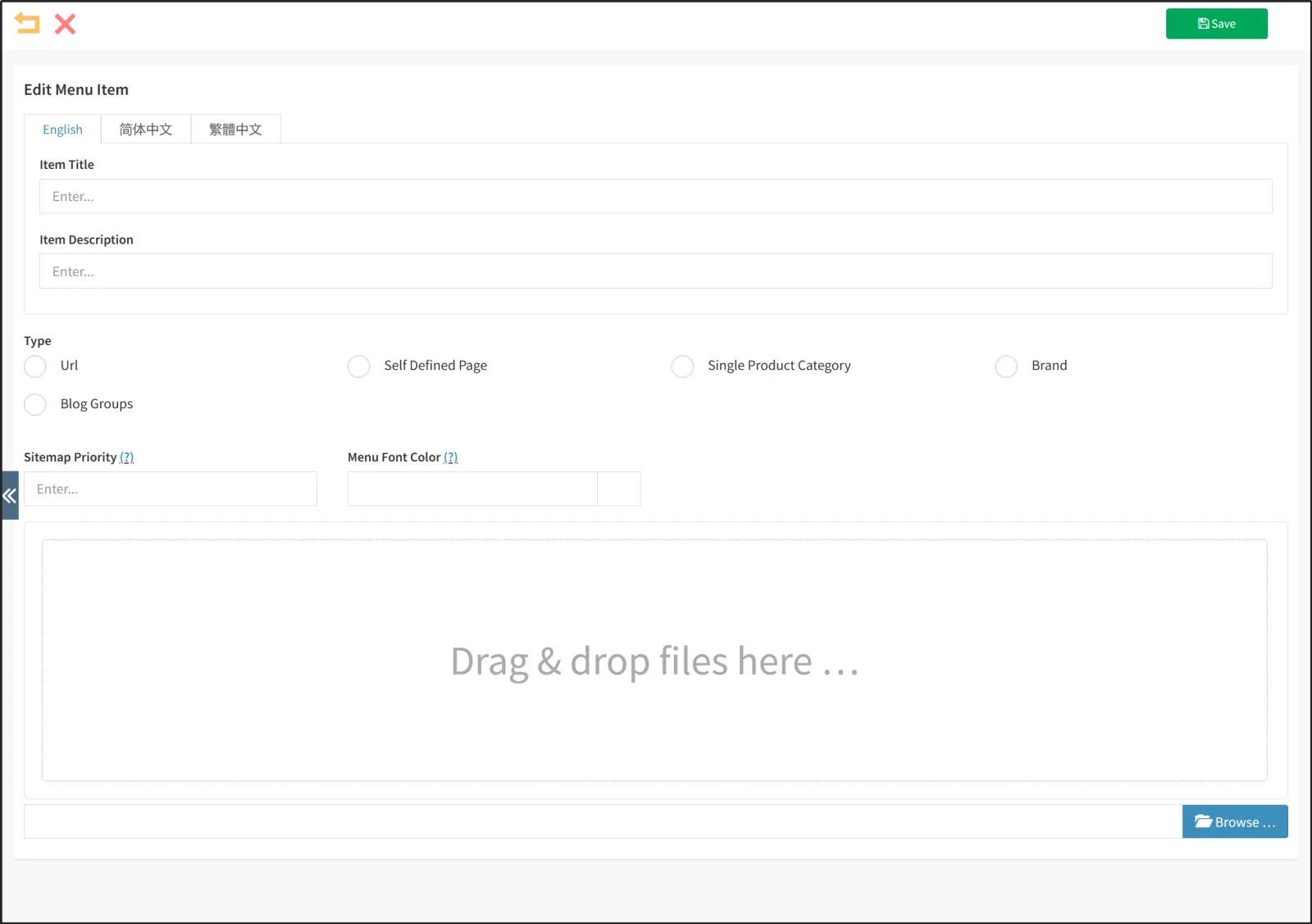
Enter the navigation options with the title "Blog" select the category as a blog category and select the blog group you want to present under the blog category.
In the online store, you can view published blogs by clicking [Blog] on the navigation.