Online customer service
You can use third-party online customer service tools such as Facebook Messager, Tawk.to, etc., which can help you contact customers online:
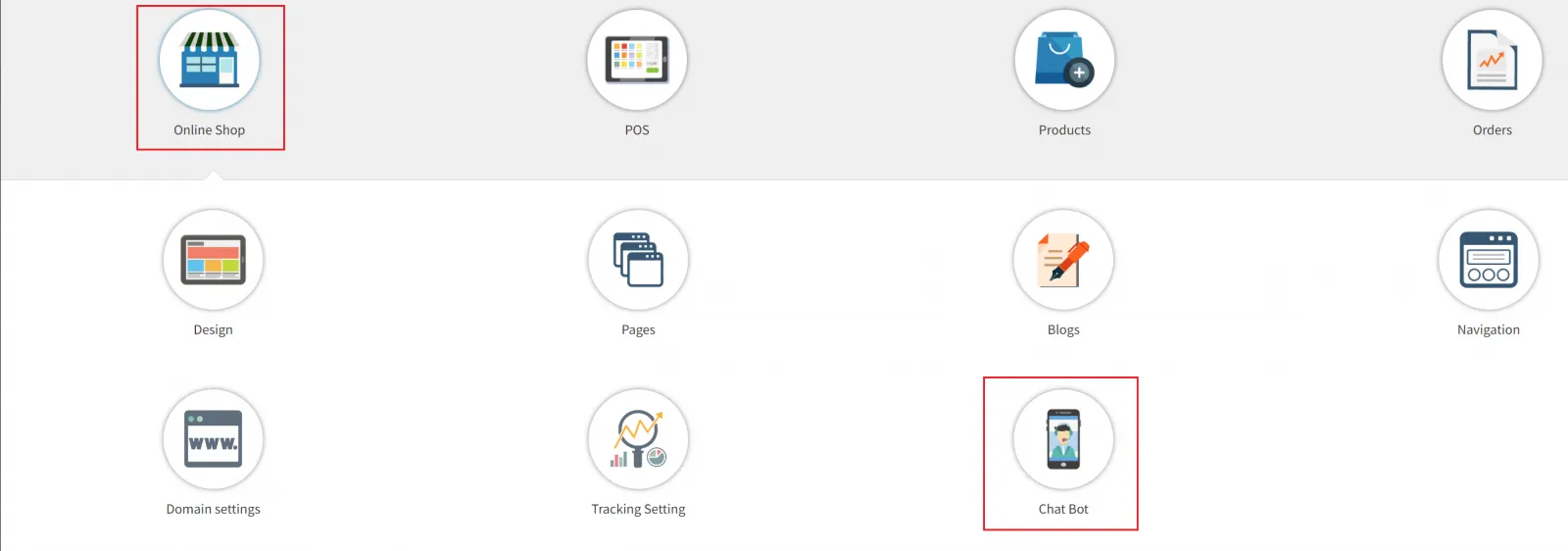
Go to Online Store > Online Customer Service, how to configure Facebook Messenger please click here
Third-party online customer service tools:
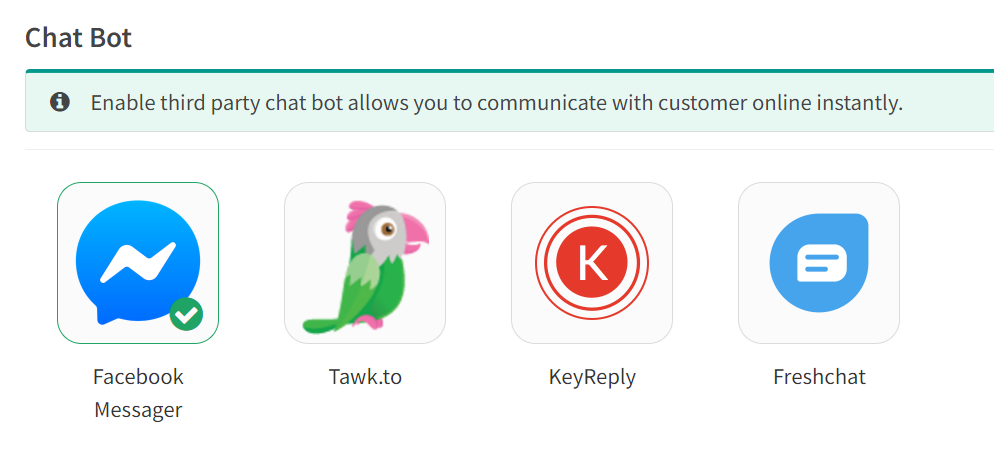
1.Facebook Messenger
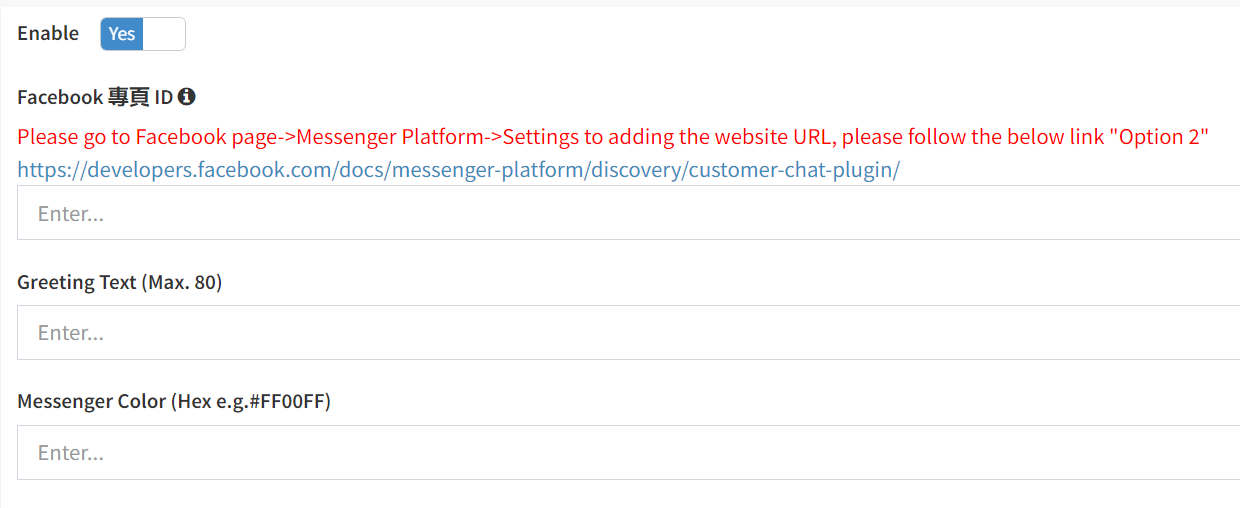
Turn  next to Enable to
 to enable
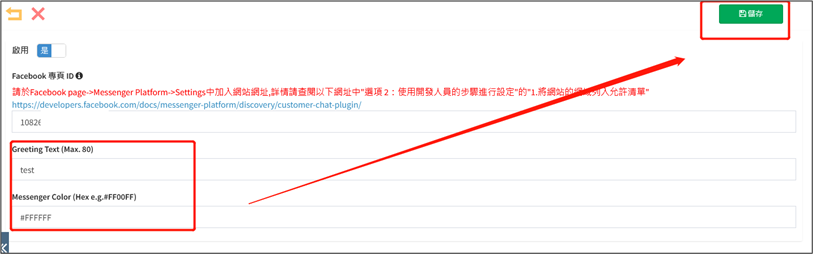
Enter the Facebook page ID (please add the website URL in Facebook page->Messenger Platform->Settings, for details, please refer to "Option 2: Use the developer's steps to set up" in "1. List the domain name of the website" in the following URL allowed list")
Enter Greeting Text (Max. 80)
Enter Messenger Color (Hex e.g.#FF00FF)
2.Tawk.to

Turn next to Enable to to enable
enter App ID
3.KeyReply

Turn next to Enable to to enable
enter App ID
4.Freshchat

Turn next to Enable to to enable
enter Token
Facebook Messager
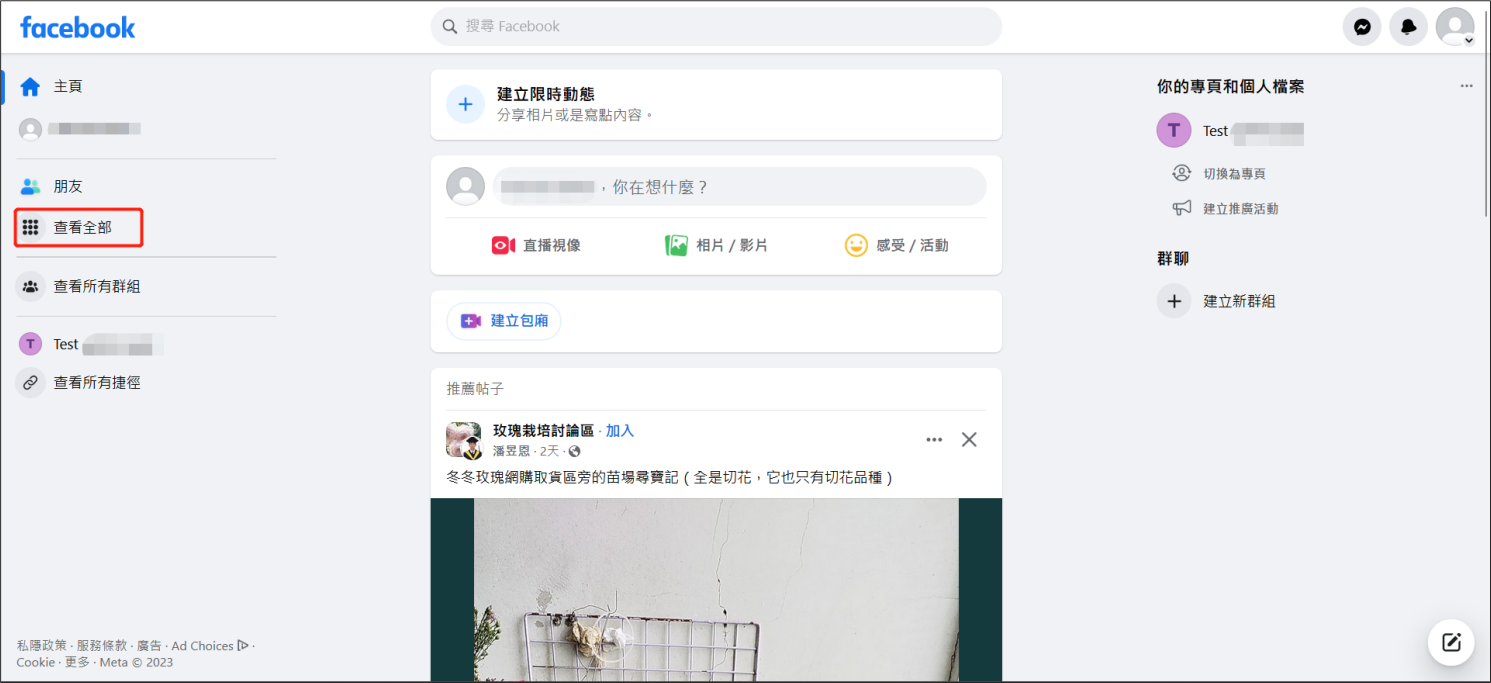
打開Facebook 登錄您的賬號點擊右邊的[查看全部],打開選單。
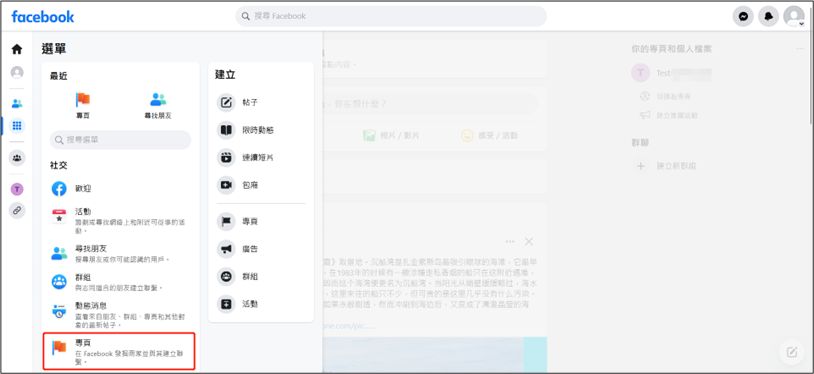
在選單的[社交]下,找到並點擊[專頁]。
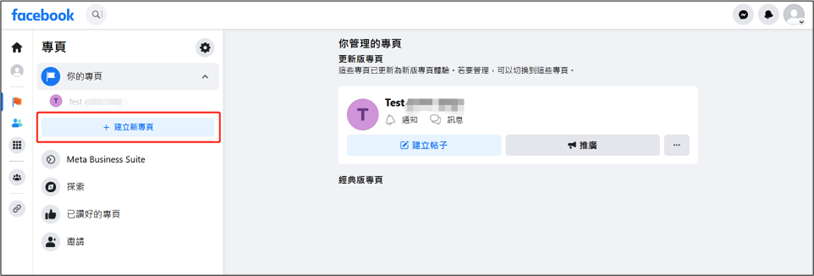
想要使用Facebook和您的顧客進行在綫聯係,需要您有一個專頁。如果您還沒有專業,請點擊[建立新專頁]新建一個專頁。
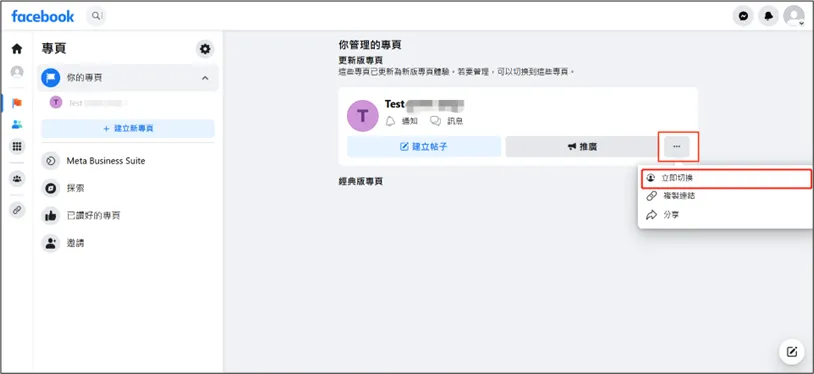
選擇您想要和綫上商店進行連接的專頁點擊圖上所示的[...]點擊[立即切換]。
切換到專頁以後,點擊[管理專頁]下的[設定]。
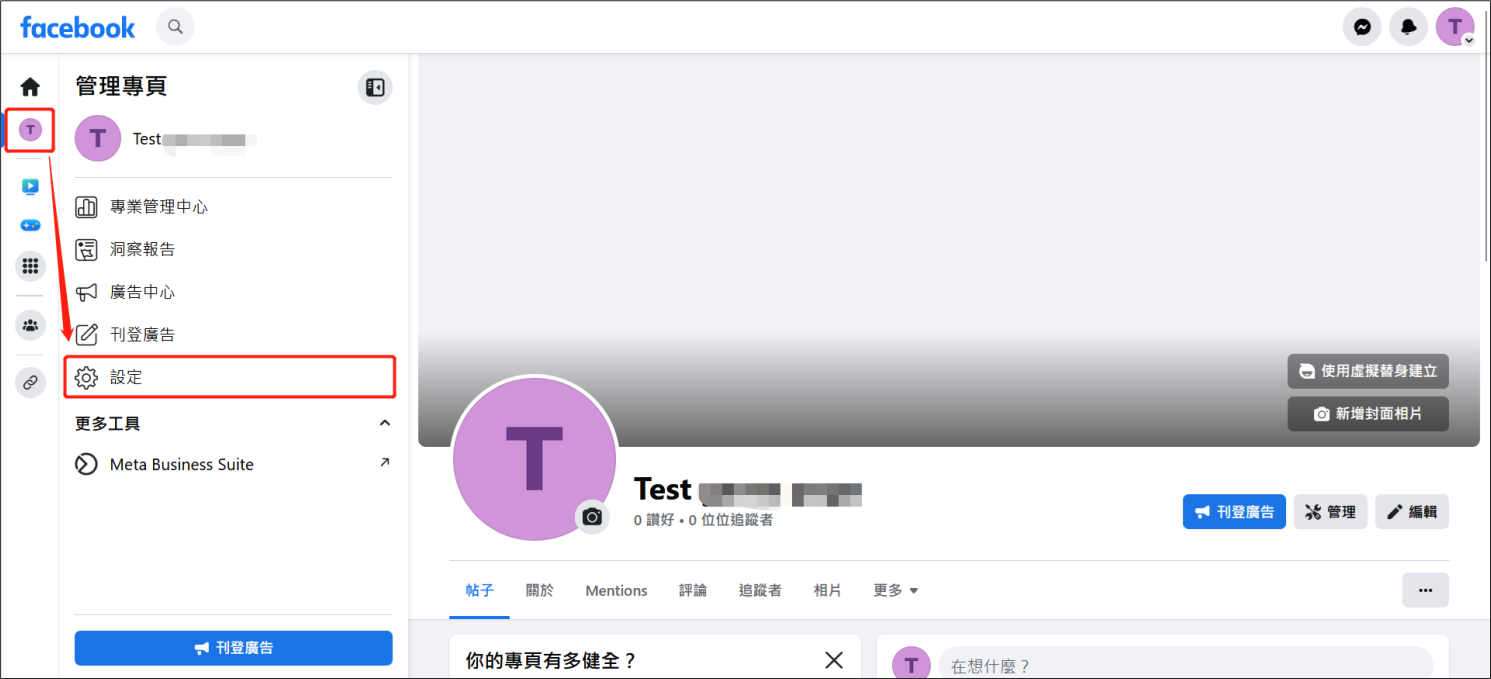
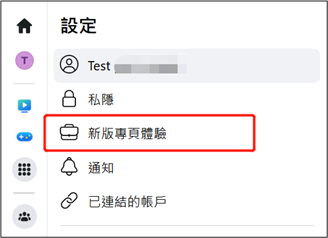
點擊[新版專頁體驗]。
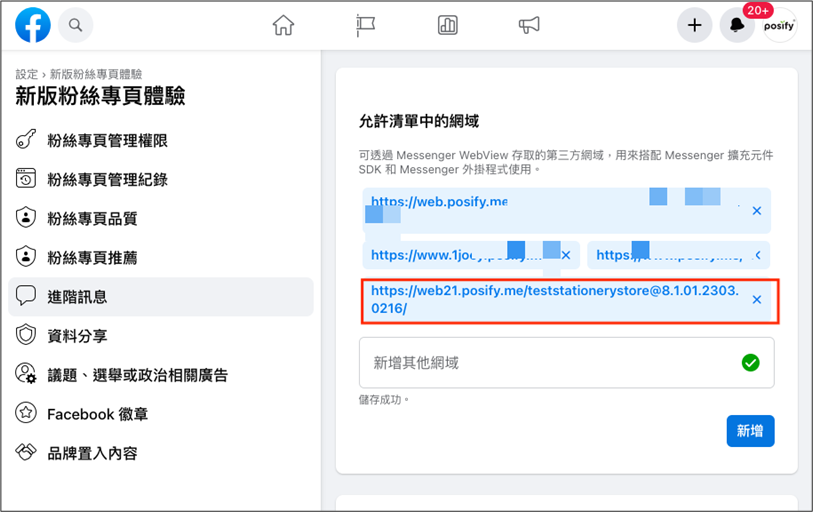
進入[新版粉絲專頁體驗]點擊 進階訊息 ,在[允許清單中的網域]下新增您的綫上商店的鏈接。
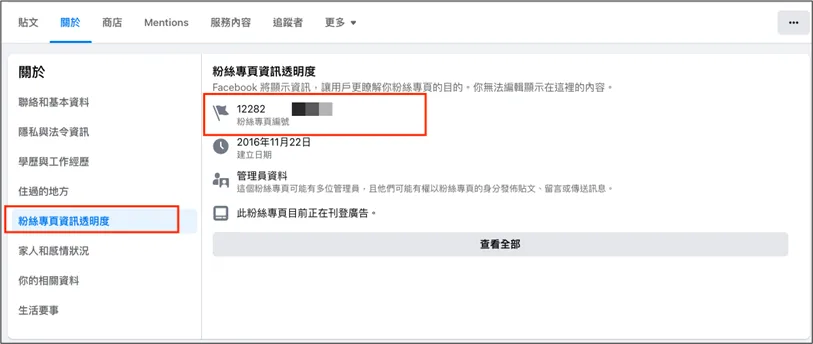
點擊粉絲專頁封面相片下方的關於頁簽,然後點擊粉絲專頁資訊透明度,獲得粉絲專頁編號。
回到Posify CMS點擊 綫上商店點擊 在綫客服點擊Facebook Messenger。
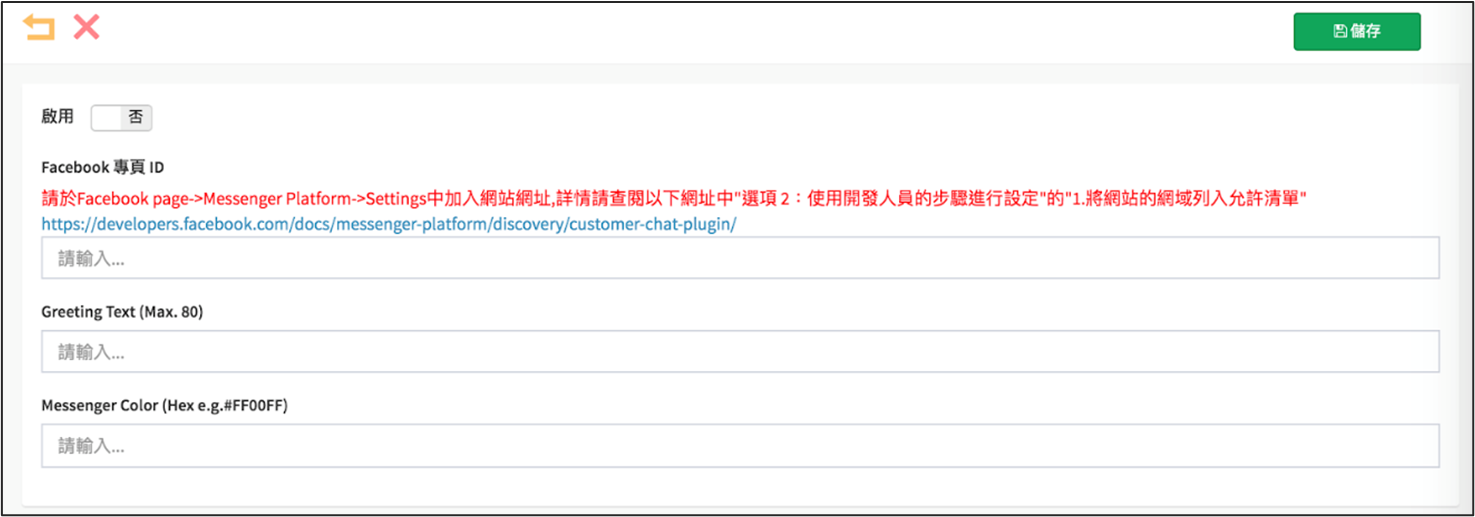
輸入 Greeting Text (Max. 80) 和Messenger Color (Hex e.g.#FF00FF)。