POS packaging mode
Log in to the app and switch the packaging mode
Turn on the mobile phone Apu Possi Firetel tap the three horizontal in the upper left cornerclick on the set.
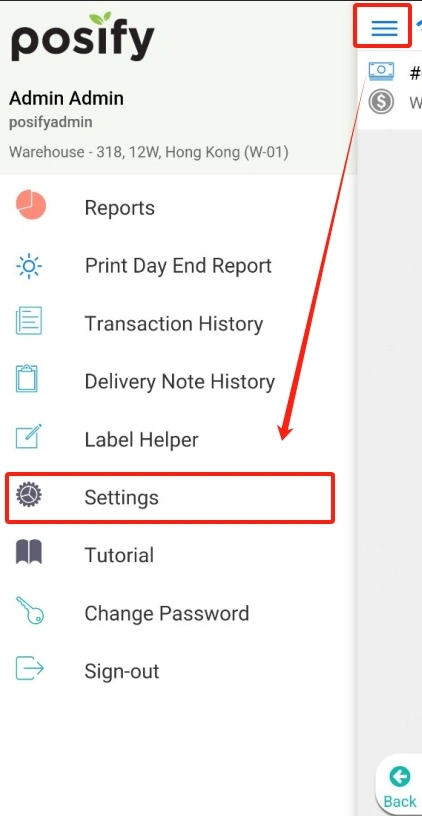
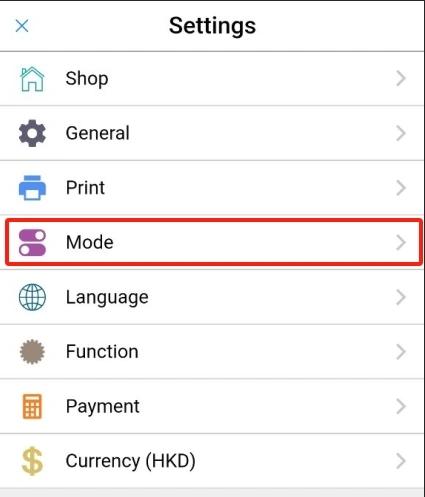
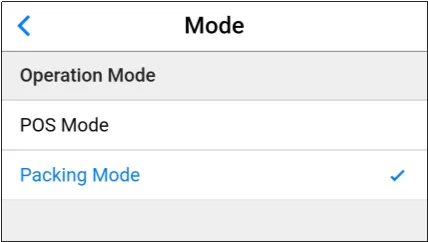
Click on the mode.
Select the packaging mode under [Operation Mode].
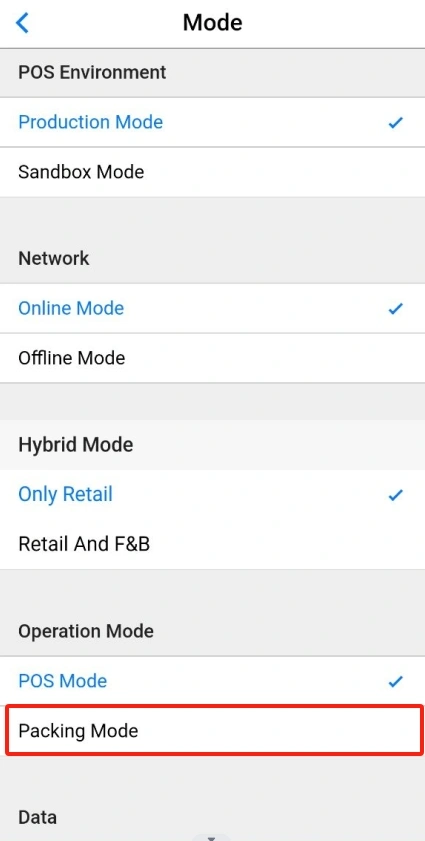
Enter packaging mode.
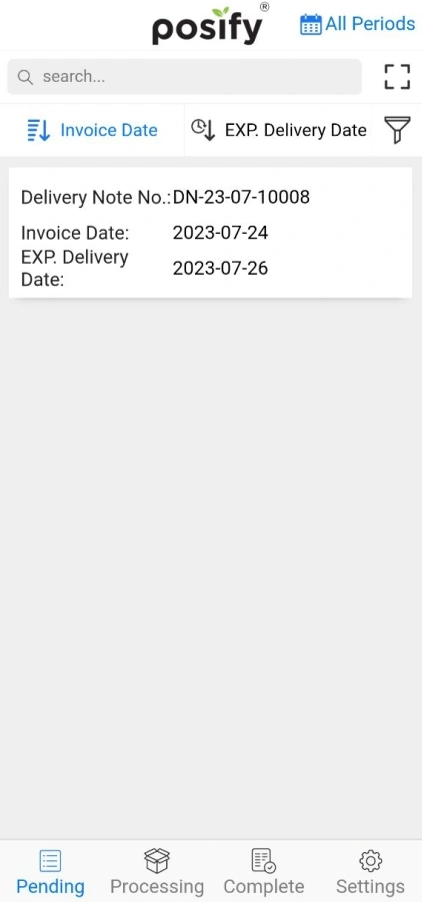
Enter the order date or delivery note number in the input box at the top to search for delivery notes to be packed.
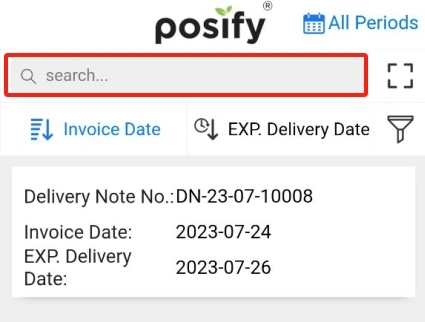
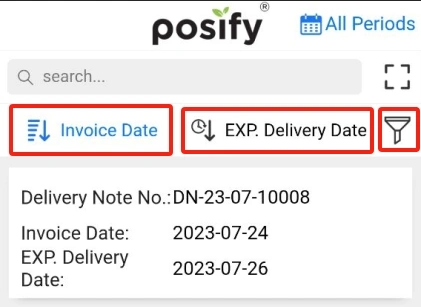
Click [Order Time] to sort the order list by order time from closest to farthest (the last order is placed first), and click [Expected Delivery Time] to sort the order list by the expected delivery time from closest to farthest (the first expected delivery time is first).
Click the filter icon to add a region filter.
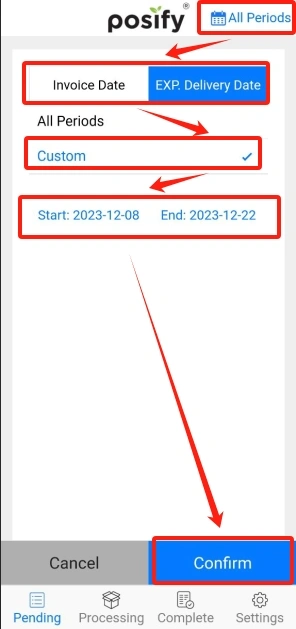
Click [All time periods]select the order time or expected delivery time, select Customenter the start date and end date to filter the delivery orders for a certain time period.
Packing
Click on the Pending Packing button at the bottom of the page to display a list of delivery notes waiting to be packed.
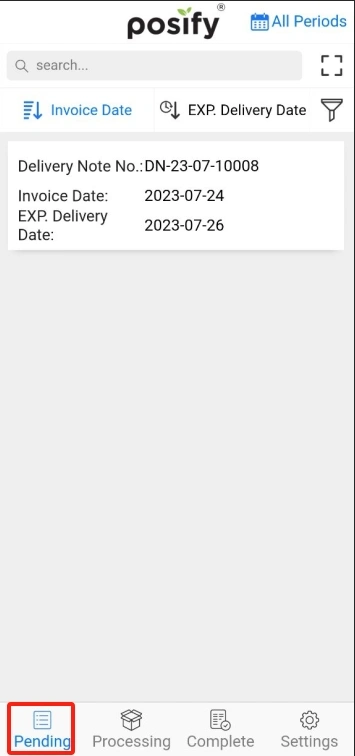
Click on the delivery note to be packed to enter the Processing interface.
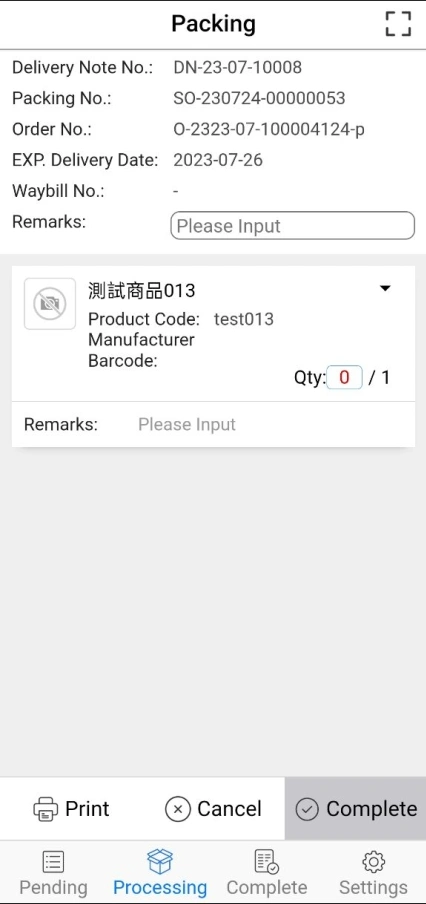
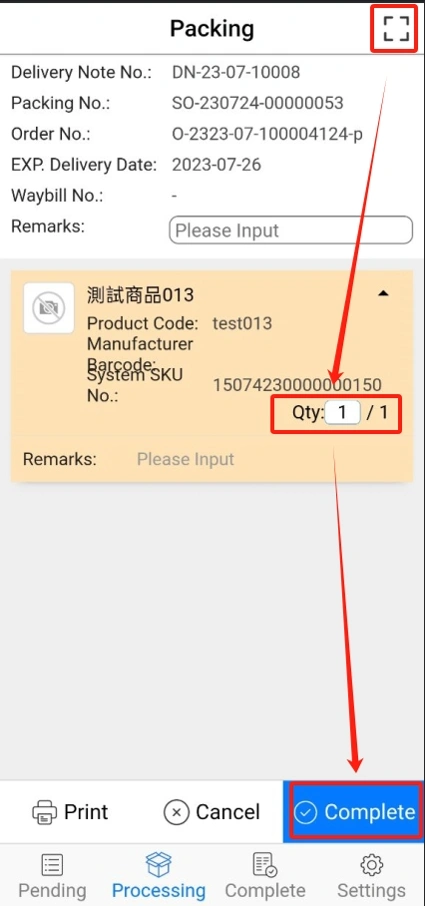
Click Scan icon in the upper right cornerscan the QR code/barcode of the packaged product.
After scanning, the packing quantity will be accumulated until the number of delivery notes is met, and the [Complete] button at the bottom will turn blue, and you can click [Finish] to complete the packing.
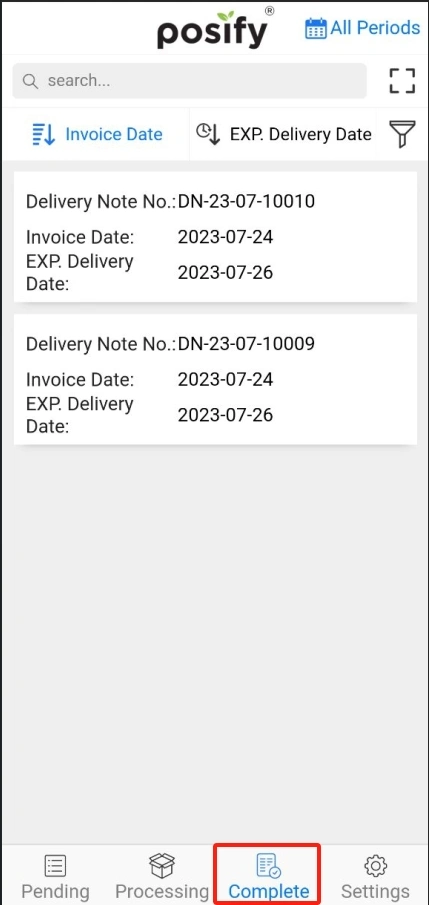
View the delivery note that has been packed
Click Completed at the bottom of the page to display a list of delivery notes that have been packed.
Setting
Click Settings at the bottom of the page.

Go to the settings page.
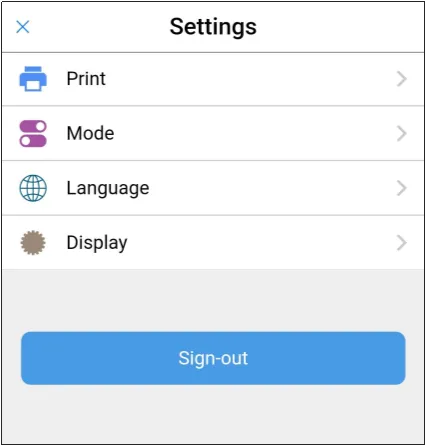
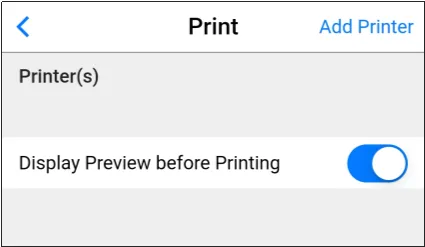
In printing, you can add or set printers.
In the mode, you can switch between POS mode or packaging mode.
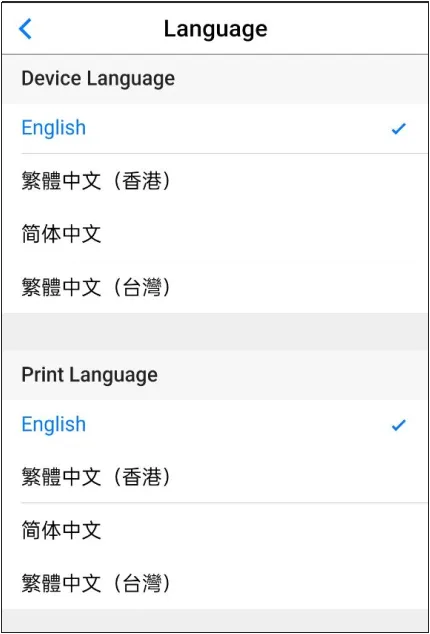
In Language, you can select the system language as well as the printing language.
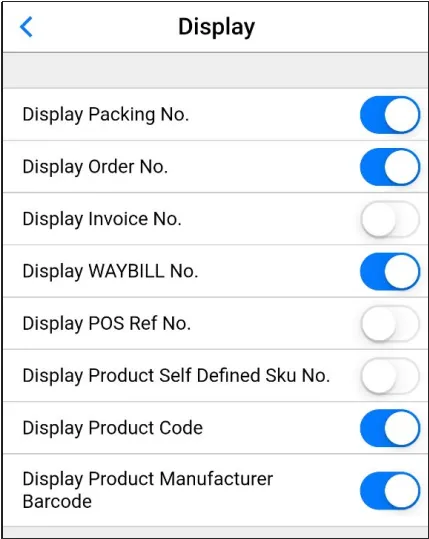
In the display, you can set the content to be displayed.