The merchant makes a refund or exchange on the POS
When transacting offline, there are times when you need to make a refund or exchange, and the merchant can make a refund or exchange on the POS.
Refund
First, the transaction is normal on the POS and the order is generated.
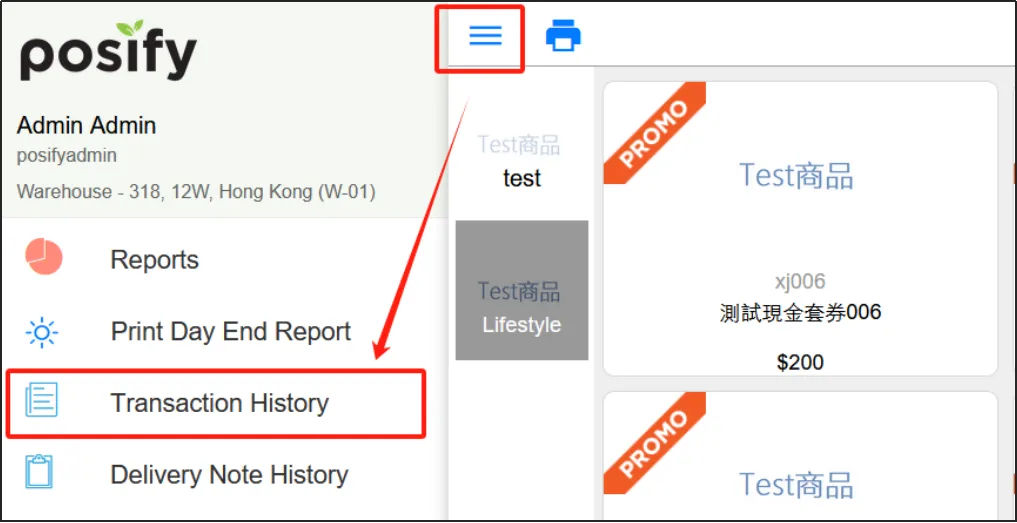
Tap the three horizontal lines in the upper left corner of the POS Click [Transaction History].
Find the order that needs to be refunded, hold down and drag to the leftClick [Refund].

Check the items that need to be refunded, you can modify the amount of refund, and choose the reason for the refund.

You can modify the refund method and amount, click after modification directly into storage .

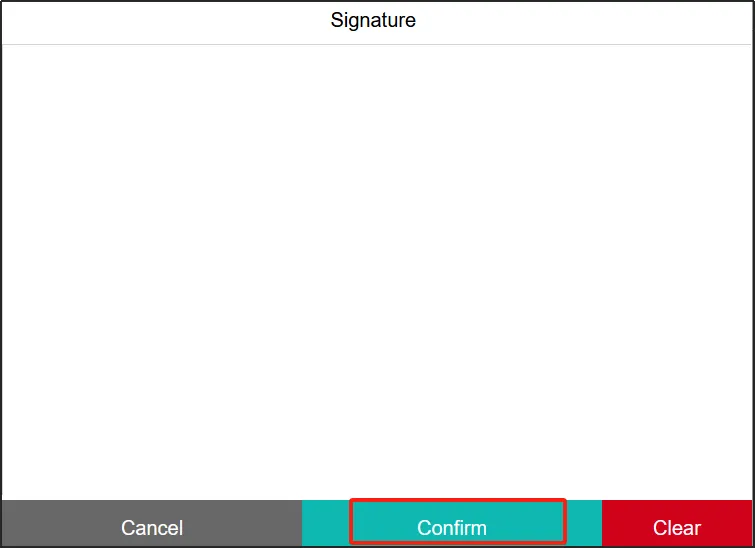
After the clerk who performed the operation signs, click [Confirm].
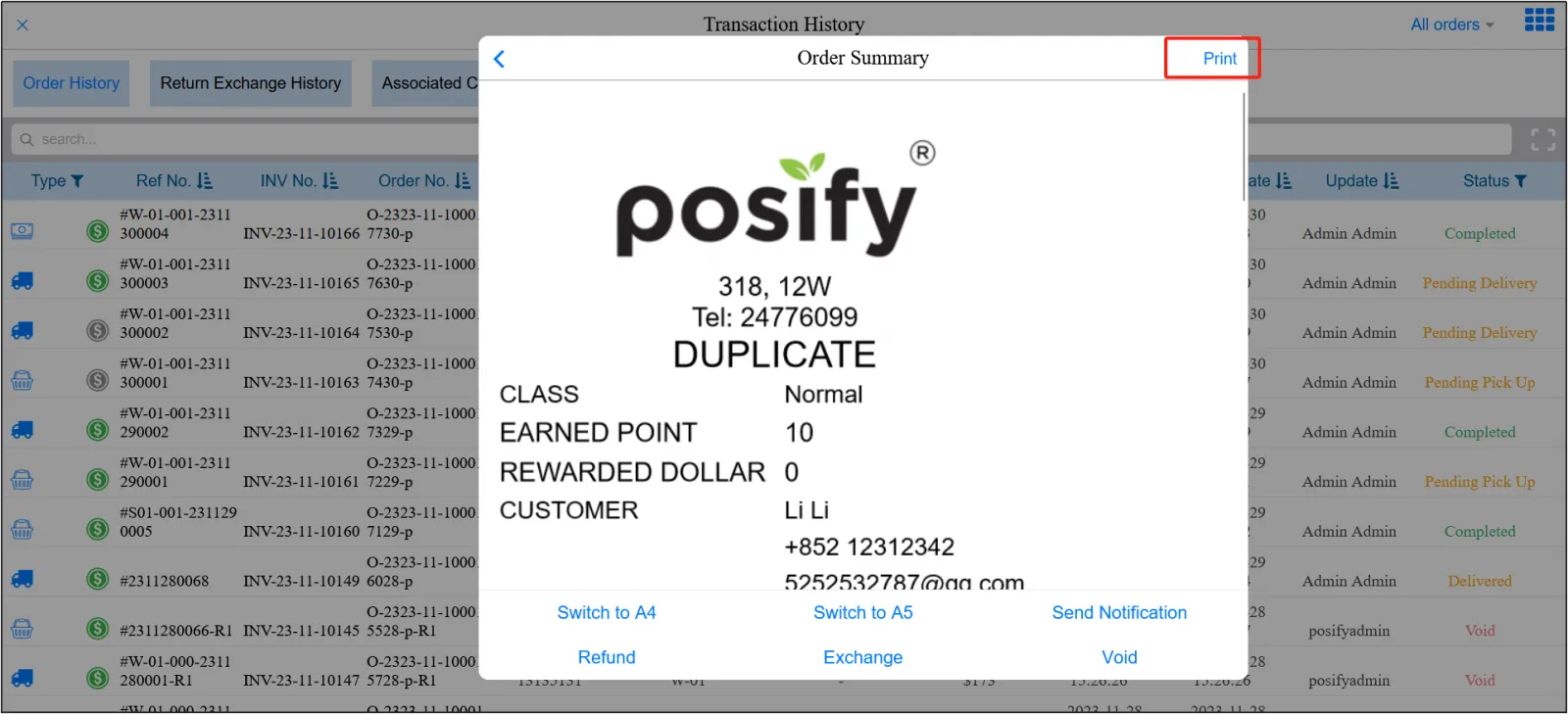
After the refund is confirmed, you can choose to print the bill.
Replacement
As with refunds, the transaction is first made normally on the POS and the order is generated. Find the order you want to exchange in your transaction history, press and hold it and drag it to the leftClick [Exchange].

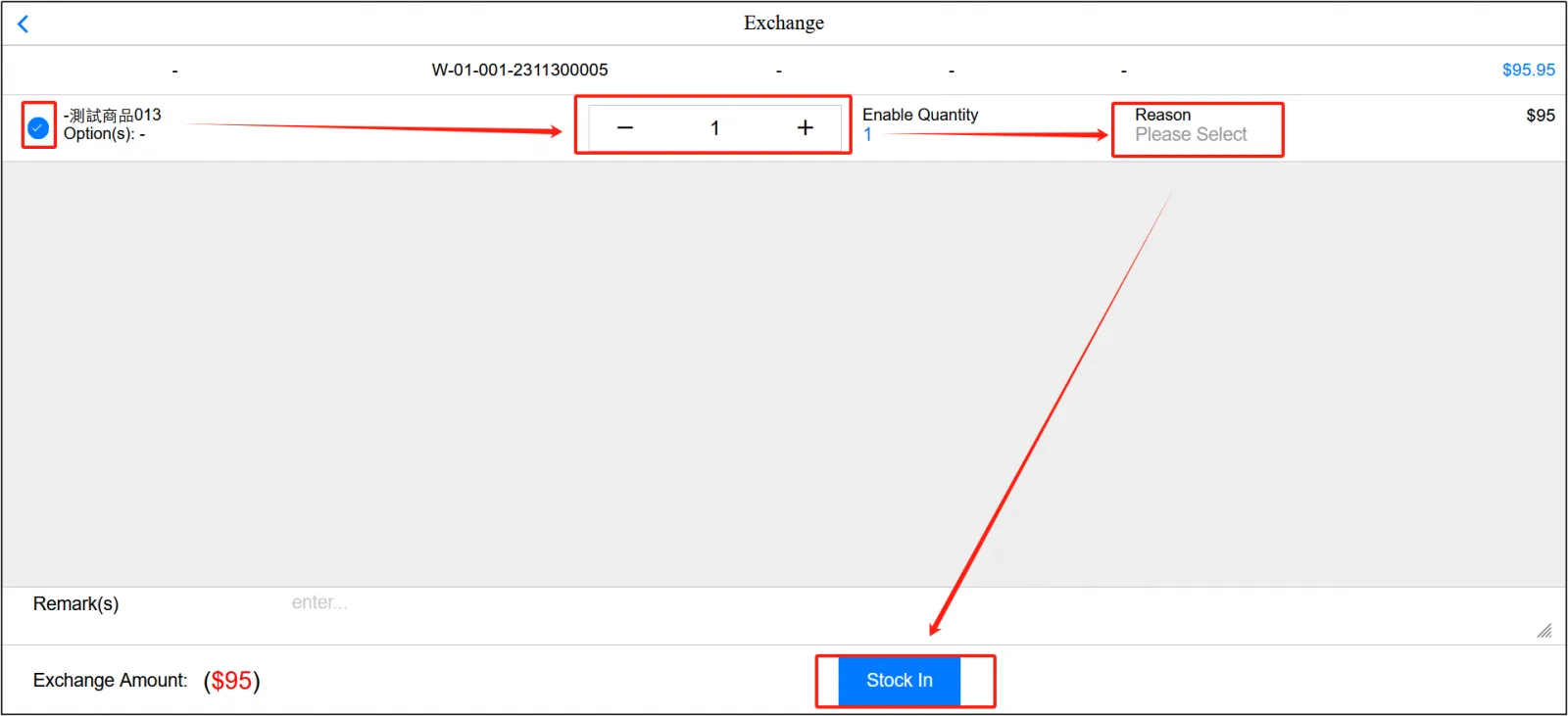
Select the products that need to be exchangedadjust the quantityselect the reason for the exchangeselect Direct Warehousing.
Unlike refunds, the amount cannot be modified for an exchange.
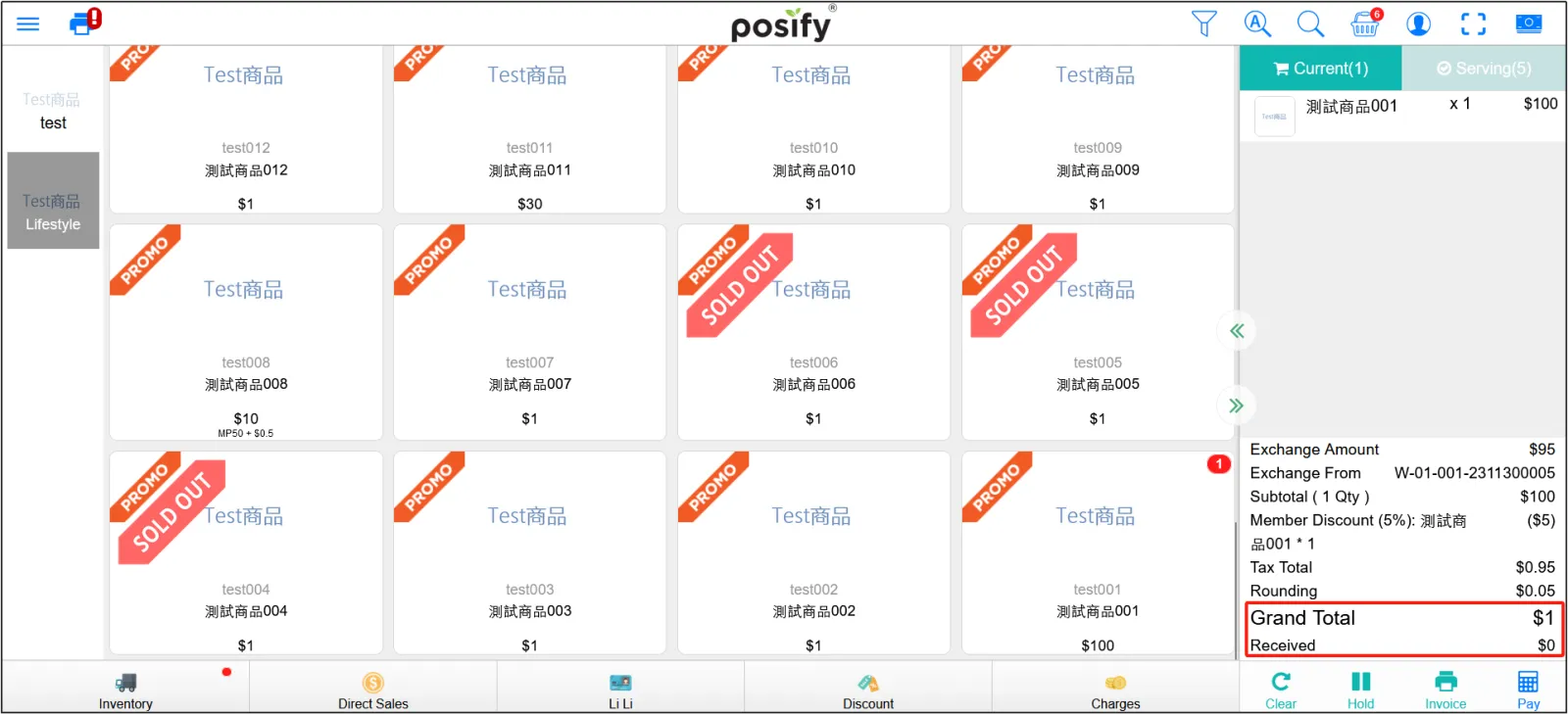
After entering the warehouse directly, you will find that you are back on the previous page, and the shopping cart shows the exchange amount and the exchange order number.
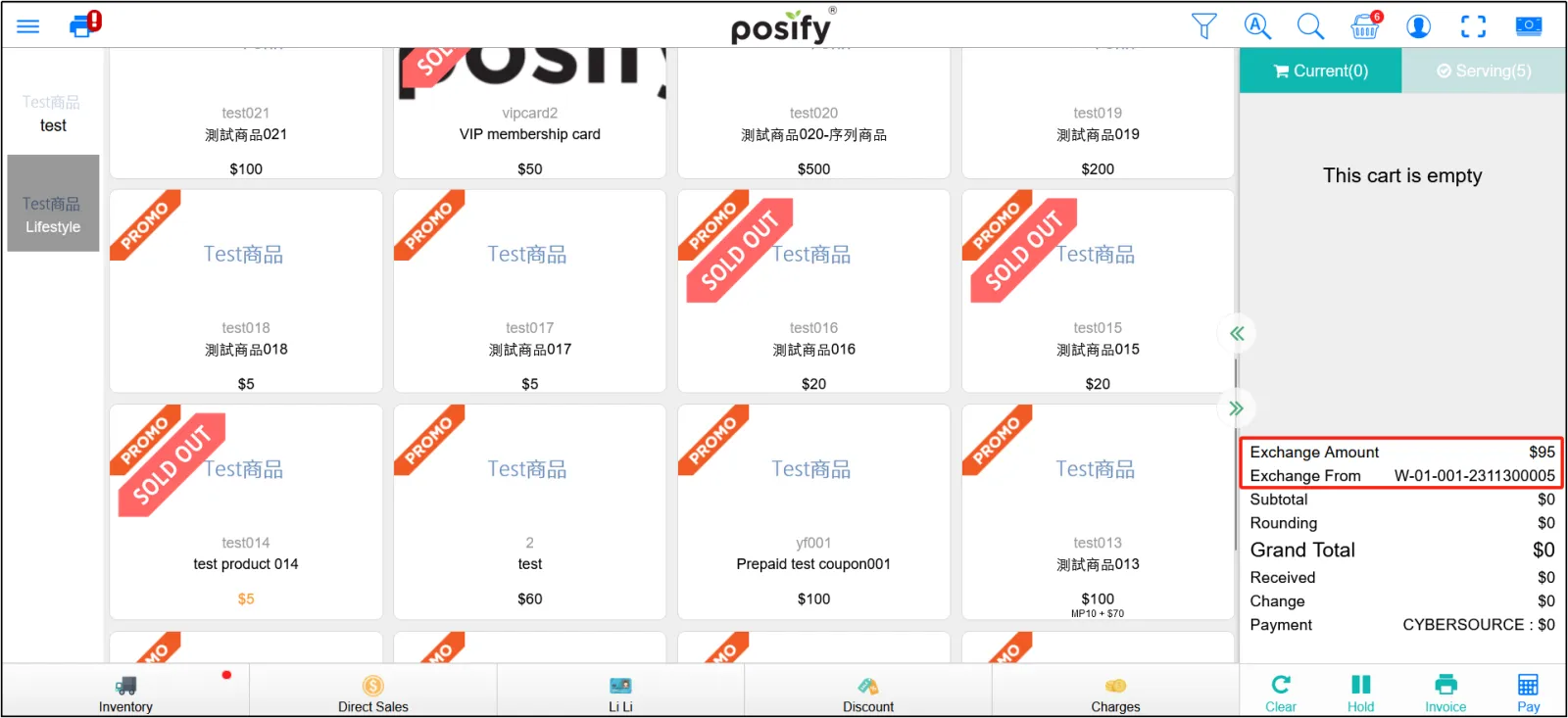
After re-selecting the product, the replacement amount will be deducted, and the customer needs to pay the remaining amount.
Remark:
The total price of the re-selected product must be greater than or equal to the replacement amount, otherwise the part that is less than the replacement amount will not be returned to the customer.
Same as the general purchase steps, after selecting the pick-up method, membership, discount, other charges and payment methods, click [Pay] to pay the remaining amount.