Online store order process
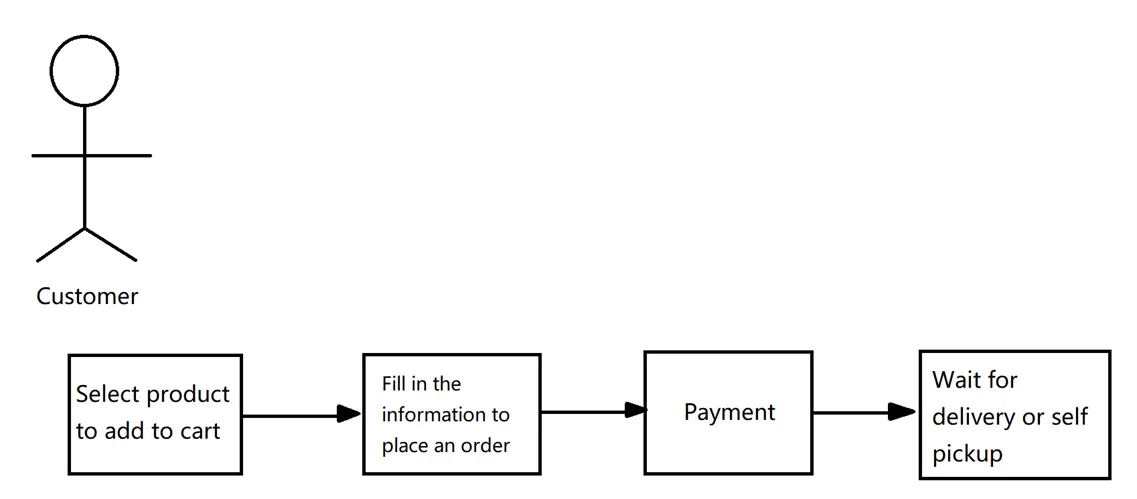
The order process of the online store is mainly divided into two parts. The customer purchases the product on the online store, and the merchant collects the payment and ships it on the CMS.
Customers buy goods on the online store
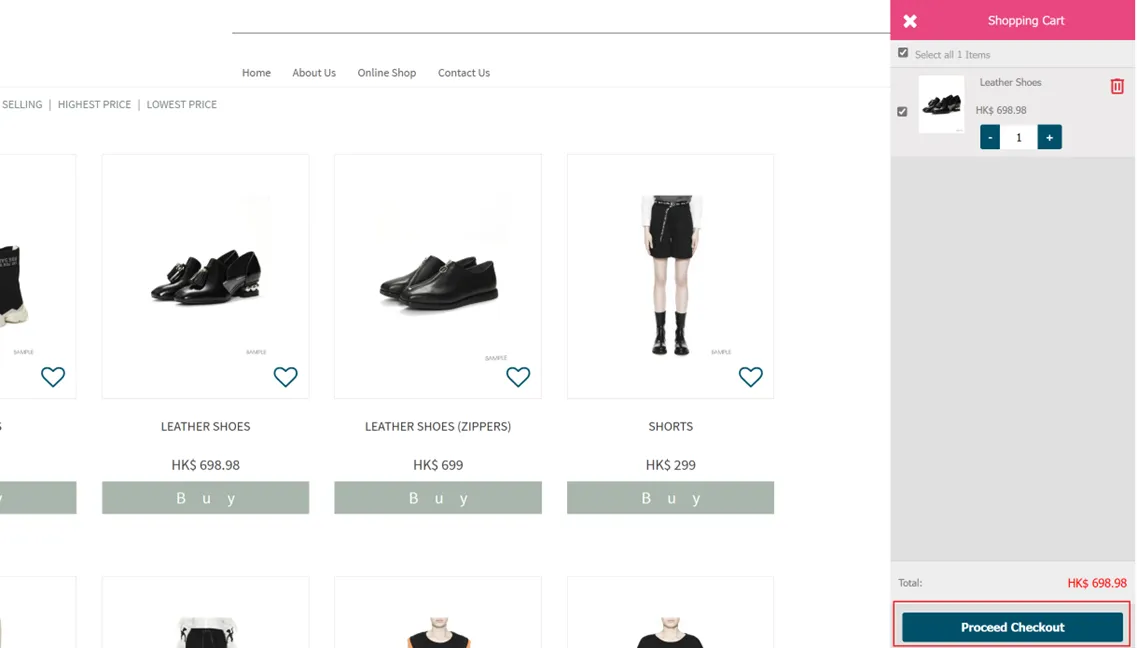
Select the item you want to buy and add it to the shopping cart Click on the shopping cart icon at the top of the top right pageClick [Proceed to Billing] in the lower right corner.

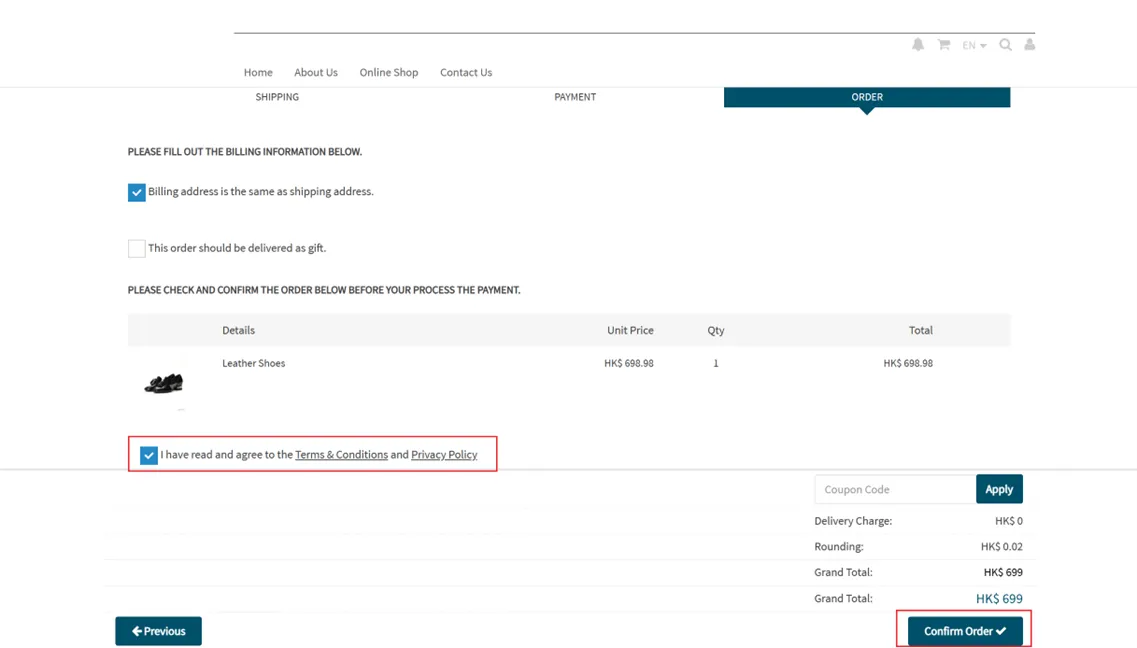
Fill in various information, including payment method, delivery method, delivery date, delivery address, etc., and tick to agree to the rules and privacy policyClick [Confirm Order].
If you choose an integrated payment method, you will be redirected to the payment page for payment. If you choose an external payment method such as ATM or bank transfer, you will not be redirected to the payment page, but will upload a picture of the receipt and wait for the merchant to confirm the payment.
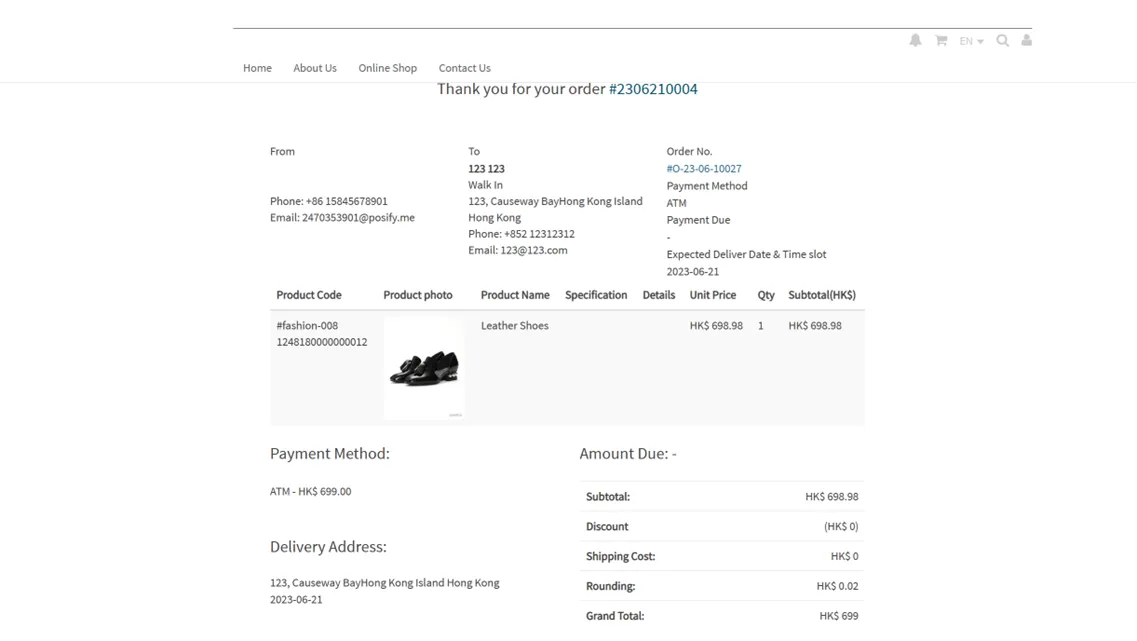
After the purchase is successful, the order information is displayed.
Click the small person icon at the top right of the page to enter the personal center.

Account overview Only orders that have been completed will be displayed on the page, and orders that are still in progress need to be clicked My Order Come check it out.
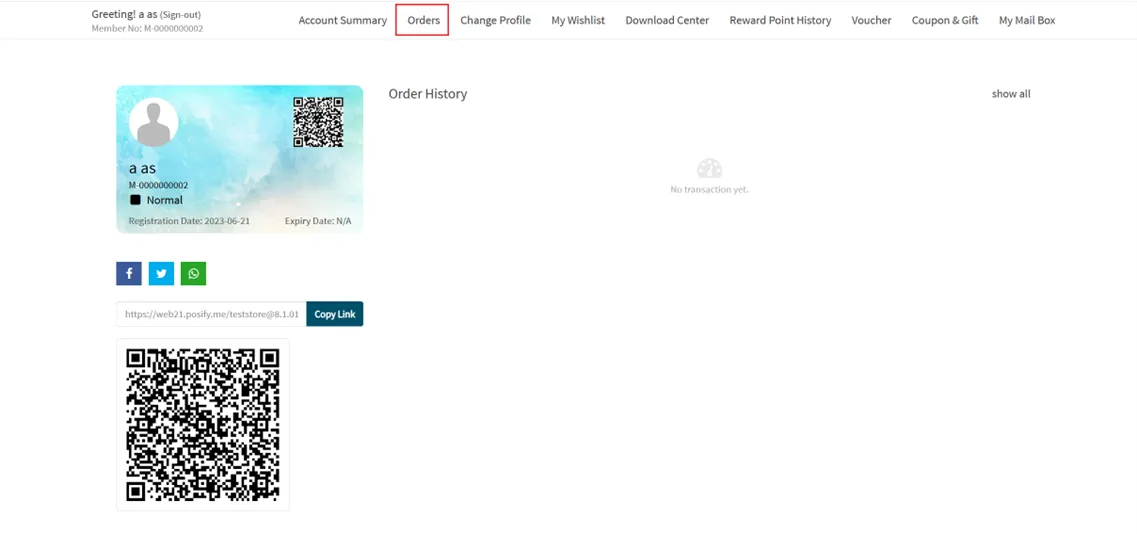
Click [My Orders] to find the order you just placed.
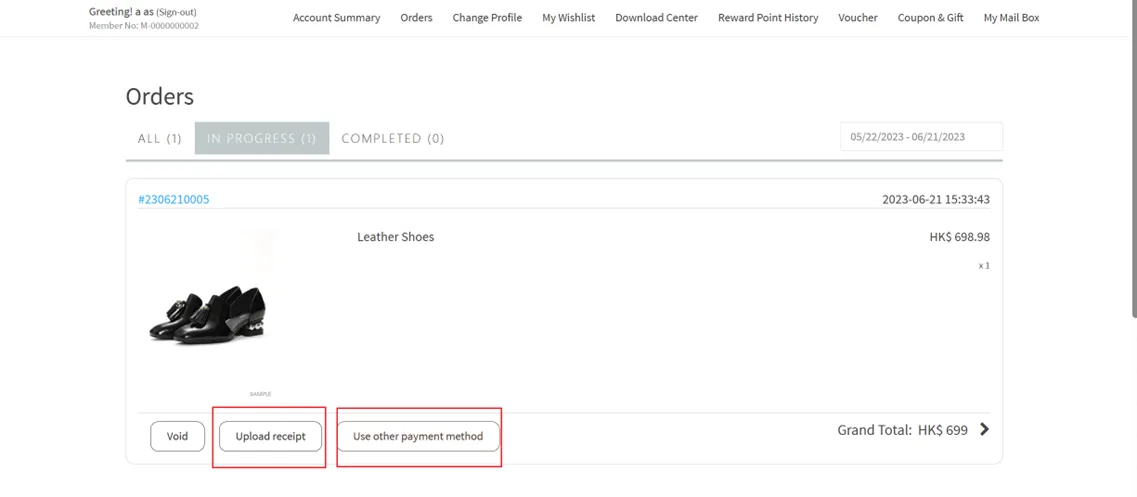
If you choose an external payment method such as ATM or bank transfer, you can click [Upload Receipt] to upload the picture of the receipt, and if you want to change the payment method, you can click [Pay by other methods].
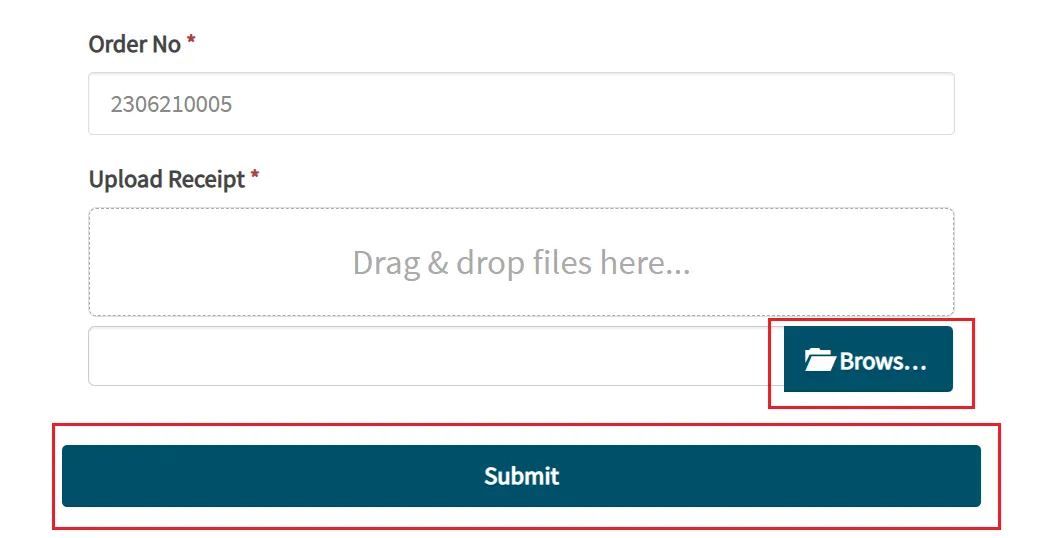
Click [Upload Receipt], the order number has been automatically filled inClick [Choose File...] to select a picture of the receiptJust click [Submit].
Merchants process orders on CMS
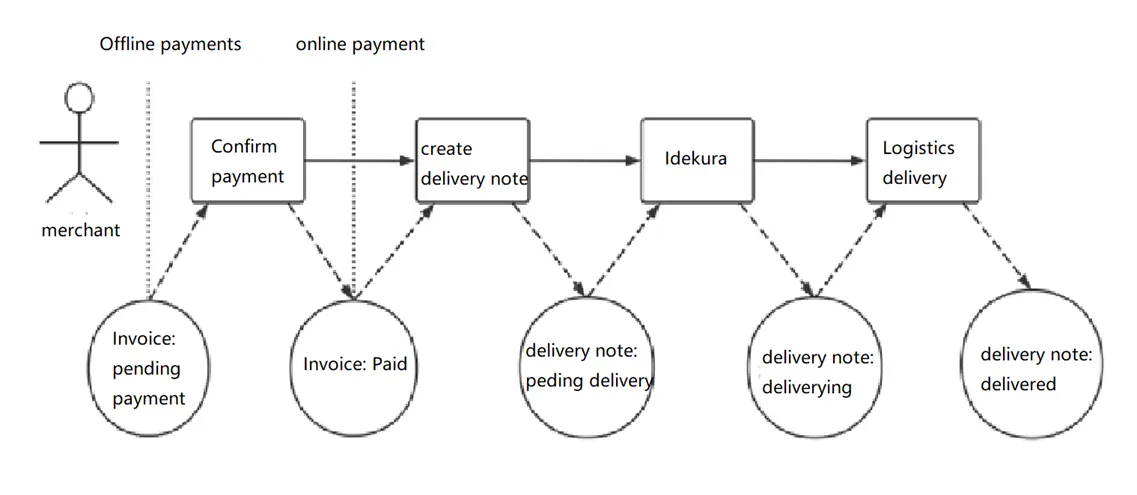
If the customer chooses an external payment method, the merchant needs to manually change the payment status of the order to partially received or received on the CMS. And if the customer chooses the integrated payment method, the status of the order after the payment is successful is the status of the payment, which does not need to be manually modified by the merchant.
click orderclick order overviewclick Pending payment , you can see the orders that have not yet been paid.
Remark:
The tab here is All, and the orders placed in the online store can only be found when the tab is [All] or [Online Store].
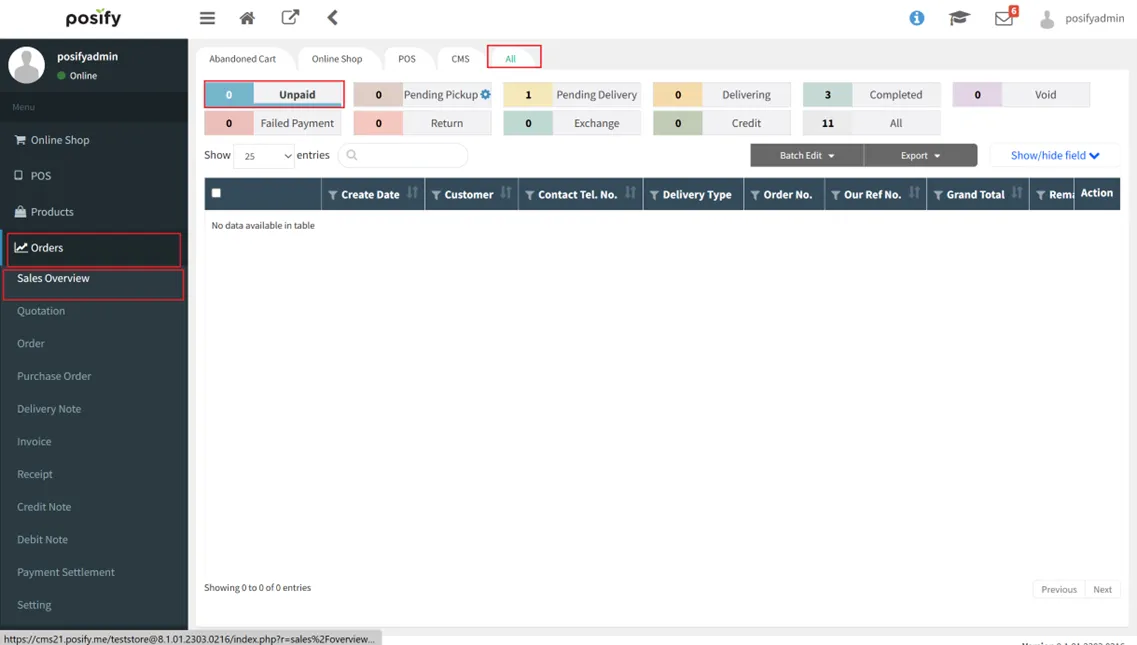
Slide the scroll bar below the table to the right, and you can see that the payment status of the order just now is pending payment.
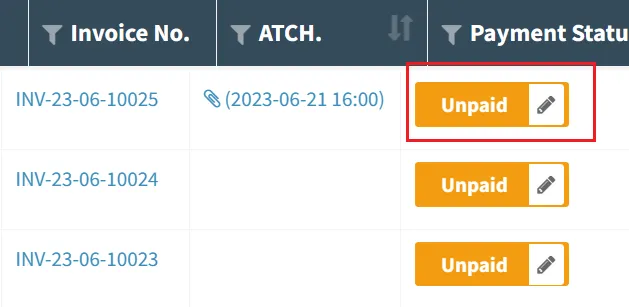
Click [Pending Payment] to open the invoice of the order, and you can choose to change the status to partial payment 、 paid for or void .
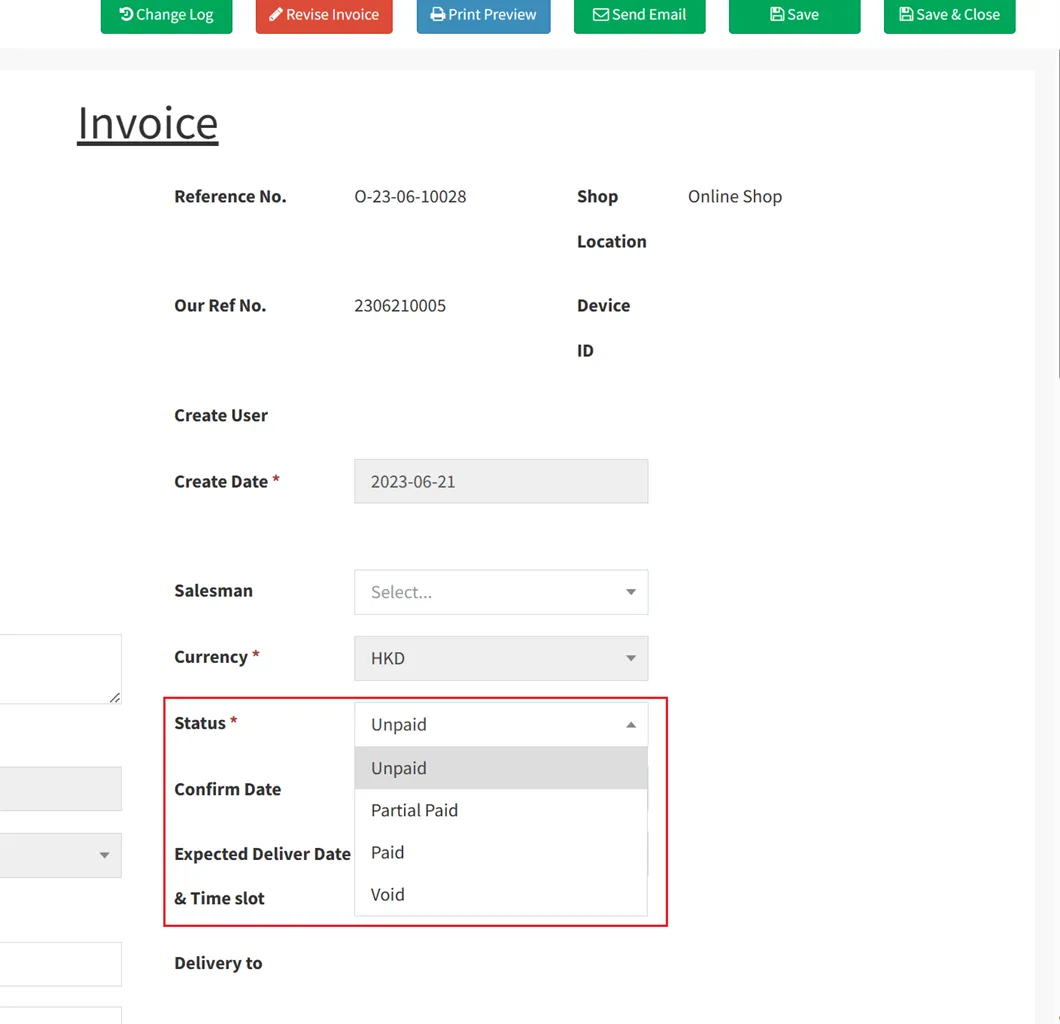
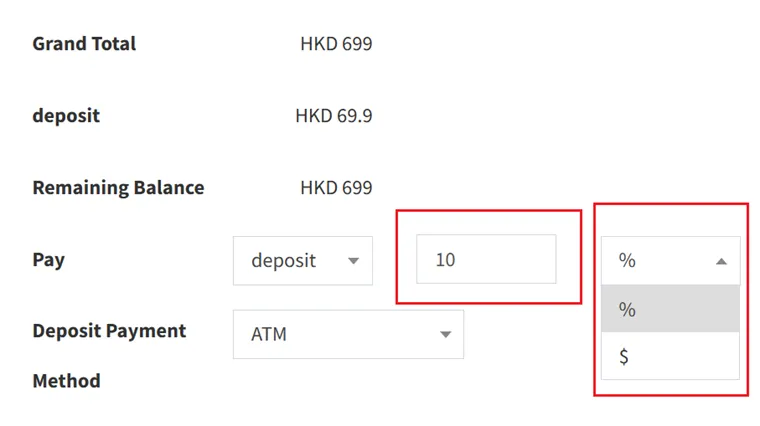
If you want to receive a partial payment, change the status to partial paymentslide downput the payment from full amount changed to Deposit , there will be two more drop-down boxes behind.
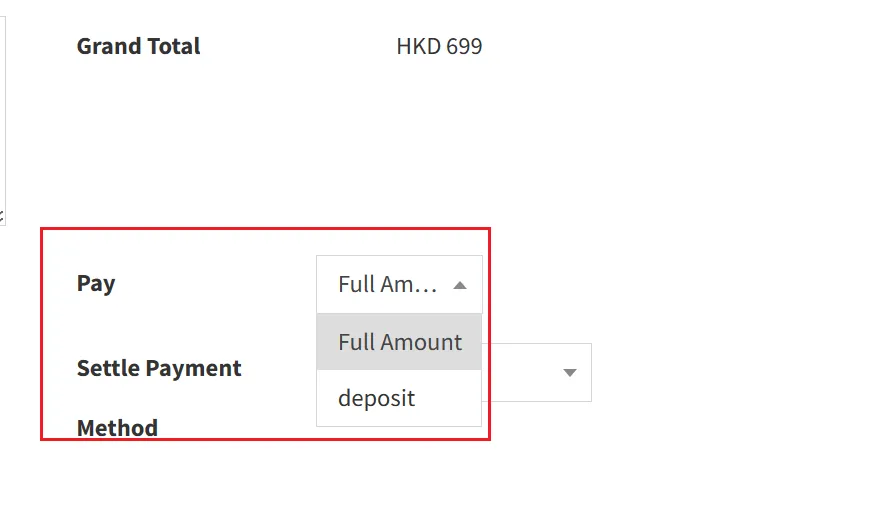
The newly added second drop-down box can select percentage or the amount , if percentage is selected, the percentage is filled in the first drop-down box, and if amount is selected, the amount is filled in the first drop-down box.
For example: the rightmost drop-down box is selected % , the previous drop-down box is filled with“10”, which means a 10% deposit is charged. The rightmost drop-down box is selected $ , the previous drop-down box is filled with“200”, which means that a deposit of 200HKD has been charged.
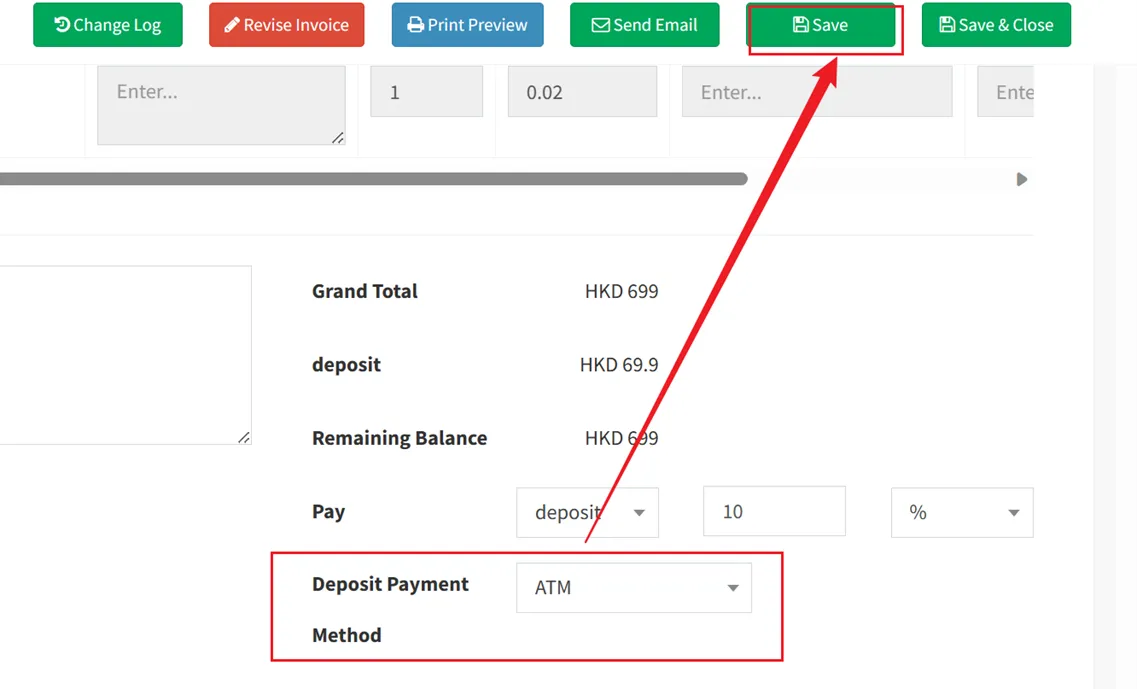
Select the payment method of the depositClick [Save] on the upper right.
After receiving the balance payment, change the payment status to paid for That's it.
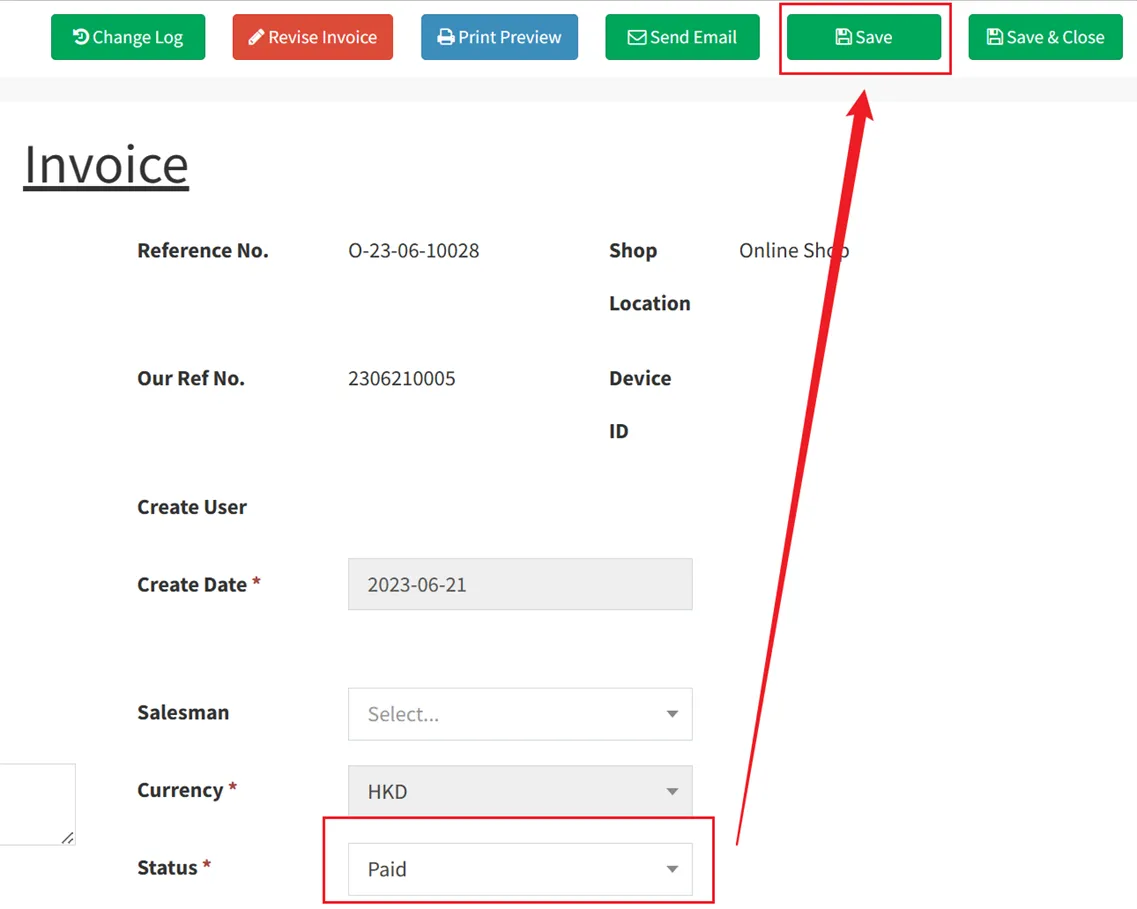
If you don't need to receive part of the payment, you can also directly modify the status of the invoice to paid forClick [Save].
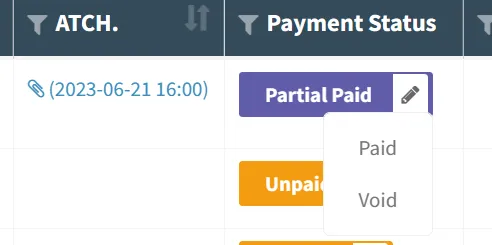
or in Order - Sales Overview - Pending Payment Click the small pen on the right of [Pending payment]Change the status to paid for .
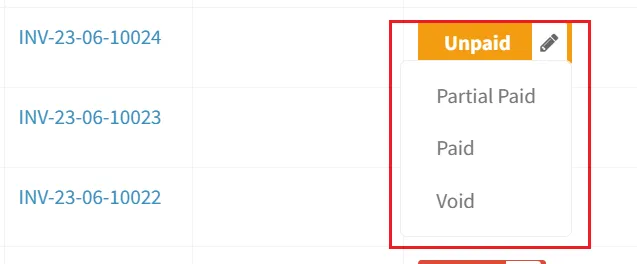
If the order uses an integrated payment method, it will initially be in the status of received payment.
After the order is paid for, click to be deliveredClick to the right of the order to view order details.
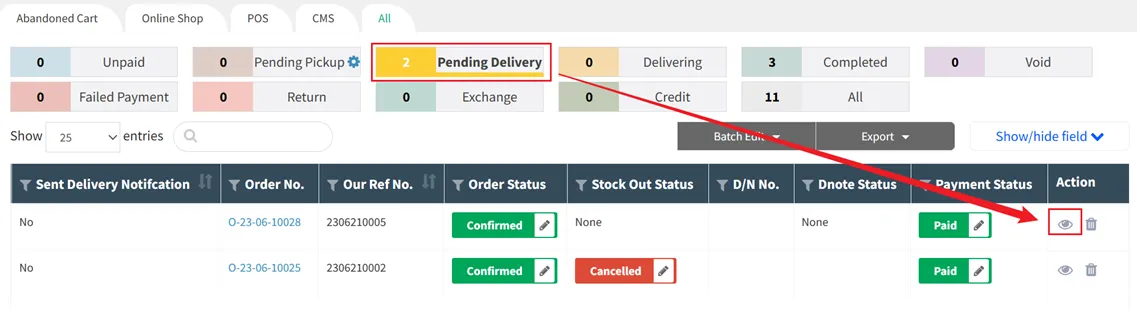
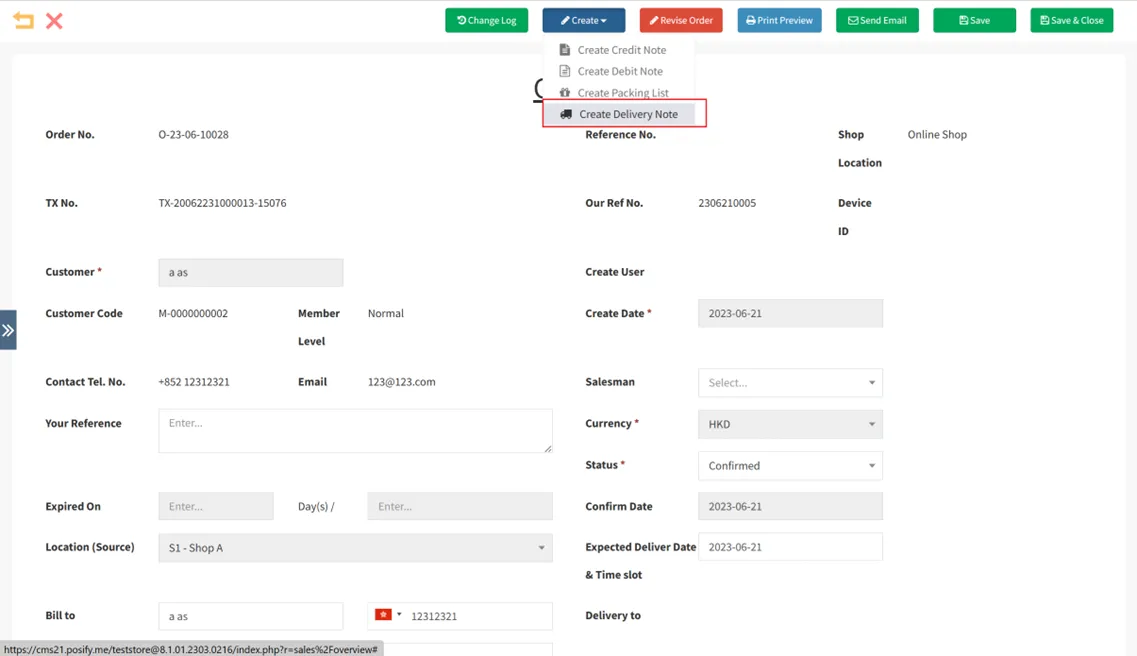
Click [Create Delivery Note] above to create a delivery note.
Change the status of the delivery note to to be deliveredClick [Save].
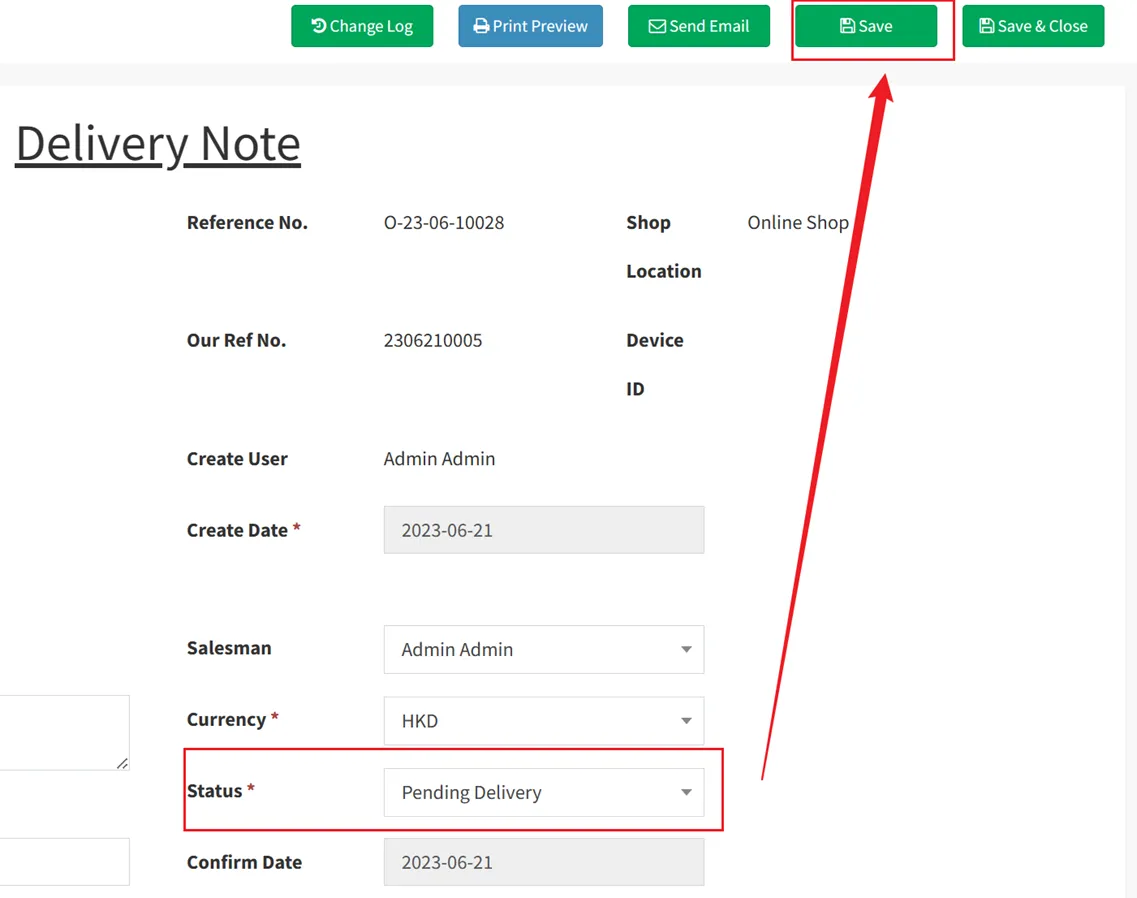
If you want to cancel the delivery, you can change the status to cancel delivery . You can then open the order to recreate the delivery note.
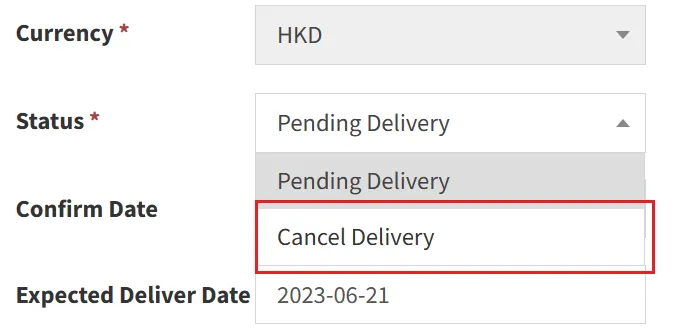
在 Order-Sales Overview-Pending Delivery Change the order's delivery note status to Cancelled Shipping can also be canceled.
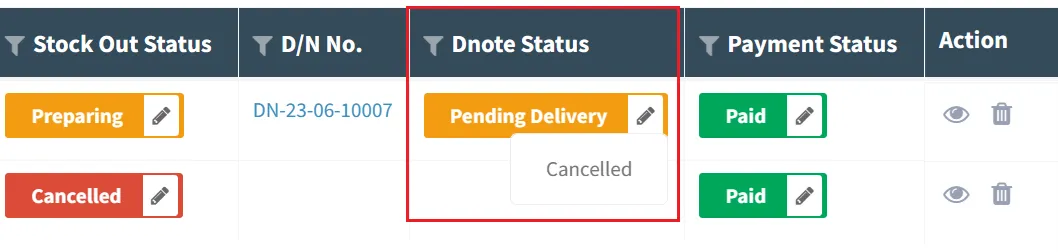
在 Order-Sales Overview-Pending Delivery On the page, you can see that the delivery status of the order just now is in preparation.
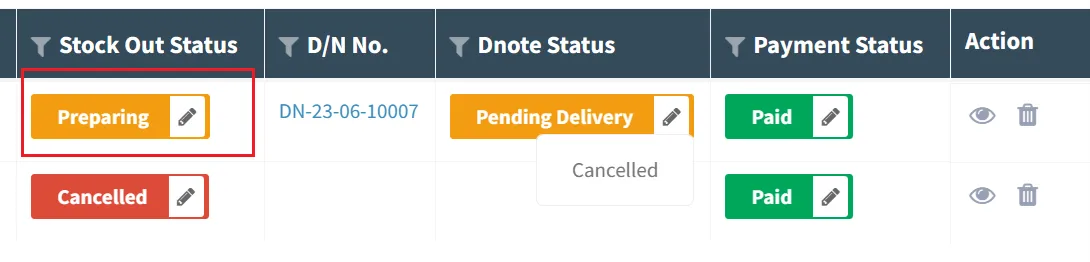
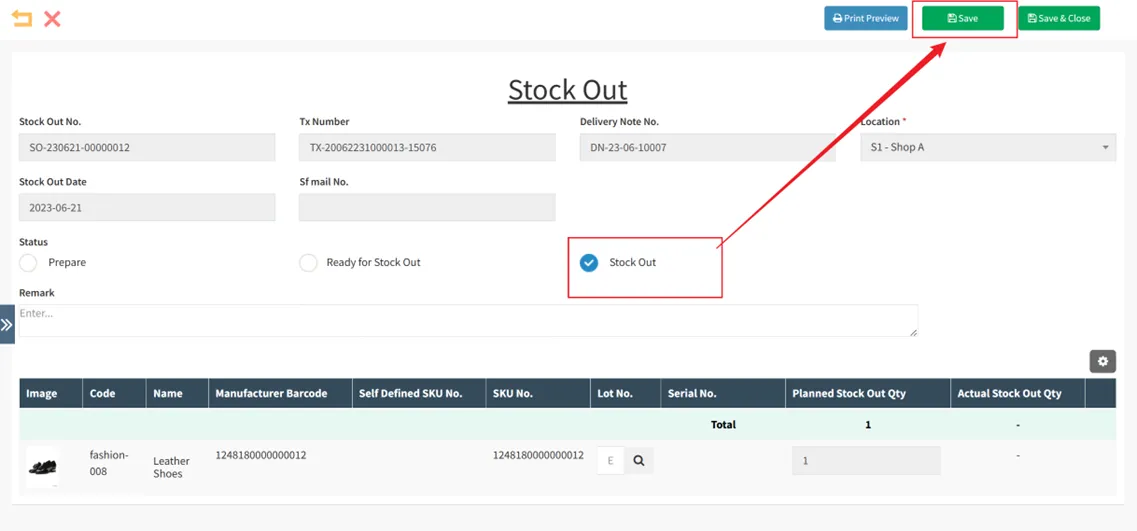
After the product is shipped, click [Preparing] to open the shipping listChange the status toWarehouse readyClick [Save].
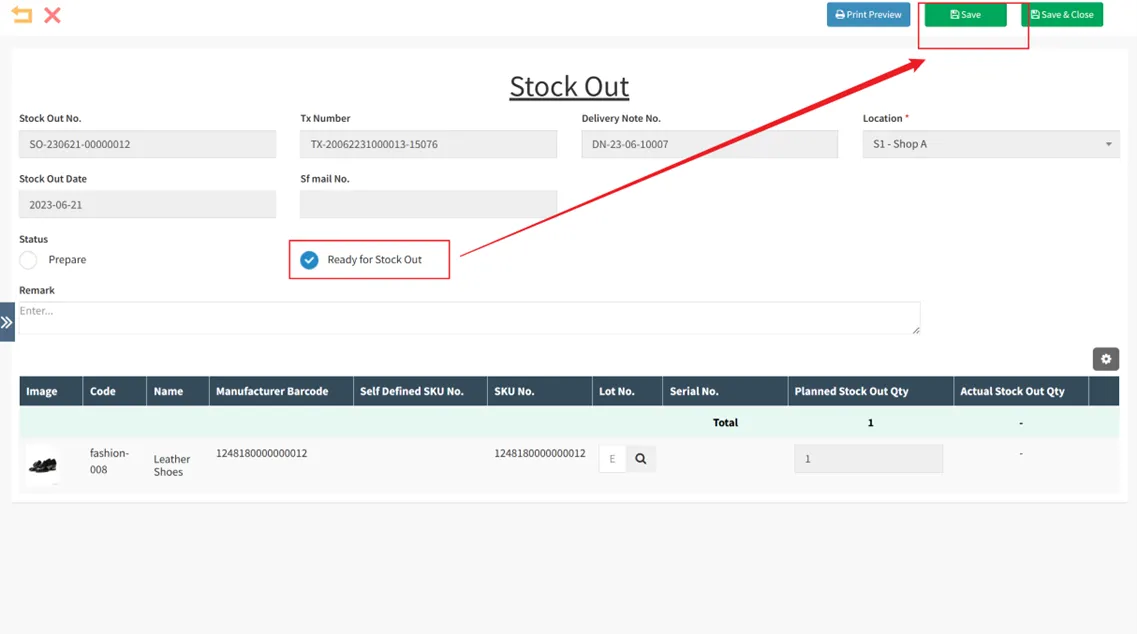
Status display after saving to ship option (shipping here means out of warehouse), modify the status to to shipClick [Save] to complete the shipment.
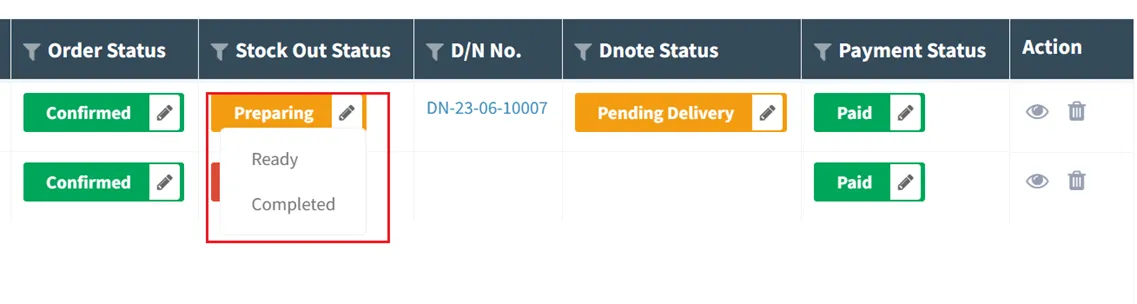
or in Order-Sales Overview-Pending Delivery Click the small pen on the right of the order exit status [in preparation] to change the exit status to Out of stock , can also complete the exit.
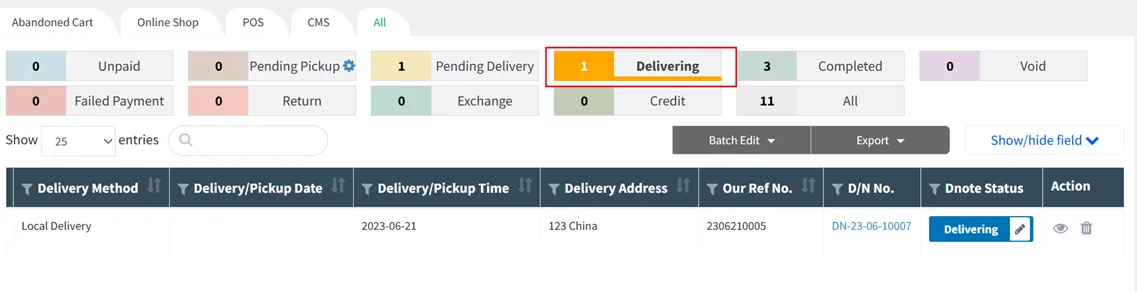
After the product is out of the warehouse, click delivery , you can see that the delivery note status of the order just now is in delivery.
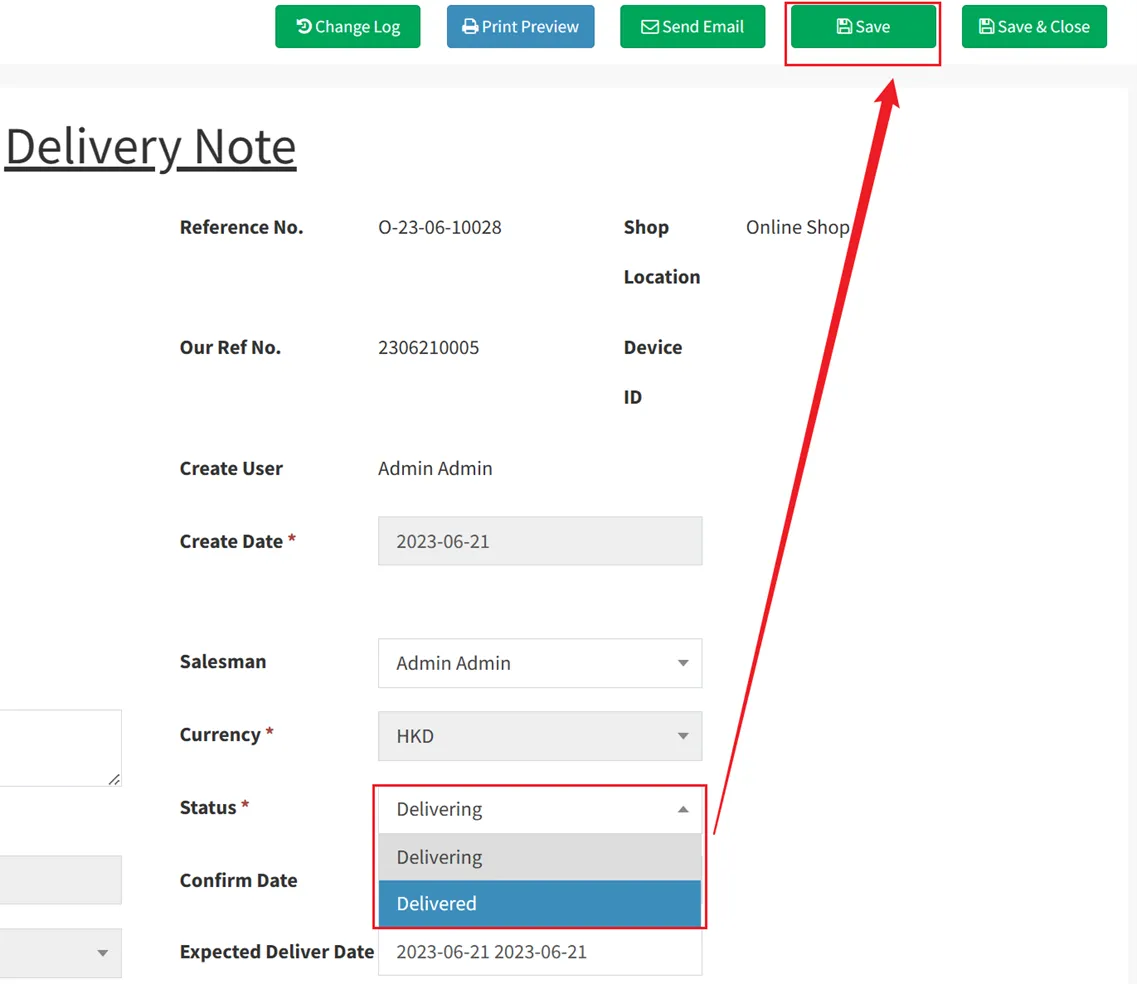
After the product is delivered, click [Shipping] in the status of the delivery note to open the delivery noteChange the status to deliveredClick [Save] to complete the order process.
or in Order - Sales Overview - Shipping Click the small pen on the right of [Delivering] to change the status of the delivery note to delivered , which can also complete the order process.
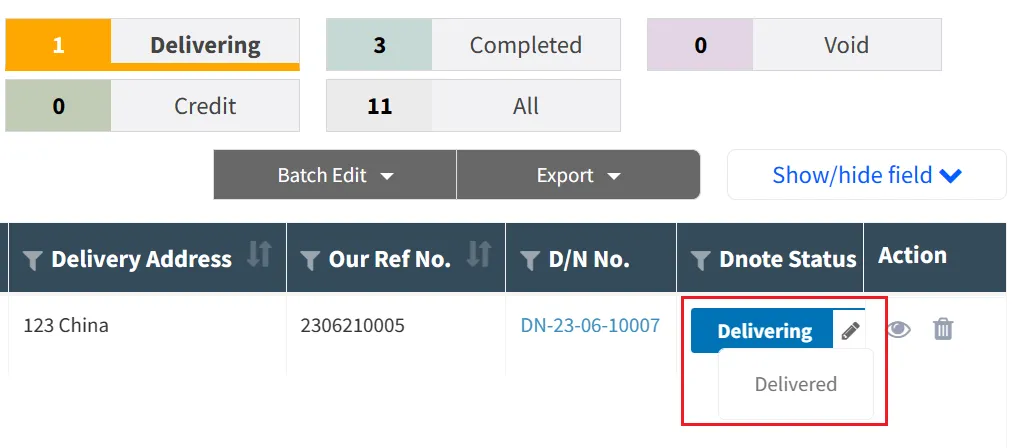
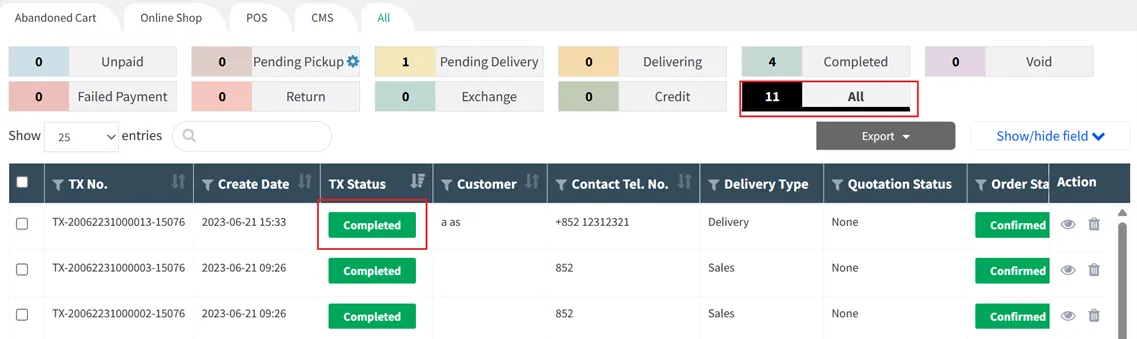
allowable completed or all Find the order just now on the page, and you can see that the order status is completed.
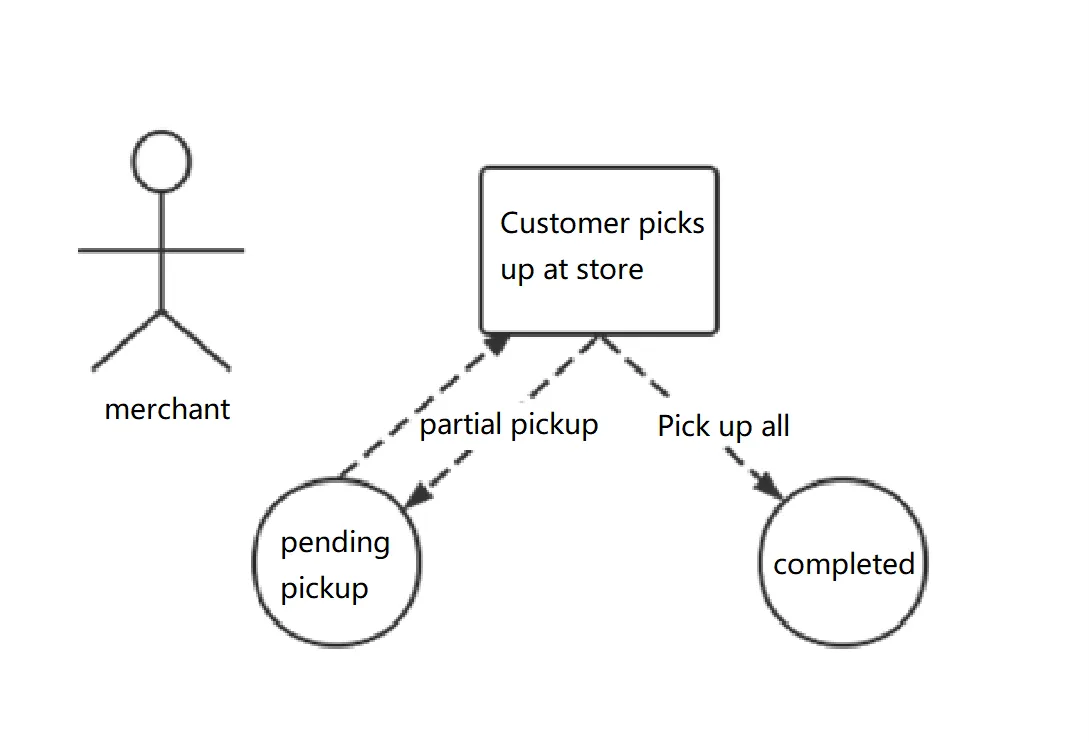
If the customer chooses to pick up the goods, the order will be in the status of waiting for pick-up after the payment status of the order changes to received. When customers come to the store to pick up the goods, they can modify the status of the order to have been picked up on the POS or CMS to complete the order.
The way to pick up the goods on the POS is as follows.
Open the POS, and you can see a red number on the basket icon in the upper right corner, which represents the number of self-pickup orders currently waiting to be picked up.
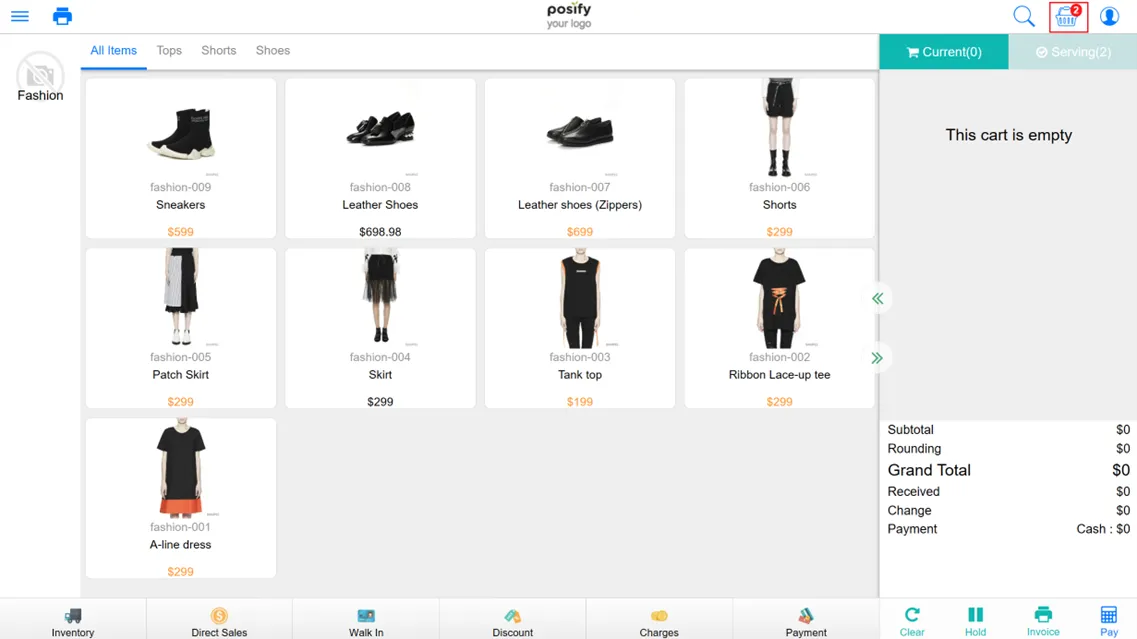
Click on the flower basket iconGo to the self-pickup page, find and click the self-pickup order of the customer who came to pick up the goods. You can enter the order number, customer name or phone number in the input box to search.
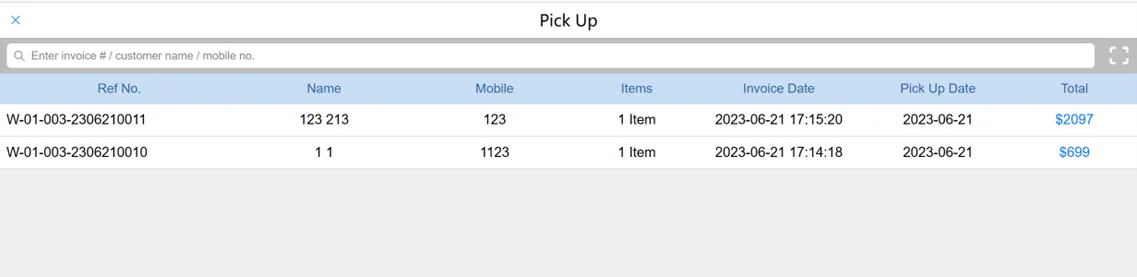
Click to open the self-pickup order, the default is to take out all the goods, but you can also adjust it yourself, check the goods you want to pick up, and adjust the quantity of self-pickup goods. The remaining goods that have not been picked up can be taken out next time, and the goods can be picked up multiple times until all the goods are taken out.
Click [Confirm] to take out the goods.
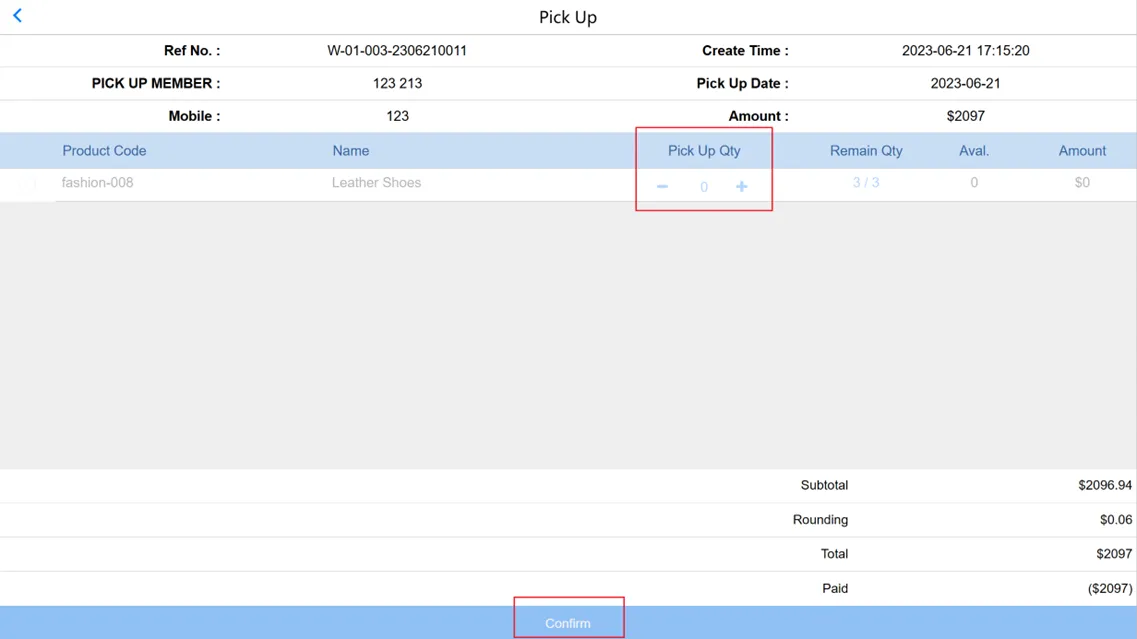
Once all items in the order have been picked, the order is complete.
The method of picking up on CMS is as follows.
click orderclick order overviewclick pending pickup 。
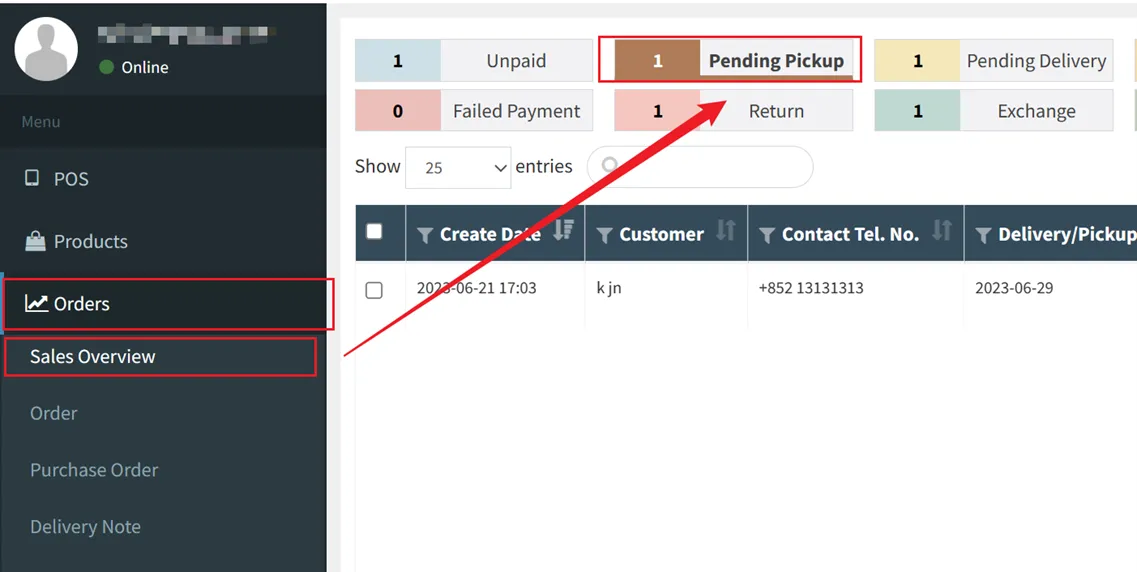
Find the order of the customer who picks up the goods, click on the right, to open the order.
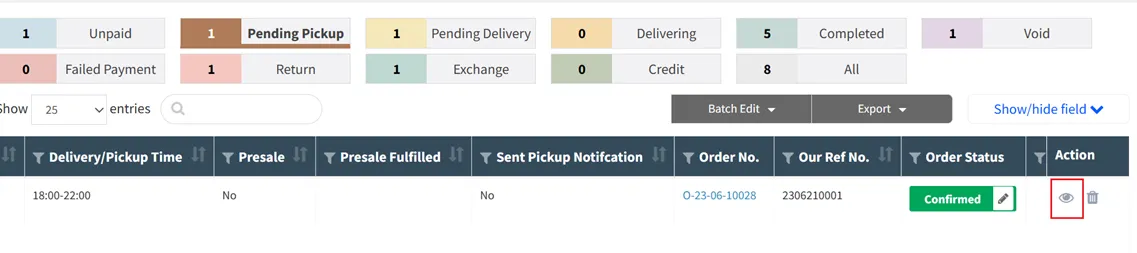
Click [Confirm Self-Pickup] on the upper right to complete the order.
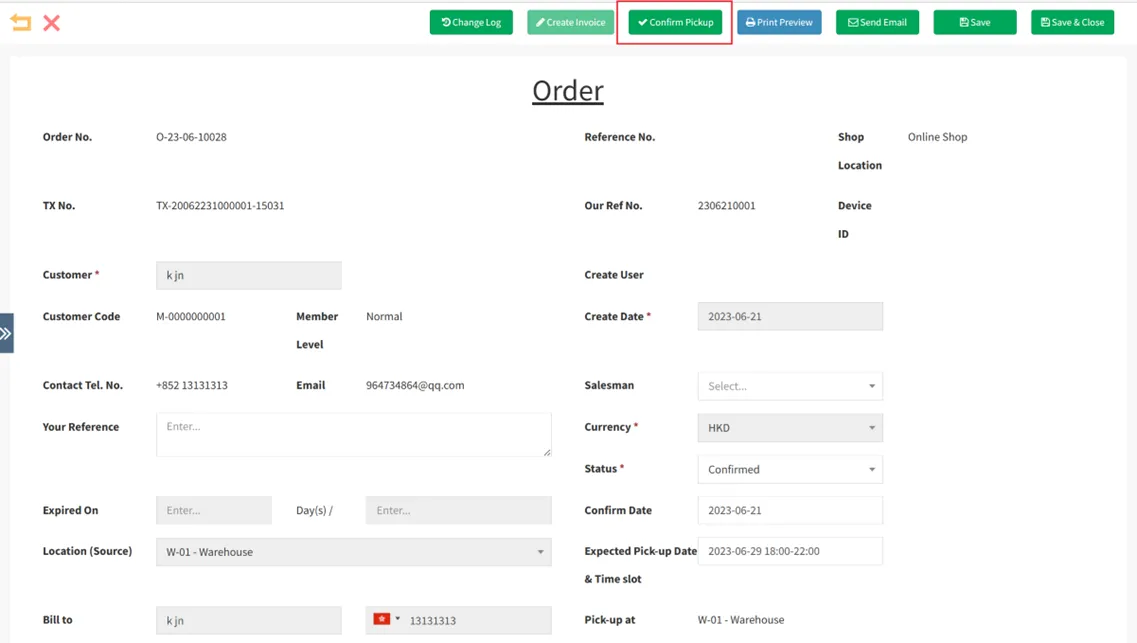
Different from POS, on CMS, the self-pickup order only supports taking out all the goods at one time, and cannot be divided into multiple times.
In Order-Sales Overview-All You can see that the transaction status of the self-pickup order has changed to completed.



