Date Back Order
Date Back Order: A past order. For example, on December 8, an order with a [date of preparation] of December 1 is opened, retroactively 7 days ago.
Date Back Orders in the CMS
Enable Date Back Orders in the CMS
Open the CMS click Orders, click Settingsfind [Sales Settings] under the tab Sales Settingsenable [Allow Traceability Orders], and enter [Maximum Traceability Days].
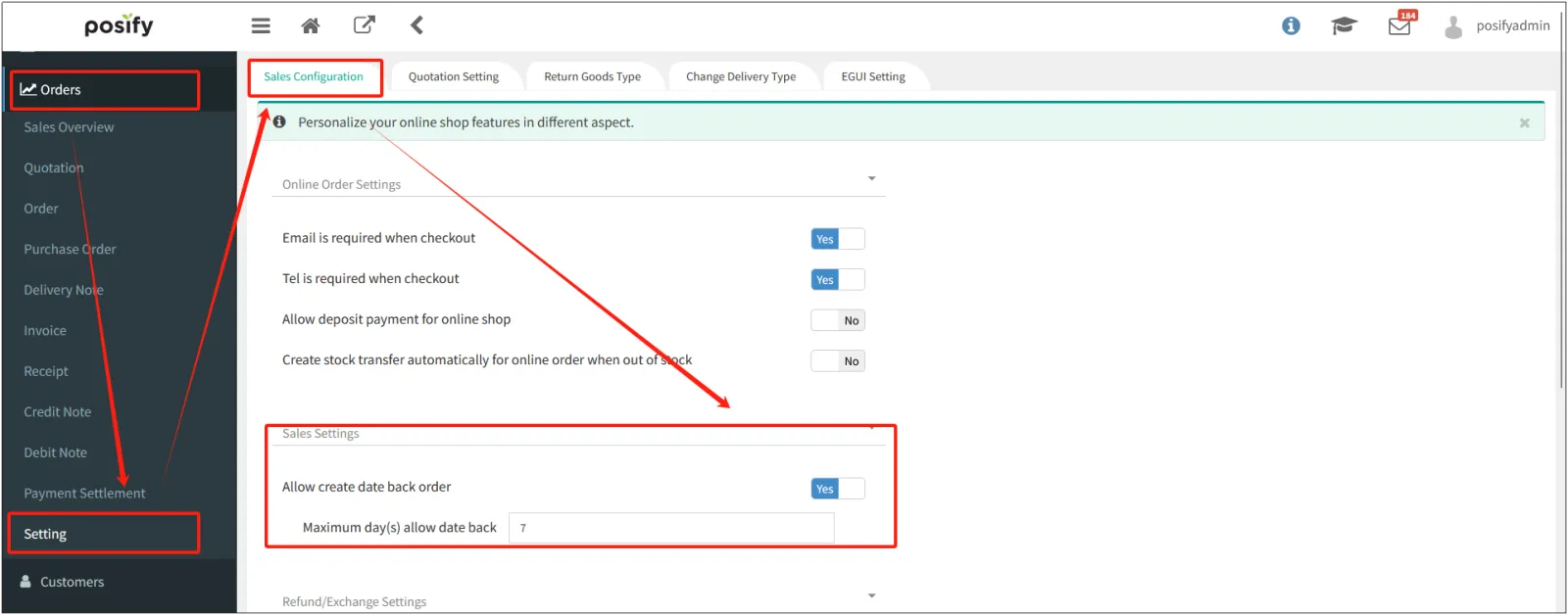
Click [Save] at the bottom to save the settings.
If Allow Retrospective Order Creation is not enabled, the Date of Preparation cannot be modified for new orders, and the Date of Preparation defaults to the day when the order was actually created.
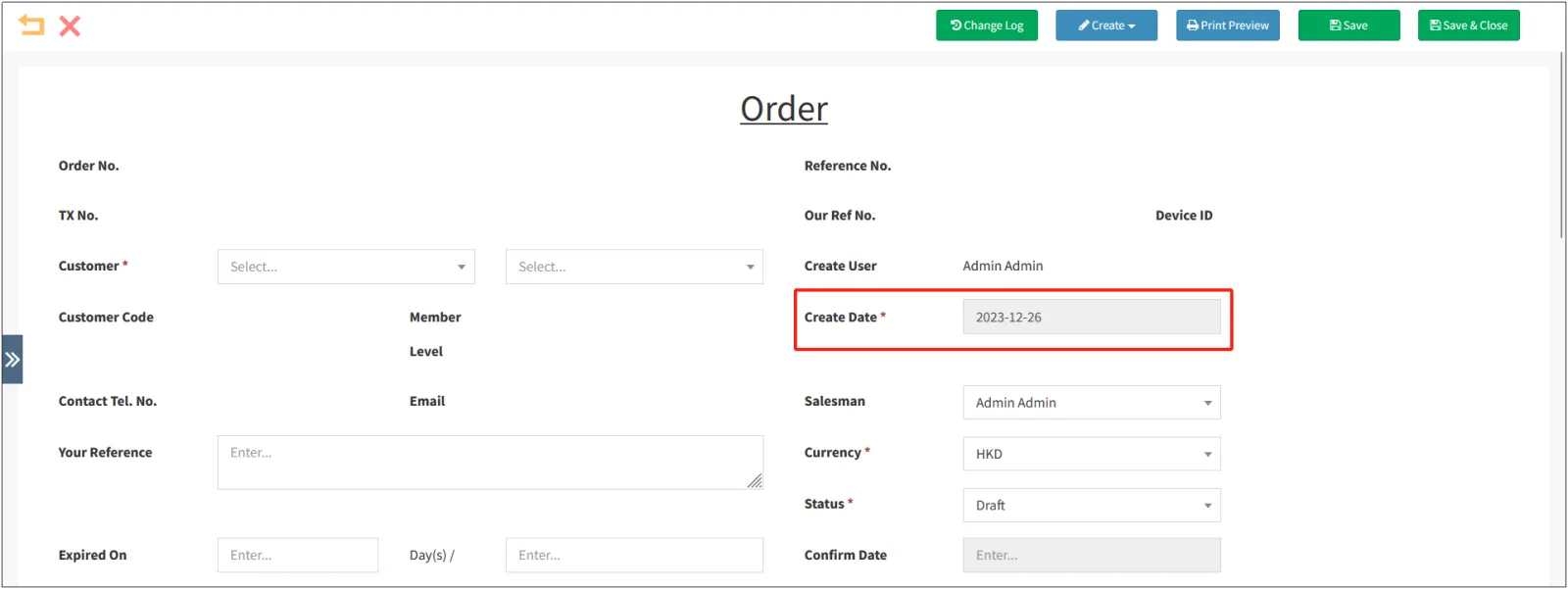
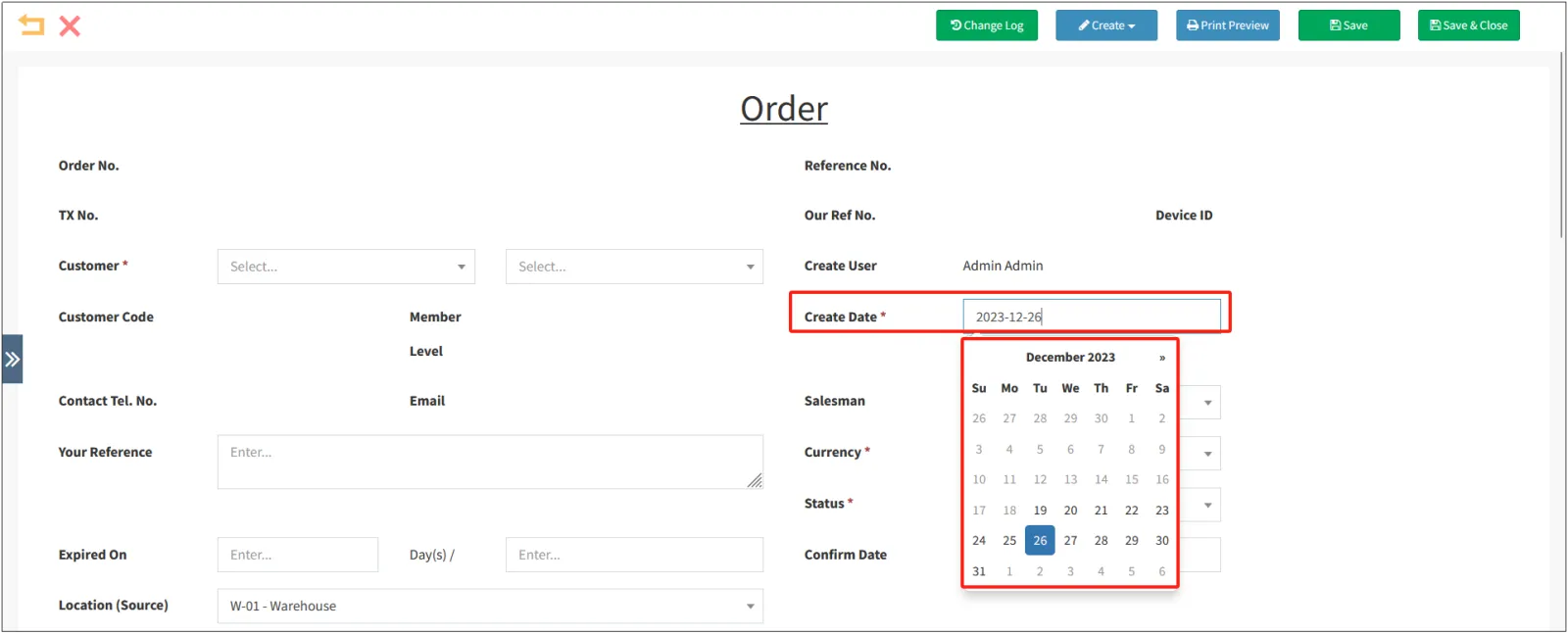
When Allow Traceability Order Creation is enabled, the Documentation Date can be modified for new orders, and the earliest date that can be selected is the same as the maximum number of days for traceability that is set. For example, if you set Maximum number of days to 7, you can set a Day Back order up to 7 days ago.
Use Excel to create a Date Back Orders in the CMS
Open the CMSclick Ordersclick Orderclick [Create from Excel].
You can see the playbook for details - B2B order process.
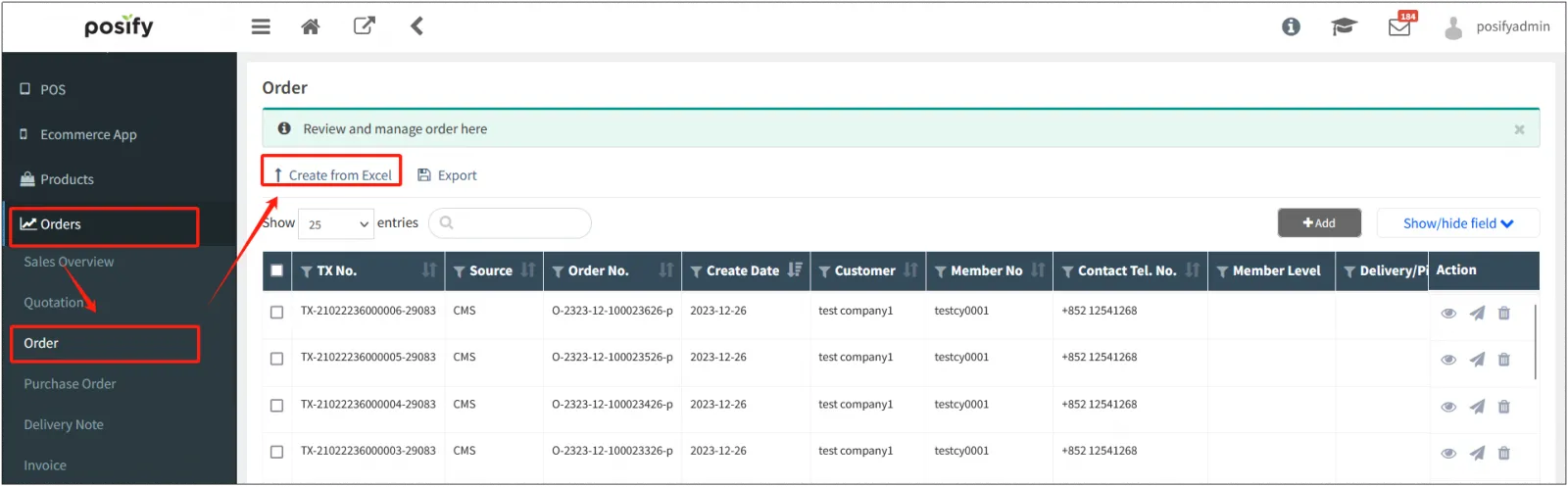
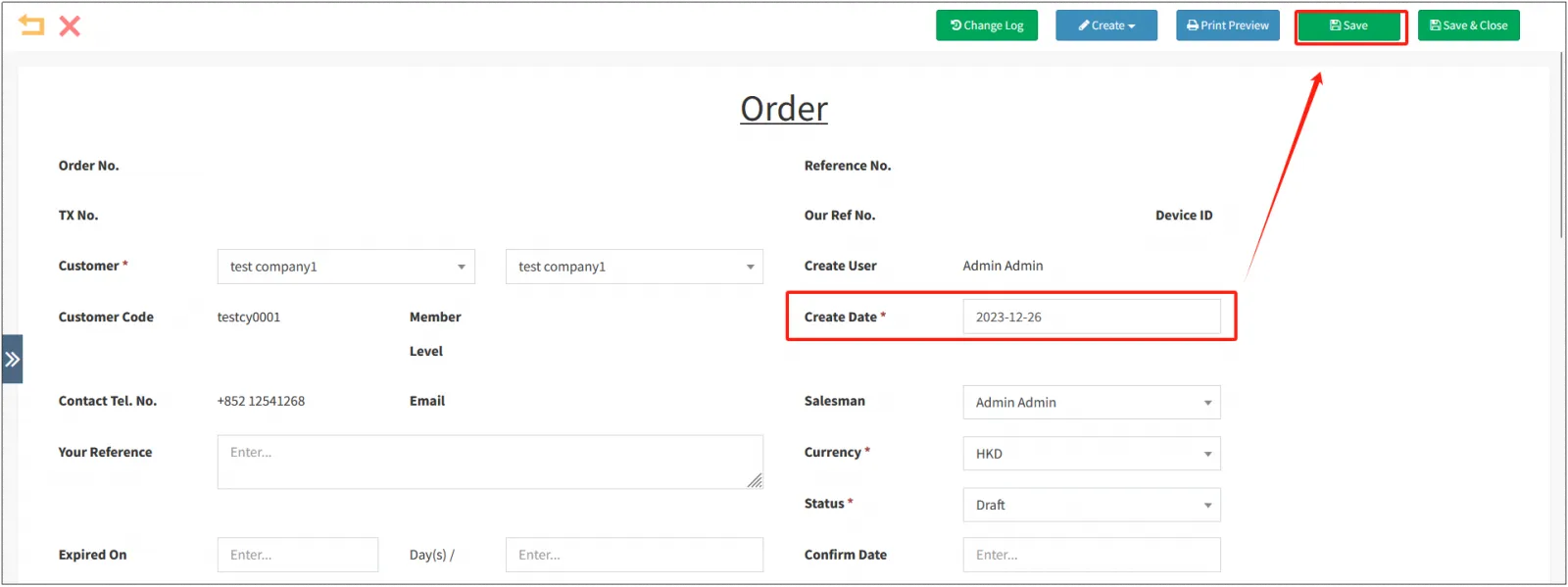
After importing it into Excel, you will be redirected to the following screen, and you can edit the "Order Preparation Date" and create an order.
Date Back Orders in the POS
Enable Date Back Order in the POS
The enabling switch of the traceability order function of CMS and POS is separated, that is, the CMS enables the traceability order function, and if you want to use the traceability order in POS, you also need to turn it on again in POS.
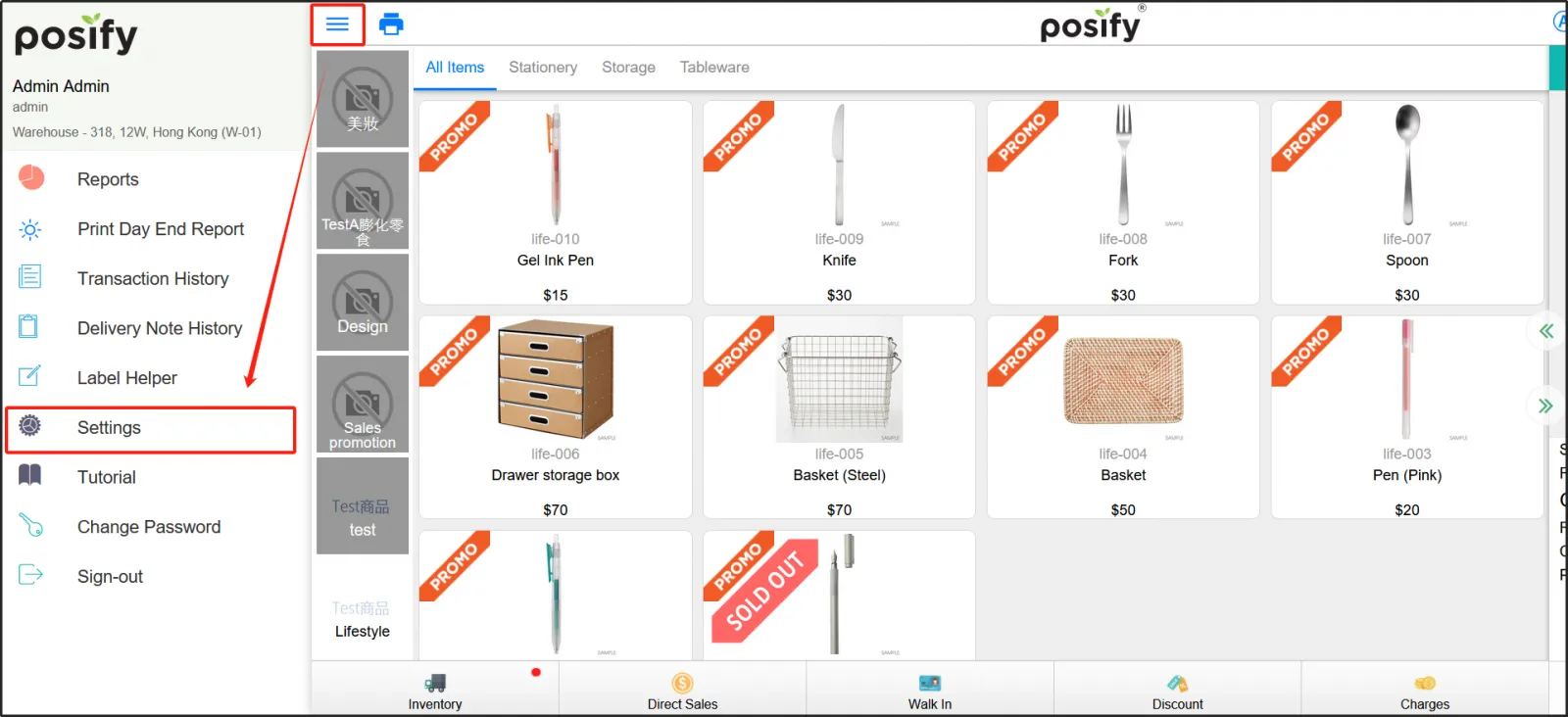
Open the POSclick on the three horizontal lines in the upper left cornerclick Settings.
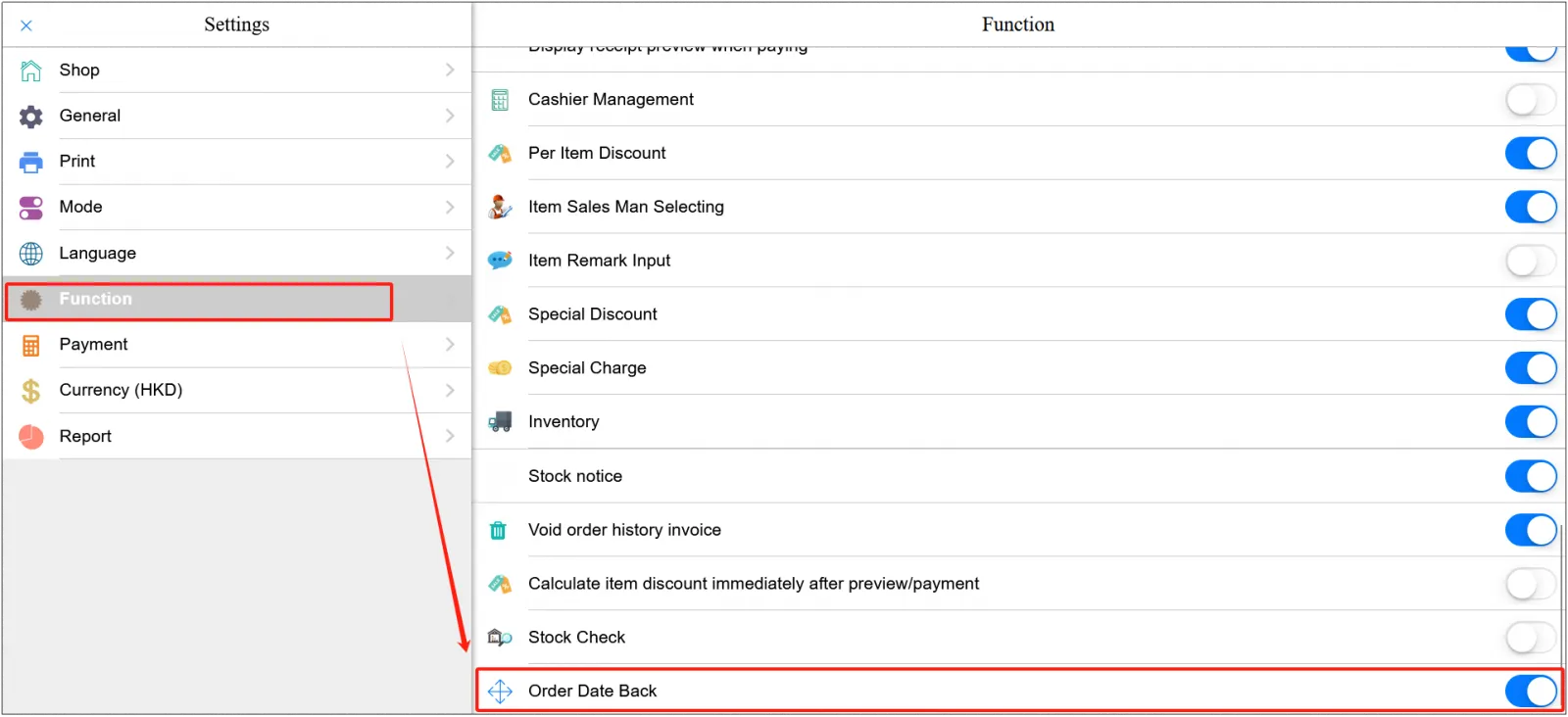
Click the functionenable [Order Date Back].
Note: You can only choose to enable or not enable Order Date Back in the POS settings, and the [Maximum day(s) allow date back] needs to be set in CMS-Orders-Setting-Sales Configuration.
Go back to the POS homepage, and you can see that there is an extra date on the top right.
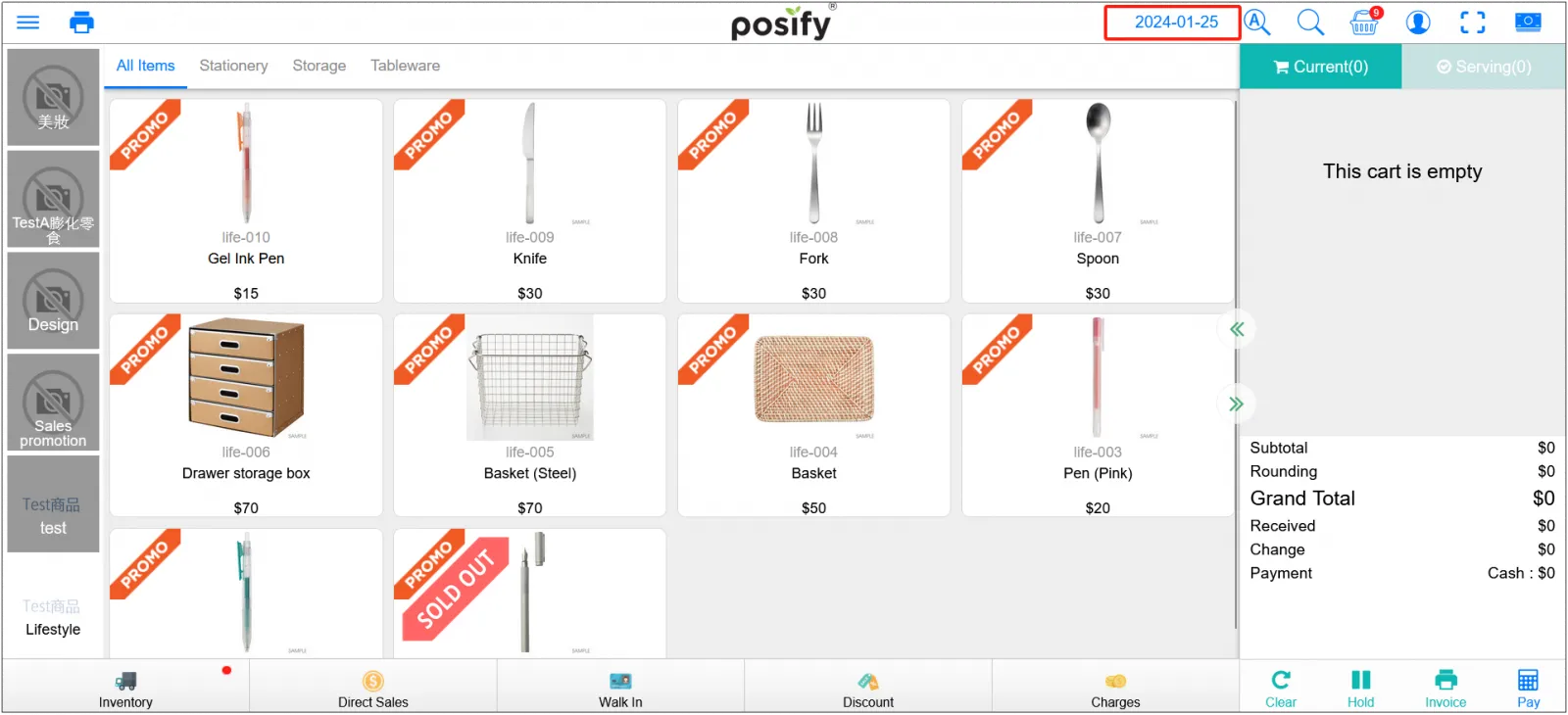
This date defaults to the current date and can be edited by clicking on it.
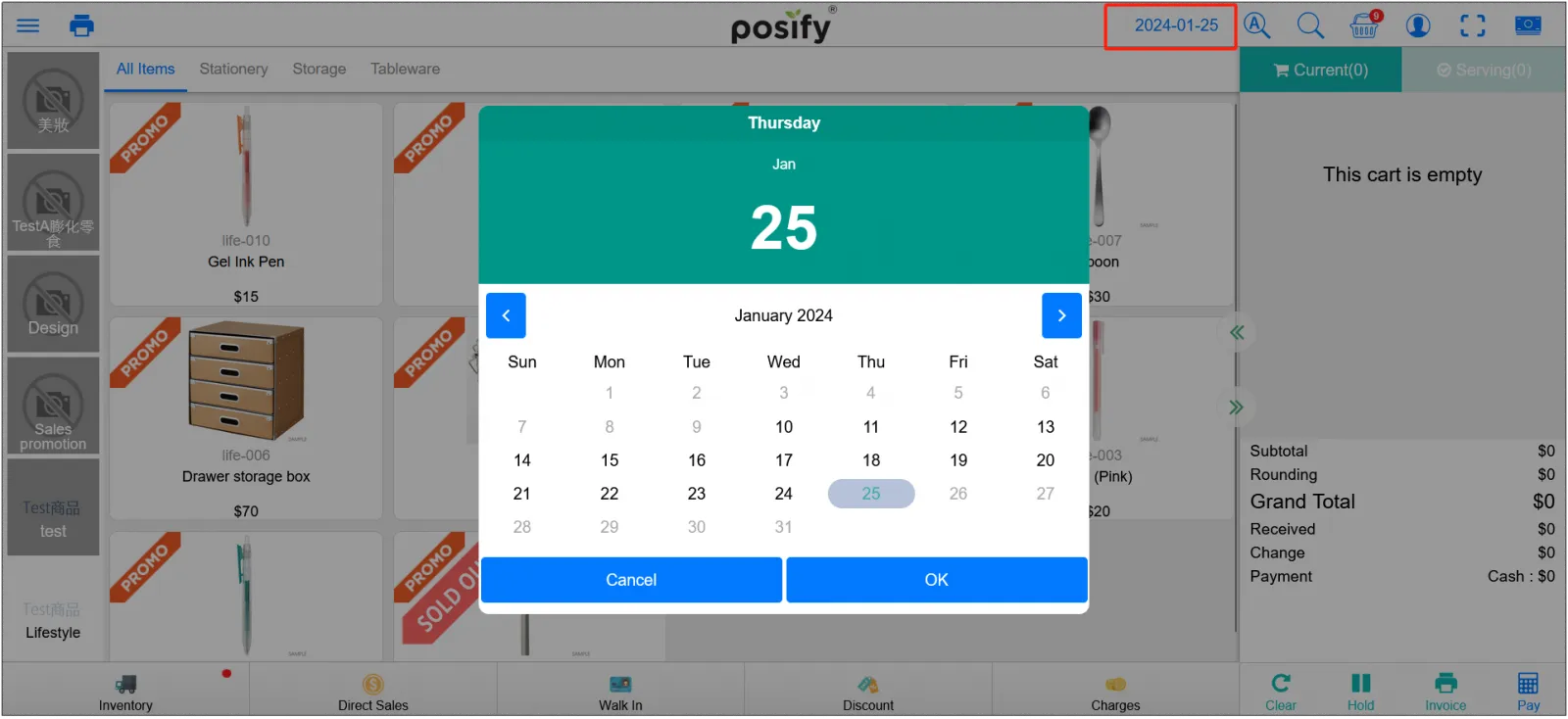
Note: When [Day Back Order] is turned on, all orders created are retrospective. Therefore, after creating a traceability order, you need to manually open the Settings-function to turn off the [Day Back Order] function and refresh the operation before you can create a general order normally.
View the Date Back Orders in the POS
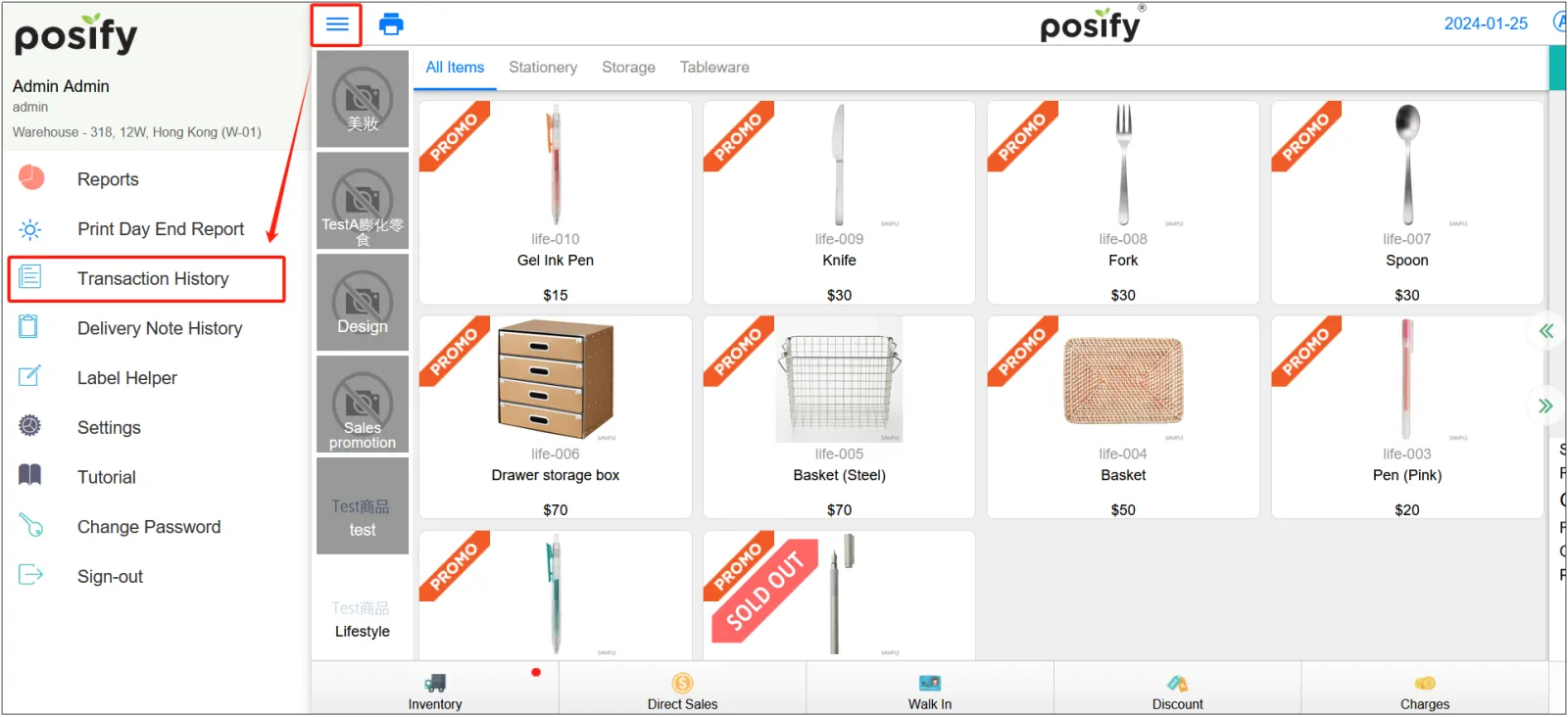
Open the POSclick on the three horizontal lines in the upper left cornerclick on the transaction history.
Click [All orders] in the top right cornerswitch to [Date back orders].
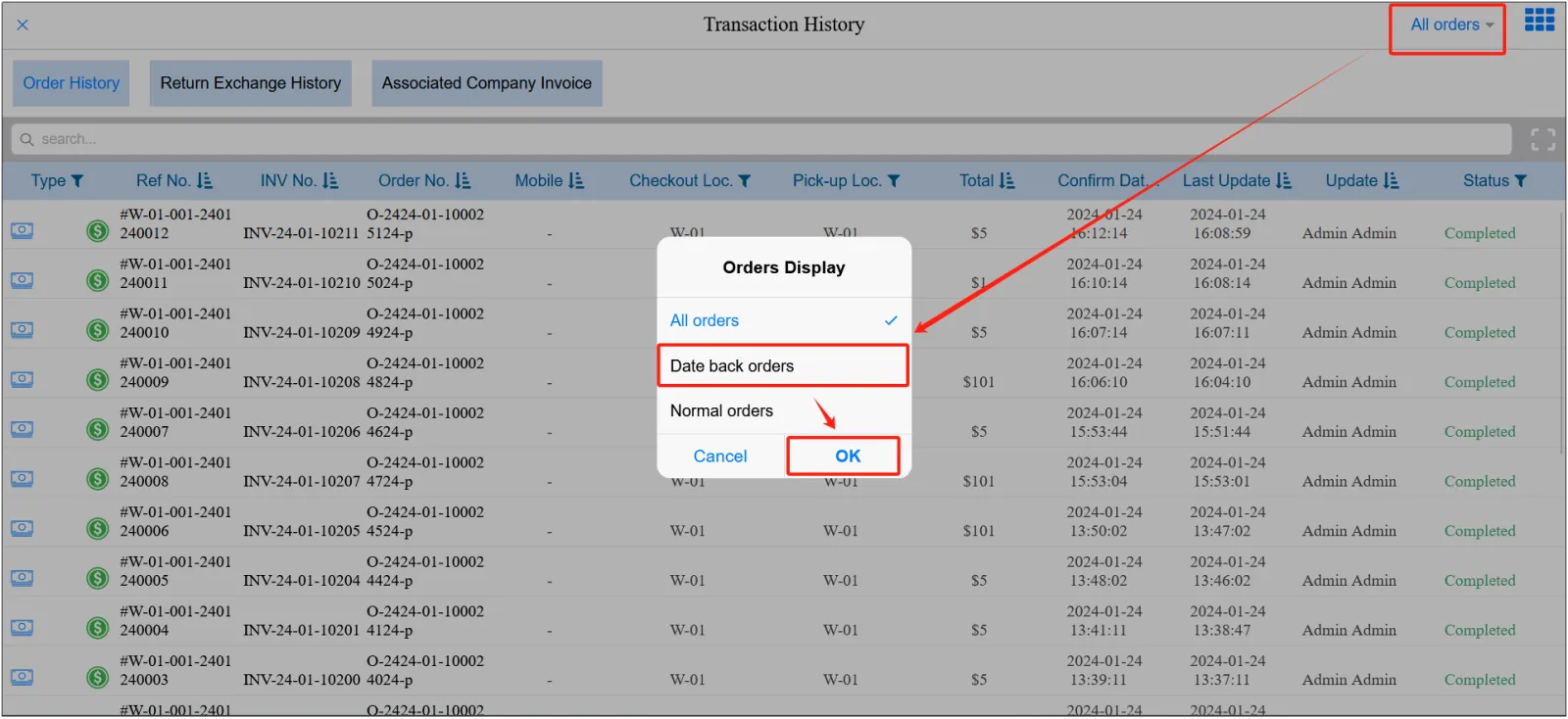
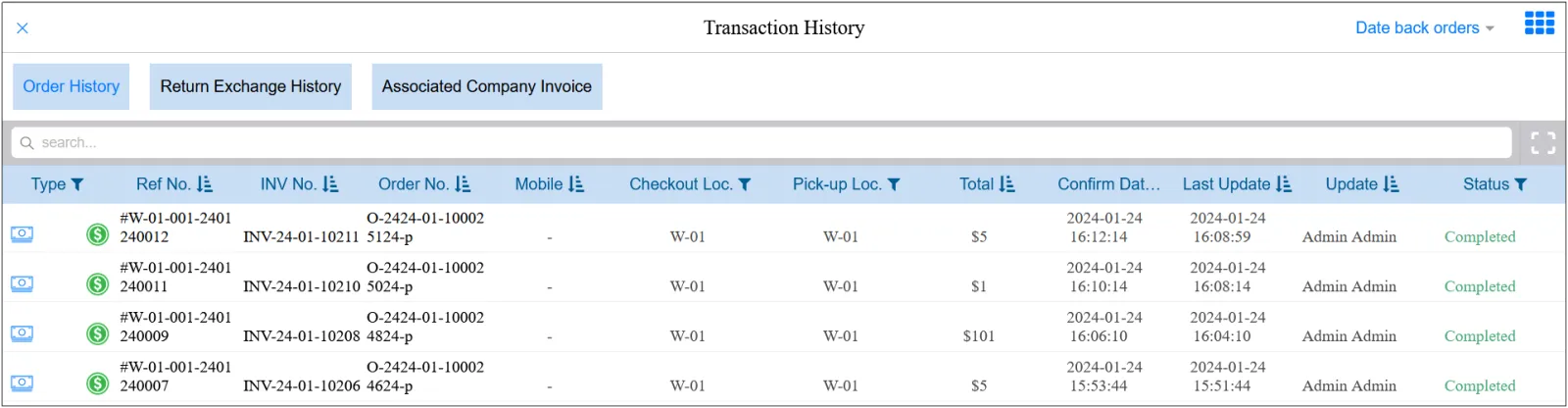
view a list of Date back orders.