B2B order process
The general B2B order process is divided into three steps, which are to create a B2B order - create an invoice based on a B2B order - create a delivery note based on a B2B order.
Create a B2B order
Create directly in the CMS
Open the CMS click Ordersclick Ordersclick [Add] in the upper right corner.
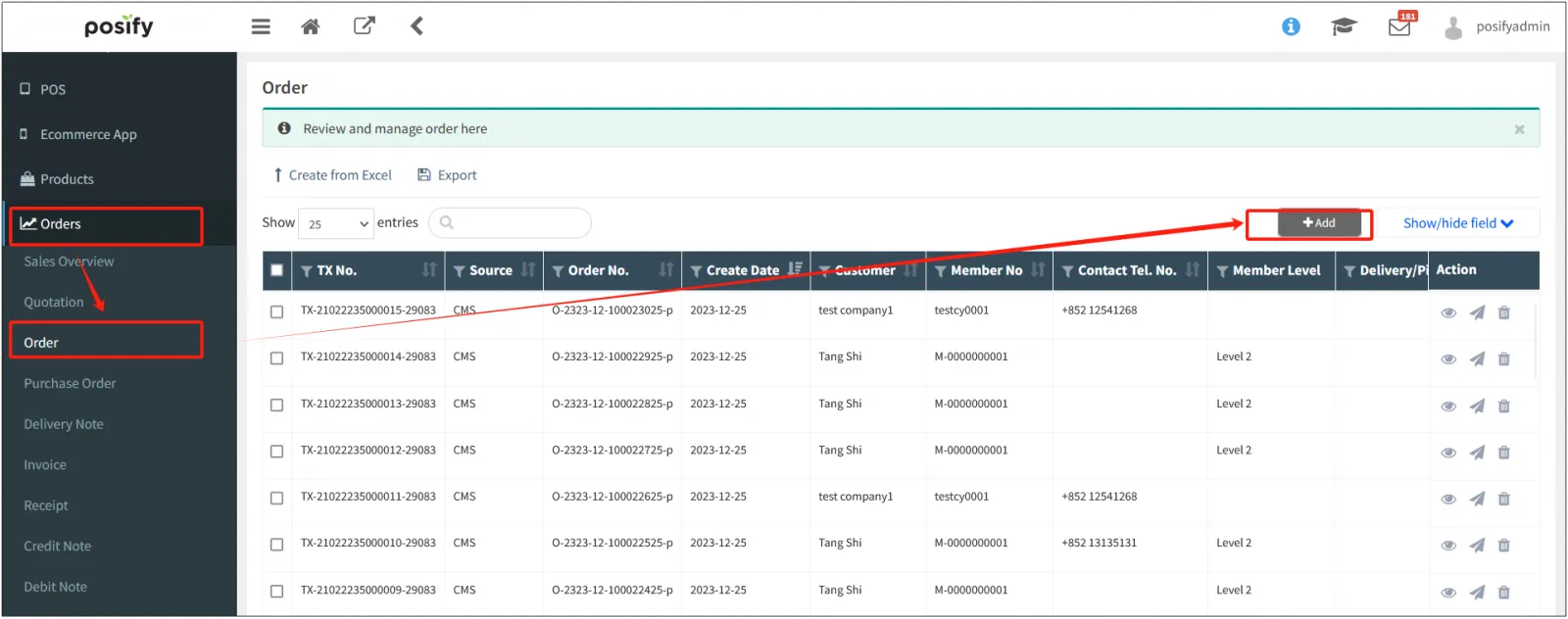
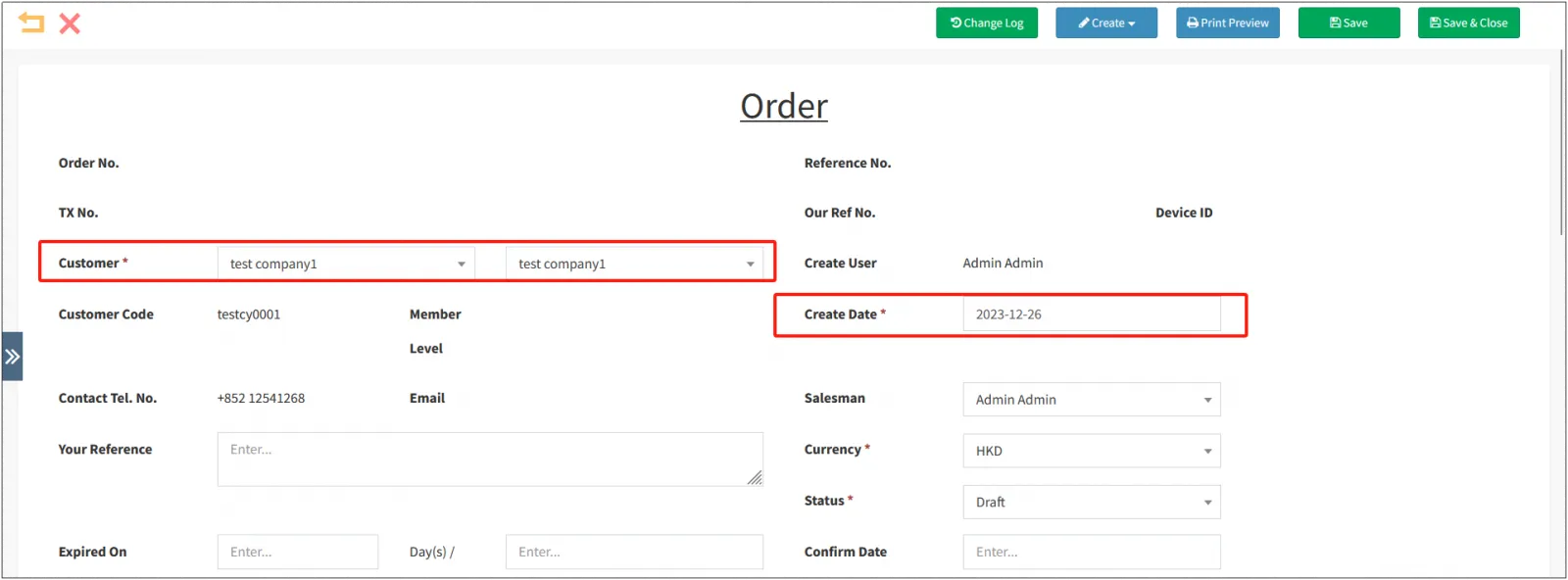
Select customers, B2C orders are generally generated by online stores and offline stores, so orders created directly on the CMS are generally B2B orders, that is, orders from customers for corporate customers.
If [Allow Retrospective Order Creation] is enabled in the order-settings, you can modify the "Order Preparation Date", otherwise it cannot be modified and defaults to the day the order was created.
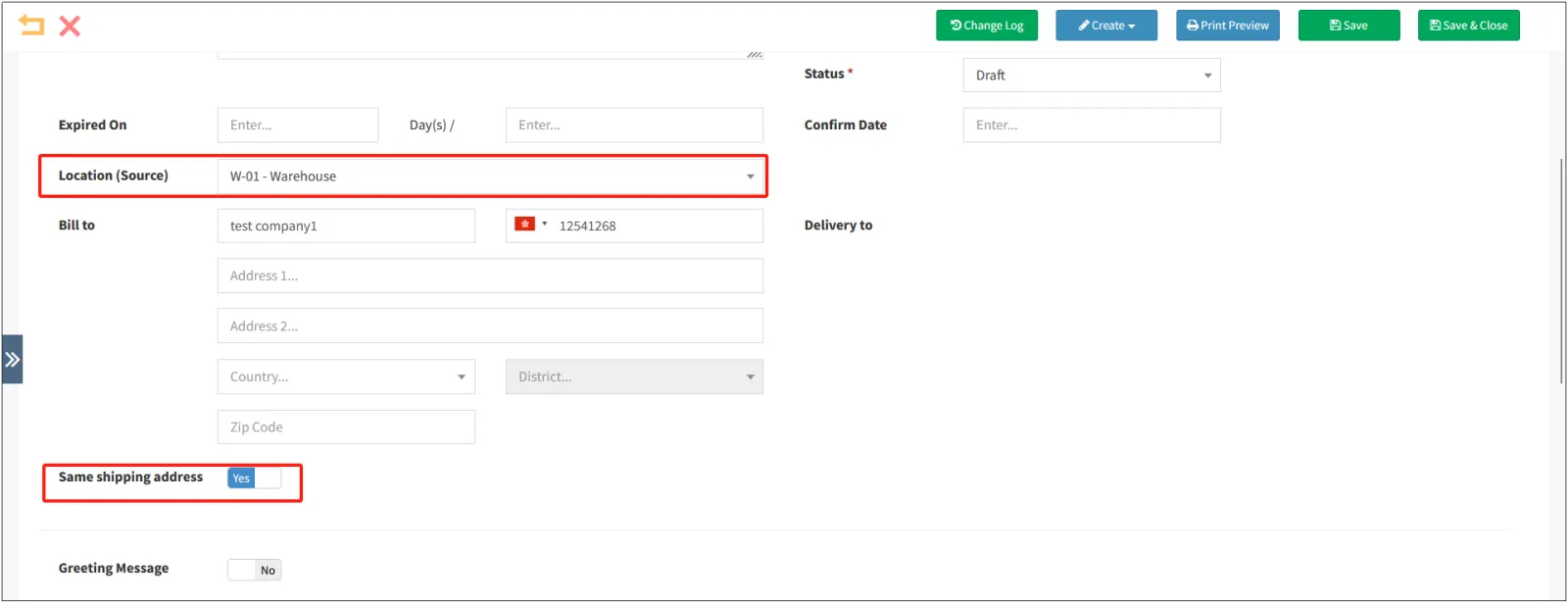
Select [Recall Location], that is, the location where the order will be shipped, and fill in the delivery address of the order after [Ship to], if the delivery address is the same as the company's address, you can click to open [Same as Shipping Address].
To add the items included in the order to the order's product list, click Add in the upper right corner of the product list to add a row, or click Add in bulk to select multiple products at onceenter the quantity and unit price of each product.

If you want to add a batch of products, you need to click the gear icon in the upper right corner of the listselect [Batch Number].
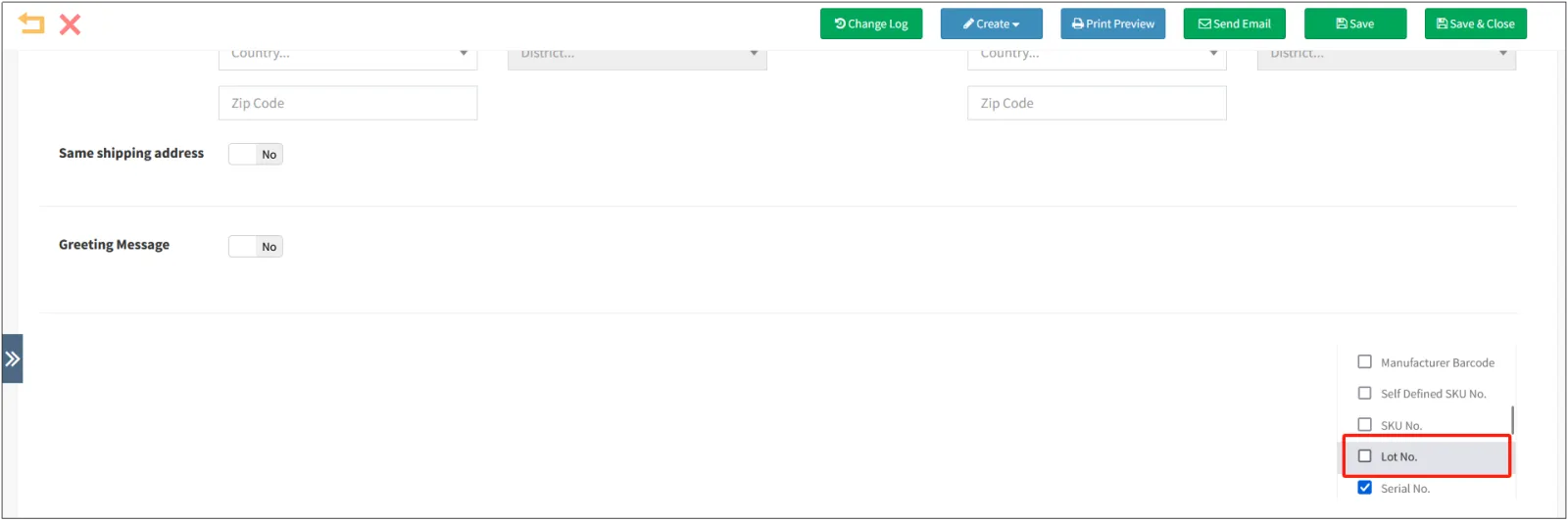
Similarly, to add a batch of products to the list, enter Quantity and Unit Price, and enter the Lot Number for the product.

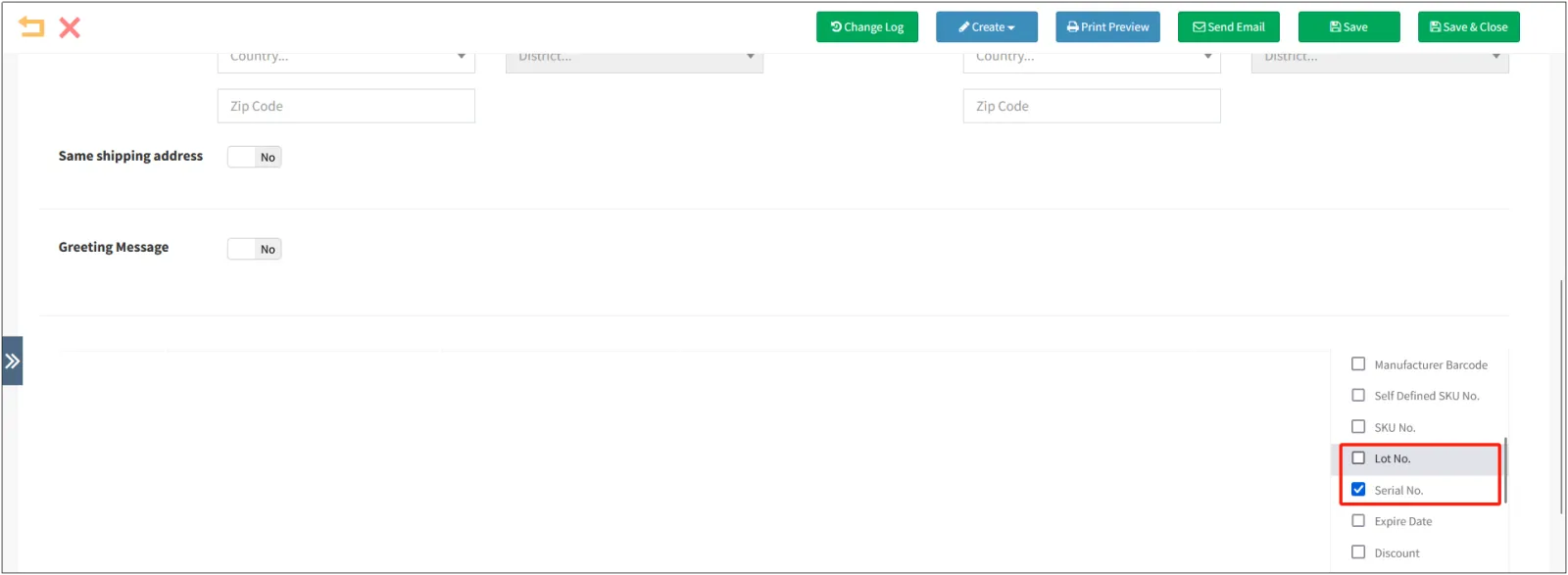
If you want to add serial products, you need to click the gear icon in the upper right corner of the listcheck [Batch Number] and [Serial Number].
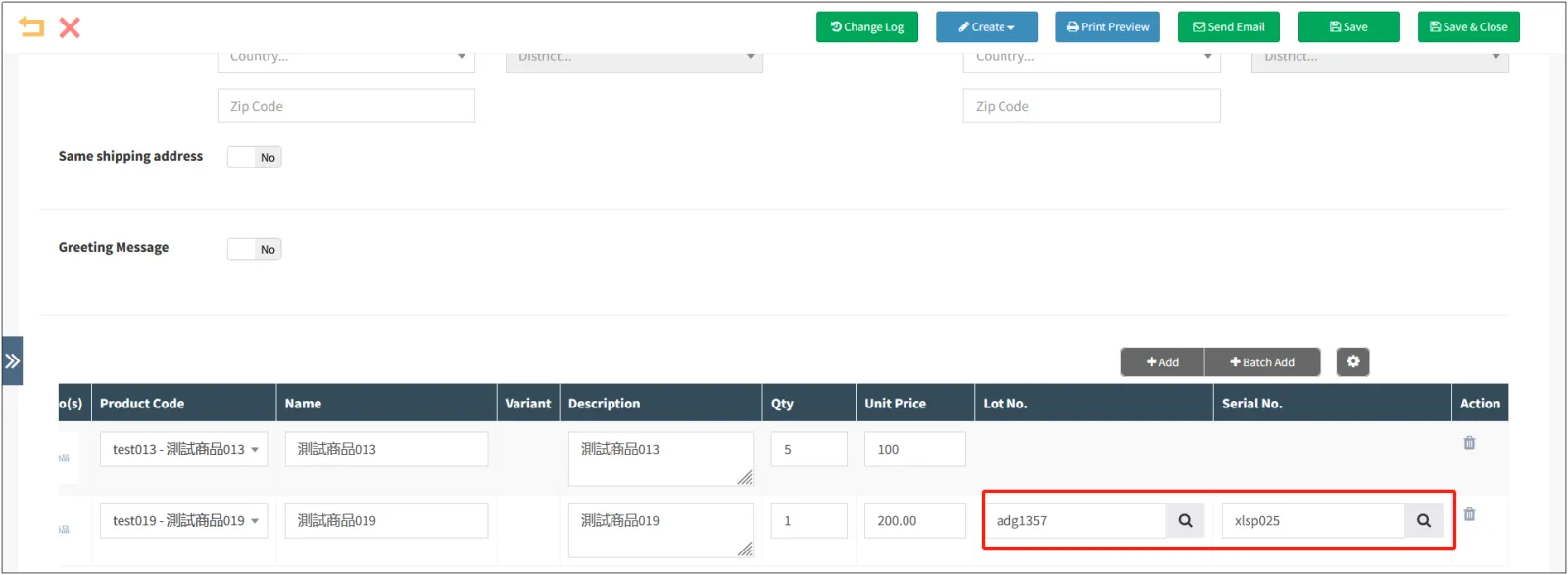
Enter the batch number and serial number of the serial items in the order. Note that the serial number is different for each serial product, and the serial number entered here must be for a serial product that is already in stock.
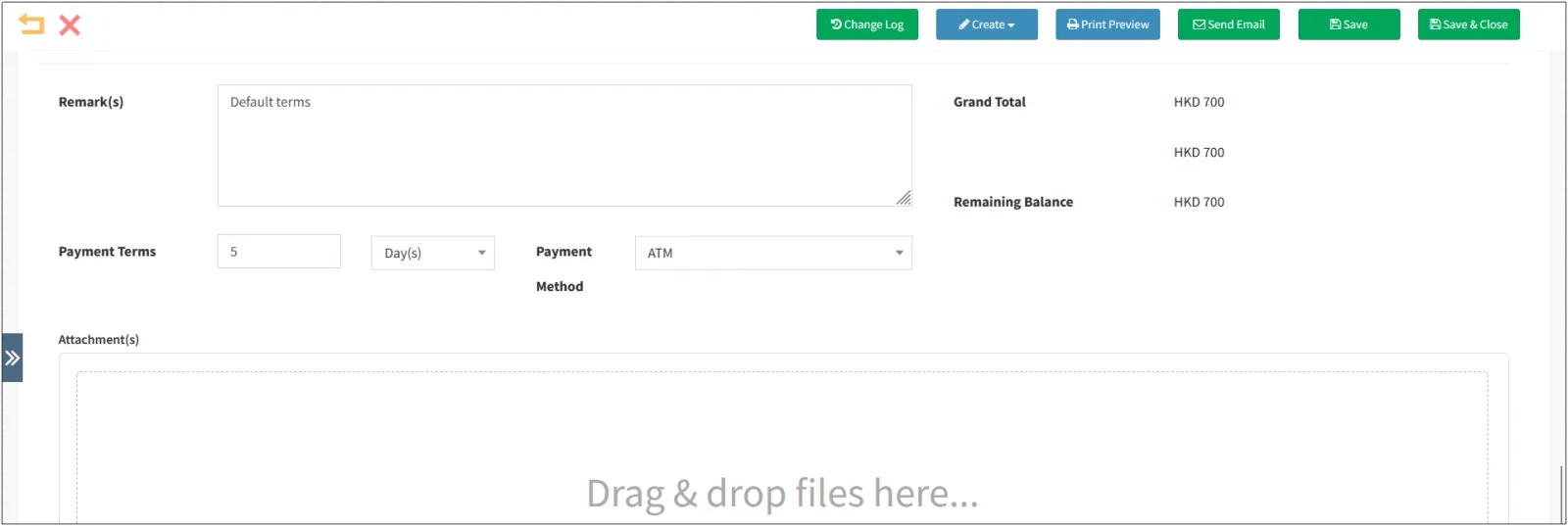
Enter the payment terms, which is the time limit for the payment of the orderselect the payment methodupload the relevant images in the attachment if necessary.
Click [Save] in the upper right corner to create an order.
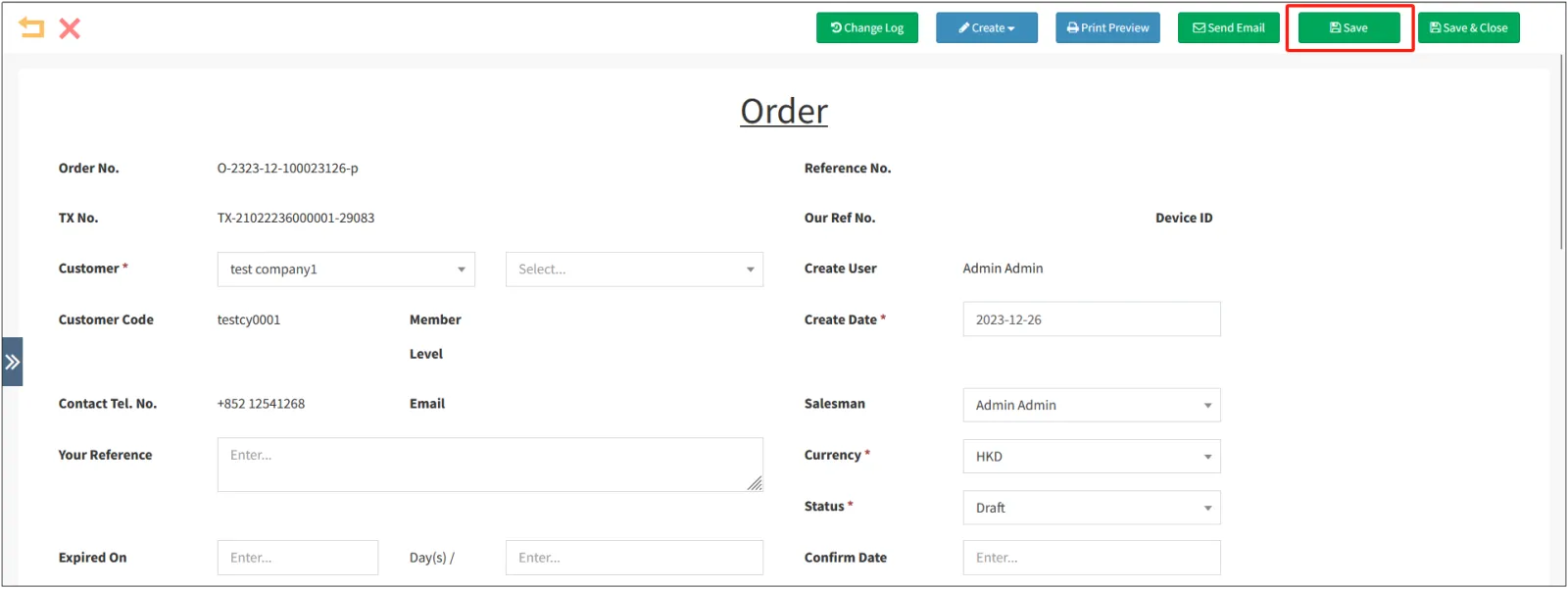
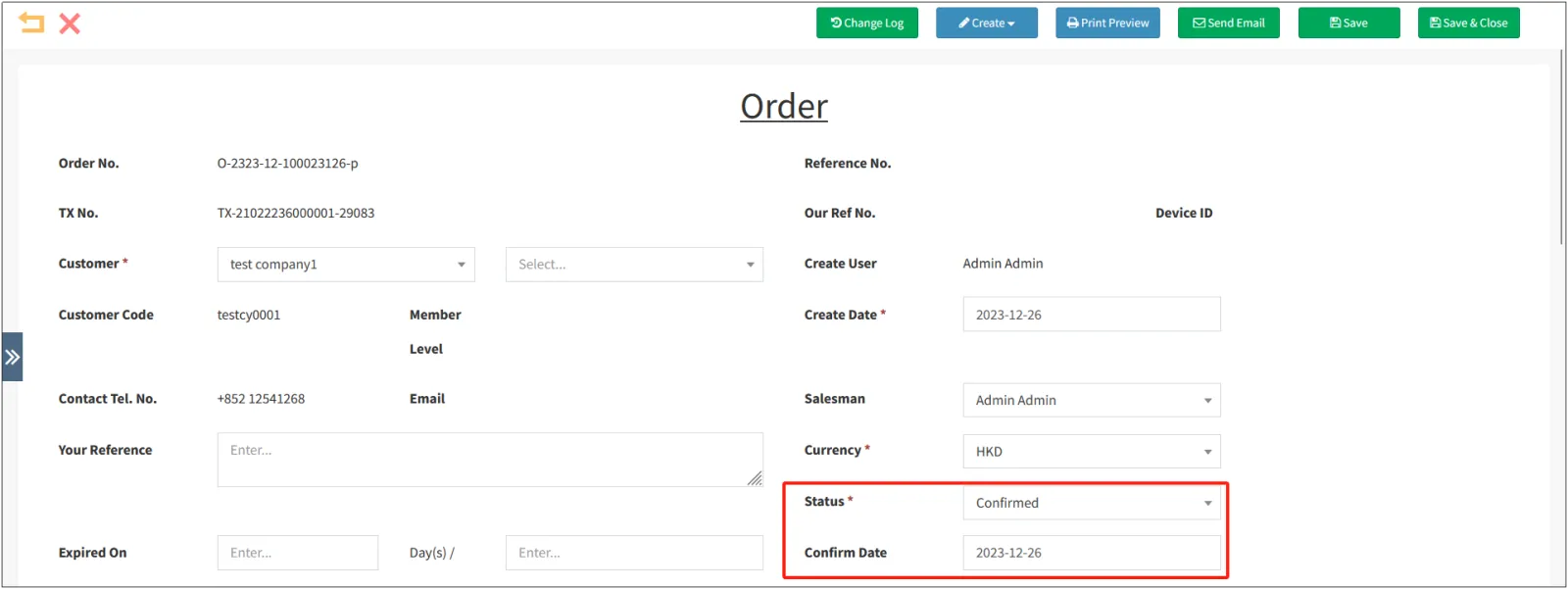
After creating an order, the status of the order is Draft, confirm that the order information is correct, change the order status to Confirmed, and click Save in the upper right corner.
Created by importing Excel
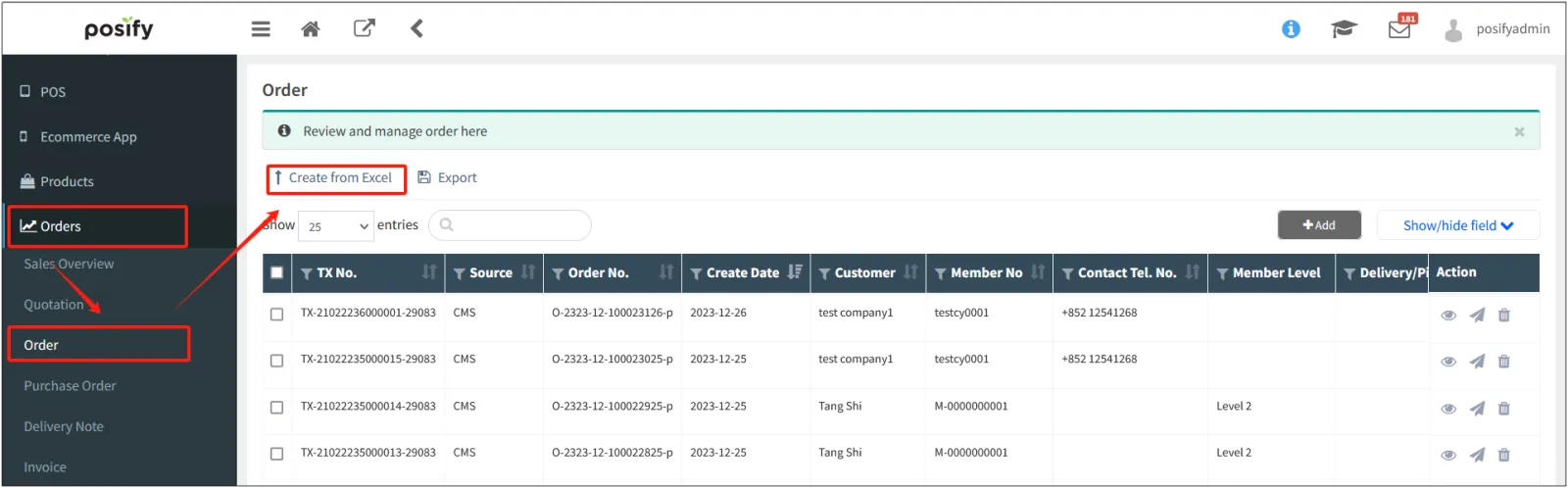
Open the CMSclick Ordersclick Ordersclick [Create by Excel].
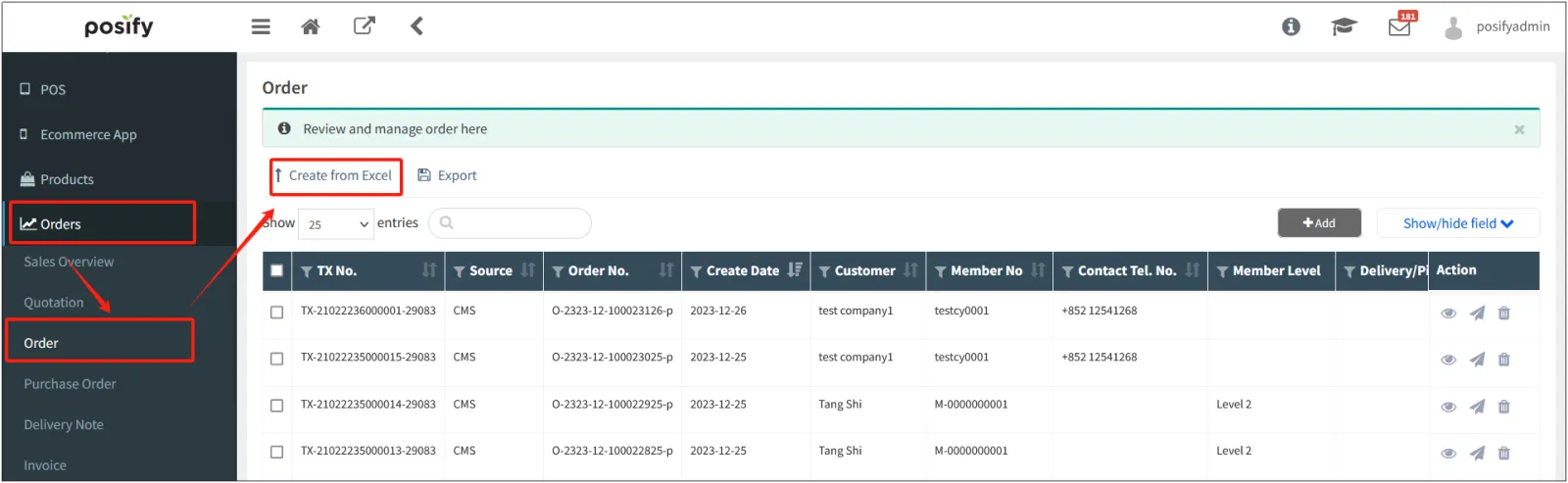
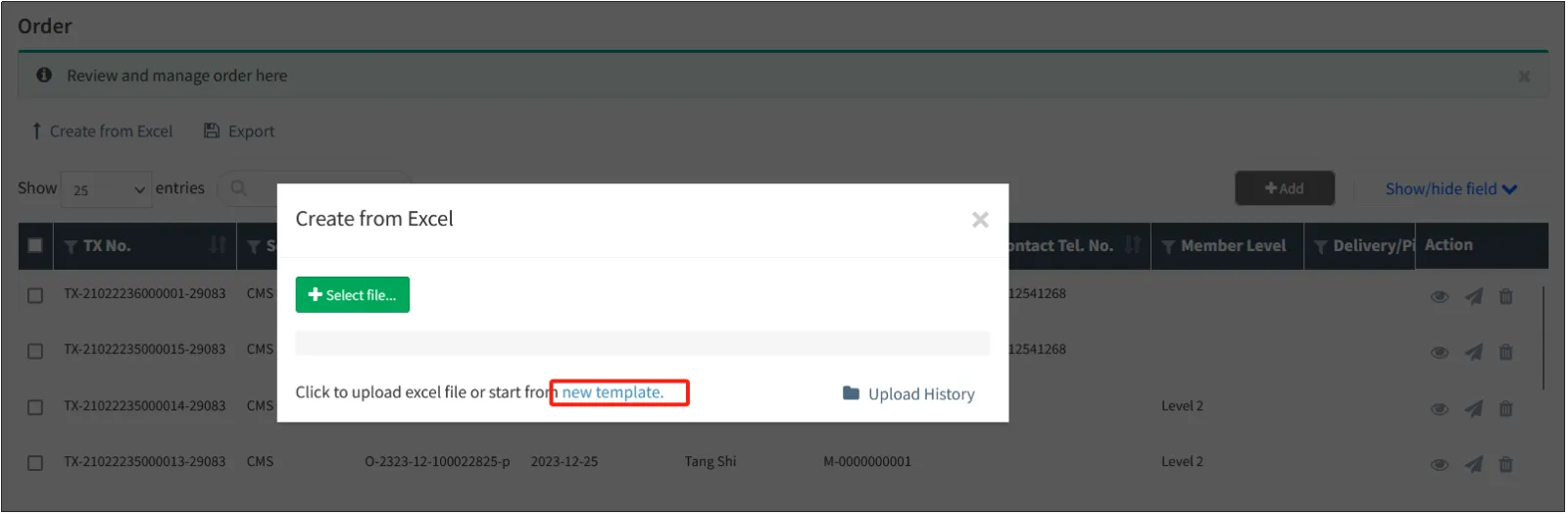
Click [New Template] to download an Excel template.
Open the downloaded Excel template and fill it in with the information about the items included in the order.

Item Number: Required, the number of the purchased item.
SKU number/manufacturer number/custom SKU number: mainly used to distinguish attribute options for attribute products, at least one of the three must be filled.
Membership Number: The membership number of the member who purchased the item.
Batch number: If the product is a batch product, then you need to fill in the batch number of the product, otherwise you don't need to fill it in.
Serial number: If the product is a serial product, you need to fill in the serial number of the product, otherwise you don't need to fill it in.
Unit Price: The individual selling price of the item.
Quantity: The number of items included in the order.
Outbound location: The number of the location where the product was shipped.
Once you've finished filling it out, save it to Excel.
Go back to the CMSclick on Ordersclick on Ordersclick on [Create by Excel].
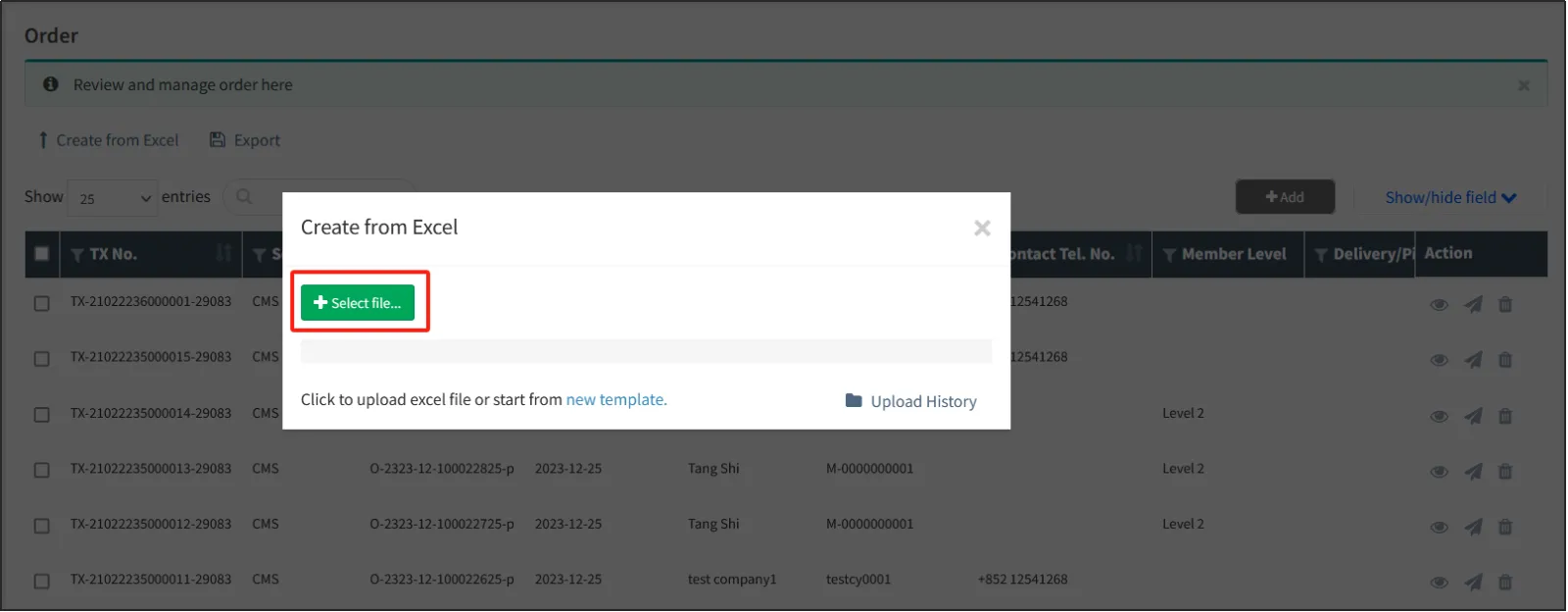
Click [Select File...]select the Excel you just saved to import.
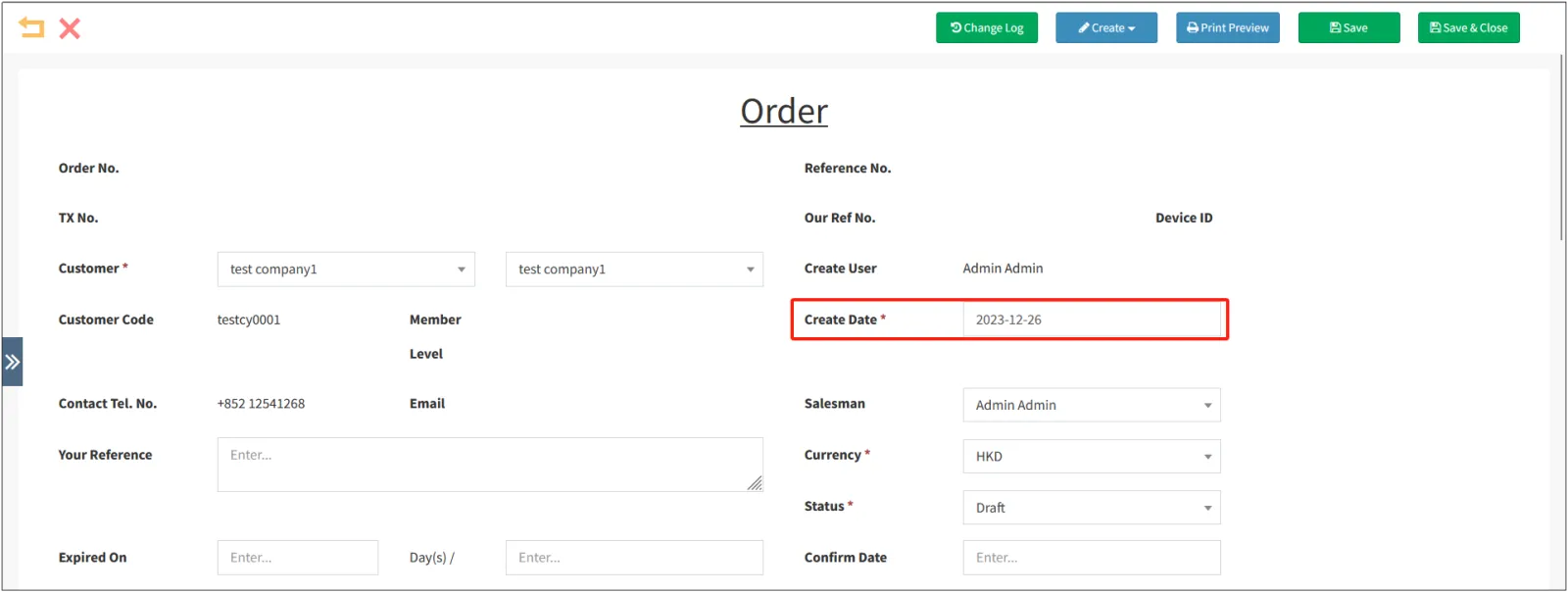
If [Allow Retrospective Order Creation] is enabled in the Order-Settings, you can modify the "Order Preparation Date", otherwise it cannot be modified and defaults to the day the order was created.
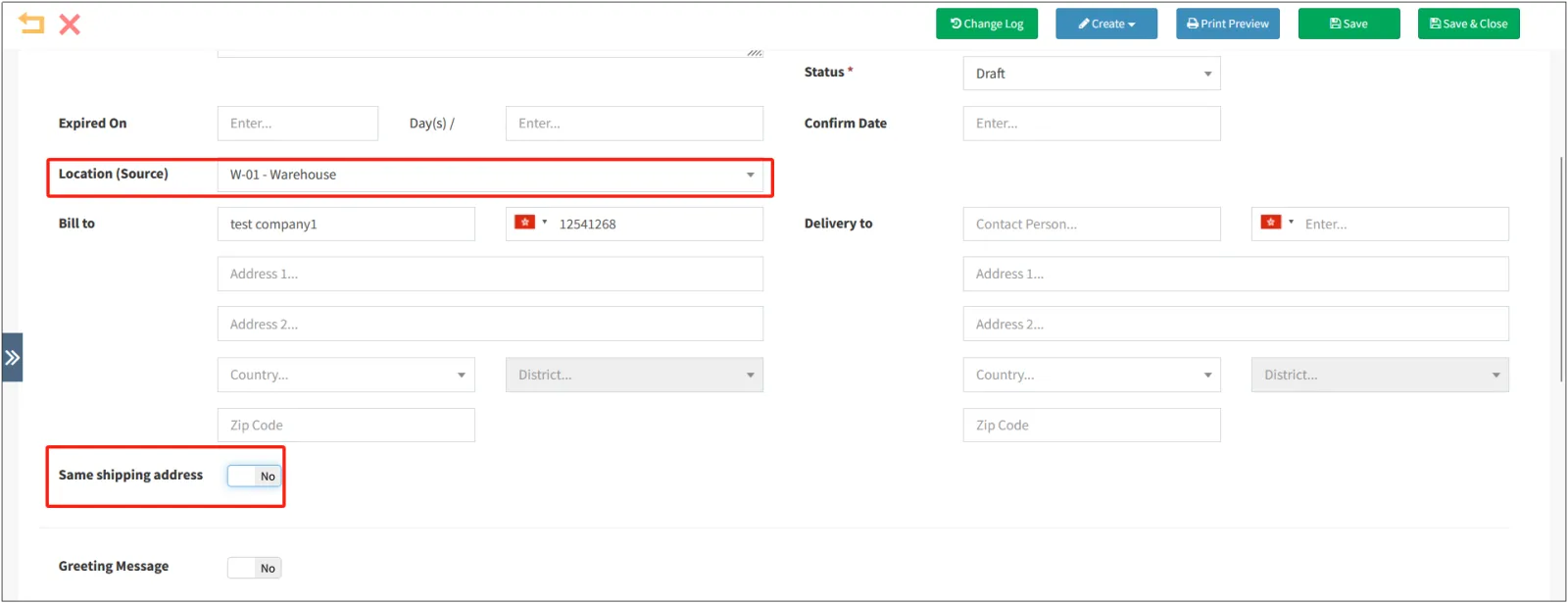
Select [Recall Location], that is, the location where the order will be shippedfill in the delivery address of the order after [Ship to], if the delivery address is the same as the company's address, you can click to open [Same as Shipping Address].
Enter the payment terms, which is the time limit for the payment of the orderselect the payment methodupload the relevant images in the attachment if necessary.
Click [Save] in the upper right corner to create an order.

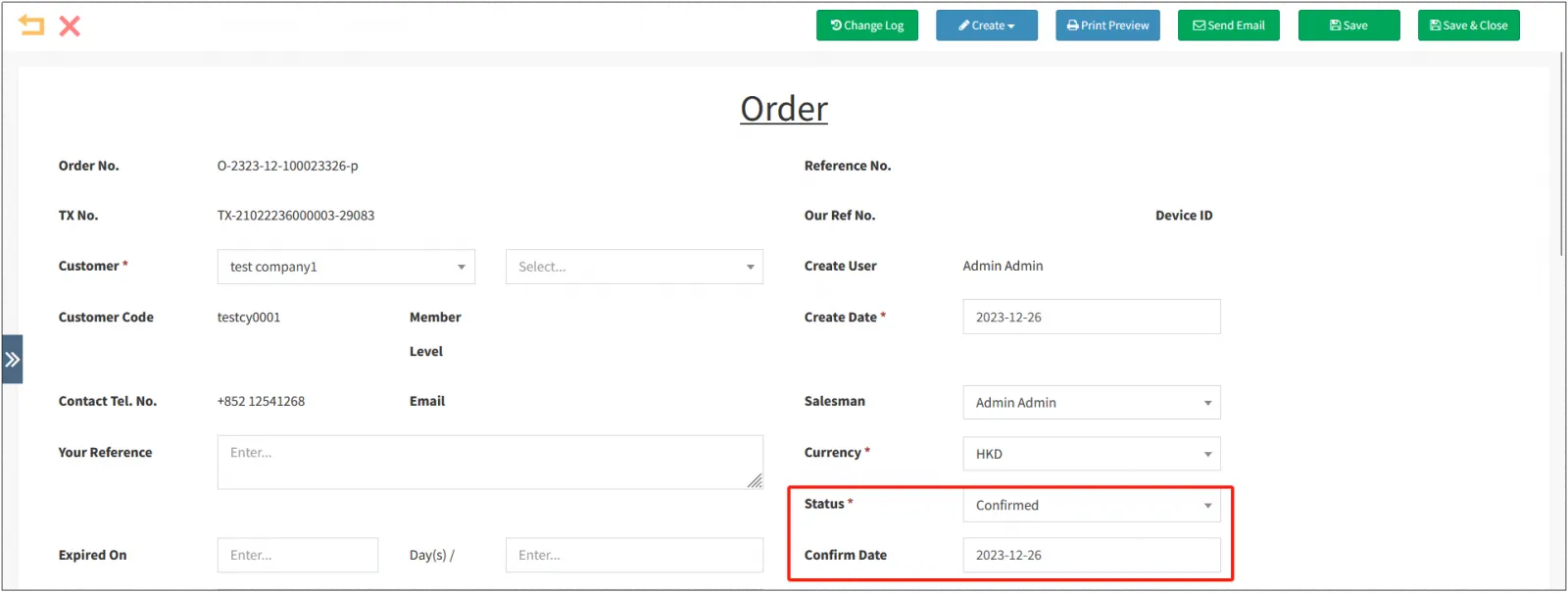
After you create an order, the Status: Draft of the order. After confirming that the imported order information is correct, change the order status to Confirmedselect Confirm Dateclick Save in the upper right corner to confirm the order.
Create invoices based on B2B orders
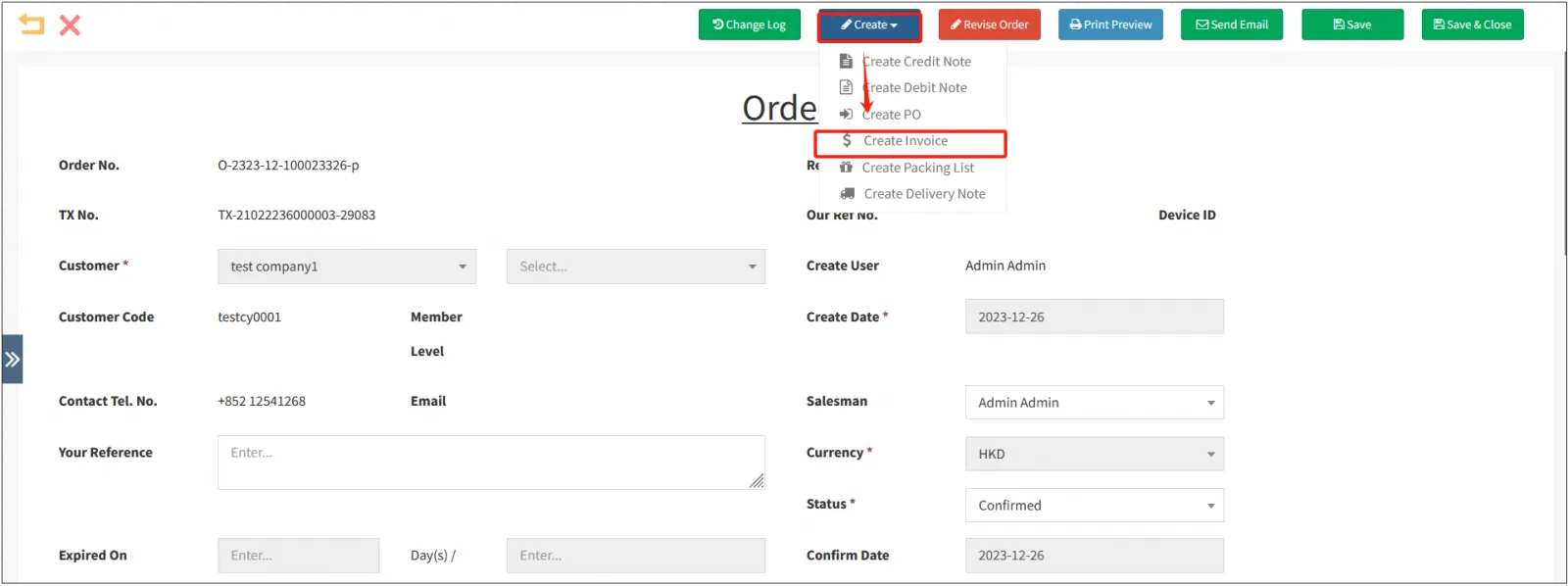
After confirming the order, click "Create" above the order detailsclick "Create Invoice".
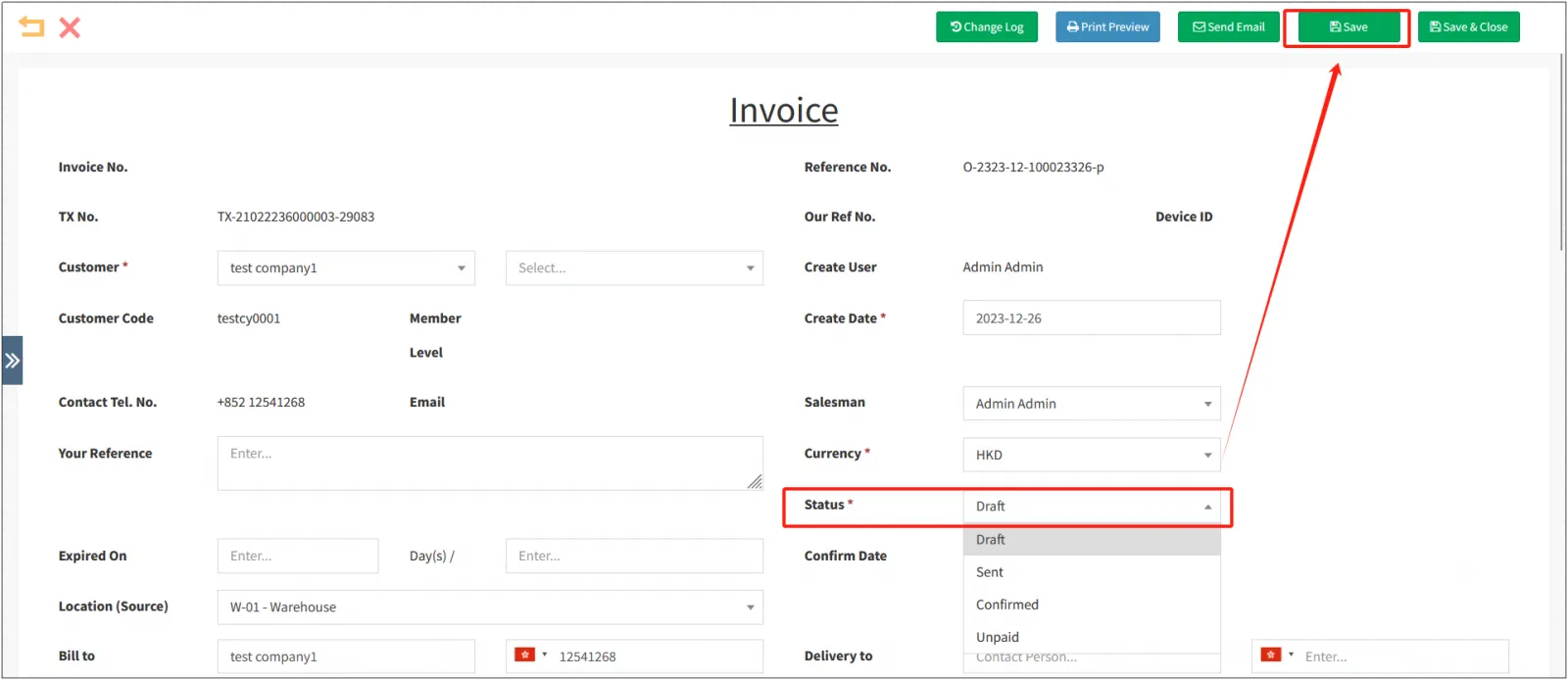
Select [Status] of the receipt and click [Save].
If the invoice content is not yet finalized, you can select Draft, if it is confirmed, you can select Confirmed, if the invoice has been sent to the customer, you can select Sent, and if you are waiting for the customer to pay, you can select Pending payment.
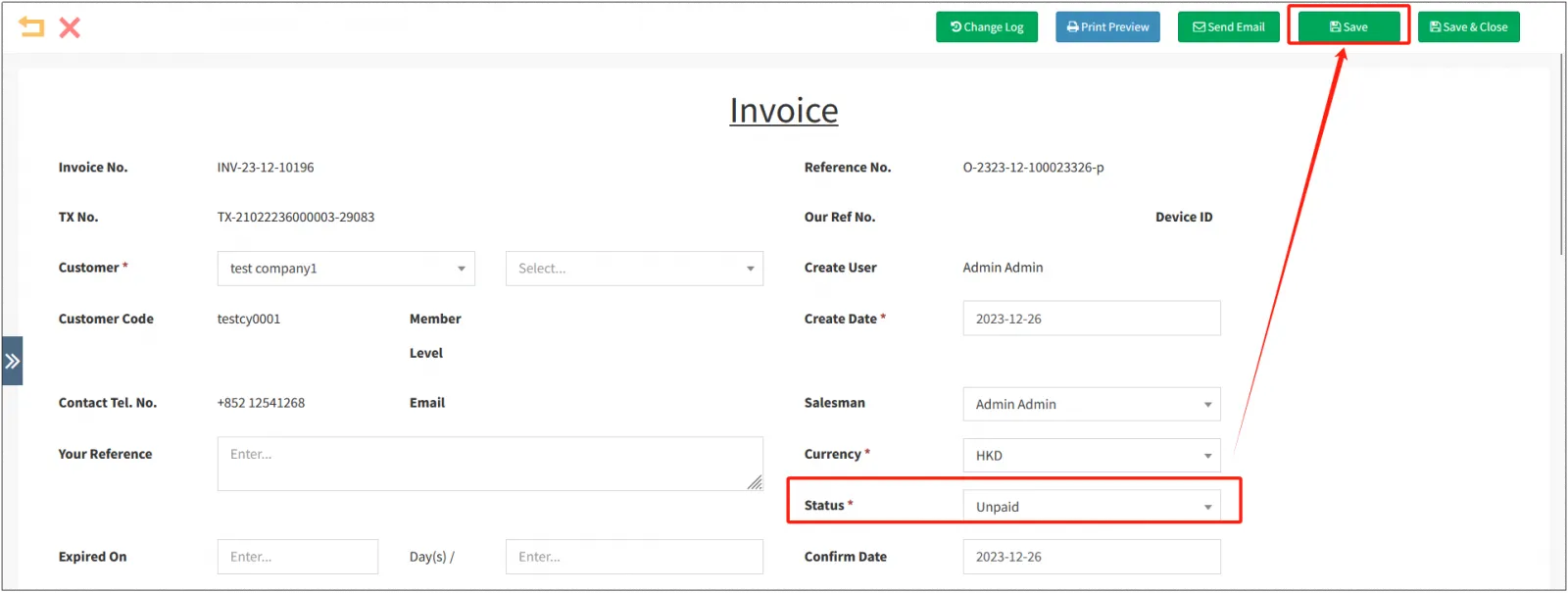
Later, if the customer partially pays or has already paid, you can open the invoice details, modify the invoice to the corresponding status and save it.
Create a delivery note based on a B2B order
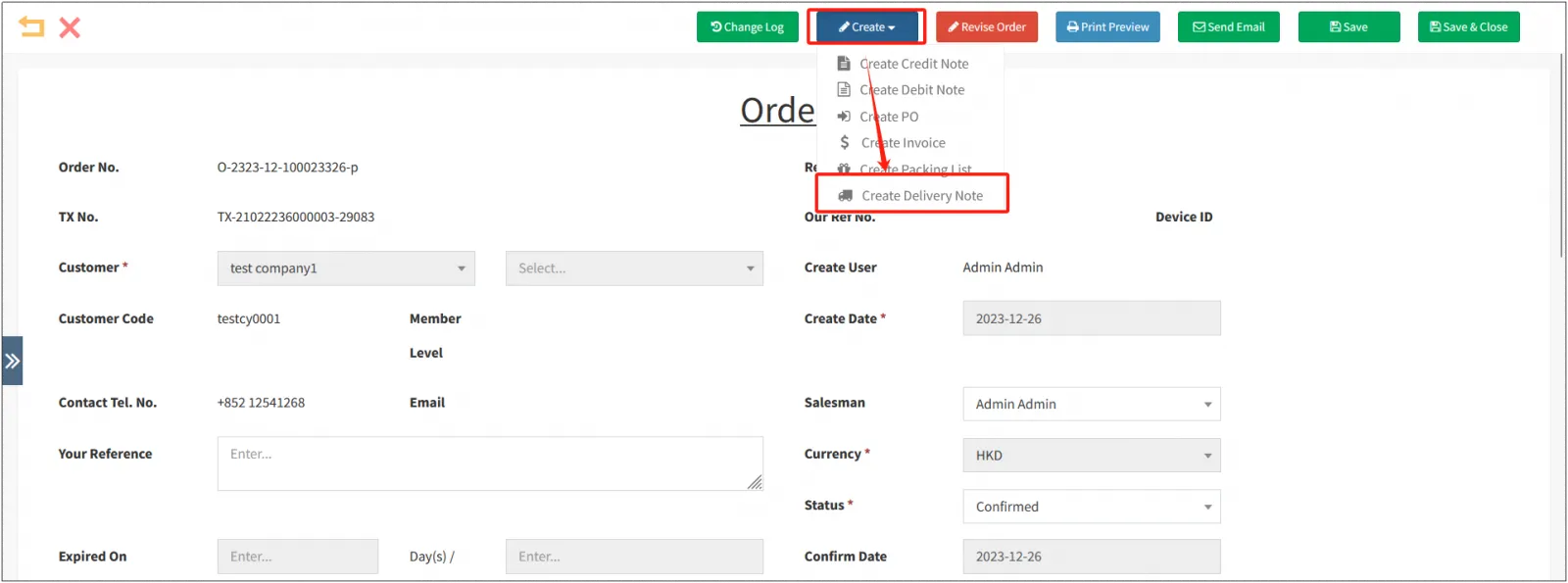
Open the B2B order details in CMS-Orders-Ordersclick [Create] at the topclick [Create Delivery Note].
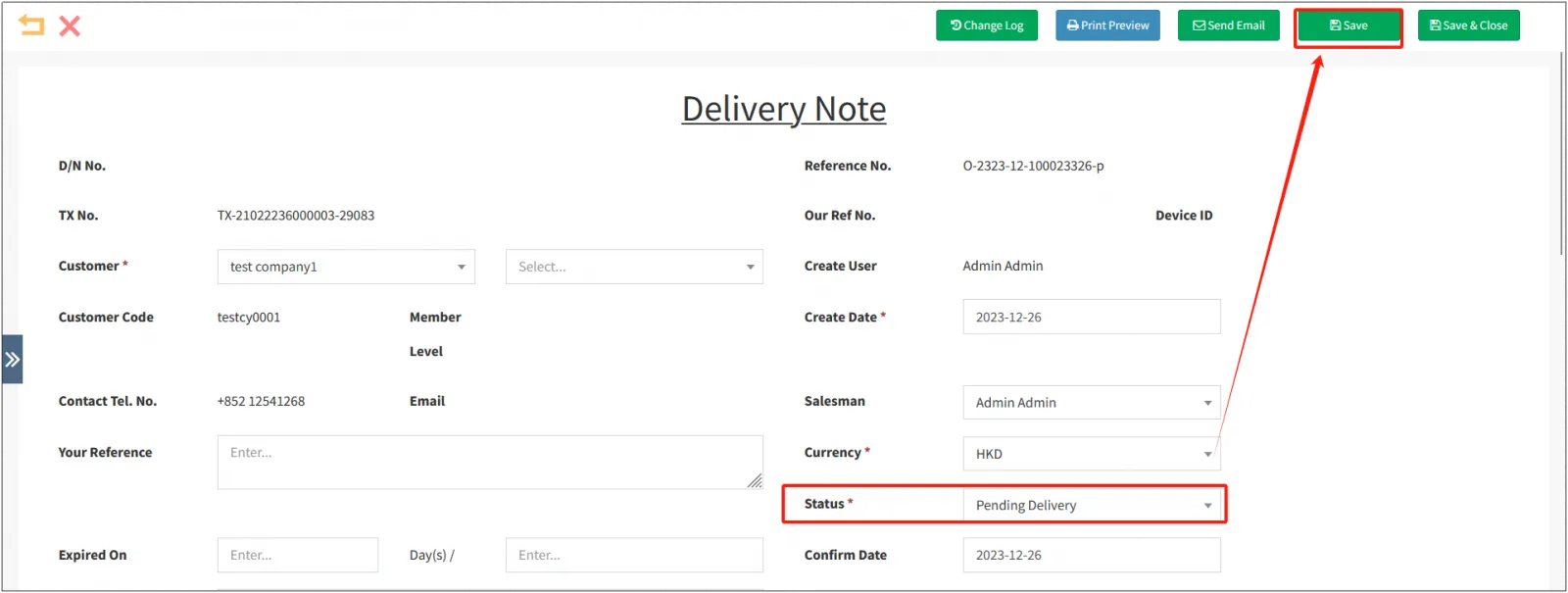
Select [Pending Delivery]click "Save".
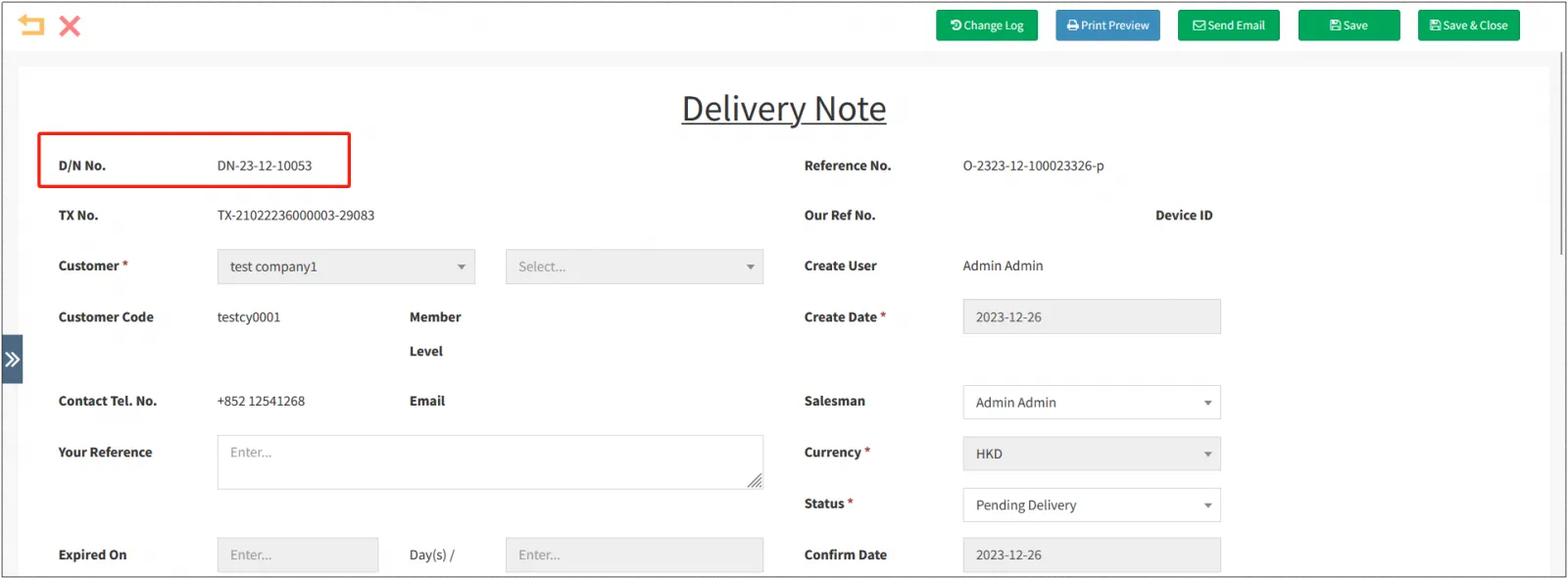
Copy the delivery note number of the delivery note.
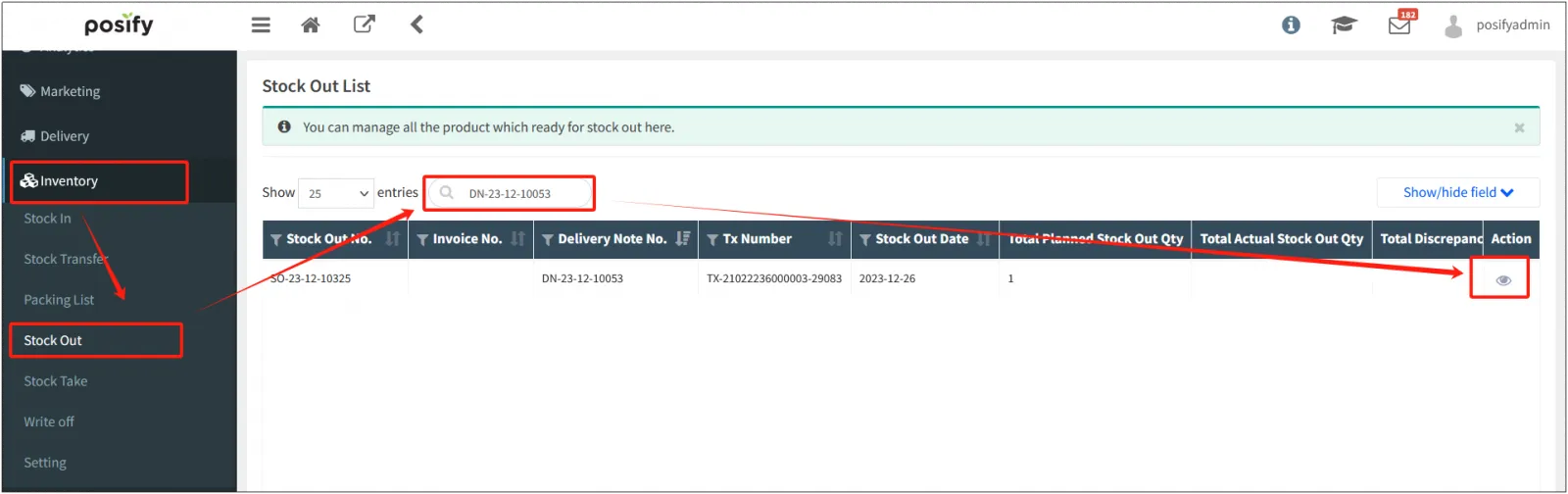
Open Inventory-Outgoingenter the delivery note number in the input box, search for the corresponding shipping orderclick  on the right to open.
When the product is ready to be shipped, change the [Status] of the shipping order to Ready for Shipment Completedclick [Store] in the upper right corner.
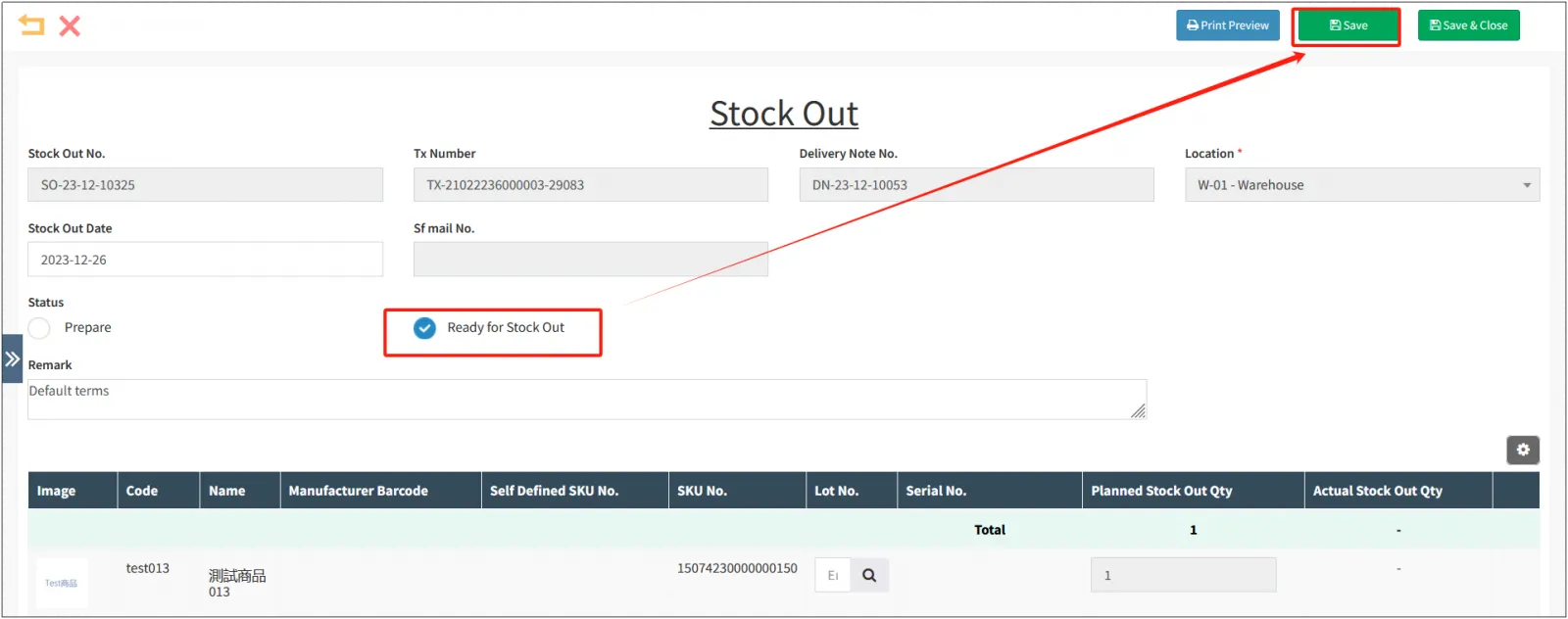
When the product has already been shipped, change the status of the shipping order to Shippedclick [Save] in the upper right corner.
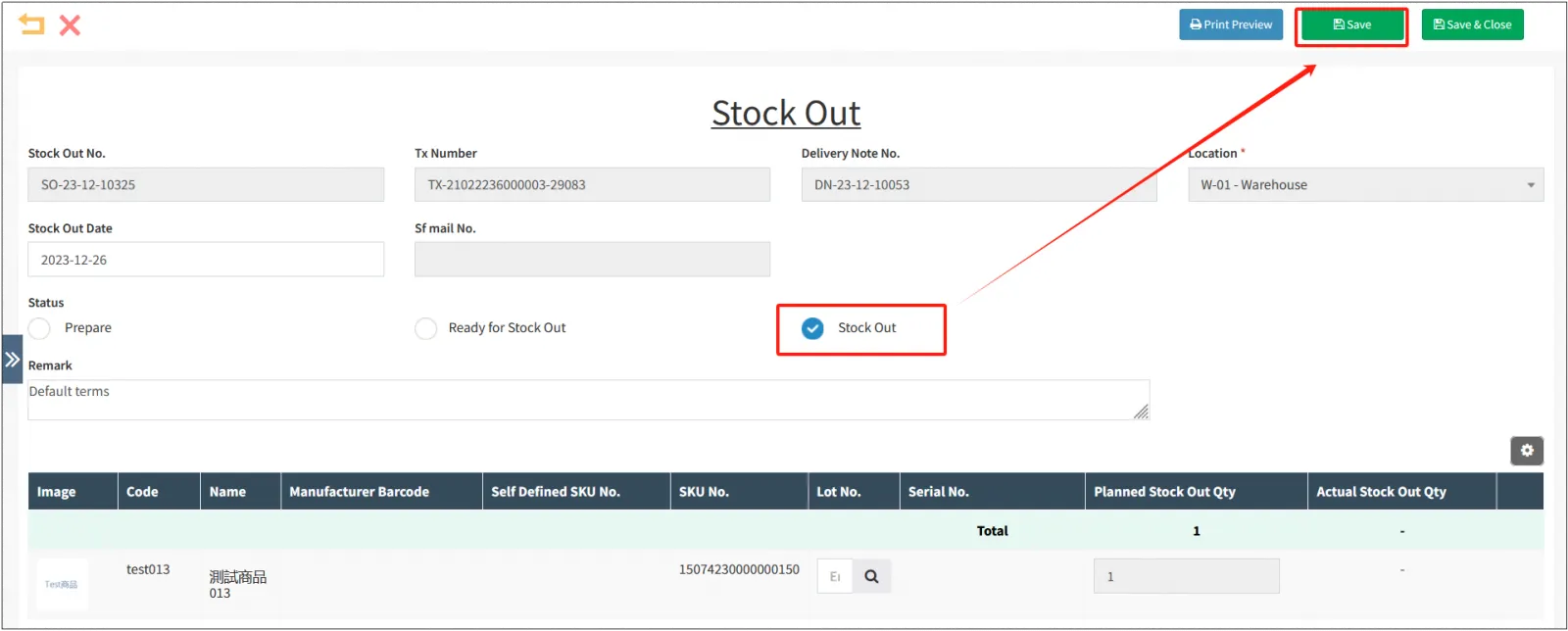
Wait for the logistics to be delivered, when the goods have been delivered, open the CMSclick on the orderclick on the delivery noteenter the number of the delivery note in the input boxclick on on the right to open the details.
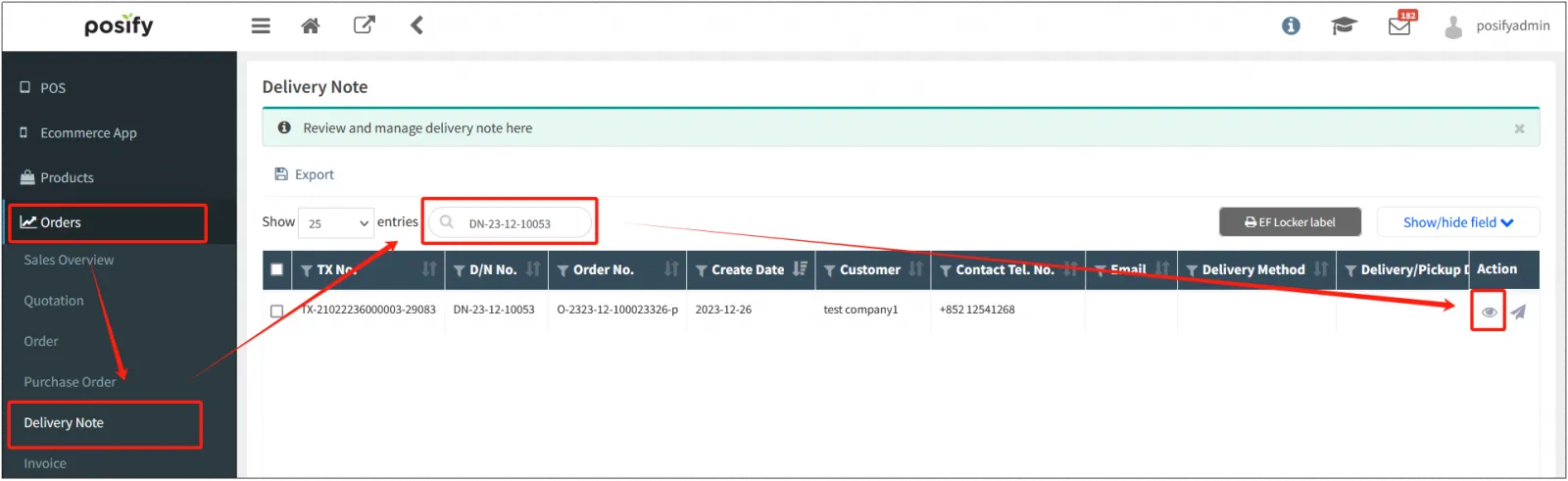
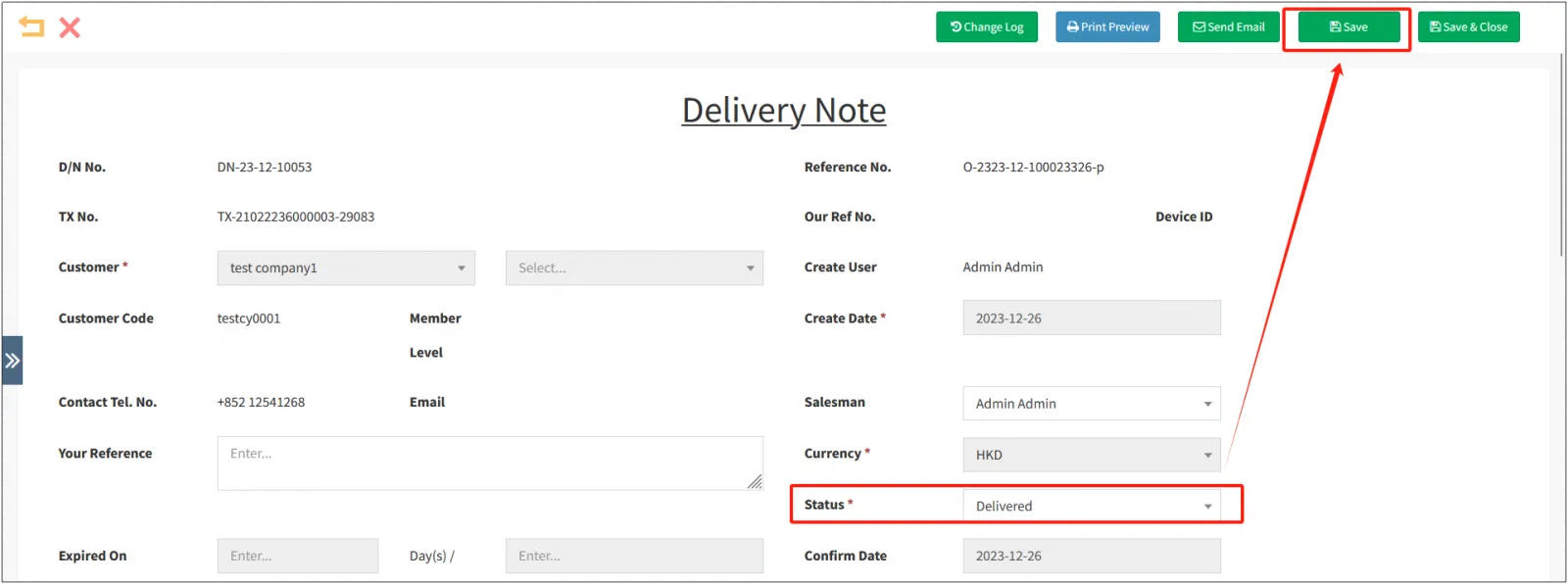
Modify the [Status] of the delivery slip to Deliveredclick [Save] in the upper right corner to complete the order process.
Modify a B2B order
If the order status is Draft, you can modify the order content directly, and then click [Save] in the upper right corner to save it again.
If the order has been confirmed, you can edit the order by clicking "Modify Order" at the top.
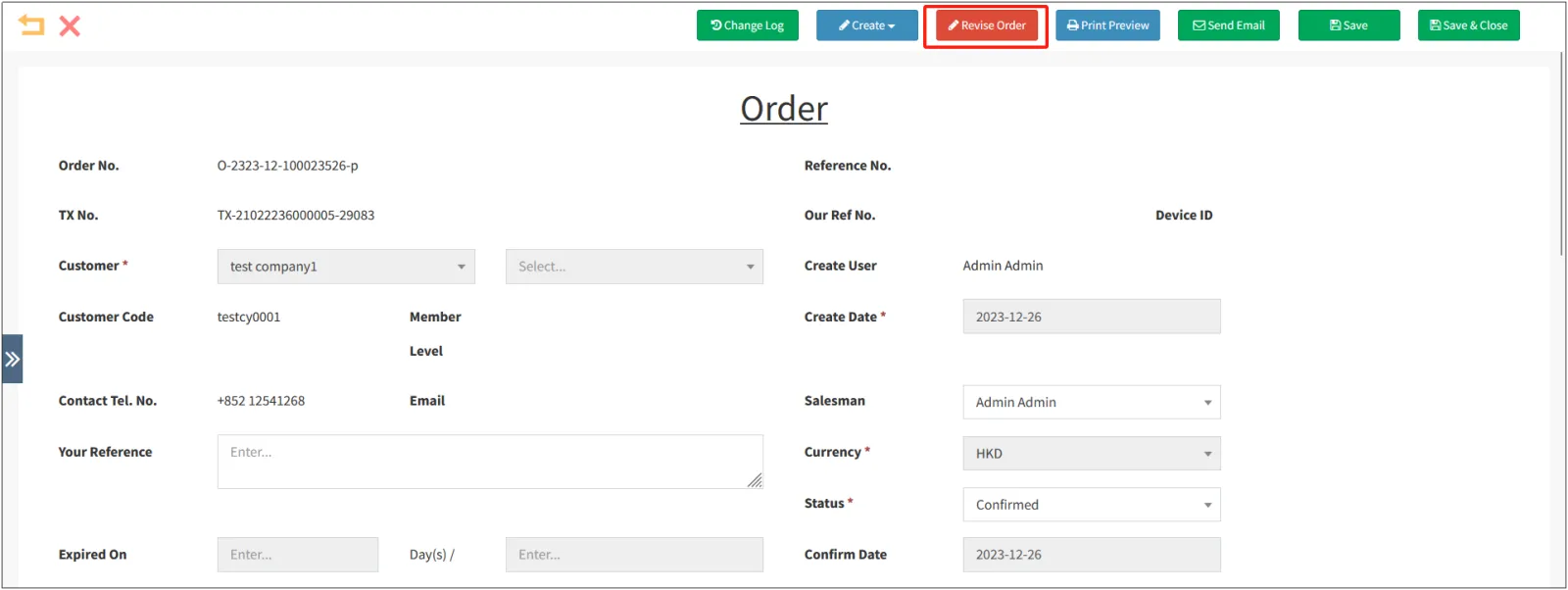
Again, click [Save] in the upper right corner after making changes.
Cancel B2B orders
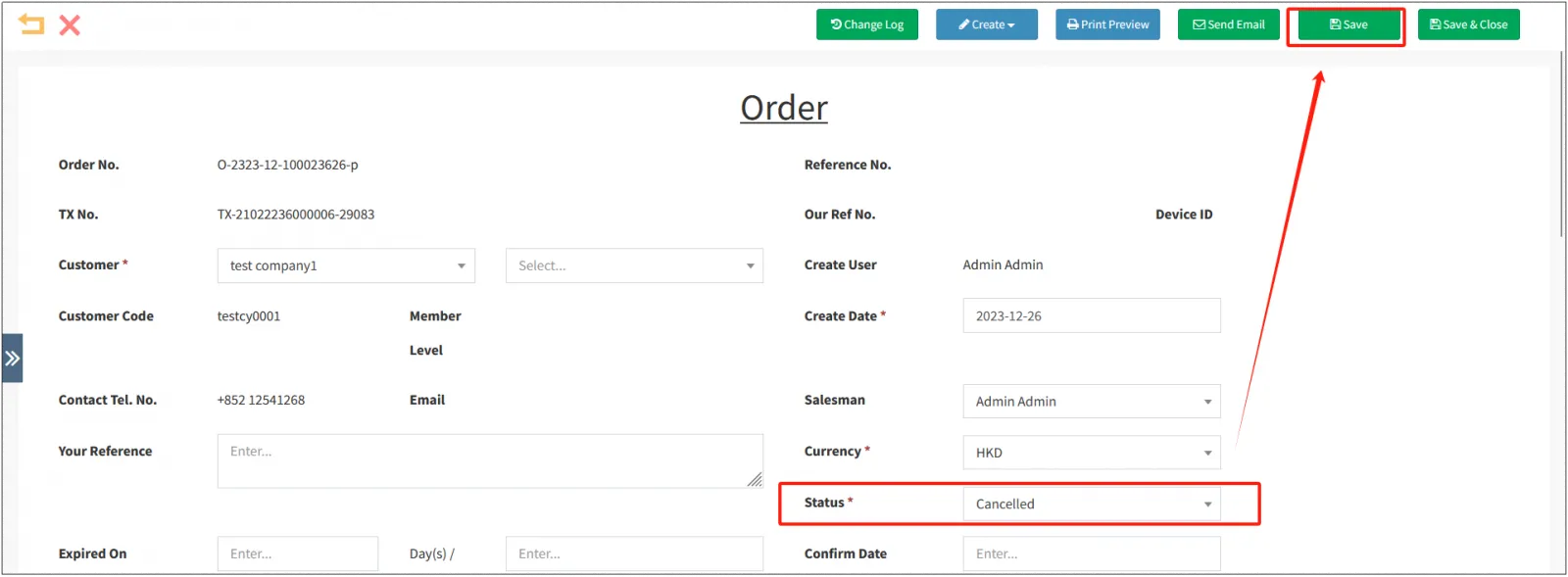
Modify the order status to Canceledclick "Save" to cancel the order.
Note: Only unconfirmed orders can be cancelled.