Create a delivery note
Delivery notes must be created from confirmed orders, each of which has a corresponding order, but an order can have more than one delivery note.
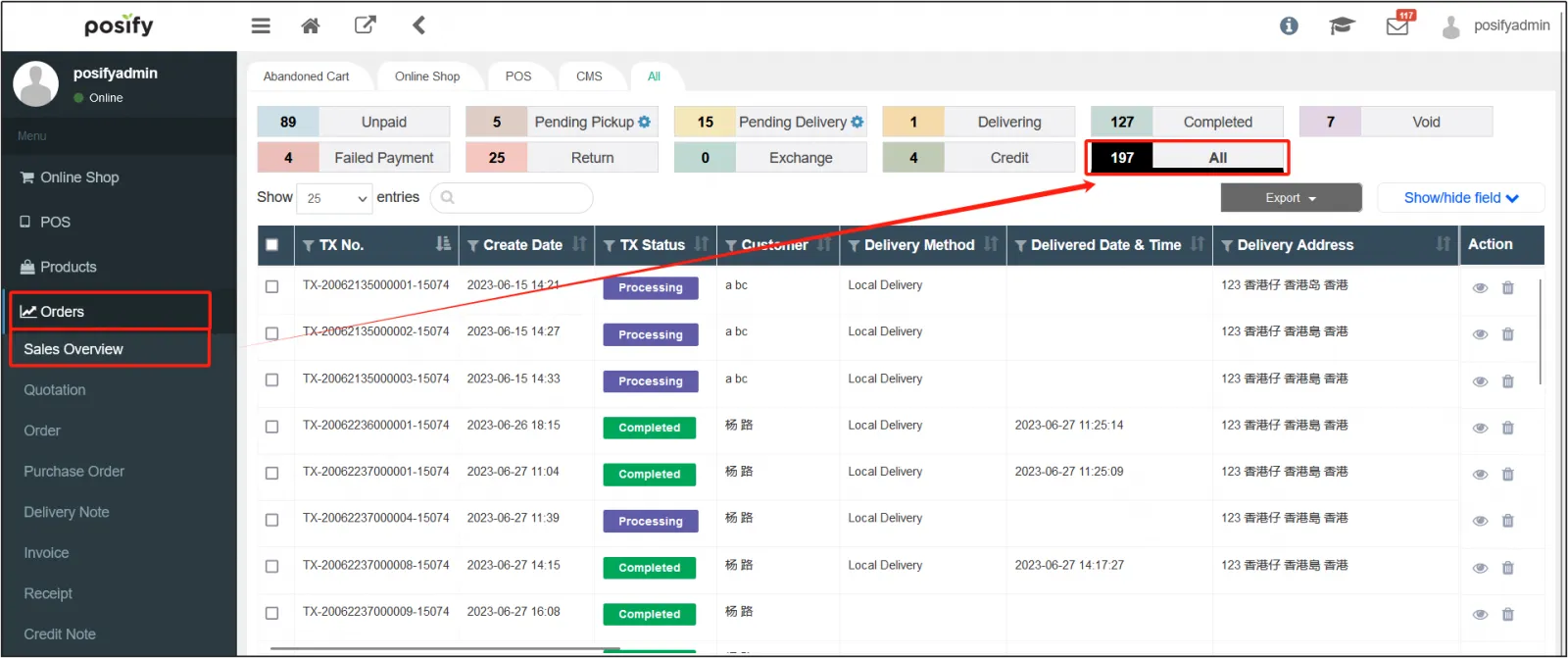
Open CMS click orderclick sales overviewclick alland find the order for which you need to create a delivery note.
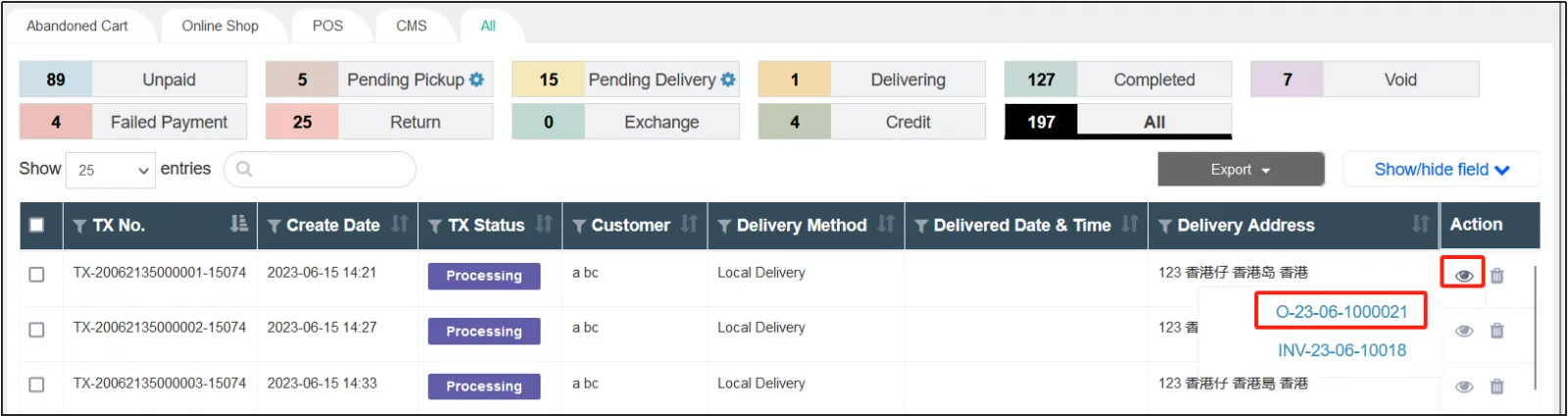
Click on  to the right of the order to view the order details.
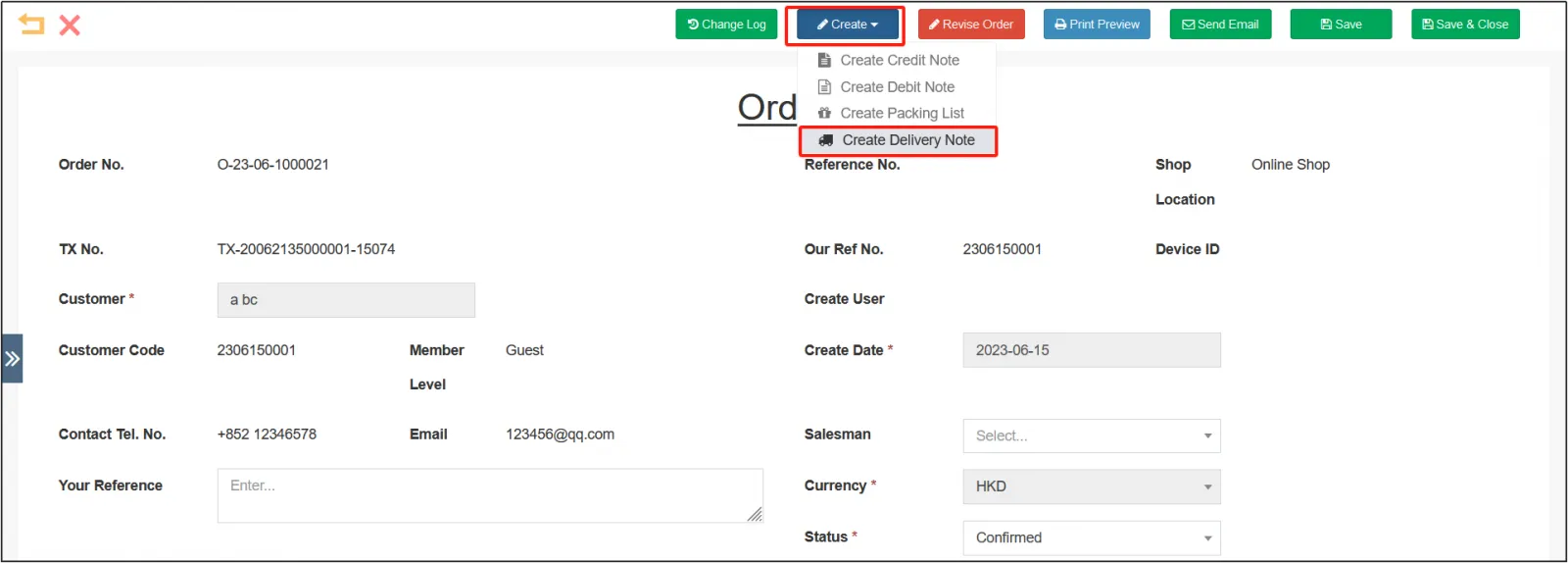
Click Create ai the top click [Create Deliver Order].
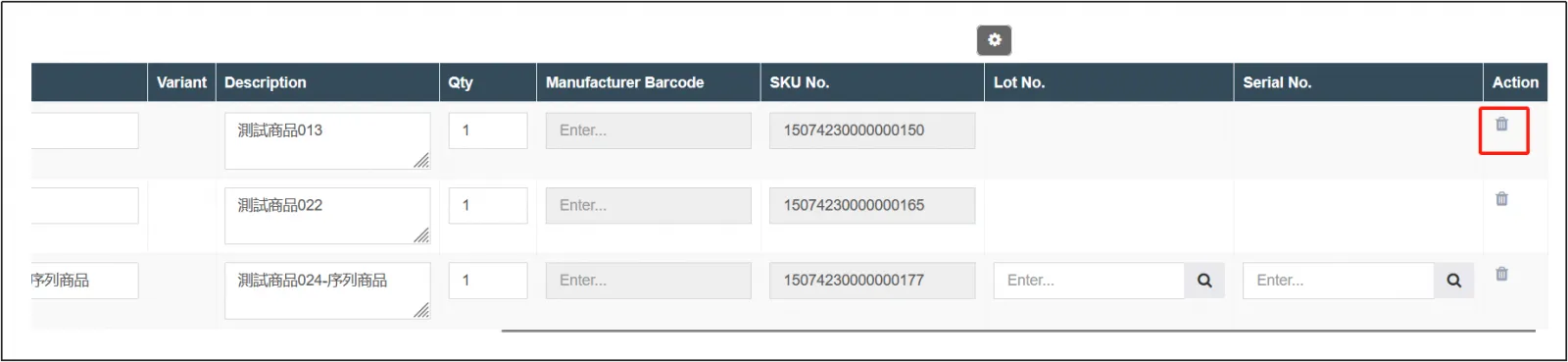
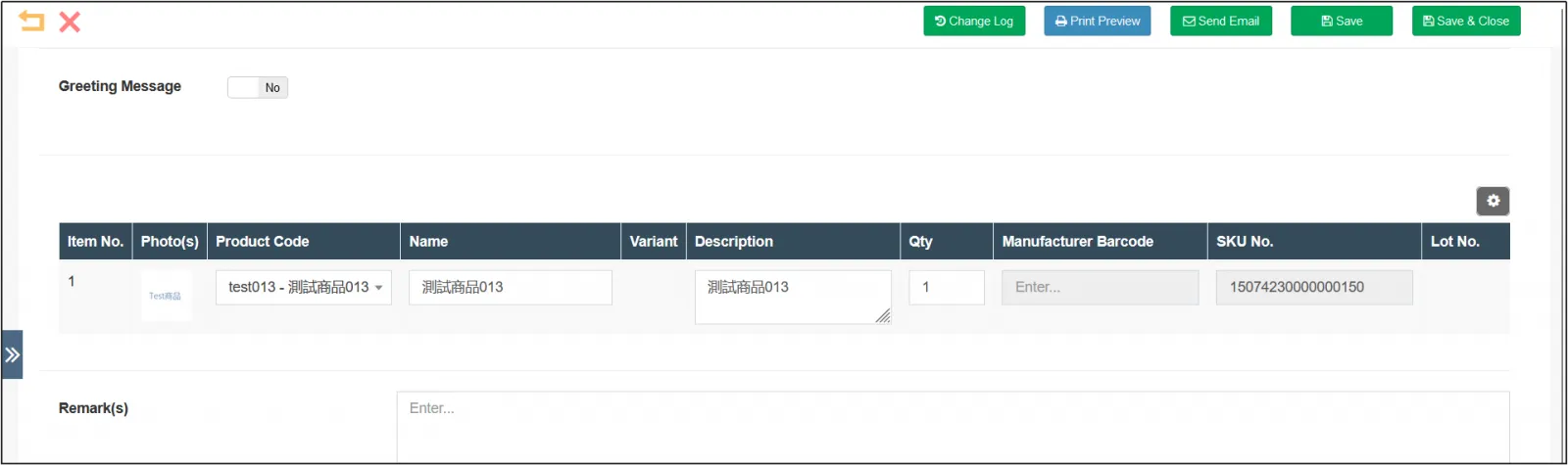
Multiple delivery notes can be created for one order. If you need to make multiple deliveries, you need to create multiple delivery notes, you can delete the goods that are not delivered for the time being, keep the goods that need to be delivered, or modify the quantity of the goods, if you only create one delivery note, you do not need to modify them.
Modify the status of the delivery order to pending delivery click [Save] or [Save and Close].
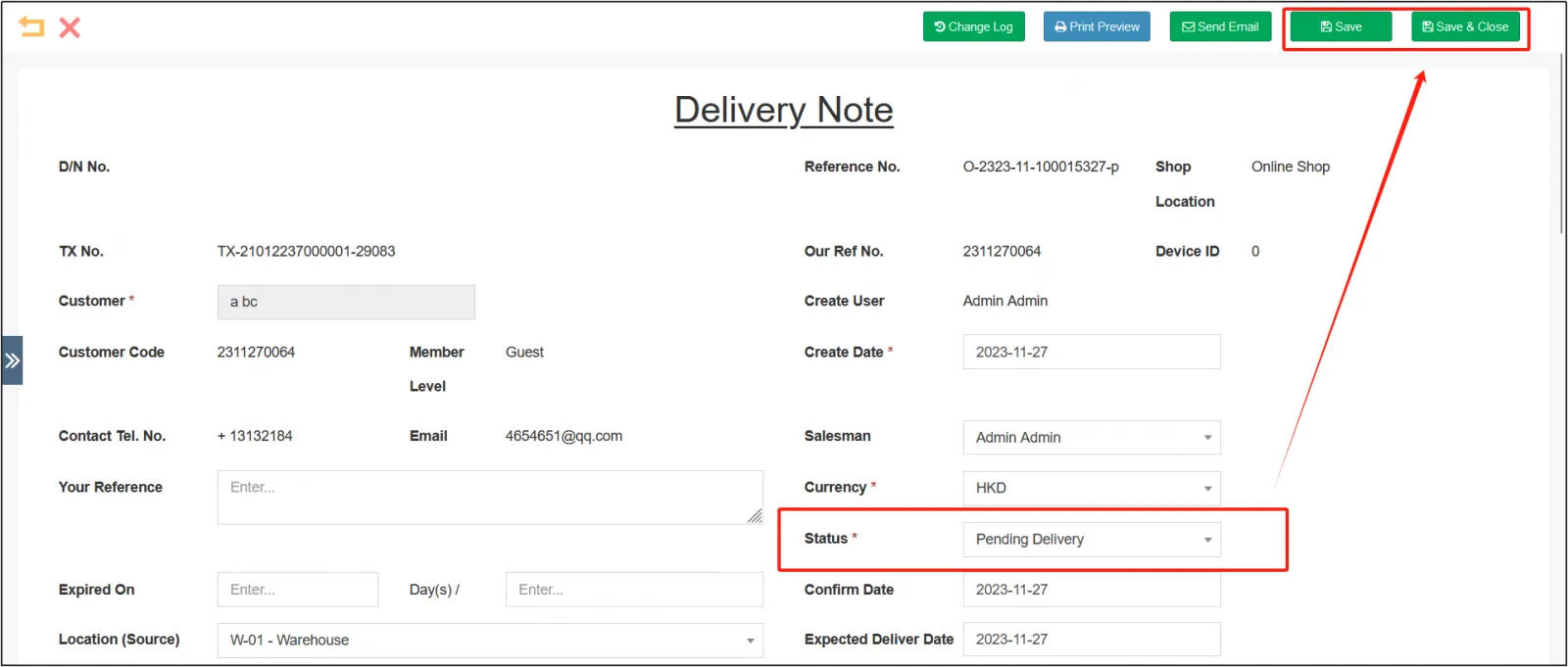
If there are still products that have not been delivered, you can open the order again and click [Create Delivery Note] to create a new delivery note. You can see that the product list below is an undelivered product. If there are multiple undelivered products, you can continue to split them into multiple delivery notes.
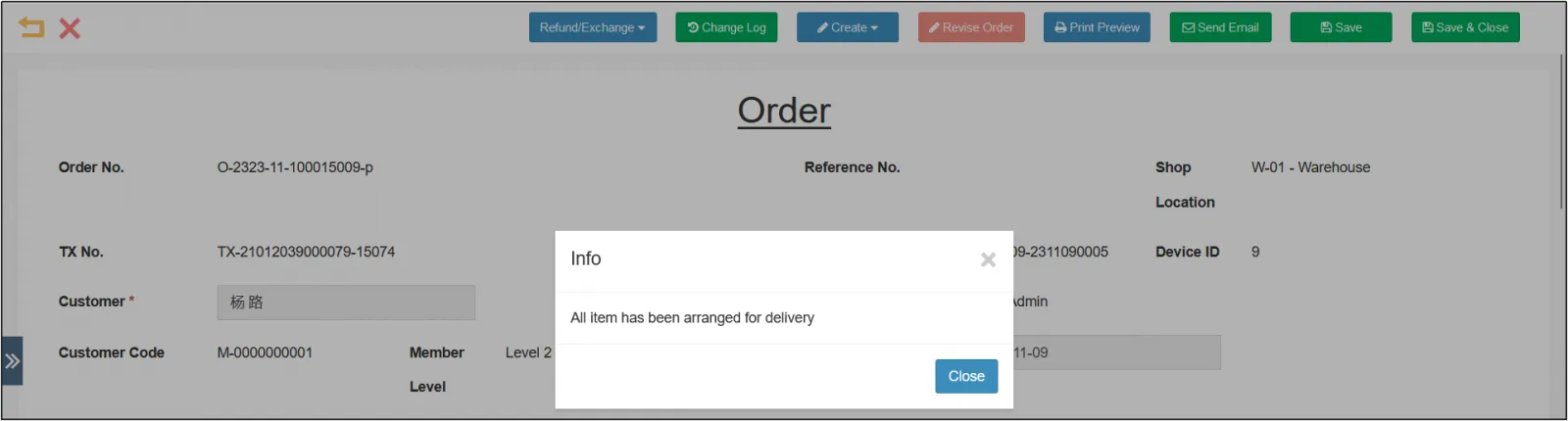
When all items have been shipped, the order cannot continue to create a delivery note.
cancel delivery order
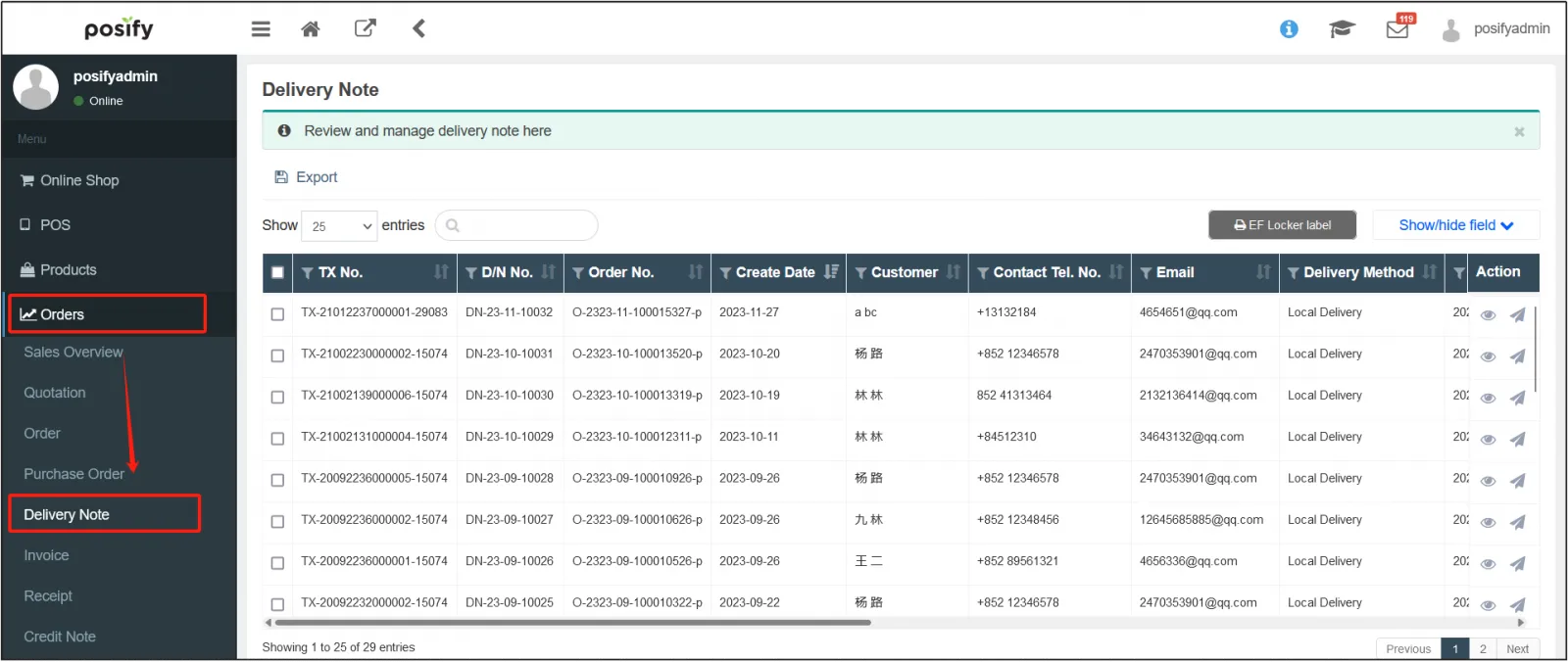
Open the CMSclick the orderclick on delivery notes 。
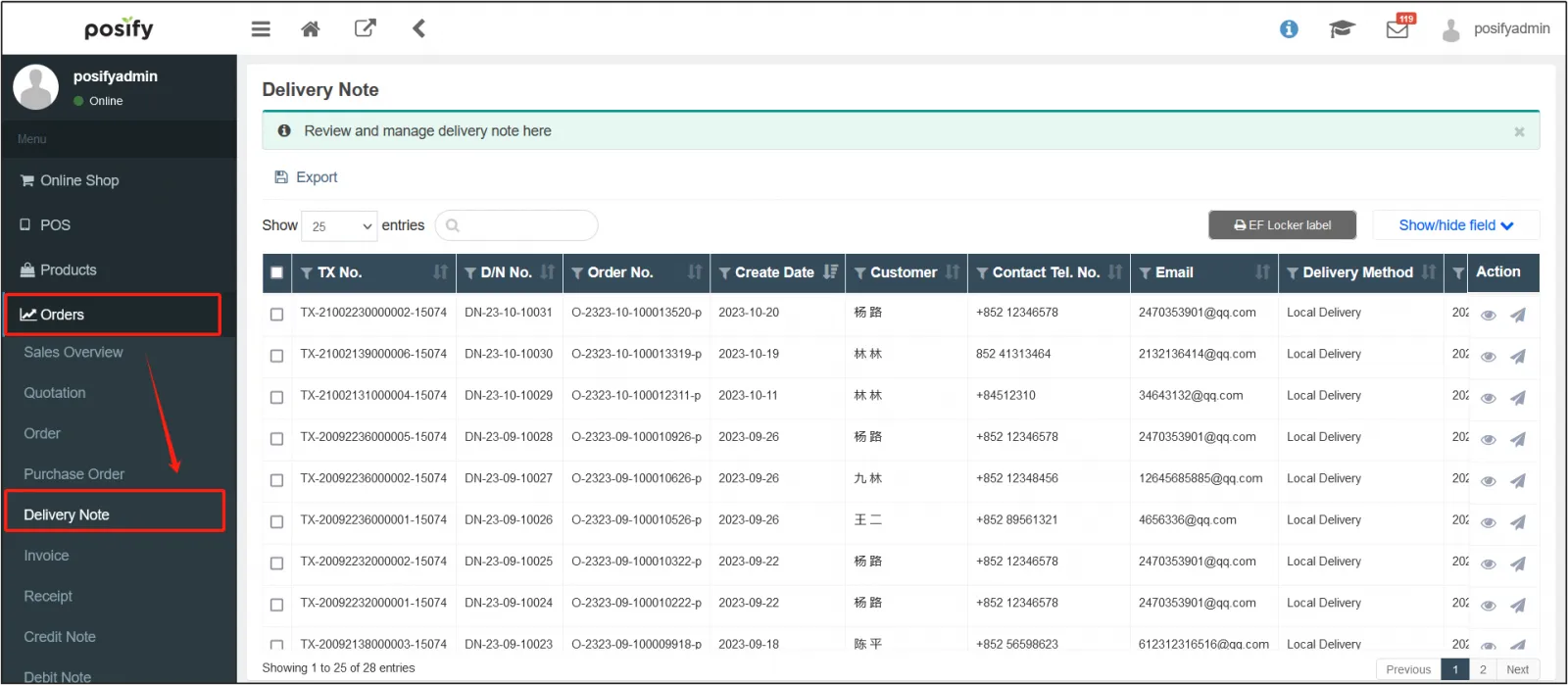
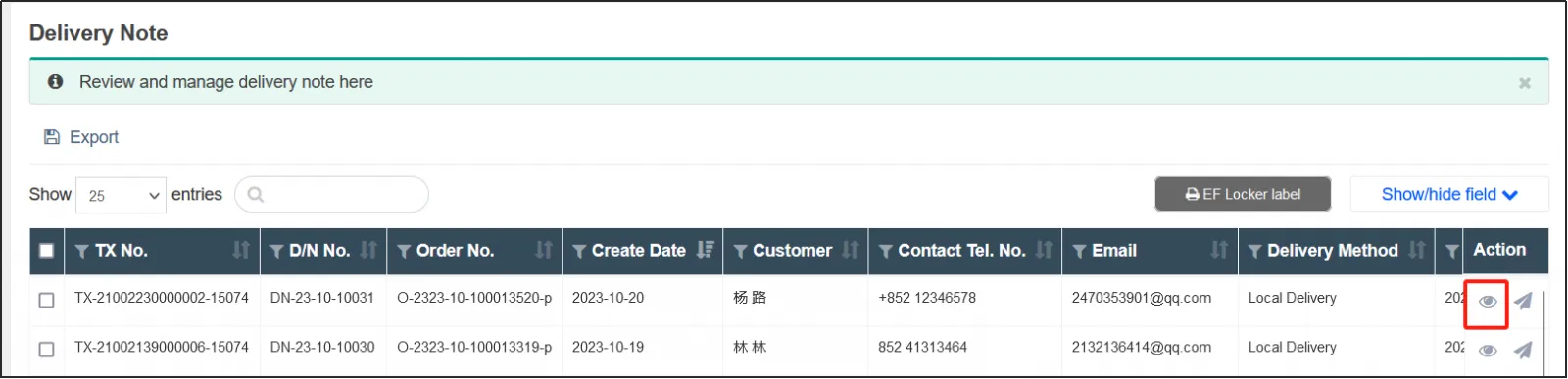
Find the delivery note that needs to be canceled, click on the right.
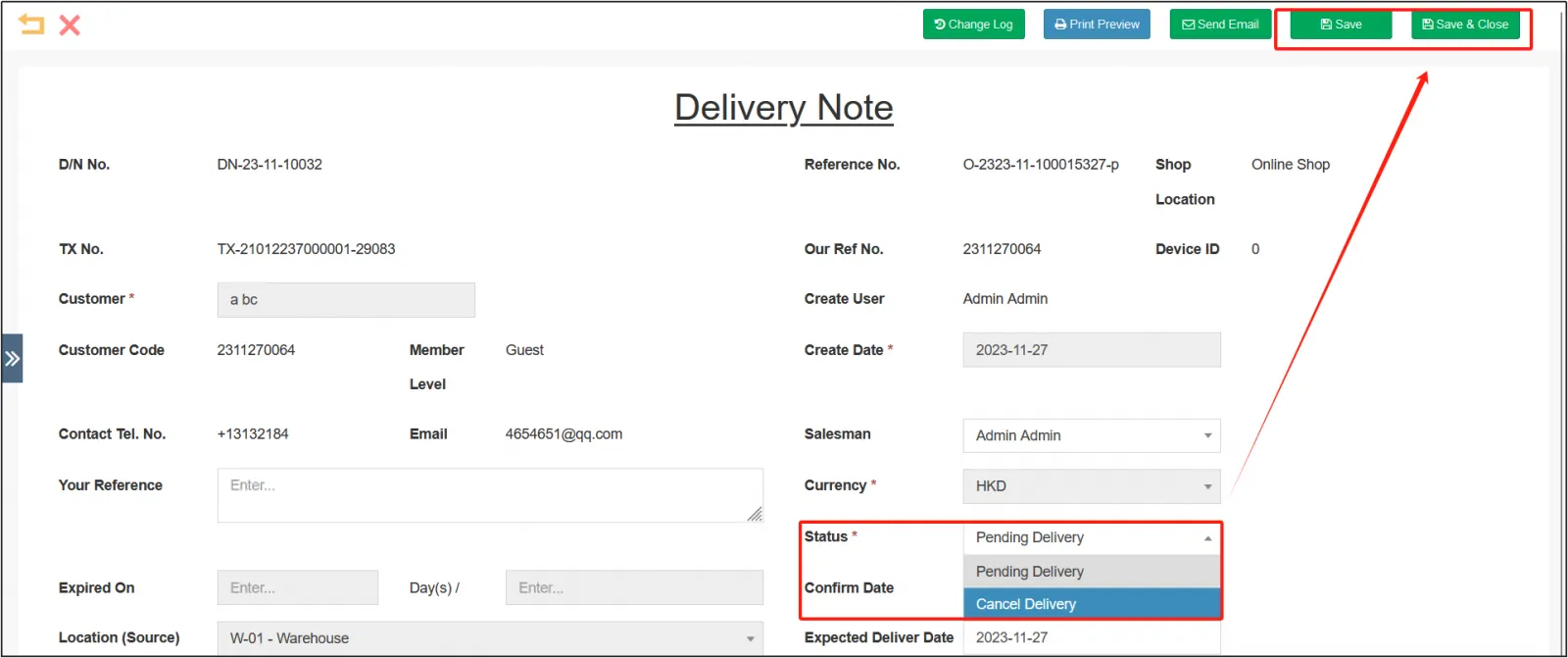
To change the status of the delivery note to cancel deliveryclick [Save] or [Save and Close] in the upper right corner.
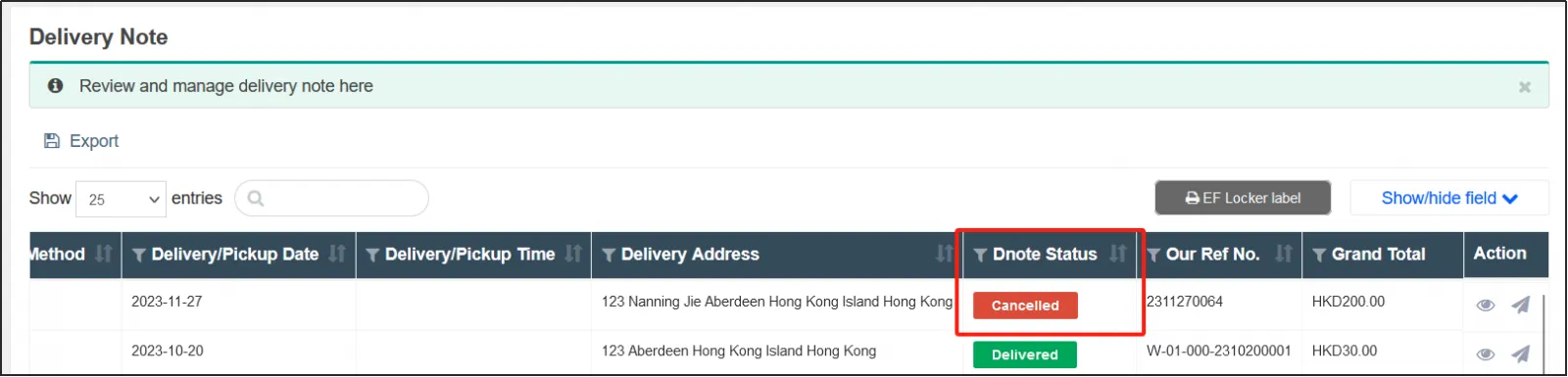
The delivery order status for this delivery order becomes Cancelled .
Search delivery note records
Open the CMSclick on orderclick on delivery notes.
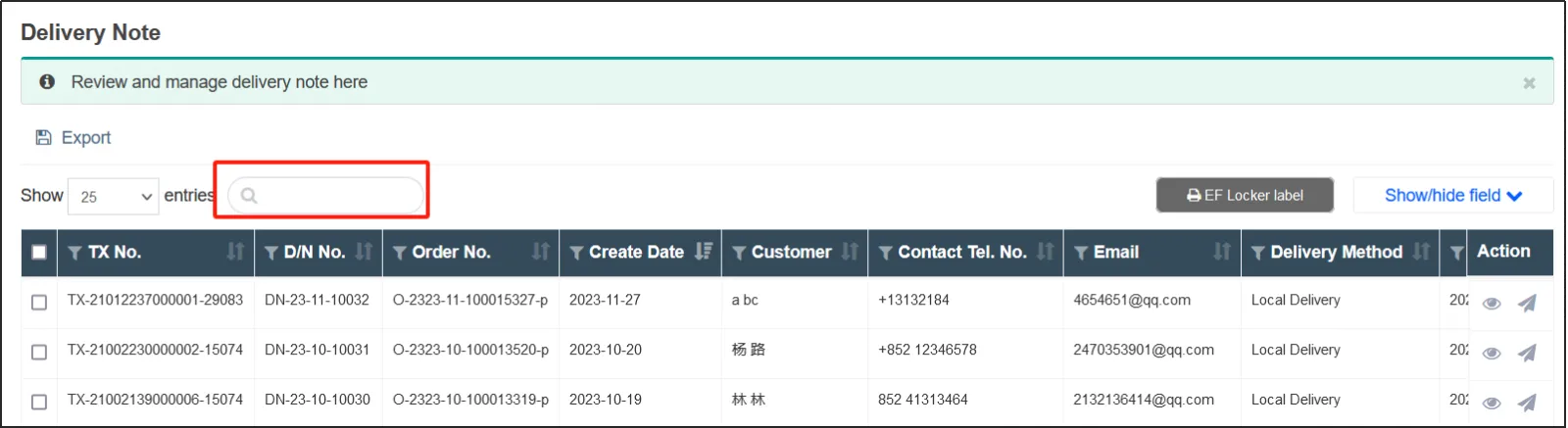
In the search box above, enter any keyword that matches the delivery note you want to search for, such as transaction number, customer, etc.
For example, if you enter "leaf" in the search box as shown in the figure below, you can search for delivery notes with "leaf" in the message.
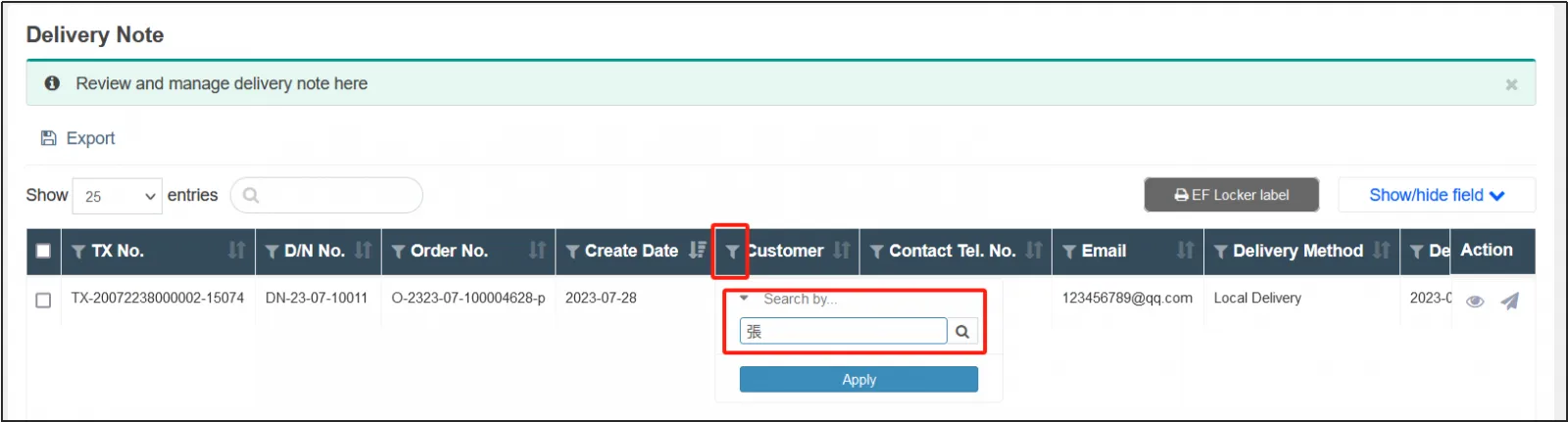
Click the filter icon on the left of the column title, enter the keywords of the column information of the order you want to search, and you can search only in a certain column.
For example, as shown in the figure below, click the filter icon on the left side of the customer column and enter "張" to search for delivery orders with "張" in the customer's name.
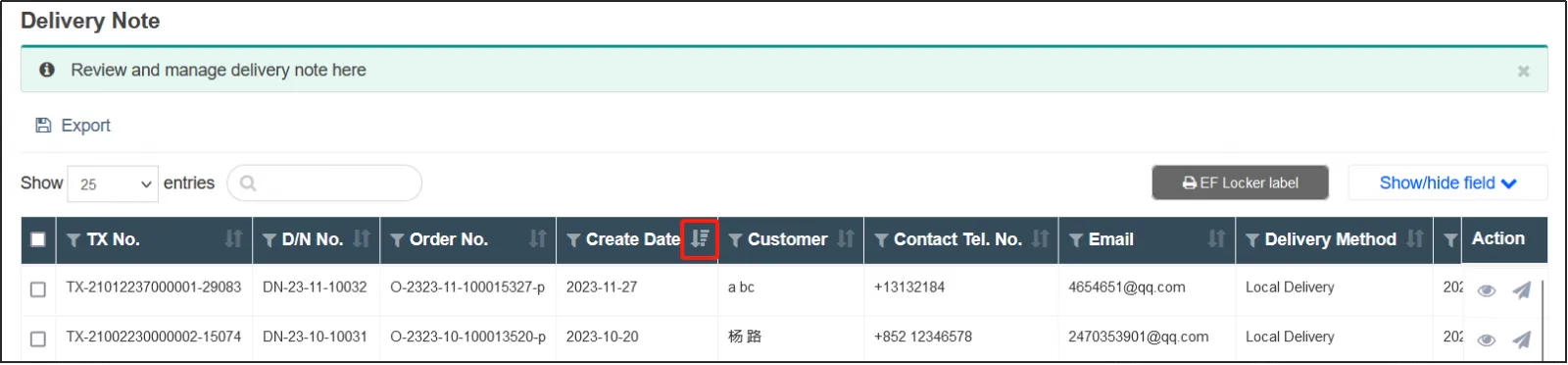
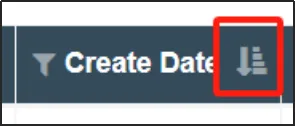
Click the sort icon to the right of the column header to sort the delivery order based on the data in this column.
For example, as shown in the figure below, click the sort icon to the right of the order preparation time to make the delivery note to sort the delivery note according to the order preparation time.
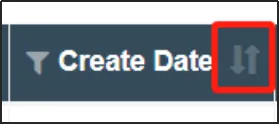
If the icon on the right side of the column header is the figure below, it indicates that the column information is not sorted according to the column information.
If the icon on the right side of the column header is the following figure, the column information is sorted from largest to smallest.
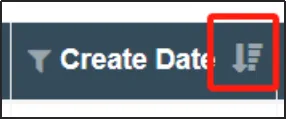
If the icon on the right side of the column header is the following figure, the column information is sorted from smallest to largest.
Print the delivery note
Open the CMSclick on orderclick on delivery notes.
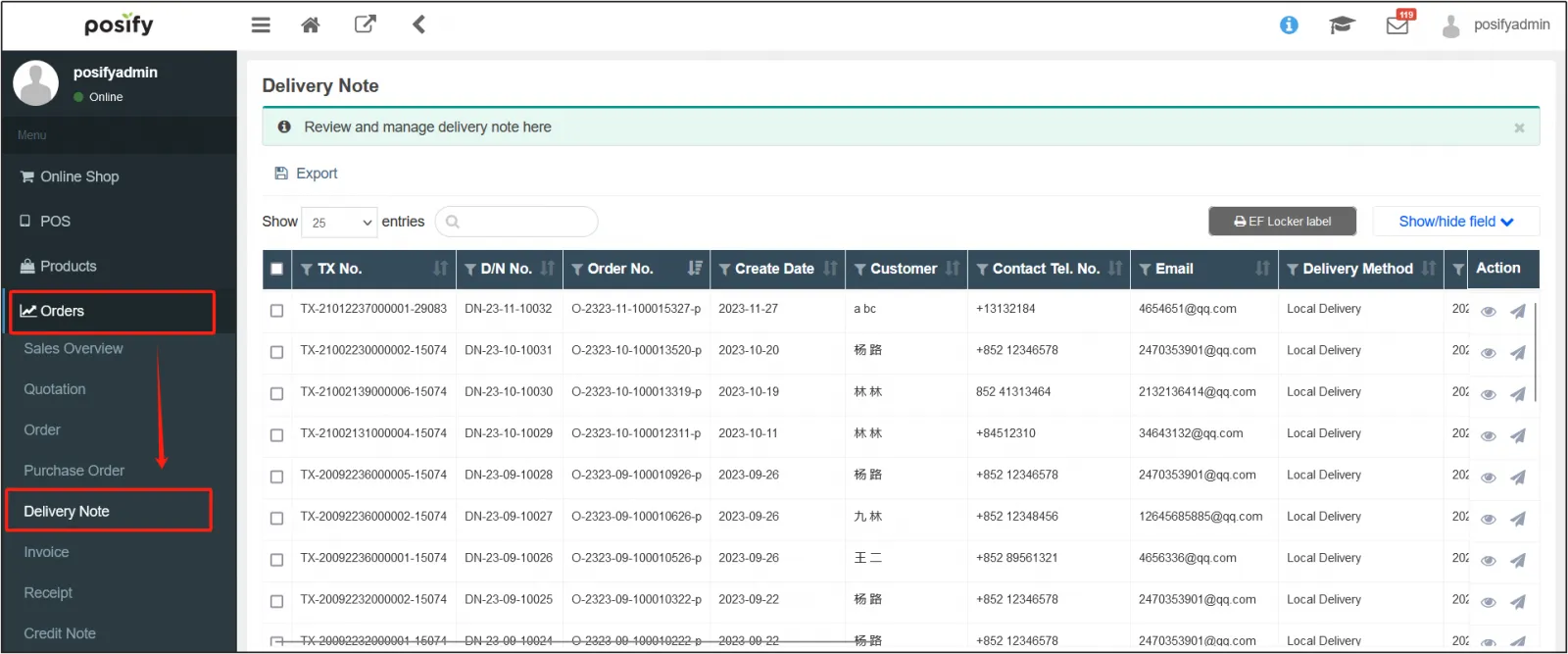
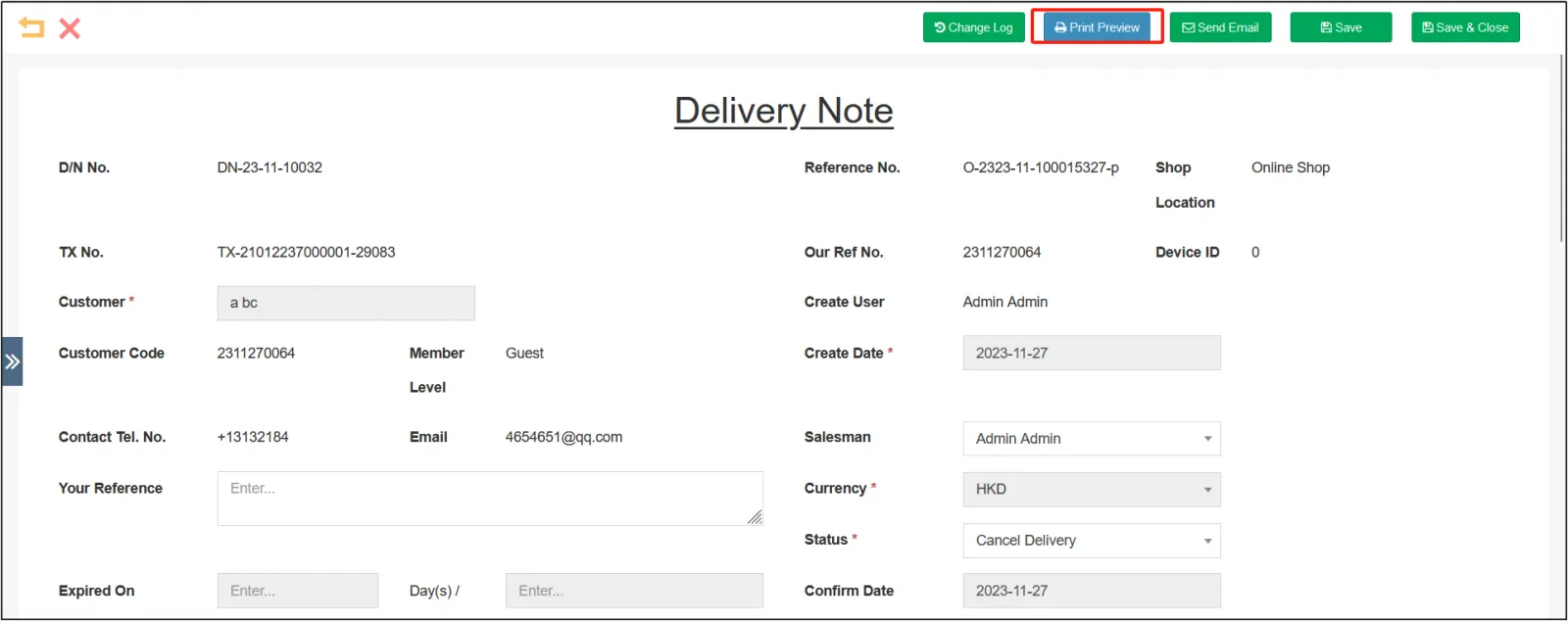
Find the delivery note you want to printClick on on the right.
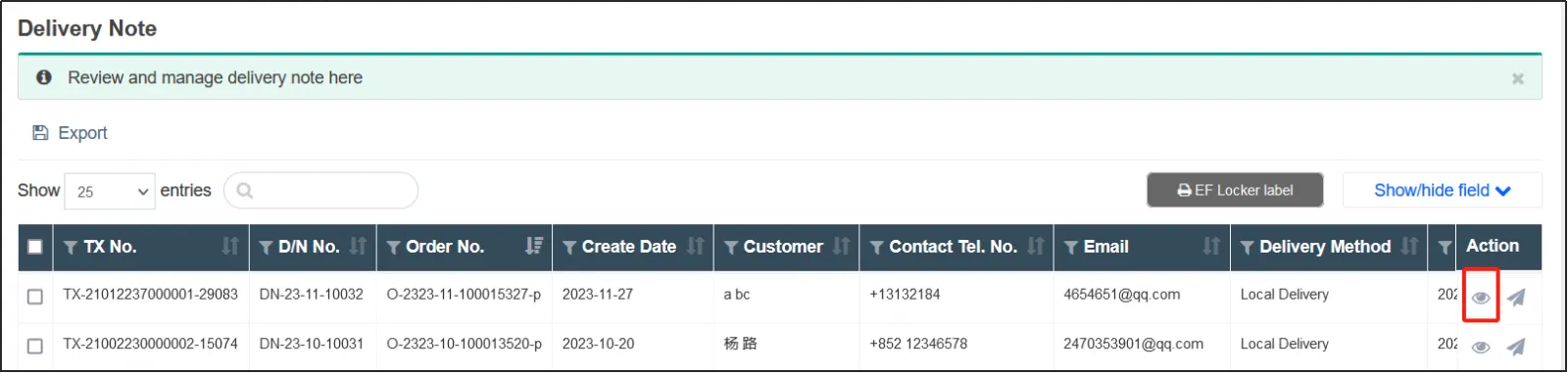
Click [Print Preview] at the top of the delivery slip.
You can choose whether to include preset page tops.
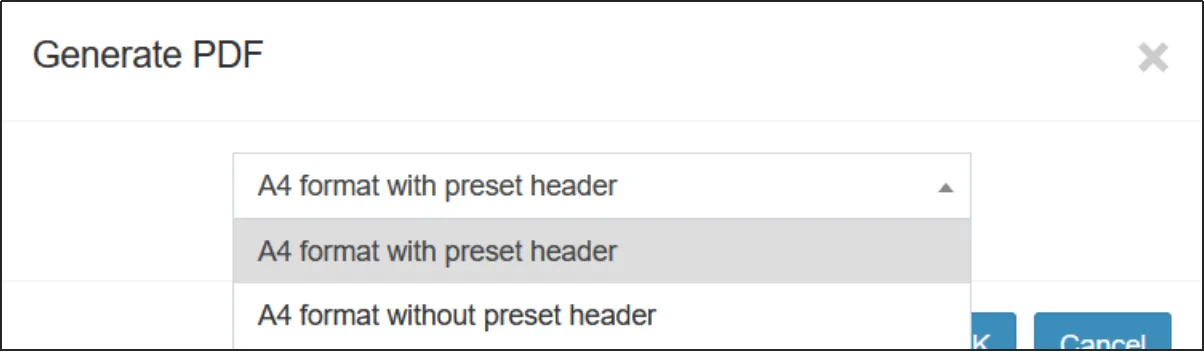
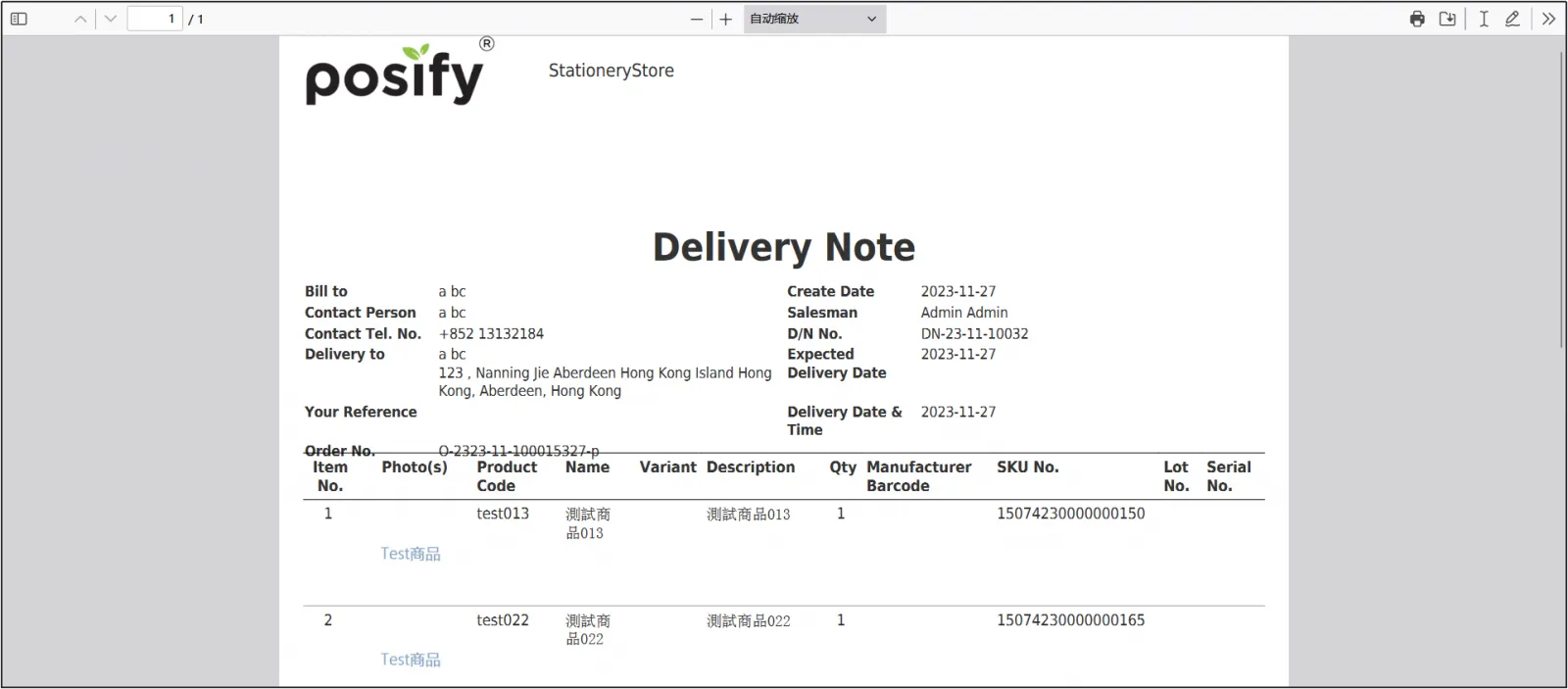
After clicking OK, the delivery note will automatically pop up and print a preview.
The image below shows a preview with the top of the preset page.
The image below shows a preview that doesn't include a preset page top.
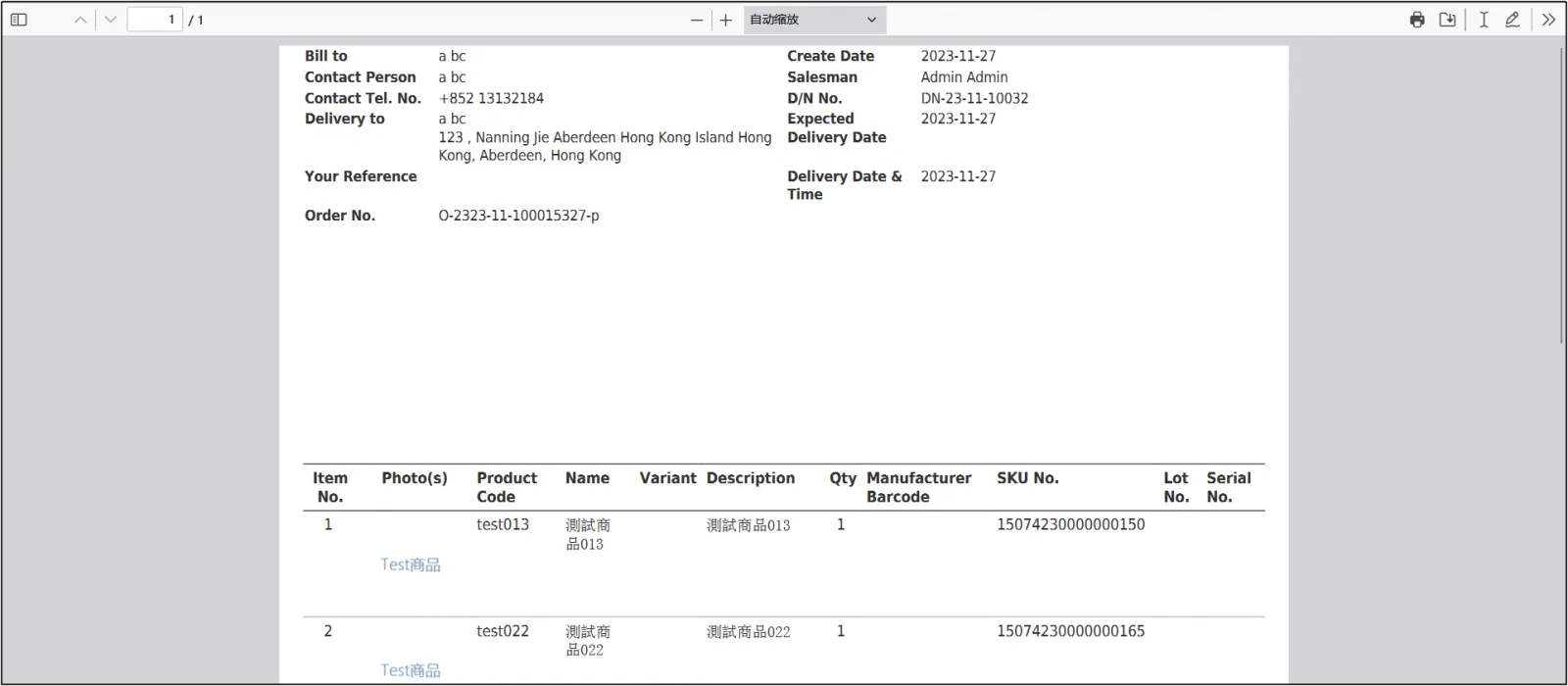
Click on  in the top right corner to print the delivery note.

batch printing
Open the CMSclick on orderclick on delivery notes.
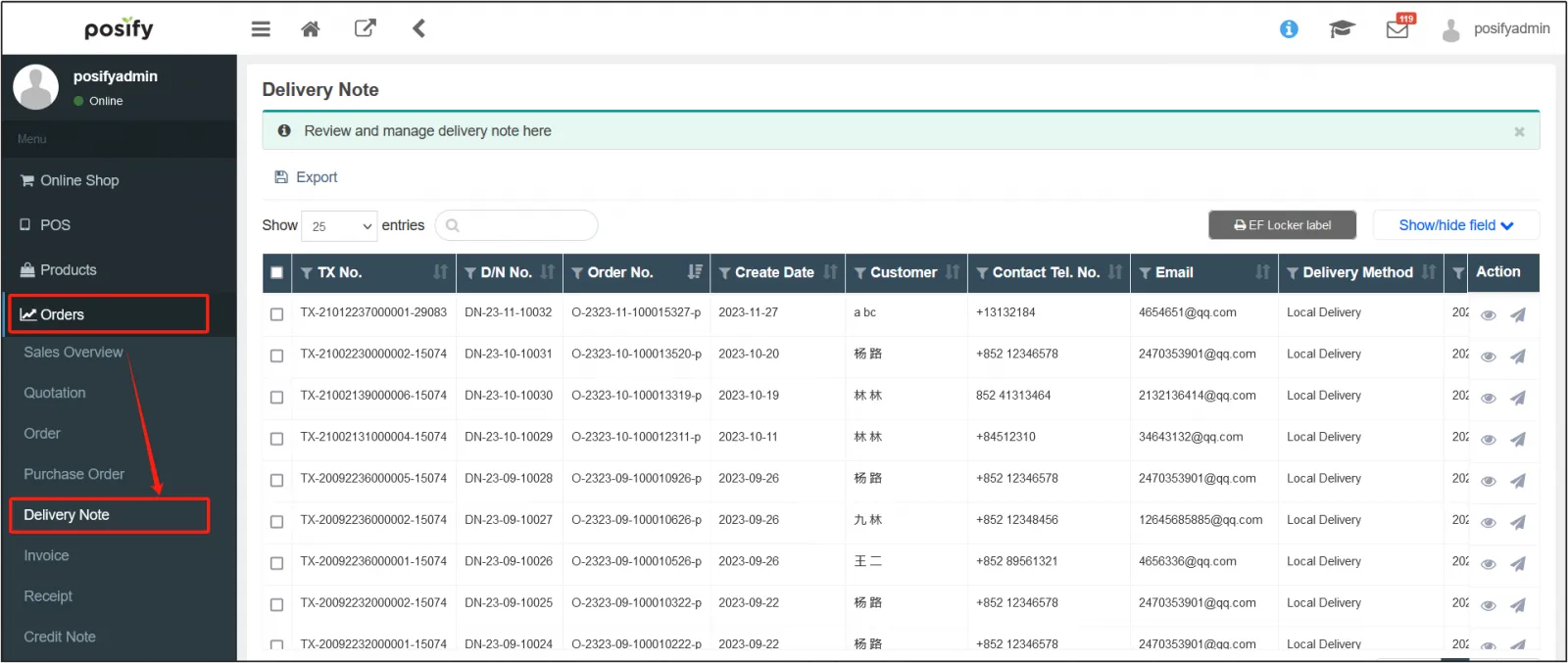
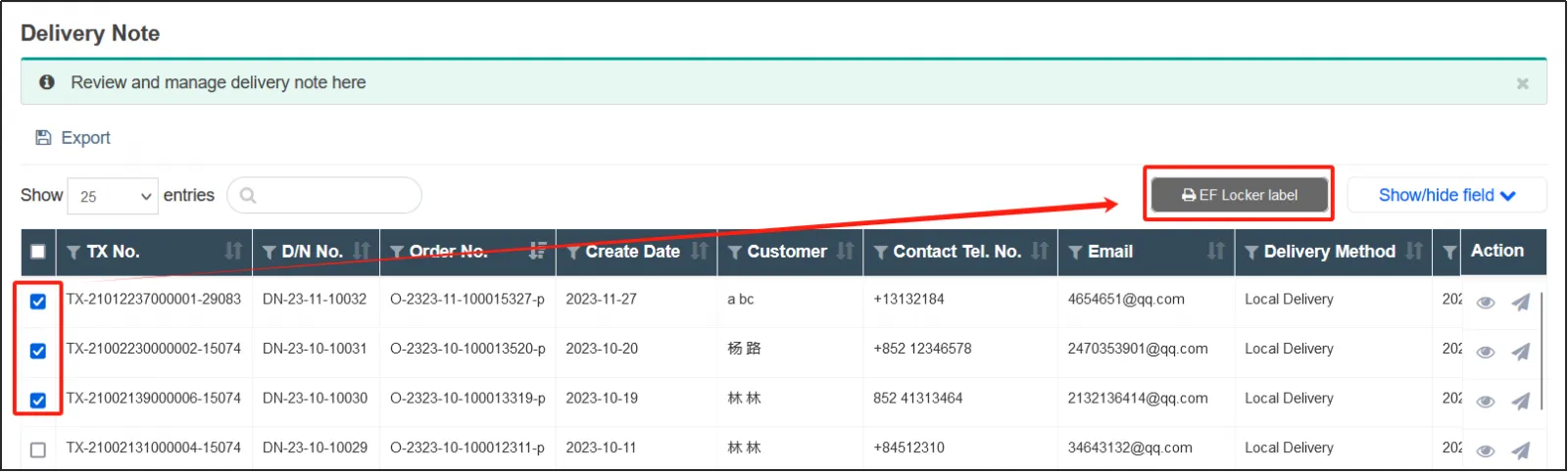
Select all the delivery slips you want to print, and click [Batch Print] at the upper right.
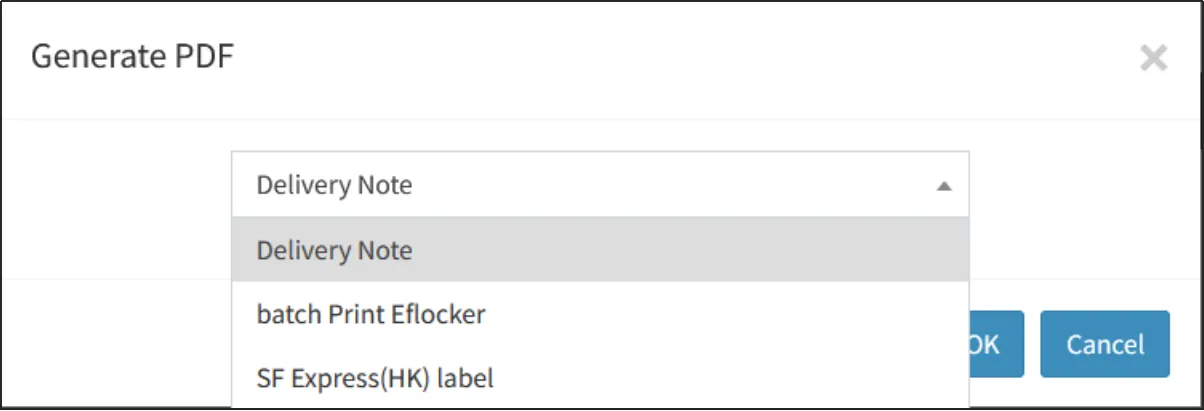
Select the type of delivery note.
Select whether to print the company name.
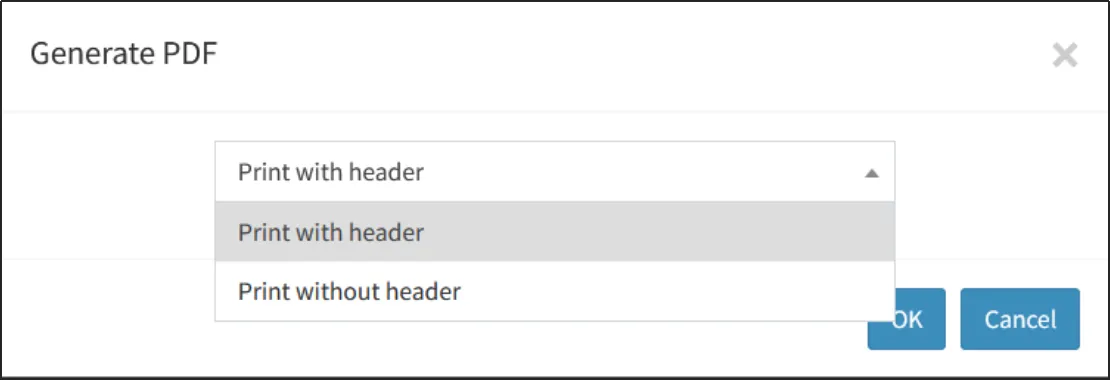
After clicking [OK], the checked delivery note will be packaged as a zip and automatically downloaded, unzipped, opened with WPS or Word, and then printed.


