Sales overview
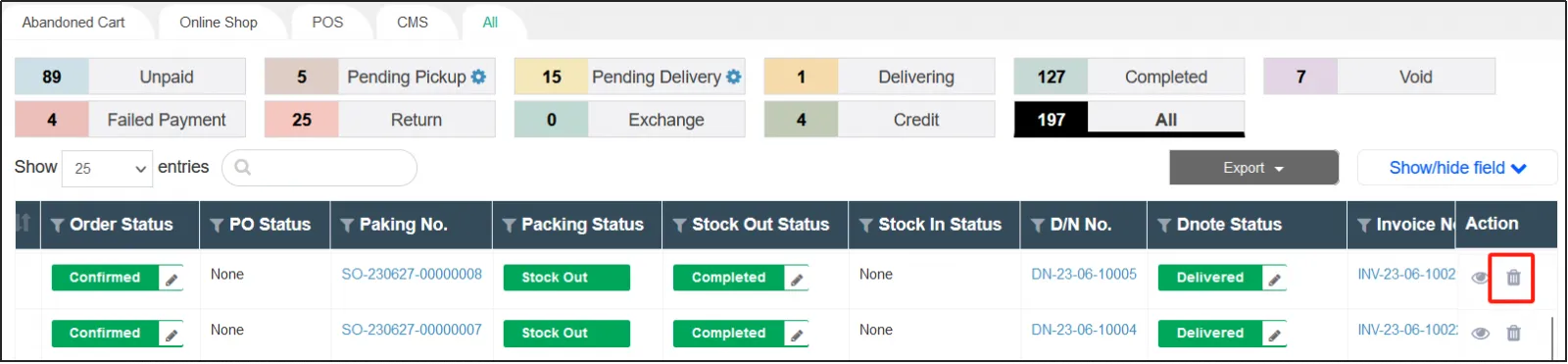
In the sales overview, you can see all transaction records, and you can also open individual forms for different orders from here. Depending on the progress of the transaction, there may be forms such as: order, invoice, delivery note, packing list, warehouse receipt, etc.
Search for transaction history
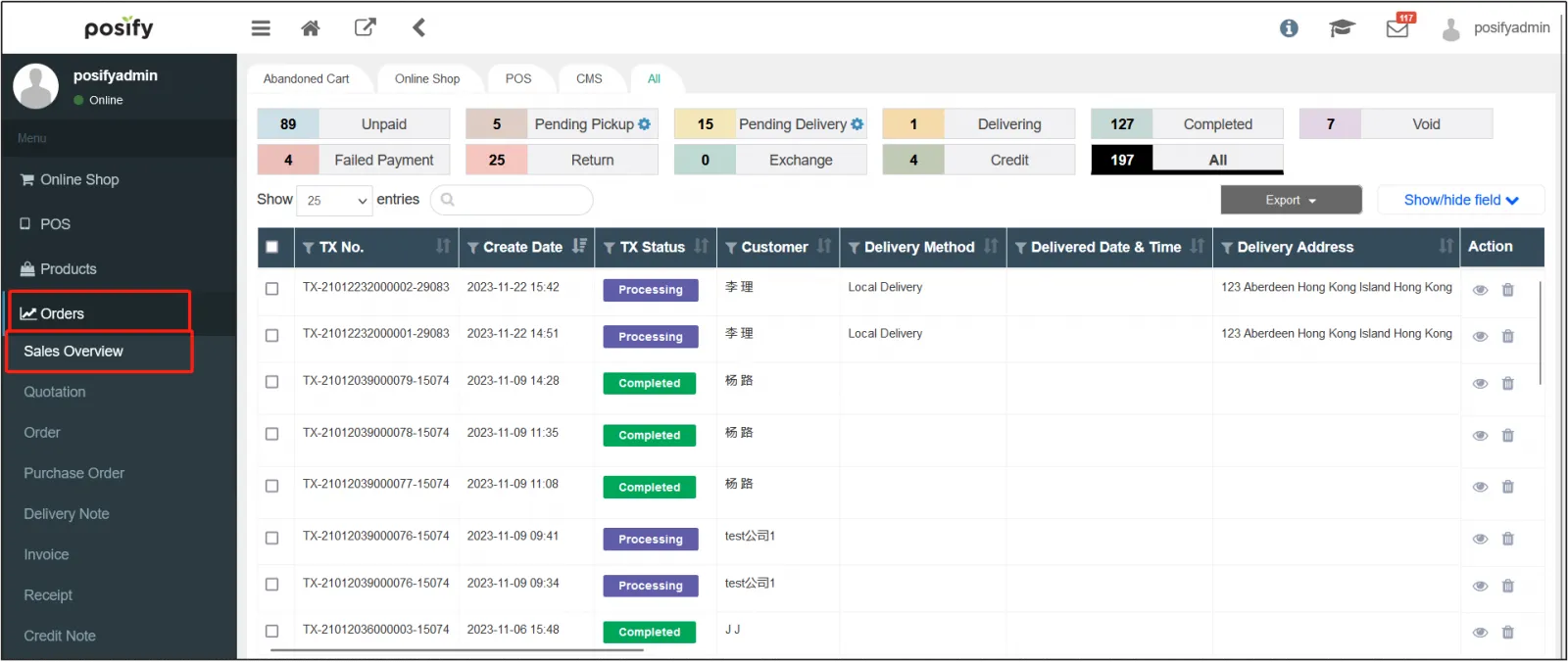
Open the CMS,click on orders click on sales overview .
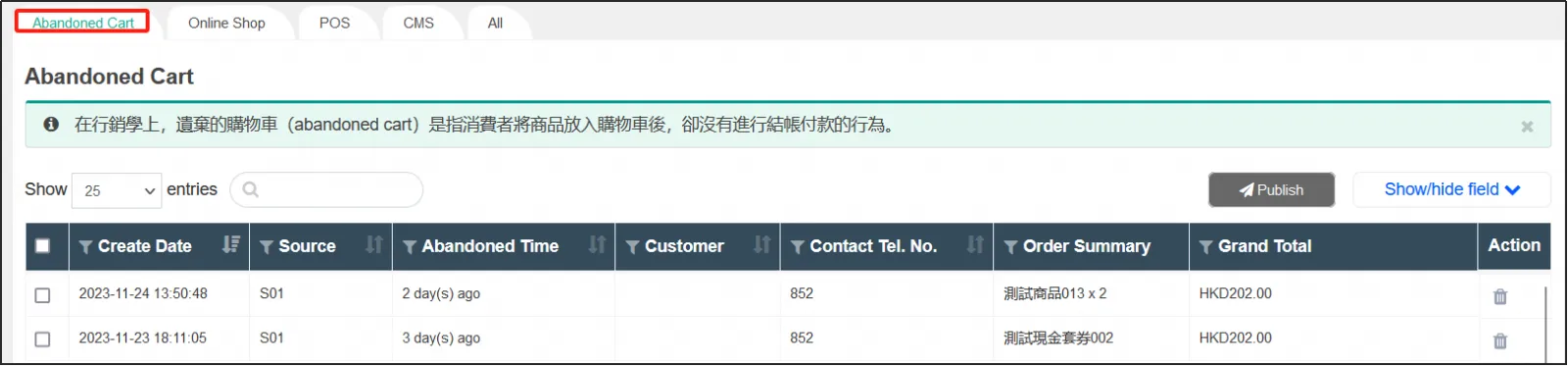
Click on the Abandoned Cart tab and you can see the abandoned orders that are made up of items that the customer added to the cart but did not place an order.
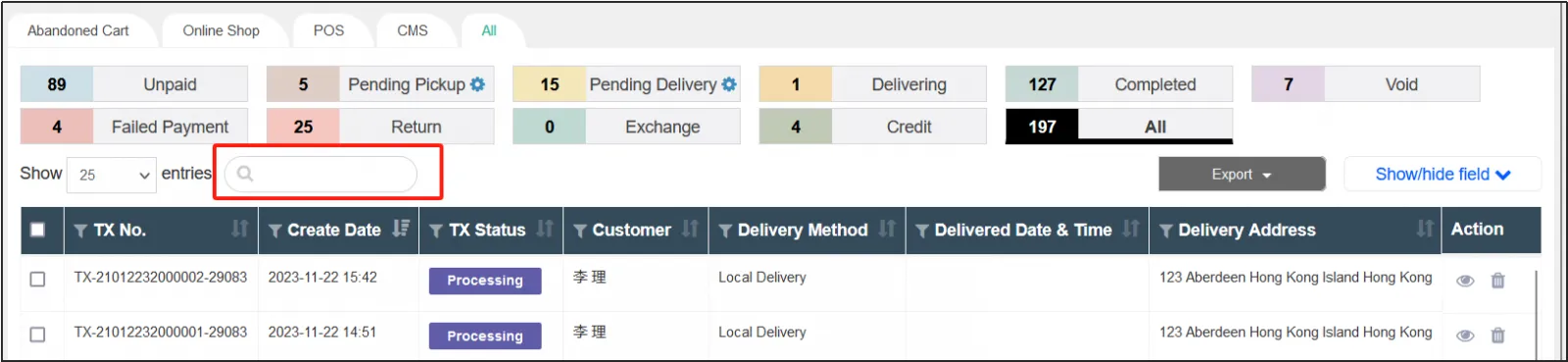
By clicking on the different tabs, you can choose to view only the transaction history of the online store, CMS or POS, or you can view all the transaction history.

By clicking on the different status categories, you can choose to view only transactions in the Paid, Pending Pickup, Pending Delivery, Delivery, and so on.

You can search for transaction records by entering any keyword that matches the transaction records you want to search in the search box.
Click the filter icon next to the column headerenter keywordPress Enter to filter the data in this column.
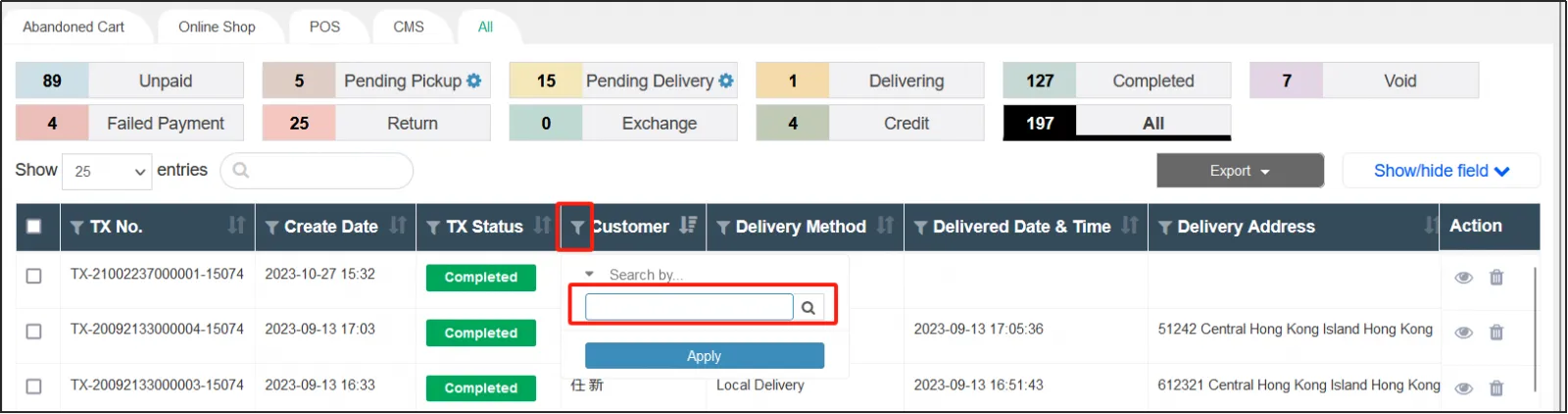
Click the sort icon next to the column header to sort the data in this column.
When the sorting icon is shown in the red box in the figure below, it means that the current list is not sorted by this column, and only one column of information can be used for sorting at a time.
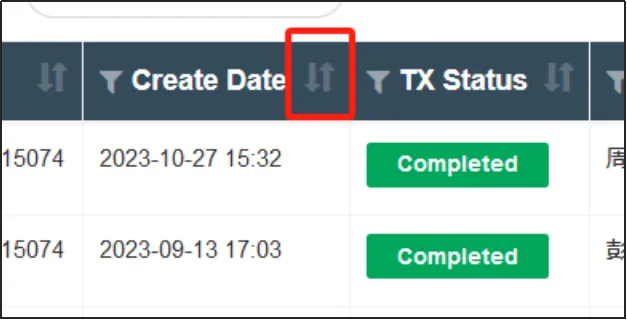
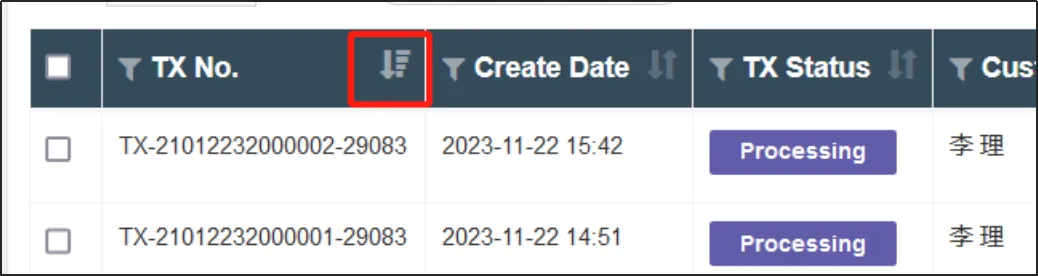
When the sorting icon is shown in the red box in the figure below, it means that the current list is sorted by this column, and the sorting method is from largest to smallest.
When the sorting icon is shown in the red box in the figure below, it means that the current list is sorted by this column, and the sorting method is from small to large.
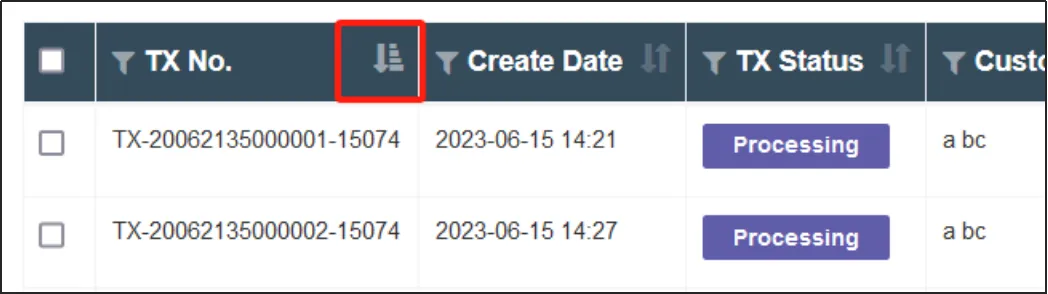
Click the sorting icon to switch between the above three states.
The selection list displays the content
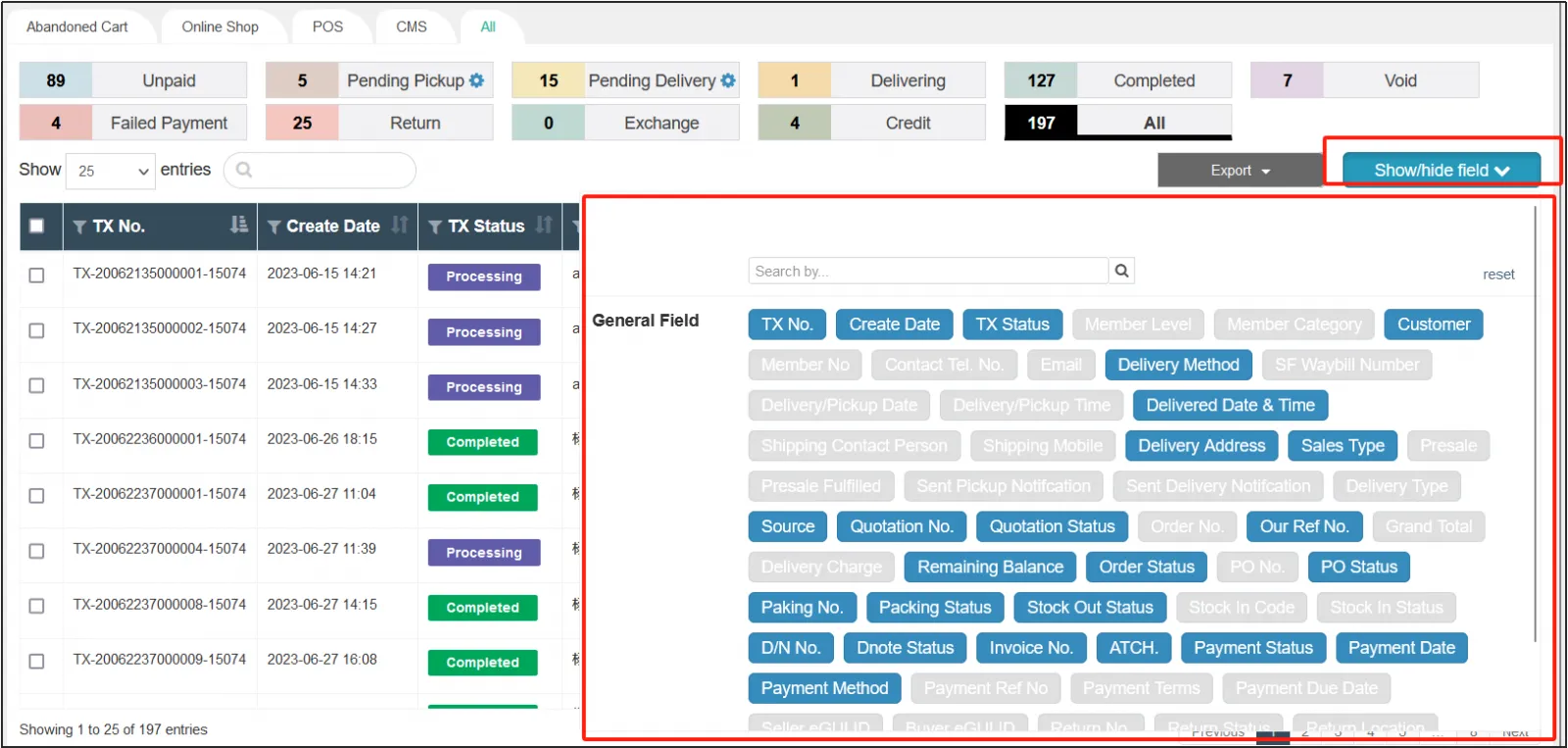
Click [Show/Hide field] at the top right to select the contents of the transaction history you want to view.
View the individual forms of the order
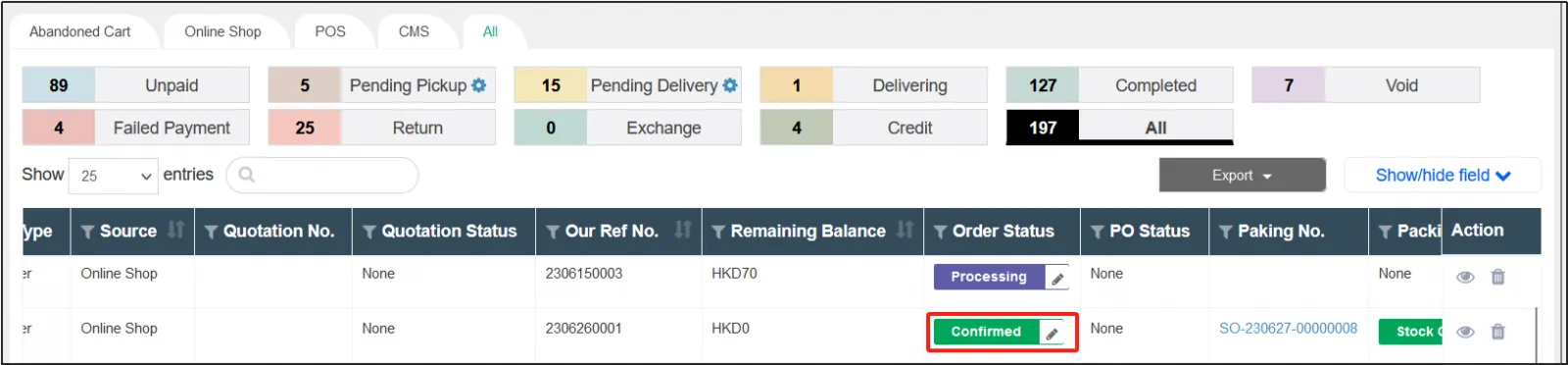
In a transaction record, under the form status column, click the color status bar to view the form details.
For example, click the color status bar for the order status bar.
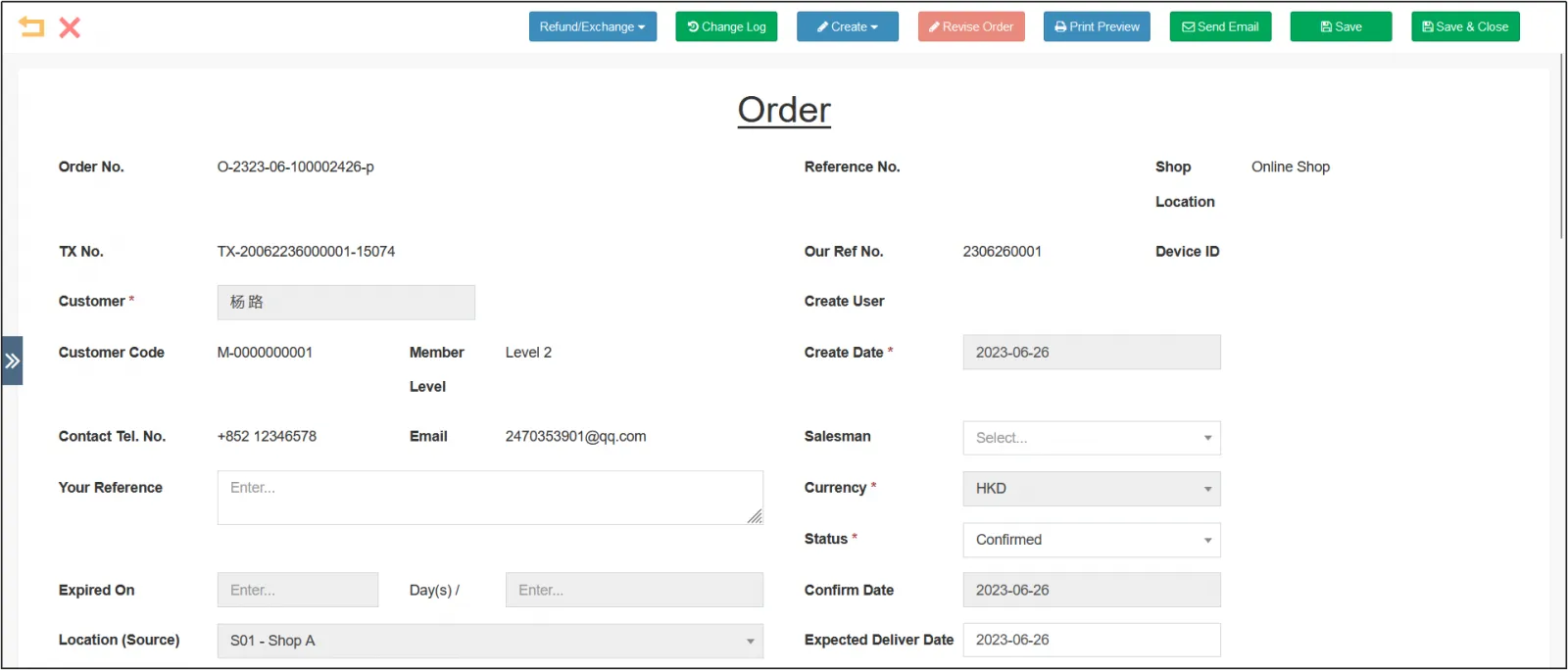
You can open the prder details page for the that transaction.
Modify the state of the form
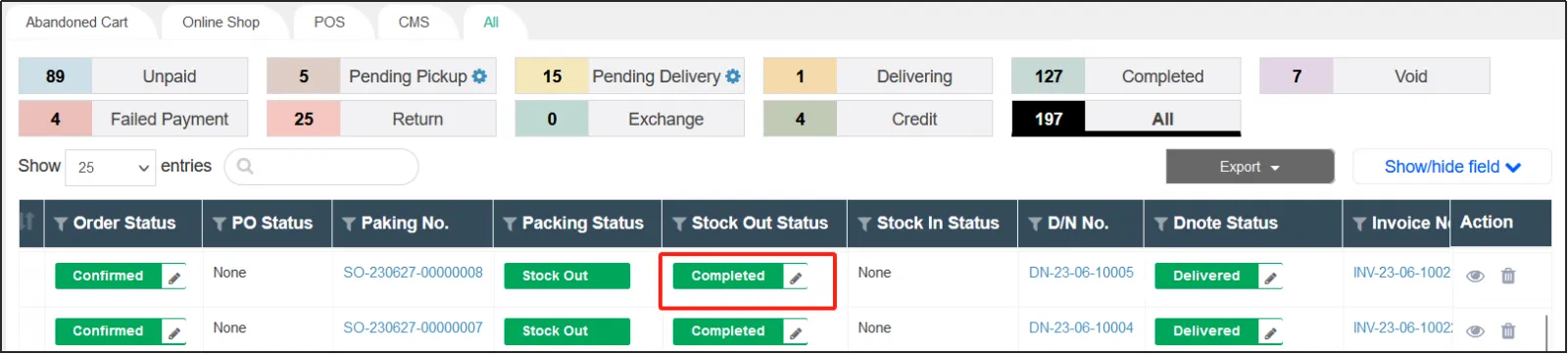
In a transaction record, under the form status column, click the small pen icon next to the color status bar to modify the status of the form.
For example, you can click the small icon next to the [Preparing] status in the Outbound Status column to change the status of the outbound order to Ready or Ready.
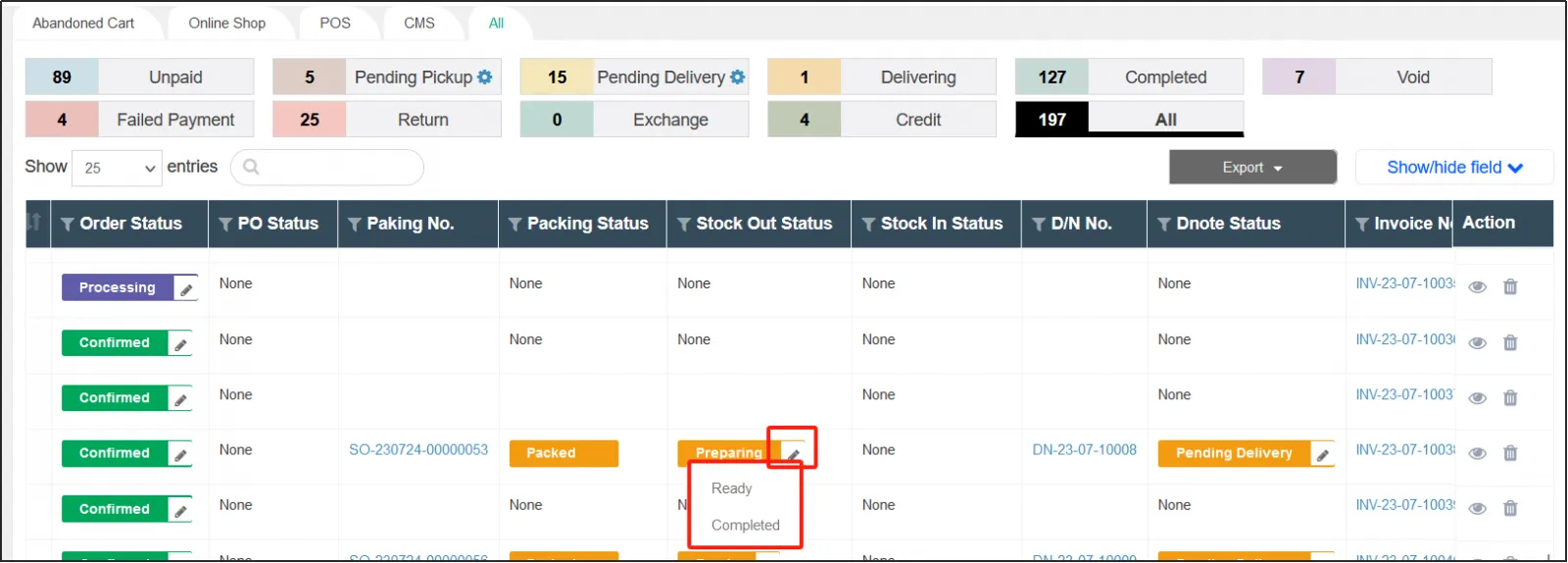
After the status of the outbound order is changed to Exited, the status of the outbound order changes as shown in the following figure.
Cancel transaction records
Find the transaction record you want to cancel, click on the right  That's it.