quotation
In business-to-business dealings, quotations are often used. A quotation is mainly used for a supplier's quotation to a customer, similar to a price list.
Create a quote
 Steps:
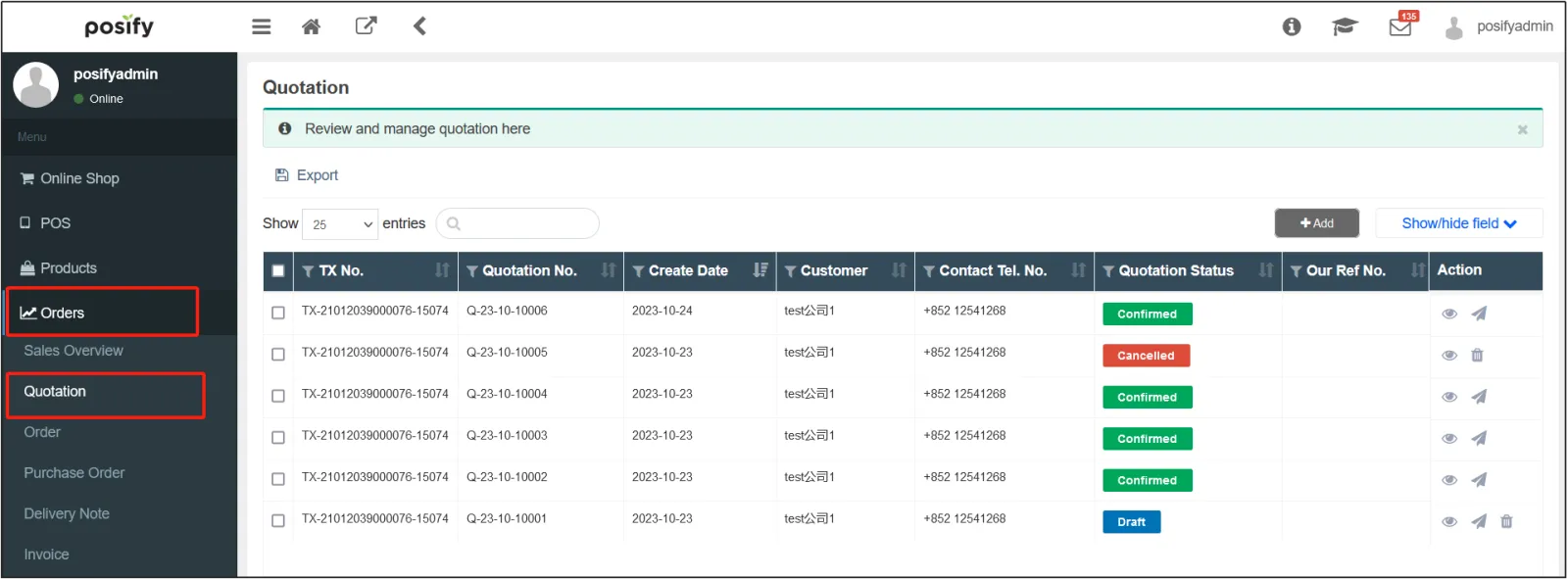
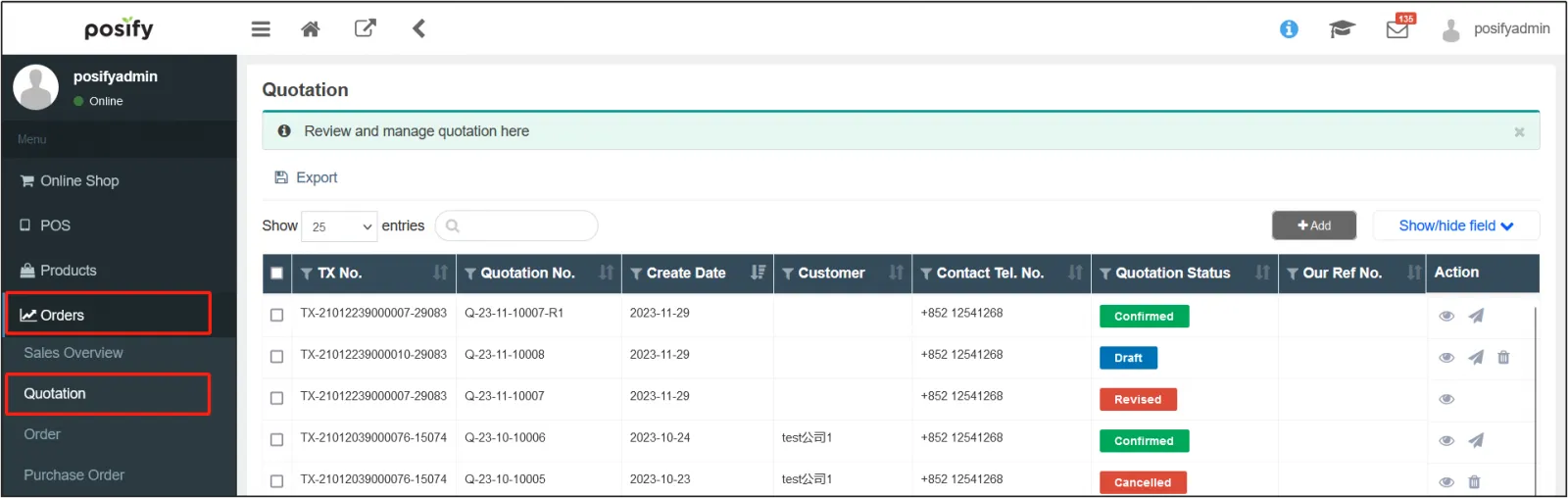
1.Open the CMS click on OrdersClick on Quotations.
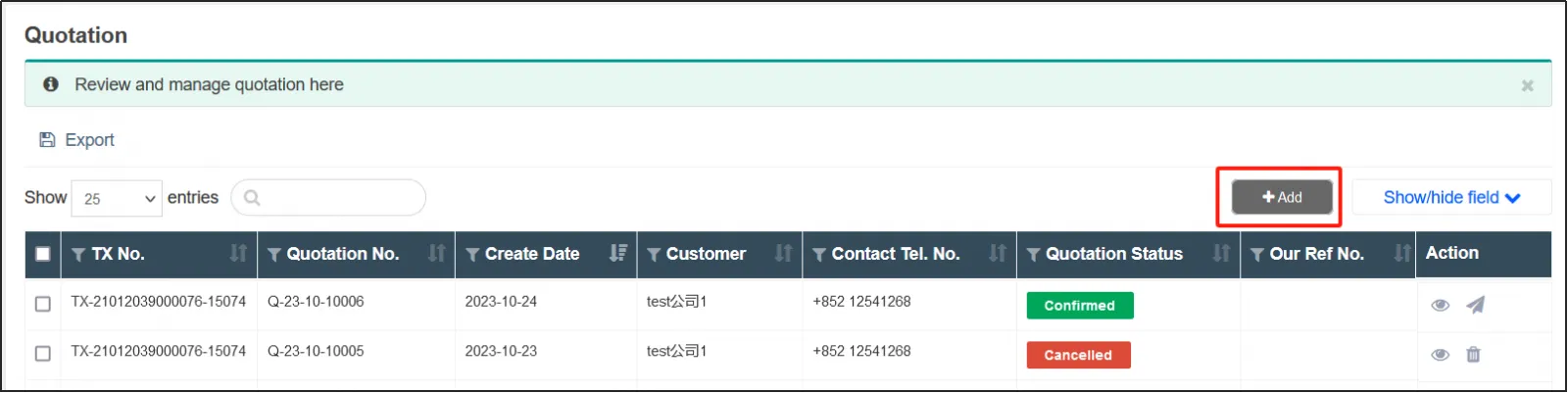
2.Click [Add] at the top right.
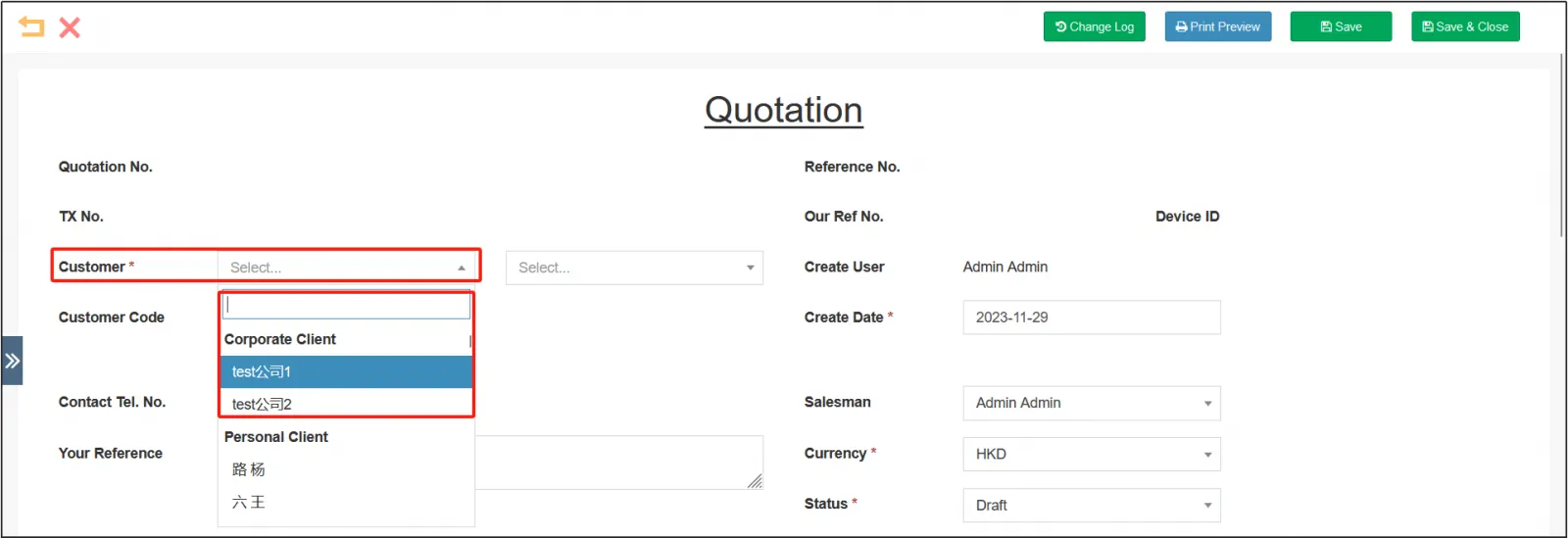
3.Open the Quote Edit page and select Customer. Since quotations are generally used to quote other merchants, the customers here are generally corporate customers.
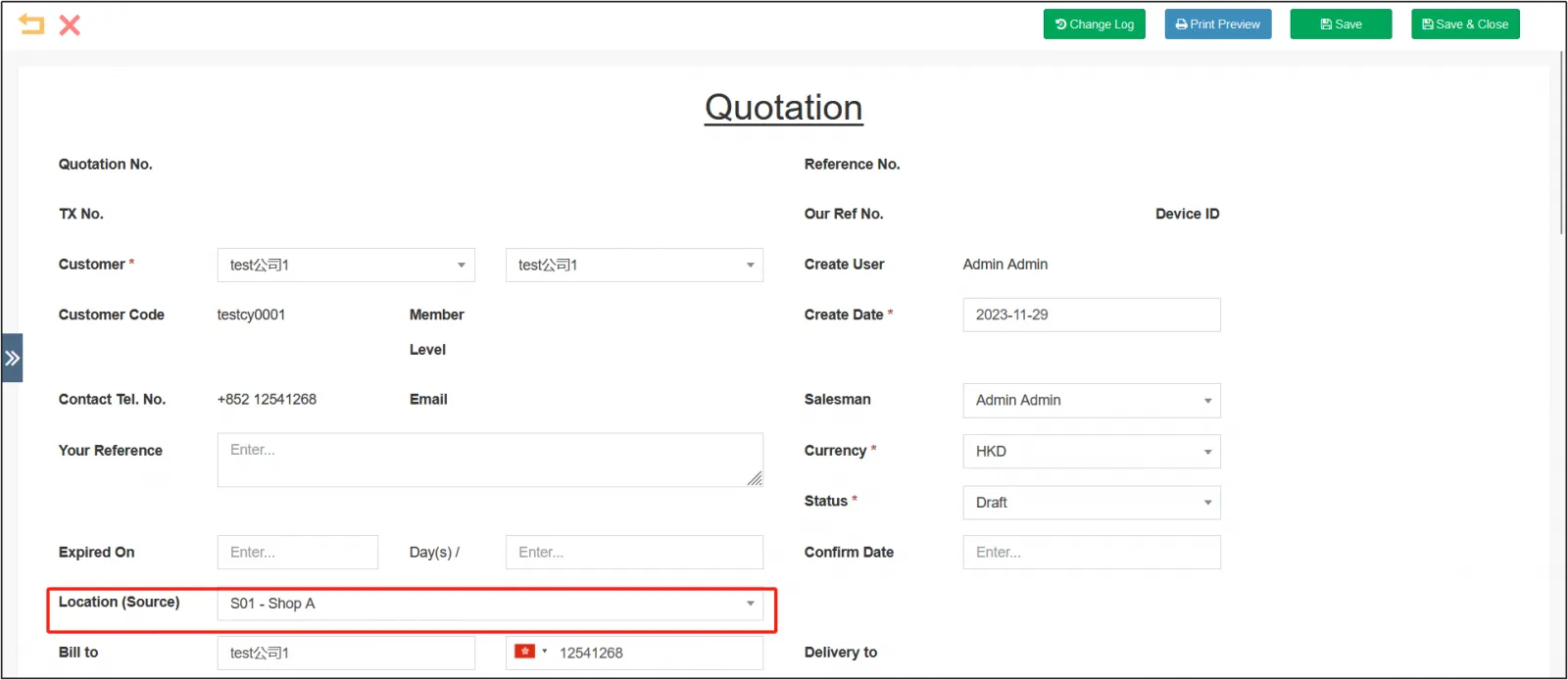
4.Select the location where the shipment is expected to be made.
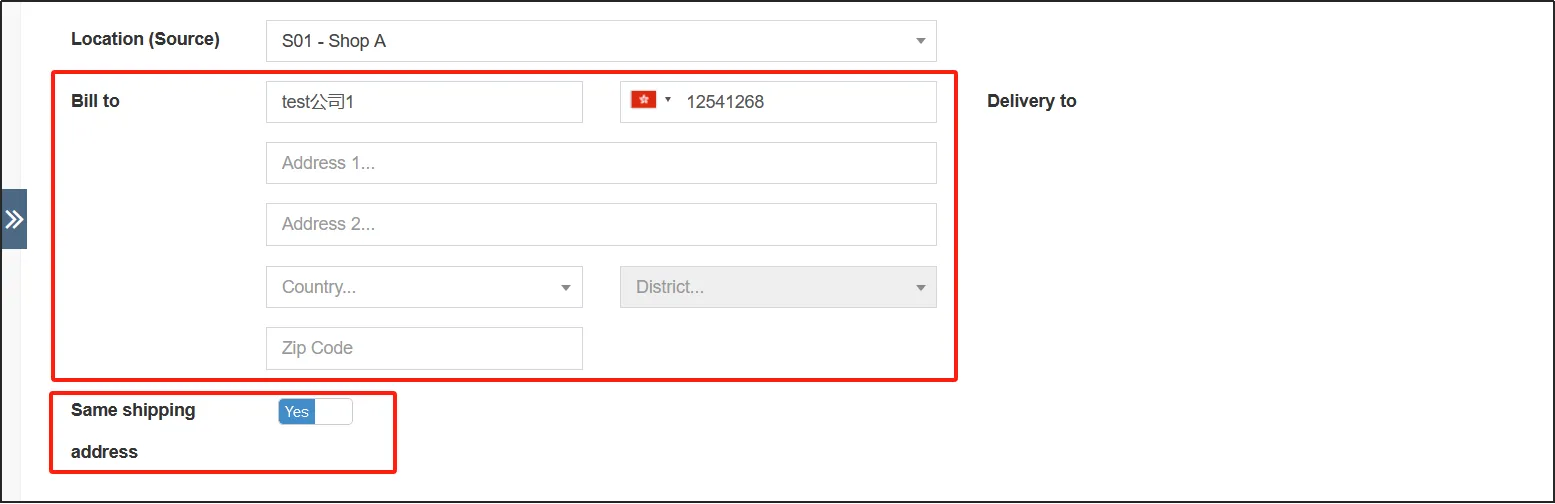
5.Fill in the billing address, if the shipping address and billing address are the same, you can select the [same as the shipping address] below as Yes.
6.Fill in the list of products that need to be quoted to customers, and fill in the information of the products. Click "Add" in the upper right corner to add a new line.

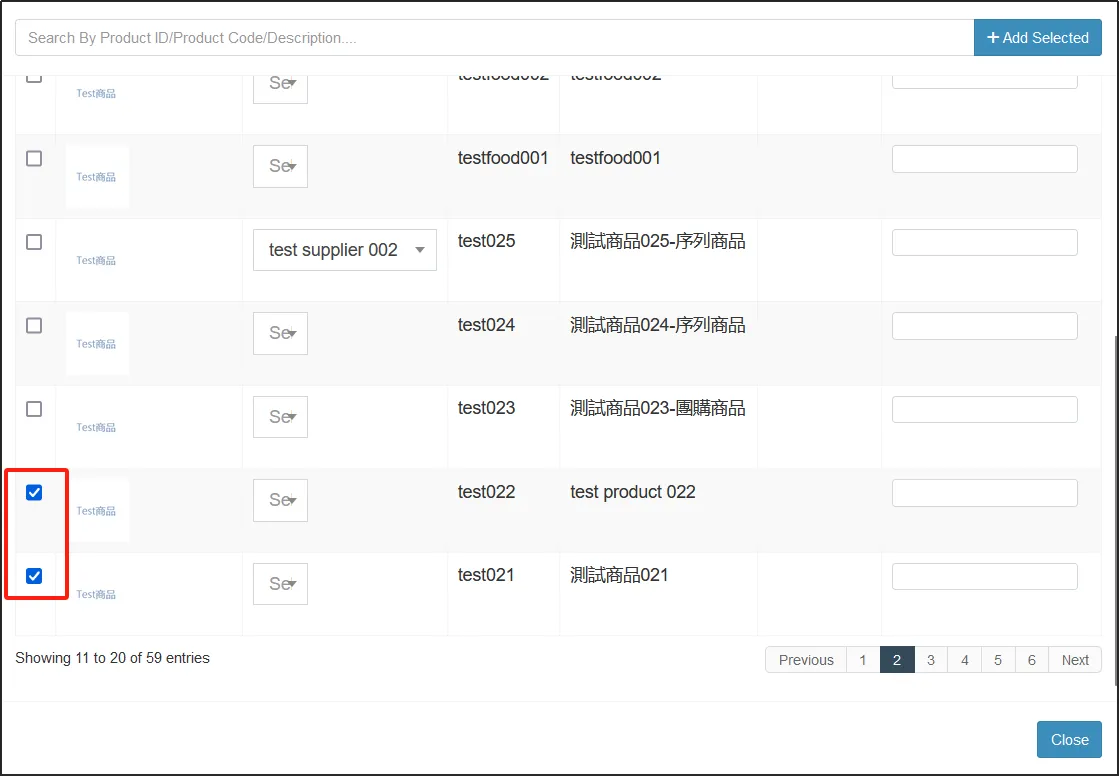
You can also click [Add in Batch].

You can select multiple products to add at once.
Click on the gear in the top right corner of the list to check the information you want to display in the quotation.

7.Fill in the payment terms (time limit) and payment date.

8.Click Save in the upper right corner.
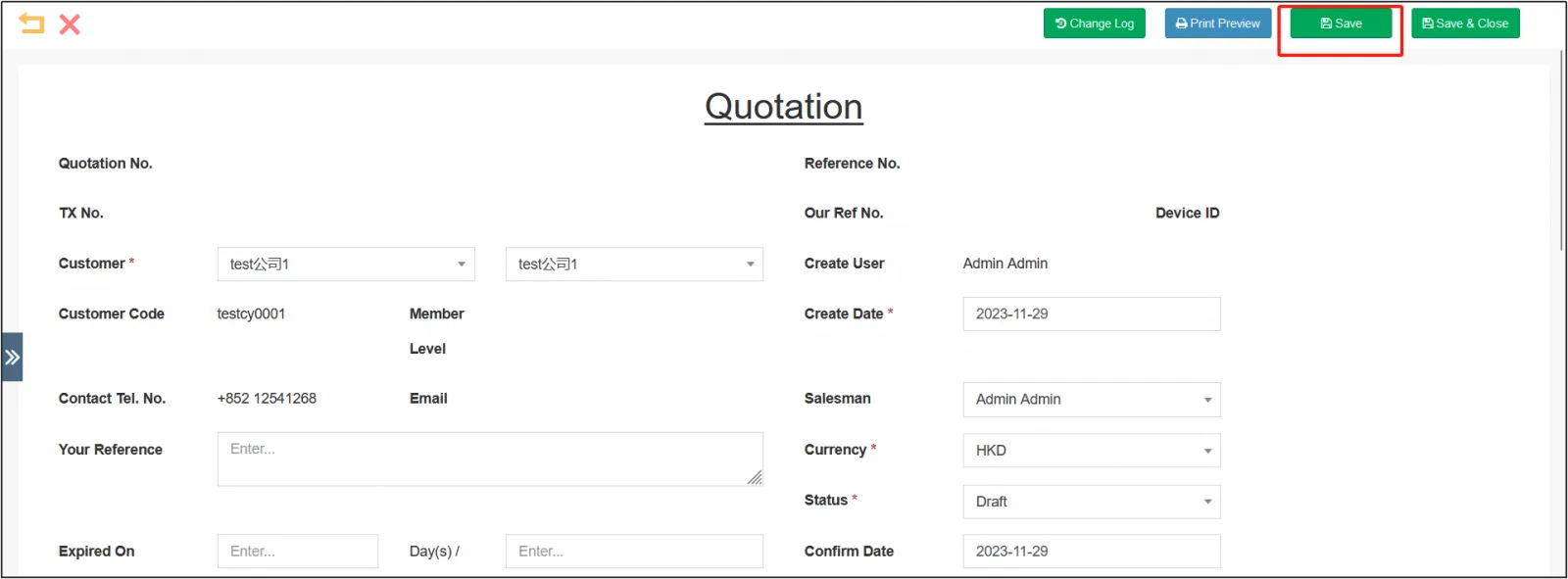
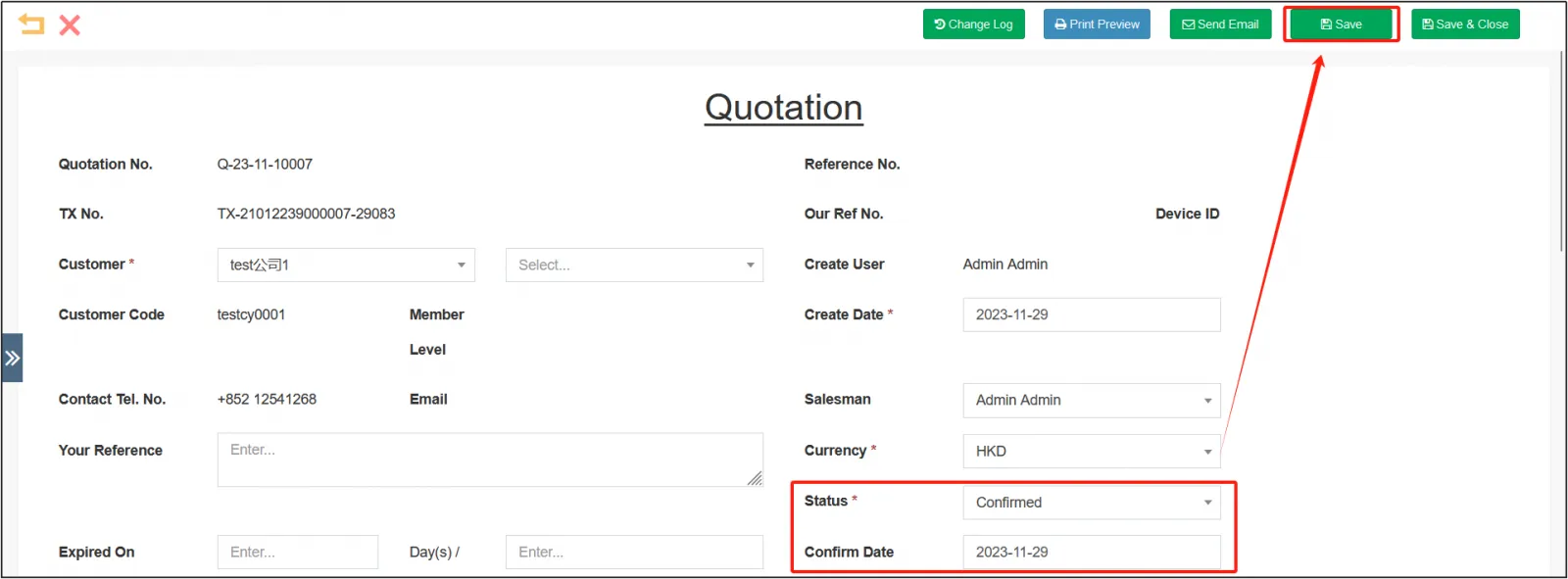
9.Check the quotation again, and after confirming that it is correct, you can change the status of the quotation to Confirmedfill in the confirmation dateclick [Save] in the upper right corner.
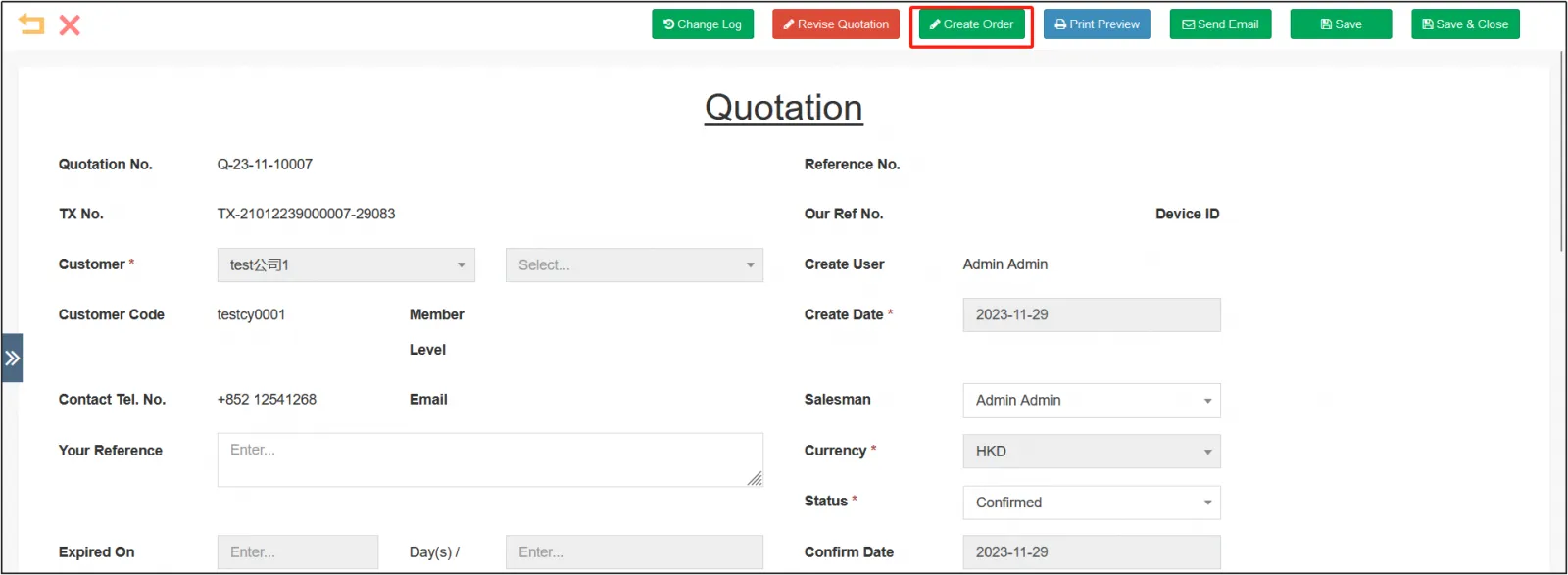
10.After the status of the quotation is changed to confirmed, the order can be created according to the quoted price.
Modify the quotation
If the status of the quotation is Draft or Sent, you can modify it, but if the status is Confirmed, you cannot directly modify it, but can only revise it.
Modify the quotation (the quotation is not confirmed)
step:
1.Open CMSclick ordersclick quotation 。
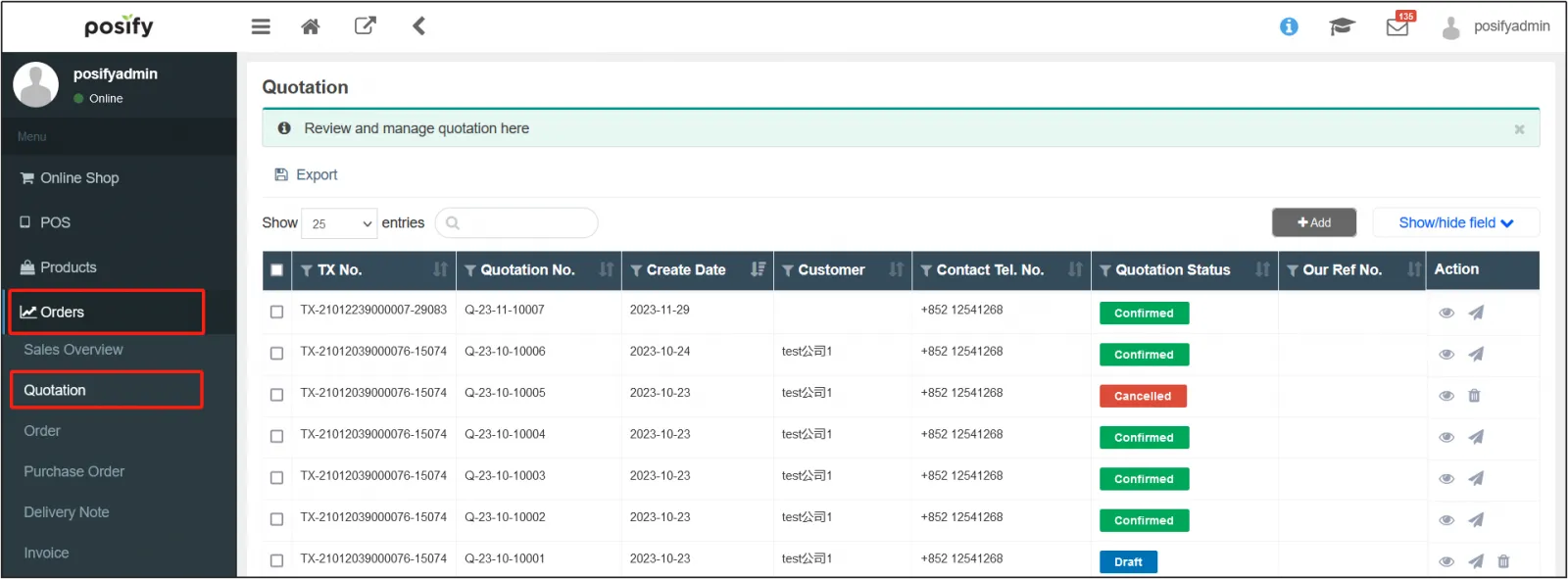
2. Find the quotation you want to modify and click  on the right。
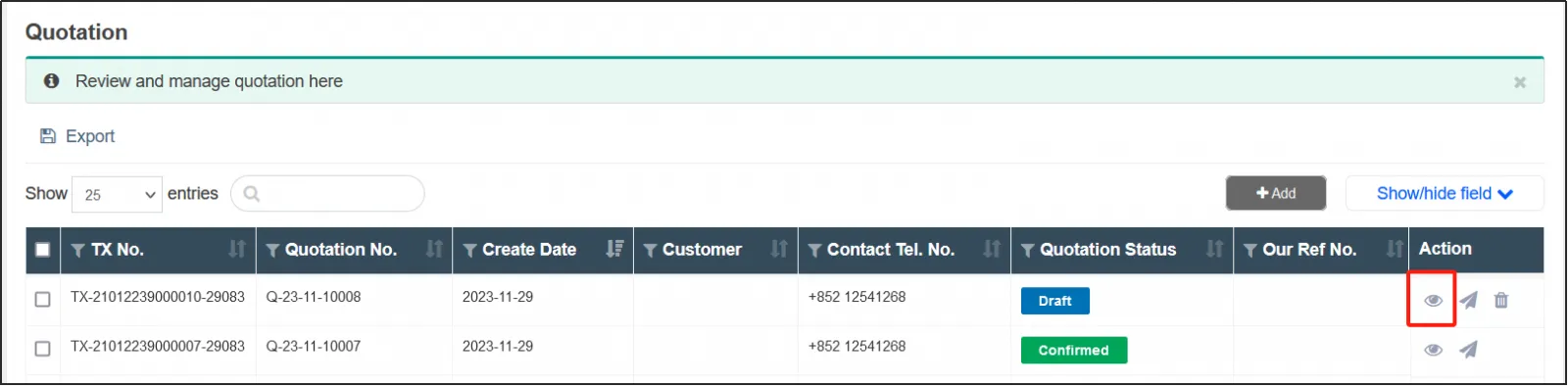
3. Open the quotation editing page and modify the quotation information.
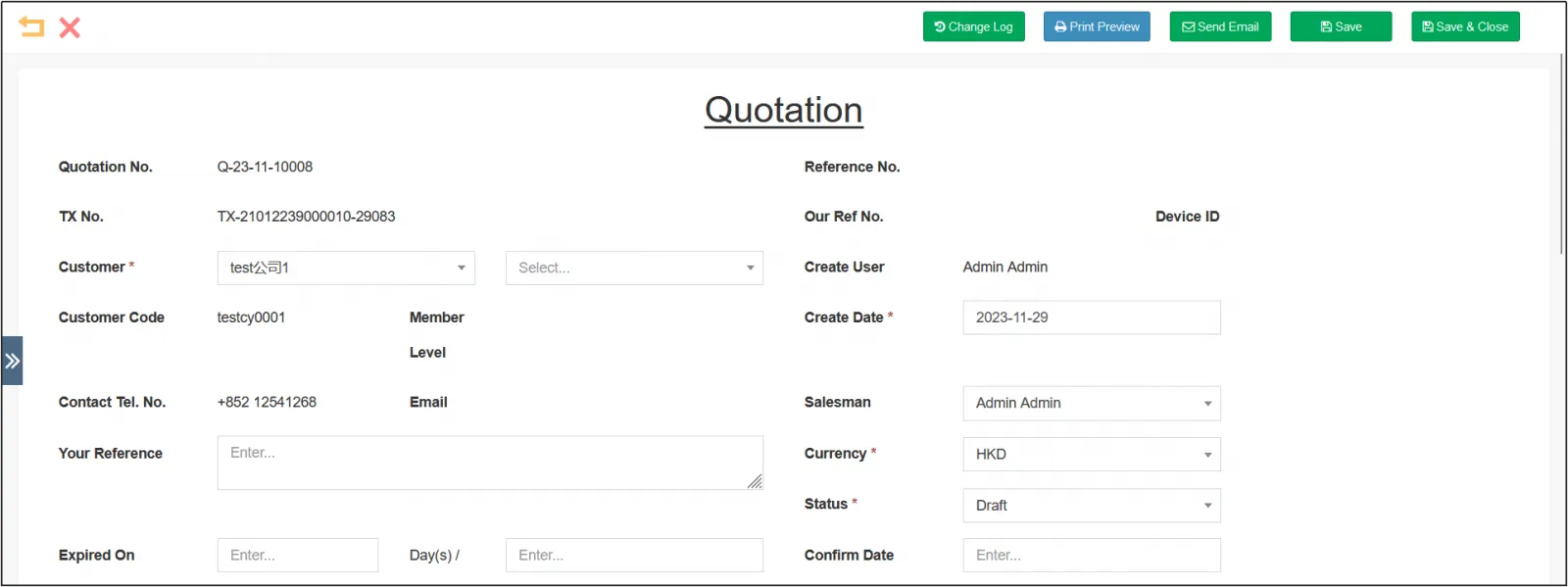
3. If you are still not sure, you can keep the quotation at draft Status, if the quotation has been sent to the customer, the status can be changed to sent , if it is determined that the quotation will not be modified after modification, the status can be modified to confirmed . After modifying the status, click [Save] in the upper right corner.
Revised Quotation (Quotation Confirmed)
step:
1.Open CMSclick ordersclick on quotationFind the quotation you want to amendclick on the right。
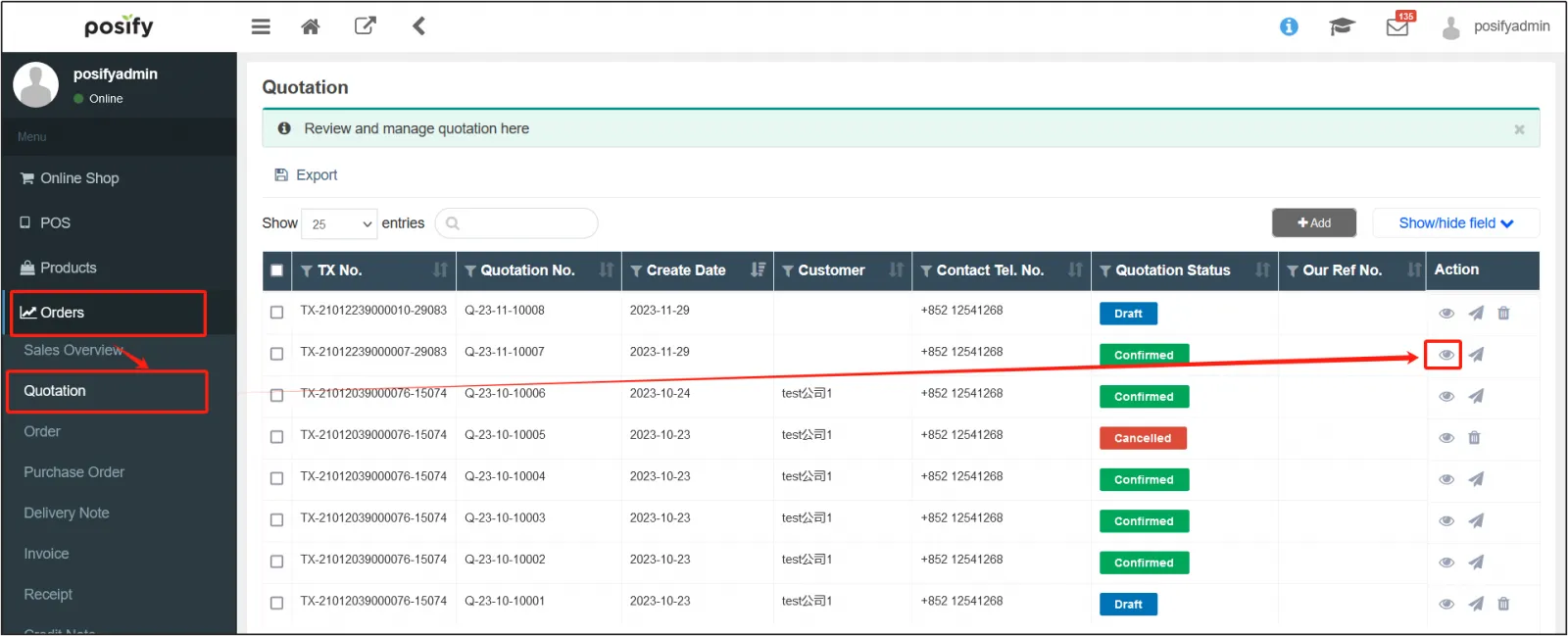
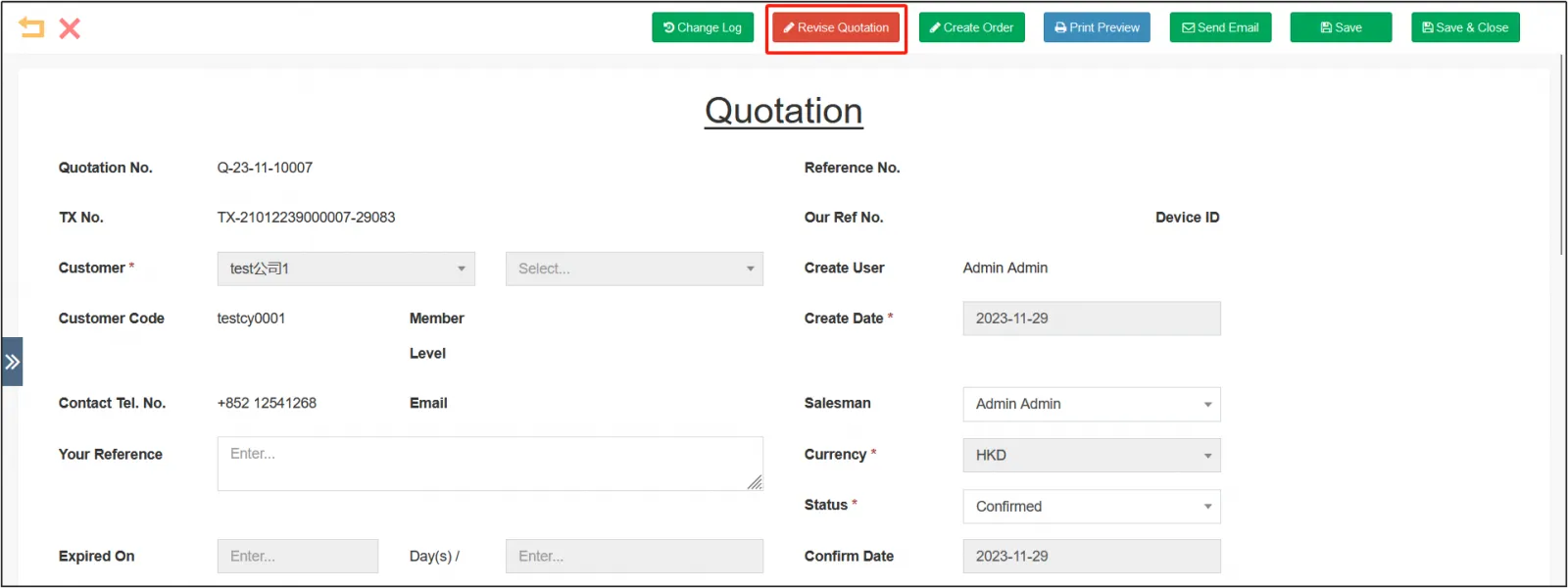
2. Open the quotation editing page and click Revise Quotation at the top.
3. To edit the information in the quotation, the steps are the same as creating a quotation.
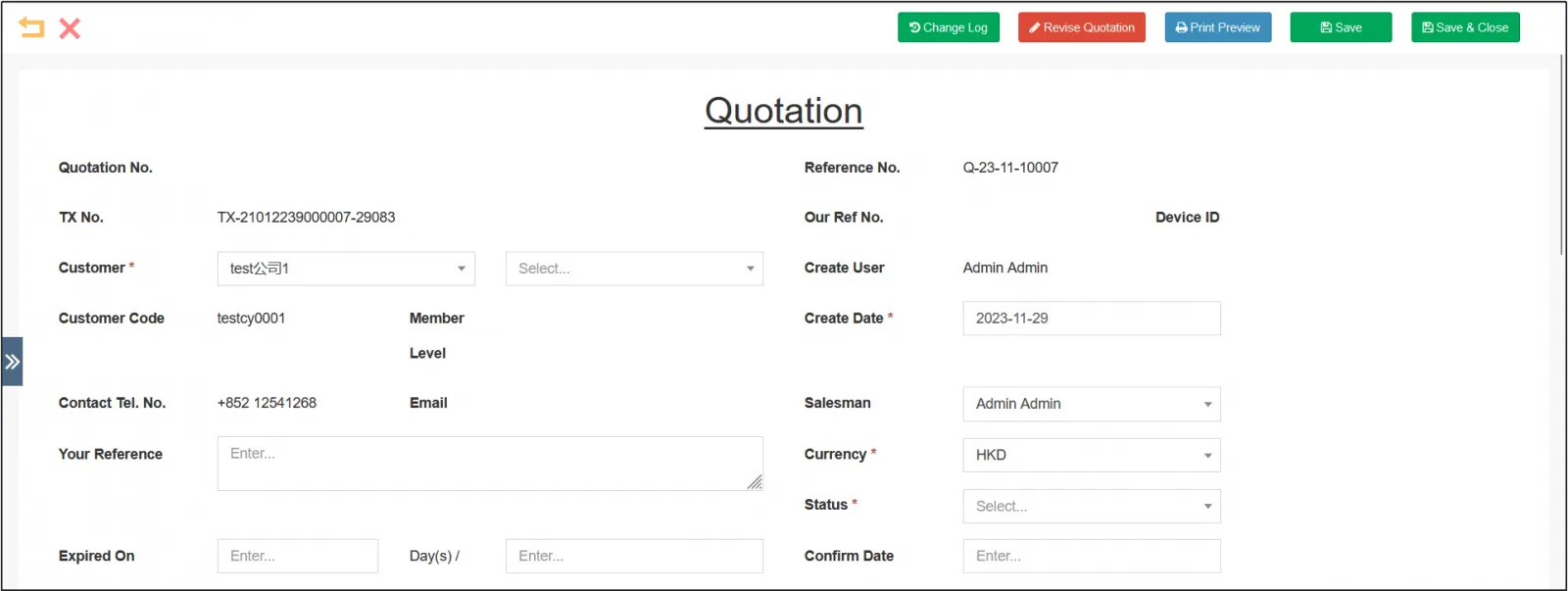
4. When you're done, click Save in the upper right corner.
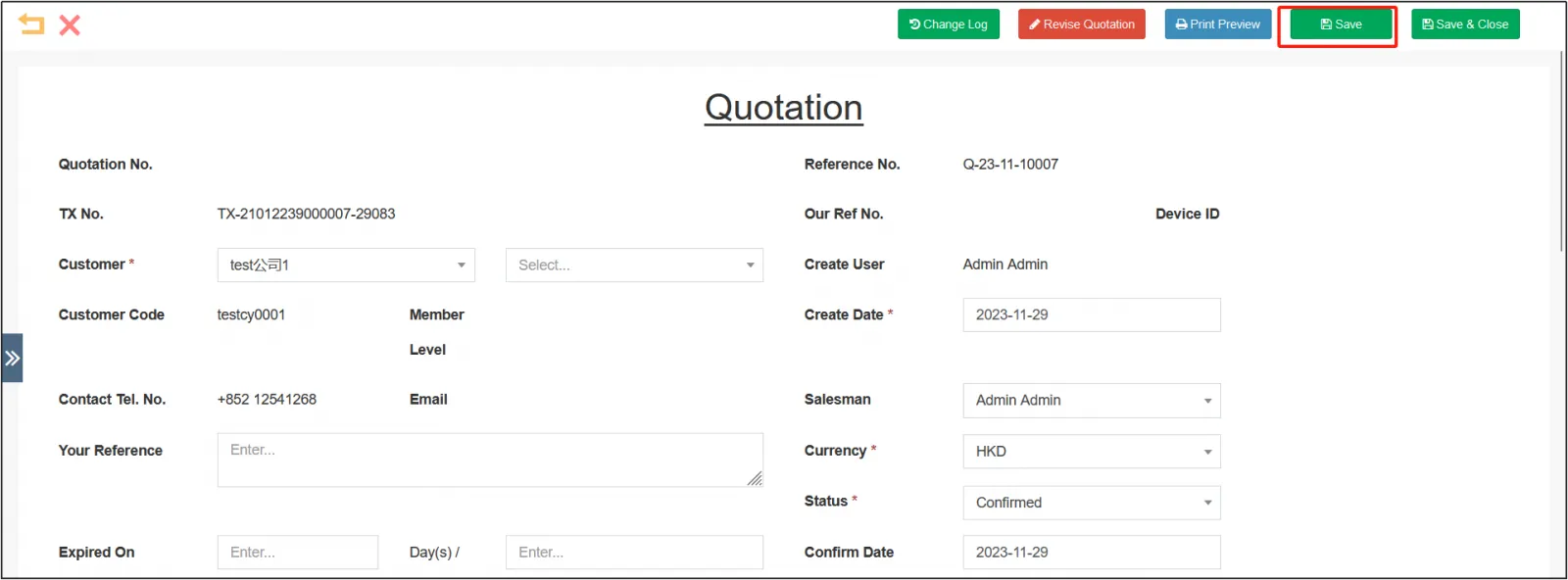
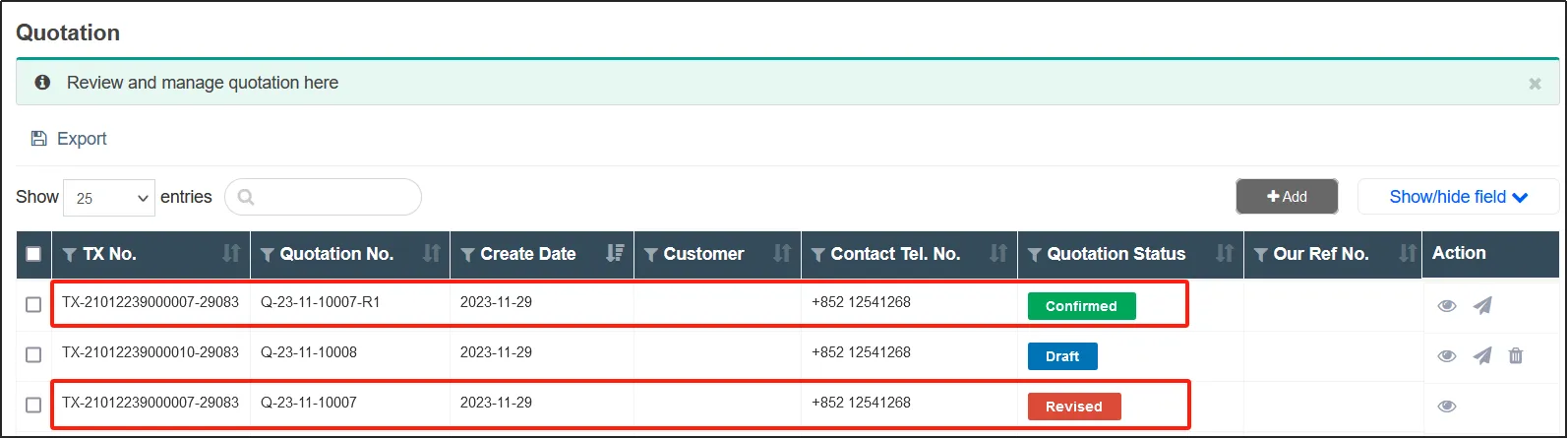
5. You can see that the status of the quotation before revision changes to revised , while the quotation number of the revised quotation is the number of the quotation before revision plus R1. One revision is R1, two revisions is R2, and so on.
Search Quote Records
Open the CMSclick on orderclick on quotation .
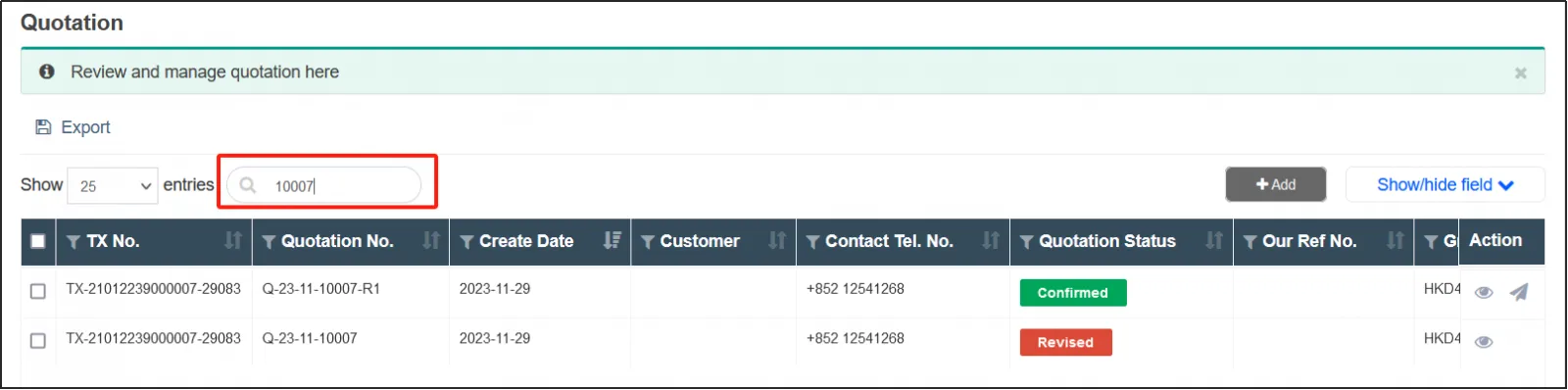
Enter any keyword related to the quotation you want to search for in the search box.
For example, if you enter "10007" as shown in the following figure, you will find two quotations with "10007" in their numbers.
search by filter
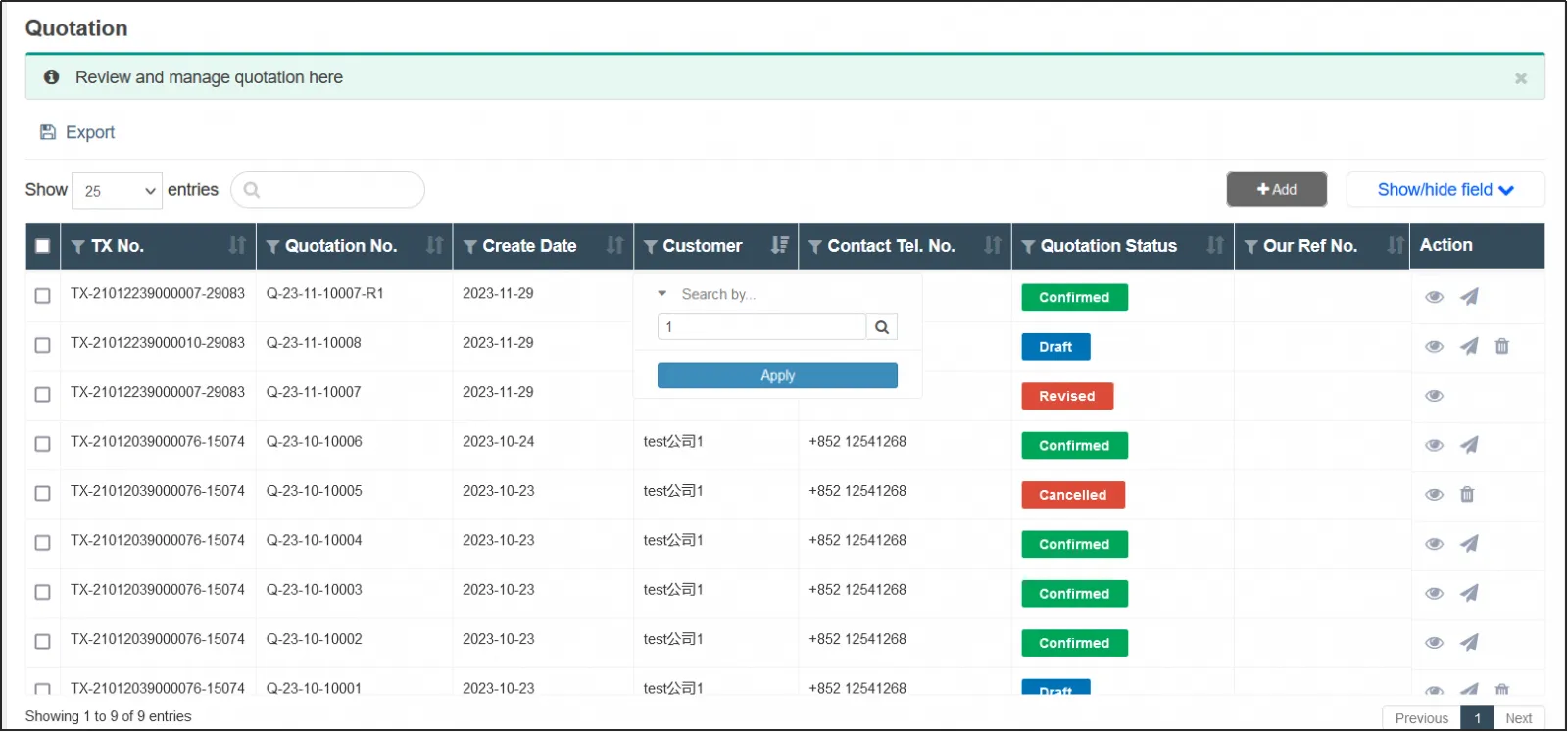
There is a filter icon on the left side of the column header, click the filter icon, enter the keyword of the quotation you want to search for in this column, and then you can filter it.
For example, as shown in the figure below, click the filter icon on the left side of the customer column and enter "1", which will filter out the quotations containing "1" in the customer column.
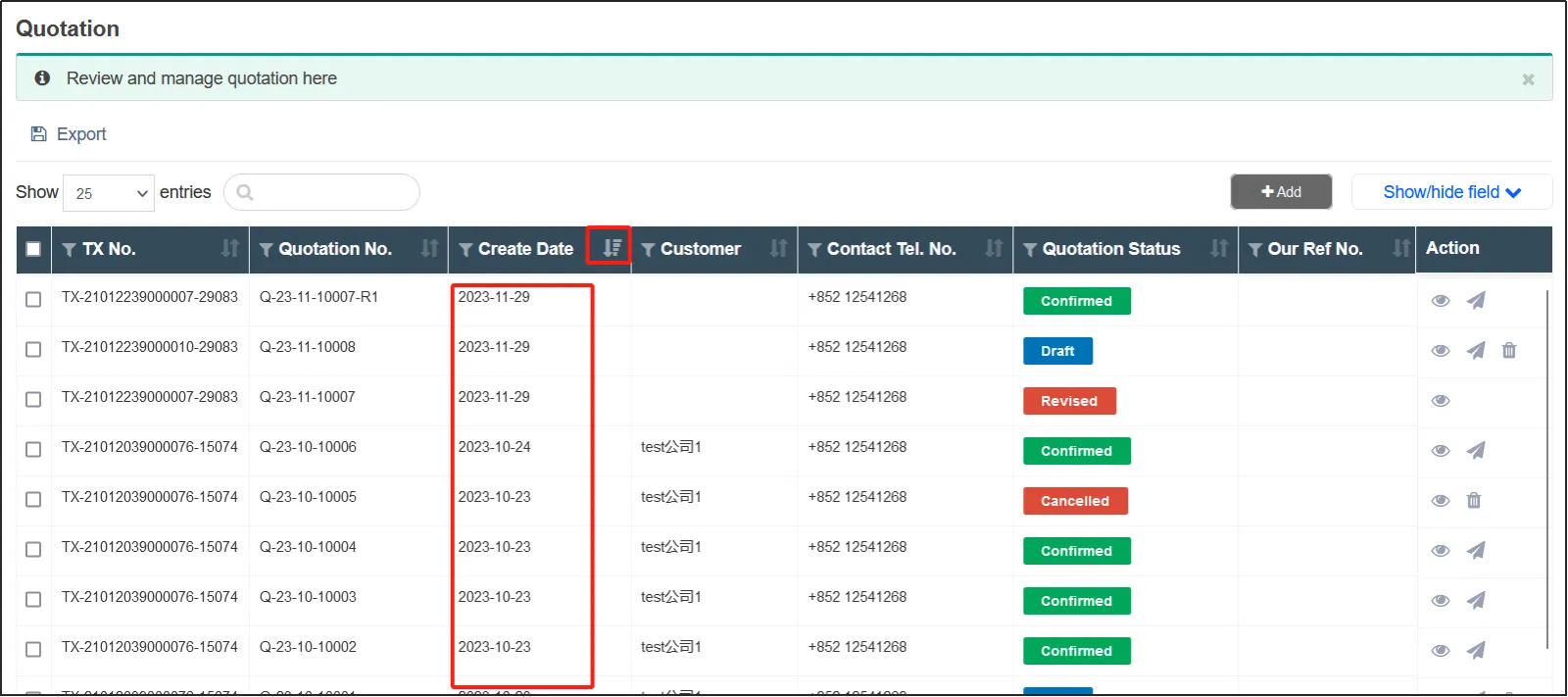
There is a sort icon on the right of the column header, click it to sort the data in this column.
For example, as shown in the figure below, click the sort icon on the right side of the order preparation date, so that all quotations are sorted from large to small according to the order preparation date.
Sorting icon is shown in the following figure, it means that the information in this column is not currently sorted.

When the sorting icon is shown in the figure below, it means that the information in this column is currently sorted from large to small.

If the sorting icon is shown in the figure below, it means that the information in this column is currently sorted from small to large.

cancel quotation
step:
1.Open CMSclick orderclick quotationFind the quote you want to cancelClick on the right。
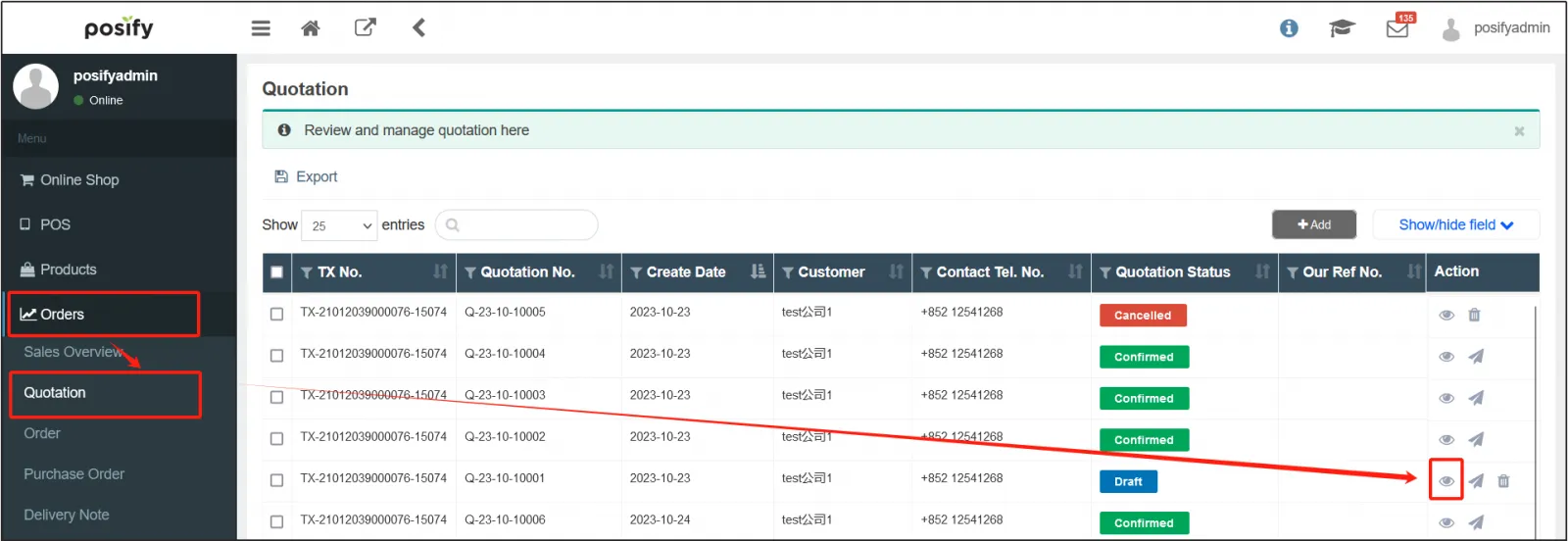
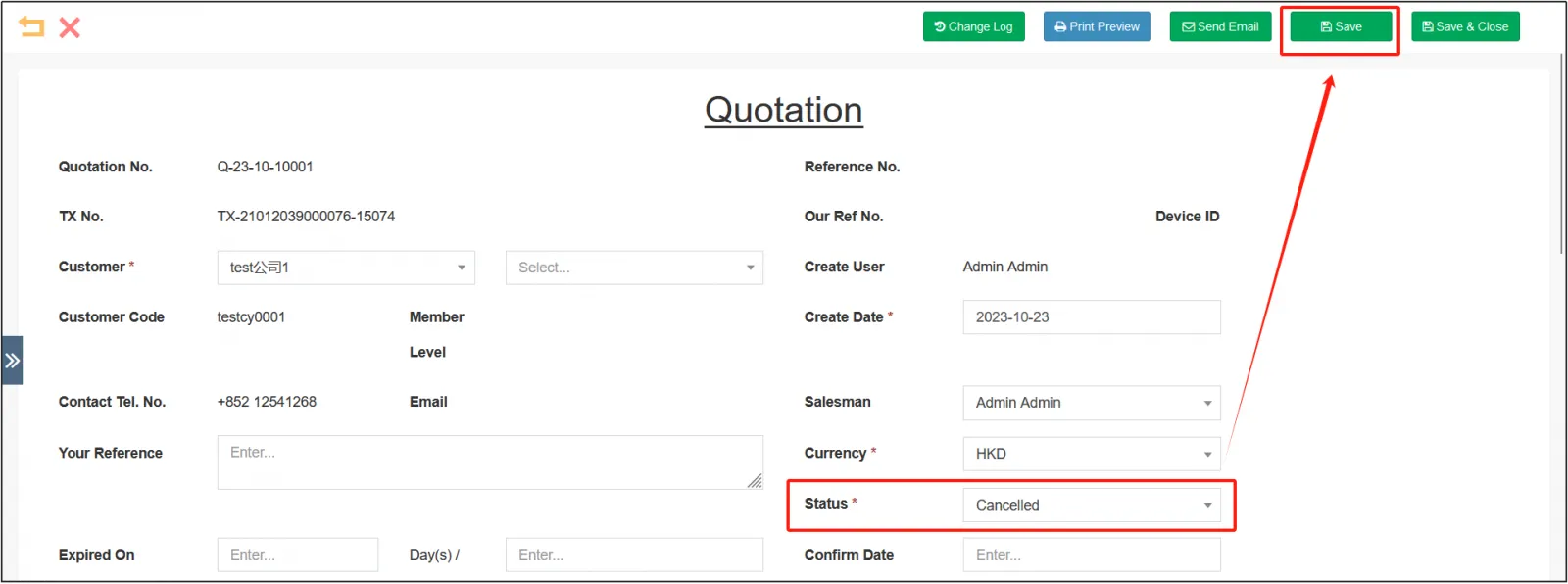
2. Open the quotation editing page and change the status to CancelledClick [Save] in the upper right corner.
3. You can see that the status of the quotation has changed to Cancelled .
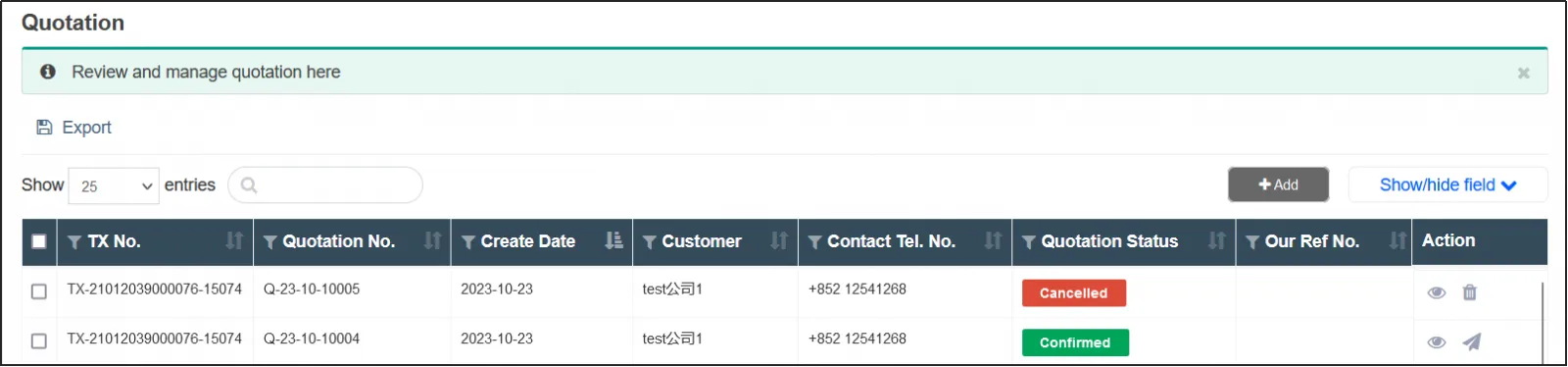
print quotation
step:
1.Open CMSclick orderclick quotationFind the quotation you want to printClick on the right。
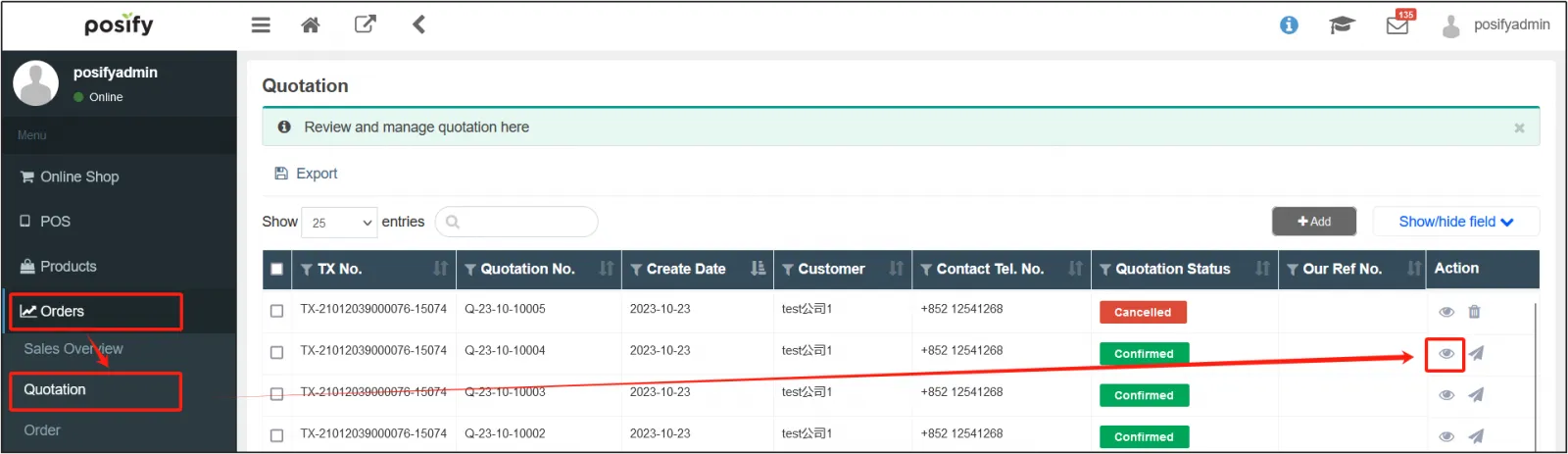
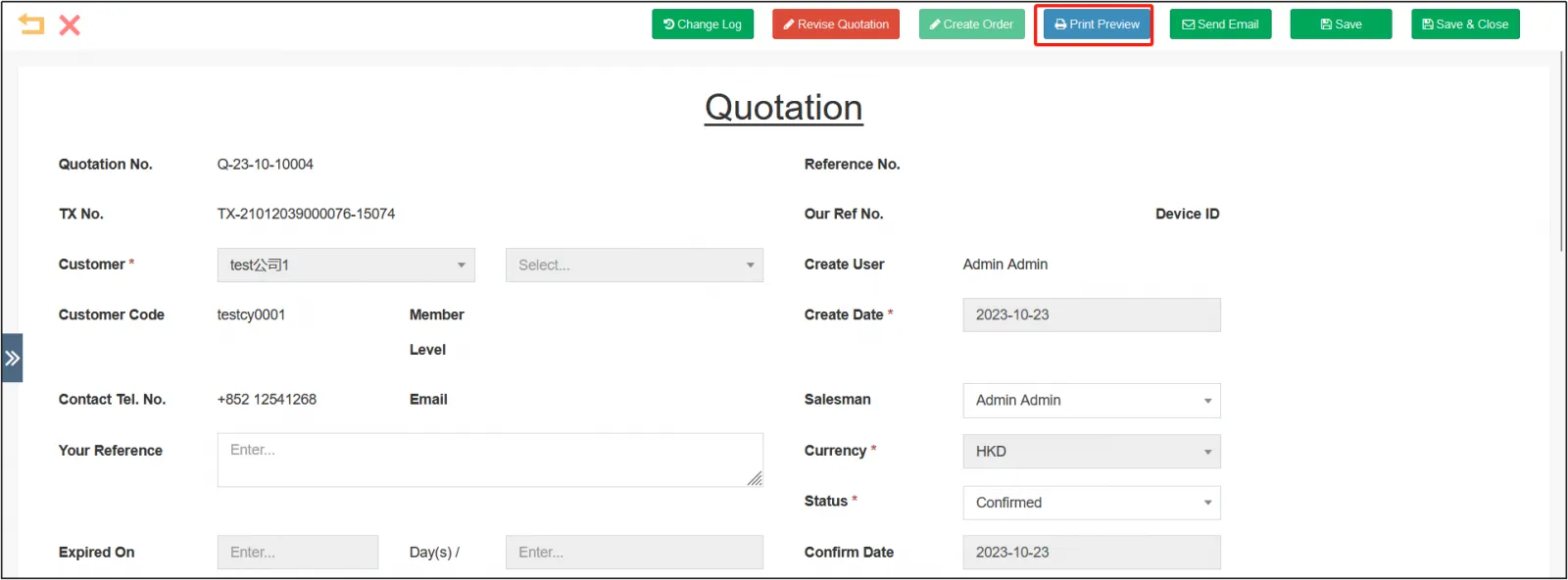
2. Open the quotation editing page and click [Print Preview] on the top.
3. Choose whether to include the default header.
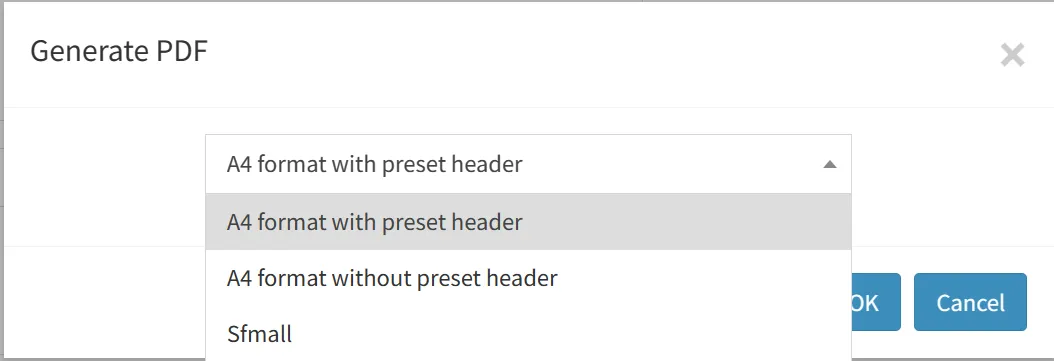
After clicking [OK], the quotation print preview will pop up automatically.
The image below shows a preview with a default header.
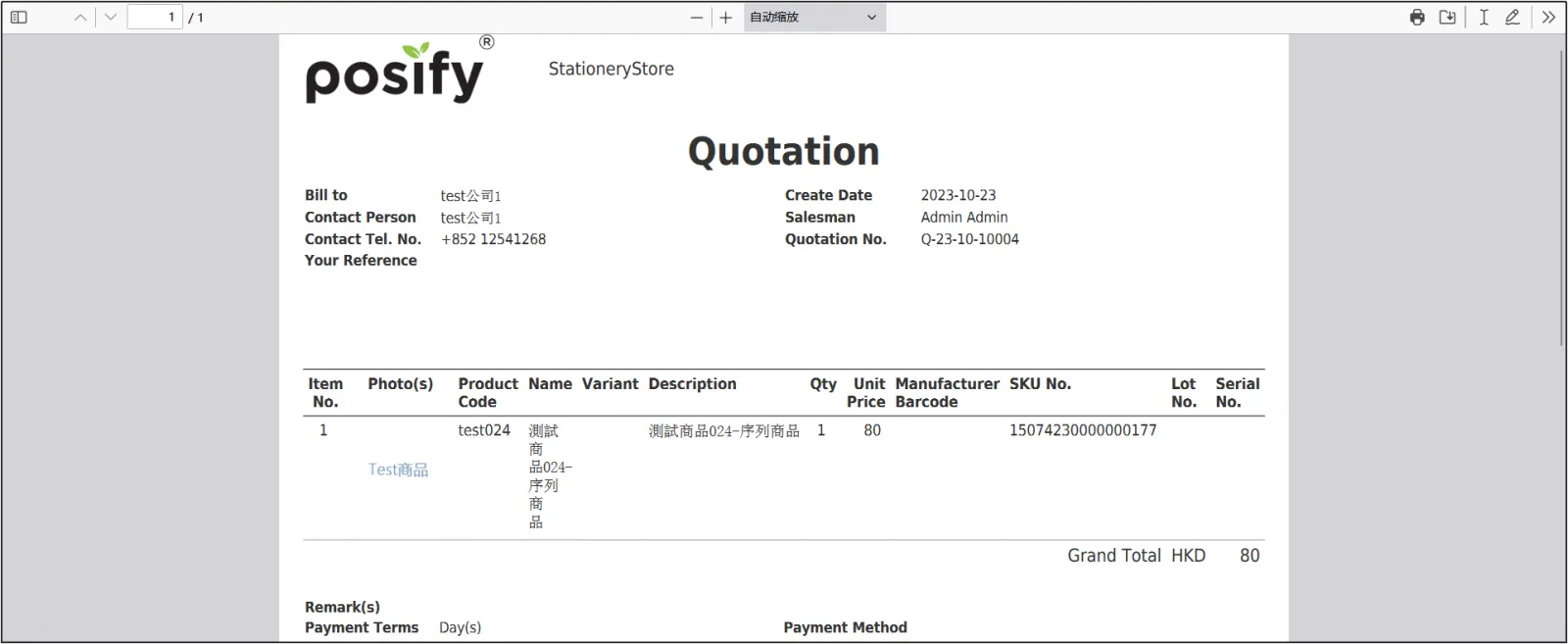
The image below is a preview without the default header.
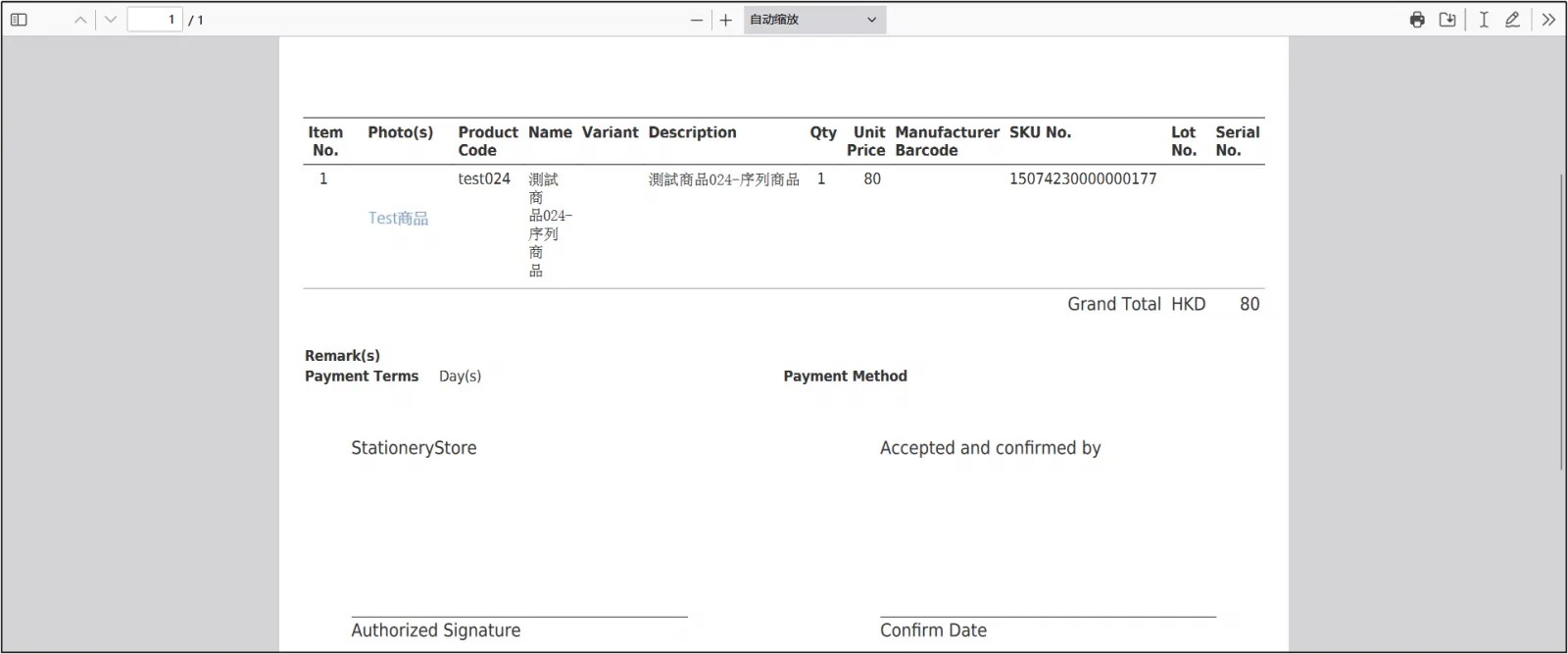
4. Click on the upper right You can print the quotation.
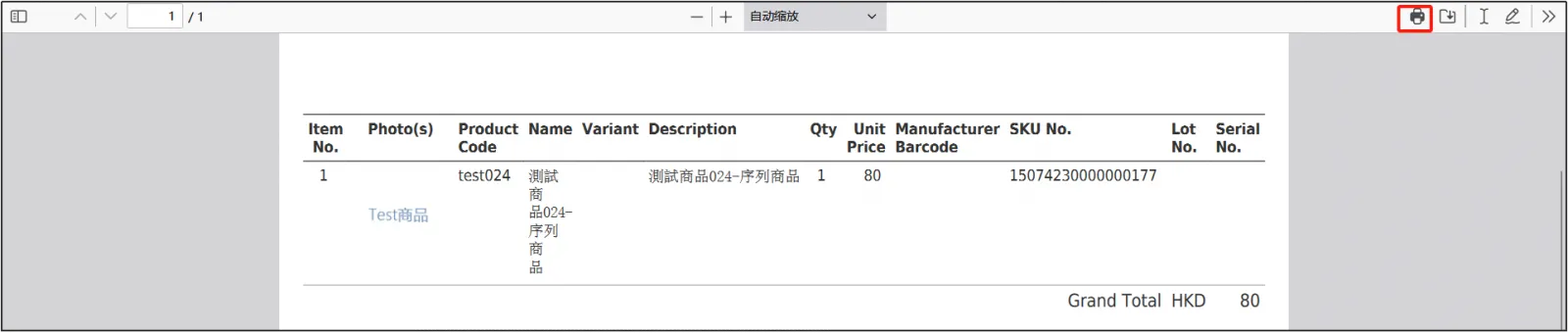
Email quotations to customers
step:
1.Open CMSclick orderclick quotationFind the quotation you want to send to the clientClick on the right.
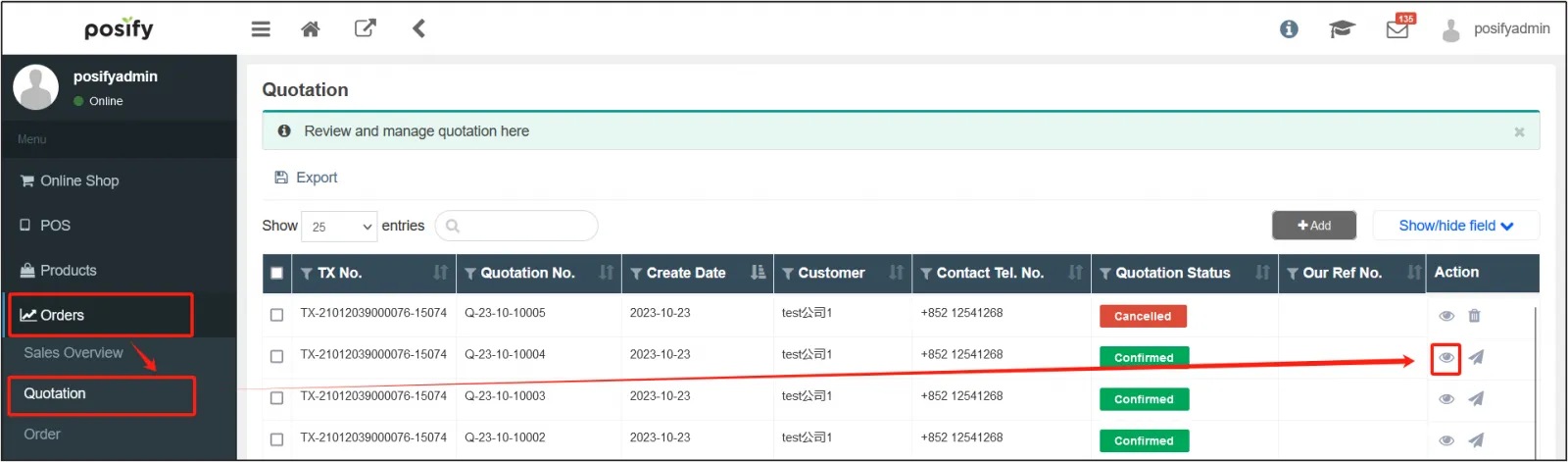
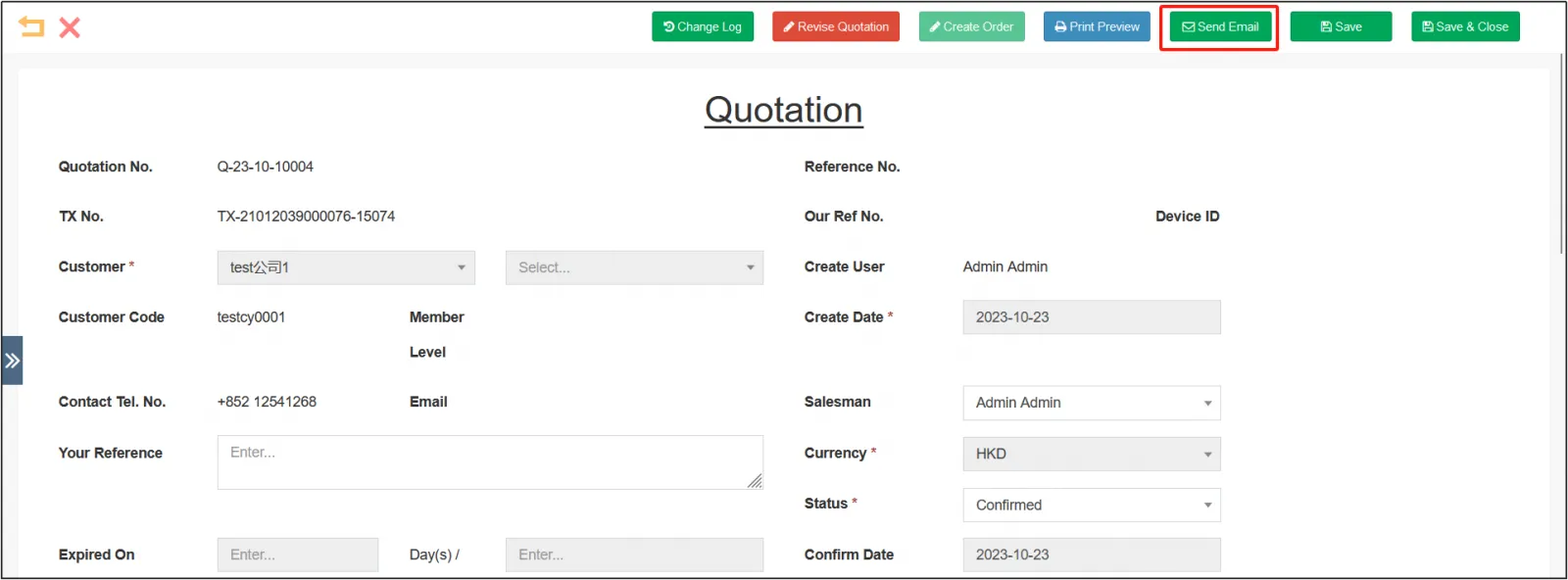
2. Open the quotation details, click the send email above to send the quotation to the customer. Before sending, please confirm that the customer information contains a valid email address, otherwise it cannot be sent.
Set the terms of the quotation
step:
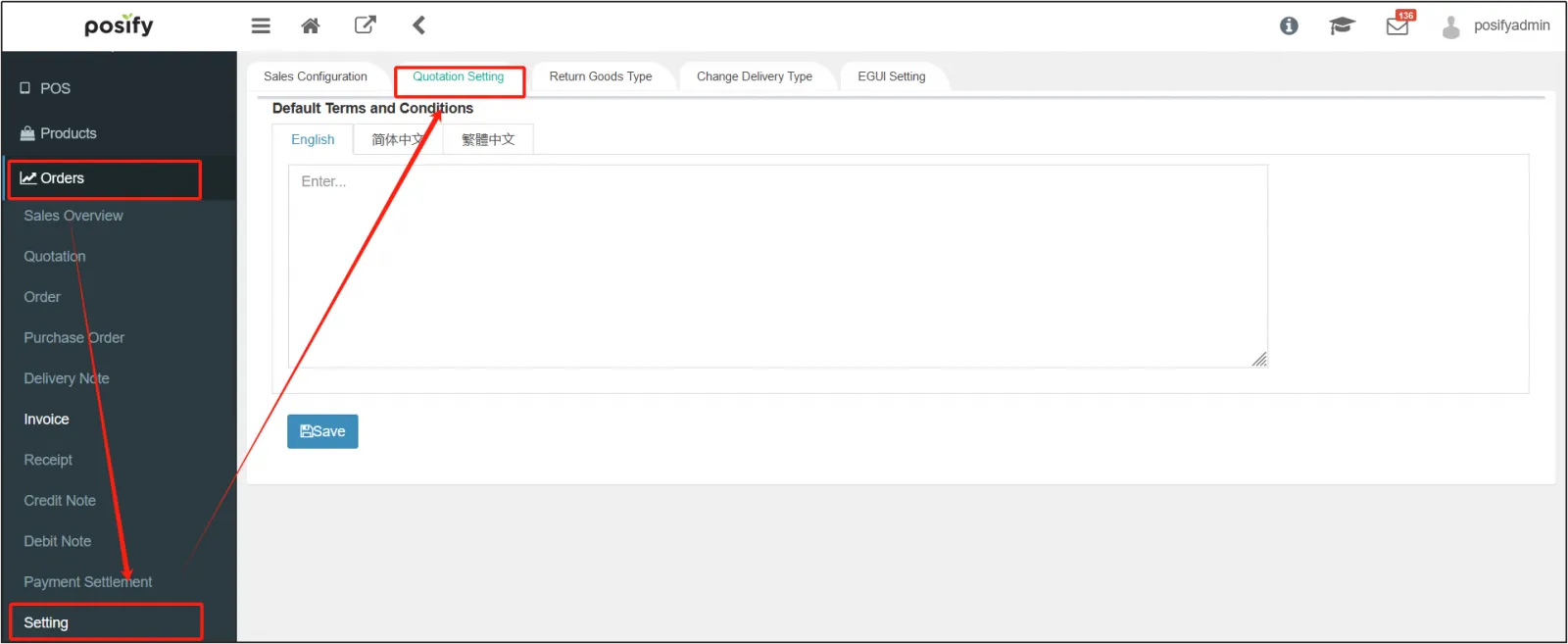
1.Open the CMSclick orderclick settingiYou can see the default terms in the tab reference settings.
2. Enter the default terms and click [Save] at the botton.
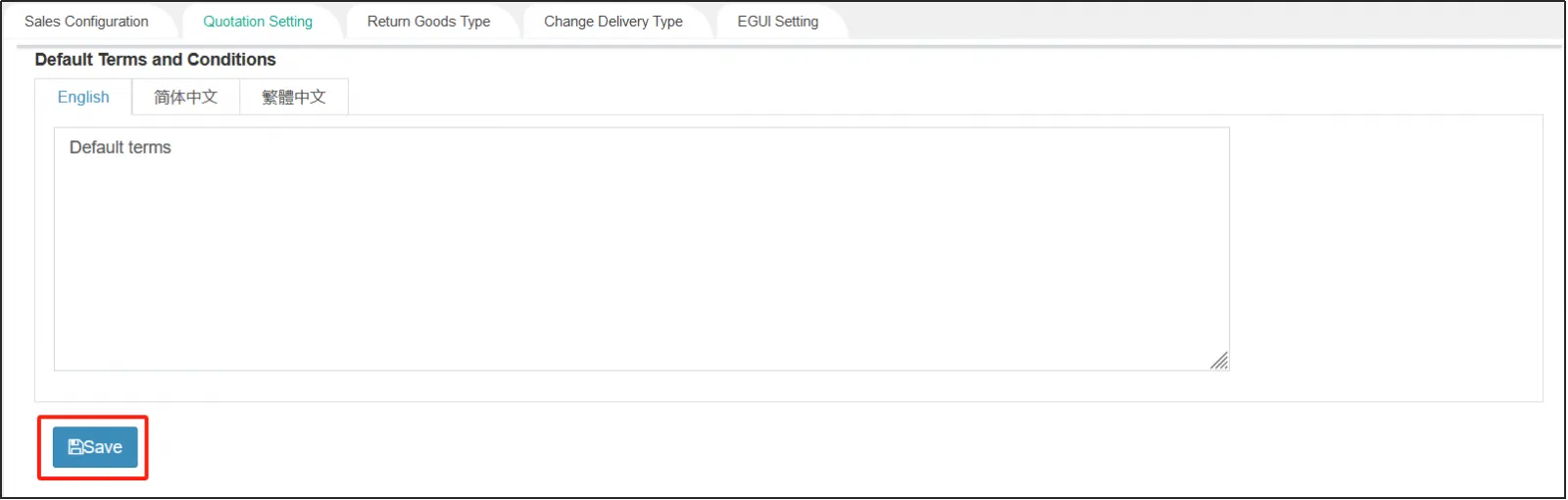
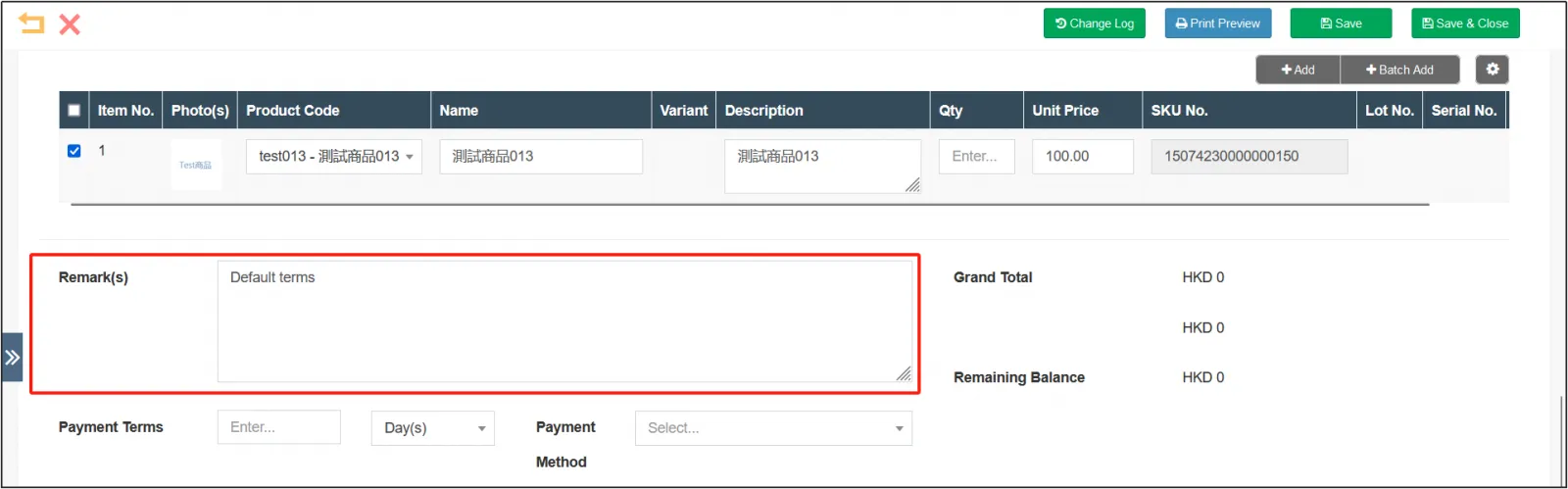
The default terms will appear in the notes under the quotation.