1.Modify the order process
After placing an order, customers may sometimes want to modify their order, whether it is to add or remove items, to increase or decrease the number of items, or to change the payment method.
Direct sales will pick up the goods after the payment is completed, and the transaction will be closed. Therefore, it is only possible to modify an order for pick-up or delivery, and not if a delivery note has been created or if the goods have already been picked-up.
Modify your order after placing it in the online store
The process of modifying an order is done on the CMS.
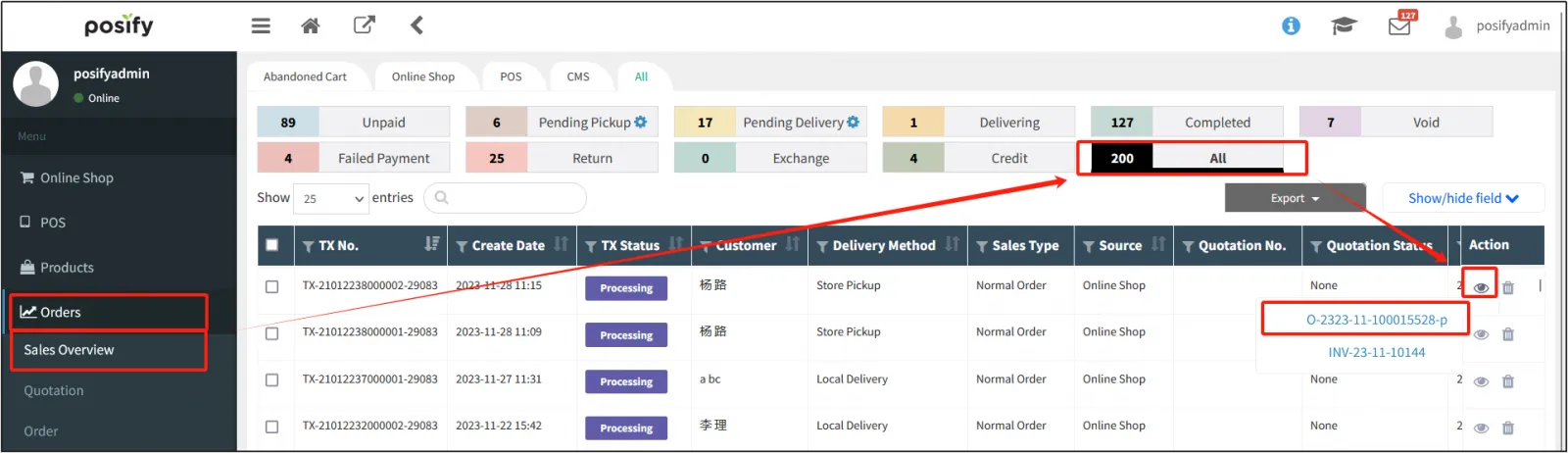
After the order is placed, open the CMS click Ordersclick Sales Overview in [All], find and click
 to the right of the order to be modified, and open the document with the prefix O (the default order has the prefix O).
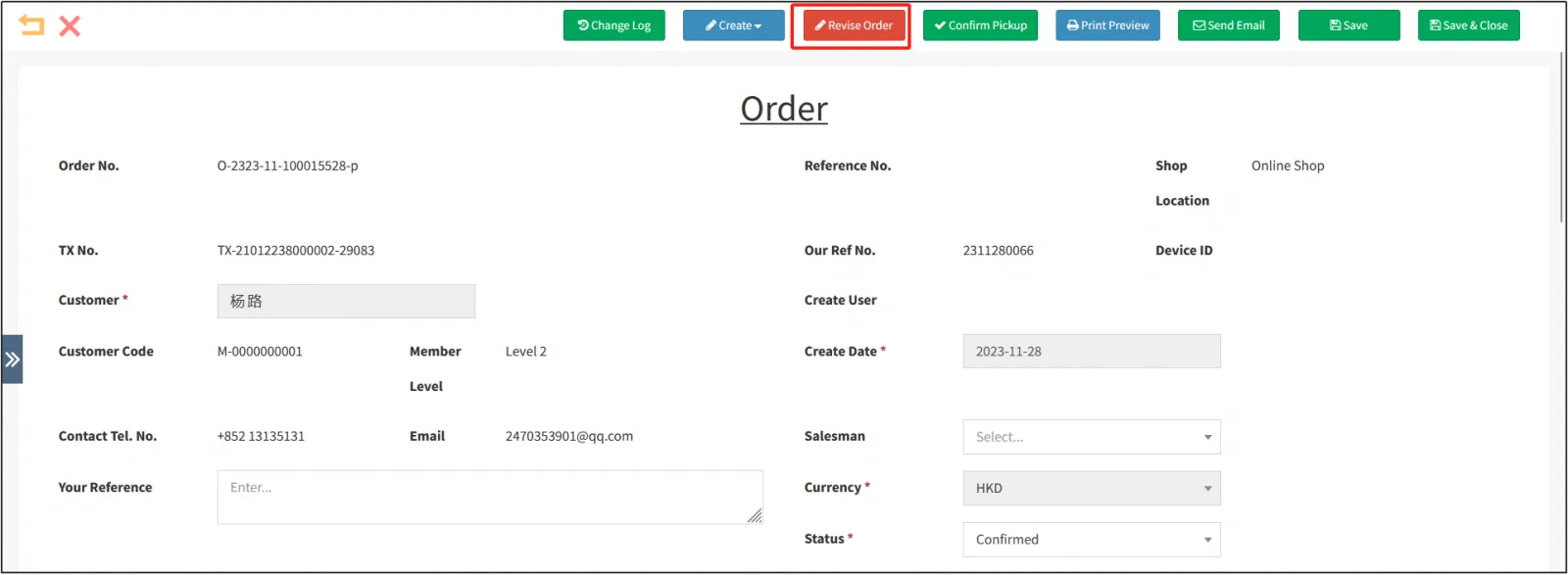
Click [Modify Order] at the top.
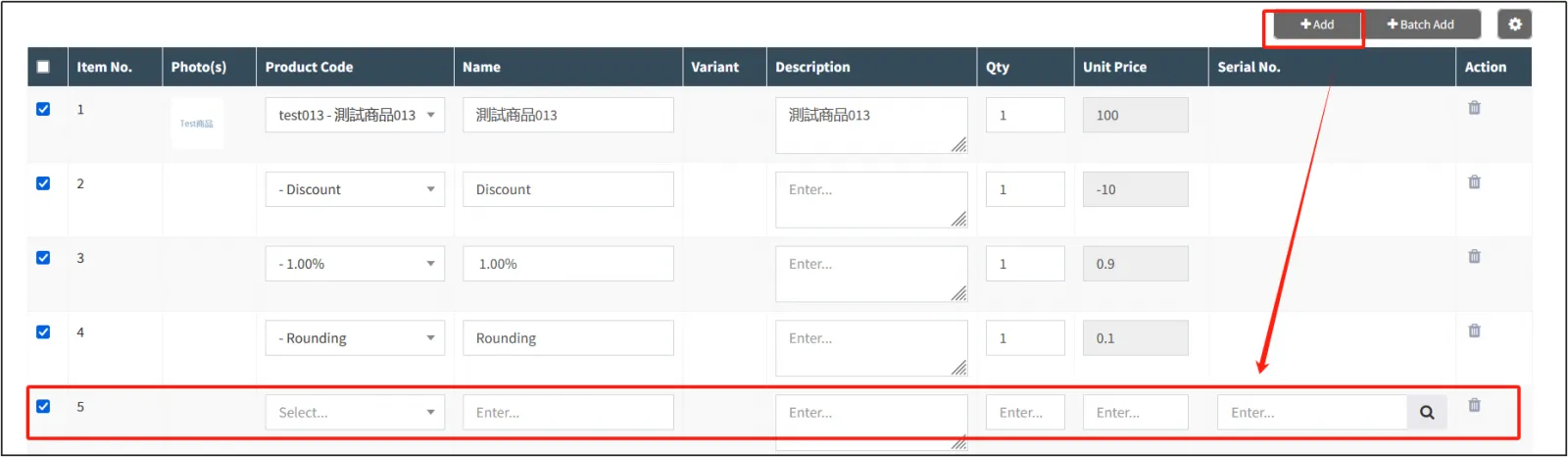
Scroll down the order to see that the list of items in the order is now in a state that can be modified.
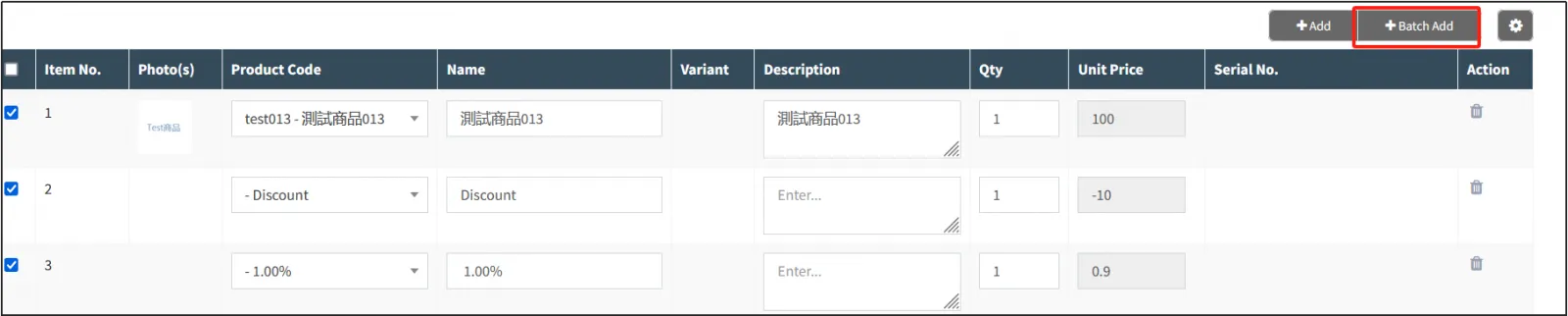
Click "Add" at the top right to add a row to the product list.
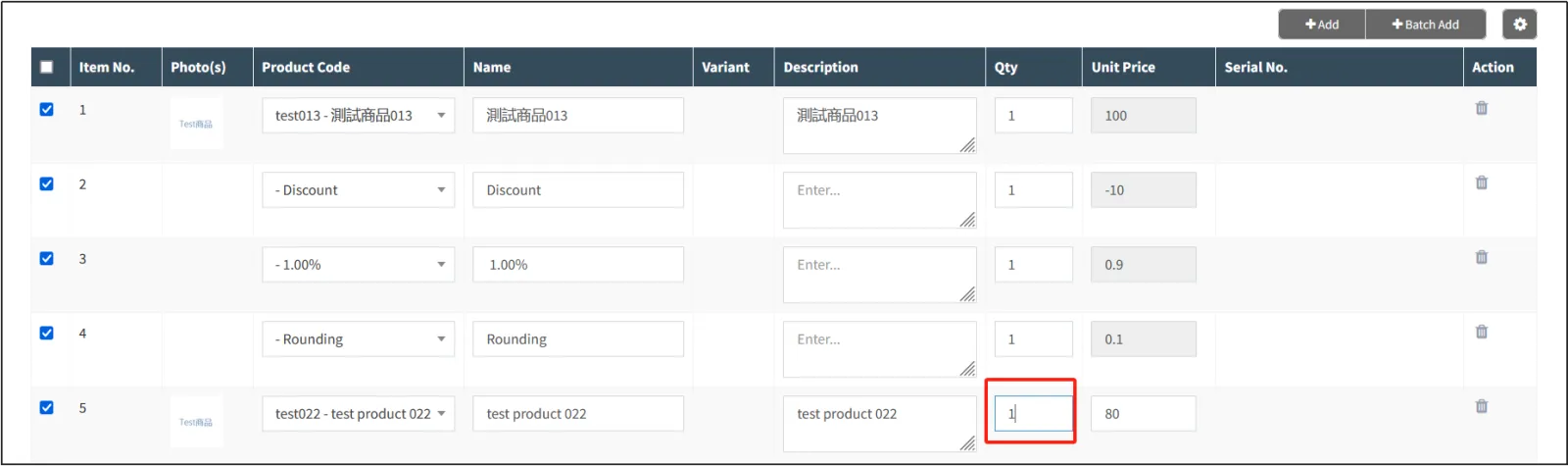
Enter the product number or name in the input box in the product number field to search.

Enter the quantity of the product in the Quantity field.
You can also click [Add by Batch"] in the upper right corner to add products.
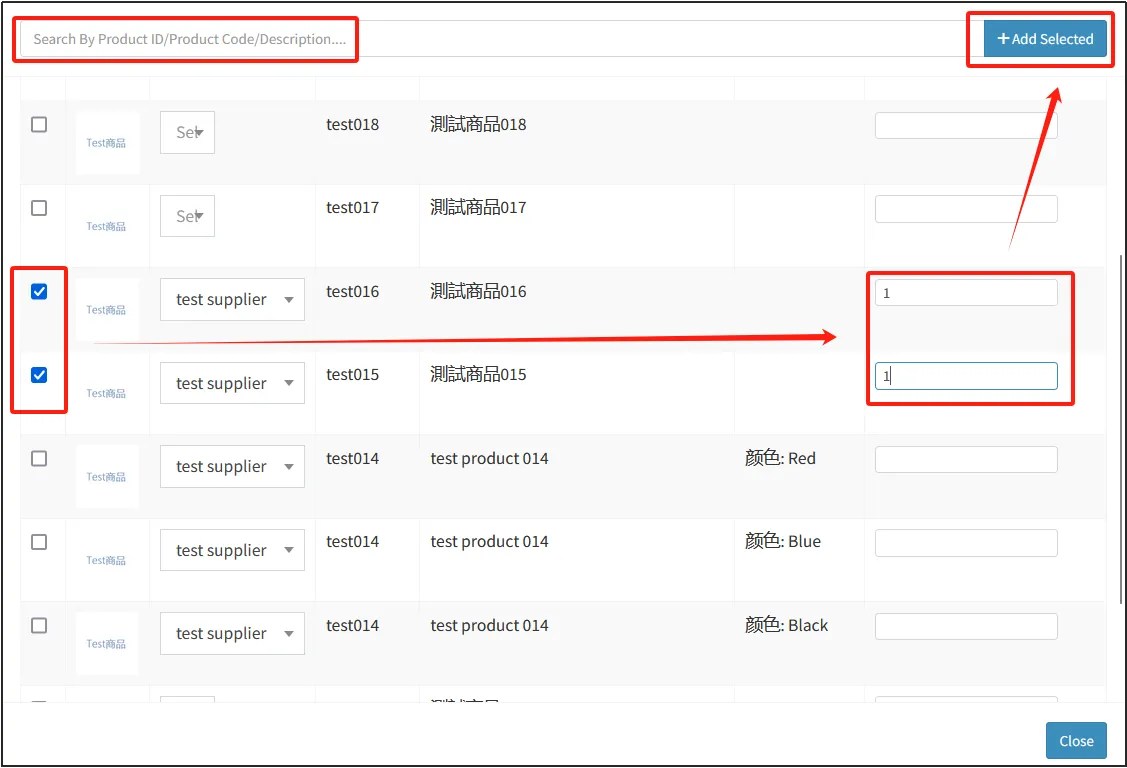
You can search by entering the ID/number/name of the product in the input box, check all the products you want to addenter the corresponding number of products in the input box on the rightclick [Add Selected Items] in the upper right corner to add them in batches.
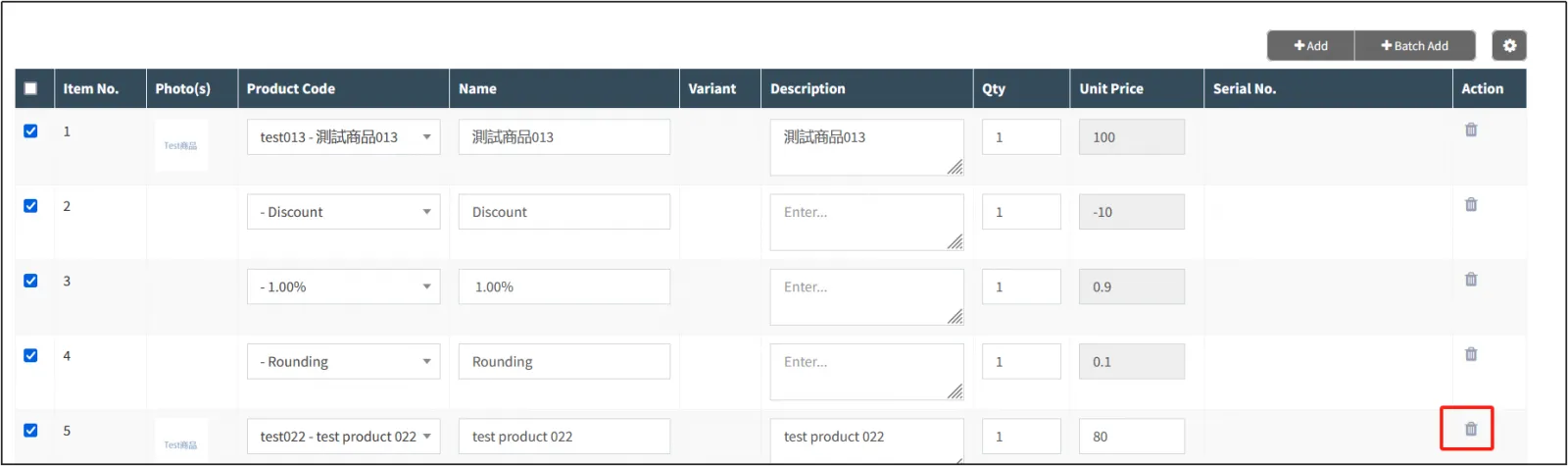
You can delete unwanted items by clicking on  on the right.
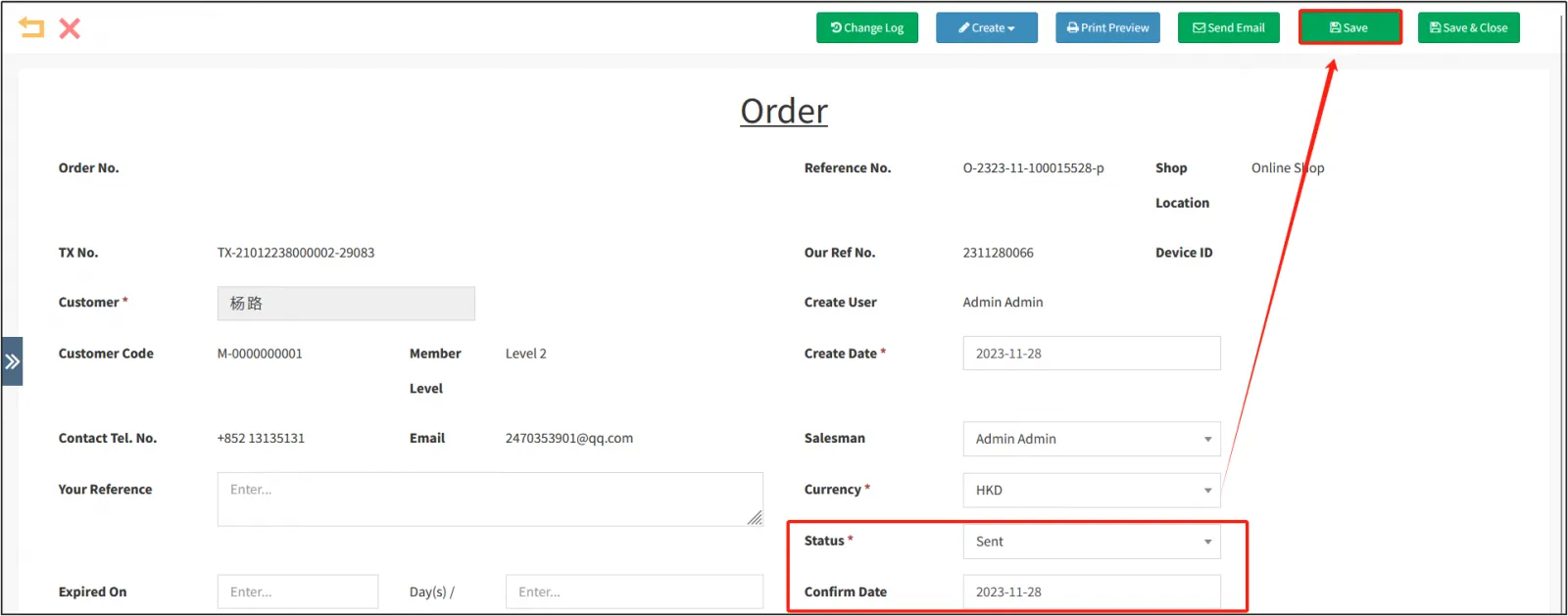
After modifying the product, pull up the order, change the status to Sentclick [Save].
Remark:
Note that after modifying an order, the previous order will be cancelled and the amount collected will be returned to the customer, and a new order will be generated and the customer will need to pay again.
If the customer purchased the goods on the Online store, open the Online store againclick the villain icon in the upper right corner to enter the personal centerclick My Order, and you can see that the products included in the order have been modified.
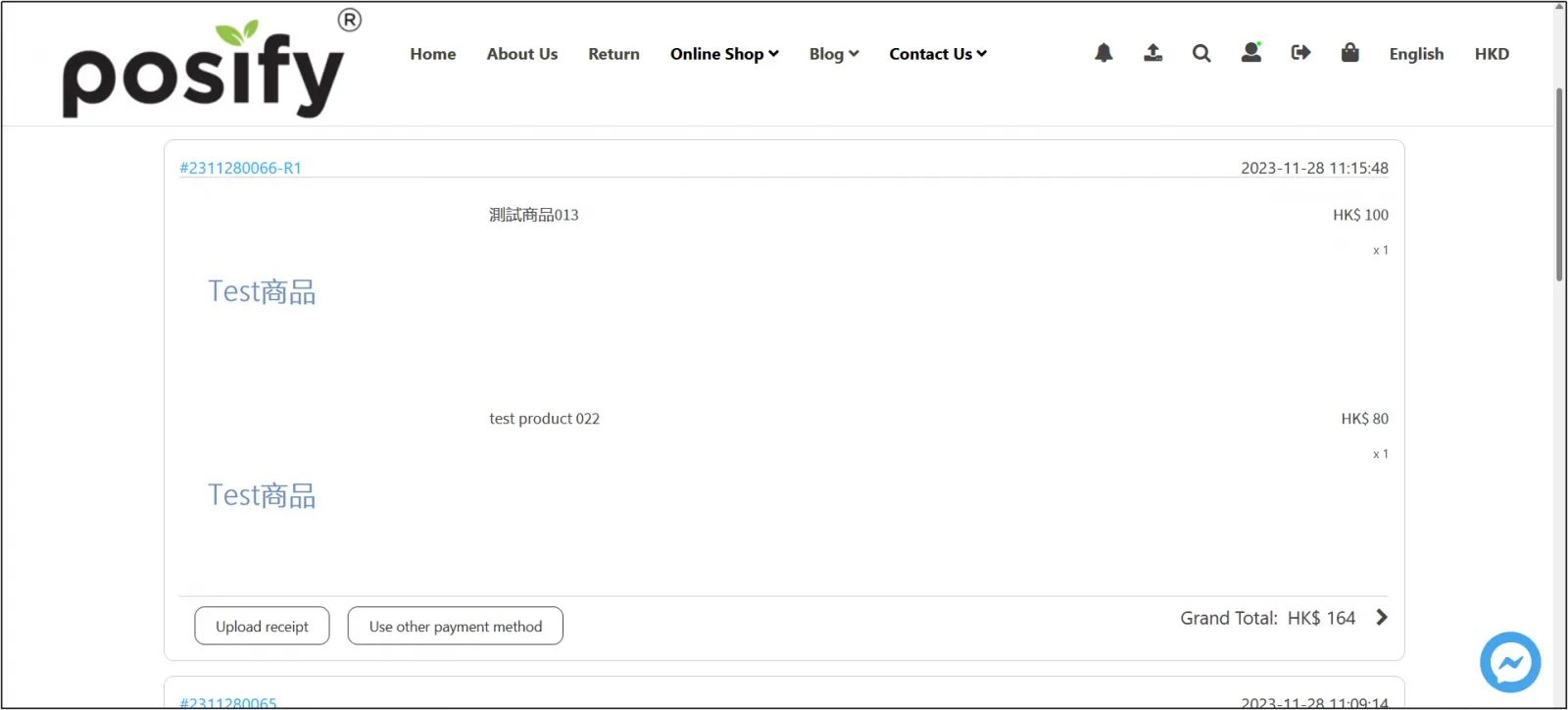
Wait for the customer to make a new payment, and if you want to change the payment method, you can click [Pay with another method] and the amount paid will be minus the amount you paid before.
The process after the payment is completed is the same as that of a general pick-up order and a delivery order, please refer to the online store order process playbook for details.
Since the POS does not support modifying the order, it can only be modified on the CMS, so if there is a situation where you want to modify the order on the POS, you will generally choose the void order.


