Customer refund in online store
After the customer logs in and purchases the product, they can check their order and apply for a refund in the personal center. The merchant will receive the customer's refund application in the CMS and process it.
Remark:
· If you are not logged in, purchasing items from the online store as a tourist will result in no refunds.
Refund
The customer requests a refund
First of all, after the customer logs in, he normally purchases goods in the online store and generates an order.
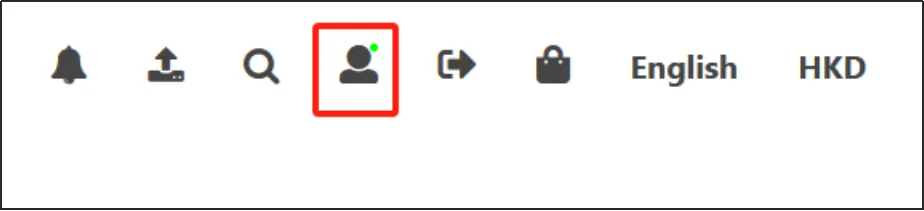
Find and click the little man icon on the top right of the page to enter the personal center.
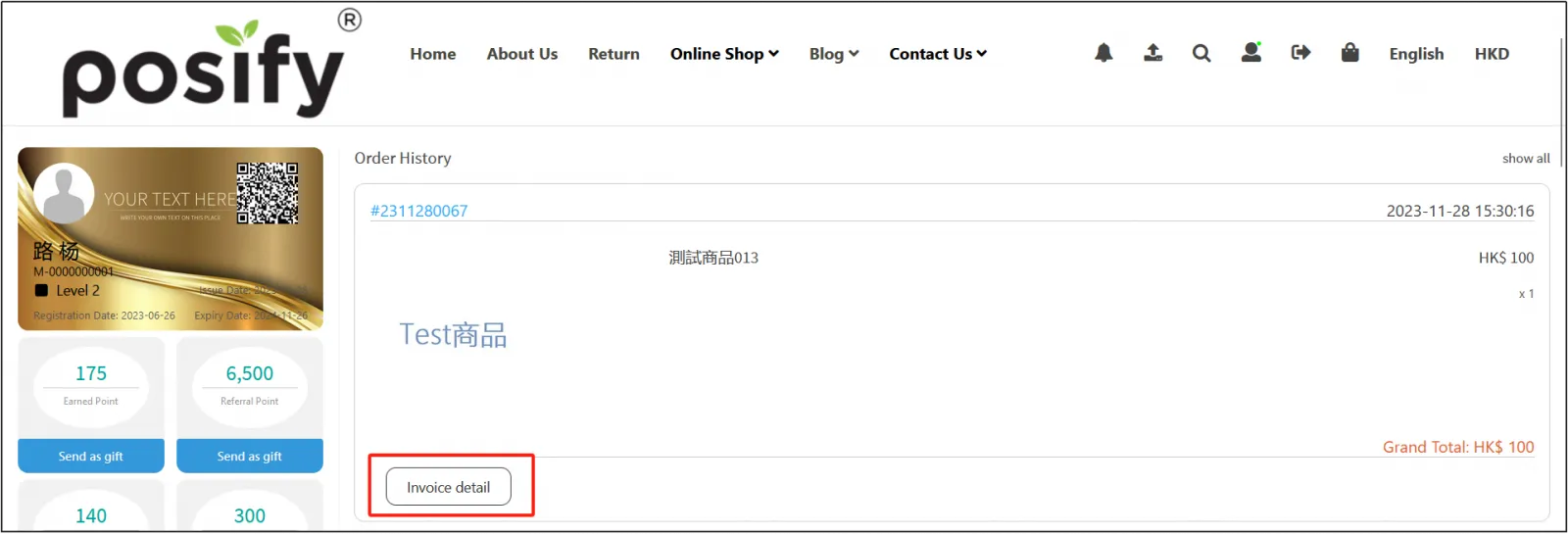
You can see the past order history in the personal center, find the order that needs to be refunded, and click [Order Details].
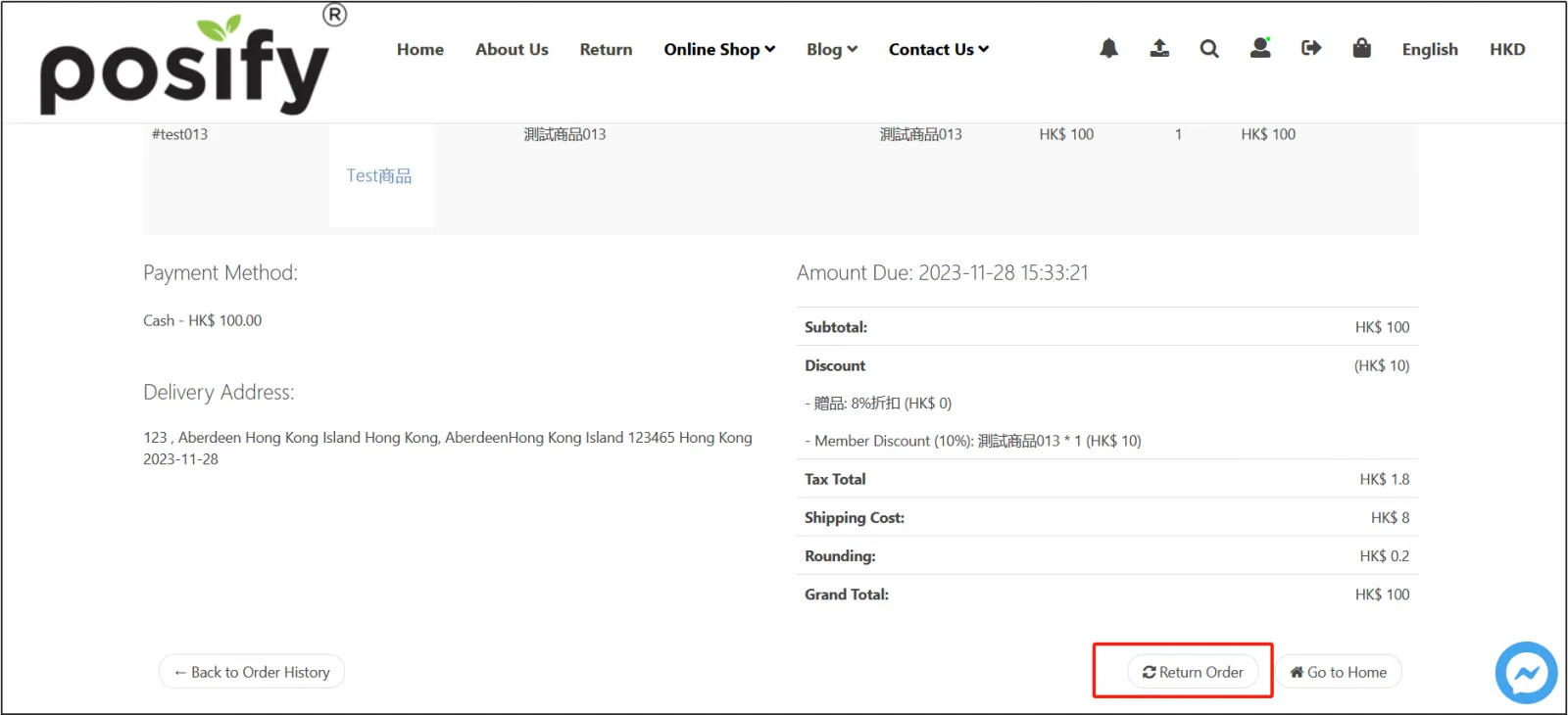
Click [Return Order].
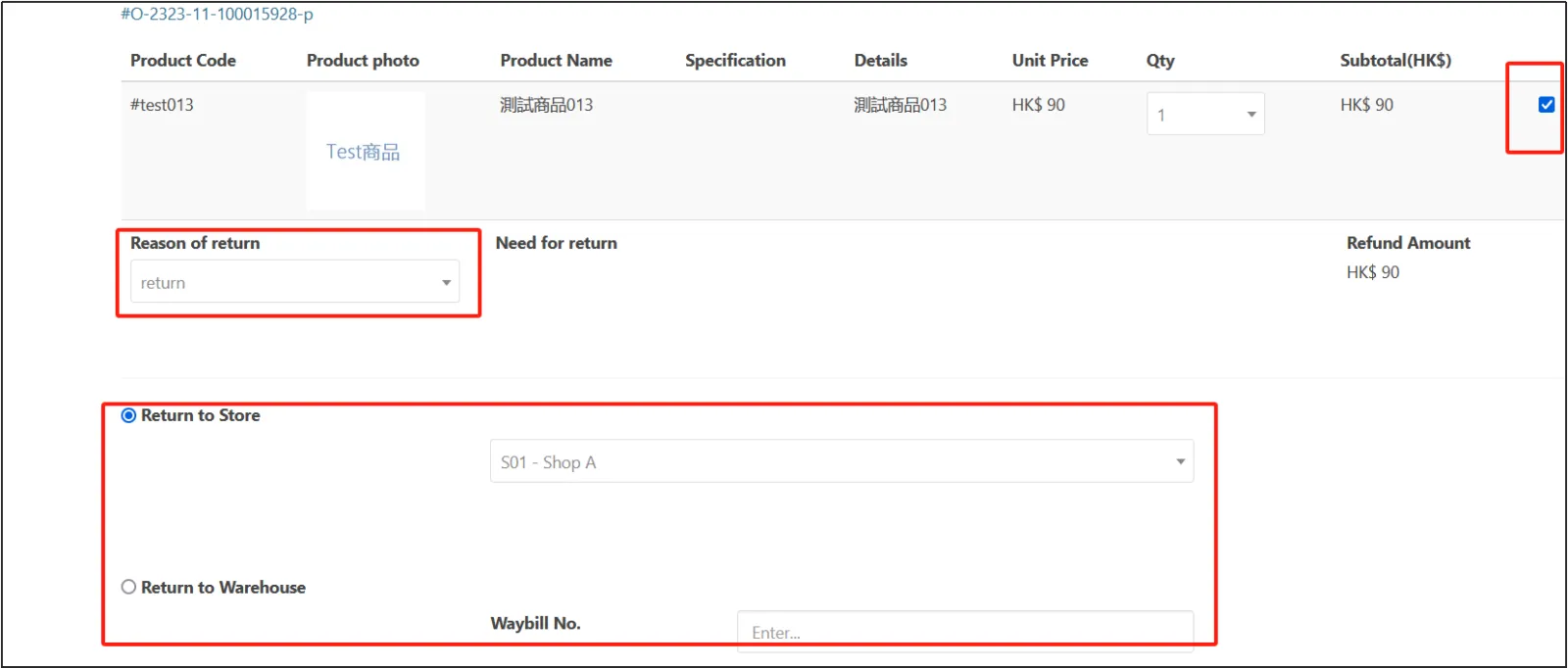
Check the items in the order that need to be refunded select Refundselect the reason for return/payment.
If you choose to return to the store, you need to select a specific store, and if you choose to express it to the warehouse, you need to enter the logistics number of the courier.
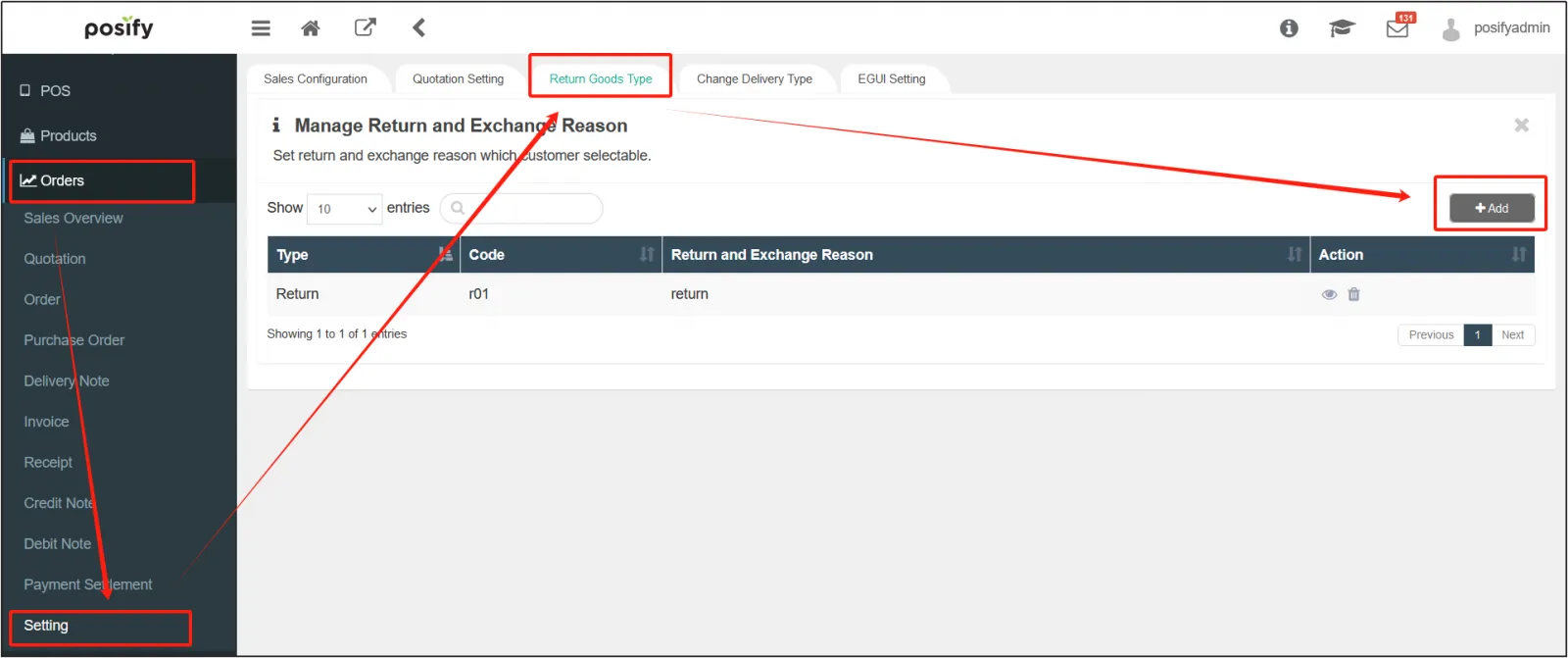
The reason for the return/payment needs to be preset by the merchant in advance, click in the CMS orderclick settingclick Return Reason Setting , you can modify the existing return reason, or click [Add] on the upper right to add a new return reason.
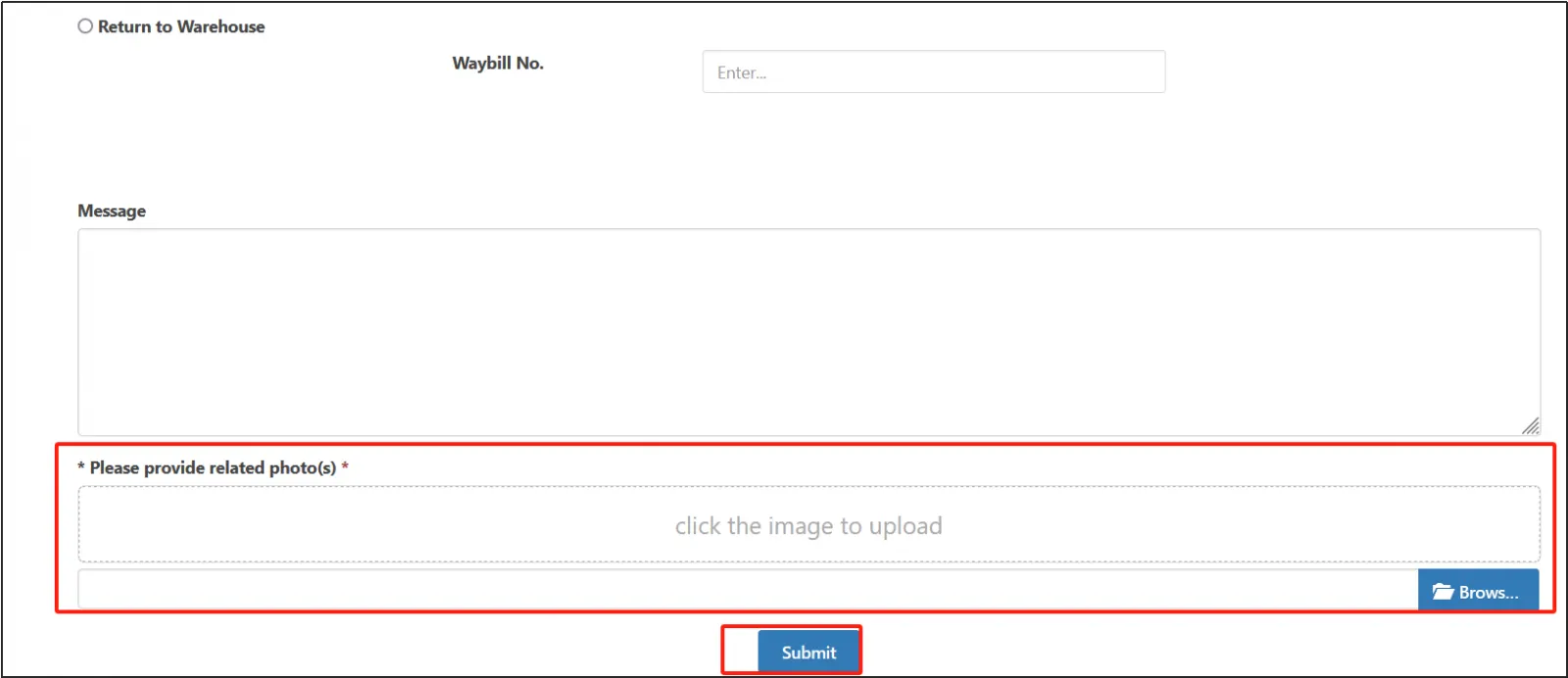
Upload an image of the refunded item in Please provide a relevant imageClick [Submit] to complete the refund request.
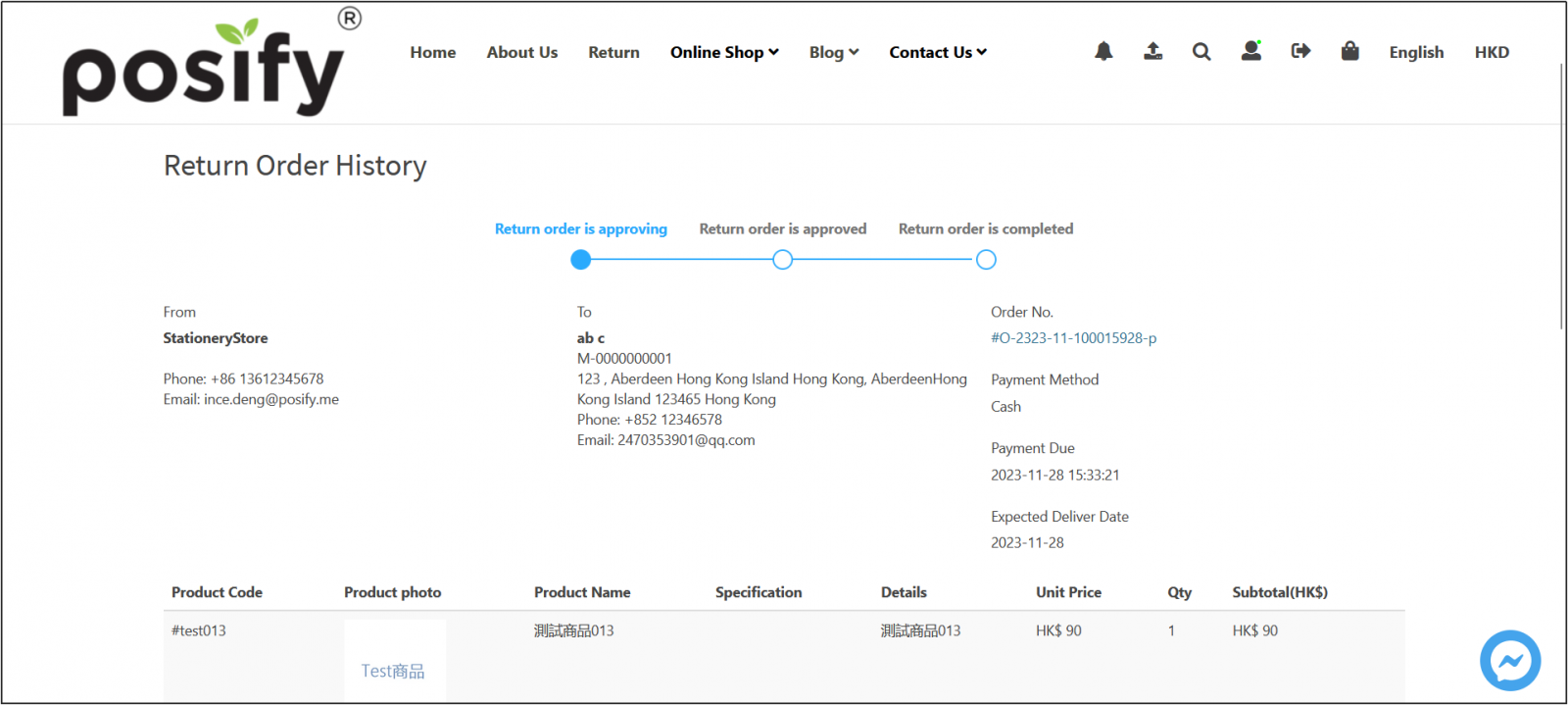
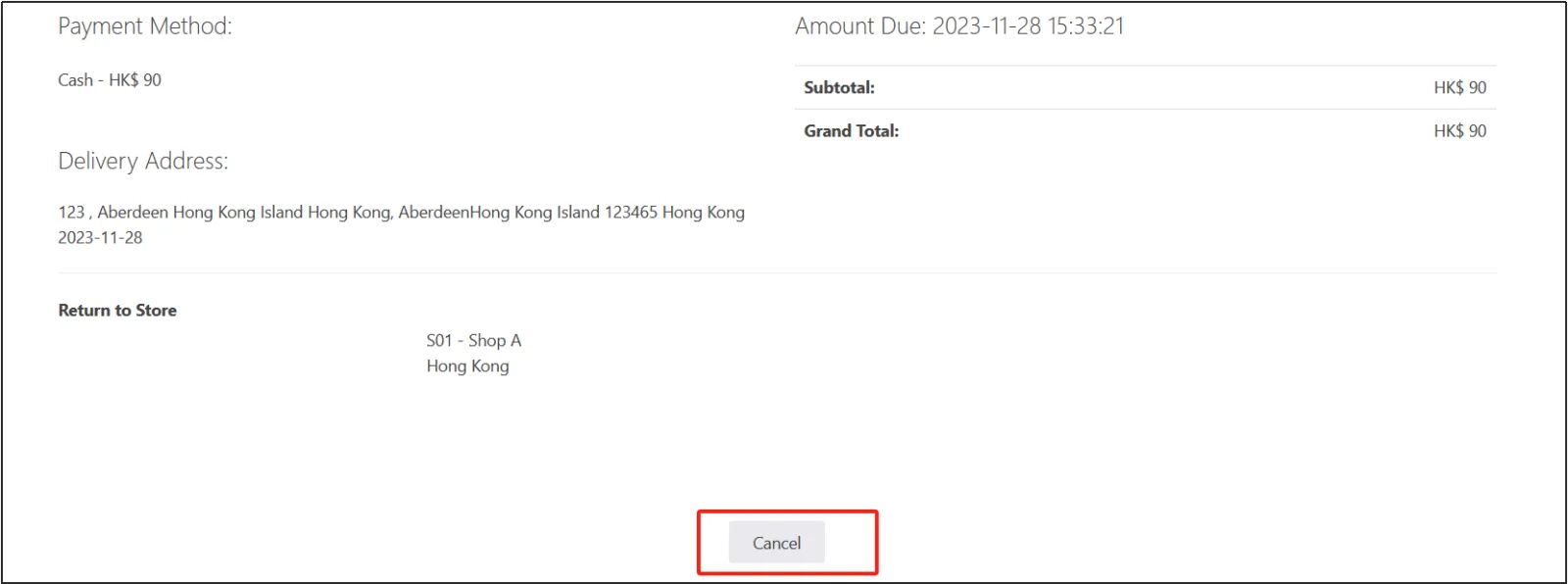
If the customer wants to check the progress of the refund application, click the little man icon on the top right of the page in the same way as the previous operationLocate the order for which a refund was requested in the order historyClick [Order Details]Click [After-sales service] to see it.
If you don't want a refund, you can also cancel the refund by clicking [Cancel] below.
The merchant processes the refund
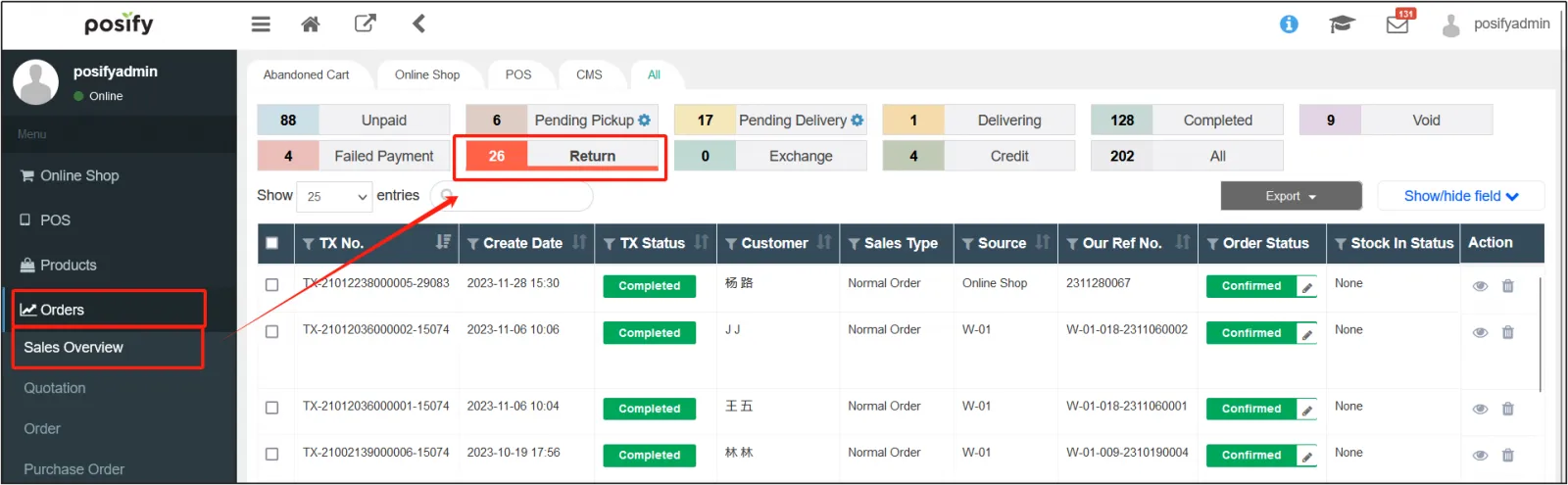
In the CMS, the merchant clicks on the orderclick on the sales overviewclick on the return order.
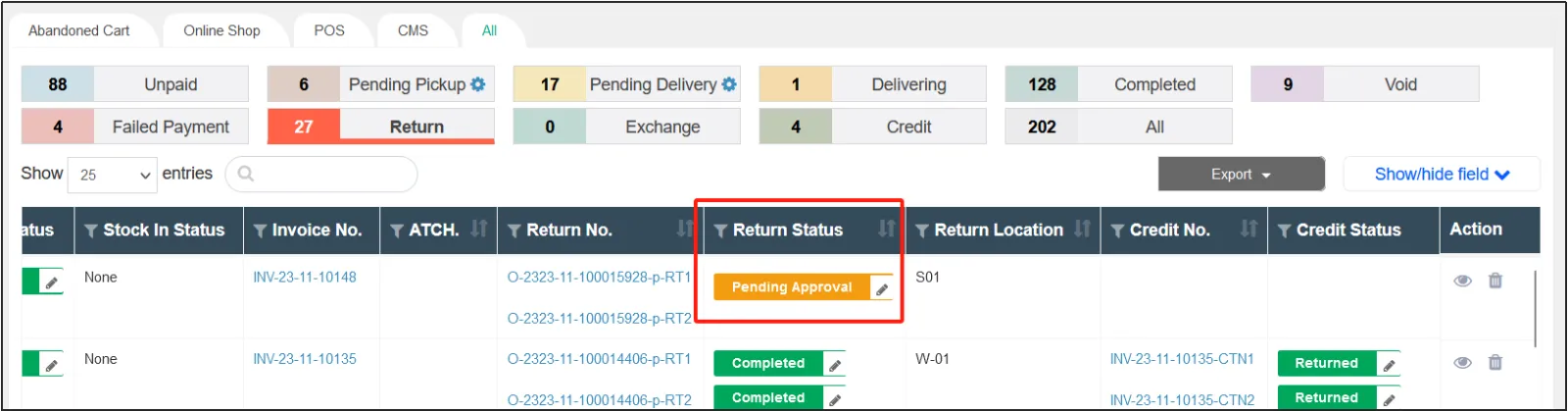
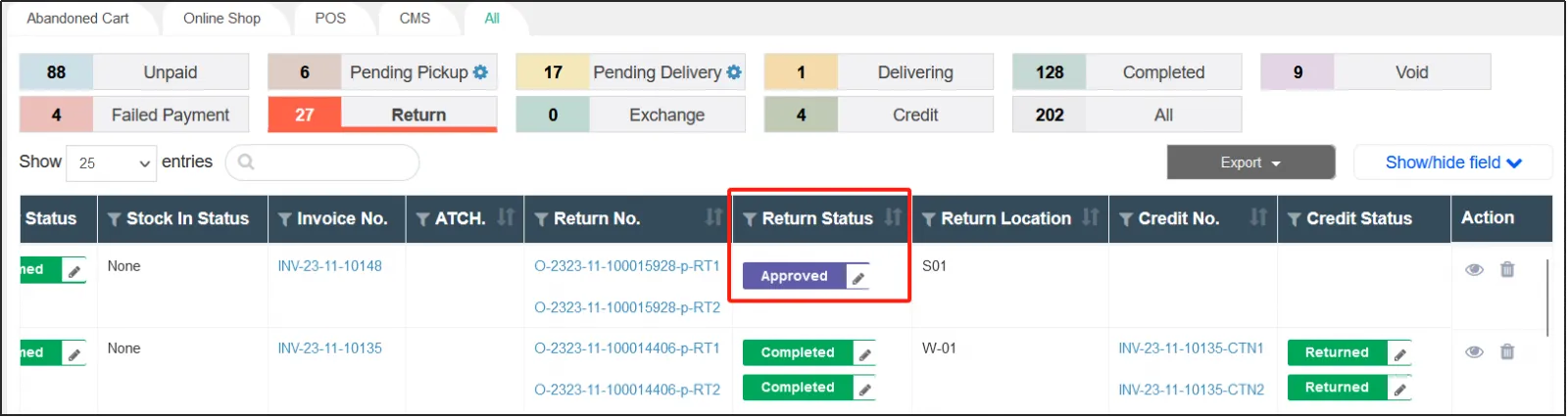
Find the corresponding return formPull the scroll bar below to the right, and you can see that the return order status column is Pending approval , click [Pending Approval].
Remark:
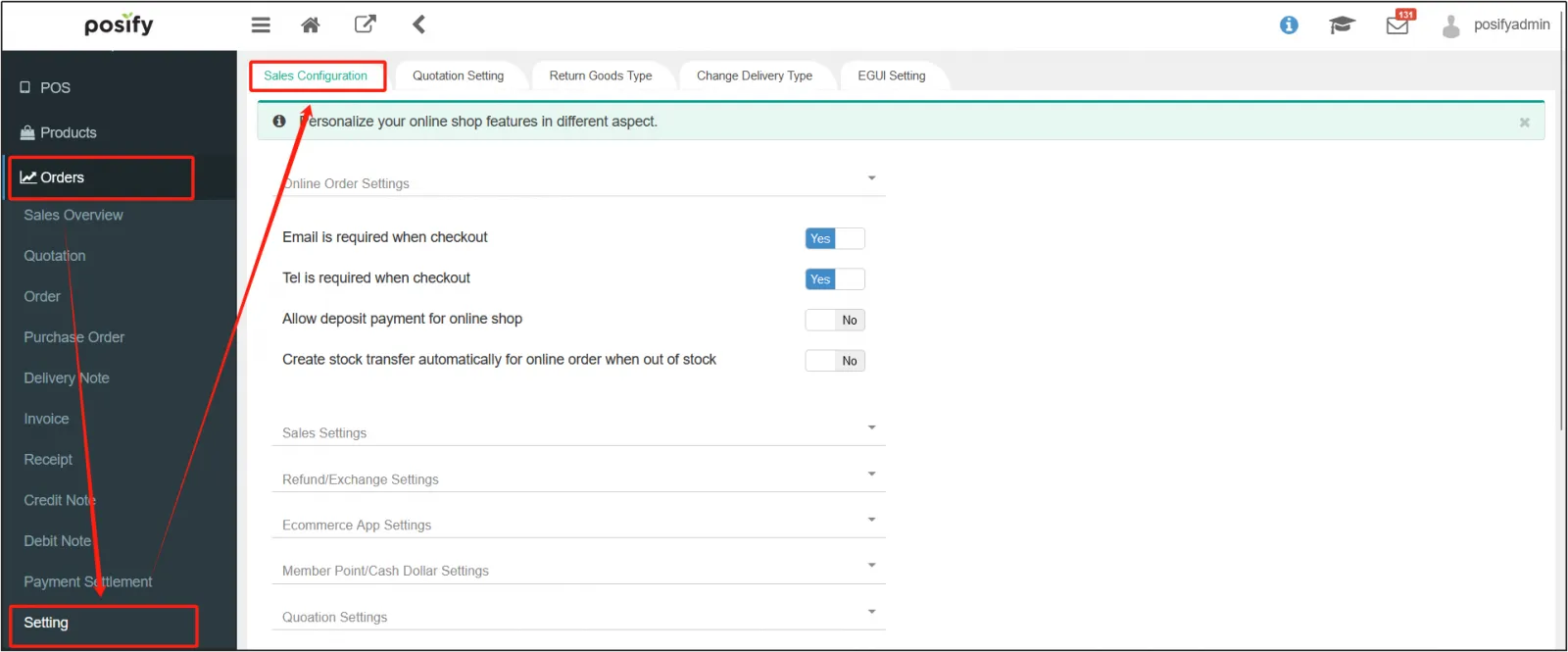
required in ordersettingsale settingIn the return and exchange settings, select the return and exchange review as Yes, otherwise the customer's return and exchange application will be directly approved after submission.
Merchants can see all kinds of information filled in by customers in the return form, and related pictures uploaded by customers can be seen in the attachment.
If you need to modify the information of the return form, you can click [Revise Return Form] on the upper right corner.
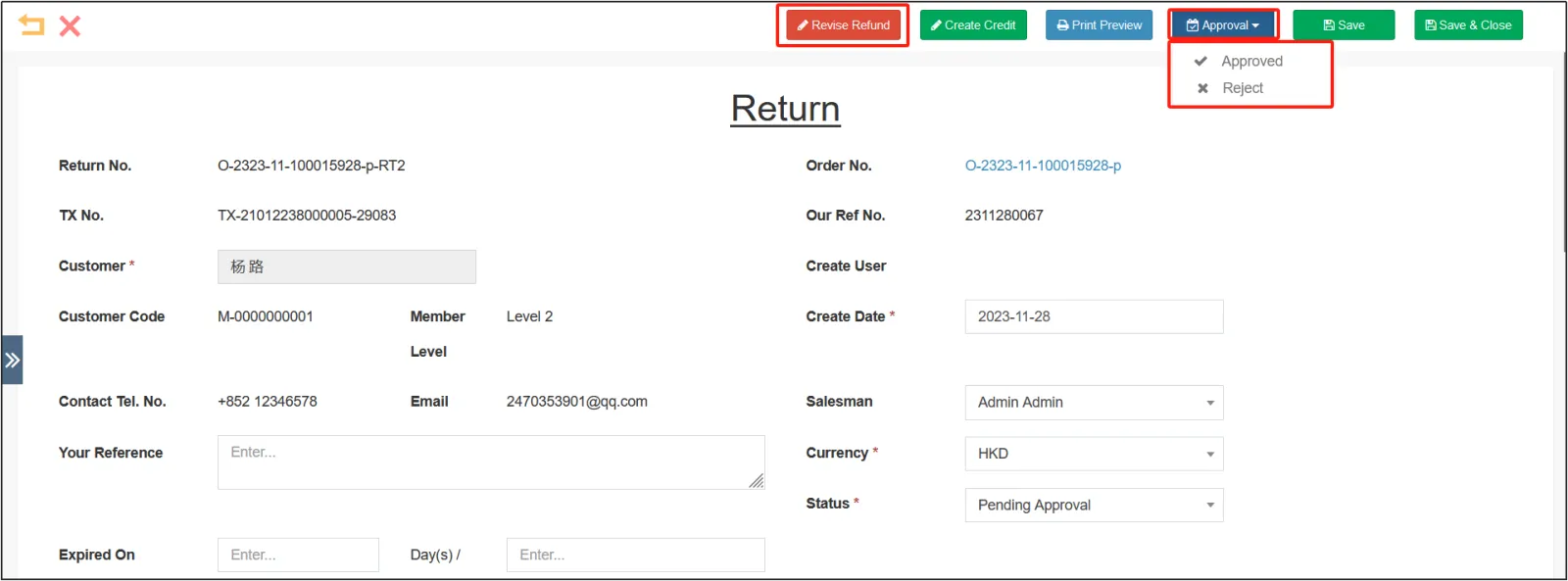
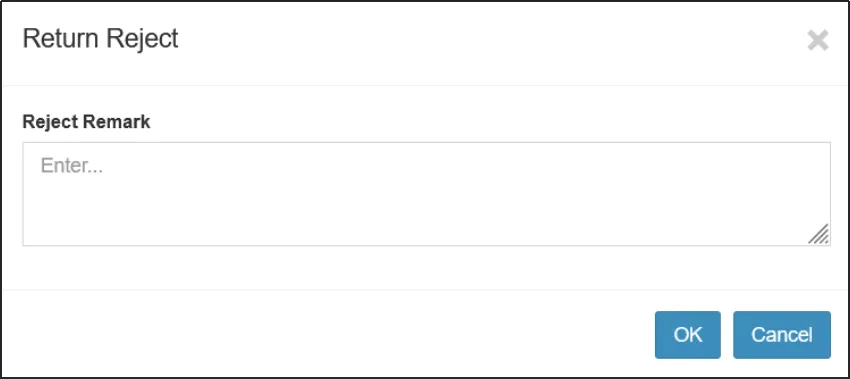
If you do not agree with the customer's return application, you can click on the upper right Approval rejected . The merchant can leave a rejection note for the customer's reference, and the customer can also reapply for a refund.
If you agree to the customer's refund application, you can click Approved 。
After clicking it, you will return to the Sales Overview - Return Order page, find the return order you just want again, and you can see that the status has changed to Approved.
Click [Approved] to view the return form.
Once you have received the returned items from the customer, you can change the status to Stocked. Stocked .
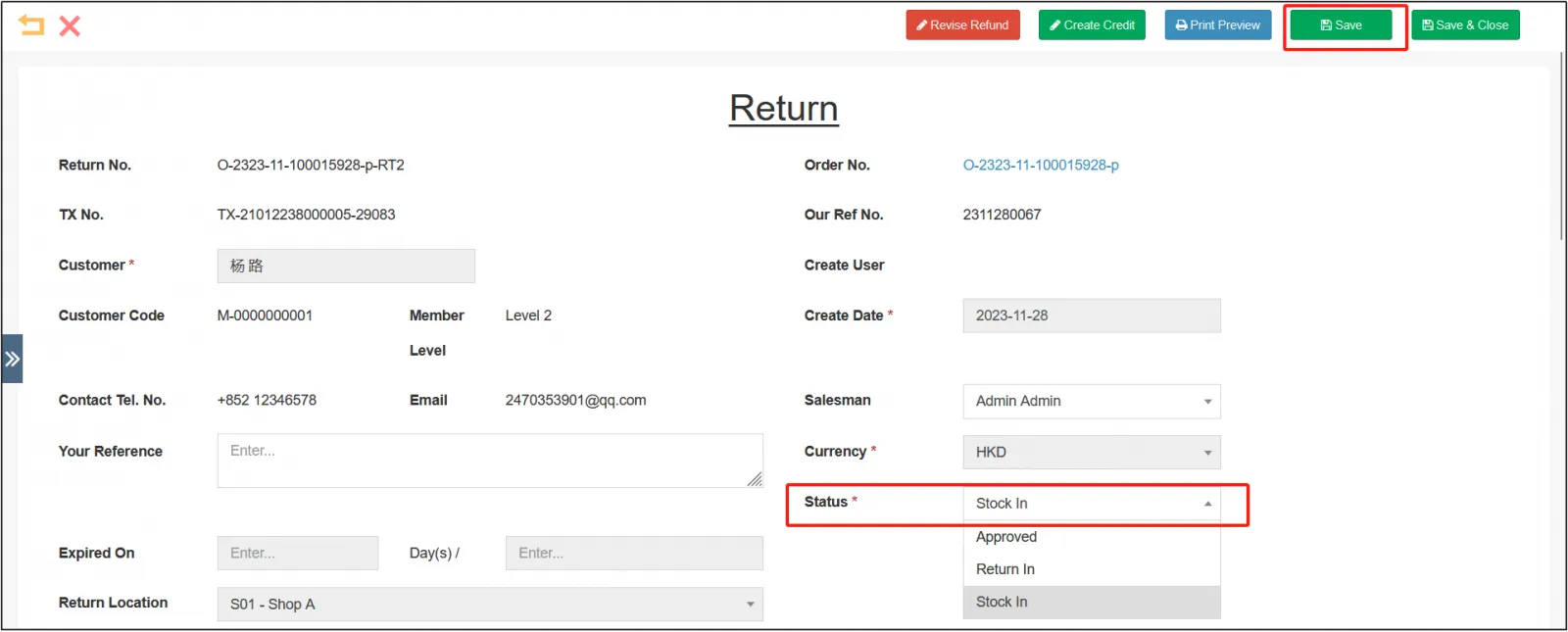
If you select Stored and click [Save] in the upper right corner, the status of the return order will change to Completed.
Click [Create Credit] in the top right corner.
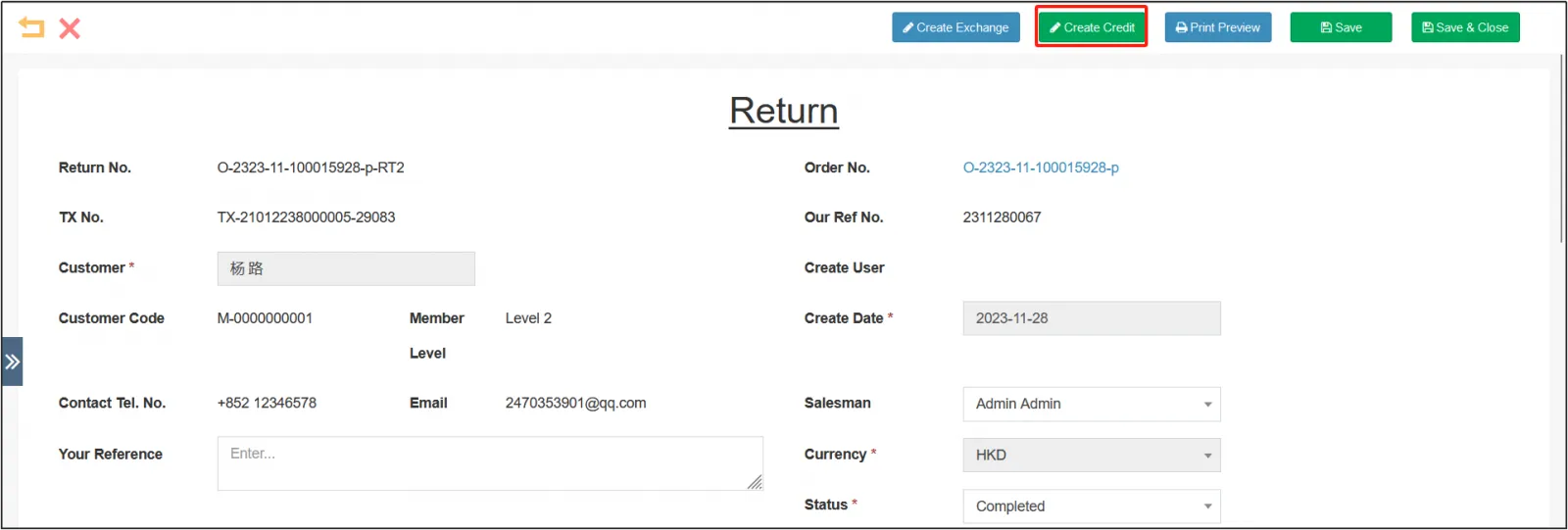
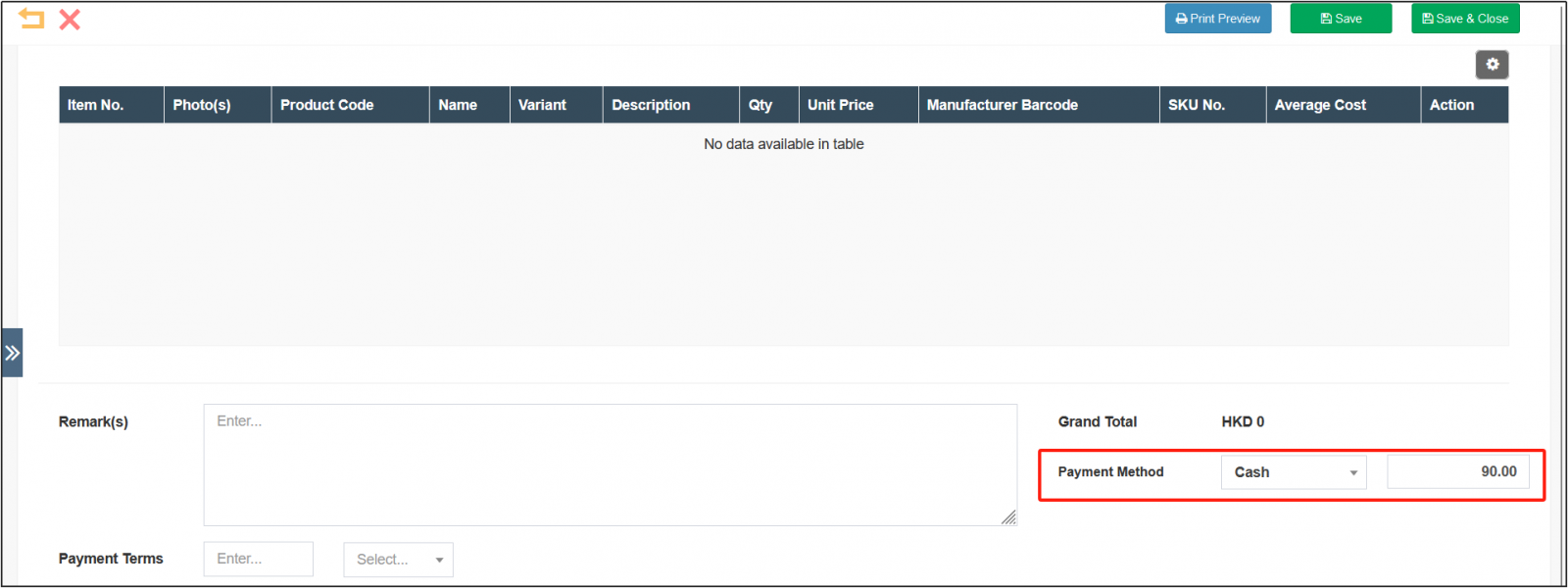
Once you've opened your borrowing slip, scroll down to modify the amount and method of your refund.
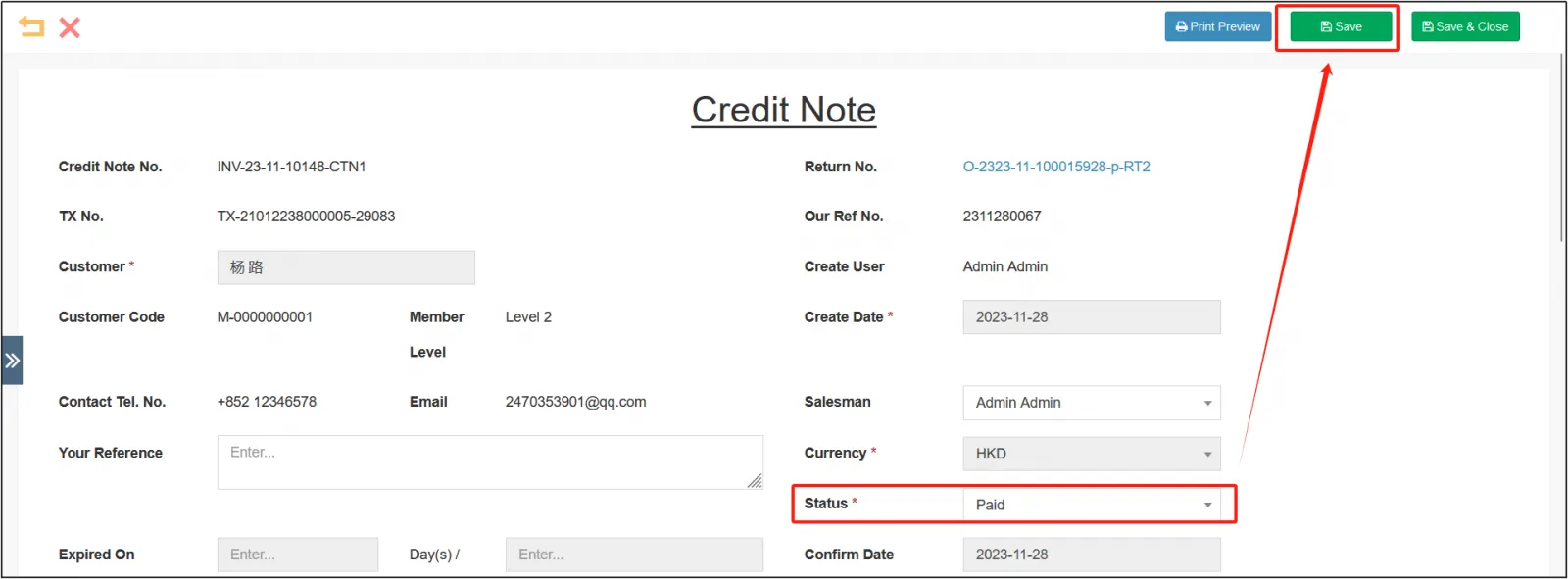
Change the status of the credit note to Unpaidselect the confirm dateclick [Save].
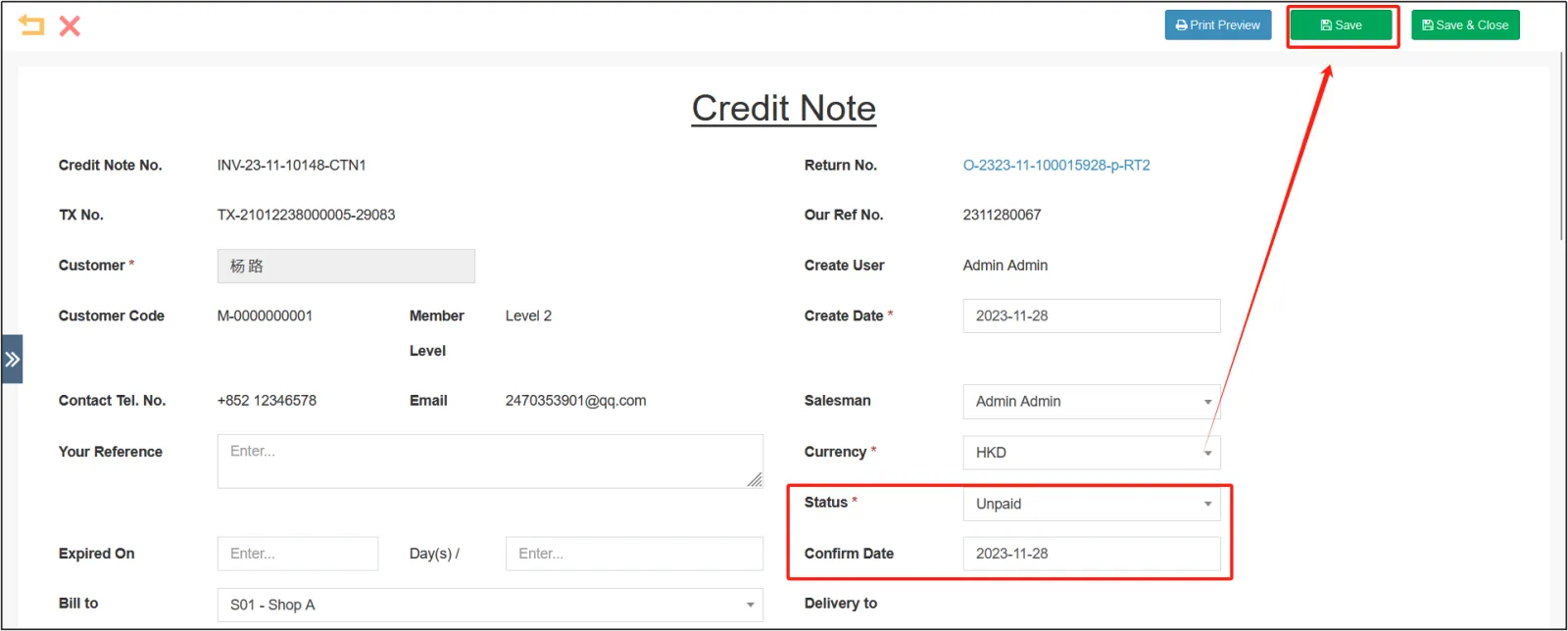
After refunding the customer, change the status to PaidClick [Save] in the upper right corner to complete the refund process.