Plus Purchase Products
Plus Purchase products refer to items that customers can purchase at a discounted price when buying a specific product. This sales strategy enhances purchase motivation and effectively boosts overall sales.
Add an plus purchase product to a single item
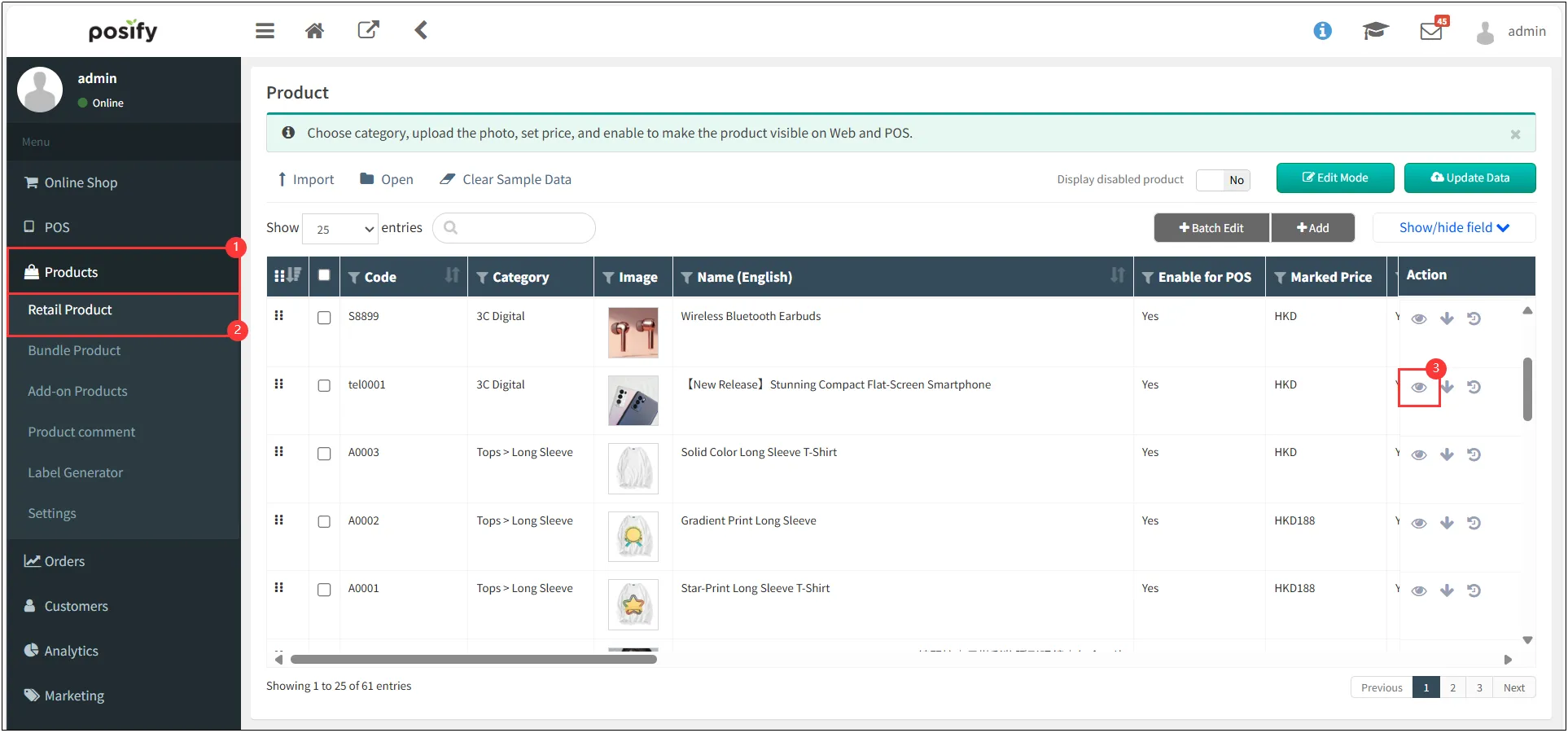
Open CMS click Products
 click Retail ProductClick the
 on the right side of the product you want to add an add-on to, which will open the product editing page.
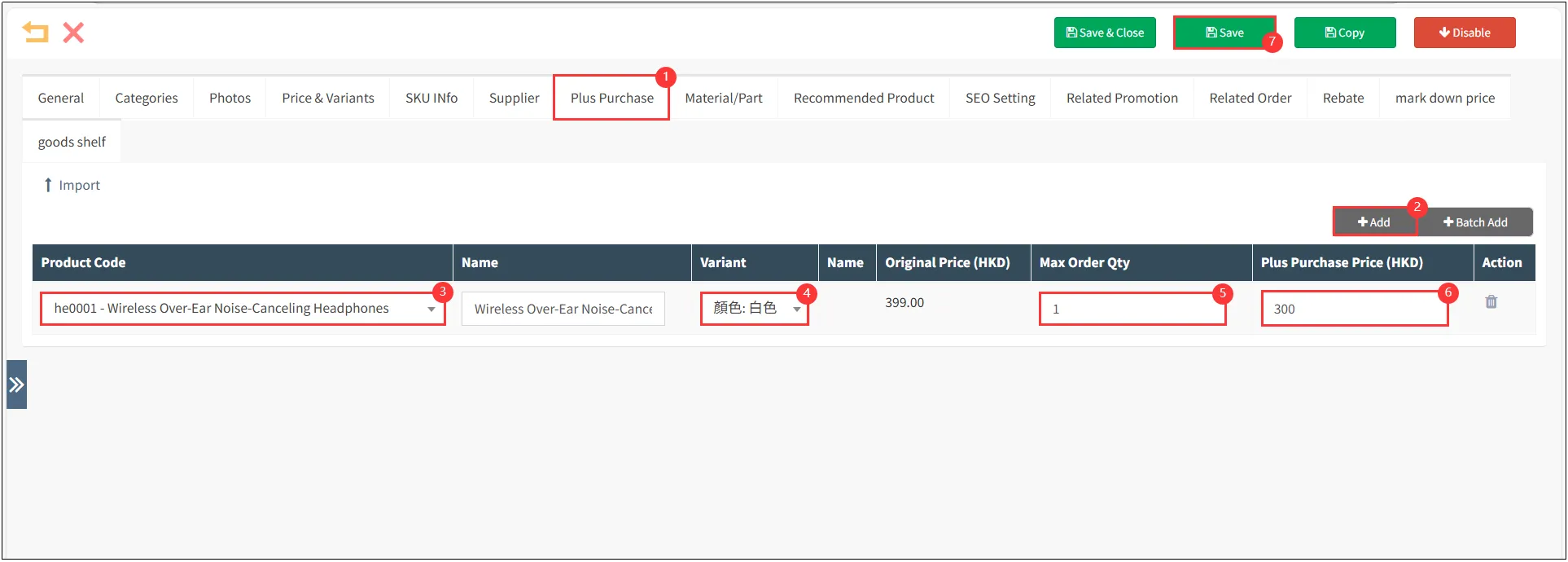
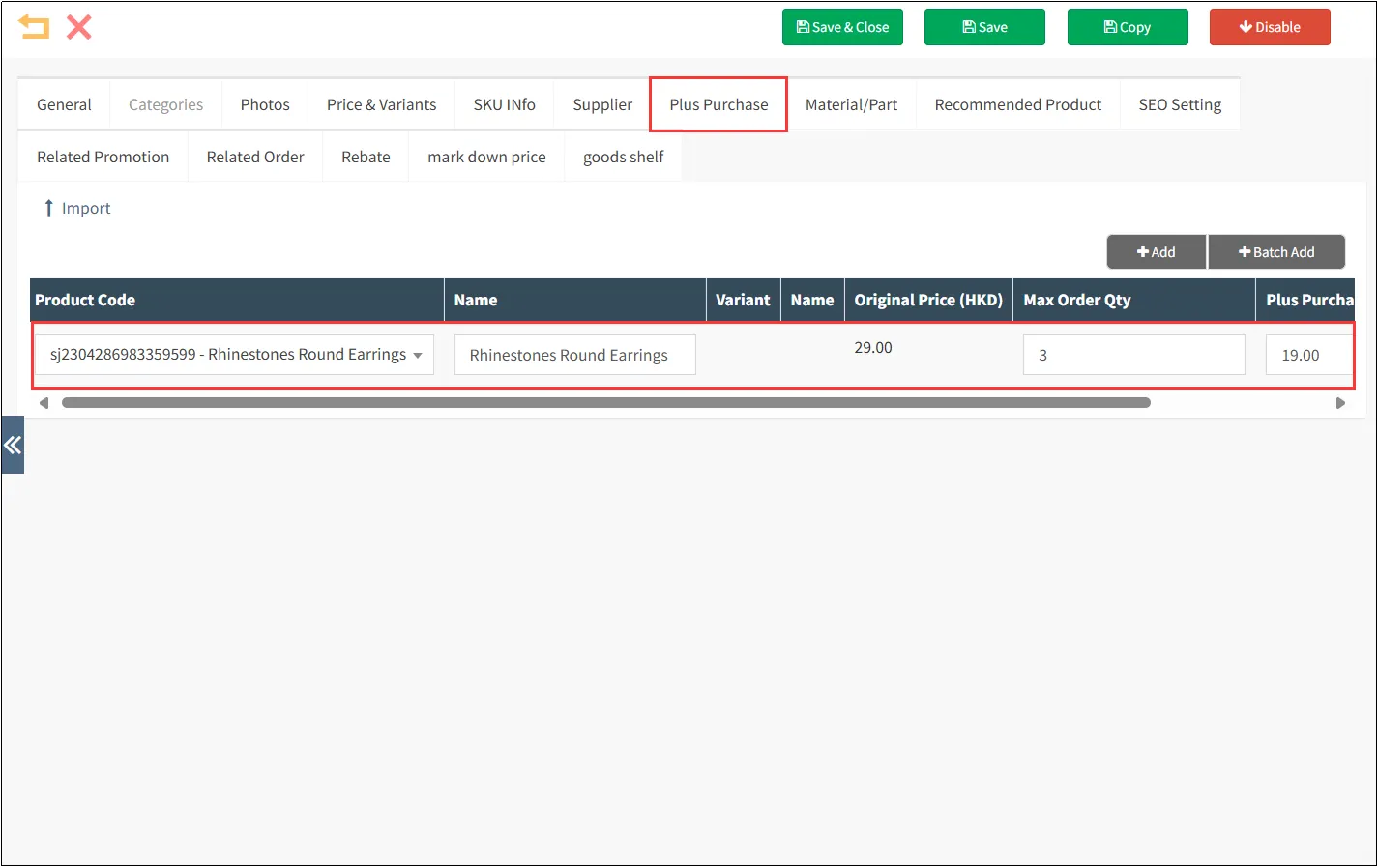
Navigate to the Plus Purchase tabClick [Add]Search for the target product by item numberSet the maximum purchase quantity and plus purchase priceClick Save.
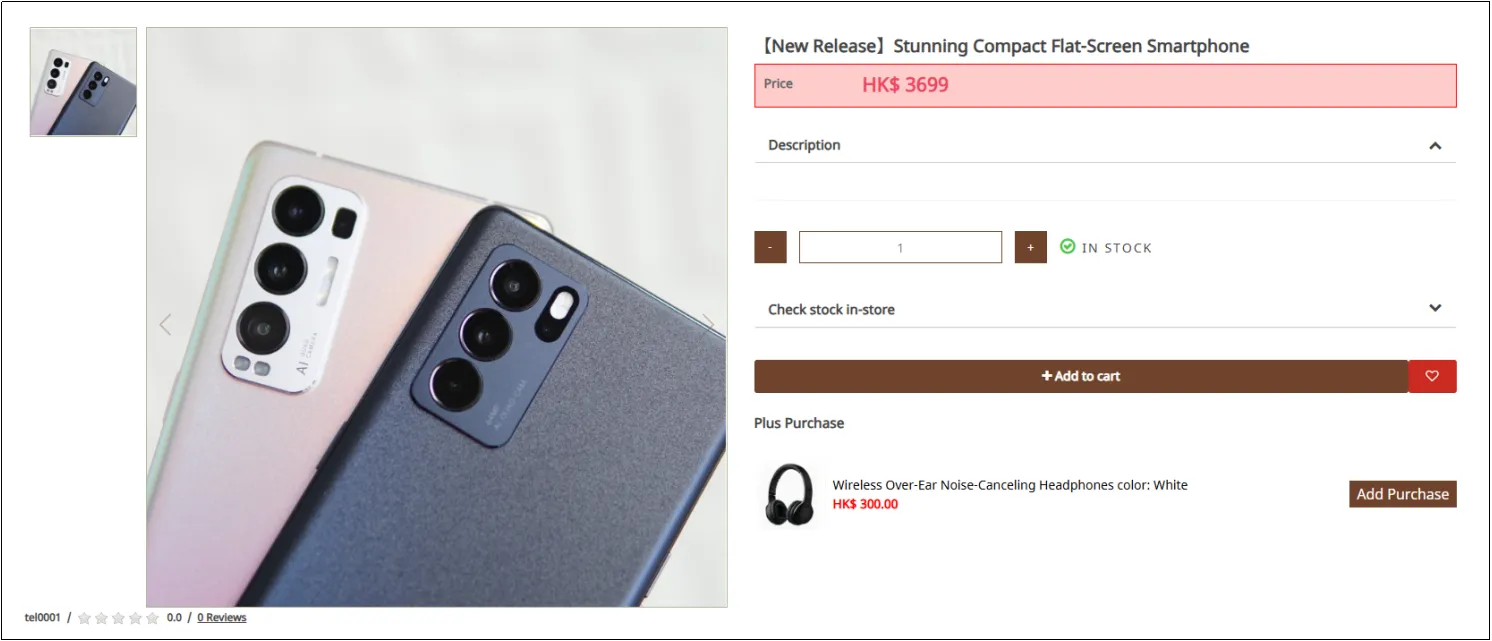
The add-on product information is now visible on the product detail page. When the main product is added to the cart, the plus purchase items can be included in the purchase."
Notes:
· The quantity limit is calculated proportionally based on the main product's quantity (1:3 ratio). For example:If the limit is set to 3, purchasing 1 main product allows up to 3 add-ons.Purchasing 2 main products allows up to 6 add-ons, and so on.
· Add-on prices are typically set lower than the regular retail price.
Batch import plus purchase products via Excel
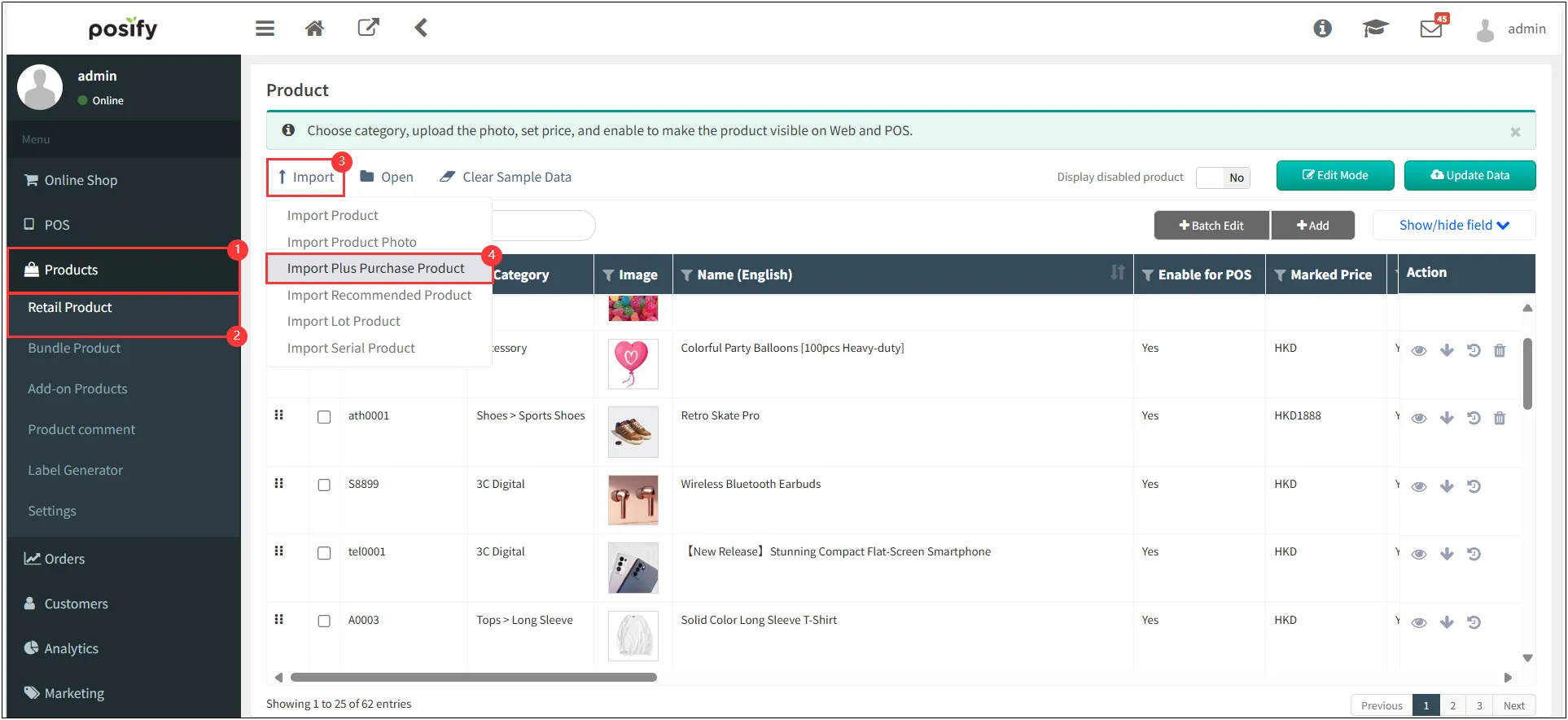
Open CMSclick Peoductsclick Retail Productclick Importclick Import Plus Purchase Product.
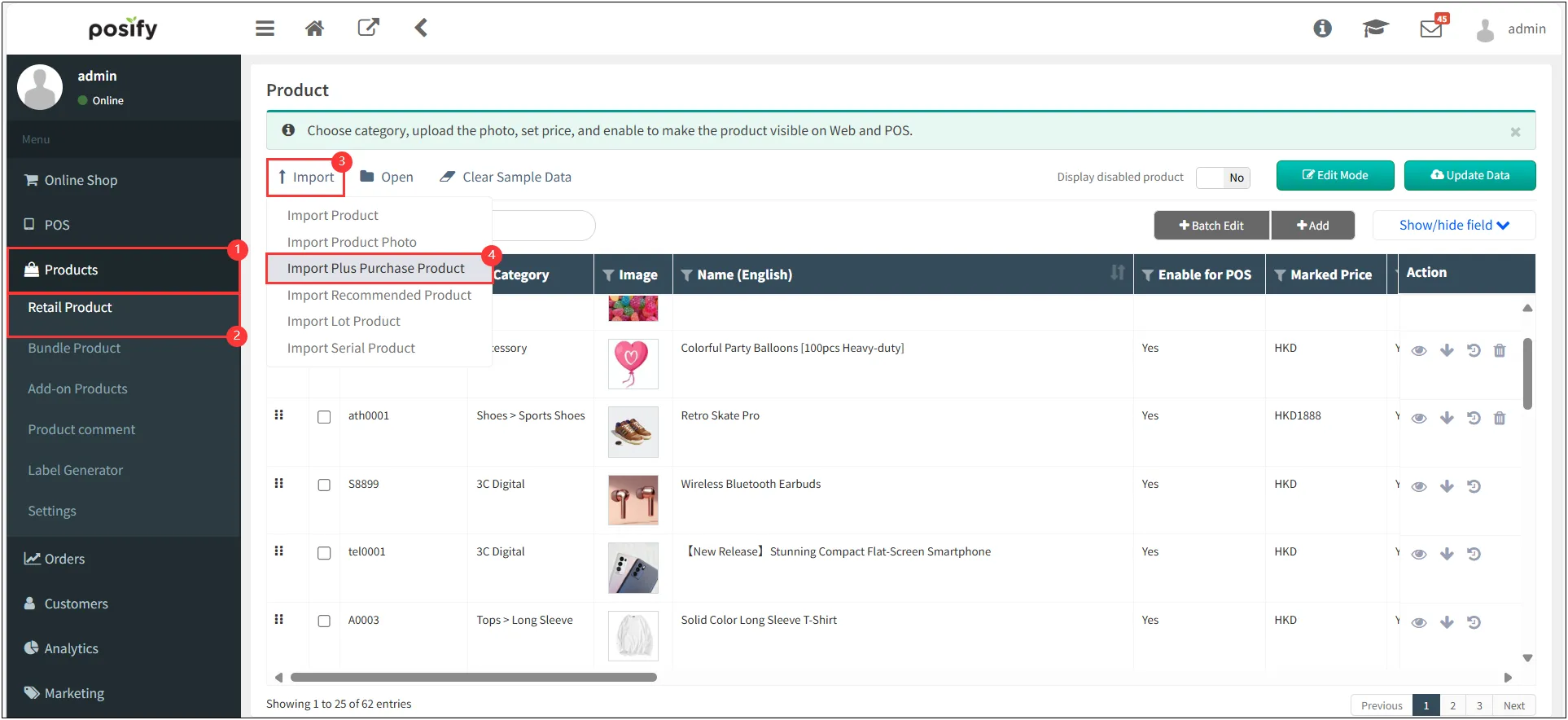
Click 'New Template' to download the Excel import template.
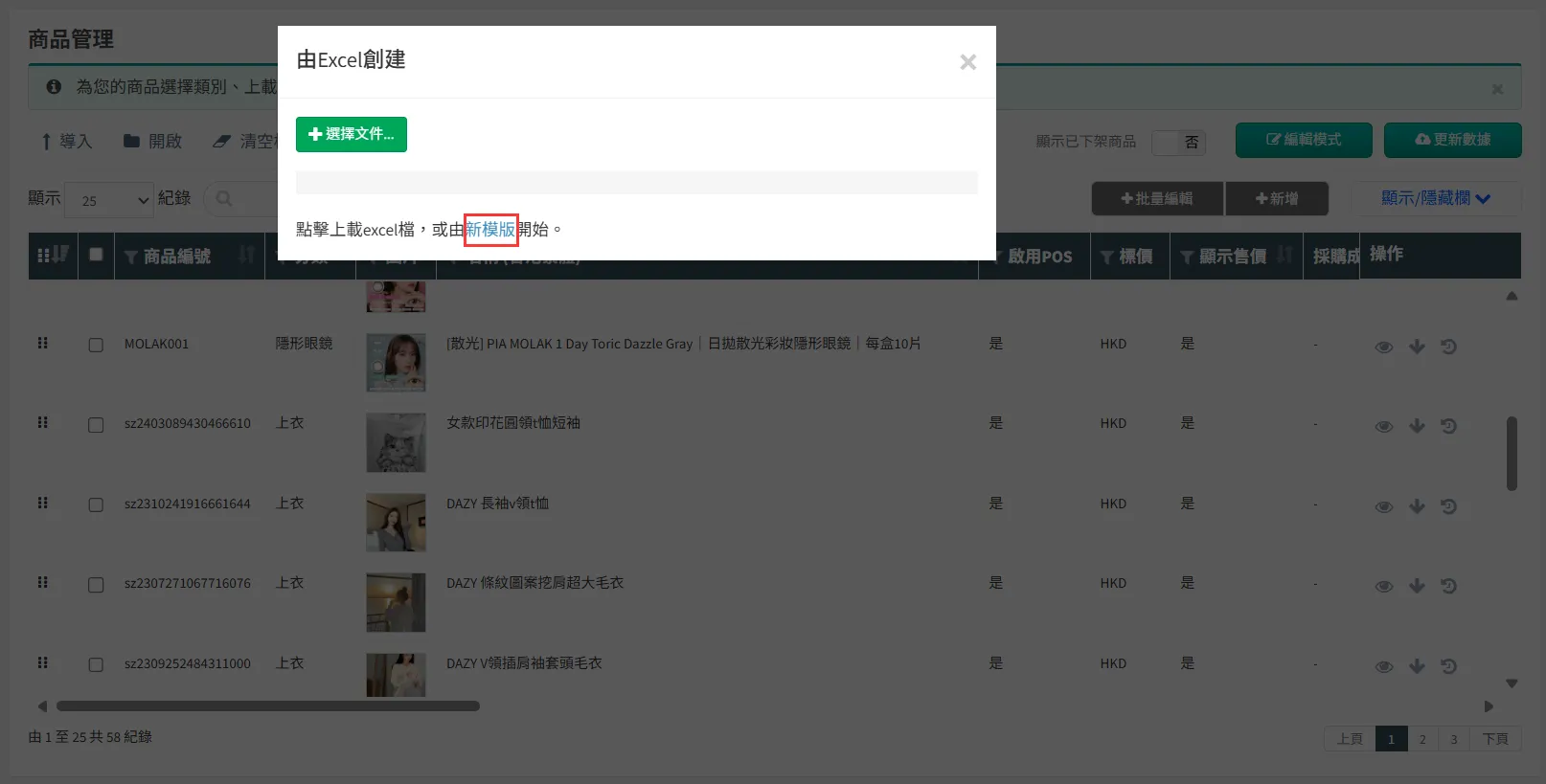
Open the exported Excel file, fill in the plus purchase product information, and save the file.

Return to CMSclick Peoductsclick Retail Productclick Importclick Import Plus Purchase Product.
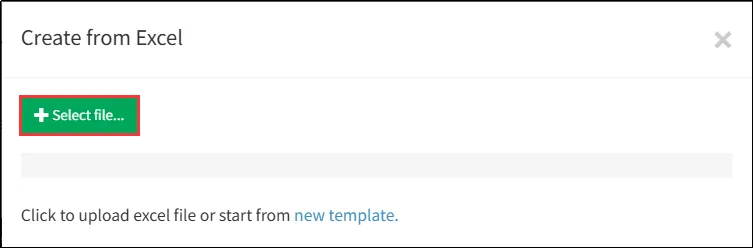
Click Select File > Choose the recently saved Excel file.
After successful import, navigate to the product detail page to view the successfully added plus purchase products.
Recommended Product
Add recommended products to a single item
Open CMS click Productsclick Retail ProductClick the
 to the right of the product you want to add recommendations to, which will open the product editing page.
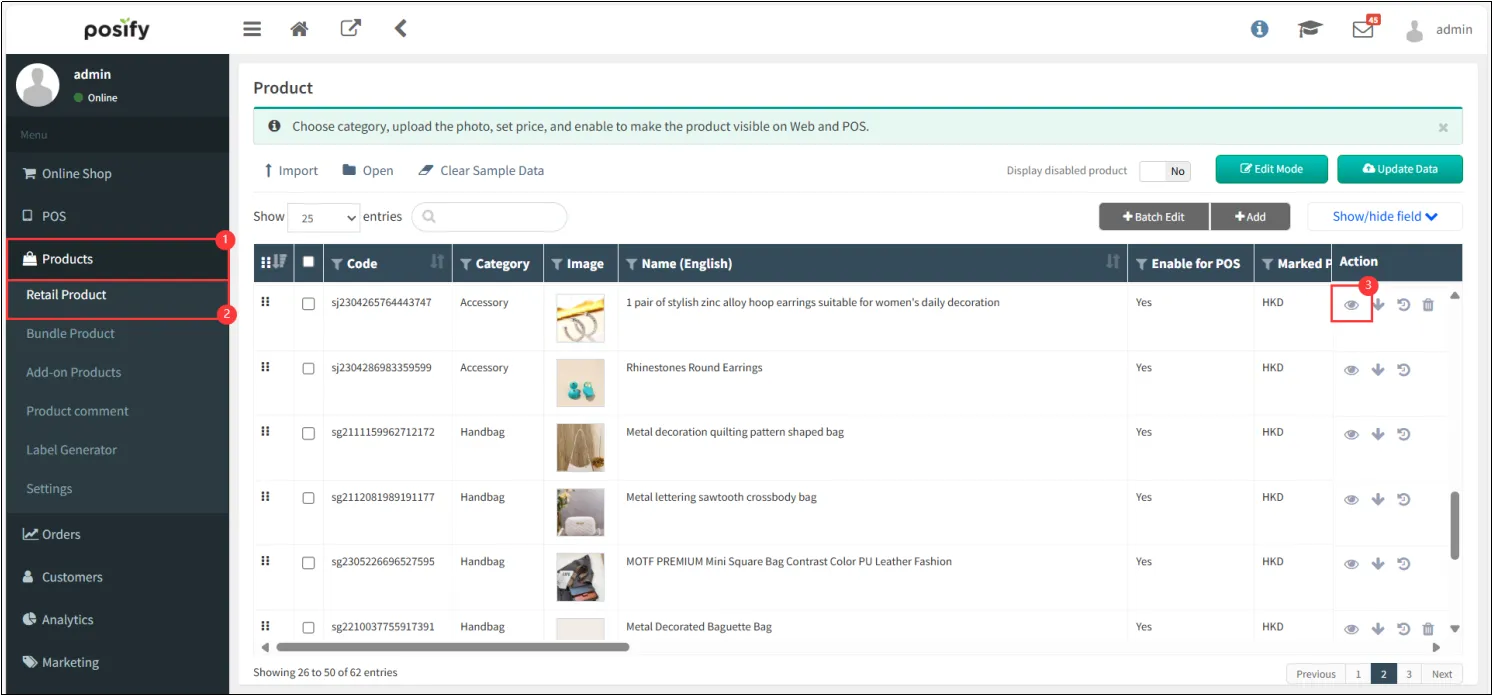
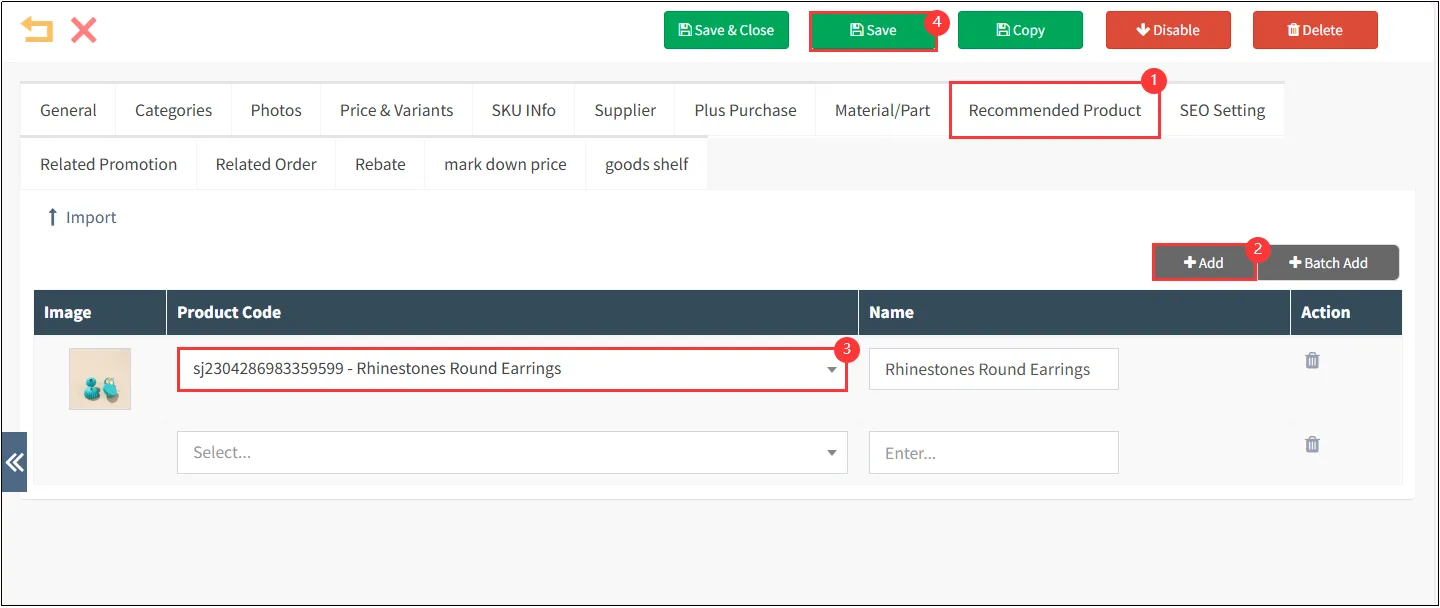
Click the Recommended Product tabclick [Add]Search for products to recommend by entering their product numbersAfter completing the setup, click [Save].
After saving, the recommended products you added will be visible under this item in the Online Store.
Batch import recommended products via Excel
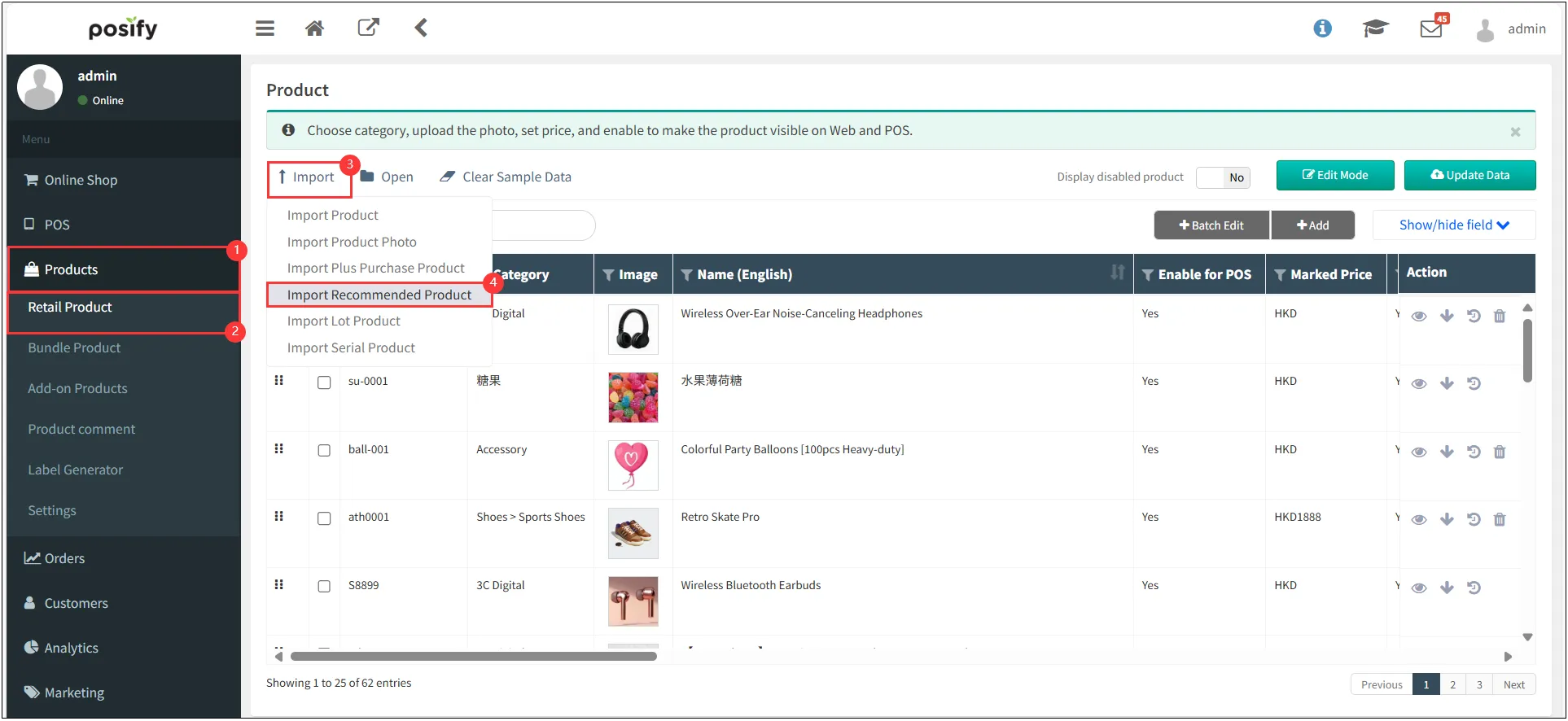
Open CMSclick Peoductsclick Retail Productclick Importclick import recommend product.
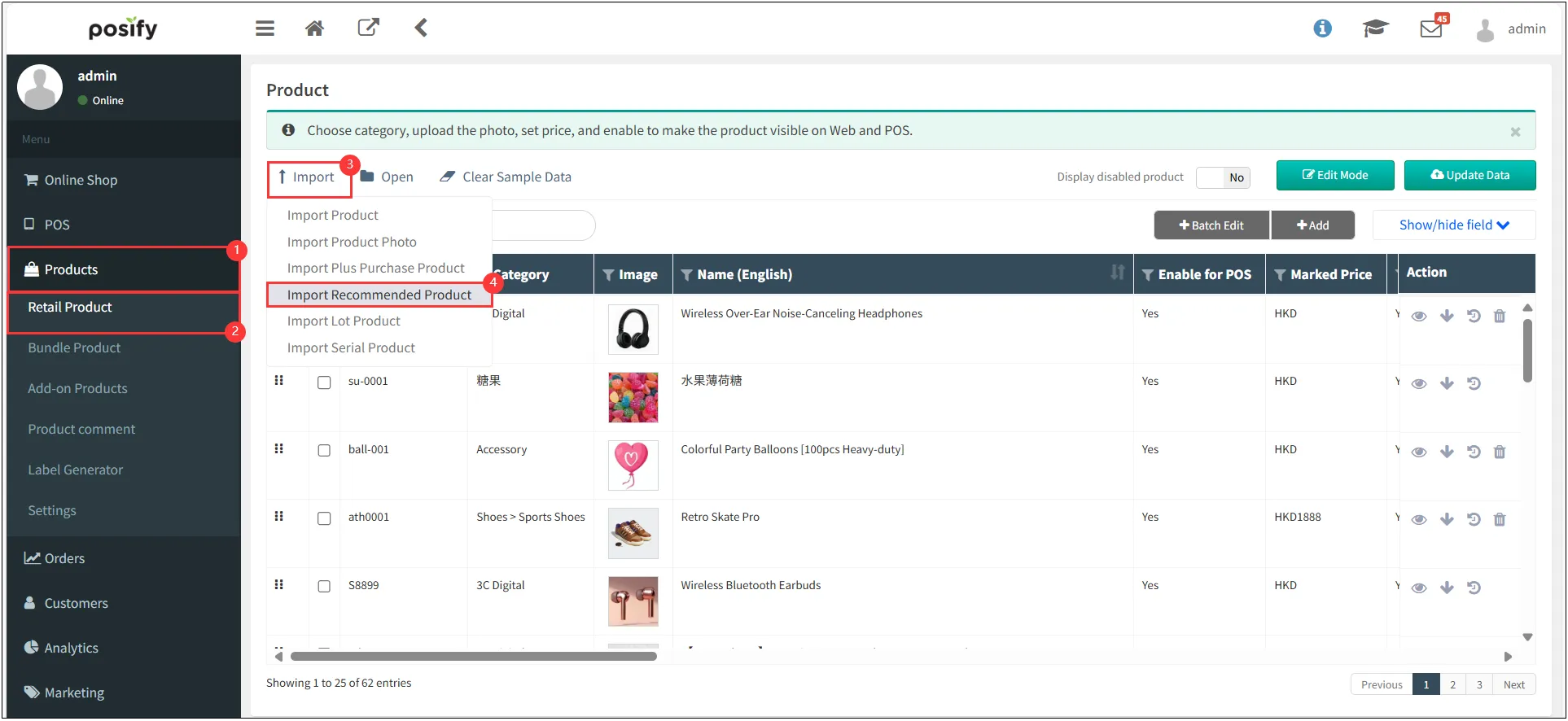
Click 'New Template' to download the Excel import template.
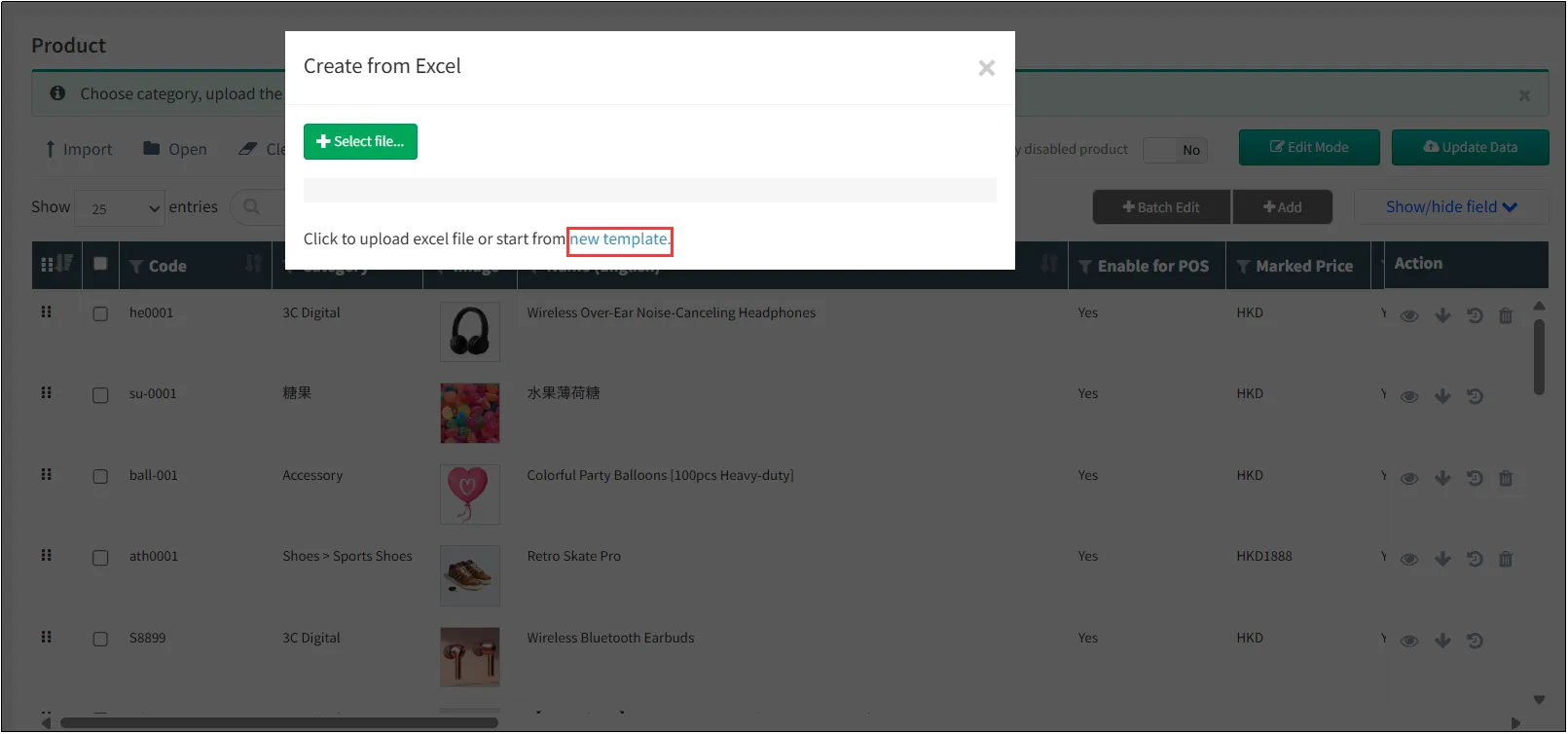
Open the exported Excel file, enter the recommended product information, and save the file.
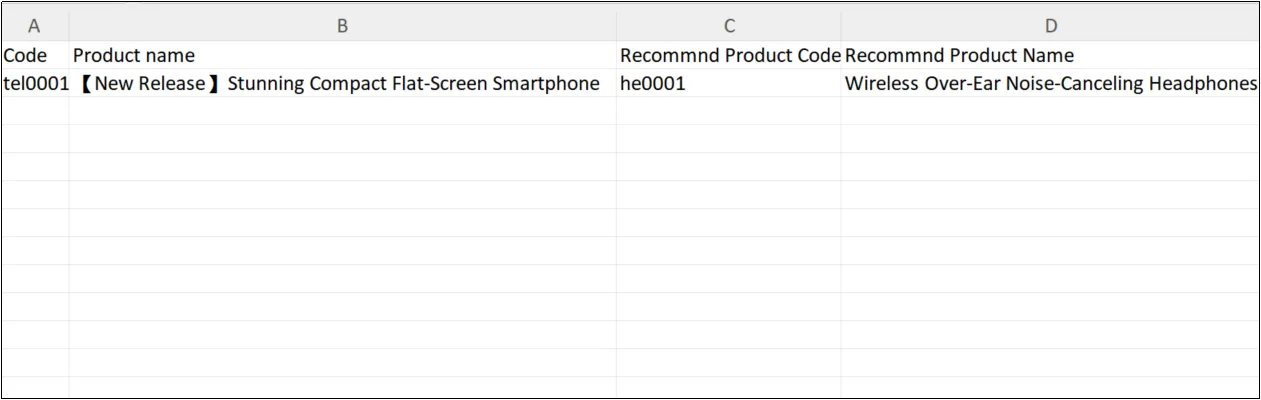
Return to CMSclick Peoductsclick Retail Productclick Importclick import recommend product.
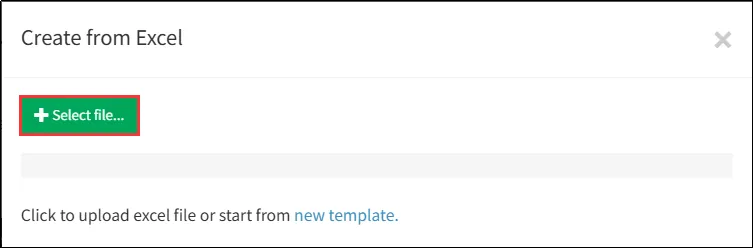
Click Select File > Choose the recently saved Excel file.
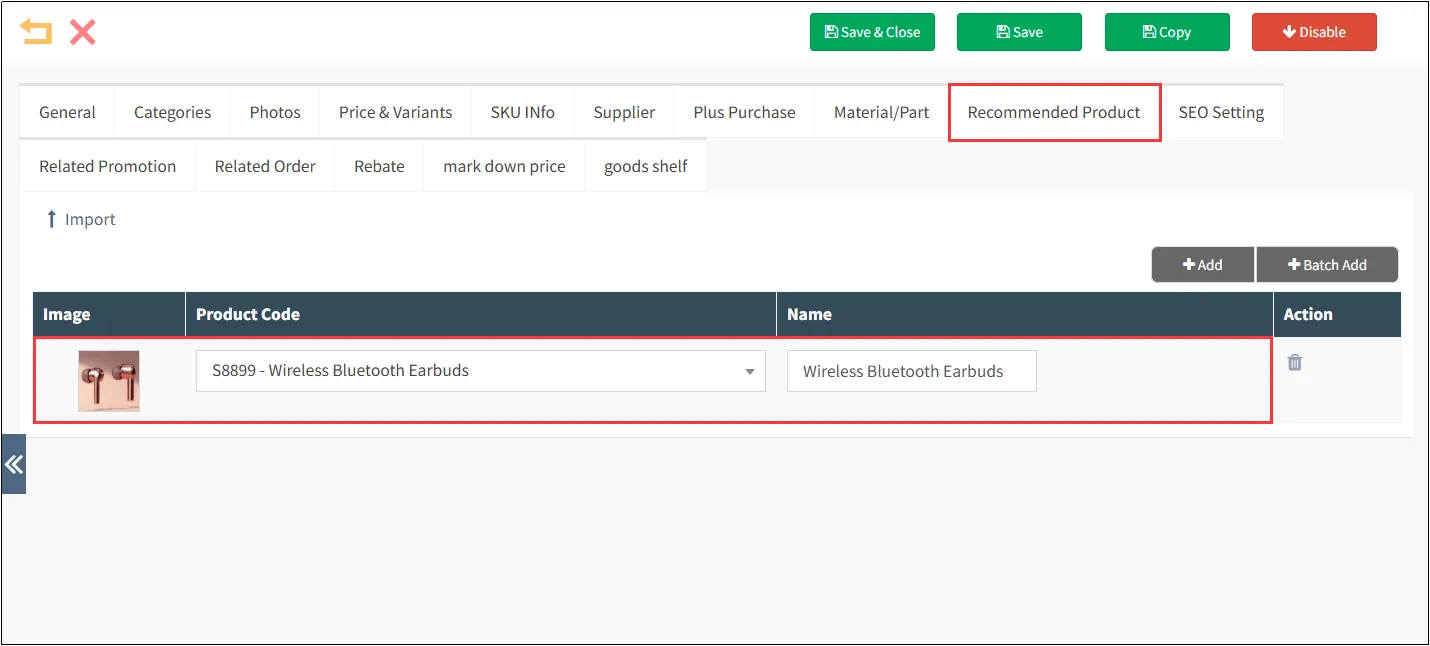
After successful import, navigate to the product detail page to view the successfully added recommended products.
Hashtag
Hashtags serve as keywords for product discovery. Setting relevant hashtags makes it easier for customers to find this item.
Default Hashtags
The method to set default hashtags is as follows.
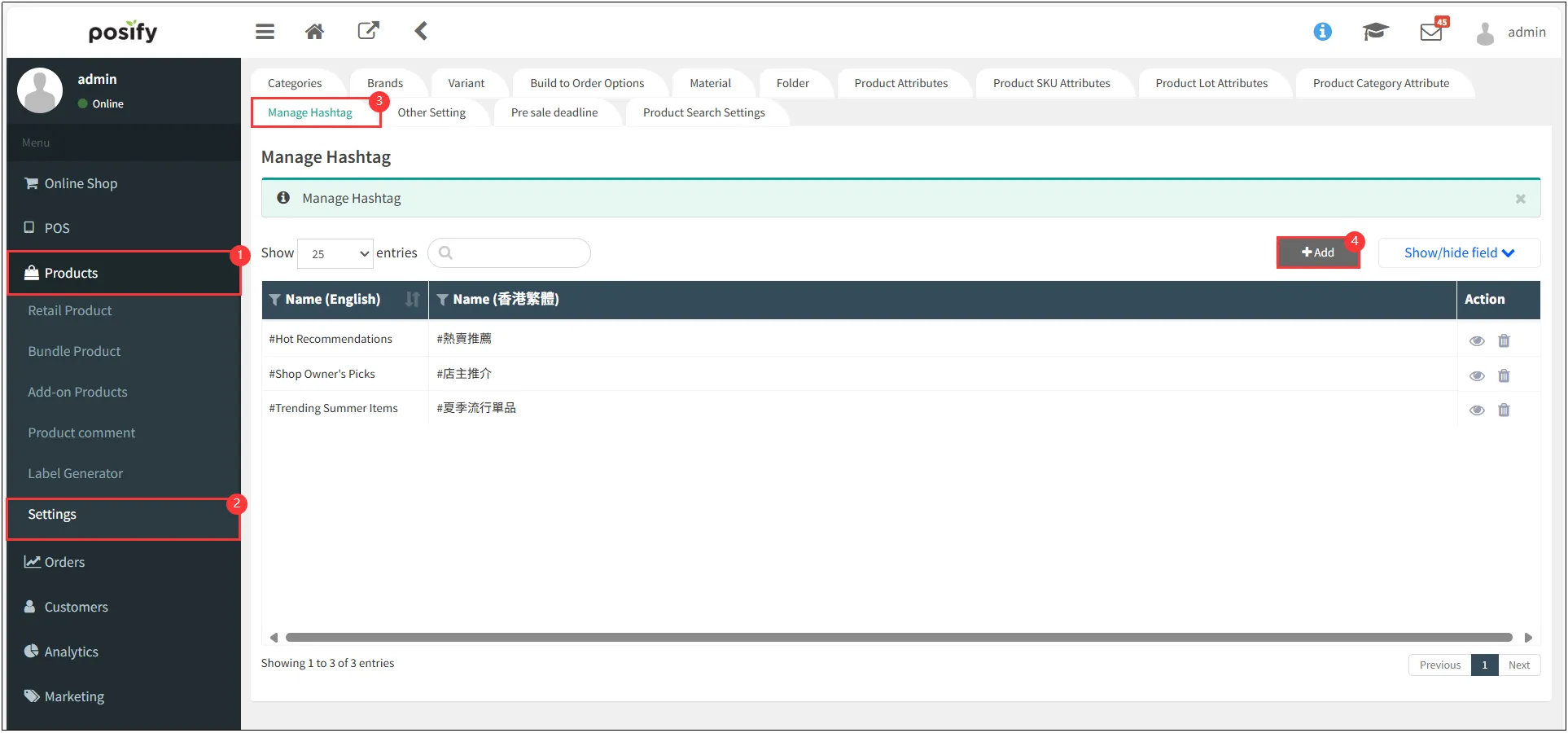
Open CMS click Productsclick Settingclick Manage Hashtagclick [Add].
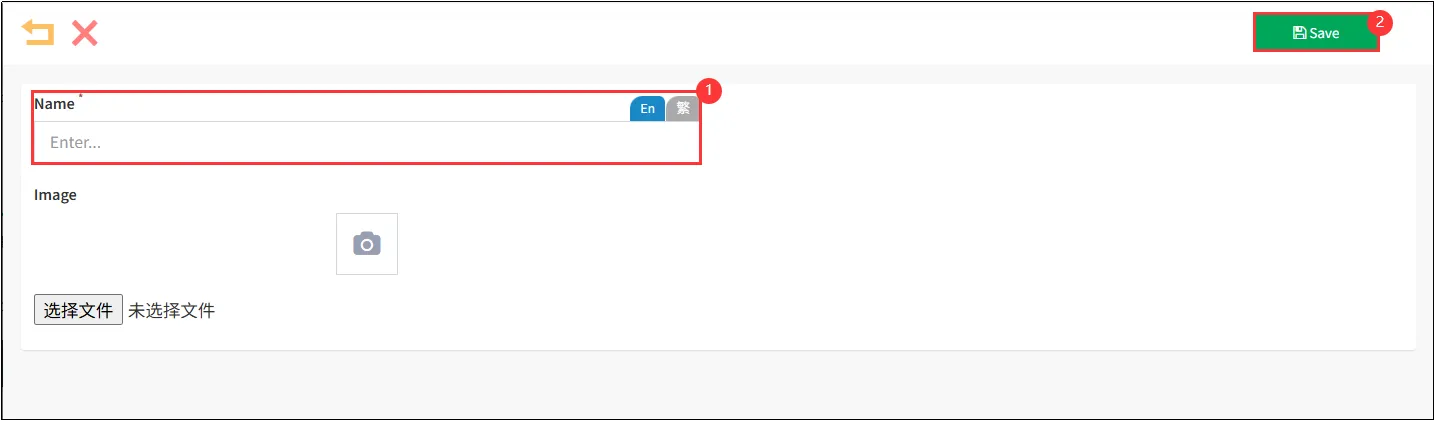
Enter the [Name] for your hashtag Click [Save] in the top-right corner to complete the default hashtag setup.
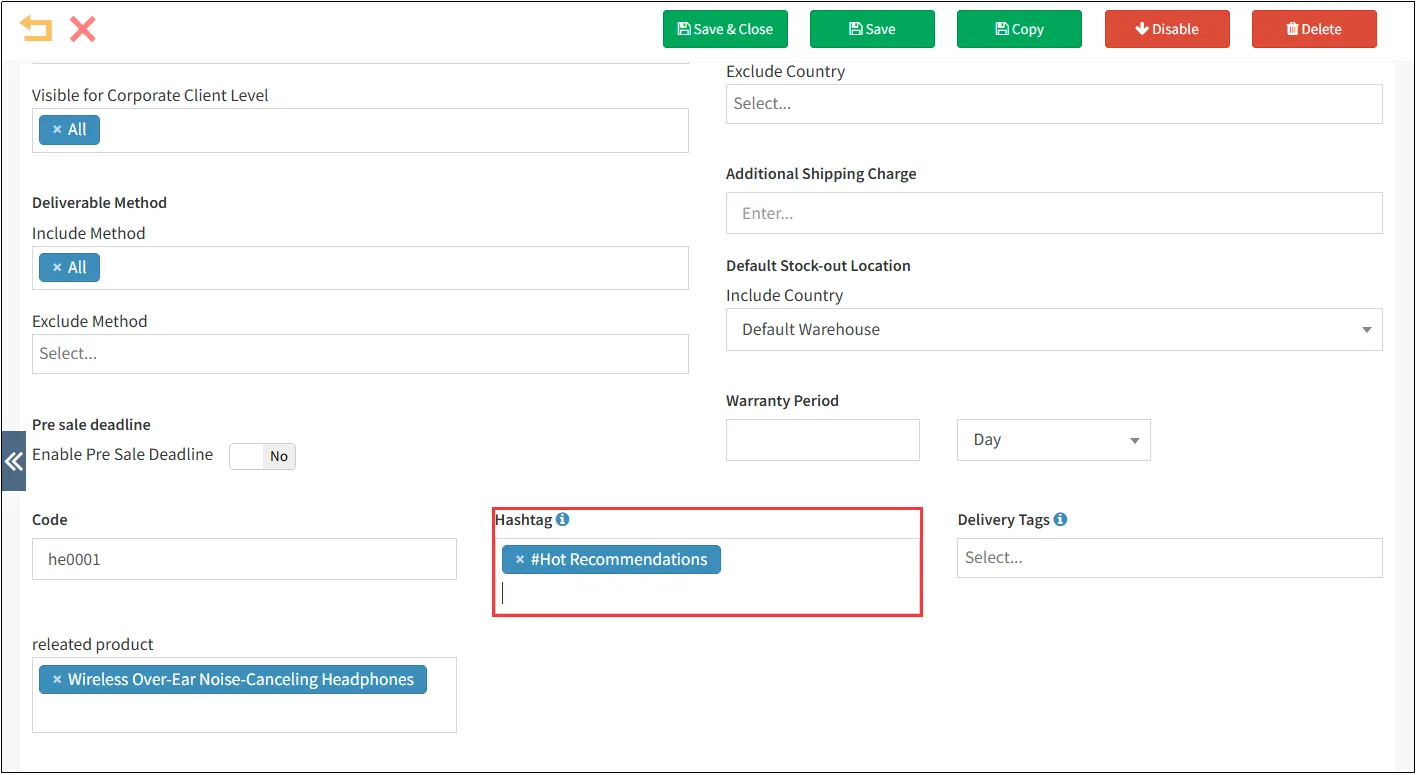
In the hashtag field, select from preset hashtags.
A single product can have multiple hashtags assigned. Click [Save] when finished.
Set Product Hashtags
In addition to the methods above, you can also add hashtags directly on the product editing page.
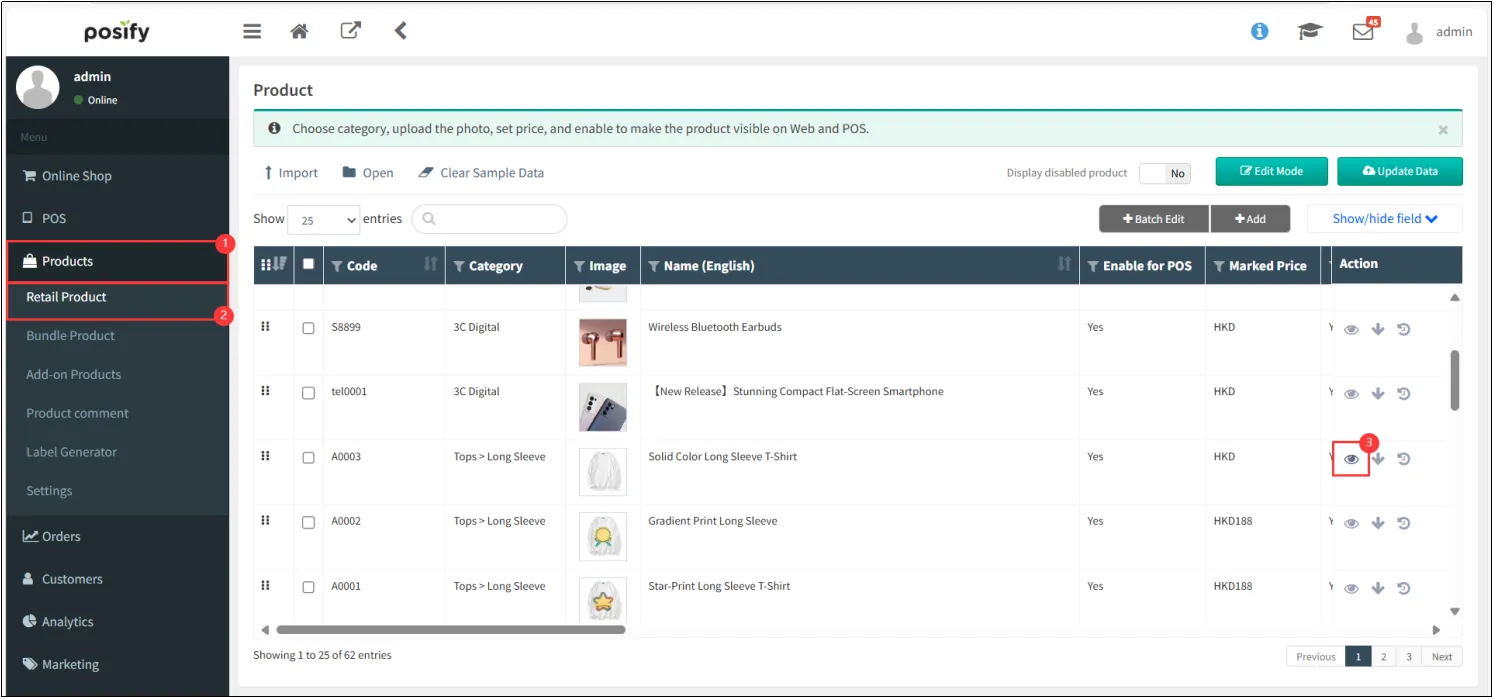
Open CMS click Productsclick Products or Bundled Product , Locate the product you want to add hashtags to, then click the
 on its rightOpen the product editing page.
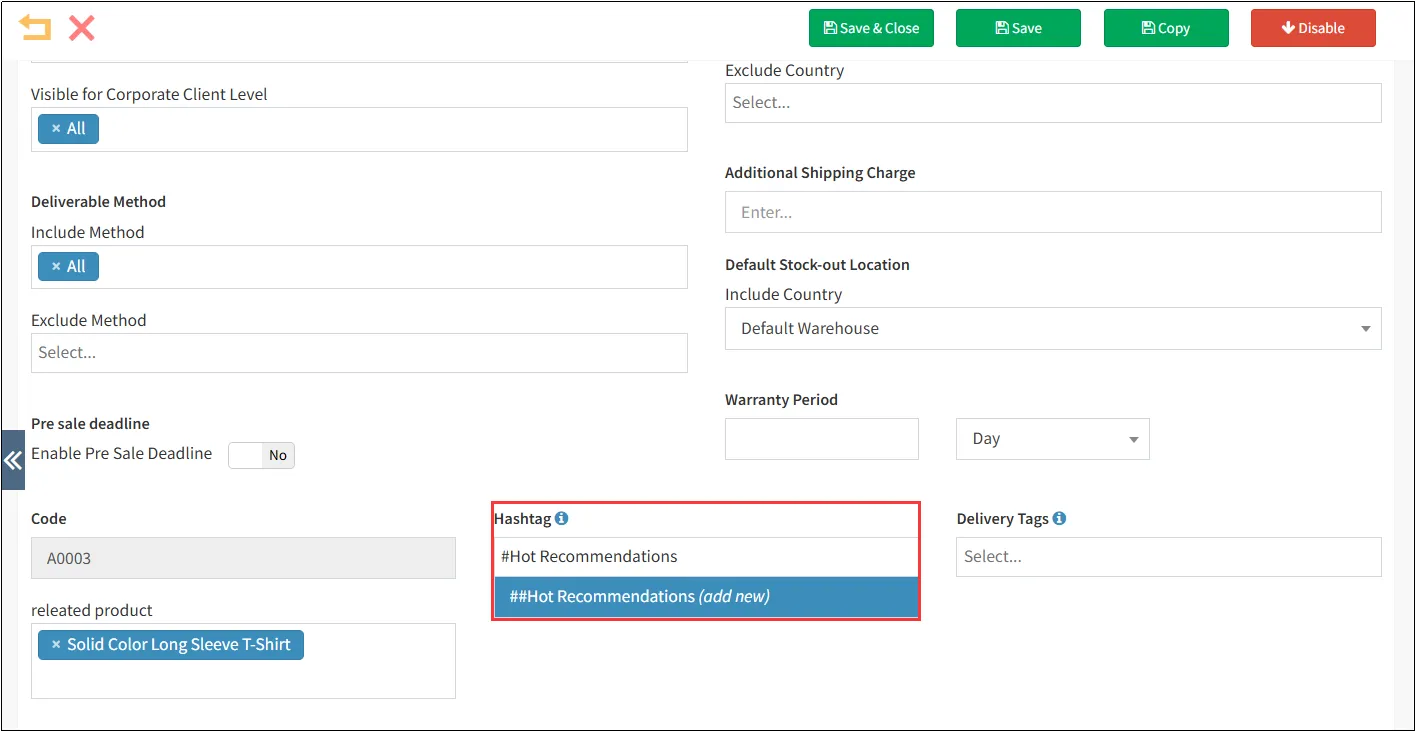
As shown in the image below, enter '#' + [tag content] + a spacebar to create a new hashtag and assign it to the product.
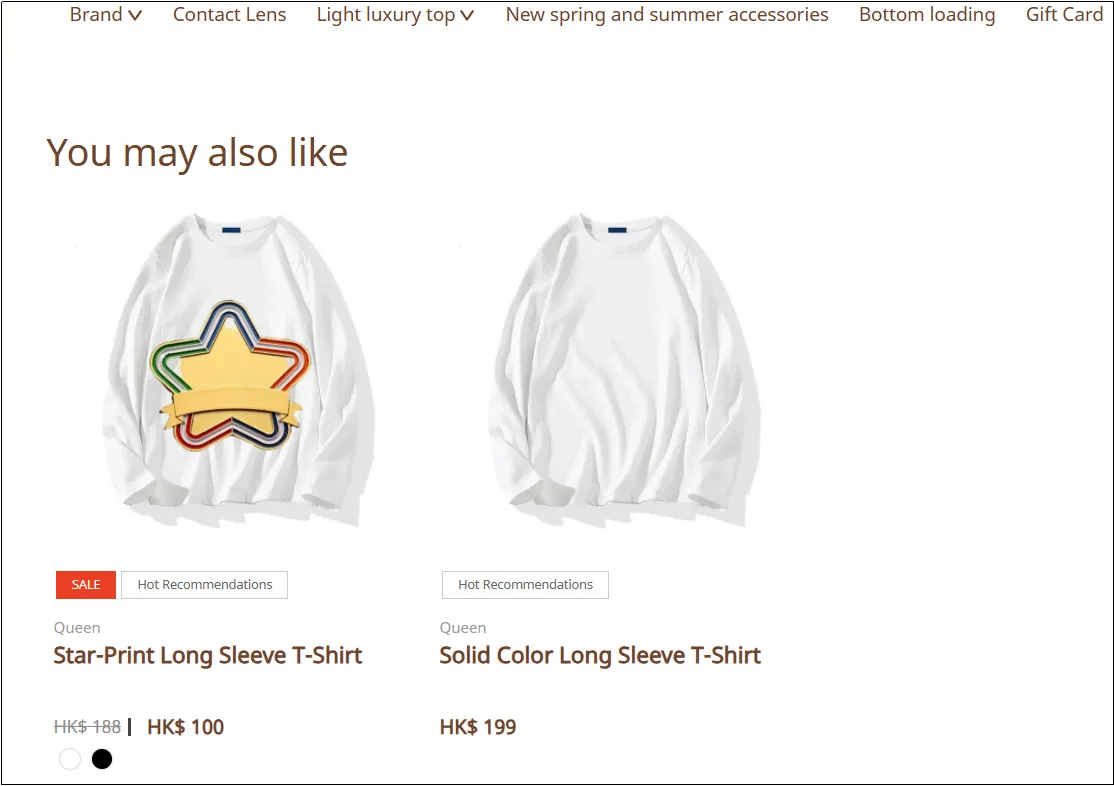
As shown in the image below, other products with the same theme will appear below this item's detail page.
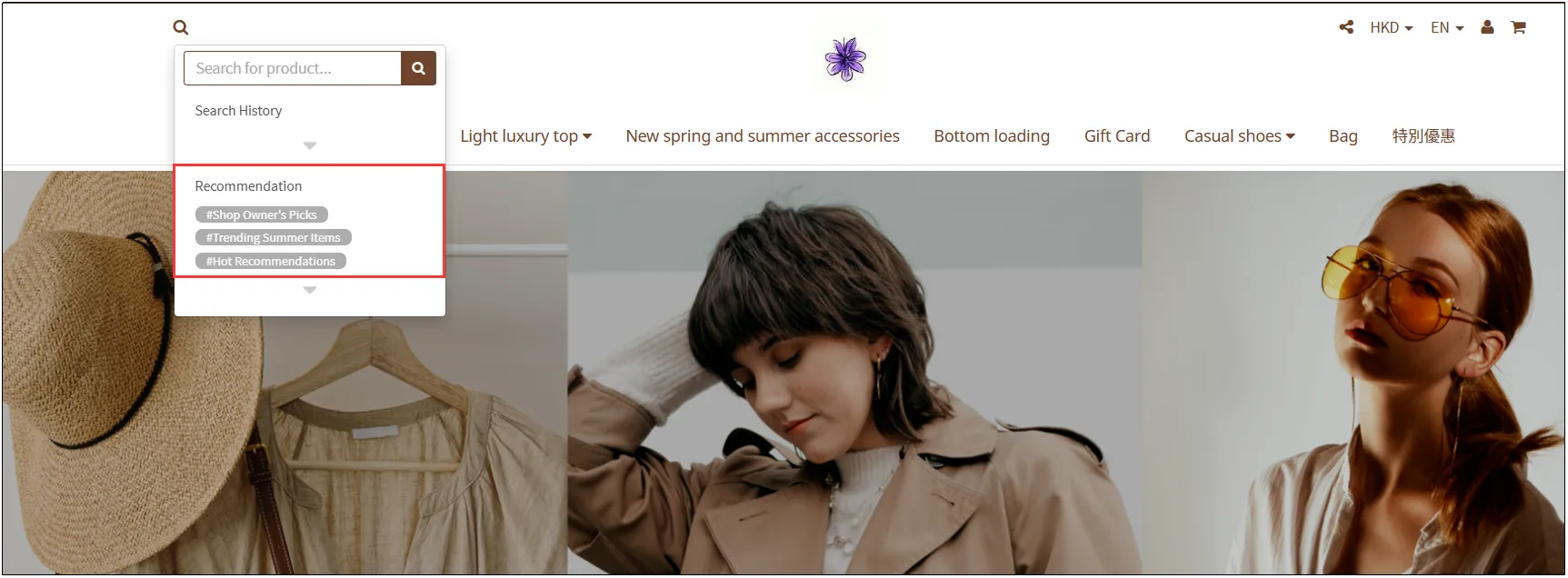
As shown in the image below, on the online store's homepage, click the search button to view popular hashtags. This helps customers easily discover the products they want.
Inquire about related promotions
Open CMS clickcommodityclickretail goodsFind the product you want to inquire about related promotions, click on the right
 。

Select in the tabrelated promotion,You can view promotions related to this product.


