Variant
Product attributes are used to provide customers with options to select.
Add Variant
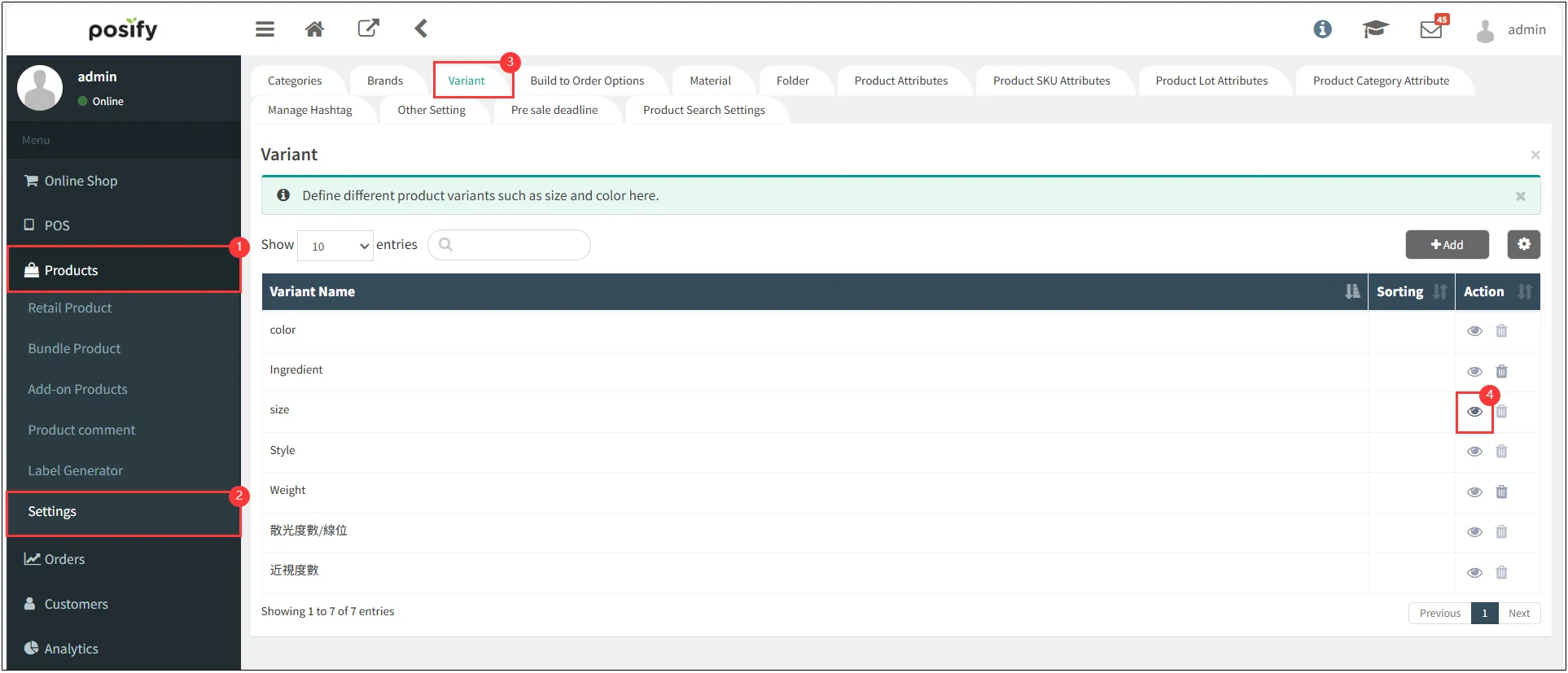
Open CMS
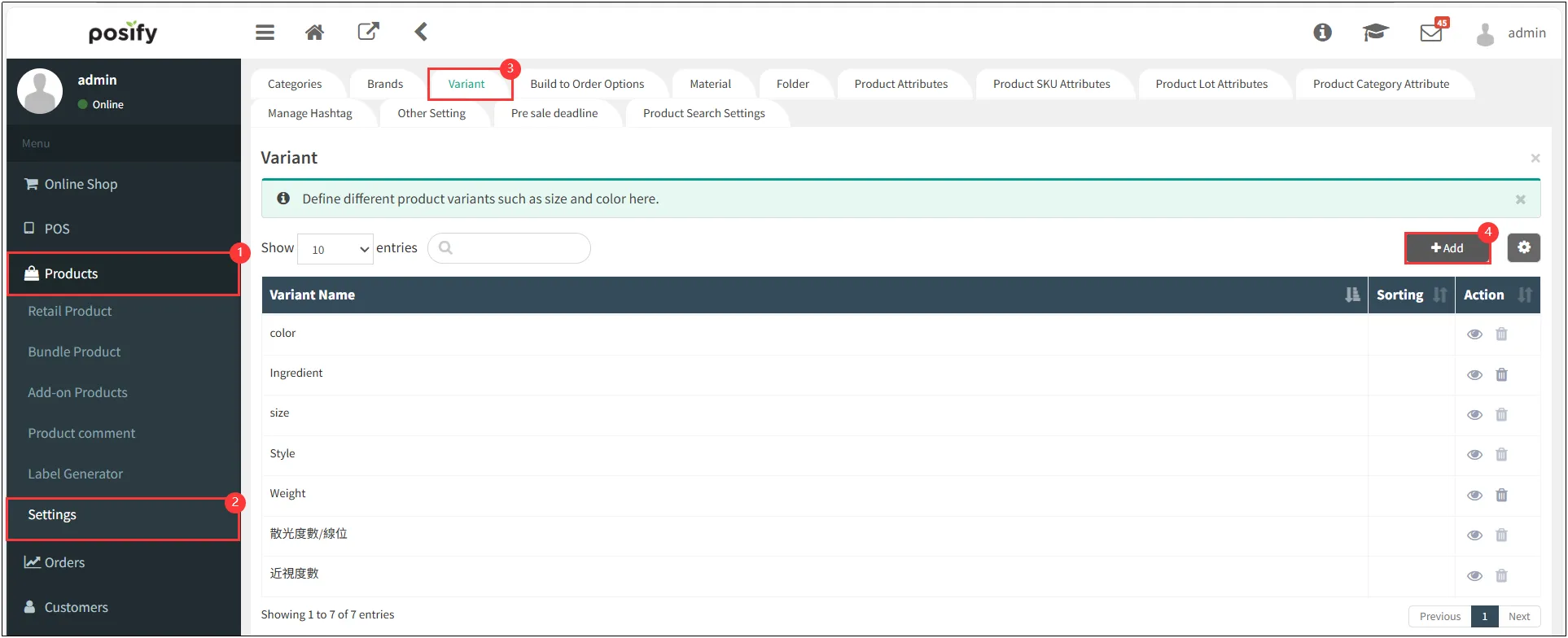
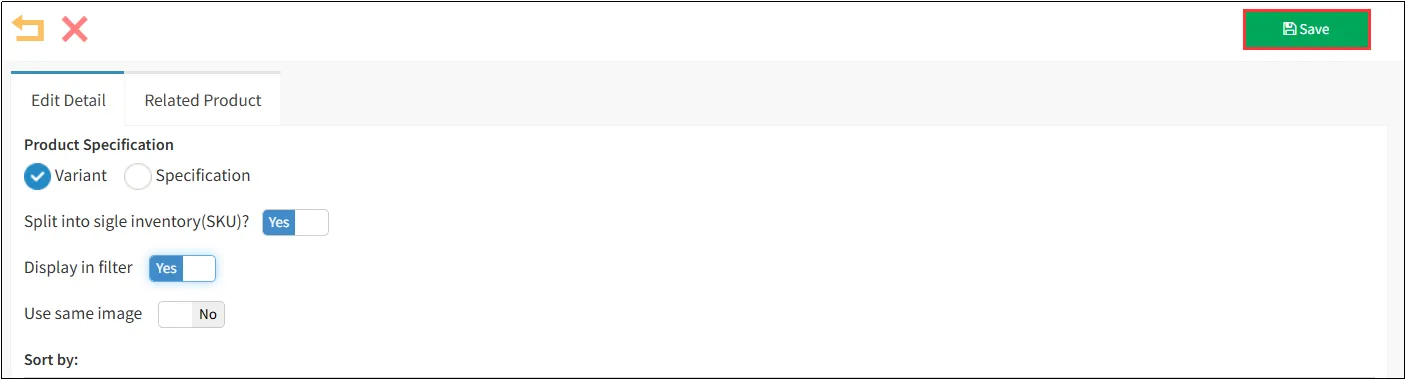
Click the Edit Detail tab
If this product attribute is used for filtering, enable [Display in filter] by setting it to 'YES'.
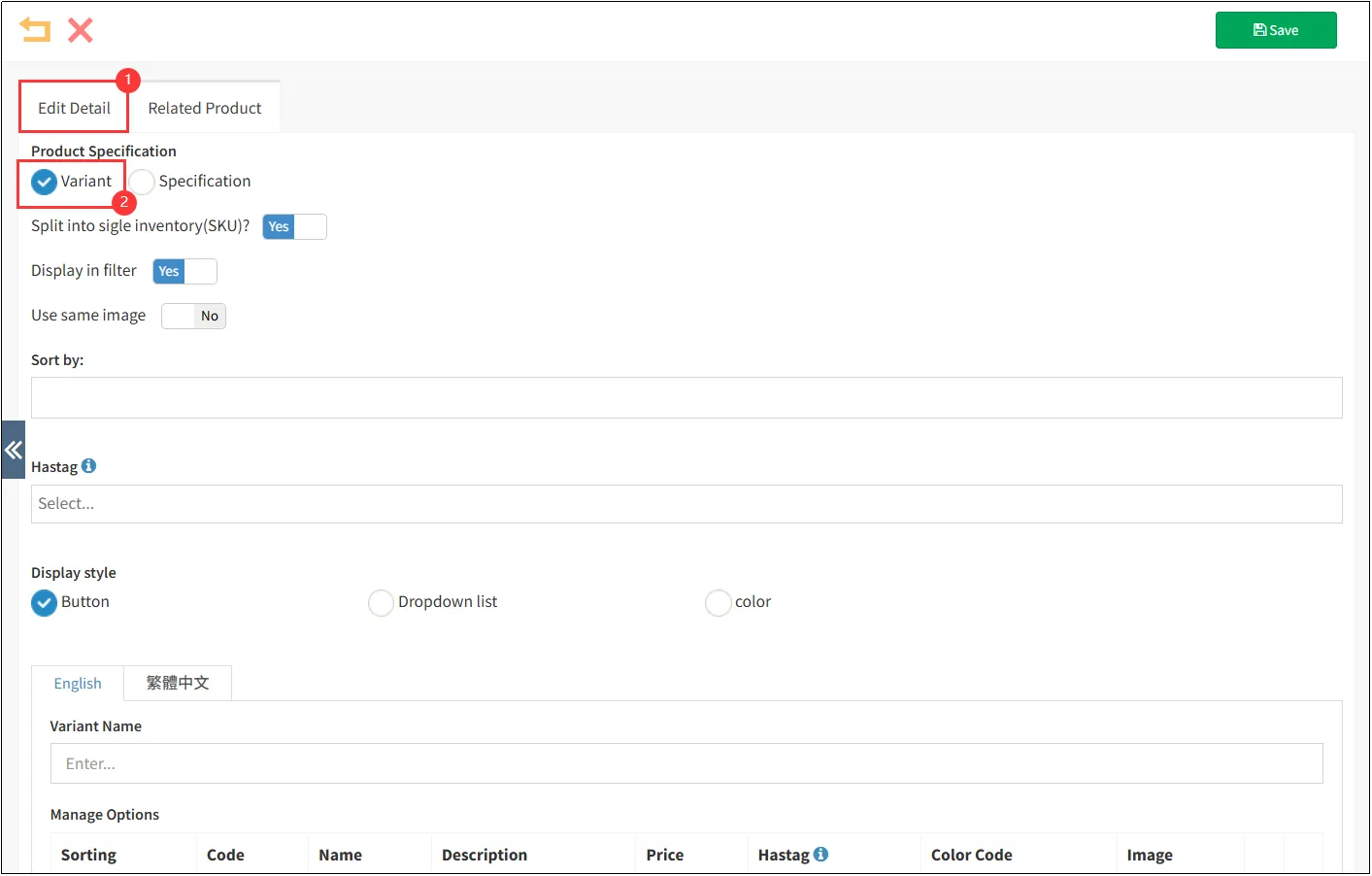
After selecting attributes, a [Split into single inventory (SKU)?] option will appear. This determines whether inventory is tracked separately for each variant combination.
Example: If a 'Color' attribute has options Black and White, enabling this option means Black and White variants will have independent inventory counts.
For multiple attributes (e.g. Color: Black/White + Material: Wood/Plastic), the system will create separate SKUs for all combinations (Black+Wood, Black+Plastic, White+Wood, White+Plastic). The total number of SKUs equals the product of all attribute options.
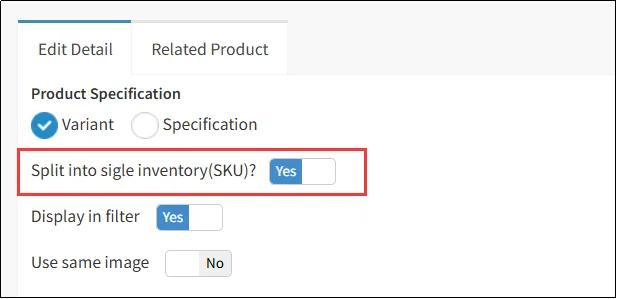
If [Split into single inventory (SKU)?] is set to 'No', inventory will not be tracked separately for individual attribute combinations. All variants of the product will share the same stock count.
In the option name field, enter the product attribute name (e.g., 'Material') > Click 'Add Option' to create a new option > Enter the option value (e.g., 'Wooden').
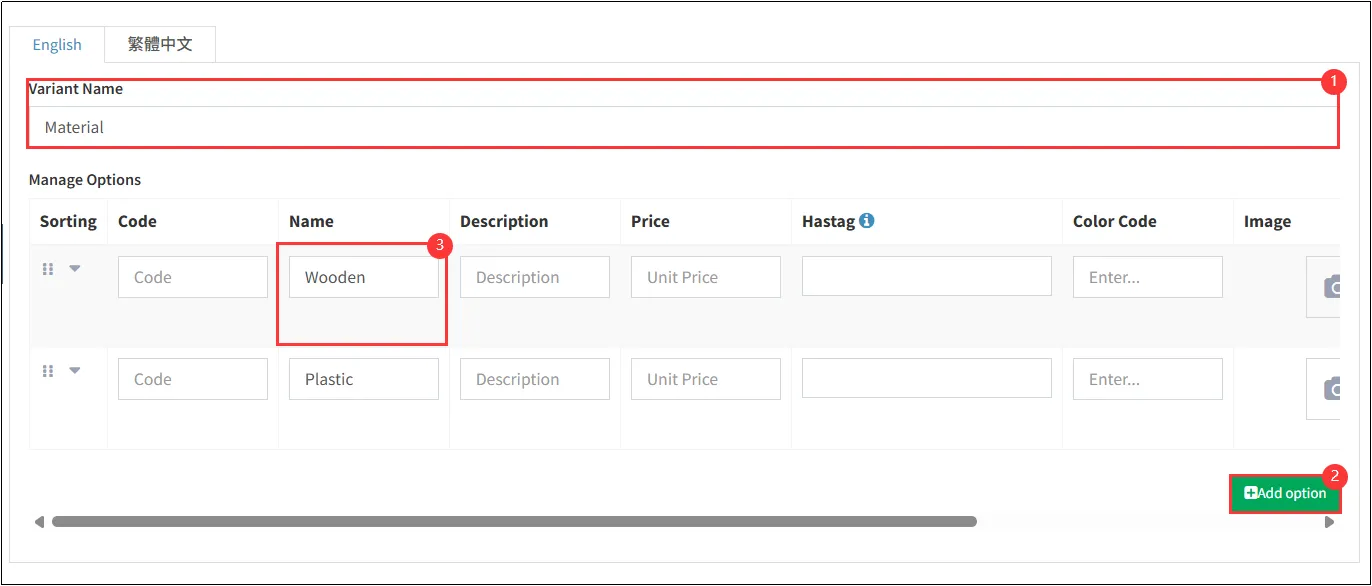
Click [Save] in the upper right corner to complete the addition.
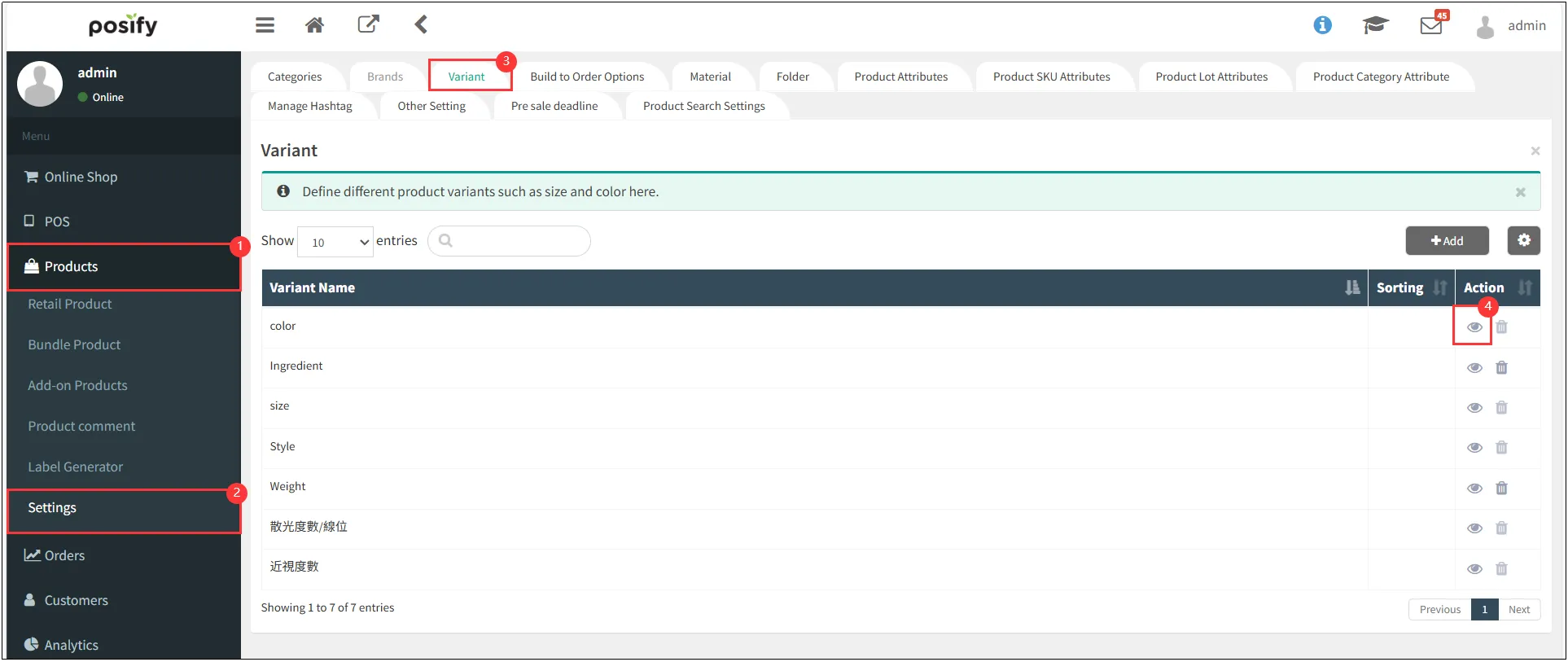
Edit Variant
To modify category details (e.g., the name), click the 
Option Sorting
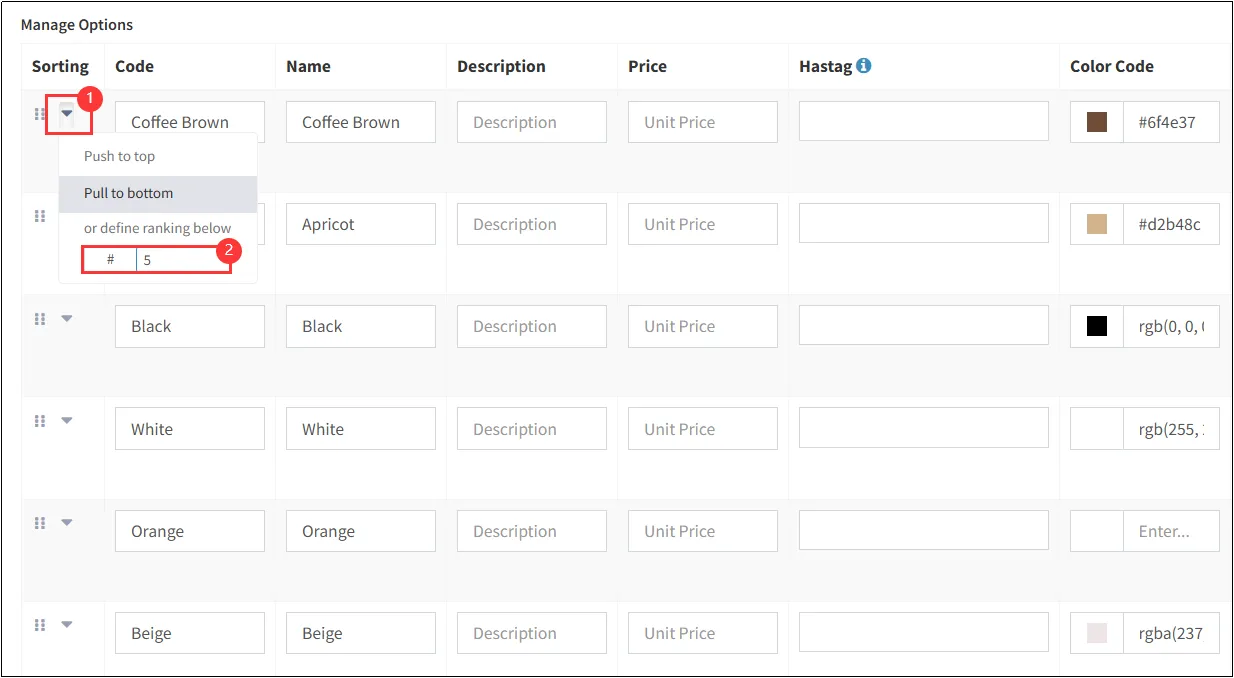
To reorder attributes, click and hold the 

Locate the option you want to reorder  on its left > Enter the position number
Entering a number will adjust the product to the first position, for example, entering "5" will adjust the product to the fifth position. Translate in document format
Delete Variant
To delete an attribute, go to the Variant tab, locate the target attribute, click the 
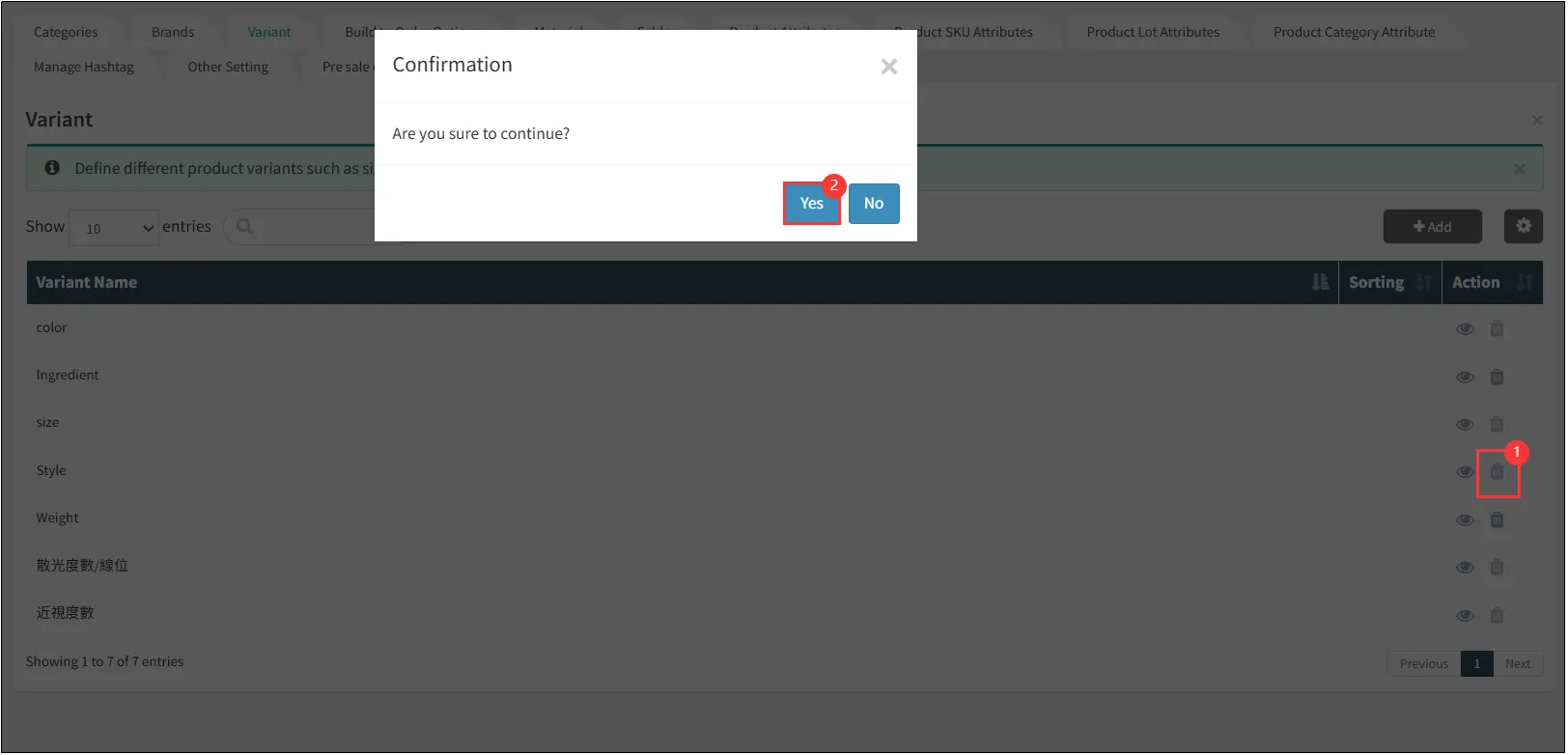
Note: Options linked to existing products cannot be deleted. Please remove all product associations before deletion.
Attribute Display Format Settings
In addition to the default button text display, the system also supports presenting product attributes in the following formats: dropdown lists, color swatches, and image selections.
Drop-down list display mode
Open CMS
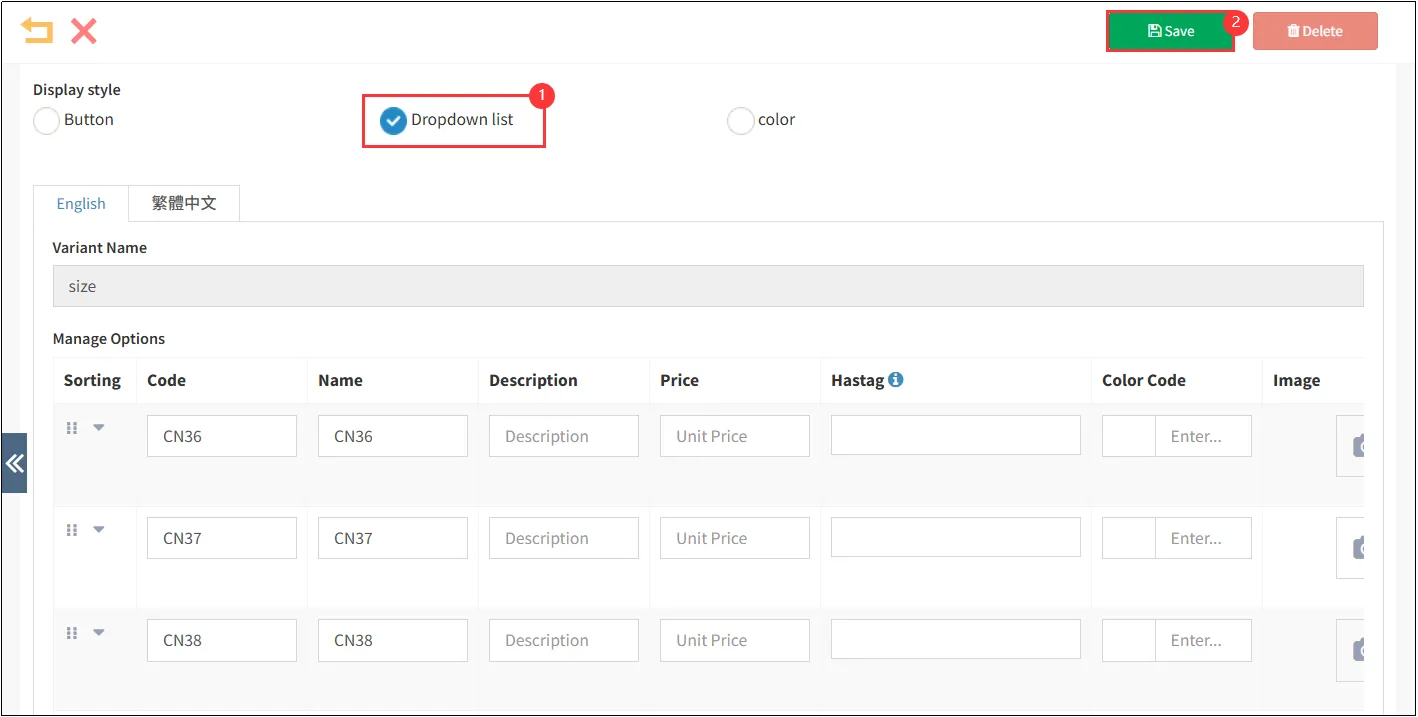
Select [Dropdown list] as the display style
The display effect in the Online Shop will appear as follows.
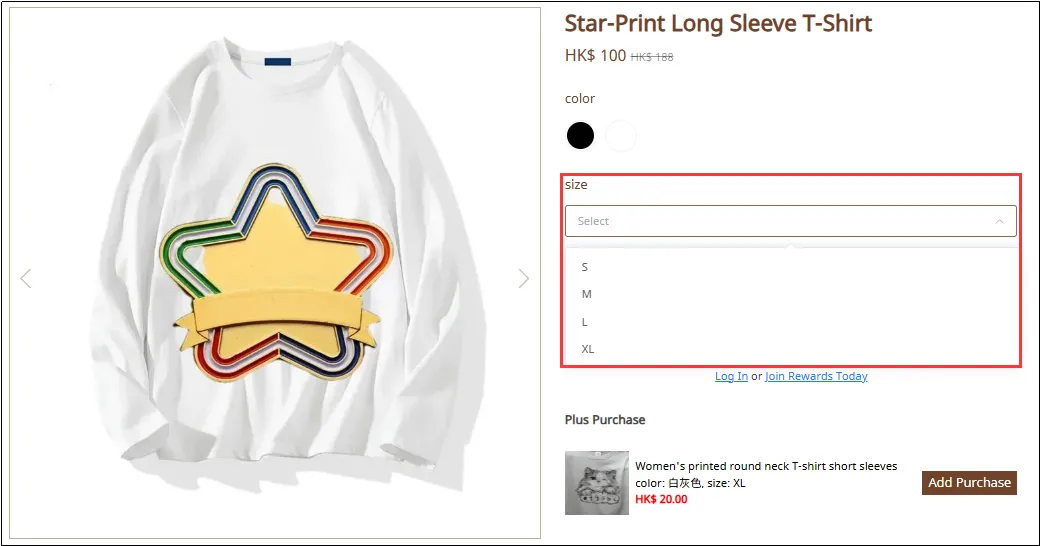
Note: The dropdown list feature is exclusively available for Callaway product detail templates.
Display Format for Colors
Open CMS
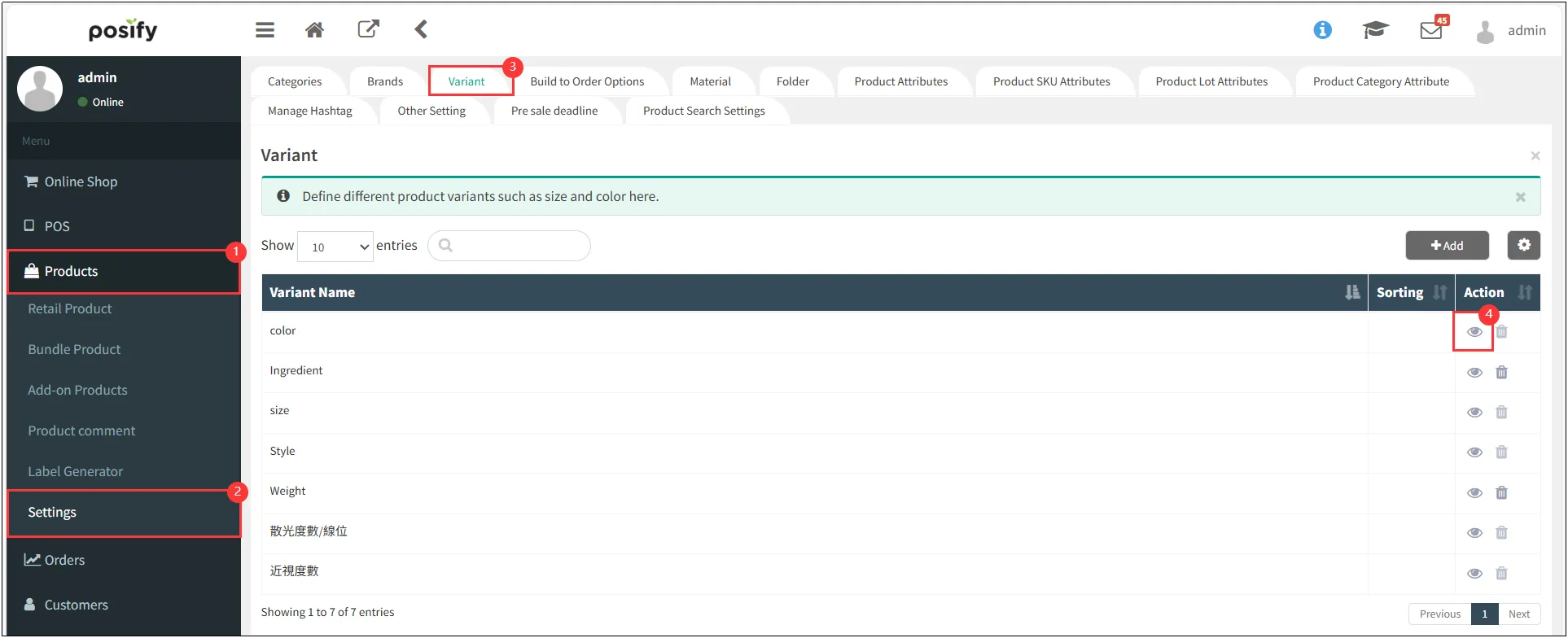
To display attribute options using colors, manually enter a specific color code in the [Color Code] field (e.g., rgb(0, 0, 0) or #6f4e37). Alternatively, click the color picker box next to the field to open a palette, then drag the selector to choose your desired color.
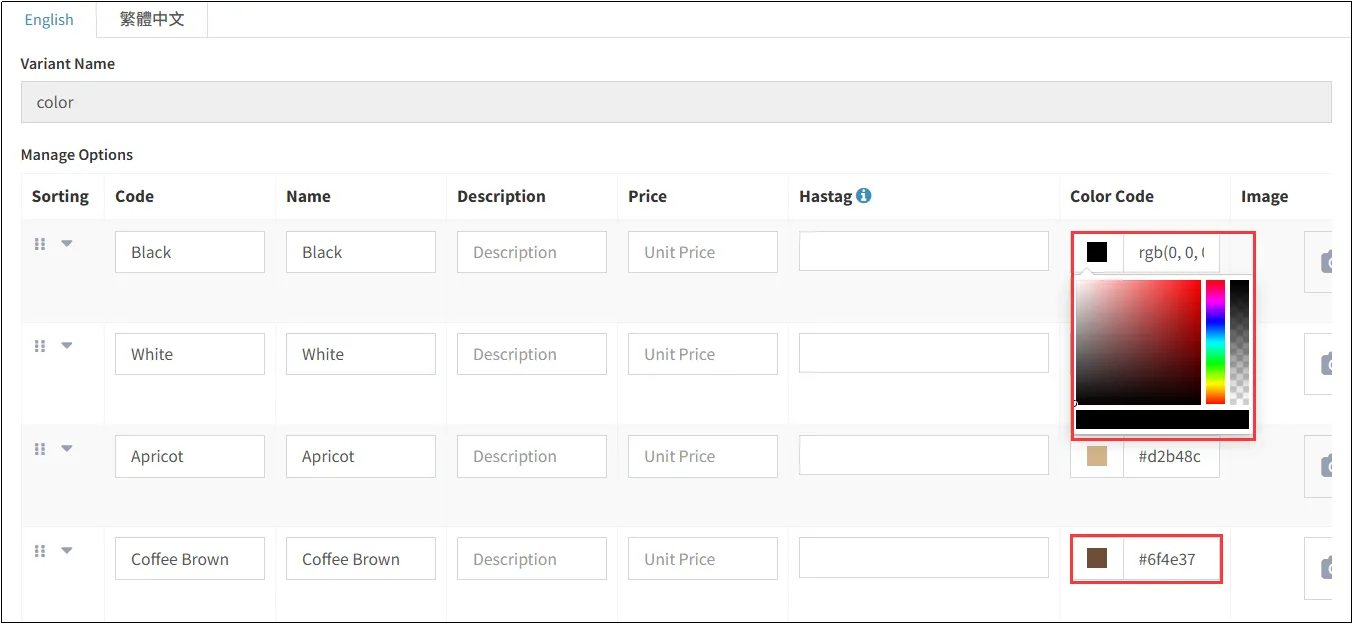
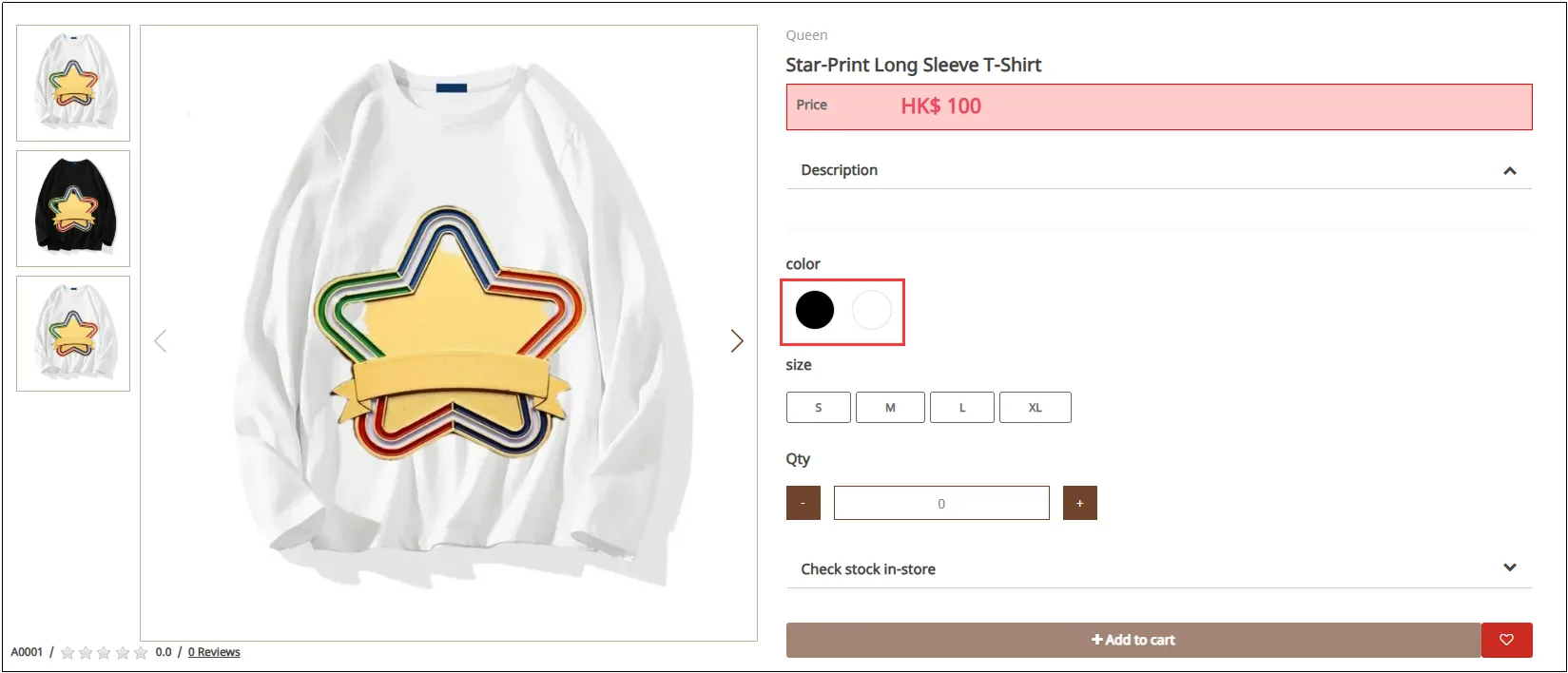
The display effect in the Online Shop will appear as follows.
Display Format for Images
To display attribute options using images, click the [Select File] button to choose and upload the desired image file from your device.
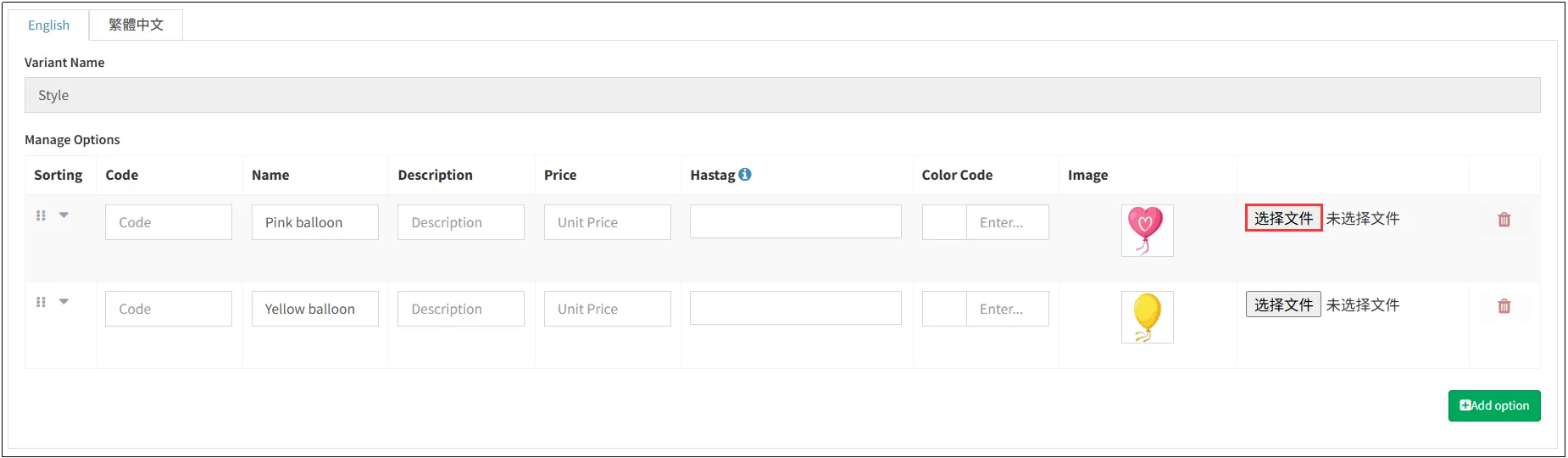
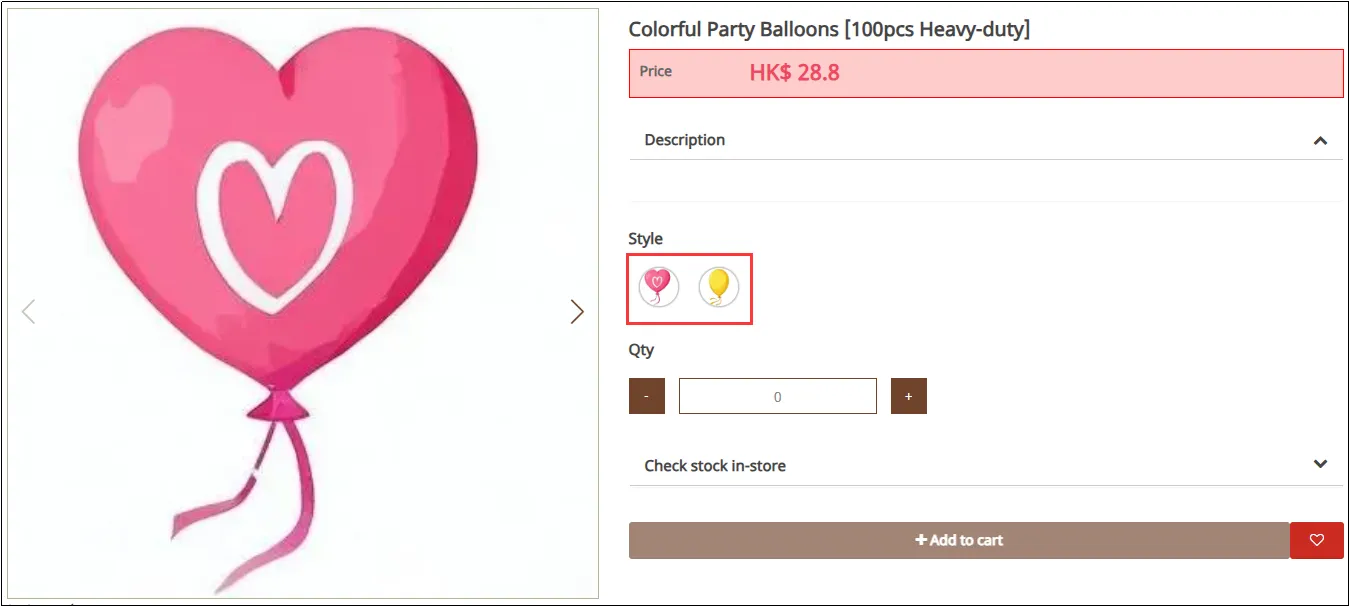
The display effect in the Online Shop will appear as follows.
Specification
Product specification information, such as clothing fabric, origin, size, etc., can allow customers to understand important information about the product faster.
Add New Specification
Open CMS
Click the Edit Detail tab
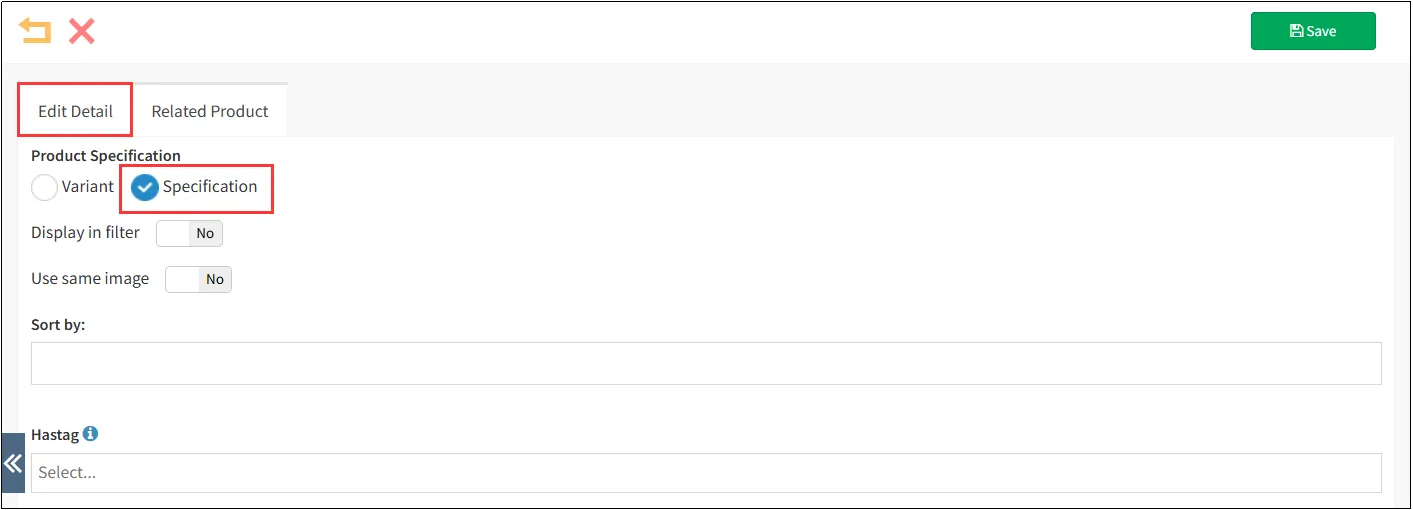
In the option name field, enter the product specification name (e.g., 'Origin')
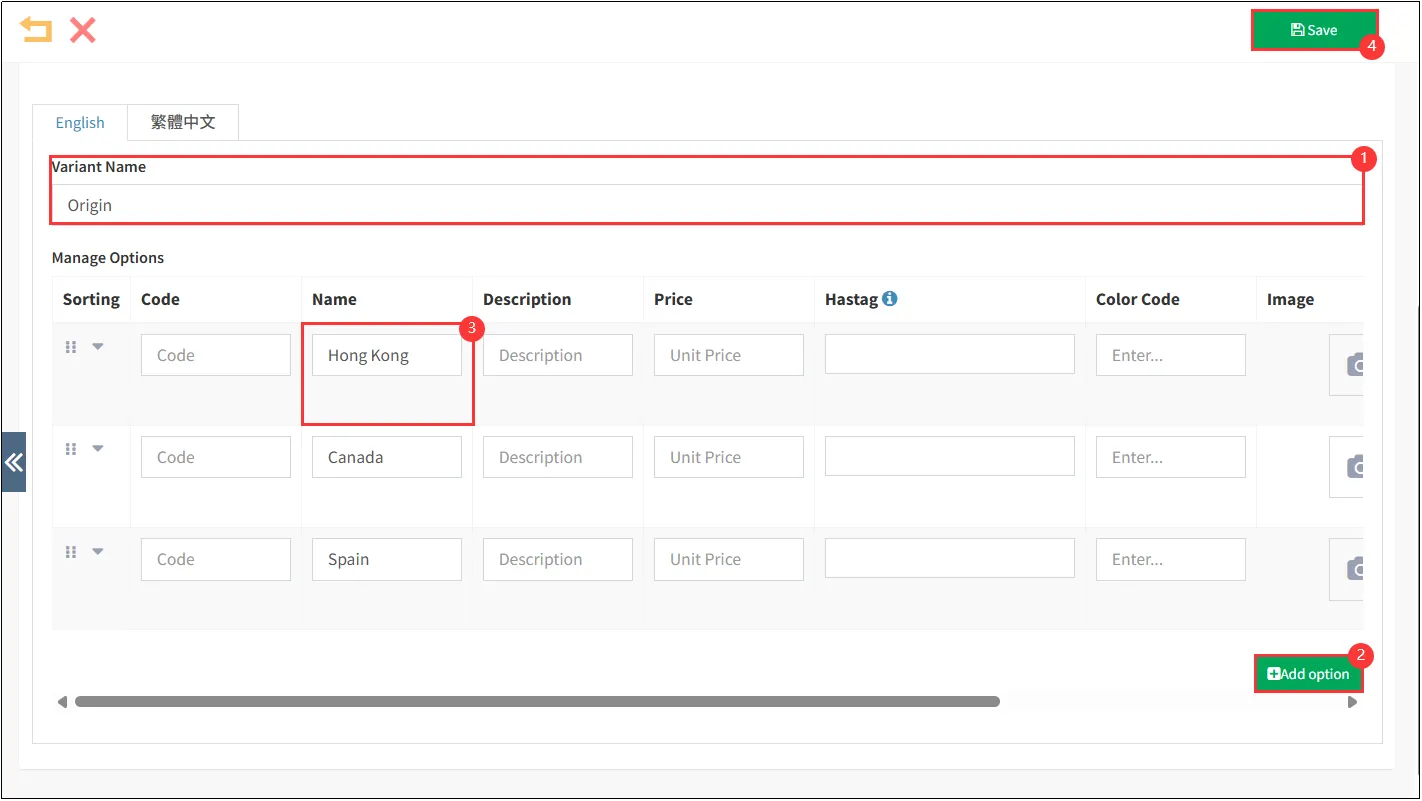
The editing, sorting, and deletion of product specifications follow the same procedures as product attributes. Please refer to the 'Variant' section for detailed instructions.


