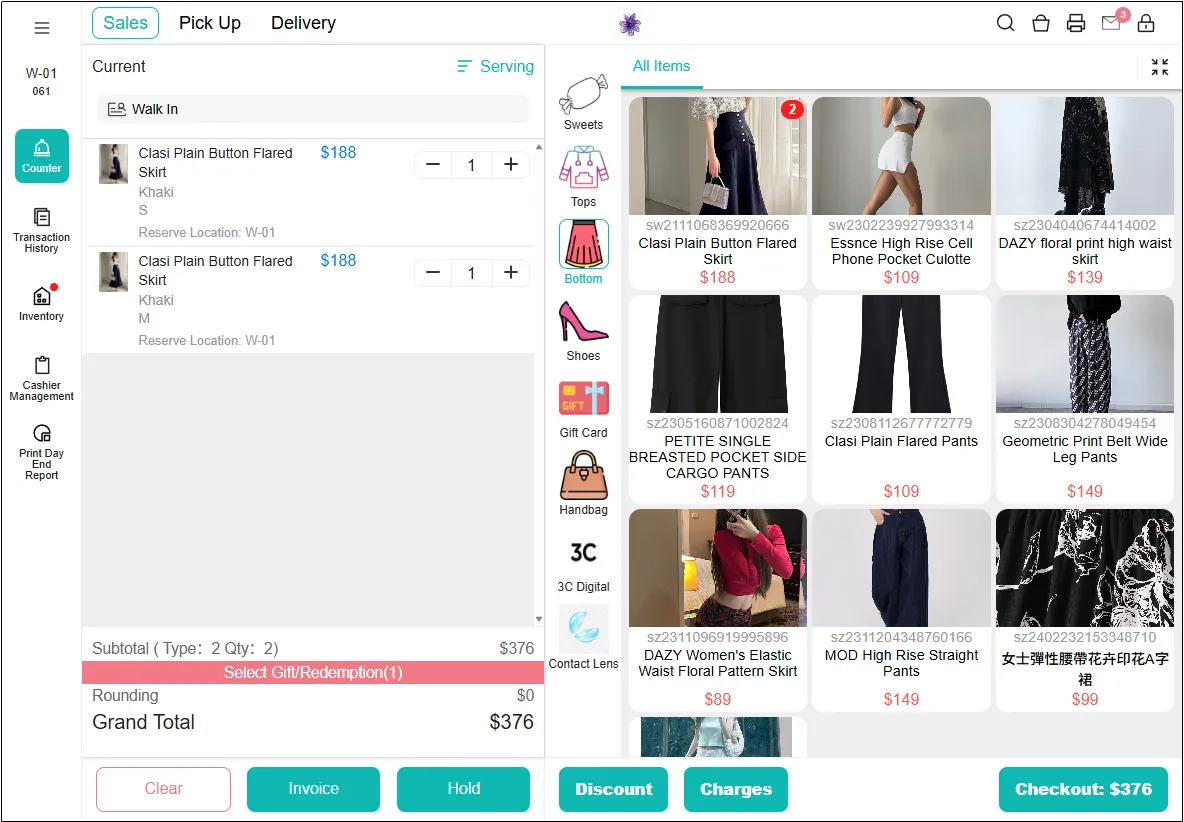
Add Product SKU Attributes
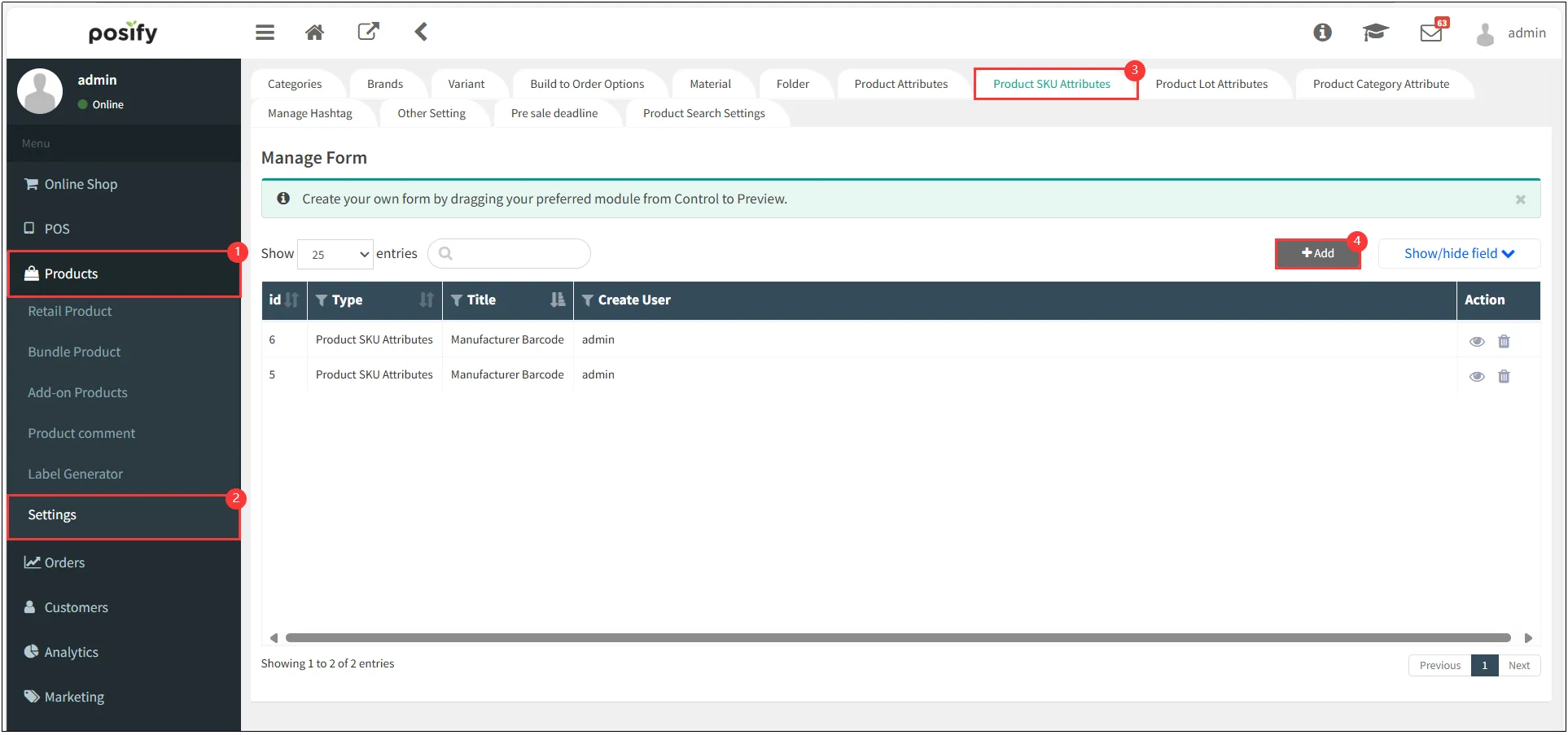
Open CMS
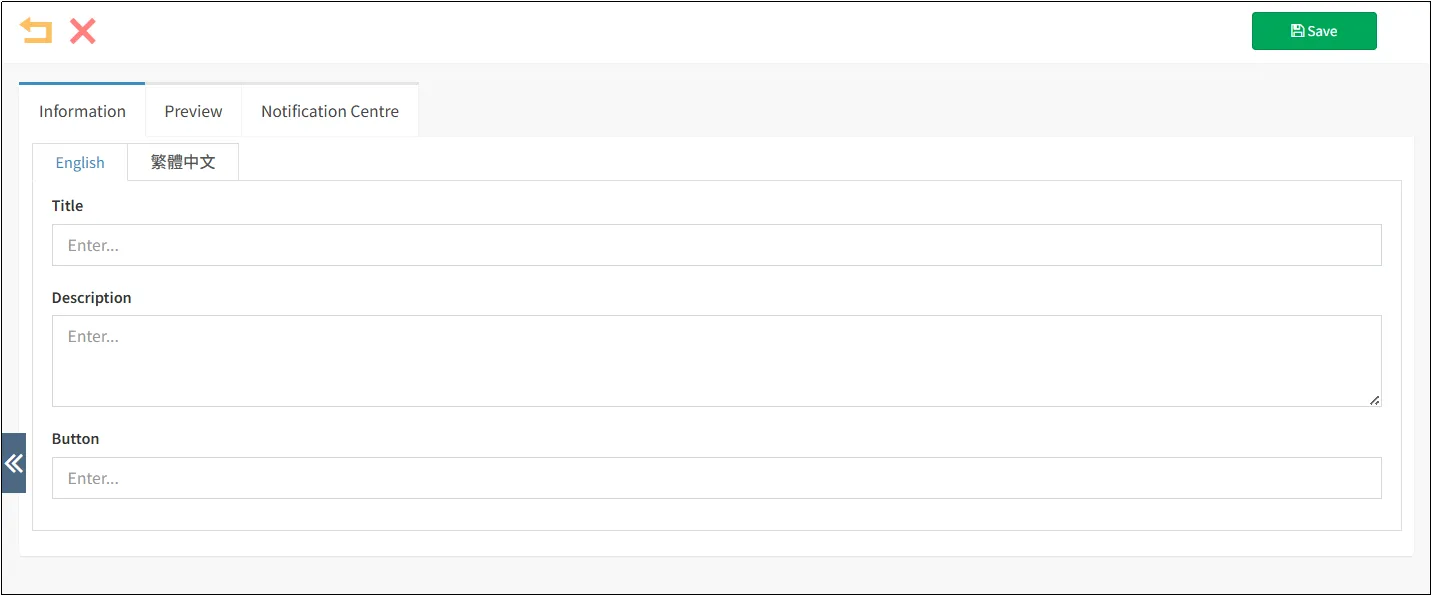
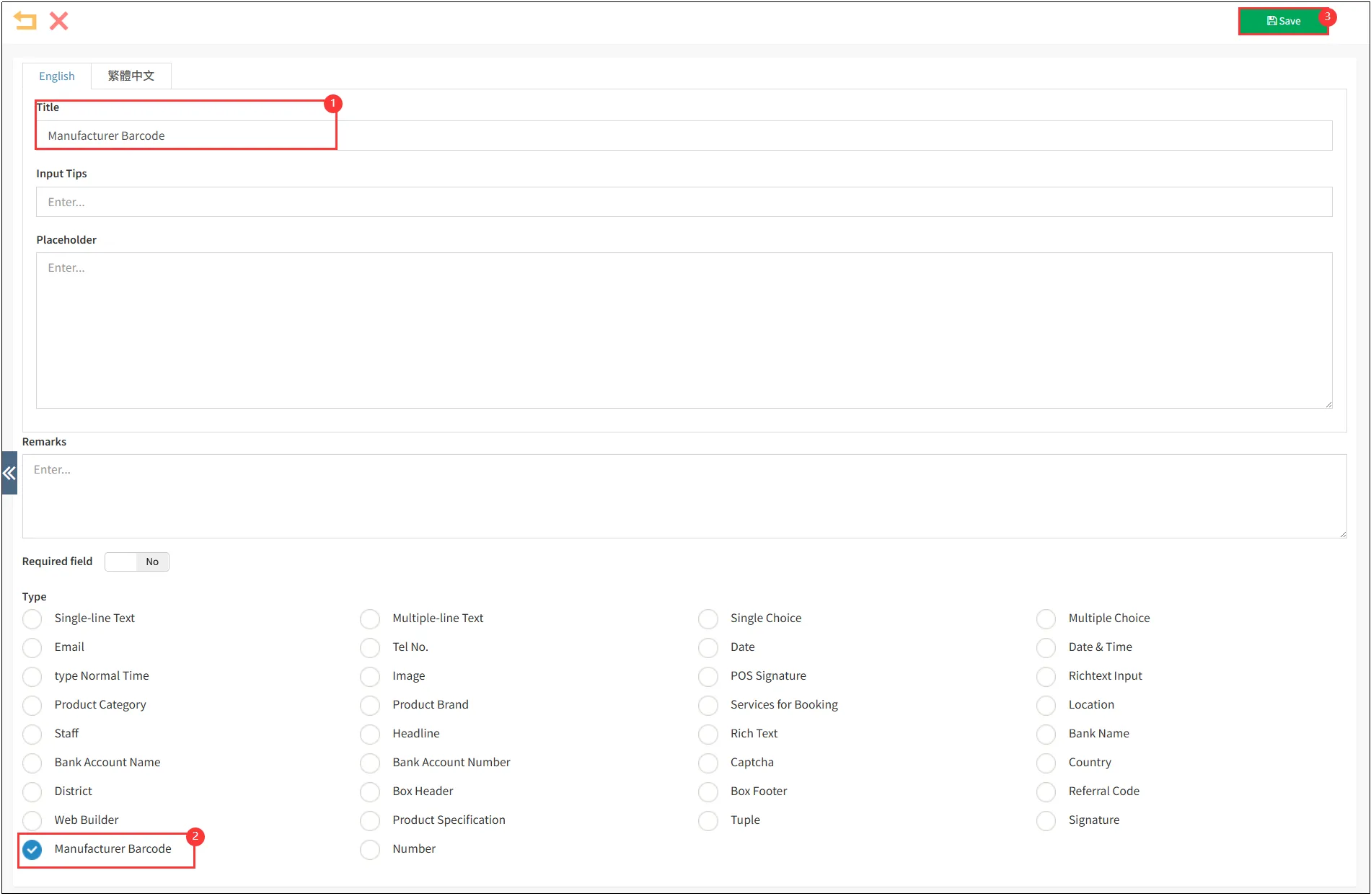
Enter the Title in the Information tab.
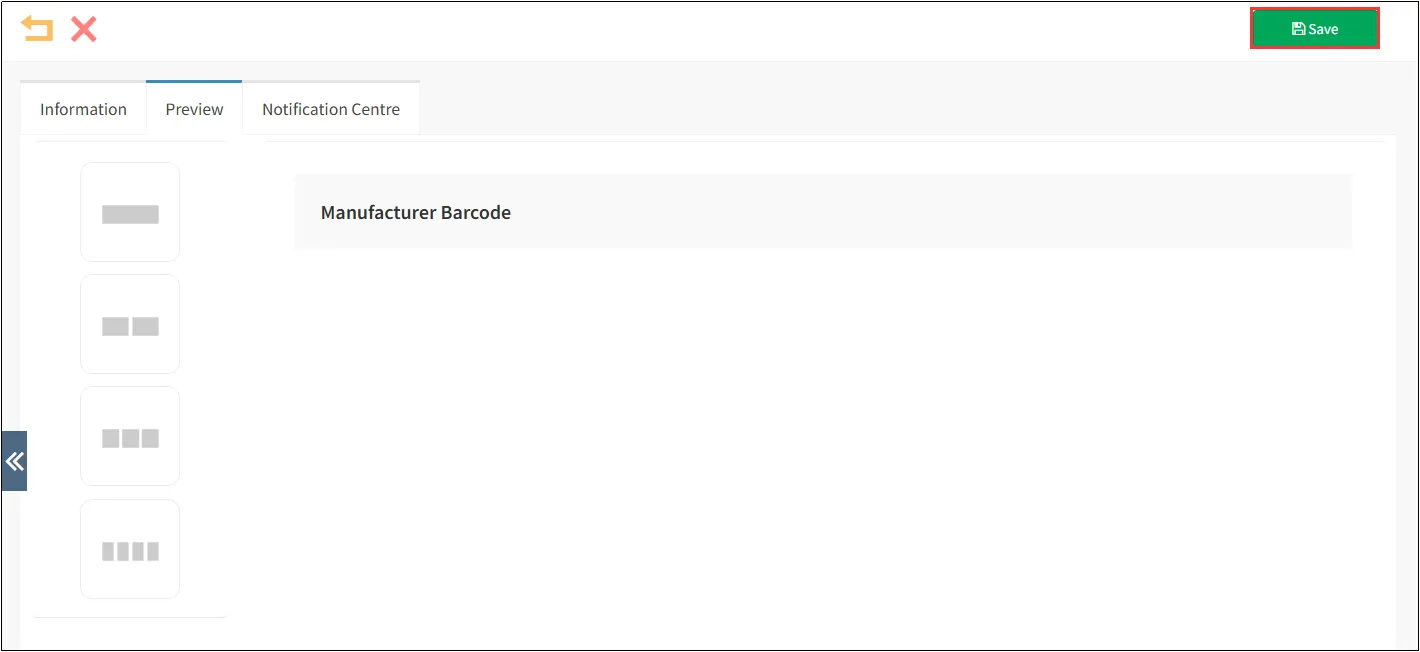
In the Preview tab, drag the row-cell icon into the table to add a new row
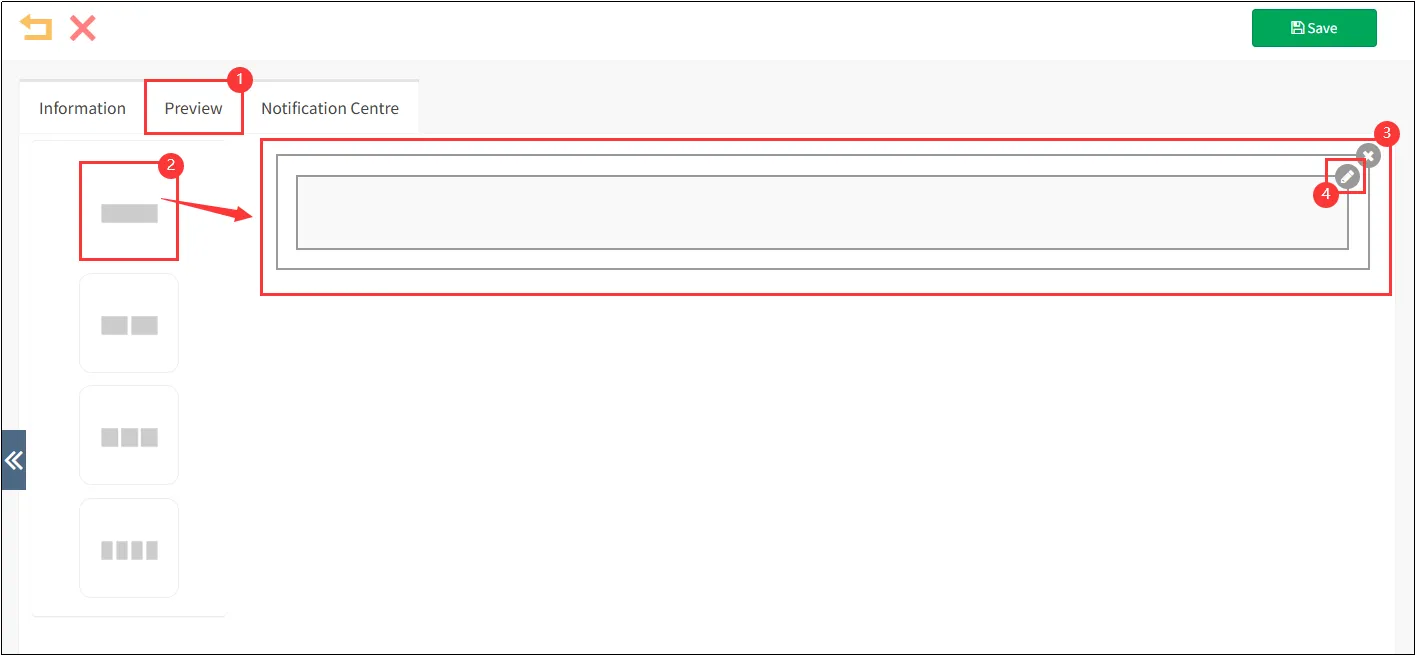
Enter the cell's Title content
You can preview the edited cell in the preview section
Product configured with multiple manufacturer codes
Open CMS
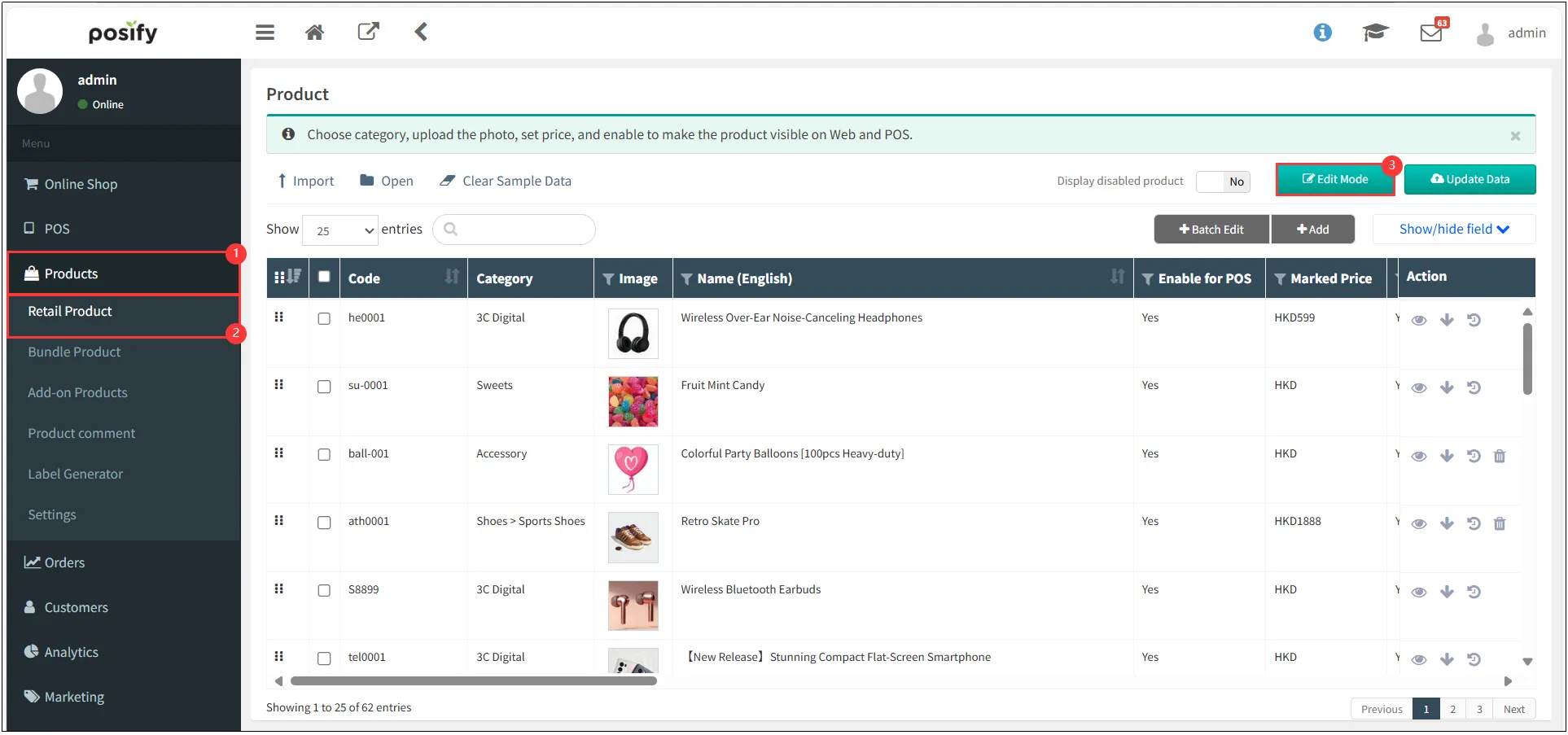
Click Show/Hide Fields
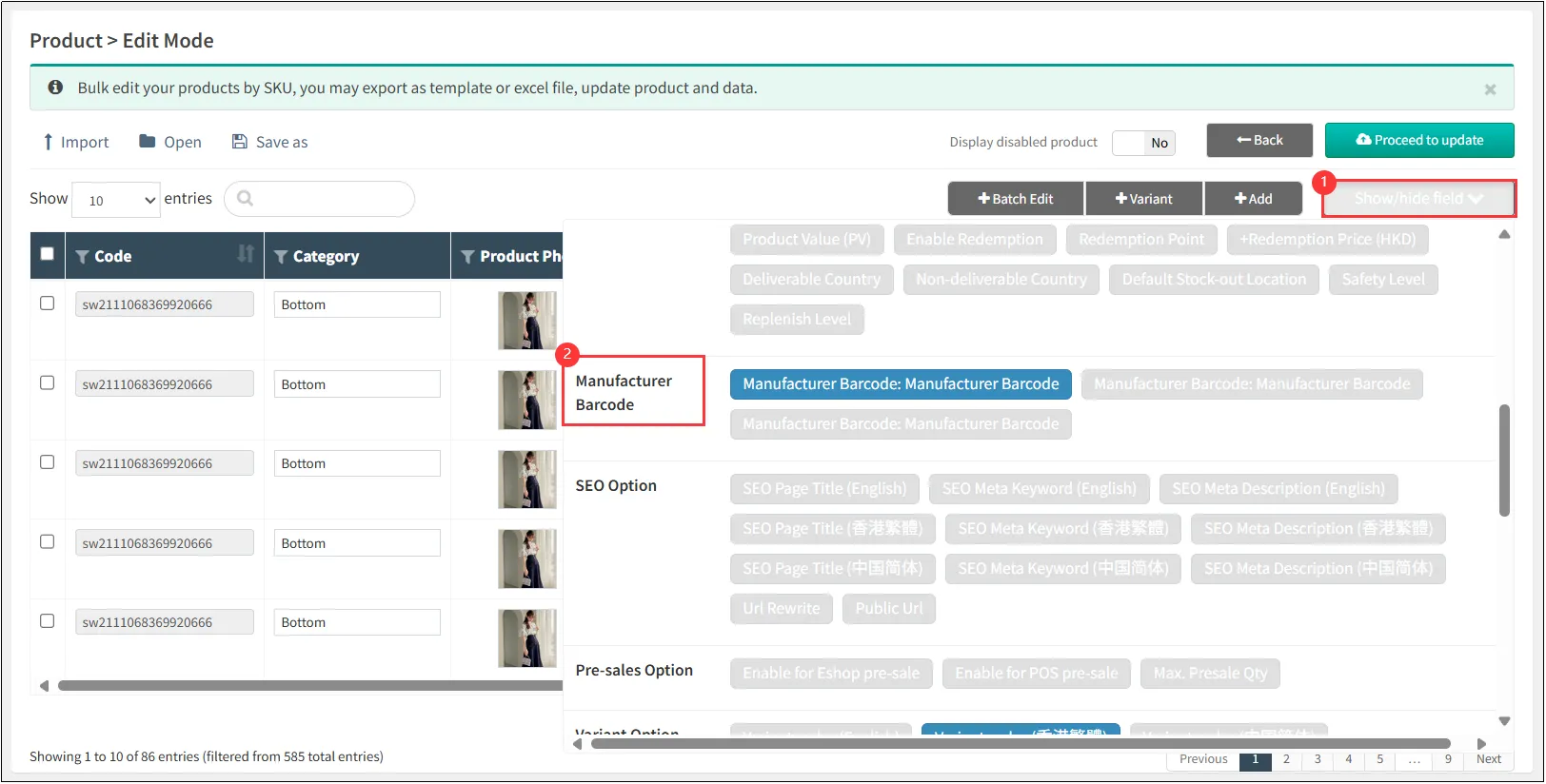
Enter the code in the [Manufacturer Barcode: Manufacturer Barcode] column and click [Update Now].
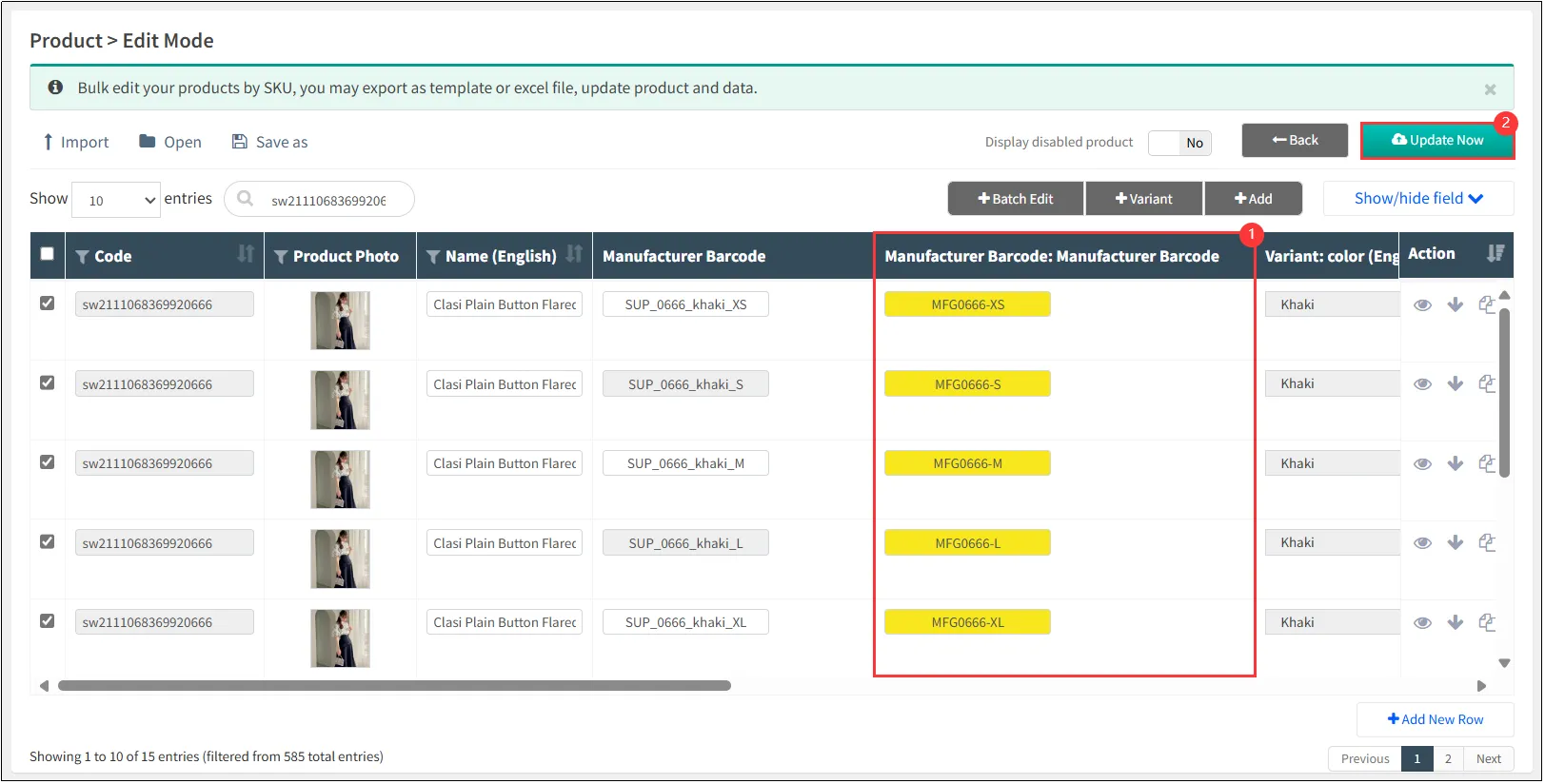
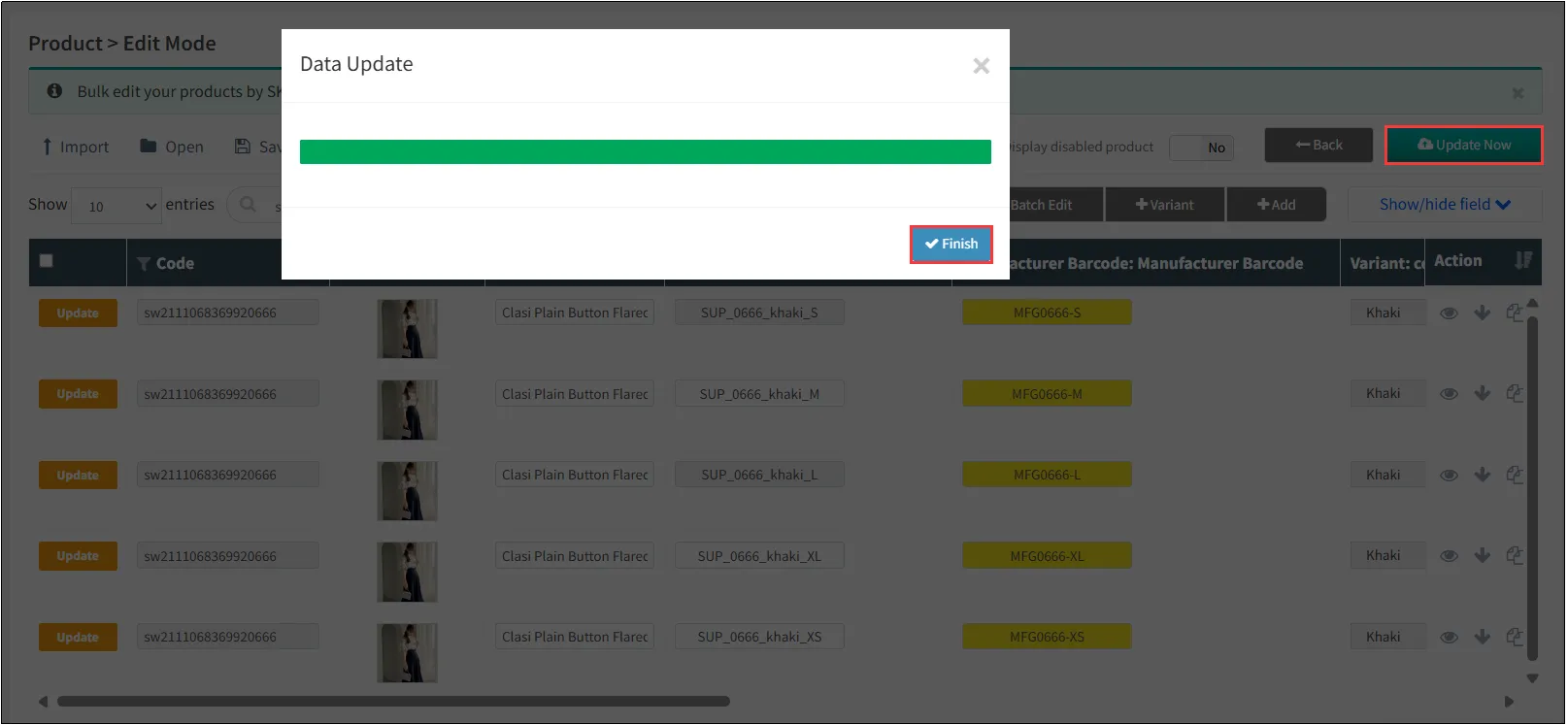
After reconfirming the information is correct, click [Update Now]
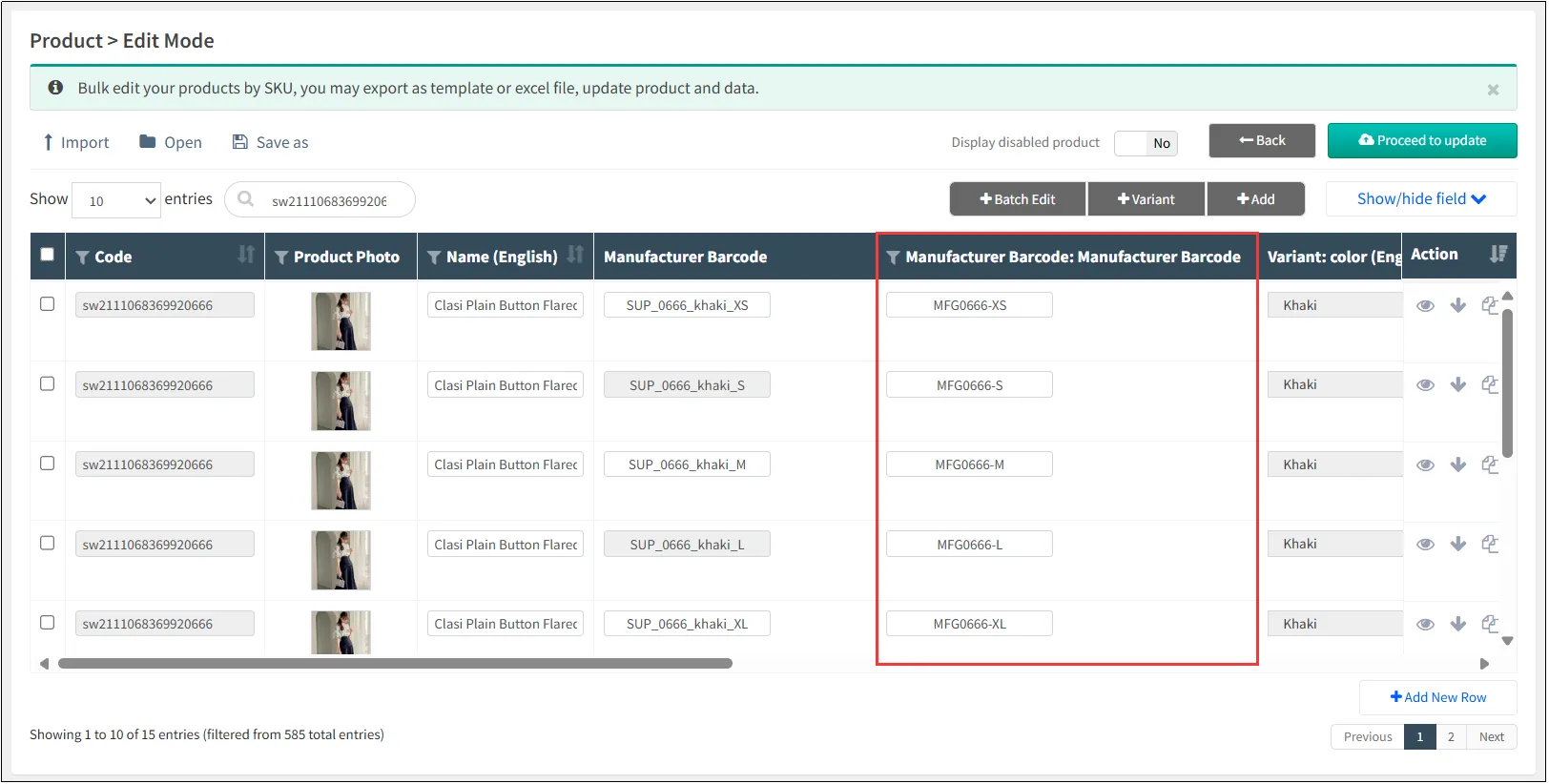
The added manufacturer barcode are visible in the Product Management page.
During POS checkout, simply scan the manufacturer barcode to add the product.