Member price setting
Set tiered member pricing for products based on different membership levels.
Set Member Pricing for Retail Products
Open CMS

In edit mode, click the Show/Hide field
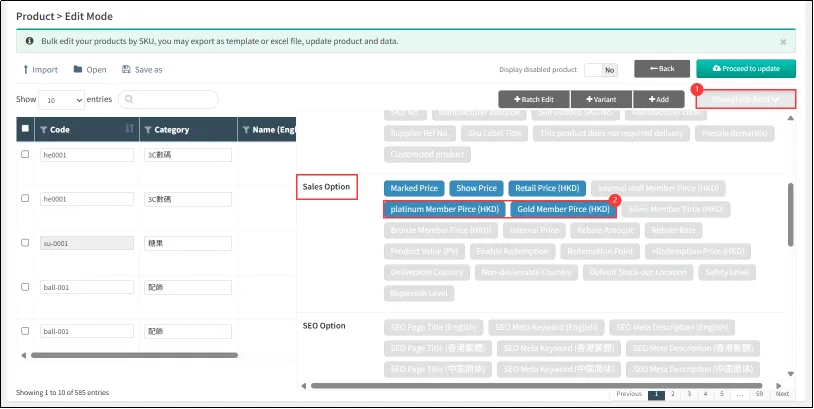
Enter the member price for each checked membership tier, then click [Product to update].
Membership tiers without custom pricing will default to the product's [Retail Price]. As shown in the image below:
· Platinum members purchase at HKD 3,200
· Gold members purchase at HKD 3,499
· Other tiers (e.g., unconfigured Silver/Bronze) pay the retail price of HKD 3,699.

After double-checking the information, click [Update Now]

After the update is complete, you can view the configured member pricing for the product.

Set Member Pricing for Product Bundles
Open CMS

Navigate to the 'Bundle Details' tab

Group buying settings
Group buying is group shopping, or buying several of the same product at one time.
Select [Enable group purchase option in online store] under group purchase products to Yes, fill in the minimum order quantity of group purchase products, and group purchase price, and also set the date range for group purchase activation.

Customers can see group buying options on the product detail page.

Points Redemption Settings
Shopping Reward Points refers to the number of points customers earn after purchasing this product, while Shopping Reward Cash Dollar indicates the amount of Cash Dollar they receive.
Both Shopping Reward Points and Shopping Reward Cash Dollar can be set to a fixed value. As shown in the image below, all customers (regardless of membership tier) will earn 10 reward points and 10 Cash Dollar upon purchase.

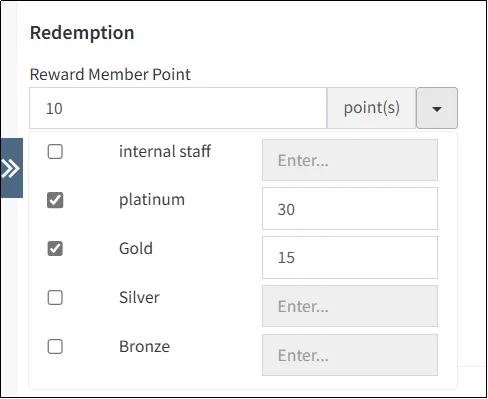
It is also possible to set different rewards for different levels of members.
Click the small arrow to the right of the Shopping Reward Points
Membership levels that are not set separately will be given according to the number entered in the input box at the top, and if the input box at the top is 0, those that are not set separately will not be gifted.
As shown in the figure below, Gold members can earn 15 shopping points for purchasing this product, Platinum members can earn 30 shopping points for purchasing this product, and other members (including Silver and Bronze members who are not separately set) can earn 10 points for purchases.
The same logic applies to Shopping Reward Cash Dollar settings.

Redeem with Points + Price refers to customers purchasing this product using their reward points plus a set redemption fee.
As shown in the image below, customers can redeem this product (valued at $199) for 1,000 points + $50.

At checkout, customers can click Redeem with Member Points to purchase the item using their reward points + the redemption fee.

Pre-sale settings
Pre-sale refers to the pre-sale of this product when the product has not arrived temporarily and the inventory is 0.
Select [Enable Pre-sale] as Yes, and you can choose whether to enable pre-sale on the online store or POS.
You can set the upper limit of the pre-sale, or you can check Unlimited. The upper limit of POS pre-sale at each offline location is independent and does not affect each other. If the online store and POS pre-sales are enabled at the same time, and the pre-sale upper limit is set, the default location and the online store share the same pre-sale upper limit.
As shown in the settings in the figure below, this product can be pre-sold in online stores and POS. The upper limit of pre-sales is 20, that is, the pre-sale will stop after 20 pre-sold.

After the pre-sale setting is turned on, the product will see the pre-sale reminder on the product details page.

Commodity SKU price setting
Sometimes, different SKU of the same product require distinct pricing. You can also set location-specific prices (e.g., for different retail stores).
Price Settings by SKU
Click the SKU info tab on the product editing page to view all SKUs for this product

Location-Based Price Settings
In product edit mode, click Show/Hide Field

In the retail price column with location codes, enter the product price
Locations without custom pricing will default to the product's [Retail Price].
As shown in the image below: Location S1 is set to 350 HKD and will sell at this price, while other locations (e.g., S2, S3) will use the default retail price of 399 HKD.


