Label Assistant
When selling products, many merchants will attach labels to the products to identify their name, classification, price, and other information. At the same time, they can also place QR codes or barcodes on the labels to facilitate the identification of products during offline sales.
Select product
Open CMS clickcommodityclickLabel AssistantClick on the tabSelect product 。
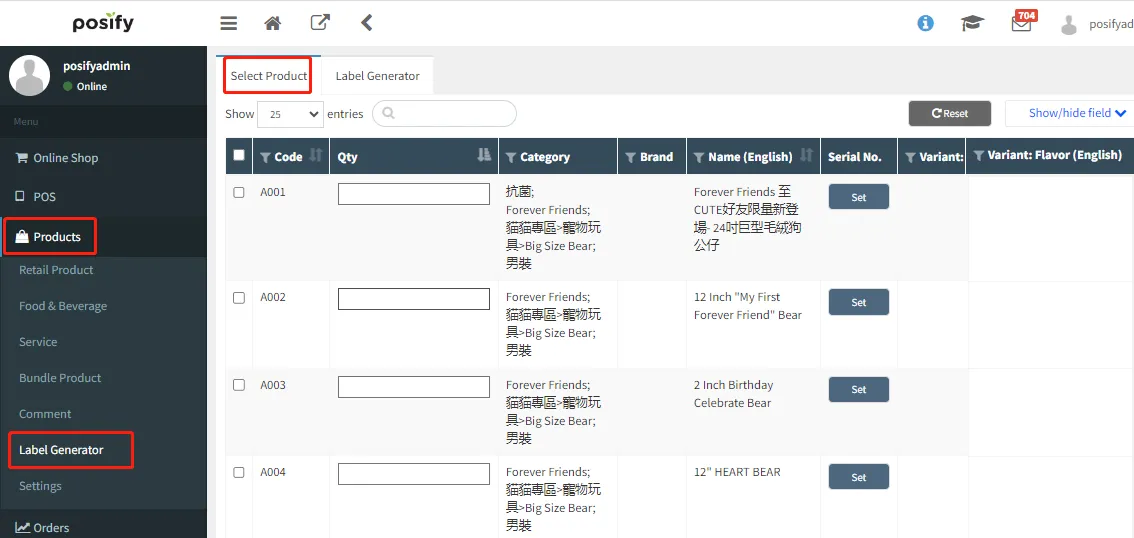
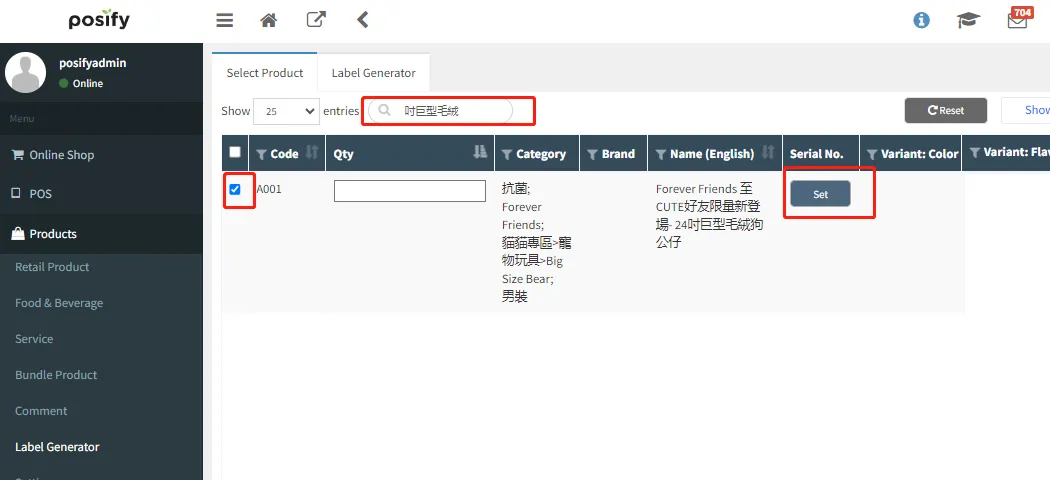
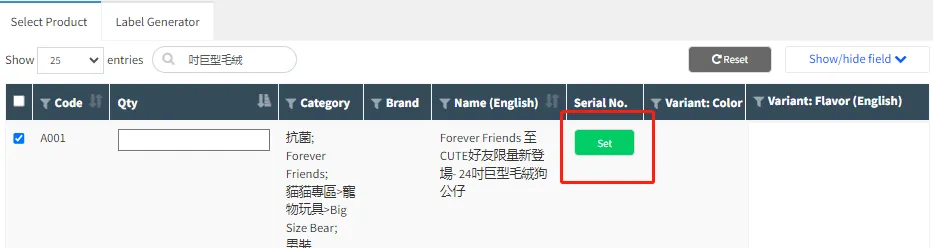
Search for products that want to print labels based on their product number or product nameCheck the target productClick on [Settings] to the right of the target product.
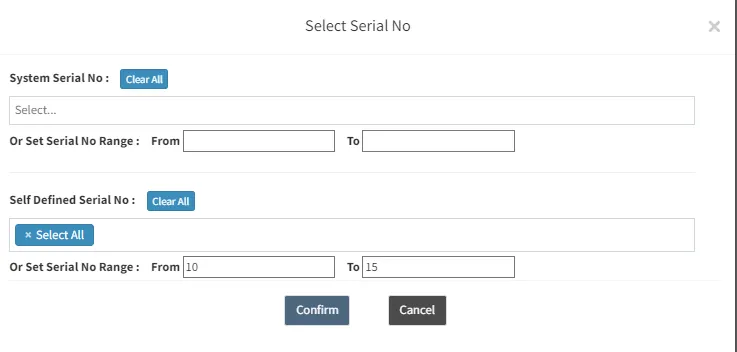
Select the serial number of the product you want to print the label on. You can use the system serial number, customize the serial number, or set the range of the serial number area. After editing, clickconfirm。
When the button [Set] turns green, complete the operation.
Label helper
Through the Label Assistant, we can edit label printing settings.
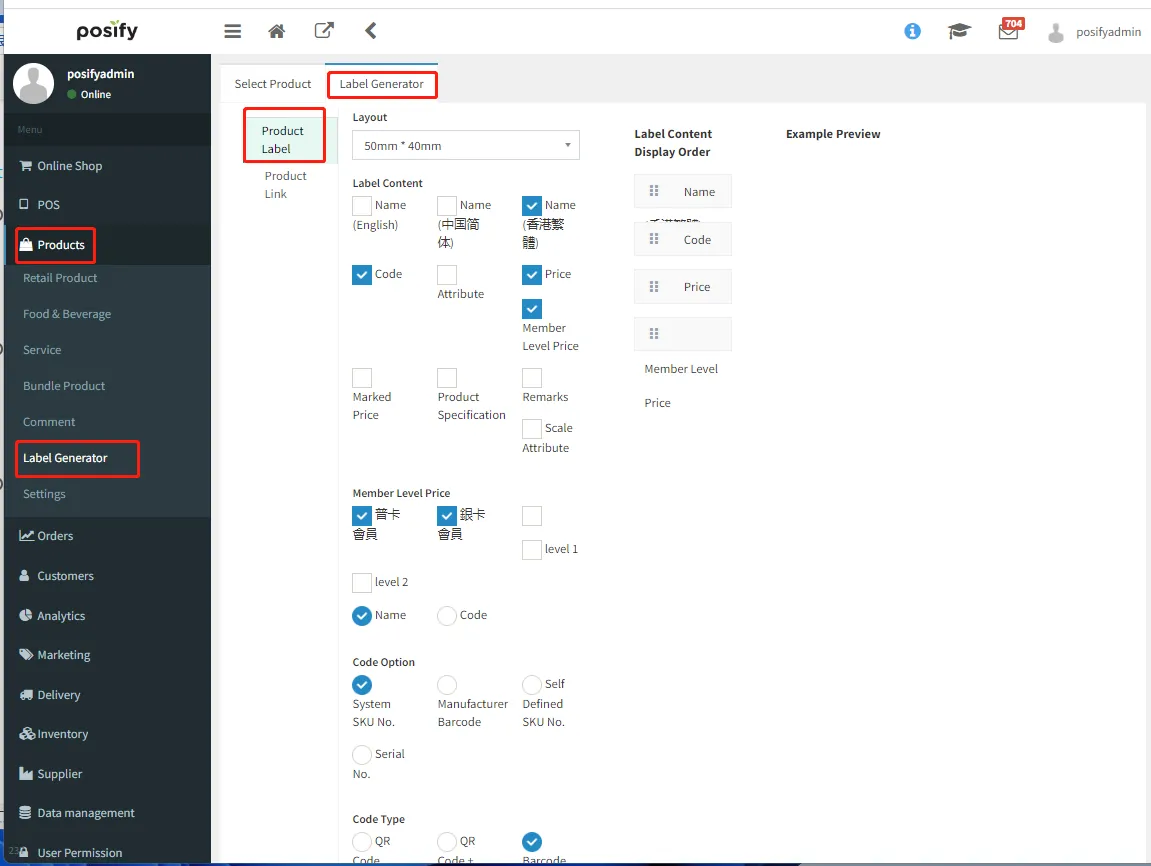
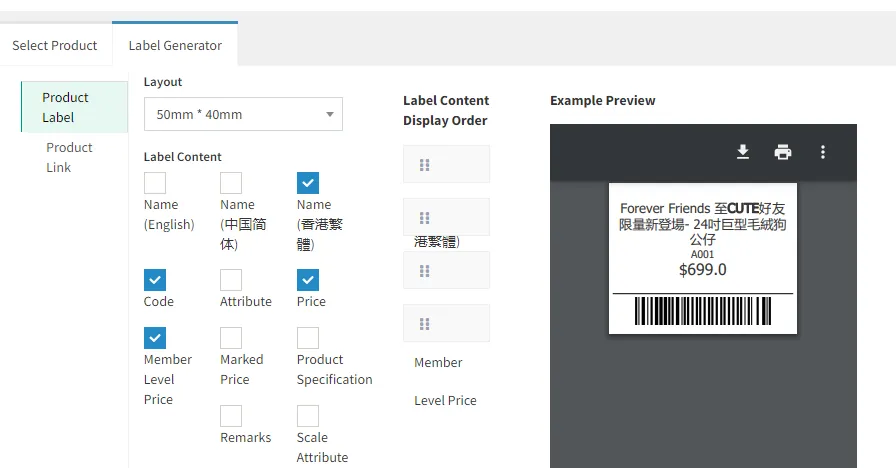
openCMSclick商品clickLabel AssistantClick on the tabLabel AssistantClick on the sub tabProduct label,You can edit the label printing settings.
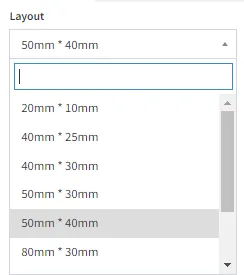
size:
Label length*width。
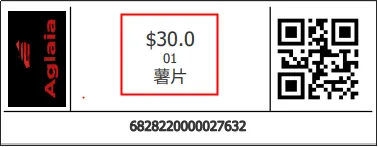
Label Properties:
The attributes that need to be displayed on the label will be displayed in the preview image below when the attribute is selected.
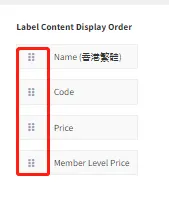
The display order of label attributes can be achieved by holding down the button Drag to adjust。
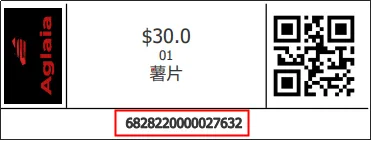
Encoding Options:
The encoding will be displayed in the preview image below.
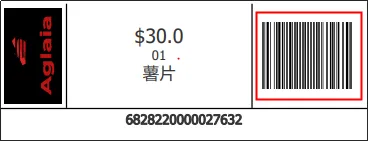
Encoding type:
The QR code or barcode will be displayed in the preview image below.
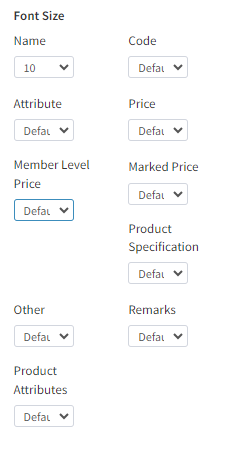
font size:
Show Borders:
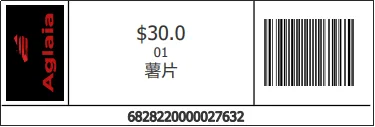
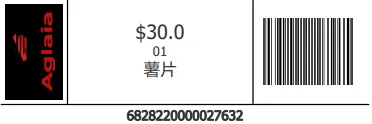
Compare border and borderless label previews.
Border label:
Borderless label:
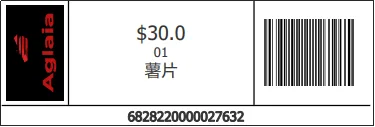
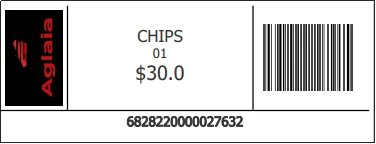
Label Language:
Traditional Chinese Label:
English labels:
After completing the editing, click [Preview] to view the editing effect.
Print product
Click on the preview in the upper right corner[>>]click Enter the printing page.
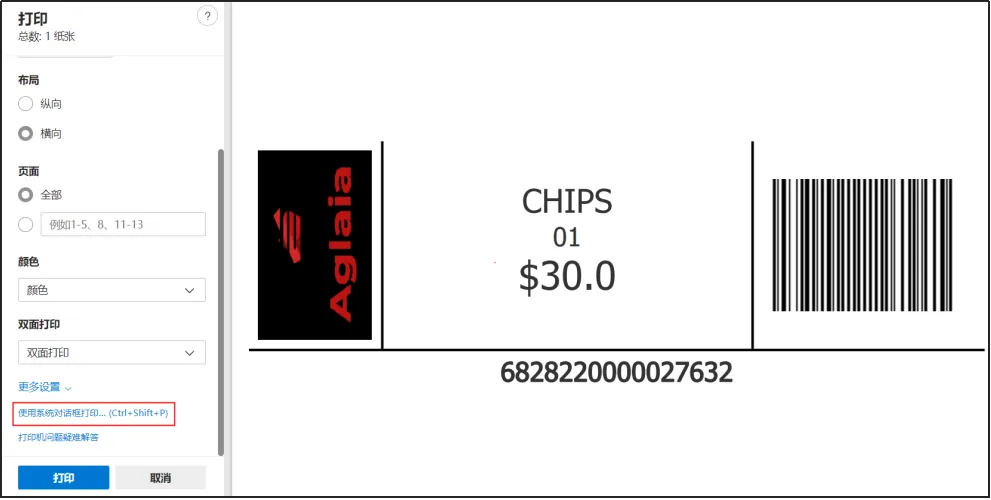
After editing the relevant printer settings, click [Print using the system dialogue box]。
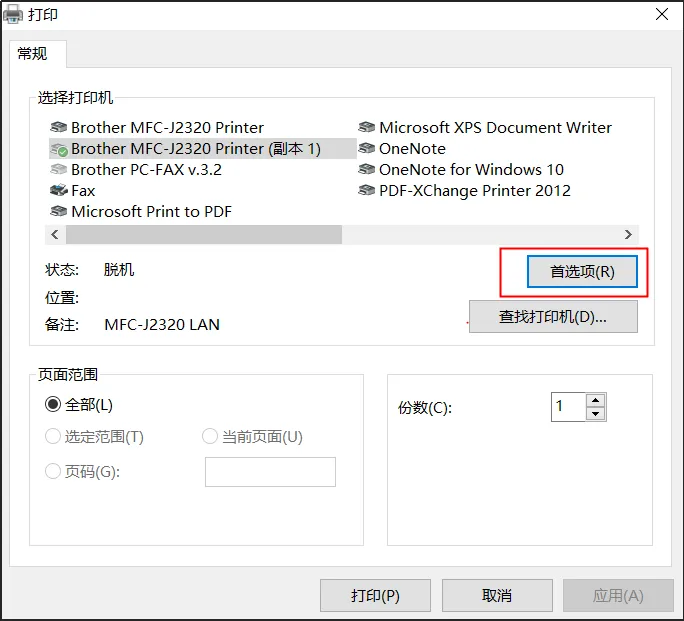
Click on [Preferences]。
Click the expand button next to [Paper Size] ,clickUser defined dimensions。
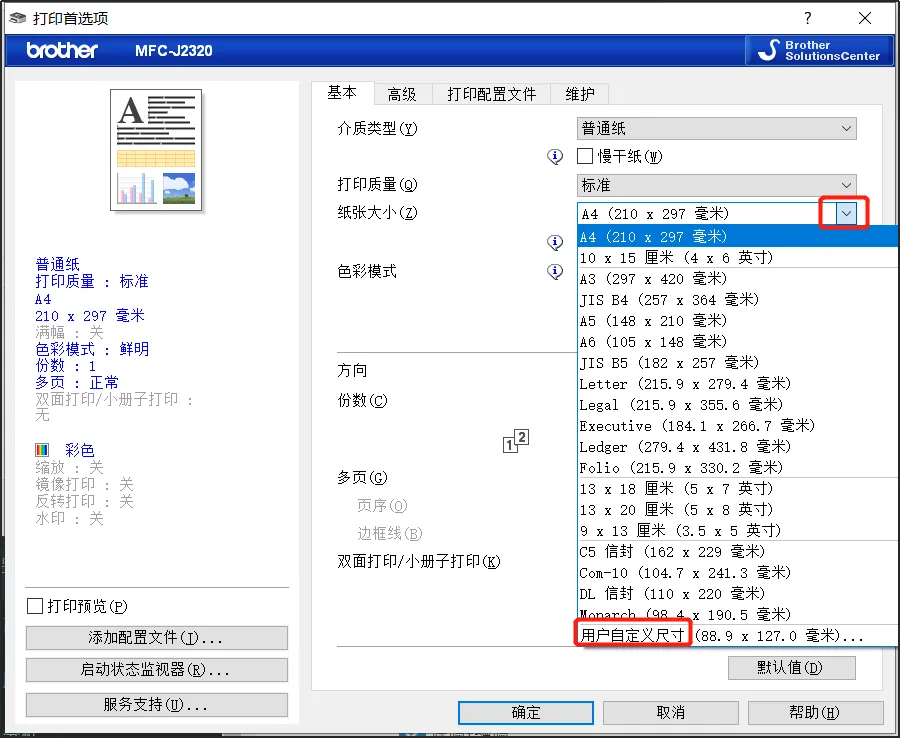
Adjust the length and width of the paper to the length and width set in the label assistant。
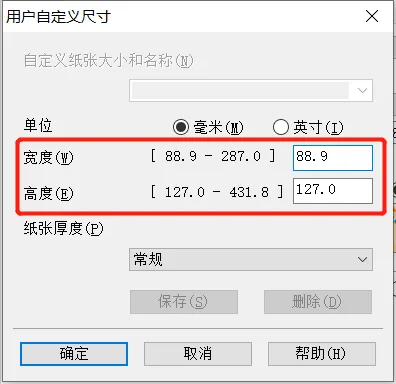
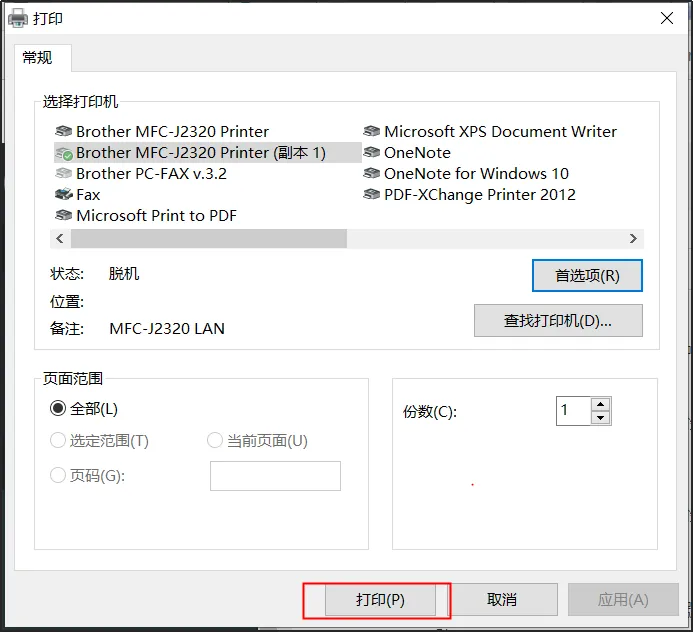
After setting, click [Print] to proceed。