Import product photos in bulk
Some products will have multiple photos, so it is more efficient to import them in bulk than one by one.
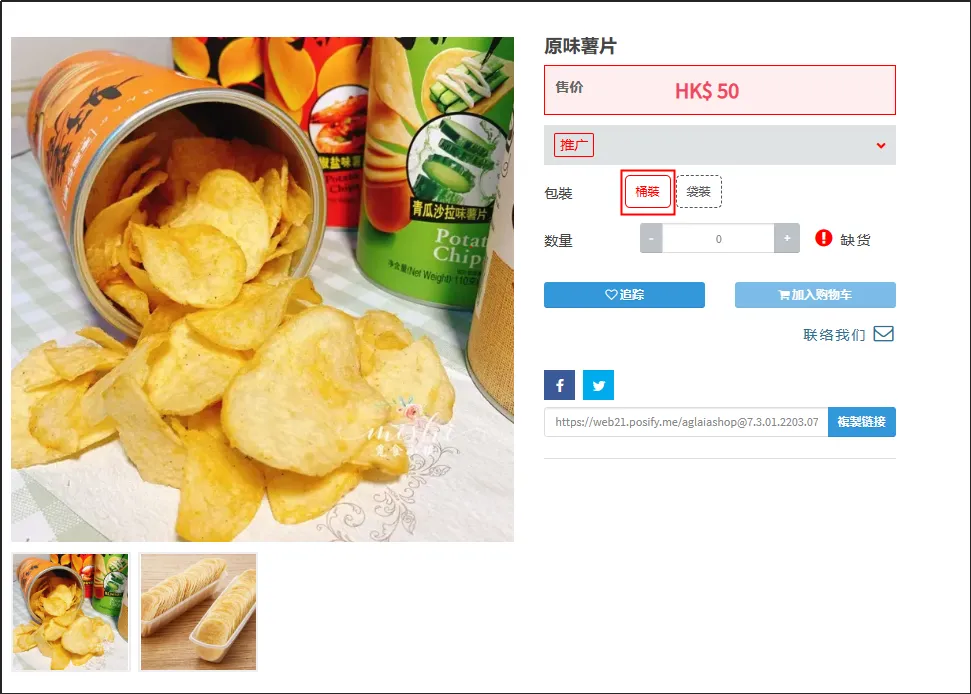
For example, now we need to import several photos for the original potato chips of the product.
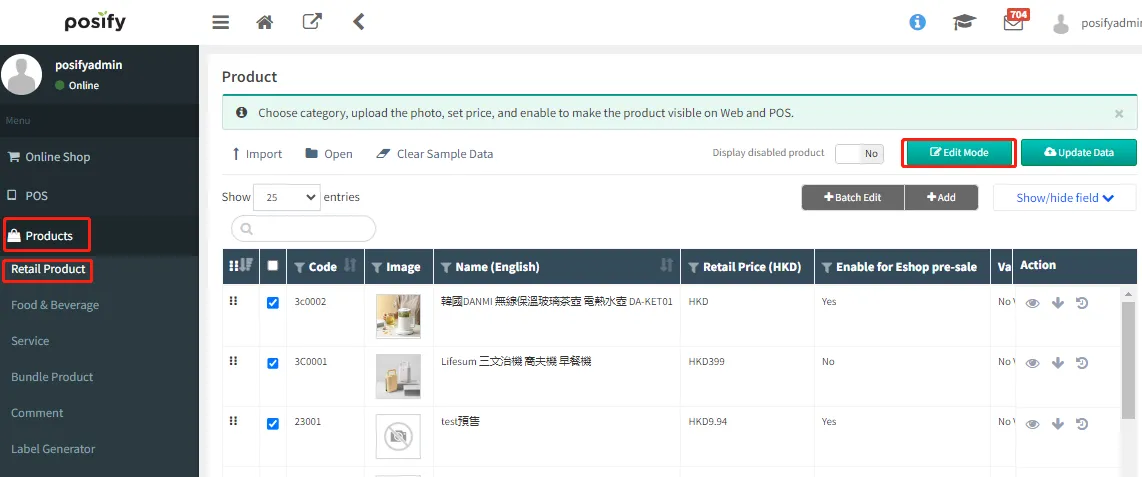
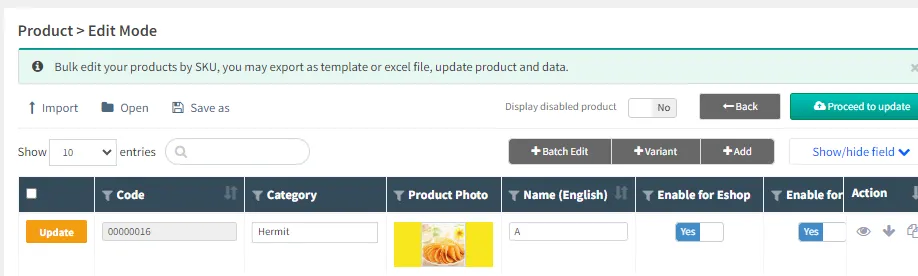
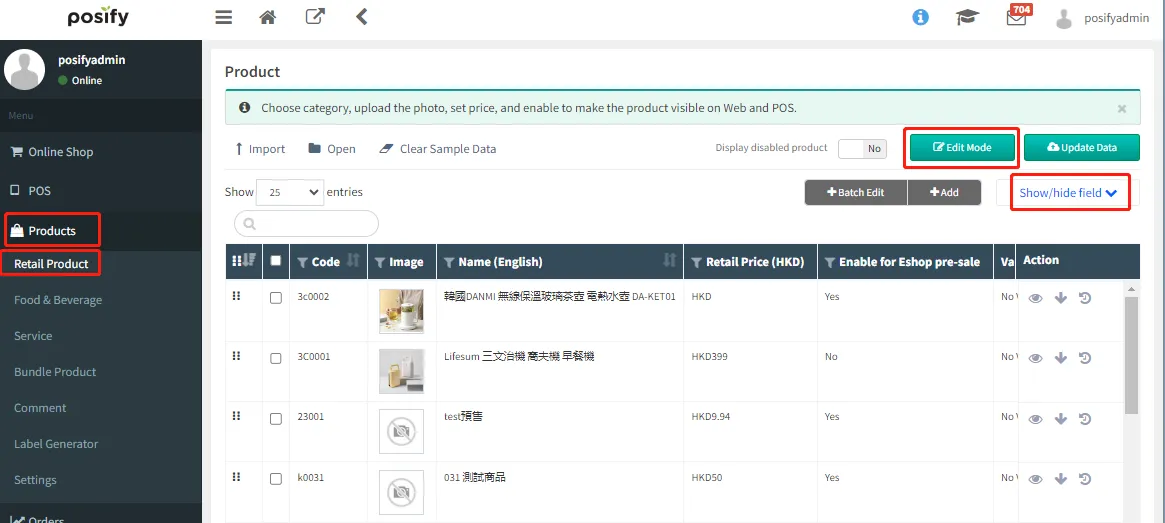
Open CMS Click ProductsClick Retail ProductsClick [Edit mode].
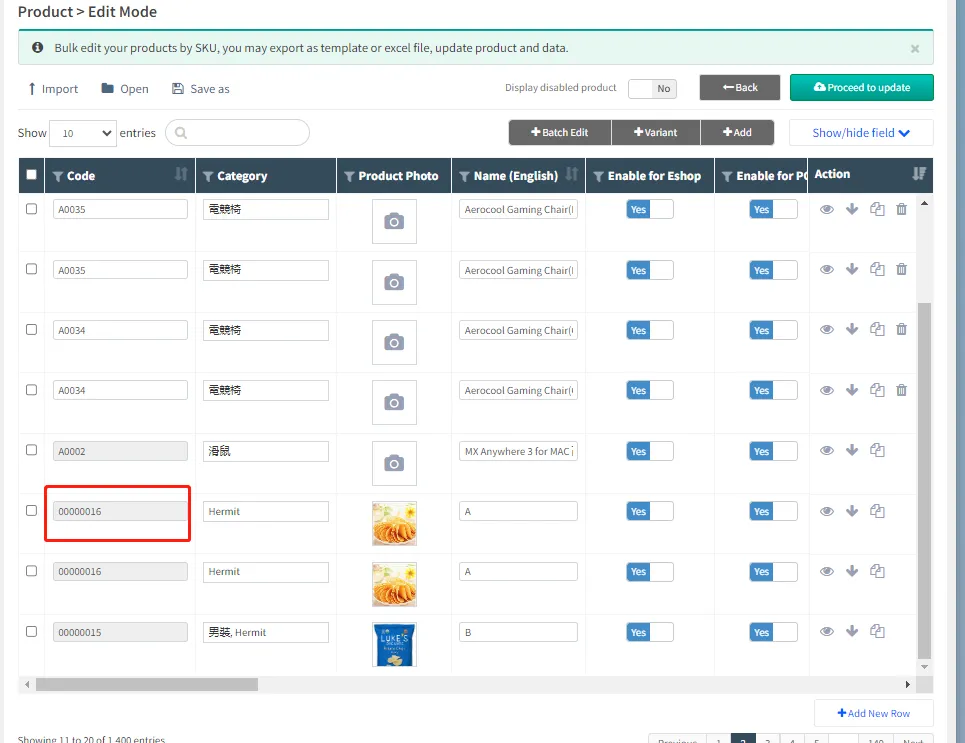
Copy the product ID of the target product.
Open the folder where the product photos are stored, change the photo file name to the corresponding product number, if you need to import multiple photos, add parentheses after the product number and mark the photo serial number, pay attention to the English parentheses.
For example, to import five photos for the product number 0002 above, the three photos should be named "0002(1)", "0002(2)", "0002(3)", "0002(4)" and "0002(5)".
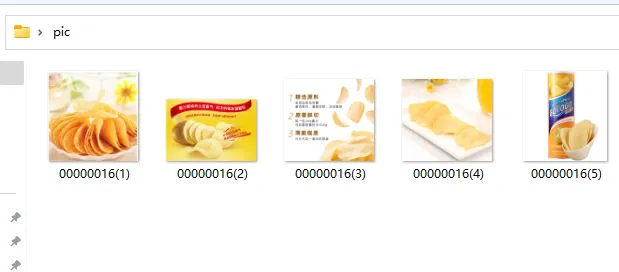
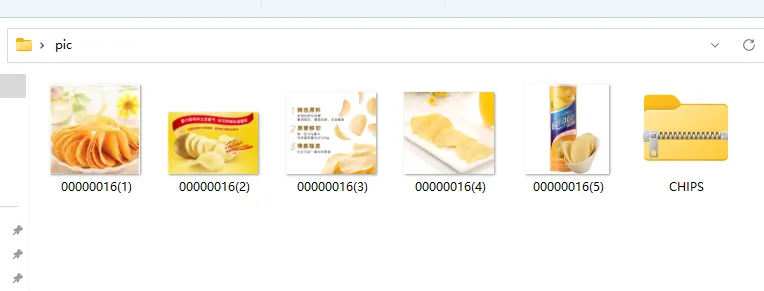
Select all photos to generate a compressed document.
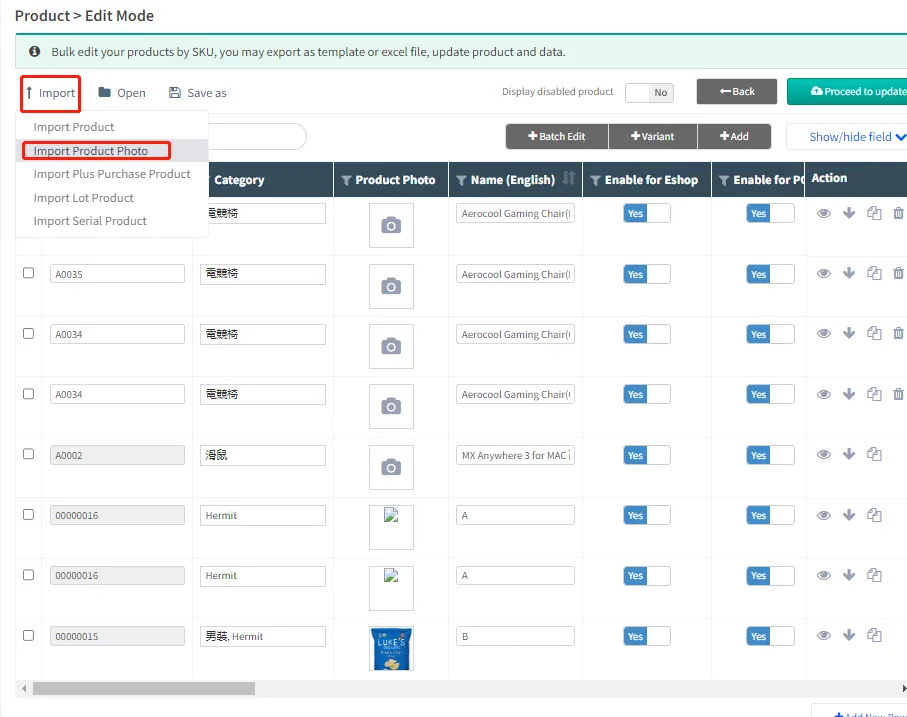
Back to CMSClick ProductsClick Retail ProductsClick [Import] and click [Import product images].
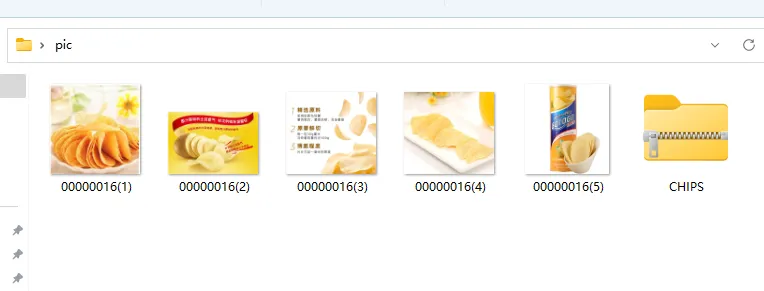
Select the product photo compression document just now.
After uploading, click [Update Now] to complete the import.
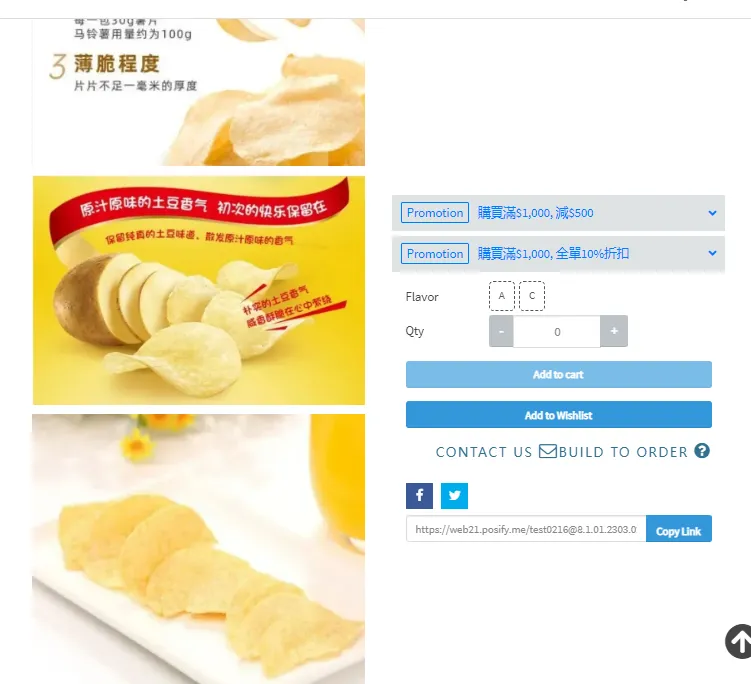
You can see the imported image on the detail page of the product.
Remark:
The recommended size of each imported photo should not exceed 1MB, and the photo format should be JPG, JPEG or PNG format.
You need to select the photo file to generate the compressed document, do not select the Chinese folder and other non-photo files, otherwise the import will be problematic.
The format of the compressed document should be ZIP format, and a single ZIP document should not exceed 50M.
If there are multiple compressed documents to import, you need to upload a compressed document, click Update Now and then continue to upload the next compressed document.
Import SKU photos in bulk
If the product has attributes of different SKUs, you need to import the corresponding photos for each SKU.
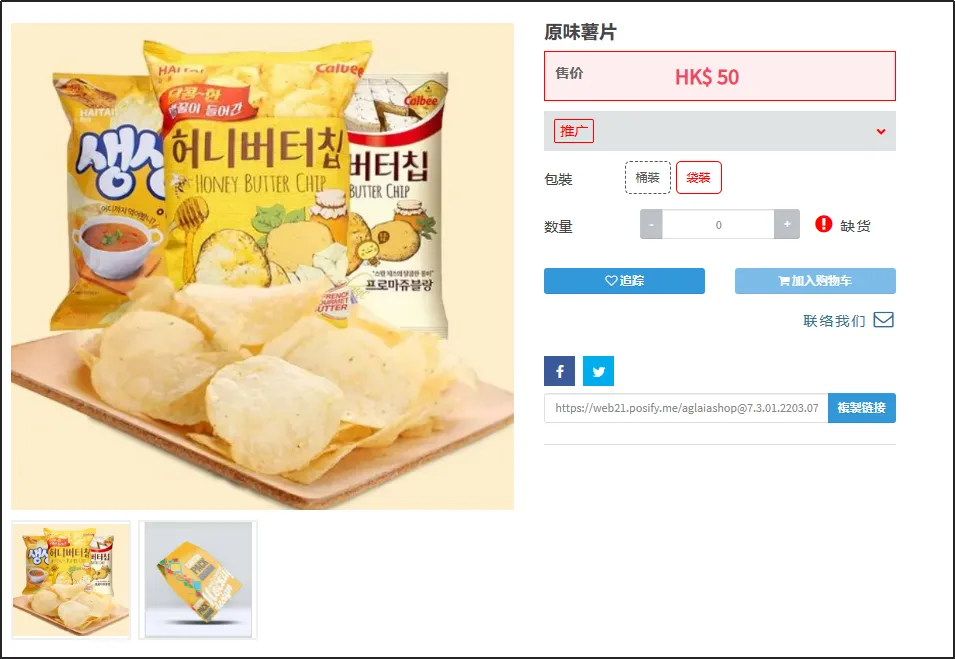
For example, now that our packaging attributes for plain potato chips are divided into barrels and bags, we need to import the corresponding photos for these two SKUs.
Open CMSclick Productclick Retail Product click [Edit Mode], enter Edit Mode, and click [Show/Hide Bar].
In General Content, select SKU No., Manufacturer Number, Custom SKU No., and SKU Image.
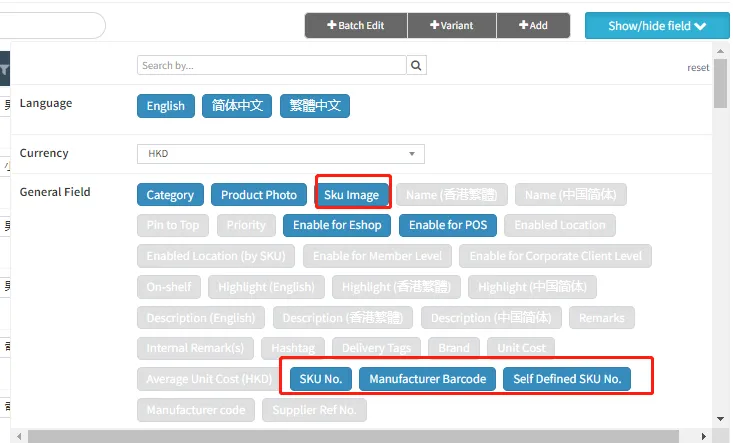
SKU No., vendor number, and custom SKU No. here are different for each SKU, so they can be used to distinguish different SKUs. Choose one of these three numbers to distinguish between SKUs, and when importing SKU photos, change the photo file name to this number, and the following operation will be used as an example of SKU No.
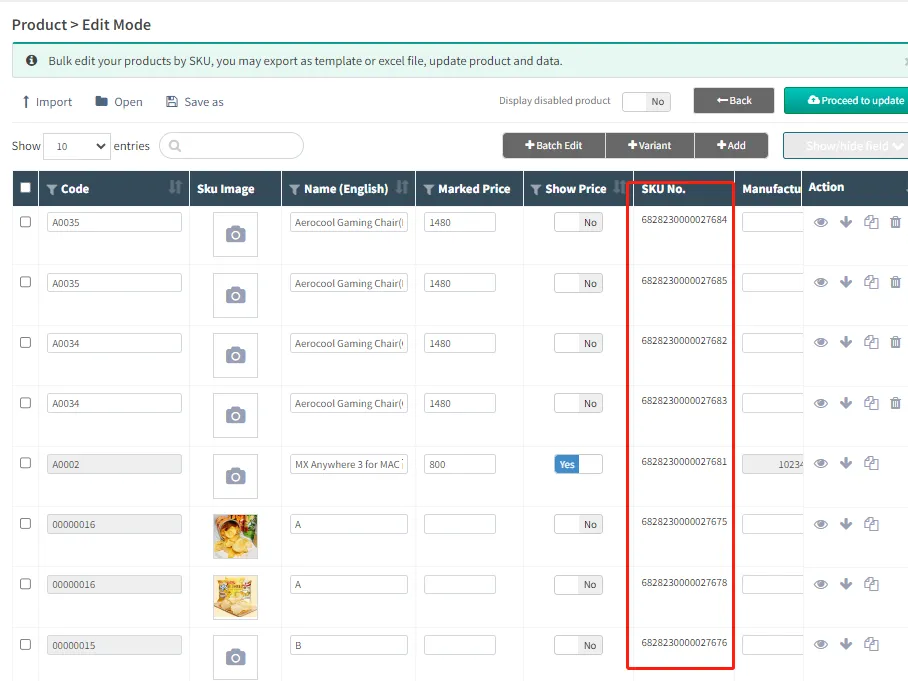
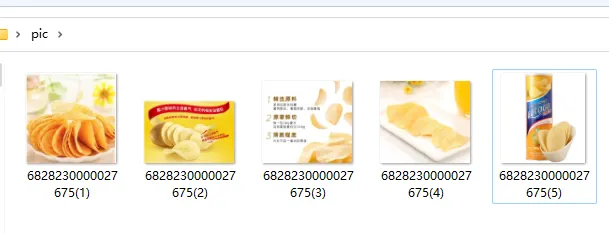
Open the folder where the product photos are stored, rename the photo file name to SKU No. of this SKU, if the SKU needs to import multiple photos, add parentheses after SKU No. and mark the photo serial number, pay attention to English parentheses.
For example, to import two photos for SKU No. 6828220000027653, the two photos should be named 6828220000027653 (1) and 6828220000027653 (2).
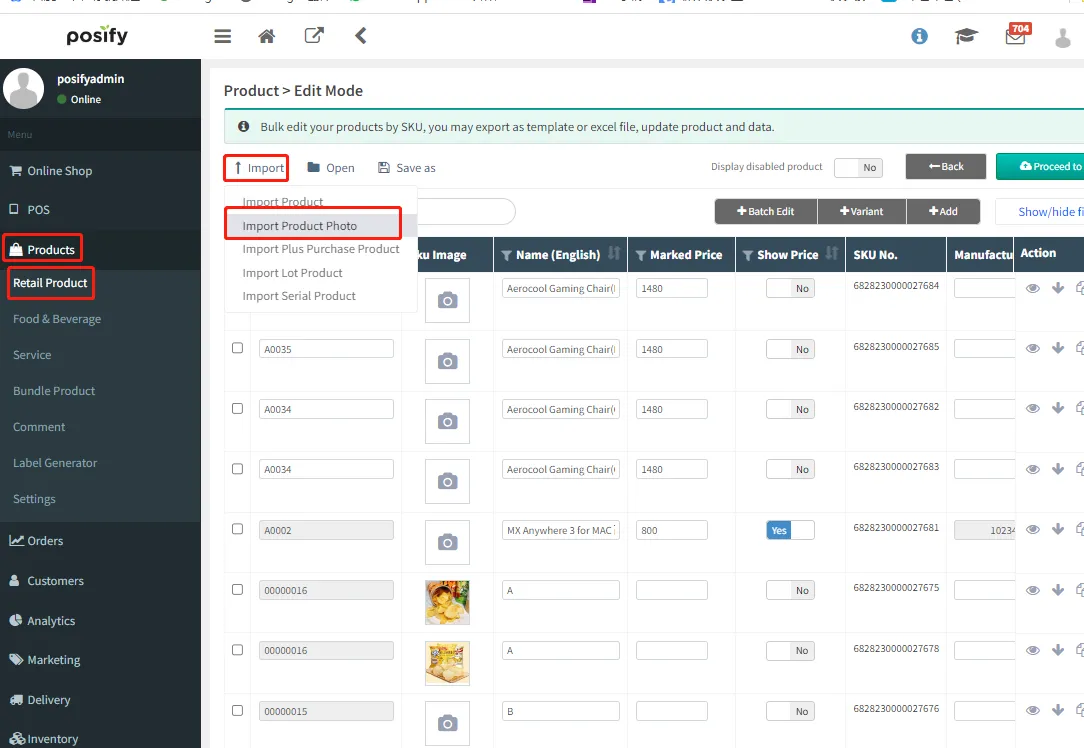
Go back to CMS click productclick Retail click Import click Import Photos.
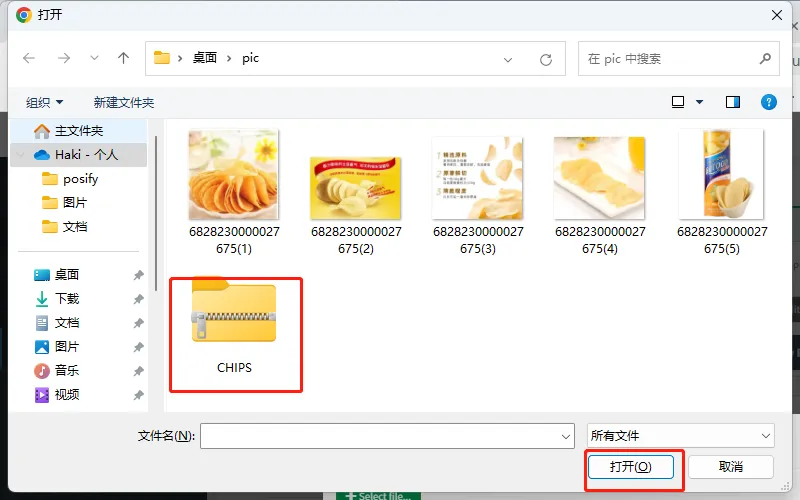
Select the product photo compression document just now.
After uploading, click [Update Now] to complete the import.
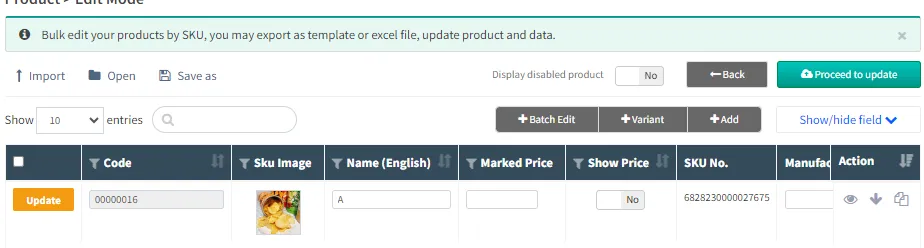
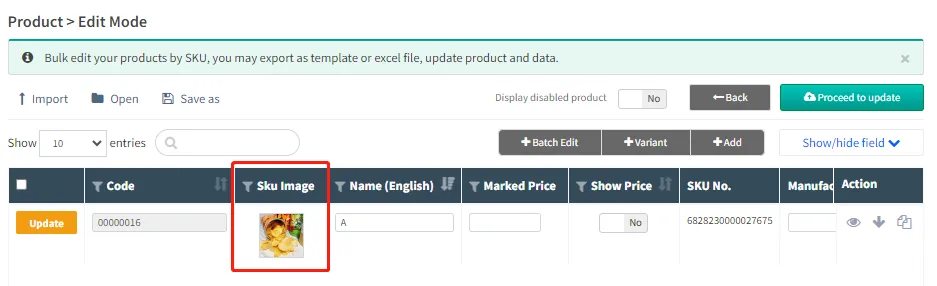
You can see the imported SKU photos on the product management page.
On the product detail page, click the corresponding SKU to display the corresponding photo.