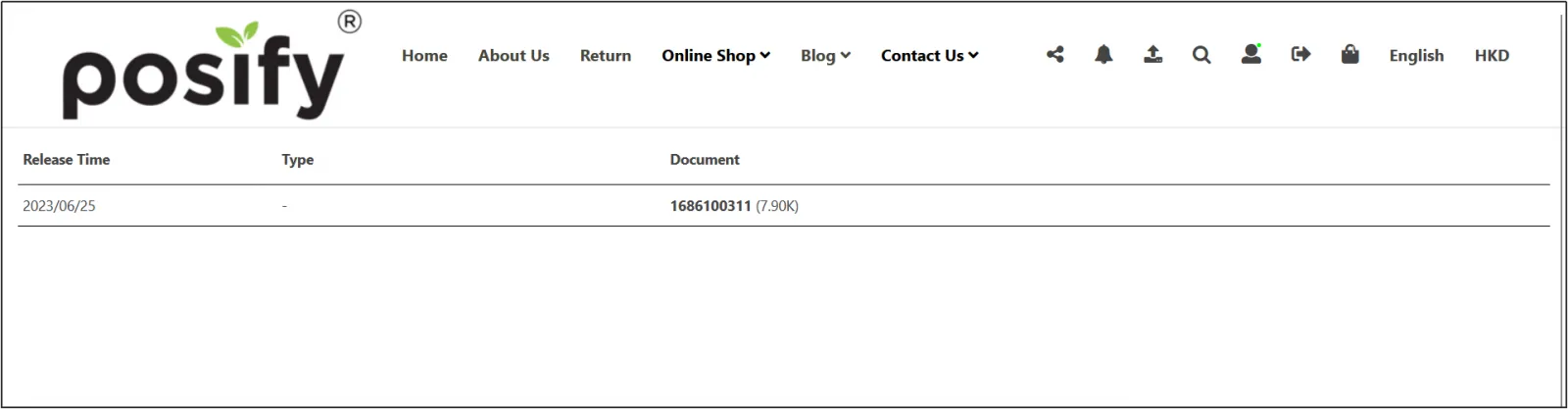
Folder Settings
Here's how to upload downloadable material in a folder:
 step:
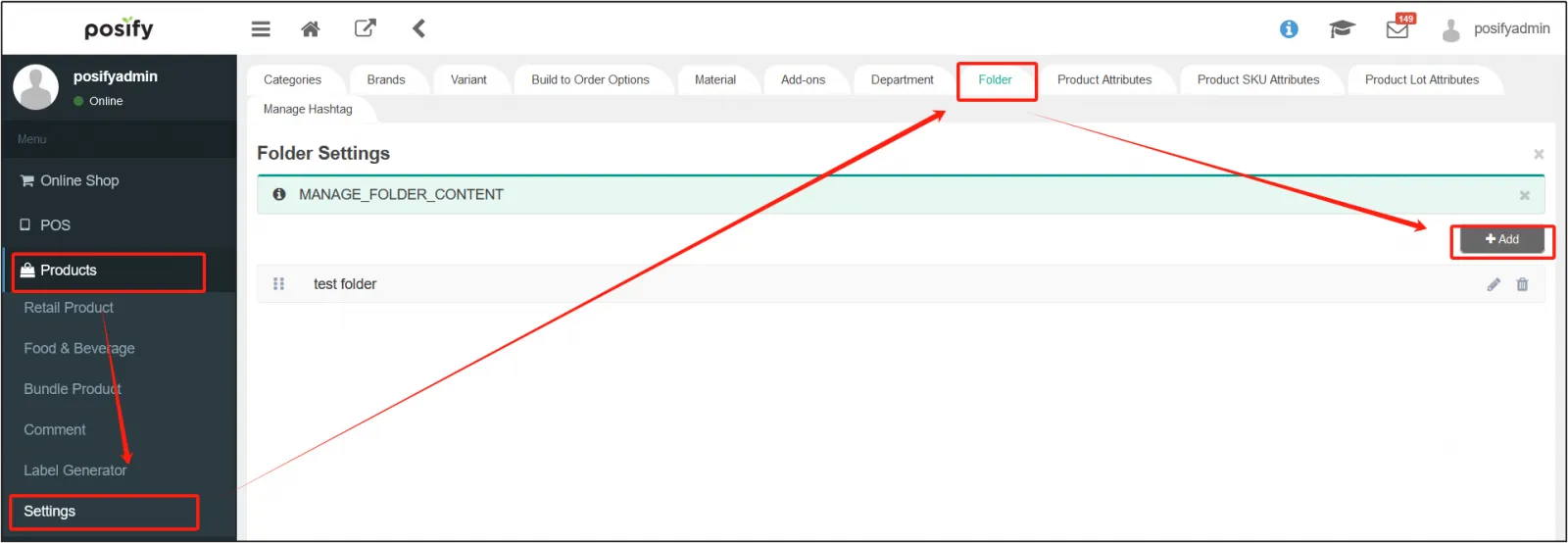
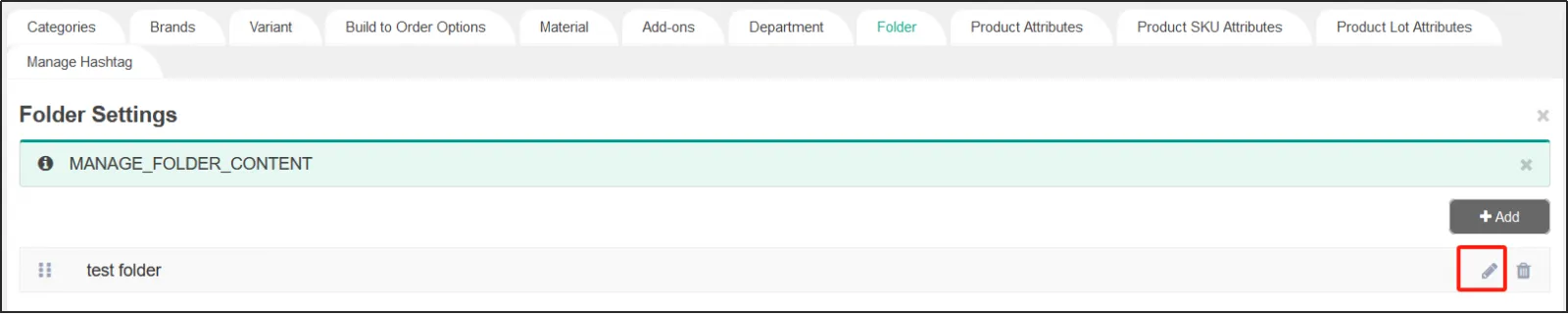
1. Open CMS click the product click Product related settings Click the tab folder settings Click [Add] to add a folder.
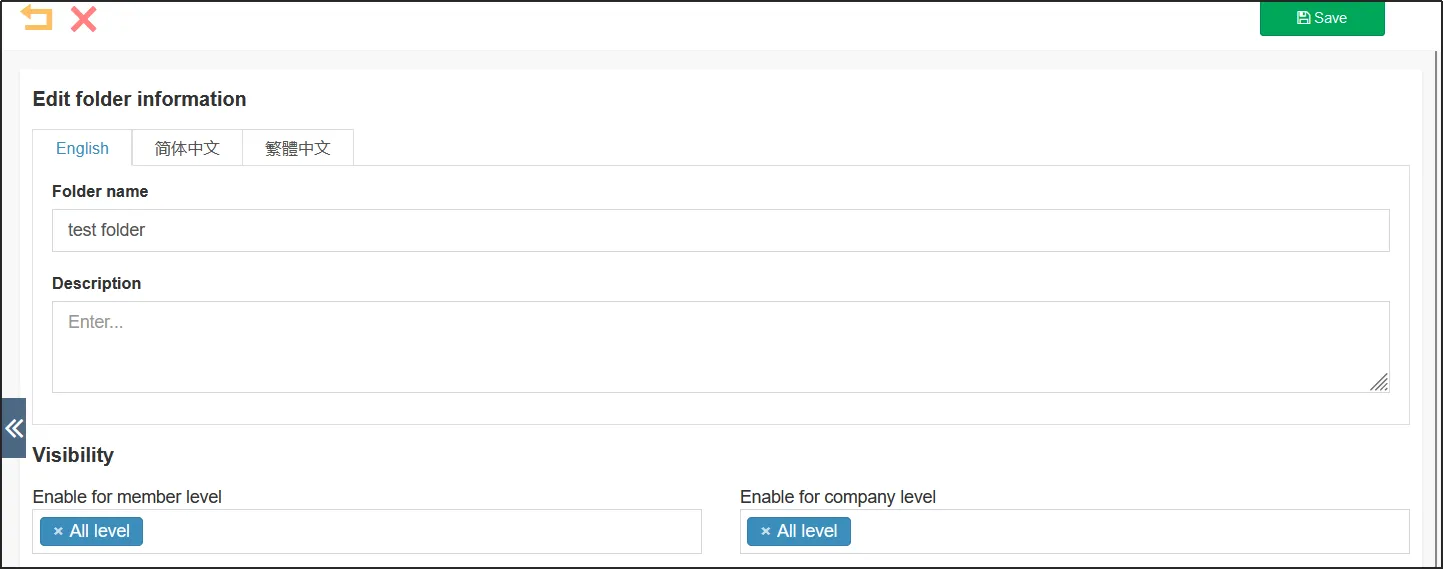
2. Fill in the information of the new folder, including [Name], [Help], [Enable Membership Level], and [Enable Enterprise User Level].
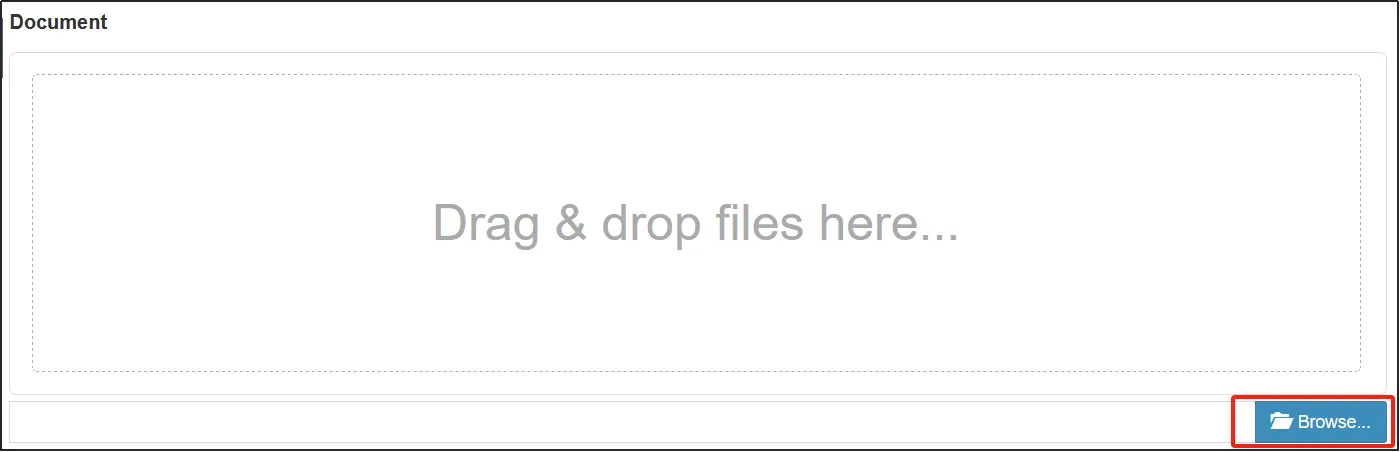
3. Under Folder Documents, tap Select File.... Select the file you want to upload to the folderclick Save.
4. Click the small pen icon on the right side of the folder to re-edit the folder information, and add or delete files in the folder.
5. Once you have set up the folder and uploaded the file. When editing a page using the website editor in the Online Store - Design/All tabs, you can add [Download Center Component] to realize the file in the download folder in the Online Store.
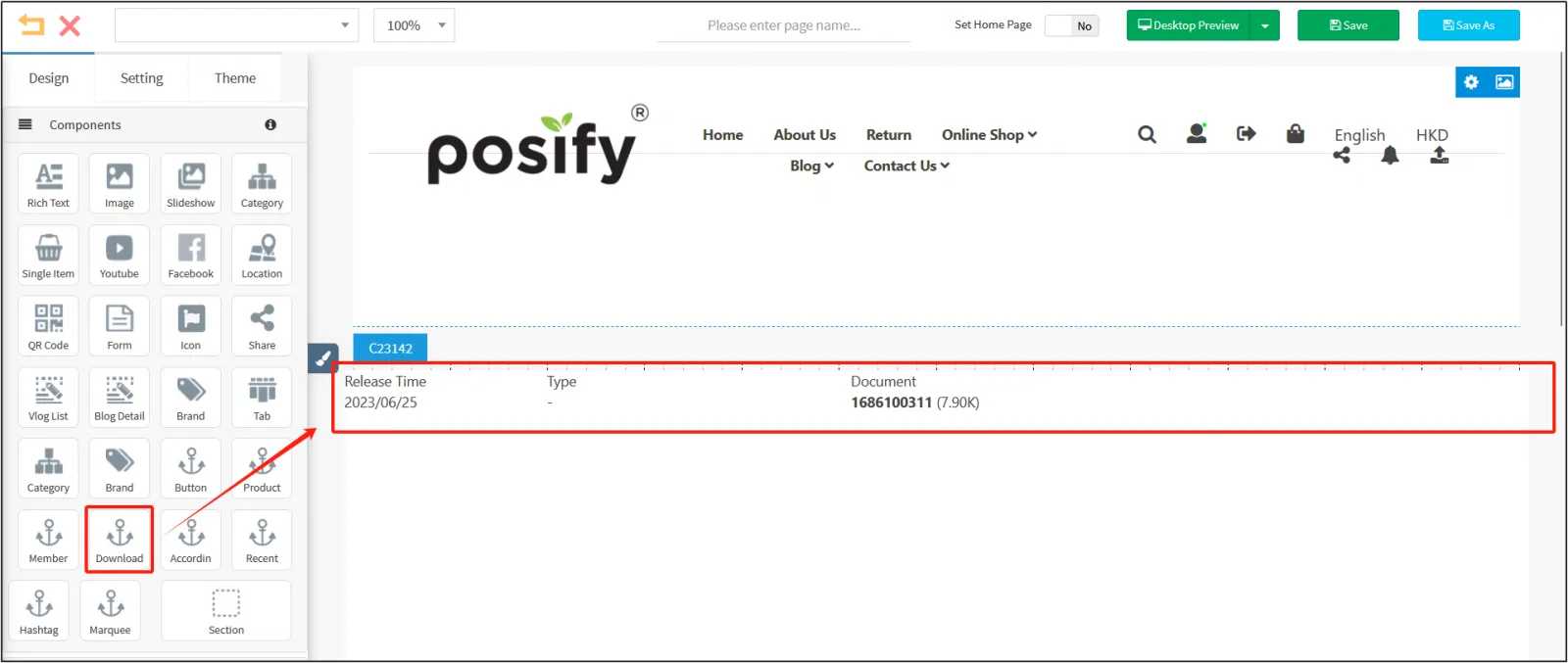
The online store displays the effect.